
Introduction
The ZINFI Partner Co-Selling Management application enables administrators to oversee, govern, and collaborate on partner-driven Co-Sell opportunities through a centralized platform. It provides full pipeline visibility, structured approval workflows, and controlled collaboration across partners and internal sales teams.
As an Admin, you can review Co-Sell opportunities submitted by partners, manage deal details, monitor execution activities, and approve or reject records based on defined governance rules.
Co-Sell Hub
What Does It Do?
The Co-Sell Hub serves as a centralized repository for all Co-Sell opportunities created and managed by partners. It provides a consolidated view of deal status, sales stages, expected close dates, and deal values, enabling effective pipeline tracking and collaboration with vendors.
Accessing Co-Sell Hub
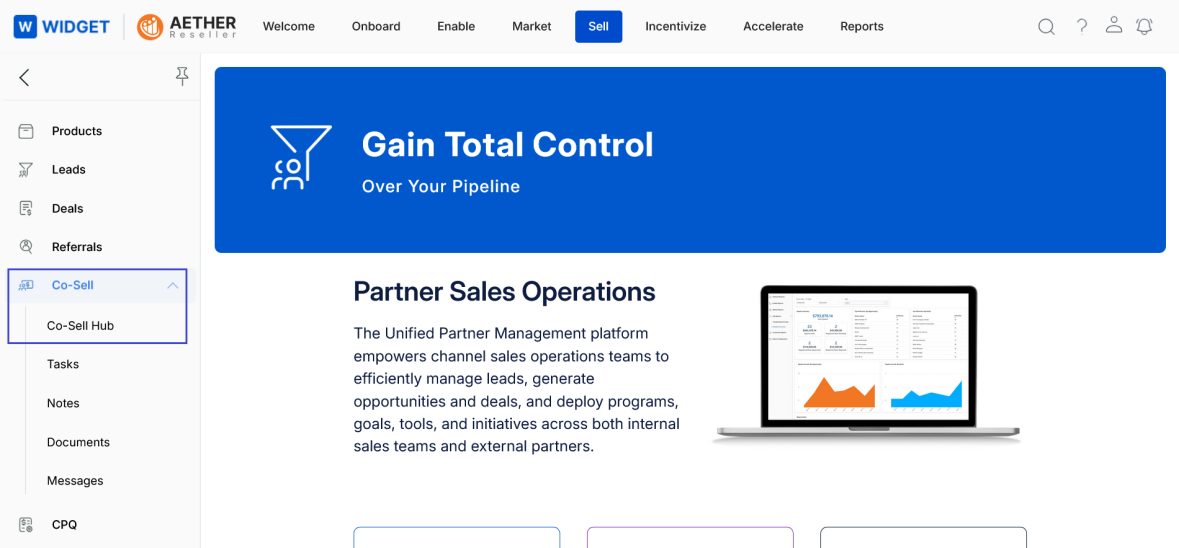
- Click Sell from the top navigation menu.
- From the left navigation panel, click Co-Sell > Co-Sell Hub.
View Co-Sell Hub
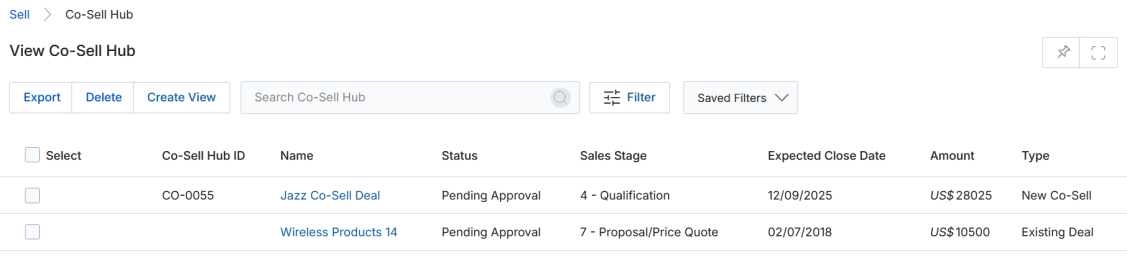
- The View Co-Sell Hub page displays all Co-Sell opportunities submitted by partners.
- The listing includes the following columns:
| Column | Description |
|---|---|
| Co-Sell Hub ID | System-generated unique identifier for each Co-Sell opportunity. |
| Name | Name of the Co-Sell opportunity provided by the partner. |
| Status | Current workflow status of the Co-Sell record. |
| Sales Stage | Sales lifecycle stage of the opportunity. |
| Expected Close Date | Estimated deal closure date. |
| Amount | Total deal value. |
| Type | Indicates whether the record is a new Co-Sell or an existing deal. |
The toolbar provides the following page-level actions:
- Export — Exports selected or all Co-Sell records.
- Delete — Deletes selected Co-Sell records.
- Create View — Creates a custom listing view.
- Search — Searches Co-Sell records using keywords.
- Filter — Applies basic or advanced filters.
- Saved Filters — Accesses saved filter configurations.
View a Co-Sell Opportunity
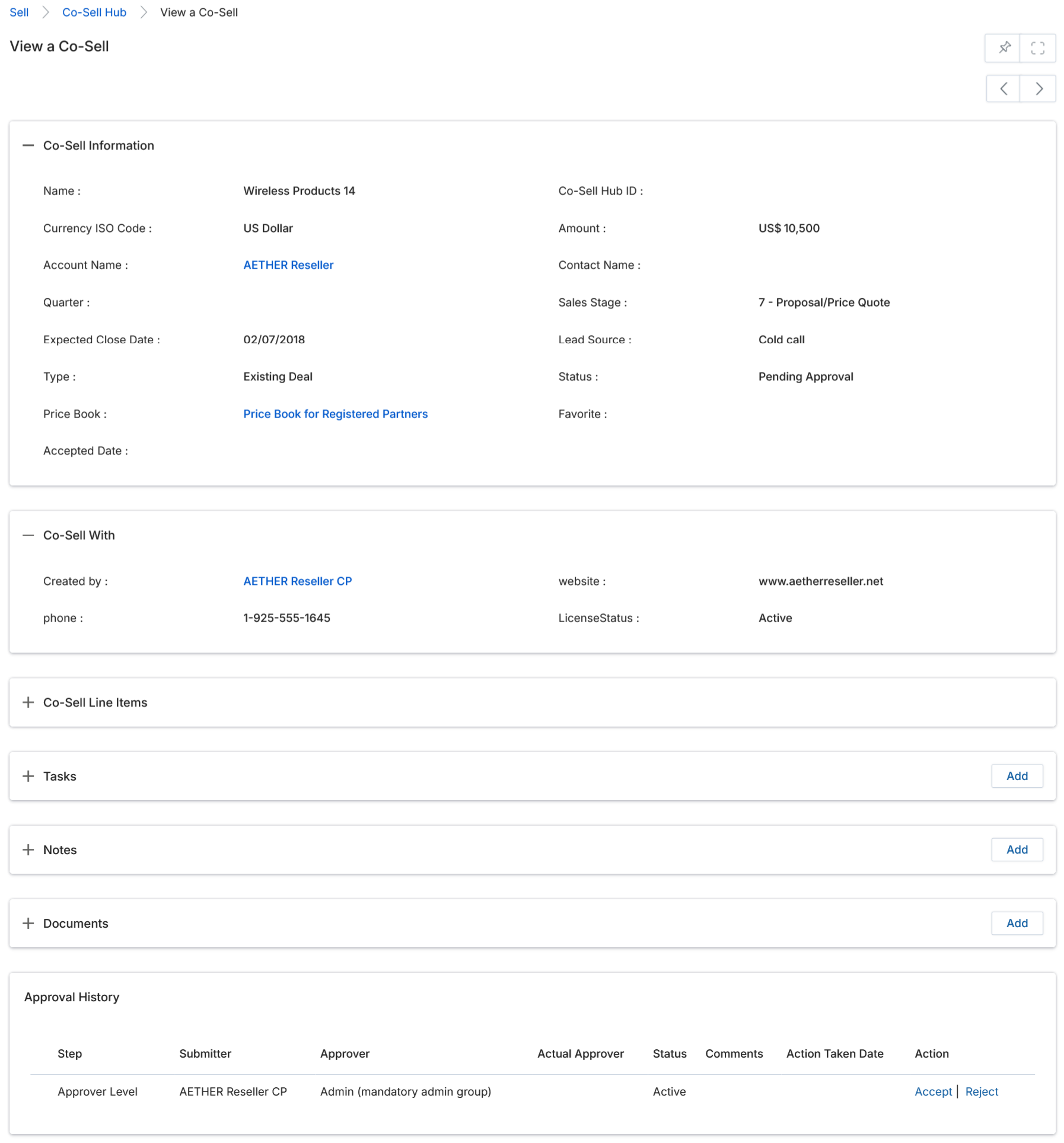
- Click a Name from the listing page to open the detail view.
- The View a Co-Sell page contains the following sections:
a. Co-Sell Information — Displays the primary details of the Co-Sell opportunity.
| Field | Description |
|---|---|
| Name | Name of the Co-Sell opportunity provided by the partner. |
| Co-Sell Hub ID | System-generated unique identifier for the Co-Sell record. |
| Currency ISO Code | The currency in which the deal amount is calculated. |
| Amount | Total deal value for the Co-Sell opportunity. |
| Account Name | Customer account associated with the opportunity. |
| Contact Name | Primary contact linked to the Co-Sell deal. |
| Quarter | Fiscal quarter in which the opportunity is expected to close. |
| Sales Stage | Current stage of the opportunity in the sales lifecycle. |
| Expected Close Date | Estimated date on which the deal is expected to close. |
| Lead Source | Origin from which the Co-Sell opportunity was generated. |
| Type | Indicates whether the record is a new Co-Sell or an existing deal. |
| Status | Current approval or workflow status of the Co-Sell record. |
| Price Book | Price book applied to the opportunity for pricing calculations. |
| Accepted Date | Date on which the Co-Sell opportunity was approved. |
| Favorite | Indicates whether the opportunity is marked as a favorite. |
b. Co-Sell With — Displays information about the partner associated with the opportunity.
| Field | Description |
|---|---|
| Partner Name | Name of the partner submitting the co-sell opportunity. |
| Website | The partner's registered website. |
| Contact Number | Primary contact number of the partner. |
| License Status | Indicates whether the partner's license is active or inactive. |
c. Co-Sell Line Items — Captures product-level details for the Co-Sell opportunity.
| Column | Description |
|---|---|
| Product Name | Name of the product included in the co-sell deal. |
| Sales Price | Selling price of the product. |
| Quantity | Number of units included in the deal. |
| Net Total | Total value calculated based on price × quantity. |
This section supports accurate deal valuation, forecasting, and pricing visibility.
d. Tasks — Action items created against this Co-Sell record. Click the Add button to create a new task linked to this opportunity.
e. Notes — Engagement notes and history captured against this Co-Sell record. Click Add to add a new note.
f. Documents — Supporting files attached to the Co-Sell record by partners or admins. Click Add to attach a document.
g. Approval History — Displays the approval workflow details for this Co-Sell opportunity.
| Column | Description |
|---|---|
| Step | Approval level or stage in the co-sell approval workflow. |
| Submitter | User who submitted the co-sell opportunity for approval. |
| Approver | Designated approver assigned to review the co-sell opportunity. |
| Actual Approver | User who actually performed the approval or rejection action. |
| Status | Current approval status at this step. |
| Comments | Remarks or justification provided during the approval action. |
| Action Taken Date | Date on which the approval or rejection was performed. |
| Action | Click Accept to approve, or Reject to reject the opportunity and provide comments. |
Tasks
Tasks allow Admins to track and manage action items related to a Co-Sell opportunity, ensuring timely follow-ups and coordinated execution.
Access Tasks
- Click Sell on the top menu.
- Click Tasks from the left menu bar under Co-Sell.
View Tasks
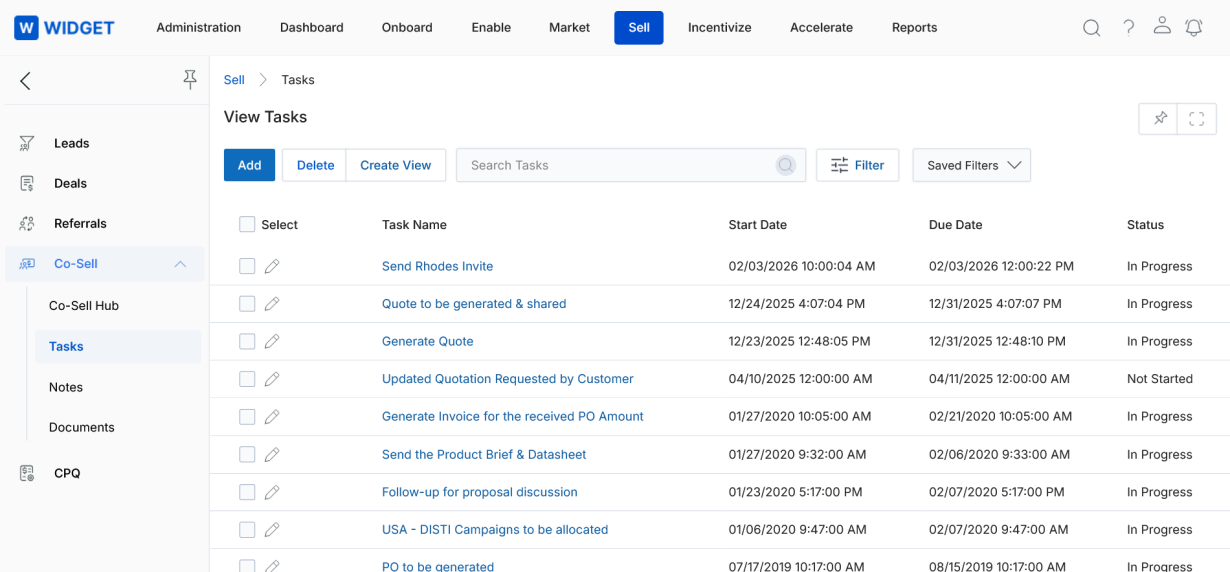
The toolbar provides the following actions:
- Add — Opens a new page to create a task.
- Delete — Deletes selected task(s) from the View Tasks list.
- Saved Filters — Displays a list of saved searches.
- Clicking a Task Name in the grid navigates to the Task Details page.
- Clicking the pen icon opens the task in Edit mode.
View a Task
![View a Task — Task Information section (Task Name: Send Rhodes Invite, Status: In Progress, Start Date, Due Date, Associated Record: Michael Donaldson, Priority: High, Assigned User: portal.admin@zinfitech.com), Additional Information (Description), Tasks Assignment History (Assignment Type: User, Assigned To: Portal Admin [Widget Network], Date Entered), Invitation Sent History (No Data Found)](https://ghcmnhevjmhnfwyuvkls.supabase.co/storage/v1/object/public/page-images/inline/3e06e9f1dbb0031d39a354f977d2e0680c3d5b2d324c80ad7813f803a8c35473.png)
1. Page-Level Actions
- Edit — Opens the task in Edit mode to modify task details.
- Delete — Deletes the task record after confirmation.
- Send Invitation Email — Sends an email invitation related to the task to the assigned user.
2. Task Information
| Field | Description |
|---|---|
| Task Name | Name of the task. |
| Status | Current status of the task (e.g., In Progress, Not Started, Completed). |
| Start Date | Date and time when the task starts. |
| Due Date | Date and time by which the task must be completed. |
| Associated Record | Select Co-Sell Hub and choose the relevant co-sell record to link this task. |
| Priority | Task priority level (e.g., High, Medium, Low). |
| Assigned User | User assigned to complete the task. |
3. Additional Information
- Description — Free-text description of the task and its objectives.
4. Tasks Assignment History
The Tasks Assignment History section tracks changes to task ownership over time.
| Column | Description |
|---|---|
| Action | Action performed on the task assignment (e.g., withdraw). |
| Assignment Type | Type of assignment, e.g., User or Group. |
| Assigned By | User who made the assignment. |
| Assigned To | User to whom the task was assigned. |
| Date Entered | Date and time when the assignment was recorded. |
5. Invitation Sent History
- Displays the history of invitation emails sent for this task.
- If no invitations have been sent, the section displays No Data Found.
Notes
Access Notes
- Click Sell on the top menu.
- Click Notes from the left menu bar under Co-Sell.
View Notes
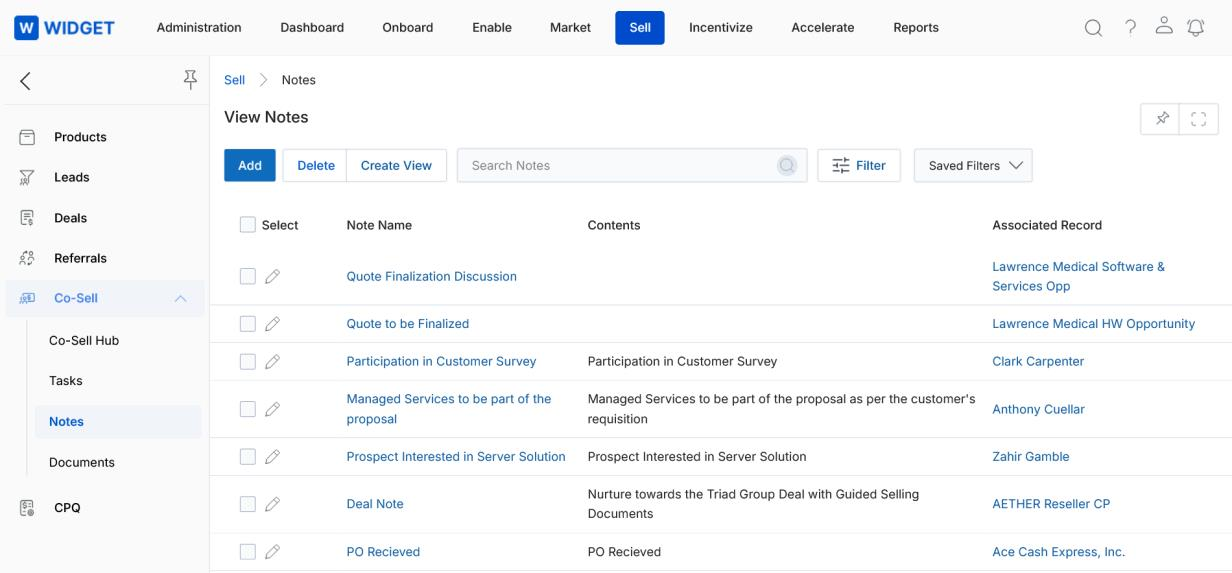
The toolbar provides the following actions:
- Add — Opens a new page to create a note.
- Delete — Deletes selected note(s).
- Saved Filters — Displays saved filters with Edit and Delete options.
- Clicking a Note Name opens the Note Details page.
- Clicking the pen icon opens the note in Edit mode.
- Clicking the Associated Record link navigates to the related Co-Sell record.
View a Note
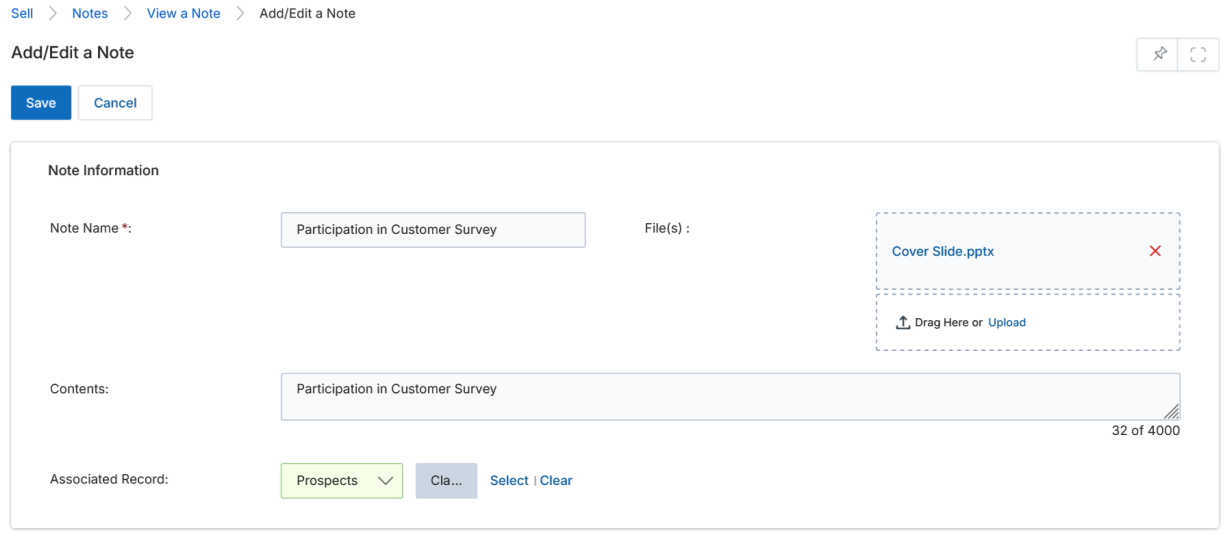
Note Information fields:
| Field | Description | Required |
|---|---|---|
| Note Name | Subject or title of the note. | Yes |
| File(s) | Optional file attachments for the note (drag & drop or upload). | No |
| Associated Record | Select Co-Sell Hub and the relevant record to link this note. | No |
| Contents | Free-text body of the note (up to 4000 characters). | No |
Click Save to create the note, or Cancel to exit without saving.
Documents
Access Documents
- Click Sell on the top menu.
- Click Documents from the left menu bar under Co-Sell.
View Documents
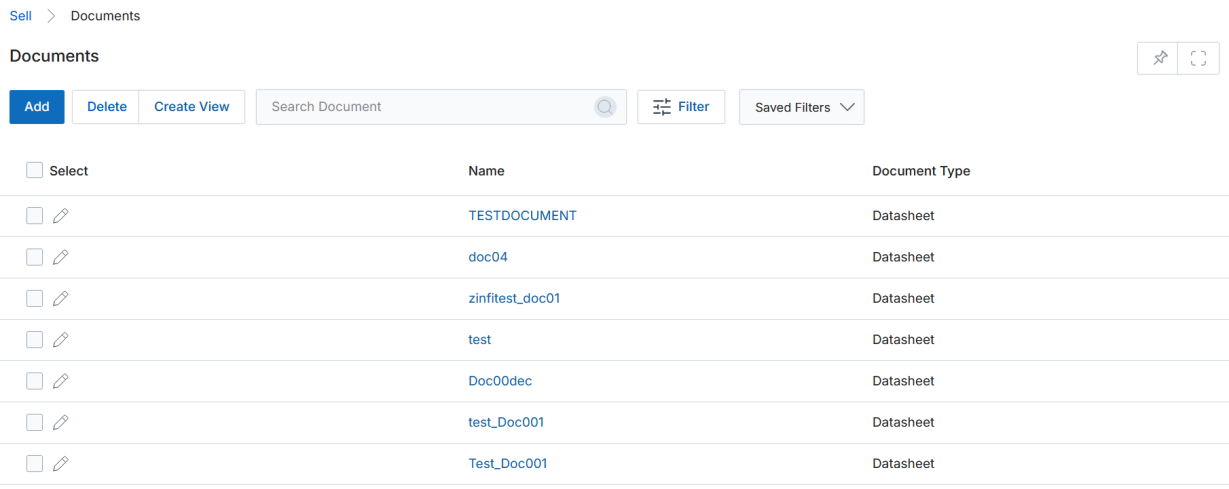
The toolbar provides the following actions:
- Add — Opens a new page to add a document.
- Delete — Deletes selected document(s).
- Saved Filters — Displays saved searches with Edit and Delete options.
- Clicking a Document Name opens the Document Details page.
- Clicking the pen icon opens the document in Edit mode.
View a Document
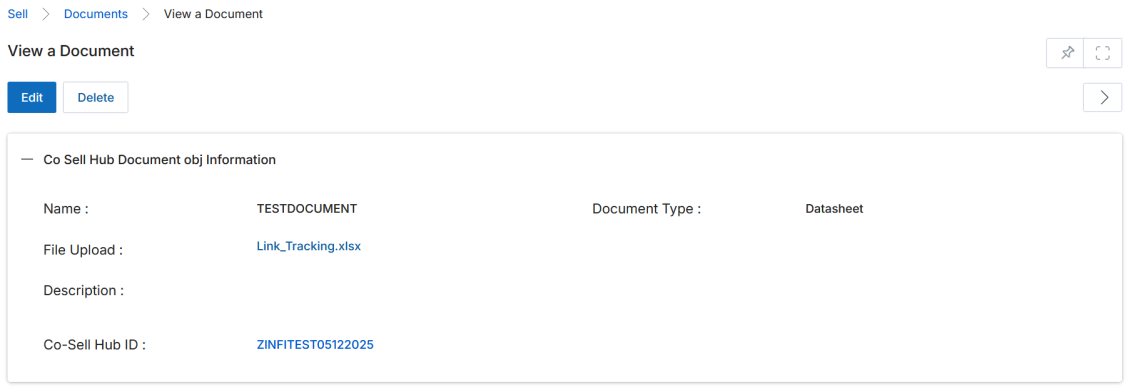
The View a Document page displays detailed information about a document associated with a specific Co-Sell opportunity.
Page-Level Actions
- Edit — Opens the document in Edit mode to update its details or replace the uploaded file.
- Delete — Deletes the document record after confirmation.
Co-Sell Hub Document Information
| Field | Description |
|---|---|
| Name | Name of the document. |
| Document Type | Category of the document, such as Datasheet, SOW, or Proposal. |
| File Upload | The uploaded document file. Click to download or view. |
| Description | Brief explanation or context for the document. |
| Co-Sell Hub ID | Unique identifier of the Co-Sell opportunity to which this document is attached. |