
Introduction
UPM's Commission application supports complete automation for the OEM or vendor to establish sales commission parameters for partners based on registered deals or invoices, products, and associated partner tiers. Commissions support such partner programs by associating a rule set with relevant partners and automatically calculating the commission payable to the partner.
1.1 Commissions Engagement
Sales gamification management is an integral component of the Commissions application. Vendors can create engaging commission programs for their channel partners, developing strategies and policies that incentivize partner sales reps to earn commissions fairly, equitably, and consistently in accordance with their organization's values.
Paying commissions in a global context can be complicated. The UPM Commissions application easily handles this challenge, providing language and currency support for multiple countries and regions worldwide. Vendors can easily select a generic language and designate the currency applicable to a partner group when establishing a commission rule set.
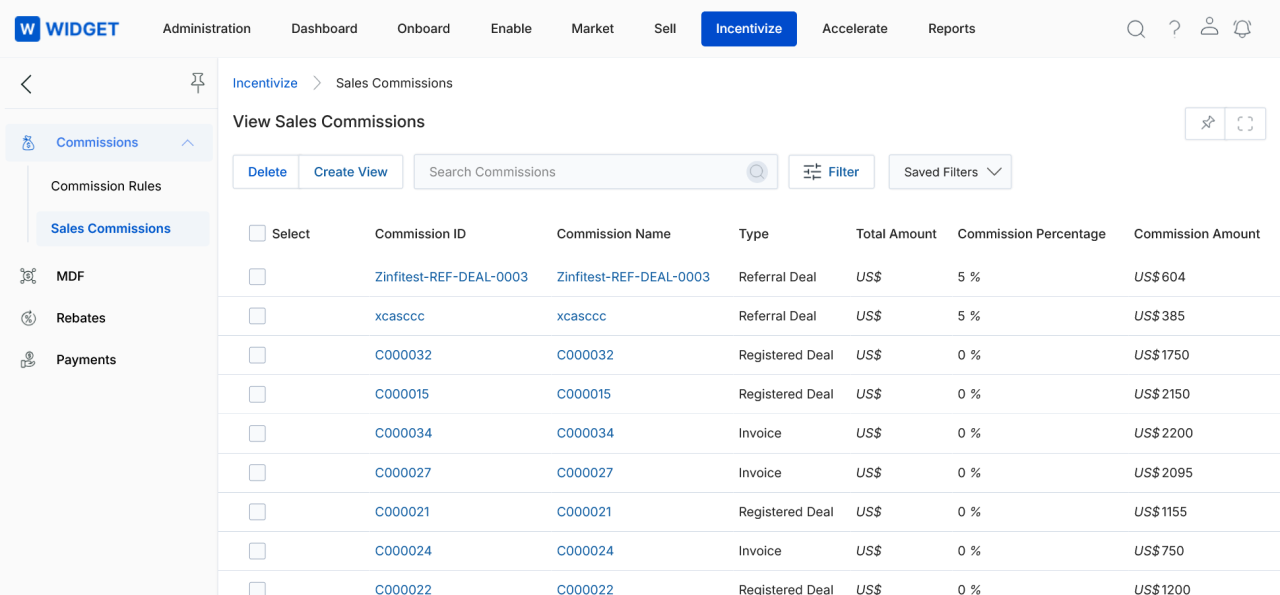
- Optimize relationships
- Transparent sales accounting
- Better performance and revenue generation
1.2 Commissions Management
Easily set up and enable sales commission calculation and tracking. You can link a selected partner tier, activation dates, fiscal quarter, and product(s) to a specific rule set. These rule sets are then used in the commission calculation to create a deal or invoice linked to items and sales representatives, which must be matched by the sales order to entitle the partner to a commission. Commission calculation can also be performed for individual partners and/or specific items.
UPM's Commissions can be calculated and paid quarterly. You can instantly have an overview of your commissions, displaying commissions payable to your partners, including the partner's name, commission source type, and commission value.
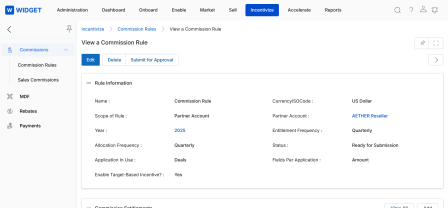
- Viewable Rules and Results
- Monitor details about partner performance
- Identify top-performing partners
Sales Commissions
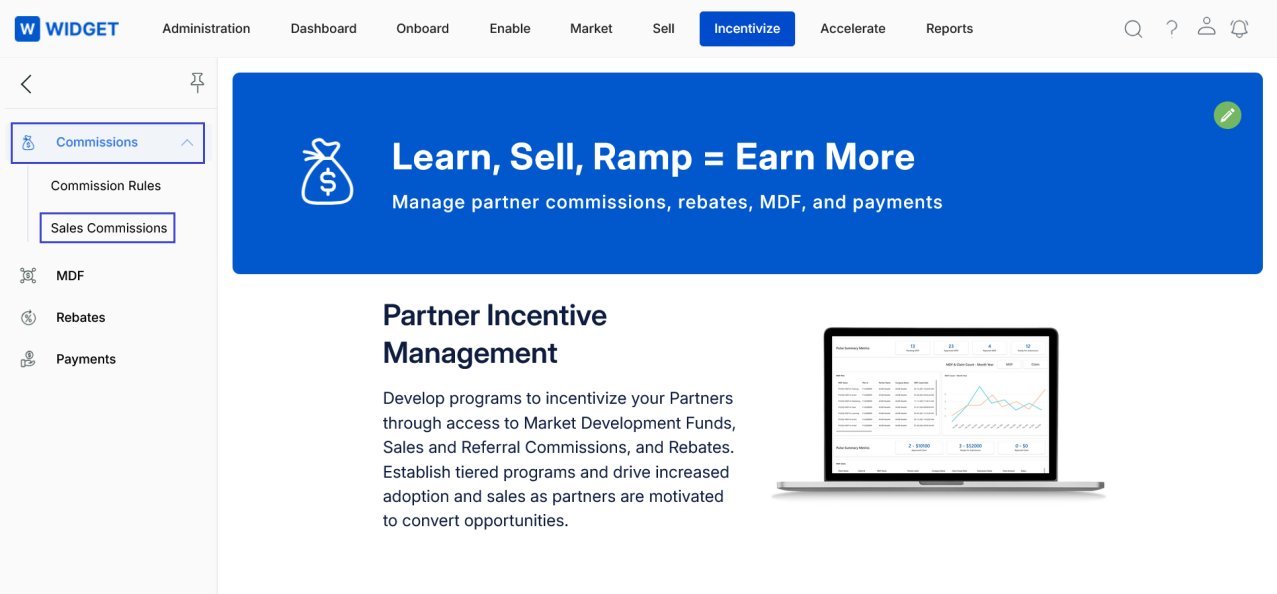
To access Sales Commissions:
- Click on Incentivize on the top menu.
- Click on Sales Commissions on the left menu bar.
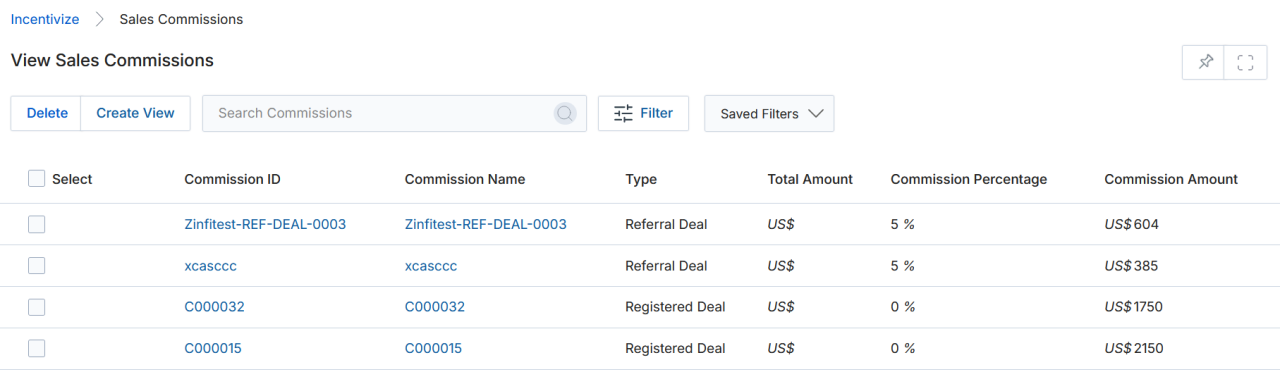
2.1 View Sales Commissions
- The top part of the page provides the following actions:
- Create View — Creates a custom view with the columns you need.
- Search — Opens a pop-up window where you can enter search criteria to find desired records.
- Clear Search — Clears the current search.
- Saved Searches — Lists saved searches in the search dropdown. When a saved search is selected, two additional options appear:
- Edit — Updates the selected search name.
- Delete — Removes the selected search from the dropdown.
- For each record in the grid, clicking on the following performs different actions:
- Edit (Pen icon) — Lets you edit the selected record.
- Any linkable item — Takes you to its details page.
2.2 Create New View
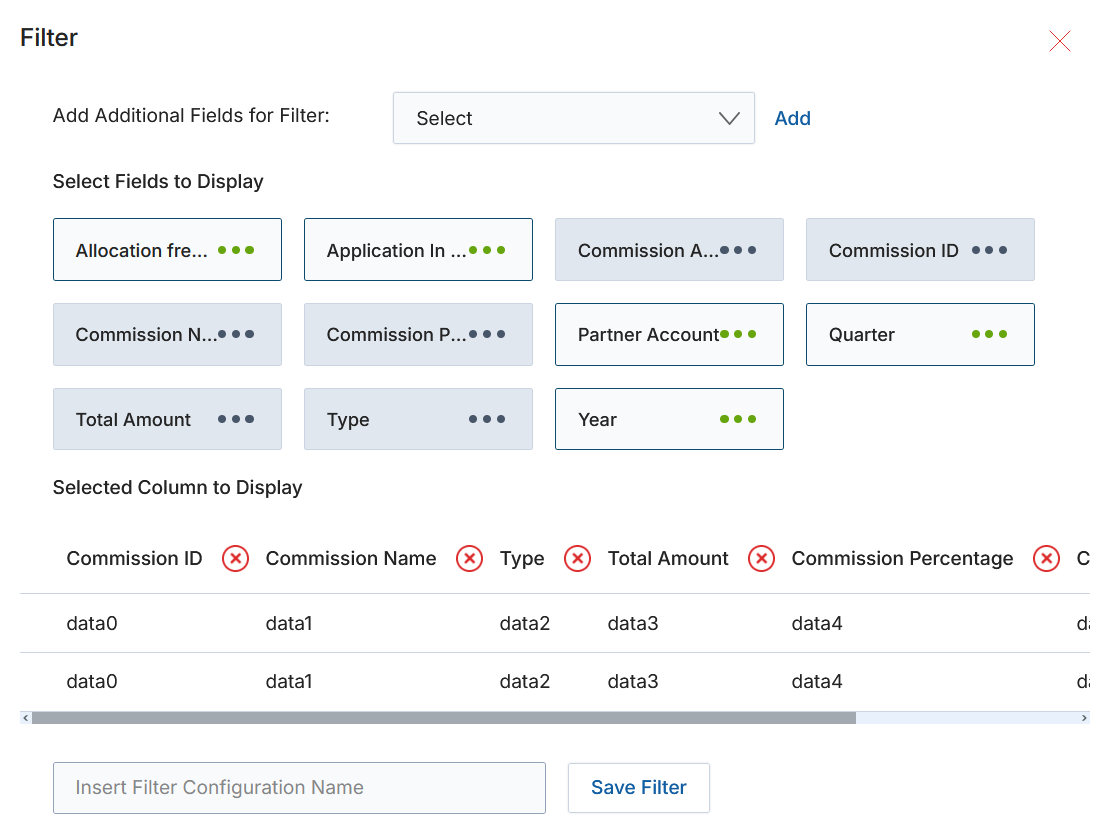
- Choose an additional field from the dropdown, then click Add.
- Click the Green Dots to select the fields for display.
- The table shows the currently selected columns. To remove a column from the display list, click the cross (×) button next to it.
- Provide a View Name, then click Save Filter to create the new view.
2.3 View Sales Commission Details
- Click on the Name/Title of any Commissions listing on the View Sales Commissions page.
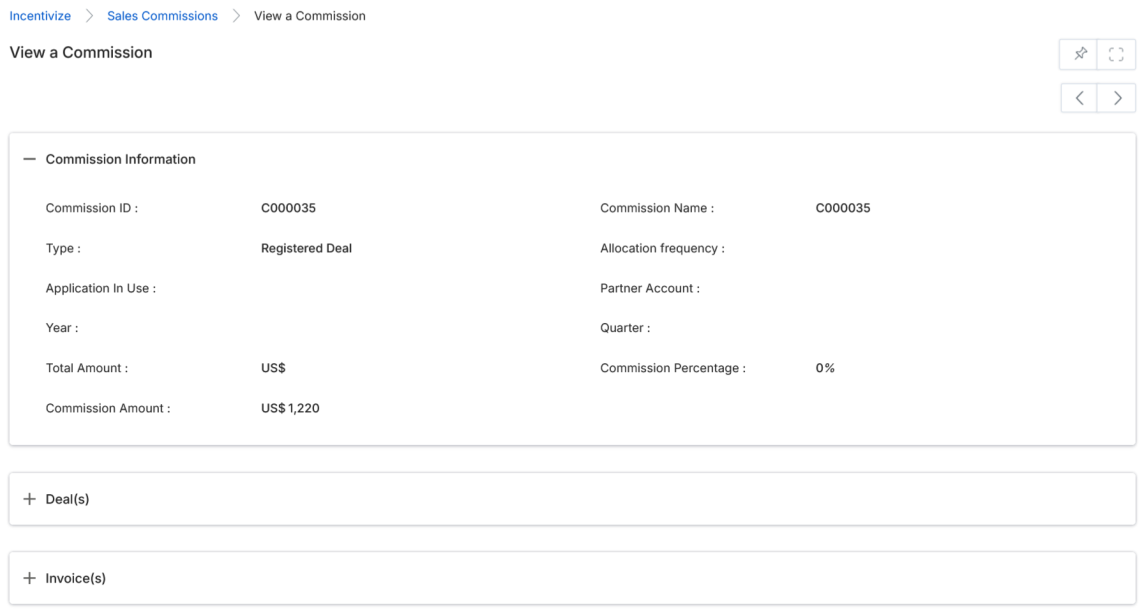
- Once on the View Commission Details page, you will see the following fields:
Commission Information
| Field | Description |
|---|---|
| Commission ID | A user-friendly ID of the commission record. |
| Partner Account Name | The partner who is going to receive the commission. |
| Type | Type of commission — either Invoice or Registered Deal. |
| Commission Amount | The amount discounted as commission. |
| Partner Contact | Name of the Partner Contact associated with this commission. |
| Status | Current status of the commission record. |
| Created On | The date and time on which the commission was created. |
| Date | The date on which the commission was created. |
Commission Rules
To access Commission Rules:
- Click on Incentivize on the top menu.
- Click on Commission Rules in the left menu bar.
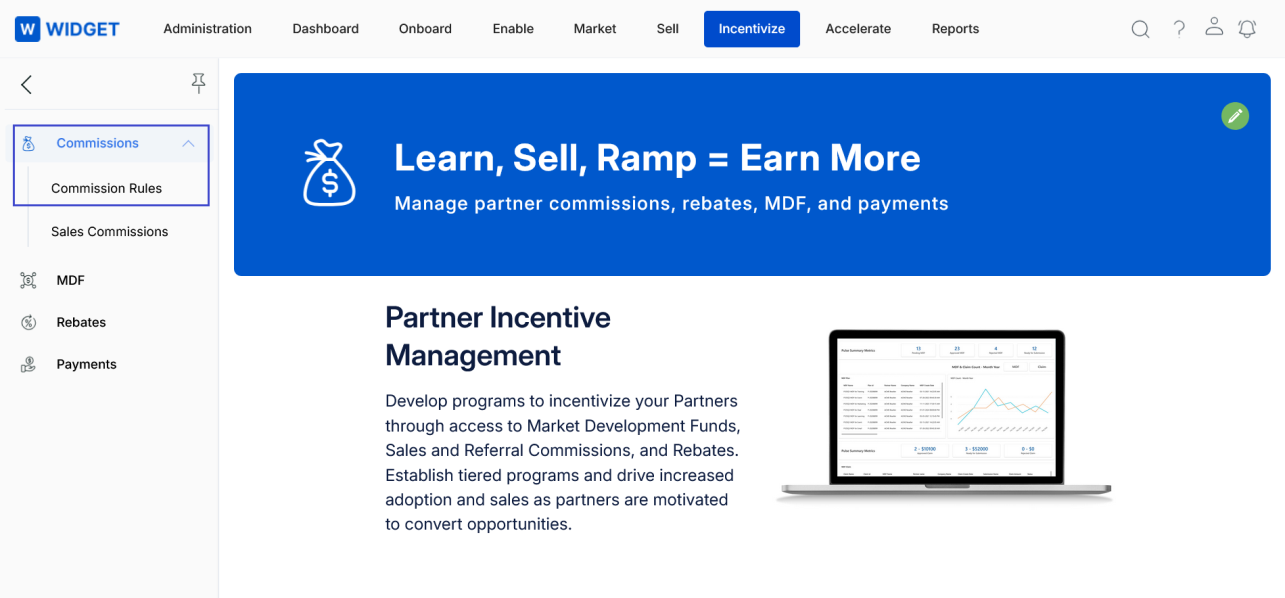
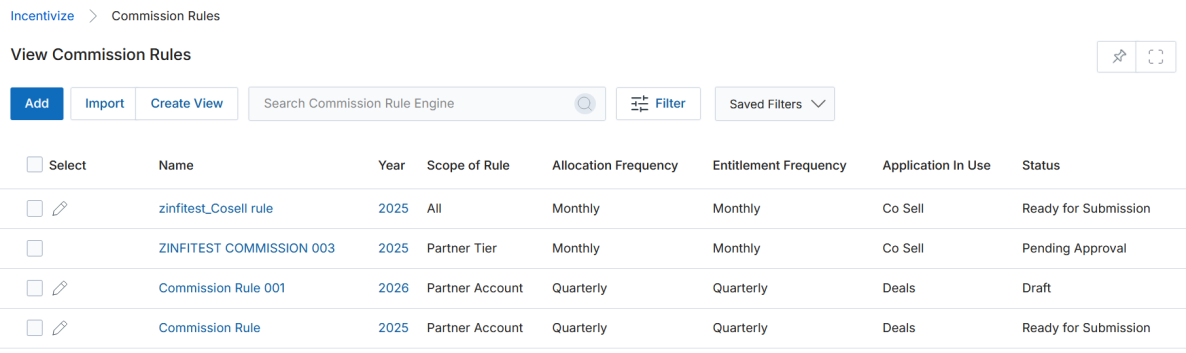
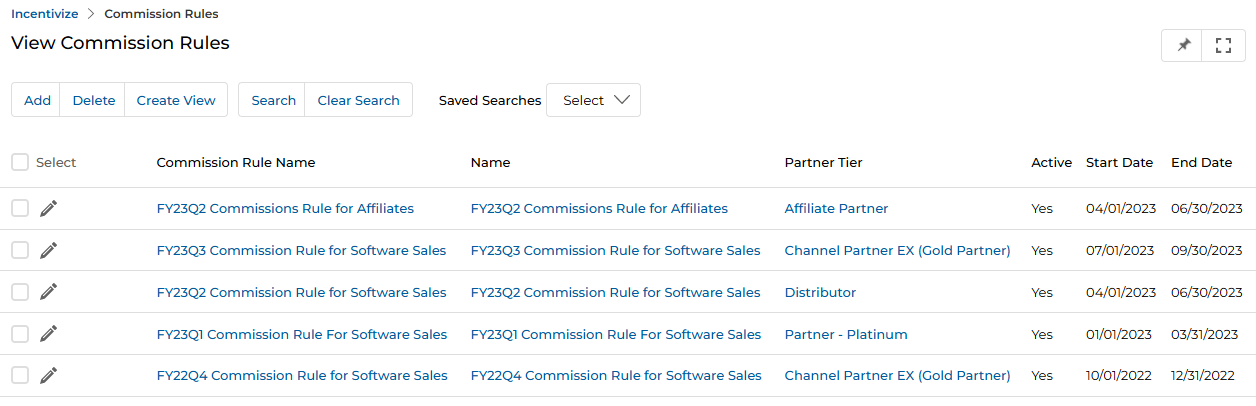
3.1 View Commission Rules
- The top part of the page provides the following actions:
- Add — Opens a new page to add a new Commission Rule record.
- Delete — Deletes the selected record(s) from the listing.
- Create View — Creates a custom view with the columns you need.
- Search — Opens a pop-up window to enter search criteria.
- Clear Search — Clears the current search.
- Saved Searches — Lists saved searches in the dropdown. When selected, two additional options appear:
- Edit — Updates the selected search name.
- Delete — Removes the selected search from the dropdown.
- For each record in the grid, clicking on the following performs different actions:
- Edit (Pen icon) — Lets you edit the selected record.
- Any linkable item — Takes you to its details page.
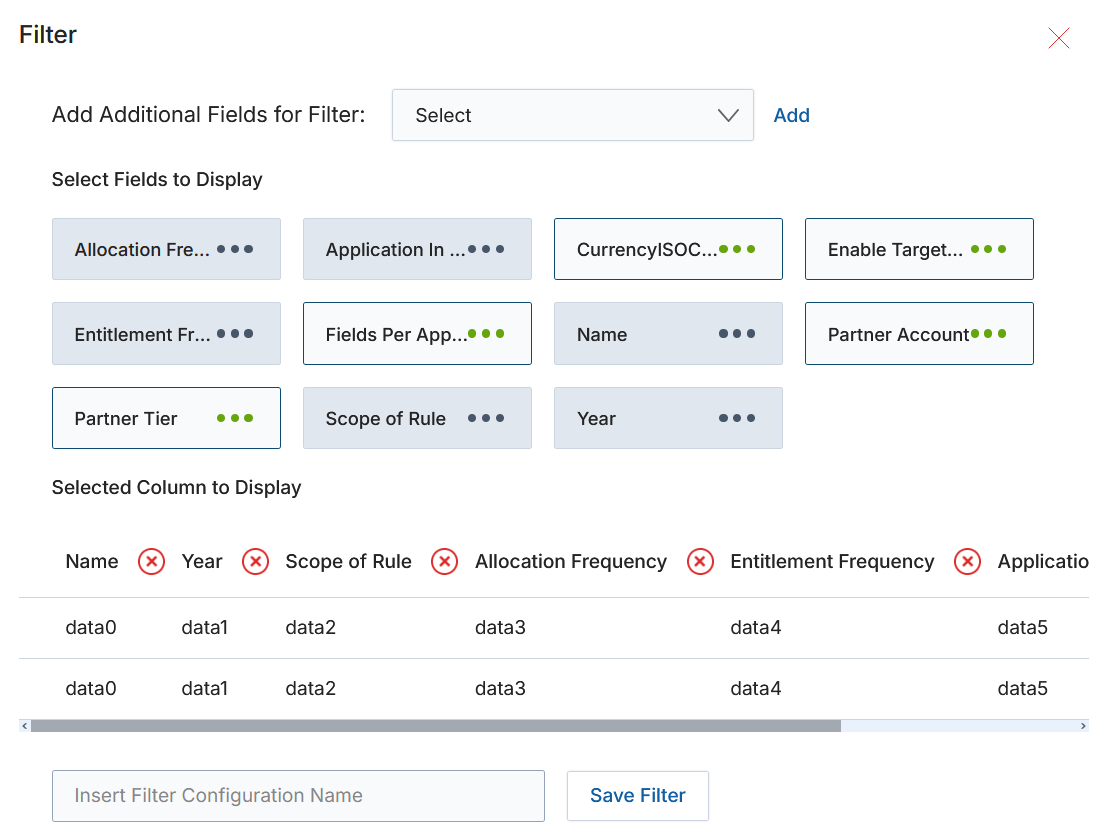
3.2 Create New View
- Choose an additional field from the dropdown, then click Add.
- Click the Green Dots to select the fields for display.
- Selected columns are shown in the table. To remove a column from the display list, click the cross (×) button next to it.
- Provide a View Name, then click Save Filter to create the new view.
3.3 View Commission Rule Details
- Click on the Name/Title of any Commission Rule listing on the View Commission Rules page.
- Once on the View Commission Rule details page, you will see the following sections:
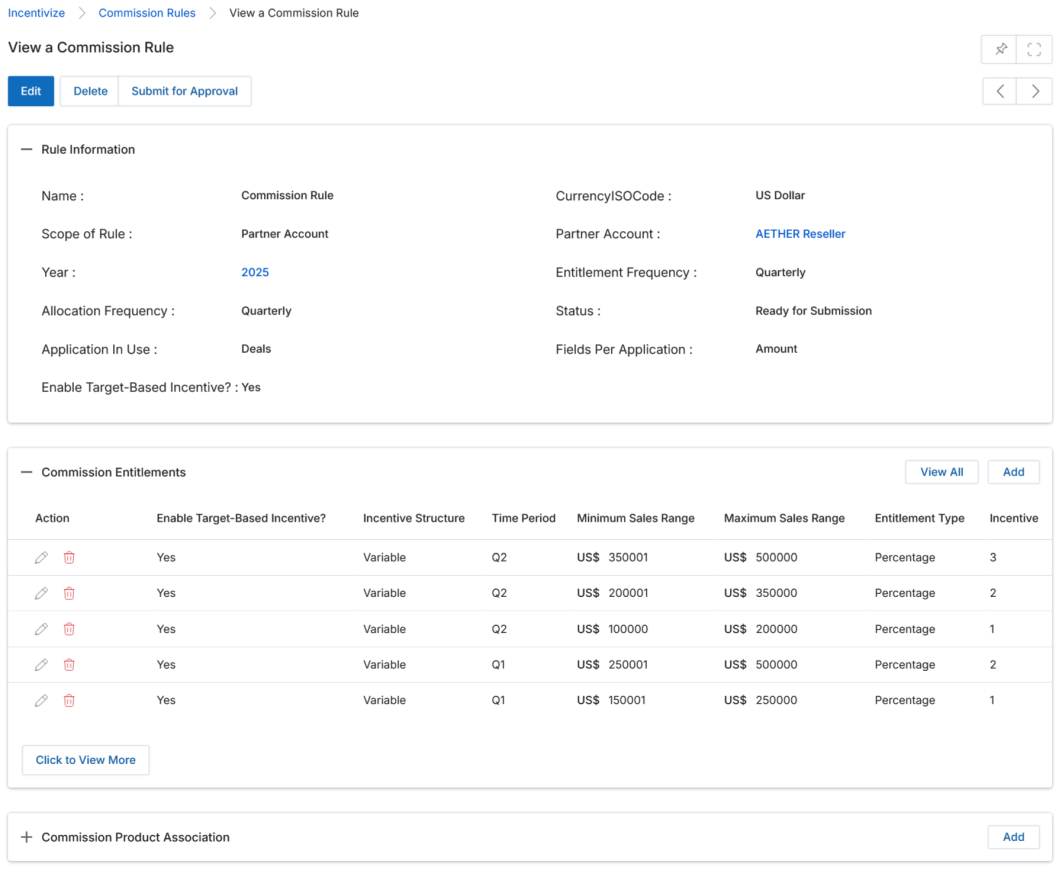
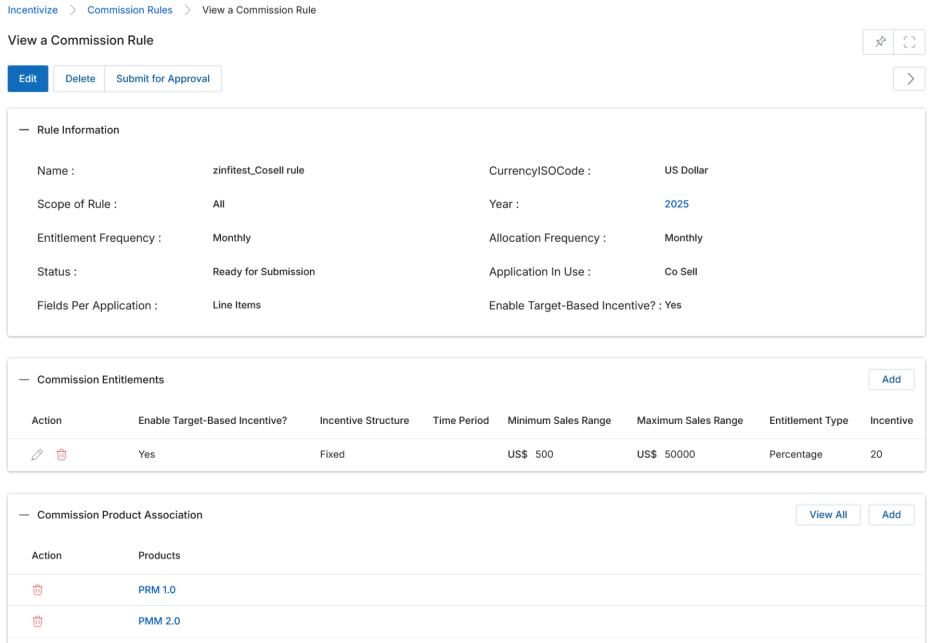
Commission Rule Information
| Field | Description |
|---|---|
| Commission Accrual Name | A user-friendly name of the Commission Accrual. |
| Partner Tier | The Partner Tier to which this rule applies. |
| Quarter | The fiscal quarter to which this commission rule applies. |
| Active | Current status of the rule. Yes = active; No = inactive. |
| Start Date | The date from which this commission rule becomes effective. |
| End Date | The date on which this commission rule expires. |
| Description | A free-text description of the commission rule. |
Commission Rule Parameter(s)

| Column | Description |
|---|---|
| Add | Click to create a new commission rule parameter slab. See § 3.5 View Commission Parameter Details for full details. |
| Name | Name of the rule parameter slab. |
| Type | Type of commission — Invoice or Registered Deal. |
| Min Amount | Minimum sales amount for this parameter slab to apply. |
| Max Amount | Maximum sales amount for this parameter slab. |
| Commission Type | Whether the commission is a Fixed Value or Percentage. |
| Commission | The commission amount or percentage given. |
Add / Edit a Commission Rule
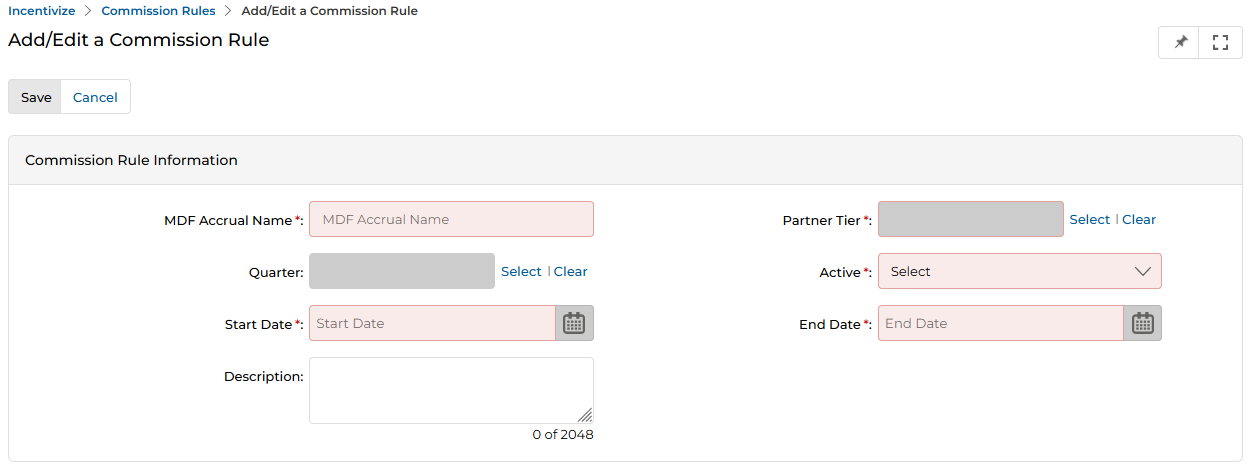
- To edit an existing Commission Rule, click the pencil icon on the listing row. To add a new Commission Rule, click the Add button at the top of the View Commission Rules page.
- Once on the Add/Edit Commission Rule page, you will see the following buttons and fields:
Buttons
- Save — Saves the rule information and returns to the View Commission Rules listing.
- Cancel — Discards changes and exits to the previous page.
Commission Rule Information Fields
| Field | Description |
|---|---|
| Commission Rule Name | A user-friendly name for this commission rule. |
| Partner Tier | The Partner Tier to which this rule applies. |
| Quarter | The fiscal quarter to which this commission rule applies. |
| Active | Set to Yes to activate the rule, or No to deactivate it. |
| Start Date | The date from which this rule becomes effective. |
| End Date | The date on which this rule expires. |
| Description | A free-text description of the commission rule (up to 2,048 characters). |
- Once all fields are complete, click Save. This returns you to the View Commission Rules page, where you can click the Name/Title of your new rule to add Commission Rule Parameter(s). See § 3.5 View Commission Parameter Details below for more details.
View Commission Parameter Details
- Once on the View Commission Rule Details page, locate the Commission Rule Parameter(s) related list.

- To view the details of any Commission Rule Parameter, click on its Name/Title in the listing.
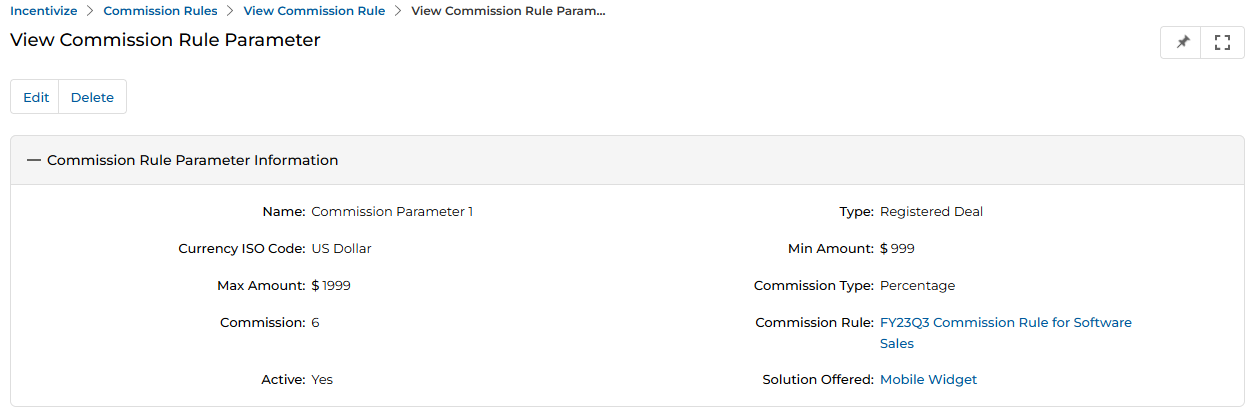
- Once on the View Commission Rule Parameter Details page, you will see the following buttons and fields:
Buttons
- Edit — Click the pen icon to edit the selected parameter.
- Delete — Click the trash icon to delete the selected parameter.
Commission Rule Parameter Information Fields
| Field | Description |
|---|---|
| Name | Name of the rule parameter slab. |
| Type | Type of the commission parameter — Invoice or Registered Deal. |
| Solution Offered | Targeted business line for this rule parameter. |
| Currency ISO Code | The currency ISO code for the commission amount. |
| Min Amount | Minimum sales amount for this parameter slab to apply. |
| Max Amount | Maximum sales amount for this parameter slab. |
| Commission Type | Whether the commission is a Fixed Value or Percentage. |
| Commission | The amount or percentage of commission given. |
| Commission Rule | The parent Commission Rule associated with this parameter. |
| Active | Current status. Yes = active; No = inactive. |
Add / Edit a Commission Rule Parameter
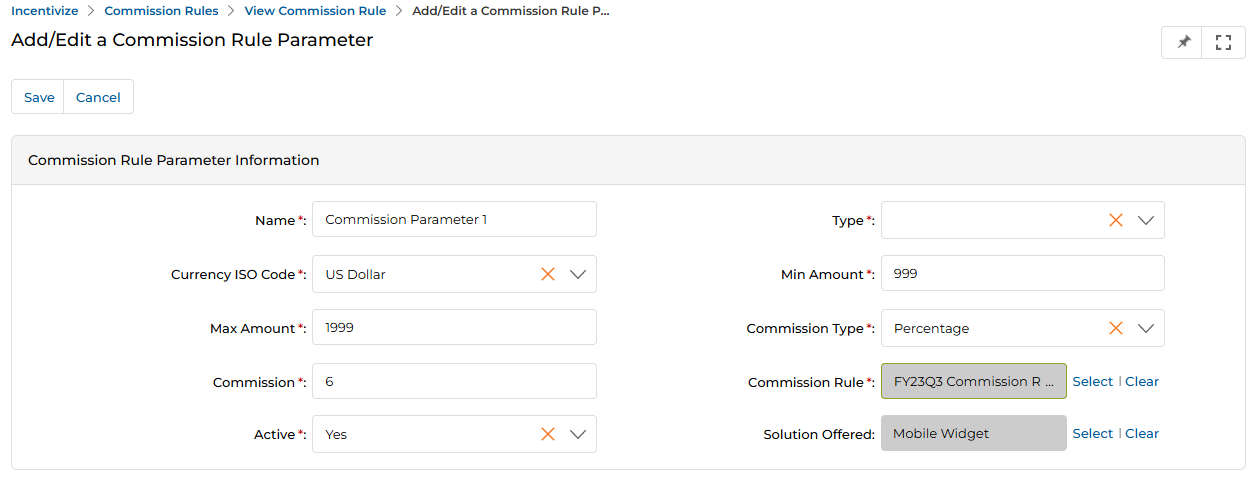
- To edit an existing Commission Rule Parameter, click the pencil icon on the parameter row. To add a new parameter, click the Add button at the top of the Commission Rule Parameter(s) related list.

- Once on the Add/Edit Commission Rule Parameter page, complete the following fields:
| Field | Description |
|---|---|
| Name | Name of the rule parameter slab. |
| Type | Type of the commission parameter — Invoice or Registered Deal. |
| Solution Offered | Targeted business line for this rule parameter. |
| Currency ISO Code | The commission currency. Available options: Australian Dollar, Indian Rupee, Pound Sterling, and US Dollar. |
| Min Amount | Minimum sales amount for this parameter slab to apply. |
| Max Amount | Maximum sales amount for this parameter slab. |
| Commission Type | Whether the commission is a Fixed Value or Percentage. |
| Commission | The amount or percentage of commission given. |
| Commission Rule | The parent Commission Rule to associate with this parameter. |
| Active | Set to Yes to activate, or No to deactivate this parameter. |
- Once all fields are complete, click Save.