
Introduction
The Configure Price Quote (CPQ) application in ZINFI's UPM platform enables your organization to provide special pricing and automated quote approval mechanisms to your partner sales reps, channel reps, and channel management team members.
Price Management
ZINFI's CPQ application enables your organization to define and manage product pricing across multiple business lines in response to constantly changing market trends. Whenever pricing changes, those updates are automatically reflected in the quotes visible to your channel partners. Multilingual and localized deployment tools simplify price management across global, multi-region partner networks.
Key Features
Quote Management
CPQ allows your organization and channel sales team to generate invoices from shared quotes and received POs. This automated feature helps channel partners ensure invoice accuracy and minimize human error. CPQ brings a systematic approach to PO receipt and invoicing, allowing you to manage all revenue-related activities within a single interface with deeper visibility into the sales pipeline.
Key Features
PO & Invoice Management
CPQ enables your organization and channel sales team to generate invoices from shared quotes and received Purchase Orders. End-to-end automation of invoice and PO management lets you handle all revenue-related activities within a single interface while providing deeper insight into the sales pipeline.
Key Features
Quotes
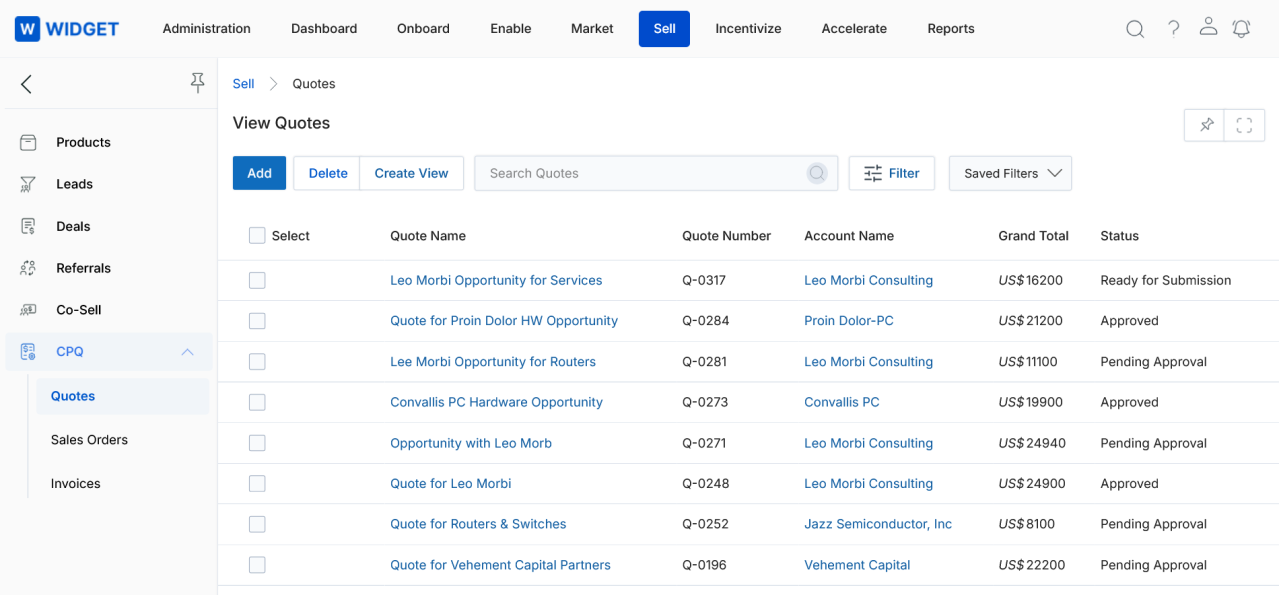
The Quotes section within CPQ allows admins to view, create, and manage all quotes associated with partner opportunities. Quotes are linked to Accounts, Opportunities, and Price Books, and support multi-level approval workflows before conversion to Sales Orders.
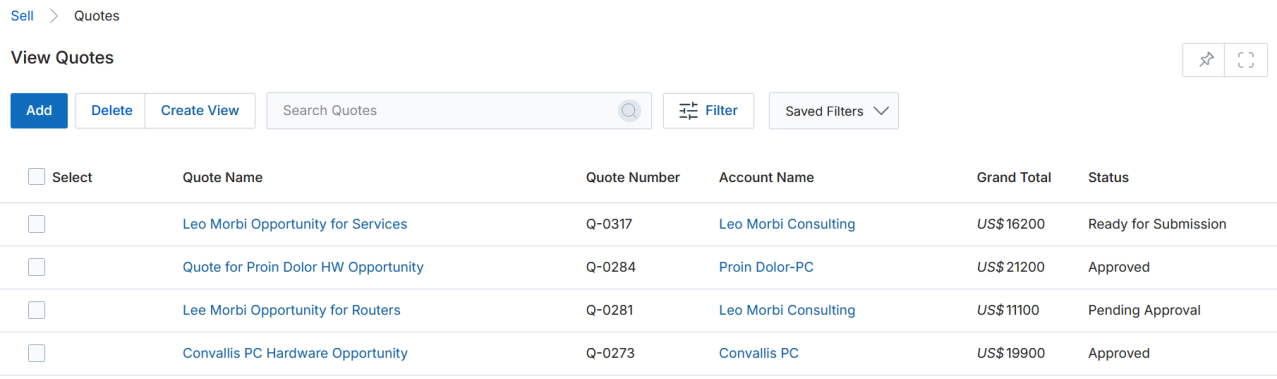
View Quotes
Navigate to Sell > CPQ > Quotes to open the View Quotes list. The following toolbar actions are available:
- Add — Create a new quote record.
- Delete — Delete one or more selected quotes.
- Create View — Build a saved filtered view of the quote list.
- Search — Search for specific quote records.
- Clear Search — Reset any active search filter.
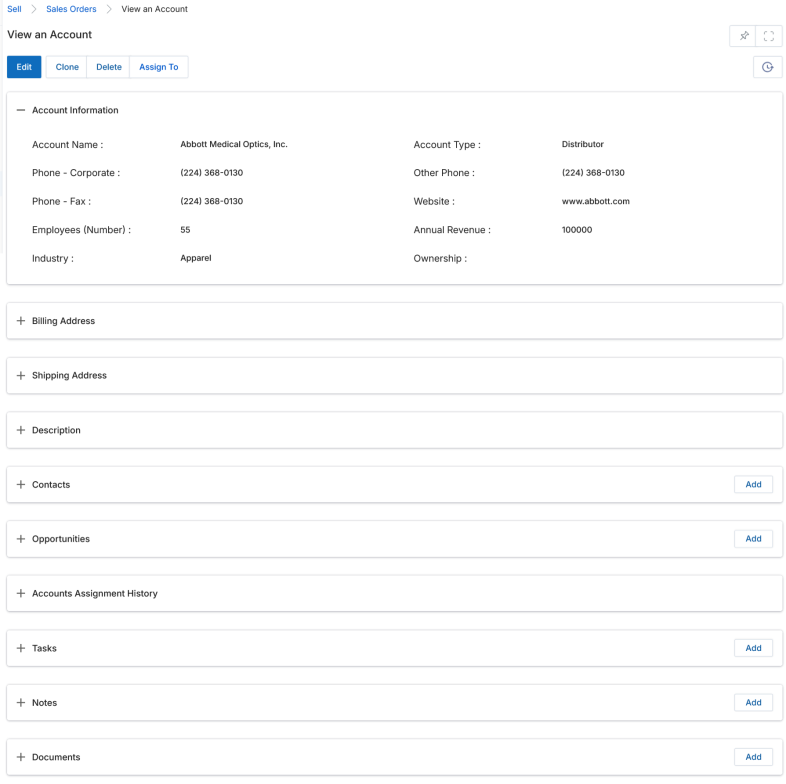
Click the Quote Name to navigate to the quote's detail page. Click the Account Name to open the related Account Details page.
Create New View
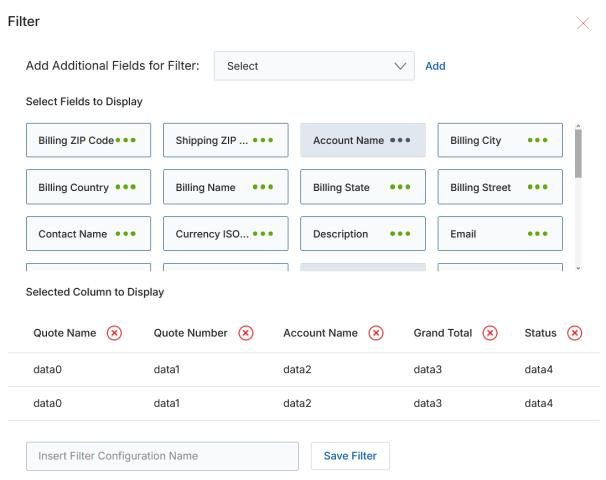
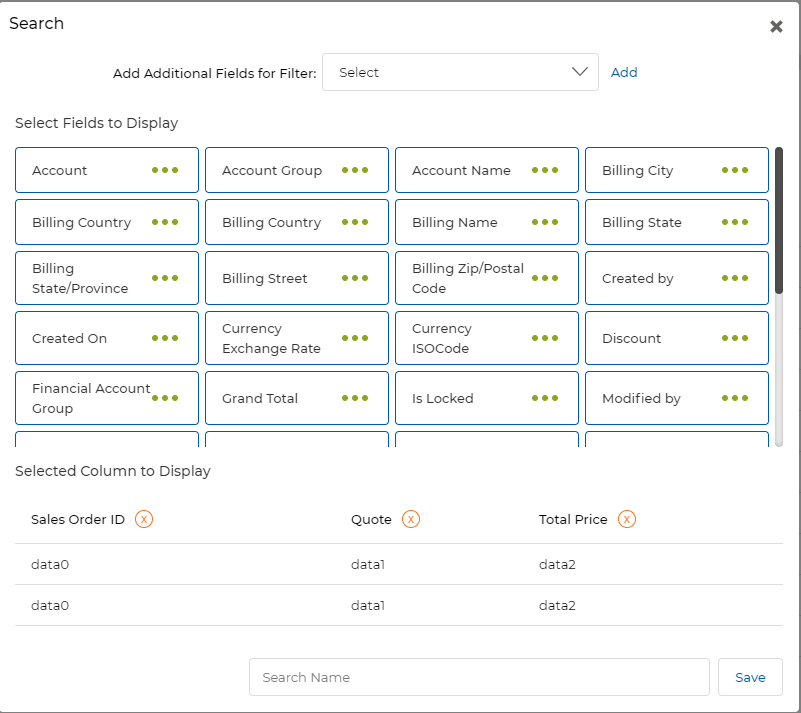
Use the Create View button to configure a saved filtered view for the Quotes list:
- Select an additional field from the dropdown and click Add.
- Click the Green Dots next to each field to include it as a display column.
- Selected columns appear in the preview table. Click the × button on any column to remove it.
- Enter a View Name and click Save to create the view.
View Quote Details
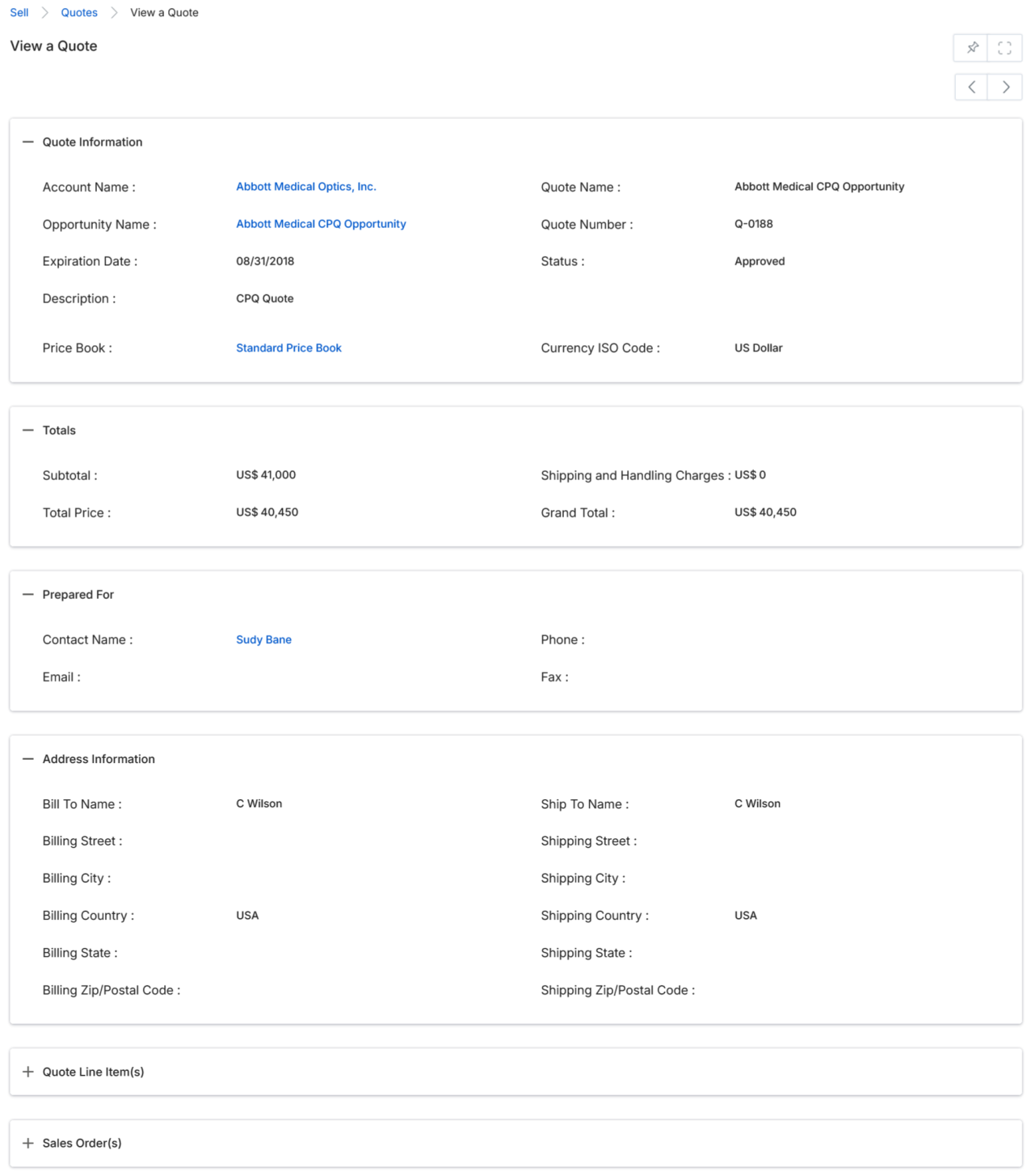
Click the Name/Title of any Quote in the list to open its detail page. The detail page is organized into the following sections:
a. Quote Information
| Field | Description |
|---|---|
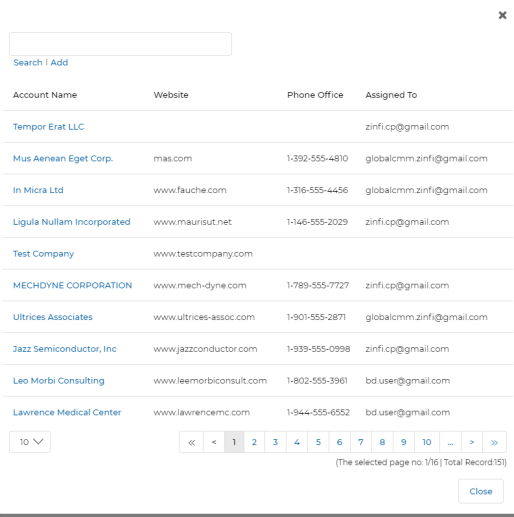
| Account Name | The Sales Account this Quote is being generated for. |
| Quote Name | The name assigned to this Quote. |
| Opportunity Name | The Opportunity from which this Quote is generated. |
| Quote Number | Auto-generated ID number for this Quote. |
| Expiration Date | The date on which this Quote expires. |
| Status | Current status of this Quote (e.g. Draft, Approved, Pending Approval). |
| Description | Free-text description of this Quote. |
| Price Book | The Price Book used for pricing line items. |
| Currency ISO Code | The currency in which this Quote is denominated. |
b. Totals
| Field | Description |
|---|---|
| Sub Total | Sum of all line item amounts in this Quote. |
| Discount | Any discount amount applied to the Quote. |
| Shipping and Handling Charges | Charges for shipping and handling. |
| Total Price | Sub Total plus Shipping/Handling charges. |
| Grand Total | Total Price minus any Discount. |
c. Prepared For
| Field | Description |
|---|---|
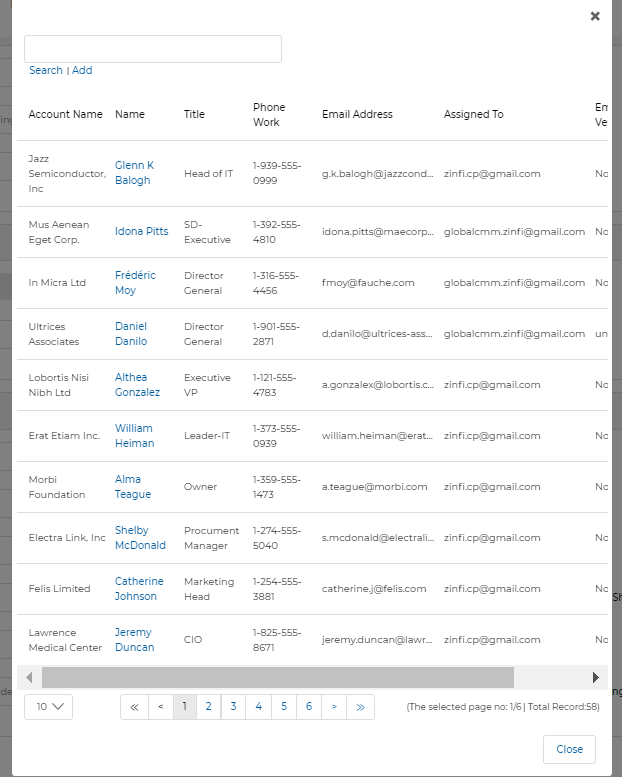
| Contact Name | Name of the Contact this Quote is addressed to. |
| Phone | Phone number of the Contact. |
| Email address of the Contact. | |
| Fax | Fax number of the Contact. |
d. Address Information
| Field | Description |
|---|---|
| Bill To Name | Name of the Billing Contact for this Quote. |
| Shipping Name | Name of the person this Order will be shipped to. |
| Billing Street | Street address of the Billing Contact. |
| Shipping Street | Street address for the shipping destination. |
| Billing City | City of the Billing Contact. |
| Shipping City | City for the shipping destination. |
| Billing Country | Country of the Billing Contact. |
| Shipping Country | Country for the shipping destination. |
| Billing State | State/Province of the Billing Contact. |
| Shipping State | State/Province for the shipping destination. |
| Billing Zip/Postal Code | ZIP or postal code of the Billing Contact. |
| Shipping Zip/Postal Code | ZIP or postal code for the shipping destination. |
e. Quote Line Item(s)
This related list displays the Products included in this Quote. Line items are populated automatically from the Opportunity linked to this Quote.
f. Sales Order(s)
This related list shows any Sales Orders created against this Quote. Refer to the Add/Edit a Sales Order section for full details.
g. Approval History
This section shows the full approval trail for the Quote, including submitter, approver, actual approver, status, comments, and the date the action was taken.
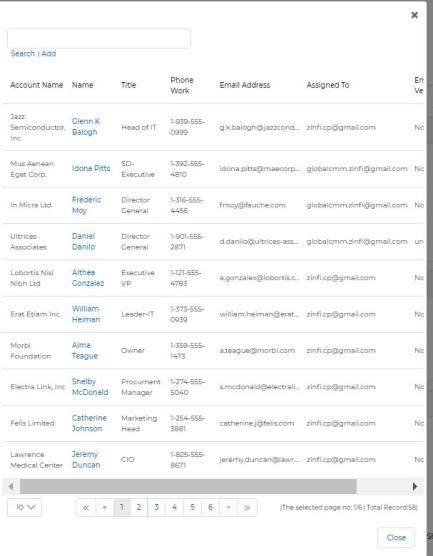
Add a New Quote
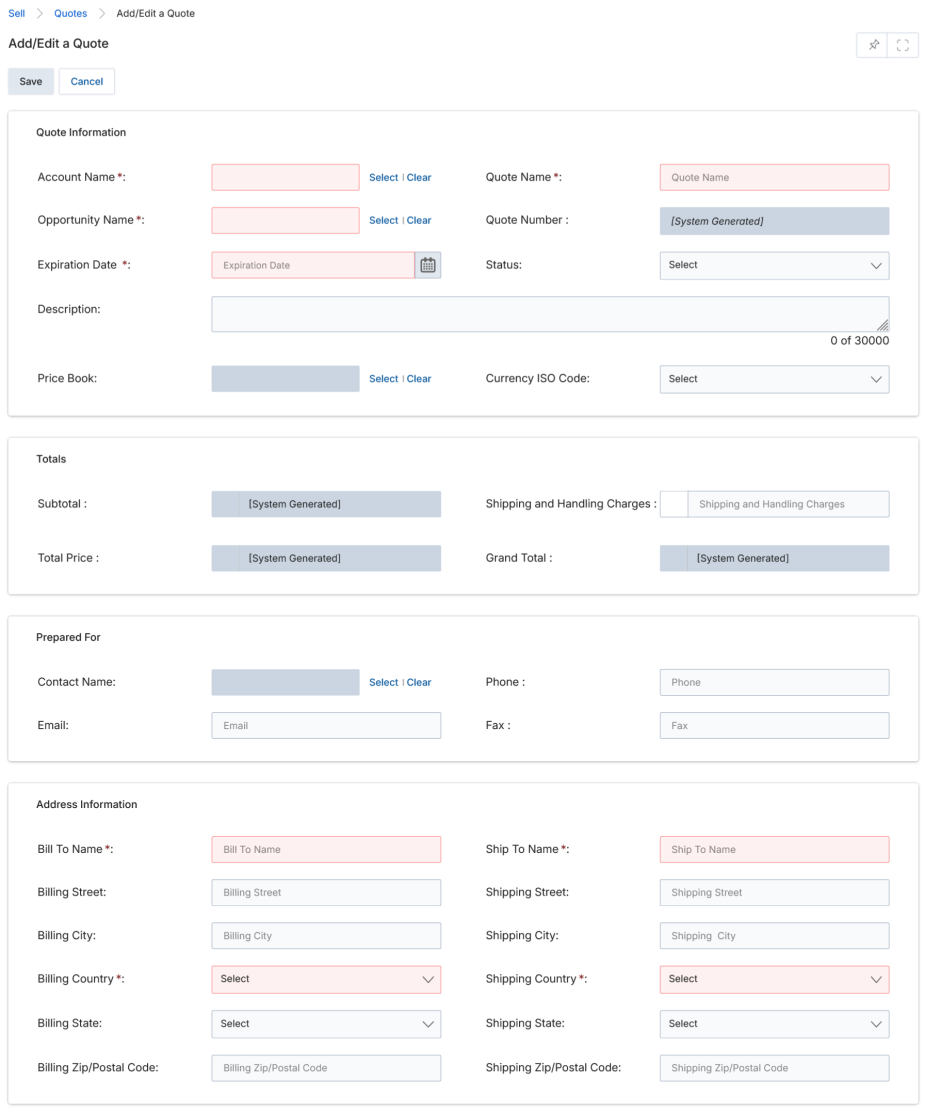
Click the Add button at the top of the View Quotes page to open the Add/Edit a Quote form.
The form contains the following sections:
a. Buttons
- Save — Save the Quote record.
- Cancel — Discard changes and return to the list.
b. Quote Information
| Field | Description |
|---|---|
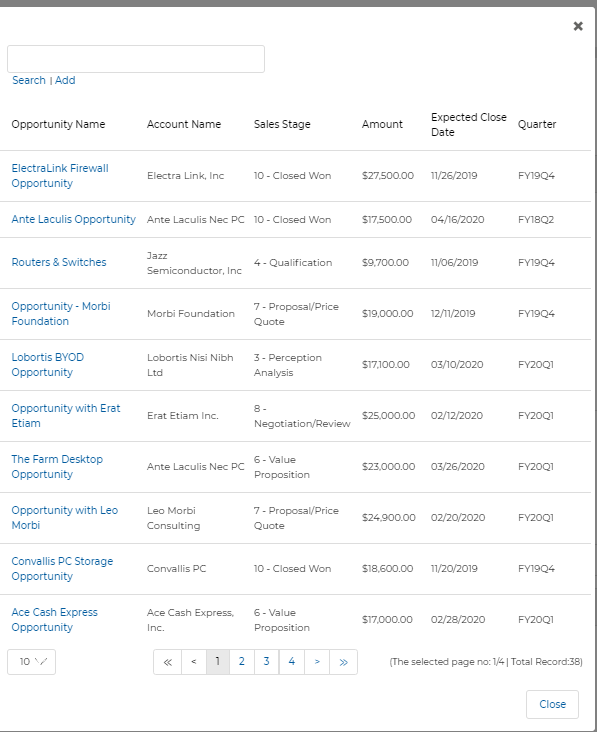
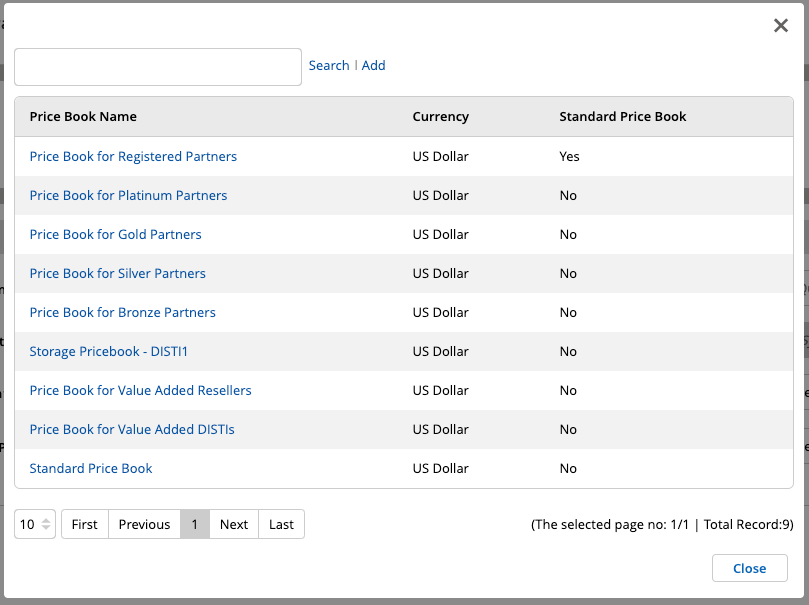
| Account Name | Sales Account this Quote is for. Use Select to pick from the account lookup. |
| Quote Name | Name to assign to this Quote. |
| Opportunity Name | Opportunity this Quote is generated from. |
| Quote Number | Auto-generated ID (read-only). |
| Expiration Date | Date on which this Quote expires. |
| Status | Quote status: Draft, Ready for Submission, Pending Approval, Approved, or Rejected. |
| Description | Free-text description (up to 30,000 characters). |
| Price Book | Price Book to use for product pricing. |
| Currency ISO Code | Currency for this Quote. |
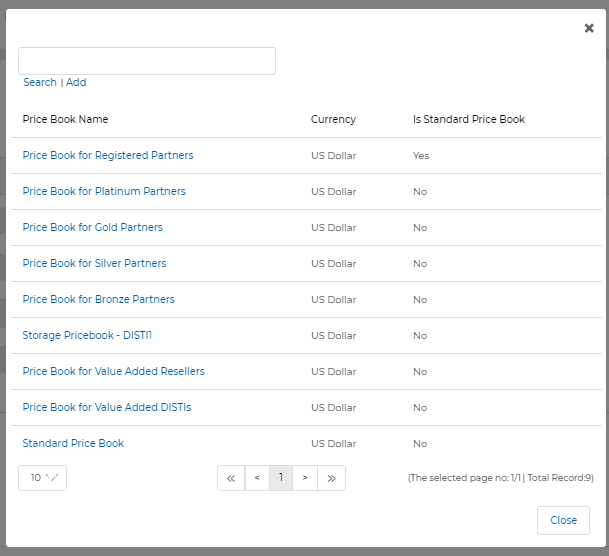
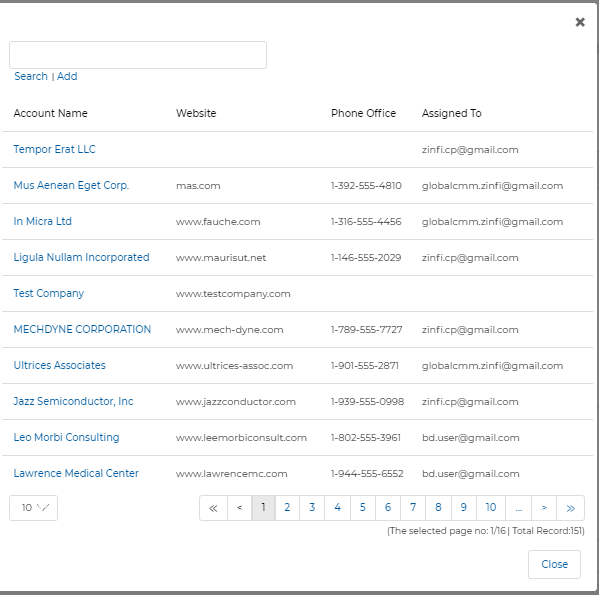
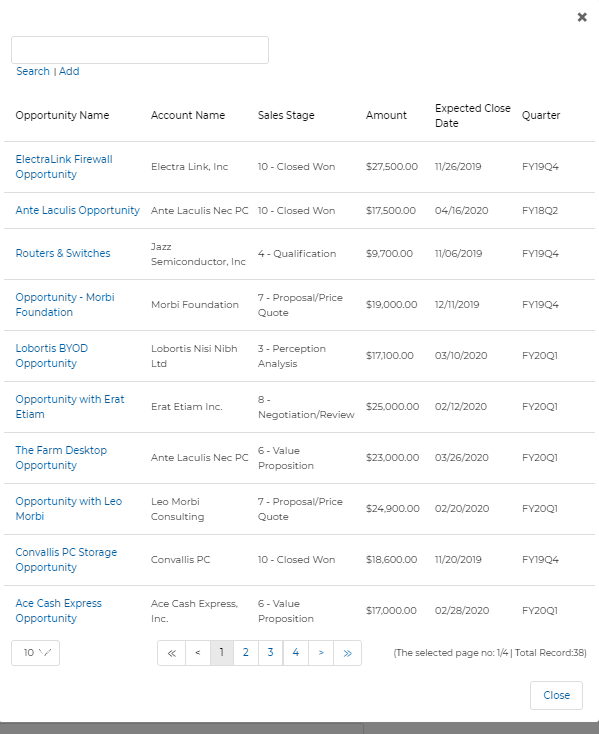
After saving a new Quote, line items are populated automatically from the linked Opportunity. Address and Totals fields are system-calculated based on line item entries and shipping configuration.
Once all fields are completed, click Save to create the Quote.
Sales Orders
Sales Orders are created from approved Quotes and represent a confirmed commitment to supply products or services. Each Sales Order links back to the originating Quote and can contain one or more Invoice records.
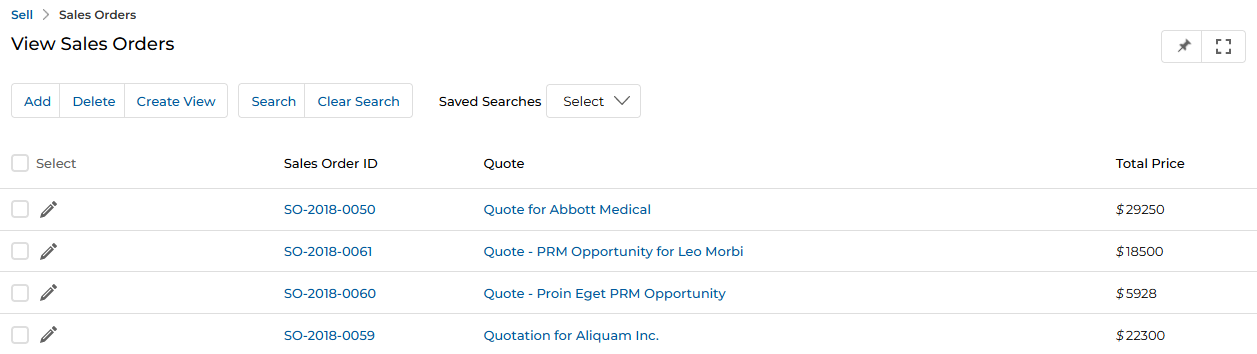
View Sales Orders
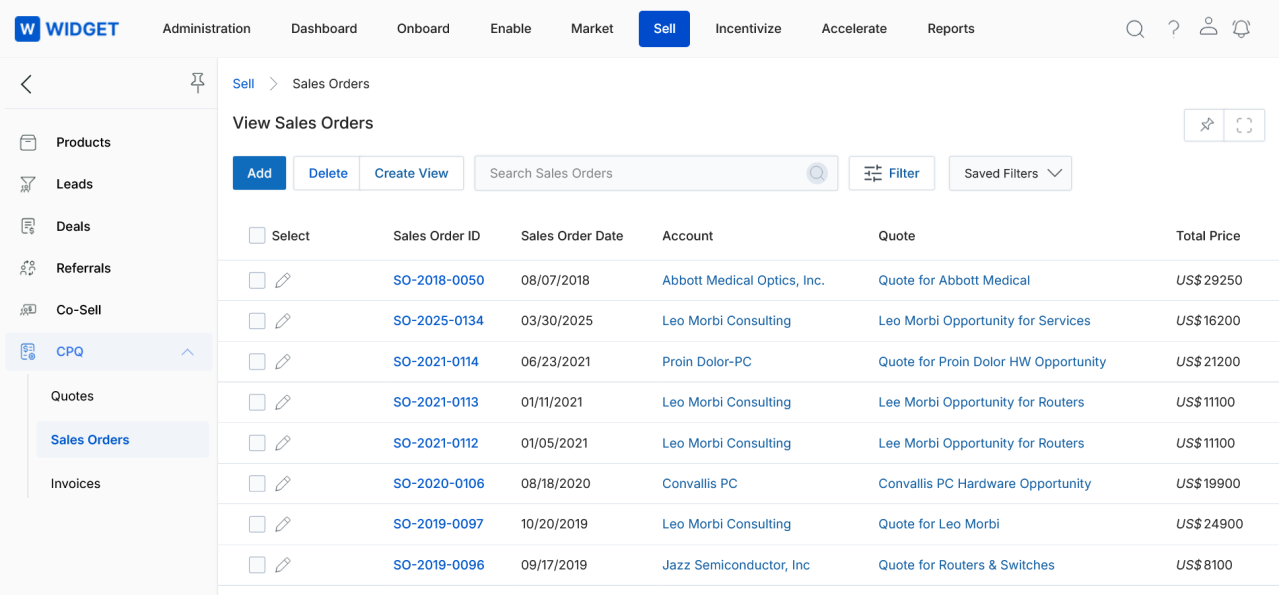
Navigate to Sell > CPQ > Sales Orders. The following toolbar actions are available:
- Add — Create a new Sales Order.
- Delete — Delete selected Sales Orders.
- Create View — Build a saved filtered view.
- Search — Search for specific Sales Order records.
- Clear Search — Reset any active search filter.
Click the Sales Order ID to open the detail page. Click Quote to navigate to the related Quote Details page. Click the pen icon (✎) to edit a Sales Order directly from the list. Admins can only edit Sales Orders created by their own account.
Create New View
- Select an additional field from the dropdown and click Add.
- Click the Green Dots next to each field to include it as a display column.
- Selected columns appear in the preview table. Click the × button to remove a column.
- Enter a View Name and click Save.
View Sales Order Details
Click the Sales Order ID in the list to open the full detail page. The detail page provides the following sections:
a. Buttons
- Edit — Edit this Sales Order record.
- Delete — Delete this Sales Order record.
b. Sales Order Information
| Field | Description |
|---|---|
| Account | Sales Account this Sales Order is generated for. |
| Warehouse | Warehouse from which this Sales Order is fulfilled. |
| Opportunity | Opportunity this Sales Order is generated from. |
| Sales Order Date | Date of this Sales Order. |
| Quote | The Quote this Sales Order is linked to. |
| Phone | Phone number of the Contact on this Sales Order. |
| Sales Order ID | Auto-generated ID number for this Sales Order. |
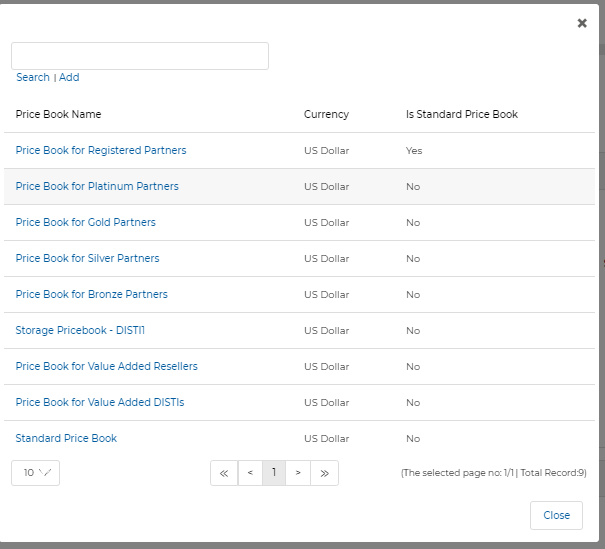
| Price Book | Price Book used for product pricing. |
| Currency ISO Code | Currency for this Sales Order. |
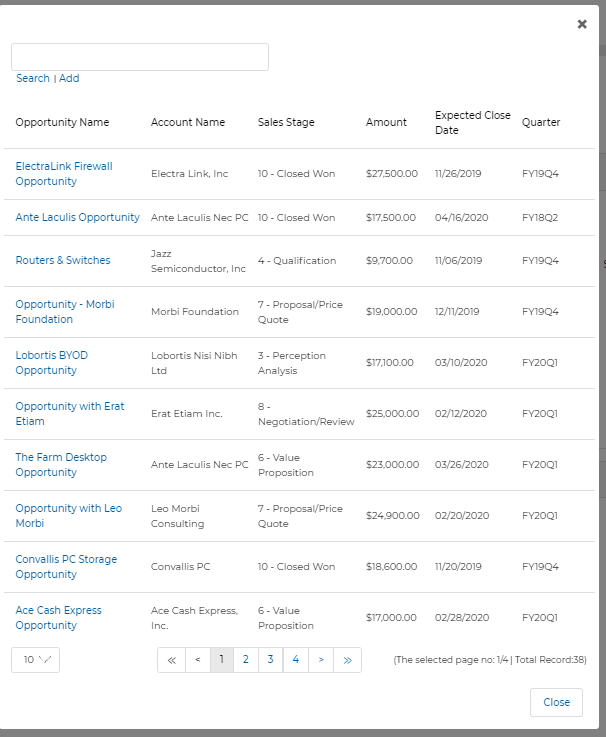
c. Address Information
| Field | Description |
|---|---|
| Billing Name | Name of the Billing Contact for this Sales Order. |
| Shipping Name | Name of the person this Order will be shipped to. |
| Billing Street | Street address of the Billing Contact. |
| Shipping Street | Street address for the shipping destination. |
| Billing City | City of the Billing Contact. |
| Shipping City | City for the shipping destination. |
| Billing Country | Country of the Billing Contact. |
| Shipping Country | Country for the shipping destination. |
| Billing State | State/Province of the Billing Contact. |
| Shipping State | State/Province for the shipping destination. |
| Billing ZIP Code | ZIP code of the Billing Contact. |
| Shipping ZIP Code | ZIP code for the shipping destination. |
d. Totals
| Field | Description |
|---|---|
| Sub Total | Sum of all line item amounts. |
| Discount | Any discount applied. |
| Shipping and Handling Charges | Shipping and handling costs. |
| Total Price | Sub Total plus Shipping/Handling. |
| Grand Total | Total Price minus Discount. |
e. Sales Order Line Item(s)
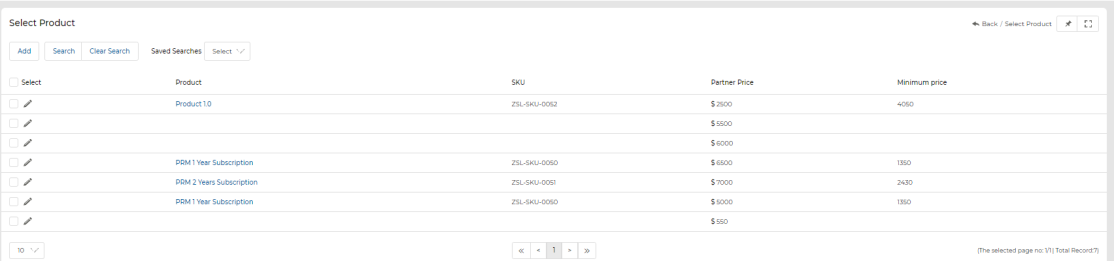
This related list shows all Products included in this Sales Order. To add line items:
- Click the Add Product(s) button within the Sales Order Line Item(s) section.
- Check the boxes next to the desired Products in the picker, then click Add.
f. Invoice(s)
This related list displays any Invoices generated against this Sales Order. See the Add a New Invoice section for details.
Add a New Sales Order
Click the Add button at the top of the View Sales Orders page to open the Add/Edit a Sales Order form.
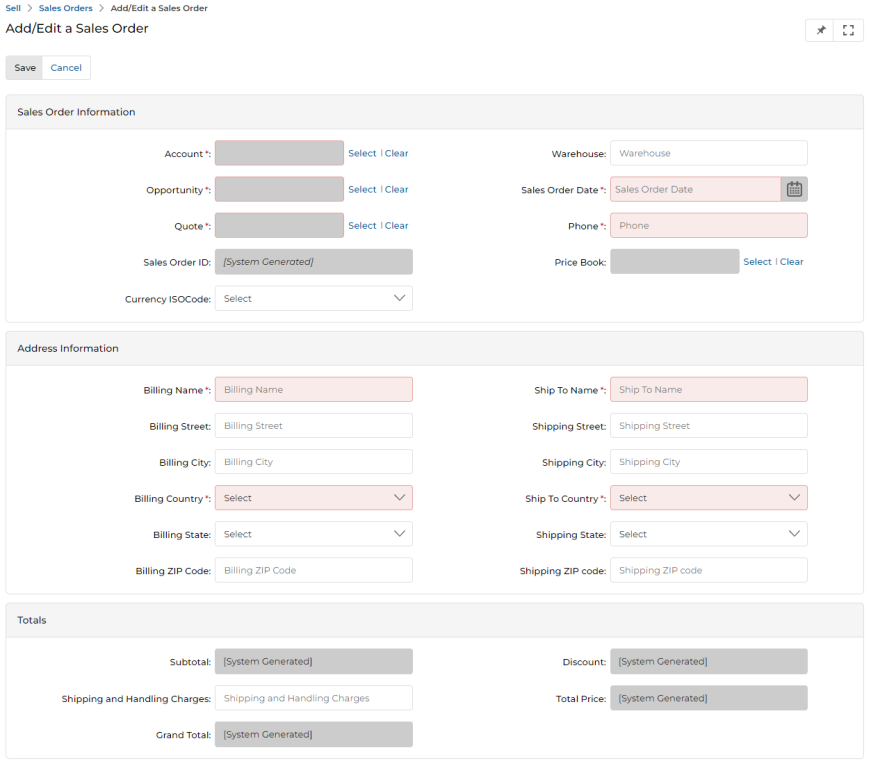
a. Buttons
- Save — Save the Sales Order record.
- Cancel — Discard changes and return to the list.
b. Sales Order Information
| Field | Description |
|---|---|
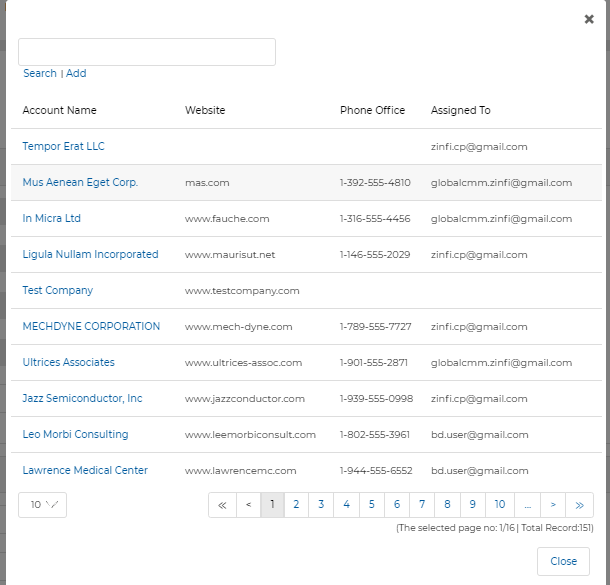
| Account | Sales Account for this Sales Order. Use Select to pick from the lookup. |
| Warehouse | Warehouse from which this Order will be fulfilled. |
| Opportunity | Opportunity linked to this Sales Order. |
| Sales Order Date | Date of this Sales Order. |
| Quote | Quote this Sales Order is created against. |
| Phone | Phone number for the Contact. |
| Sales Order ID | Auto-generated ID (read-only). |
| Price Book | Price Book used for product pricing. |
| Currency ISO Code | Currency for this Sales Order. |
After saving a new Sales Order, return to the View Sales Orders list and click the Sales Order's Name/Title to re-enter the record and add Sales Line Items or create Invoices against it.
Invoices
Invoices are generated from Sales Orders and represent a formal billing document. Invoices go through an approval workflow before they are considered finalized. Admins can approve or reject submitted Invoices directly from the Invoices list.
View Invoices
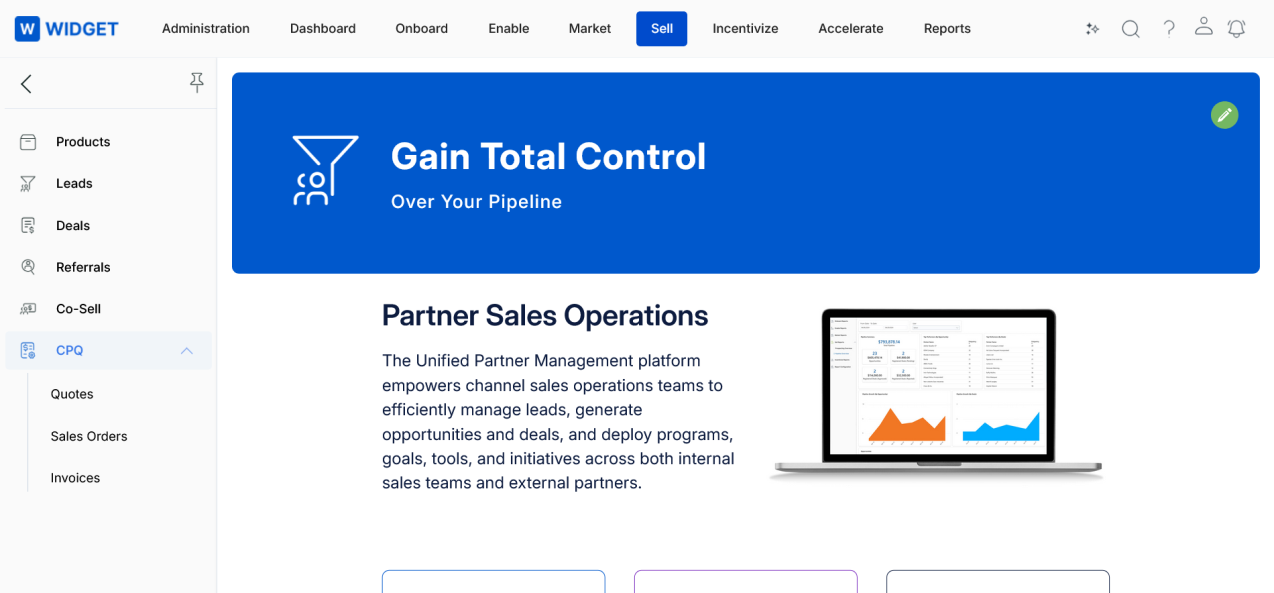
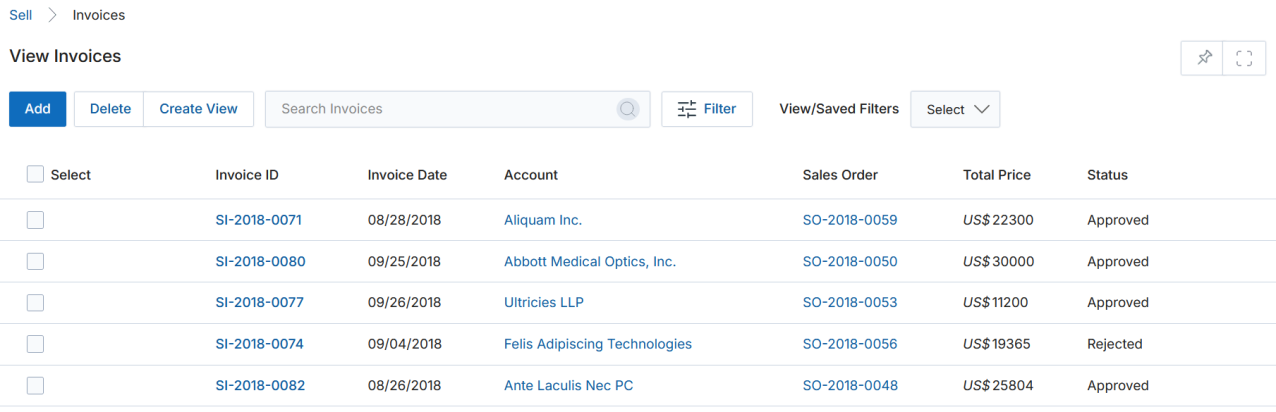
Navigate to Sell > CPQ > Invoices. The following toolbar actions are available:
- Add — Create a new Invoice.
- Delete — Delete selected Invoices.
- Create View — Build a saved filtered view.
- Search — Search for specific Invoice records.
- Clear Search — Reset any active search filter.
Click the Invoice ID to open the Invoice detail page. Click Sales Order to navigate to the related Sales Order Details page.
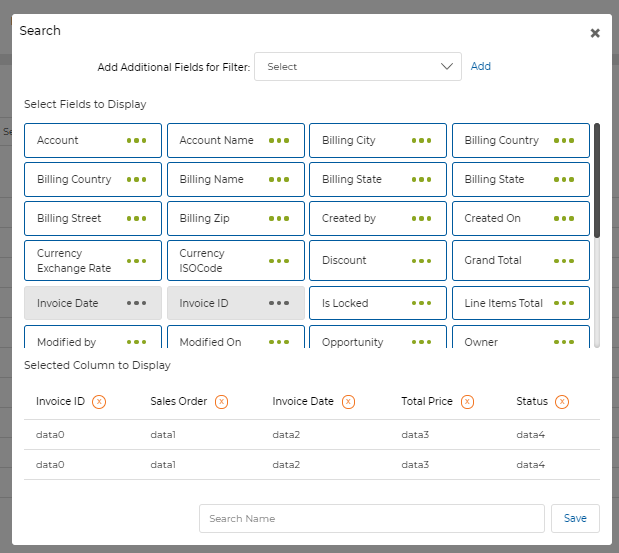
Create New View
- Select an additional field from the dropdown and click Add.
- Click the Green Dots to select display columns.
- Click the × button to remove a column from the preview.
- Enter a View Name and click Save.
View Invoice Details
Click the Invoice ID in the list to open the full detail page. The Invoice detail page is organized into the following sections:
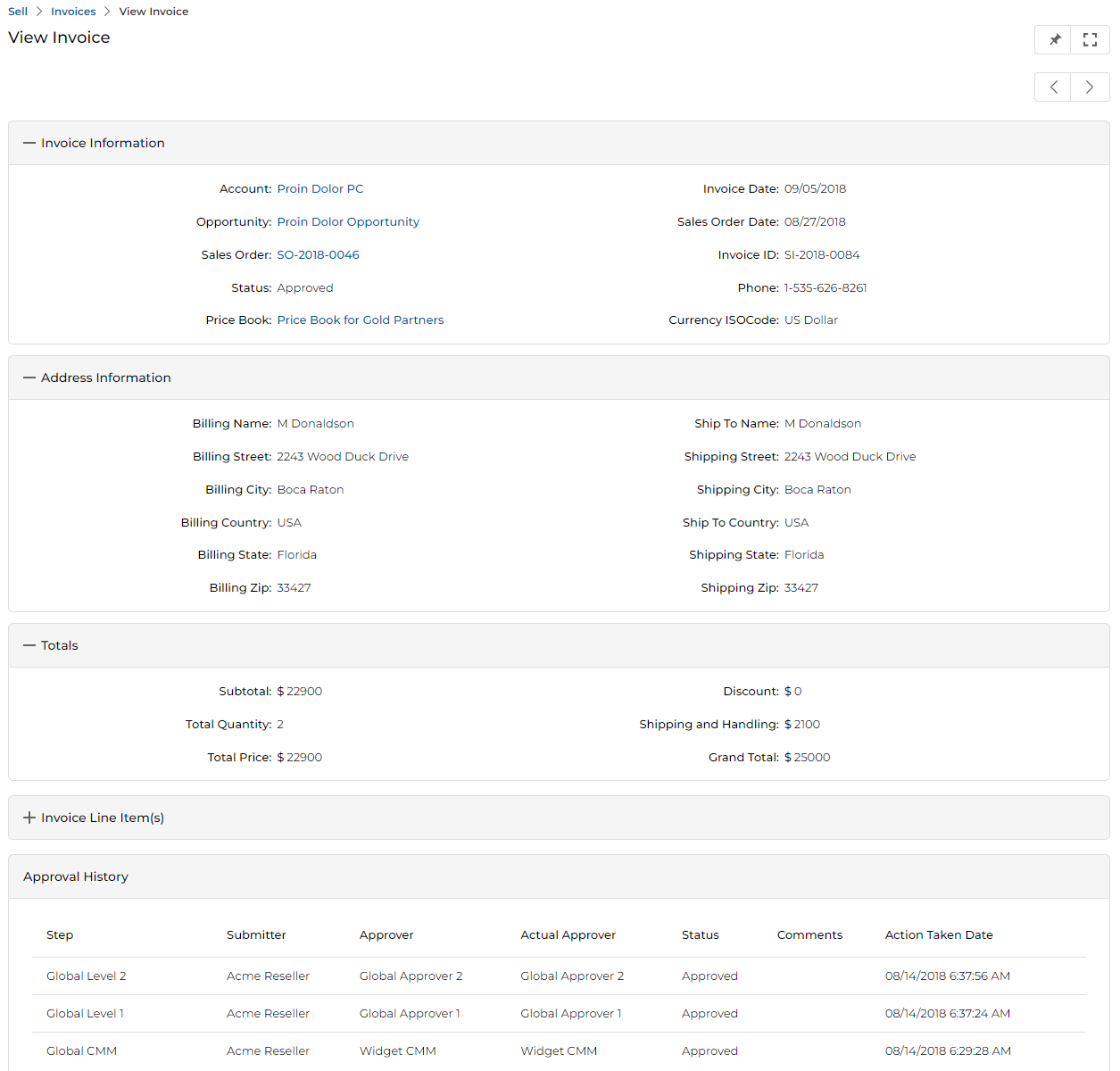
a. Invoice Information
| Field | Description |
|---|---|
| Account Name | Sales Account this Invoice is generated for. |
| Invoice Date | Date this Invoice is drawn upon. |
| Opportunity | Opportunity this Invoice is generated from. |
| Sales Order Date | Date the linked Sales Order was created. |
| Sales Order | Link to the associated Sales Order. |
| Invoice ID | Auto-generated ID for this Invoice. |
| Status | Auto-generated status of this Invoice. |
| Phone | Phone number of the Contact for whom this Invoice is generated. |
| Price Book | Price Book used for pricing (inherited from the Sales Order). |
| Currency ISO Code | Currency this Invoice is denominated in. |
b. Address Information
| Field | Description |
|---|---|
| Billing Name | Name of the Billing Contact for this Invoice. |
| Shipping Name | Name of the person this Invoice will be shipped to. |
| Billing Street | Street address of the Billing Contact. |
| Shipping Street | Street address for the shipping destination. |
| Billing City | City of the Billing Contact. |
| Shipping City | City for the shipping destination. |
| Billing Country | Country of the Billing Contact. |
| Shipping Country | Country for the shipping destination. |
| Billing State | State/Province of the Billing Contact. |
| Shipping State | State/Province for the shipping destination. |
| Billing ZIP Code | ZIP code of the Billing Contact. |
| Shipping ZIP Code | ZIP code for the shipping destination. |
c. Totals
| Field | Description |
|---|---|
| Sub Total | Sum of all Invoice line item amounts. |
| Discount | Any discount applied. |
| Shipping and Handling Charges | Shipping and handling costs. |
| Total Price | Sub Total plus Shipping/Handling. |
| Grand Total | Total Price minus Discount. |
d. Invoice Line Item(s)
This related list shows all Products included in this Invoice.

e. Approval History
This section records the full approval trail for the Invoice, including each approval step, submitter, approver, actual approver, status, comments, and action date.
Add a New Invoice
Click the Add button at the top of the View Invoices page to open the Add/Edit a Sales Invoice form.
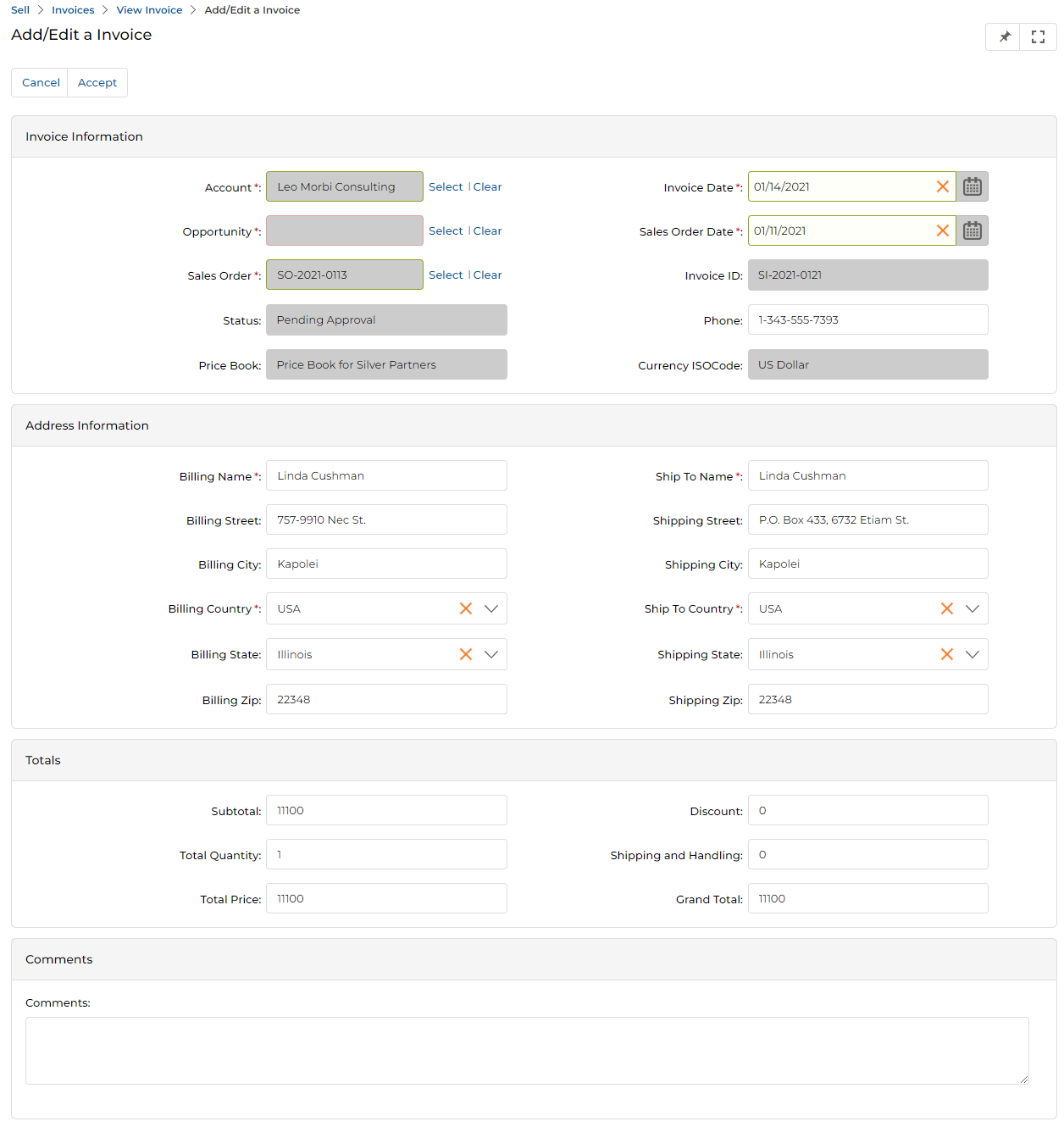
a. Invoice Information
| Field | Description |
|---|---|
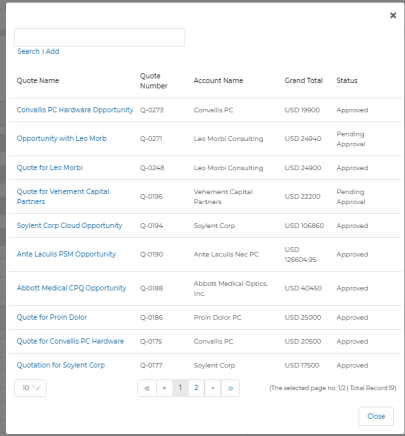
| Account Name | Sales Account this Invoice is for. Use Select to choose from the lookup. |
| Invoice Date | Date this Invoice is drawn upon. |
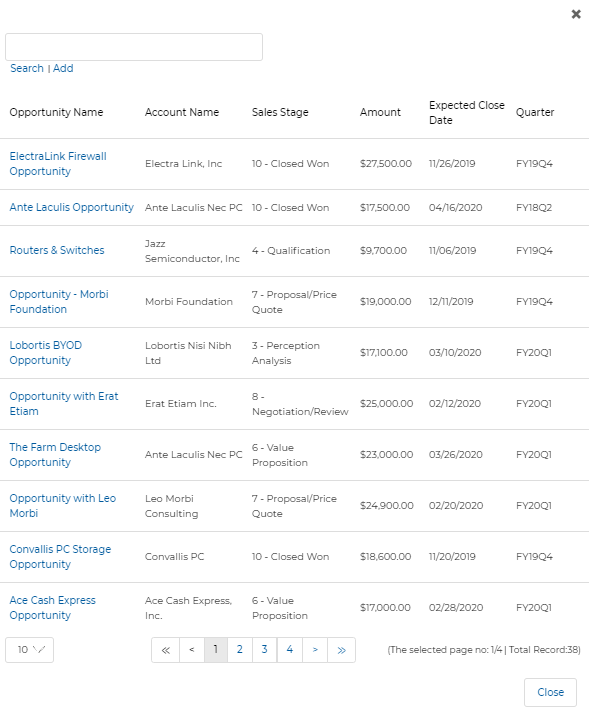
| Opportunity | Opportunity linked to this Invoice. |
| Sales Order Date | Date the linked Sales Order was created. |
| Sales Order | Sales Order this Invoice is generated from. |
| Invoice ID | Auto-generated ID (read-only). |
| Status | Auto-generated status (read-only). |
| Phone | Phone number for the Contact. |
| Price Book | Price Book used for pricing (inherited from the Sales Order). |
| Currency ISO Code | Currency for this Invoice (system-generated). |
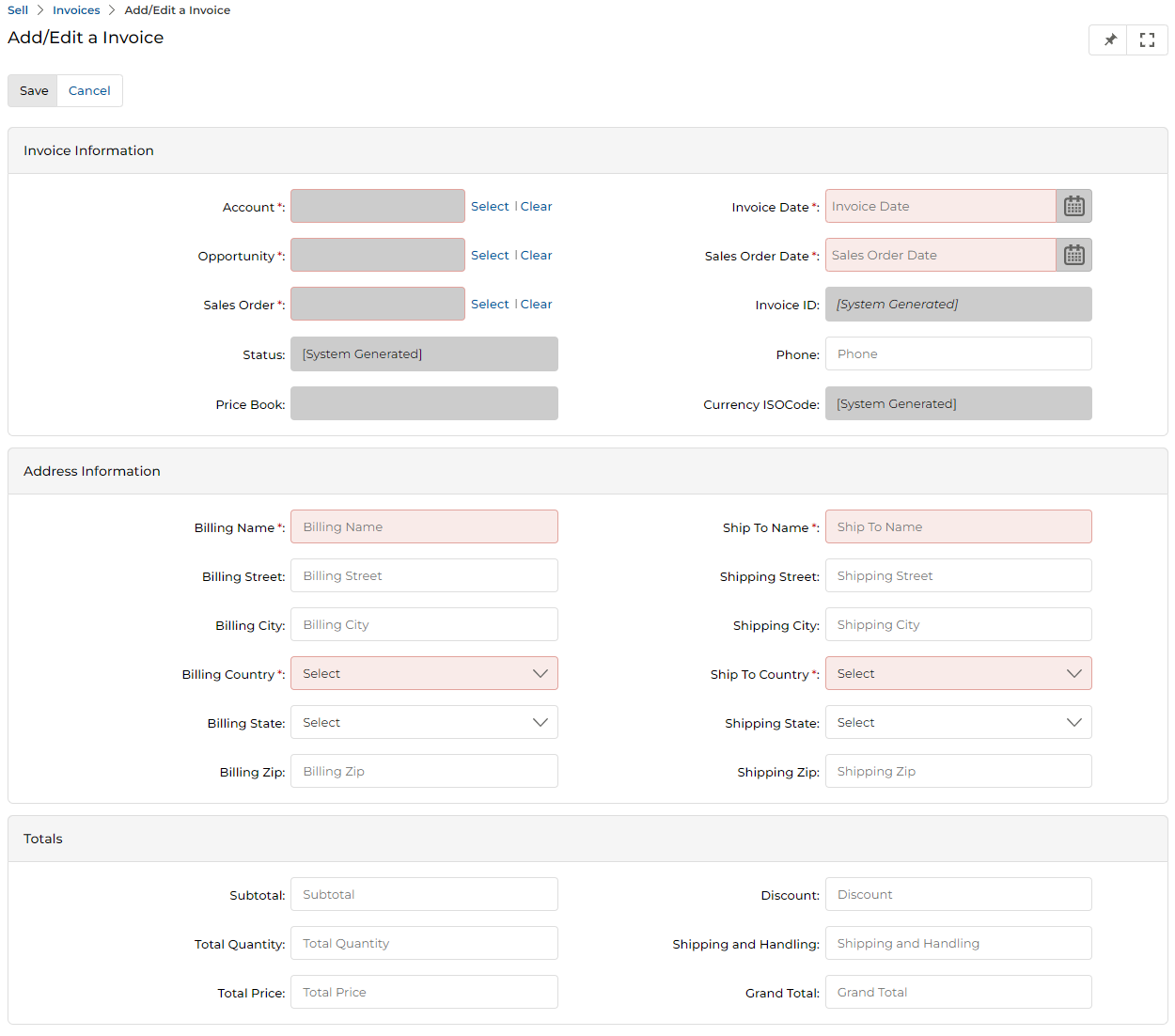

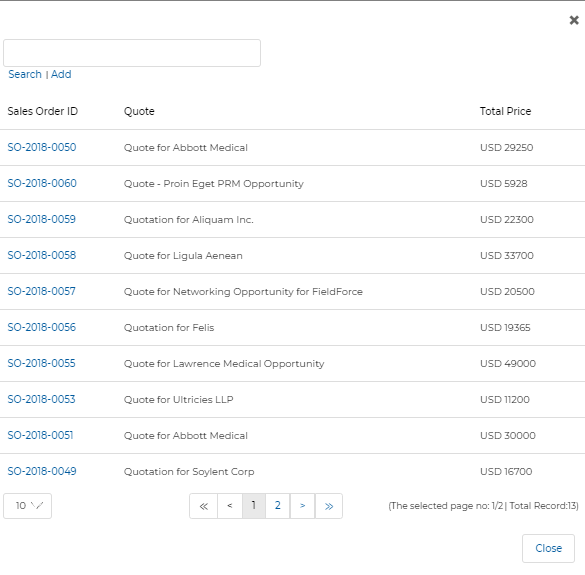
Once all fields are completed, click Save to create the Invoice.
Approving / Rejecting a Submitted Invoice
When a new Quote (or Invoice) is submitted for approval, it appears as Pending Approval in the View Invoices list.
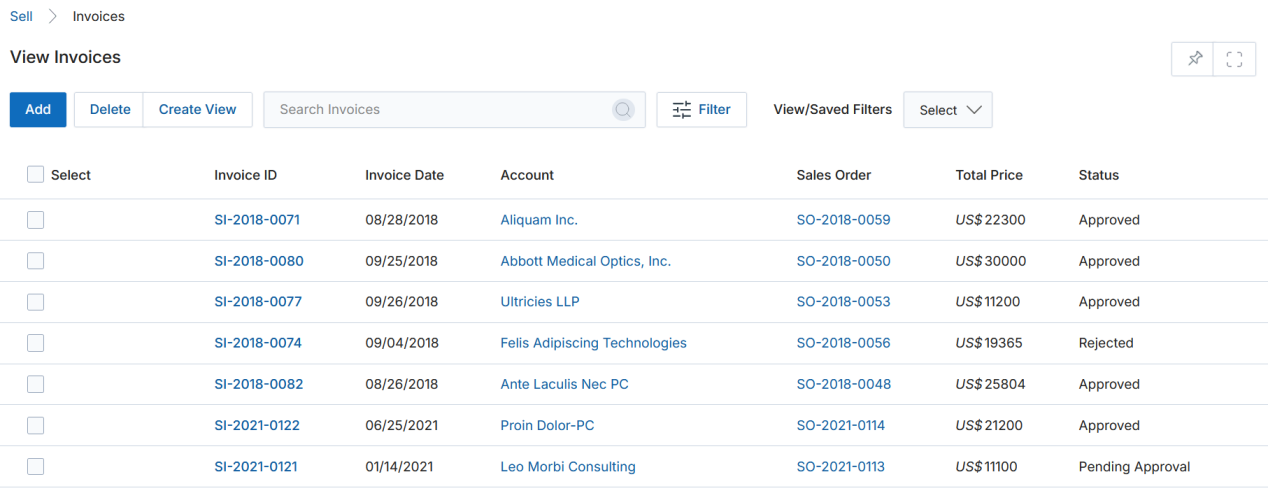
Click into the Invoice record. At the bottom of the page, the Approval History related list displays two action links:
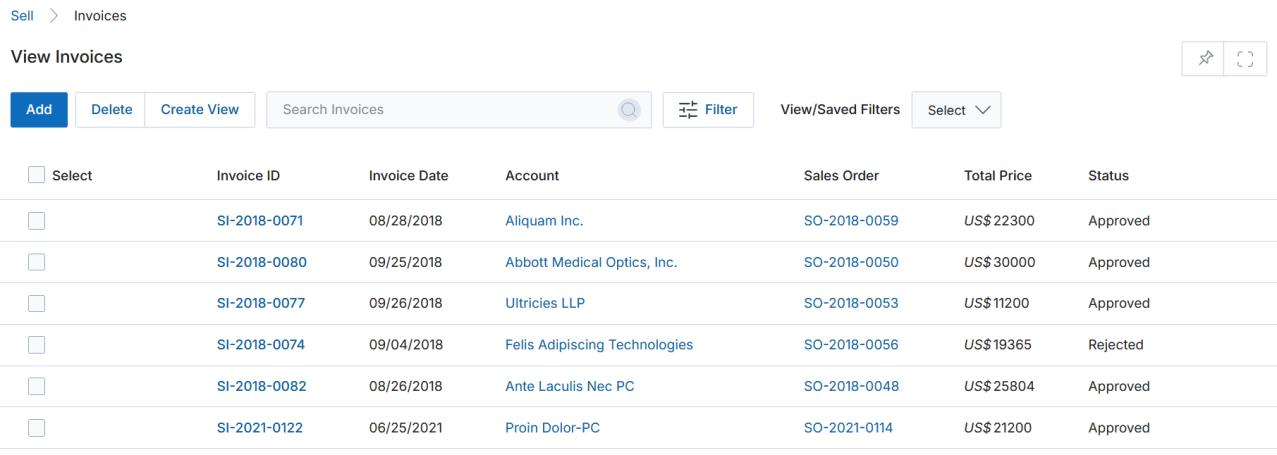
a. Approve
Clicking Accept opens the Add/Edit Invoice form in approval mode. Review and modify any open fields as needed. Optionally add Approval Comments in the Comments section, then click Accept to approve the Invoice.
b. Reject
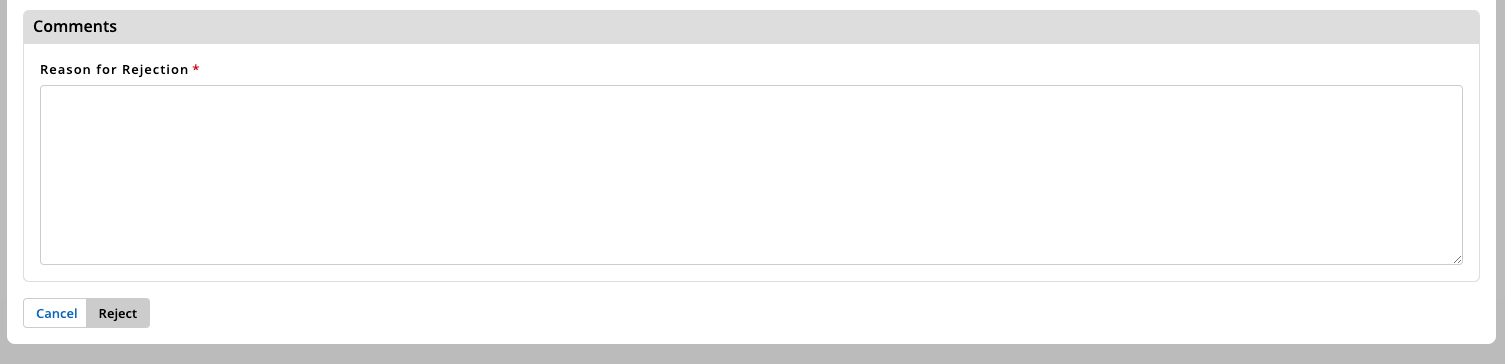
Clicking Reject opens a Comments form where you can enter the Reason for Rejection (required). Review and modify any open fields as needed, then click Reject to reject the Invoice.
Only the designated approver (or a user in the mandatory admin group) will see the Accept / Reject action links in the Approval History section. Approvers are configured as part of the CPQ approval workflow setup in Administration.