
Introduction
ZINFI's UPM Deal Registration Management associates partner-related contact, record, and deal data to give a total customer view for your group, empowering you to oversee registered deals — created on the fly or coming from existing Opportunities — in a single place.
Opportunity & Deal Management
Organizations use the Partner Lead Management application to set up an automated review and approval mechanism for all opportunities and arrangements submitted by the channel sales group. The application also enables you to push submitted opportunities and arrangements to your internal CRM through pre-configured system connectors.
UPM's SFDC FIRE Installer lets you connect and map to your Salesforce implementation quickly so that deal registrations work and sync on the fly. The dynamic reporting application provides insight into every dimension of the business pipeline generated by your channel sales group.
Key Features
Deal Details
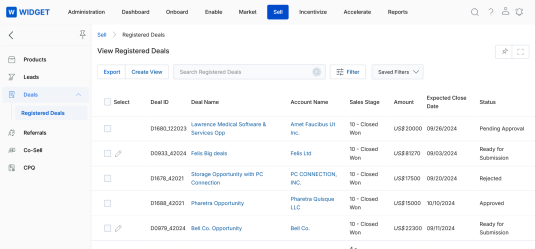
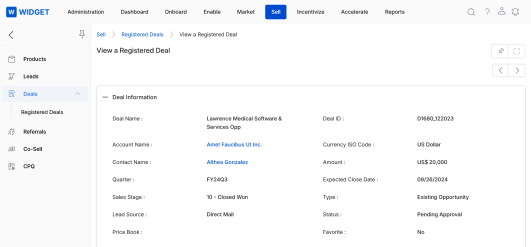
Deal properties vary from business to business. UPM lets you capture every data point relevant to your deal without being limited to standard fields — you can create custom fields from a range of field types. While creating a deal, you can link it with the related contact, assign opportunities, set an expected close date, designate the primary assignee, and more. Related discussions via phone and email can be captured in the Notes section.
Key Features
Simplified Deal Registration
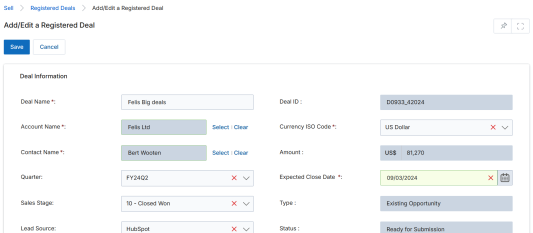
UPM's Simplified Deal Registration methodology lets you create a Deal in a single step through a one-page Deal Registration Form, eliminating the need to navigate a multi-stage Deal Conversion process. Once a Deal is created, completed, and submitted through the Simplified Form, the Contact and Account Records are auto-created and appear in the respective Account and Contact list pages. The Deal approval process can be configured to sync automatically to an external CRM for Admin review.
Key Features
Registered Deals
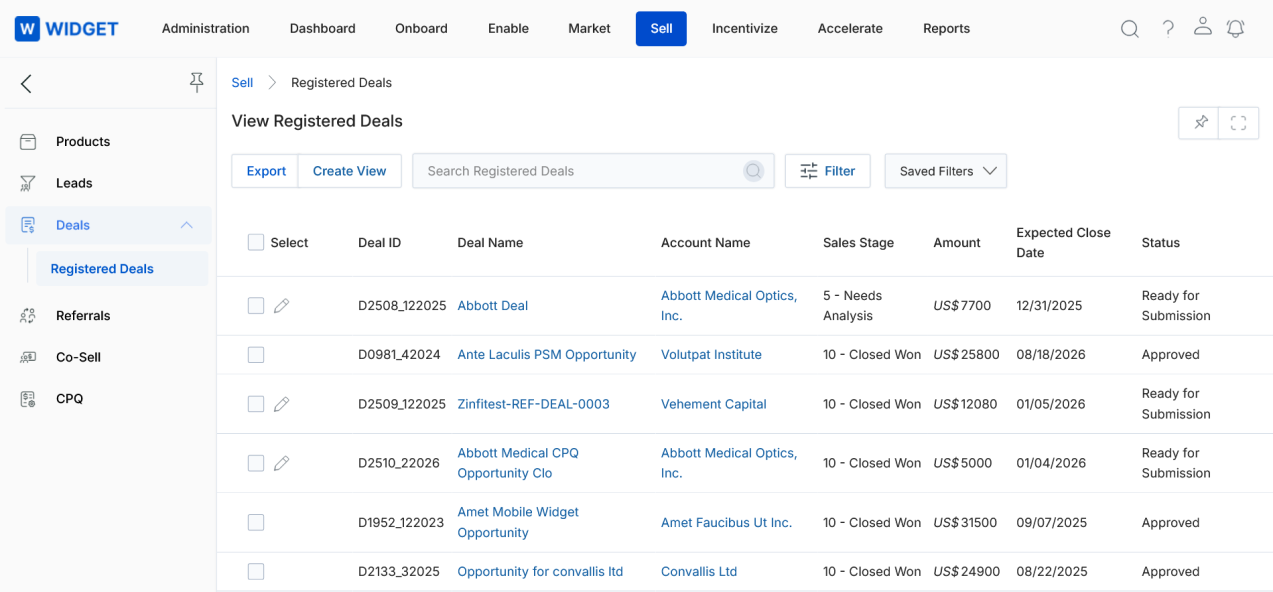
Accessing Registered Deals
- Click Sell on the top navigation menu.
- Click Deals > Registered Deals in the left menu bar.
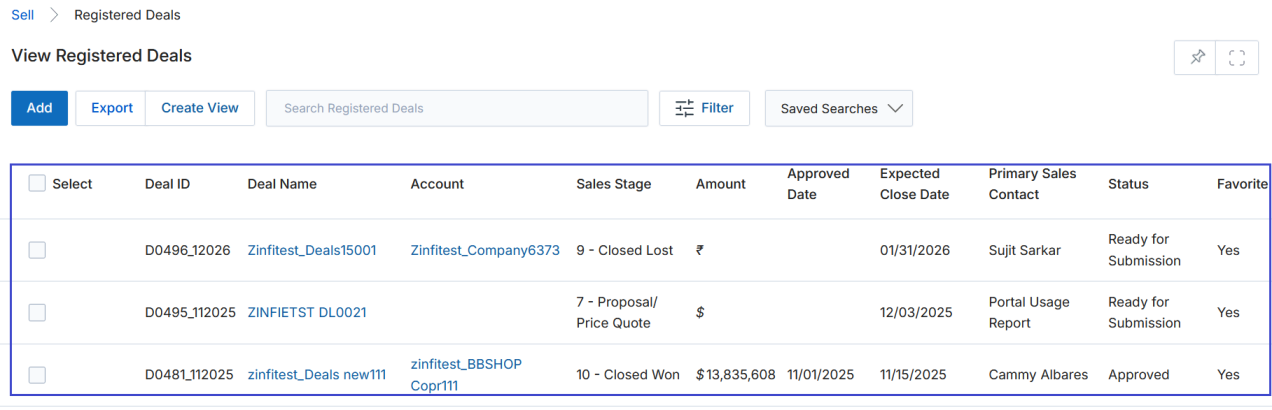
View Registered Deals
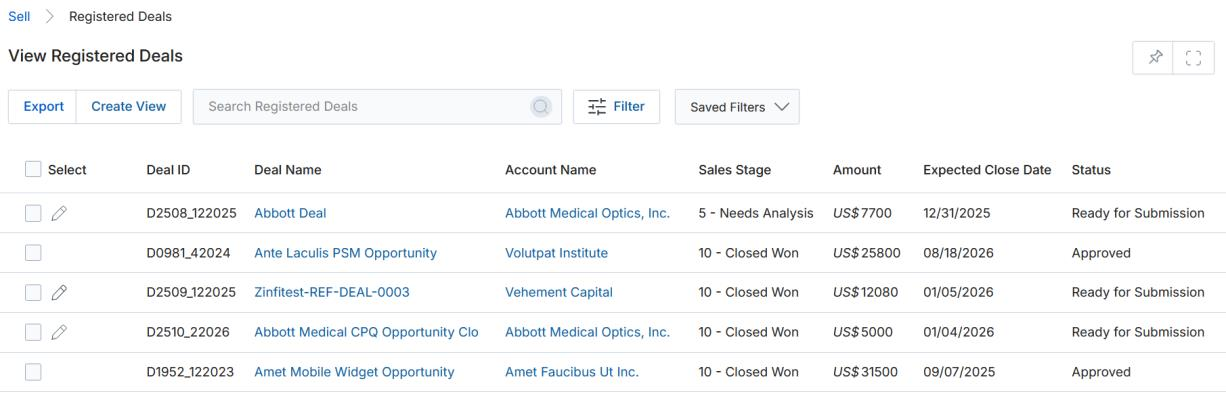
The View Registered Deals page shows a list of all generated and registered deals. The toolbar at the top provides the following actions:
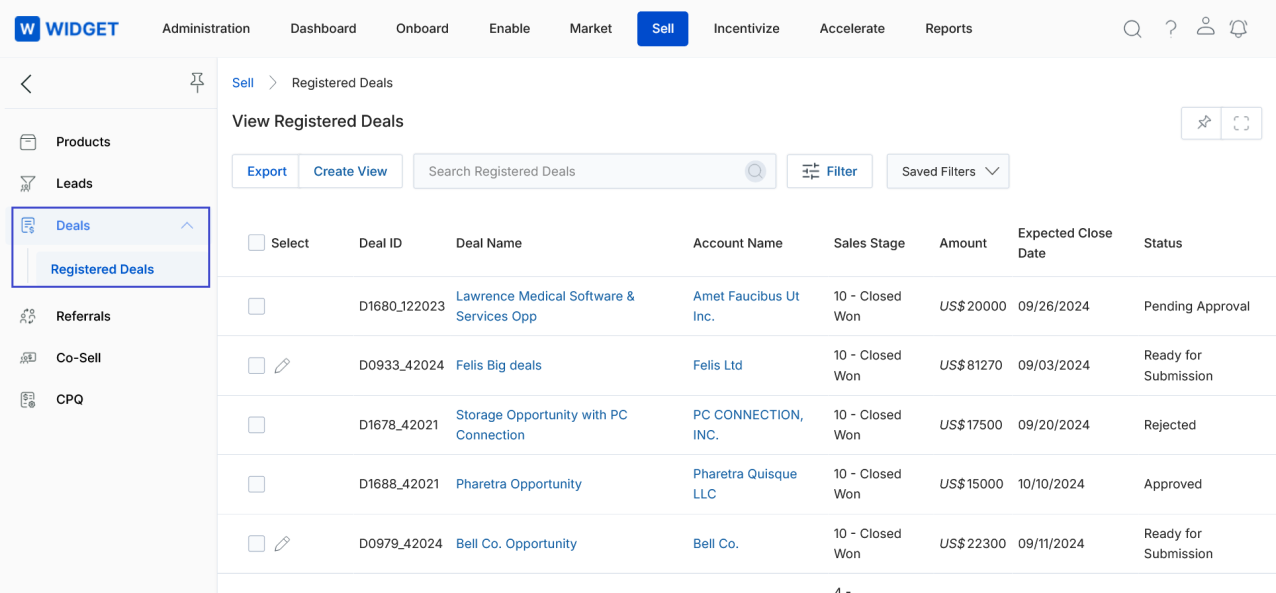
a. Export
Exports records from the listing page to CSV format.
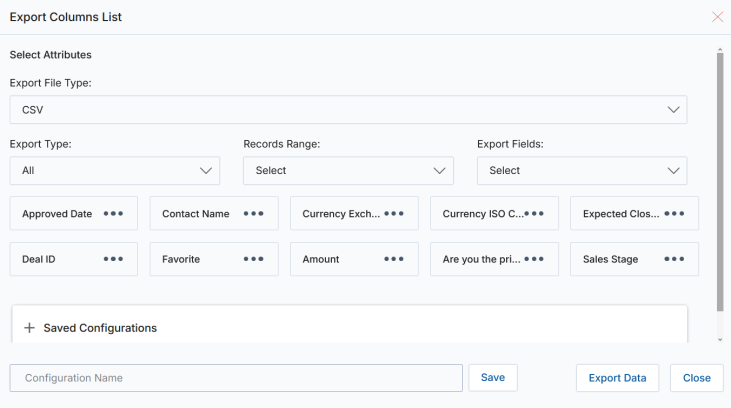
- Selected Records — Exports only the records currently checked in the list.
- All — Exports all records within a specified range selected from the associated range dropdown.
b. Add
Creates a new Deal Registration record. Partners typically create and submit deals to the Admin, but this button is available for Admins who need to create a deal record directly.
c. Create View
Manages the column configuration for the listing view.
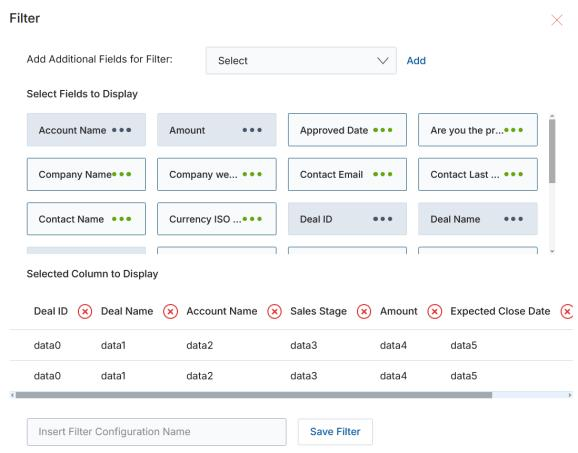
- Select an additional field from the dropdown at the top and click Add — it will appear in the field chooser below.
- Click the elements with Green Dots to select fields for display as columns.
- Selected columns are shown in the preview table. Click the orange X button to remove a column from the display list.
- Provide a View Name, then click Save to create the new view.
d. Per-record actions
For each record in the grid:
- Edit (Pen icon) — Opens the selected record in edit mode.
- Any linkable item — Click any hyperlinked value (e.g., Deal Name, Account Name) to navigate to its details page.
Search
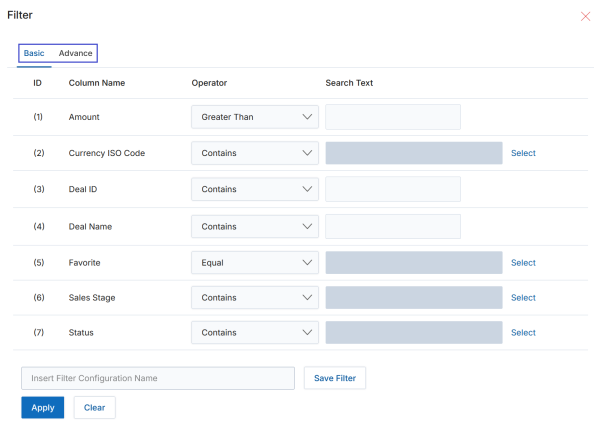
Clicking the Filter (or Search) button opens a pop-up window with two search modes: Basic and Advanced.
Basic Search
Basic Search lets you filter records using fields that have been enabled as searchable in the workflow automation configuration. All conditions in Basic Search are evaluated using AND logic.
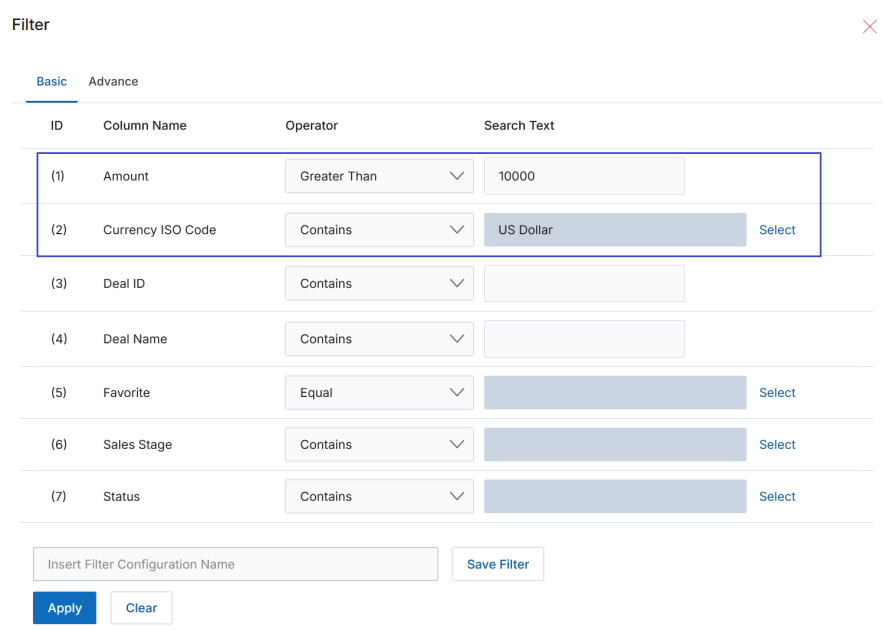
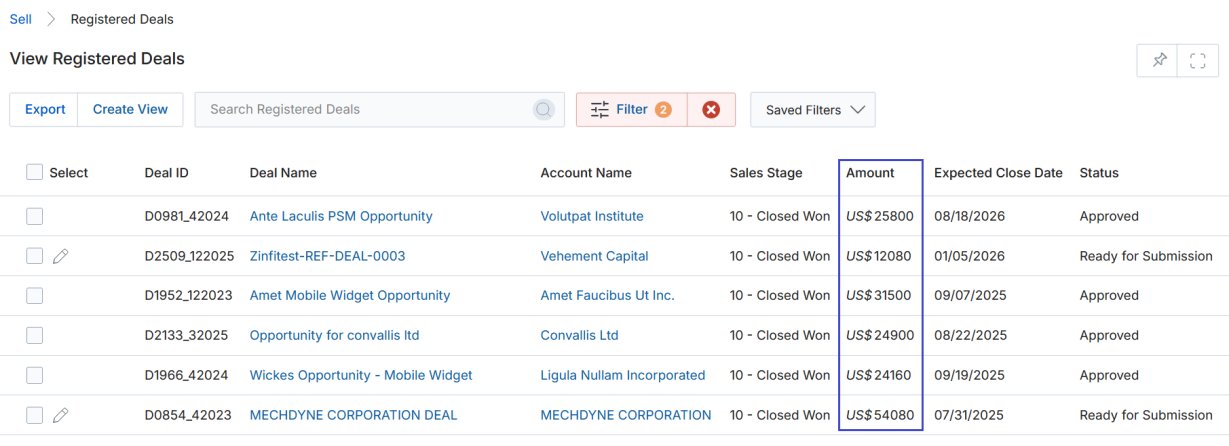
- Clear Filter — Clears the search criteria, removes filtered results, and restores the default full list.
- Saved Filters — Displays a list of previously saved searches. Selecting a saved filter reveals two options:
- Edit — Update the selected saved search name.
- Delete — Remove the saved search from the dropdown.
Advanced Search
Advanced Search provides a flexible, comprehensive way to filter records based on multiple criteria with customizable logic.
Key Features
- Multiple Field Selection — Define search conditions by choosing multiple fields (e.g., Deal Name, Favorite, Status).
- Customizable Operators — Operators including Contains, Equals, Begins With, Ends With, Is Blank, and Is Not Blank are available for precise filtering.
- Criteria Logic — Define logic using AND (all conditions must be satisfied), OR (any condition can be satisfied), or a custom criteria logic expression such as
(1 AND 2) OR 3. - Condition Grouping — Group multiple conditions to retrieve highly specific results.
- Save and Reuse — Save search conditions for future use to improve efficiency for frequently performed searches.
- Interactive Filtering — Results update dynamically based on the applied conditions.
Advanced Search eliminates manual record browsing, provides a structured way to locate specific data, supports advanced logic for diverse use cases, and is especially valuable when managing large datasets.
Advanced Search Process Flow:
- Click the Advance tab in the Filter pop-up to open the Advanced Search view.
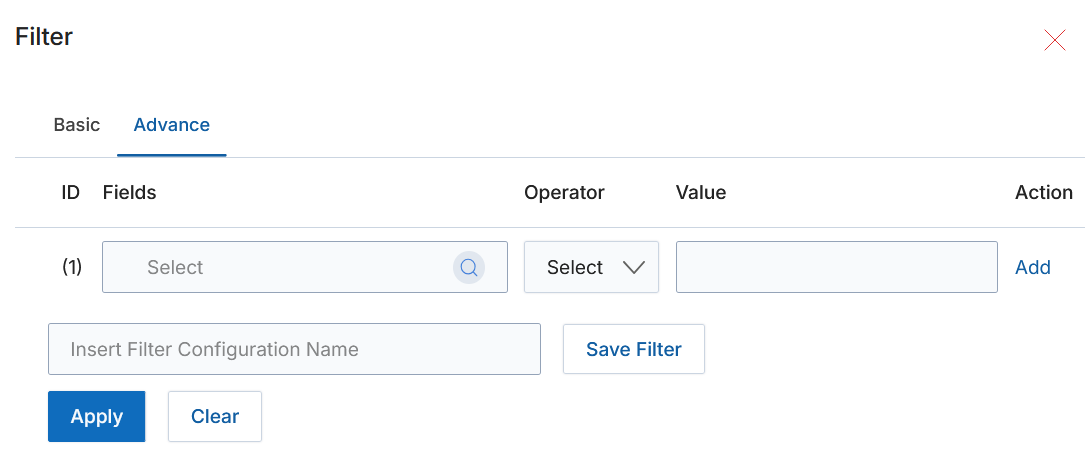
- Select the Field Name for the search condition, choose the appropriate Operator, and enter the desired Field Value. Click Add to include it in the search criteria.
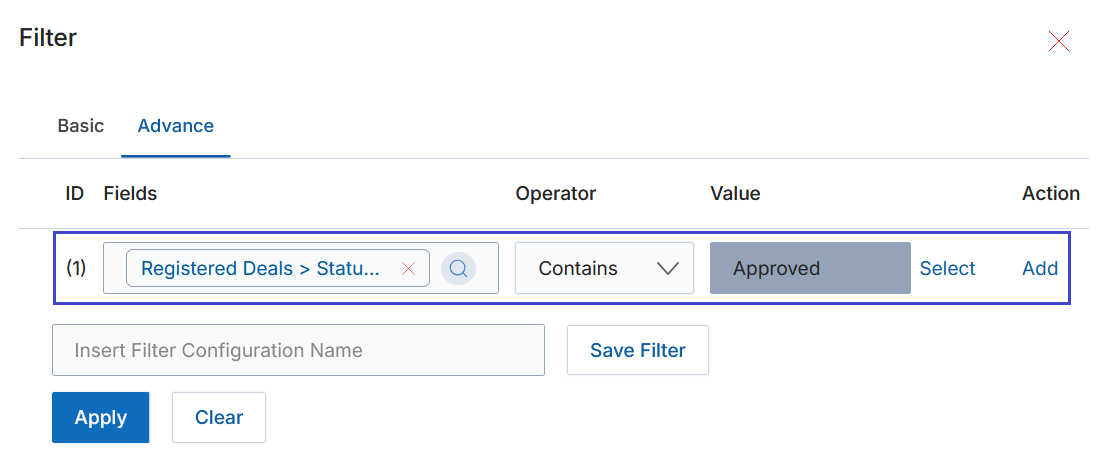
- Adding multiple fields reveals the Criteria Editor box, where you define the conditions logic.
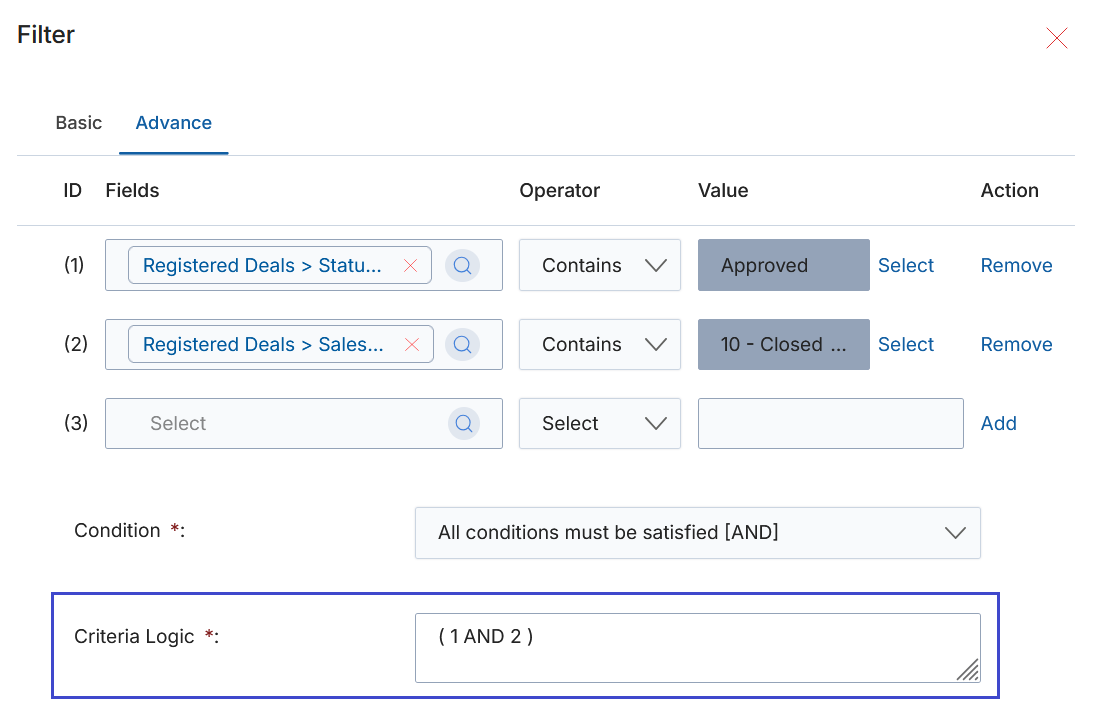
- In the Criteria Editor, select the logic for this search:
- All Conditions must be satisfied [AND] — All specified criteria must match. For example, Deal Name contains "ZINFI" AND Favorite is Yes.
- Any condition can be satisfied [OR] — Any one criterion is sufficient. For example, Deal Name contains "ZINFI" OR Favorite is Yes.
- Put Custom Criteria Logic — Enter a custom expression such as
(1 AND 2) OR 3.
![Criteria Logic dropdown showing three options: All conditions must be satisfied [AND], Any condition can be satisfied [OR], and Put custom criteria logic](https://ghcmnhevjmhnfwyuvkls.supabase.co/storage/v1/object/public/page-images/inline/522fd43ad358582d3c06379671091b5339a197fce53b742ebd2eb010fc2dba04.png)
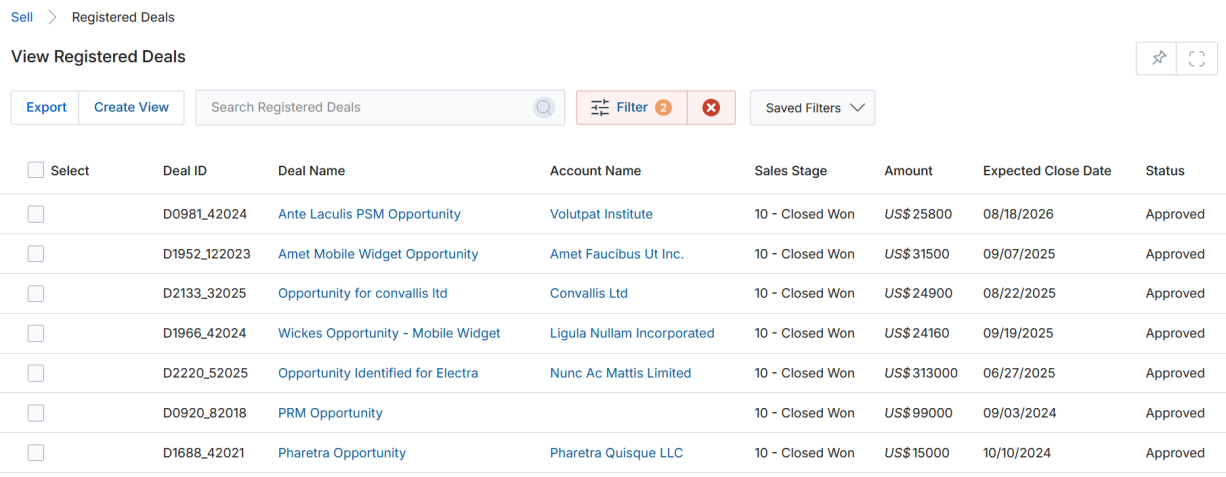
- Click Apply to execute the query. Results update immediately in the Registered Deals list. You can also save the search with a custom name using the Save Filter field for future reuse.
View Registered Deal Details
The View Registered Deals list shows the Status of every deal visible to you. To open a deal's full details page, click its Deal Name link.
If you are an approver in the deal registration approval flow and see a Pending Approval status, click the Deal Name to enter the details page and begin the review.
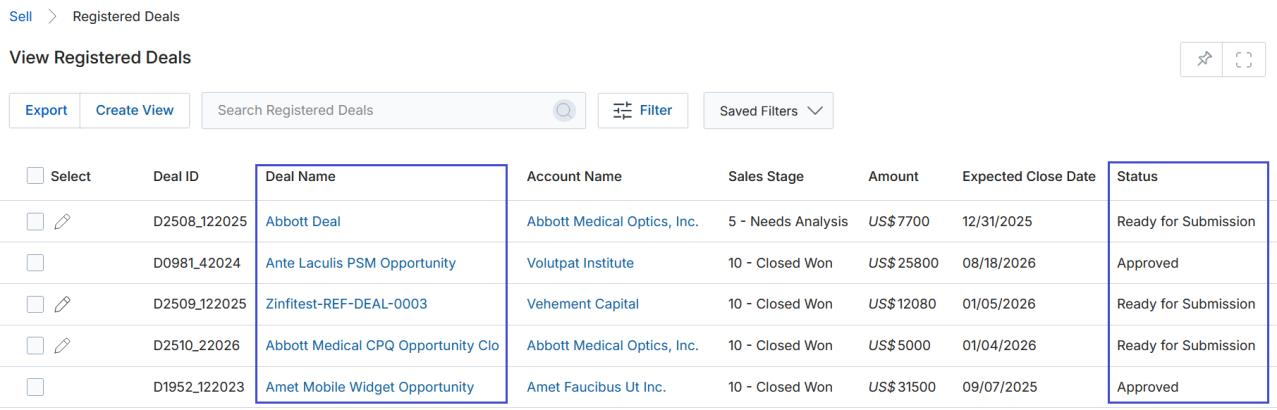
Partners can tag a deal as Favorite before submitting it for approval. Favorited deals are automatically pushed to the top of the Admin's View Registered Deals list for better visibility.
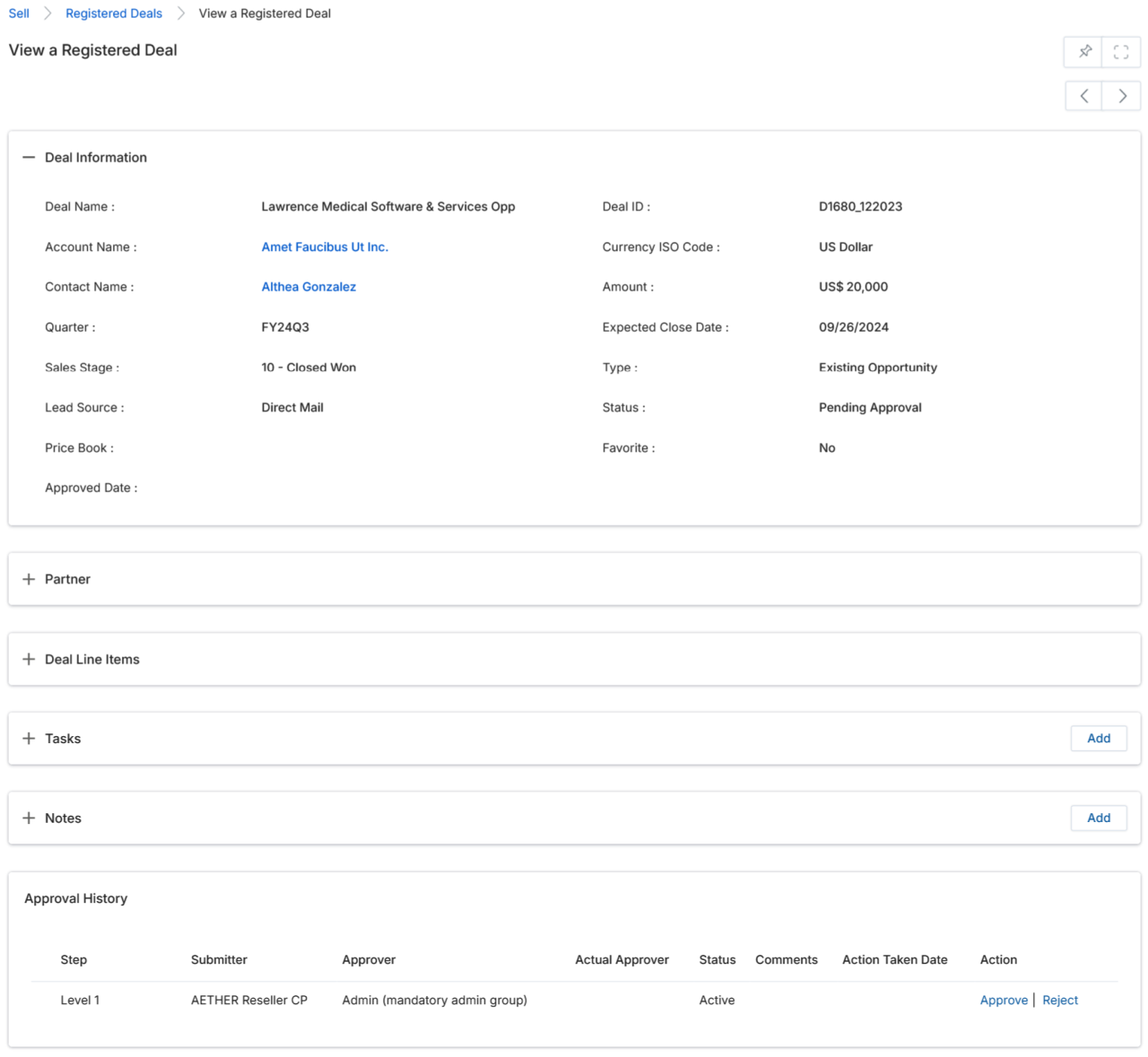
Once on the Deal Details page, the following sections are available:
a. Deal Information
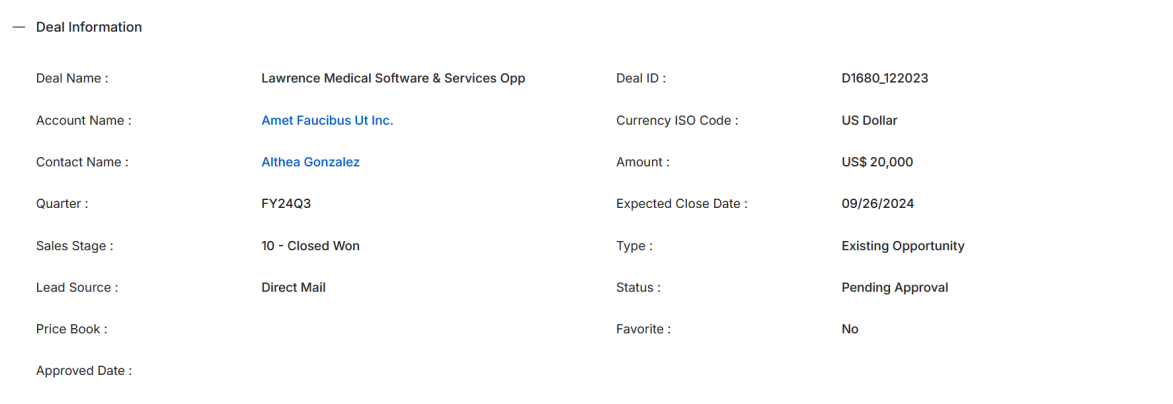
| Field | Description |
|---|---|
| Deal Name | Name of the deal record. |
| Deal ID | System-generated unique identification number for the deal. |
| Currency | ISO code of the currency used. OOTB supported currencies: US Dollar, Pound Sterling, Australian Dollar, and Indian Rupee. |
| Contact Name | Name of the rep or contact at the Account this deal is being transacted with. |
| Quarter | The fiscal quarter in which the deal is happening. |
| Expected Close Date | Expected date of deal closure. |
| Lead Source | Source of the lead that led to this deal (e.g., Direct Mail, Web). |
| Type | System-generated deal type: New Deal (created directly in the portal) or Existing Opportunity (converted from an existing opportunity record). |
| Campaign Name | Relevant campaign associated with the deal that the end-user customer came in via. |
| Price Book | Price book selected by the Partner to determine line item costs and sell prices. |
| Status | Status of the deal: Pending Approval, Approved, or Rejected. |
| Sales Stage CMM | Current stage of the deal as assigned by the Admin user reviewing the deal. |
| Favorite | Whether the Partner has tagged this deal as a Favorite (Yes/No). Favorited deals appear at the top of the Admin list. |
| Approved Date | Date the deal was approved (populated after approval). |
b. Partner
The Admin can create and register a deal on behalf of a channel partner or their own sales reps. The Partner section captures the submitting party details.
The key field is Are You the Primary Contact? — this determines whether the Admin is registering the deal on behalf of their own Company (Yes) or a Channel Partner (No).
- When set to Yes: The Admin is registering the deal for their own Company. The following fields are auto-populated:
- Contact Email — Email address of the Contact, auto-fetched and displayed.
- Name — Name of the Contact associated with this deal.
- Phone — Phone number of the Contact.

c. Deal Line Items
This section displays the products and line items associated with this deal. Click the Add Product(s) button to add products.

| Field | Description |
|---|---|
| Deal Name | Clicking the Deal Name redirects to the deal's details page. |
| SKU | Alphanumeric Stock Keeping Unit code that identifies the product. |
| Sales Price | Sales price of the product. |
| Quantity | Number of units sold. |
| Line-Item Total | Total selling amount: Sales Price × Quantity. |
| Net Line Item | Net price of the line item after any costs or discounts. |
| Line Description | A brief description of the product or line item. |
d. Tasks
Displays tasks associated with this deal. Click the Name of a Task to view its details, or click Add to create a new task.
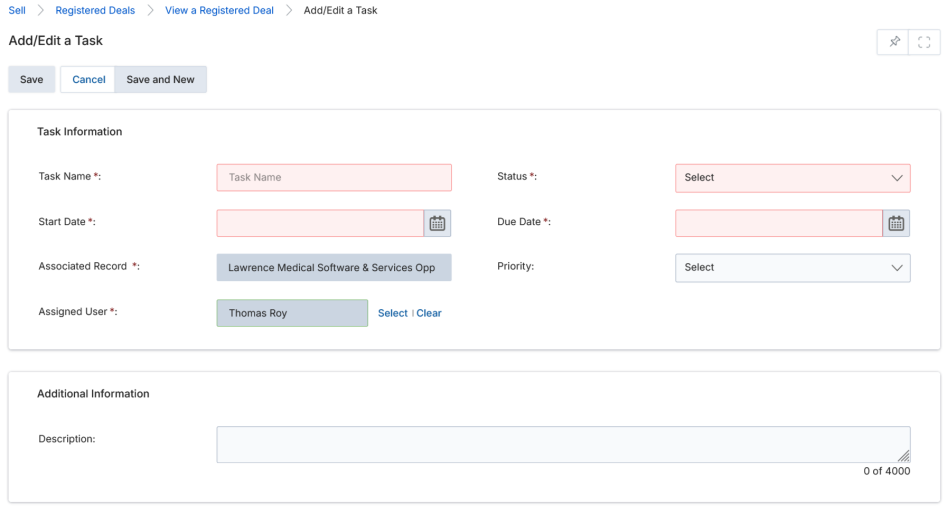
Task Information
| Field | Description |
|---|---|
| Task Name | Name of the Task. |
| Status | Task status: Completed, Deferred, In Progress, or Not Started. |
| Start Date | Date the Task begins. |
| Due Date | Date the Task is due to be completed. |
| Associated Record | The deal record associated with this task. |
| Priority | Priority level: High, Low, or Medium. |
| Assigned User | The user assigned to this specific task. |
| Description | Short description of the task (Additional Information section). |
Buttons
- Save — Saves the task; it appears on the View Task listing page.
- Cancel — Discards entries and closes without saving.
- Save and New — Saves the current task and immediately opens a fresh Add/Edit Task window. Useful when creating multiple tasks in one session.
e. Notes
Displays notes associated with this deal. Click the Note Name to view its details, or click Add to create a new note.
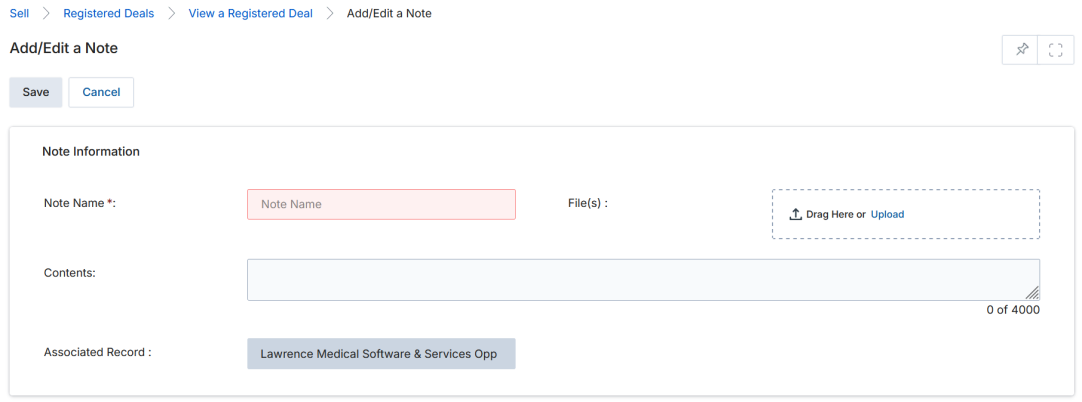

Note Information
| Field | Description |
|---|---|
| Note Name | Name of the note. |
| Files | Any attached files associated with this note (drag-and-drop or Upload). |
| Contents | Observations or details associated with this note (up to 4,000 characters). |
| Associated Record | The deal record this note is linked to. |
f. Approval History
Shows the approval flow levels and the status of each approver for this deal.

| Field | Description |
|---|---|
| Step | The level in the approval flow (e.g., Level 1, Level 2). |
| Submitter | The partner user who submitted the deal. |
| Approver | The Admin user designated to approve the deal at this step. |
| Actual Approver | The Admin who finalized the approval or rejection. Typically the same as Approver, but may be a substitute if the main approver is unavailable. |
| Status | Current status of the approval step. |
| Comments | Comments submitted by the approver. |
| Action Taken Date | Date the Approve or Reject action was executed. |
| Action | Links to execute the Approve or Reject review for this step. |
Approving a Submitted Partner Deal
Once a Partner creates and submits a new Deal, the Admin Approver can Approve, Reject, or request more information. Deals pending review are identified by the Pending Approval status in the View Registered Deals list.
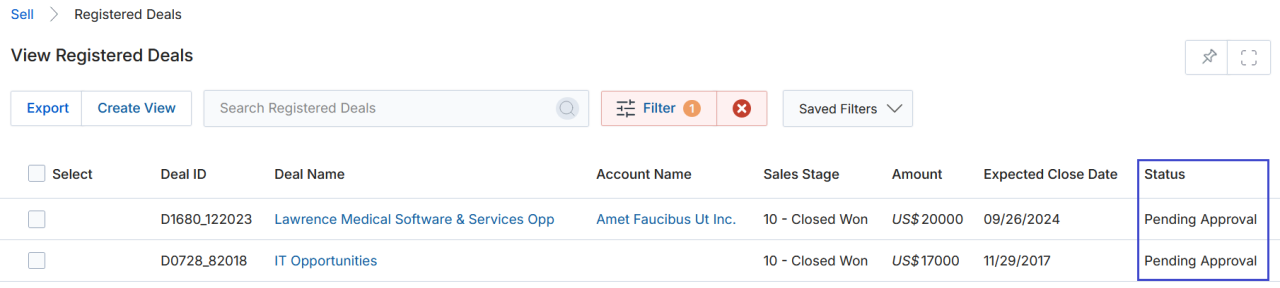
- Identify deals with Pending Approval status in the View Registered Deals list. Click the Deal Name to open the details page.
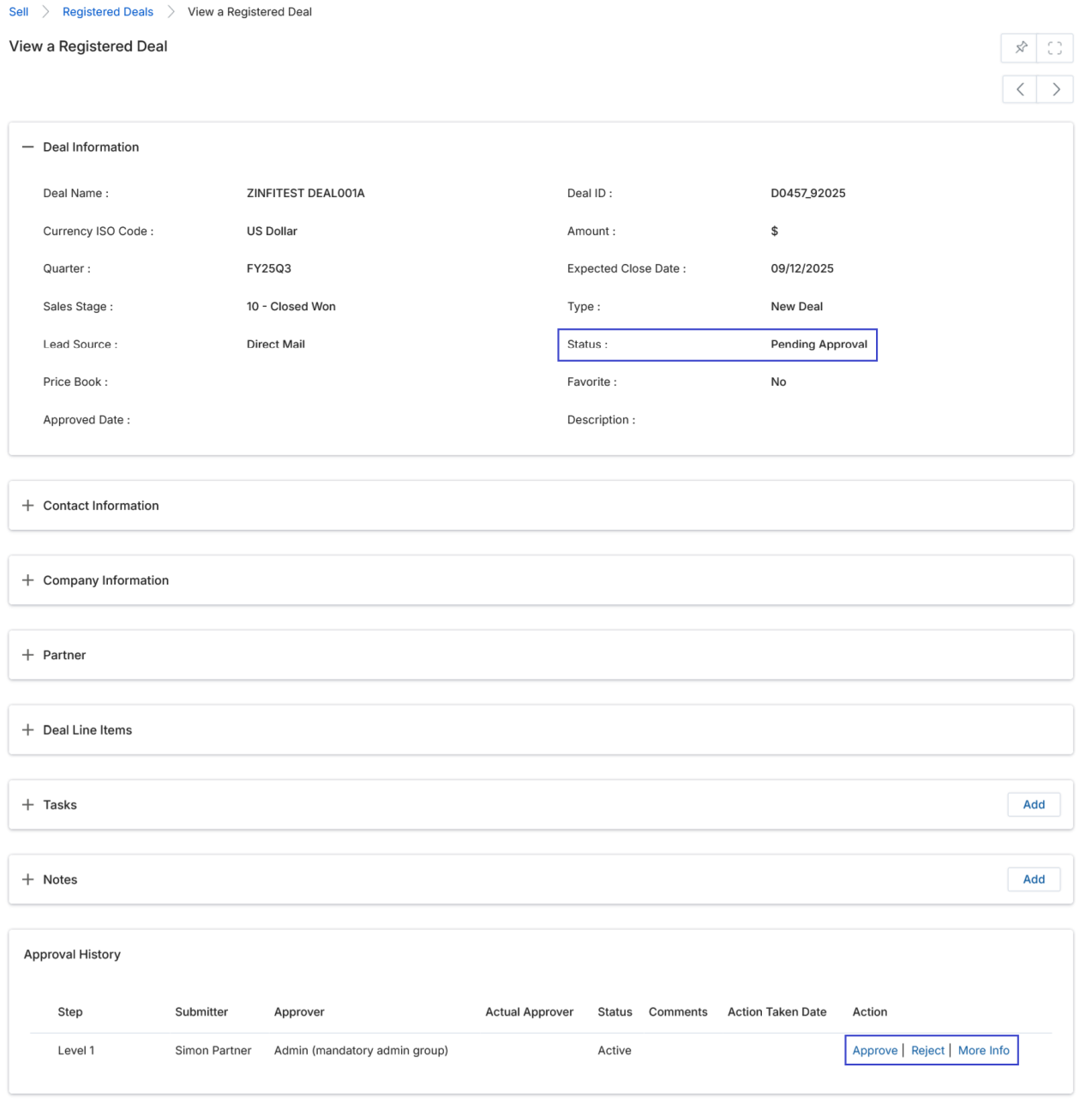
- Once a deal is submitted for approval, the Approval History section appears at the bottom of the deal's details page for both the Admin and the Partner who created the deal.
- The Approval History section presents Approve, Reject, and More Info action links. Clicking Approve or Reject opens the deal in editing mode, allowing the Approver to make any necessary changes before finalizing. A Reason (comments) must be entered before clicking the final Approve or Reject button.
- Instead of approving or rejecting, the Admin can click More Info to request additional information from the Partner. The deal's status changes from Pending Approval to Pending More Info.
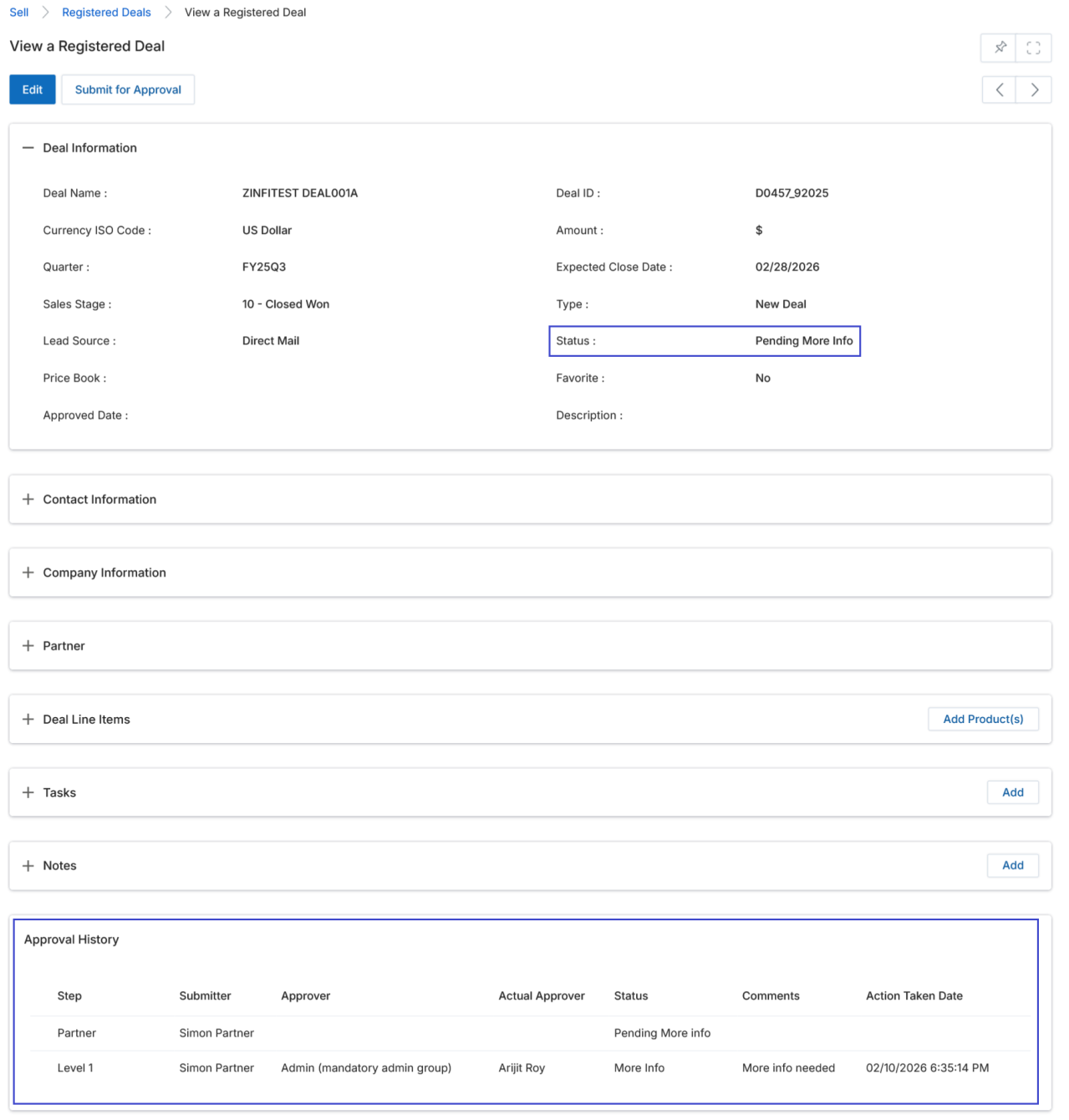
- If the Admin attempts to delete a Deal that is in Pending More Info status, a validation message appears: "Records in Pending More Info status cannot be deleted." This prevents deletion while the review is ongoing.
The Actual Approver recorded in the Approval History may differ from the designated Approver if a substitute acted on the review — for example, when the primary approver is out of office or unavailable.