
Introduction
ZINFI's UPM software has an integrated Market Development Funds Management application which enables your organization to efficiently allocate market development and co-op funds to channel partners. The application automates the application process partners follow to secure program funding as well as the process for claiming compensation by supplying proper proof of execution.
Fund Upload Management
The MDF application allows your organization to upload allocated MDF or co-op funds for channel partners in their local currency, reducing the complexity that can arise from managing programs across a geographically diverse channel. You can also use the application to automate the conversion of local currency based on current exchange rates.
Your organization can define a funding plan and schedule claim submission deadlines. Automation helps prevent partners from submitting inaccurate or late applications. The application allows you to configure automated system alerts to notify partners when you've uploaded program details and submission deadlines.
Plan & Claim Management
The MDF application provides your organization with end-to-end automation of both plan & claim and review & approval processes, thereby enhancing the partner experience. Channel partners can submit Proof of Execution (POEs) within the application for efficient claim review and approval by the vendor.
Each submitted plan is tagged with a dedicated partner account manager so your organization can ensure that channel partners have all the assistance they need to execute activities within the designated timeline. Unique nomenclature for plan and claim IDs makes it easier for users to quickly determine the number of log entries they need to complete for each activity.
Deadline Extension Management
With the MDF application, your organization can efficiently manage deadline extensions for all plans and claims submissions. The application provides a process for channel partners to submit deadline extension requests to the vendor in case unforeseen circumstances will cause them to miss the original deadline.
The application provides end-to-end automated functionality for deadline extension, and you can configure it with a multi-level approval process according to your unique business requirements.
MDF Plans
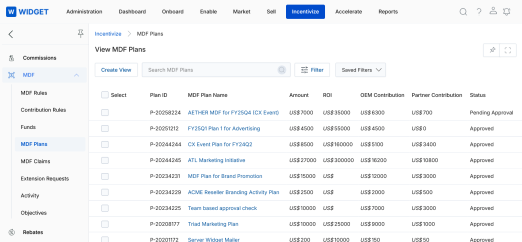
MDF Plans are the funding proposals submitted by channel partners. As an admin, you can view, filter, and approve or reject partner plans from the Incentivize > MDF Plans section.
To build the MDF Plan submission template that partners fill out, refer to the Workflow Management guidebook sections on Workflow Tools and Creating & Editing Applications.
Accessing the Submitted Partner Plans
- Click Incentivize on the top menu.
- Click MDF Plans in the left menu bar.
View MDF Plans
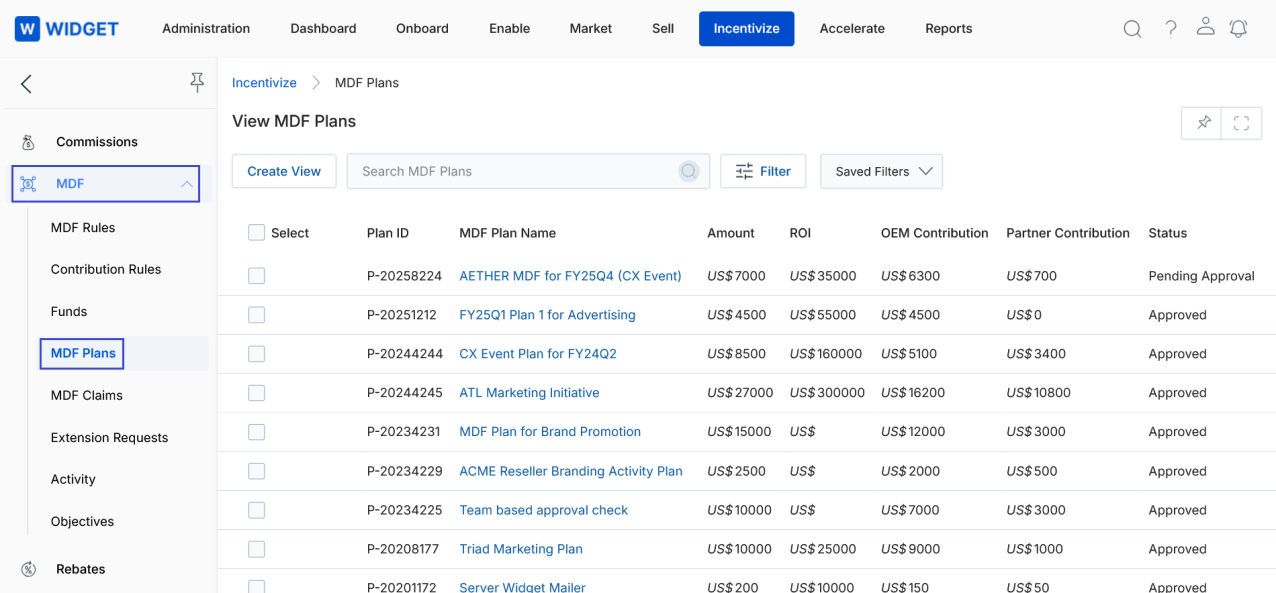
The top part of the page provides the following actions:
- Create View — Lets you create a custom view with a specific set of columns.
- Search — Opens a pop-up window to enter search criteria for finding desired records.
- Clear Search — Clears the current search.
- Saved Searches — Shows a dropdown list of saved searches. When a saved search is selected, two additional options appear:
- Edit — Updates the selected search name.
- Delete — Removes the selected search from the dropdown.
For each record in the grid:
- MDF Plan Name — Clicking the name takes you to the MDF plan details page.
- Manager — Clicking the manager name takes you to the user details page.
Create New View
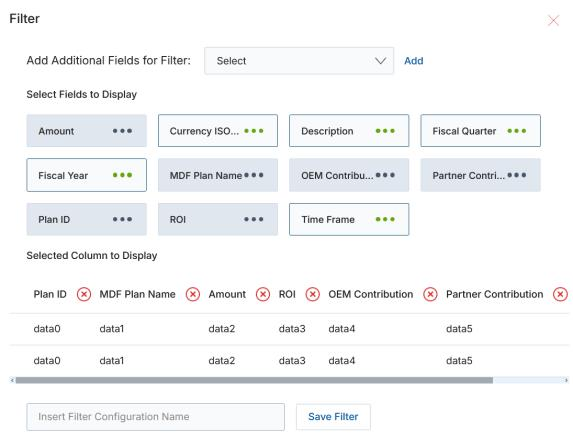
- Choose an additional field from the dropdown and click Add.
- Click the Green Dots next to each field to select it for display.
- Selected columns appear in the preview table. To remove a column, click the × button next to it.
- Enter a View Name and click Save Filter to save the new view.
View Submitted Plan Details
Click on the name or title of any submitted plan in the list to open the plan details page.
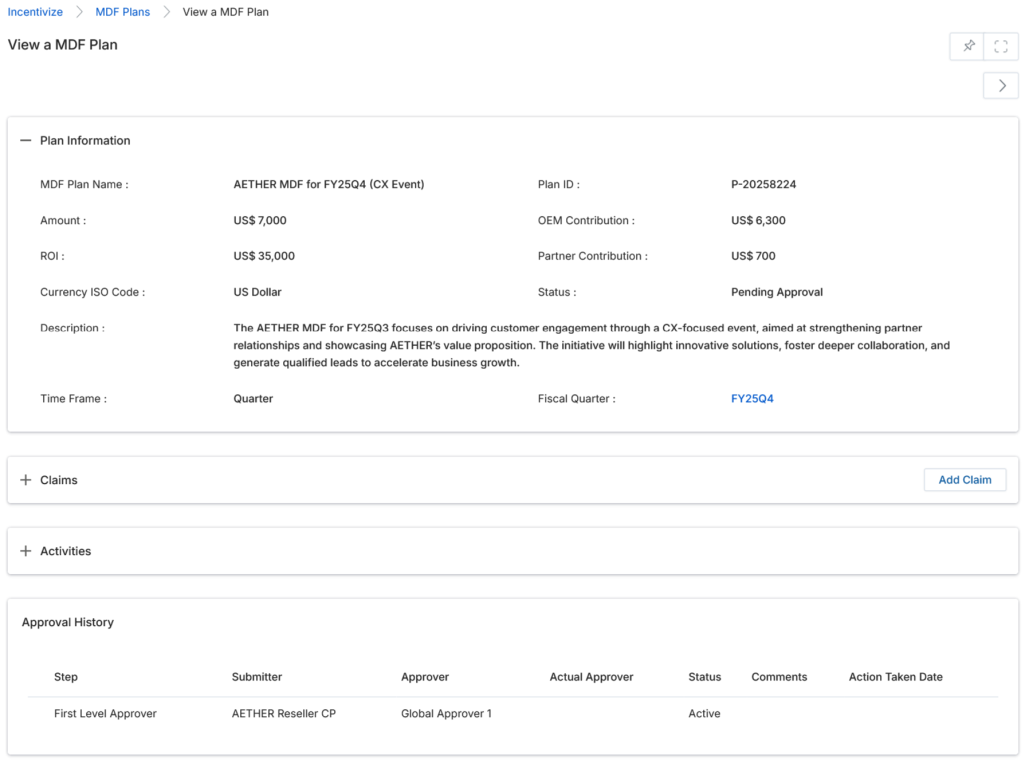
Once on the details page, you will see the following sections and fields:
Plan Information
| Field | Description |
|---|---|
| Plan ID | Unique plan reference number for identification. |
| Plan Name | Name of the MDF Plan. |
| Account Manager | The person responsible for managing the fund for this MDF plan. |
| MDF Fiscal Quarter | The fiscal quarter under which the plan has been made. |
| Amount | Total plan amount. |
| OEM Contribution | OEM contribution amount in the plan. |
| ROI | Expected plan return on investment. |
| Partner Contribution | Partner contribution amount in the plan. |
| Currency ISO Code | The currency ISO code used in the plan. |
| Status | Current plan status (e.g., Pending Approval, Approved, Rejected). |
| Description | Description of the plan and its objectives. |
Activities
The Activities section lists all activities to execute the plan. Click an activity name to view its details (see View MDF Activities below).
| Column | Description |
|---|---|
| Activity Name | User-friendly name of the activity. Click to view details. |
| Activity Type | The type of activity involved in the operation. |
| Start Date | Activity start date. |
| End Date | Activity end date. |
| Objective | Stated objective of the activity. |
| Solution Offered | The line of business involved in the activity. |
| Amount | Amount invested in performing the activity. |
Claims
The Claims section lists all claims made against activities performed in accordance with the plan.
| Column | Description |
|---|---|
| Name | User-friendly title for the claim. |
| Claim ID | Unique claim reference number. |
| Description | Claim description. |
| Claim Amount | Amount claimed. |
| Status | Current status of the claim. |
Approval History
The Approval History section shows the full multi-level approval trail for the plan.
| Column | Description |
|---|---|
| Step | Indicates the level of the approval process. |
| Submitter | The partner user who submitted the plan. |
| Approver | The profile role involved in approving the plan. |
| Actual Approver | The OEM user who approved the plan at that level. |
| Status | Current status of the approval step. |
| Comments | Comments submitted during the approval or rejection. |
| Action Taken Date | Date when the approval action was taken. |
View MDF Activities

To view a Plan's Activities as submitted by a partner, click on the name or title of the activity in the Activities list.
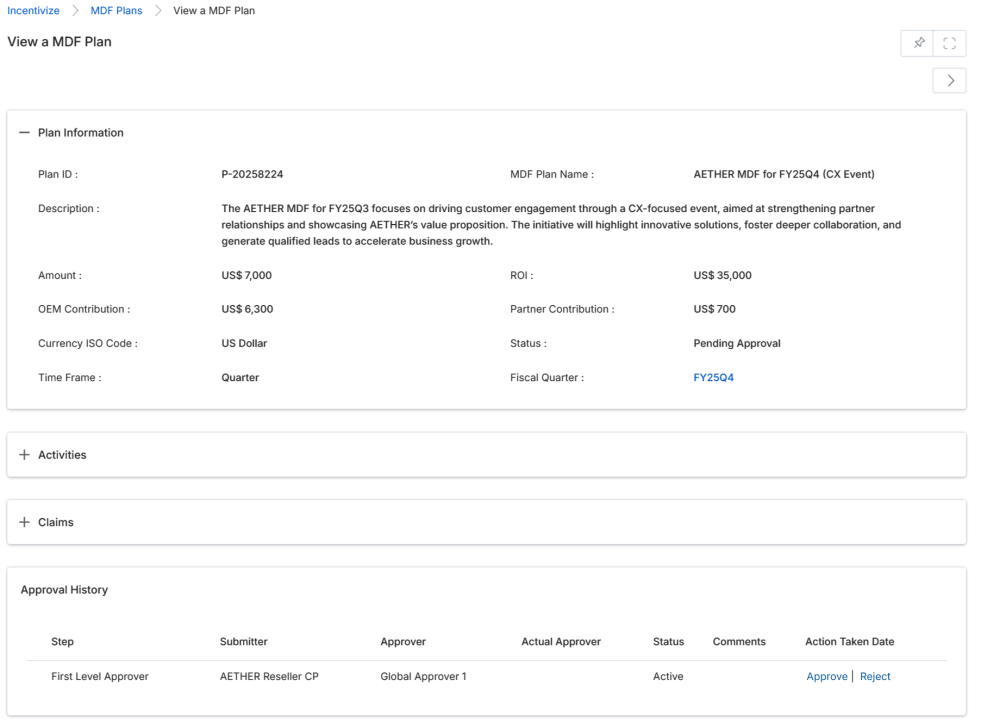
The Activity details page contains the following sections:
Plan Activity Information
| Field | Description |
|---|---|
| Name | User-friendly name of the activity. |
| Activity | The activity type involved in the operation. |
| Start Date | Activity start date. |
| End Date | Activity end date. |
| Objective | Activity objective. |
| Plan ID | Unique plan reference number for identification. |
Products
Lists all products on which the current activity is based. Columns: Name (click to view product details) and Product SKU.
Associated Campaigns
Lists all campaigns involved in the activity, showing the Campaign Name. Click Back to return to the View Plan page.
Approving / Rejecting Submitted Partner Plans
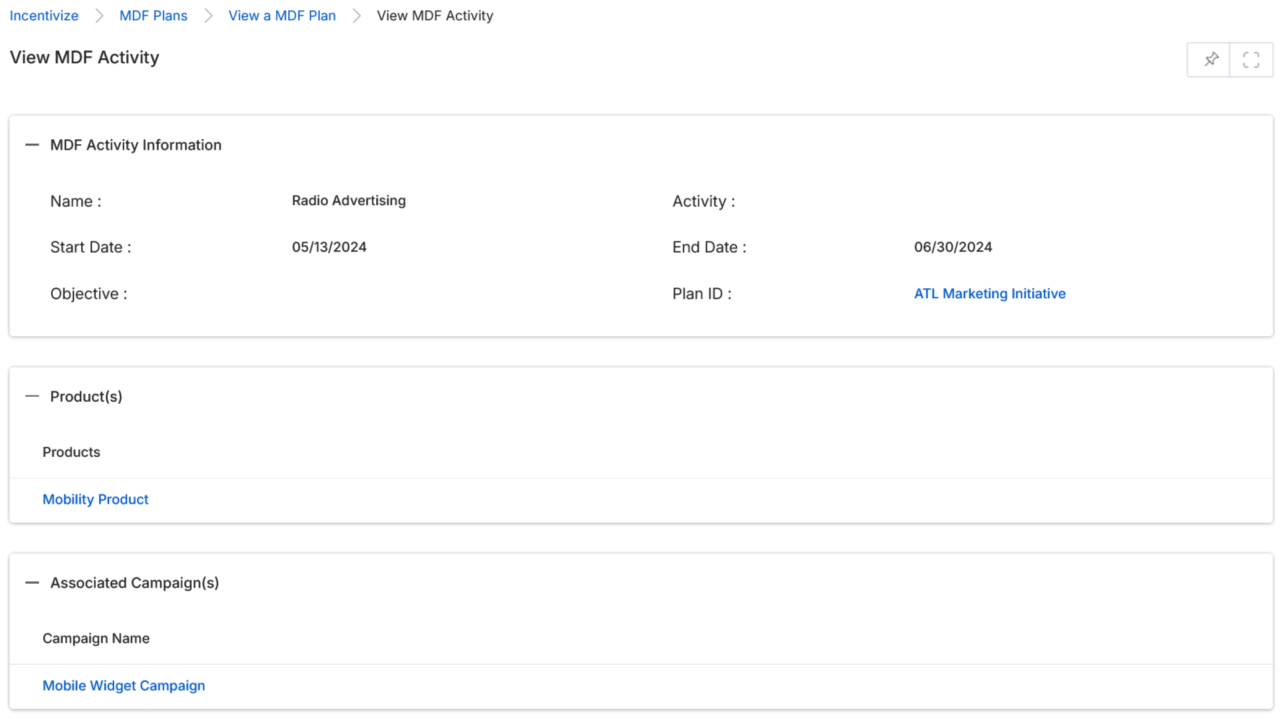
Once a partner has submitted a plan, the Approval History related list appears at the bottom of the details page.
- To approve a plan, click the Approve link. The plan opens in edit mode, allowing you to review and edit field values before confirming. Enter a comment in the Comments section, then click Approve.
- To reject a plan, click the Reject link. The plan opens in edit mode. Enter a comment in the Comments section explaining the rejection reason, then click Reject.
MDF Claims
MDF Claims are the reimbursement requests submitted by partners against approved MDF Plans. The admin can access all submitted claims via Incentivize > MDF Claims.
To build the MDF Claim submission template that partners fill out, refer to the Workflow Management guidebook sections on Workflow Tools and Creating & Editing Applications.
Accessing the Submitted Partner Claims
- Click Incentivize on the top menu.
- Click MDF Claims in the left menu bar.
View MDF Claims
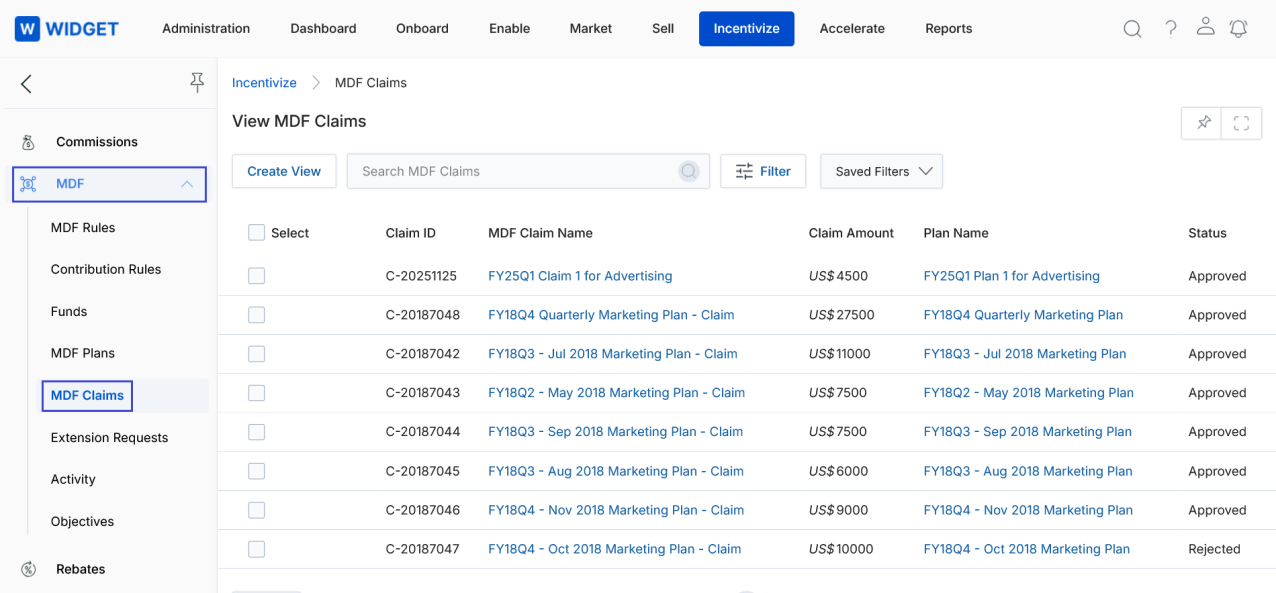
The top part of the page provides the following actions:
- Create View — Creates a custom view with selected columns.
- Search — Opens a pop-up window to search for specific claim records.
- Clear Search — Clears the current search.
- Saved Searches — Shows a dropdown of saved searches, with Edit and Delete options for each.
Clicking on a Claim Name or Plan Name in the grid takes you to the respective details page.
Create View
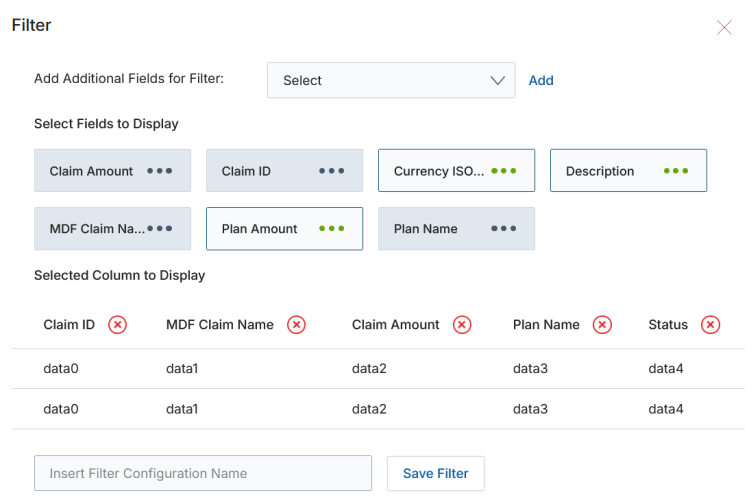
- Choose an additional field and click Add.
- Click the Green Dots to select fields for display.
- Selected columns appear in the preview table. Click × to remove a column.
- Enter a View Name and click Save Filter.
View Claim Details
Click on the name or title of any submitted claim to open the claim details page.
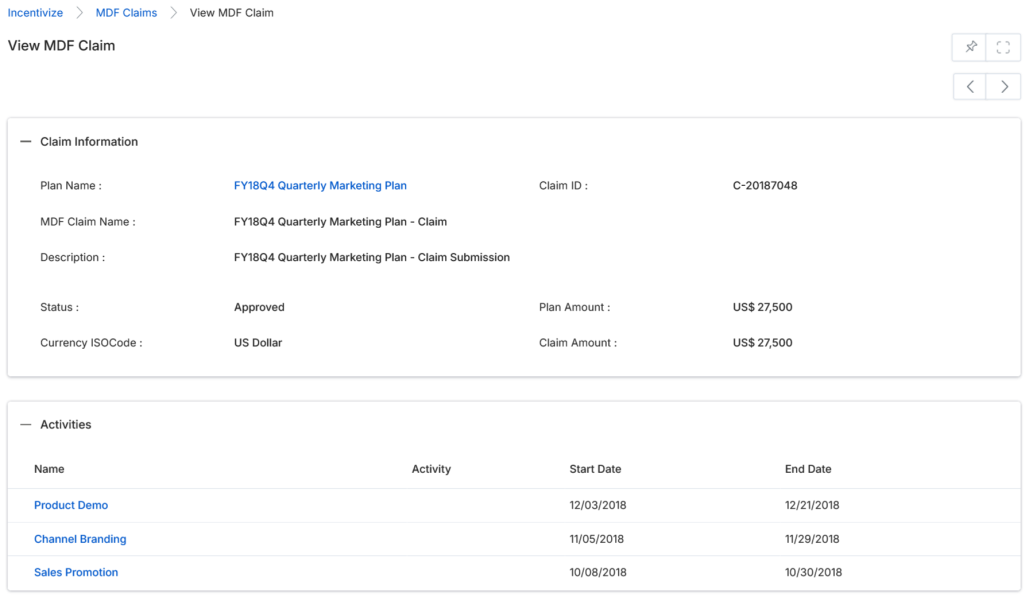
Claim Information
| Field | Description |
|---|---|
| Plan Name | User-friendly name of the associated MDF plan. |
| Claim ID | Unique identification number for the claim. |
| MDF Claim Name | User-friendly name of the claim. |
| Status | Current status of the claim. |
| Plan Amount | Total amount of the associated plan. |
| Claim Amount | Amount being claimed for reimbursement. |
| Description | Description of the claim. |
Activities
The Activities section lists all activities supporting the claim. Click an activity name to view its details (see View Claim Activity Details below). Columns include Name, Activity, Start Date, and End Date.
Approval History
| Column | Description |
|---|---|
| Step | Indicates the level of the approval process. |
| Submitter | The partner user who submitted the claim. |
| Approver | The profile role involved in approving the claim. |
| Actual Approver | The OEM user who approved the claim at that level. |
| Status | Current status of the claim approval step. |
| Comments | Comments submitted during approval or rejection. |
| Action Taken Date | Date when the relevant action was taken. |
View Claim Activity Details
Click on the name or title of an activity in the Claim's Activities list to view its detail page.
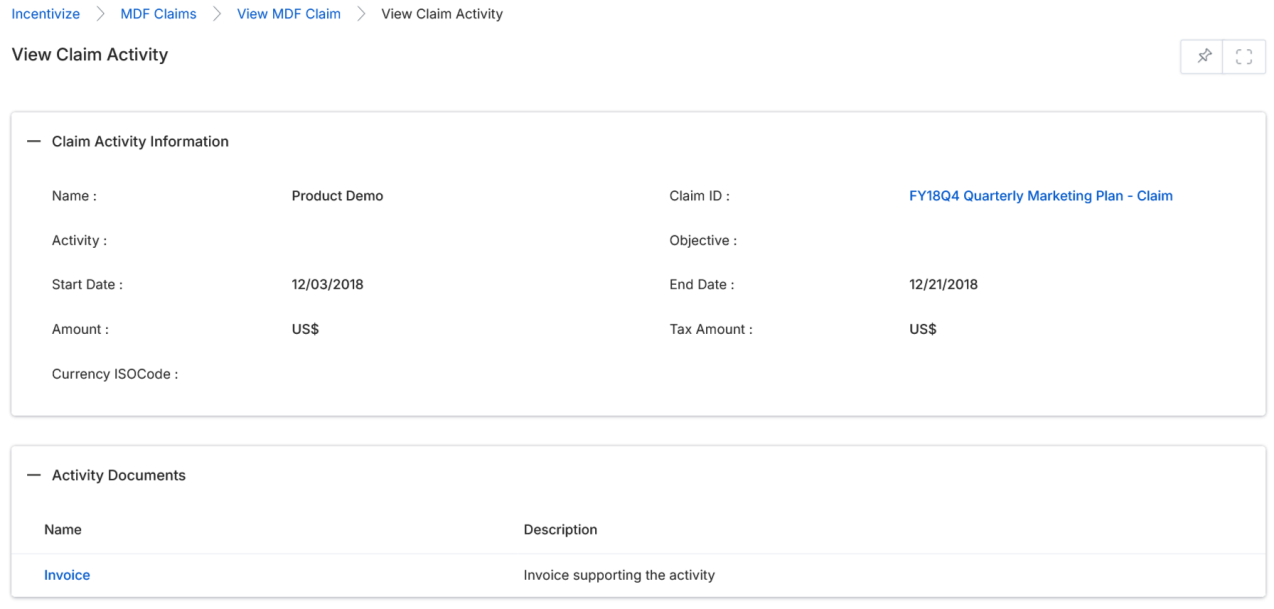
Claim Activity Information
| Field | Description |
|---|---|
| Name | User-friendly name of the claim activity. |
| Claim ID | Unique identification of the parent claim. |
| Activity | The activity type involved in the claim process. |
| Objective | Activity objective for the claim. |
| Start Date | Start date of the claim activity. |
| End Date | End date of the claim activity. |
| Amount | Claim amount for this activity. |
| Tax Amount | Tax deducted against the claim amount. |
| Currency ISO Code | ISO currency code of the claim amount. |
Activity Documents
The Activity Documents section lists all documents submitted as proof of execution. Columns: Name (click to view document details) and Description.
View & Download Claim Activity Documents
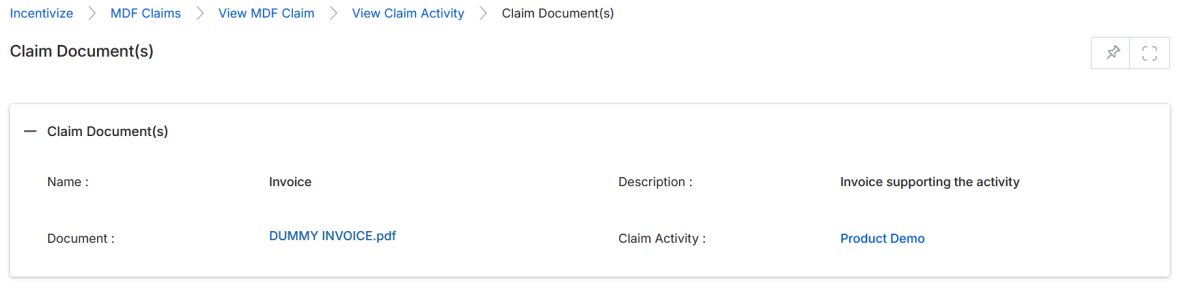
Click on the name or title of an Activity Document to open its detail page. The Claim Document(s) section contains:
| Field | Description |
|---|---|
| Name | User-friendly name of the document. |
| Description | Brief description of the document. |
| Document | The uploaded proof-of-execution file. Click the document name link to download the file to your desktop. |
| Claim Activity | Name of the parent claim activity. Click to return to the activity page. |
Approving / Rejecting Partner Claims
Once a partner has submitted a claim, the Approval History related list appears at the bottom of the claim details page.
- To approve a claim, click the Approve link. The claim opens in edit mode. Review and edit field values as needed, enter a comment in the Comments section, then click Approve.
- To reject a claim, click the Reject link. The claim opens in edit mode. Enter a rejection comment in the Comments section, then click Reject.
Extension Requests
Partners can submit deadline extension requests when unforeseen circumstances prevent timely plan or claim submission. Admins manage all extension requests from Incentivize > Extension Requests.
Accessing Extension Requests
- Click Incentivize on the top menu.
- Click Extension Requests in the left menu bar.
View Extension Requests
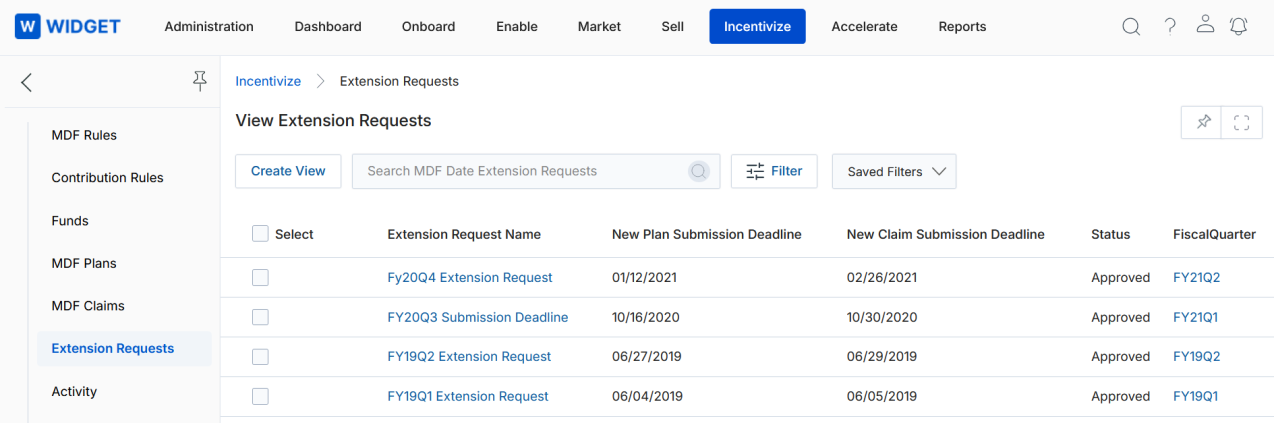
The top toolbar provides the same Create View, Search, Clear Search, and Saved Searches actions as other MDF list pages.
For each record in the grid:
- Extension Request Name — Takes you to the request details page.
- Fiscal Quarter — Takes you to the fiscal quarter details page.
Create New View
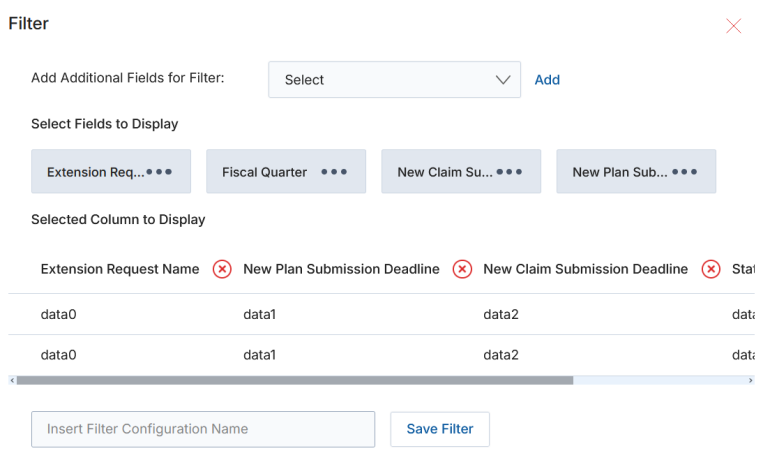
- Choose an additional field and click Add.
- Click the Green Dots to select fields for display.
- Click × to remove a selected column.
- Enter a View Name and click Save Filter.
View Date Extension Request Details
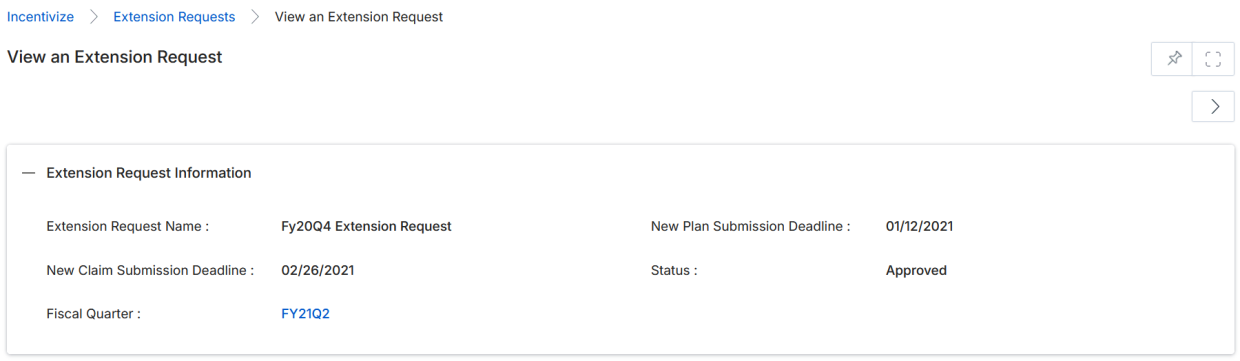
Click on the name of any Extension Request to open its detail page. The page contains:
Date Extension Request Information
| Field | Description |
|---|---|
| Extension Request Name | Name of the extension request. |
| Fiscal Quarter | The fiscal quarter to which the extension applies. |
| New Plan Submission Deadline | The requested new deadline for plan submission. |
| New Claim Submission Deadline | The requested new deadline for claim submission. |
| Status | Current status of the extension request. |
Approval History
The Approval History section tracks the multi-level approval process for the extension request, with the same column structure as Plan and Claim approval histories (Step, Submitter, Approver, Actual Approver, Status, Comments, Action Taken Date).
Approving / Rejecting an Extension Request
Once a partner submits an extension request, the Approval History related list appears at the bottom of the details page.
- To approve the request, click the Approve link. The page opens in edit mode — review and edit values as needed, enter a comment in the Comments section, then click Approve.
- To reject the request, click the Reject link. Enter a rejection comment and click Reject.
MDF Rules
MDF Rules define how incentive funds are automatically accrued and allocated to partners based on their sales performance. Navigate to Incentivize > Incentive Rule Engine > MDF Rules to manage all MDF rules.
Adding a New MDF Rule
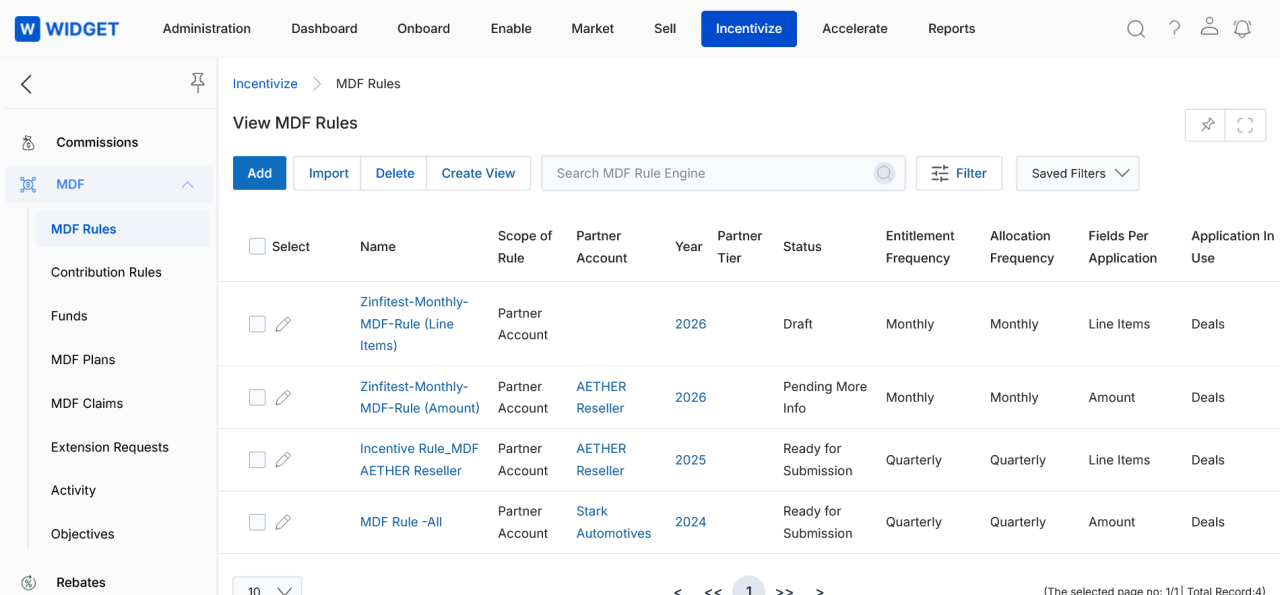
- Navigate to Incentivize > Incentive Rule Engine > MDF Rules.
- Click the Add button. The Add/Edit an MDF Rule Engine page opens.
- Select the Entitlement Frequency from the dropdown (e.g., Quarterly). This determines how often the incentive payout is calculated for partners.
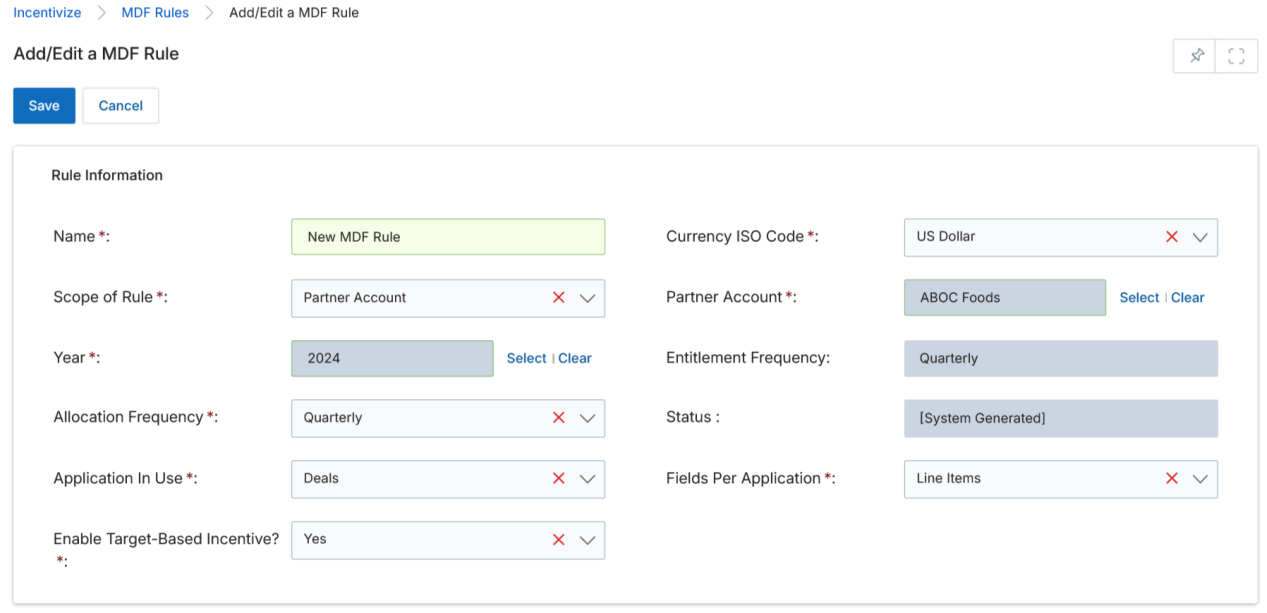
- After selecting the frequency, the Add/Edit a MDF Rule form opens. Complete the following fields:
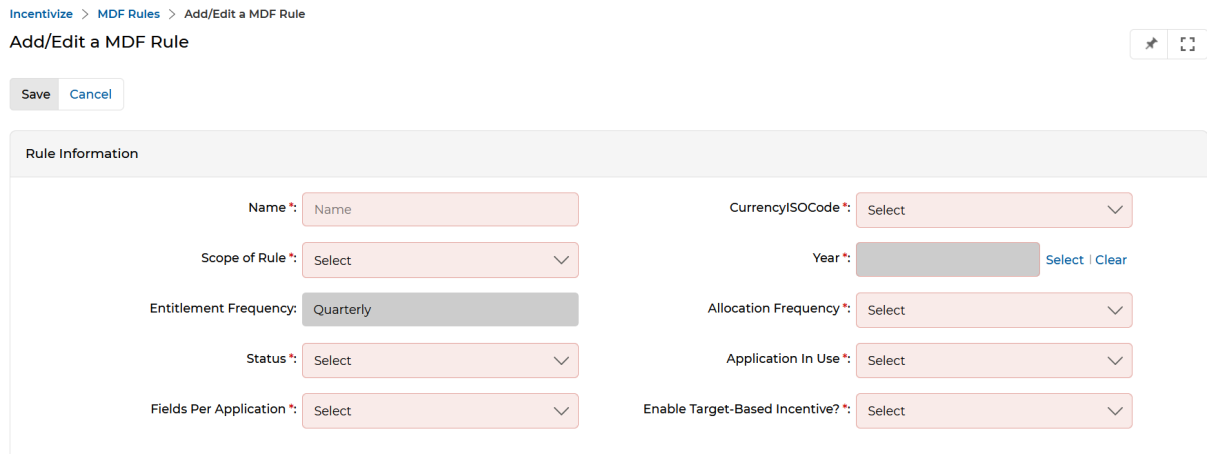
| Field | Description |
|---|---|
| Name | Name of the MDF Rule. |
| Currency ISO Code | The currency in which the incentive is denominated. |
| Scope of Rule | Determines which accounts the rule applies to: Partner Tier (accounts in a specific tier), Partner Account (a specific partner account), or All (all accounts). |
| Year | The year for which the MDF Rule is applicable. |
| Entitlement Frequency | How frequently the incentive payout is calculated (e.g., Monthly, Quarterly). |
| Allocation Frequency | The period during which partners must meet their targets to qualify for incentives. |
| Status | Active or Inactive. |
| Application In Use | Whether the incentive is earned on Deal closure or Invoice generation. |
| Fields Per Application | Whether incentive is calculated based on Amount or Line Items. |
| Enable Target-Based Incentive? | Set to No to accrue incentives automatically based on sales with no target. Set to Yes to require a specific target to be met before incentives are earned. |
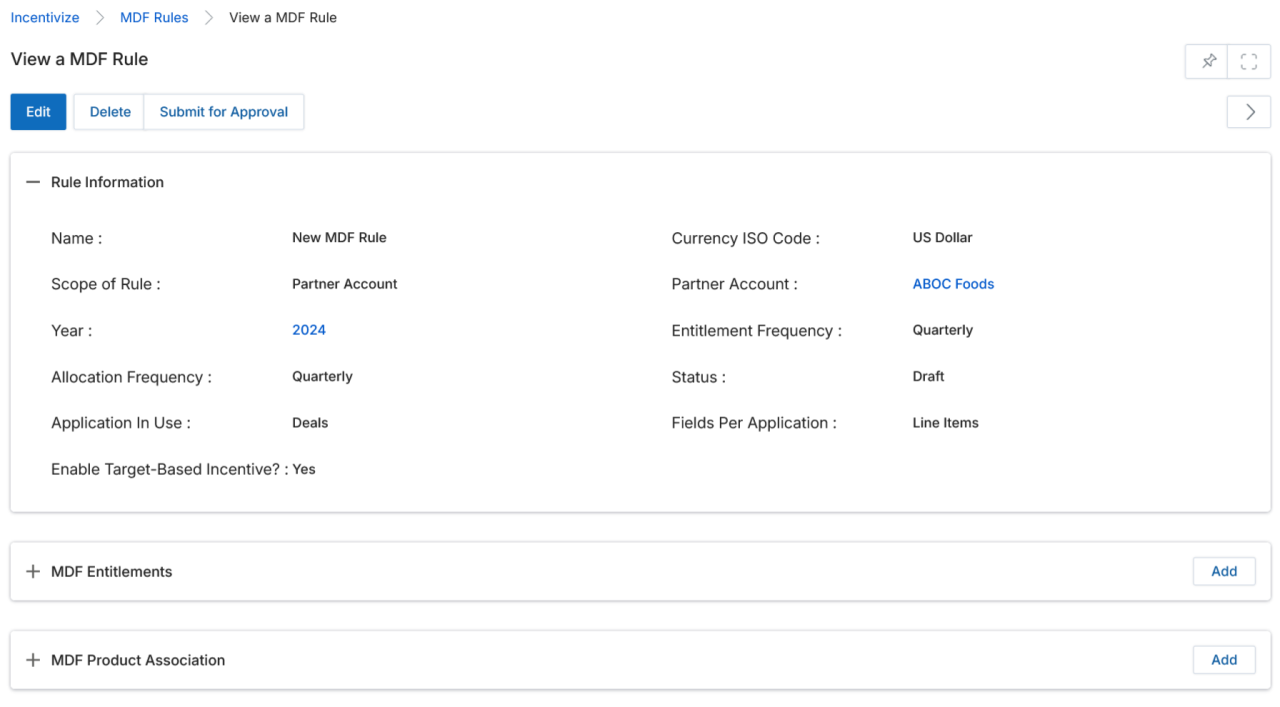
- Click Save. The new rule appears in the View MDF Rules list with a status of Draft or System Generated.
- Open the rule and click Submit for Approval to activate it.
Adding MDF Entitlements
After creating the rule, define the incentive entitlement tiers by clicking Add under the MDF Entitlements related list on the rule's detail page.
| Field | Description |
|---|---|
| MDF Rule Engine | The parent MDF Rule associated with this entitlement. |
| Entitlement Frequency | Inherited from the parent rule (e.g., Quarterly). |
| Enable Target-Based Incentive? | Inherited from the parent rule; indicates whether a target is required. |
| Incentive Structure | Fixed: partner receives a predefined constant amount or fixed percentage per entitlement period. Variable: different percentages apply based on business requirements and the entitlement period. |
| Time Period | The quarter in which the incentive will be paid (e.g., Q1, Q2). |
| Currency ISO Code | Currency of the incentive amount. |
| Minimum Sales Range | Minimum sales target the partner must achieve. |
| Maximum Sales Range | Maximum sales target boundary for this tier. |
| Entitlement Type | Fixed (flat dollar amount) or Percentage (percentage of sales). |
| Incentive | The incentive amount or percentage value for this tier. |
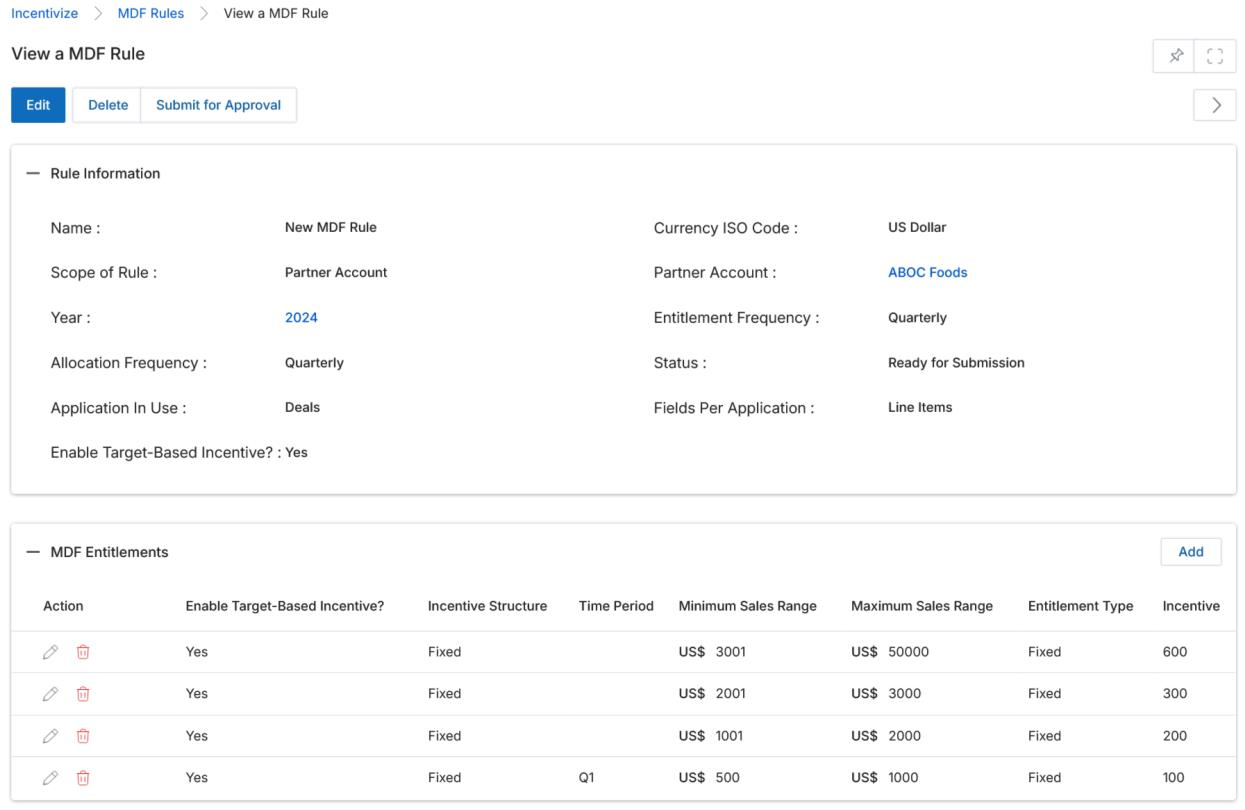
In the example above, partners earn incentives based on their quarterly sales: $500–$1,000 → $100 | $1,001–$2,000 → $200 | $2,001–$3,000 → $300 | $3,001–$50,000 → $600.
MDF Product Association
After adding entitlements, associate the eligible products with the rule by clicking Add under the MDF Product Association related list on the rule detail page. Once added, the products appear in the MDF Product Association list and partners earn incentives only when they sell the associated products.
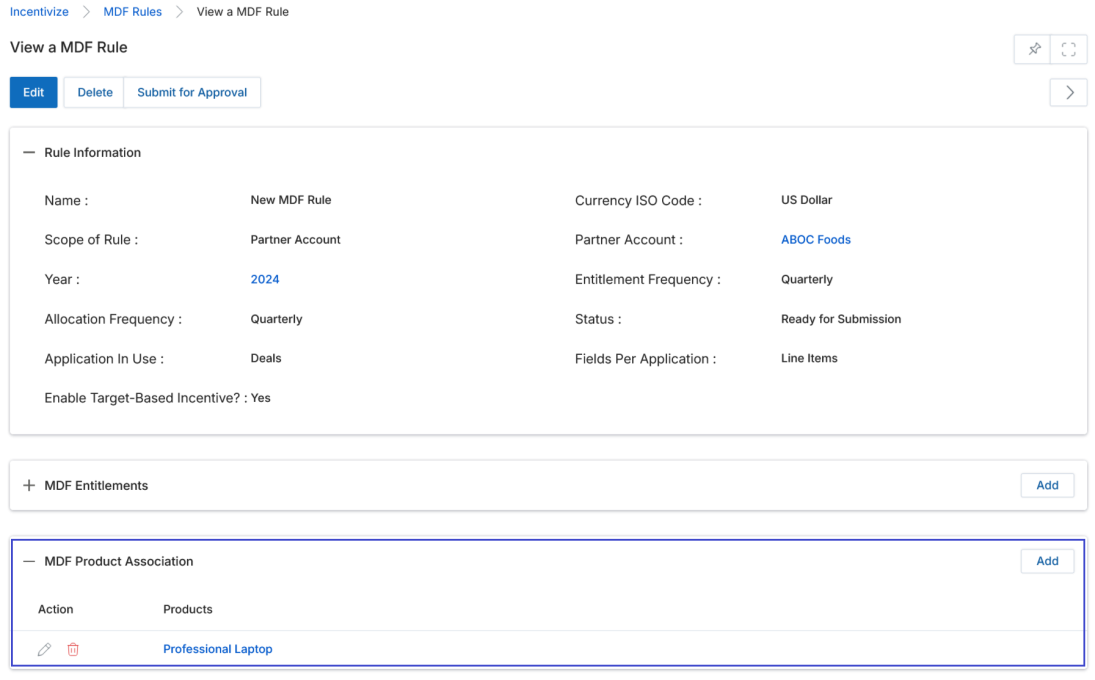
Incentive Rules Engine — Import Engine Integration
For bulk creation of MDF Rules and Entitlements, use the Import Engine. The import process uses two separate Excel templates: one for rule definitions and one for entitlement data.
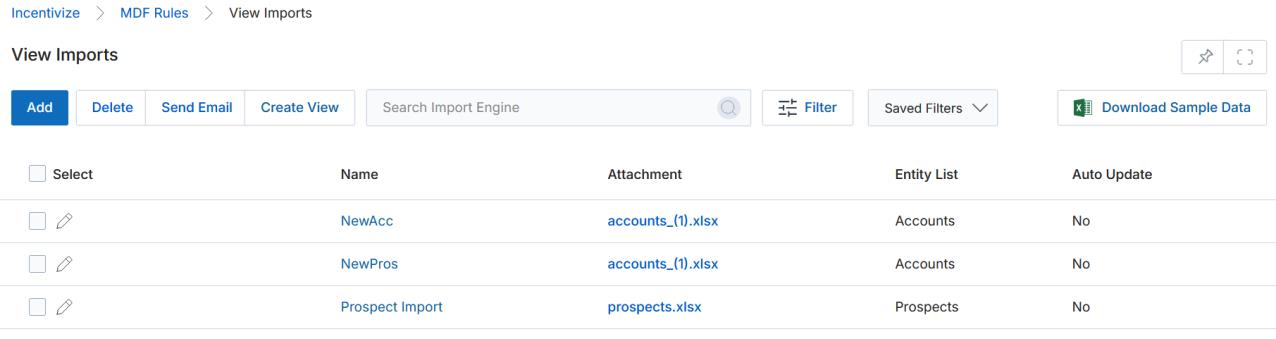
Import Process
- Click the Import button on the View MDF Rules page. The View Imports page opens, showing previously imported record sets.
- Click Add on the View Imports page to open the Add/Edit an Import page.
- Assign a name, select MDF Rule Engine as the Entity List, and attach the rule definition Excel file.
- Click Save to proceed to the Select and Map Fields page.
- Map each Excel column header to the corresponding UPM entity field using the dropdowns.
- Click Next to complete the upload. The rules are created and appear on the View MDF Rules page.
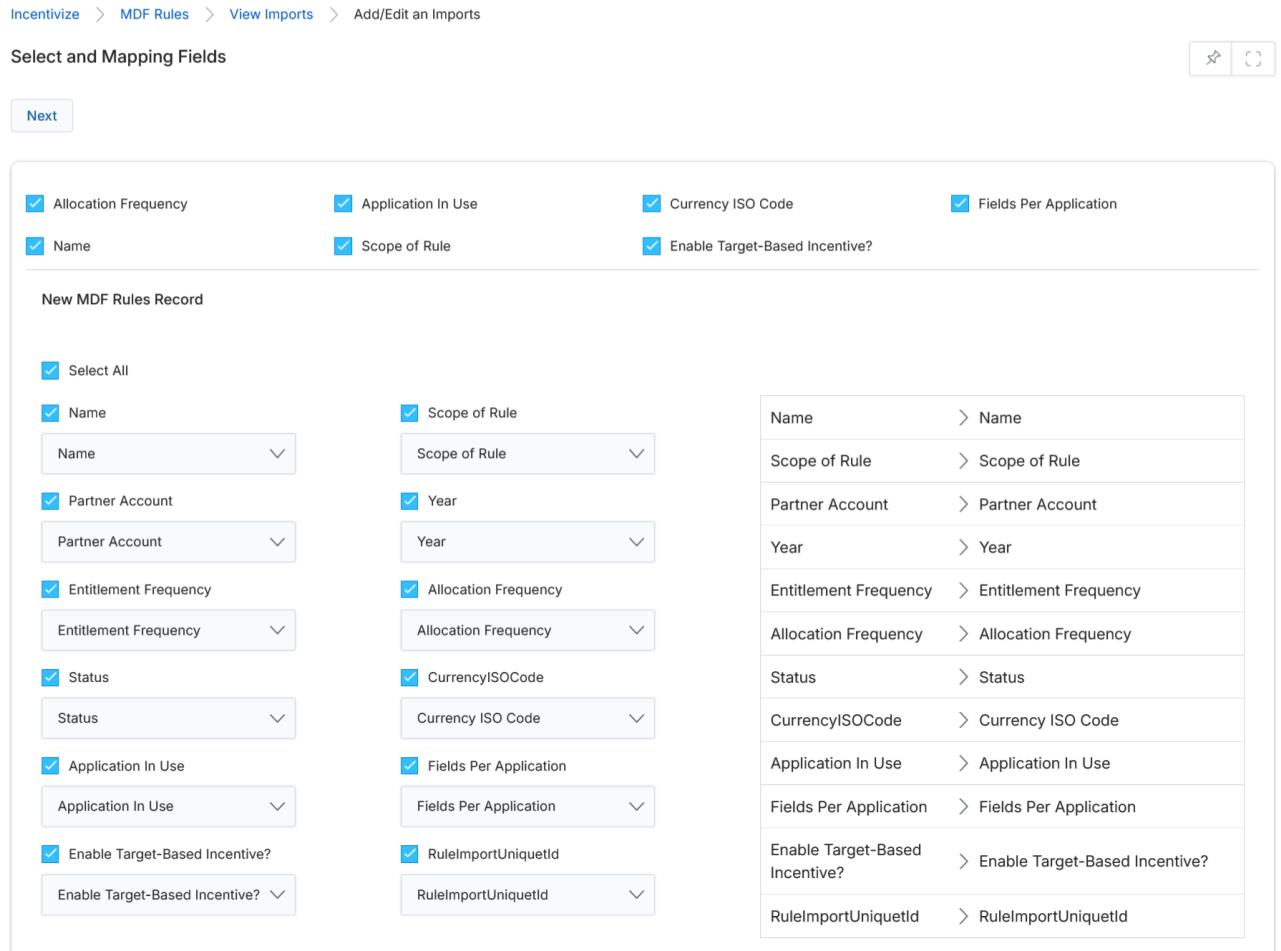
Each rule entry in the Excel must include a unique Rule Import Unique ID — this is a customer-assigned identifier used to link entitlement records to their parent rule during the entitlement import step. When uploading entitlements, include this same ID in the entitlement template so the system can correctly associate each entitlement with its rule.
- To import entitlements, use the separate entitlement Excel template (columns: RuleImportUniqueId, Incentive Structure, Time Period, Minimum Sales Range, Maximum Sales Range, Entitlement Type, Incentive). Repeat the import process selecting the entitlement entity, and the system links each entitlement to the correct rule via the Rule Import ID.
Funds
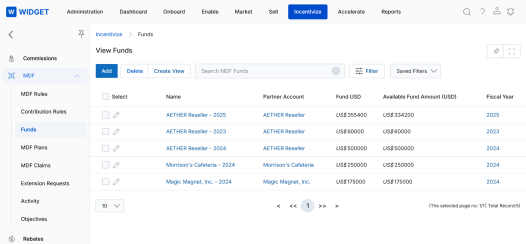
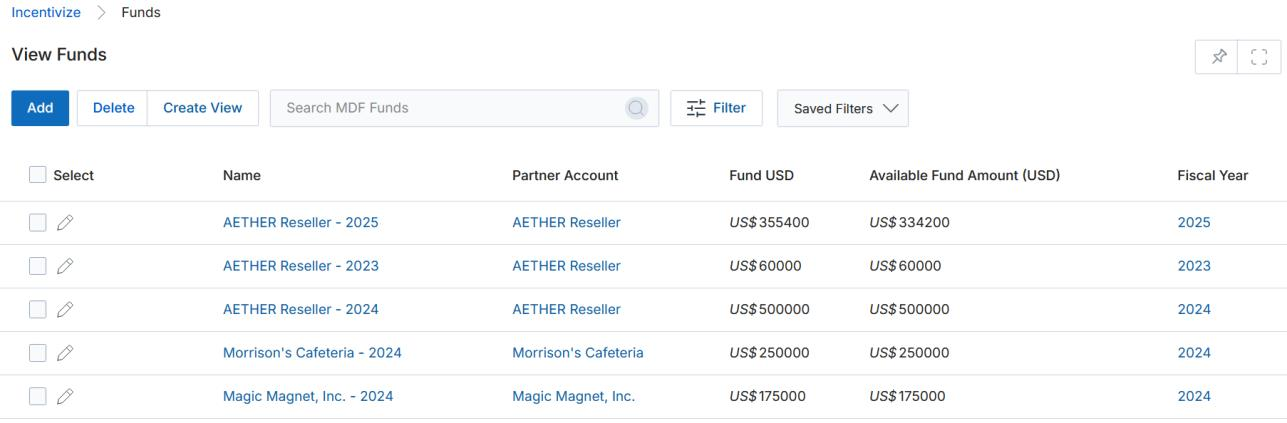
MDF Funds represent the allocated budget pools assigned to specific partner accounts for a given fiscal year. Navigate to Incentivize > Funds to manage fund records.
View MDF Funds
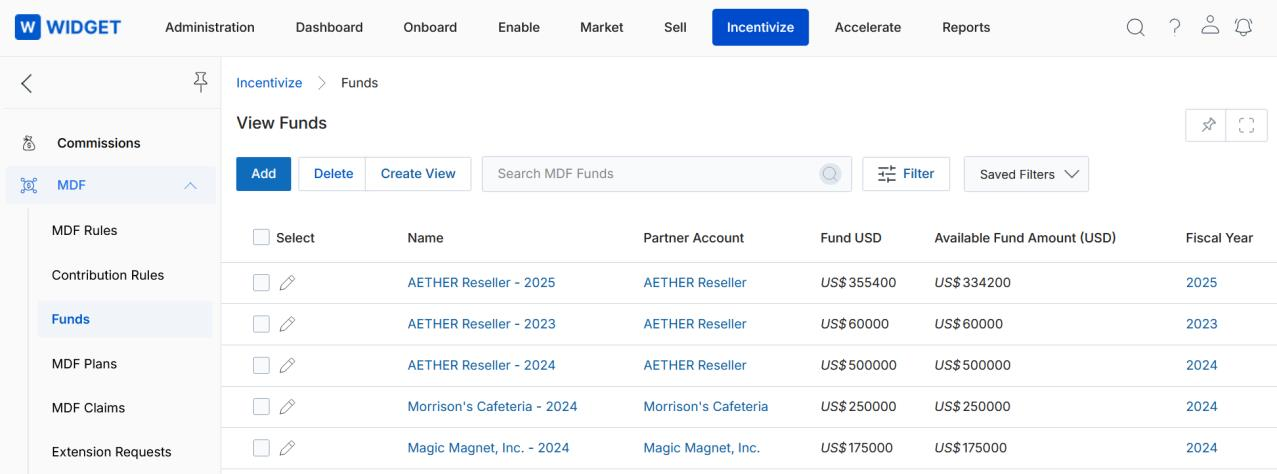
Toolbar actions on the View MDF Funds page:
- Add — Opens a new page to add a new MDF fund record.
- Delete — Deletes the selected fund record(s).
- Create View — Creates a custom column view.
- Search / Clear Search / Saved Searches — Standard search and filter controls.
For each record in the grid:
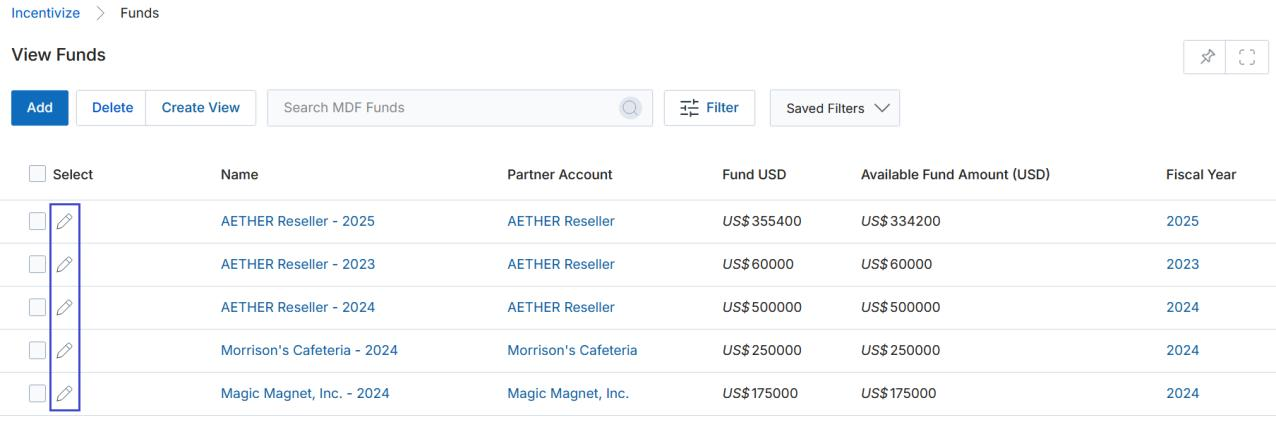
- Edit (pencil icon) — Opens the selected fund record in edit mode.
- Any linked field value — Takes you to that record's details page.
Create New View
- Choose an additional field and click Add.
- Click the Green Dots to select fields for display.
- Click × to remove a column from the selection.
- Enter a View Name and click Save Filter.
Add / Edit an MDF Fund
To edit an existing fund, click the pencil icon. To add a new fund, click the Add button at the top of the View MDF Funds page.
| Field | Description |
|---|---|
| Name | Name of the MDF fund record. |
| Partner Account | The target partner account for this fund. |
| Available Fund Amount (USD) | Available fund balance in US Dollars (system-calculated). |
| Fund Total (USD) | Total fund amount allocated in US Dollars. |
| Fiscal Year | The fiscal year to which this fund applies. |
Click Save when done.
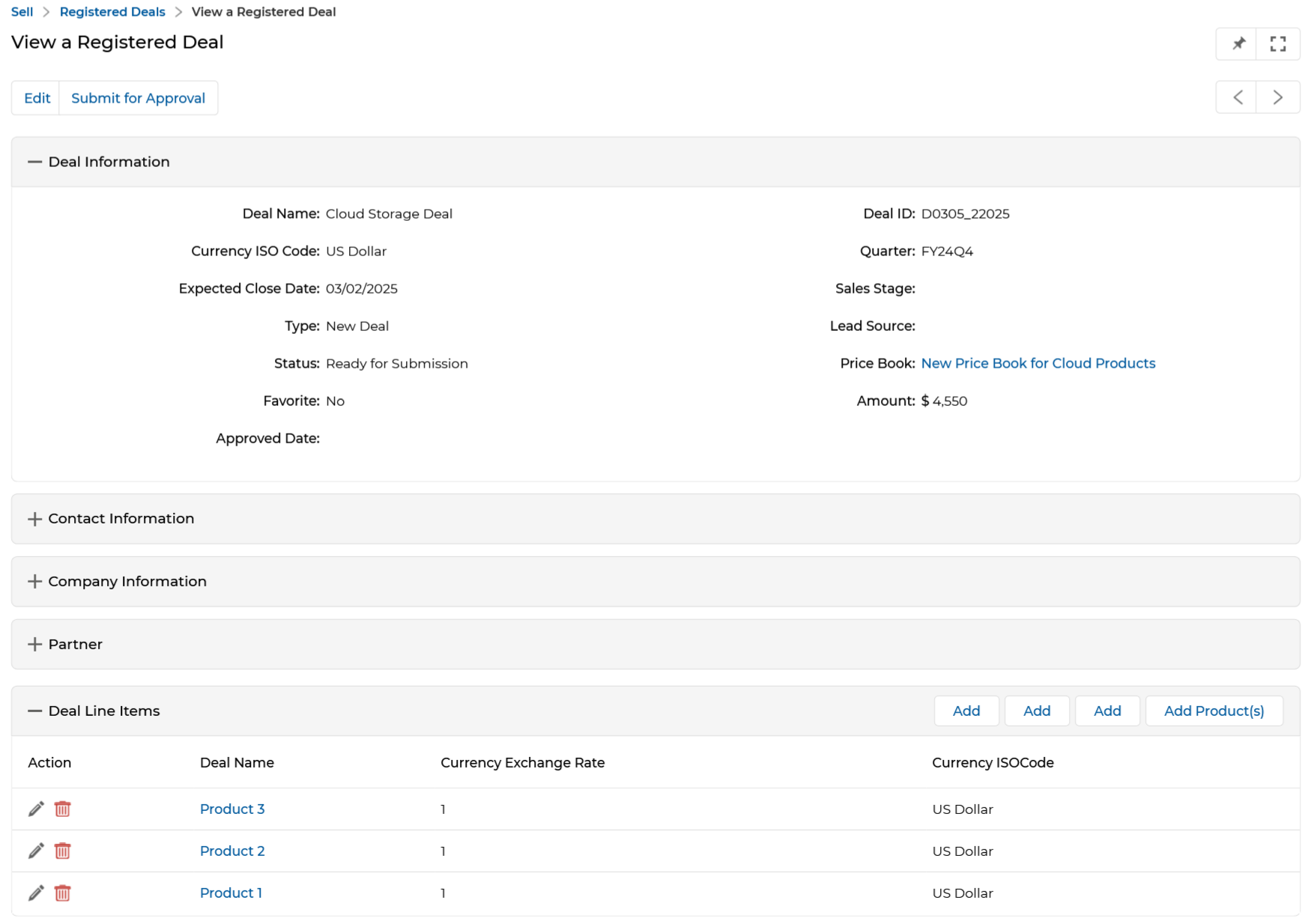
Once a partner registers and gets a Deal approved, the system automatically calculates the total incentive earned based on the Deal value and the associated MDF Rule, then displays it in the Fund Loaded related list on the Fund detail page.
Contribution Rules
Contribution Rules define the percentage split between OEM and partner co-investment for MDF activities within a given fiscal quarter. Navigate to Incentivize > Contribution Rules to manage these rules.
View Contribution Rules
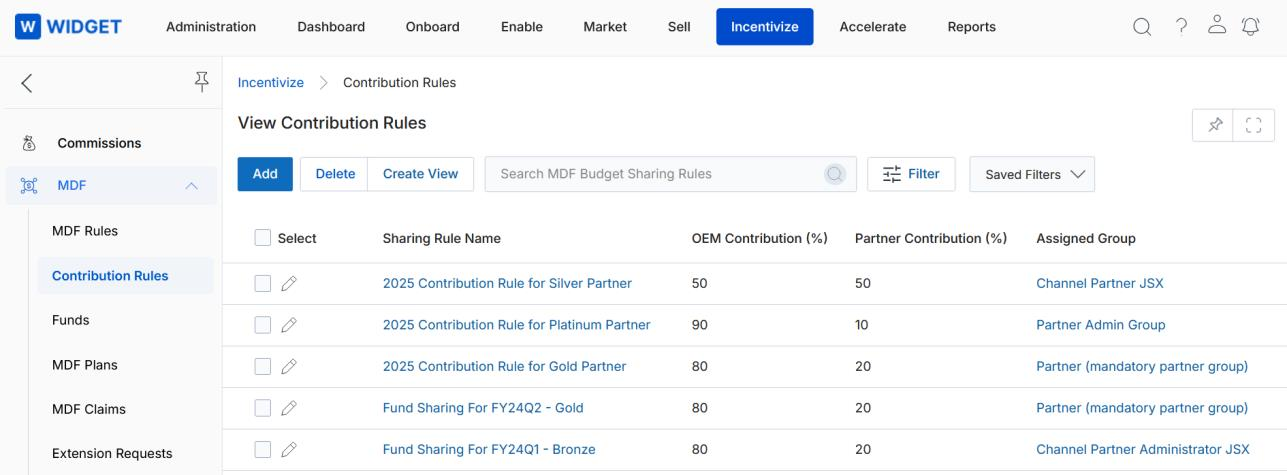
Toolbar actions: Add, Create View, Search, Clear Search, and Saved Searches (with Edit and Delete sub-options).
For each record in the grid:
- Sharing Rule Name — Takes you to the contribution rule details page.
- Quarter — Takes you to the MDF quarter details page.
View Contribution Rule Details
Click on the name of any Contribution Rule to open its details page. The Contribution Rule Information section shows:
| Field | Description |
|---|---|
| Sharing Rule Name | User-friendly name of the sharing rule. |
| Fiscal Quarter | The fiscal quarter to which this rule applies. |
| OEM Contribution (%) | Percentage of the MDF budget contributed by the OEM. |
| Partner Contribution (%) | Percentage of the MDF budget contributed by the partner. |
| Assigned Group | The partner group to which this rule is assigned. |
Click Edit to open the rule in edit mode.
Add / Edit a Contribution Rule
To edit an existing rule, click the pencil icon on the list. To add a new rule, click the Add button at the top of the View Contribution Rules page.
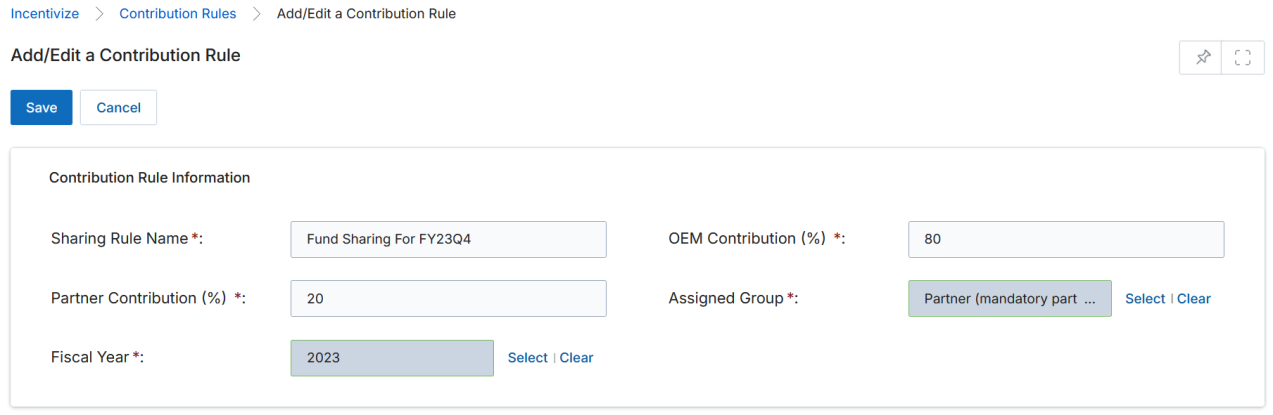
| Field | Description |
|---|---|
| Sharing Rule Name | User-friendly name for the contribution rule. |
| Fiscal Quarter / Fiscal Year | The MDF quarter or year to which this rule applies. |
| OEM Contribution (%) | Percentage of MDF budget funded by the OEM. |
| Partner Contribution (%) | Percentage of MDF budget funded by the partner. |
| Assigned Group | The partner group assigned to this contribution rule. |
Click Save when done.