
Introduction
The Payments application enables administrators to centrally manage, monitor, and process partner payments within the ZINFI Unified Partner Management (UPM) platform. It provides complete visibility into payment requests generated from commissions, referrals, registered deals, co-sell opportunities, MDF, and rebate programs.
Using this application, Admin users can review payment summaries, track payment status, process pending payments, and maintain an auditable record of all partner payout activities. The Payments application ensures transparency, financial control, and accurate tracking across the entire partner payment lifecycle.
Accessing Payments
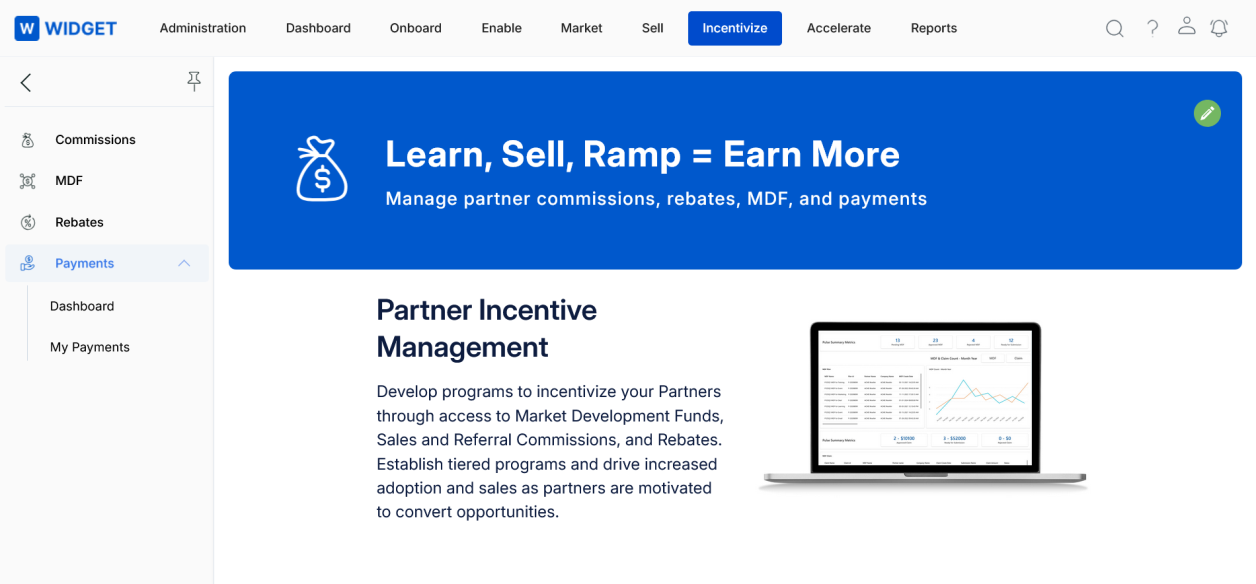
- Click Incentivize from the top navigation menu.
- Click Payments in the left navigation menu.
Dashboard
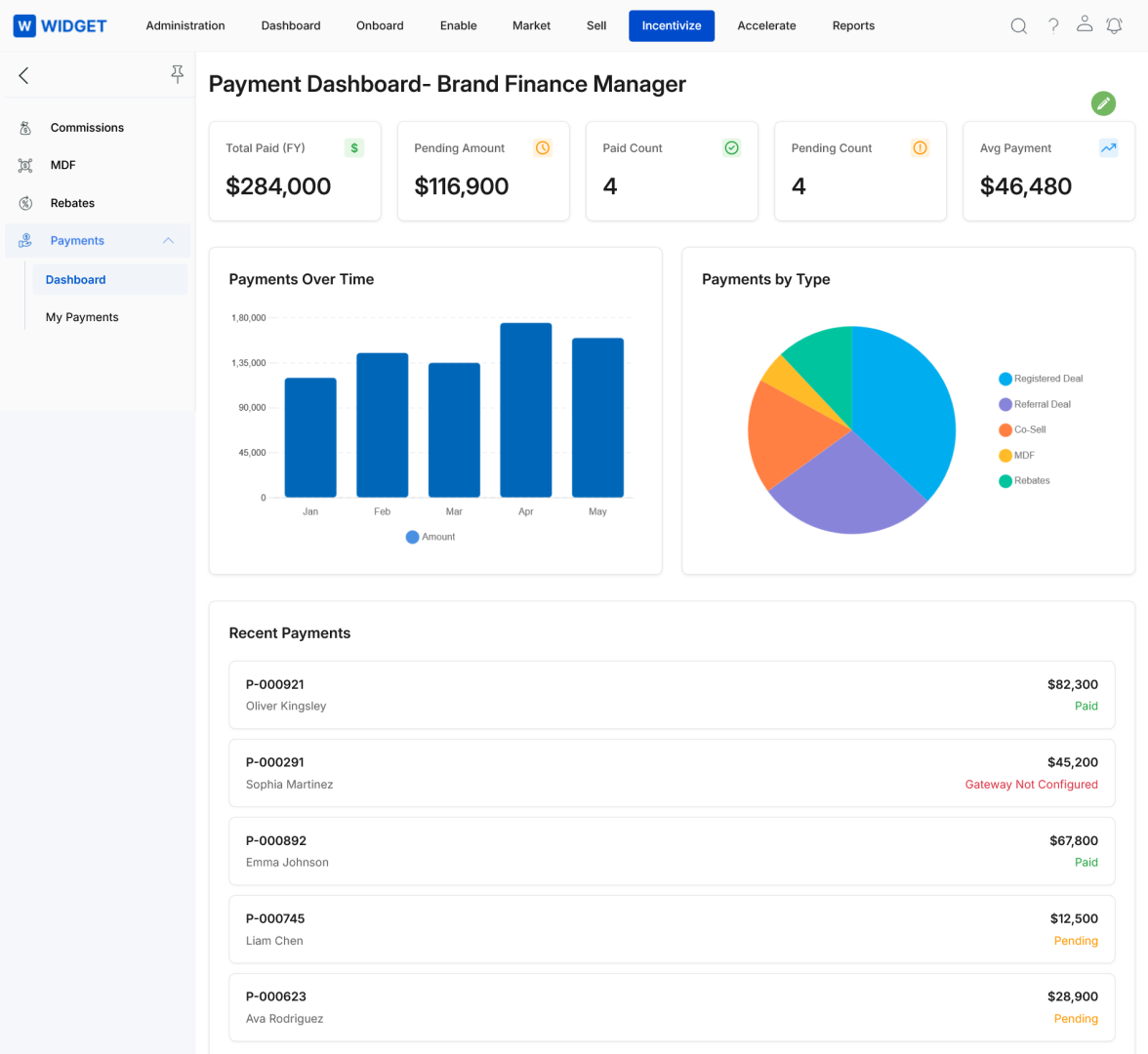
The Payment Dashboard provides a consolidated view of overall payment performance and status. It is the default view when navigating to Incentivize > Payments > Dashboard.
Summary Metrics
The top section of the dashboard displays five key payment KPIs at a glance:
| Metric | Description |
|---|---|
| Total Paid (FY) | The total amount paid to partners in the current financial year. |
| Pending Amount | The total value of payments that are currently pending processing. |
| Paid Count | The total number of payments that have been completed. |
| Pending Count | The number of payment records currently awaiting processing. |
| Average Payment | The average value of all processed payments. |
Payments Over Time
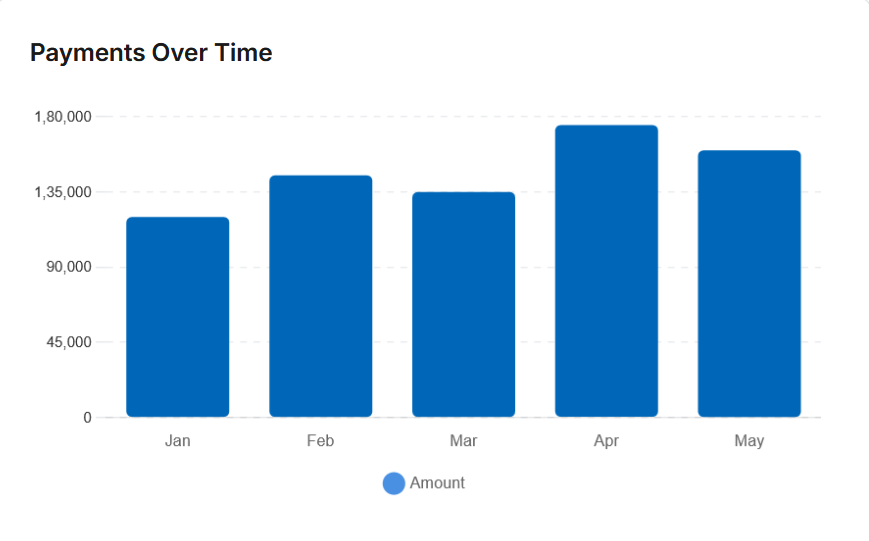
The Payments Over Time chart provides a month-wise bar chart of payment amounts, enabling admins to analyze payment trends across the fiscal year.
Payments by Type
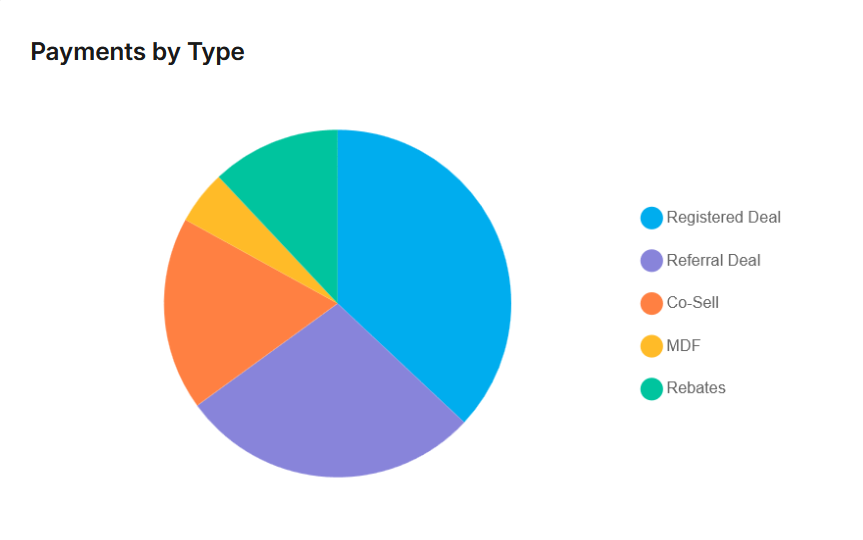
The Payments by Type pie chart displays the distribution of payments by their originating source program, giving a quick read on which partner programs are generating the most payouts.
Recent Payments
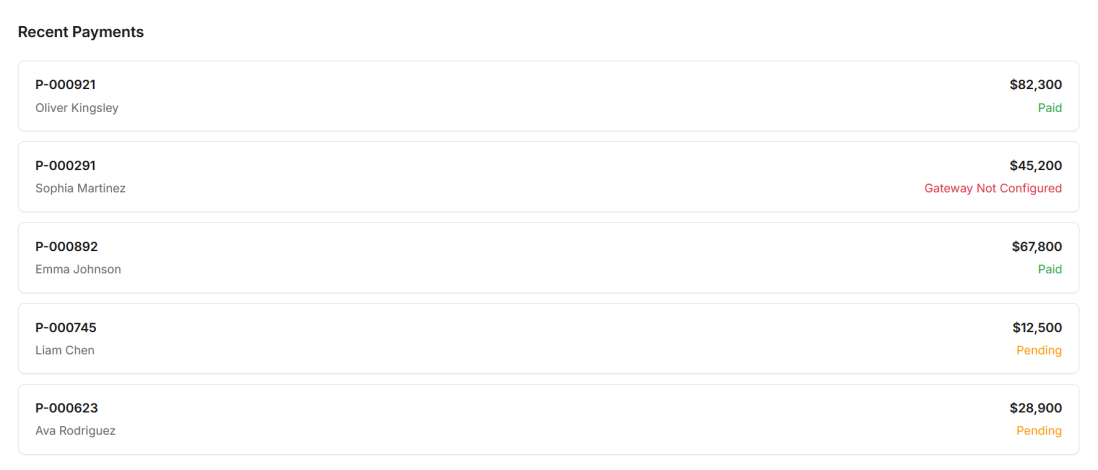
The Recent Payments section at the bottom of the dashboard lists the most recent payment records with their Payment ID, partner name, amount, and current status (e.g., Paid, Pending, Gateway Not Configured).
My Payments
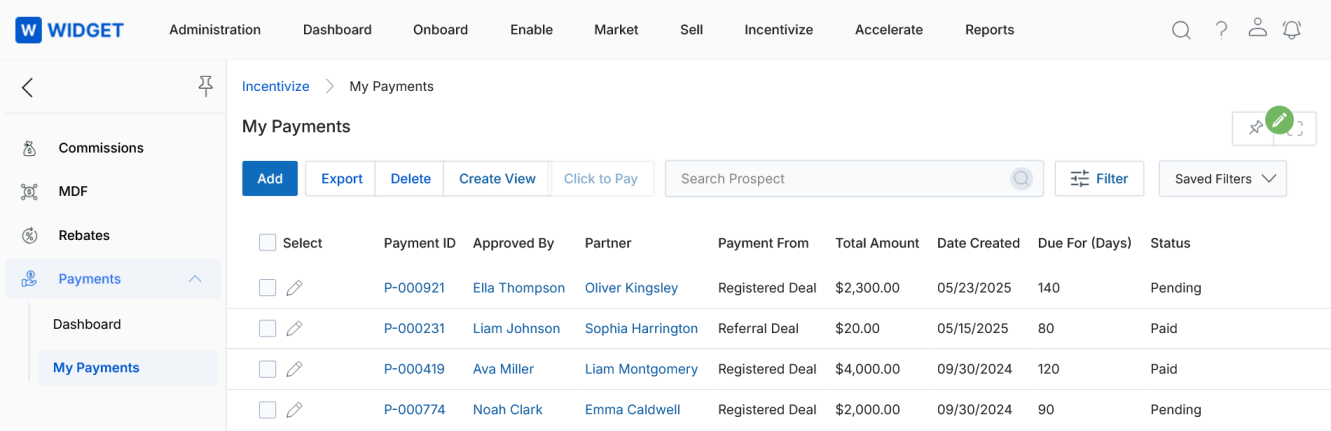
The My Payments page displays a detailed list of all payment records, providing full access to search, filter, and manage payouts.
Accessing My Payments
- Click Incentivize from the top menu.
- Click Payments in the left menu.
- Select My Payments.
Toolbar Actions
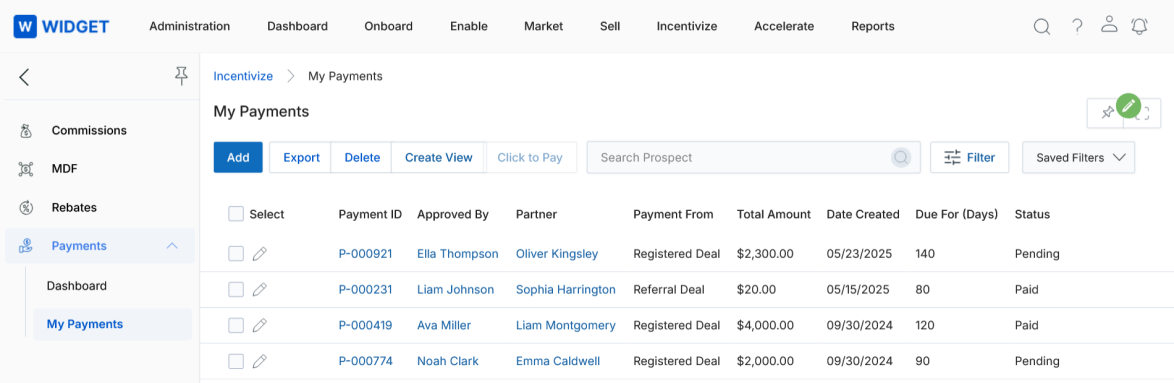
The toolbar at the top of the My Payments page provides the following actions:
- Add — Creates a new payment record.
- Export — Exports the current set of payment records.
- Delete — Deletes the selected payment record(s).
- Create View — Creates a custom column view for the payments list.
- Click to Pay — Initiates the payment process for all selected pending records in bulk.
- Search — Searches for specific payment records by keyword.
- Filter — Opens filter controls to refine the list by status, date, type, and other criteria.
- Saved Filters — Allows reuse of previously saved filter configurations.
View Payment Details
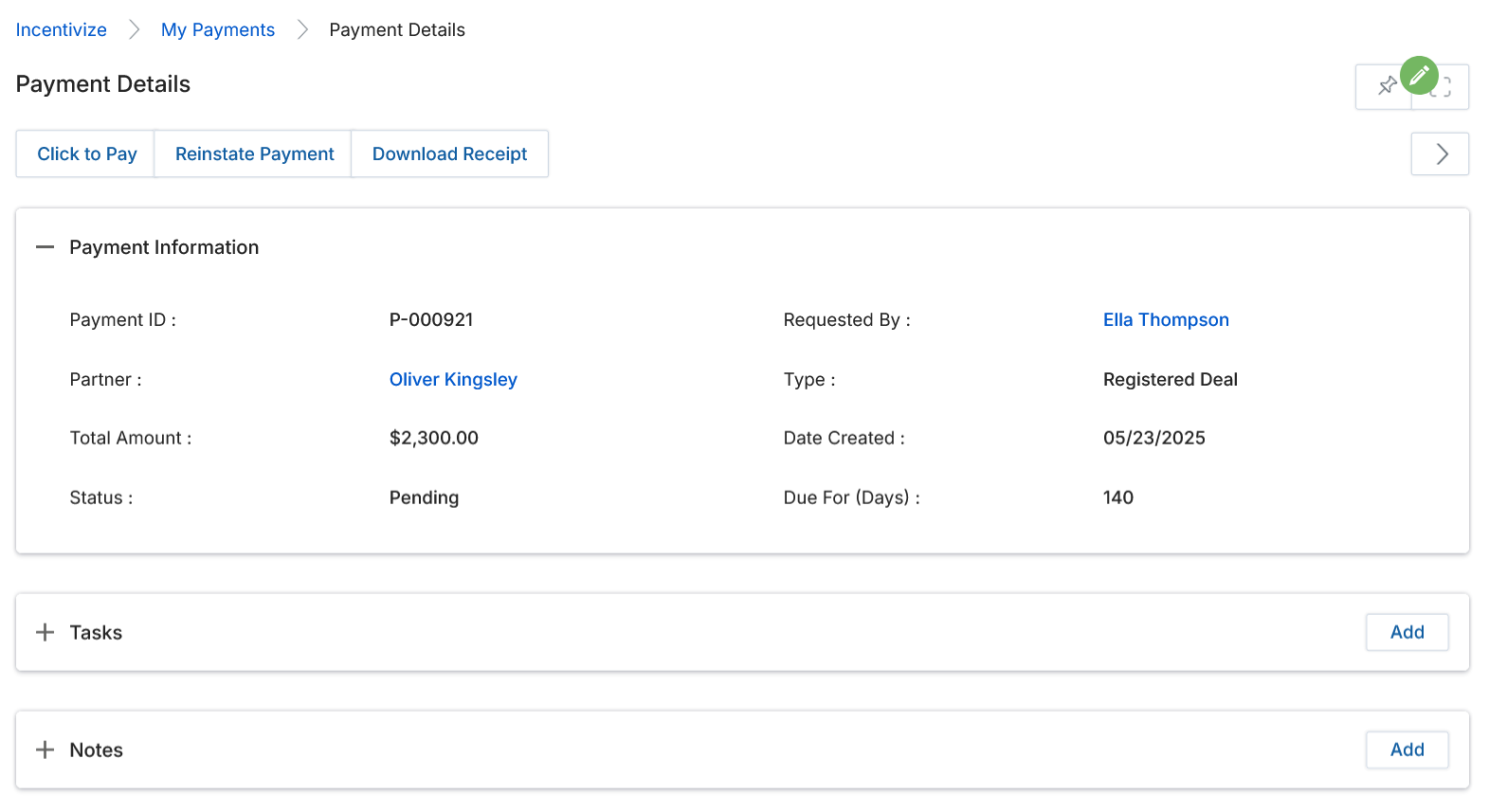
Clicking a Payment ID in the My Payments list opens the Payment Details page, which displays complete information related to that specific payment record.
Page Actions
Three action buttons appear at the top of the Payment Details page:
- Click to Pay — Initiates payment processing for this specific payment, redirecting to the secure payment gateway.
- Reinstate Payment — Reinstates a payment that was previously failed or cancelled.
- Download Receipt — Downloads the payment receipt for this record.
Payment Information
The Payment Information section displays all key data fields for the payment record:
| Field | Description |
|---|---|
| Payment ID | Unique identifier for the payment record (e.g., P-000921). |
| Partner | The partner account receiving the payment. |
| Requested By | The user who requested the payment. |
| Type | The source program that generated the payment (e.g., Registered Deal, Referral Deal, Co-Sell, MDF, Rebates). |
| Total Amount | Total payment amount to be disbursed. |
| Date Created | Date the payment record was created. |
| Status | Current status of the payment (e.g., Pending, Paid, Gateway Not Configured). |
| Due For (Days) | The number of days for which the payment has been due. |
Tasks
The Tasks section allows administrators to create and manage follow-up tasks directly associated with the payment record.
- Click Add to create a new task linked to this payment.
- Tasks help track follow-ups, pending actions, and payment-related activities that need attention.
Notes
The Notes section allows administrators to record contextual comments or supplementary information about the payment.
- Click Add to add a new note to the payment record.
- Notes provide a historical reference trail for any actions taken or decisions made around the payment.
Documents
The Documents section allows administrators to upload and manage files that support or relate to the payment.
- Click Add to upload a supporting document (e.g., invoices, receipts, agreements).
- All uploaded documents remain permanently associated with the payment record for audit and compliance purposes.
Processing a Payment
Payments can be initiated either from the My Payments list (select records and click Click to Pay) or from the Payment Details page (click the Click to Pay button). Both routes redirect the administrator to the secure payment gateway.
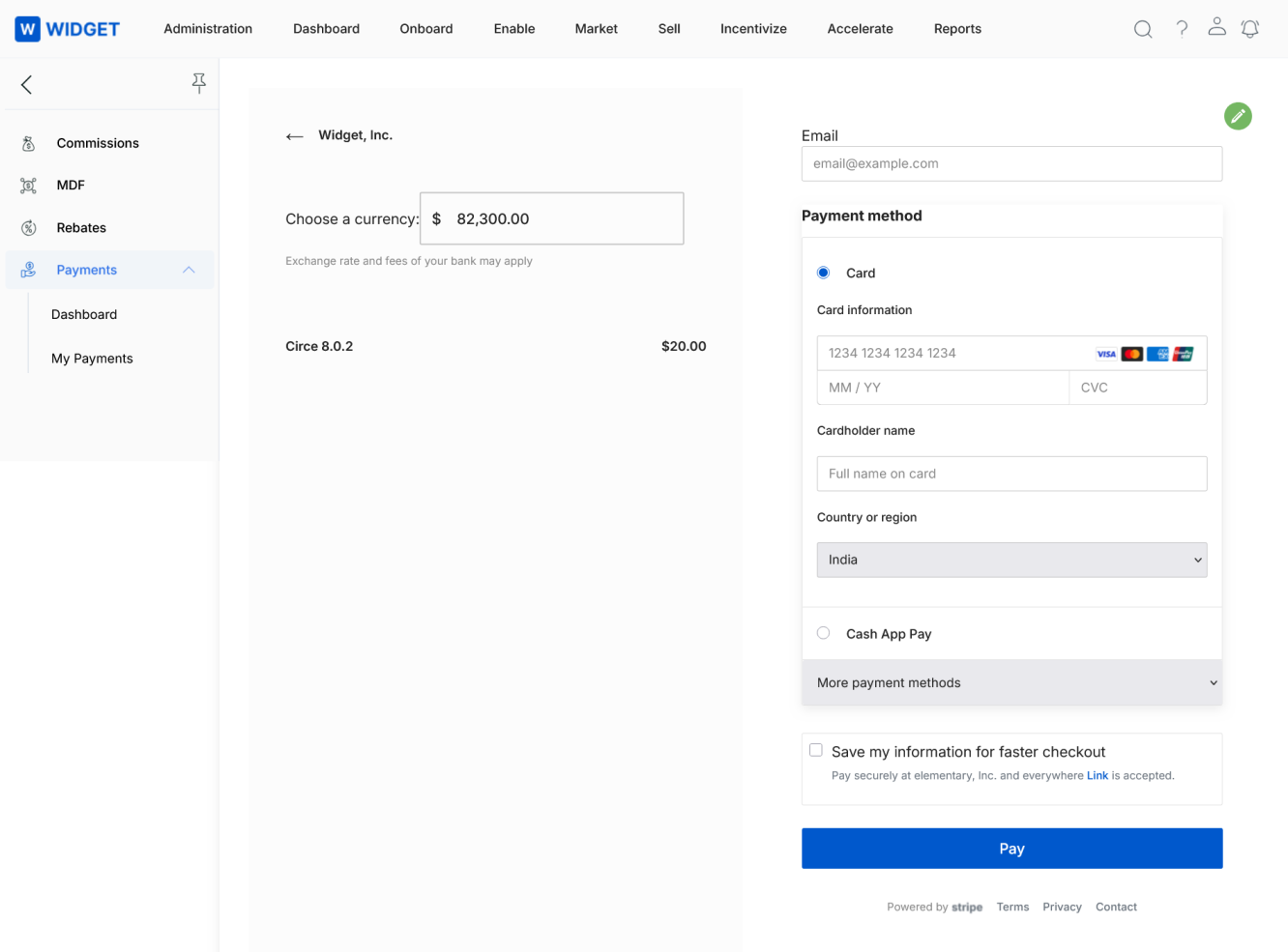
Follow these steps to complete a payment:
- Review the payment amount and currency displayed on the gateway screen.
- Enter payment and billing details, including the recipient email address.
- Select the preferred payment method (e.g., Card, Cash App Pay, or other available methods).
- Click Pay to complete the transaction.
Upon successful payment, the payment status in UPM is automatically updated to reflect the completed transaction. If a payment fails or the gateway is not configured, the record will display a Gateway Not Configured or failed status, and can be retried using the Reinstate Payment action on the Payment Details page.