
Introduction
The Partner Business Planning application of ZINFI's partner relationship management (PRM) platform enables your organization to automate the development of business plans, streamlining interactions between internal and external channel partner stakeholders to ensure efficient plan execution and compliance.
Partner Business Planning
The Partner Business Planning application allows your organization to automate business planning activities within a multi-level channel ecosystem using an online form and approval flow process. You can also set up system alerts to notify channel partners when new business plan templates become available.
With Partner Business Planning functionality, channel partners can easily incorporate marketing plan details, then sign the business plan and push it for your approval through an expedient, automated multi-level approval process. The reporting features give you greater insight into the planned marketing activities initiated by your channel partners.
Contracts Management
The Partner Business Plans Management application enables an organization to develop business plans by working with internal and external partner stakeholders to ensure plan execution and compliance. The Partner Contracts Management application enables an organization to dynamically manage and keep track of all contractual documents that channel partners sign during the various phases of the partner planning cycle.
Manage Plan Templates
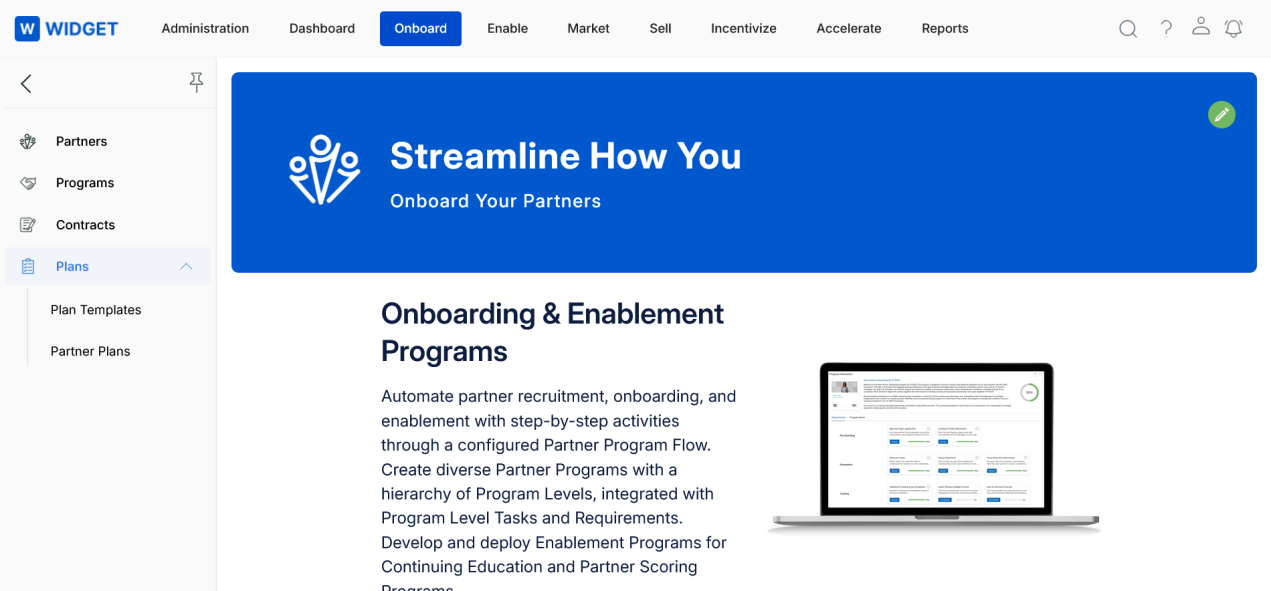
Navigate to Onboard > Plans > Plan Templates from the left menu bar to manage Plan Templates.
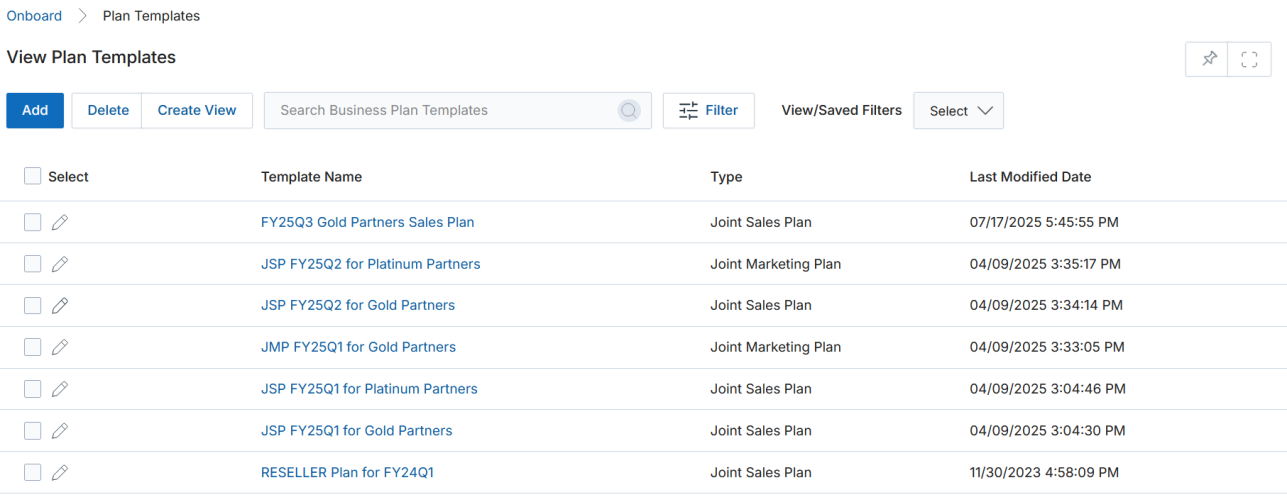
View Plan Templates
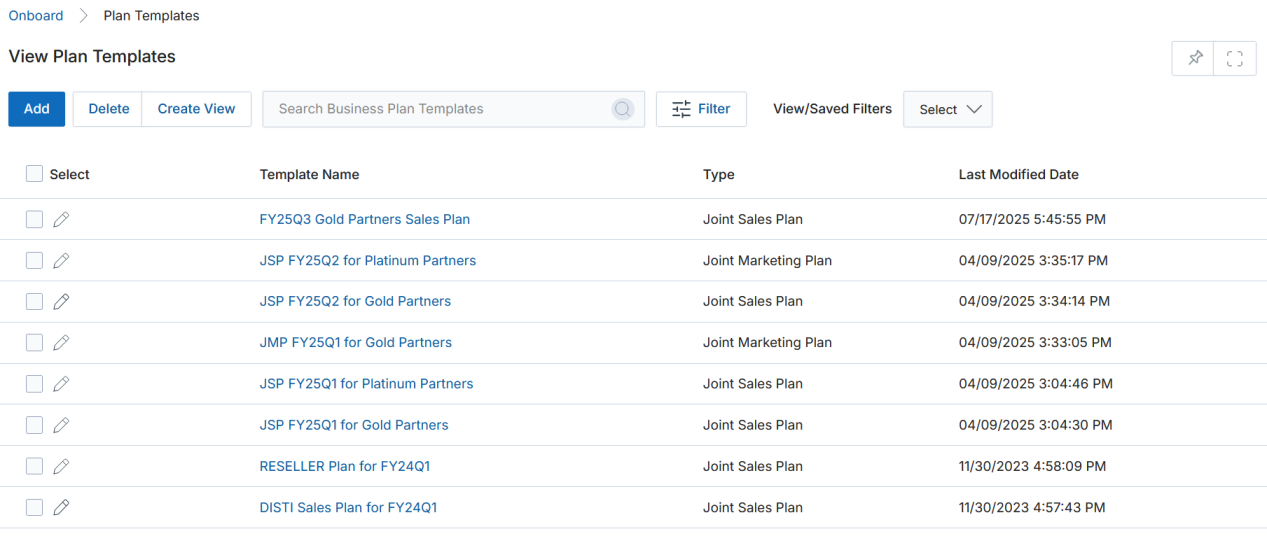
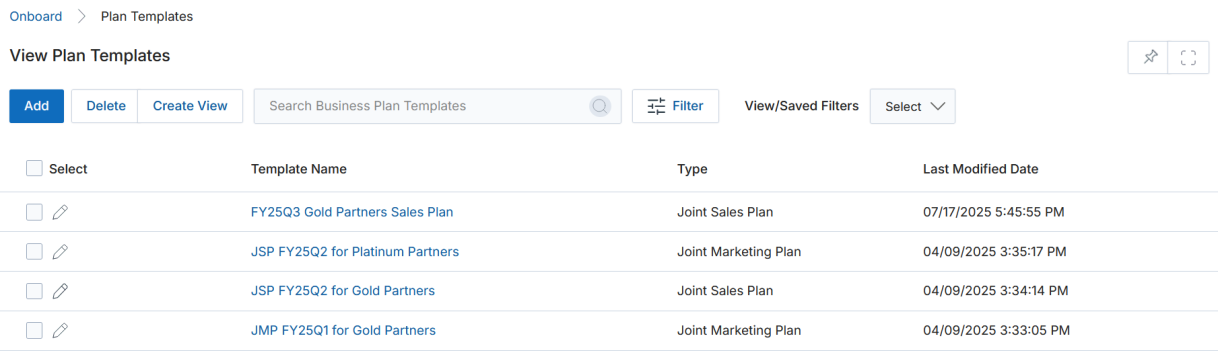
The View Plan Templates page displays all plan templates created for partner planning. The top part of the page provides the following actions:
- Add — Opens a new page to add a new record.
- Delete — Deletes selected records from the listing page.
- Create View — Lets you create a custom view with a set of columns.
- Search — Opens a pop-up window where you can enter search criteria to find desired records.
- Clear Search — Clears the current search.
- Saved Searches — Shows a list of saved searches. When selected, options to Edit (update the search name) or Delete (remove the search) are displayed.
For each record in the grid: clicking Edit (Pen icon) opens the record for editing; clicking any linkable item navigates to its details page.
Create New View
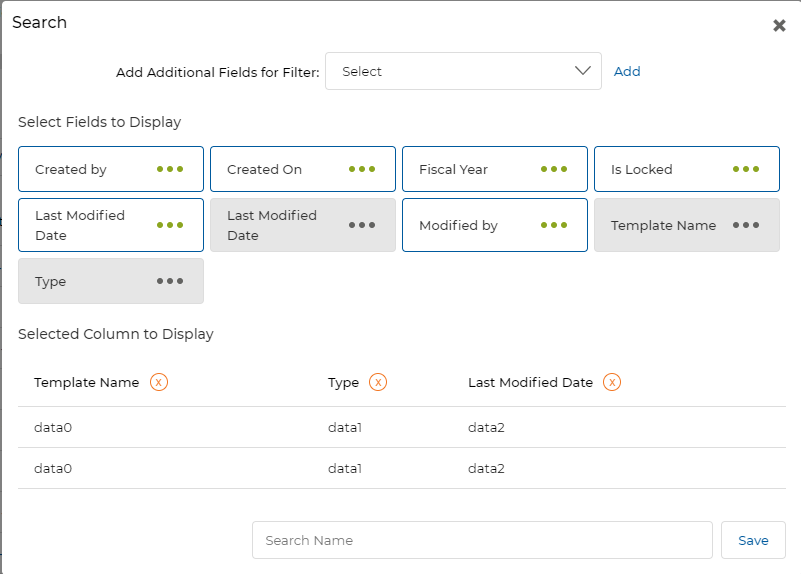
- Choose an additional field and click Add.
- Click on Green Dots to select the fields to display. Available fields include: Created by, Created On, Fiscal Year, Is Locked, Last Modified Date, Modified by, Template Name, and Type.
- Selected columns appear in the table. Click the cross button to remove a column.
- Provide a View Name and click Save to create the new view.
View Plan Template Details
Click the Name/Title of any Plan Template in the listing to open its details page. The details page provides the following buttons and sections:
Buttons:
- Edit — Opens the plan template in Edit mode to modify template details.
- Delete — Deletes the selected plan template.
- Assign To — Assigns the plan template to selected partners or partner groups.
Plan Template Information
| Field | Description |
|---|---|
| Template Name | Displays the name of the plan template. |
| Template Type | Indicates the type of plan template: Joint Sales Plan or Joint Marketing Plan. |
Plan Objective(s)
This related list displays the sales or marketing objectives defined for the template. For each objective row:
| Field | Description |
|---|---|
| Objective Name | Displays the name of the sales or marketing objective (links to the objective detail page). |
| Revenue Target | Shows the revenue target assigned to the objective. |
| Target Titles | Displays the job titles targeted for the objective (e.g., CFO, CTO, CEO). |
| Industry Verticals | Lists the industry verticals associated with the objective (e.g., Telecommunications, Healthcare, Energy). |
Partner Plans
This related list shows all partner plans created from this template:
| Field | Description |
|---|---|
| Partner ID | Unique identifier of the partner. |
| Plan Name | Name of the partner plan (links to the plan detail page). |
| Plan ID | Unique identifier of the partner plan. |
| Partner Account Type | Type of partner account (e.g., Reseller). |
Business Plan Template Assignment History
Tracks all assignments of the plan template to partners or groups, recording: IsLocked, IsZinfiData, Date Entered, Assigned By, Assigned To, and Assignment Type. Click the globe icon to withdraw an assignment.
Add / Edit a Plan Template
The Add/Edit a Plan Template page allows administrators to create a new plan template or update an existing one. Click the Add button on the View Plan Templates page to begin.
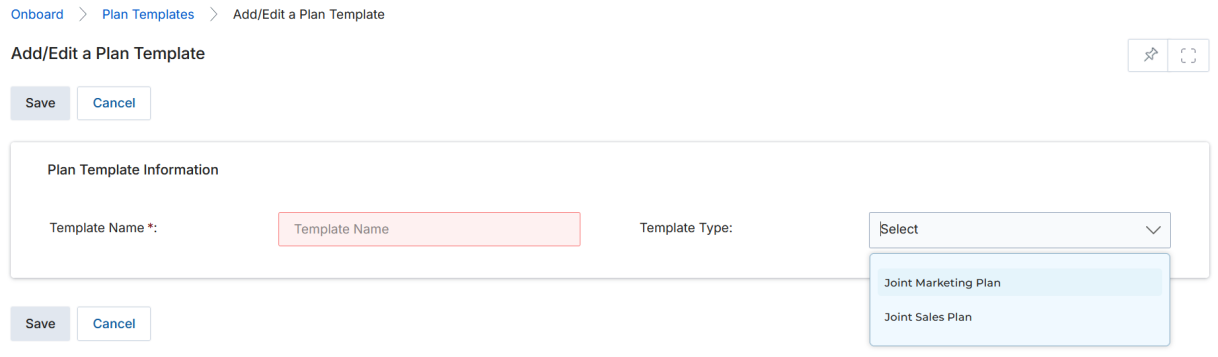
| Field | Description | Required |
|---|---|---|
| Template Name | Enter a unique name for the plan template. | Yes |
| Template Type | Joint Marketing Plan — defines marketing-focused plans jointly executed with partners. Joint Sales Plan — defines sales-focused plans jointly executed with partners. | Yes |
Once completed, click Save to create the template. Click Cancel to exit without saving.
Managing Submitted Partner Plans
Navigate to Onboard > Plans > Partner Plans from the left menu bar to access submitted partner plans.
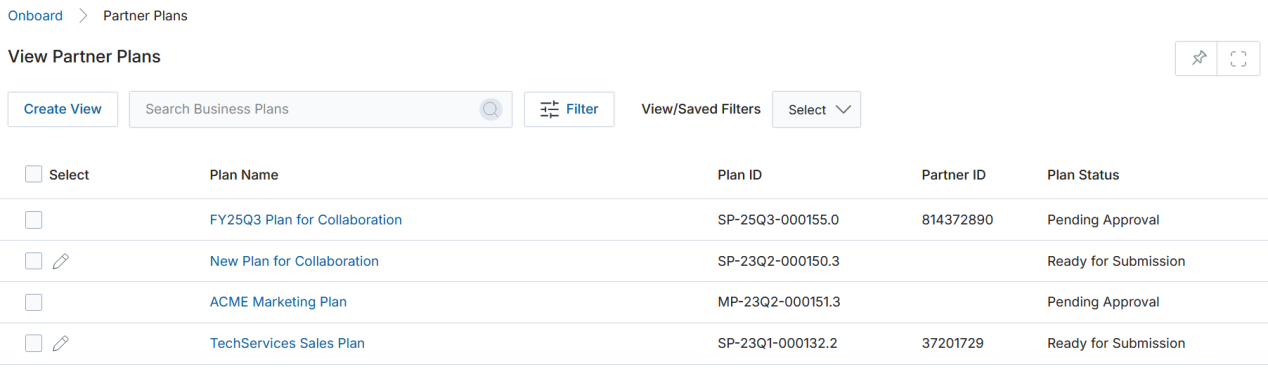
View Partner Plans
The View Partner Plans page lists all partner plans submitted by channel partners. The top part of the page provides:
- Create View — Lets you create a custom view with a set of columns.
- Filter — Opens a pop-up window to enter search criteria.
- Saved Searches — Shows saved searches; select to Edit or Delete them.
For each record in the grid, clicking any linkable item navigates to its details page. Plan Status values include: Pending Approval, Ready for Submission, Approved, and Rejected.
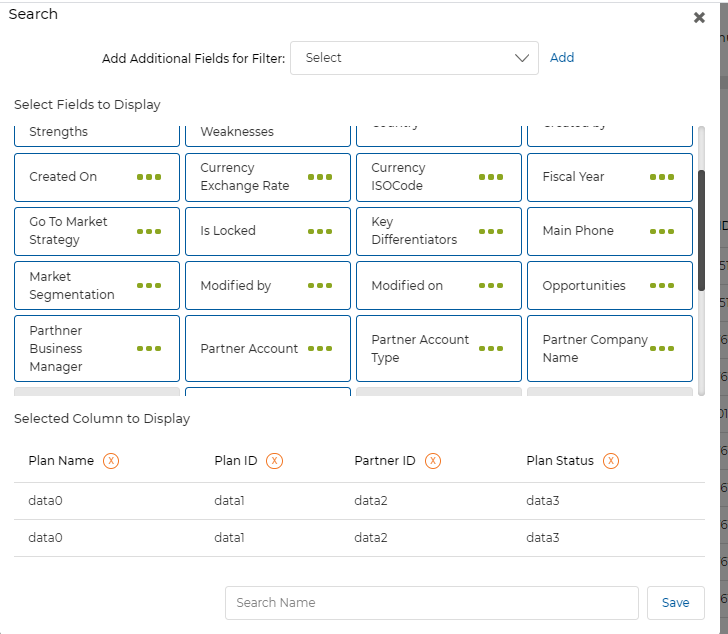
Create New View (Partner Plans)
The Create New View for Partner Plans offers a broader set of filterable fields including: Strengths, Weaknesses, Created On, Currency Exchange Rate, Currency ISOCode, Fiscal Year, Go To Market Strategy, Is Locked, Key Differentiators, Main Phone, Market Segmentation, Modified by, Modified on, Opportunities, Partner Business Manager, Partner Account, Partner Account Type, Partner Company Name, Plan Name, Plan ID, Partner ID, and Plan Status.
- Choose an additional field and click Add.
- Click Green Dots to select fields to display.
- Click the cross button to remove a column.
- Provide a View Name and click Save.
View Partner Plan Details
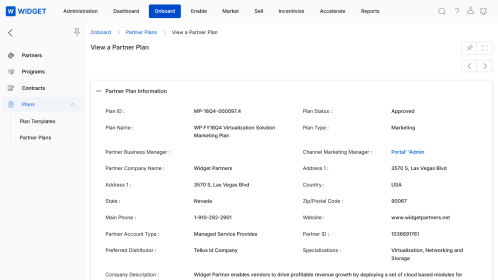
Click the Name/Title of any listed Partner Plan to open its details page.
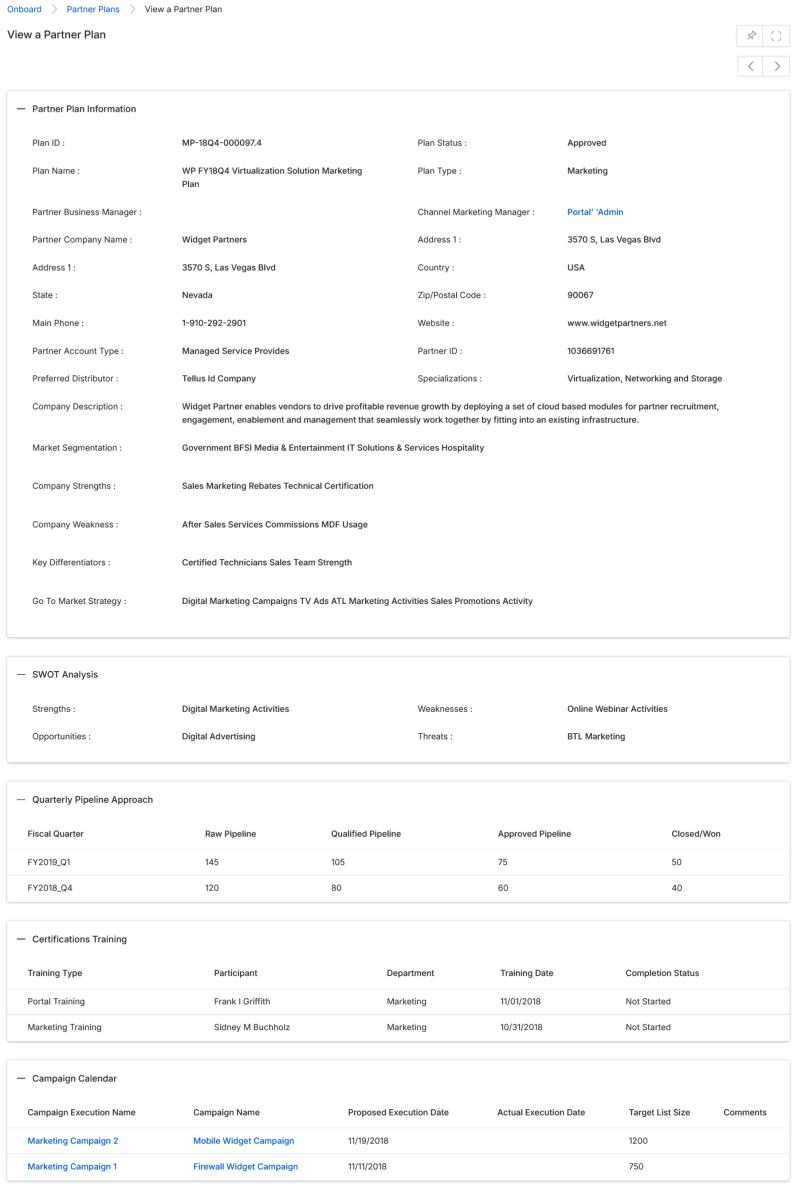
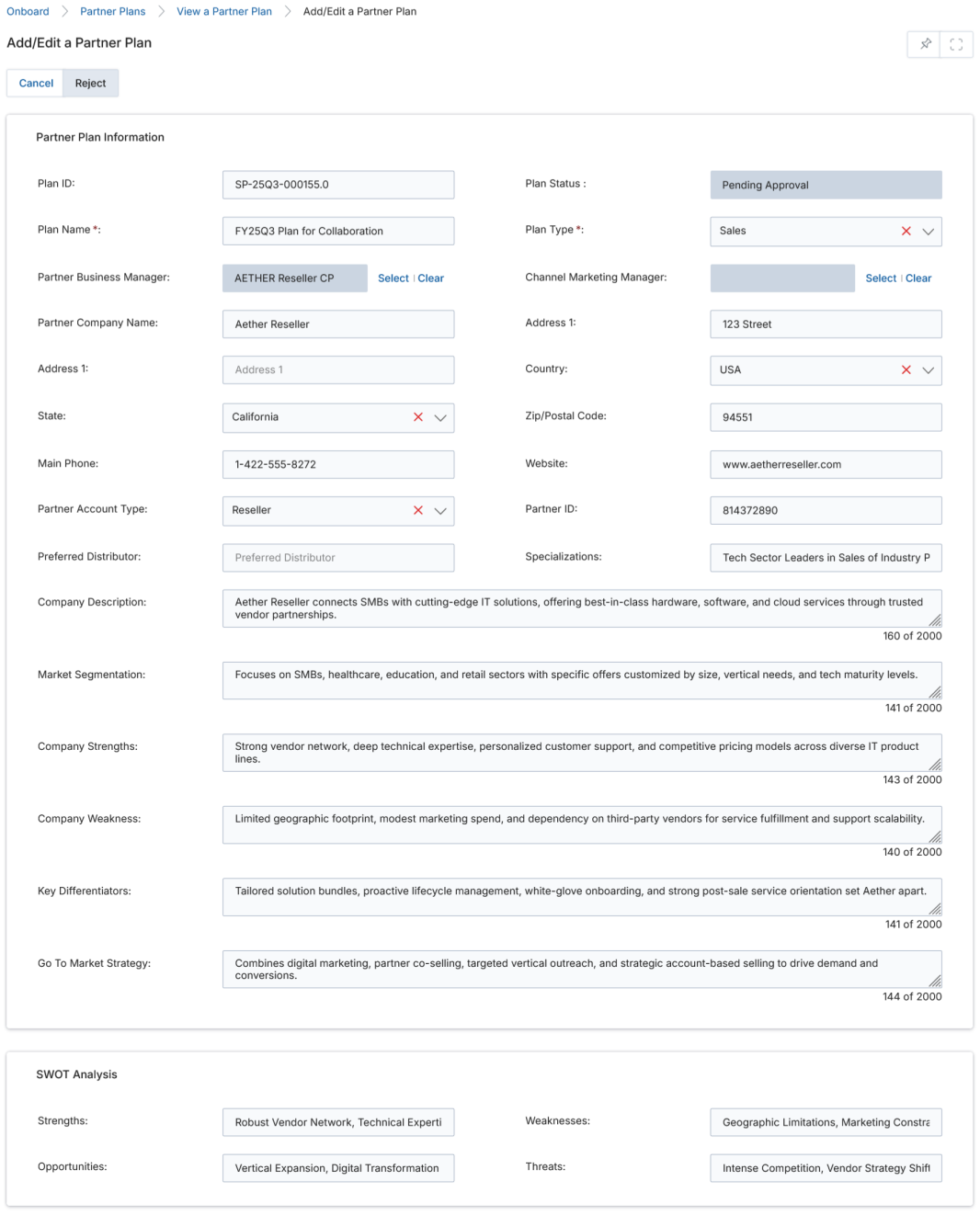
Partner Plan Information
| Field | Description |
|---|---|
| Plan ID | Unique plan identification for the selected partner plan. |
| Plan Status | Current status of the plan (e.g., Pending Approval, Approved, Rejected). |
| Plan Name | Name of the plan. |
| Plan Type | Type of plan — Sales or Marketing. |
| Partner Business Manager | The person responsible for managing the plan from the partner side. |
| Channel Marketing Manager | The person from the OEM level responsible for managing the plan. |
| Partner Company Name | Name of the partner company. |
| Address 1 | Address of the partner company. |
| Country | Country of the partner company. |
| State | State of the partner company. |
| Zip/Postal Code | Postal code of the partner company. |
| Main Phone | Partner company contact phone number. |
| Website | Partner company website. |
| Partner Account Type | Type of account the partner company holds. |
| Partner ID | Unique identification of the partner. |
| Preferred Distributor | Preferred distributor of the partner. |
| Specializations | Fields in which the partner company specializes. |
| Company Description | Description of the partner company. |
| Market Segmentation | The market segment to which the partner company belongs. |
| Company Strengths | Strengths of the partner company. |
| Company Weakness | Weaknesses of the partner company. |
| Key Differentiators | Key differentiators of the partner company. |
| Go To Market Strategy | Market strategy key parameters for the partner company. |
SWOT Analysis
| Field | Description |
|---|---|
| Strengths | Areas of strength for the partner company. |
| Weaknesses | Areas of weakness for the partner company. |
| Opportunities | Areas to gain opportunities for the partner company. |
| Threats | Areas of threat for the partner company. |
Quarterly Pipeline Approach
Displays the quarterly pipeline breakdown for the partner company. For each fiscal quarter row:
| Column | Description |
|---|---|
| Fiscal Quarter | The quarter for which the result is shown (e.g., FY2016_Q1). |
| Raw Pipeline | Total opportunities in the pipeline. |
| Qualified Pipeline | Qualified opportunities. |
| Approved Pipeline | Approved opportunities. |
| Closed/Won | Deals closed and won. |
Certifications Training
Displays the list of certifications and training activities for the partner company. For each row:
| Column | Description |
|---|---|
| Training Type | Type of training completed. |
| Participant | Participants from the partner company. |
| Department | Department involved in the training. |
| Training Date | Date of training. |
| Completion Status | Status of training completion (e.g., Not Started, Completed). |
Campaign Calendar
Displays the list of campaigns executed and to be executed based on calendar dates. For each row:
| Column | Description |
|---|---|
| Campaign Executive Name | Click to view the campaign execution details. |
| Campaign Name | Name of the campaign to be executed. |
| Proposed Execution Date | Proposed date for campaign execution. |
| Actual Execution Date | Date when the campaign is/was actually executed. |
| Target List Size | Campaign blast list size. |
| Comments | Comments associated with the campaign entry. |
Approving / Rejecting Submitted Partner Plans
Once a partner has submitted a plan, the Approval History related list appears at the bottom of the plan details page. It shows all approval steps with columns for Step, Submitter, Approver, Actual Approver, Status, Comments, Action Taken Date, and Action (Approve | Reject links).
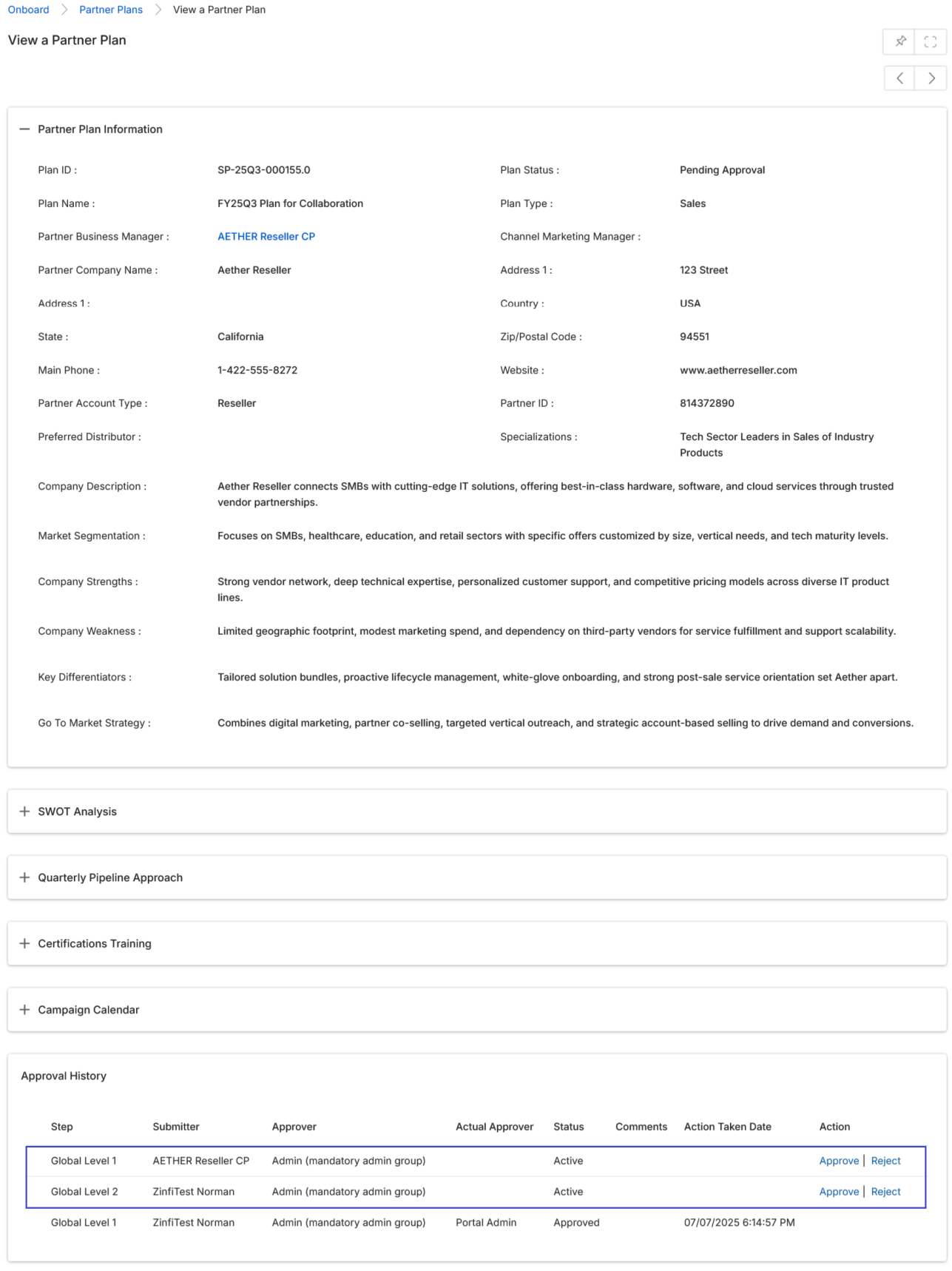
Approving a Plan
- In the Approval History section, click the Approve link for the relevant approval step.
- The partner plan page opens in edit mode. You can modify field values before finalizing approval (see the View Partner Plan Details section for field descriptions).
- Under the Comments section, provide the necessary comment, then click Approve.
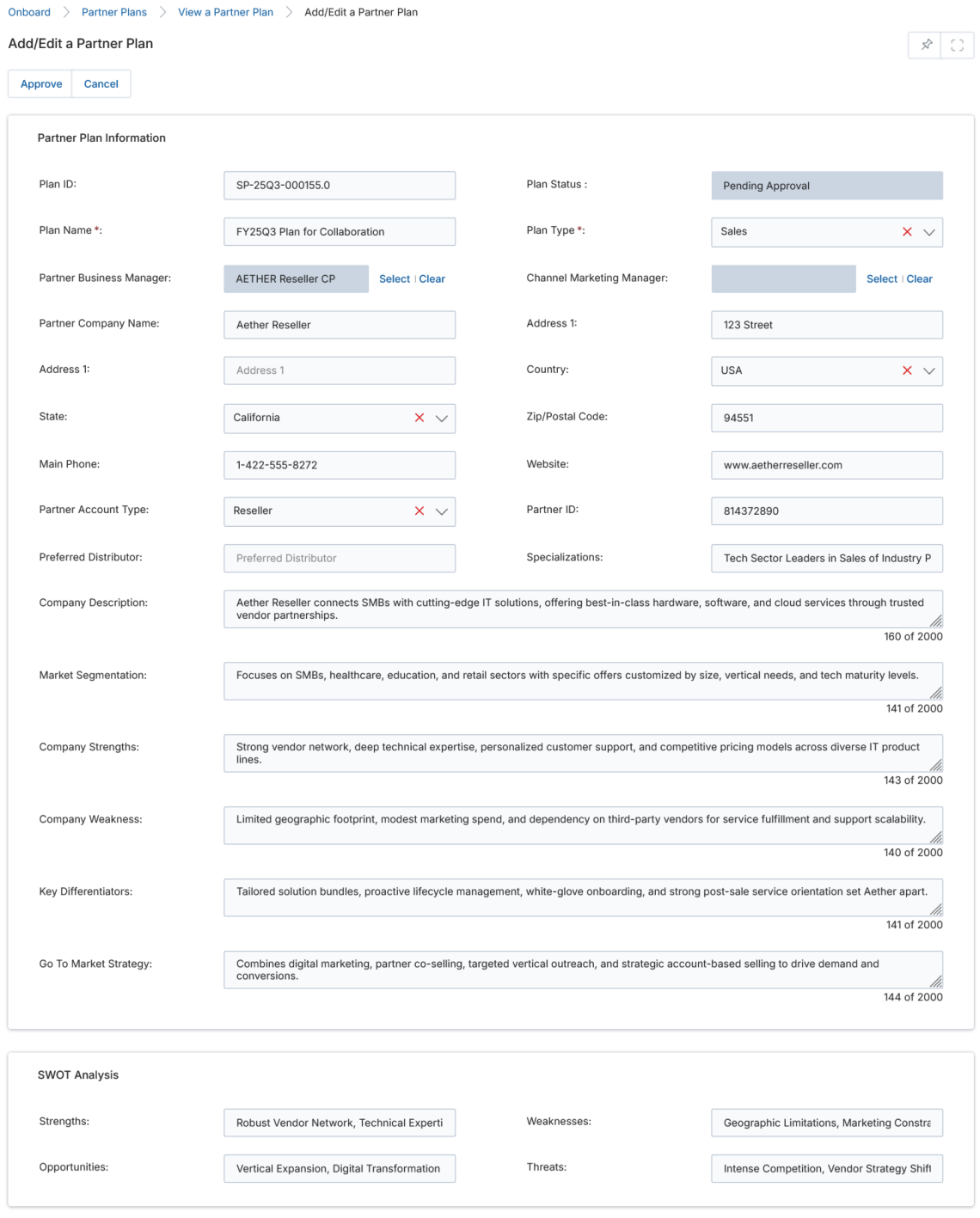
Rejecting a Plan
- In the Approval History section, click the Reject link for the relevant approval step.
- The partner plan page opens in edit mode. You can modify field values before finalizing rejection.
- Under the Comments section, provide the rejection reason, then click Reject.
Multi-level approval is supported. Each approval step (Global Level 1, Global Level 2, etc.) must be actioned independently. When a prior level approves, the next level becomes active and awaits action.