Introduction
The Partner Onboarding Management Application of ZINFI's Onboarding platform enables your organization to automate the partner recruitment and onboarding process with step-by-step activities. The Application helps you create different onboarding tracks based on partner type, profile, level of engagement, and other variables.
The Application helps Admins create varied Partner Programs comprising a hierarchy of Program Levels integrated with Program Tasks. Partner Onboarding Programs can be auto-assigned to Partners based on partner details and segmentation logic. OEMs can auto-promote Partners with eligible Benefits associated with the completion of Program Levels.
ZINFI Program Levels are flexible and can be sequential or non-sequential — a partner may advance from Level 1 to Level 2, skip to Level 3, or be enrolled at the highest level — based on the configuration and completion logic defined. A Partner can also be configured to auto-enroll in more than one Program based on preset criteria.
Dashboard Management
The Partner Onboarding Management Application gives your organization a bird's eye view and complete control over the new partner engagement cycle. Dashboard management helps define a step-by-step process for onboarding new channel partners in the existing channel ecosystem — from agreement signing to campaign launch.
Partner Setup Management
Using the Onboarding Management Application, your organization can manage partner portal access for newly onboarded channel partners so that partners view and access only the onboarding steps that apply to them. Once channel partners sign contracts they will have access to various partner training materials (certifications, courses, and tests) based on the partner program on-completion benefits configuration.
Programs and Program Level Management
The Partner Onboarding Management Application gives your organization a detailed view of, and complete control over, the new partner engagement cycle. Dashboard-based Programs and Program Level Management help you quickly define a step-by-step onboarding process.
Manage Programs
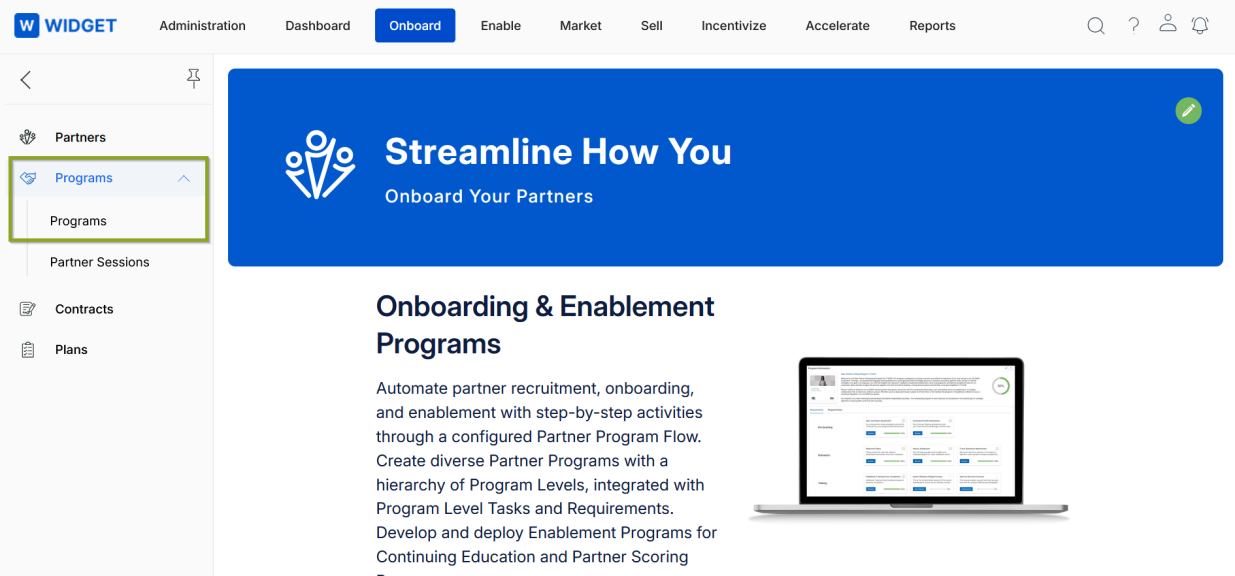
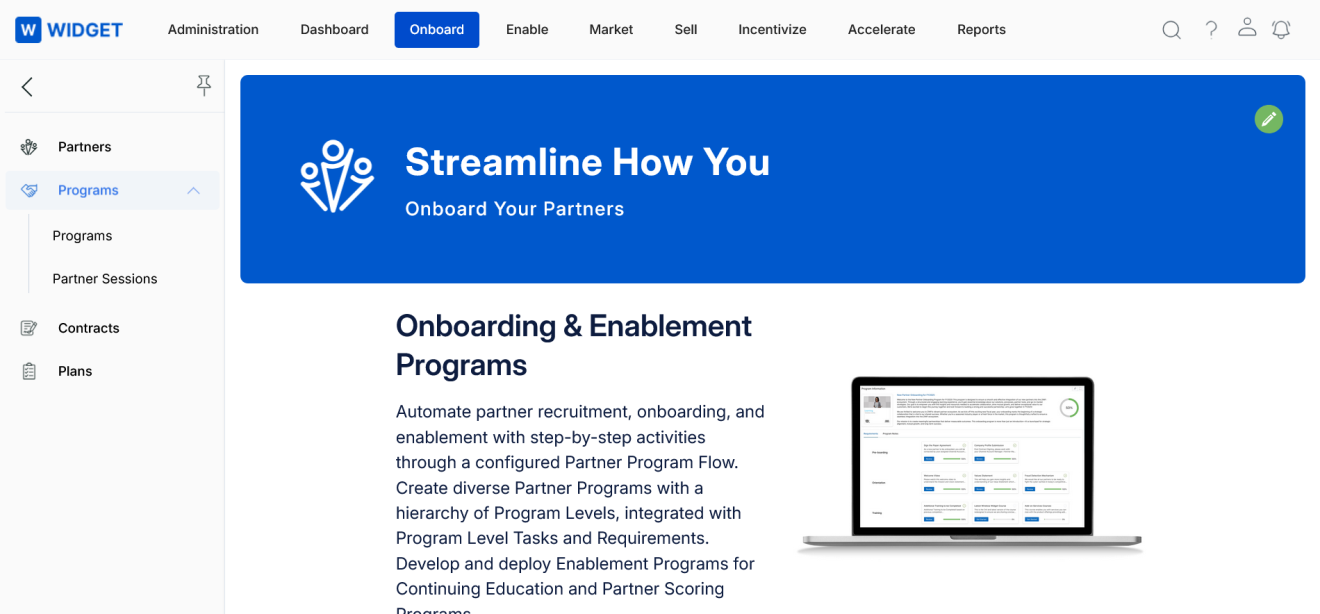
Navigate to Onboard > Programs > Programs from the left menu bar to access the Programs management area.
View Programs
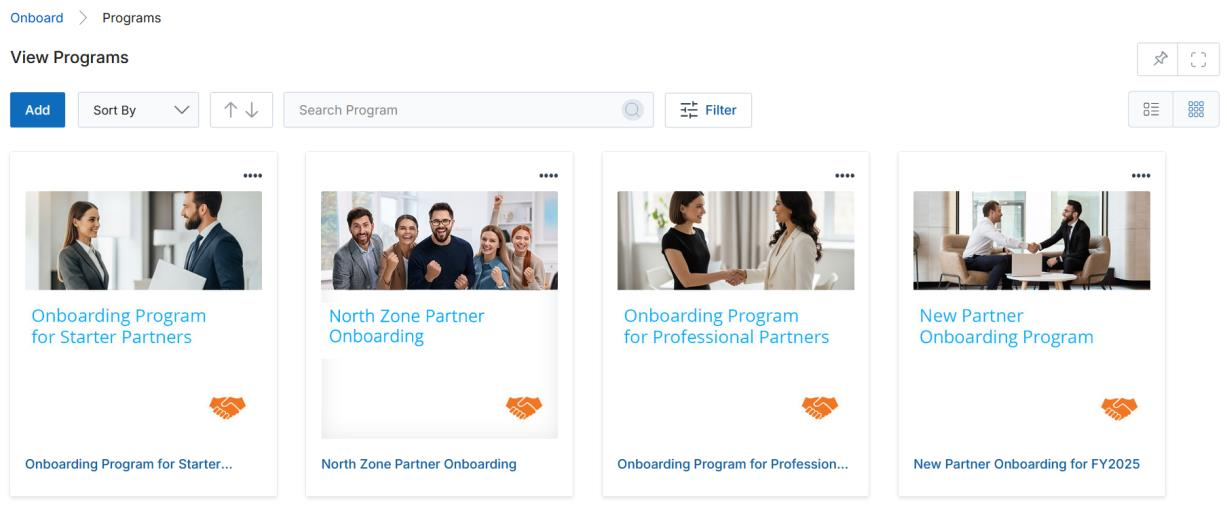
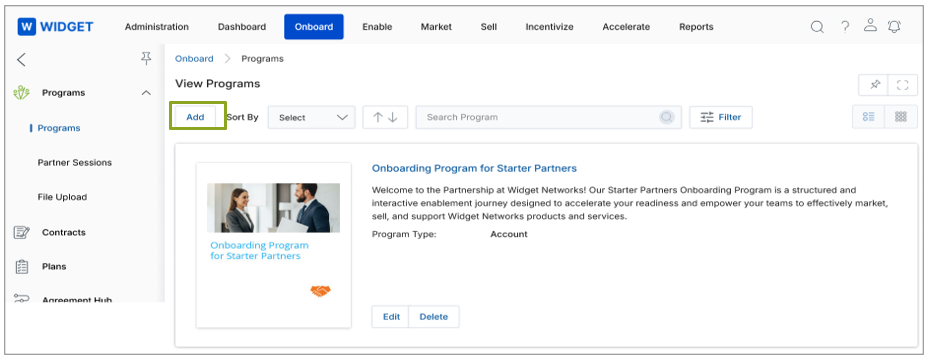
Clicking Programs from the left menu takes you to the View Programs page, which displays all programs generated for the portal's users. The top toolbar provides the following actions:
- Add — Opens a new page where you can create a new program.
- Sort By — Clicking the dropdown arrow sorts the displayed programs by specified criteria.
- Filter — Opens the Filter pane to locate a specific program by name. Click the (X) icon to close the pane. Click Apply to show the matching program, or Clear Filter to remove previously applied filters.
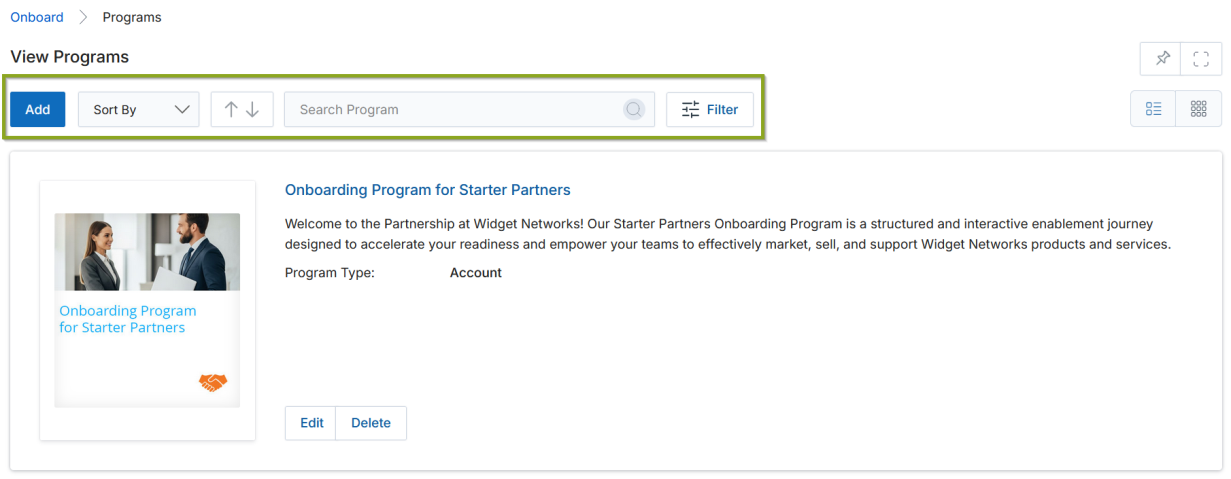
Use the List View (lined icon) or Thumb View (waffle icon) toggles in the upper-right of the content area to switch between display modes. In Thumb View, click the four-dot menu on the top-right of a program card to access Edit and Delete options.
View Existing Program Details
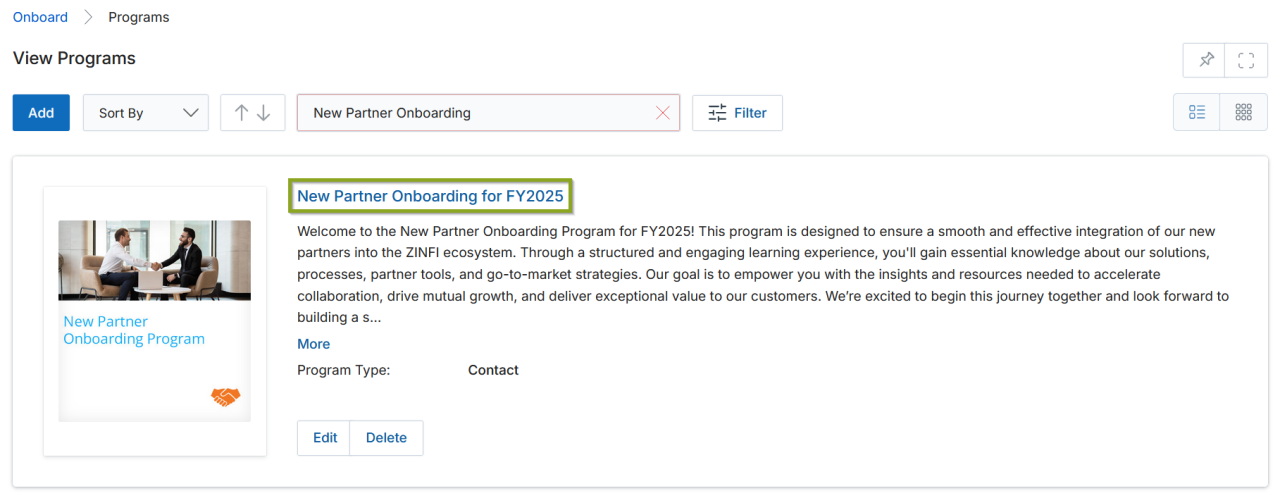
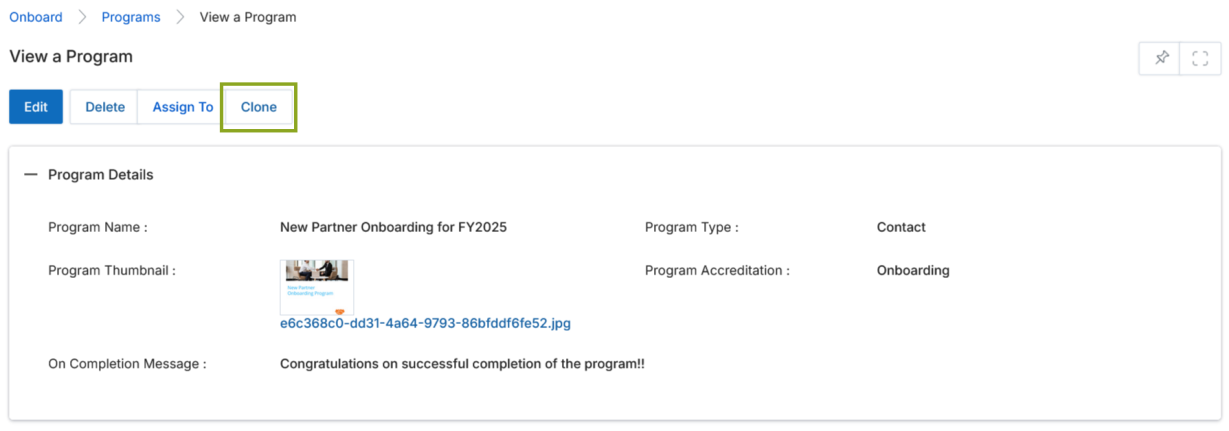
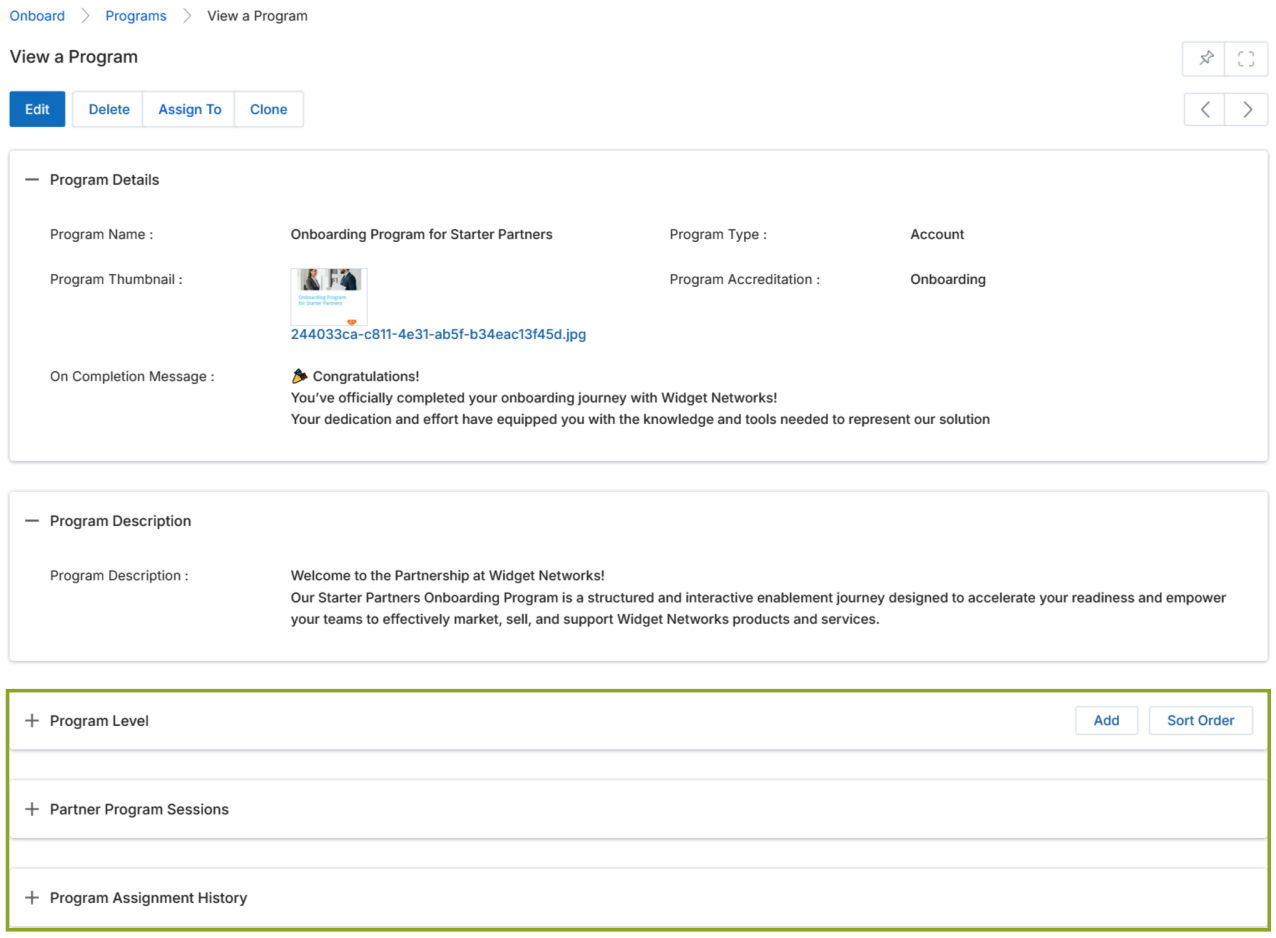
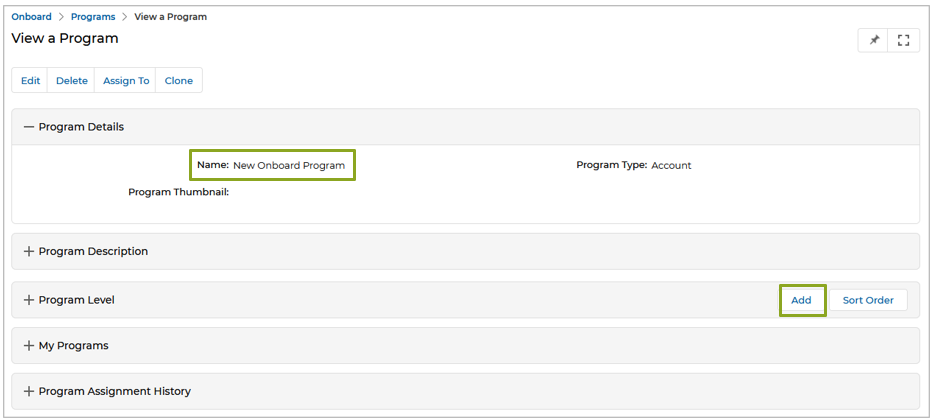
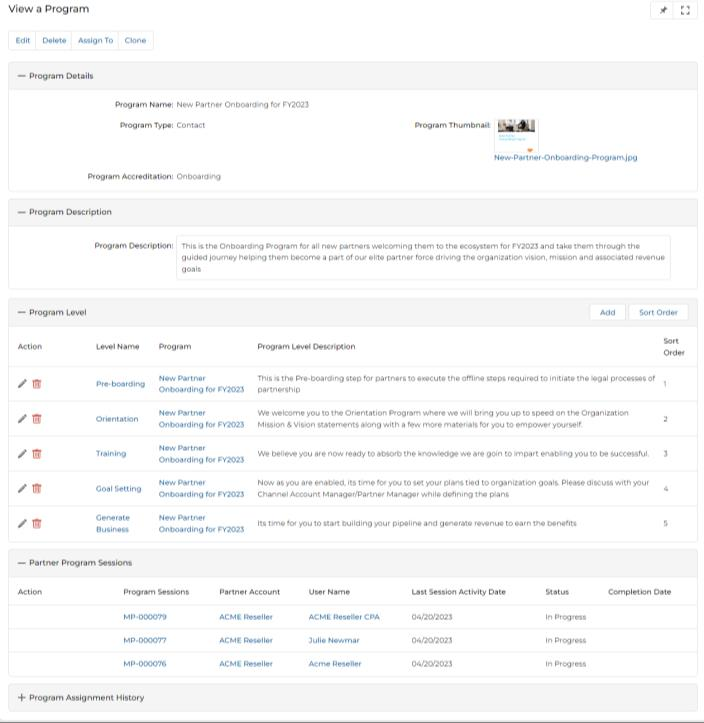
Click the Name/Title of any program on the View Programs page to open its detail view. The View a Program page contains four top-level action buttons and the following collapsible sections:
- Edit — Opens the record in Edit mode.
- Delete — Removes the selected record from the list.
- Assign To — Assigns the program to specific users or groups with read-only or read-write access permissions. Withdraw an assignment by clicking the globe icon beside each line item in the Program Assignment History section.
- Clone — Creates a duplicate copy of the Program. The clone operation requires a unique name; a duplicate name triggers an error. When cloning, Program Levels, Program Level Tasks, and Task Requirements are all cloned along with the master program.
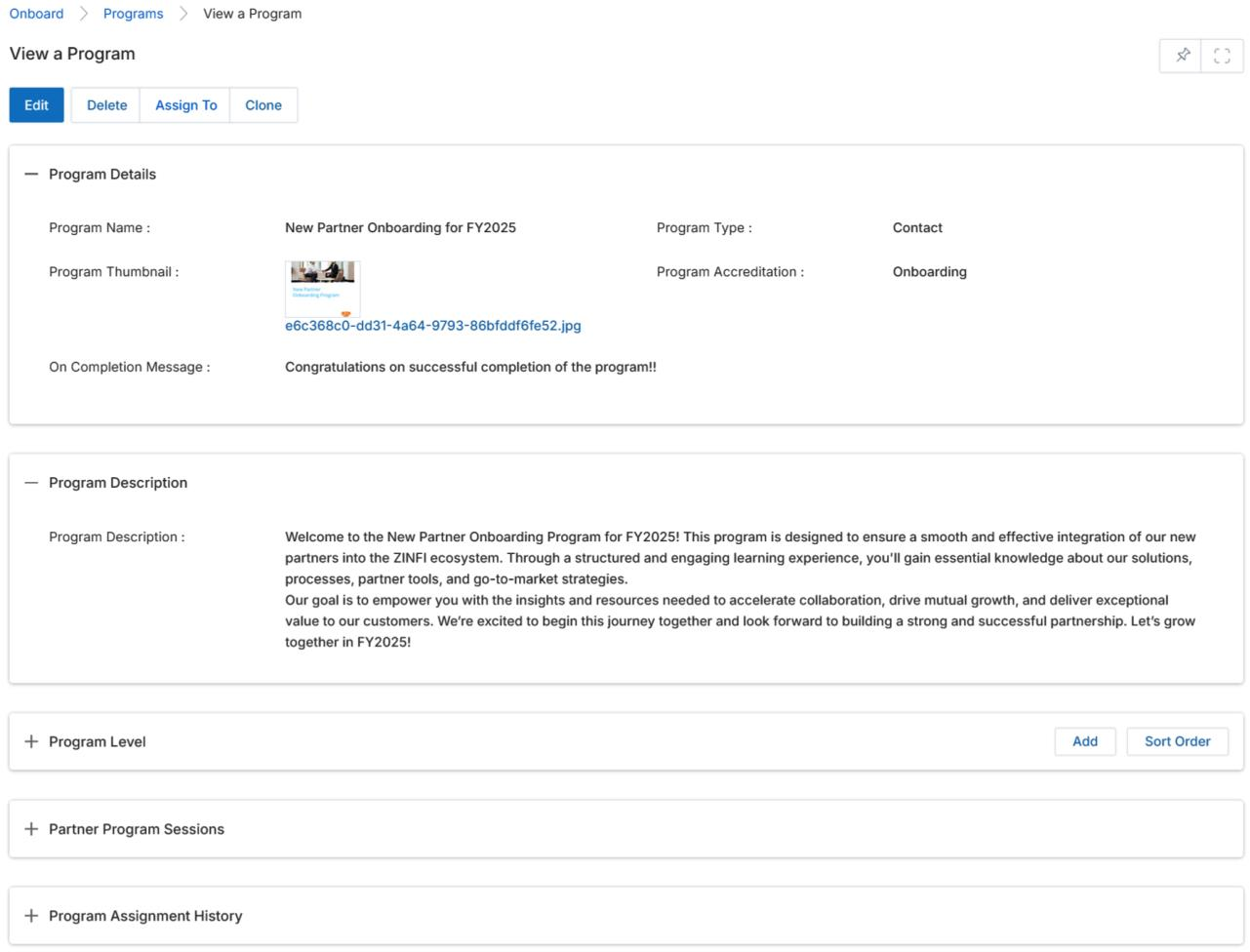
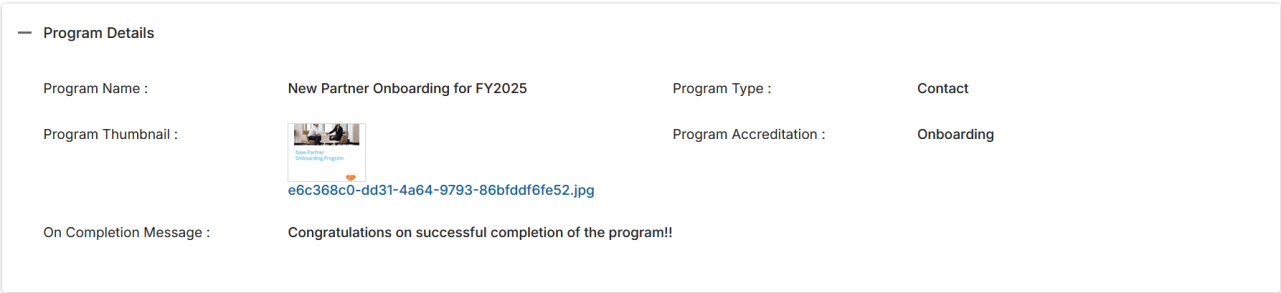
Program Details
| Field | Description |
|---|---|
| Program Name | Displays the name of the Program. |
| Program Type | Account — completion by any user marks the task/level complete for all users in the account; all associated users receive benefits. Contact — only the individual user completing the program receives the associated benefits. |
| Program Thumbnail | Thumbnail image displayed for the program. |
| Program Accreditation | Defines the program type: Onboarding or Enablement. |
| On Completion Message | Message shown to the partner upon successful program completion. |
Program Level
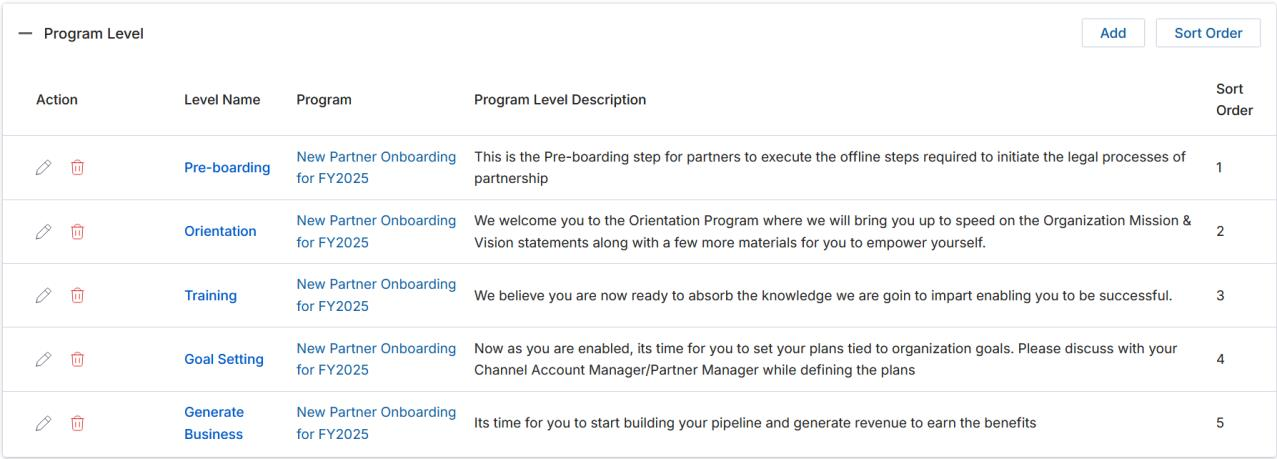
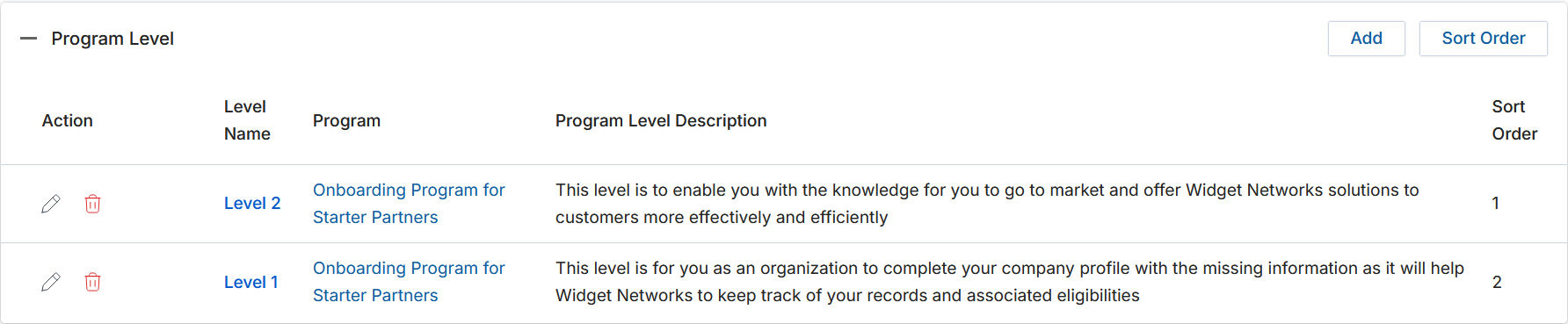
The Program Level section lists all levels that constitute the program. Each row shows the Level Name, Program name, Program Level Description, and Sort Order. Use the Add button to add a new level, or Sort Order to rearrange levels via drag-and-drop.
Partner Program Sessions
This section provides a summary of enrolled partners' program progress. Fields auto-populate once partners are assigned and enrolled. Click a Program Session ID to open the Program Session Progress page for a detailed view of that partner's progress.
| Field | Description |
|---|---|
| Partner Program Session ID | Unique ID of the partner's session in this program. Click to view the Program Session Progress page. |
| Partner Account | Account name the participant user is associated with. |
| User Name | Name of the specific user associated with the Partner Account. |
| Last Session Activity Date | Date when the last session activity was performed by the user. |
| Status | Present status of the session: In Progress or Completed. |
| Completion Date | Date of completion of this specific Partner Program Session. |
Program Session Progress
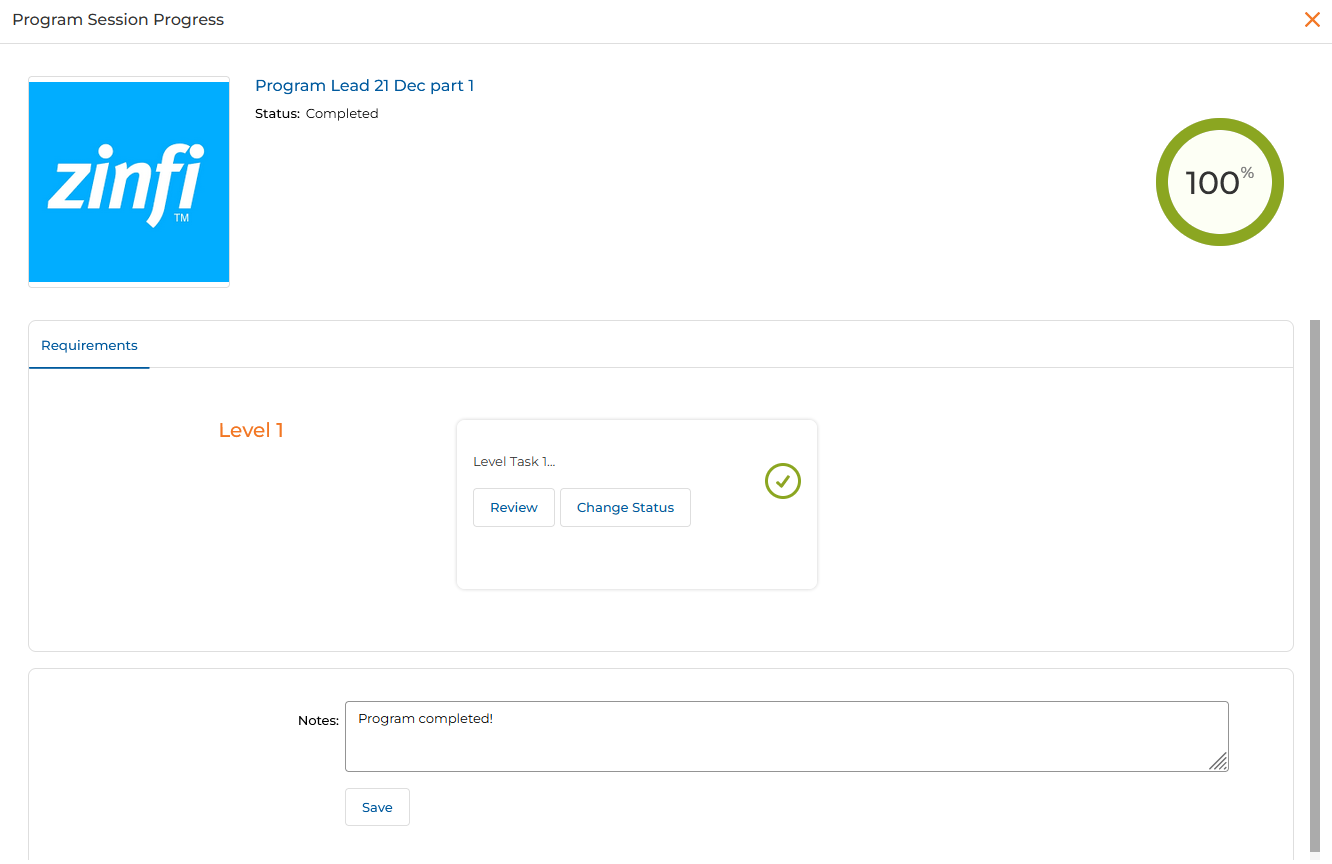
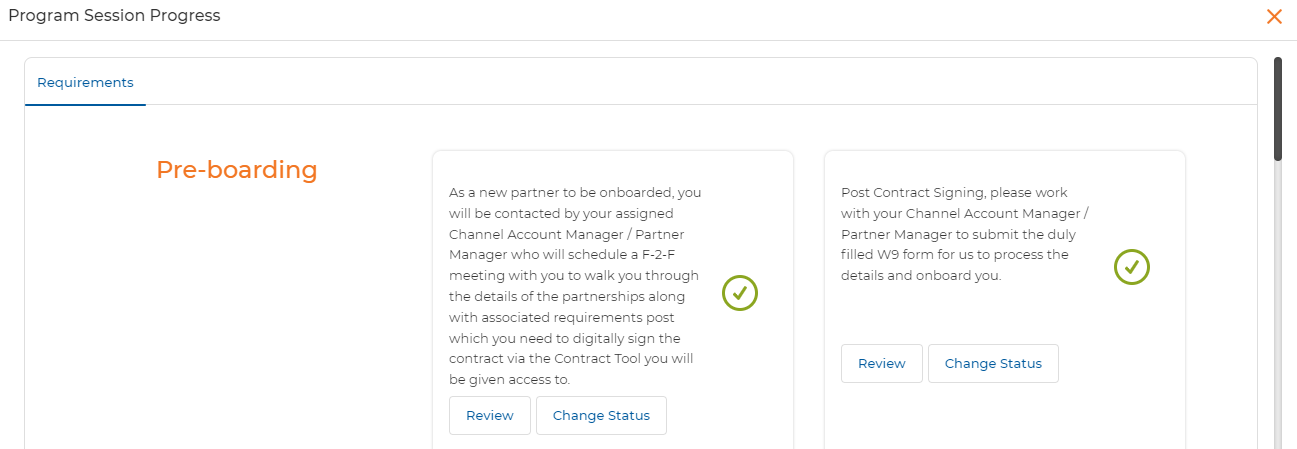
Clicking a Program Session ID opens the Program Session Progress dialog. From here, administrators can:
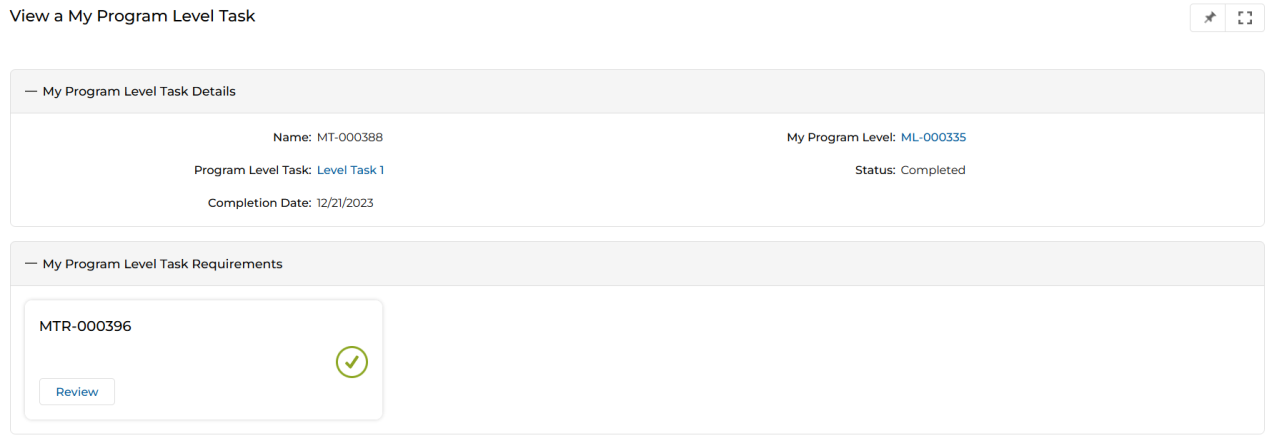
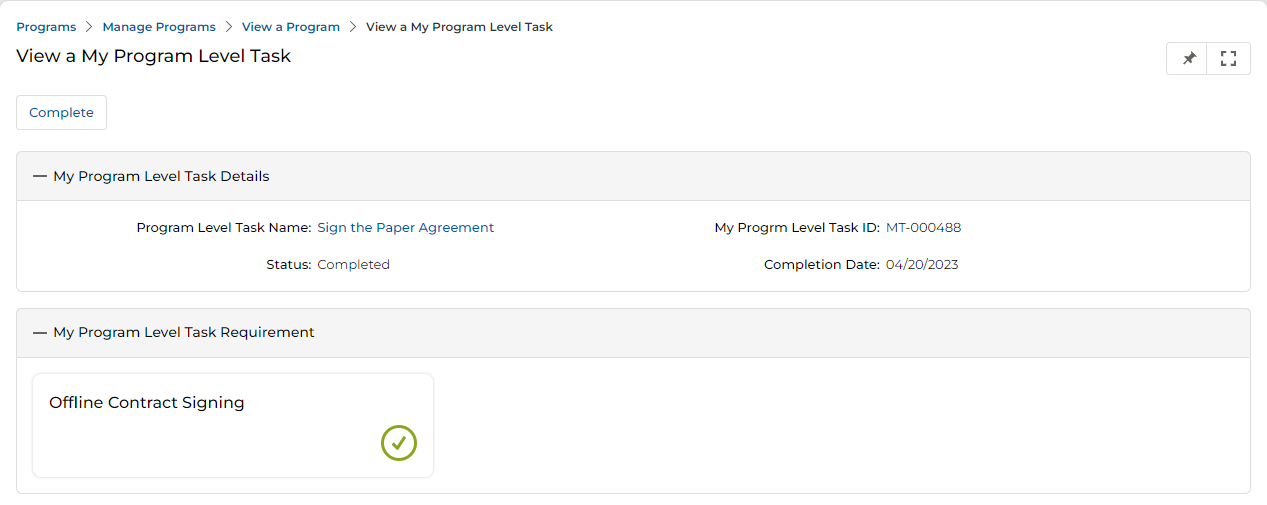
- Review — The tick mark and Review button indicate a Level Task has been completed. Clicking Review opens the Program Level Task details page where the admin can inspect the partner's completion.
- Complete — Clicking Complete by the Admin will automatically mark the Program Level Task as complete for the Partner Account/Contact.
- Change Status — Clicking this button lets the admin toggle a Level Task's progress status between Complete and Incomplete.
Program Assignment History
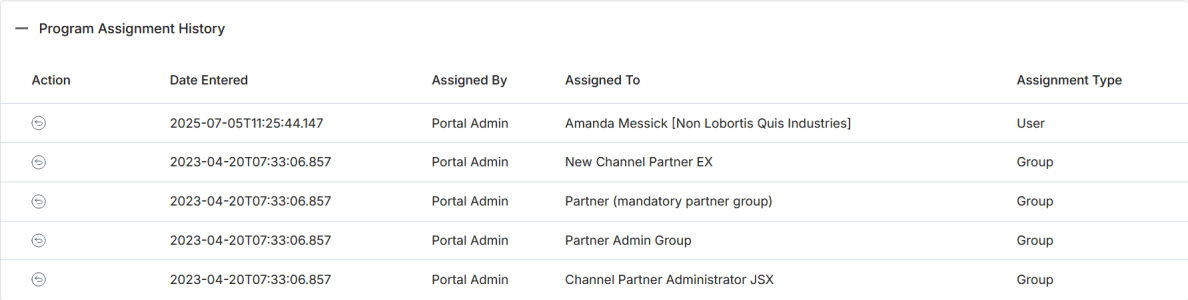
This section records the history of all program assignments. Fields include:
- Assigned By — Name of the user who allocated this assignment.
- Assigned To — Name of the user or group to whom the assignment was allocated.
- Assignment Type — Either User or Group.
- Date Entered — Date of allocation.
Assigning a Program to Users
From the program details page, click the Assign To button to assign a program to users or groups with read-only or read-write access permissions.
- Click Assign to a User to assign the program to specific users. Check the relevant users (click the + sign beside each username to expand reporting hierarchies). Search users via the search field, set access permissions, and click Save.
- Click Assign to Group to assign the program to groups. Check the relevant groups (click the + sign to expand group hierarchies). Search groups via the search field, set access permissions, and click Save.
Cloning a Program
A Program in any status — In Progress, Pending, or Completed — can be cloned by an admin. The clone preserves all Levels, Tasks, and On Completion Access configurations. However, records from My Programs and Program Assignment History will not appear in a cloned Program.
- Navigate to the detail page of the program you want to clone and click the Clone button.
- Enter a unique name for the cloned program. The system shows an error if the name already exists.
- After saving, the cloned program page appears with the same Program Levels and their associated Level Tasks.
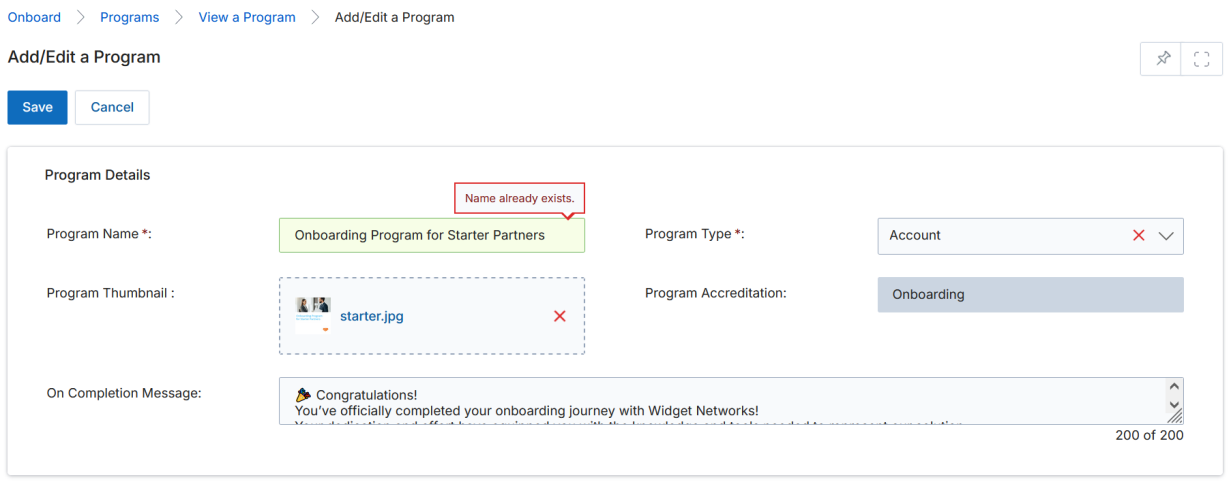
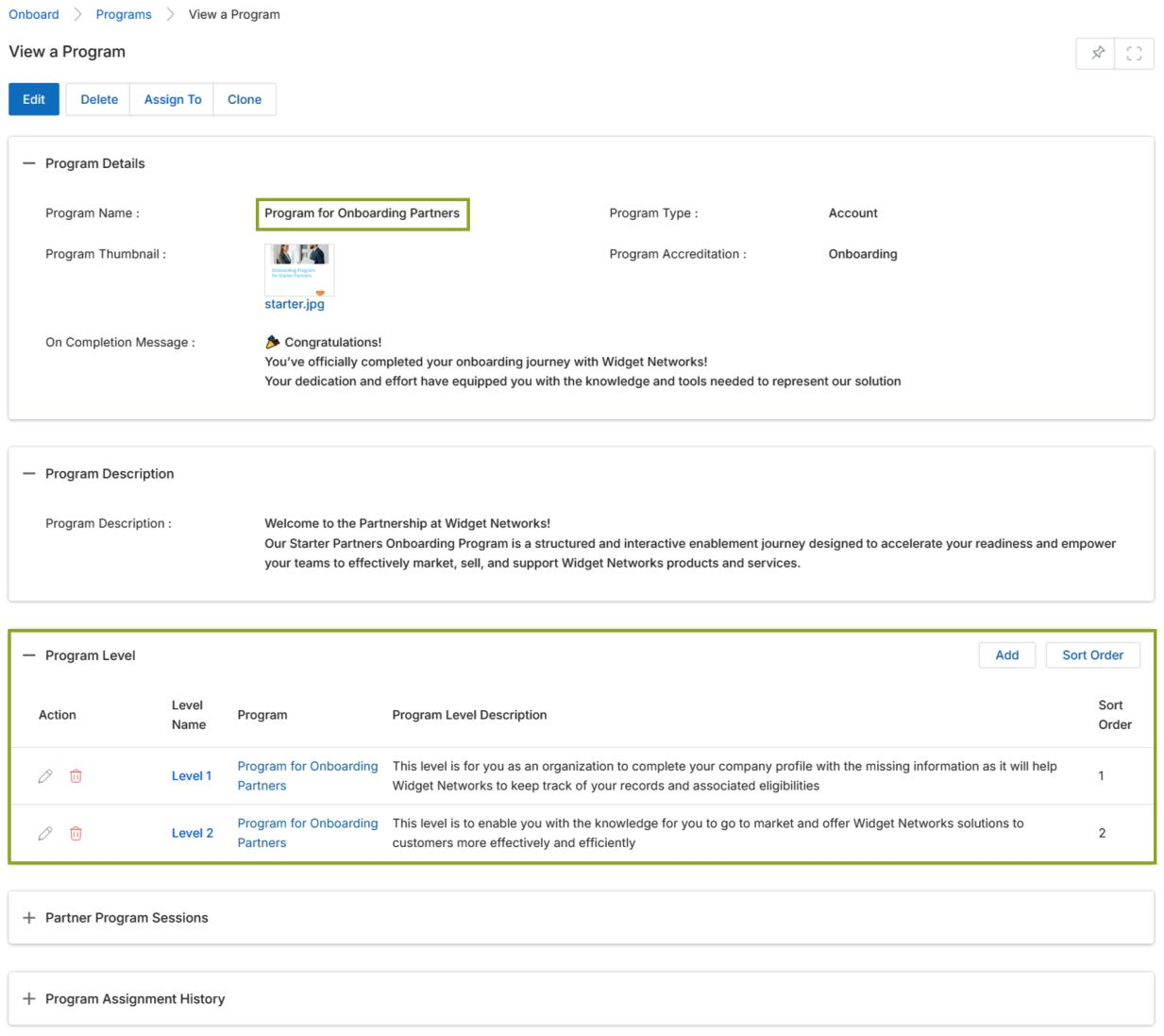
Clicking any Level in the cloned Program takes you to the Program Level details page, which displays the same Program Level Tasks and On Completion Access records as those tagged to the parent Program.
Add / Edit a Program
To add a new program or edit an existing one, click Add or Edit from the View Programs page. When adding, you must first select a Program Accreditation type: Onboarding, Enablement, or Scoring.
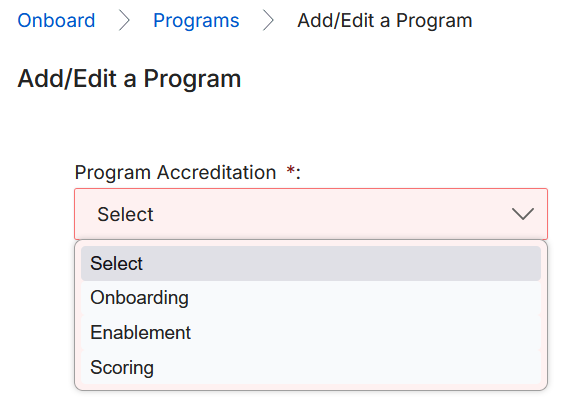
After selecting the accreditation type, the full Add/Edit Program form appears. Fill in the required fields and click Save.
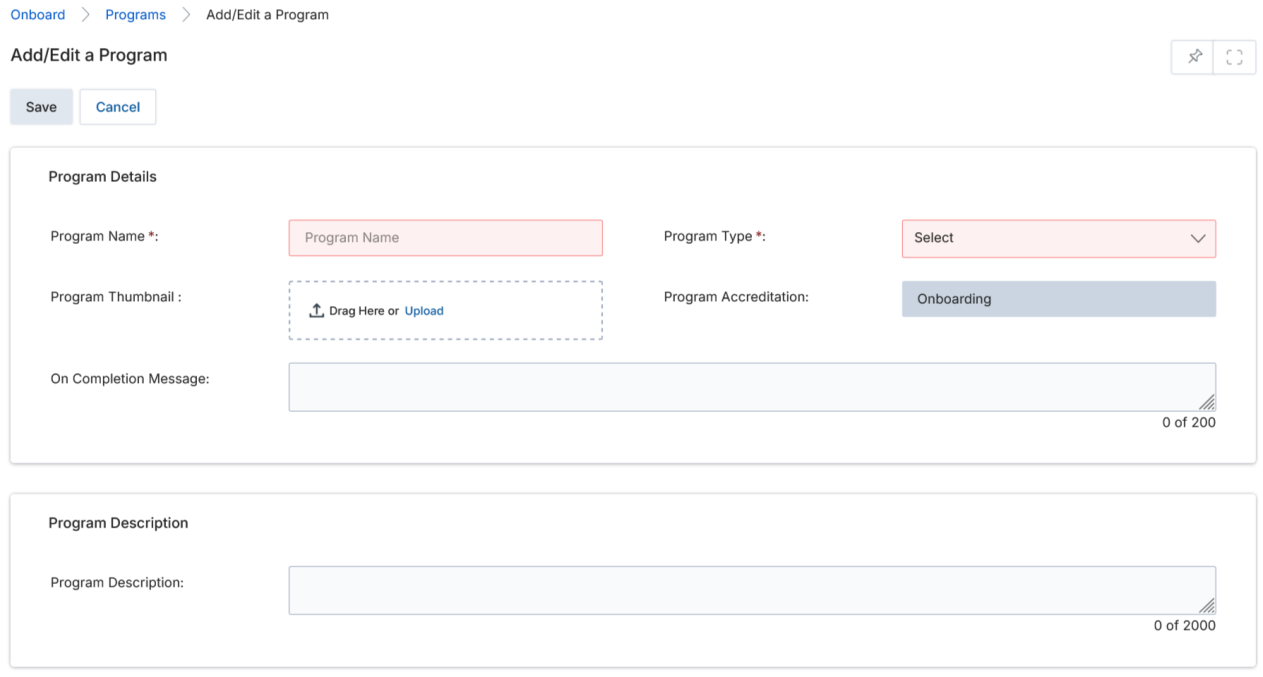
| Field | Description | Required |
|---|---|---|
| Program Name | A user-friendly name for the program. | Yes |
| Program Type | Select Account or Contact. | Yes |
| Program Thumbnail | Upload a thumbnail image for the program. | No |
| Program Accreditation | System-generated based on selection — Onboarding, Enablement, or Scoring. | Auto |
| On Completion Message | Message displayed to the partner on completion (max 200 characters). | No |
| Program Description | Short description of the program (max 2000 characters). | No |
After saving, the View Program page displays the newly created program with related lists for Program Level, Partner Program Sessions, and Program Assignment History.
Add / Edit a Program Level
From a program's detail page, click Add in the Program Level related list, or click the pen icon beside an existing level to edit it. The Add/Edit a Program Level panel opens from the right.
| Field | Description | Required |
|---|---|---|
| Level Name | User-friendly name for this program level. | Yes |
| Program | Auto-populated with the parent program name. | Auto |
| Dependent On | Select a previously defined level that must be completed before this level becomes active. | No |
| Program Level Description | Short description of this level (max 2000 characters). | No |
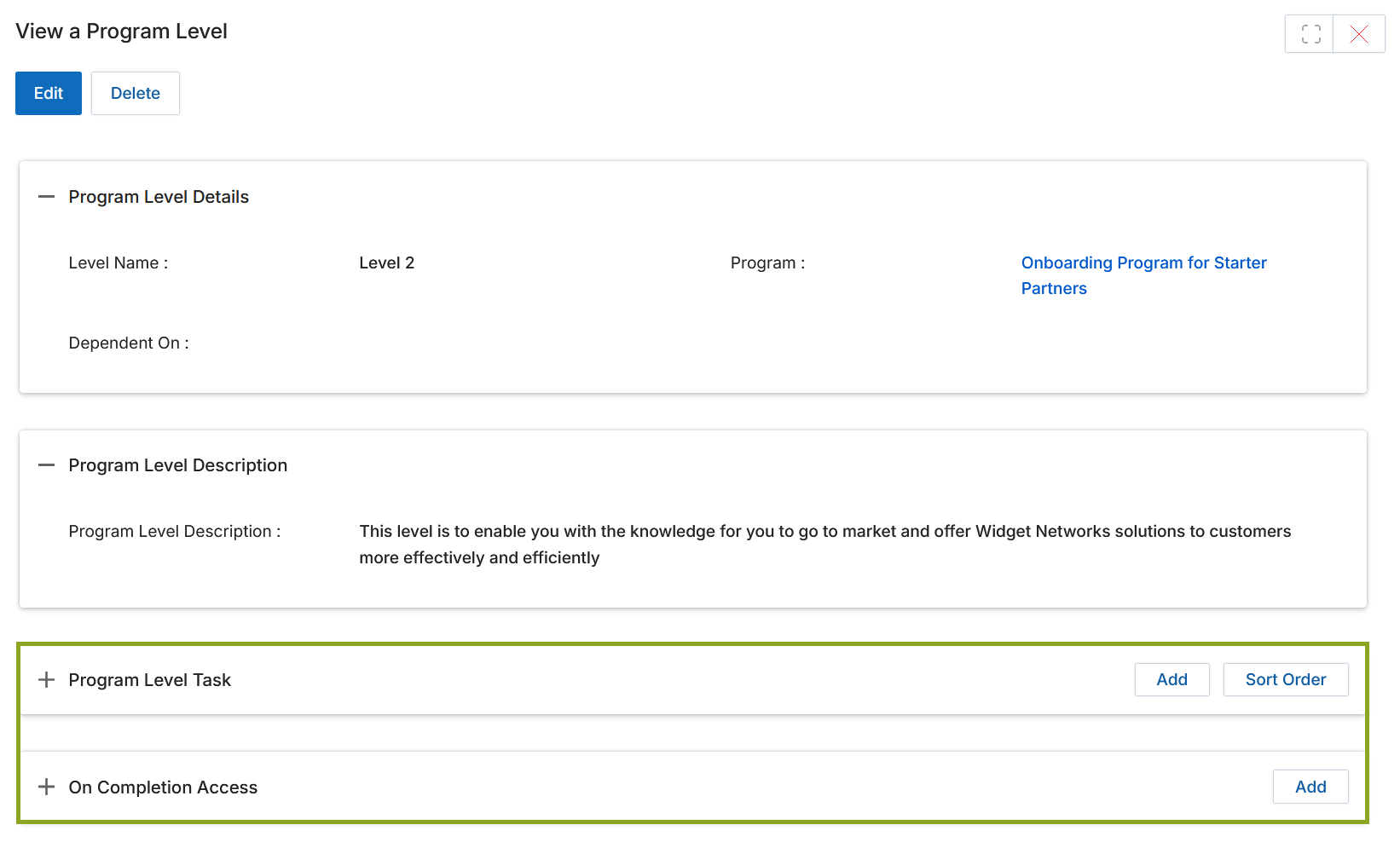
After saving, the View a Program Level page opens showing two additional related lists:
- Program Level Task — All tasks that constitute this level. Use Add to create new tasks or Sort Order to rearrange them.
- On Completion Access — Profiles and groups granted access upon level completion. Click Add to configure completion benefits.
On Completion Access Configuration
Click Add in the On Completion Access section to open the Add/Edit a On Completion Access panel. Configure the following fields:
| Field | Description |
|---|---|
| Name | Name for this completion benefit configuration. |
| Level | Auto-populated by the system. |
| New Profile | New profile assigned to the user on program completion. |
| Groups To Add | Groups whose access is granted to users who complete the program. Toggle to On. |
| Groups To Remove | Groups to remove from the user upon completion. Toggle to On. |
| New Primary Group | New primary group assigned alongside the new profile. |
Program Level Assignment History
This section shows all assignments of the program to users or groups. Click the globe icon in the Action column to withdraw an assignment (only the user who made the assignment can withdraw it).
Add a New Task to a Level
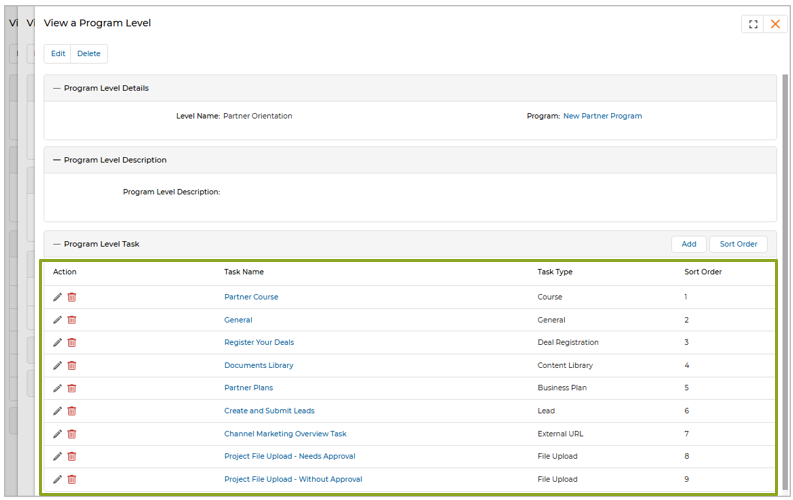
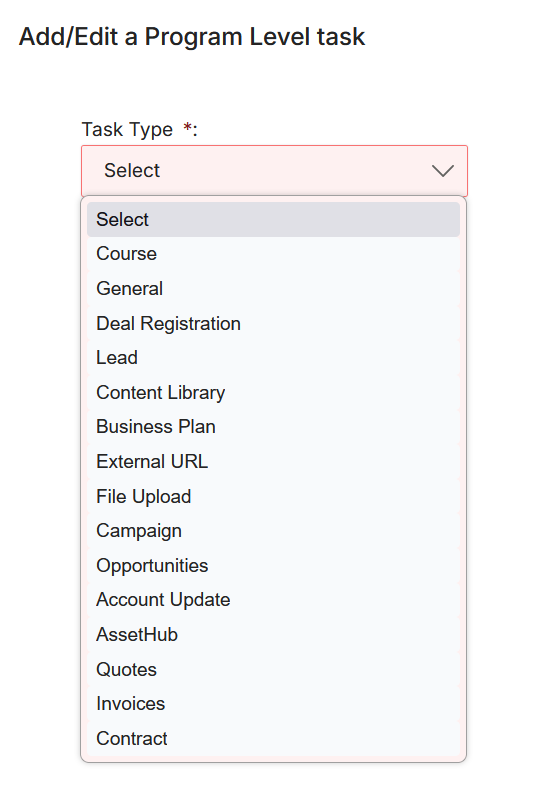
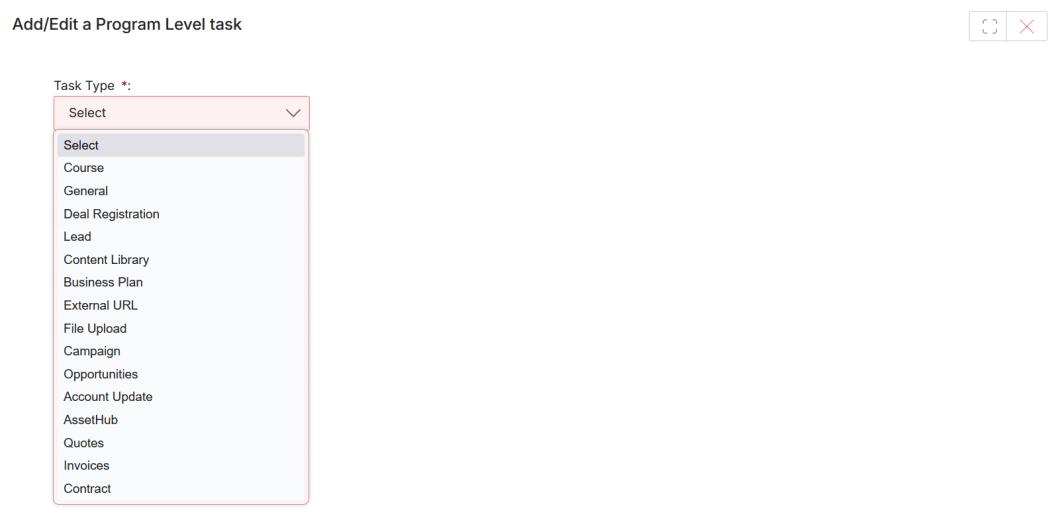
The Program Level Task section in the View a Program Level page lists all tasks that constitute a particular level. Click Add to create a new task and select the Task Type from the dropdown.
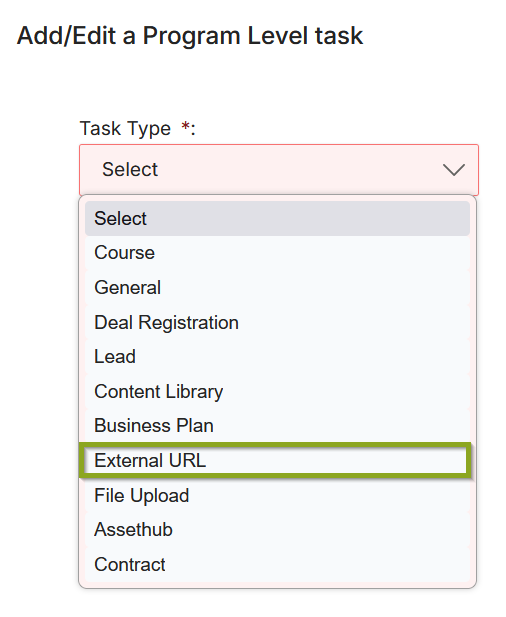
After selecting a Task Type, the task creation form appears with the following fields:
| Field | Description | Required |
|---|---|---|
| Task Name | User-friendly name for the task. | Yes |
| Estimated Time to Complete | Allocated time in days, hours, and minutes. | No |
| Program Level | System-generated — links task to its parent level. | Auto |
| Task Type | System-generated based on the selected type. | Auto |
| Optional | Toggle to mark the task as optional (not required for level completion). | No |
| Dependent On | Select a task that must be completed before this task is activated. | No |
| Level Task Description | Short description of the task (max 4000 characters). | No |
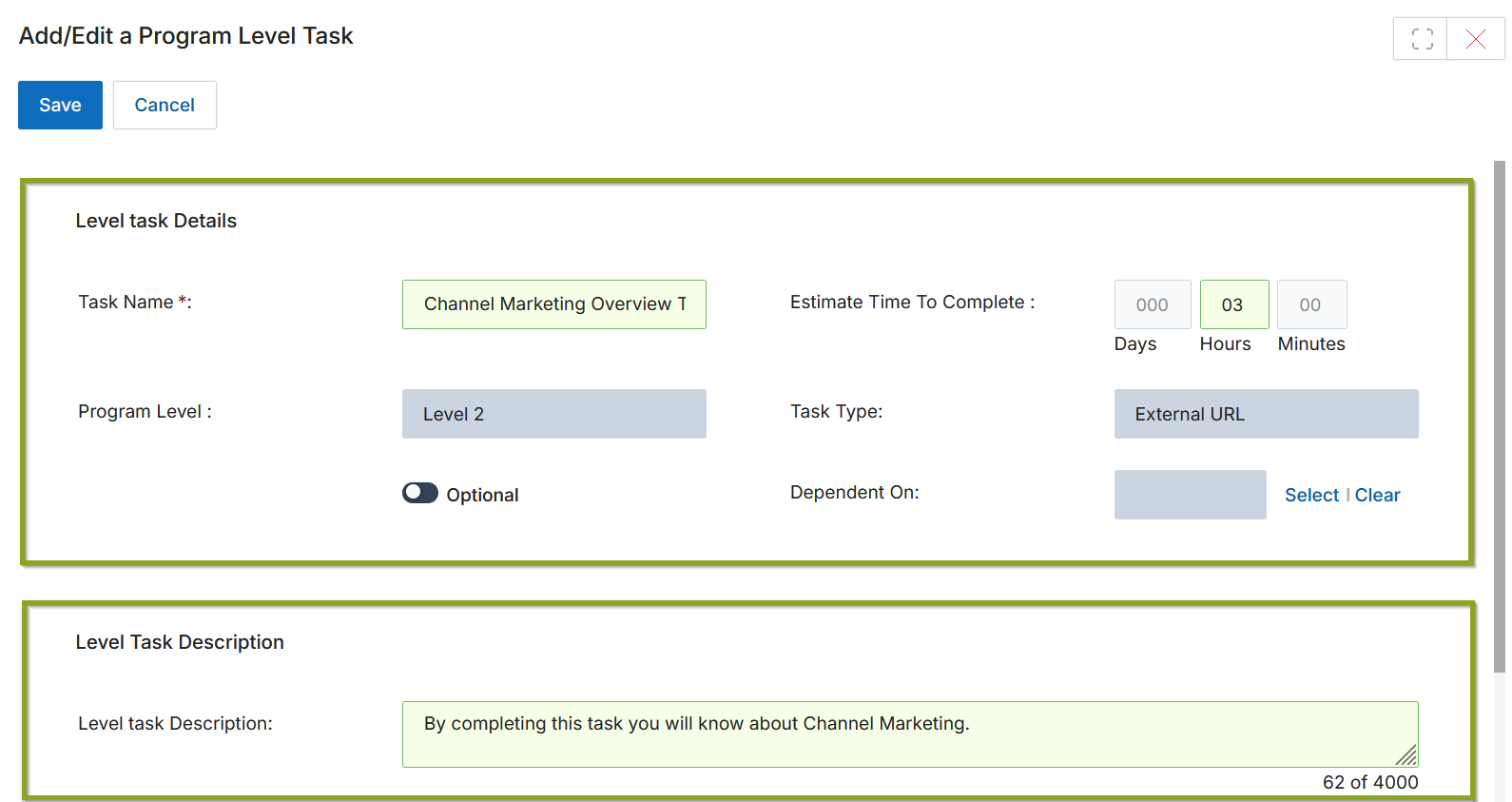
After saving, the new task appears in the Program Level Task section. Tasks can be edited or deleted via the pencil and trash icons. Use Sort Order to rearrange task sequence.
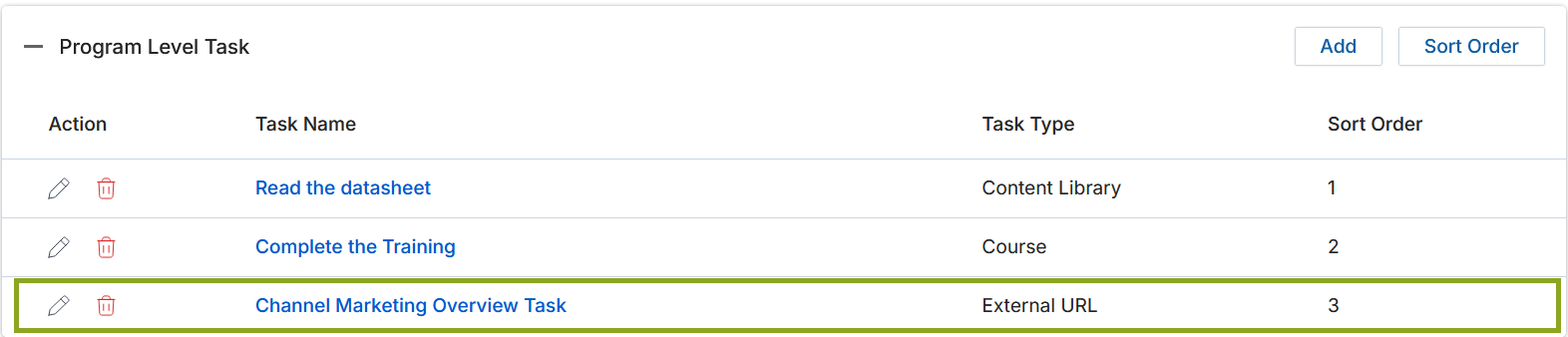
Program Level Tasks and Level Task Requirements
Program Level Tasks are of the following primary types: Course, General, Deal Registration, Lead, Content Library, Business Plan, External URL, and File Upload. Clicking the name of any specific task on the View a Program Level page opens its detail view, where you can define Task Requirements — the specific criteria that must be met to complete that task.
Course Task Type
A Course is assigned to the partner through this task type. Completing the assigned course completes the Program Level Task.
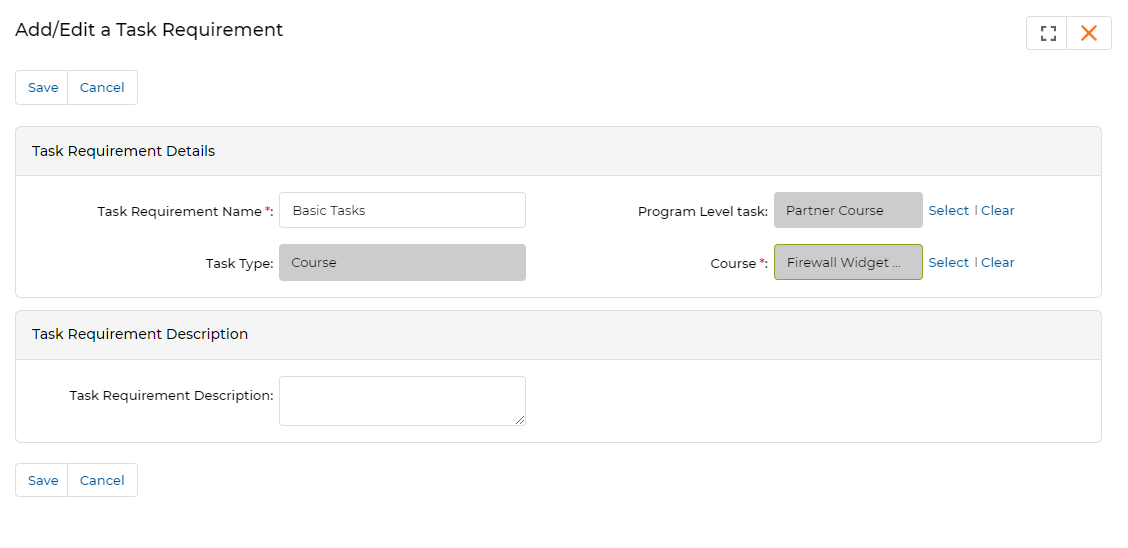
From the View a Program Level Task page, click Add in the Task Requirements section. Configure the following fields:
| Field | Description | Required |
|---|---|---|
| Task Requirement Name | Name for this task requirement. | Yes |
| Program Level Task | Auto-generated — links to the parent task. | Auto |
| Task Type | Auto-generated as Course. | Auto |
| Course | Select the course from the catalog. The partner must complete this course to fulfill the requirement. | Yes |
| Task Requirement Description | Short description of this requirement. | No |
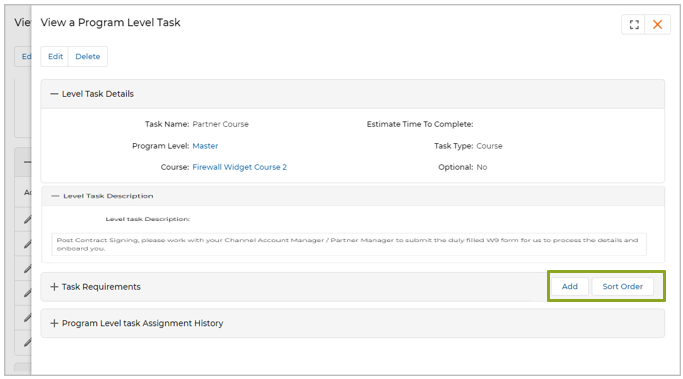
Use the Sort Order button to rearrange requirements by drag-and-drop.
General Task Type
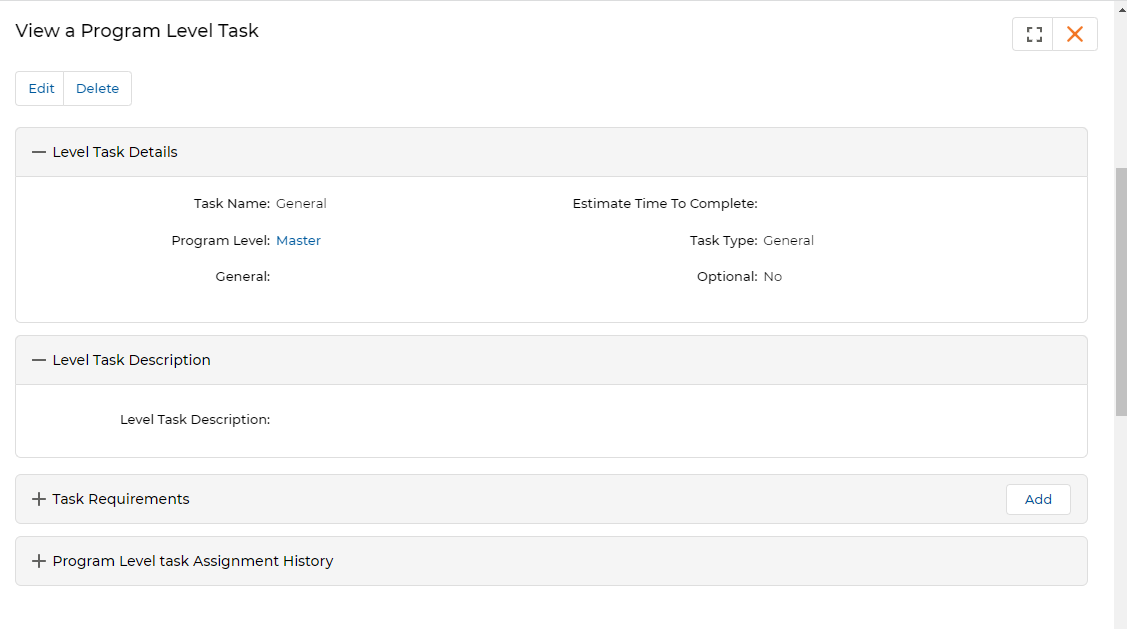
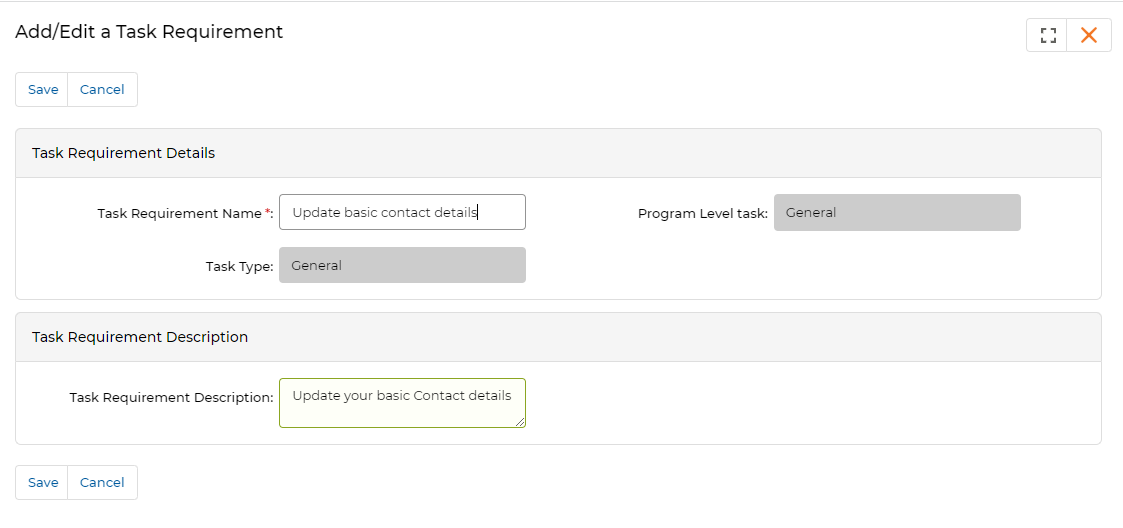
A general user-defined task that a partner completes based on the task description. The completion criteria are defined through the description text.
| Field | Description | Required |
|---|---|---|
| Task Requirement Name | Name for this task requirement. | Yes |
| Program Level Task | Auto-generated. | Auto |
| Task Type | Auto-generated as General. | Auto |
| Task Requirement Description | Description of what the partner must do to fulfill this general requirement. | No |
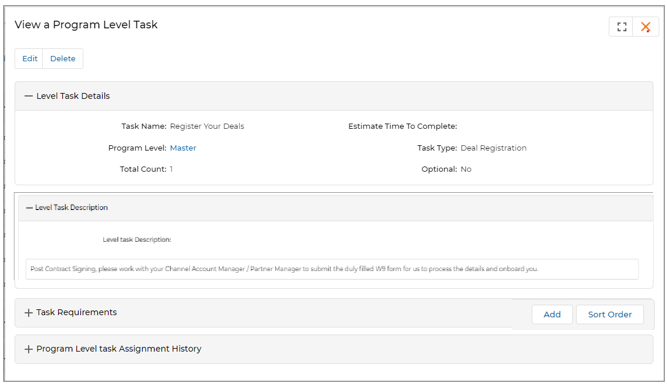
Deal Registration Task Type
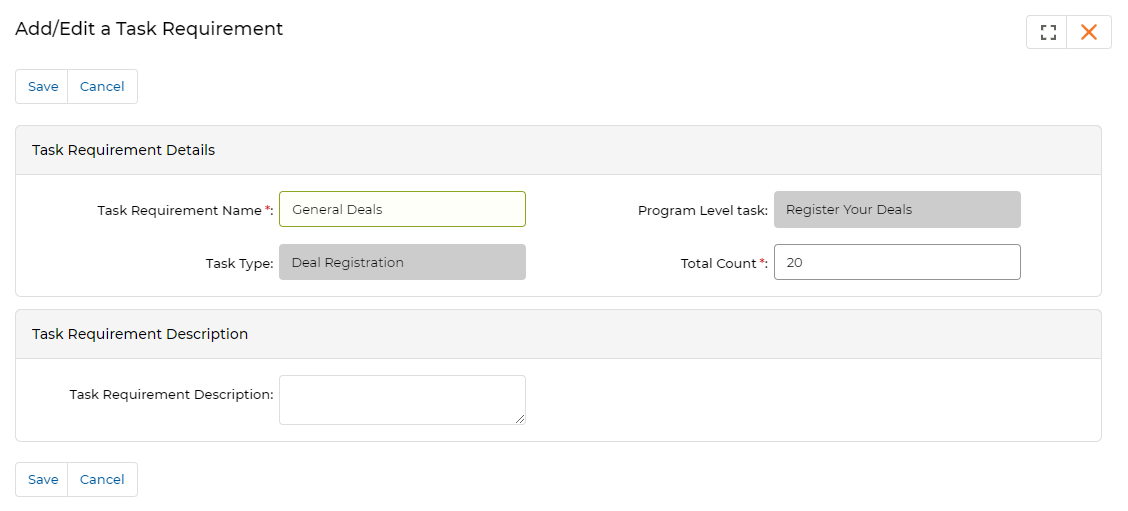
The partner must register a specified number of deals to complete this Program Level Task.
| Field | Description | Required |
|---|---|---|
| Task Requirement Name | Name for this task requirement. | Yes |
| Program Level Task | Auto-generated. | Auto |
| Task Type | Auto-generated as Deal Registration. | Auto |
| Total Count | Number of deals the partner must register to complete this task requirement. | Yes |
| Task Requirement Description | Short description of this requirement. | No |
Content Library Task Type
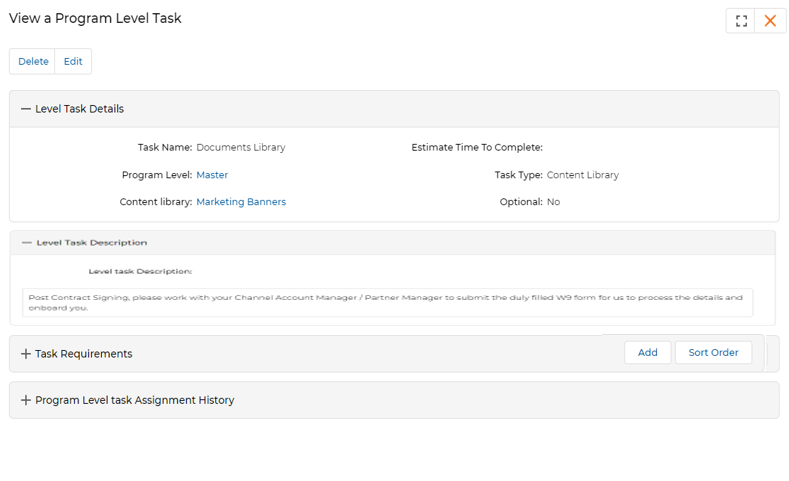
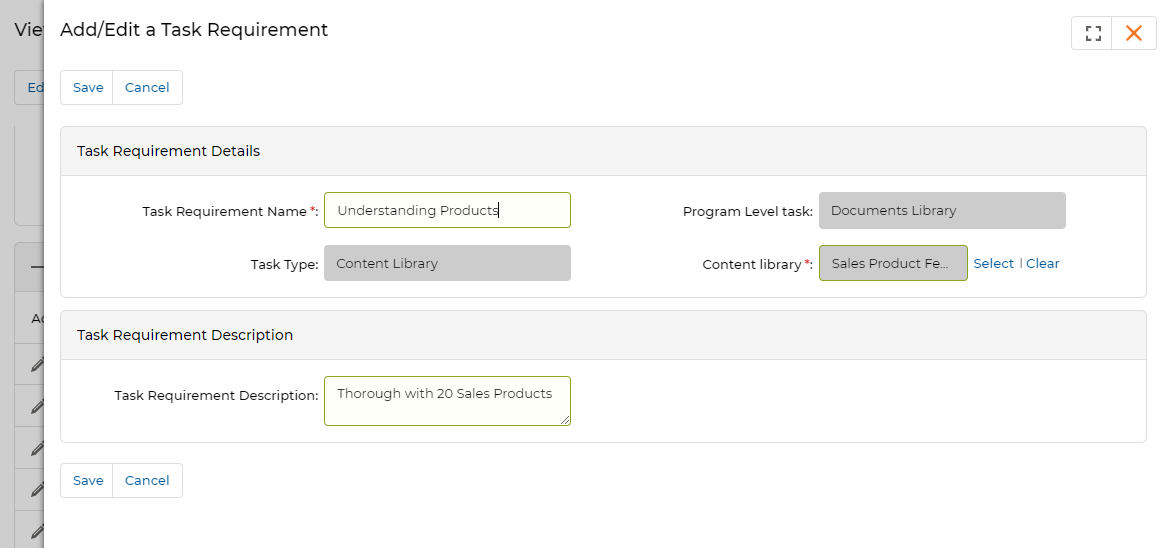
The partner must download or view an assigned document from the Content Library to complete this Program Level Task.
| Field | Description | Required |
|---|---|---|
| Task Requirement Name | Name for this task requirement. | Yes |
| Program Level Task | Auto-generated. | Auto |
| Task Type | Auto-generated as Content Library. | Auto |
| Content Library | Select the content item. The partner must download or view this document to fulfill the requirement. | Yes |
| Task Requirement Description | Short description of this requirement. | No |
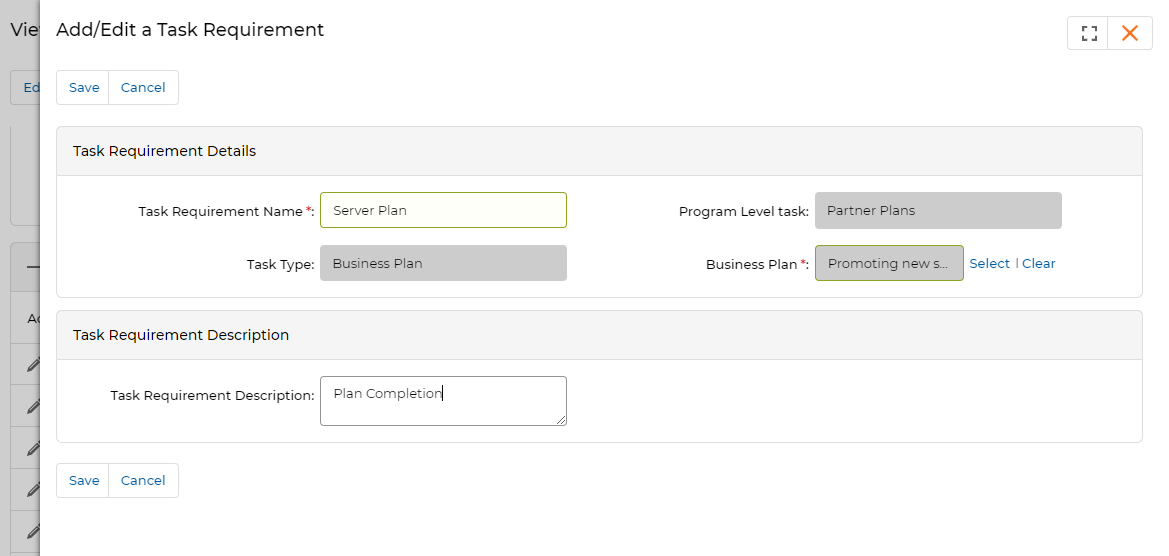
Business Plan Task Type
An assigned Business Plan must be completed by the partner to fulfill this Program Level Task.
| Field | Description | Required |
|---|---|---|
| Task Requirement Name | Name for this task requirement. | Yes |
| Program Level Task | Auto-generated. | Auto |
| Task Type | Auto-generated as Business Plan. | Auto |
| Business Plan | Select the business plan template. The partner must complete this plan to fulfill the requirement. | Yes |
| Task Requirement Description | Short description of this requirement. | No |
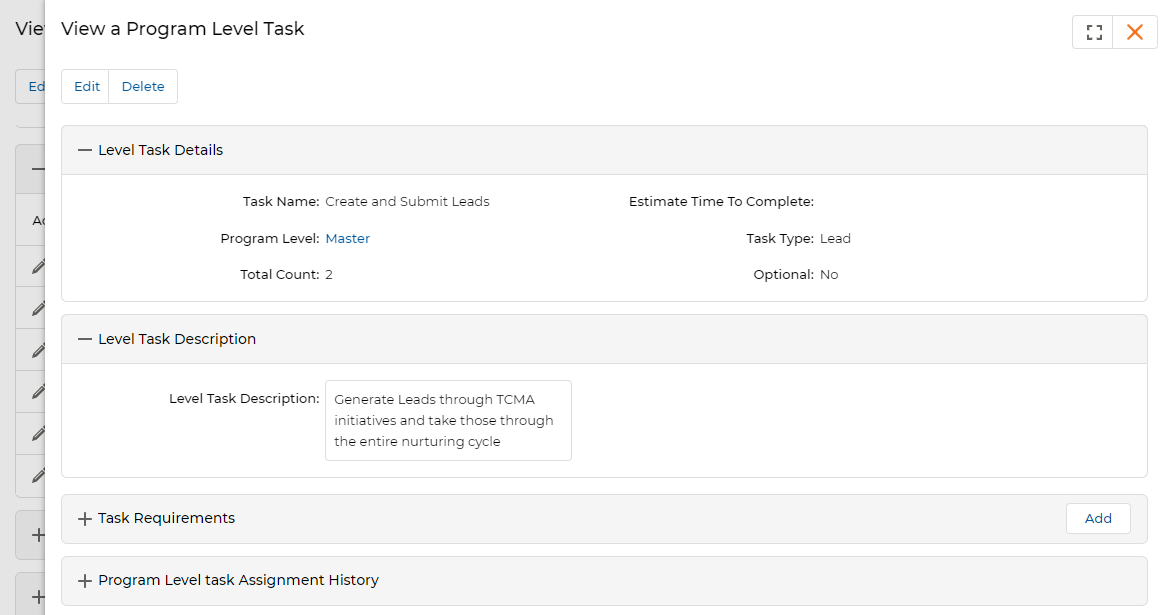
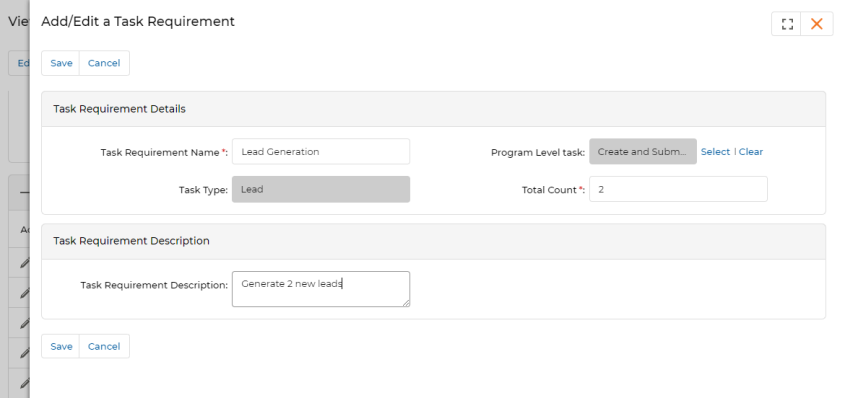
Leads Task Type
The partner must create and submit a specified number of leads to complete this Program Level Task.
| Field | Description | Required |
|---|---|---|
| Task Requirement Name | Name for this task requirement. | Yes |
| Program Level Task | Auto-generated. | Auto |
| Task Type | Auto-generated as Lead. | Auto |
| Total Count | Number of leads the partner must register to complete this requirement. | Yes |
| Task Requirement Description | Short description of this requirement. | No |
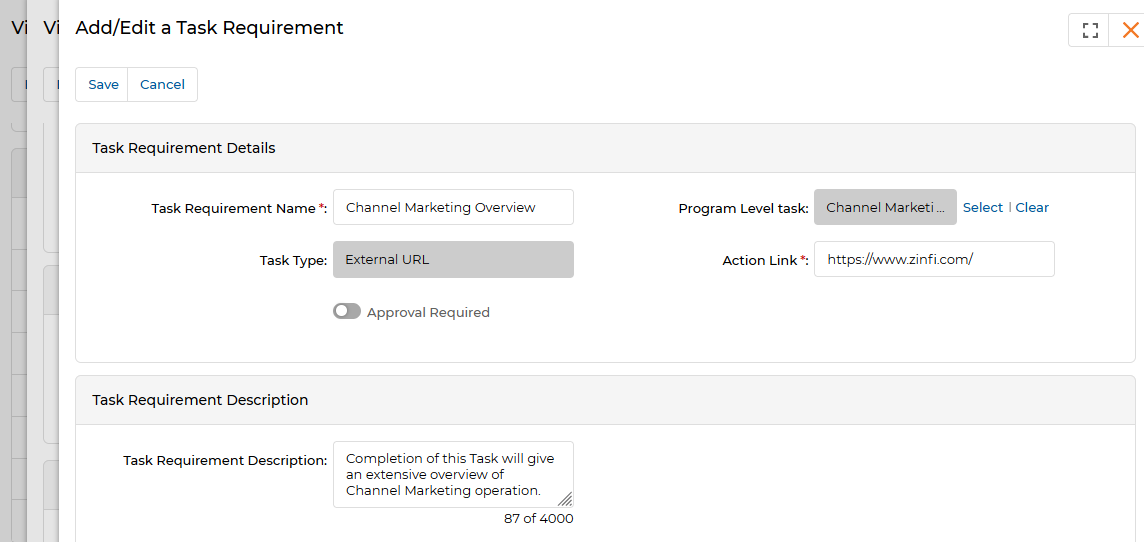
External URL Task Type
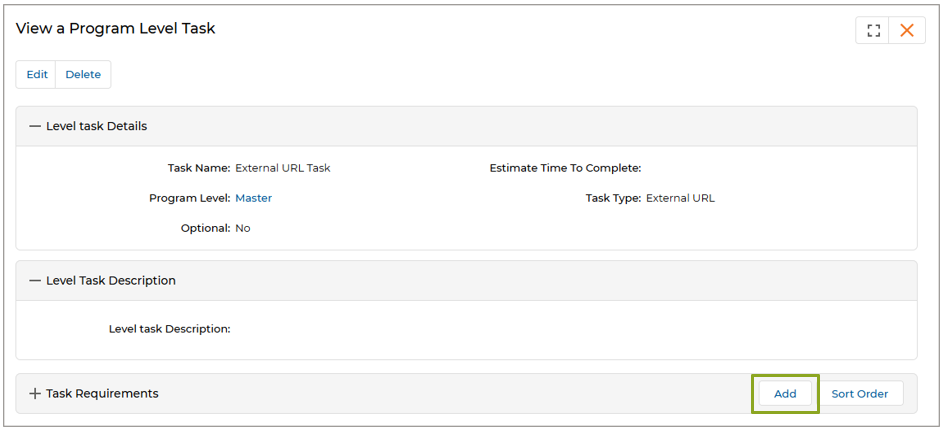
The partner must click open a URL assigned to them — which may contain literature or instructions as part of the Onboarding Program. Clicking the URL completes the Program Level Task.
| Field | Description | Required |
|---|---|---|
| Task Requirement Name | Name for this task requirement. | Yes |
| Program Level Task | Auto-generated. | Auto |
| Task Type | Auto-generated as External URL. | Auto |
| Action Link | Paste the external URL. The partner must click this link to complete the requirement. | Yes |
| Approval Required | Enable if Admin approval is required after the partner clicks the URL. | No |
| Task Requirement Description | Short description of this requirement. | No |
File Upload Task Type
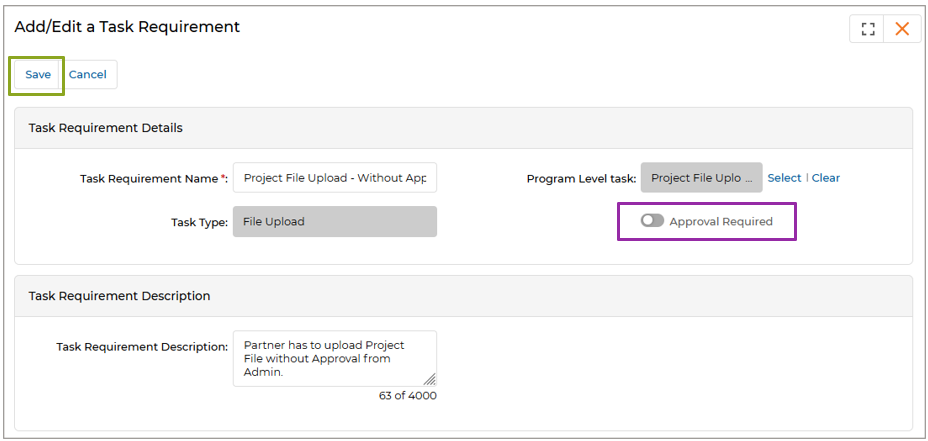
The partner must upload specified documents or files — with or without Admin approval — to complete the Program Level Task. Two variants are commonly configured: one requiring approval and one without.
Once the task is saved, add Task Requirements by clicking Add in the Task Requirements related list. For file upload tasks, the key field is:
| Field | Description | Required |
|---|---|---|
| Task Requirement Name | Name for this file upload requirement. | Yes |
| Program Level Task | Auto-generated. | Auto |
| Task Type | Auto-generated as File Upload. | Auto |
| Approval Required | Toggle On if Admin approval is required for this file upload. Leave off for self-service uploads without approval. | No |
| Task Requirement Description | Instructions for the partner regarding what to upload. | No |
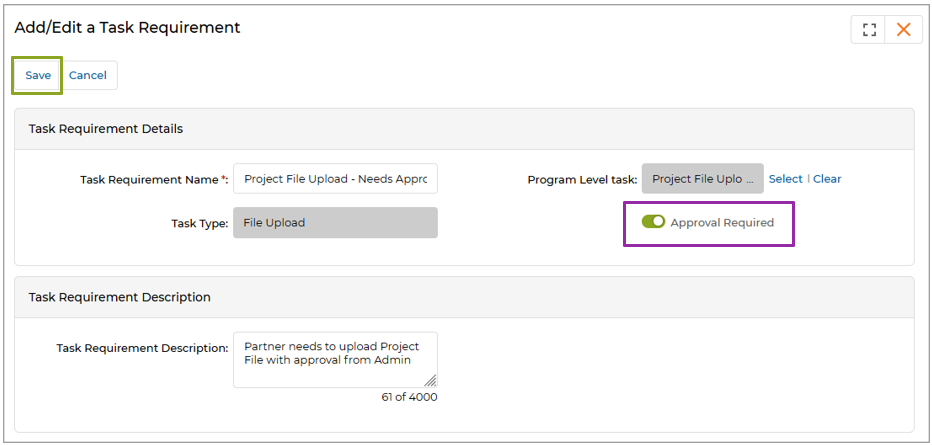
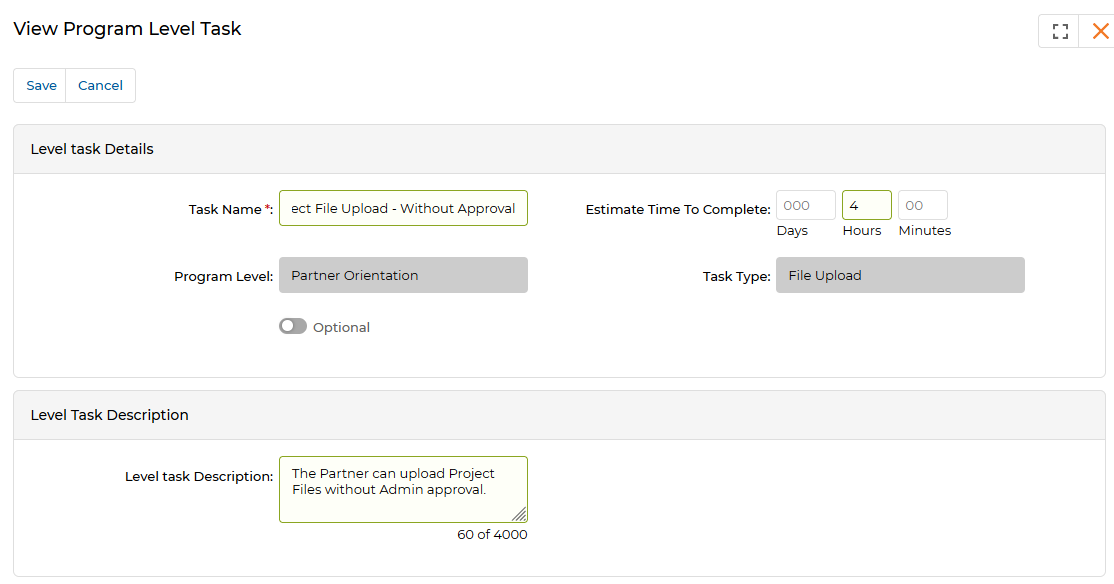
Once the program is assigned to the partner, they will be able to upload files. Task Requirements for both the approval-required and no-approval variants appear in the Task Requirements related list.
Approval of Uploaded Files
When a partner uploads a file for a task requirement that requires Admin approval, an automated email is sent to the Admin notifying them that a file is awaiting review.
- Navigate to Onboard > Programs > File Upload to see the View Uploaded Files page listing all uploaded files pending review.
- Click the file name to open the View a Uploaded File page. In the Approval History section, click Approve to approve, or More Info to request additional information from the partner.
- Clicking More Info opens a comments field where the Admin can provide instructions. On submitting, the partner receives a notification and can re-upload the file per instructions.
- Clicking Approve in the Approval History section navigates to a final confirmation page where the Admin clicks Approve to complete the approval.
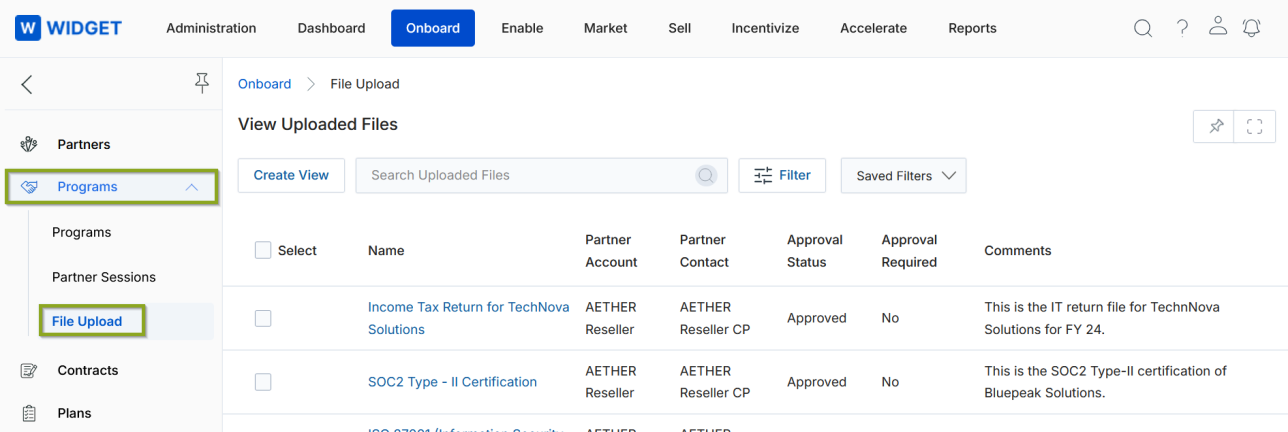
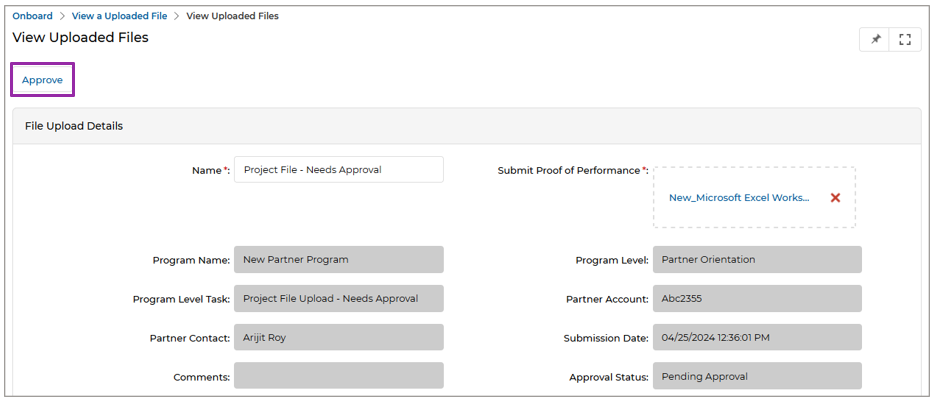
Clicking the Click Here link in the email directly opens the View a Uploaded File page. This is an alternative path to accessing uploaded files for approval without navigating through the Onboard menu.
Set Dependency Rules for Program Levels and Tasks
Program Levels and Level Tasks can be configured with dependency rules so that certain levels or tasks become active only after prerequisite levels or tasks are completed. This enables you to enforce structured onboarding journeys.
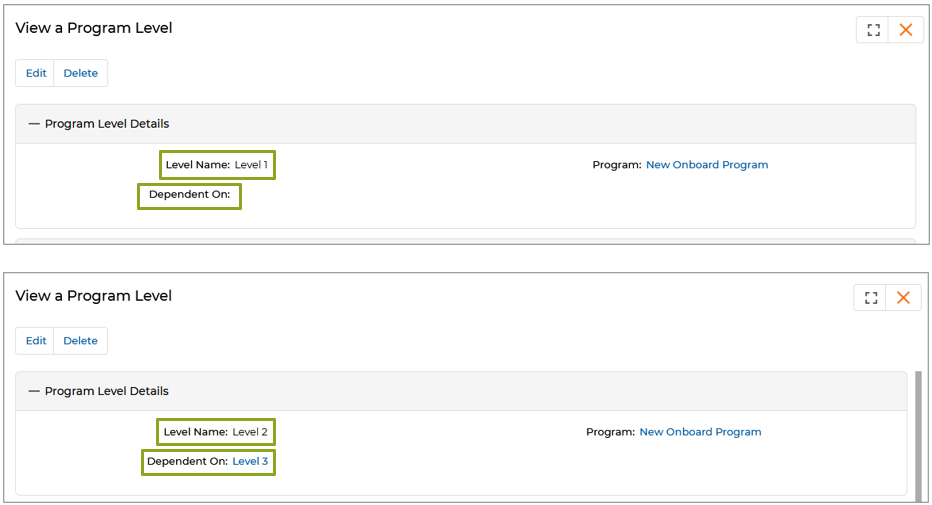
Setting Level Dependencies
When adding or editing a Program Level, use the Dependent On field to select the level that must be completed before this level is activated. Example:
- Level 1 — Independent; no dependency.
- Level 2 — Dependent on Level 3 (activates only when Level 3 is completed).
- Level 3 — Dependent on Level 1 (activates only when Level 1 is completed).
Setting Task Dependencies
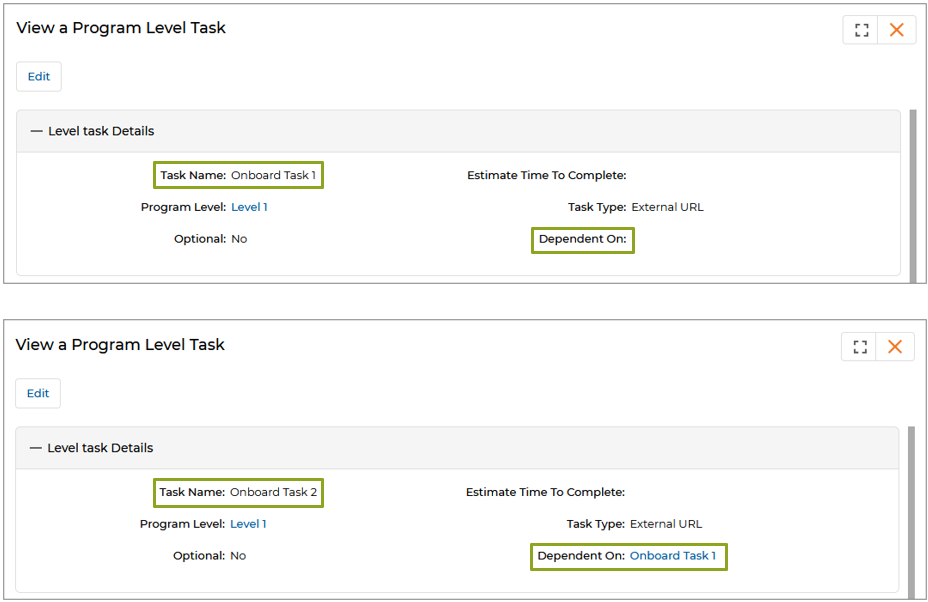
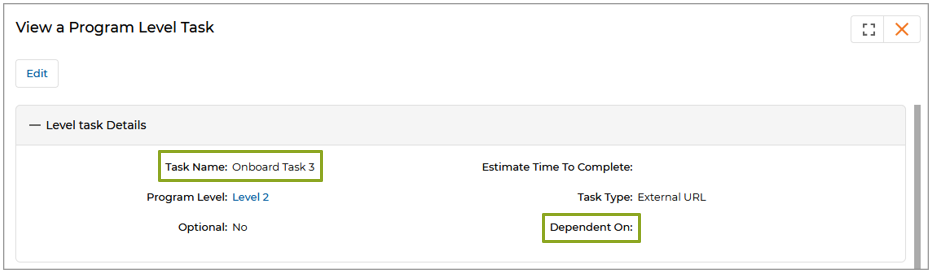
When adding or editing a Program Level Task, use the Dependent On field to select the task that must be completed before this task is activated. Example:
- Onboard Task 1 — Independent; no dependency.
- Onboard Task 2 — Dependent on Onboard Task 1.
Once the dependency structure is configured, assign the program to the partner. The partner will then complete Tasks and Levels according to the dependency sequence.
Auto-Completion of Task Requirements
ZINFI UPM includes backend logic that automatically marks certain task requirements as complete once predefined conditions are met, eliminating the need for manual Admin intervention.
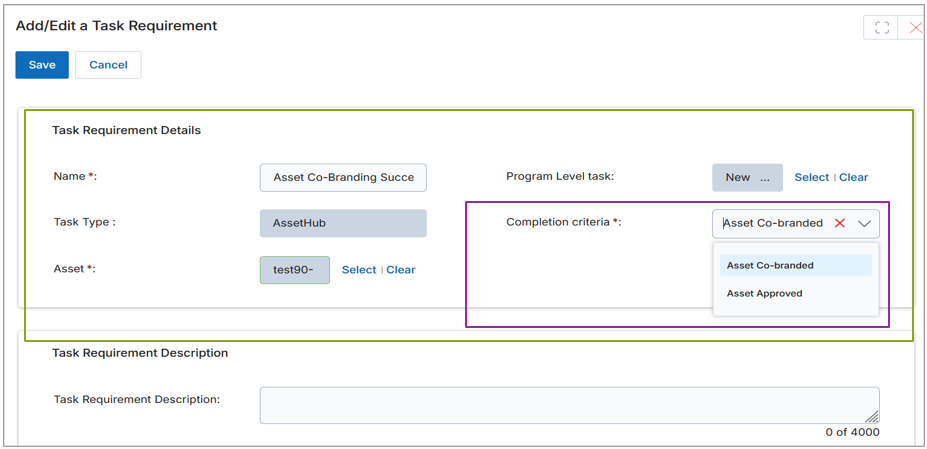
Auto-Completion of Asset (AssetHub) Task Requirements
The AssetHub task type allows Admins to define requirements linked to published assets. A Completion Criteria dropdown has been added under Task Requirement Details with two options:
| Completion Criteria | Trigger for Auto-Completion |
|---|---|
| Asset Co-branded | Task is automatically completed once the partner co-brands the asset. |
| Asset Approved | Task is automatically completed once the approver approves the asset. |
Auto-Completion of Content Library Task Requirements
The Content Library task type includes a Completion Criteria field with three options that trigger automatic task completion based on the partner's interaction with the assigned content:
| Completion Criteria | Trigger for Auto-Completion |
|---|---|
| Content Viewed | Task is automatically completed once the user views the content. |
| Content Downloaded | Task is automatically completed once the user downloads the content. |
| Content Shared | Task is automatically completed once the user shares the content. |
Autocomplete Contract Task Requirements
The Contract task type (replacing the earlier "Terms and Conditions" type) automatically marks contract-related tasks as complete once the associated contract reaches Signed status. Both digitally signed contracts (via system e-signature flow) and manually signed contracts (status updated by Admin) are supported.
If a selected contract is set to expire within 30 days, a soft validation message appears: "The selected contract is set to expire within the next 30 days. Once expired, partners will no longer be able to view it. Please ensure this contract is still appropriate for your program task."
Autocomplete Deal Registration Task
The Autocomplete Task – Deal Registration feature automatically marks tasks complete once partners meet predefined deal-based requirements. The system continuously monitors approved deals and updates task status without manual intervention.
A Criteria Type field is available during task requirement setup:
| Criteria Type | Description |
|---|---|
| Deal Count | Requires the partner to register a specified number of deals. The task auto-completes when approved deals registered equals or exceeds the specified count. |
| Deal Revenue | Requires the partner to achieve a specified cumulative deal revenue. The task auto-completes when approved deal value equals or exceeds the specified amount. |
Only saved and approved deals are counted toward task completion. Pending or rejected deals do not contribute to the criteria.
Partner Sessions
Partner Sessions provide a real-time view of all enrolled partners' program progress. Navigate to Onboard > Programs > Partner Sessions from the left menu bar.
View Partner Sessions
The View My Programs page provides a summary of enrolled partner program progress. Fields auto-populate once partners are assigned and enrolled. The Program Assignment Type field clearly indicates whether a program is assigned at the Contact or Account level, improving transparency for both Admins and partners.
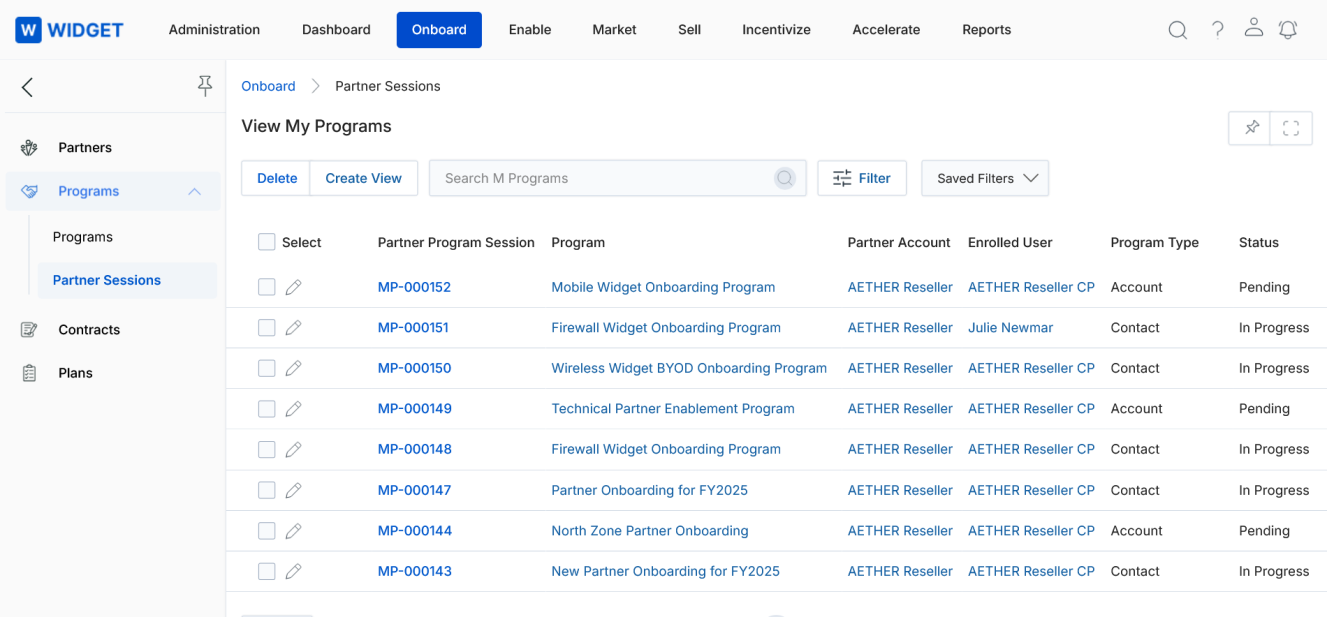
From this page you can:
- Click any Program name to open the View a Program page showing all levels and the Partner Program Sessions related list.
- Click a Partner Program Session ID to open the View a My Program page for that specific session.
Program Session Progress
Clicking Program Details on the View a My Program page opens the Program Session Progress panel — the detailed view of the partner's progress in this specific session.
- Progress Donut Graph — Auto-tracks and displays task/level completion as a percentage.
- Review — The tick mark and Review button indicate the Level Task has been completed. Clicking Review opens the View a My Program Level Task page in a separate tab for the admin to inspect the completed task details.
- Change Status — Allows the admin to toggle a Level Task's status between Complete and Incomplete.