
Introduction
The Rewards & Rebates Management module of ZINFI's UPM platform enables your organization to automate the management of various incentive schemes — such as sales rewards, company rebates, and Rebates — to drive improved channel performance.
Rebates Management
Sales gamification management is an important component of the Rewards & Rebates Management module. It allows vendors to create an engaging rebates program for their channel partners. Vendors can formulate and implement strategies and policies aimed at providing rebates to channel partners fairly, equitably, and consistently according to the values of their organization.
Rebates management tools help channel partners drive the success of initiatives by sharing the individual performances of sales team members. Sales reps are encouraged to seek rewards and earn rebates on the products purchased from the vendors, all in a fair and transparent process.
Rebates
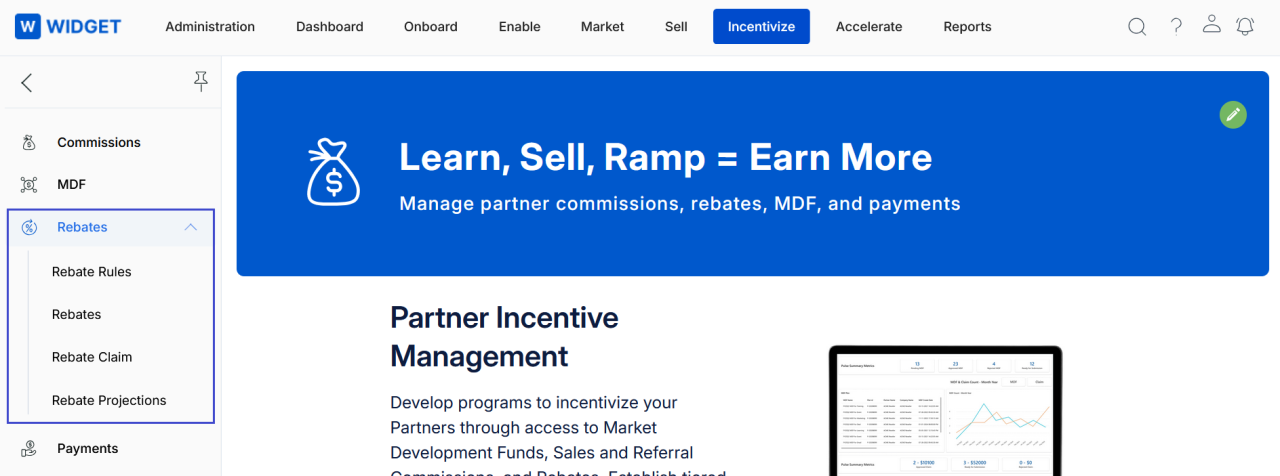
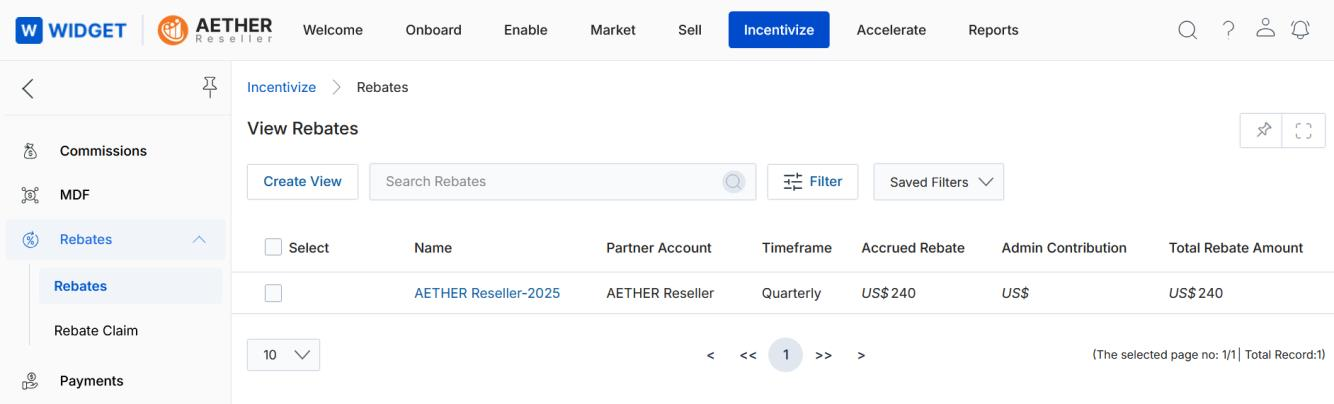
The Rebates list displays all rebate records that have been accrued by partners. Navigate to Incentivize > Rebates > Rebates to access this section.
Accessing Rebates
- Click Incentivize on the top menu.
- Click Rebates in the left menu bar.
Looking Up the Existing Rebates List
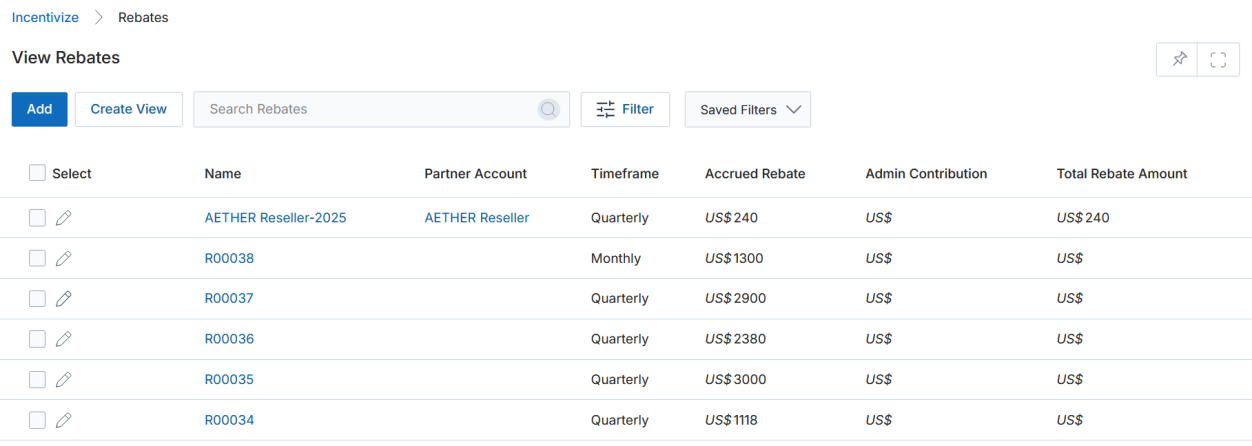
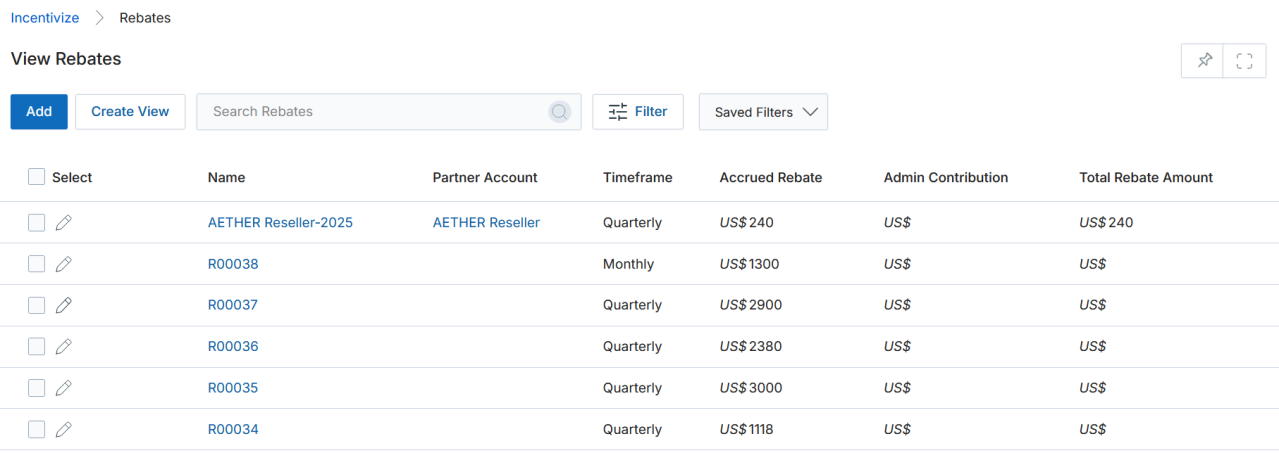
The toolbar at the top of the page provides the following actions:
- Create View — Creates a custom column view with the fields you select.
- Search — Opens a pop-up window to enter search criteria for finding specific records.
- Clear Search — Clears the active search.
- Saved Searches — Shows a dropdown list of saved searches, each with Edit (rename) and Delete sub-options.
For each record in the grid, clicking any linkable item takes you to its details page.
Create New View
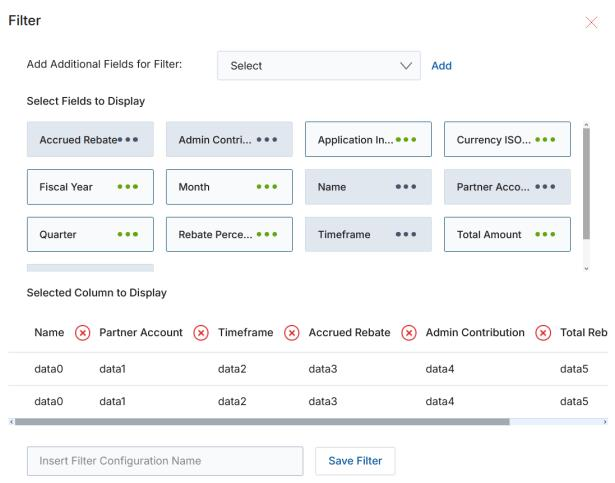
- Choose an additional field from the dropdown and click Add.
- Click the Green Dots next to each field to select it for display.
- Selected columns appear in the preview table. Click × to remove a column.
- Enter a View Name and click Save Filter to save the new view.
View Rebate Request Details
Click on a Rebate ID link in the list to open the details page for that rebate record.
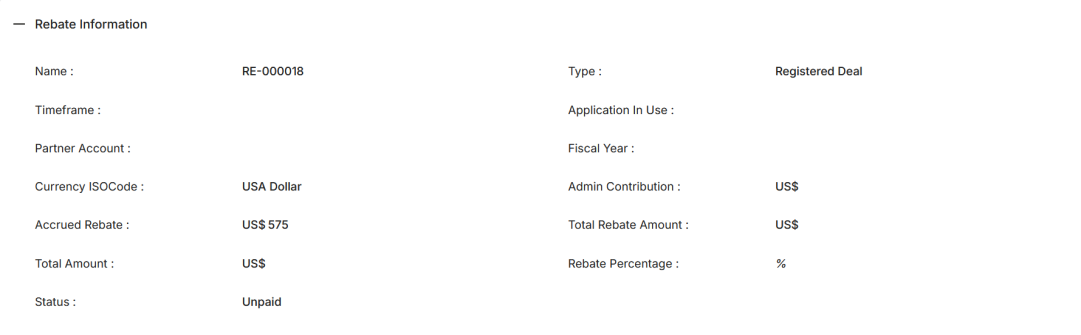
The Rebate Information section displays the following fields:
| Field | Description |
|---|---|
| Rebate ID / Name | Unique identifier for the rebate record (e.g., RE-000018). |
| Partner Account Name | Name of the partner account that earned the rebate. |
| Partner Contact | Name of the partner contact associated with the rebate request. |
| Type | The basis for the rebate — either Invoice Amount or Registered Deal Amount. |
| Rebate Amount / Accrued Rebate | The amount accrued as a rebate for this record. |
| Currency ISO Code | The ISO currency code for the rebate amount (e.g., USA Dollar). |
| Accrual Date | The date on which the rebate was accrued. |
| Admin Contribution | The admin contribution component of the rebate. |
| Total Rebate Amount | Total rebate amount including all contributions. |
| Rebate Percentage | The rebate percentage applied. |
| Status | Current status of the rebate (e.g., Unpaid, Paid). |
Rebate Projections
Rebate Projections give admins forward-looking visibility into expected rebate payouts for each partner account, calculated dynamically based on the active Rebate Rules and invoices uploaded to date.
Accessing Rebate Projections
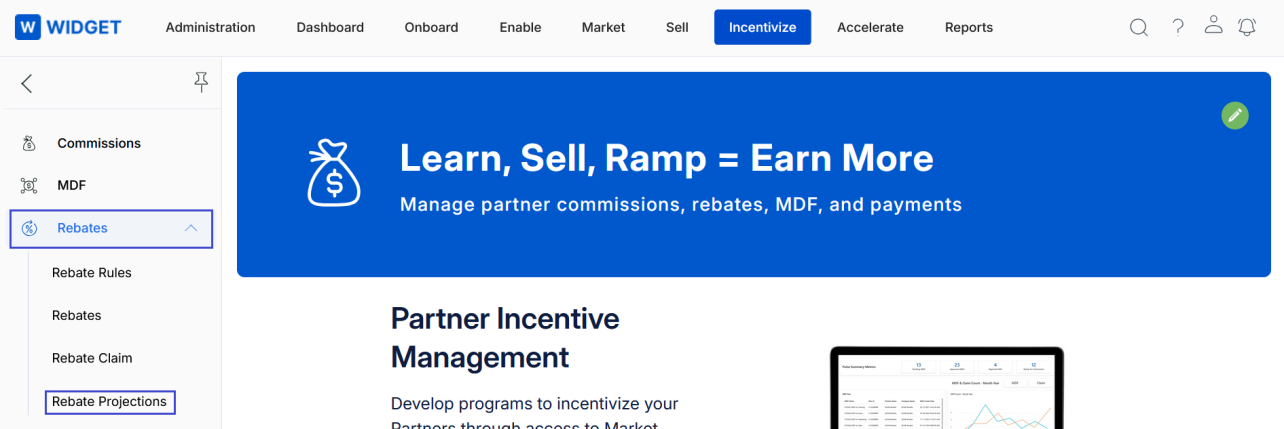
- Click Incentivize on the top menu.
- Click Rebates > Rebate Projections in the left menu bar.
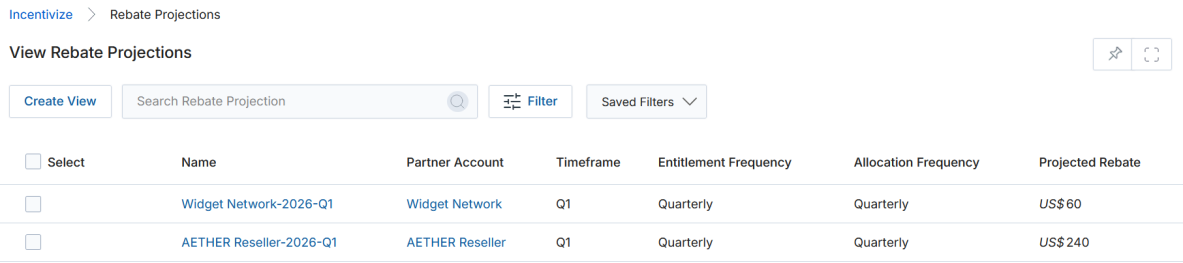
Looking Up the Existing Rebate Projections List
The toolbar provides the same Create View, Search, Clear Search, and Saved Searches controls as the Rebates list. Clicking any linkable item opens its details page.
Create New View
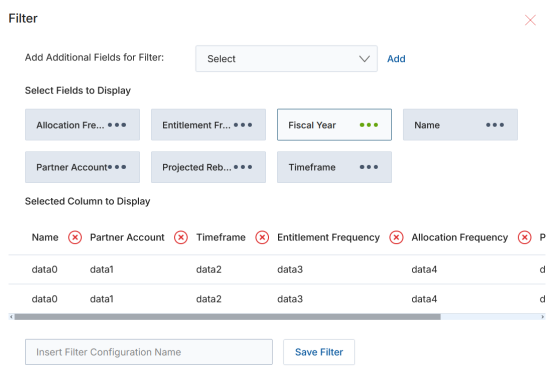
- Choose an additional field and click Add.
- Click the Green Dots to select fields for display.
- Click × to remove a column from the selection.
- Enter a View Name and click Save Filter.
View a Rebate Projection Details
Click on the Rebate Projection name in the list to open its detail page.
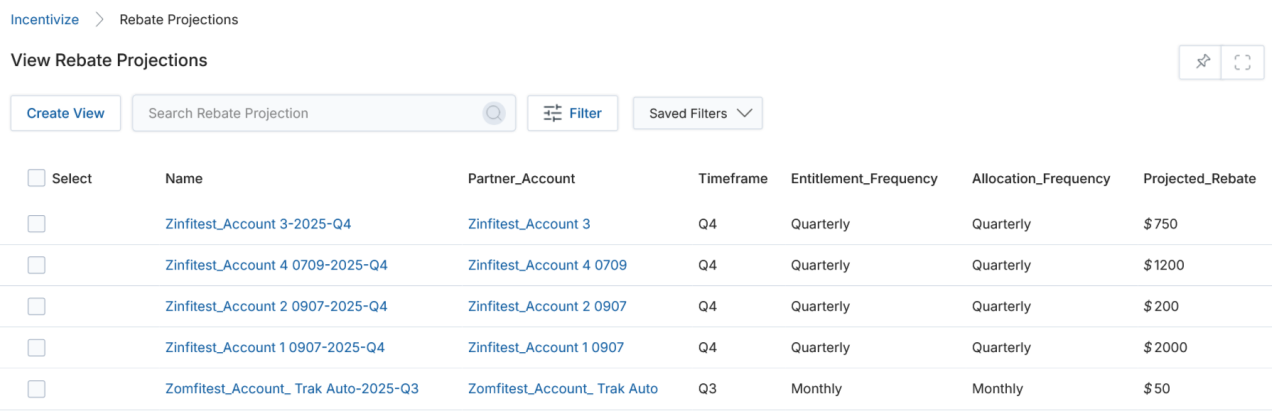
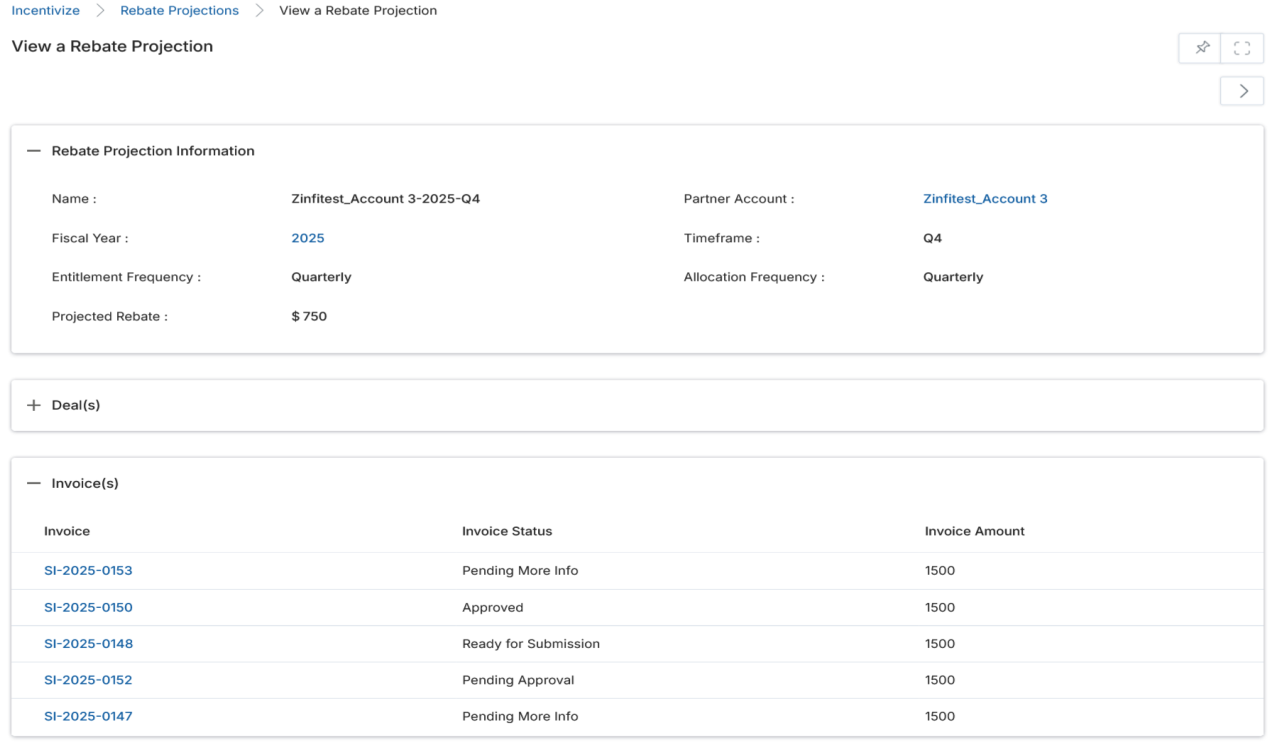
Projections are calculated using the same rules defined in Rebate Rules within the Incentive Rules Engine. For monthly rules, the system displays the projected rebate for the current month based on invoices uploaded to date. For quarterly rules, it displays expected payouts for the upcoming quarter based on current-quarter sales data. Projection values automatically update as additional invoices are uploaded during the period.
On the details page, admins can view:
| Field / Section | Description |
|---|---|
| Name | Projection record name (format: Partner–Year–Quarter, e.g., Zinfitest_Account 3-2025-Q4). |
| Partner Account | The partner account for which the projection is calculated. |
| Fiscal Year | The fiscal year of the projection. |
| Timeframe | The quarter or month of the projection (e.g., Q4). |
| Entitlement Frequency | How often the rebate is calculated (Monthly or Quarterly). |
| Allocation Frequency | How often partner targets are assessed. |
| Projected Rebate | The estimated rebate payout amount based on current data. |
| Deals | Expandable section listing deal records included in the projection. |
| Invoice(s) | Expandable table listing individual invoices with Invoice number, Invoice Status, and Invoice Amount. |
Rebate Rules
The Incentive Rule Engine automates the calculation and distribution of rebates, ensuring accurate and timely payouts based on predefined sales targets and eligibility criteria. Administrators configure Rebate Rules to set entitlement frequency, sales thresholds, and payout amounts. The system dynamically calculates entitlements upon deal closure or invoice generation, eliminating manual intervention and minimizing errors.
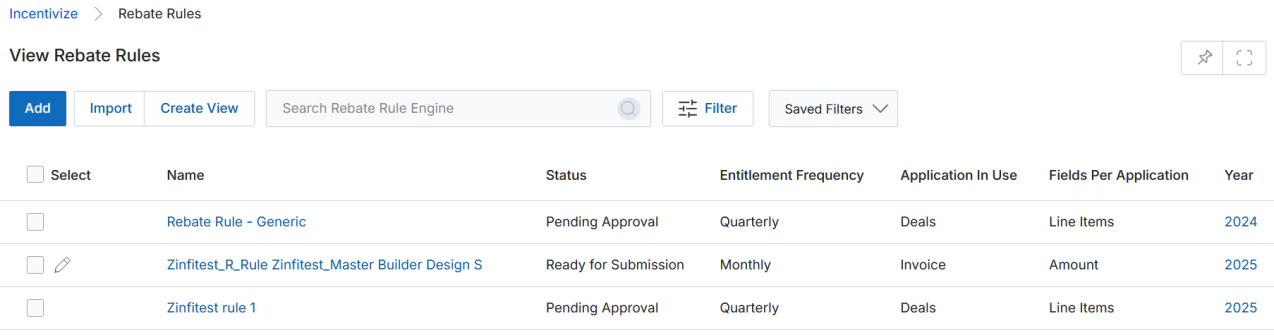
Navigate to Incentivize > Incentive Rule Engine > Rebate Rules Engine to manage all Rebate Rules.
Adding a New Rebate Rule
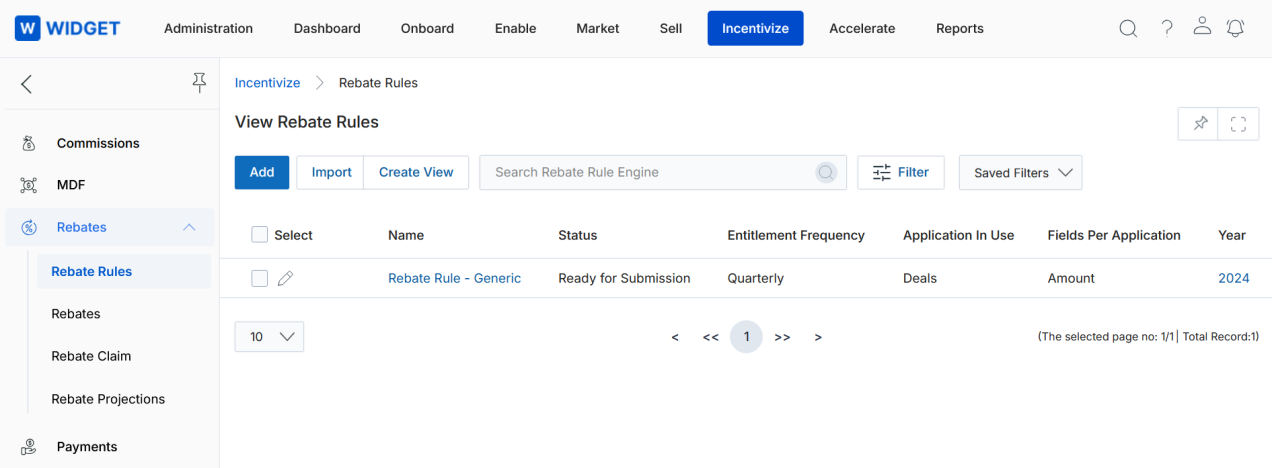
- Navigate to Incentivize > Incentive Rule Engine > Rebate Rules Engine.
- Click the Add button. The Add/Edit a Rebate Rules Engine page opens.
- Select the Entitlement Frequency (Quarterly or Monthly) from the dropdown. This determines how often the rebate payout is calculated.
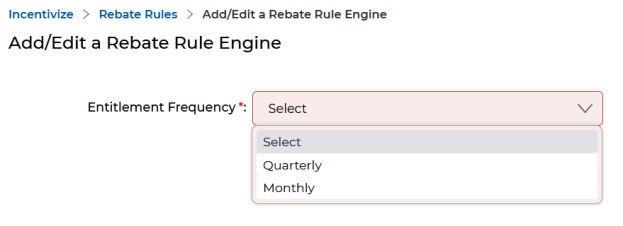
- After selecting the frequency, the Add/Edit a Rebate Rule form opens. Complete the following fields:
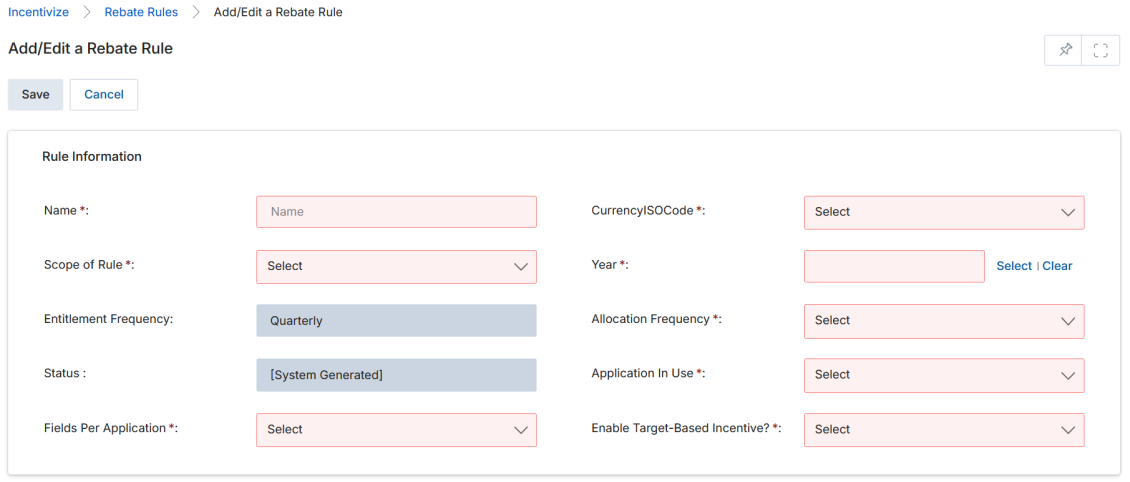
| Field | Description |
|---|---|
| Name | Name of the Rebate Rule. |
| Currency ISO Code | The currency in which the rebate is denominated. |
| Scope of Rule | Determines which accounts the rule applies to: Partner Tier (all accounts in a tier), Partner Account (one specific account), or All (all accounts). |
| Year | The year for which the Rebate Rule is applicable. |
| Entitlement Frequency | How frequently the rebate payout is calculated (inherited from step 3). |
| Allocation Frequency | The period during which partners must meet their targets to qualify for rebates. |
| Status | Active or Inactive (system-generated until approved). |
| Application In Use | Whether the rebate is earned on Deal closure or Invoice generation. |
| Fields Per Application | Whether rebate is calculated based on Line Items or total Amount. |
| Enable Target-Based Incentive? | Set to No to accrue rebates automatically based on sales with no target. Set to Yes to require a specific sales target before rebates are earned. |
- Click Save. The rule appears on the View Rebate Rules page.
- Open the saved rule and click Submit for Approval to move it to Ready for Submission status.
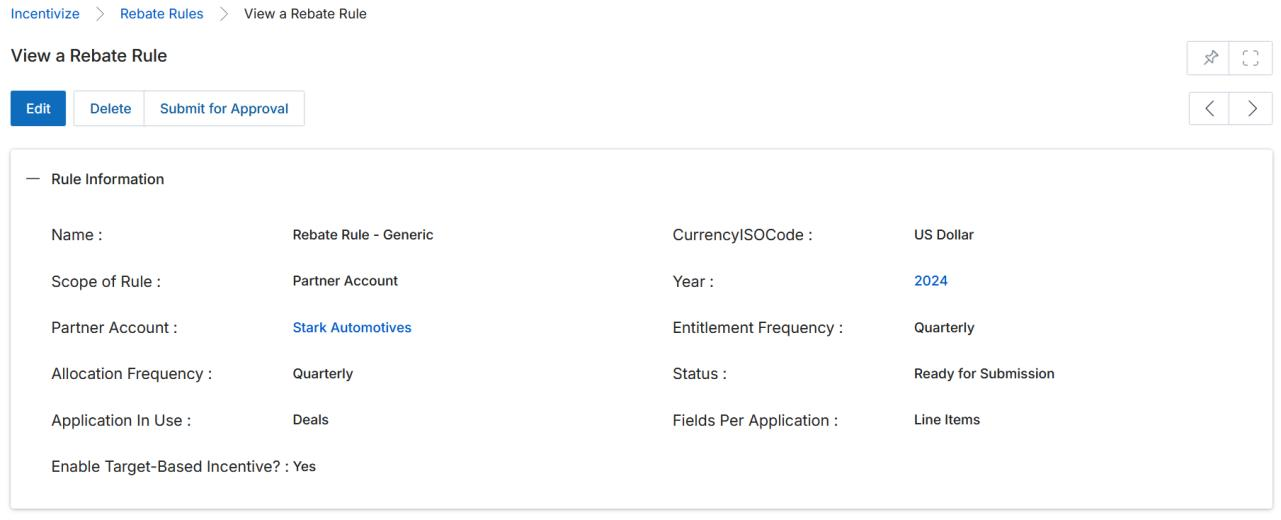
Rebate Entitlements
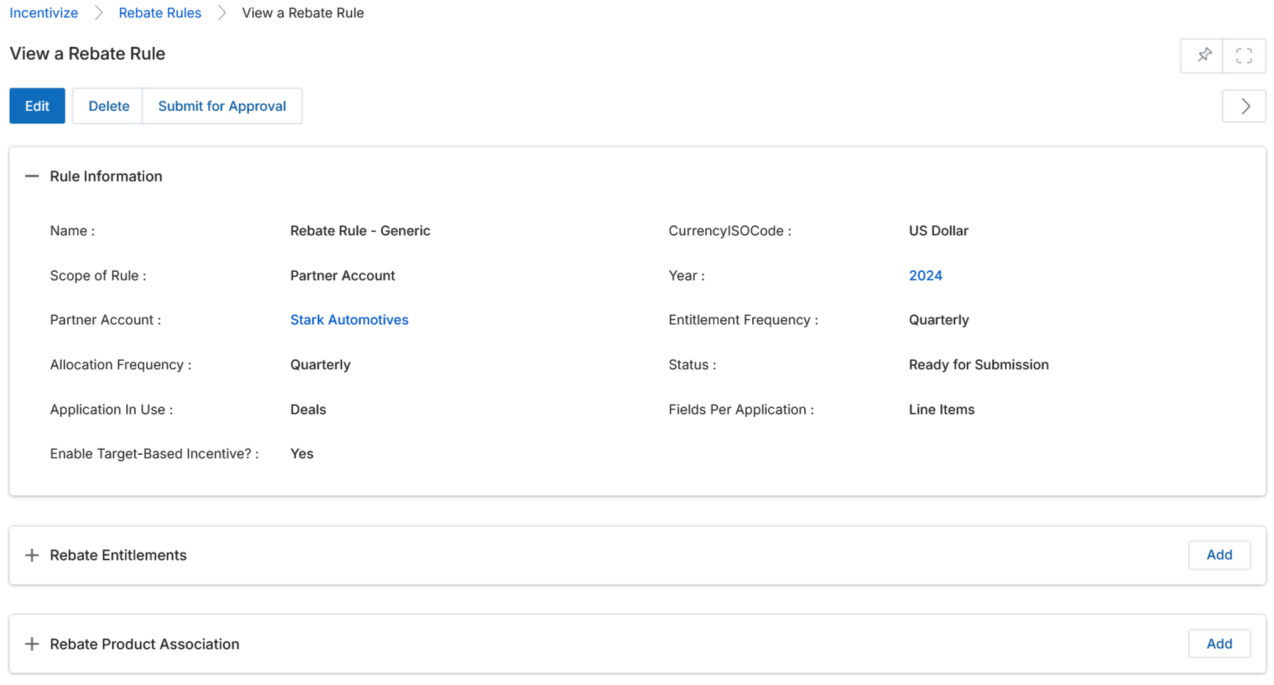
After creating and submitting the rule, define the rebate entitlement tiers by clicking Add under the Rebate Entitlements related list on the rule's detail page.
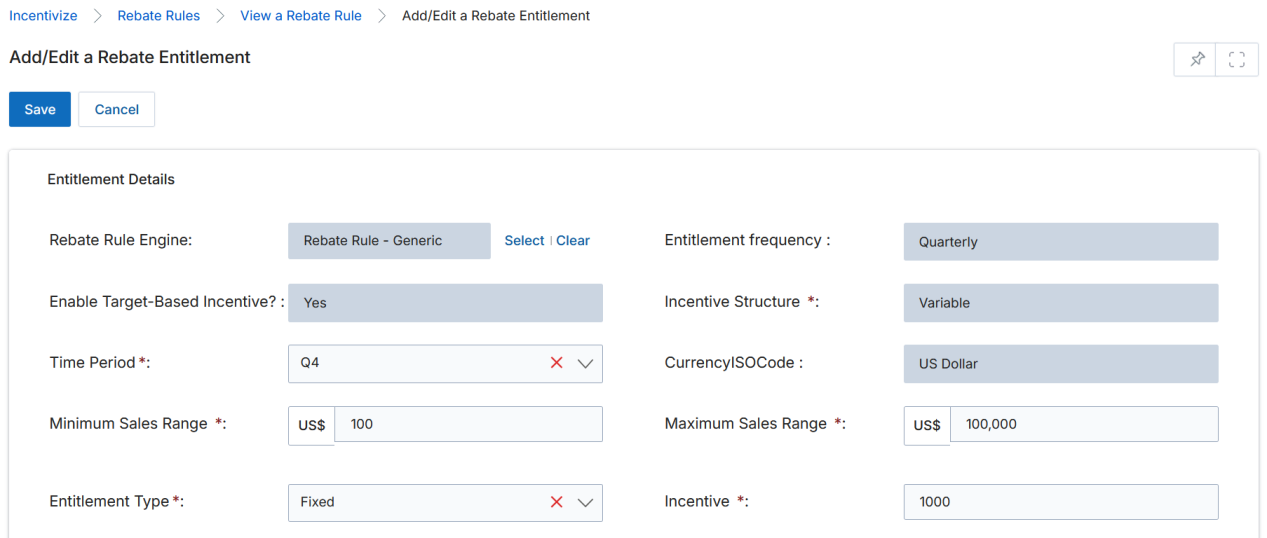
| Field | Description |
|---|---|
| Rebate Rules Engine | The parent Rebate Rule associated with this entitlement. |
| Entitlement Frequency | Inherited from the parent rule (e.g., Quarterly). |
| Enable Target-Based Incentive? | Inherited from the parent rule — indicates whether a sales target is required. |
| Incentive Structure | Fixed: partner receives a predefined constant amount or fixed percentage per entitlement period. Variable: different percentages apply based on business requirements and the entitlement period. |
| Time Period | The quarter in which the rebate will be paid (e.g., Q1, Q2, Q4). |
| Currency ISO Code | Currency of the rebate amount. |
| Minimum Sales Range | The minimum sales target the partner must achieve to qualify for this rebate tier. |
| Maximum Sales Range | The upper sales boundary for this entitlement tier. |
| Entitlement Type | Fixed (flat dollar amount) or Percentage (percentage of sales). |
| Incentive | The rebate amount or percentage for this tier. |
When Fixed is selected, partners receive a consistent predefined amount upon successful deal closure or invoice generation, regardless of variance within the sales range. When Percentage is selected, the rebate is proportionally derived from the total deal or invoice value, rewarding partners directly in alignment with their sales efforts. If rebate payments are not based on pre-determined targets, the Minimum and Maximum Sales Range fields are hidden.
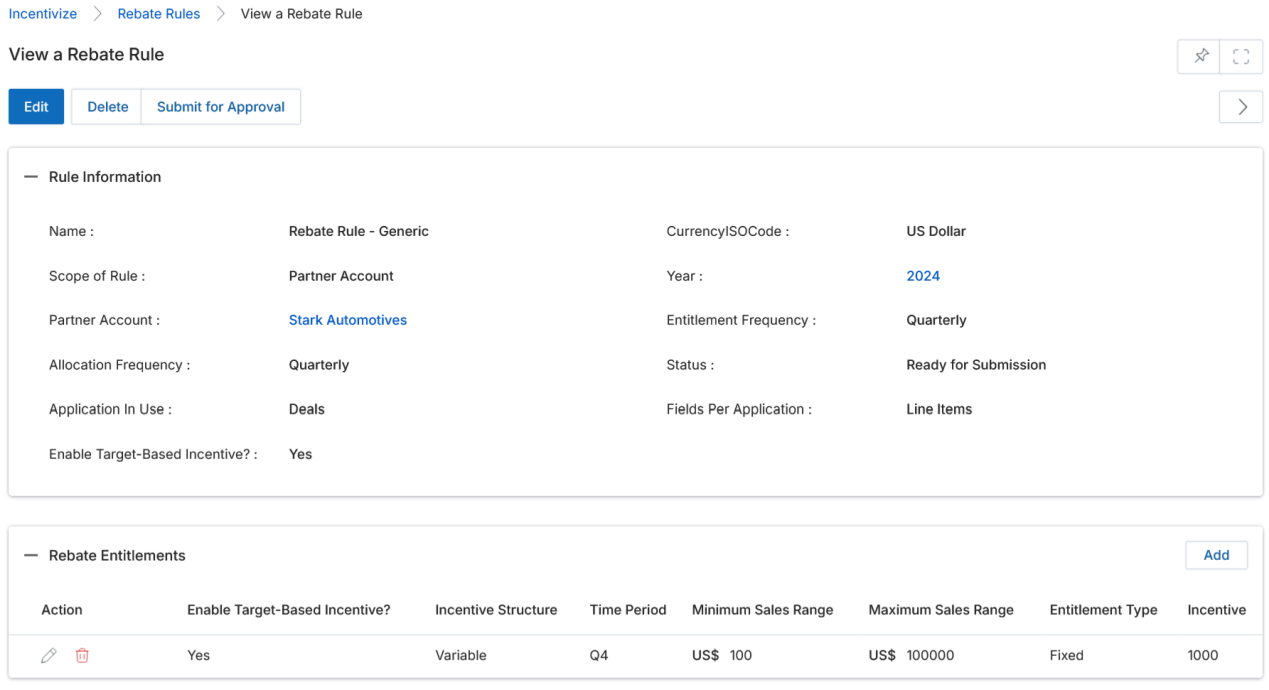
From the sample entitlement above: a partner selling between $50 and $100 is eligible to receive $5 as a rebate for the entitlement period.
Rebate Product Association
After adding entitlements, associate the eligible products with the rule using the Rebate Product Association related list on the rule detail page.
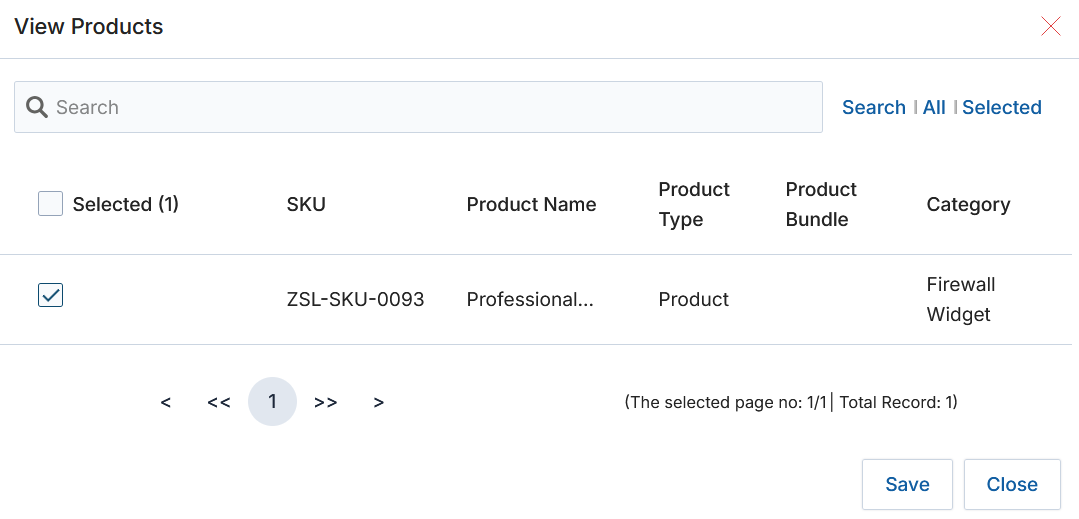
- Click Add under the Rebate Product Association related list. The View Products window opens.
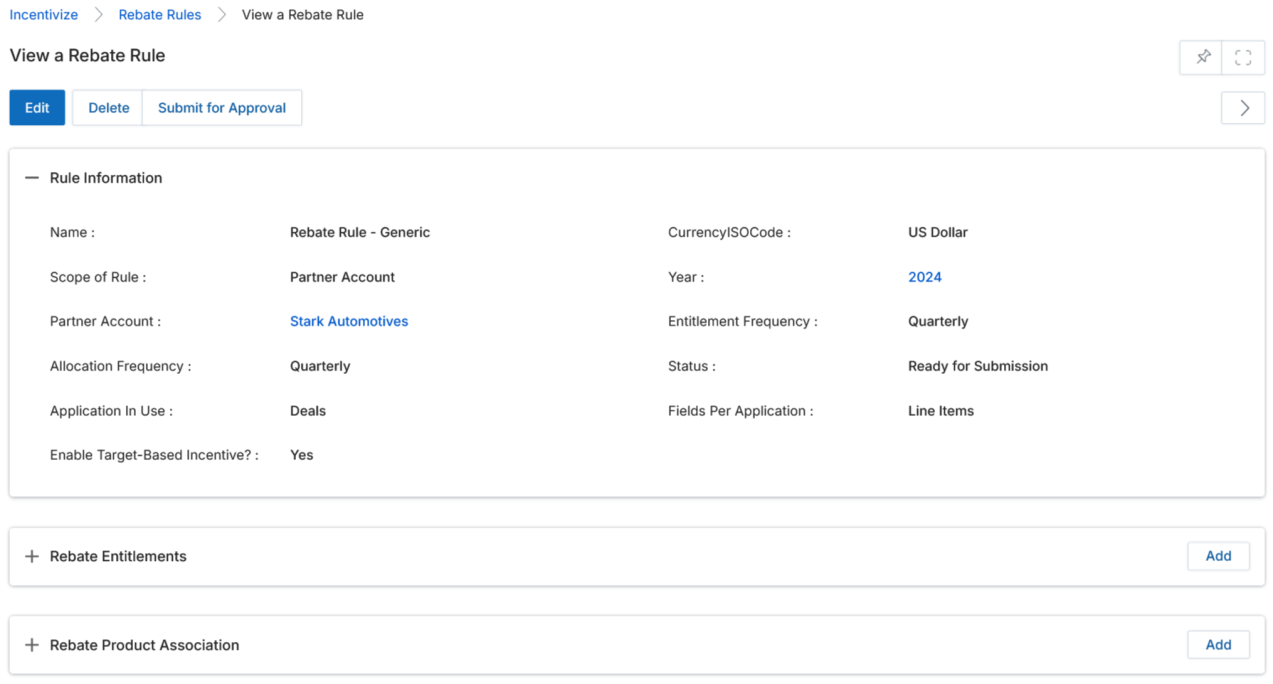
- Search and select the products that qualify for the rebate program.
- Click Save. The selected products appear in the Rebate Product Association related list.
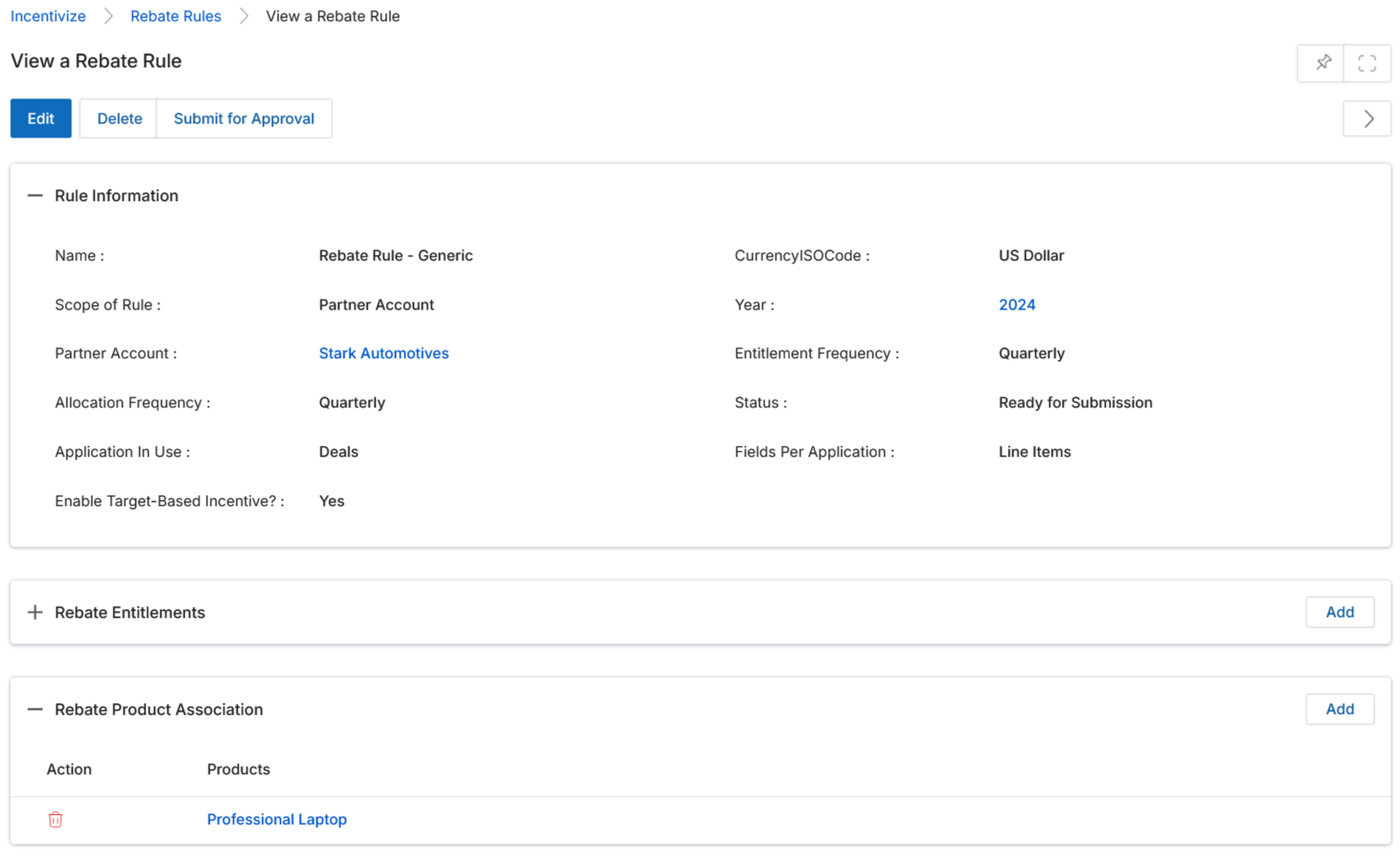
Once the Rebate Rule is fully configured, the system dynamically calculates the rebate amount based on actual partner sales performance. Partners earn rebates by closing deals or generating invoices for eligible products, and the earned amounts appear on their View Rebates page.
Incentive Rules Engine — Import Engine Integration
For bulk creation of Rebate Rules and Entitlements, use the Import Engine. The process uses two separate Excel templates: one for rule definitions and one for entitlement data. Each template uses a Rule Import Unique ID as the linking key between them.
Import Process
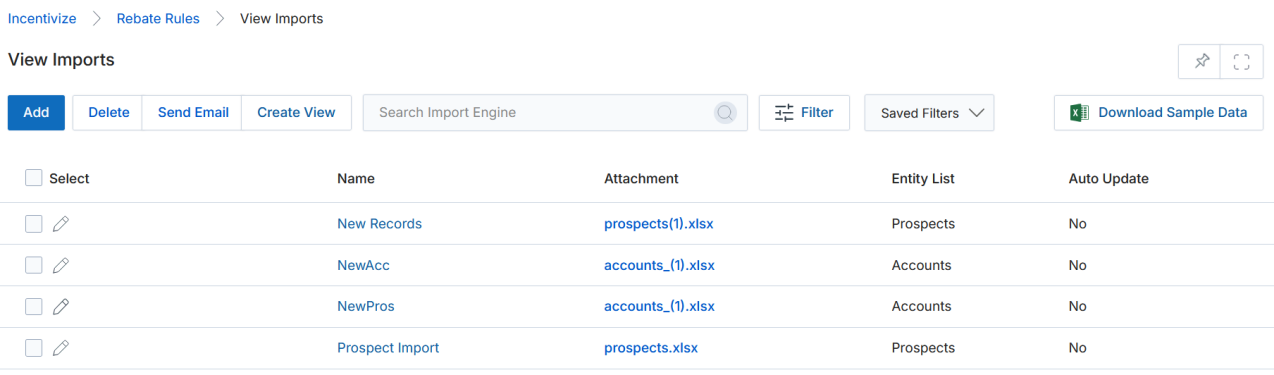
- Click the Import button on the View Rebate Rules page. The View Imports page opens, showing previously imported record sets.
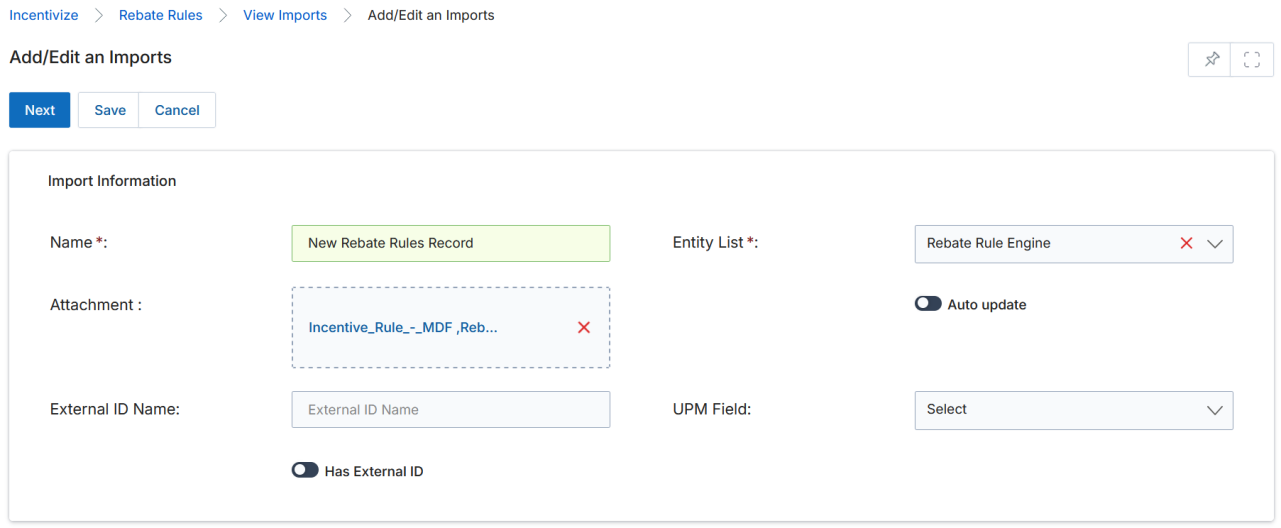
- Click Add on the View Imports page to open the Add/Edit an Import page.
- Enter a name, select Rebate Rule Engine as the Entity List, attach the rule definition Excel file, and click Save.
- On the Select and Map Fields page, map each Excel column header to the corresponding UPM Rebate Rule Engine field using the dropdown menus.
- Click Next to complete the upload. The new rules are created and appear on the View Rebate Rules page.

Each rule row in the rules Excel template must include a unique Rule Import Unique ID — a customer-assigned identifier that links entitlement records to their parent rule during the entitlement import step. Keep this ID consistent between both templates.
- To import entitlements, use the separate entitlement Excel template. Each entitlement row must include the corresponding Rule Import Unique ID to link it to the correct rule.
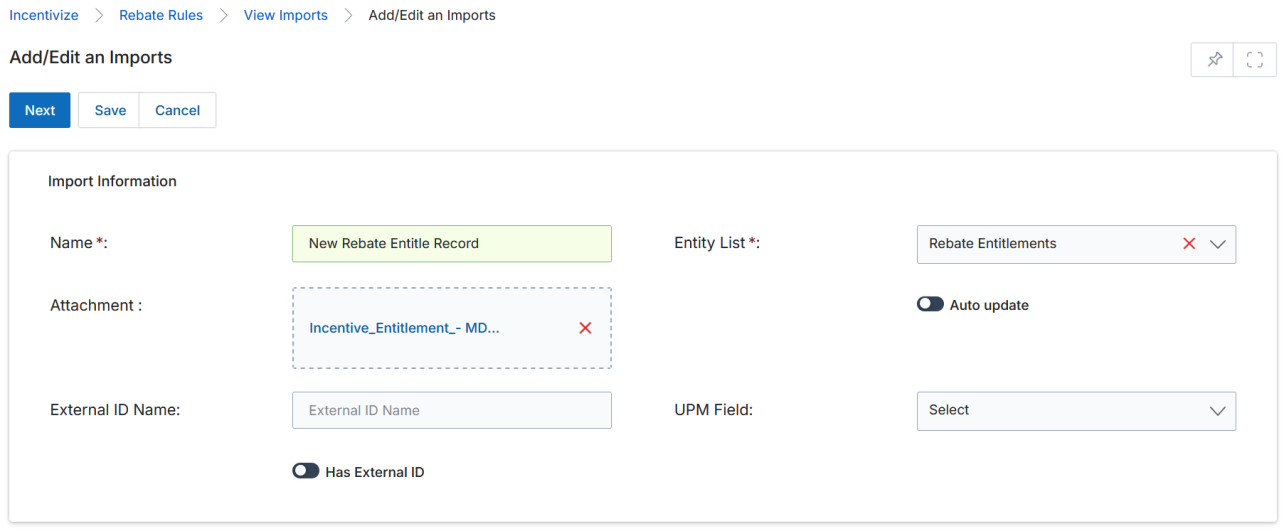

- Repeat the same import process (Add > Save > Map Fields > Next) for the entitlement template.
- Once validated, entitlements are imported and automatically linked to the correct Rebate Rule via the Rule Import ID.