
Introduction
The Referral Management application enables administrators to review, govern, and approve referral deals submitted by partners through the ZINFI Unified Partner Management (UPM) platform. It provides centralized visibility into referral opportunities, associated deal details, product line items, and approval workflows.
Using this application, Admin users can monitor referral deal submissions, validate deal information, review pricing and line items, and take appropriate approval actions in accordance with defined business rules. The application ensures transparency, control, and auditability across the referral lifecycle while supporting accurate forecasting and partner collaboration.
This guide explains how Admin users can access referral deals, review referral details, evaluate line items, and approve or reject submitted referral requests.
Referral Deals
Accessing Referral Deals
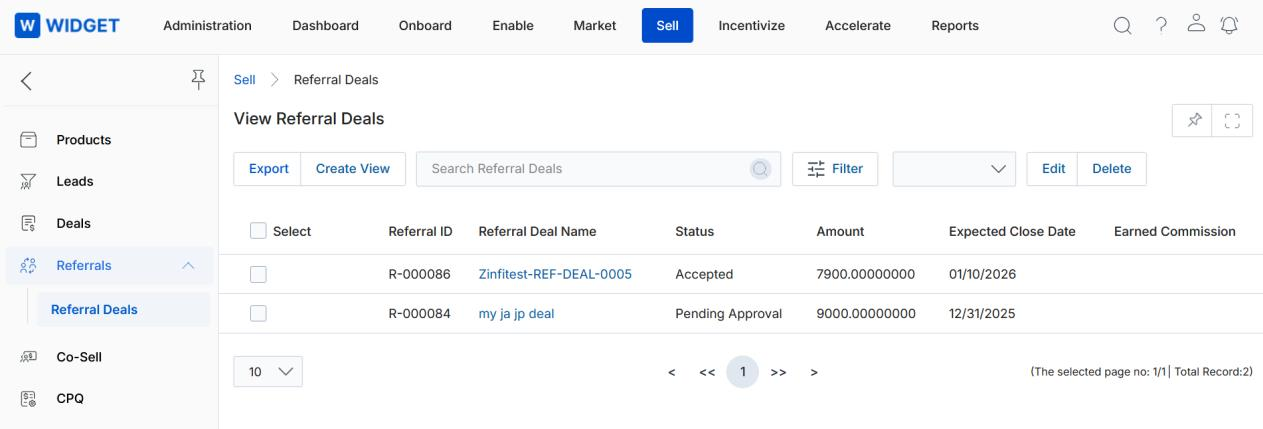
- Click Sell on the top navigation menu.
- Click Deals > Referral Deals in the left menu bar.
View Referral Deals
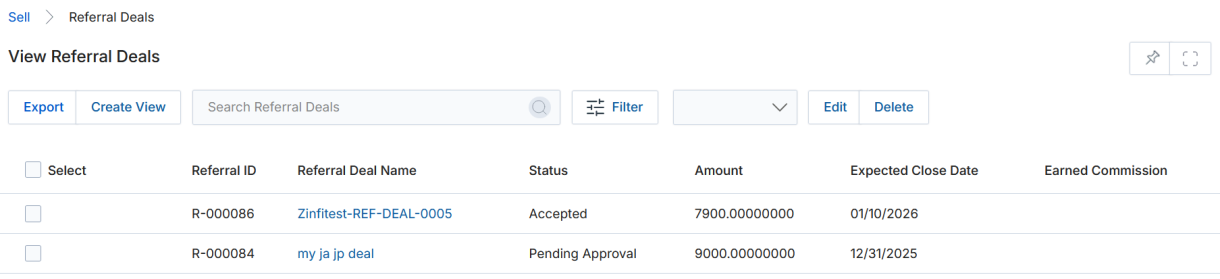
The View Referral Deals page displays a list of all referrals that have been generated and registered. The listing shows each referral's ID, name, status, amount, expected close date, and earned commission.
The toolbar provides the following actions:
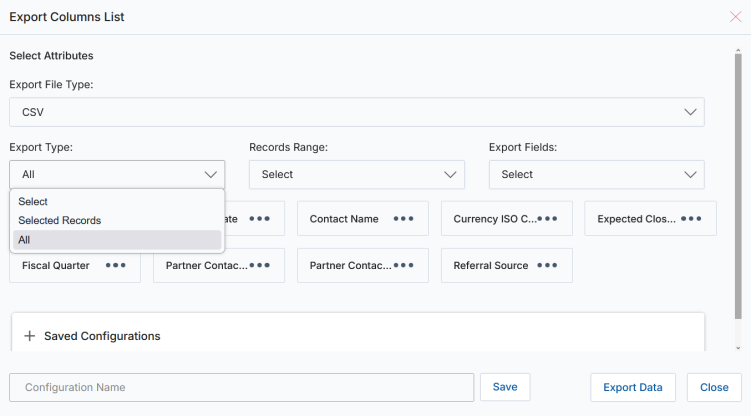
- Export — Exports the list of records from the listing page into CSV format.
- Selected Records: Exports only the records you have selected.
- All: Exports records within a specified range, selected from its associated range dropdown.
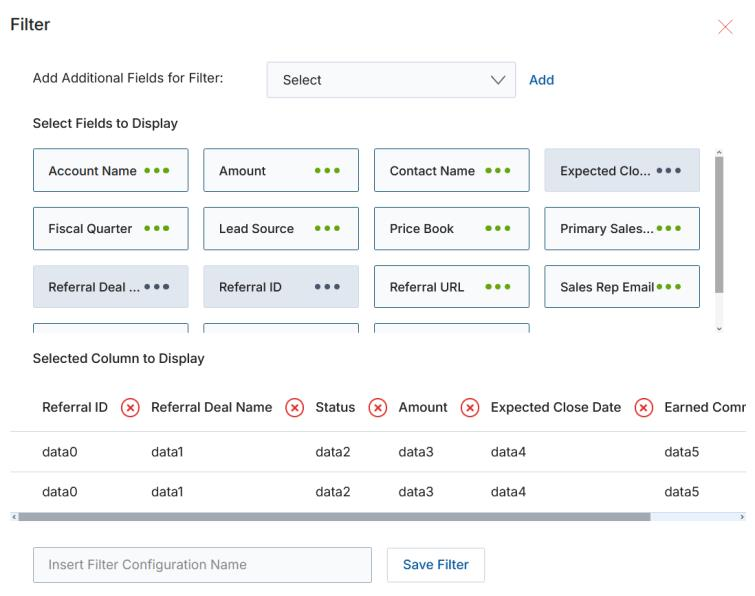
- Create View — Manages which columns appear in this listing view:
- Use the dropdown at the top to add new fields as columns. Choose an additional field and click Add — it will appear in the choices below.
- Click on elements with Green Dots to select fields for display.
- Selected columns appear in the table at the bottom. To remove a column, click the orange X button.
- Provide a View Name and click Save to create a new view.
- Filter — Opens a popup where you can enter search criteria to find specific records.
- Saved Searches — Shows a list of saved searches. When selected, two options appear:
- Edit — Updates the selected search name.
- Delete — Removes the selected search from the dropdown.
View Referral Deal Details
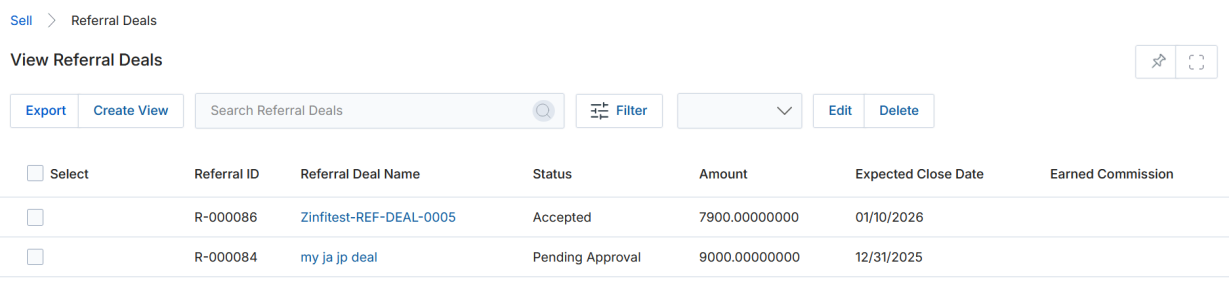
- The View Referral Deals listing page displays all generated and registered referrals.
- Review the Status column for each referral. If you are an approver in the approval flow and see a status of Pending Approval, click on the name of that referral to open the details page.
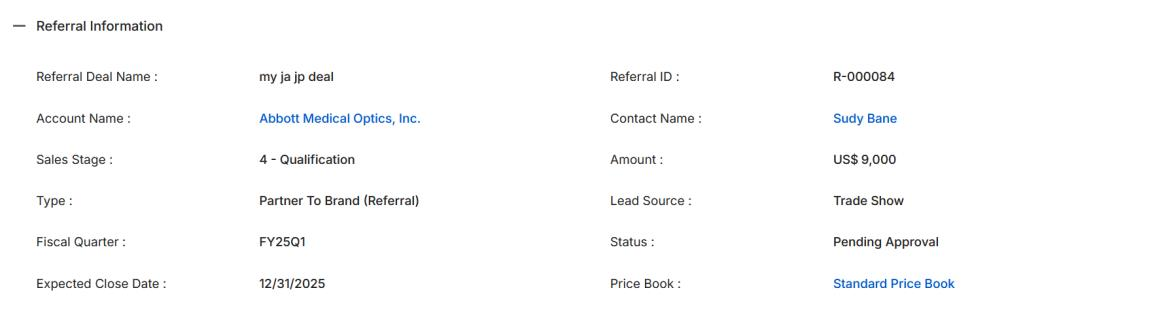
- Once on the Referral Deals details page, you will see the following sections:
a. Referral Information
| Field | Description |
|---|---|
| Referral Deal Name | Name of the Referral Deal. |
| Referral ID | Unique system-generated identifier for the Referral Deal. |
| Account | Name of the account associated with the deal. |
| Contact | Name of the contact associated with the deal. |
| Sales Stage | Current sales stage of the Referral Deal. |
| Currency ISO Code | Currency used for the deal. Supported currencies: US Dollar, Pound Sterling, Australian Dollar, Indian Rupee. |
| Fiscal Quarter | The fiscal quarter in which the Referral Deal was created. |
| Expected Close Date | Expected close date of the Referral Deal. |
| Lead Source | Source of the Referral Deal. |
| Type | Type of Referral Deal (e.g., Partner To Brand — Referral). |
| Status | Current status of the deal (e.g., Pending Approval, Accepted). |
| Price Book | The Price Book associated with this Referral Deal. |
| Amount | Total amount associated with this Referral Deal. |
b. Referral Contact Information

The Contact Information section displays the following fields:
| Field | Description |
|---|---|
| Referral URL | URL associated with the referral submission. |
| Primary Sales Contact Name | Name of the primary sales contact for the referral. |
| Sales Rep Phone | Phone number of the sales representative. |
| Sales Rep Email | Email address of the sales representative. |
c. Referral Line Items

Each row in the Referral Line Items section represents a product or service included in the referral. The columns are:
| Column | Description |
|---|---|
| Name | The name of the product or service included in the referral. |
| SKU | The unique stock keeping unit used to identify the product. |
| Sales Price | The unit selling price of the product. |
| Quantity | The number of units included in the referral. |
| Total Line Item | The total value calculated based on sales price × quantity. |
| Net Line Item | The final value of the line item after applicable adjustments. |
| Line Description | Additional descriptive information about the product or service. |
d. Approval History
The Approval History section shows the level of the approval flow and the status of each approver:
| Column | Description |
|---|---|
| Step | Indicates the level in the approval flow (e.g., Approver Level 1, 2). |
| Submitter | The partner user who submitted the referral for approval. |
| Approver | The Admin user or group assigned to approve the referral registration. |
| Actual Approver | The Admin user who finalized the approval or rejection for that step. |
| Status | Current status of the referral request at this step (e.g., Active, Approved, Rejected). |
| Comments | Comments entered by the approver when taking action. |
| Action Taken Date | The date on which the approval or rejection action was taken. |
| Action | Links to execute the Accept or Reject review action. |
Approval of a Submitted Referral Deal
Once a partner creates and submits a new Referral Deal request for approval, the Admin Approver can either Approve or Reject the request.

- Identify which referrals need action by locating deals with a status of Pending Approval in the View Referral Deals listing. Click on the Name of that referral to open its details page.
- Once a Referral Deal is submitted for approval, the Approval History section will appear at the bottom of the View Registered Referral page with the option to either Accept or Reject the referral registration.

- Click Accept or Reject in the Action column of the Approval History section to finalize the review of the Register Referral request.
The Accept and Reject action links are only visible in the Approval History section to the Admin user who is the designated approver for that step in the approval flow. Once actioned, the status updates and the Actual Approver and Action Taken Date columns are populated automatically.