Introduction
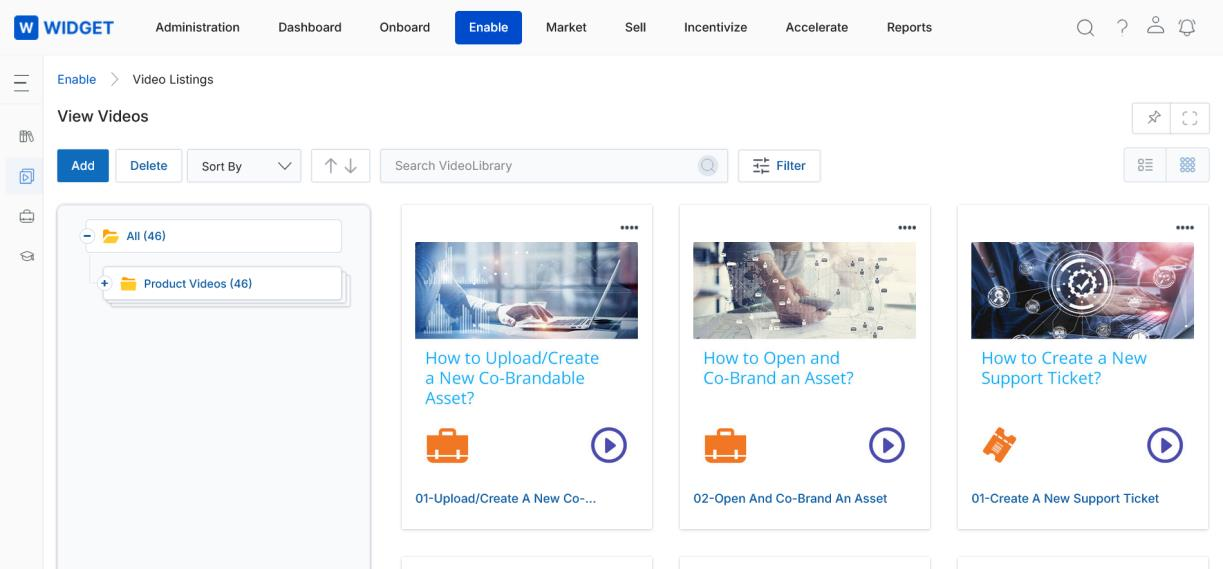
ZINFI's Video Library Management application is a specialized multimedia orchestration engine within the ENABLE zone, designed to centralize sales and marketing video assets in a secure, searchable repository. Functioning as the Single Source of Truth (SSoT) for visual knowledge transfer, this application utilizes a low-code architecture to deliver a high-performance, mobile-responsive playback experience directly within the partner portal.
Organized Video Listings for Easy Access
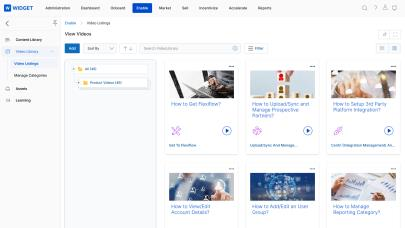
The application offers partners a centralized and user-friendly workspace to discover, view, and manage video assets organized by topics and categories. It enables seamless navigation across structured video libraries, allowing partners to locate required content with minimal effort. Advanced search and filtering capabilities help partners quickly identify specific videos, while direct access to playback and management actions ensures efficient interaction with multimedia resources.
Video Playback & Preview Experience
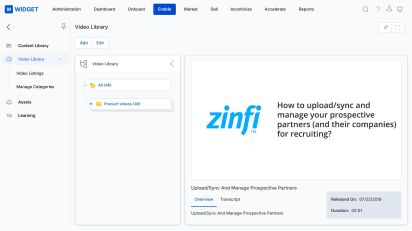
The application provides a seamless in-portal video playback experience that supports multiple file formats and resolutions. Videos are played using an embedded player that adapts automatically to different screen sizes, ensuring consistent viewing across desktop and mobile devices.
Managing the Video Library
Accessing Video Library
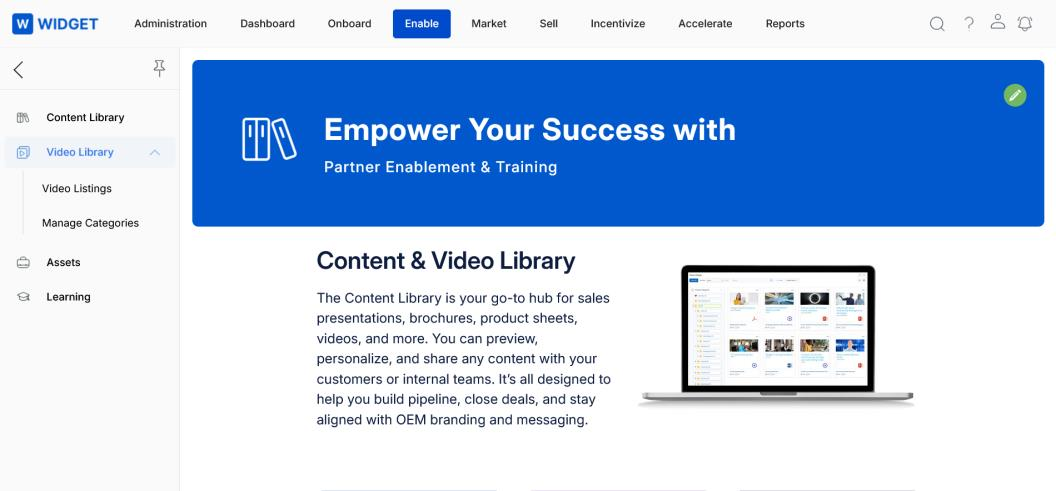
- Click on Enable zone from the top menu.
- Click on Video Library in the left menu bar:
- Click on Video Listings to view the video content details.
- Click on Manage Categories to view and manage the video categories.
View Videos
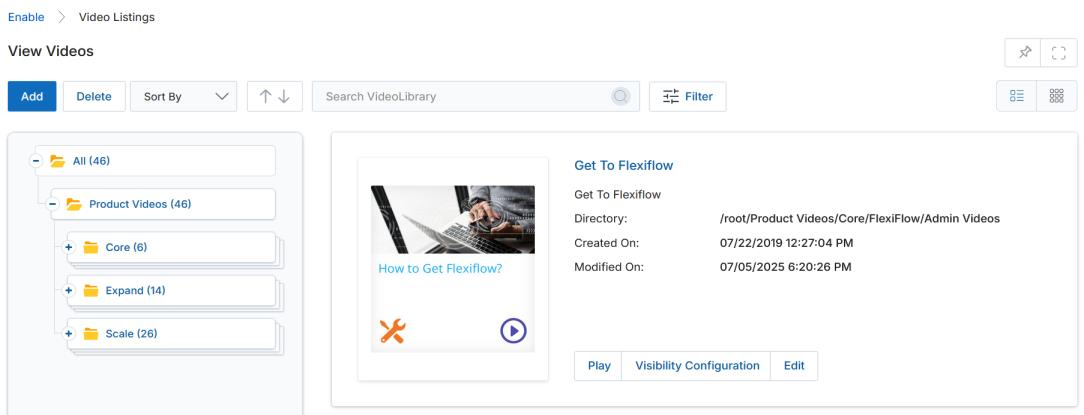
Once in the View Videos Library, you will see the video repository with browsing, sorting, and filtering tools.
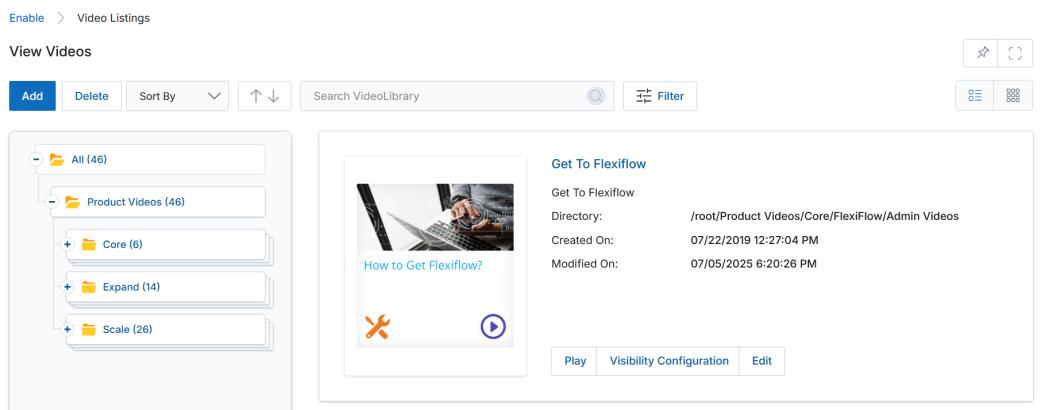
- Click Add to add new videos.
- Click Sort By to sort videos based on "Created On", "Modified On", or "Video Name".
- Click Filter to open the filter pane with searchable parameters.
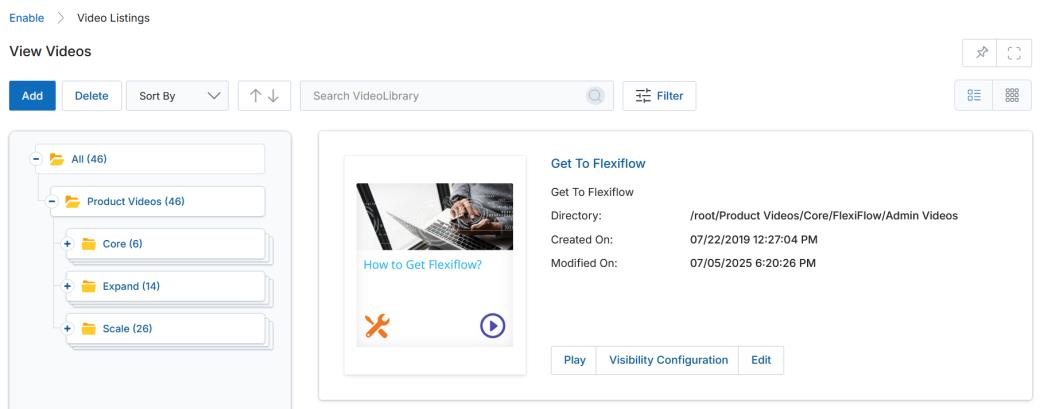
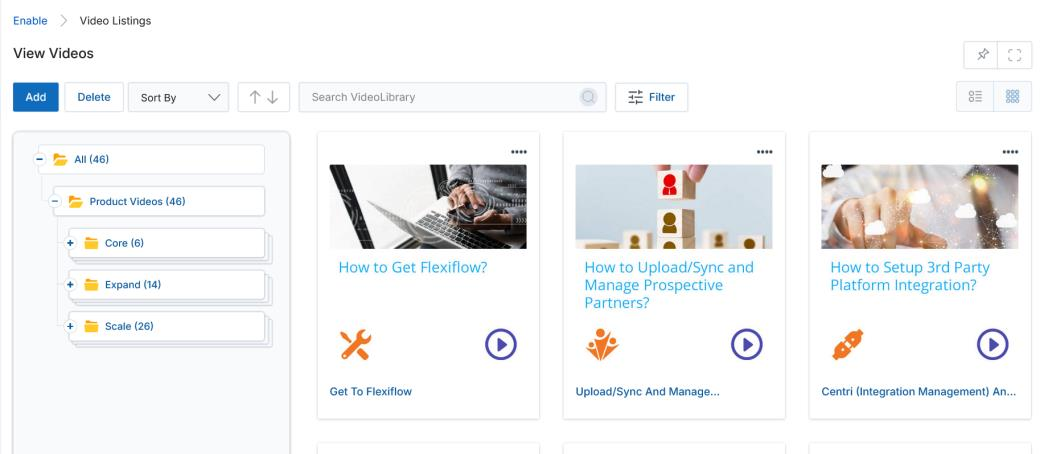
- Toggle between List View (lined icon) and Thumb View (waffle icon) to change visual arrangement.
List View
Thumb View
Video Buttons
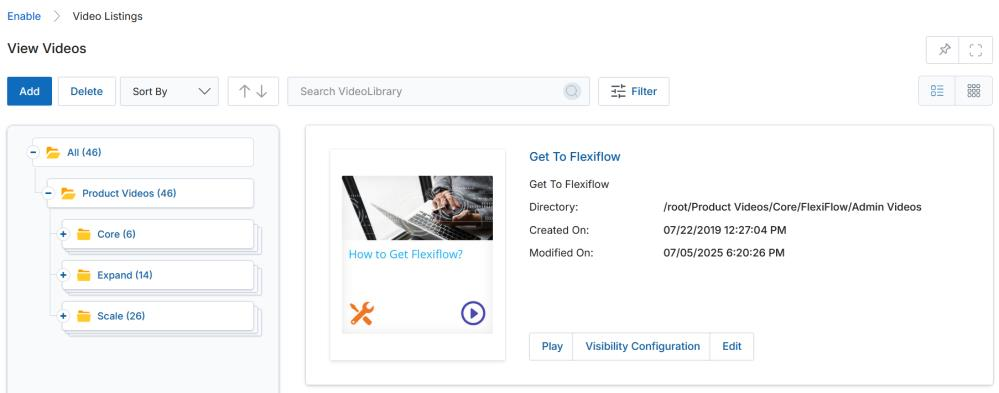
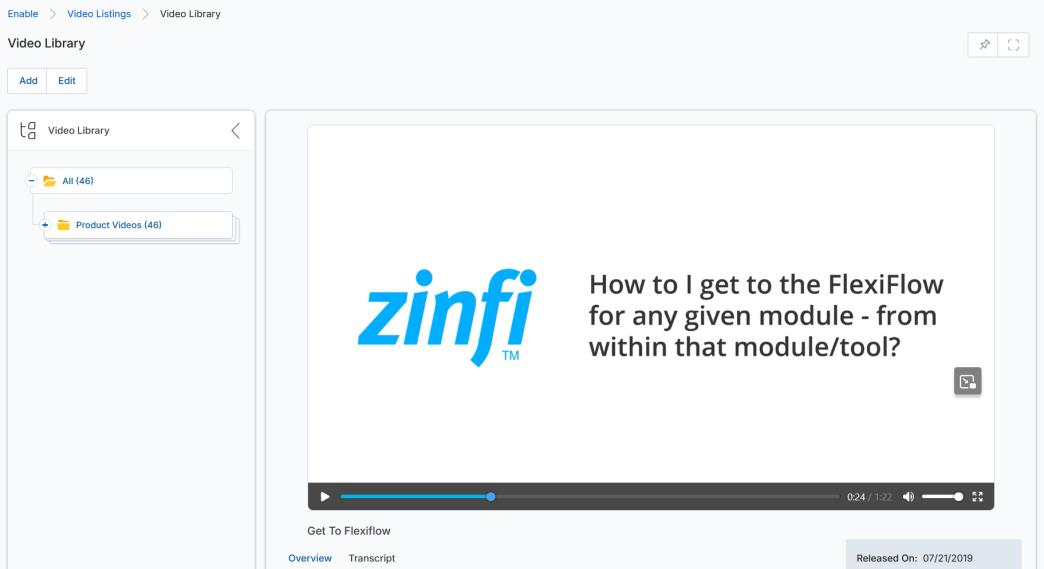
- Play — Opens a player window. The player auto-plays with an Overview tab and a Transcript tab.
- Download — Downloads the video file (if made downloadable to the user).
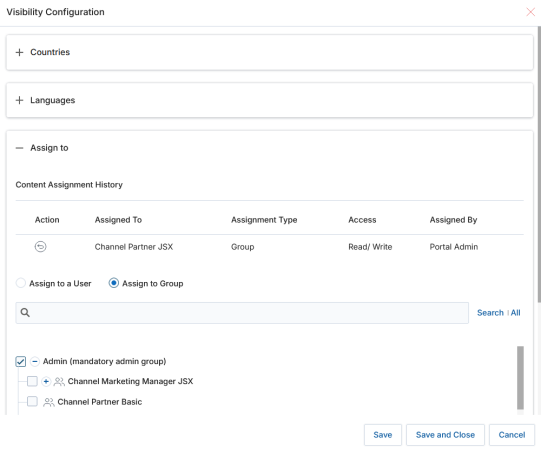
- Visibility Configuration — Audiences the video based on country, language, or group.
Filter Panel
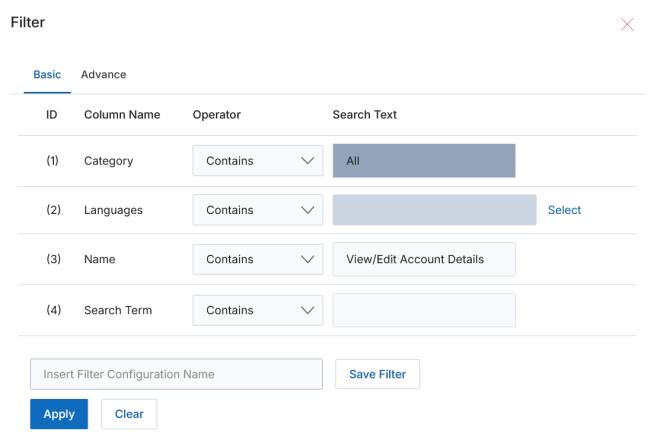
After selecting parameters, click Apply or press Enter to display filtered results.
View Video Details
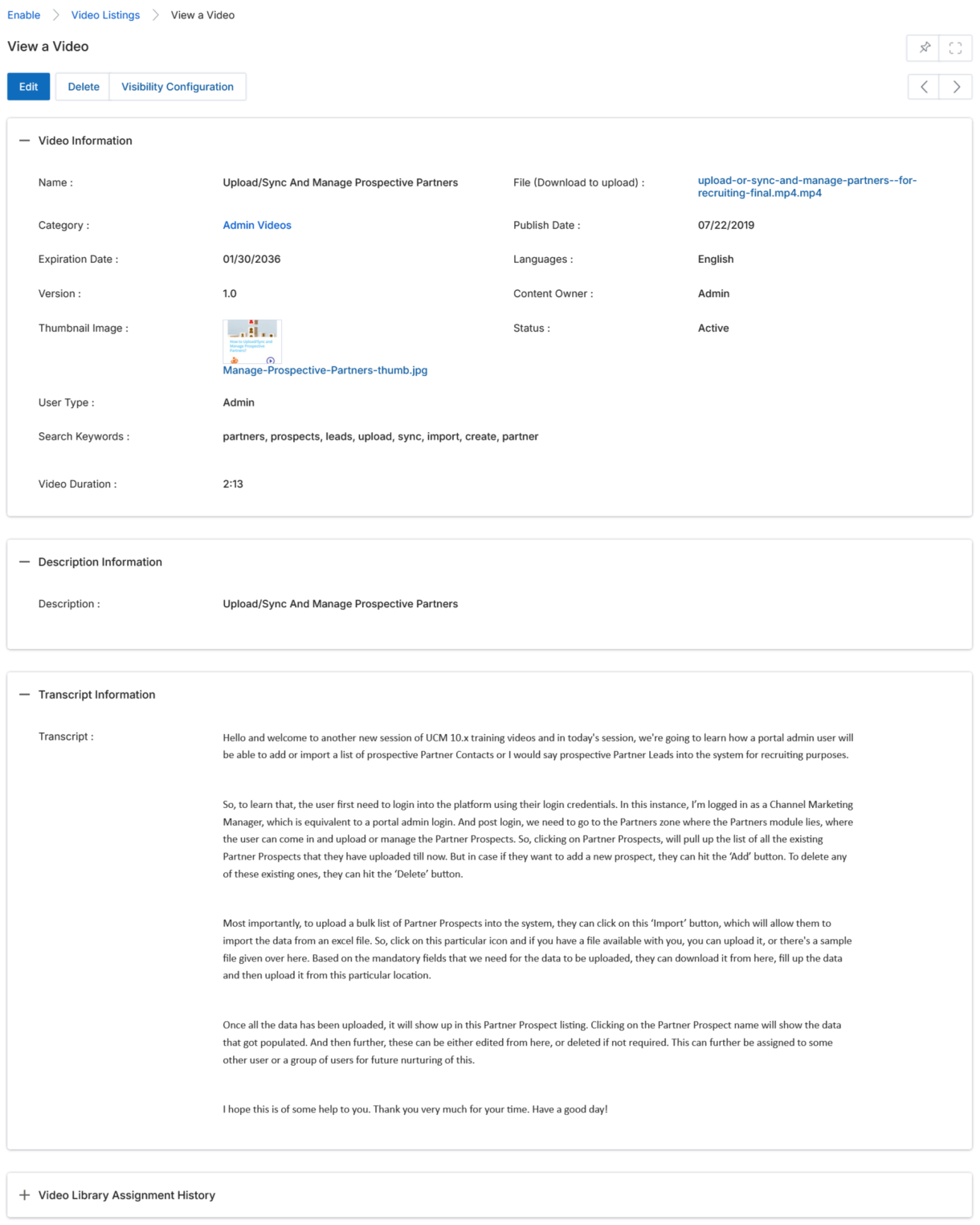
- Click the Name (in blue) of any video to open its details page.
- The Video Details page shows all video information and action buttons.
Buttons
- Edit — Updates the details of the selected video.
- Assign to — Sets visibility for Individuals or Groups with Read Only or Read/Write permissions.
- Delete — Removes the video from the content listings.
Video Information Fields
| Field | Description |
|---|---|
| Name | Display name of the video. |
| File | Attached video file. Supported: MP4, MOV, WMP. |
| Category | Category the video is assigned to. |
| Publish / Expiration Date | Publishing and expiry dates of the video file. |
| Language | Languages tagged with this video. |
| Version | Video version number. |
| Content Owner | Person who uploaded the video. |
| Thumbnail Image | Image shown as the video thumbnail on the listing page. |
| Status | Active or Inactive status for viewing. |
| User Type | Audience type: Admin or Partner. |
| Video Duration | Duration of the video. |
| Search Keywords | Keywords tagged with this video for searchability. |
Description Information provides details about the video. Transcription Information shows the full transcript. Video Library Assignment History lists the groups with whom the video has been shared.
Manage Categories
In the Video Library, Manage Categories allows you to manage categories and sub-categories, and upload and manage video files. Videos are housed, stored, and managed under the category in which they appear.
Creating & Editing Categories
- Navigate to Enable > Video Library > Manage Categories to open the hierarchical category tree.
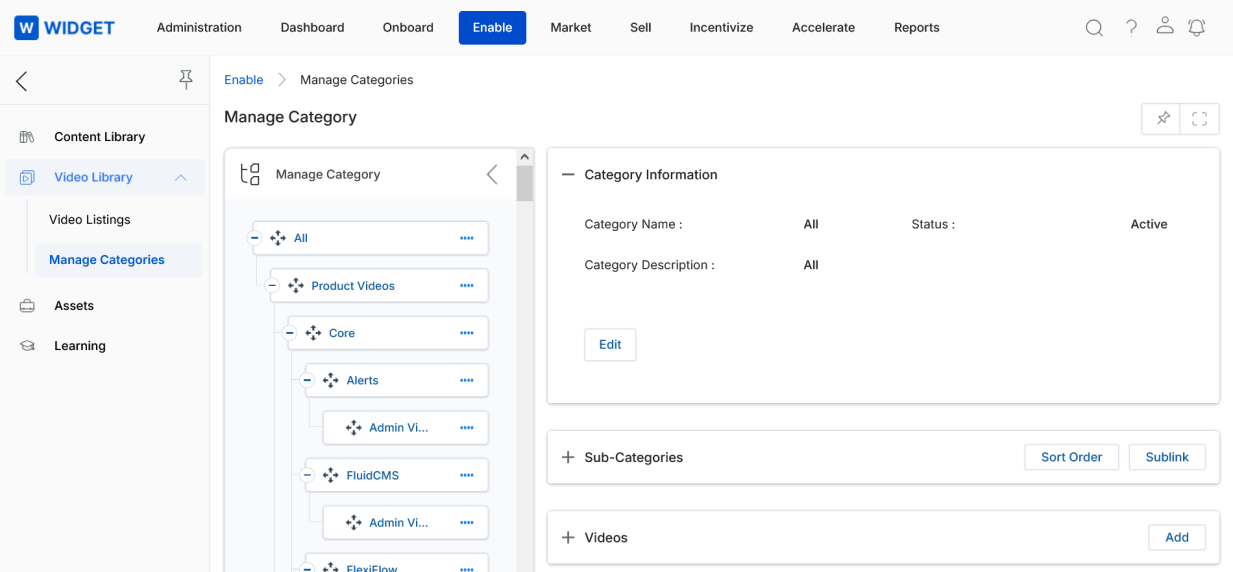
- The Category Tree lets you create, edit, or delete Categories, Sub-categories, and Videos.
Note
Deleting a category that contains videos will orphan those videos. Move them to another category before deleting.
- The Category Tree supports drag-and-drop to arrange and sort items.
- Click the (….) icon on any item to create or delete categories and videos.
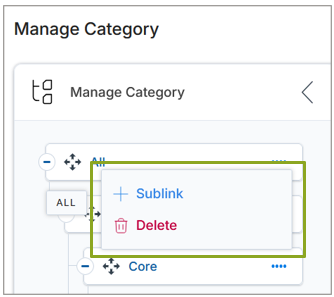
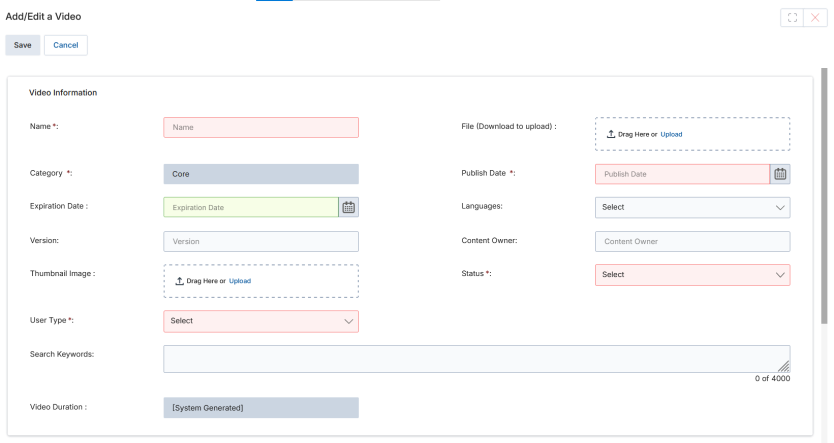
- Click Add in the Sub-Categories or Videos related lists to add new items. This opens the Add/Edit panel from the right side of the portal.
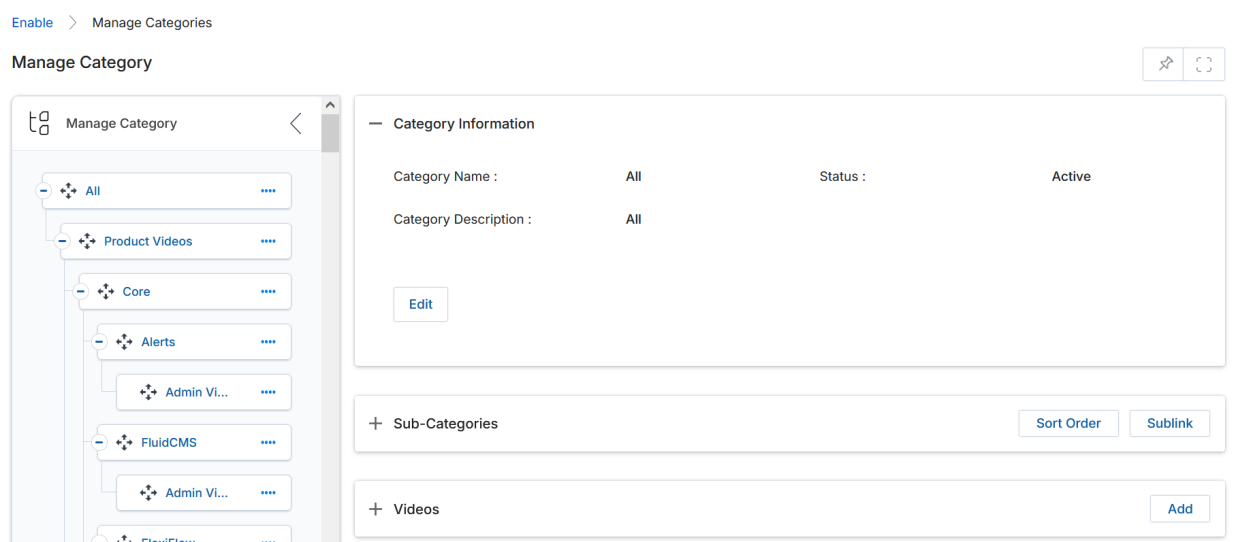
Editing an Existing Category
- Click Edit in the Category Information section.
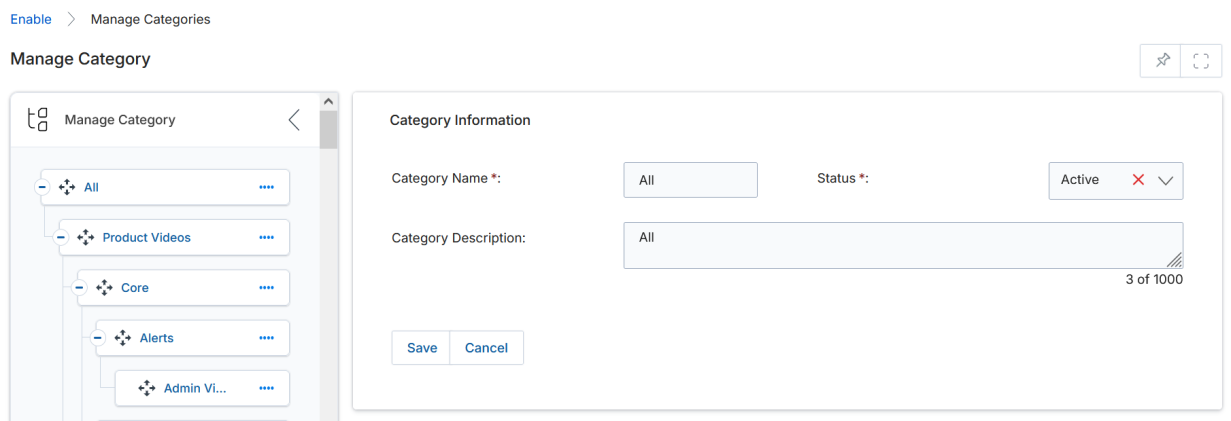
- Update the Category Name, Status, and Category Description, then click Save.
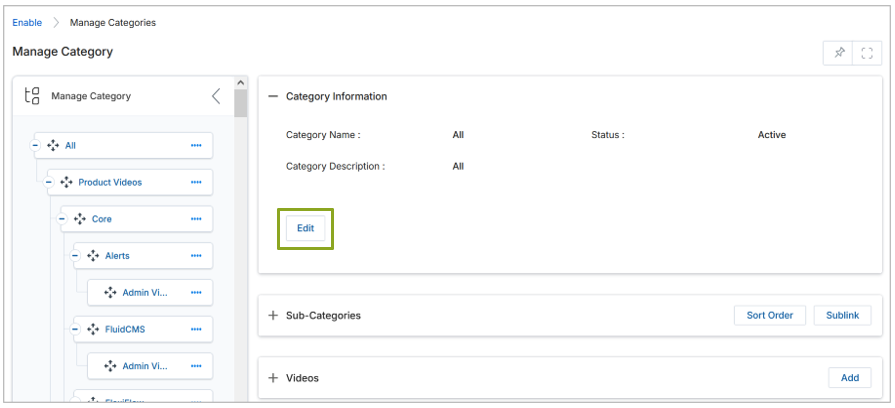
- Each Parent Category has a Sub-Categories list. Click Add to create a subcategory or the pencil icon to edit one.

Creating & Managing Videos
Adding a New Video
The Videos list shows all videos currently housed in a category. They can be edited or new ones added.
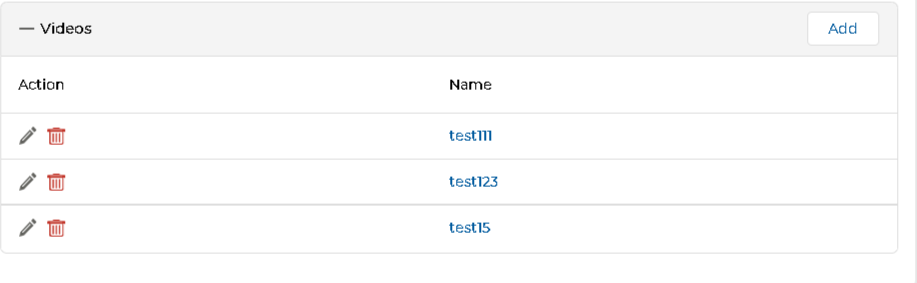
- Click Add in the Videos section to open the Add/Edit a Video page.
a. Video Information Fields
| Field | Description |
|---|---|
| Name | User-friendly title or display name for the video. |
| File | Video file to upload (Browse). Supported: MP4, MOV, WMP. |
| Category | Auto-generated; defaults to the current category. |
| Publish Date | Date from which the video is active in the Video Library. |
| Expiration Date | Date from which the video is deactivated. |
| Language | UI language for users who can see this video. |
| Version | Optional version number. |
| Content Owner | Name of the person who uploaded the video. |
| Thumbnail Image | Image displayed as the video thumbnail on the listing page. |
| Status | Active or Inactive. |
| User Type | Admin or Partner audience. |
| Search Keywords | Keywords making the video searchable in the Filter panel. |
| Video Duration | Time duration for the video. |
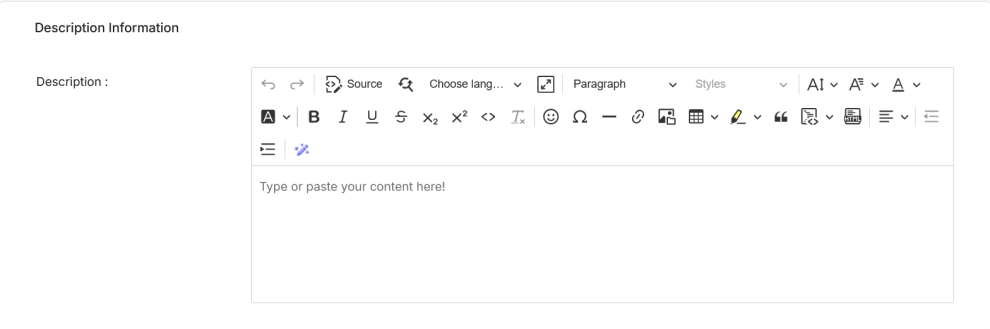
b. Description Information
Use the WYSIWYG editor to provide a short description of the video.
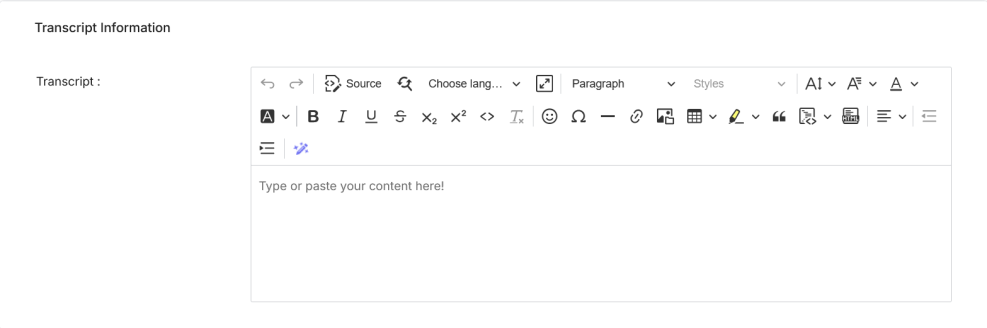
c. Transcript Information
Provide the transcription of the video using the rich text editor.
- Click Save when done. The video appears in the Videos list.
- Navigate back to View Videos to find your new video in the library.
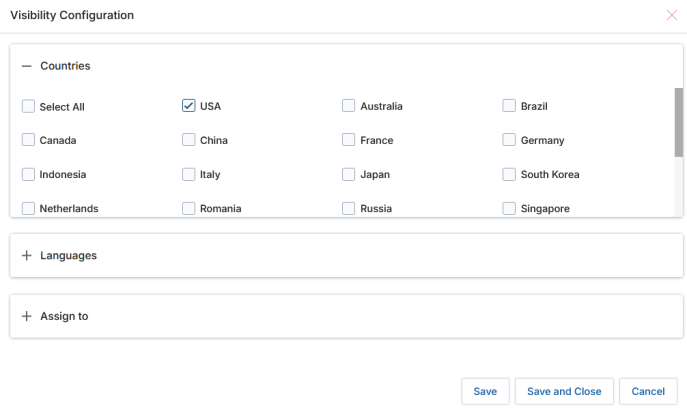
- Click Visibility Configuration under your video listing to set its visibility.
- Select Countries, Languages, and Groups, then click Save.