
Introduction
ZINFI's Multi-Touch Application allows partners to create tactics or integrated campaigns as part of their marketing efforts. Using the multi-touch approach enables an organization to set up diverse content and a variety of campaign tactics so that channel partners can run single-touch co-branded campaigns using a SMART campaign flow.
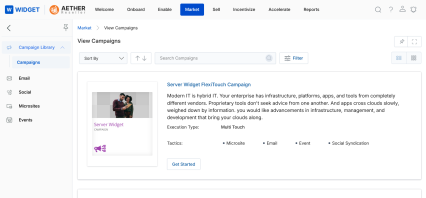
Campaign Library
The Campaign Library is the central hub where partners discover and initiate campaigns shared by the OEM. It displays all available campaigns with their associated tactics and execution type.
2.1 Access Campaign Library
To navigate to the Campaign Library:
- Click Market on the top navigation menu.
- Click Campaign Library > Campaigns from the left menu bar.
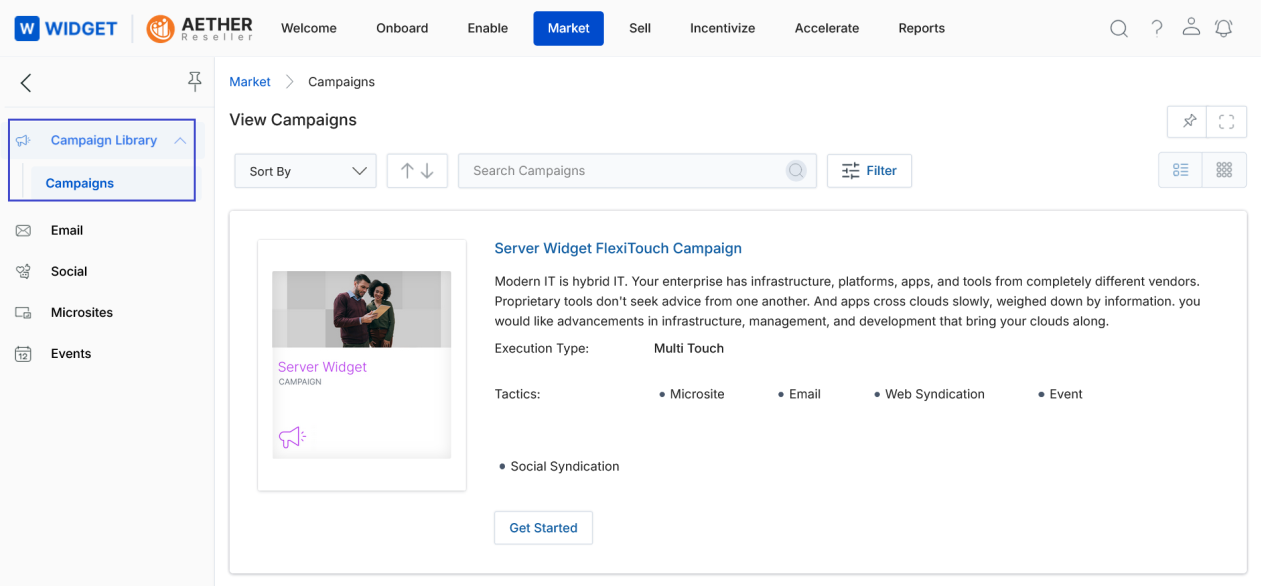
The Campaign Library page supports two display options and sorting controls:
- Sort By — Sort campaigns by Campaign Name, Modified On, or Created On.
- Thumb View — Displays campaigns as cards. Click the four dots (⋯) on any card to access available tactics and the Get Started button.
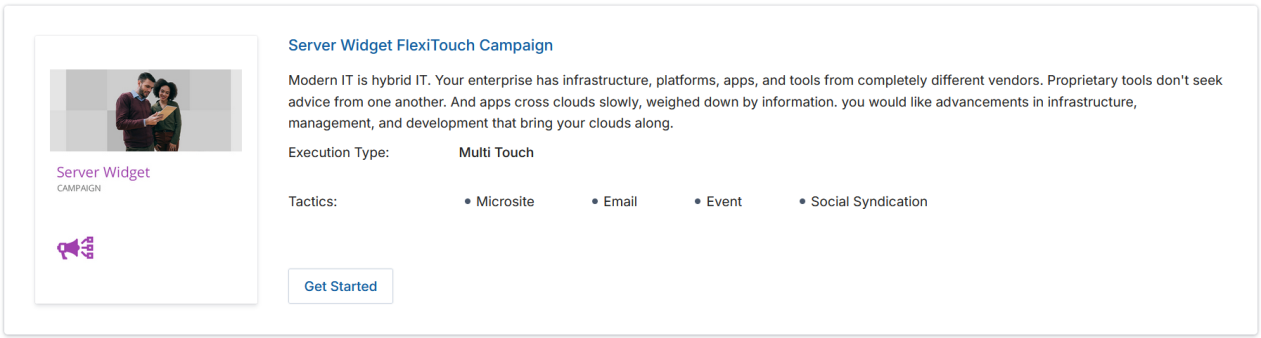
- List View — Displays campaigns in a linear list. The Execution Type (Single Touch or Multi Touch) and available tactics are visible inline. The Get Started button is already visible.
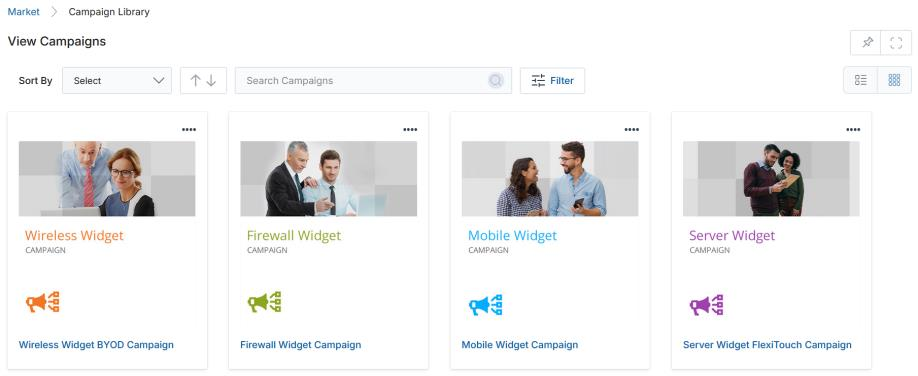
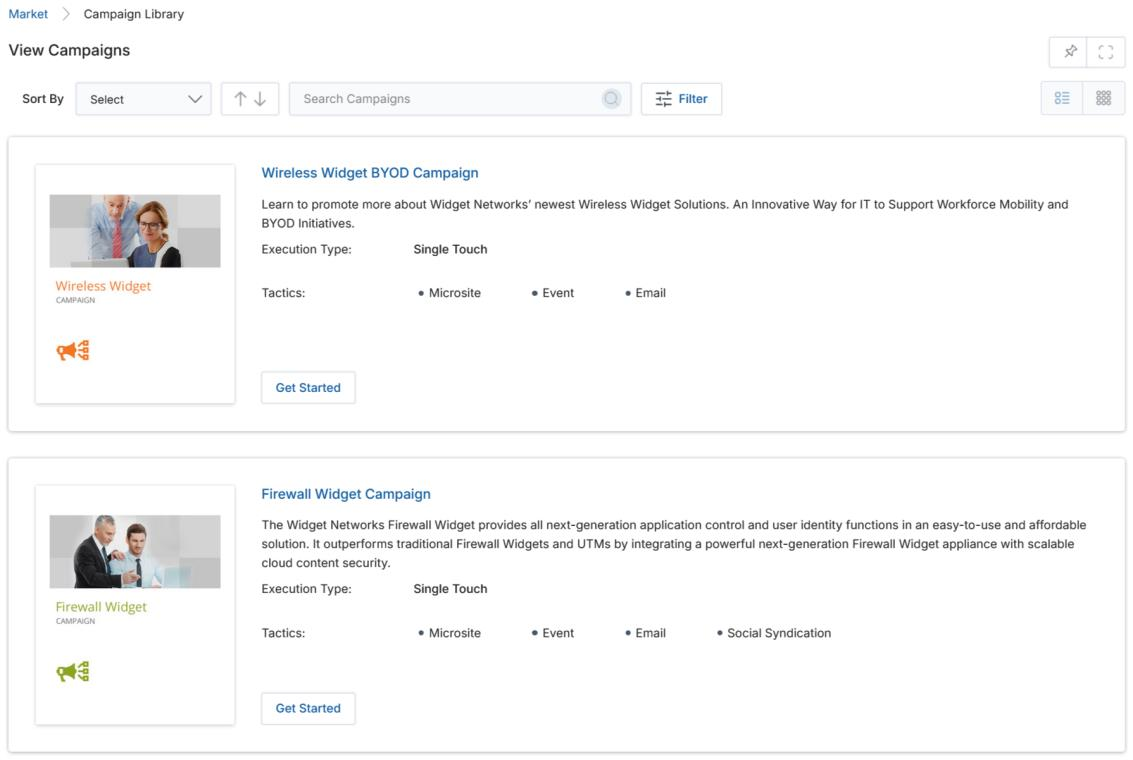
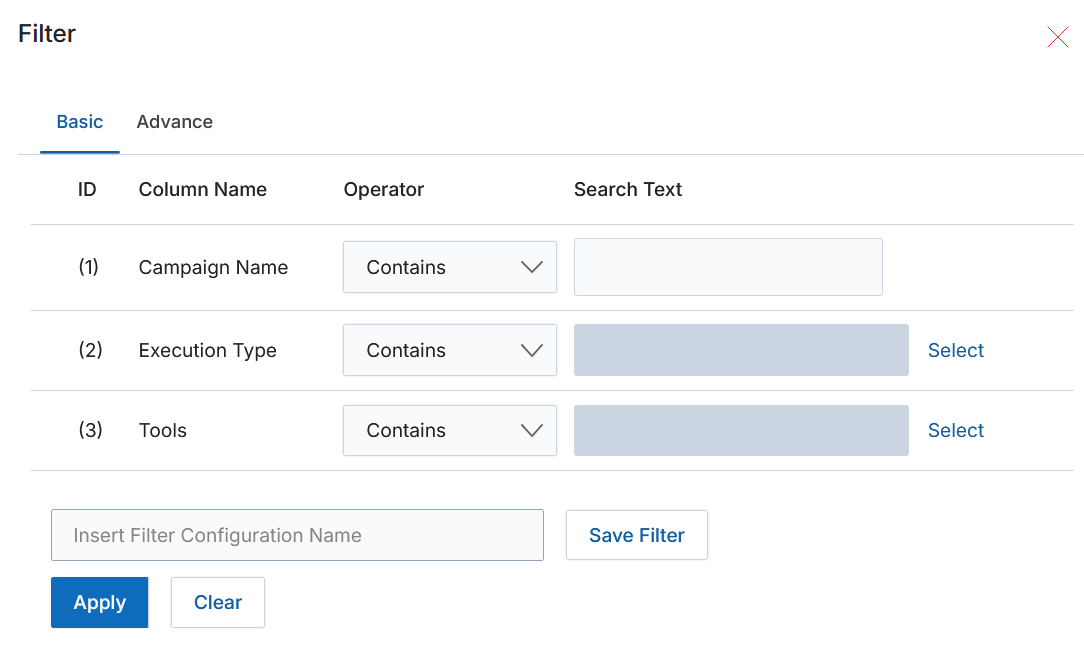
To filter the campaign list, click the Filter button. The filter pane supports the following parameters:
| Filter | Description |
|---|---|
| Campaign Name | Search by a keyword in the campaign name. |
| Execution Type | Filter by Single Touch, Multiple Touch, or both. Click Select to pick from the dropdown. |
| Tools | Filter by one or more campaign tool types. Click Select to choose from the available tool list. |
Click Apply after setting filter attributes to display filtered results. A saved filter configuration can be named and stored using Save Filter.
Launch a Campaign
Launching a campaign from the Campaign Library follows a two-step process: selecting the campaign and then choosing the specific tactic to execute.
3.1 Campaign Interstitial Page
- From the Campaign Library, select a campaign and click the Get Started button.
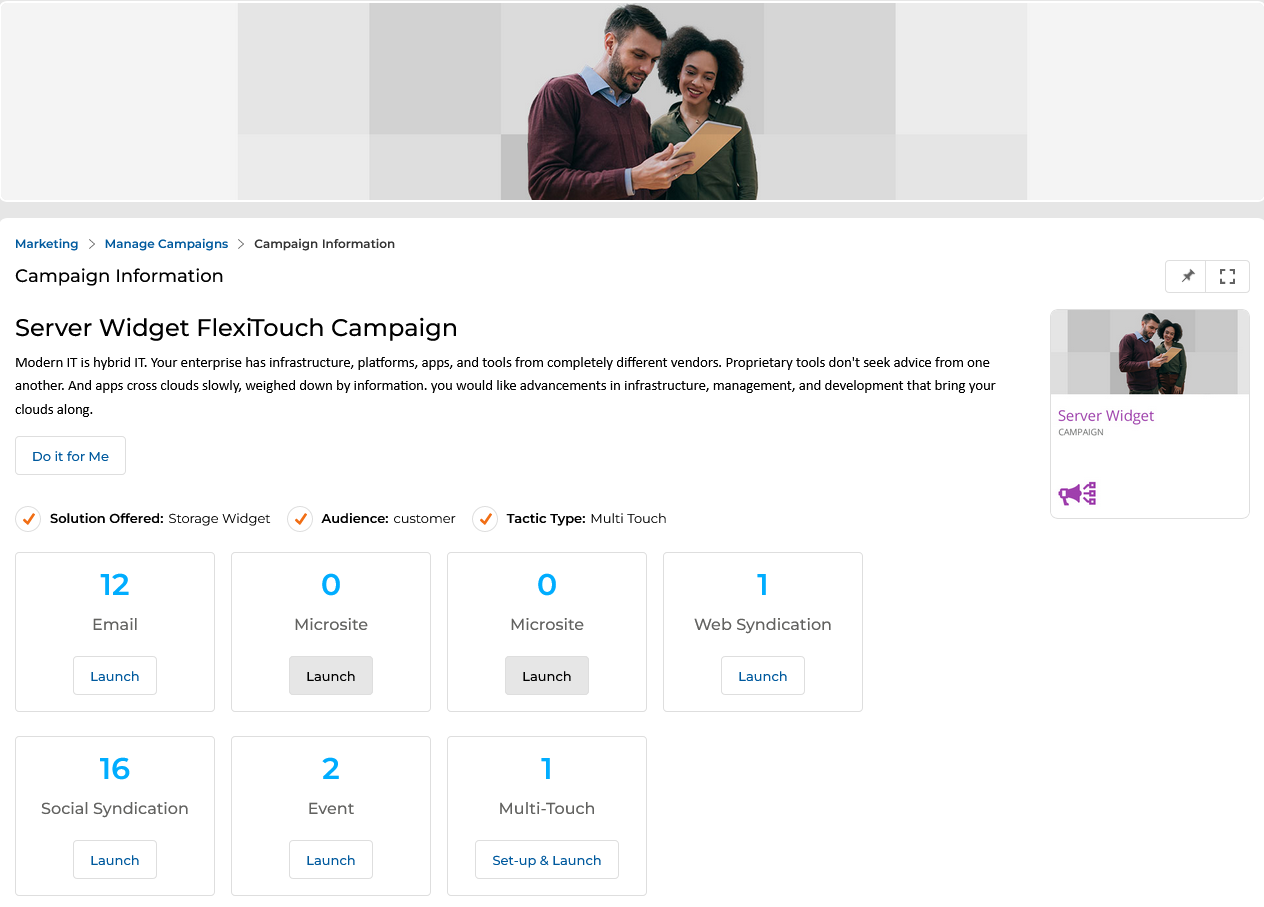
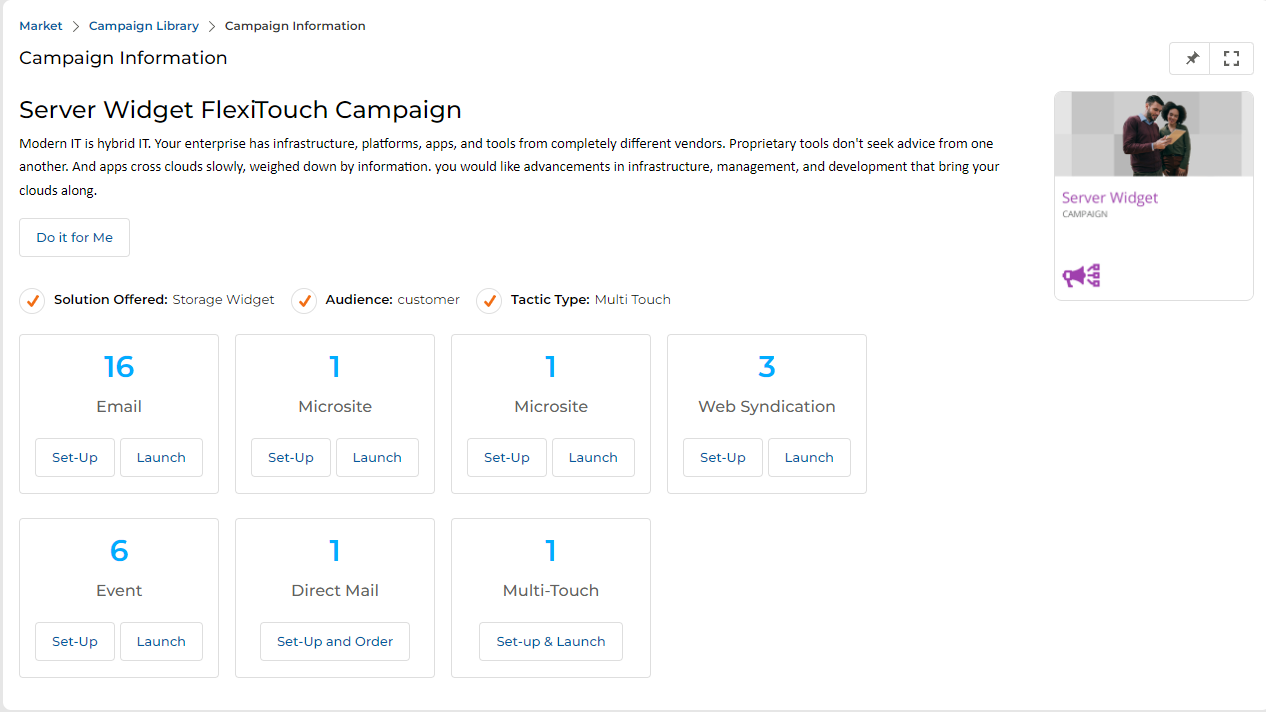
- You land on the Campaign Information (Interstitial) page, which shows:
- The campaign title and its brief description.
- Campaign metadata: Solution Offered, Audience, and Tactic Type.
- Tactic tiles showing how many items are available for each tool (Email, Microsite, Web Syndication, Event, Multi-Touch, etc.) with Set-Up and Launch buttons for each.
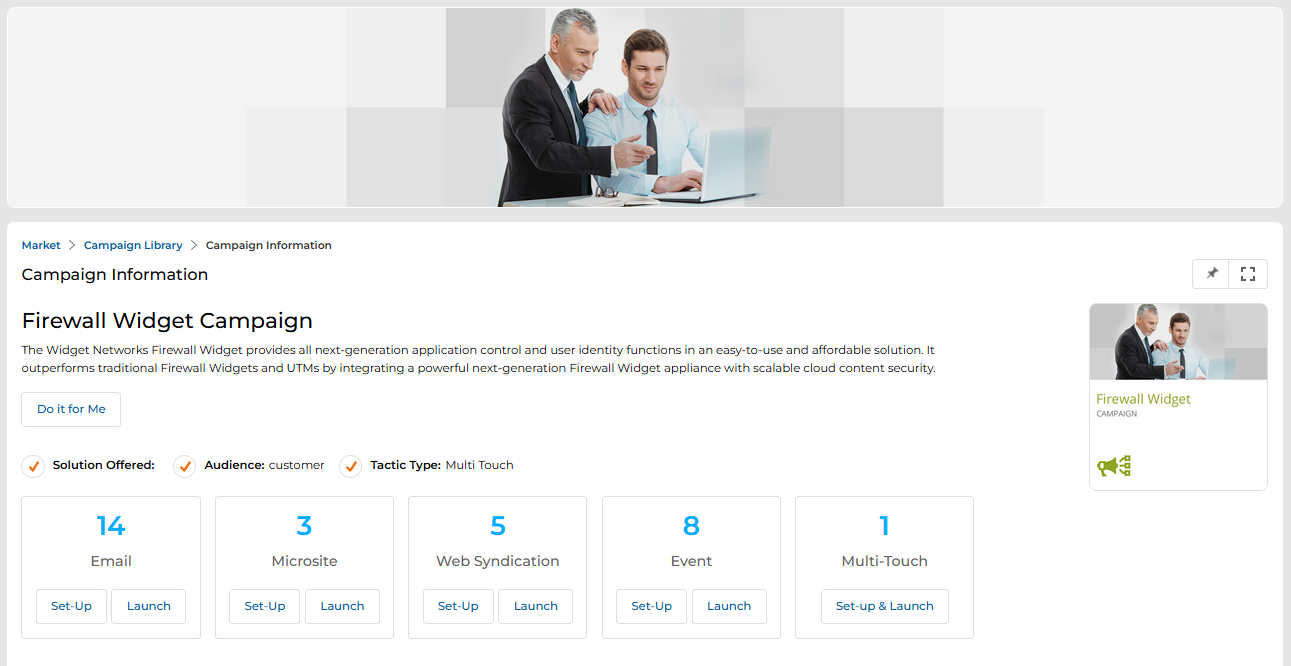
The Set-Up button is used to co-brand the content for a tactic before launching. The Launch button proceeds directly to the campaign execution page for that tactic. For Multi-Touch specifically, the button label is Set-up & Launch.
3.2 Execute a Campaign
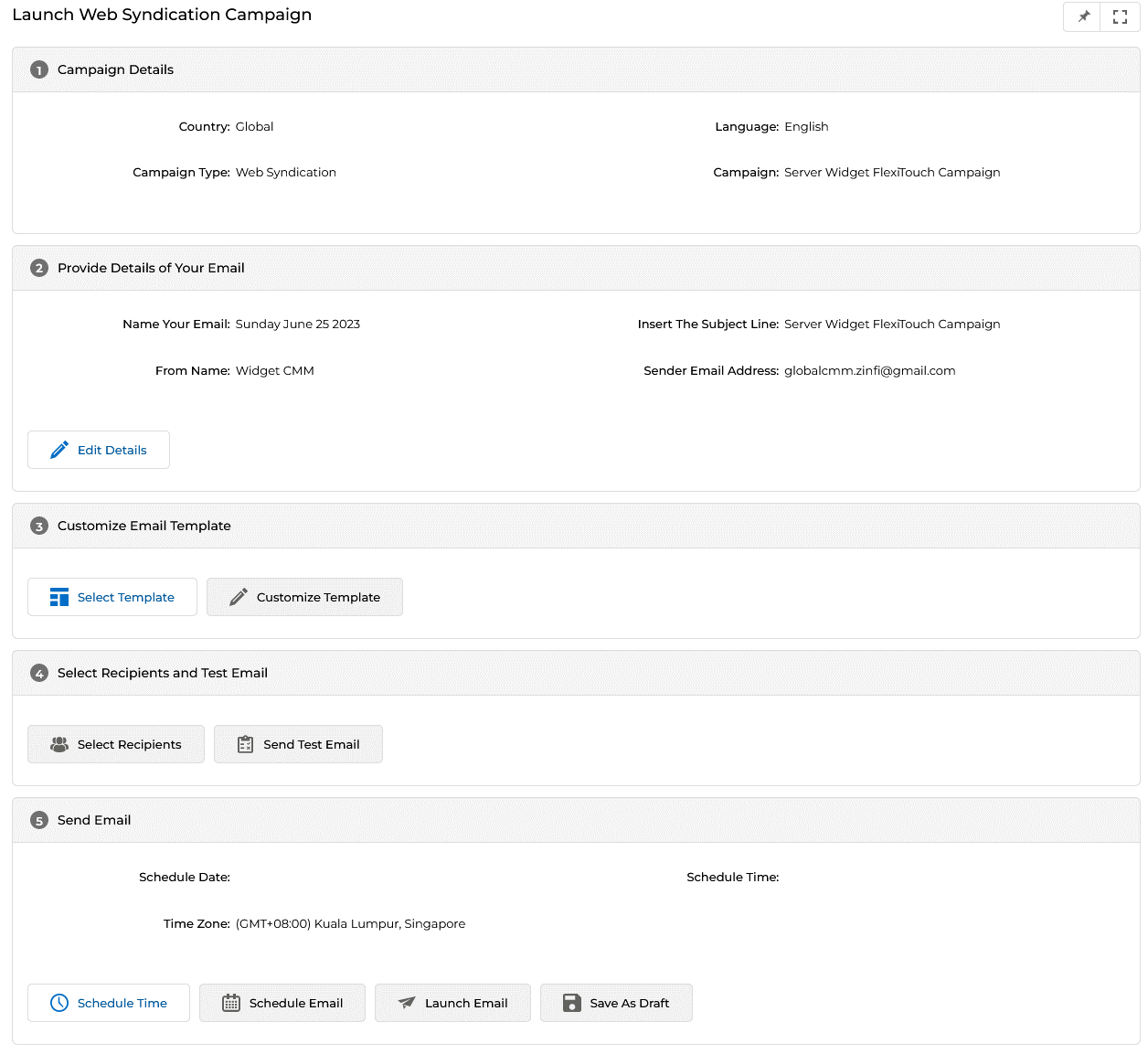
Clicking the Launch button for any tactic (for example, Web Syndication or Email) opens the campaign execution page. The page is divided into five numbered sections:
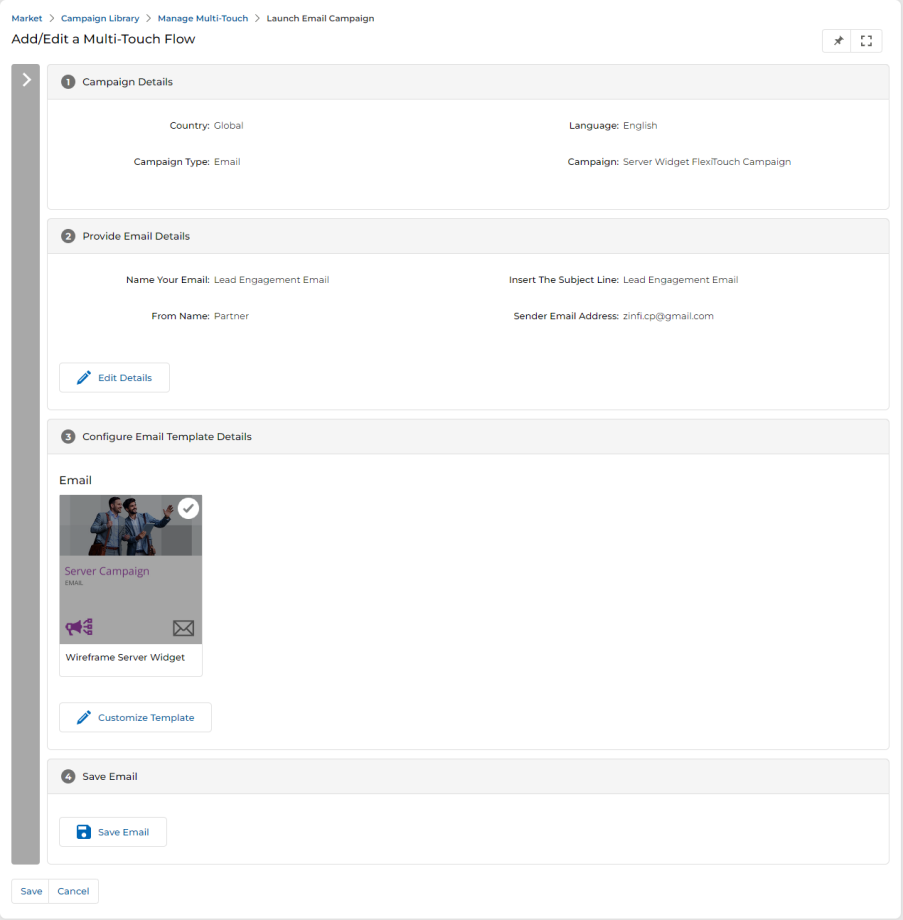
a. Campaign Details
This section is non-editable. It displays the campaign context: Country, Language, Campaign Type, and Campaign Name.
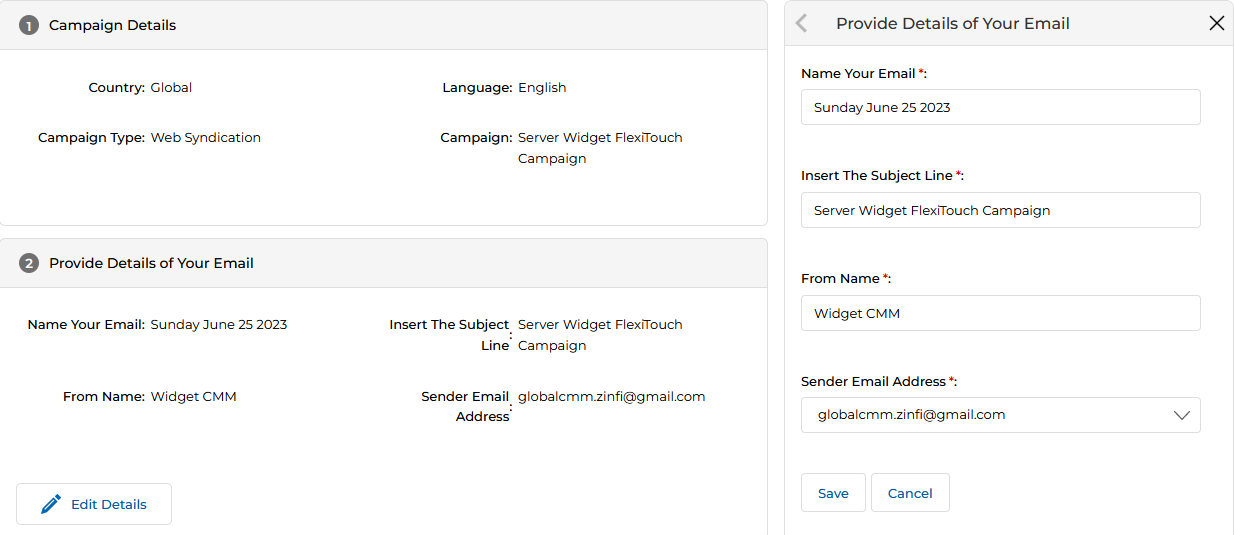
b. Provide Details of Your Email
Configure the outgoing email blast details. Click Edit Details to open the right-hand edit panel and fill in:
| Field | Description |
|---|---|
| Name Your Email | Internal name for the email blast. Blank by default — must be populated. |
| Insert the Subject Line | Subject line the recipient will see. Blank by default — must be populated. |
| From Name | The sender name displayed in the recipient's inbox. |
| Sender Email Address | The reply-to or from email address shown to recipients. |
c. Customize Email Template
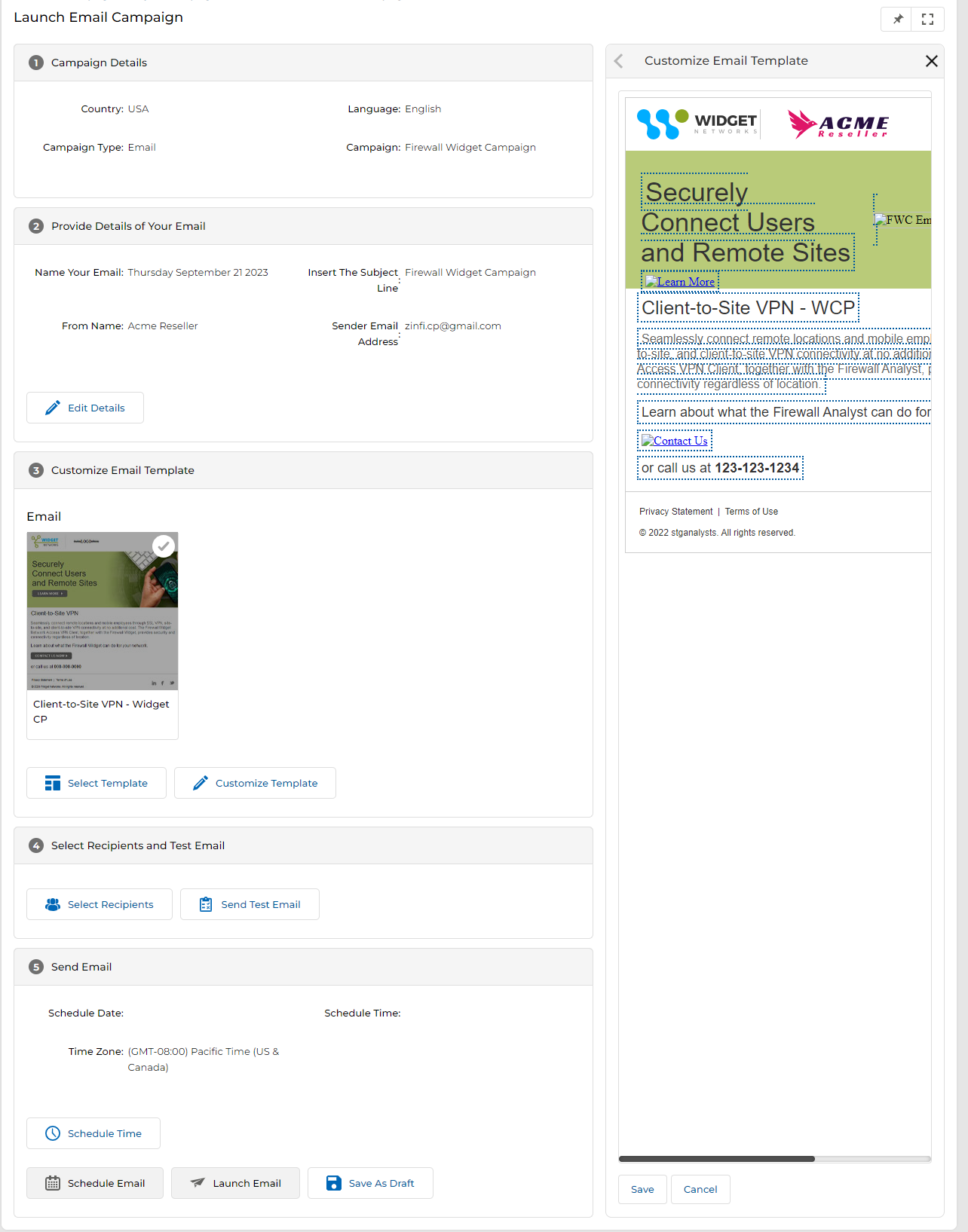
Click Select Template to choose the email template you want to use — either a previously co-branded template or a master template to co-brand now. Once selected, click Customize Template to open the editor in the right-hand workspace.
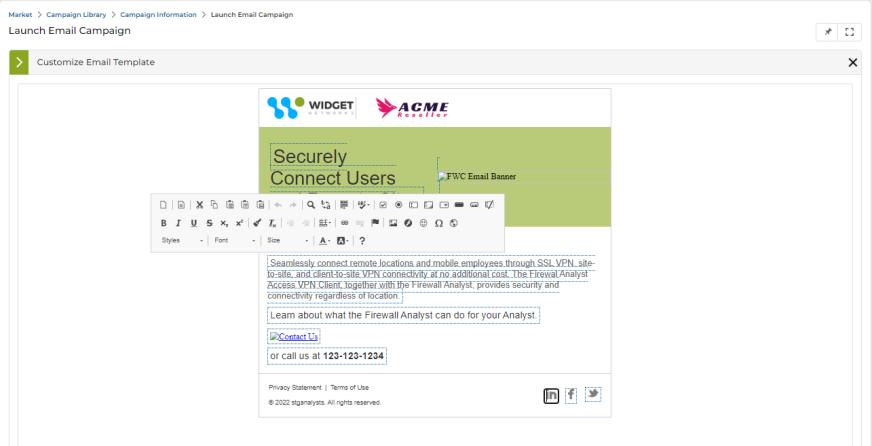
- Editable areas are enclosed in dotted lines. Hovering over any editable area changes its background to grey; clicking activates the CK Editor for rich text editing.
- Social Connector icons in the email footer are also editable — hovering triggers the grey state, and clicking opens the CK Editor to link them to your social pages.
d. Select Recipients and Test Email
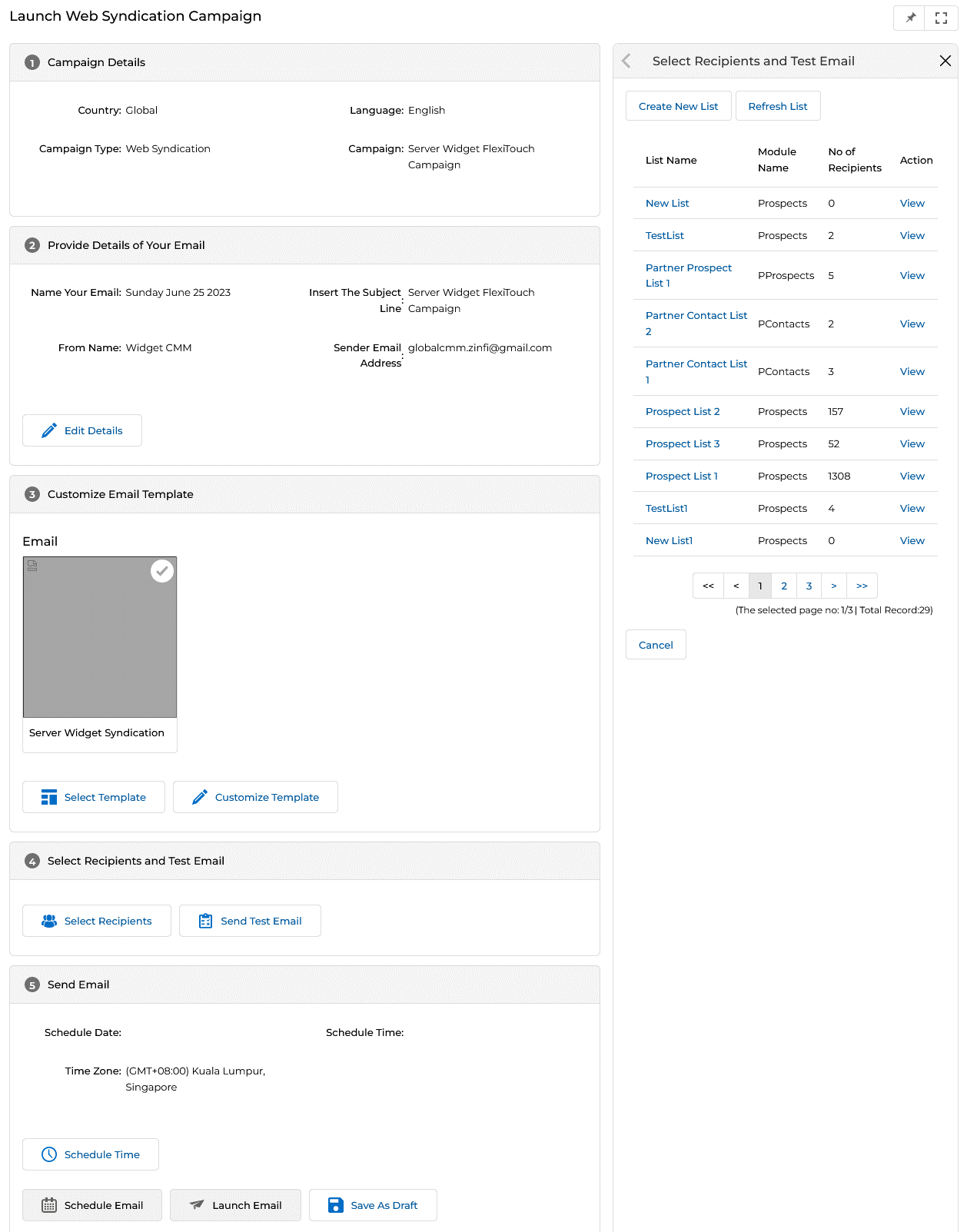
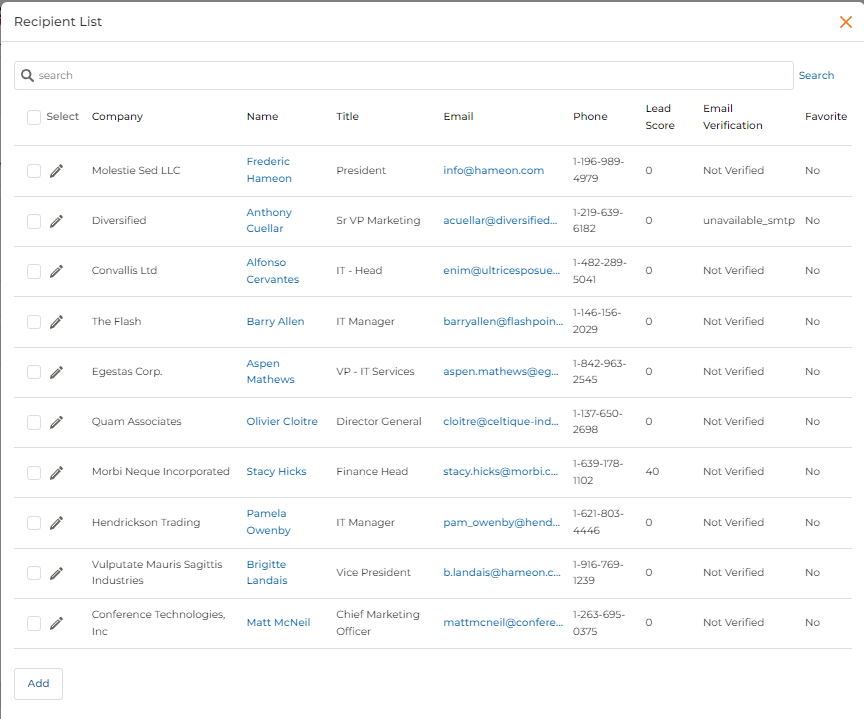
- Click Select Recipients to choose from your prepared mailing lists, or click Create New List to build a new list on the spot.
- Once a list is selected, click Send Test Email to send a test campaign receipt.
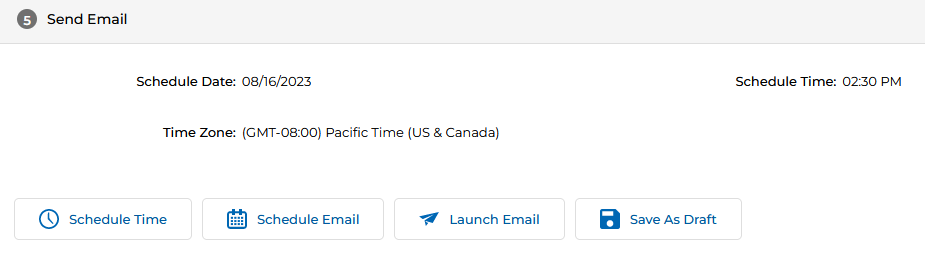
e. Send Email
The final section offers four dispatch options:
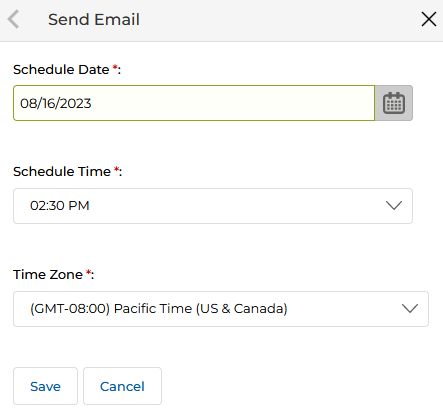
- Schedule Time — Opens the Send Email dialog to select a specific date, time, and time zone. Click Save to confirm.
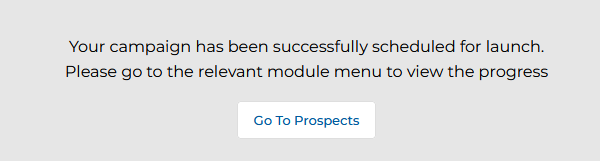
- Schedule Email — Queues the email to send at the scheduled time. A confirmation message appears on screen.
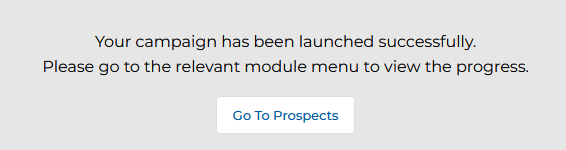
- Launch Email — Blasts the email immediately. A confirmation confirms the email was launched successfully.
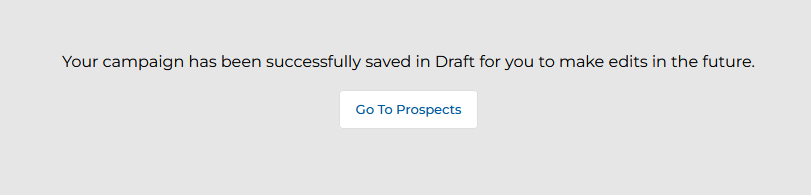
- Save As Draft — Saves the campaign configuration as a draft for future editing. A confirmation confirms the draft was saved.
Multi-Touch Campaigns
Multi-Touch Campaigns are automated drip sequences assigned by the Admin — combining emails, microsites, and other tactics in a sequential flow. Partners copy an assigned flow, co-brand each step, and then launch the complete sequence to a mailing list.
4.1 View Campaigns
Multi-Touch Campaigns are visible in the Campaign Library under the Multi-Touch execution type. To access them, look for campaigns whose Execution Type is listed as Multi Touch in the Campaign Library, then click Get Started.
4.2 Manage Campaigns
Clicking Get Started on a Multi-Touch campaign opens the Campaign Interstitial page. From there:
- Click the Set-up & Launch button in the Multi-Touch tactic tile to open the Manage Multi-Touch page.
- The Manage Multi-Touch page opens, showing all flows assigned to the partner under the Assigned to You tab. Each entry displays its Status — either Draft or Ready for Copy.
A flow with Status: Draft can only be previewed. A flow with Status: Ready for Copy can be copied by the partner to create a co-branded instance of the campaign workflow.
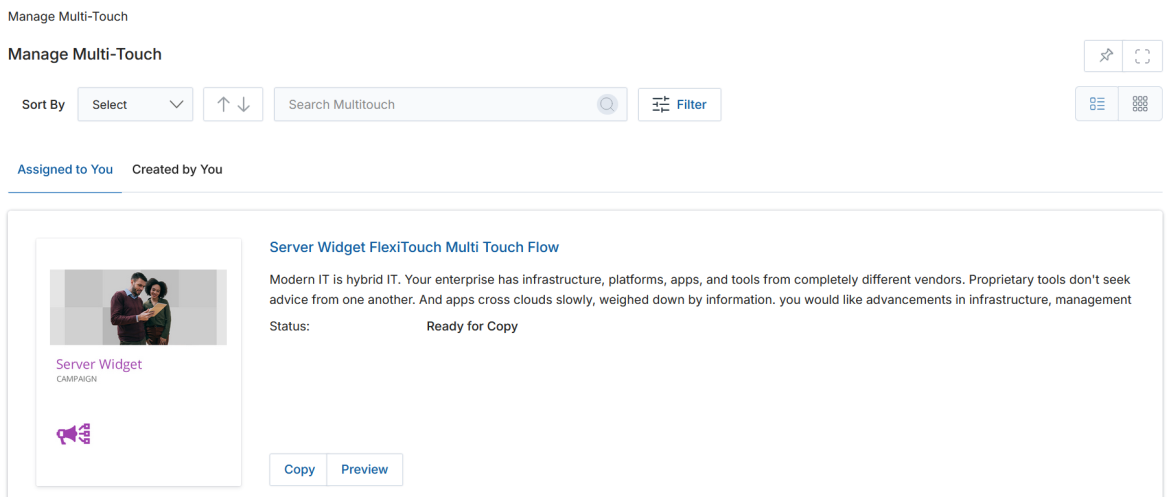
- Click Copy to co-brand the assigned Multi-Touch Campaign and create a new Multi-Touch Flow for your use.
4.3 Multi-Touch Flow
Setting Up the Flow
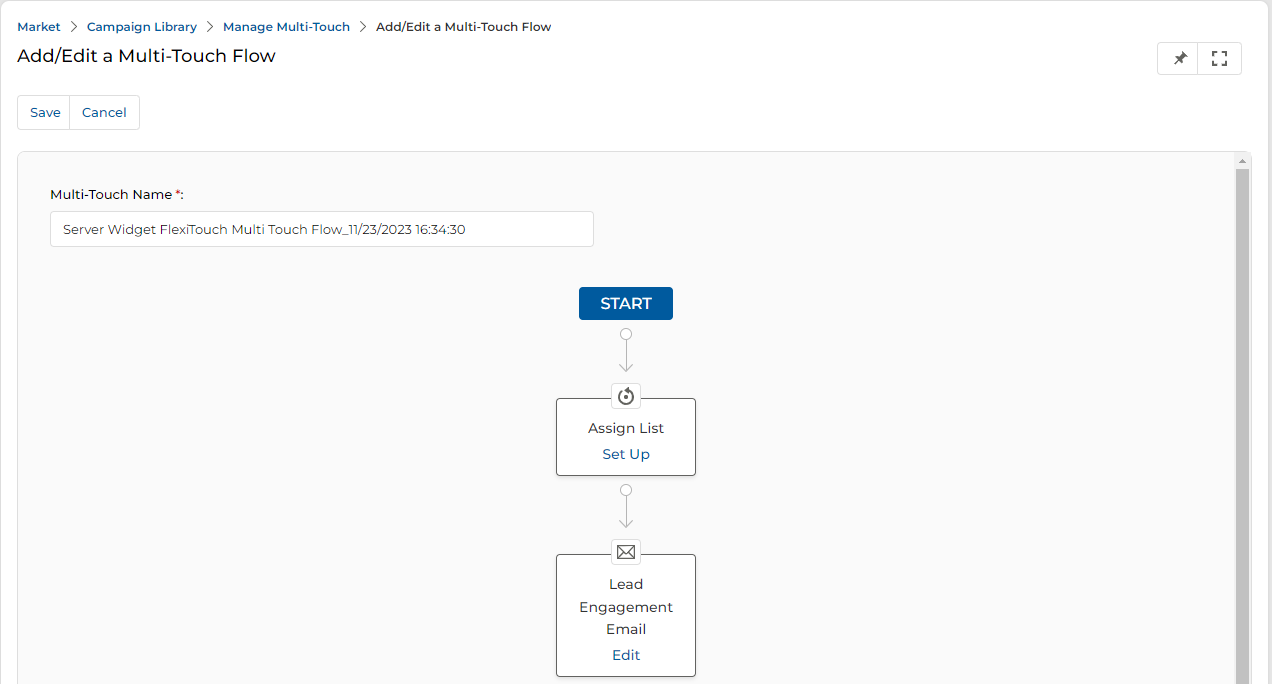
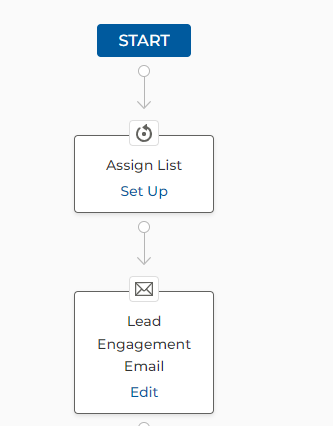
Clicking Copy lands you on the Add/Edit a Multi-Touch Flow page where the flow diagram is displayed. The partner can rename the flow in the Multi-Touch Name field at the top of the page.
Setting Up the List
- Click Set Up in the Assign List flow node to open the list assignment page.
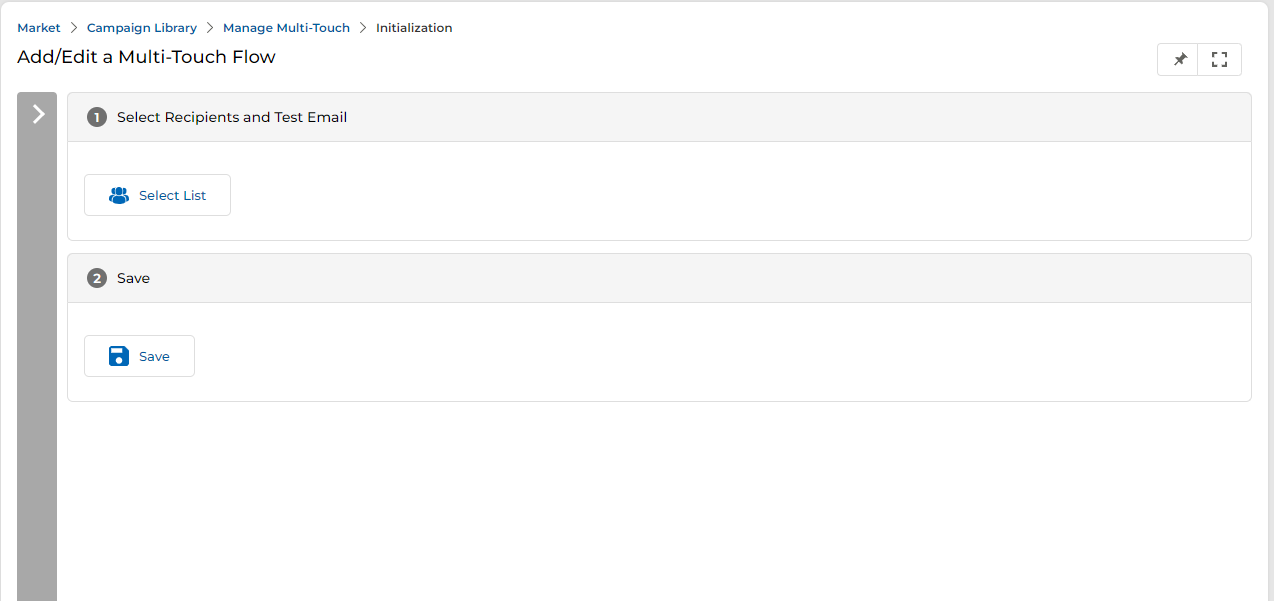
- Click Select List. The Select Recipients and Test Email panel opens on the right, showing all existing mailing lists. Recipients in any list can be viewed in a new tab by clicking View.
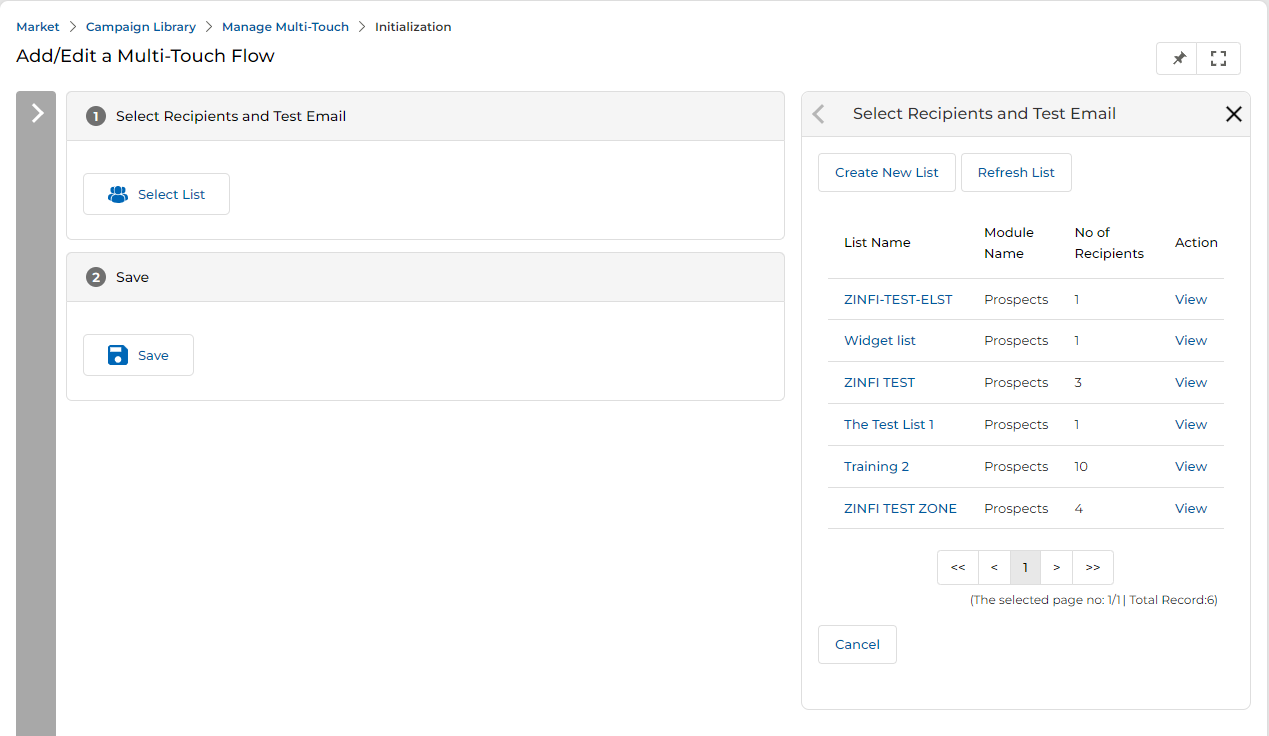
- To view or add recipients to an existing list, click the list name to open the View Mailing Details page. From there, click Add Recipient to search for and add individual contacts.
- Click Create New List in the panel to build a new mailing list from scratch.
- Select the desired list from the right-hand panel; the chosen list appears in the Select Recipients and Test Email section. Click Save to confirm.
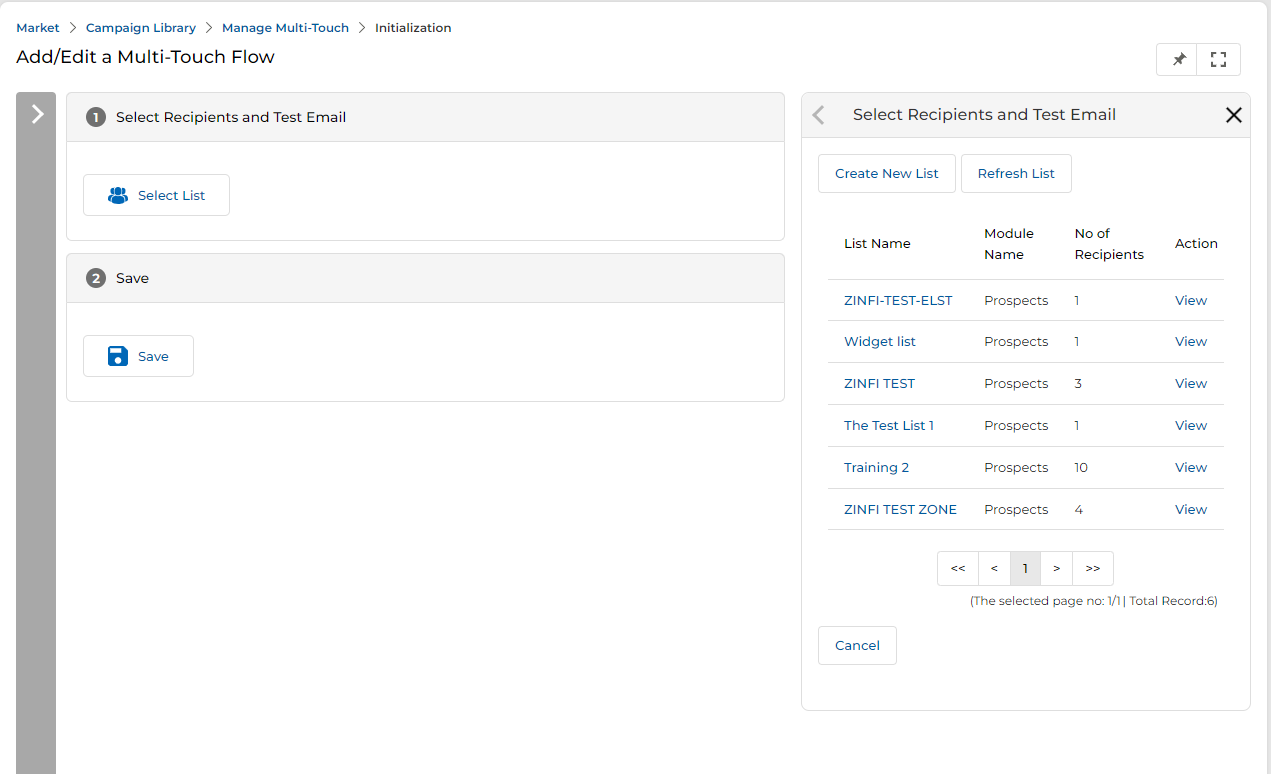
- Once saved, the partner is redirected to the Add/Edit Multi-Touch Flow page. The Assign List action box updates from Set Up to Edit and its color changes from white to green, indicating that step is complete.
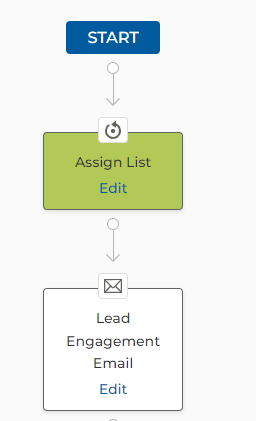
Throughout the entire flow, whenever the partner modifies any content or tactic, the respective Process Box changes its color from white to green. This provides a visual status indicator of which flow steps have been co-branded.
Editing the Lead Engagement Email
In the flow, the partner can click Edit on any tactic node to modify its content. For example, clicking Edit on the Lead Engagement Email node opens the email configuration page.
Setting Up the Microsite
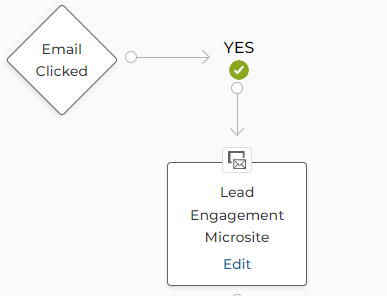
Similarly, the partner can edit the Lead Engagement Microsite node in the flow by clicking Edit.
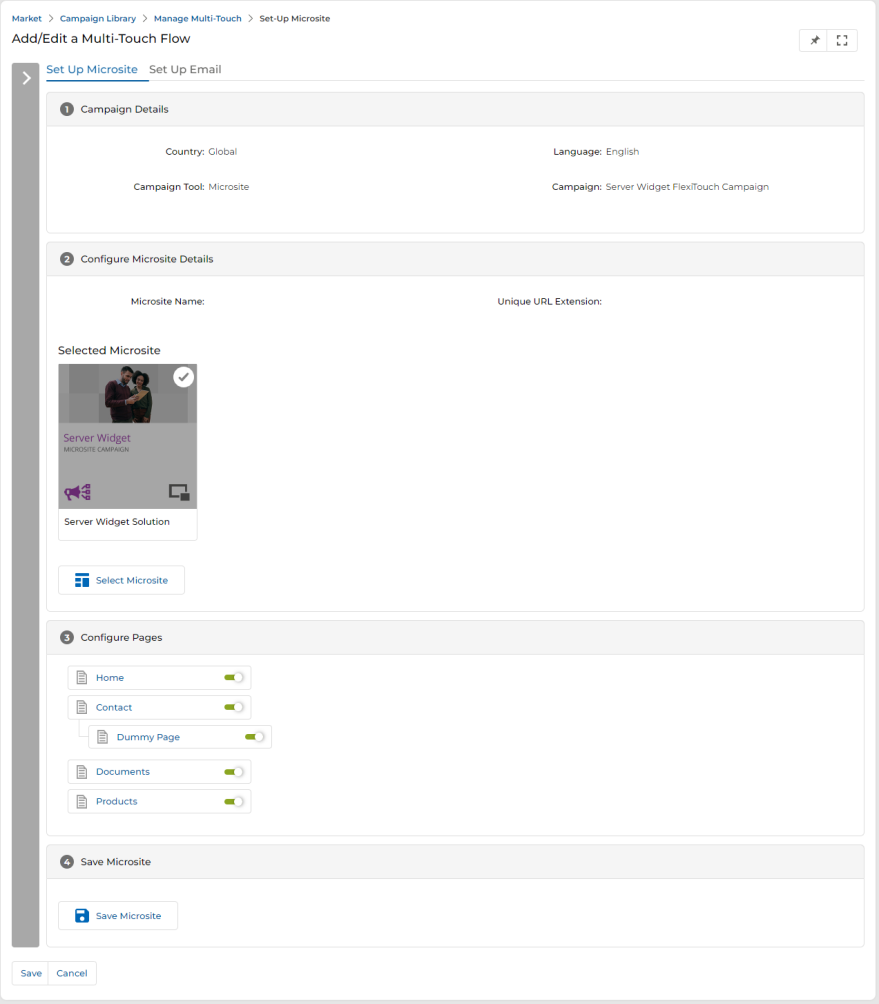
On the Set Up Microsite page:
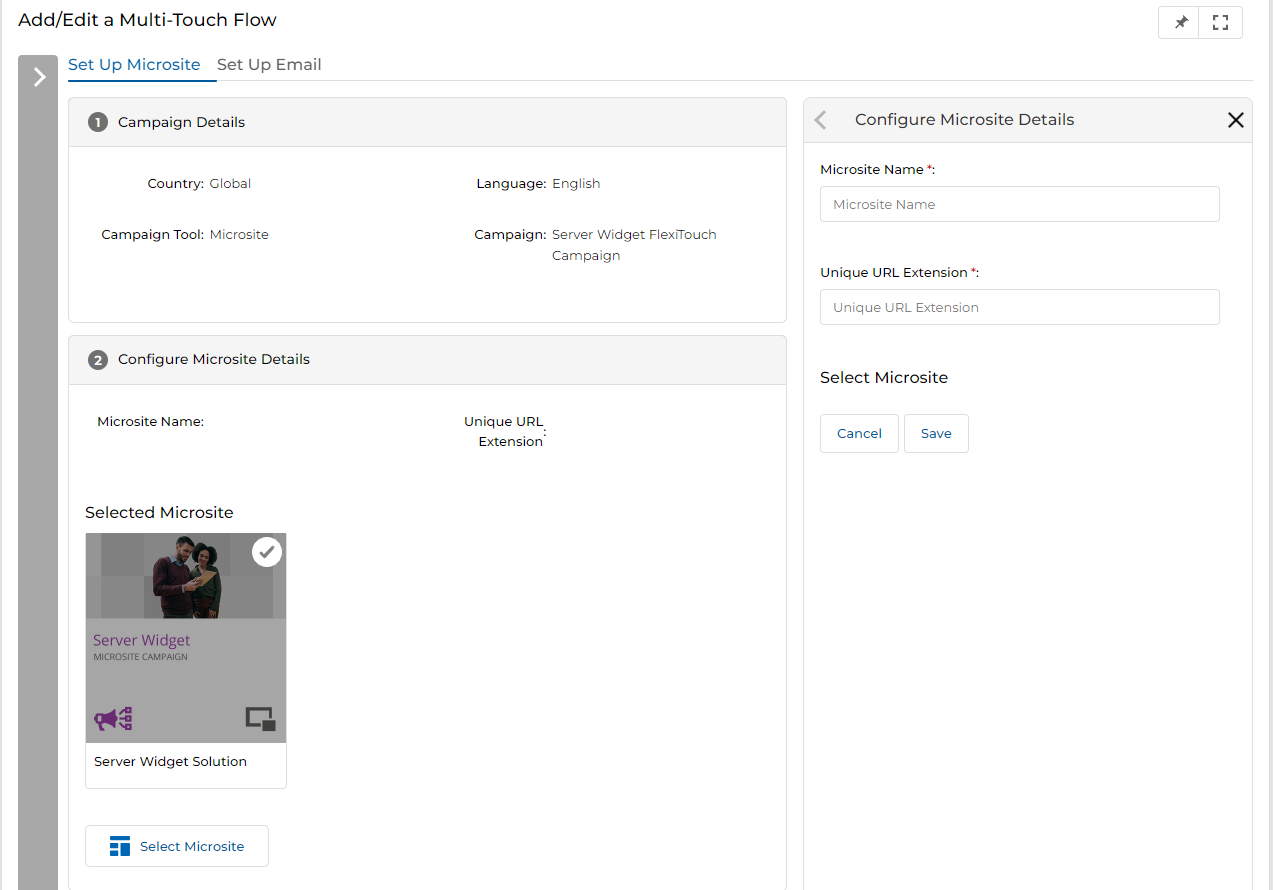
- Click Select Microsite to open the Configure Microsite Details panel. Fill in the Microsite Name and Unique URL Extension, then click Save.
- In the Configure Pages section, toggle individual pages on or off as required.
- Click Save Microsite to save the configuration.
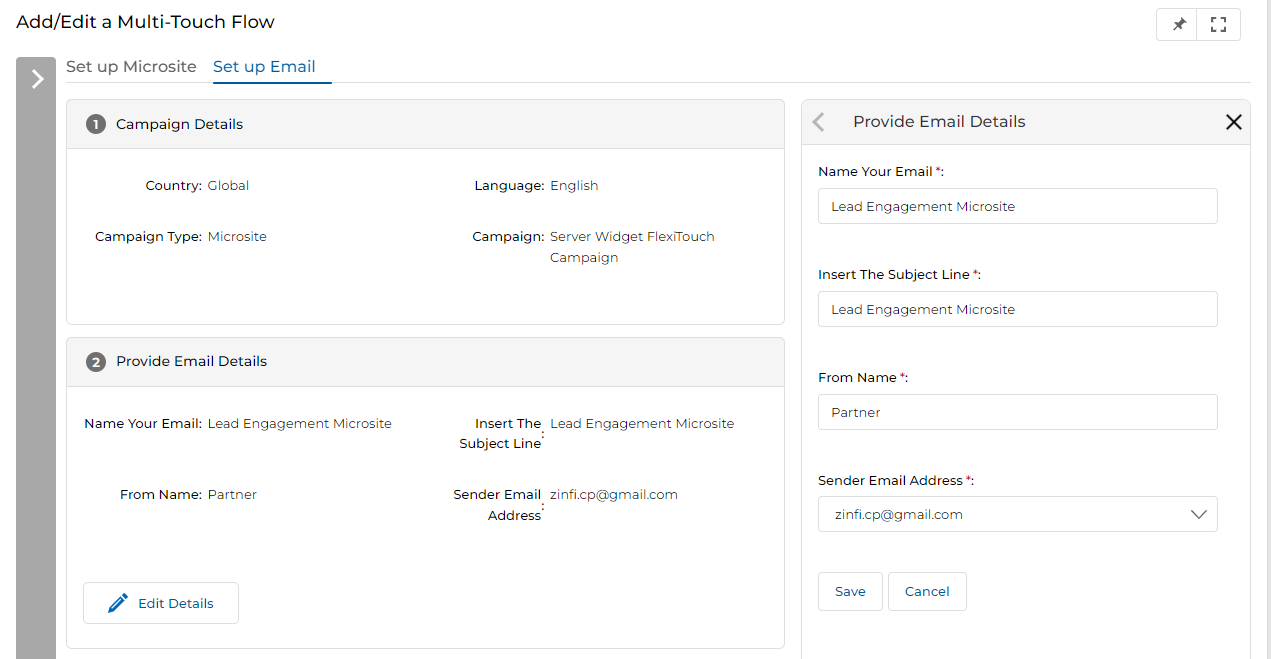
Set Up Email (within Microsite node)
After saving the microsite configuration, switch to the Set Up Email tab to configure the associated trigger email for this microsite step.
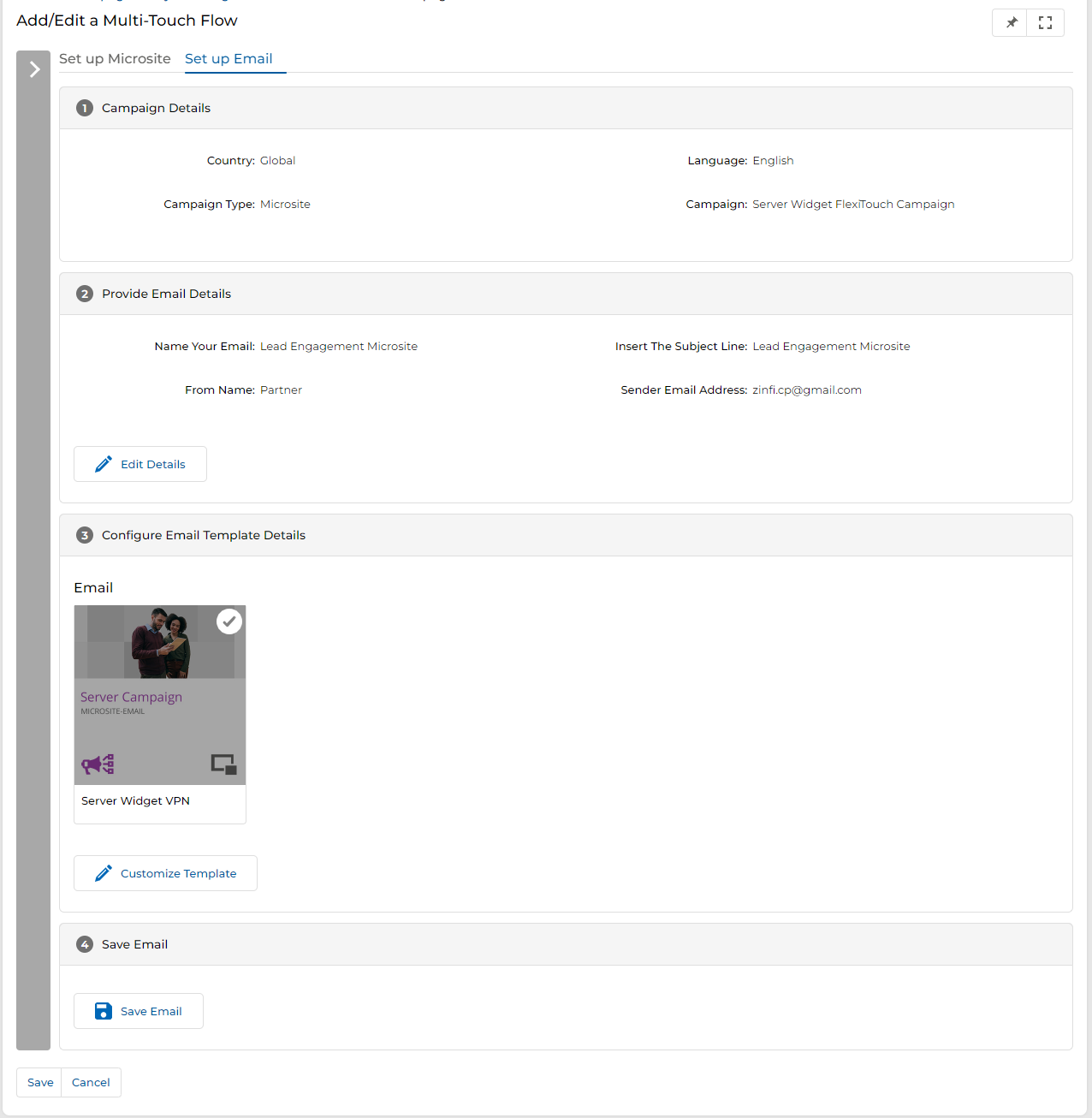
Click Edit Details to update the email name, subject line, from name, and sender address for this step:
4.4 Launching the Campaign
- Once the entire flow is configured and saved, it appears under the Created by You tab in the Manage Multi-Touch page. Completed flows show Status: Ready for launch; incomplete drafts show Status: Draft.
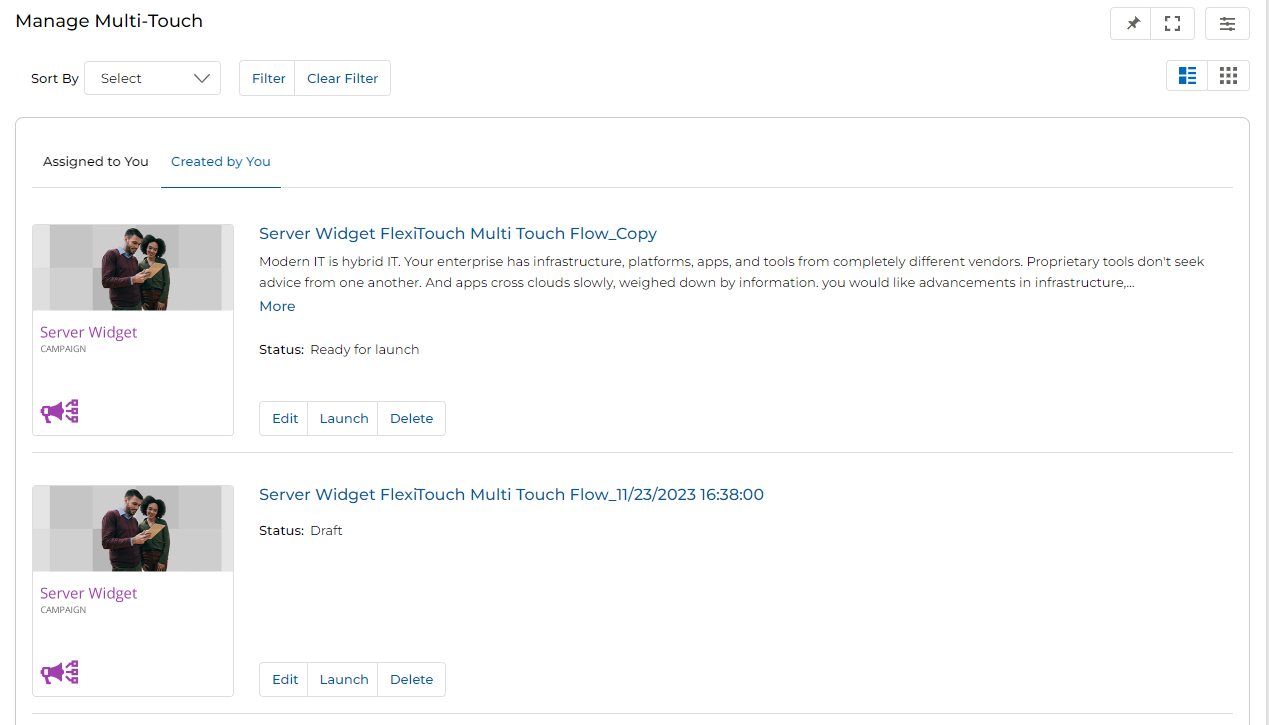
- Click the Launch button next to the flow. Once clicked, the Status changes from Ready for launch to Launched.
Use the Edit button on the Manage Multi-Touch page to revisit and modify the flow before launching. Use Delete to remove a flow that is no longer needed.