
Introduction
The ZINFI Partner Co-Selling Management application enables partners to collaboratively engage with vendors on shared opportunities through a single, structured platform. It provides end-to-end visibility into Co-Sell deals, streamlines collaboration, and ensures alignment throughout the deal lifecycle — from creation to approval and closure.
Using the Co-Sell Hub, partners can create and manage Co-Sell opportunities, track deal progress, collaborate through tasks and notes, share documents, and participate in approval workflows.
Co-Sell Hub
What Does It Do?
The Co-Sell Hub serves as a centralized repository for all Co-Sell opportunities created and managed by partners. It provides a consolidated view of deal status, sales stages, expected close dates, and deal values, enabling effective pipeline tracking and collaboration with vendors.
Accessing Co-Sell Hub
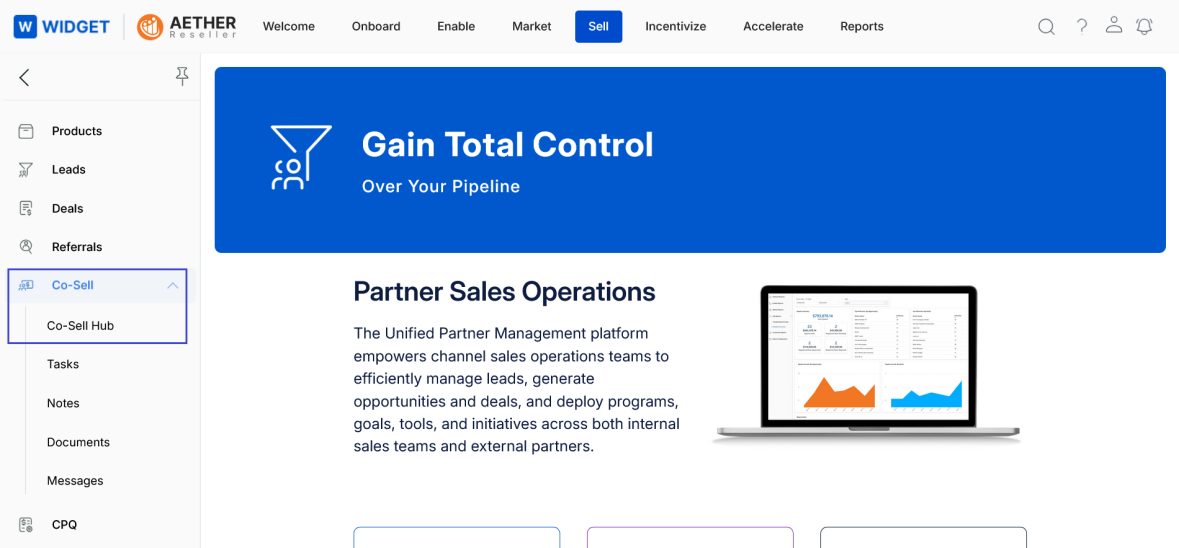
- Click Sell from the top navigation menu.
- From the left navigation panel, click Co-Sell > Co-Sell Hub.
View Co-Sell Hub
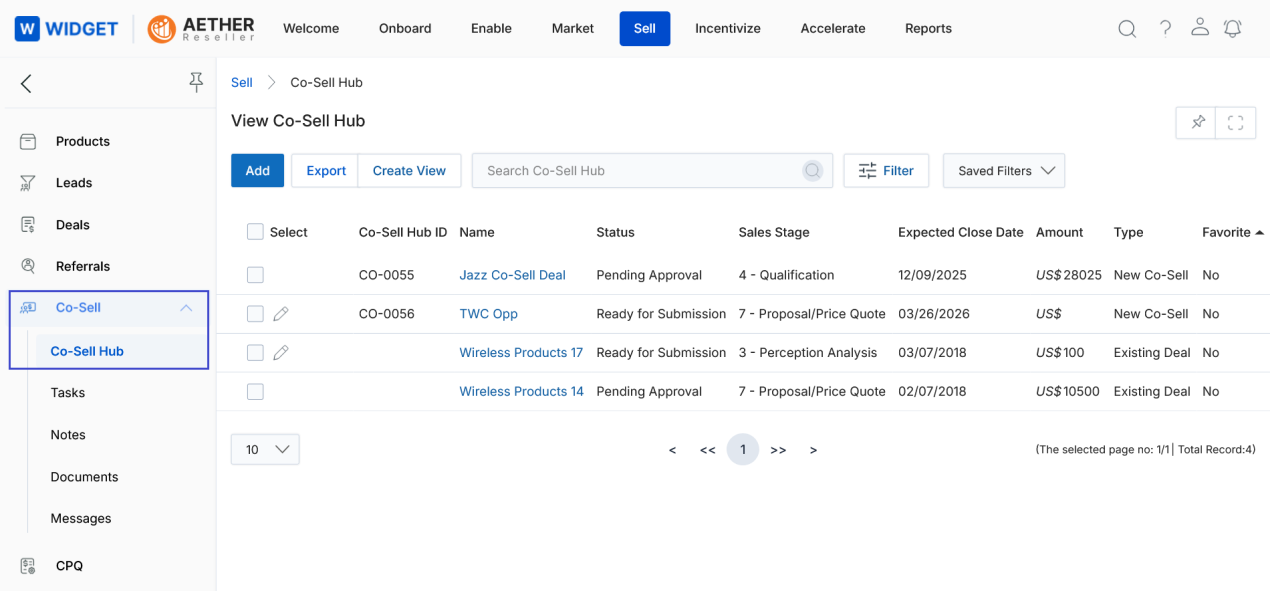
The View Co-Sell Hub page displays a list of all Co-Sell opportunities created by the partner. The grid shows Co-Sell Hub ID, Name, Status, Sales Stage, Expected Close Date, Amount, Type, and Favorite columns.
The top action bar provides the following actions:
- Add — Create a new Co-Sell opportunity.
- Export — Export selected or all Co-Sell records to CSV format.
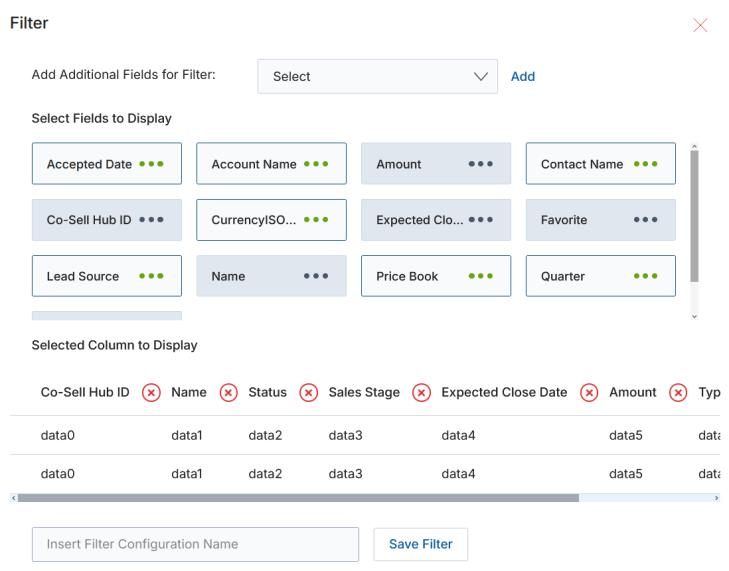
- Create View — Customize the columns displayed in the listing view. Use the field selector to choose which attributes appear, arrange them in the Selected Columns section, and save the configuration with a Filter Configuration Name.
- Search — Quickly locate Co-Sell records using keyword search.
- Filter — Apply Basic or Advanced filters to refine records.
- Saved Filters — Access previously saved filter configurations.
Search and Filter Co-Sell Records
Basic Filter
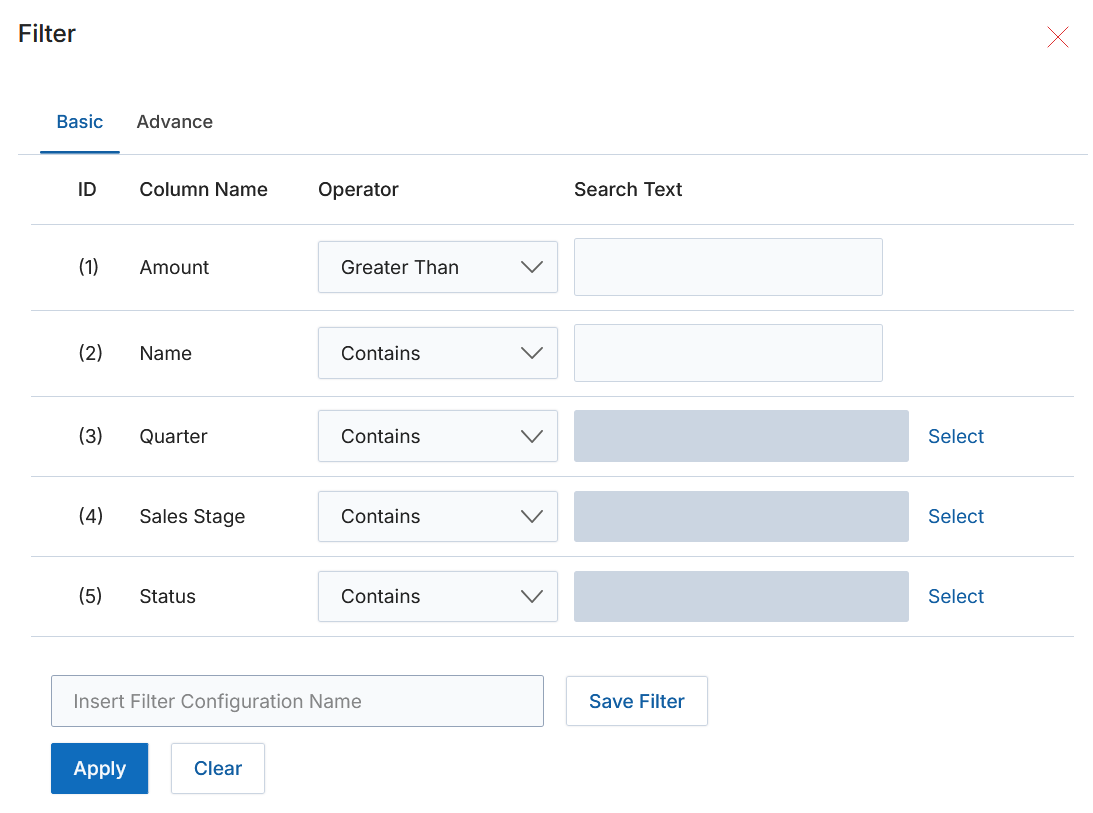
The Basic Filter allows partners to filter Co-Sell records using commonly used fields:
- Click Filter on the View Co-Sell Hub page.
- Under the Basic tab, select the required fields, operators, and values.
- Click Apply to view filtered results.
- Optionally, save the filter by entering a Filter Configuration Name and clicking Save Filter.
Advanced Filter
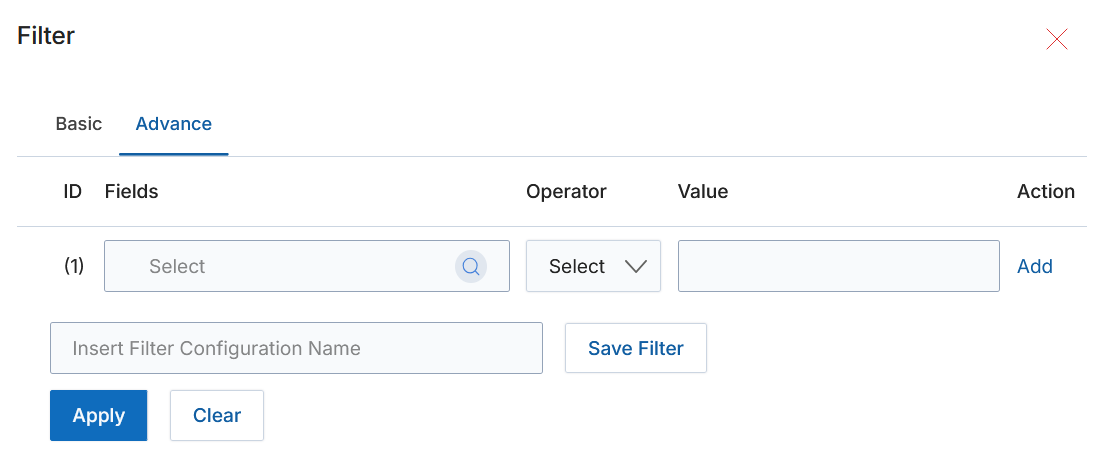
The Advanced Filter enables more complex filtering using multiple criteria and logical operators. Key capabilities include multiple field selection, operators such as Contains, Equals, and Greater Than, and combined AND/OR logic.
- Click Filter and navigate to the Advance tab.
- Define multiple filter conditions by selecting fields and operators.
- Click Apply to run the filter, or Save Filter to reuse it.
View a Co-Sell
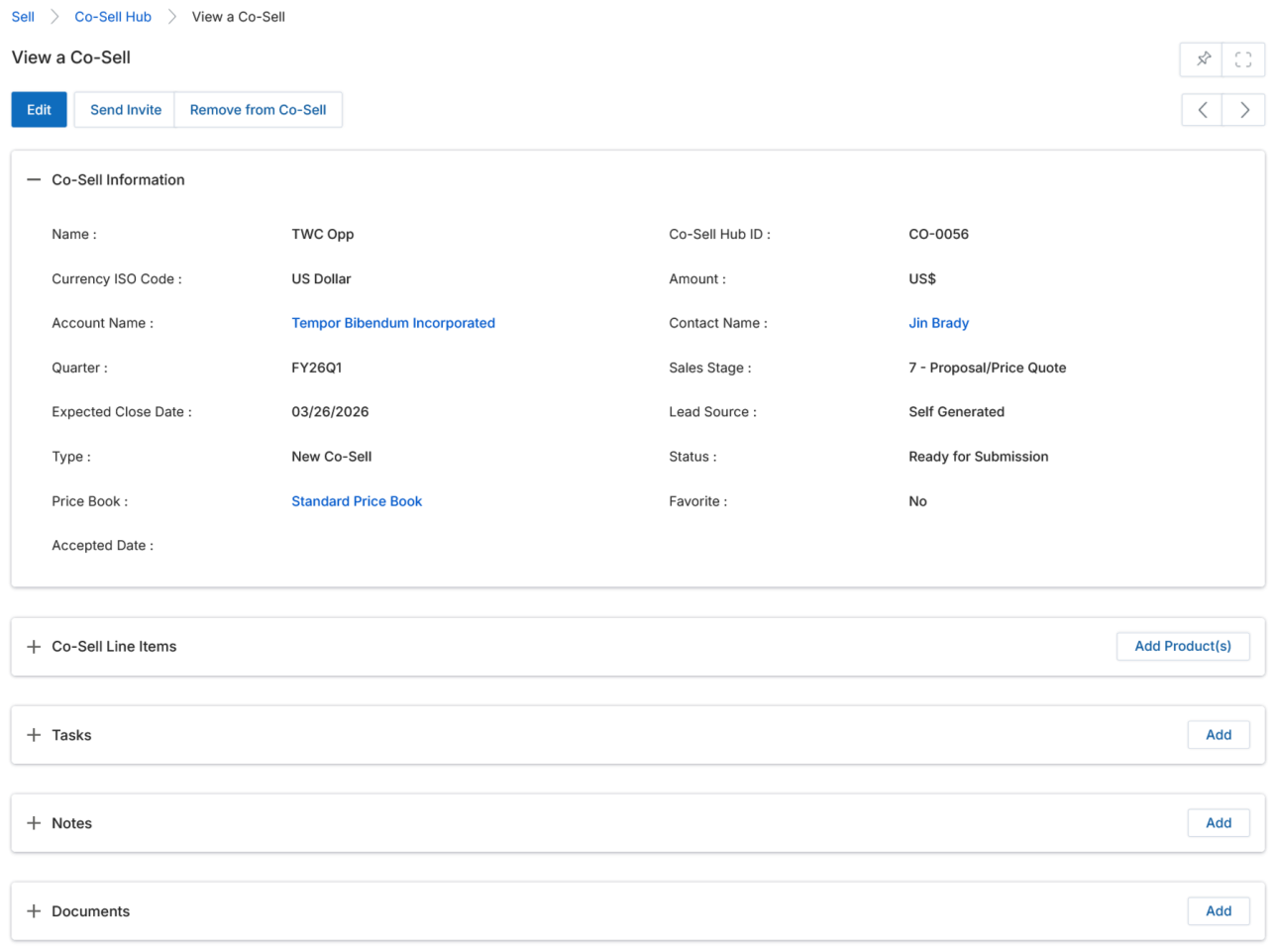
The View a Co-Sell page displays complete details of a selected co-sell opportunity and allows users to manage associated collaboration activities. Click any Co-Sell Name in the grid to open this page.
Page-Level Actions
- Edit — Opens the co-sell record in Edit mode to update its details.
- Send Invite — Sends an invitation to collaborate on the co-sell opportunity.
- Remove from Co-Sell — Removes the selected record from the Co-Sell Hub.
Co-Sell Information
The Co-Sell Information section displays the following key fields:
| Field | Description |
|---|---|
| Name | Name of the co-sell opportunity. |
| Co-Sell Hub ID | Unique system-generated identifier for the co-sell record. |
| Currency ISO Code | Currency used for the co-sell amount. |
| Amount | Estimated value of the co-sell opportunity, calculated from associated line items. |
| Account Name | Customer account associated with the co-sell (clickable link to account details). |
| Contact Name | Primary contact associated with the co-sell (clickable link to contact details). |
| Quarter | Fiscal quarter in which the opportunity is expected to close. |
| Sales Stage | Current sales stage of the co-sell opportunity. |
| Expected Close Date | Expected date for closing the opportunity. |
| Lead Source | How the opportunity was generated. |
| Type | Co-sell type, such as New Co-Sell or Existing Deal. |
| Status | Current status of the co-sell record (e.g., Ready for Submission, Pending Approval). |
| Price Book | Price book associated with the co-sell (clickable link to price book details). |
| Accepted Date | Date on which the co-sell was accepted. |
| Favorite | Indicates whether the co-sell has been marked as a favorite. |
Related Sections on the Co-Sell Details Page
- Co-Sell Line Items — Captures product-level details associated with the co-sell. Click Add Product(s) to associate products. Line items support accurate pricing, forecasting, and revenue visibility.
- Tasks — Create and manage tasks related to the co-sell. Click Add to create a new task to track follow-ups and coordination activities.
- Notes — Add contextual notes related to the co-sell. Click Add to record comments or updates. Notes provide historical reference for collaboration.
- Documents — Upload and manage documents linked to the co-sell. Click Add to upload supporting materials such as proposals or datasheets. Documents remain linked for reference and audit.
Add / Edit a Co-Sell Opportunity
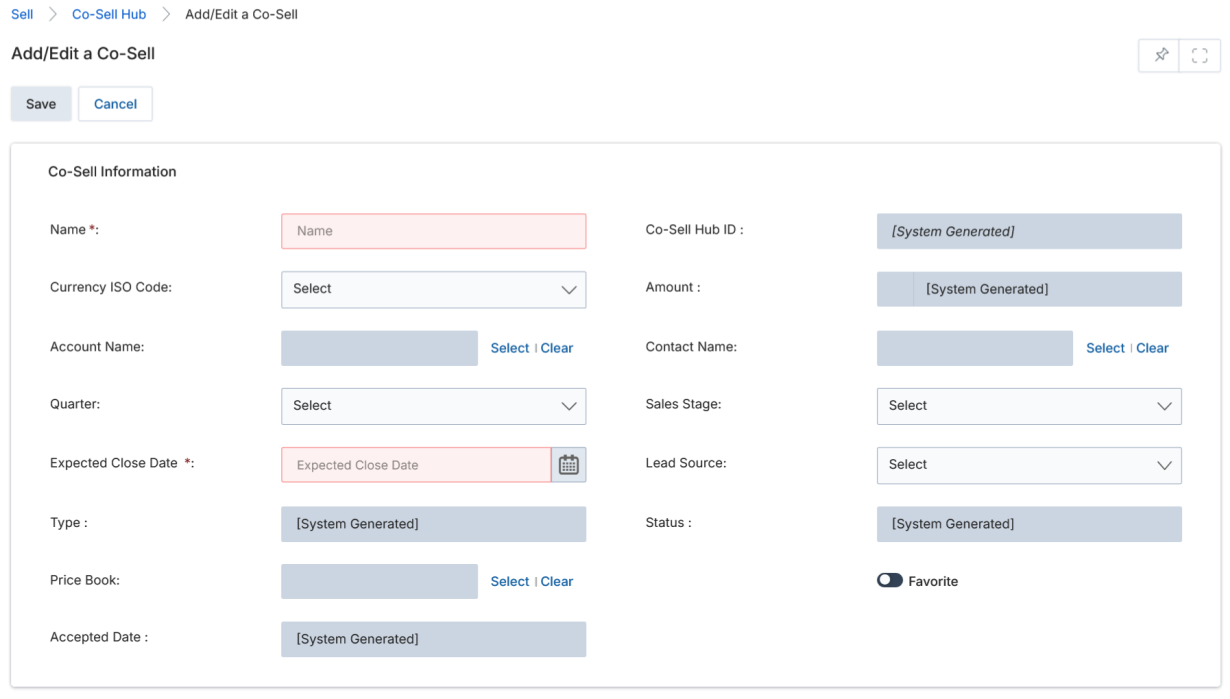
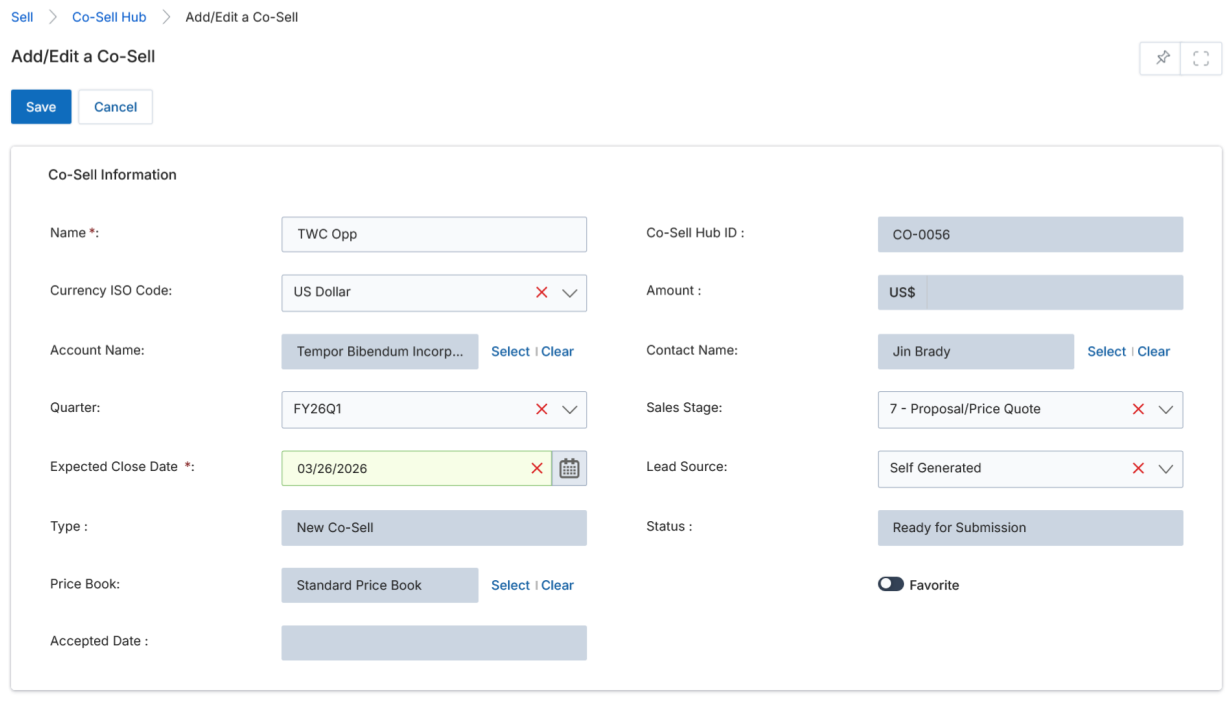
From the View Co-Sell Hub page, click Add to open the Add/Edit a Co-Sell page. Fill in the required fields and click Save.
Co-Sell Information Fields
| Field | Description | Required |
|---|---|---|
| Name | Name of the Co-Sell opportunity. | Yes |
| Co-Sell Hub ID | System-generated unique identifier. Auto-populated on save. | System generated |
| Currency ISO Code | Currency used for the deal value. | No |
| Amount | System-calculated based on associated line items. | System generated |
| Account Name | Customer account associated with the deal. Click Select to pick from existing accounts. | No |
| Contact Name | Primary contact for the opportunity. Click Select to choose. | No |
| Quarter | Fiscal quarter for the opportunity. | No |
| Sales Stage | Current stage of the Co-Sell opportunity. | No |
| Expected Close Date | Estimated date of deal closure. | Yes |
| Lead Source | Origin of the opportunity (e.g., Self Generated, Cold Call, Partner). | No |
| Type | System-generated (e.g., New Co-Sell, Existing Deal). | System generated |
| Status | System-generated deal status (e.g., Ready for Submission, Pending Approval). | System generated |
| Price Book | Price book used for product pricing. Click Select to choose. | No |
| Favorite | Toggle to mark the opportunity as a favorite for quick access. | No |
| Accepted Date | System-generated once the deal is accepted. | System generated |
Tasks
Tasks allow partners to track and manage action items related to a Co-Sell opportunity, ensuring timely follow-ups and coordinated execution with OEM teams.
Access Tasks
- Click Sell on the top menu.
- Click Tasks from the left menu bar under Co-Sell.
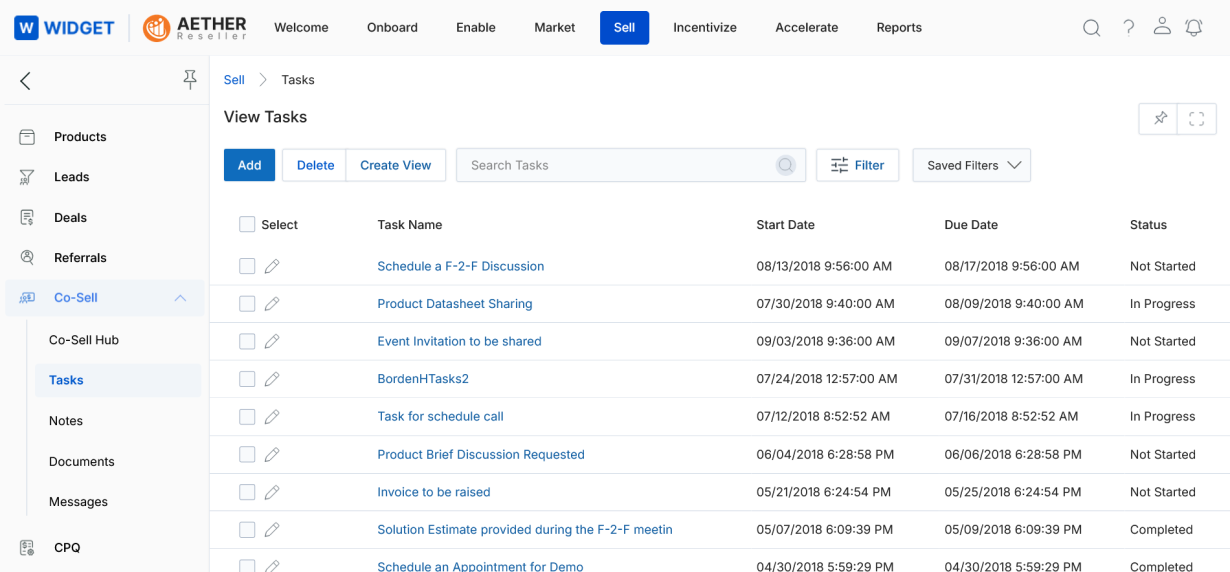
View Tasks
The top action bar provides the following actions:
- Add — Opens a new page to add a task.
- Delete — Deletes selected task(s) from the list.
- Saved Filters — Displays a list of saved searches.
Click a Task Name in the grid to navigate to the Task Details page. Click the pen icon to open the task in Edit mode.
Add / Edit a Task
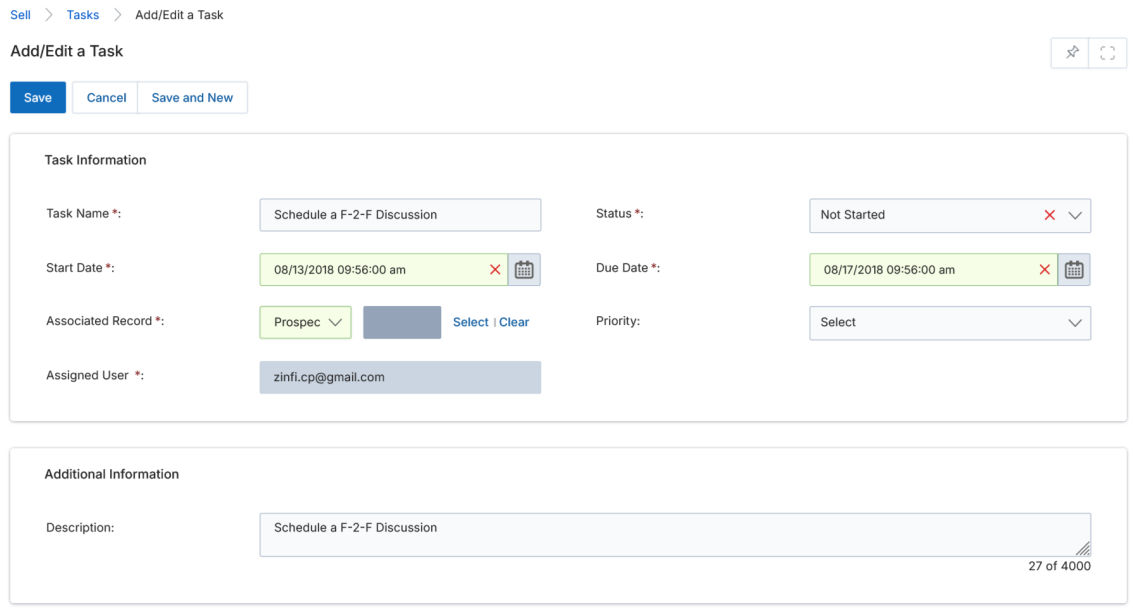
Click Add to create a new task, or click the pen icon to edit an existing one.
Task Information
| Field | Description | Required |
|---|---|---|
| Task Name | Name of the task. | Yes |
| Status | Task status (e.g., Not Started, In Progress, Completed). | Yes |
| Start Date | Date and time when the task starts. | Yes |
| Due Date | Date and time by which the task must be completed. | Yes |
| Associated Record | Select Co-Sell Hub from the module dropdown and choose the relevant co-sell record. | Yes |
| Priority | Task priority level. | No |
| Assigned User | User assigned to complete the task. | Yes |
Additional Information
- Description — Free-text description of the task.
Buttons
- Save — Saves the task and displays it in the View Tasks page.
- Cancel — Cancels the operation without saving.
- Save and New — Saves the task and immediately opens a new Add/Edit Task page to create another task.
Notes
Access Notes
- Click Sell on the top menu.
- Click Notes from the left menu bar under Co-Sell.
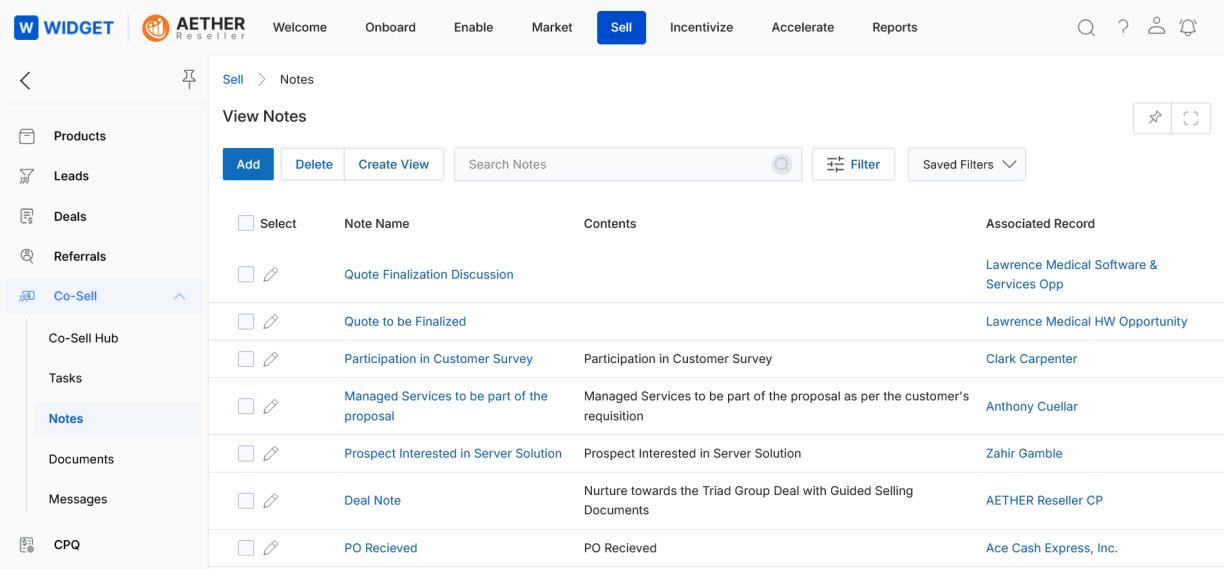
View Notes
The top action bar provides the following actions:
- Add — Opens a new page to add a note.
- Delete — Deletes selected note(s).
- Saved Filters — Displays saved filters with Edit and Delete options.
Click a Note Name to open the Note Details page. Click the pen icon to edit the note. Click the Associated Record link to navigate to the related Co-Sell record.
Add / Edit a Note
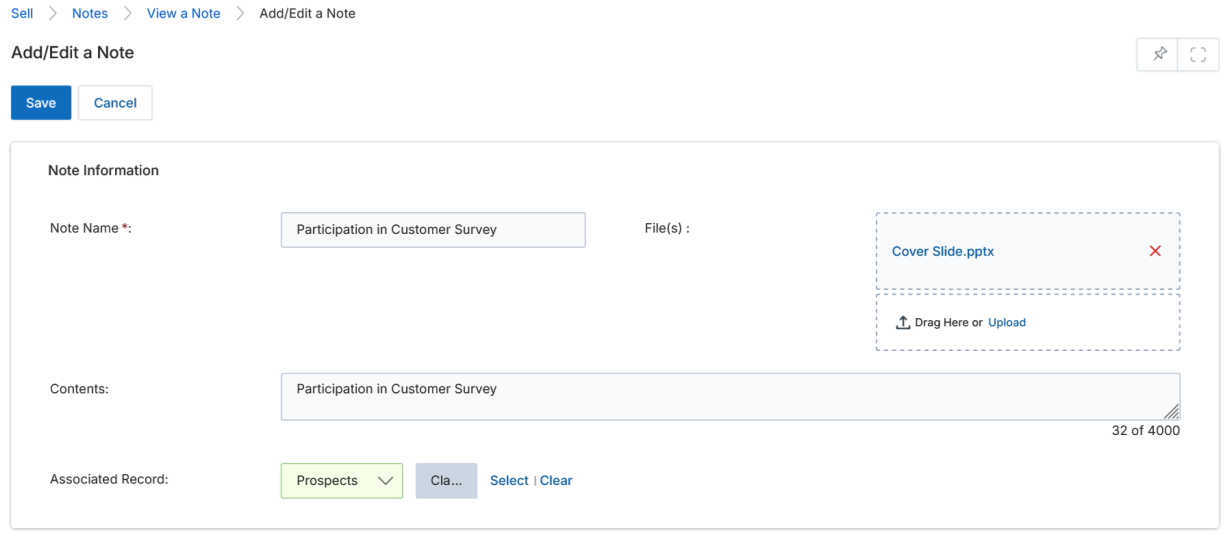
Click Add to create a new note, or click the pen icon to edit an existing one.
Note Information
| Field | Description | Required |
|---|---|---|
| Note Name | Subject or title of the note. | Yes |
| File(s) | Upload file attachments to accompany the note. Supports drag-and-drop or browse upload. | No |
| Contents | Free-text note description or body (up to 4,000 characters). | No |
| Associated Record | Select the module (e.g., Co-Sell Hub) and the relevant record to link the note to. | No |
Click Save to create the note or Cancel to exit without saving.
Documents
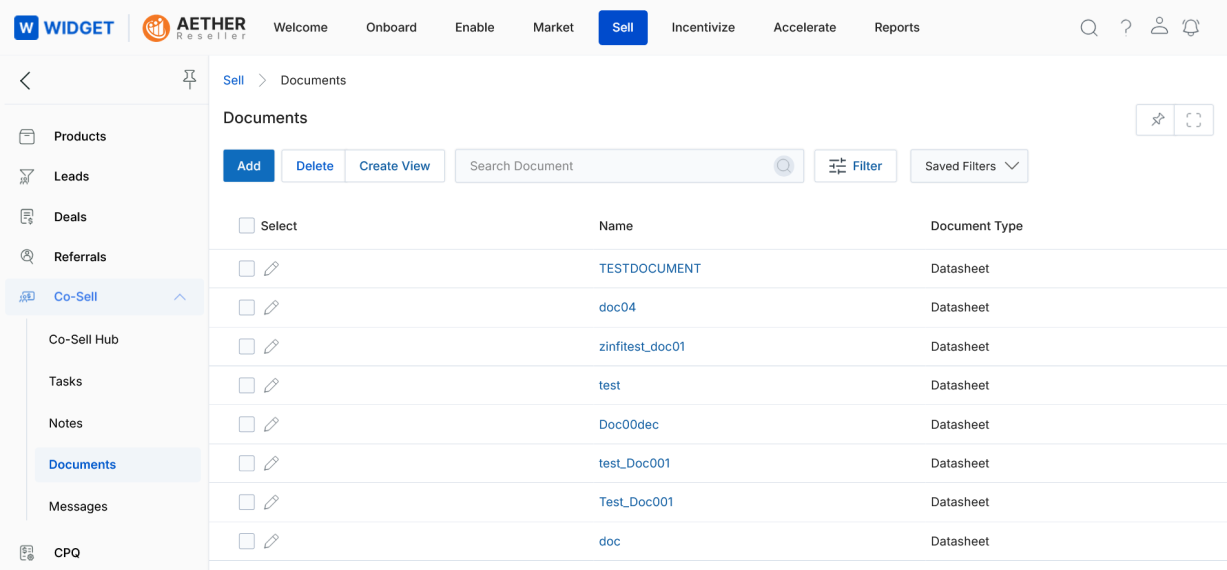
Access Documents
- Click Sell on the top menu.
- Click Documents from the left menu bar under Co-Sell.
View Documents
The top action bar provides the following actions:
- Add — Opens a new page to add a document.
- Delete — Deletes selected document(s).
- Saved Filters — Displays saved searches with Edit and Delete options.
Click a Document Name to open the Document Details page. Click the pen icon to open the document in Edit mode.
Add / Edit a Document
Click Add to upload a new document, or click the pen icon to edit an existing one.
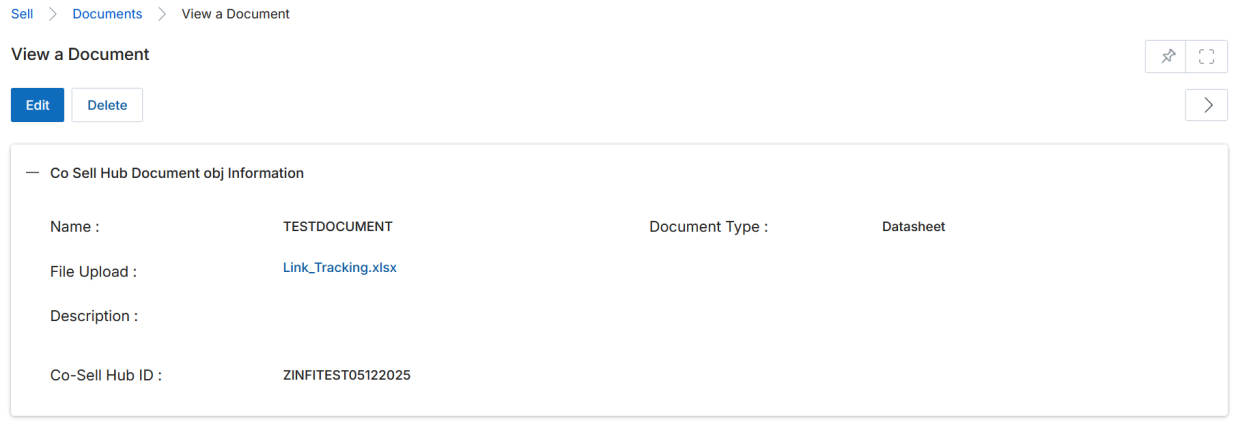
Document Information
| Field | Description | Required |
|---|---|---|
| Document Name | Name of the document. | Yes |
| Document Type | Category of the document (e.g., Datasheet, Proposal, Contract). | No |
| File Upload | Upload the document file via browse or drag-and-drop. | No |
| Description | Optional description of the document's purpose or contents. | No |
| Co-Sell Hub ID | Automatically populated with the linked Co-Sell record's ID. | System generated |
Click Save to create or update the document, or Cancel to quit without saving. Documents remain linked to the co-sell record for reference and audit purposes.