
Introduction
The Configure Price Quote (CPQ) application in ZINFI UPM enables partners to view special pricing and access automated quote approval mechanisms provided by their vendor. The application allows vendors to define and manage product pricing across multiple business lines, and any pricing changes are automatically reflected in partner quotes.
The application provides full tracking of all quotes shared with the vendor, including granular access to sales cycle management details. It also allows the vendor's channel sales team to generate invoices in accordance with quotes and received purchase orders, bringing a systematic approach to PO receipt and invoicing while minimizing human error.
The end-to-end automation of invoice and PO management allows partners to manage all revenue-related activities within a single interface with deeper pipeline visibility.
Quotes
Accessing Quotes
- Click the Sell zone from the top menu.
- Click CPQ > Quotes from the left menu.
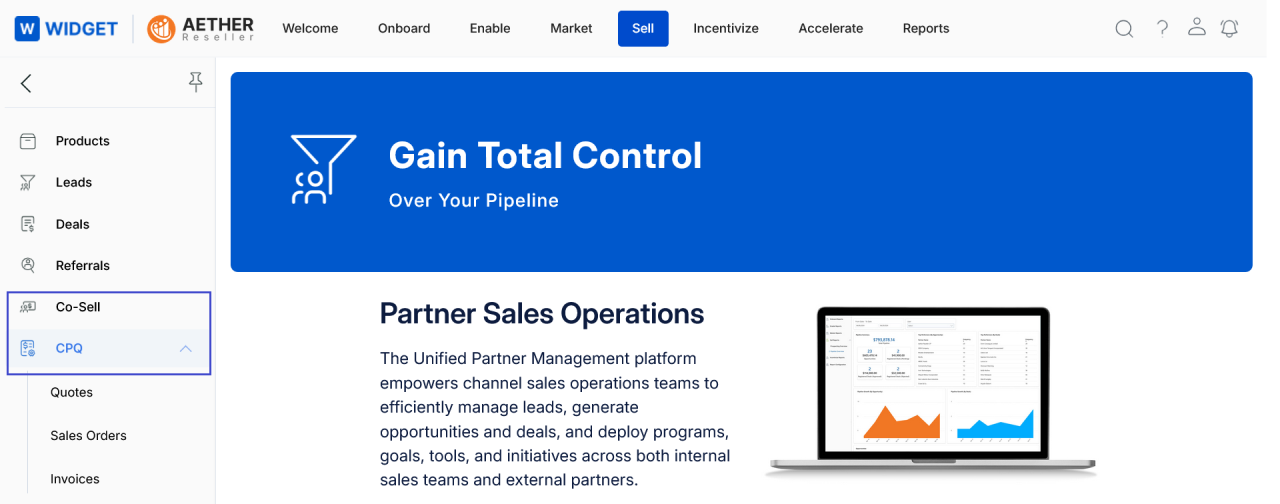
View Quotes
-
Clicking Quotes from the left menu opens the View Quotes page, displaying all generated quotes with their names and current status.
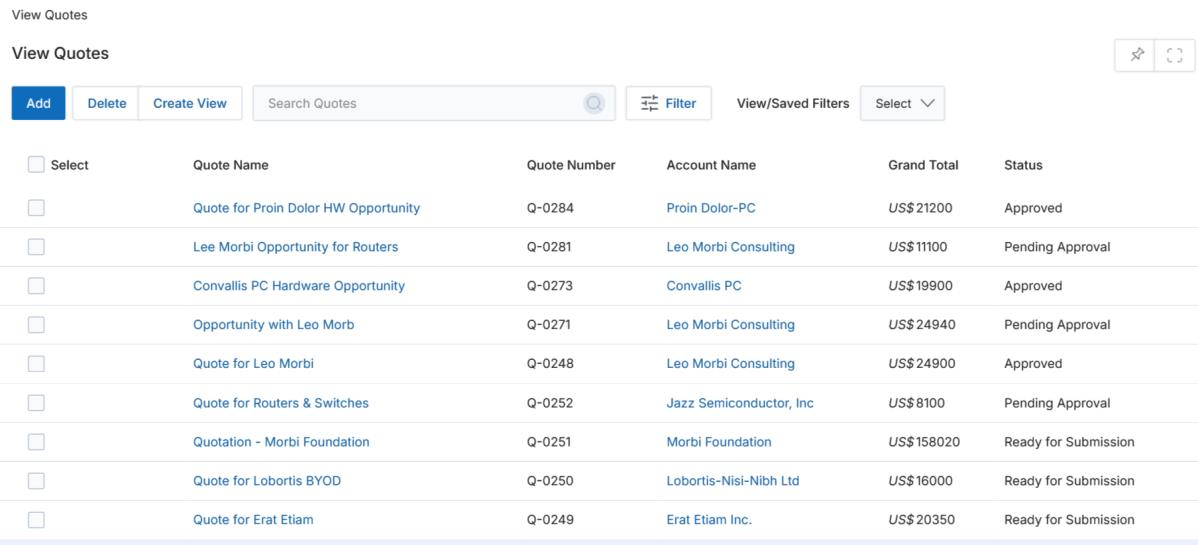
View Quotes — listing page -
The toolbar provides these actions:
- Add — Opens the form to create a new quote.
- Delete — Removes selected quotes from the list.
-
Filter — Searches for records by Currency ISO Code and Status.
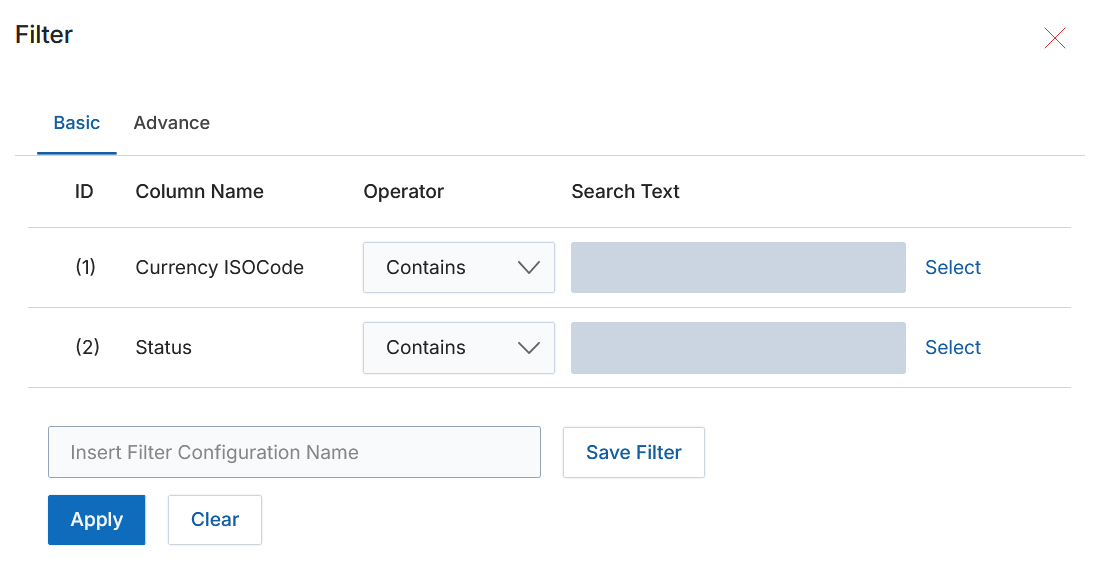
Filter dialog for Quotes - Saved Filters — Shows a list of saved filter configurations in the dropdown.
- Click a Quote Name to open its details page. Click an Account Name to open the Account Details page.
- Click the pen icon to edit a quote. Once a quote is submitted for approval it cannot be edited.
View Quote Details
- To view a quote's details, click its name on the View Quotes page.
-
Clicking a Quote Name with the status Ready for Submission opens the View a Quote detail page.
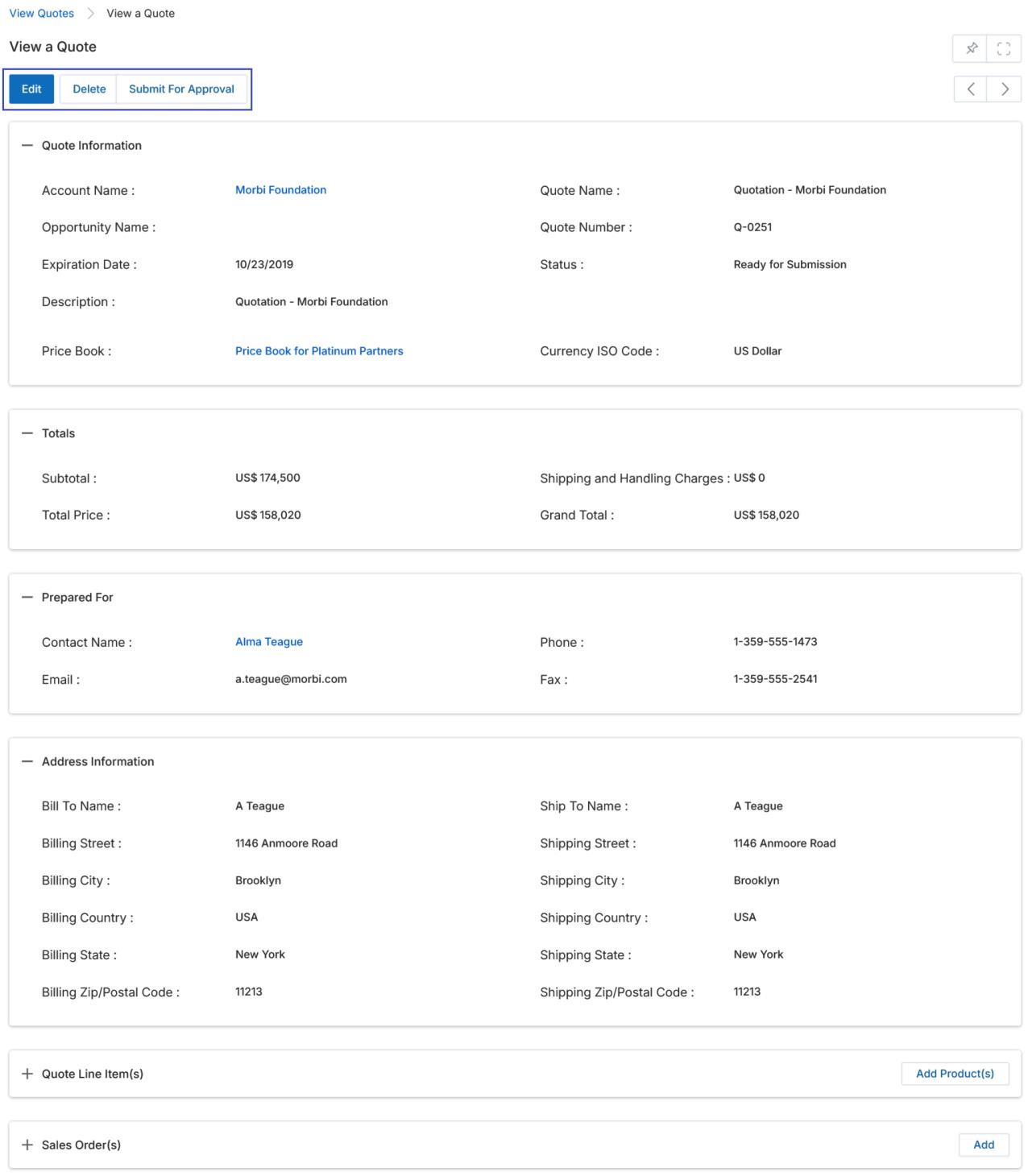
View a Quote — full detail page -
The View Quote page contains the following buttons and sections:
a. Buttons
- Edit — Opens the record for editing.
- Delete — Removes the record from the list.
- Submit For Approval — Click this after completing all required fields to initiate the approval workflow.
The Edit, Delete, and Submit For Approval buttons are hidden when a quote's status is Approved. Approved quotes display an Approval History section instead.
b. Quote Information

Quote Information section Field Description Account Name The sales account this quote is generated for. Quote Name The name of the sales order associated with the quote. Opportunity Name The opportunity this quote is being generated from. Quote Number Auto-generated unique identifier for the quote. Expiration Date The date this quote expires. Status Current status: Draft, Ready for Submission, Pending Approval, Approved, or Rejected. Description A short description of this quote. Price Book The price book used for pricing. Currency ISO Code The ISO code of the currency used for this quote. c. Totals

Totals section Field Description Subtotal Sum of all line item amounts in this quote. Discount The discount amount applied (if any). Shipping and Handling Charges Charges associated with shipping and handling. Total Price Subtotal plus Shipping/Handling Charges. Grand Total Subtotal plus Shipping/Handling minus the Discount. d. Prepared For

Prepared For section Displays the Contact Name, Phone, Email, and Fax of the individual for whom this quote is prepared.
e. Address Information
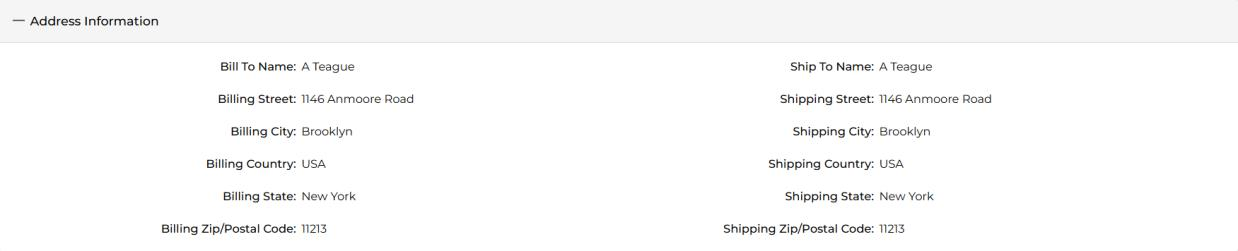
Address Information section Displays the billing and shipping address of the contact, including Bill To Name, Ship To Name, Street, City, Country, State, and ZIP/Postal Code for both.
f. Quote Line Item(s)

Quote Line Item(s) section Shows the products included in this quote, drawn from the associated Opportunity. Use the Add Product(s) button to associate additional products. This button disappears once the quote is submitted for approval.
g. Sales Order(s)

Sales Order(s) related list on a Quote Displays sales orders created against this quote. The Add button disappears once the quote is submitted for approval. See Add a New Sales Order for details.
Add a New Quote
-
On the View Quotes page, click the Add button.
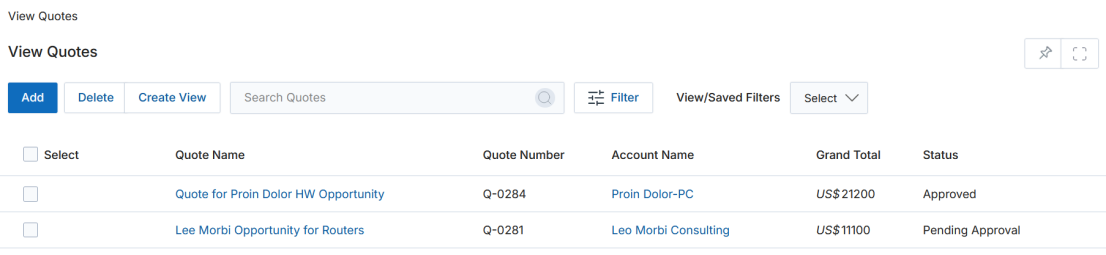
Click Add to create a new quote - Clicking Add opens the Add/Edit a Quote form.
-
The form contains these sections:
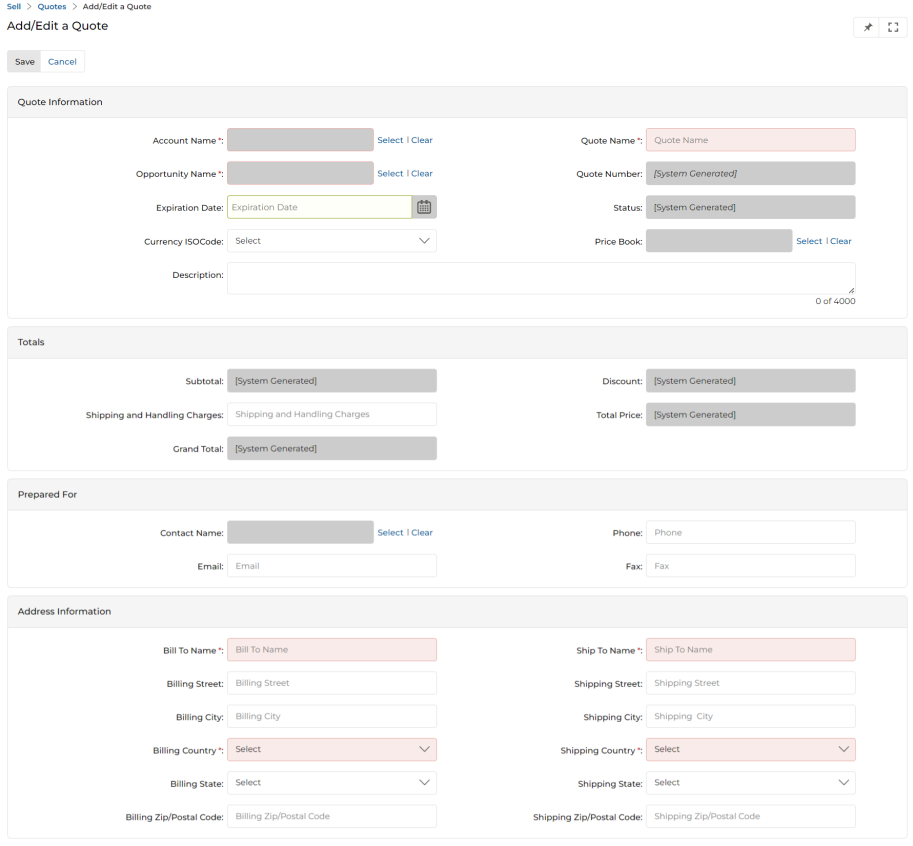
Add/Edit a Quote — full data entry form a. Buttons
- Save — Saves the newly created quote.
- Cancel — Discards changes and closes the form.
b. Quote Information
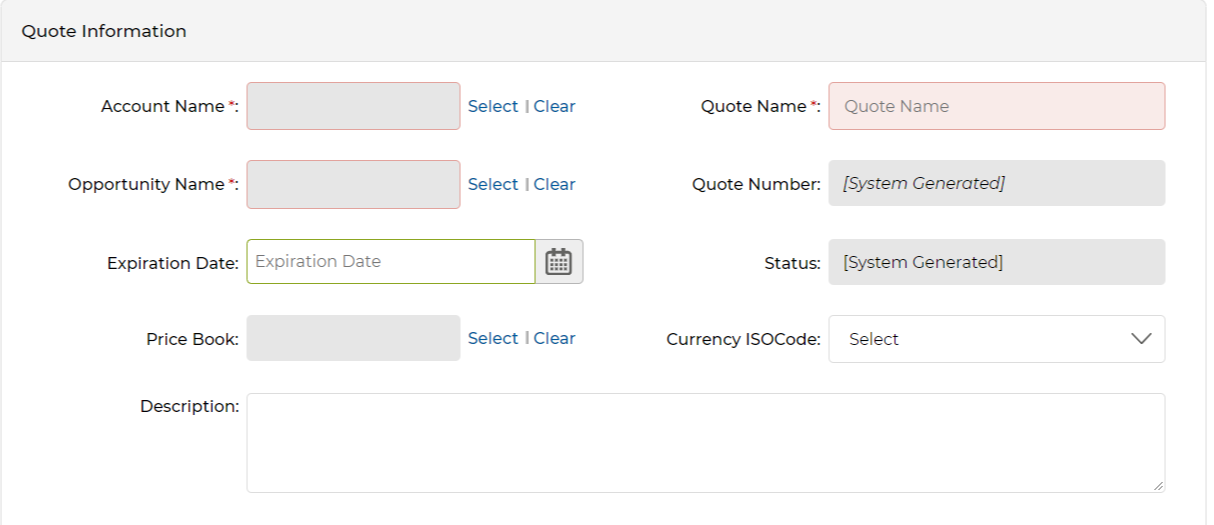
Quote Information — data entry fields Field Notes Account Name * Select from the account picker, then click Add. 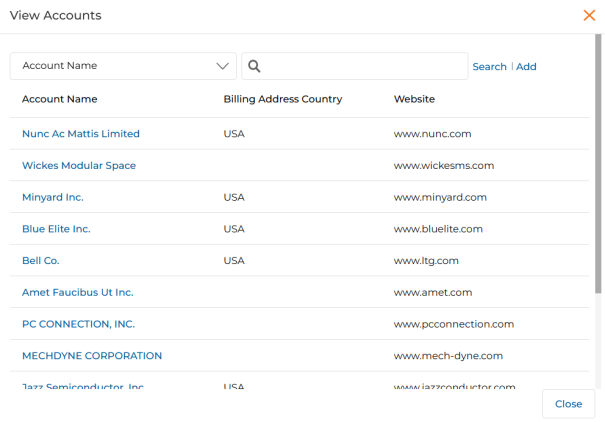
Account picker Quote Name * Provide a user-friendly name for this quote. Opportunity Name * Select the opportunity this quote is generated from. 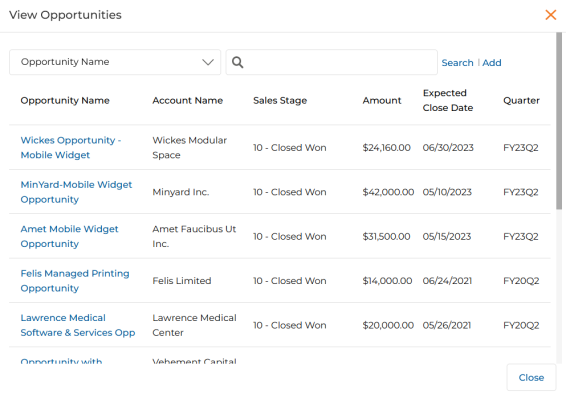
Opportunity picker Quote Number Auto-generated system value. Expiration Date Select the expiration date from the calendar. Status Auto-generated. Values: Draft, Ready for Submission, Pending Approval, Approved, Rejected. Description A short description of this quote. Price Book Select from available price books (Platinum Partners, Gold Partners, Silver Partners, etc.). Currency ISO Code Available options: Australian Dollar, Canadian Dollar, Indian Rupee, Pound Sterling, US Dollar. c. Totals
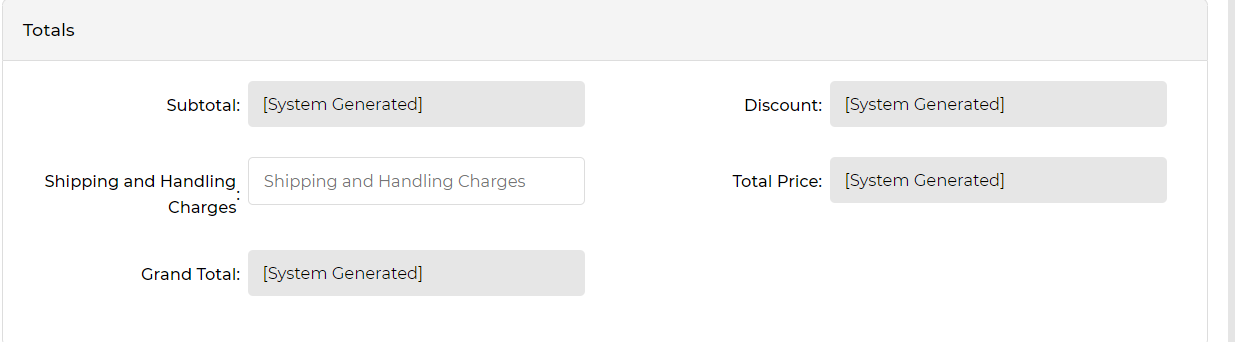
Totals — system-calculated fields All totals fields are system-generated based on line items. Shipping and Handling Charges can be entered manually.
d. Prepared For
Select the Contact Name from the contact picker. Phone, Email, and Fax populate automatically from the contact record.
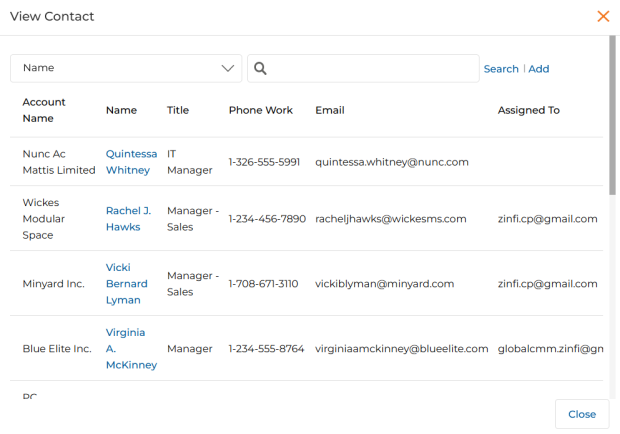
Contact picker e. Address Information
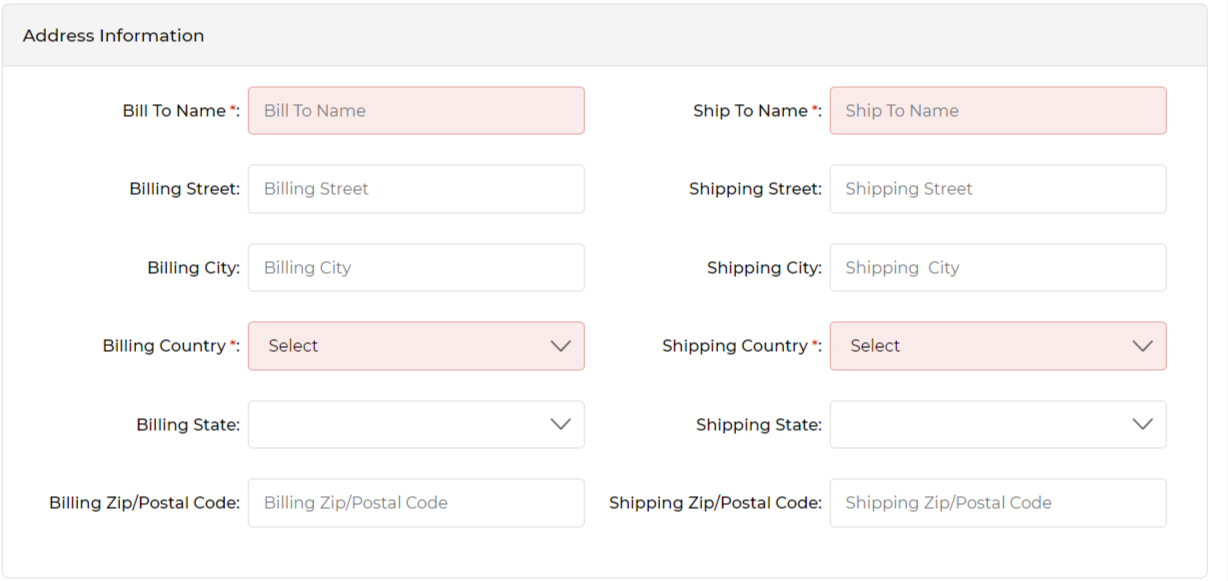
Address Information — required fields marked with * Mandatory fields: Bill To Name, Ship To Name, Billing Country, and Shipping Country. All other address fields are optional.
- Once all fields are complete, click Save.
Sales Orders
Accessing Sales Orders
- Click the Sell zone from the top menu.
- Click CPQ > Sales Orders from the left menu.
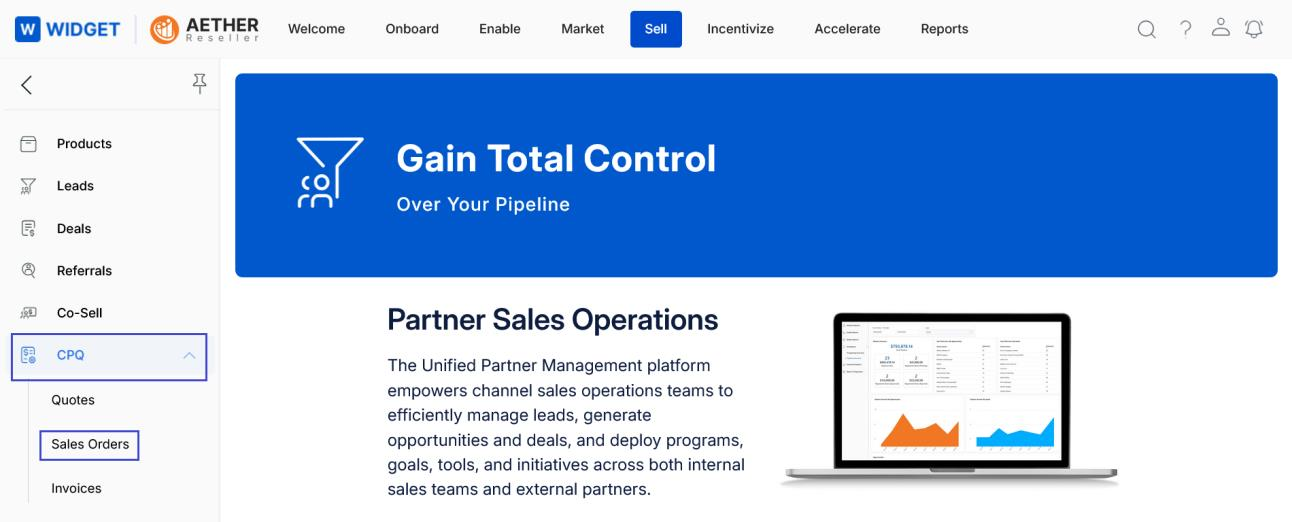
View Sales Orders
-
Clicking Sales Orders from the left menu opens the View Sales Orders page, displaying the Sales Order ID, date, account, linked quote, and total price.
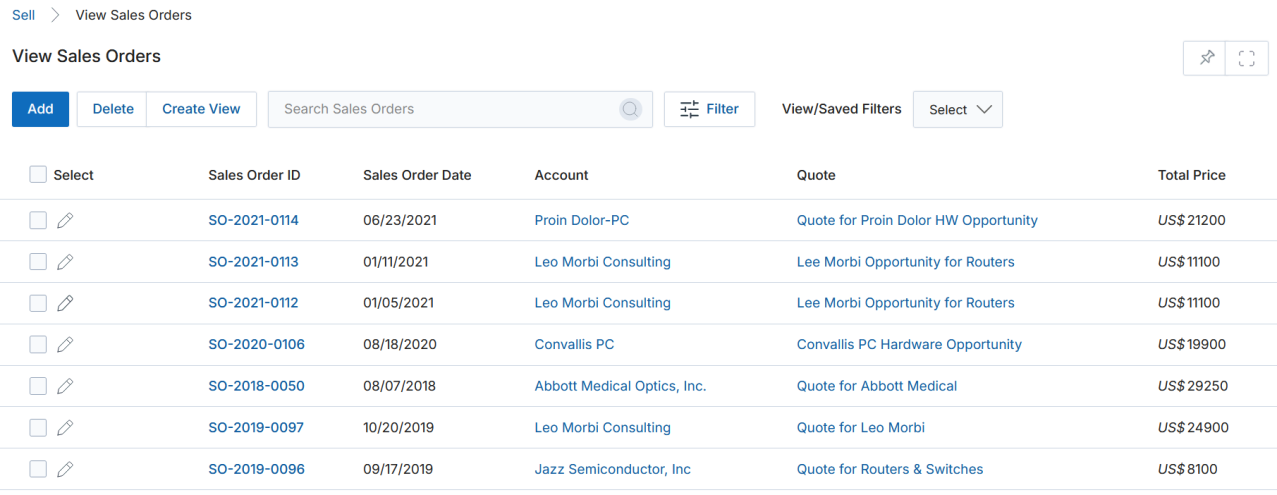
View Sales Orders — listing page -
The toolbar provides:
- Add — Opens the form to create a new sales order.
- Delete — Removes selected sales orders.
- Filter — Searches by Currency ISO Code (Australian Dollar, Indian Rupee, Pound Sterling, US Dollar).
- Saved Filters — Shows a list of saved filter configurations.
- Click a Sales Order ID to open its details page. Click a Quote Name to navigate to the related quote.
- Click the pen icon to edit a sales order.
View Sales Order
-
To view details for a specific order, click its Sales Order ID on the listing page.
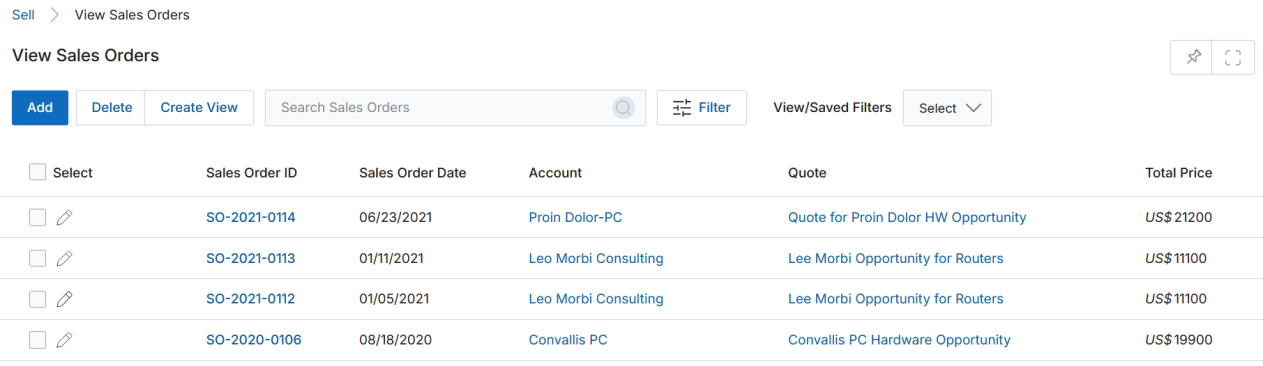
Click a Sales Order ID to open its details -
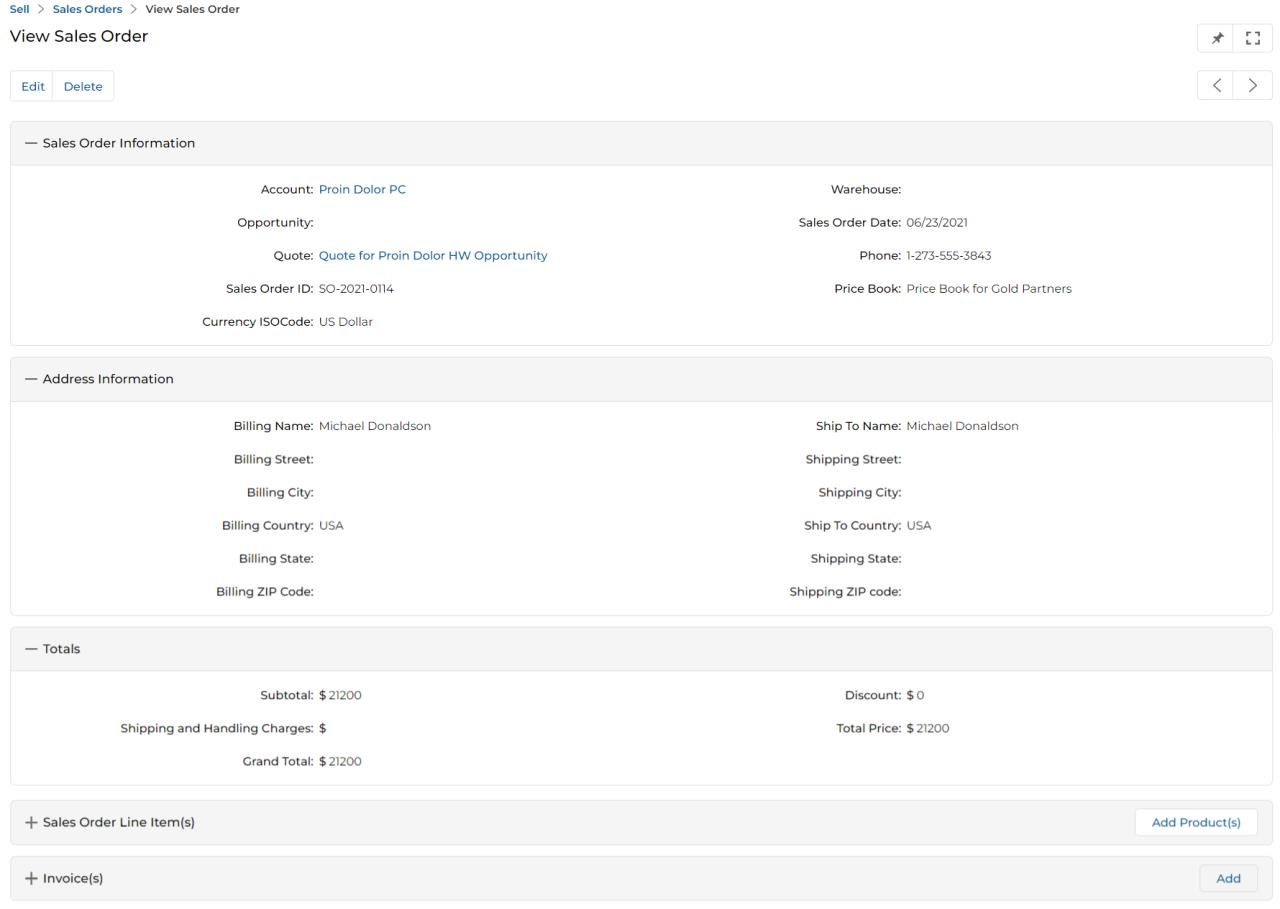
Clicking the Sales Order ID opens the View Sales Order page.
View Sales Order — full detail page -
The View Sales Order page contains:
a. Buttons
- Edit — Opens the record for editing.
- Delete — Removes the record from the list.
b. Sales Order Information
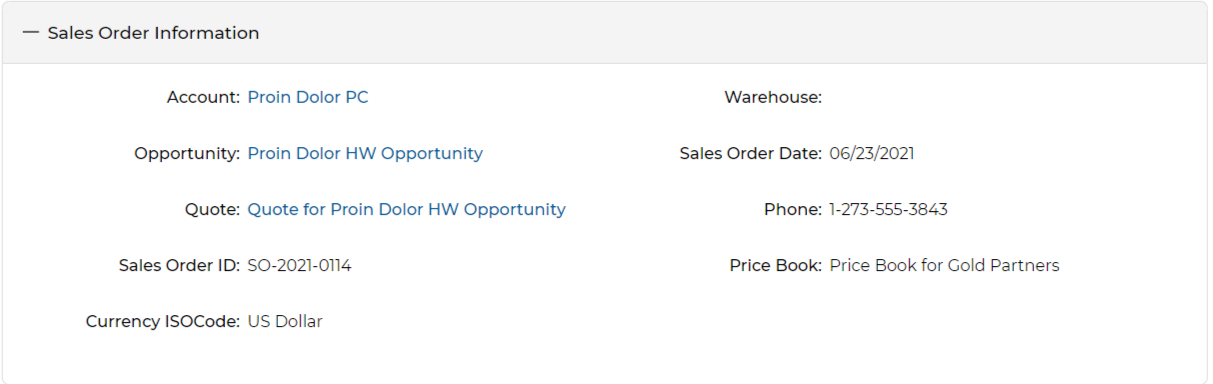
Sales Order Information section Field Description Account The sales account this sales order is generated for. Warehouse The warehouse fulfilling this sales order. Opportunity The opportunity from which this sales order originated. Sales Order Date The date this sales order was issued. Quote The quote associated with this sales order. Phone Phone number of the contact for this sales order. Sales Order ID Auto-generated unique identifier for this sales order. Price Book The price book used for pricing. Currency ISO Code The ISO code of the currency used for this sales order. c. Address Information
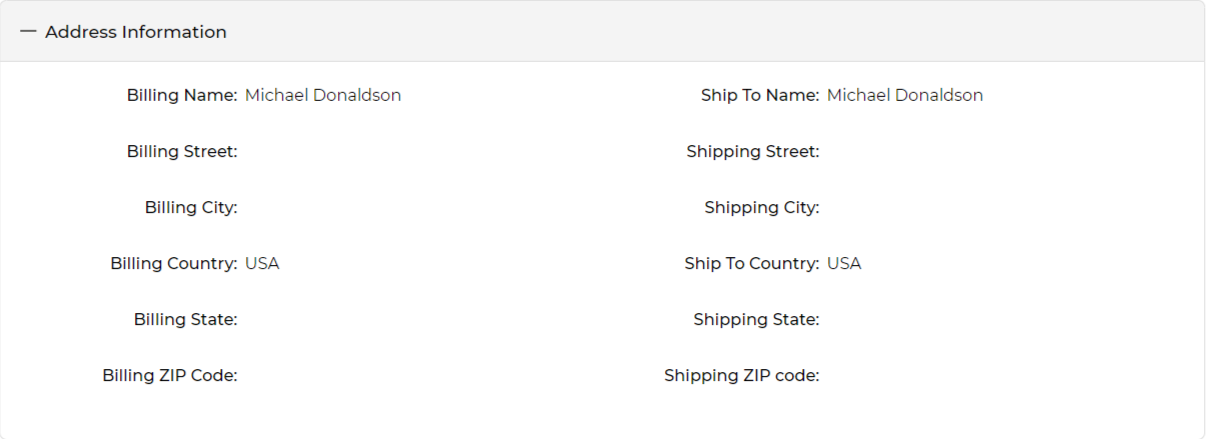
Address Information section Displays the billing and shipping address of the contact: Billing/Ship To Name, Street, City, Country, State, and ZIP Code.
d. Totals
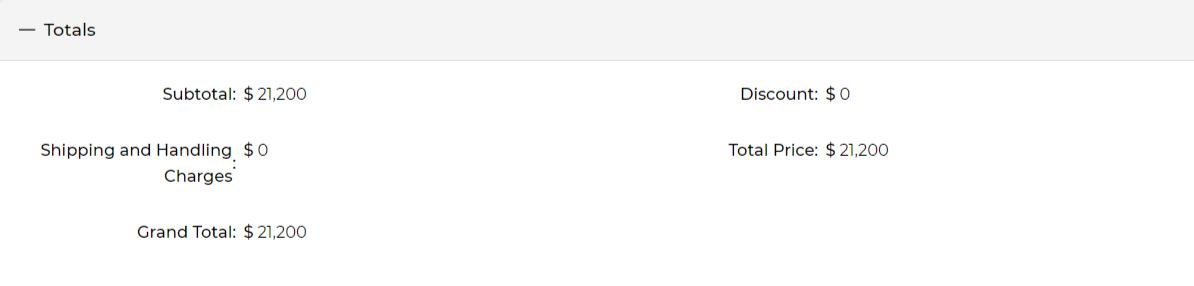
Totals section Field Description Subtotal Sum of all line item amounts in this sales order. Discount The discount amount applied (if any). Shipping and Handling Charges Charges for shipping and handling. Total Price Subtotal plus Shipping/Handling. Grand Total Subtotal plus Shipping/Handling minus the Discount. e. Sales Order Line Item(s)

Sales Order Line Item(s) section Shows the products included in this sales order. Click Add Product(s) to add new products from the price book.
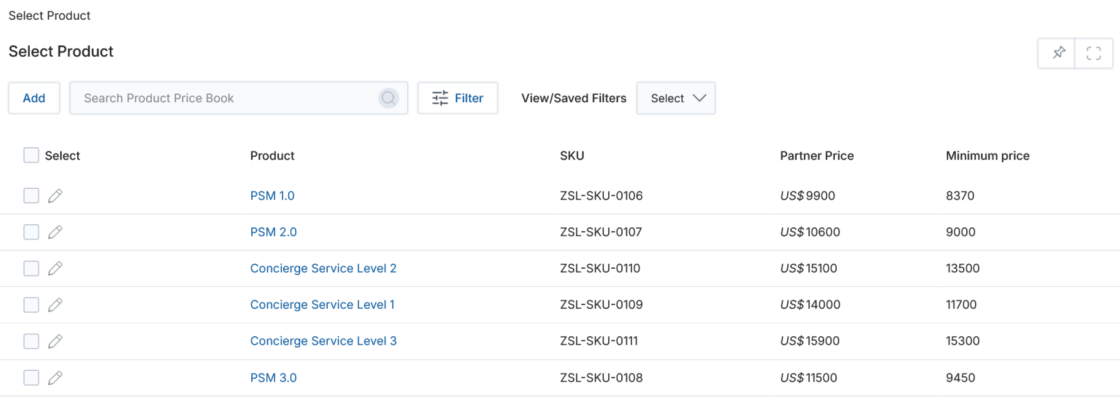
Select Product — choose items to add to the sales order f. Invoice(s)

Invoice(s) related list on a Sales Order Shows invoices created against this sales order. Click Add to create a new invoice. See Add a New Invoice for details.
Add a New Sales Order
- On the View Sales Orders page, click the Add button.
-
Clicking Add opens the Add/Edit a Sales Order form.
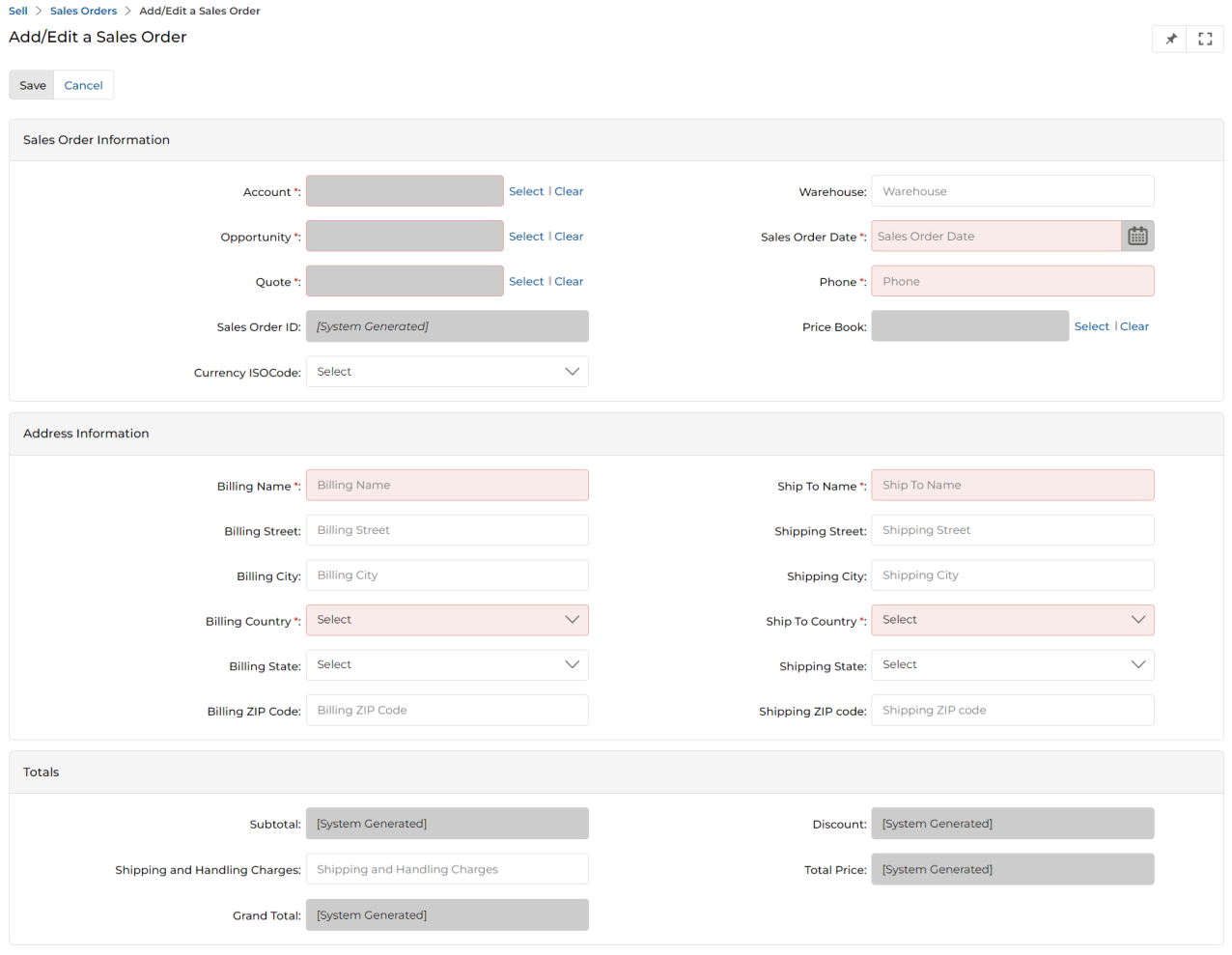
Add/Edit a Sales Order — full data entry form -
The form contains:
a. Buttons
- Save — Saves the newly created sales order.
- Cancel — Discards changes and closes the form.
b. Sales Order Information
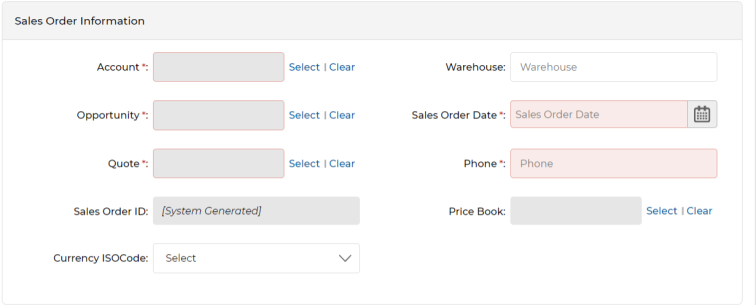
Sales Order Information — data entry fields Field Notes Account * Select from the account picker, then click Add. Warehouse Provide the name of the fulfilling warehouse. Opportunity * Select the originating opportunity and click Add. Sales Order Date * Select the issue date from the calendar. Quote * Select and add the associated quote ID. Phone * Phone number of the contact associated with this order. Sales Order ID Auto-generated system value. Price Book Select the price book used for pricing. Currency ISO Code Select the applicable ISO currency code. c. Address Information
Mandatory fields: Billing Name, Ship To Name, Billing Country, and Ship To Country. All other address fields are optional.
d. Totals
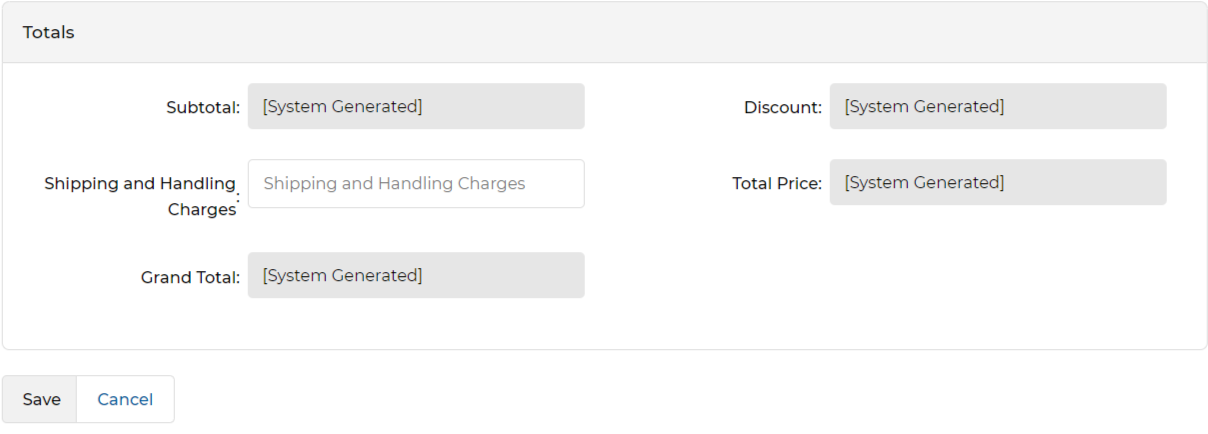
Totals — system-calculated with Save / Cancel buttons All total fields are system-calculated. Shipping and Handling Charges can be entered manually.
- Once done, click Save. You will return to the View Sales Orders page where you can click the newly created order's name to open its details and add line items and invoices.
Invoices
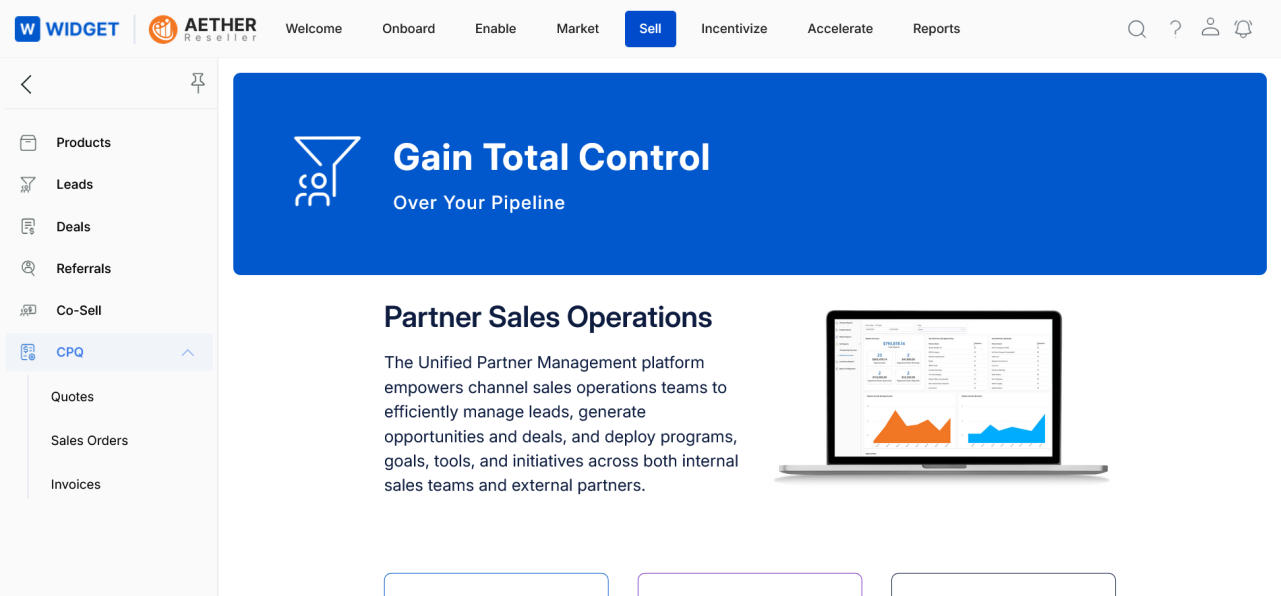
Accessing Invoices
- Click Sell from the top menu.
- Click CPQ > Invoices from the left menu.
View Invoices
-
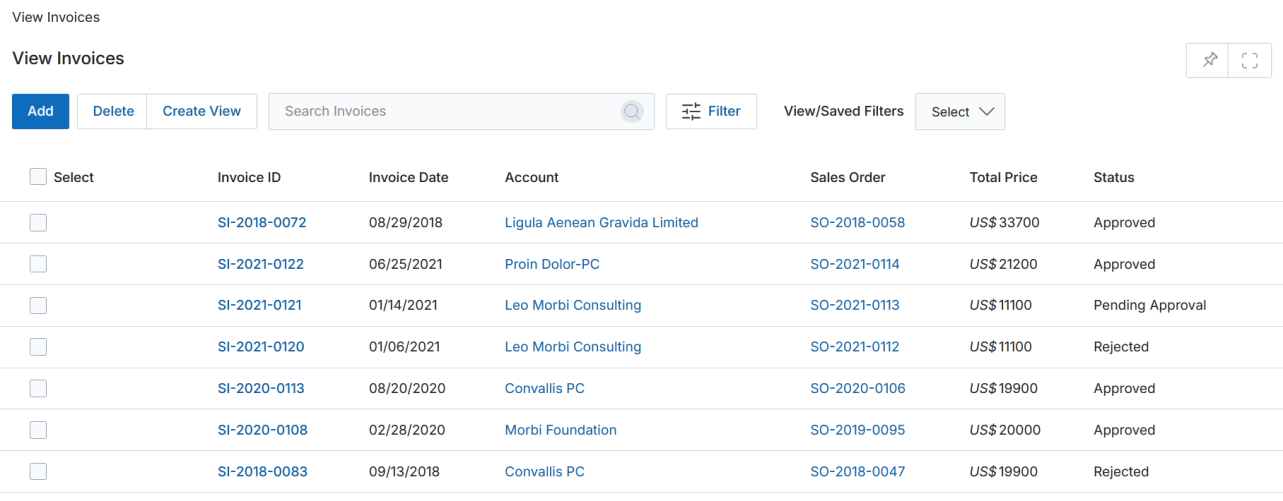
Clicking Invoices from the left menu opens the View Invoices page, displaying Invoice ID, Invoice Date, Account, linked Sales Order, Total Price, and Status.
View Invoices — listing page -
The toolbar provides:
- Add — Opens the form to create a new invoice.
- Delete — Removes selected invoices.
- Search / Filter — Searches for specific invoices by Currency ISO Code and Status.
- Clear Search — Clears the active search.
- Saved Searches — Shows saved search configurations in the dropdown.
- Click an Invoice Name to open its details page. Click an Account Name to open the Account Details page.
View Invoice Details
- To view an invoice's details, click its Invoice ID on the View Invoices page.
-
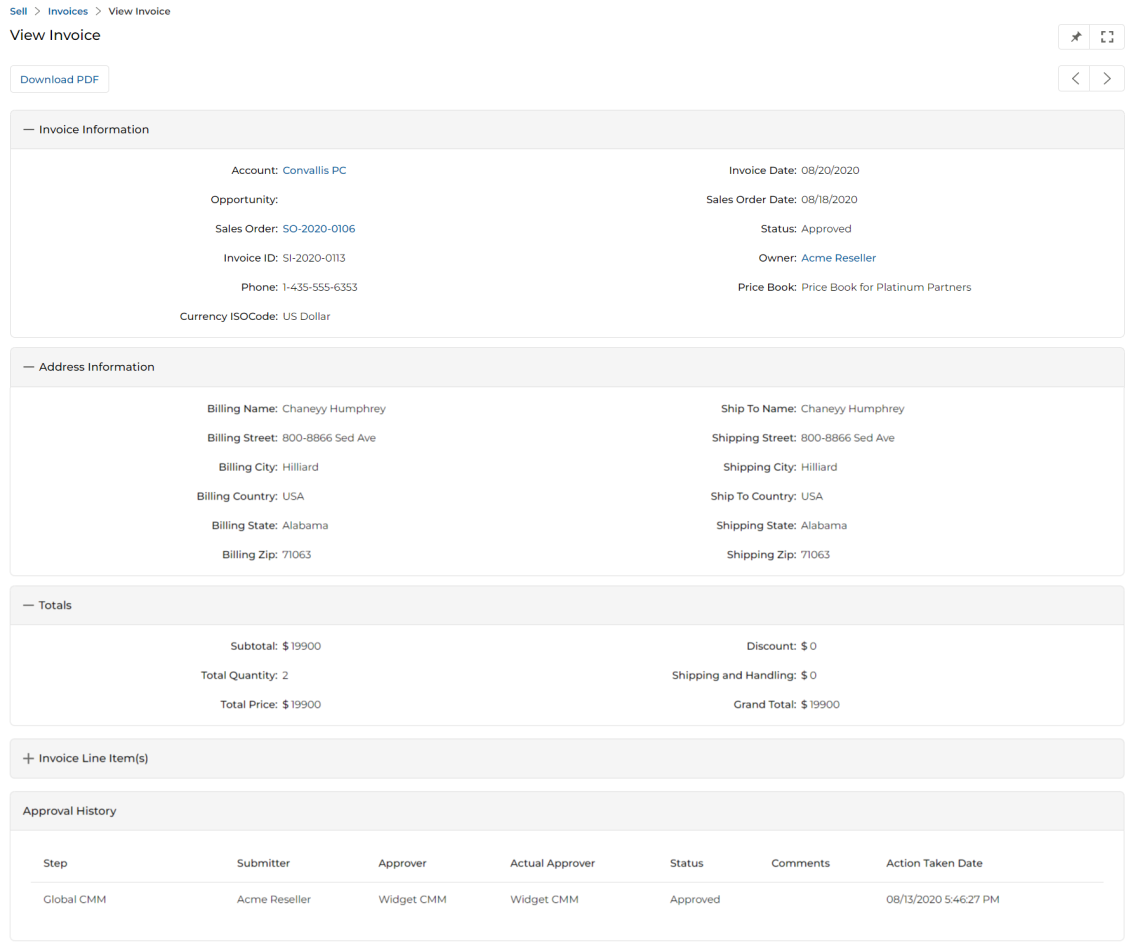
Clicking the Invoice ID opens the View Invoice page.
View Invoice — full detail page with Download PDF button -
The View Invoice page contains:
The Download PDF button at the top of the page generates a PDF version of the invoice for download.
a. Invoice Information
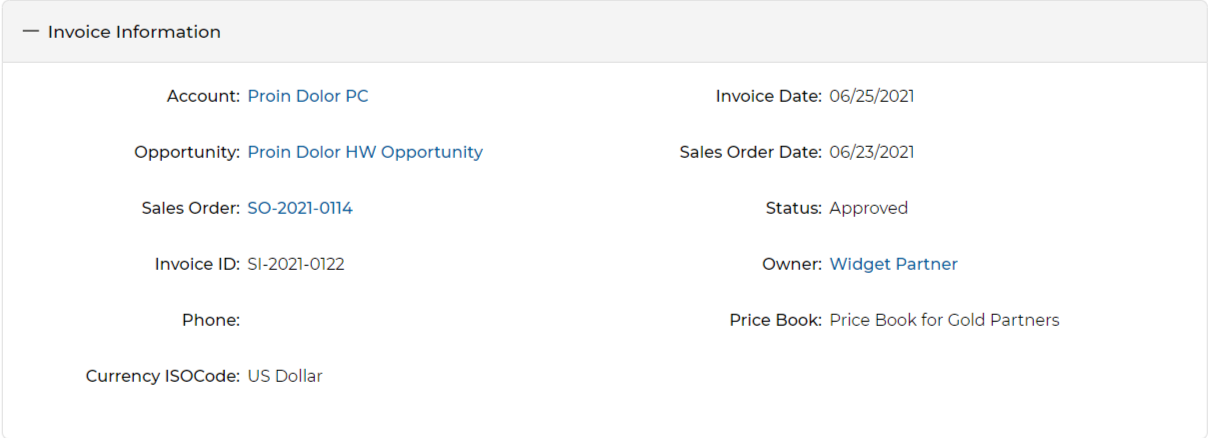
Invoice Information section Field Description Account The sales account this invoice is generated for. Invoice Date The date this invoice was generated. Opportunity The opportunity this invoice is generated from. Sales Order Date The date the associated sales order was created. Sales Order The ID of the sales order associated with this invoice. Invoice ID Auto-generated unique identifier for this invoice. Status Auto-generated current status of this invoice. Owner The user who created this invoice. Phone Phone number of the contact for this invoice. Price Book The price book used for pricing (sourced from the sales order). Currency ISO Code The ISO code of the currency used for this invoice. b. Address Information
Displays billing and shipping address details: Billing/Ship To Name, Street, City, Country, State, and ZIP Code for both billing and shipping contacts.
c. Totals
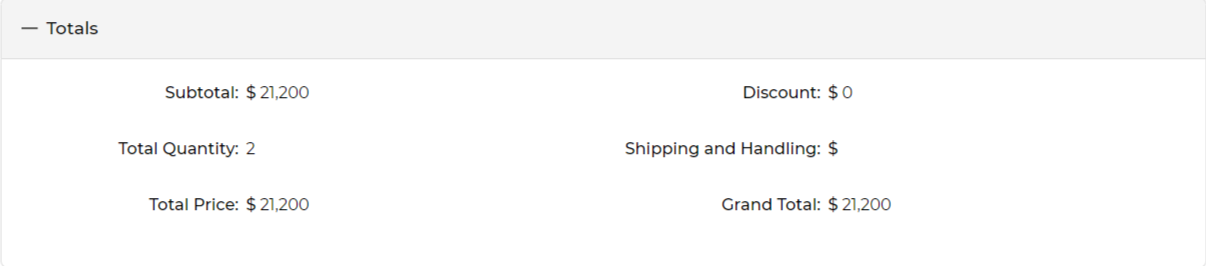
Totals section (includes Total Quantity unique to invoices) Field Description Subtotal Sum of all line item amounts in this invoice. Discount The discount amount applied (if any). Shipping and Handling Charges Charges for shipping and handling. Total Quantity Total number of products for which this invoice is generated. Total Price Subtotal plus Shipping/Handling Charges. Grand Total Subtotal plus Shipping/Handling minus the Discount. d. Invoice Line Item(s)

Invoice Line Item(s) section Lists the products included in this invoice.
e. Approval History

Approval History section Shows the full approval history for this invoice, including step, submitter, approver, actual approver, status, comments, and action taken date.
Add a New Invoice
-
On the View Invoices page, click the Add button.
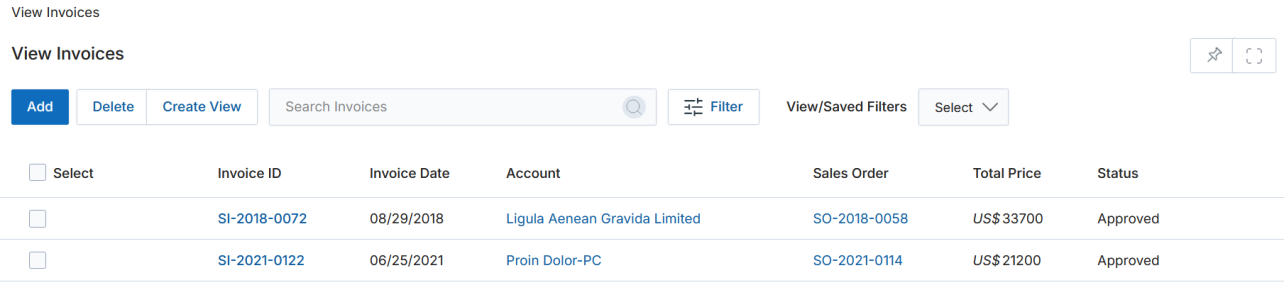
Click Add to create a new invoice -
Clicking Add opens the Add/Edit a Invoice form.
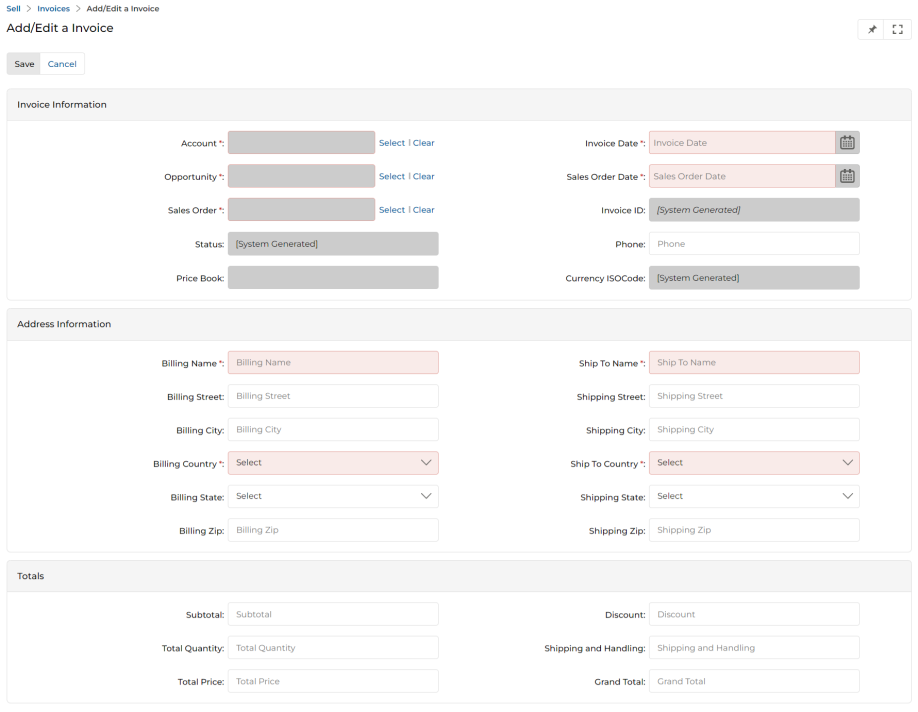
Add/Edit a Invoice — full data entry form -
The form contains:
a. Invoice Information
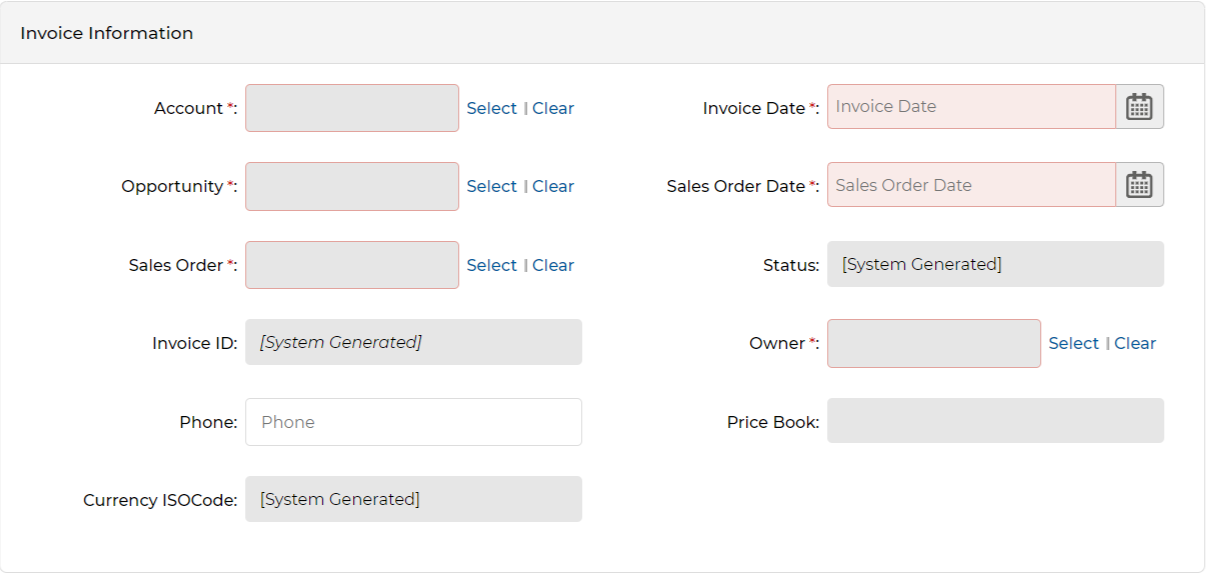
Invoice Information — data entry fields Field Notes Account Name * Select from the account picker. Invoice Date * Select the invoice generation date from the calendar. Opportunity * Select the originating opportunity. Sales Order Date * Select the date the sales order was created. 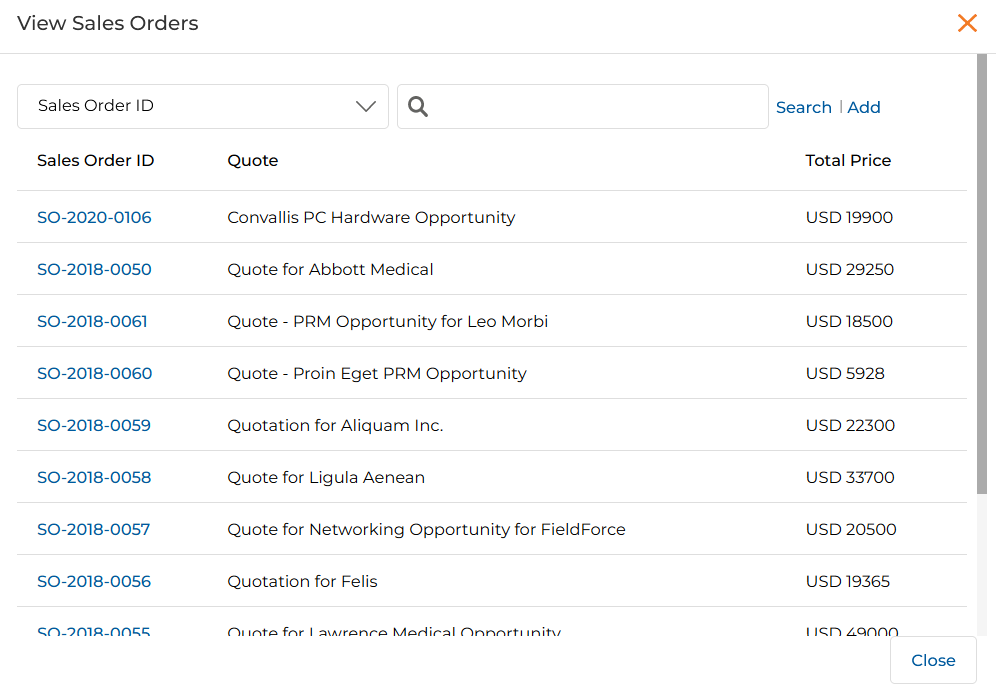
Sales Order picker Sales Order * Select the associated sales order ID. Invoice ID Auto-generated system value. Status Auto-generated current status. Owner * Select the owner who created this invoice. Phone Phone number of the contact for this invoice. Price Book Sourced automatically from the selected sales order. Currency ISO Code Auto-generated from the sales order. b. Address Information
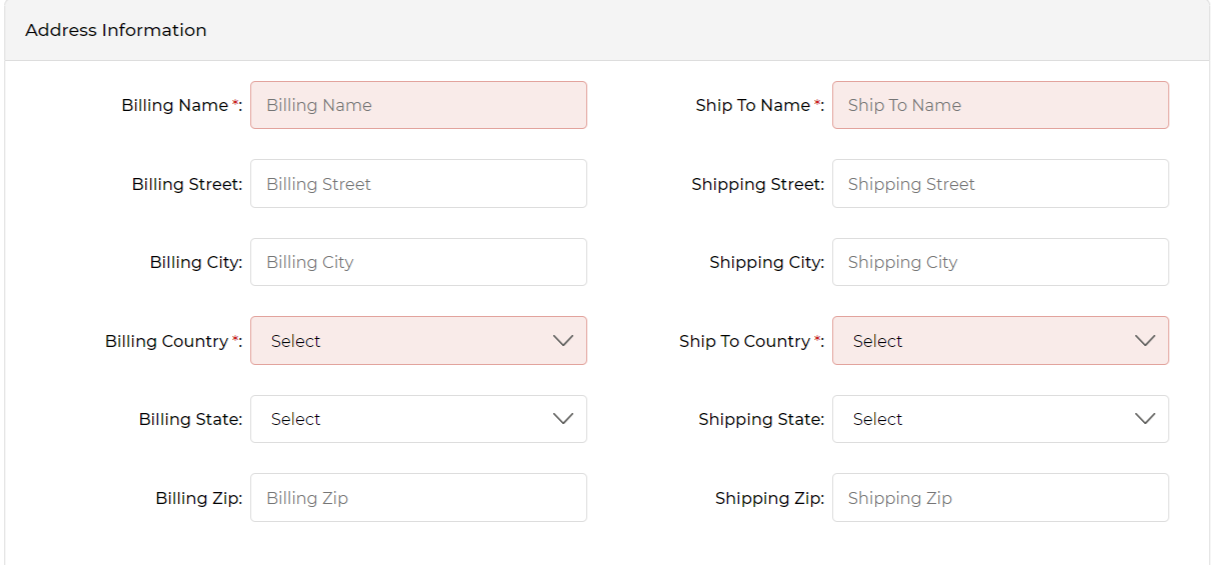
Address Information — required fields marked with * Mandatory fields: Billing Name, Ship To Name, Billing Country, and Ship To Country. All other address fields are optional.
c. Totals
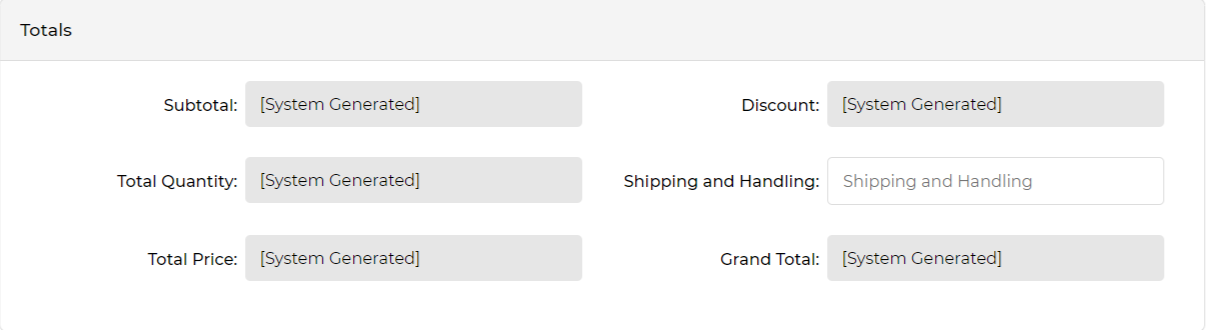
Totals — system-calculated fields All total fields are system-calculated based on invoice line items. Shipping and Handling can be entered manually.
- Once all required fields are complete, click Save.