Introduction
ZINFI's UPM platform includes an advanced, integrated Learning Management Plus (LMS+) application that seamlessly connects partner users to e-learning standards-based content — SCORM, AICC, xAPI, and cmi5 compliant. The LMS+ application allows channel partner organizations to build training, assessments, and certification materials for their end users and deliver them online through browser-agnostic technology.
With ZINFI UPM's LMS+ application, your organization can train channel sales reps in "bite-size" increments using microlearning principles — administering, documenting, tracking, reporting on, and delivering multiple courses and training programs across the entire channel network.
Certifications Management
The LMS+ application makes it fast and easy for organizations to set up certification programs for channel sales, marketing, and technical teams. You can leverage existing SCORM, xAPI, cmi5, and AICC compliant courses and assessments or custom-develop your own. Key capabilities include:
Courses and Materials Management
The LMS+ application allows your organization to configure and associate multiple courses with a specific certification program. You can manage custom sections and course materials by uploading single-context materials/content and tracking assessments. The application interoperates with all SCORM, xAPI, AICC, and cmi5 content libraries, and supports:
Assessments Management
Learners are automatically assessed and receive ratings or grades based on their performance. These metrics become part of the learner's record and can be shared across multiple learning activities. Assessment management capabilities include:
Courses
Accessing Courses
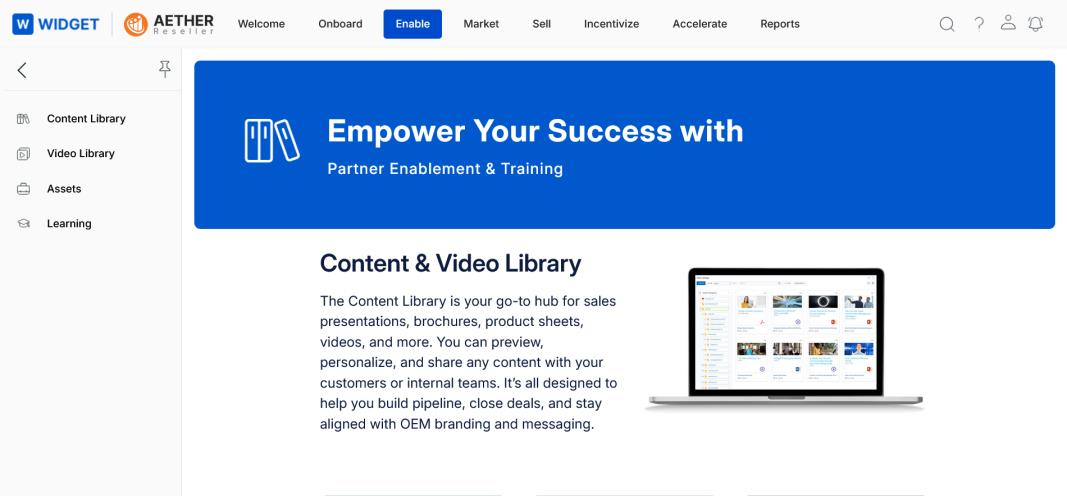
To navigate to the Courses module as a partner user:
- Click Enable from the top navigation menu.
- Click Learning > Courses in the left menu bar.
View Courses
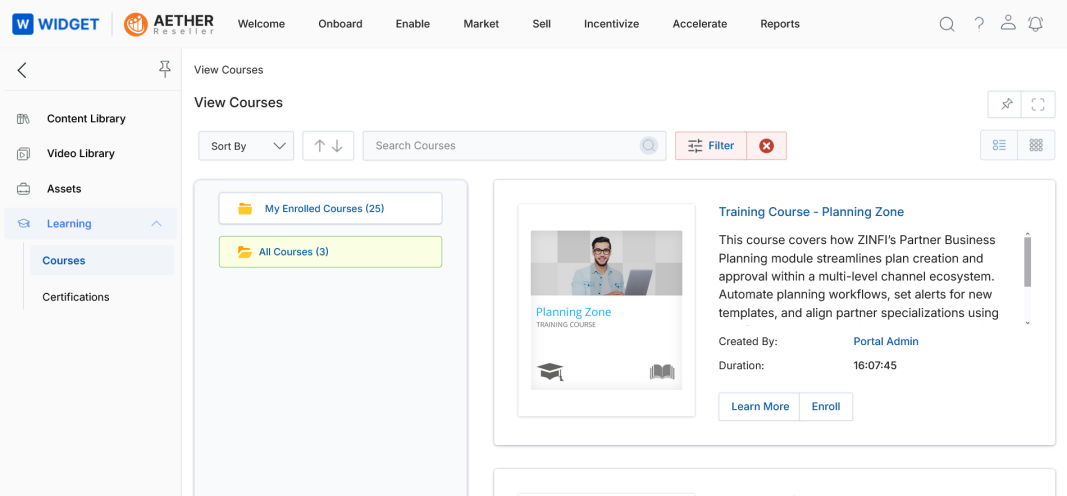
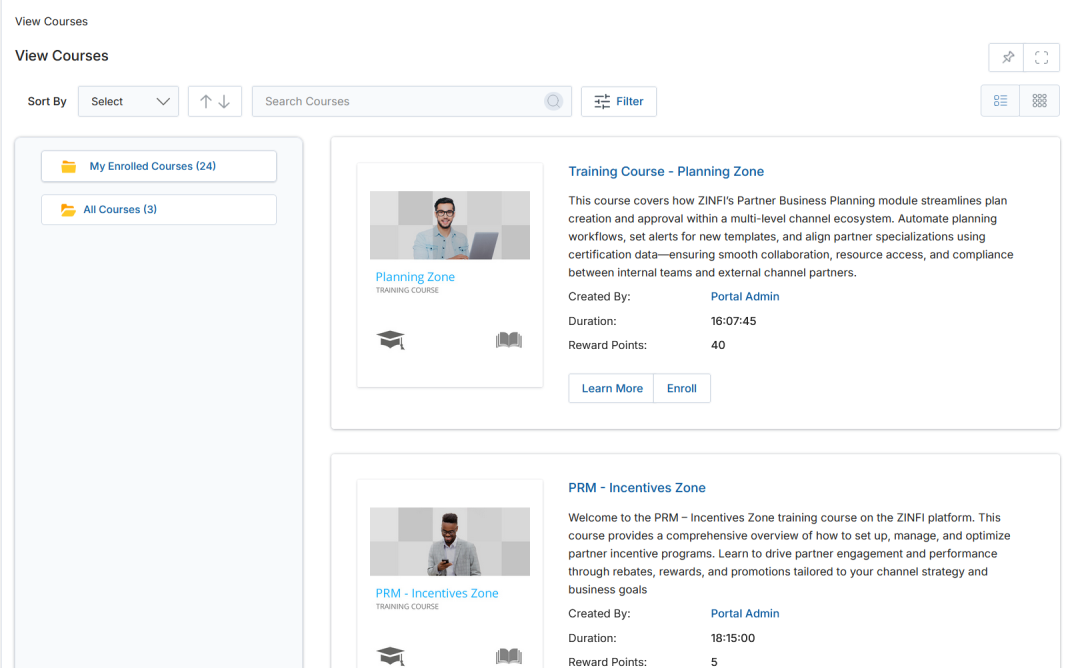
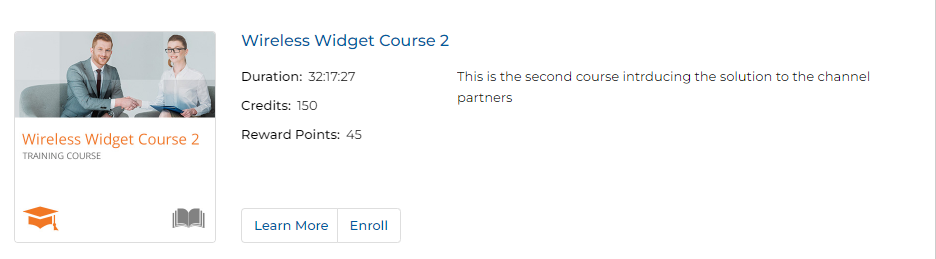
Clicking Courses from the left menu opens the View Courses page, displaying all courses assigned to the partner organized by category. For each listed course, the following information is shown:
| Field / Button | Description |
|---|---|
| Title / Name | Clickable course name (blue font) that opens course details for editing sections, assessments, and general management. |
| Duration | Total duration of the course. |
| Credits | Credit points awarded for completing the course. |
| Reward Points | Reward points awarded on successful course completion. |
| Description | Short description of the course content and objectives. |
| Enroll (button) | Enrolls you in the course. Enrolled courses move to the My Enrolled Courses category in the category tree. |
| Learn More (button) | Opens the course details panel from the right side of the screen. |
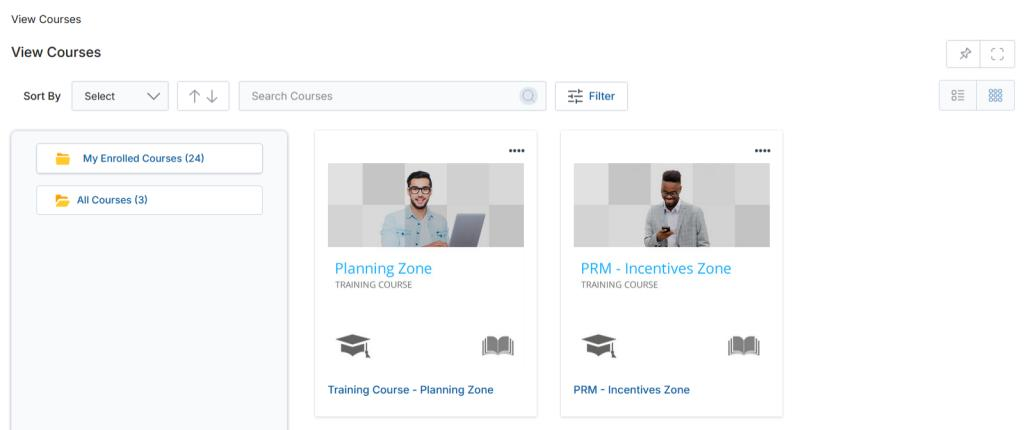
Use the List View or Thumb View toggle buttons to change the visual layout of courses.
View Course Details
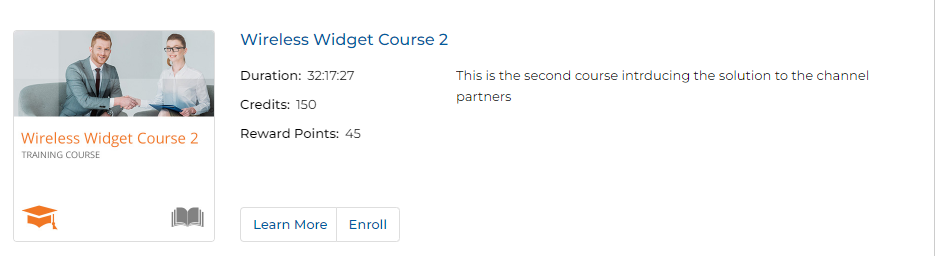
To view the details of any course, click the Learn More button on the course listing. A slide-in panel opens from the right side displaying the complete course information.
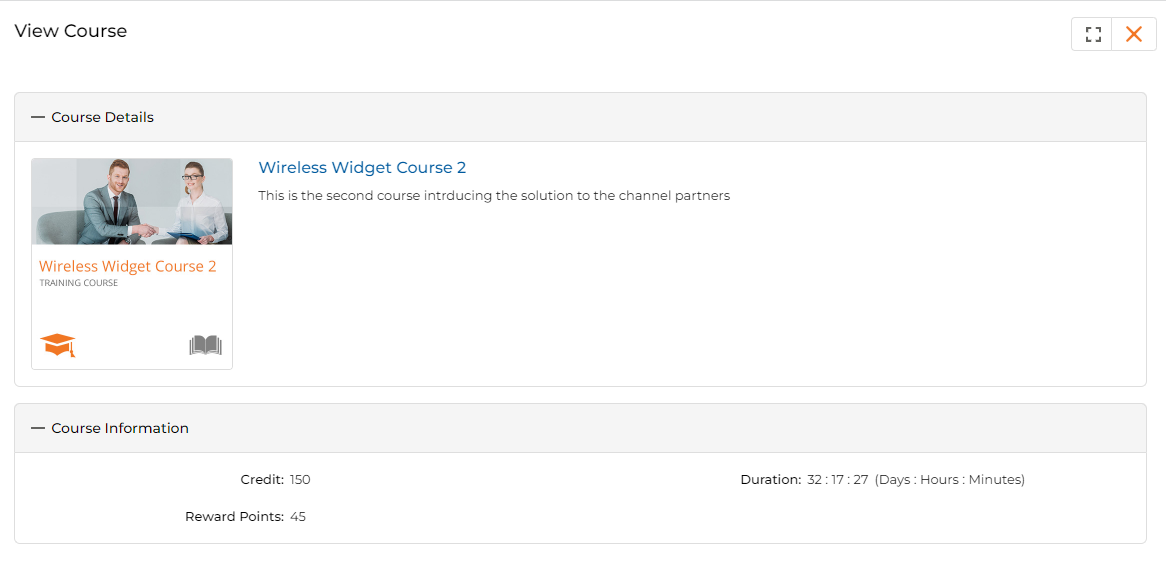
The View Course panel contains the following sections:
- Course Information:
- Course Name — Displays the name of the course content.
- Credit — Credit points achievable after course completion.
- Duration — Maximum time (in Days : Hours : Minutes) allowed to complete the course.
- Rewards Points — Points rewarded after successful completion.
- Description — A short summary of the course content and objectives.
Enrollment on a Course
- Click the Enroll button on a course listing or in the course details panel to enroll in that course.
- Once enrolled, the course moves from its current category into the My Enrolled Courses category in the left-side category tree.
- From the My Enrolled Courses view, click the Start button to begin working through the course.
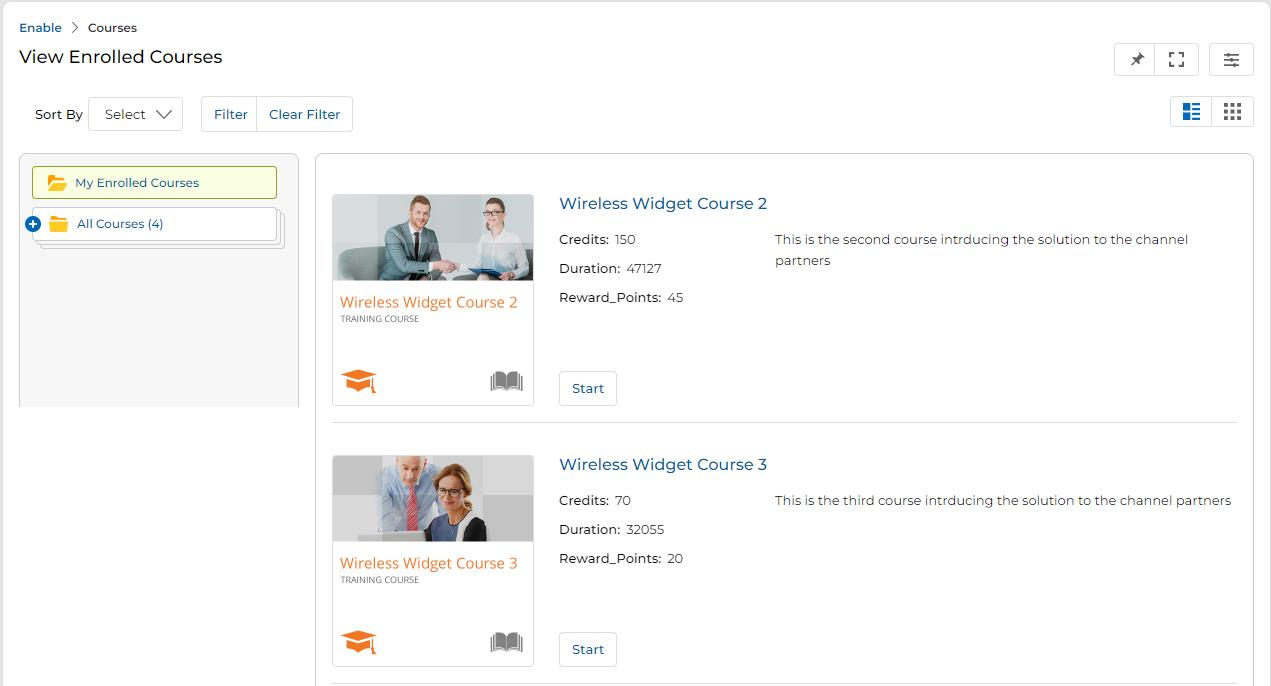
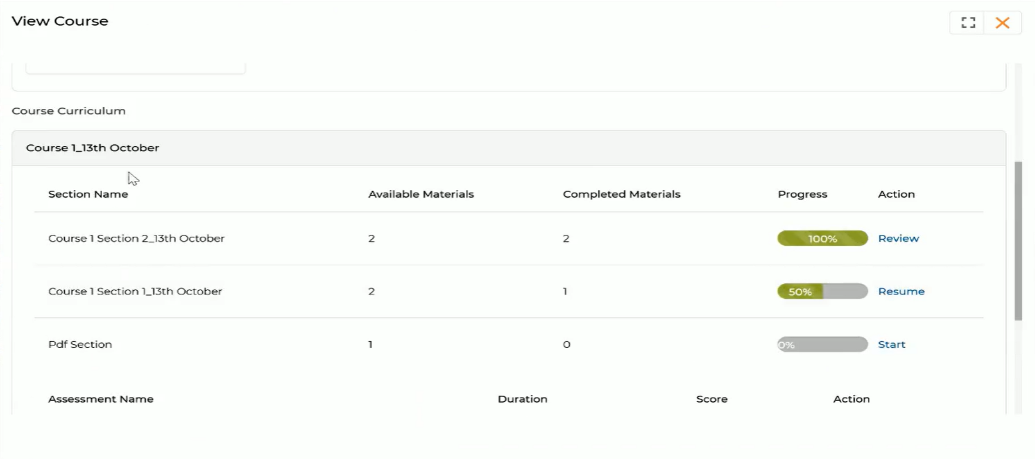
After clicking Start, the course details panel opens showing the Course Curriculum — a structured table of Sections and Assessments:
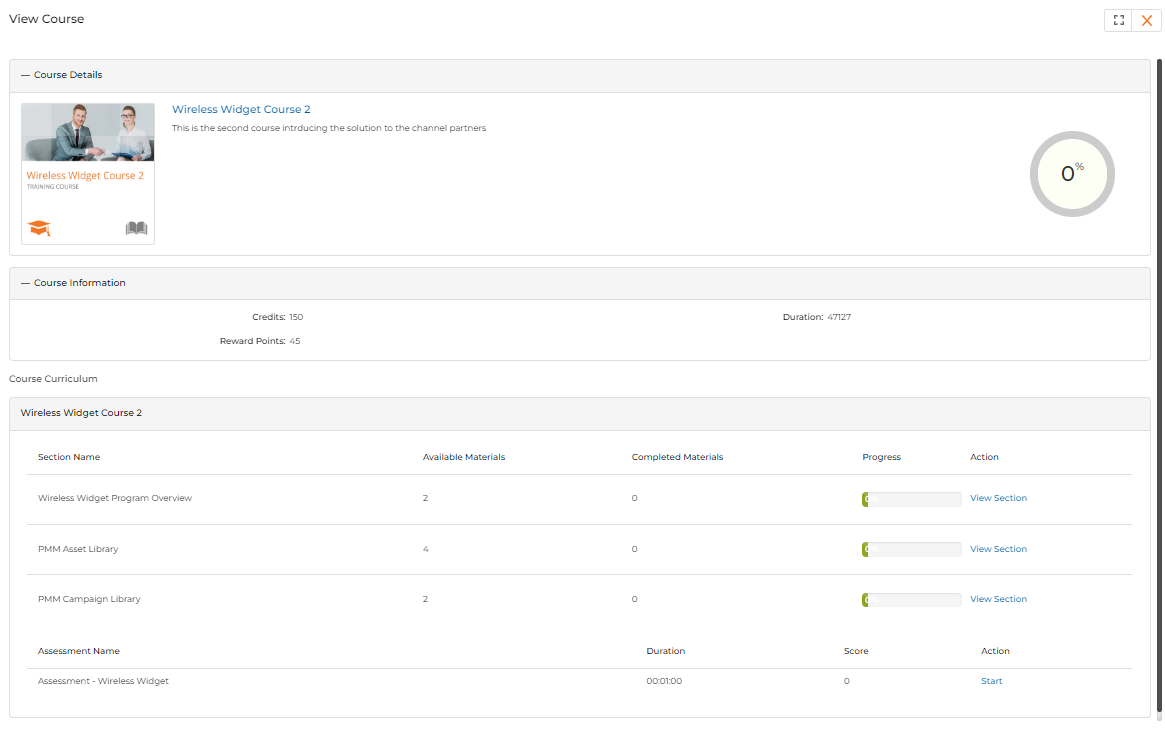
The Section Details table contains the following columns:
| Column | Description |
|---|---|
| Section Name | Name of the section (a fundamental unit of the course). |
| Available Materials | Count of training materials constituting the section. |
| Completed Materials | Count of training materials you have completed. |
| Progress | Visual progress bar showing individual section completion percentage. |
| Action | Click View Section to open the section's material list. |
The Assessment Name table lists assessments required to qualify for course completion:
| Column | Description |
|---|---|
| Assessment Name | Name of the assessment. |
| Duration | Duration of the assessment in minutes. |
| Score | Score obtained in the assessment. |
| Action | Click Start to begin the assessment. |
View Section Details
Click the View Section button in the Actions column of any section row to open the Course Curriculum panel and view the materials in that section.

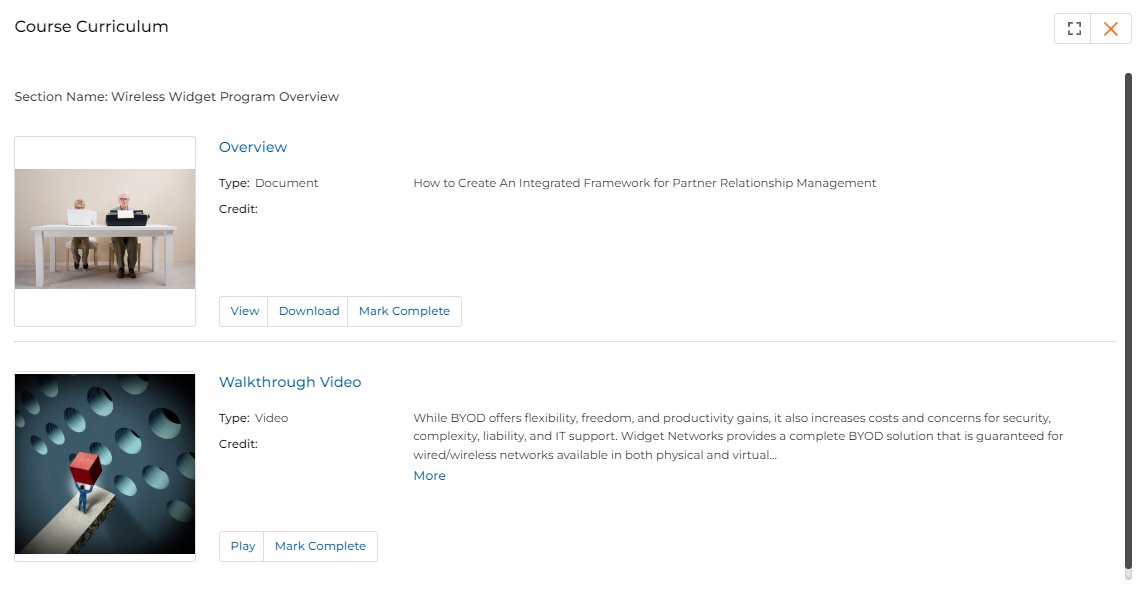
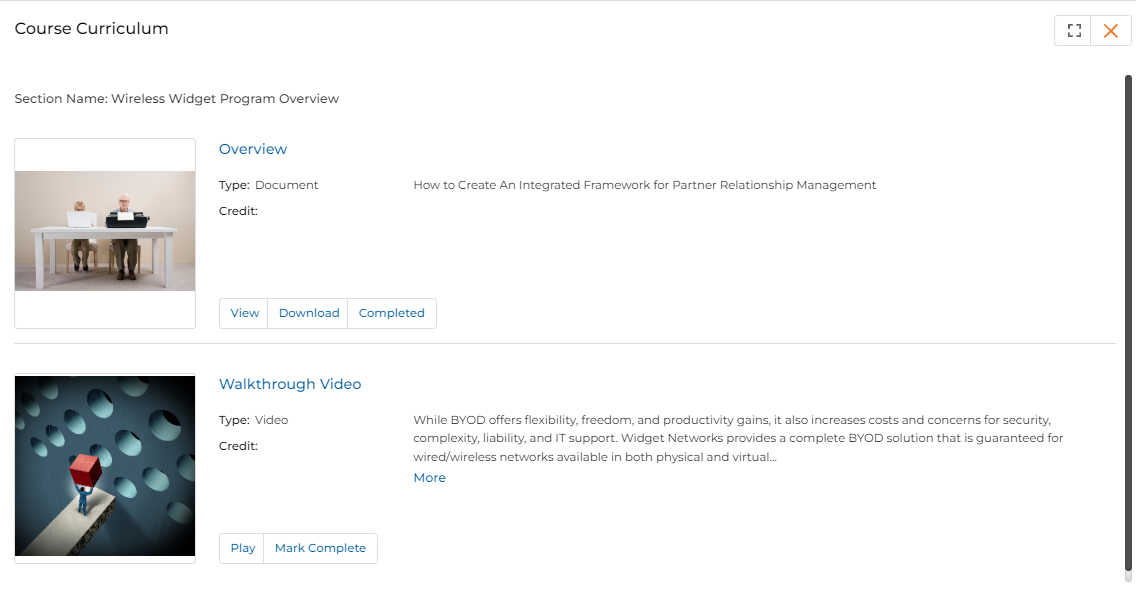
For each material in the section, the following actions are available:
- View — Opens the file in a browser-based viewer (for readable document types).
- Download — Downloads the file to your local device.
- Mark Complete — Marks the material as reviewed and completed. A confirmation pop-up appears asking you to click Accept.
- Play — Plays video materials (video type shows Play and Mark Complete only).
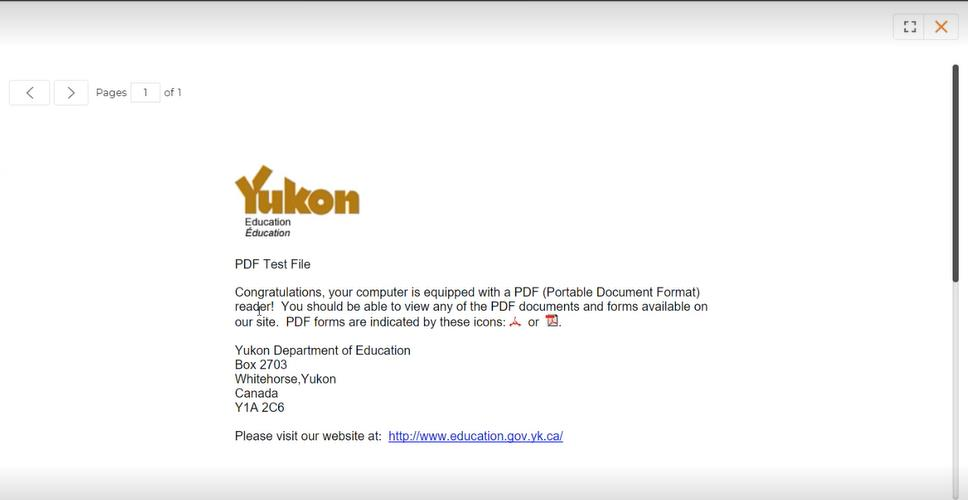

After clicking Accept, the Mark Complete button updates to Completed for that material.
The section action button label changes dynamically based on how much content has been completed in that section:
| Button Label | Condition |
|---|---|
| Start | None of the training materials in the section have been completed. |
| Resume | Some training materials are completed, but not all. |
| Review | All training materials in the section are completed. |
For video materials, only two buttons are displayed — Play and Mark Complete. Once all materials in all sections and assessments are completed, the entire course is marked as completed.
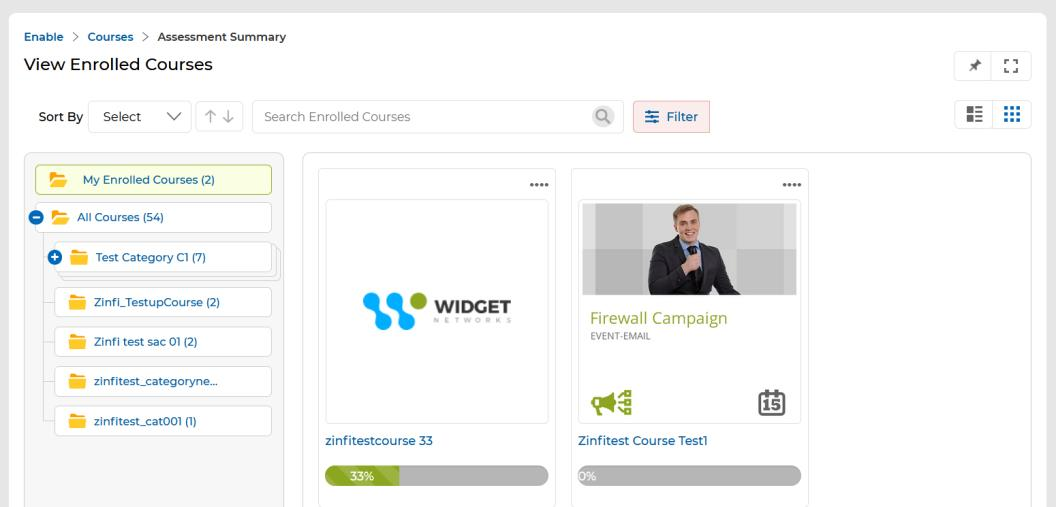
Display Progress Bar in Card View and Thumb View for Enrolled Courses
Enrolled courses display a horizontal progress bar in both Card View and Thumbnail View, providing an at-a-glance visual representation of your learning progress without opening the course details page.
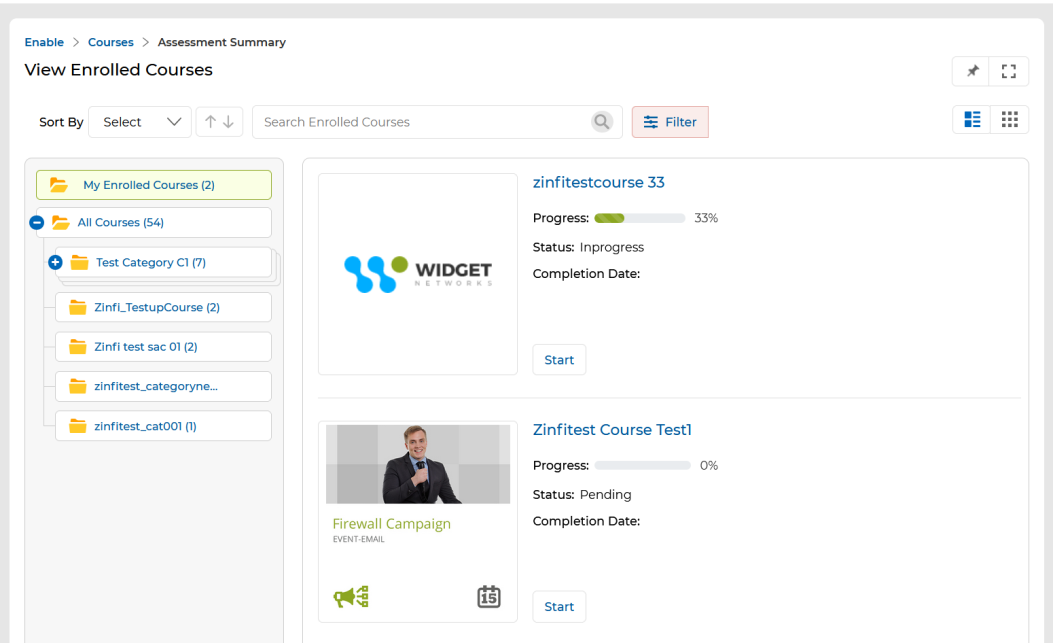
Configurable Assessment Retake
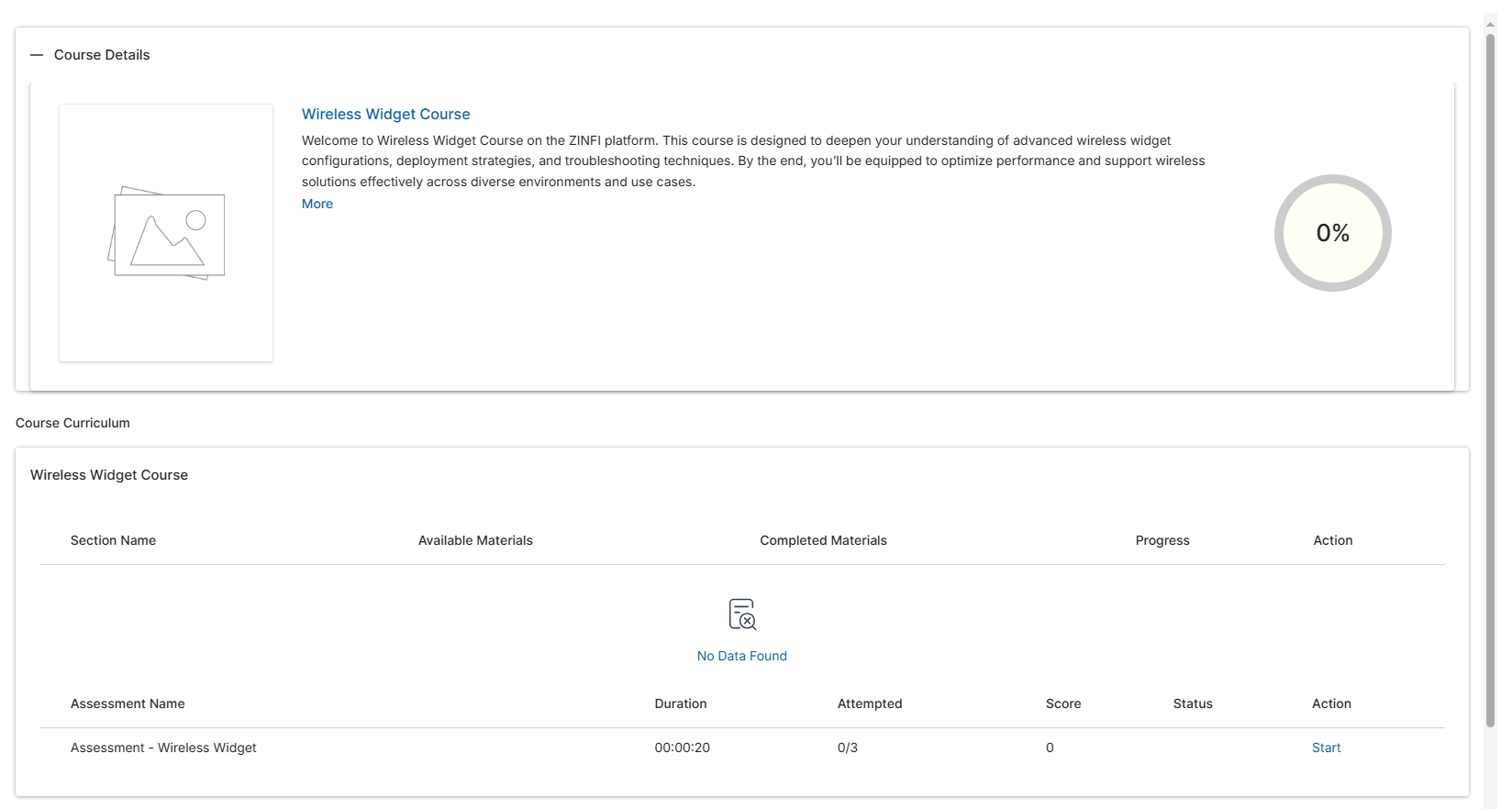
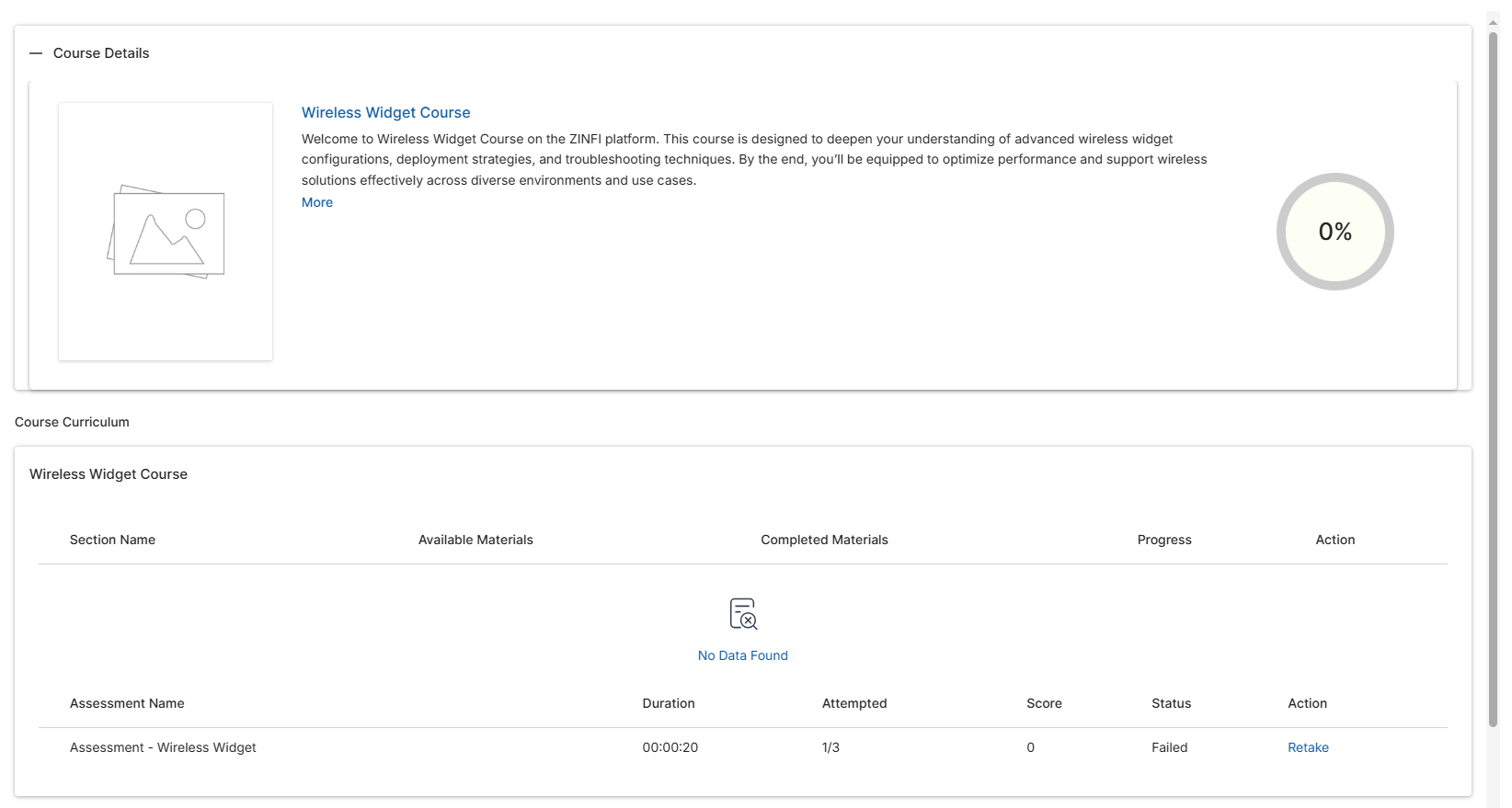
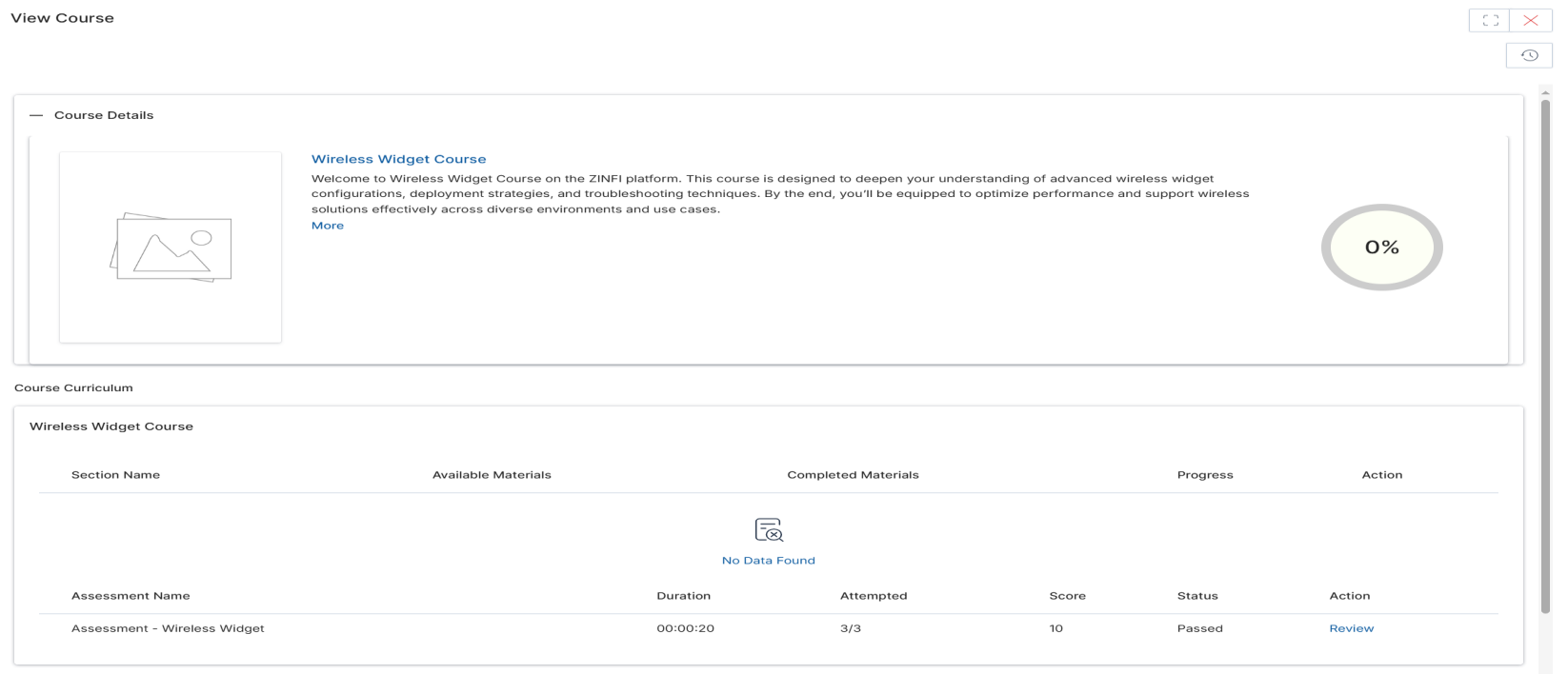
The LMS+ application supports a configurable assessment retake limit. The Attempted column in the Assessment table tracks how many attempts have been used out of the total allowed (e.g., 0/3, 1/3, 3/3).
- Enroll in an assigned course — the Attempted column shows 0/3 (no attempts used).
- Submit the assessment once — the count updates to 1/3. If the score is below passing, a Retake action appears.
- Retake the assessment until the total allowed attempts are exhausted (e.g., 3/3).
- After the final allowed attempt, the Retake action changes to Review — no further submissions are permitted.
- Scores are displayed based on the configured scoring logic after each submission.
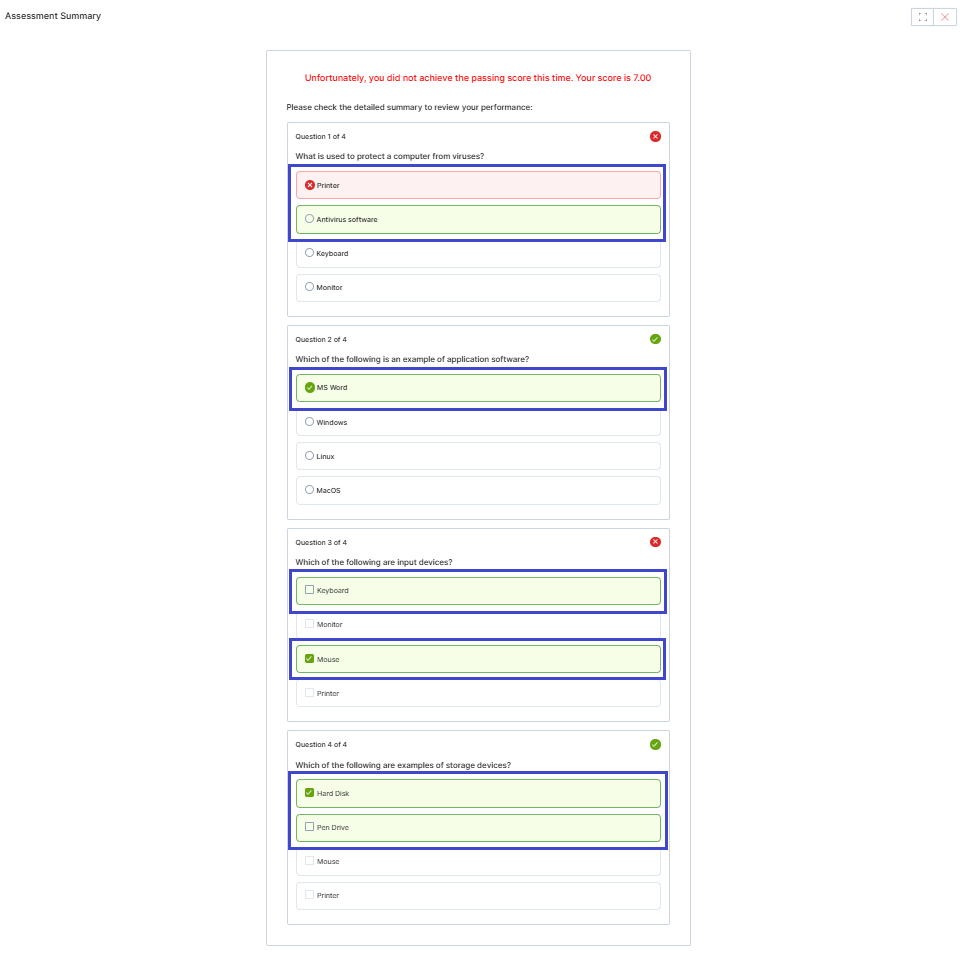
Certifications
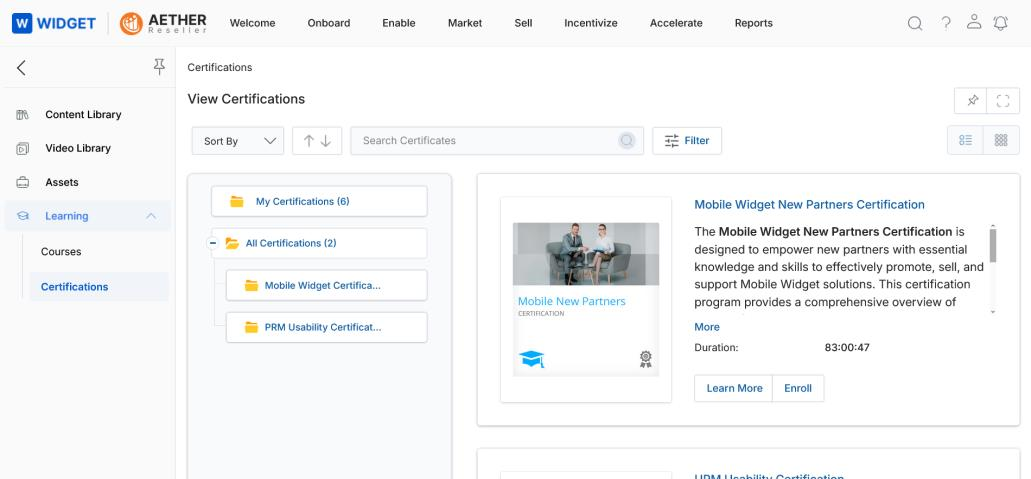
To navigate to the Certifications module as a partner user:
- Click Enable on the top navigation menu.
- Click Learning > Certifications from the left menu bar.
View Certifications
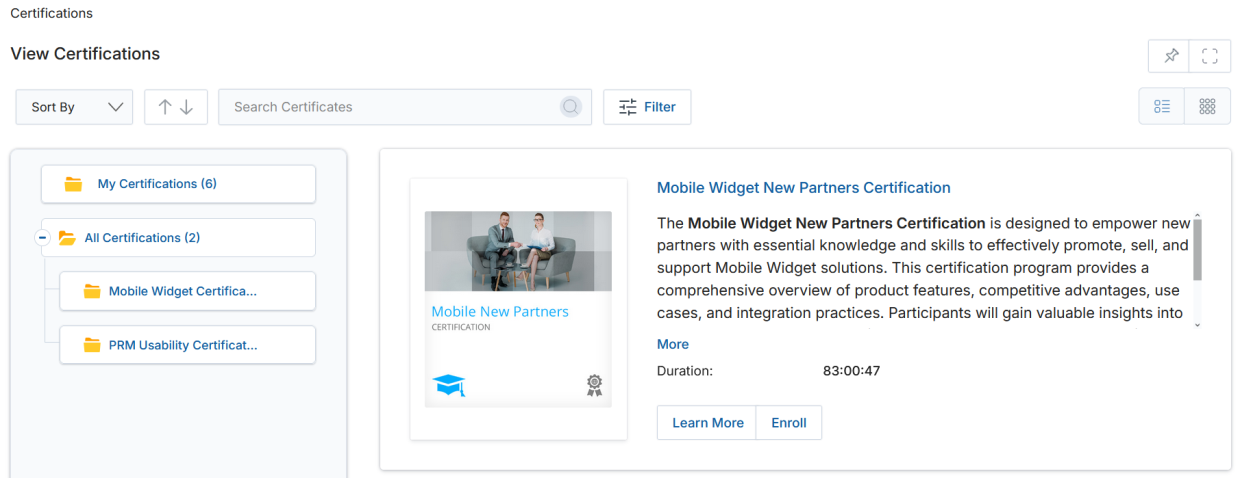
Clicking Certifications from the left menu opens the View Certifications page, showing all certification programs assigned to the partner and organized by category. Certifications can be viewed in List View or Thumb View by clicking the respective toggle buttons.
View Certification Details
Click the Learn More button on any certification listing to open the View Certification panel, which shows complete details of the selected certification.
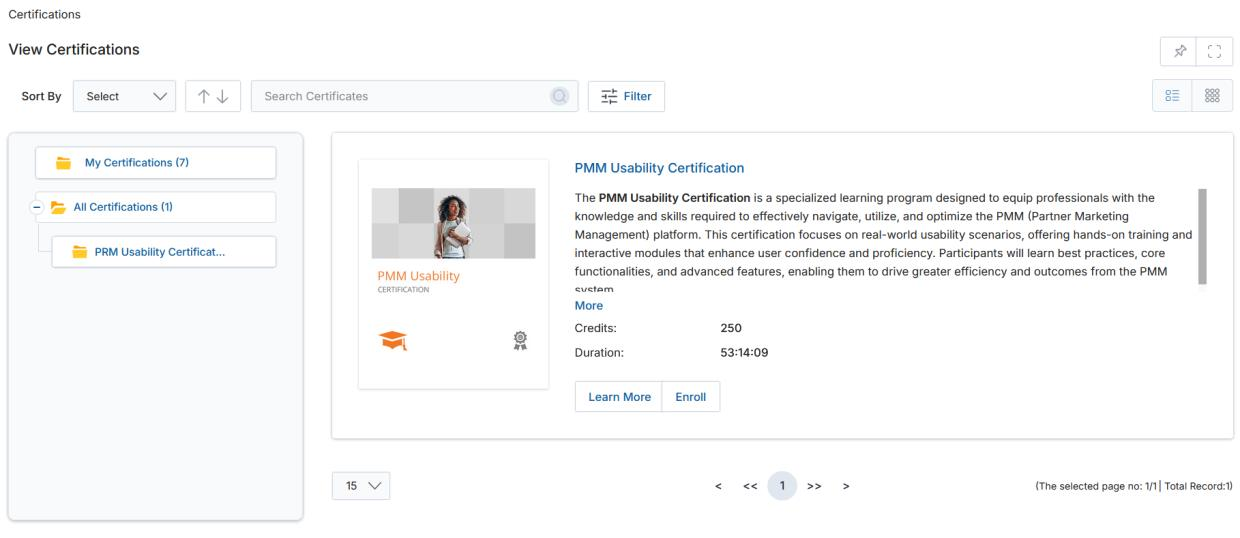
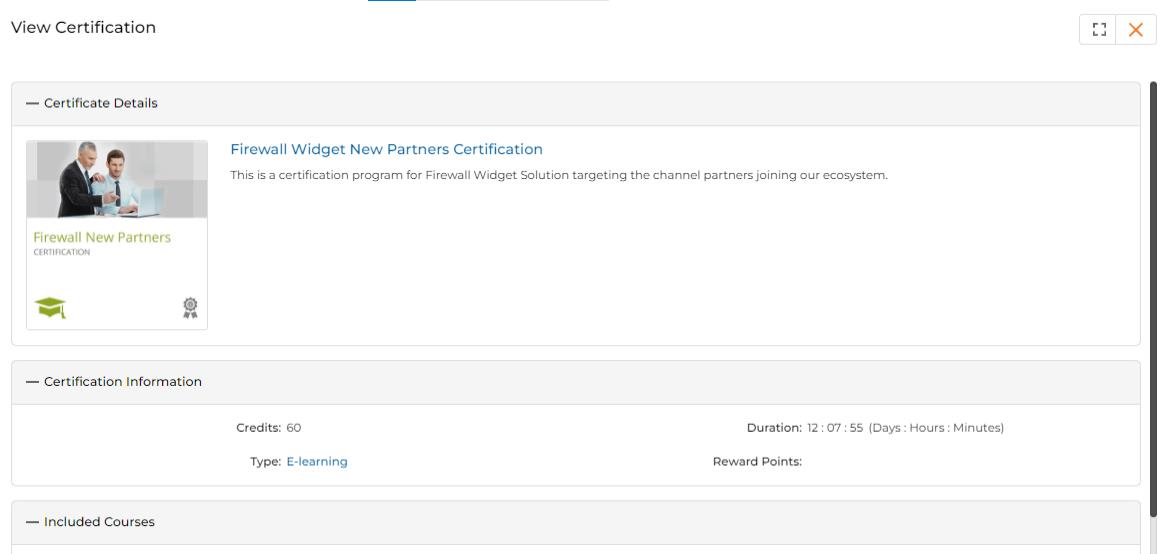
The View Certification panel contains the following sections:
- Certification Information:
- Certification Name — Name of the certificate related to the course.
- Type — Type of the certification (e.g., E-learning).
- Duration — Time allocated for completing the certification (Days : Hours : Minutes).
- Credits — Credit points allocated for certificate completion.
- Description — A short description of the certification program and its objectives.
- Include Courses — Displays all courses that must be completed for certification. A Start button appears for courses not yet begun; a Resume button appears for courses already in progress.
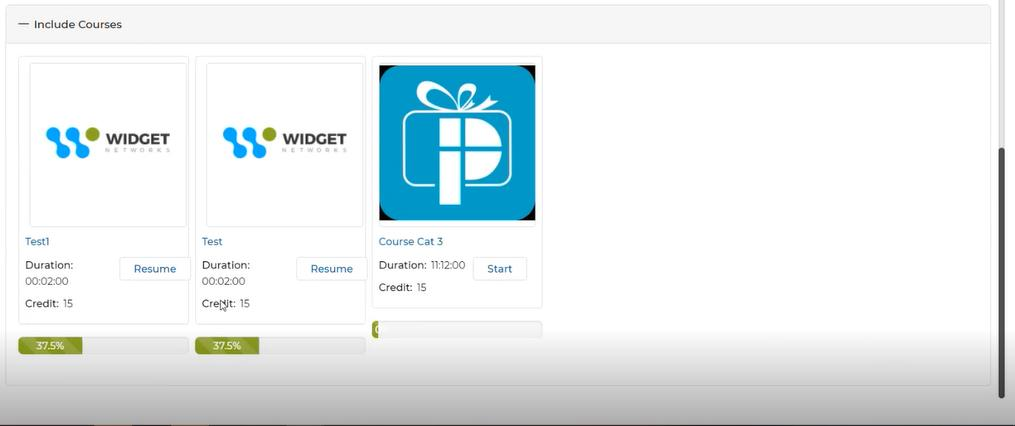
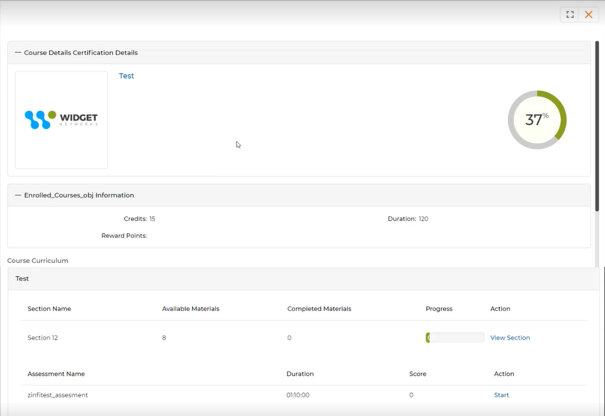
- Click Start or Resume on an included course to open a new course panel from the right side.
- The course panel shows the Course Curriculum with sections and assessments, along with a Progress Donut Graph tracking overall completion percentage.
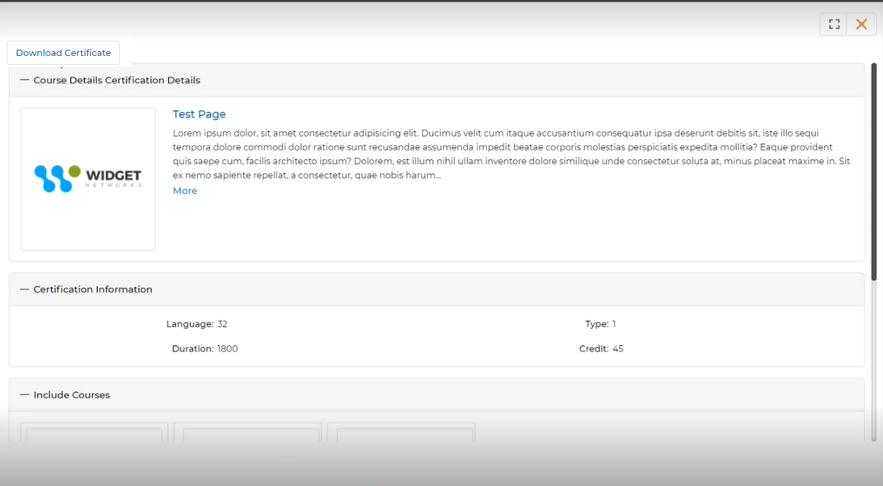
- Once all courses associated with a certification program are completed, the certification will appear in the My Certifications category. Click Start on the completed certification to open the details page, then click Download Certificate to download your certificate.
View Section Details
Within the course curriculum of a certification, the Actions column in the Section table contains two button states:
- View Section — Appears when the section has not yet been started.
- Resume — Appears once you have started reading section material (replaces View Section).
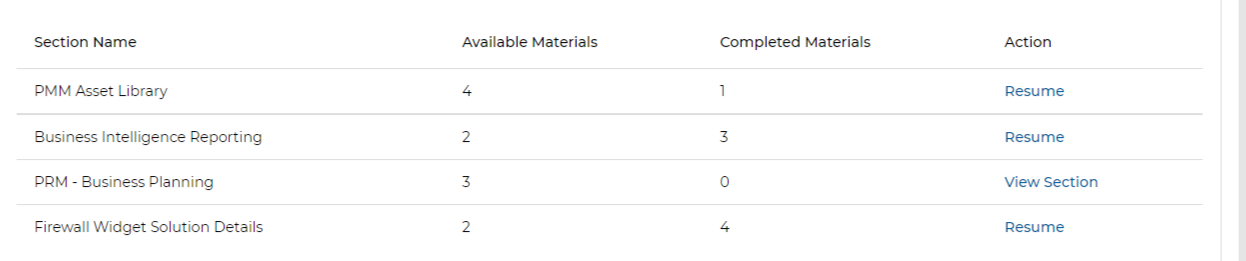
Clicking View Section or Resume opens the Course Curriculum panel showing all materials for that section. The actions available per material are:
- View — Displays the file in a browser (if readable).
- Download — Downloads the file.
- Mark Complete — Marks the material as complete. Once clicked, the button updates to Completed and the material status is recorded as completed. Once all materials are completed, the Section is completed. Once all Sections and Assessments are completed, the Course is completed.
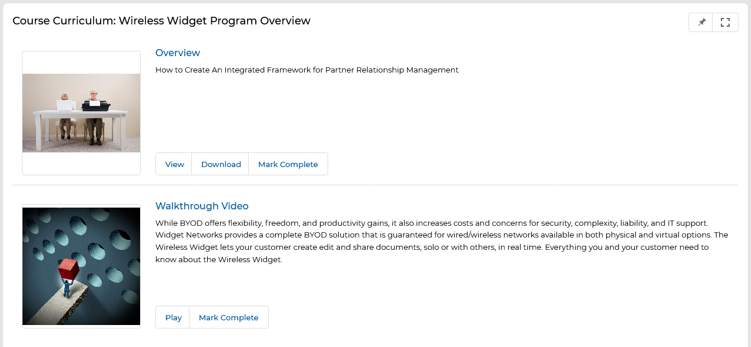
For video materials, only Play and Mark Complete buttons are available. There is no View or Download button for video content.
Start an Assessment
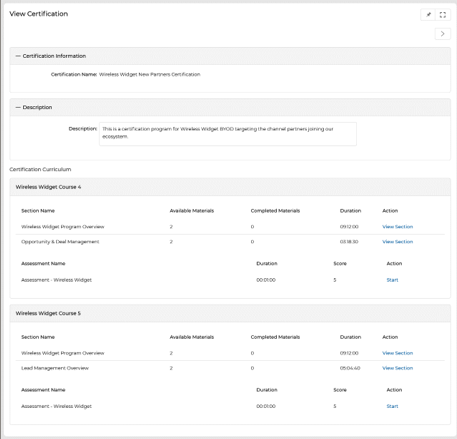
Each certification includes multiple courses, and each course has its own assessment. To start an assessment from the View Certificate Details page:
- Click the Start button for the specific assessment in the Assessment Name table.
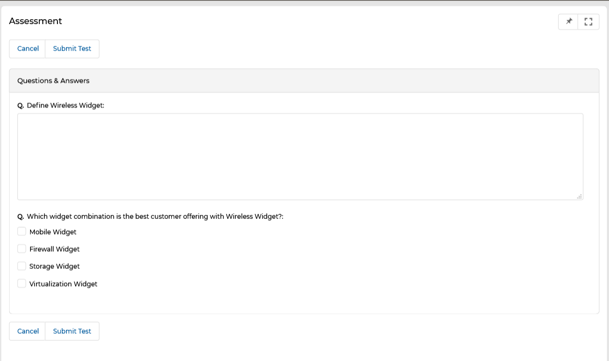
- The Assessment page opens showing all questions for that course's assessment.
- After answering all questions, click Submit Test to submit your answers.
- Assessment results are displayed immediately — showing pass or fail status and your score.
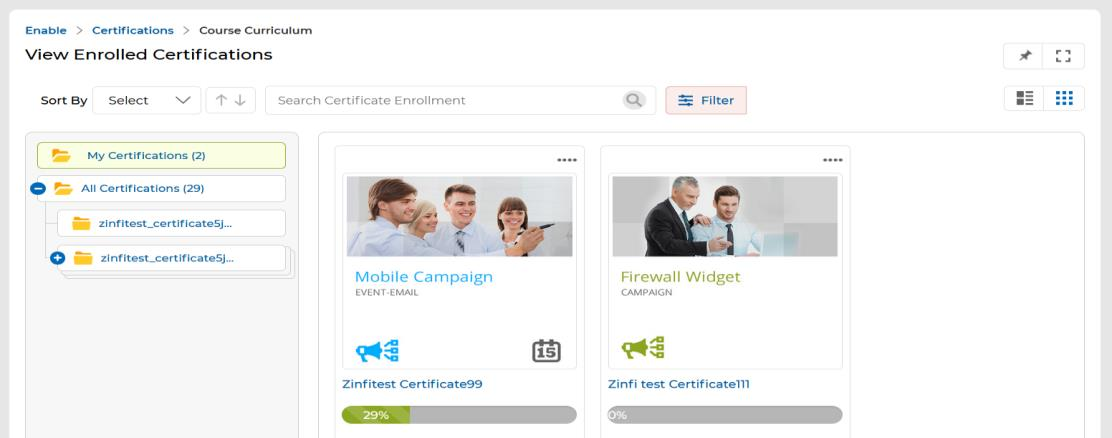
Display Progress Bar in Card View and Thumb View for Enrolled Certificates
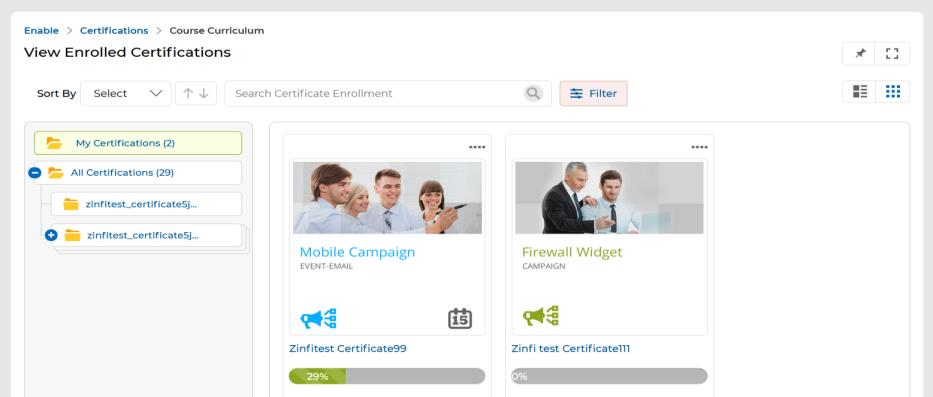
Enrolled certifications display a real-time horizontal progress bar in both Card View and Thumbnail View. This allows you to see your learning status at a glance without navigating into the details page.
- The progress bar reflects the exact percentage of completion.
- The numerical percentage (e.g., 29%) is displayed clearly on or beside the progress bar.
- The progress bar updates in real time as you progress through courses and assessments within the certification.
Navigate to Enable > Learning > Certificates > My Enrolled Certificates to view enrolled certifications with their progress bars.