
Introduction
ZINFI's Unified Partner Management (UPM) software has an integrated Market Development Funds Management application, enabling your organization to view market development and co-op funds allocated to you by your vendor. The application automates the claim application process after you supply proper proof of execution. Automation helps prevent you from submitting inaccurate or late applications.
You will receive notifications and alerts when the vendor allocates, finds, and uploads program details and submission deadlines. Each proposed plan is tagged with a dedicated partner account manager so you know whom to contact for assistance while executing a marketing activity with allocated funds. Unique nomenclature for plan and claim IDs makes it easier to quickly determine the number of log entries you must complete for each activity.
MDF Widget Dashboard
Whenever the Partner logs into UPM, they are welcomed by a landing page containing the MDF Widget dashboard displaying a summary of current MDF Quarter statistics and Sales Pipeline information. The latest Quarterly MDF information is displayed, including:
- Total Allocated Funds for the Quarter — Total MDF funds allocated by the vendor for the current quarter.
- Remaining Funds for the Quarter — Unspent MDF balance remaining in the current quarter.
- Deadlines for submission of Plans and Claims — Key dates for Plan Submission and Claim Submission deadlines.
- Contribution Ratio — Breakdown of OEM Contribution and Partner Contribution percentages.
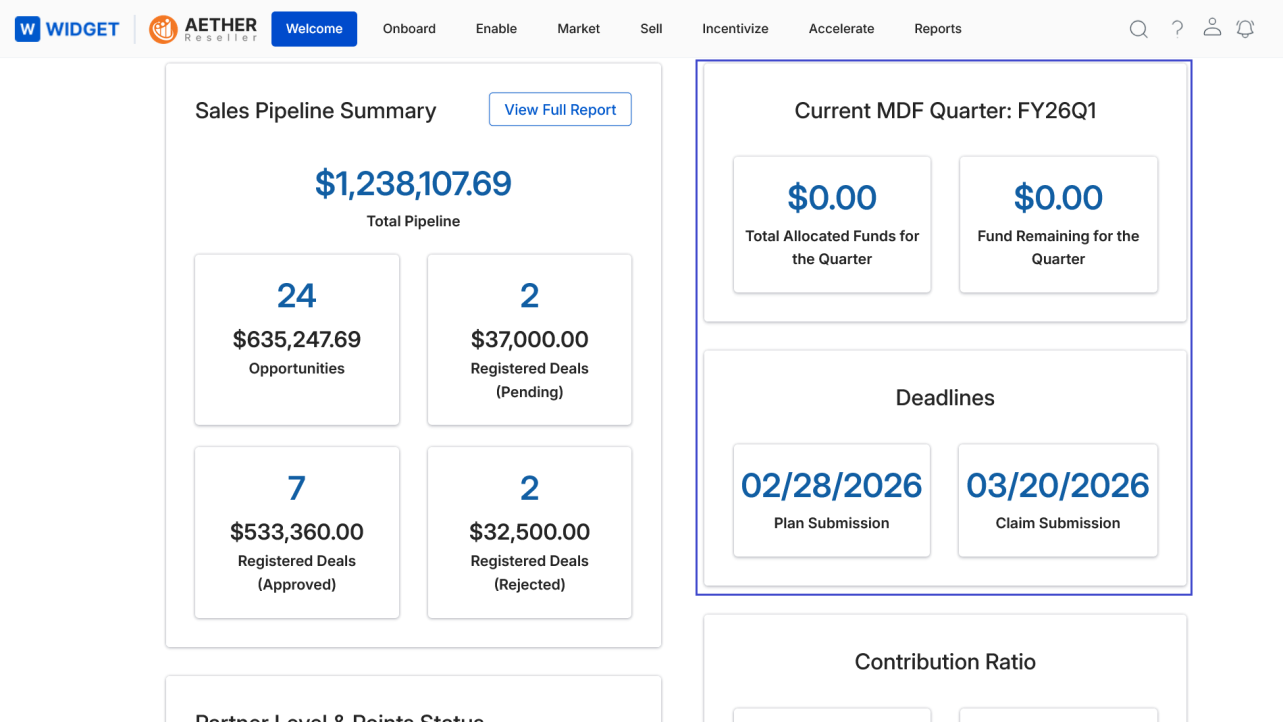
Getting a critical statistical glimpse of the current MDF Quarter status on the Welcome page allows the Partner to get MDF-centric information without visiting the Reports application. A more detailed and elaborate MDF report is available in the UPM Reports application.
MDF Plans
To access MDF Plans:
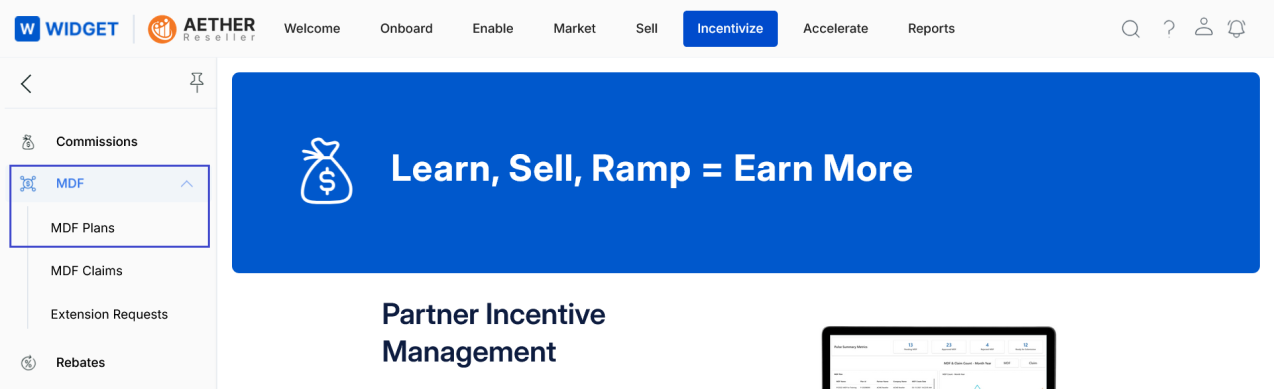
- Click Incentivize on the top menu.
- Click MDF Plans in the left menu bar under MDF.
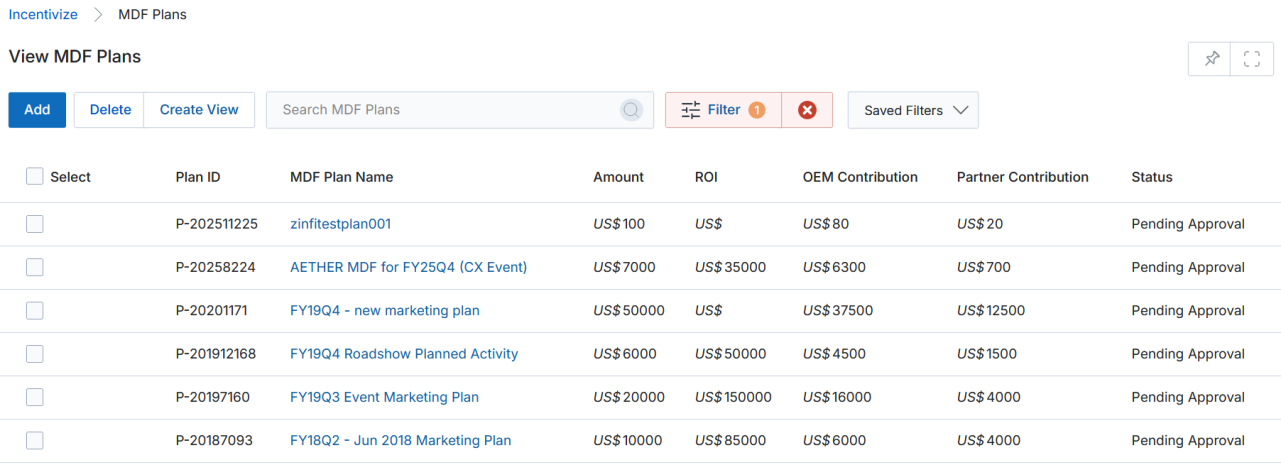
3.1 View MDF Plans
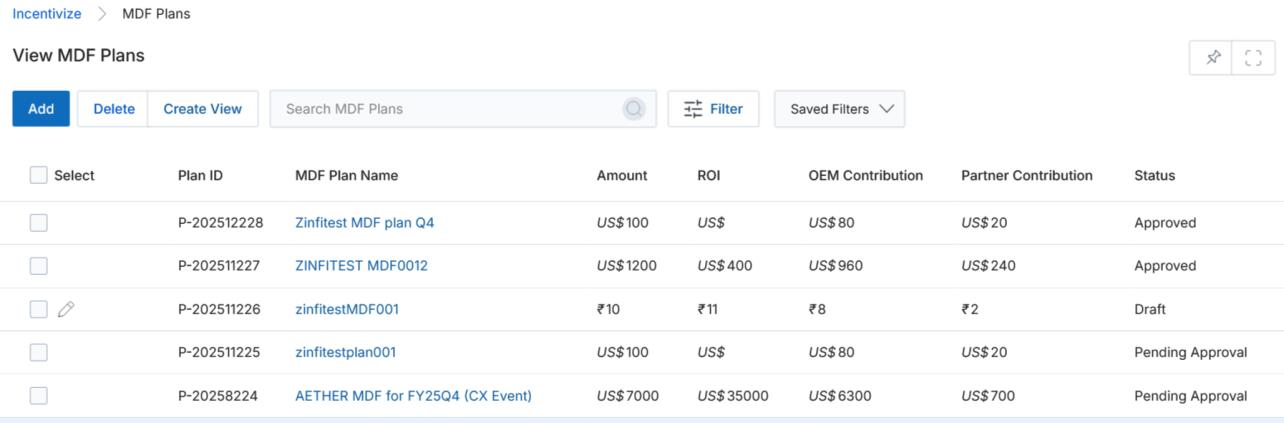
- The top part of the page provides the following actions:
- Add — Opens a new page to add a new MDF Plan record.
- Delete — Deletes selected record(s) from the listing page.
- Filter — Opens a pop-up window where you can enter search criteria to find desired records.
- Saved Filters — Lists saved filters in the search dropdown. When selected, two additional options appear:
- Edit — Updates the selected filter name.
- Delete — Removes the selected filter from the dropdown.
- For each record in the grid:
- Edit (Pen icon) — Lets you edit the selected plan. The pen icon is only visible if the plan has not yet been approved.
- MDF Plan Name — Click to go to the MDF Plan details page.
3.2 View Plan Details
- Click the Name/Title of any plan listing to go to the details page.
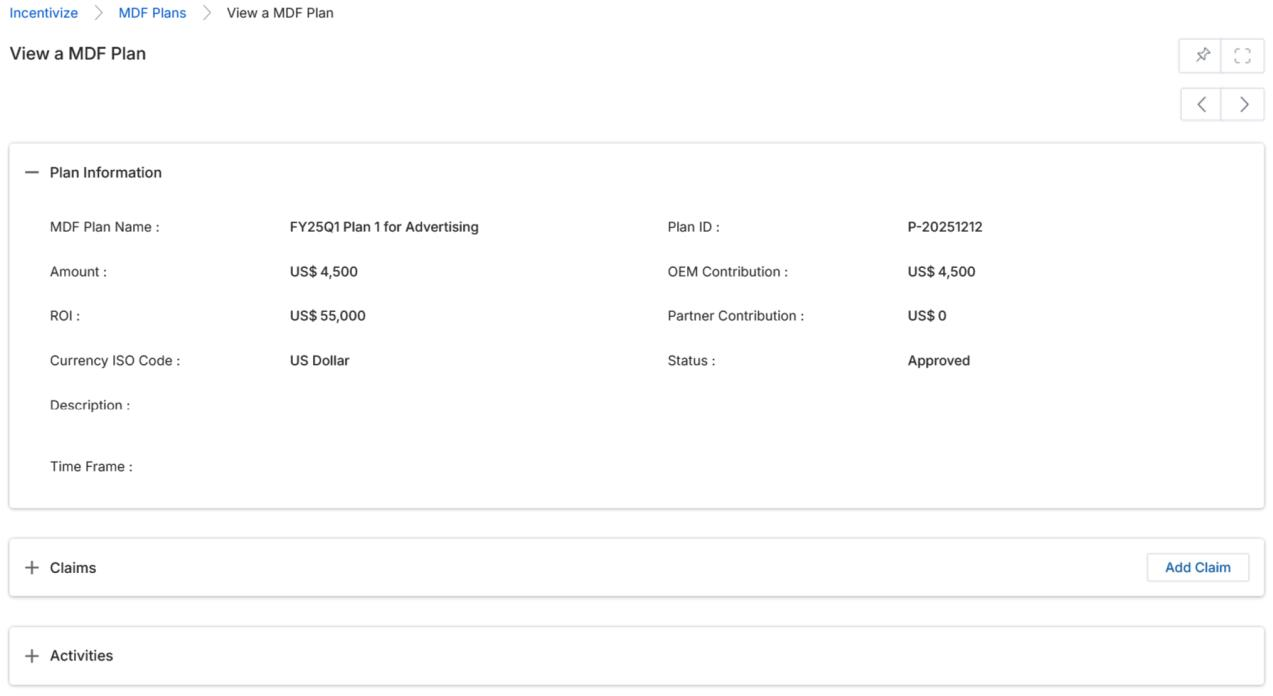
- Once on the View MDF Plan page, you will see the following sections:
Buttons
The following buttons are only visible if the plan has not yet been submitted for approval:
- Edit — Opens the plan in edit mode.
- Delete — Removes the plan.
- Submit For Approval — Submits the plan to the OEM internal team for approval.
Plan Information
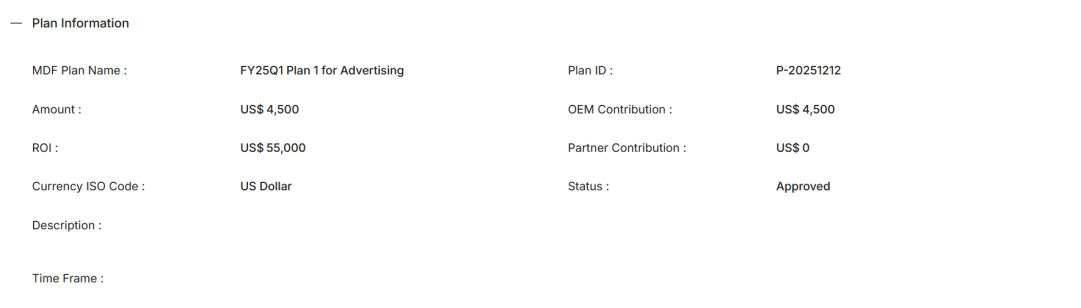
| Field | Description |
|---|---|
| MDF Plan Name | Name of the MDF Plan. |
| Plan ID | Unique plan reference number for identification. |
| Account Manager | The person responsible for managing the MDF plan fund. |
| MDF Fiscal Quarter | The fiscal quarter under which the plan has been made. |
| Amount | Total plan amount. |
| OEM Contribution | OEM contribution amount in the plan. |
| ROI | Expected return on investment (ROI) amount for the plan. |
| Partner Contribution | Partner contribution amount in the plan. |
| Currency ISO Code | The currency ISO code used in the plan. |
| Status | Current plan status (e.g., Draft, Pending Approval, Approved). |
| Description | Free-text description of the plan. |
Activities
Displays a list of activities to execute the plan.

| Column | Description |
|---|---|
| Name | User-friendly name of the activity. Click to view its details. |
| Activity | The activity type involved in the operation. |
| Objective | Objective of the activity. |
| Start Date | Activity start date. |
| End Date | Activity end date. |
| Solution Offered | The line of business involved in the activity. |
| Amount | Amount invested in performing the activity. |
Claims
Displays a list of claims made against the activities performed under the plan.

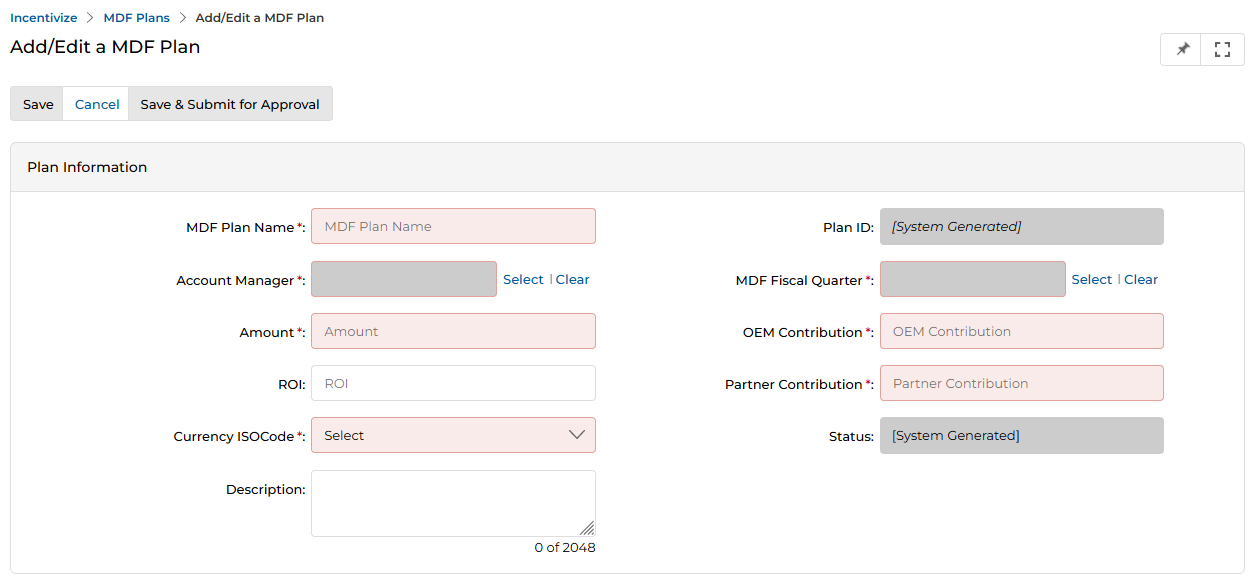
When adding a new claim, the following fields are available:
| Field | Description |
|---|---|
| Plan Name | Name of the associated plan. Auto-populated when you click Add Claim from within the plan details page. |
| Claim ID | Unique claim reference number — auto-generated by the system. |
| MDF Claim Name | A user-friendly title for the claim. |
| Status | Current status of the claim. |
| Plan Amount | The approved amount of the plan. |
| Claim Amount | Maximum amount to be claimed. |
| Description | Brief description of the claim. |
The Claims related list also shows the following columns for existing claims:
| Column | Description |
|---|---|
| Name | Title of the claim. |
| Claim ID | Unique claim reference number. |
| Description | Description of the claim. |
| Claim Amount | Amount claimed. |
| Status | Current status of the claim. |
Approval History
Shows the level-by-level approval process for the plan.

| Column | Description |
|---|---|
| Step | Indicates the level of the approval process (e.g., First Level Approver, Final Level Approver). |
| Submitter | The partner user who submitted the plan. |
| Approver | The profile involved in approving the plan. |
| Actual Approver | The OEM user who approved the plan at that level. |
| Status | Current status of the plan at that approval step. |
| Comments | Comments submitted against the plan approval. |
| Action Taken Date | Date and time when the relevant action was taken. |
3.3 View Plan Activities
- To view a Plan's Activities, click the Name/Title of any Activity listing in the Activities section of the Plan Details page.

- Once on the Activity details page, you will see the following sections:
MDF Activity Information
| Field | Description |
|---|---|
| Name | User-friendly name of the activity. |
| Activity | The activity type involved in the operation. |
| Start Date | Activity start date. |
| End Date | Activity end date. |
| Objective | Objective of the activity. |
| Plan ID | Unique plan reference number for identification. |
| Solution Offered | Business line associated with the plan. |
| Amount | Plan amount associated with the activity. |
| Currency ISO Code | Currency of the amount. Available options: Australian Dollar, Indian Rupee, Pound Sterling, and US Dollar. |
Products
Lists all products based on which the current activity is performed.

| Column | Description |
|---|---|
| Name | Name of the product. Click to view its details. |
| Product SKU | The SKU of the product. |
Associated Campaigns
Lists all campaigns involved in the activity.

- Click the Back link to return to the View MDF Plan page.
3.4 Add / Edit a MDF Plan
- Create a new MDF Plan by clicking the Add button on the View MDF Plans page, or click the pencil icon to edit an existing MDF Plan that is in Draft or Pending Approval stage.
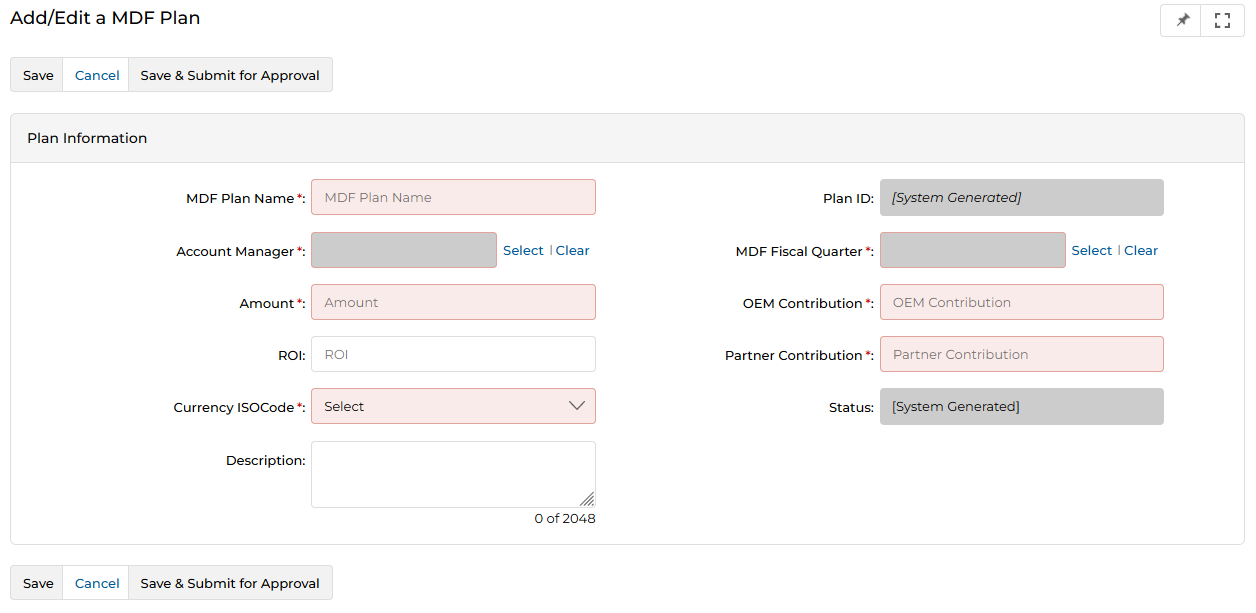
- Click the Add button on the View MDF Plans page to open the Add/Edit a MDF Plan form.
- Complete the required fields (see § 3.2 View Plan Details for field descriptions), then click Save.
- Once the plan is created, return to the View MDF Plans page, click the name of your newly created plan, and click the Submit for Approval button that appears.
- Alternatively, after completing the form you can click Save & Submit for Approval to save and submit the plan for approval in a single action.
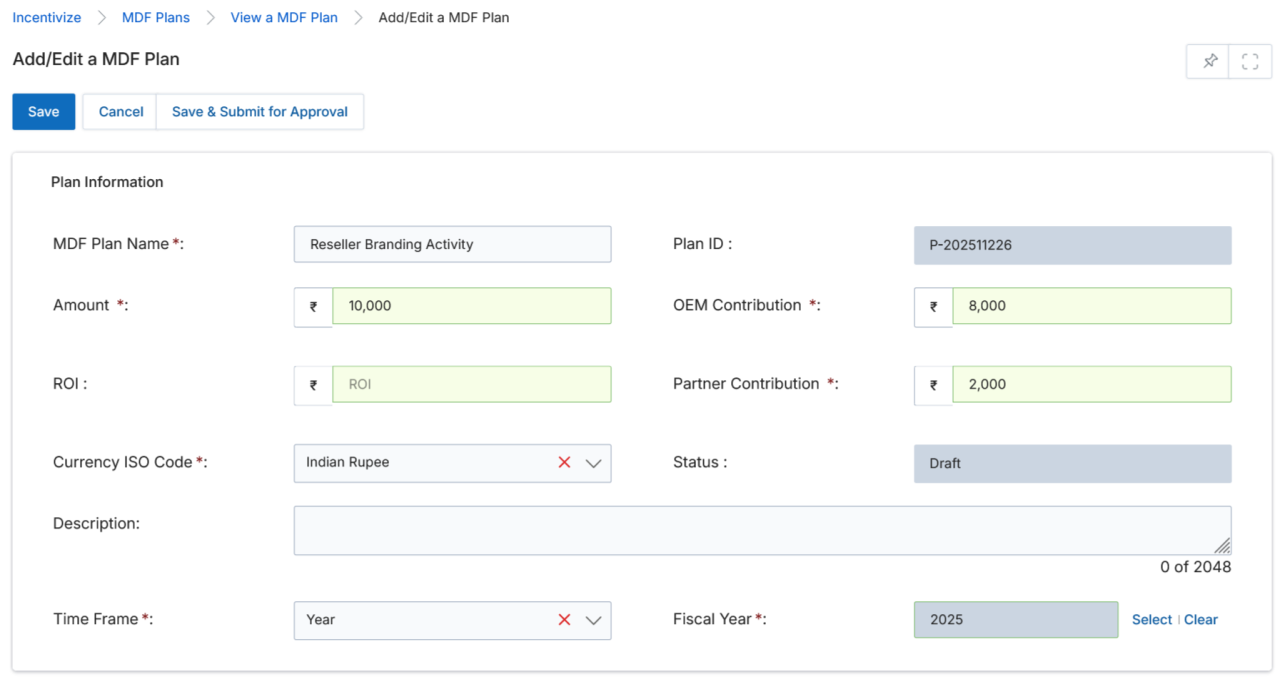
- Once submitted for approval, the plan's Status changes to Pending Approval on the View MDF Plans page.
MDF Claims
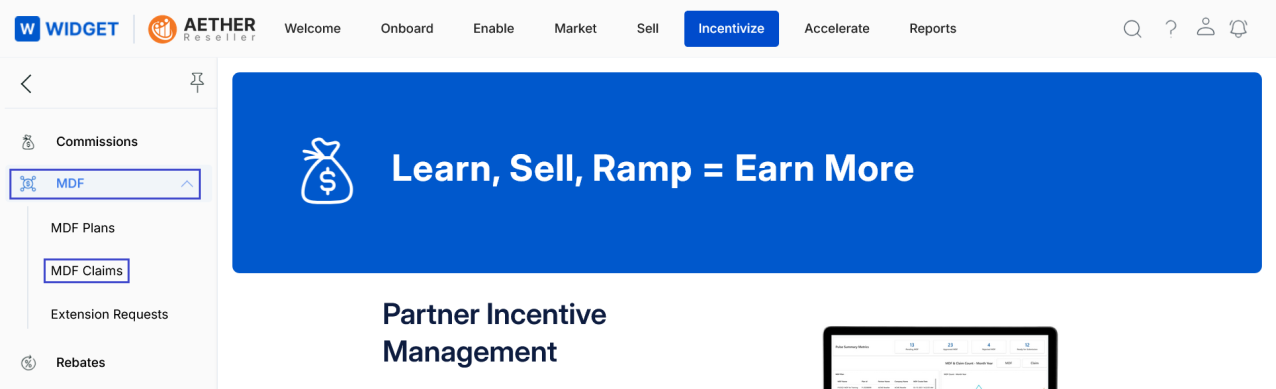
To access MDF Claims:
- Click Incentivize on the top menu.
- Click MDF Claims in the left menu bar under MDF.
4.1 View MDF Claims
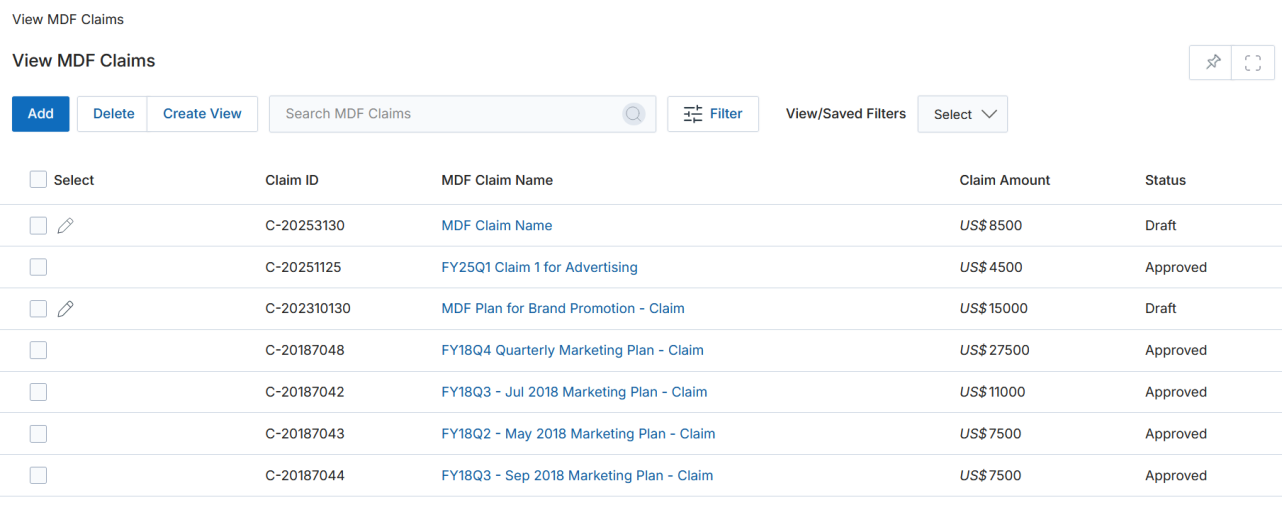
- The top part of the page provides the following actions:
- Delete — Removes the selected claim.
- Search — Opens a pop-up window to enter search criteria.
- Clear Search — Clears the current search.
- Saved Searches — Lists saved searches in the dropdown. When selected, two additional options appear:
- Edit — Updates the selected search name.
- Delete — Removes the selected search from the dropdown.
- Clicking the MDF Claim Name in the grid takes you to its details page.
4.2 View Claim Details
- Click the Name/Title of any claim listing to go to the details page.
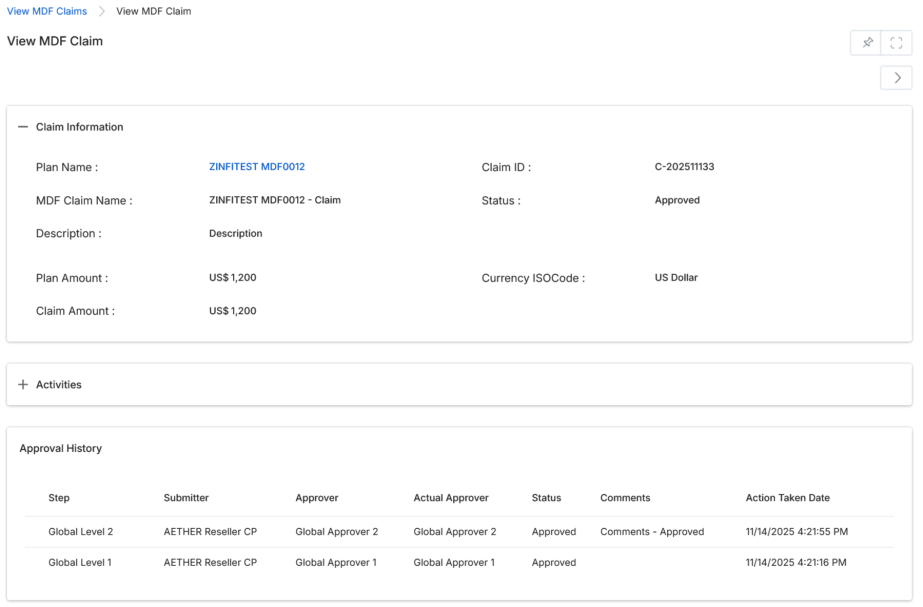
- Once on the View MDF Claim page, you will see the following sections:
Claim Information
| Field | Description |
|---|---|
| Plan Name | User-friendly name of the associated MDF Plan. |
| Claim ID | Unique identifier for the claim. |
| MDF Claim Name | User-friendly name of the claim. |
| Status | Current status of the claim. |
| Plan Amount | Total approved amount of the associated plan. |
| Claim Amount | Amount being claimed. |
| Description | Brief description of the claim. |
Activities
Displays a list of activities executed as part of the claim process.
| Column | Description |
|---|---|
| Name | User-friendly name of the activity. Click to view its details (see § 4.3 View Claim Activity Details). |
| Activity | The activity type involved in the claim. |
| Objective | Activity objective for the claim. |
| Claim ID | Unique identification of the claim. |
| Start Date | Activity start date. |
| End Date | Activity end date. |
| Amount | Amount of the claim activity. |
| Tax Amount | Tax deducted against the claim amount. |
| Currency ISO Code | Currency ISO code of the claim amount. |
Approval History
Shows the level-by-level approval process for the claim. The same columns apply as for Plan Approval History: Step, Submitter, Approver, Actual Approver, Status, Comments, and Action Taken Date.
4.3 View Claim Activity Details
- Click the Name/Title of any Activity in the Activities section of the Claim Details page.

- Once on the Claim Activity detail page, you will see the following sections:
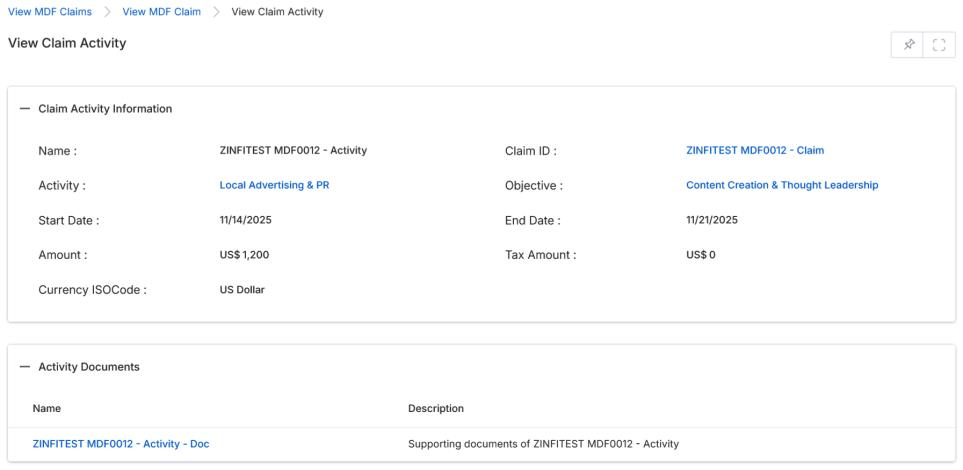
Claim Activity Information
| Field | Description |
|---|---|
| Name | User-friendly name of the claim activity. |
| Claim ID | Unique identification of the associated claim. |
| Activity | Activity type involved in the claim process. |
| Objective | Activity objective for the claim. |
| Start Date | Start date of the claim activity. |
| End Date | End date of the claim activity. |
| Amount | Claim amount for this activity. |
| Tax Amount | Tax deducted against the claim amount. |
| Currency ISOCode | Currency ISO code of the claim amount. |
Activity Documents
Lists all documents uploaded as proof of the activities performed during the claim process. Click any document Name to view its details (see § 4.4 View & Download Claim Activity Documents).
4.4 View & Download Claim Activity Documents
- Click the Name/Title of any Activity Document listing to go to the details page.

- Once on the Claim Document(s) page, you will see the following buttons and fields:
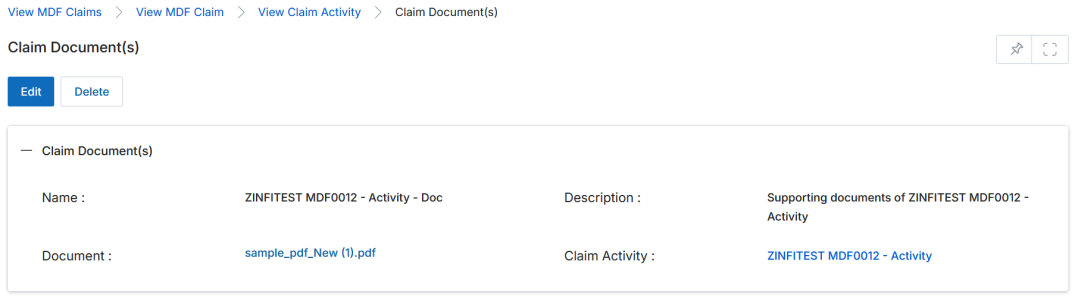
Buttons
- Edit — Opens the page in edit mode to update the document details.
- Delete — Removes the document from the list.
Fields
| Field | Description |
|---|---|
| Name | User-friendly name of the document. |
| Document | Uploaded document as proof of activities performed. Click the document name link to download the file to your desktop for review. |
| Claim Activity | Name of the associated claim activity. Click it to return to the activity detail page. |
| Zoom Attendee List | List of events attended (applicable when the activity involves virtual meetings). |
| Description | Brief description of the document. |
Extension Requests
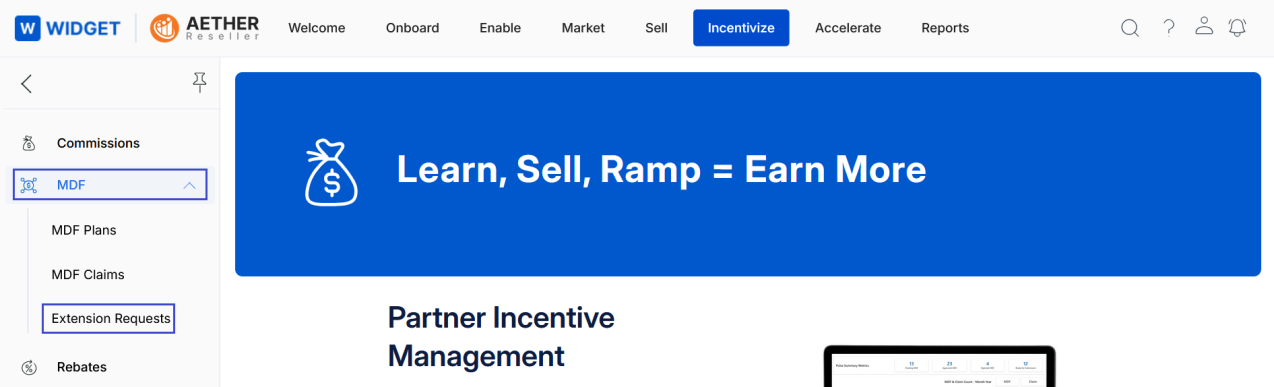
To access Extension Requests:
- Click Incentivize on the top menu.
- Click Extension Requests in the left menu bar under MDF.
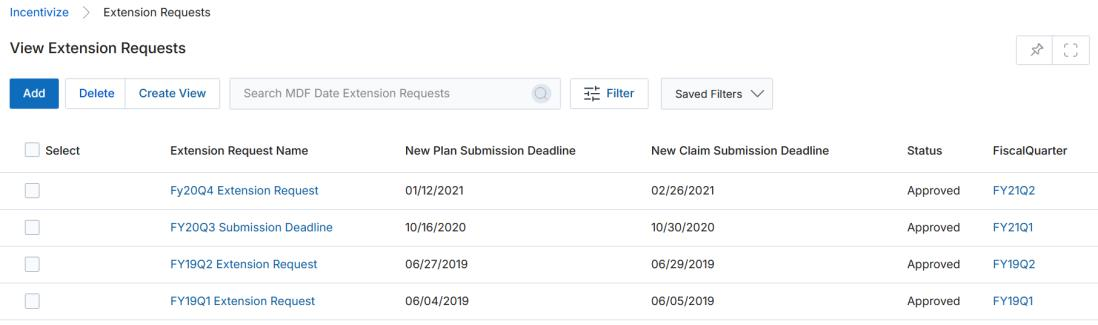
5.1 View Date Extension Requests
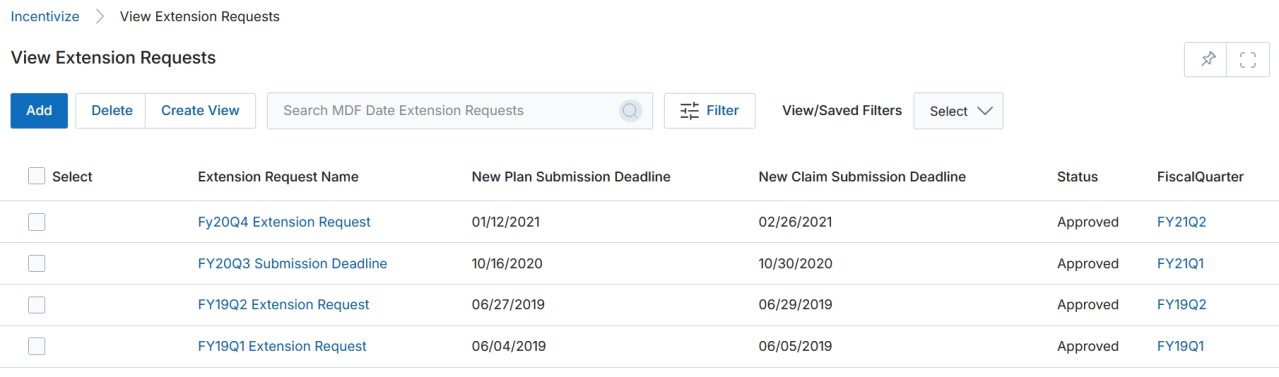
- The top part of the page provides the following actions:
- Add — Opens a new page to add a new extension request. See § 5.3 Add/Edit an MDF Date Extension Request for more details.
- Delete — Deletes selected record(s) from the listing page.
- Search — Opens a pop-up window to enter search criteria.
- Clear Search — Clears the current search.
- Saved Searches — Lists saved searches in the dropdown. When selected, two additional options appear:
- Edit — Updates the selected search name.
- Delete — Removes the selected search from the dropdown.
- For each record in the grid, clicking the following opens different pages:
- Extension Request Name — Takes you to the request details page.
- Fiscal Quarter — Takes you to the quarter details page.
5.2 View Date Extension Request Details
- Click the Extension Request Name in the listing to go to its details page.
- Once on the View Extension Request page, you will see the following sections:
Extension Request Information
| Field | Description |
|---|---|
| Extension Request Name | Name of the extension request. |
| Quarter | Fiscal quarter associated with the extension request. |
| New Plan Submission Deadline | The new (extended) deadline for submitting plans. |
| New Claim Submission Deadline | The new (extended) deadline for submitting claims. |
| Status | Current status of the extension request. |
Approval History
Shows the level-by-level approval process for the extension request. Columns are: Step, Submitter, Approver, Actual Approver, Status, Comments, and Action Taken Date — consistent with Plan and Claim approval history.
5.3 Add / Edit an MDF Date Extension Request
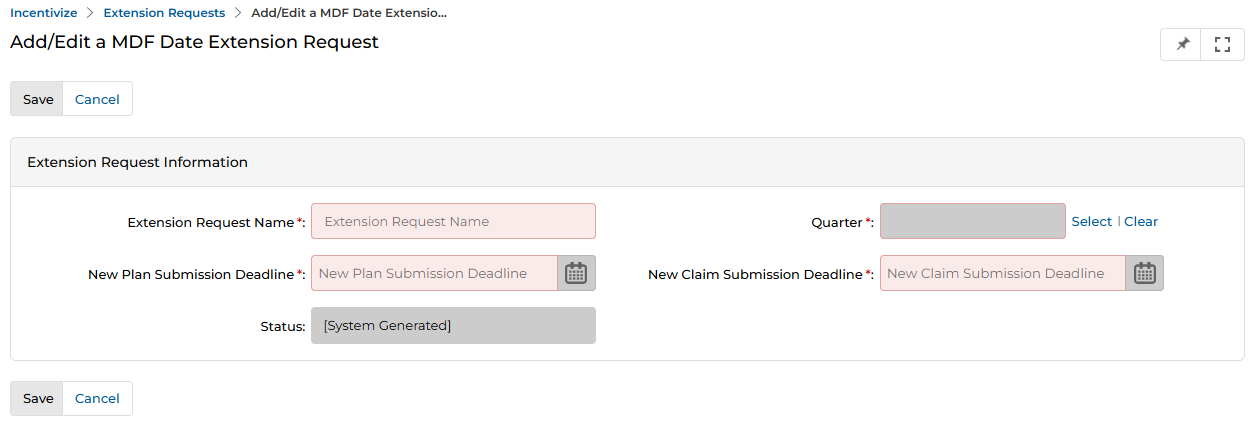
- Click Add to create a new extension request, or click the pencil icon beside an existing extension request name (only available if the request has not yet been submitted for approval).
- Once the form opens, complete the following fields:
| Field | Description |
|---|---|
| Extension Request Name | Name of the extension request. |
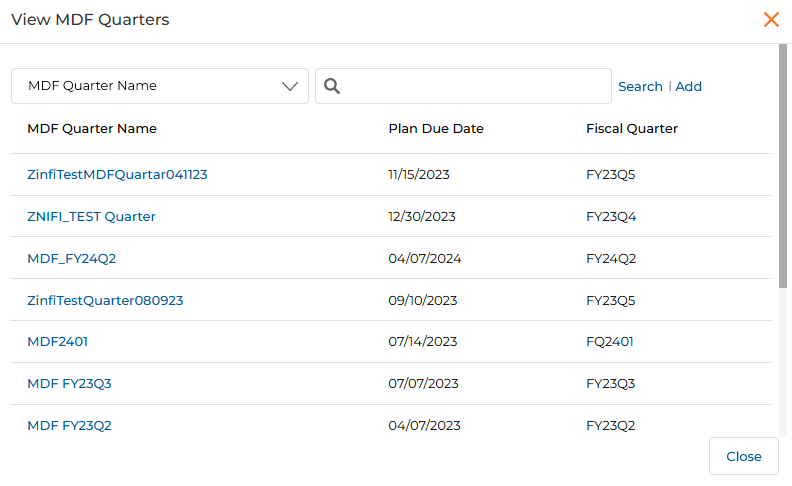
| Quarter | Quarter associated with the extension request. Click Select to open the MDF Quarters picker and choose the desired quarter. |
| New Plan Submission Deadline | Last extended date to submit the plan. Click the calendar icon to choose the date. |
| New Claim Submission Deadline | Last extended date to submit the claim. Click the calendar icon to choose the date. |
| Status | Current status of the extension request. Auto-generated by the system. |
- Click Save when done.