
Introduction
The Rebates Management application of ZINFI's Unified Partner Management (UPM) platform enables your organization to automate the management of various incentive schemes, such as sales rewards, company rebates and Rebates — to drive improved channel performance. Rebates allows Channel Partners to create an engaging rebates program for its user base.
Rebates management tools help channel partners drive the success of initiatives by sharing the individual performances of sales team members. Sales reps are encouraged to seek rewards and earn rebates on the products purchased from the vendors, all in a fair and transparent process.
Rebates
2.1 Accessing Rebates
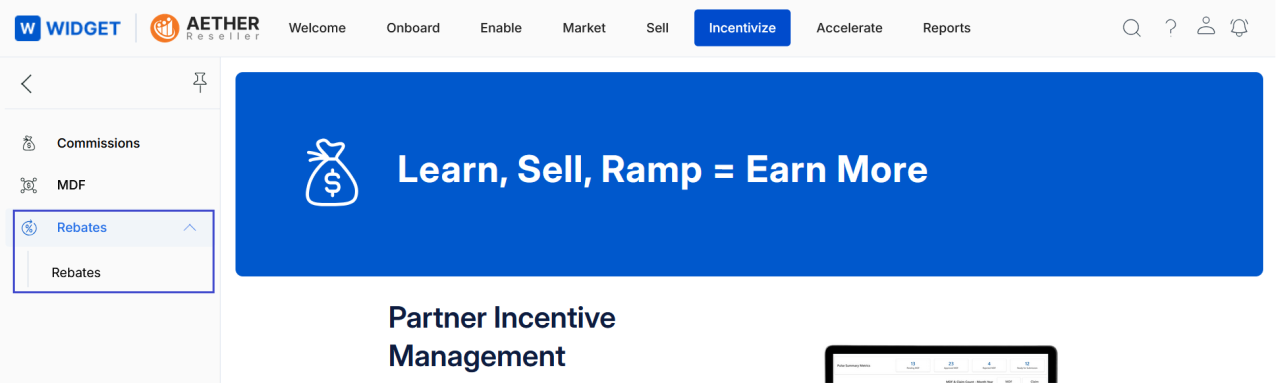
- Click Incentivize from the top menu.
- Click Rebates > Rebates from the left menu bar.
2.2 View Rebates
- Clicking View Rebates from the left menu will take you to the View Rebates page, which lists the names of all rebates you have been granted.

- The top part of the page provides the following actions:
- Filter — Opens a pop-up window where you can enter search criteria to find desired records.
- Saved Filters — Shows a list of saved searches in the dropdown. When selected, two additional options appear:
- Edit — Provides the option to edit and update the selected search item.
- Delete — Removes the selected search name from the dropdown.
- For each record in the grid, clicking any linkable item takes you to its details page.
View Rebate Request Details
Partners earn Rebates in accordance with the rules defined in the Rebate Rules by closing a Deal or Invoice. The Rebates earned are visible on the View Rebates page in the Incentive Rule Engine.
When a Rebate Rule — such as one for Deal Closure — is configured within the Rebate Entitlements setup by the Admin, the system dynamically calculates Rebate amounts based on the actual sales performance of partners.
- To view the details of any Rebate, click the specific Rebate Name listed on the View Rebates page.
- Clicking any specific Rebate ID will also take you to the View Rebate page with the details of that specific rebate.
- The View Rebate page contains the following sections and fields:
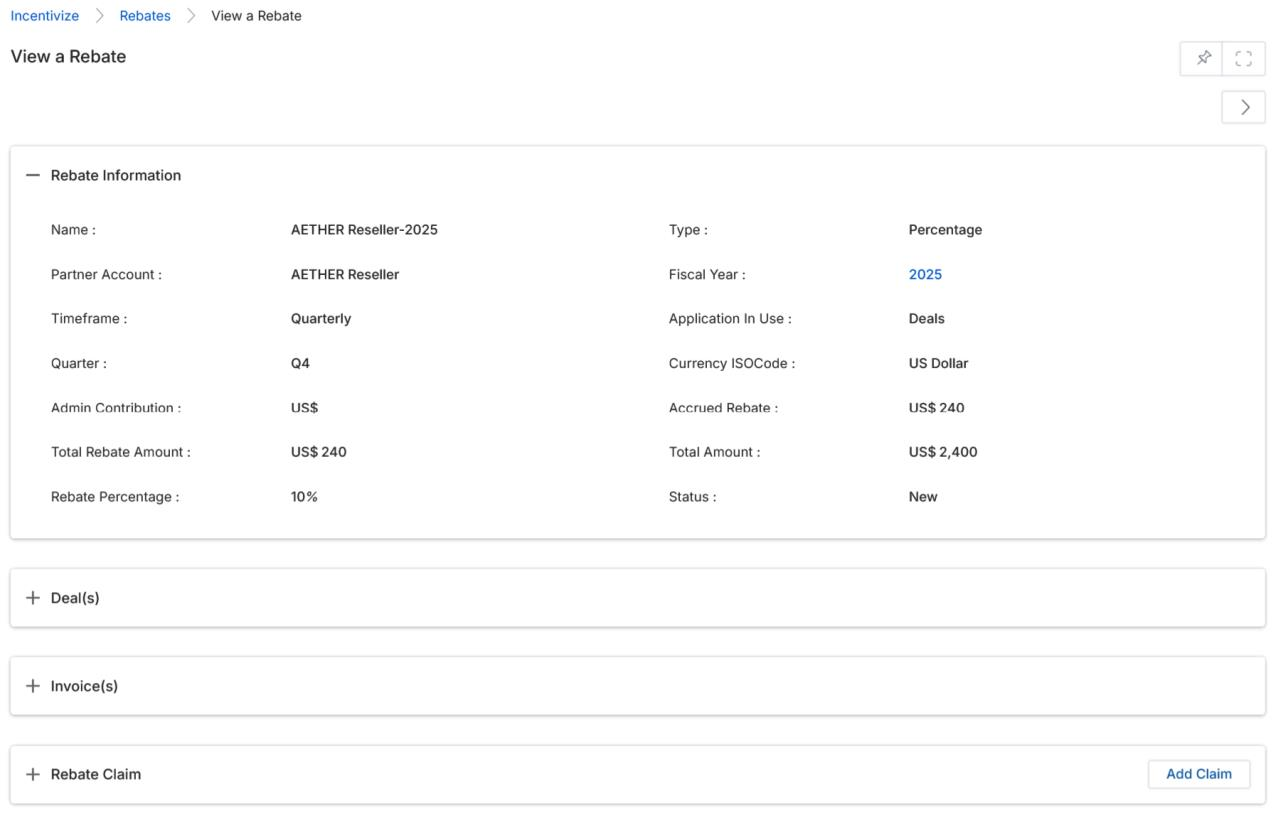
Rebate Information
| Field | Description |
|---|---|
| Name | The name of the rebate program. |
| Partner Account | The partner organization to which the rebate applies. |
| Timeframe | Defines how the rebate is evaluated. Quarterly indicates the rebate is calculated for a specific fiscal quarter. |
| Quarter | The fiscal quarter for which the rebate is applicable. |
| Admin Contribution | The currency used for rebate calculations from the administrator's side. |
| Total Rebate Amount | The total rebate value earned by the partner based on eligible transactions. |
| Rebate Percentage | The percentage applied to eligible deal amounts to calculate the rebate. |
| Type | Indicates how the rebate is calculated. Percentage means the rebate is based on a percentage of the total amount. |
| Fiscal Year | The fiscal year during which the rebate is applicable (e.g., 2025). |
| Application In Use | Specifies the module from which rebate-eligible transactions are derived. Deals indicates the rebate is calculated based on deal records. |
| Currency ISO Code | The currency used for rebate calculation and payout (e.g., US Dollar). |
| Accrued Rebate | The rebate amount accumulated so far based on approved and eligible transactions. |
| Total Amount | The total value of all eligible transactions considered for rebate calculation. |
| Status | The current state of the rebate. New indicates the rebate has been created but not yet processed or claimed. |
Deal(s)
This section lists all deals linked to the rebate that contribute to the rebate calculation. Expand this section to view deal-level details.
Invoice(s)
This section displays invoices associated with the rebate, if applicable, and helps validate eligible revenue.
Rebate Claim
This section is used to submit a rebate claim against the accrued rebate amount. Click Add Claim to initiate a rebate claim request.