ZINFI UPM GuideReferral Management for Channel Partners
01
Introduction
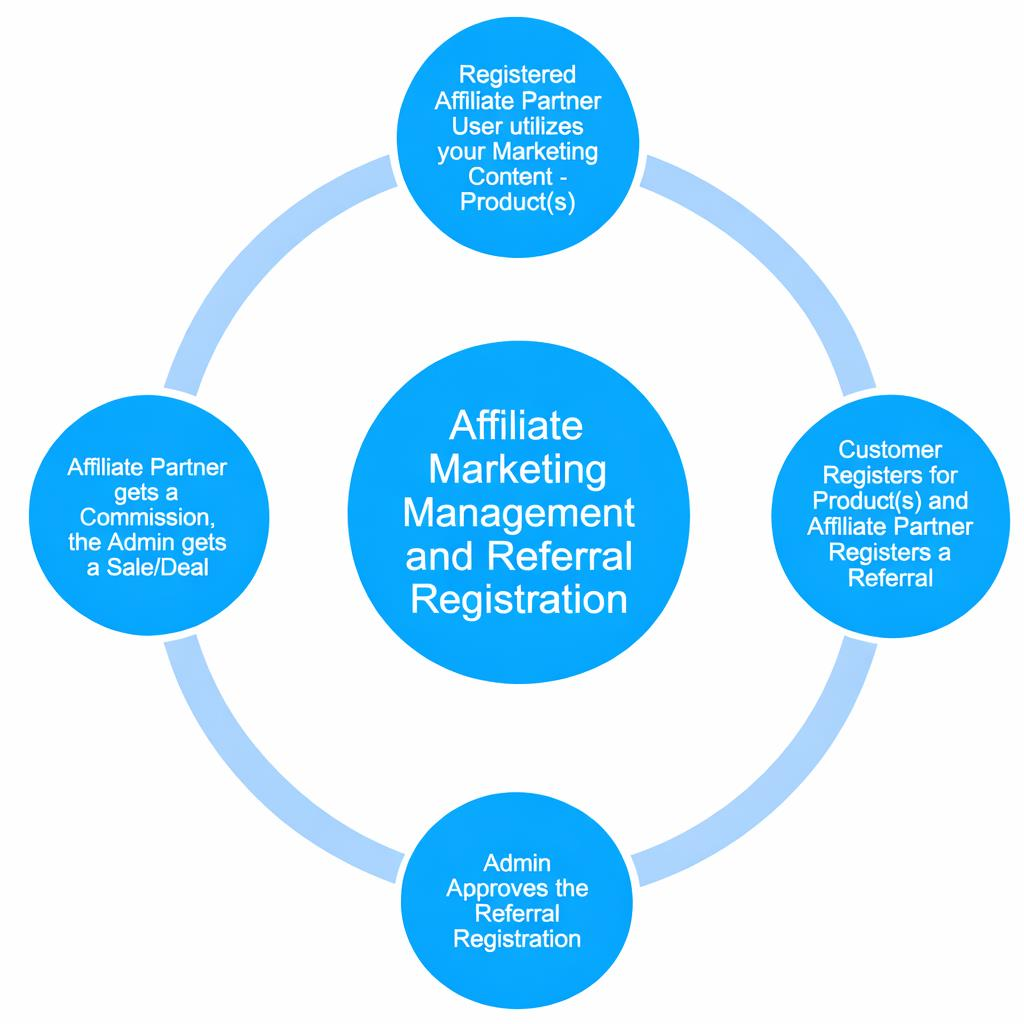
ZINFI UPM enables affiliate partners to register referrals manually or automatically via link and advertising campaigns. Each referral is automatically mapped to a specific commission payment structure covering both marketing and sales activities. Business rules can be configured to route referrals through automatic or manual approval flows.
Affiliate Marketing Management and Referral Registration lifecycle
Referral Pricebook Management
The Referral Pricebook Management application allows organizations to create custom price books for affiliates or resellers and configure commission rates at both the price book and product level. Custom price books are ideal for organizations that offer products or services at different prices to different affiliate partners.
Pricebook-level commission rate
Product-level commission rate
Multi-currency pricing and commission
My Affiliate Account Management
The My Affiliate Account Management application makes it easy for organizations and partners to manage affiliate user details and configure access rights. Admin users can modify company details as needed, while non-admin users have a read-only view.
User details management
Referral partner account details management
Profile-based access control
02
Referral Deals
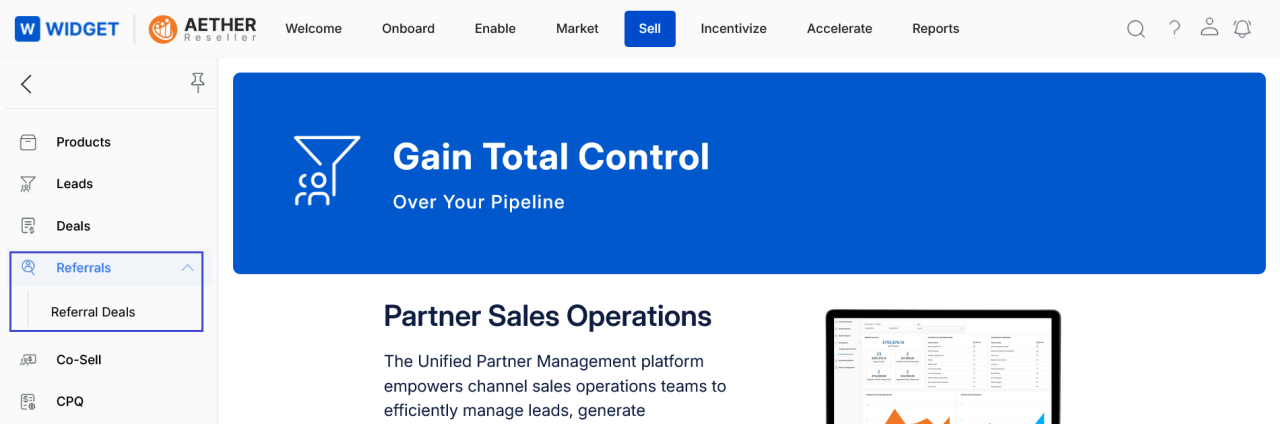
Accessing Referral Deals
Click Sell from the top navigation zone.
Click Deals > Referral Deals from the left menu.
Navigating to Sell > Deals > Referral Deals
View Registered Deals
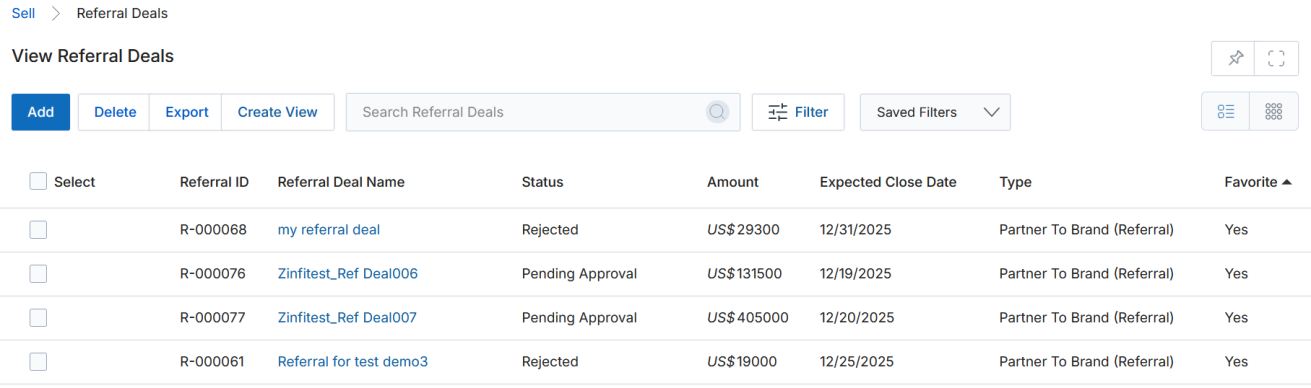
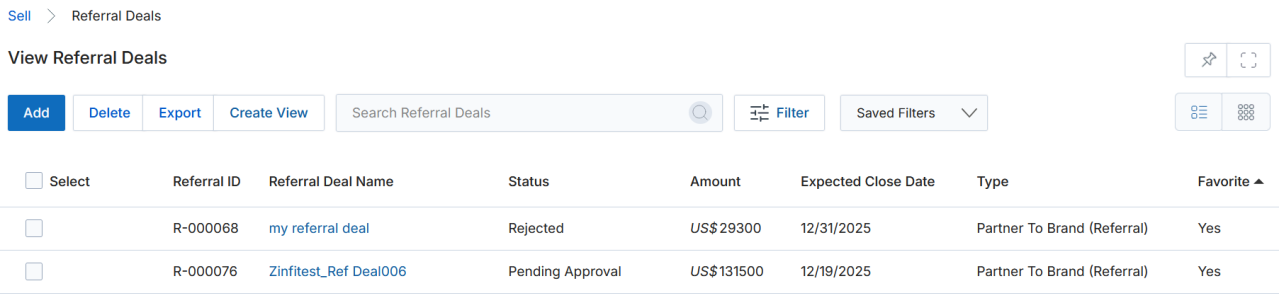
Clicking Referral Deals from the left menu takes you to the View Referral Deals page, which lists all generated referral deals.
View Referral Deals — list page
The toolbar at the top of the page provides the following actions:
Add — Opens a new page to create a new referral deal.
Delete — Removes the selected record(s) from the listing.
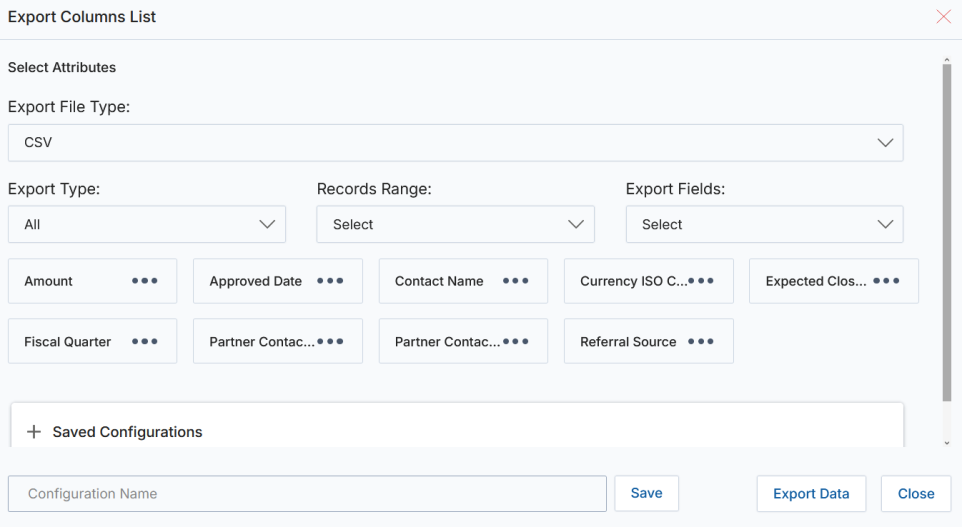
Export — Exports records from the list into CSV format.
Export Columns List dialog
Selected Records — Exports only the records that are currently selected.
All — Exports all records within a specified range selected from the associated dropdown.
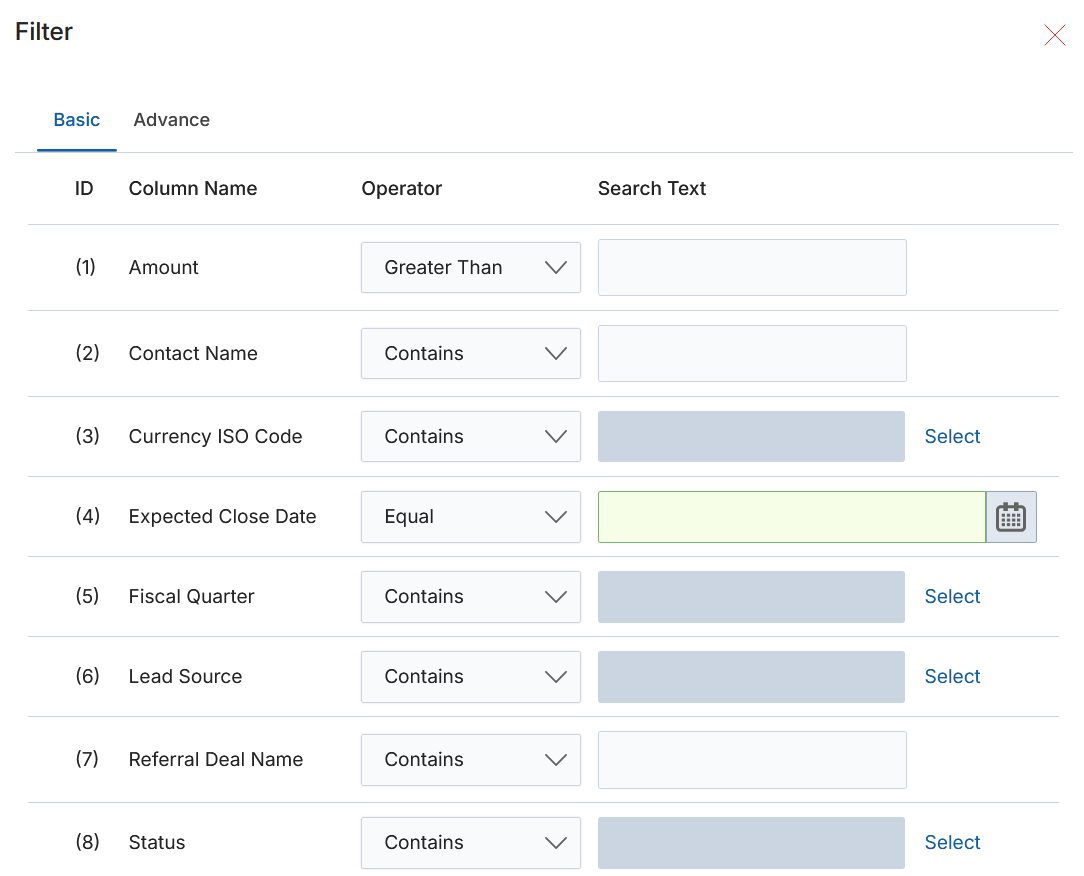
Filter — Opens a pop-up where you can enter search criteria to narrow down the list.
Filter dialog — Basic tab
Enter your search parameters in the corresponding labeled fields to narrow down results.
Click Search at the bottom of the popup to execute the filter and view results.
Edit — Updates the name of a saved filter view.
Delete — Removes a saved filter view from the dropdown.
Clicking any link listed under the Name column takes you to the View a Registered Referral Deal detail page.
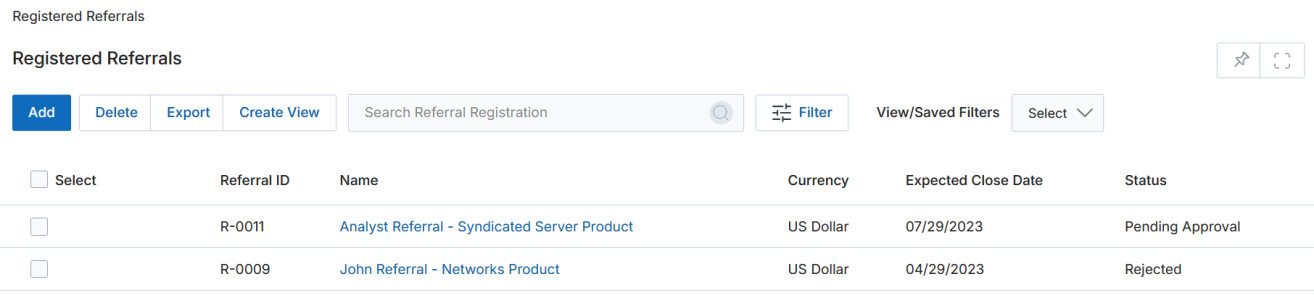
The Status column shows whether a registration is pending approval or has already been approved.
03
View Registered Referral
The Registered Referrals page displays a list of all registered referral deals.
Registered Referrals listing page
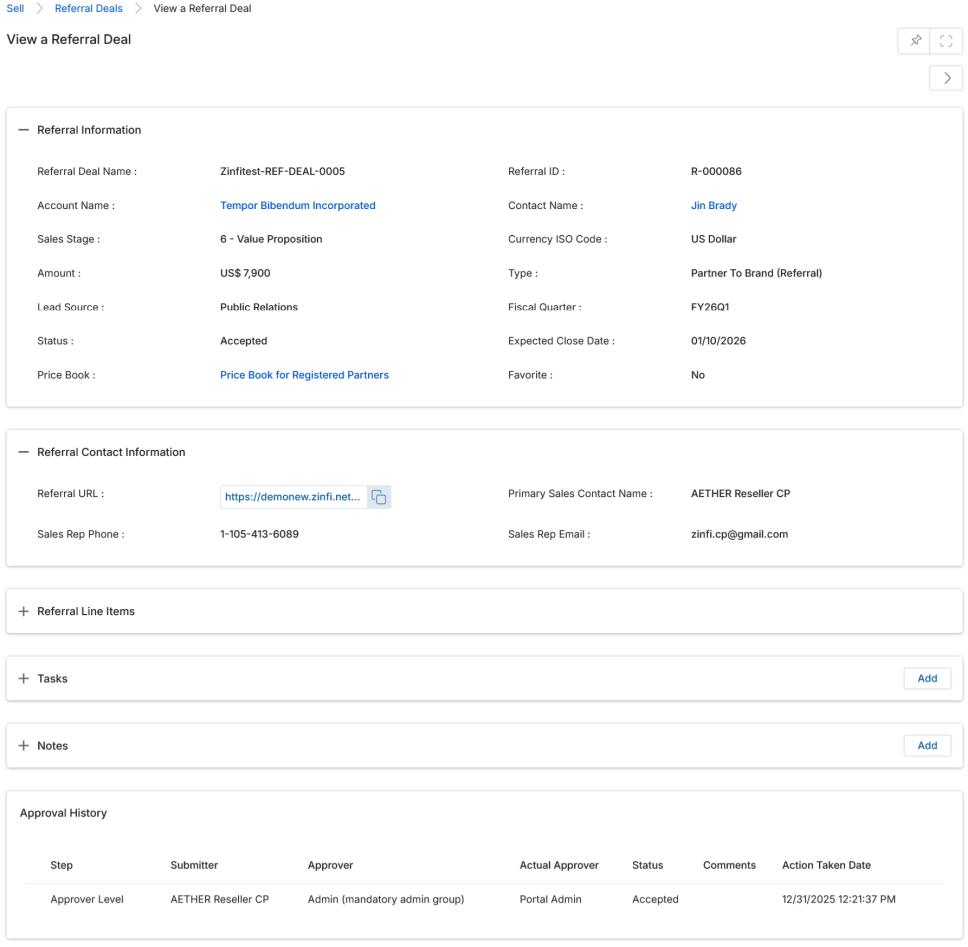
To view detailed information for any record, click its Name. This opens the View a Referral Deal page with all relevant deal information.
View a Referral Deal — full detail page
The View Registered Referral page contains the following sections:
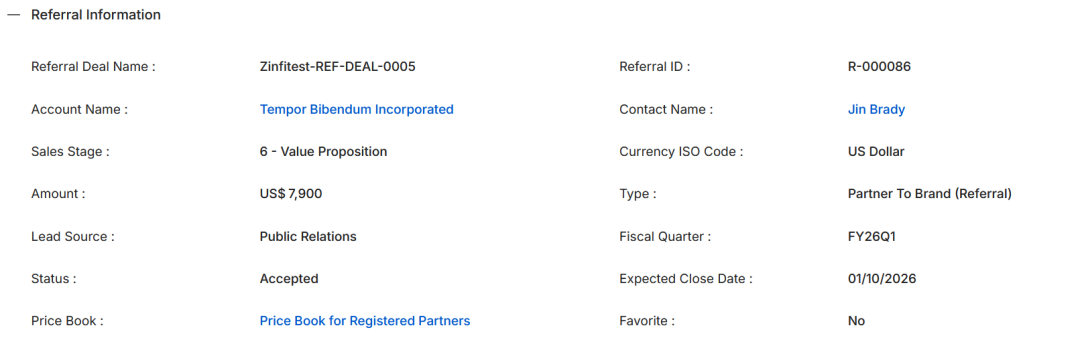
a. Referral Information
Referral Information section
Field
Description
Name
The name of the referral deal.
Referral ID
A system-generated unique identifier for the referral deal.
Currency
The currency used for the deal. Supported options: US Dollar, Pound Sterling, Australian Dollar, and Indian Rupee.
Fiscal Quarter
The fiscal quarter in which the referral deal was created.
Expected Close Date
The anticipated date when the referral deal is expected to close.
Referral Source
The source or origin of the referral deal (e.g., Public Relations, Conference).
Type
The type classification of the referral deal (e.g., Partner To Brand).
Status
The current approval status of the referral deal (e.g., Ready for Submission, Pending Approval, Accepted, Rejected).
Price Book
The price book associated with this referral deal.
Amount
The total monetary value associated with this referral deal.
b. Referral Contact Information
Referral Contact Information section
This section displays the Referral URL, Primary Sales Contact Name, Sales Rep Phone, and Sales Rep Email associated with the referral deal.
c. Referral Line Items
Referral Line Items section
Column
Description
Name
The name of the product included in the referral deal.
SKU
The Stock Keeping Unit that uniquely identifies the product in the system.
Sales Price
The unit price of the product as defined in the associated price book.
Quantity
The number of units of the product included in the deal.
Total Line Item
The total value of the line item, calculated as Sales Price × Quantity.
Net Line Item
The final value after applying any discounts, adjustments, or taxes. Equals Total Line Item when no adjustments apply.
Line Description
Additional notes or information related to the product line item, if provided.
d. Tasks
Tasks associated with the referral deal. Click the Task Name to view its details.
Tasks section on the View Referral Deal page
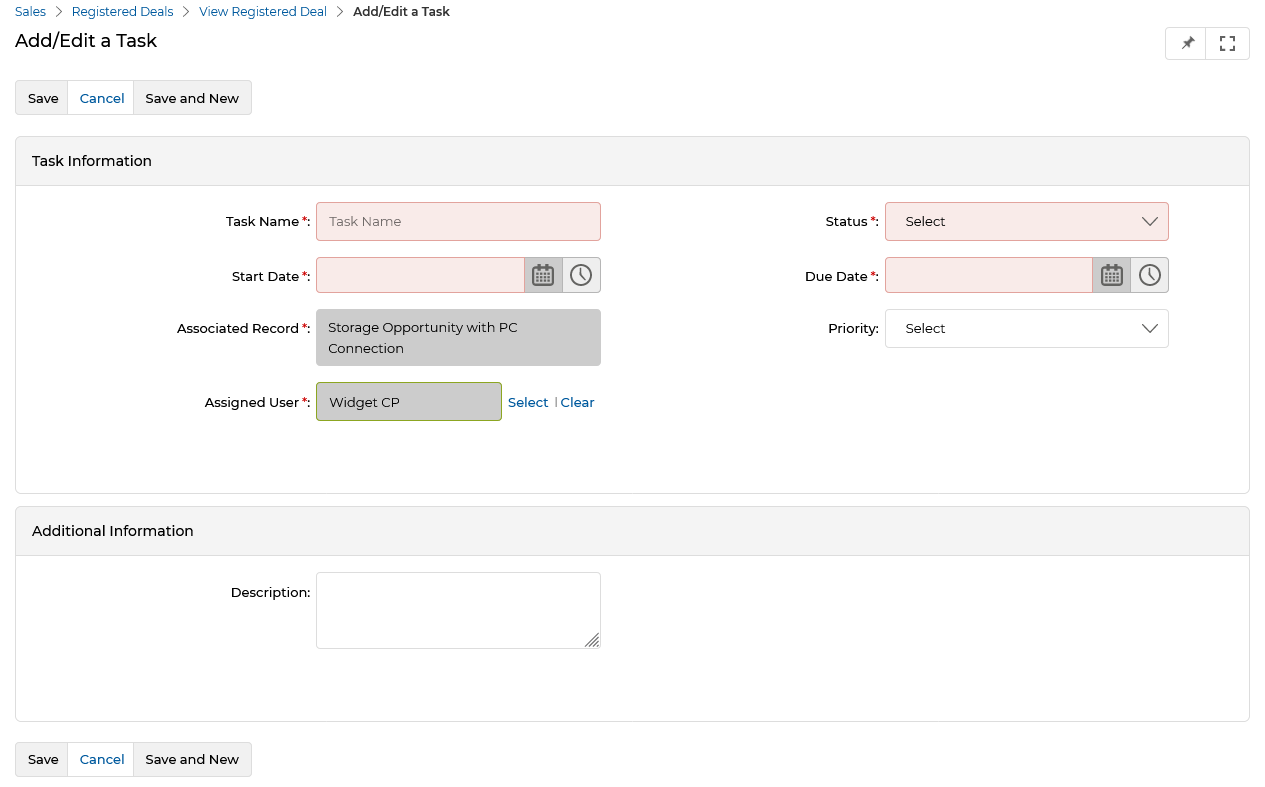
Click the Add button to create a new task. The Add/Edit a Task form contains the following fields:
Add/Edit a Task form
Task Information
Field
Description
Task Name
The name of the task.
Status
The current state of the task: Completed, Deferred, In Progress, or Not Started.
Start Date
The date on which the task begins.
Due Date
The date by which the task must be completed.
Associated Record
The referral deal linked to this task.
Priority
The urgency level: High, Medium, or Low.
Assigned User
The portal user responsible for completing this task.
Additional Information
Field
Description
Description
A short free-text description of the task.
Buttons
Save — Saves the task and returns to the task listing within the deal.
Cancel — Discards all entries and closes the form without saving.
Save and New — Saves the current task and immediately opens a fresh Add/Edit a Task form for the next entry. Useful when creating multiple tasks at once.
On the task listing row, use the pen icon to edit a task, the trash icon to delete it, or click the Task Name to open its detail page.
e. Notes
Notes section on the View Referral Deal page
Add — Click to create a new note line item.
Use the pen icon to edit an existing note.
Use the trash icon to delete a note.
Click the Note Name to open its detail page.
f. Approval History
Approval History section
Column
Description
Step
Indicates the level within the approval process.
Submitter
The partner user who submitted the registered referral.
Approver
The profile or group responsible for approving the referral at this level.
Actual Approver
The specific OEM user who acted on the referral at this approval level.
Status
The current approval status: Accepted or Rejected.
Comments
Any comments submitted alongside the approval or rejection decision.
Action Taken Date
The date and time when the approver accepted or rejected the referral.
04
Submitting a Registered Referral Deal for Approval
On the View Referral Deals page, click the Add button to begin registering a new referral deal.
Click Add to begin creating a new referral deal
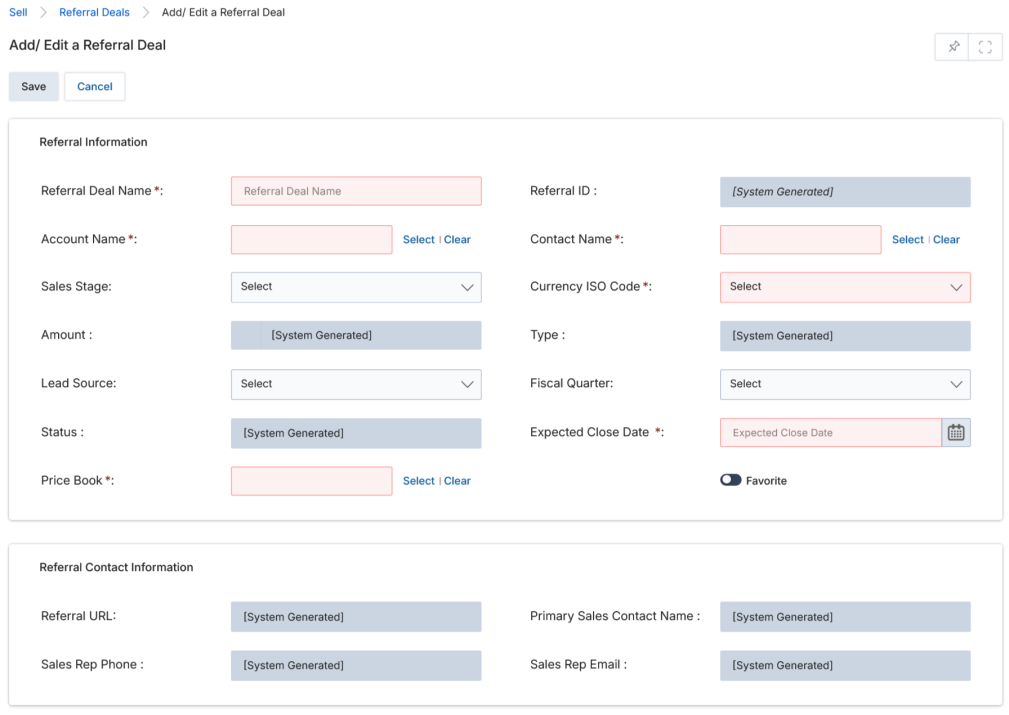
Clicking Add opens the Add/Edit a Referral Deal form.
Complete all required fields in the form and click Save. Refer to the View Registered Referral section for detailed field descriptions.
Add/Edit a Referral Deal — data entry form
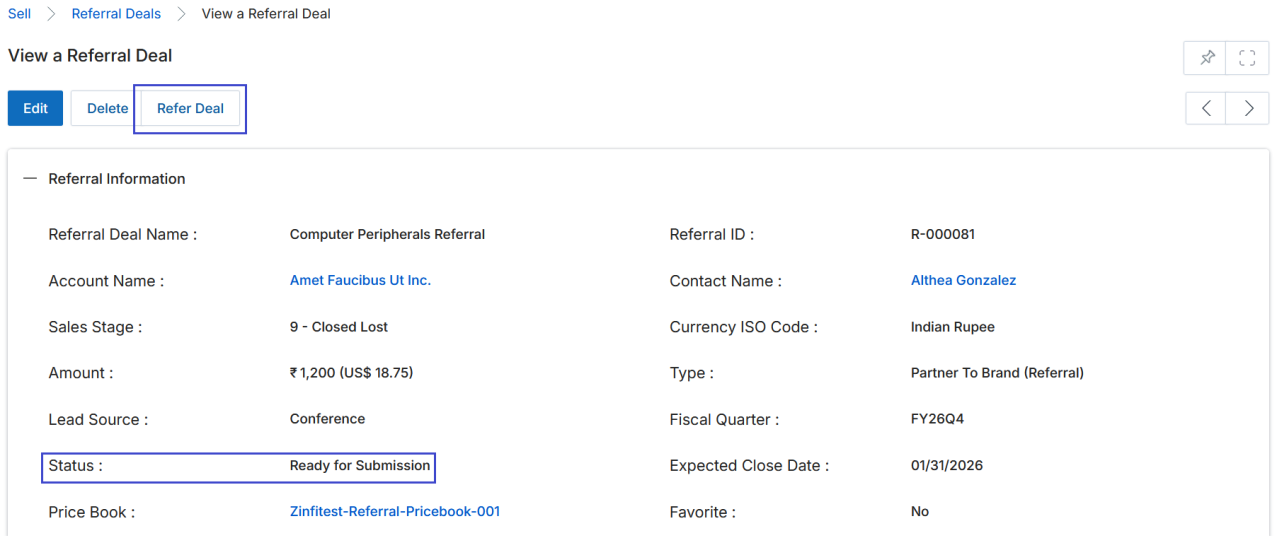
After saving, return to the Registered Referrals page. Click the name of your newly created deal to open its detail view. The status will display Ready for Submission.
Deal with "Ready for Submission" status — click Refer Deal to initiate approval
Click the Refer Deal button in the toolbar to initiate the approval process.
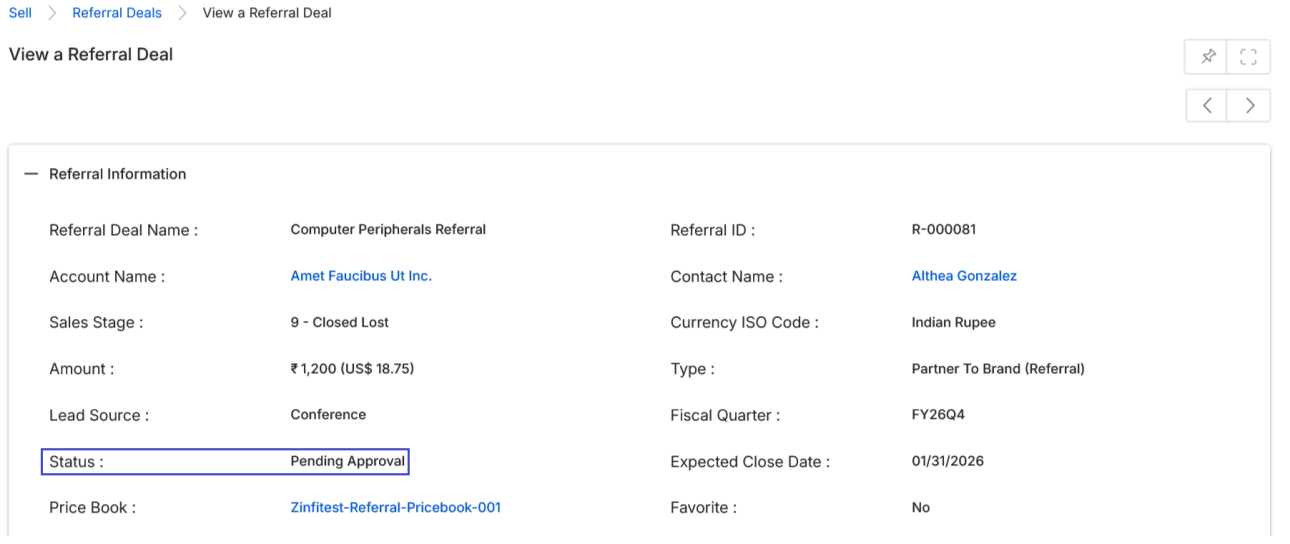
Once submitted, the Status changes to Pending Approval and a new Approval History section appears at the bottom of the deal detail page.
Status updated to Pending Approval after submission
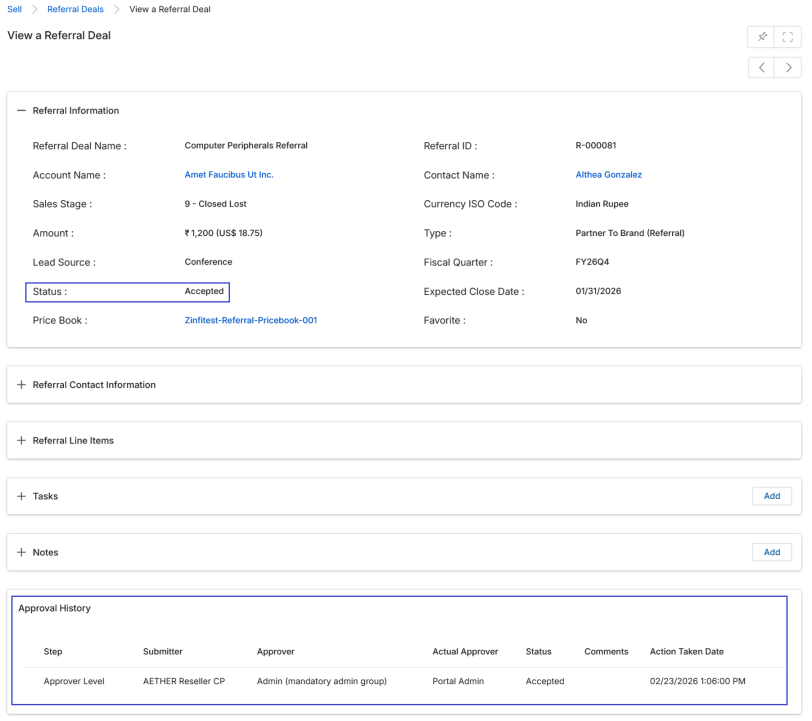
Once the approver acts on the referral, the Status updates to Accepted or Rejected. The Approval History section at the bottom of the page records the outcome, approver details, and action date.
Accepted referral with populated Approval History
The final status is also reflected on the View Referral Deals listing page, where all registered referrals are displayed alongside their current status.