
Introduction
ZINFI's UPM Library puts your sales and marketing collateral at your fingertips inside UPM. Easily access, customize, and share any piece of content from inside your UPM instance with your customers and end-users. The content library provides a secure repository for your files, including file types ranging from traditional business documents like presentations and Word files to audio files, video files, spreadsheets, images, and web pages.
Library as the Content Repository
Content is a potent strategy for keeping prospects engaged throughout the sales cycle. Through UPM's Library, teams can create and manage fresh, compelling collateral to satisfy prospects — making that collateral accessible and shareable on multiple digital channels. Whether the digital assets include e-books, videos, banners, images, or customer stories, the Library provides an online system to manage sharing so your organization and users have real-time access to essential content.
UPM's Library asset teams collect, manage, and distribute documents — while also tracking assets and managing the asset lifecycle in the library. With UPM Library you can store files in fully searchable repositories known as resource categories. Partners can create multiple libraries, categories, and sub-categories, and configure user permissions within the library to balance content access with security.
Aligning the Sales Process
UPM helps you create an effective sales content library by streamlining buyer purchases. By analyzing sales processes, you can align the right content to be delivered at the right moment. Tag different assets to the channel lifecycle — once you've divided your assets by type, show your salespeople when each piece of content becomes useful by sharing assets with specific user groups. This makes it easy for them to find relevant content depending on which stage of the funnel a lead is in.
Video Library
Accessing Video Library
To navigate to the Video Library as a partner user:
- Click Enable from the top navigation menu.
- Click Video Library > Video Library in the left menu bar.
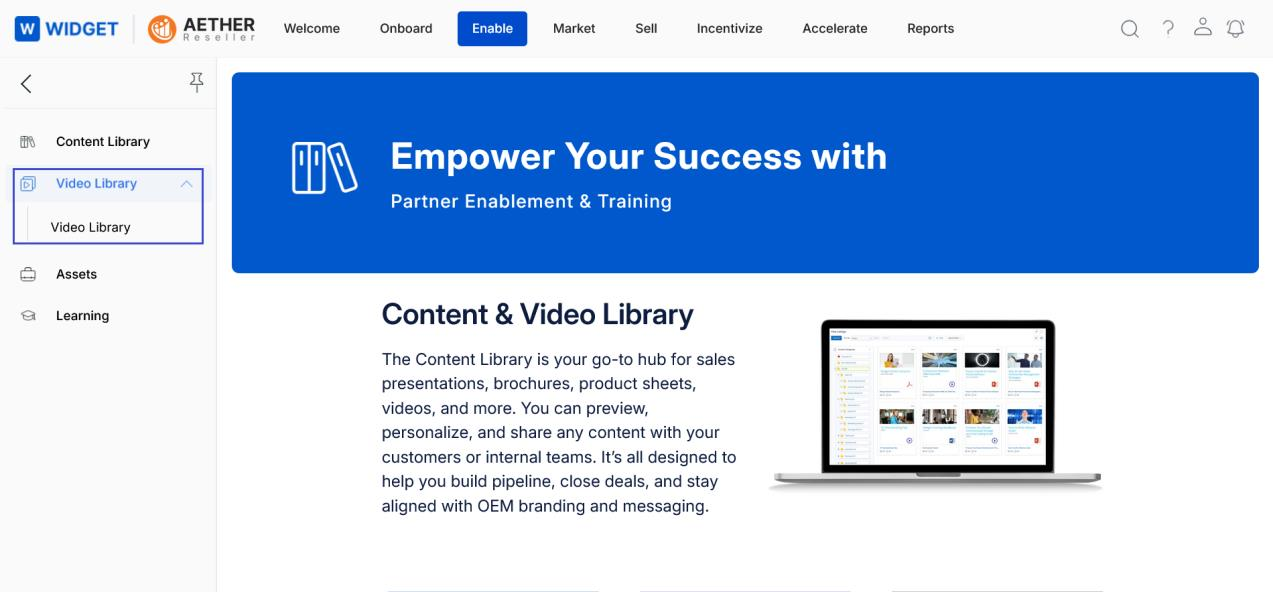
View Videos
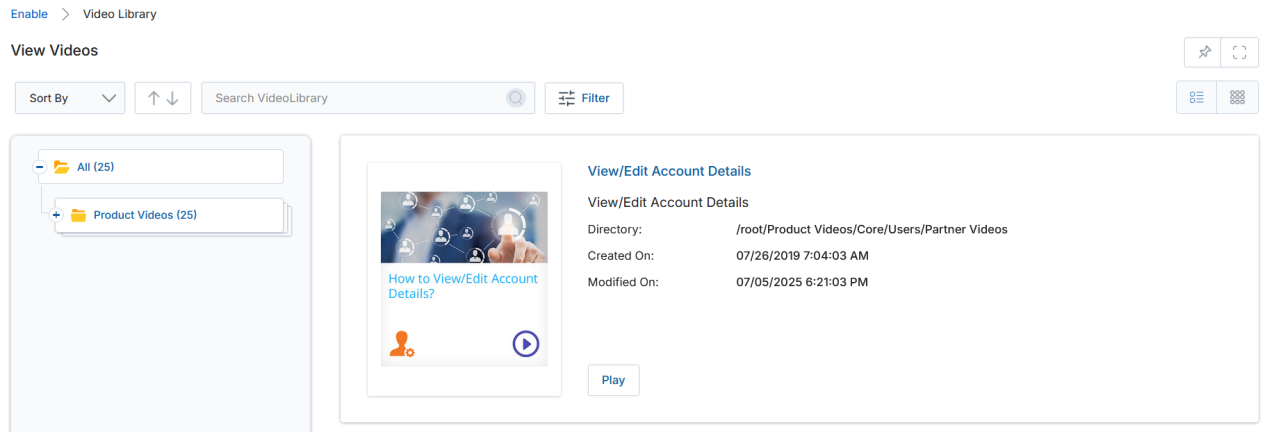
Clicking Video Library from the left menu opens the View Videos page, where all videos in the library are displayed in either List View or Thumb View format.
- The Tree View on the left side opens in an accordion fashion, displaying categories that hold the organizational structure of the video library. Numbers in parentheses to the right of each folder indicate the count of videos available in that category. Click any category or sub-category to filter the displayed videos.
- Use the List View or Thumb View toggle buttons (top-right) to change the visual layout of the video listing.
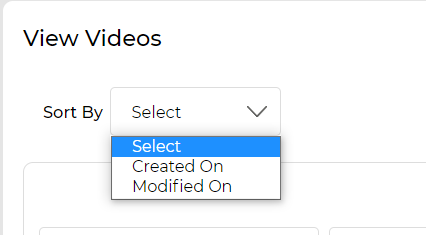
- Use the Sort By dropdown to sort videos by Created On or Modified On date.
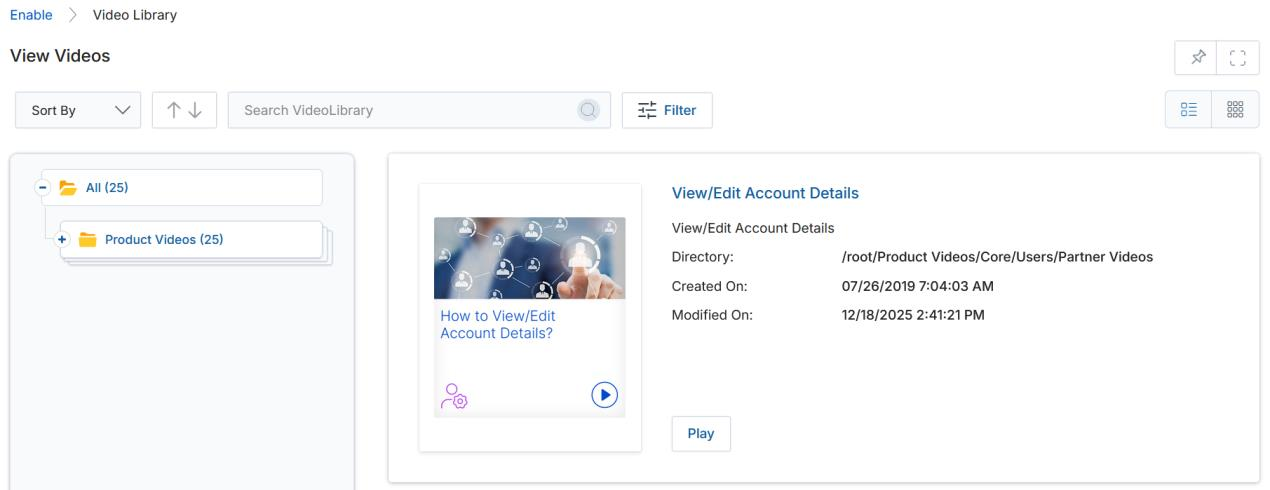
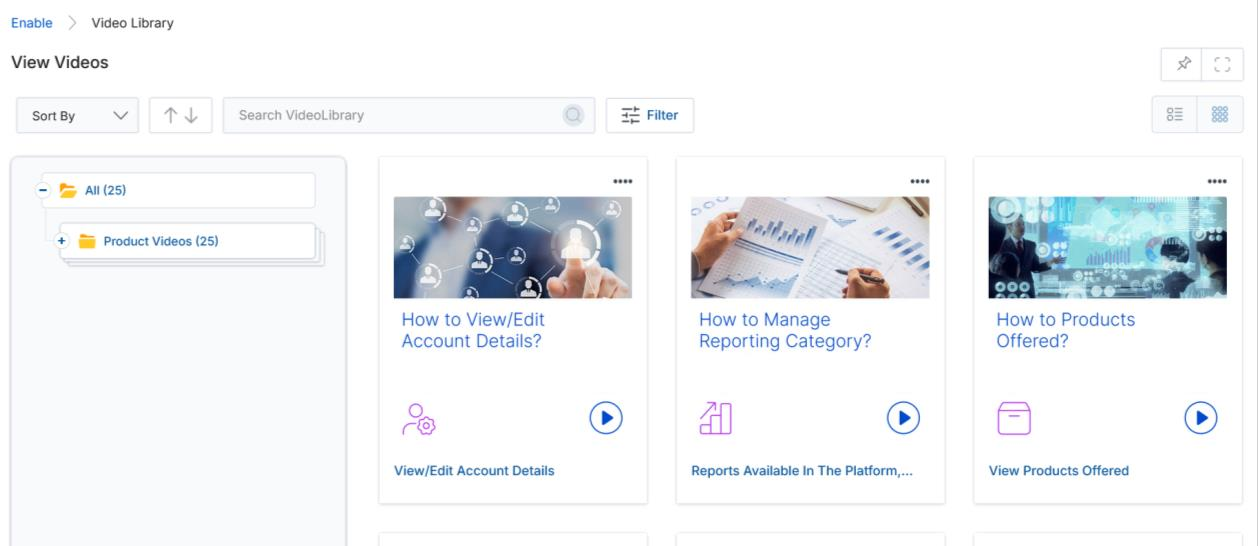
Each video listed in the library displays the following information:
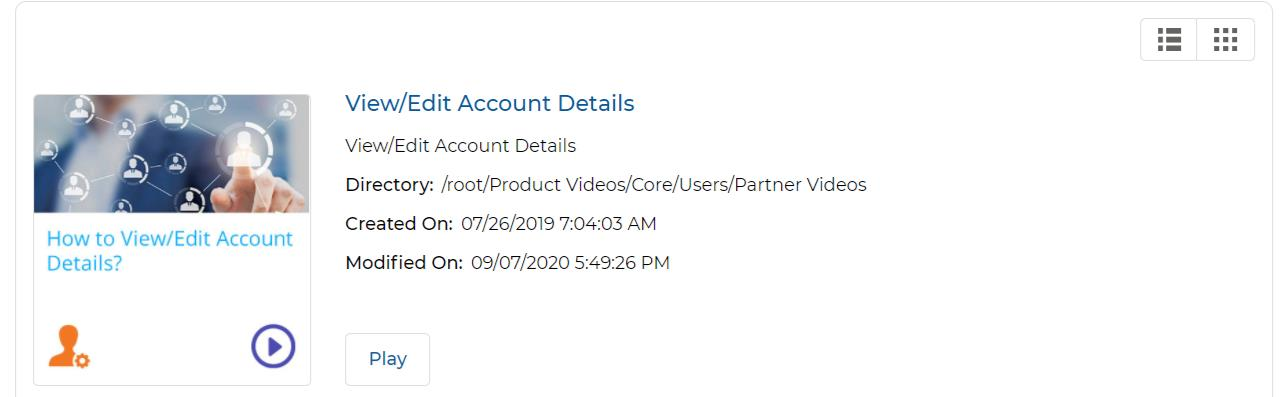
| Field / Button | Description |
|---|---|
| Thumbnail Image | Displays the thumbnail of the video clip. |
| Video Title | Shows the title of the video. Clicking the title opens the View Video details page. |
| Description | A short description of the video content. |
| Directory | The root URL address of this video in the portal (e.g., /root/Product Videos/Core/Users/Partner Videos). |
| Created On | The date the video was originally uploaded and created. |
| Modified On | The date the video was last edited or modified. |
| Play (button) | Opens a popup window and plays the video. The popup also shows: Overview (description), Transcript, Released On date, Duration (in minutes), and Language. |
Filtering Videos
Click the Filter button in the toolbar to open the Filter pane. The Filter pane provides searchable parameters to help locate specific videos.

The Filter pane supports the following parameters:
| Filter Parameter | Description |
|---|---|
| Country | Select one or more countries to view videos associated with specific locations. |
| Language | Choose one or more languages to filter videos by the language they are presented in. |
| Name | Type the name of a specific video to search for it in the library. |
| Search Term | Type a keyword to search video titles or descriptions containing that keyword. |
- Click Apply or press Enter to execute the filter and display matching results on the View Videos page.
- Click Clear to remove all active filters and return to the full video listing.
- Click the filter icon (≡) or the X icon to open or close the Filter pane.
Use Save Filter to save a frequently used filter configuration by name, so you can quickly reapply it in future sessions without re-entering parameters.
View Video Details
Click the name (title) of any video listed in the library to open its full details page.
The View a Video page displays all metadata and descriptive information for the selected video, organized into two sections:
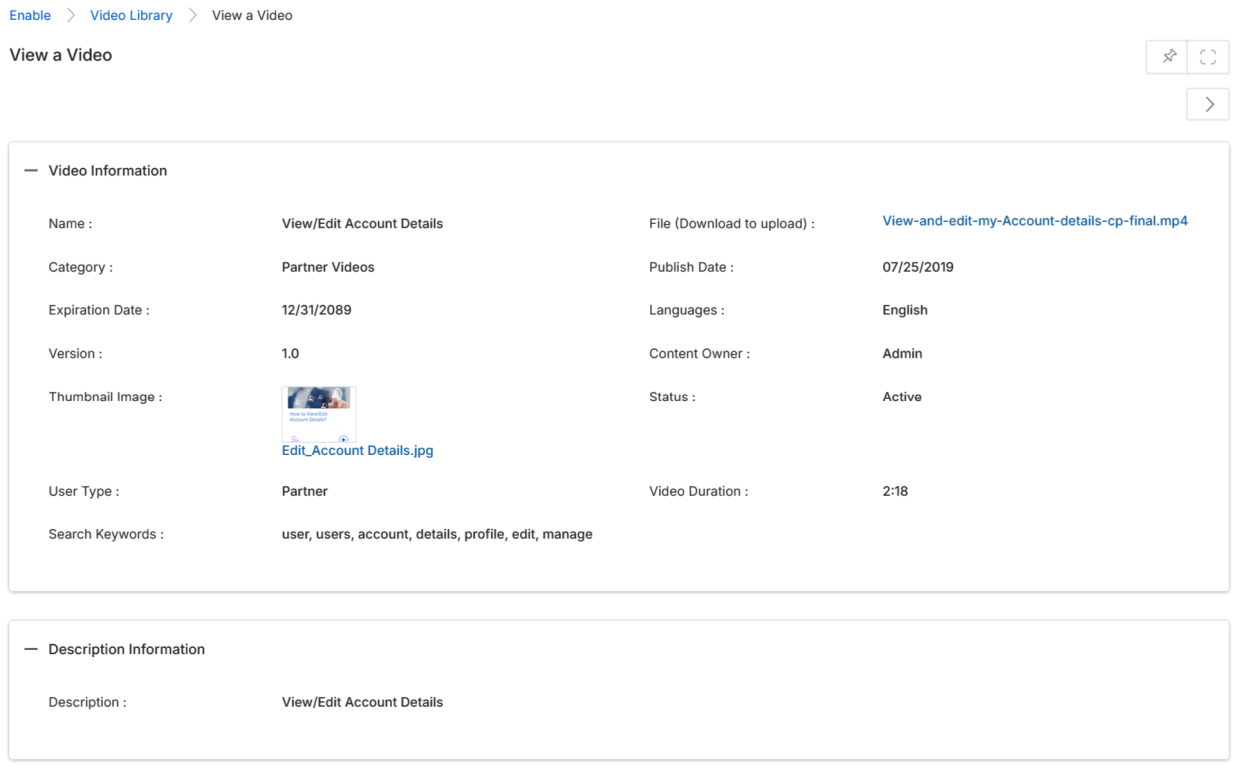
| Field | Description |
|---|---|
| Name | The name/title of the video. |
| Category | The category in which the video is assigned within the library. |
| File (Download to upload) | The file attached to this video — displayed as a downloadable link to the video file. |
| Insert URL | Shows the URL if the video is accessible via an external web link. |
| Publish Date | The publishing date of the video file. |
| Expiration Date | The expiry date of the video file. |
| Sort Order | The position at which the video appears on the listing page within its category. |
| Status | Indicates whether the video is Active or inactive for viewing. |
| Language | The language(s) tagged with this video. |
| Version | The version number of the video. |
| Restrictions | Any restrictions or viewer warnings associated with this video. |
| Intended Audience | Indicates who is permitted to watch this video. |
| Solution | Tags this video to a specific Product or Solution from the OEM. |
| Content Owner | The person who uploaded the video to the library. |
| Job Role | Any job role tagged with this video for audience targeting. |
| Technology / Organization | Tags indicating any specific technology or organizational process this video is associated with. |
| Region / Country | Tags indicating any region or country-specific audience for this video. |
| Thumbnail Image | The image uploaded to display as the video thumbnail on the listing page. |
| Search Keywords | Keywords tagged to this video to improve discoverability in search. |
| Video Duration | The length of the video in minutes:seconds format. |
| User Type | The user type this video is intended for (e.g., Partner). |
| Description | Full descriptive text providing details about the video content. |