

Overview
Web Syndication is a powerful co-marketing tool within the Market module that enables partners to easily integrate vendor-provided content directly into their own websites. This allows partners to offer rich, up-to-date product information, documents, and contact forms to their audience without needing to create the content themselves. By leveraging pre-approved templates and content, partners can maintain brand consistency and ensure their customers receive accurate information, while vendors benefit from broader content distribution and increased brand visibility through their partner network.
Accessing and Initiating Web Syndication Setup
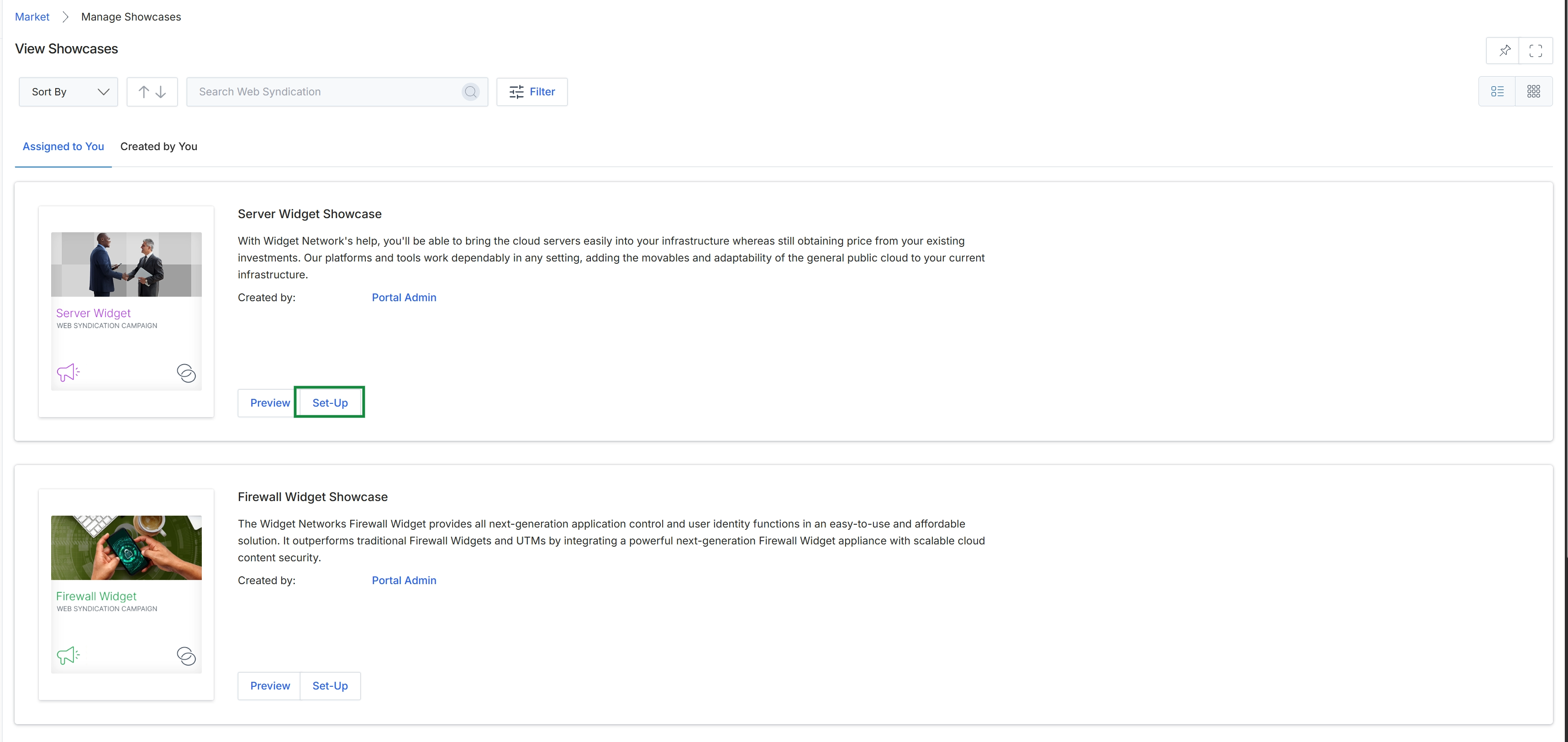
Click the Set-Up button for the "Server Widget Showcase" campaign.
Selecting and Naming the Web Syndication
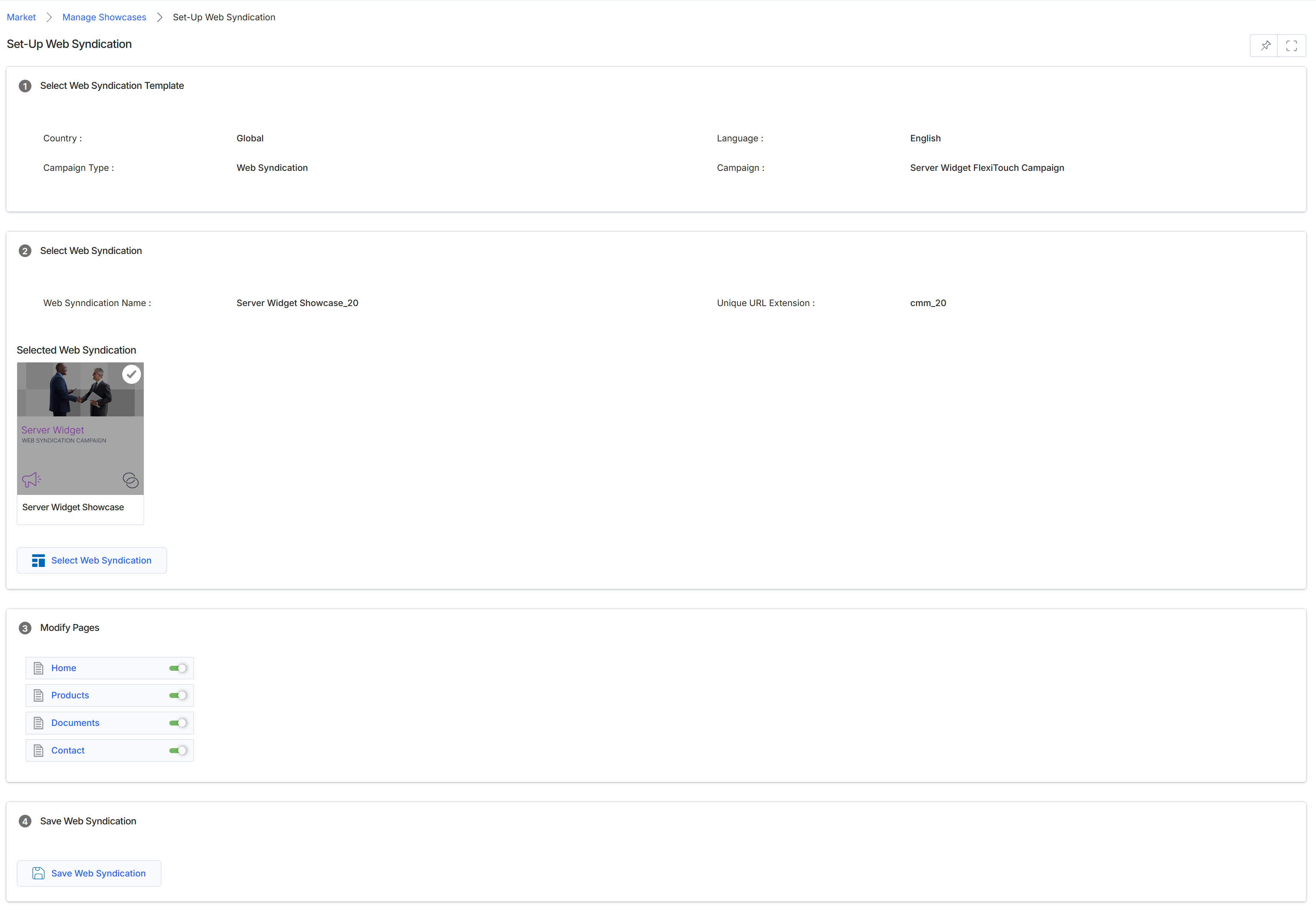
This screen facilitates the setup and configuration of a Web Syndication, which allows vendors to push content to partner websites or microsites. It is part of the Market module, designed to enable co-marketing activities. The process involves selecting a syndication template, specifying the content to be syndicated, and determining which pages of the partner's site will display the syndicated content. This setup ensures that partners can easily integrate vendor-provided content, such as product information or documents, into their own digital presence, maintaining brand consistency and streamlining content updates. The configuration includes details like the syndication's name, URL extension, and the specific pages where the content will appear, allowing for granular control over the syndicated experience.
Review the selected Web Syndication template and content, then modify the pages where the syndicated content will be displayed.
Buttons
| Button | Description |
|---|---|
| Select Web Syndication | Allows the user to choose a different Web Syndication from available options. |
| Save Web Syndication | Saves the current configuration for the Web Syndication. |
Select Web Syndication Template
| Field | Description |
|---|---|
| Country | Indicates the geographical region for which this Web Syndication template is configured. The value 'Global' suggests it applies universally. |
| Language | Specifies the language of the Web Syndication template, which is 'English' in this instance. |
| Campaign Type | Identifies the type of campaign associated with this syndication, which is 'Web Syndication'. |
| Campaign | Displays the name of the specific campaign linked to this Web Syndication template, here 'Server Widget FlexiTouch Campaign'. |
Select Web Syndication
| Field | Description |
|---|---|
| Web Syndication Name | The name given to the selected Web Syndication, which is 'Server Widget Showcase_20'. |
| Unique URL Extension | The unique identifier or slug that forms part of the URL for this syndicated content, displayed as 'cmm_20'. |
Selected Web Syndication
| Field | Description |
|---|---|
| Server Widget Showcase | A visual representation and title of the currently selected Web Syndication content, indicating it is a 'Server Widget Showcase' and a 'WEB SYNDICATION CAMPAIGN'. |
Modify Pages
| Field | Description |
|---|---|
| Home | A toggle to enable or disable the syndication of content on the 'Home' page of the partner's website. |
| Products | A toggle to enable or disable the syndication of content on the 'Products' page of the partner's website. |
| Documents | A toggle to enable or disable the syndication of content on the 'Documents' page of the partner's website. |
| Contact | A toggle to enable or disable the syndication of content on the 'Contact' page of the partner's website. |
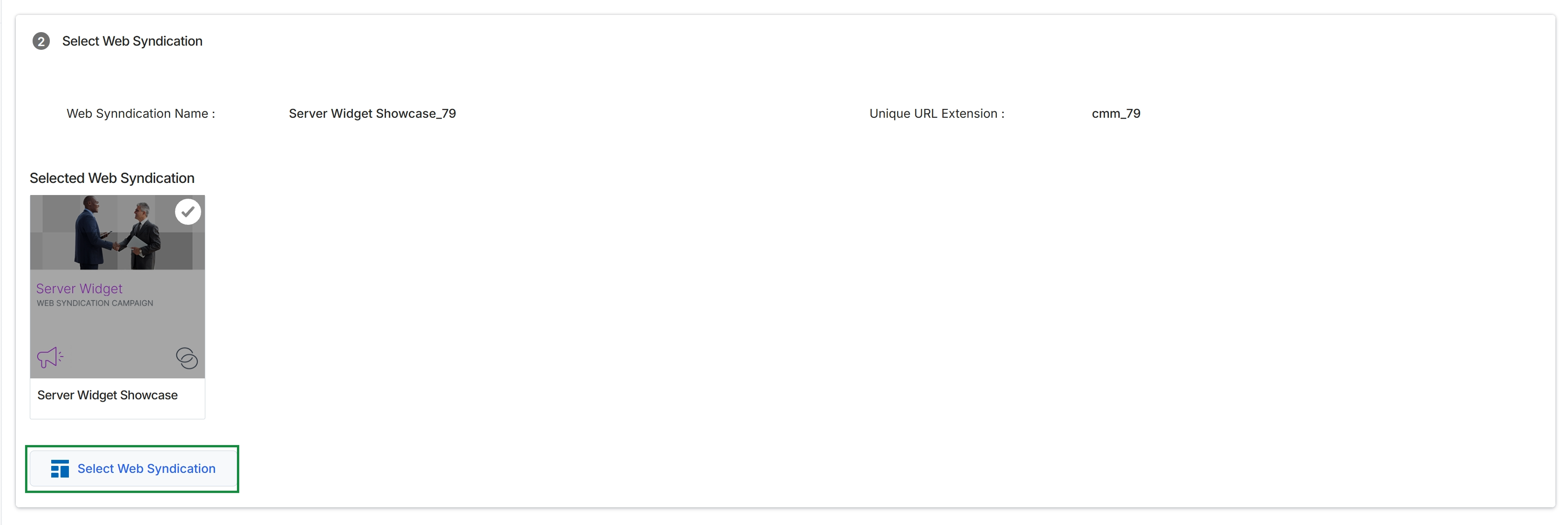
Click the Select Web Syndication button.
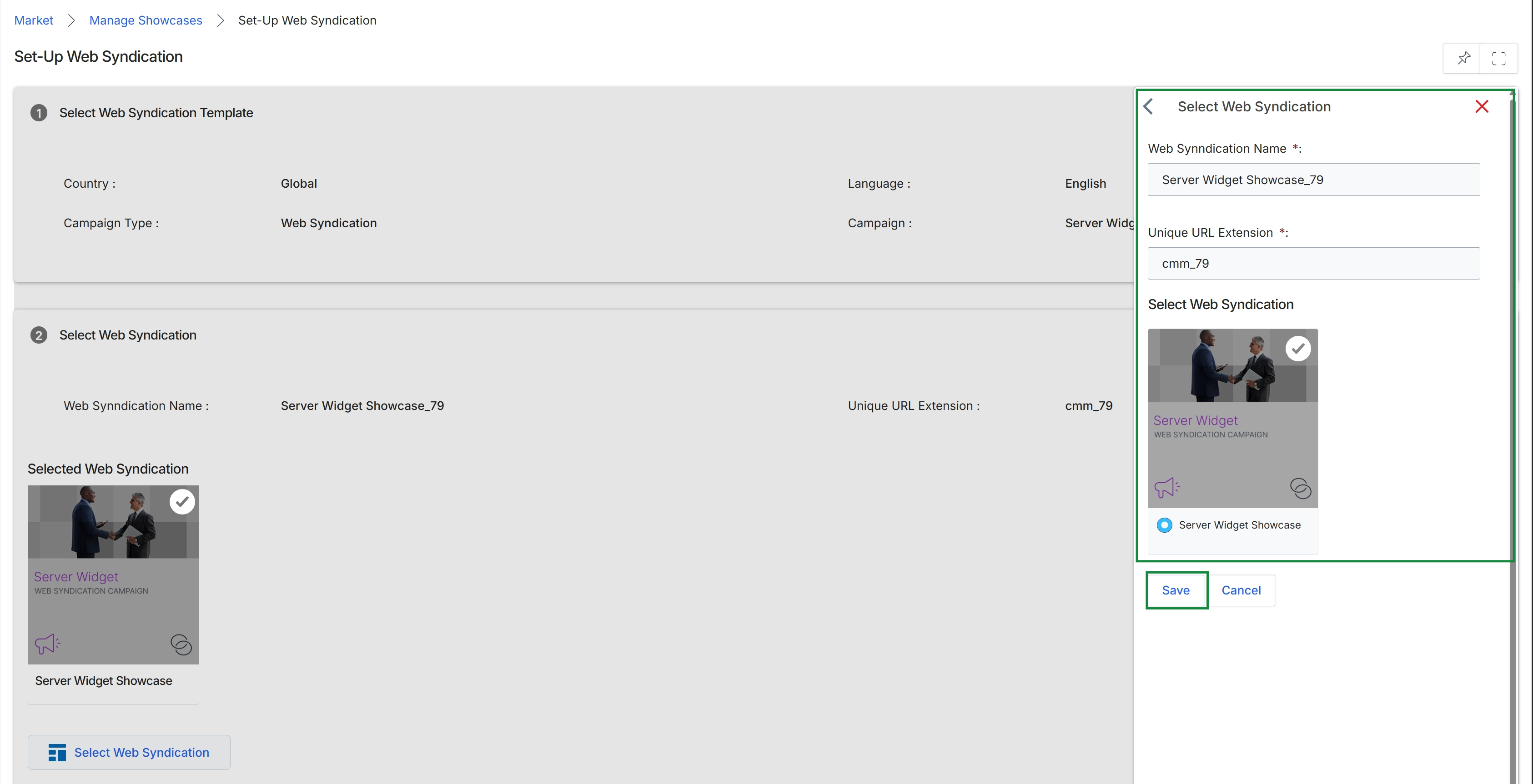
This screen is part of the Web Syndication setup process within the Market module, allowing vendor administrators to configure how content is syndicated to partners. Web Syndication enables vendors to push content feeds to partner websites, ensuring partners always display up-to-date information. This specific view displays the previously selected Web Syndication Template details and allows the administrator to select a particular Web Syndication instance from available options. The right-hand slide panel provides fields to name the syndication and define its unique URL extension, which are critical for identifying and accessing the syndicated content on partner sites. The selected syndication will then be made available for partners to integrate into their web properties.
Provide a unique name and URL extension for the Web Syndication, then select the specific syndication content from the available options in the right-hand panel.
Buttons
| Button | Description |
|---|---|
| Save | Saves the configured Web Syndication settings. |
| Cancel | Discards any changes and closes the panel. |
Select Web Syndication
| Field | Description |
|---|---|
| Web Syndication Name | The name for this specific Web Syndication instance, which will be displayed to partners. |
| Unique URL Extension | A unique string that forms part of the URL for this syndicated content, ensuring it has a distinct web address. |
| Server Widget | Represents a specific piece of syndicated content, in this case, a 'Server Widget' from a 'Web Syndication Campaign'. This is the content item being selected for syndication. |
| Server Widget Showcase | A radio button option to select the 'Server Widget Showcase' as the content for web syndication. |
Configuring Syndication Pages

Click Save.
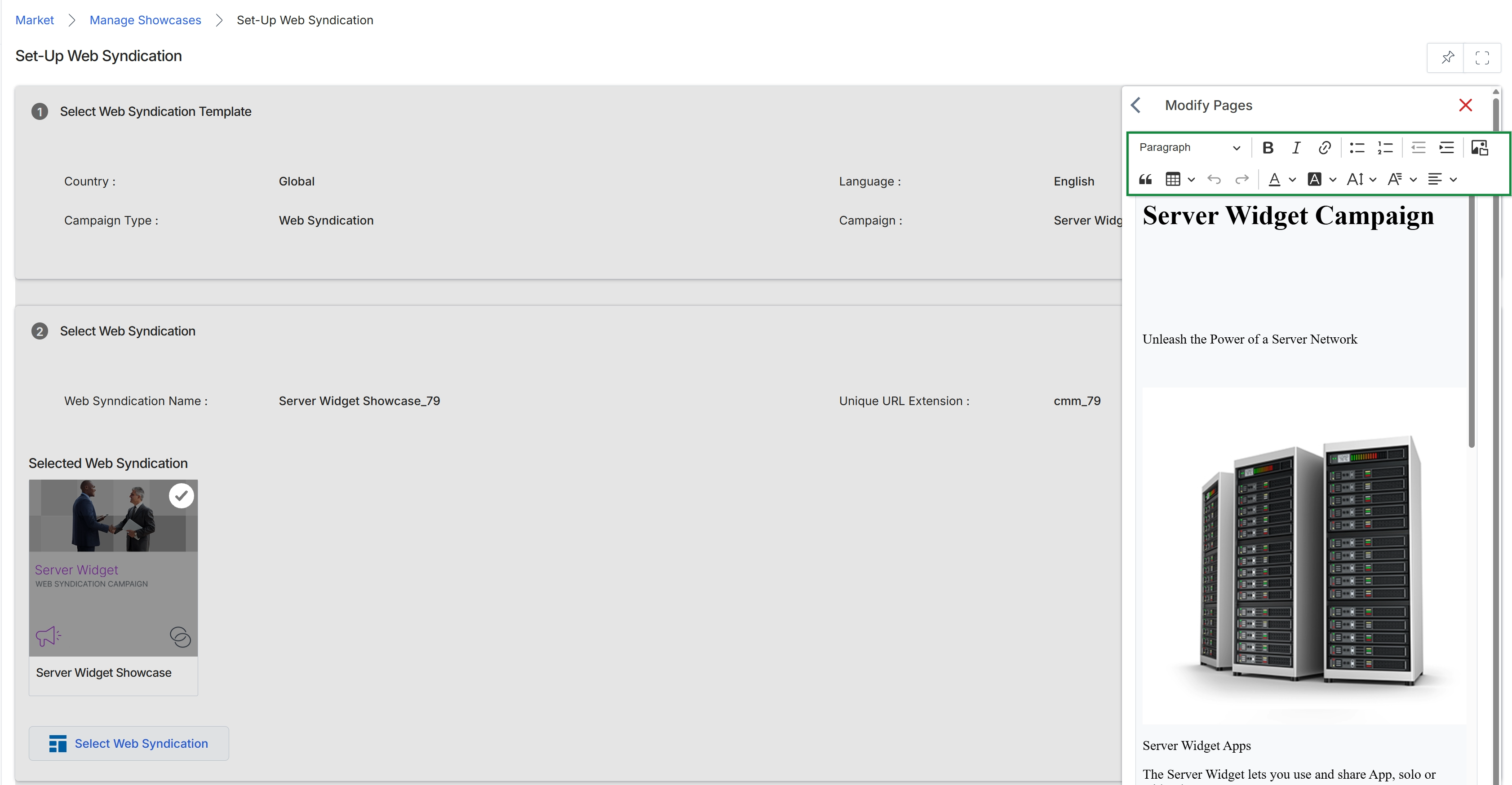
This screen displays the process for setting up Web Syndication, which allows partners to syndicate vendor content directly onto their websites. The left panel shows the selected web syndication template details, including its country, language, campaign type, and associated campaign. The right panel presents a content editor, enabling modifications to the syndicated content, such as headlines and body text, with a live preview of how the syndicated content will appear. This view facilitates the customization and deployment of vendor-approved marketing content for partners to use on their digital properties.
Saving the Web Syndication

Click the X icon in the top right corner of the "Modify Pages" panel.