

Overview
Web syndication, or Showcases, enables vendors to distribute pre-approved, branded content directly to partner websites. This ensures brand consistency and provides partners with up-to-date marketing materials that can be easily integrated into their digital presence. Administrators use this module to oversee all available syndication campaigns, ensuring content is relevant and accessible to partners for co-marketing efforts.
Partners can leverage these Showcases to enhance their own websites with vendor content, driving engagement and lead generation without the need for extensive content creation. The ability to preview Showcases helps partners understand the look and feel before implementation, while administrators can ensure the content aligns with program objectives and branding guidelines.
Viewing Showcases
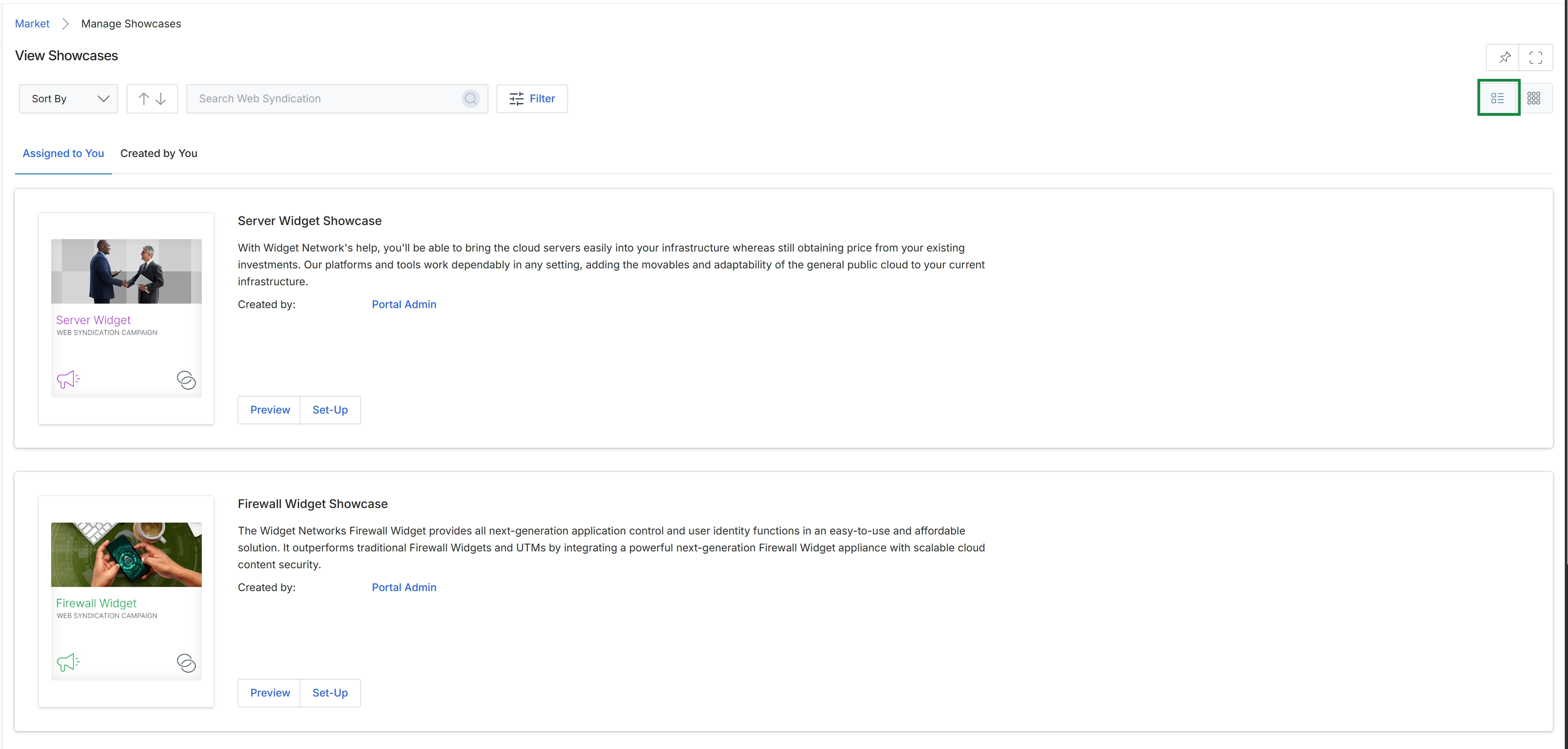
Click the List View icon.
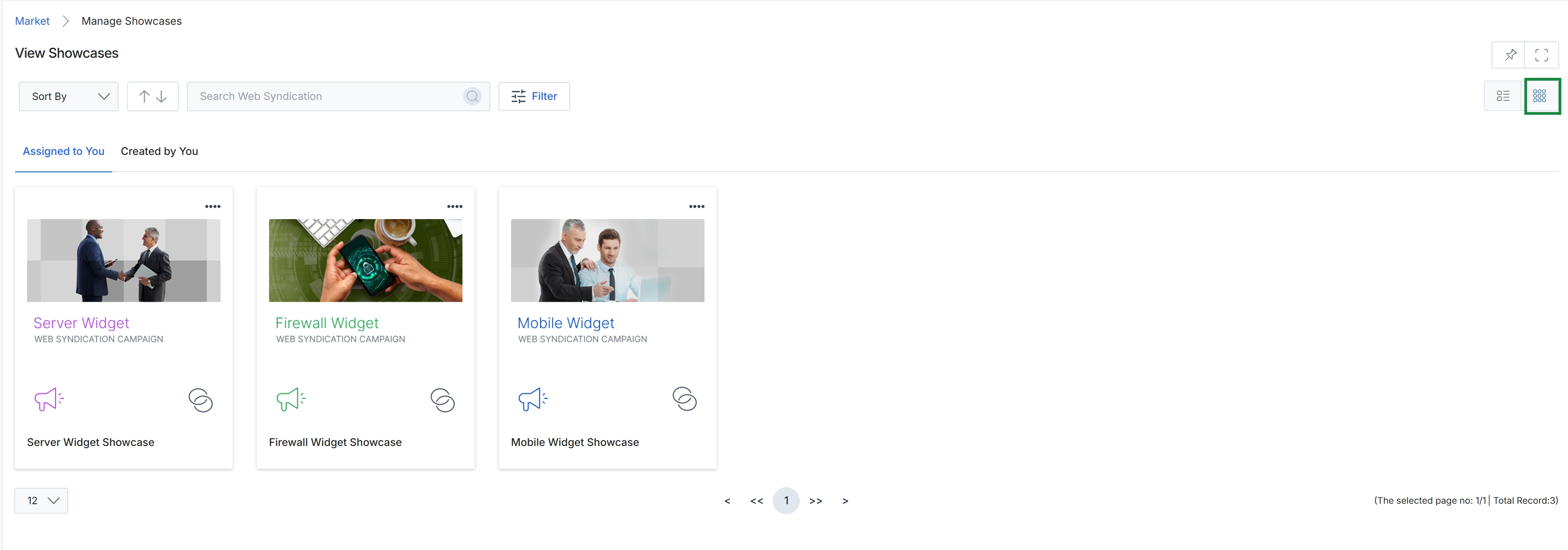
Click the Grid View icon.
Searching and Filtering Showcases
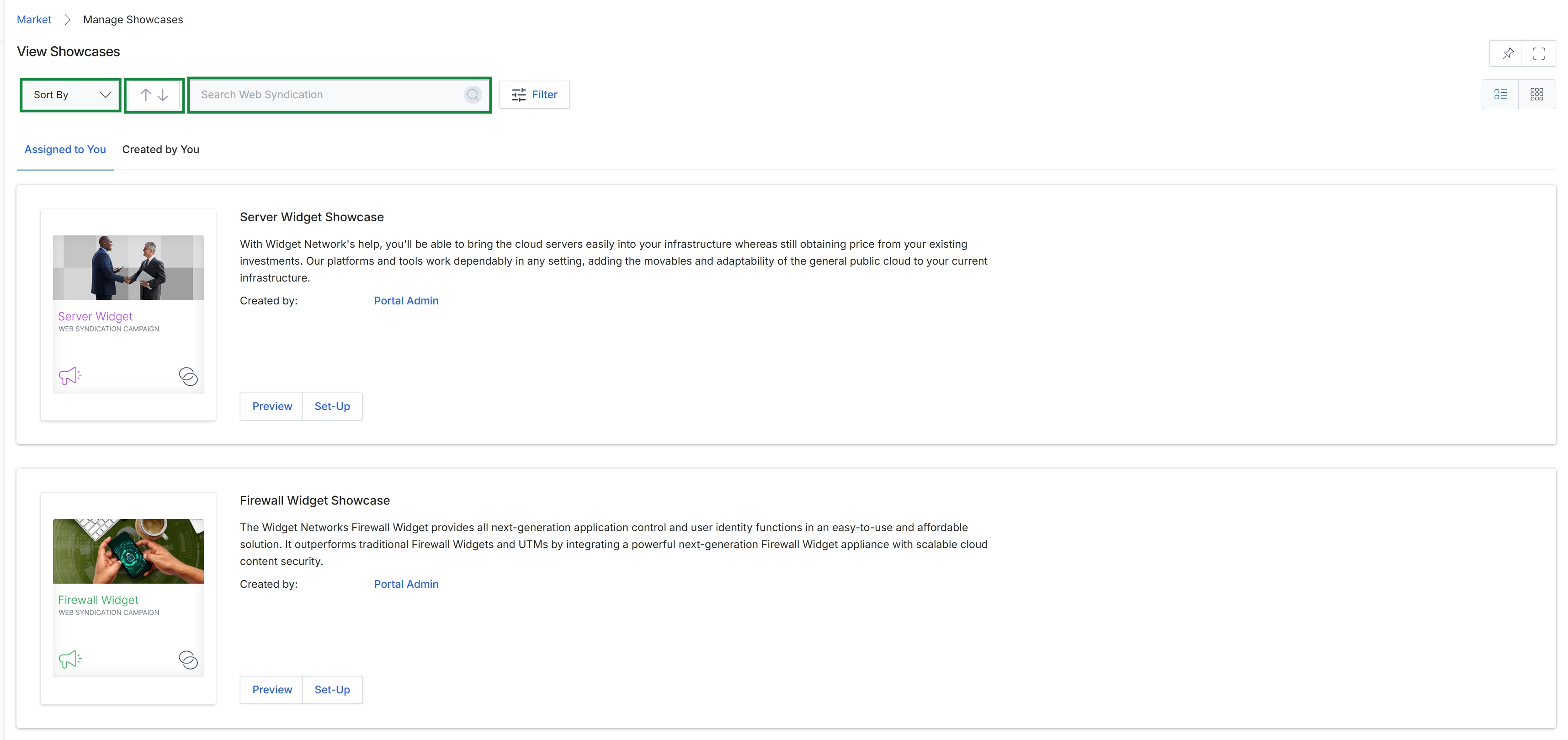
This screen displays a catalog of available web syndication showcases within the Market module, allowing users to view and manage content provided by the vendor for partners to syndicate. It provides tools for sorting, ordering, and searching through these showcases, enabling efficient discovery and organization of marketing content. Users can view showcases assigned to them or those they have created, with each entry providing a brief description and options to preview or set up the syndication.
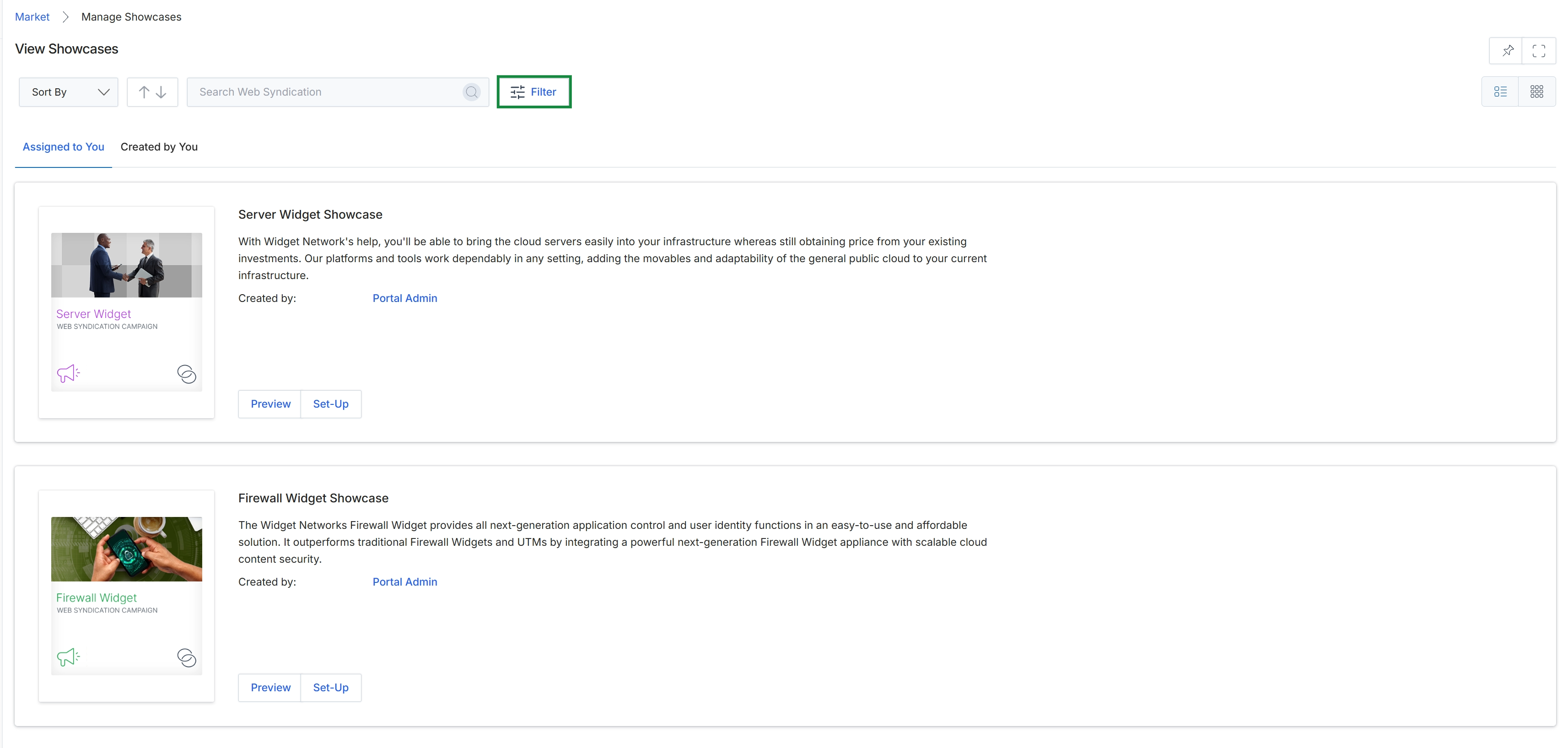
Click the Filter button.
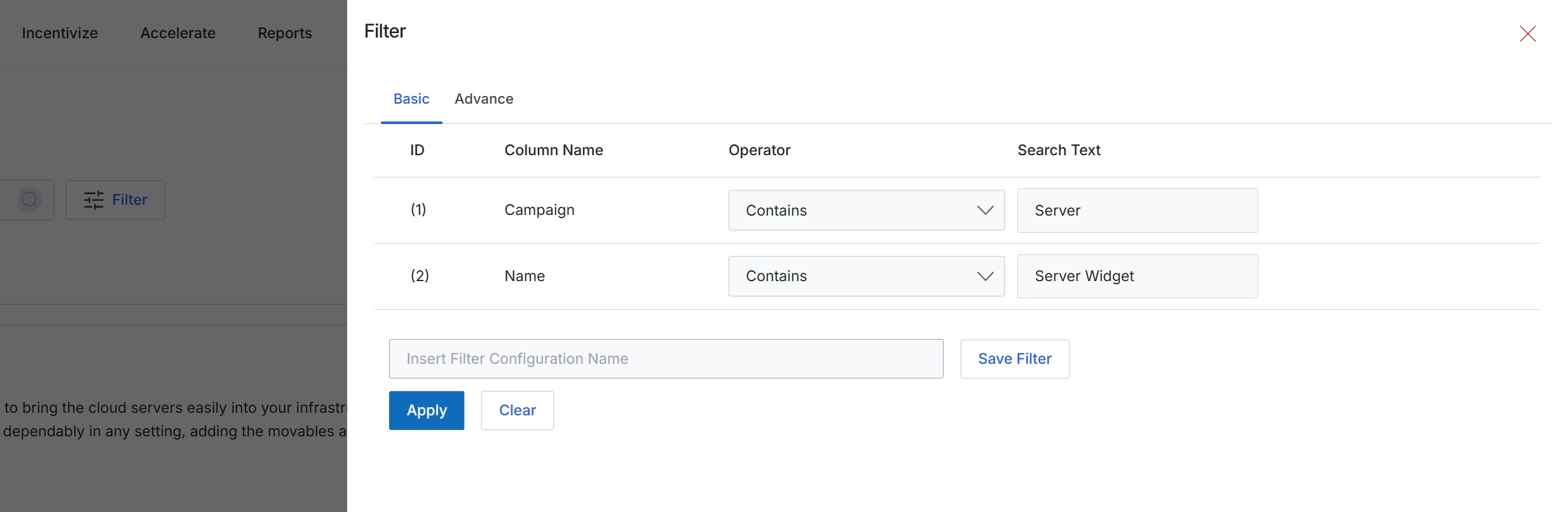
This filter dialog provides a mechanism for users to refine the data displayed in a list view by applying specific criteria. It allows for the construction of one or more filter rules based on various columns, enabling users to quickly locate specific records or subsets of data. The dialog supports both basic and advanced filtering options, and users can save frequently used filter configurations for later reuse, streamlining data analysis and management tasks within the module.
Define your filter criteria by selecting column names, operators, and search text, then click 'Apply' to filter the list.
Buttons
| Button | Description |
|---|---|
| Basic | Select this tab to define simple filter rules based on column values. |
| Advance | Select this tab to define more complex filter rules, potentially involving logical operators. |
| Save Filter | Click to save the current filter configuration under the specified name. |
| Apply | Applies the defined filter criteria to the list view. |
| Clear | Clears all currently defined filter criteria. |
| X | Closes the filter dialog without applying or saving changes. |
Fields
| Field | Description |
|---|---|
| Campaign | The name of the column being filtered, in this case, 'Campaign'. |
| Contains | The selected operator for the 'Campaign' filter, indicating that the column value should contain the specified search text. |
| Server | The search text entered for the 'Campaign' filter. |
| Name | The name of the column being filtered, in this case, 'Name'. |
| Contains | The selected operator for the 'Name' filter, indicating that the column value should contain the specified search text. |
| Server Widget | The search text entered for the 'Name' filter. |
| Insert Filter Configuration Name | Enter a name here to save the current filter configuration for future use. |
Column Headings
| Column | Description |
|---|---|
| ID | A numerical identifier for each filter rule. |
| Column Name | The name of the column to which the filter rule applies. |
| Operator | The comparison operator (e.g., 'Contains', 'Equals', 'Starts With') to be used for the filter. |
| Search Text | The value or keyword to search for within the selected column. |
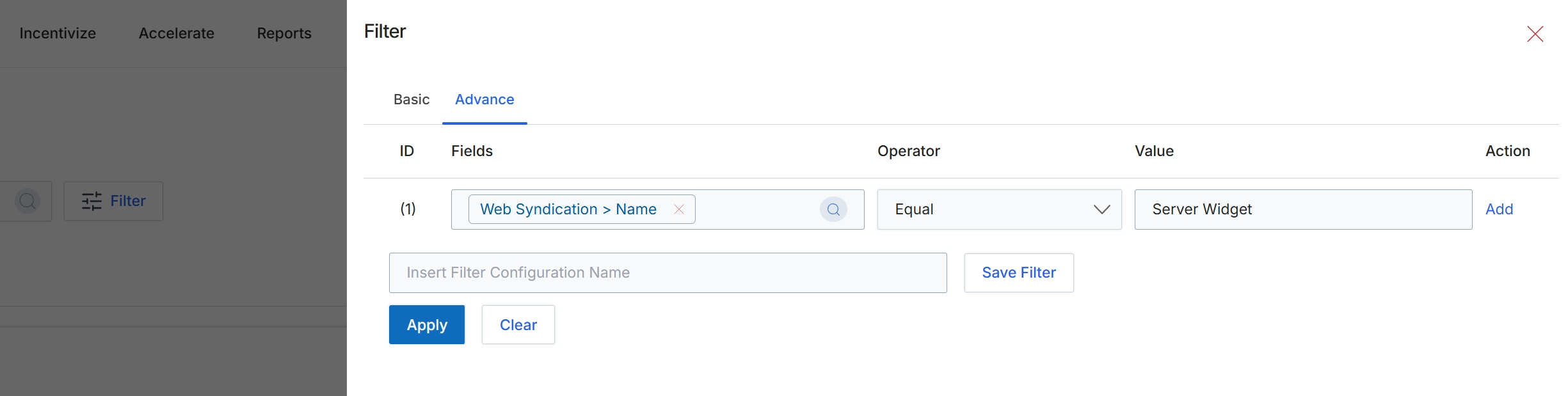
This screen displays the advanced filter configuration dialog, which allows users to define complex search criteria for data displayed in the current module. It enables precise data retrieval by specifying conditions across multiple fields, using various operators and values. Users can add multiple filter rules to refine their search, and the dialog also provides an option to save frequently used filter configurations for future application, streamlining repetitive data analysis tasks. This advanced filtering capability is crucial for managing large datasets and quickly isolating specific records based on detailed attributes.
Configure the advanced filter by selecting fields, operators, and values, then click Apply to filter the data.
Buttons
| Button | Description |
|---|---|
| Basic | A tab to switch to the basic filter configuration options. |
| Advance | The currently selected tab for configuring advanced filter rules. |
| Add | A button to add a new filter rule row to the configuration. |
| Save Filter | A button to save the current filter configuration under the specified name for future use. |
| Apply | A button to apply the configured filter rules to the displayed data. |
| Clear | A button to clear all active filter rules and reset the filter configuration. |
Fields
| Field | Description |
|---|---|
| Web Syndication > Name | A dropdown field to select the specific data field for the filter rule. It is currently set to filter by the 'Name' field within 'Web Syndication'. |
| Equal | A dropdown field to select the logical operator for the filter condition, currently set to 'Equal'. |
| Server Widget | A text input field to specify the value for the filter condition, currently set to 'Server Widget'. |
| Insert Filter Configuration Name | A text input field to enter a name for the current filter configuration before saving it. |
Column Headings
| Column | Description |
|---|---|
| ID | The column header for the identifier of each filter rule. |
| Fields | The column header for selecting the data field to apply the filter condition to. Currently set to 'Web Syndication > Name'. |
| Operator | The column header for selecting the comparison operator (e.g., Equal, Contains, Greater Than) for the filter rule. |
| Value | The column header for entering or selecting the value to compare against the chosen field. |
| Action | The column header for actions related to each filter rule. |
Previewing Showcases
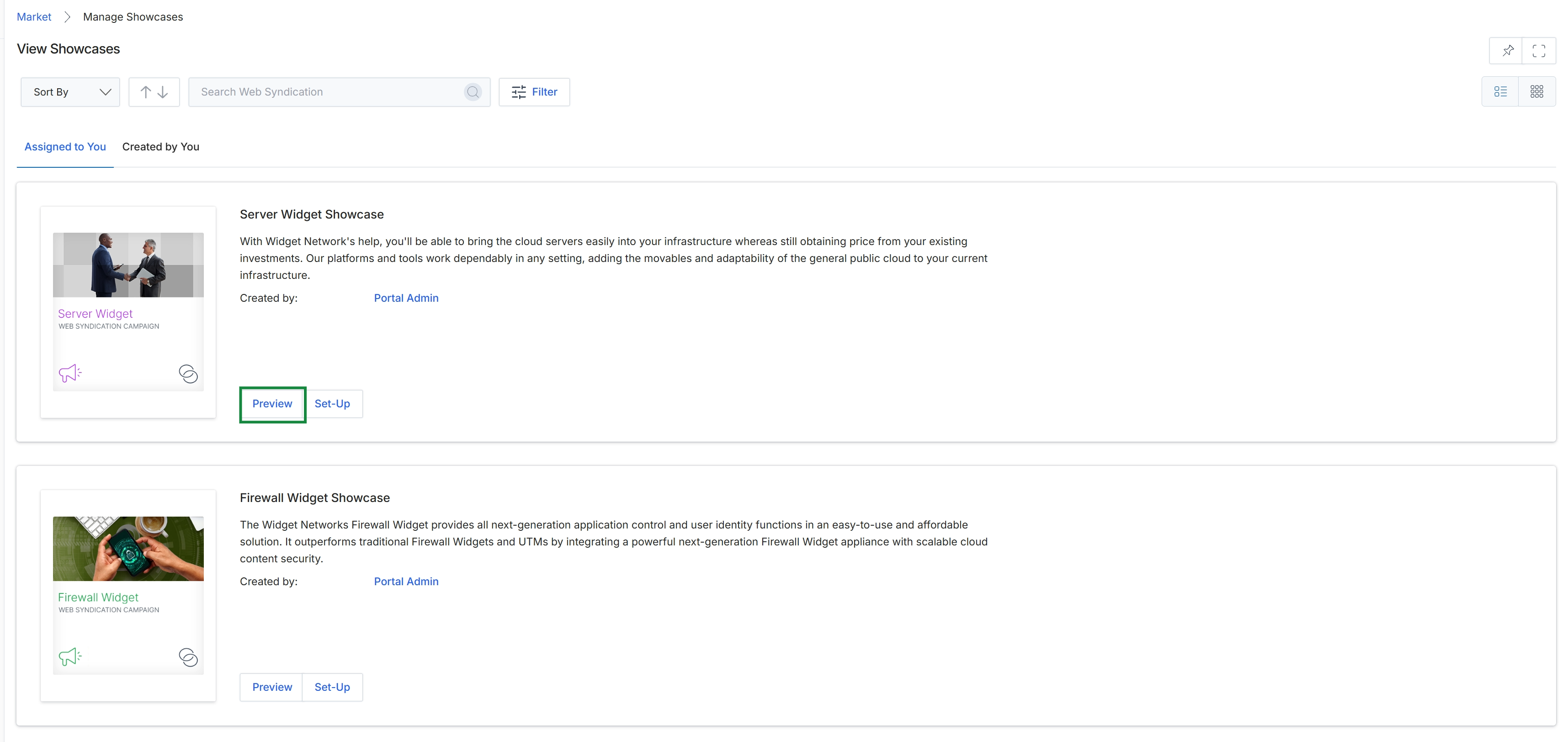
Click Apply.
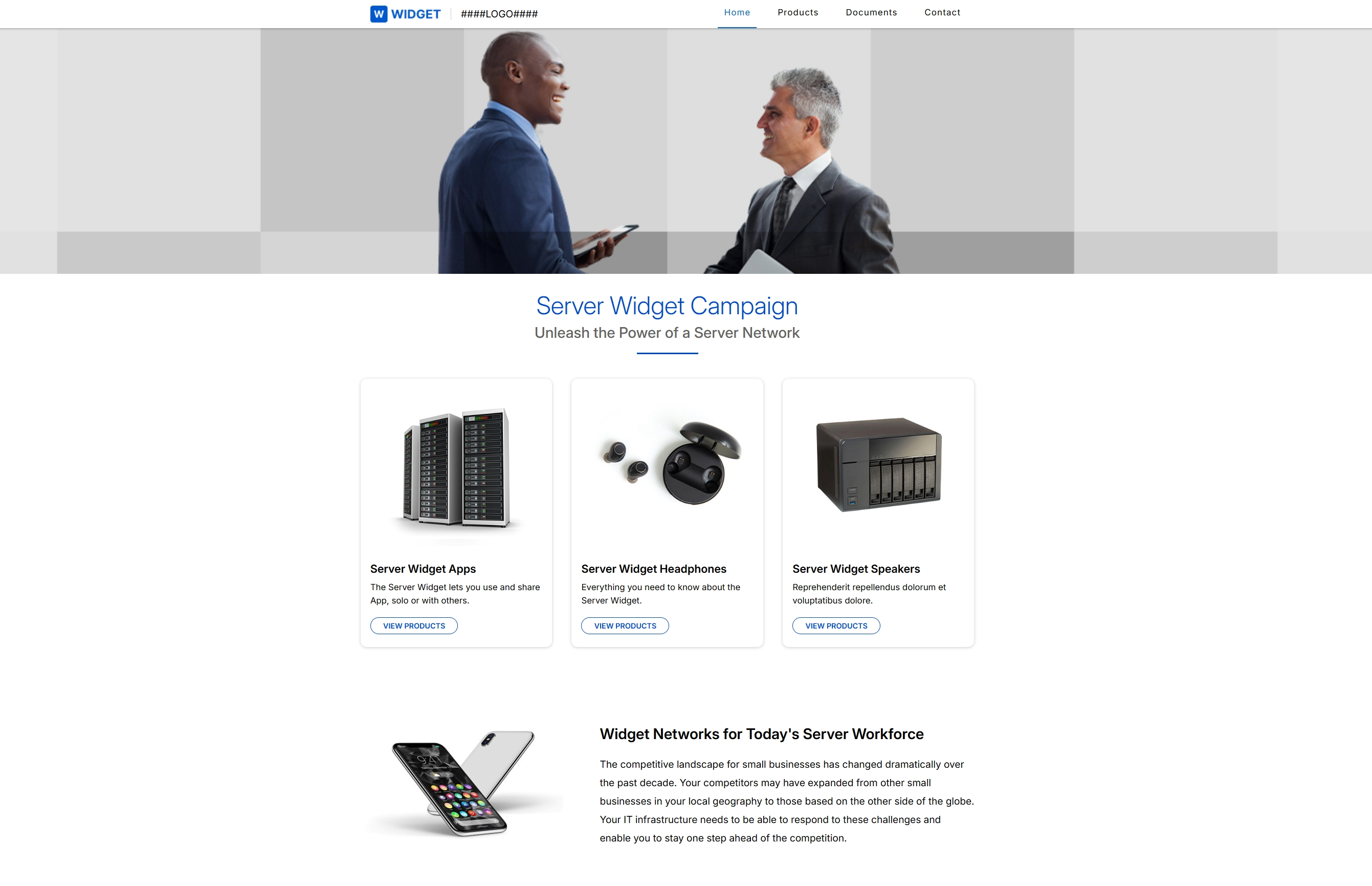
Click the Preview button for the "Server Widget Showcase" entry.