

Overview
The Invoices section within the Sell module is a critical component for managing the financial aspects of partner sales. Once a Sales Order is confirmed, an invoice is generated, which then appears in this list. This allows administrators to track all billing documents, monitor their approval status, and ensure that partners are correctly billed for products and services sold through the platform. The ability to filter and create custom views helps administrators efficiently manage large volumes of invoices, focusing on specific criteria such as status, account, or date ranges.
Accessing the Invoices List
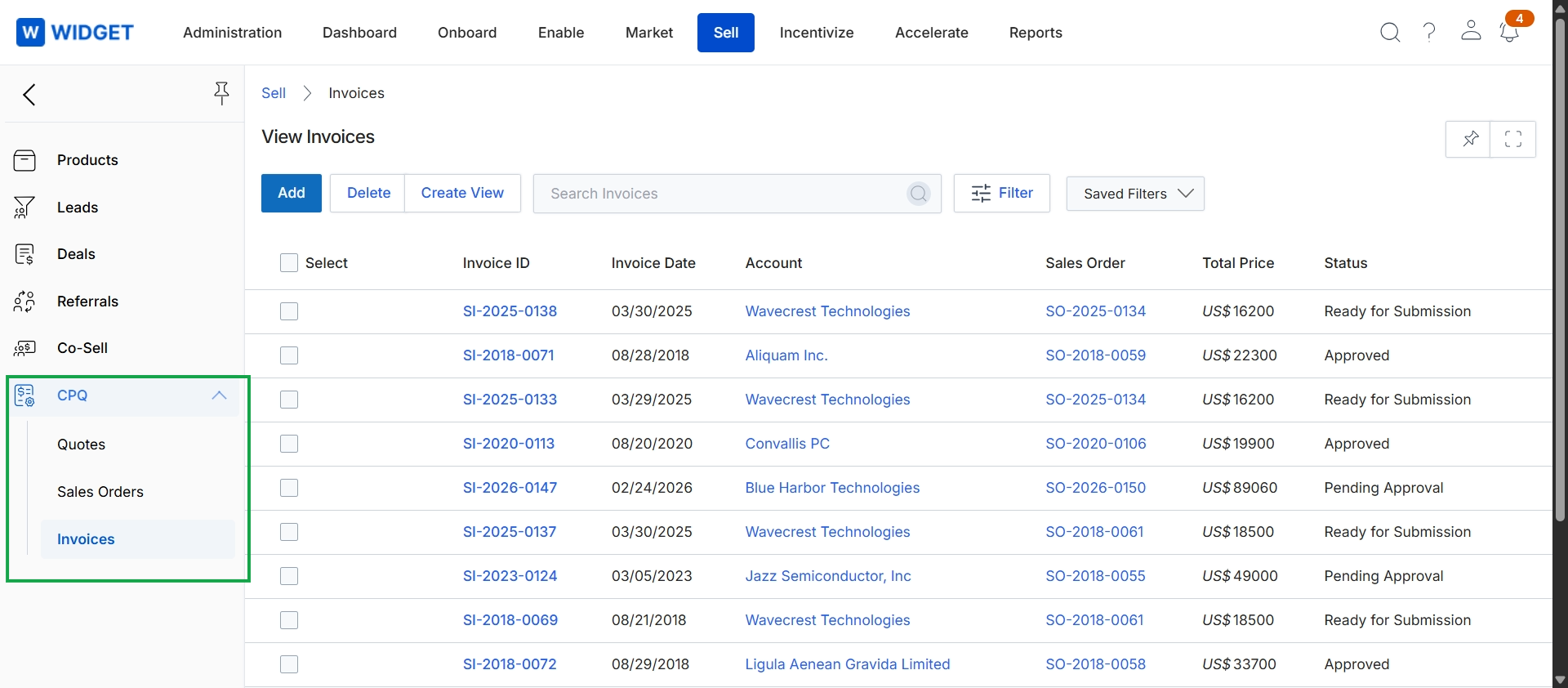
Click CPQ → Invoices in the left navigation menu.
Creating Custom Invoice Views
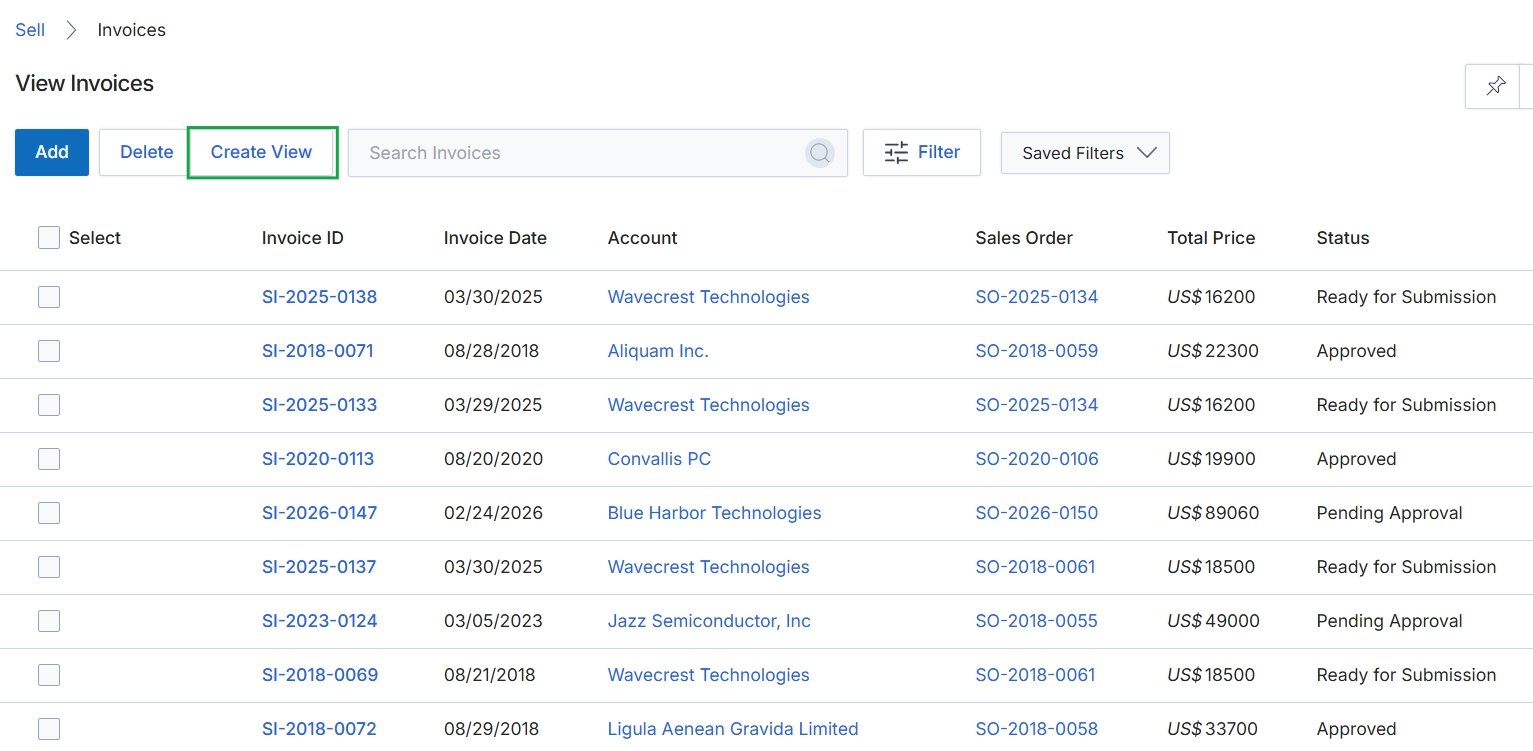
Click Create View.
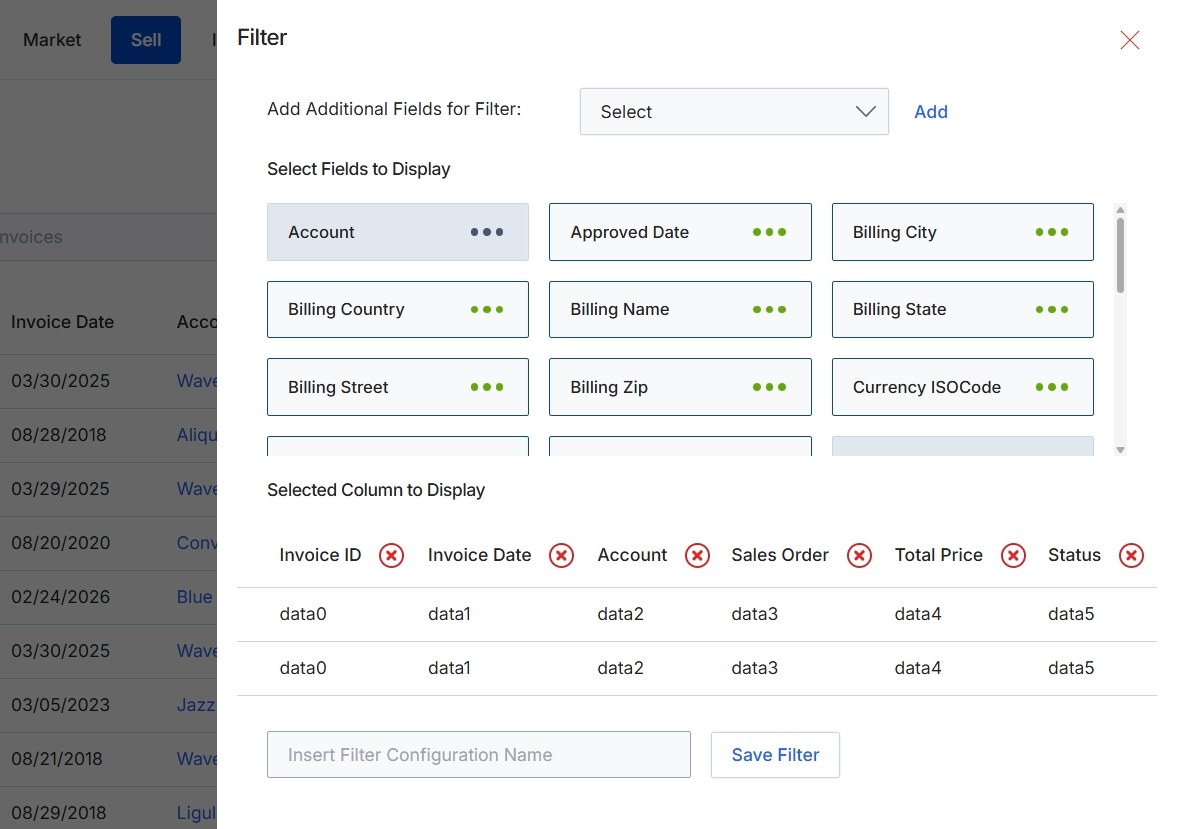
This filter configuration dialog allows users to customize the display and filtering options for lists of records, such as invoices. Users can select specific fields to be displayed as columns in the list view and also define criteria for filtering the records. This functionality is crucial for tailoring the user interface to specific analytical or operational needs, enabling users to focus on relevant data points and streamline their workflow. The ability to save filter configurations means that frequently used views can be quickly recalled without needing to reconfigure them each time, enhancing efficiency and consistency in data analysis.
Configure the filter settings by selecting fields to display and optionally saving the filter configuration.
Buttons
| Button | Description |
|---|---|
| Add | A button to add the selected field from the dropdown to the filter criteria. |
| Save Filter | A button to save the current filter configuration under the specified name. |
Fields
| Field | Description |
|---|---|
| Select | A dropdown menu to add additional fields that can be used for filtering the list. |
| Insert Filter Configuration Name | A text input field to enter a name for the current filter configuration. |
Filtering Invoice Records
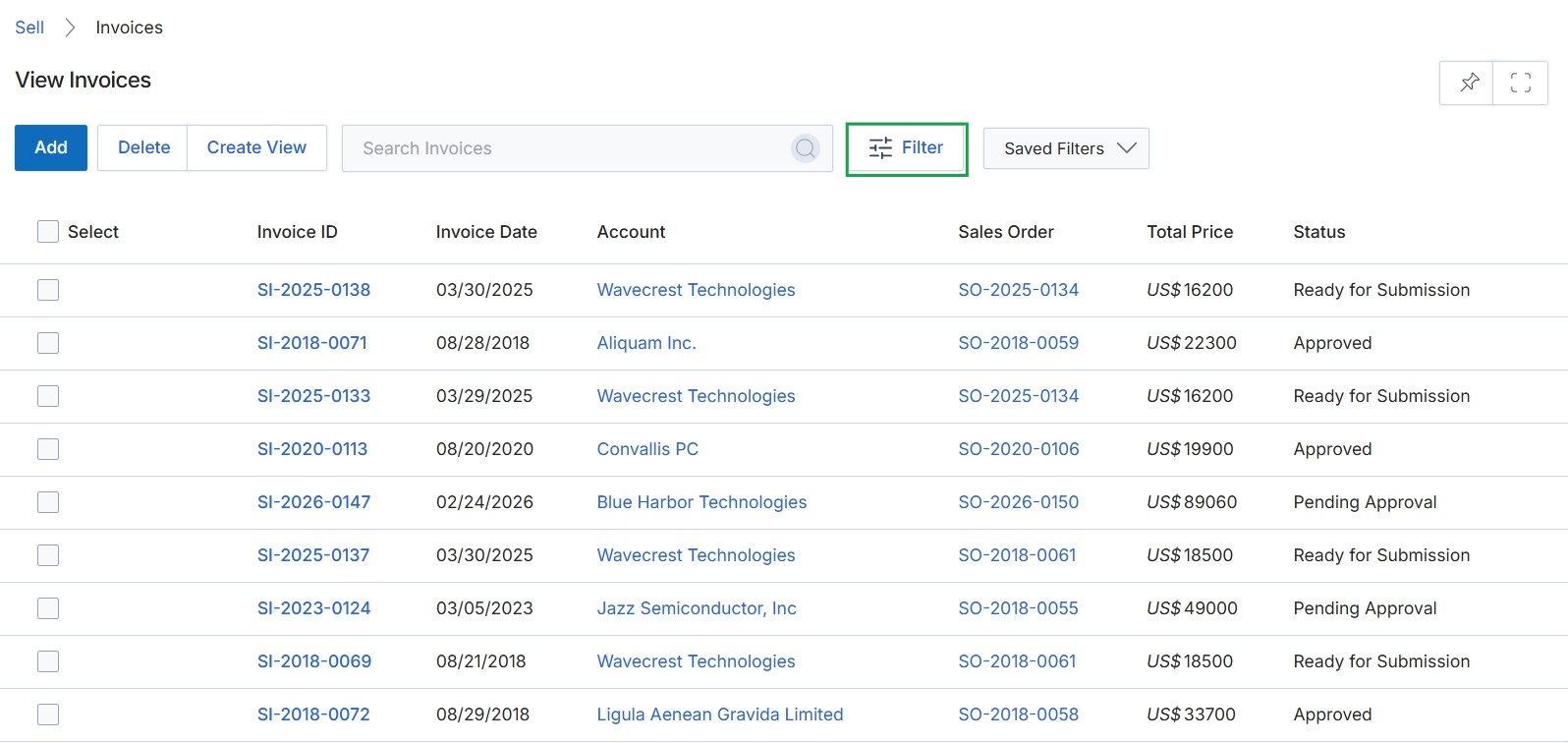
Click the Filter button.
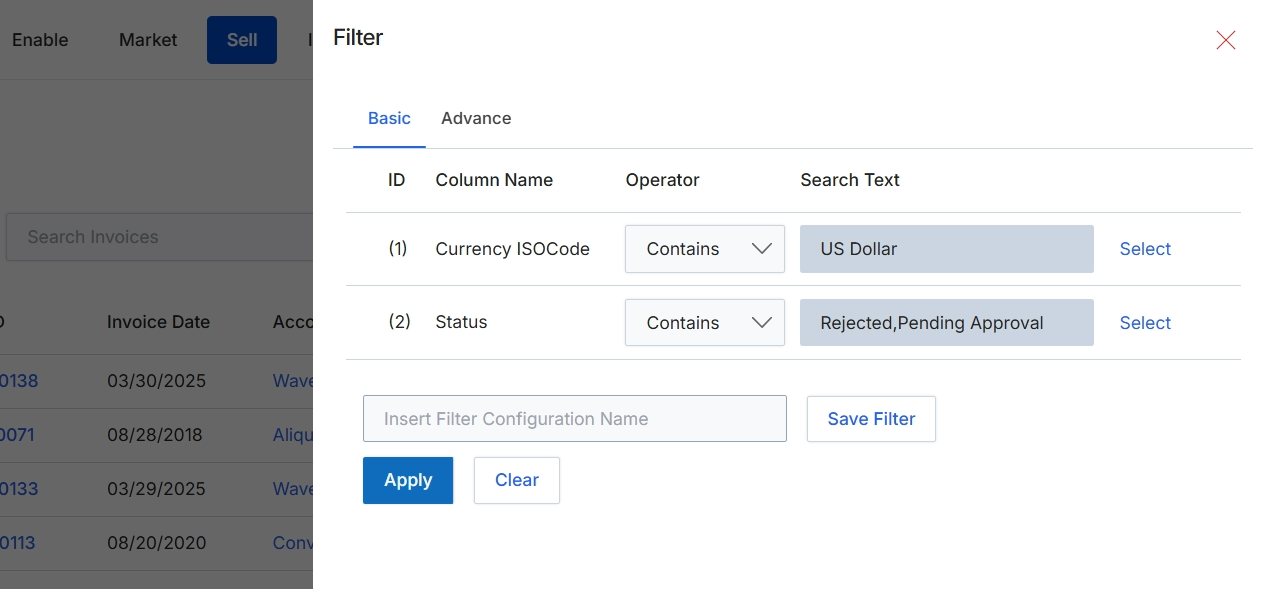
This filter dialog allows users to refine the list of invoices displayed in the main view by specifying criteria for various invoice attributes. Users can apply filters based on specific column values and operators, enabling them to quickly locate invoices that match their requirements. The dialog supports saving frequently used filter configurations, which streamlines future searches and enhances efficiency in managing invoice data. This functionality is crucial for administrators and partners who need to analyze or manage specific sets of invoices within the Sell module, helping them to focus on relevant financial transactions.
Apply the desired filters to refine the invoice list.
Buttons
| Button | Description |
|---|---|
| Basic | Tab to configure basic filter criteria. |
| Advance | Tab to configure advanced filter criteria. |
| Select | Button to select a specific currency value. |
| Select | Button to select a specific status value. |
| Save Filter | Button to save the current filter configuration under the specified name. |
| Apply | Button to apply the configured filters to the invoice list. |
| Clear | Button to clear all applied filter criteria. |
Fields
| Field | Description |
|---|---|
| Currency ISOCode | The invoice's currency ISO code, such as 'US Dollar'. |
| Contains | Dropdown to select the operator for the 'Currency ISOCode' filter, currently set to 'Contains'. |
| US Dollar | The value being searched for within the 'Currency ISOCode' field. |
| Status | The current status of the invoice, such as 'Rejected, Pending Approval'. |
| Contains | Dropdown to select the operator for the 'Status' filter, currently set to 'Contains'. |
| Rejected,Pending Approval | The value being searched for within the 'Status' field. |
| Insert Filter Configuration Name | Text input field to enter a name for the current filter configuration to save it for future use. |
Column Headings
| Column | Description |
|---|---|
| ID | Column header for the filter row identifier. |
| Column Name | Column header for the name of the invoice attribute being filtered. |
| Operator | Column header for the comparison operator used in the filter condition. |
| Search Text | Column header for the value to search for within the specified column. |
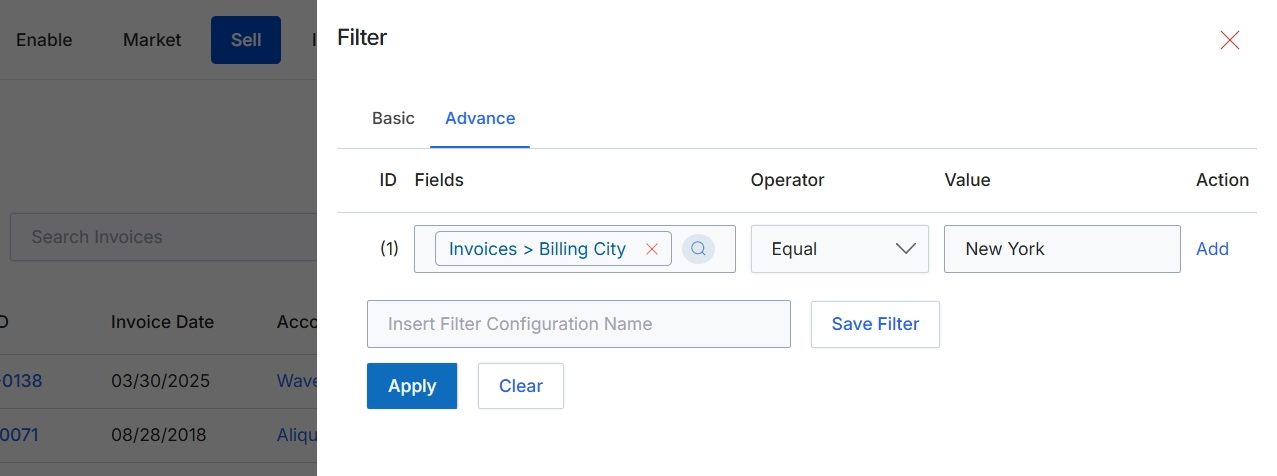
This screen displays the advanced filter configuration for invoices, allowing users to define specific criteria to narrow down the list of invoice records. The filter panel enables the creation of complex queries by combining multiple conditions based on various invoice fields, operators, and values. This functionality is crucial for administrators or finance teams to efficiently locate specific invoices, analyze billing data, or prepare reports by filtering for attributes such as billing city, invoice date, or account. The advanced filter provides granular control over data retrieval, supporting detailed financial management and operational oversight within the platform.
Apply the configured advanced filter to view invoices from New York.
Buttons
| Button | Description |
|---|---|
| Basic | A tab to switch to basic filter options. |
| Advance | A tab to switch to advanced filter options, currently selected. |
| Add | A button to add another filter condition to the advanced filter. |
| Save Filter | A button to save the current advanced filter configuration under the specified name. |
| Apply | A button to apply the configured filters to the invoice list. |
| Clear | A button to clear all applied filter conditions. |
Fields
| Field | Description |
|---|---|
| Invoices > Billing City | The selected field for filtering, indicating that the filter is applied to the 'Billing City' attribute of invoices. |
| Equal | The operator selected for the filter condition, specifying that the 'Billing City' must be exactly equal to the provided value. |
| New York | The value used for the filter condition, indicating that invoices from 'New York' are being sought. |
| Insert Filter Configuration Name | An input field to enter a name for the current filter configuration, allowing it to be saved for future use. |