

After-Login Change Password Enhancement and Translation
Related Application(s)
Users & Territories Management
Feature Description
The After-Login Change Password enhancement makes Change Password under My Account fully functional in multi-tenant portals as a standard feature. The page is now translated into all ten standard languages, and the unnecessary left sub-menu has been removed. Password validation guidelines are now aligned with the pre-login Reset Password screen and follow the portal's configured Password Policy.
Log in to the portal.
Navigate to My Account and click Change Password.

Enter the current password and a new password that follows the guidelines displayed on the page.
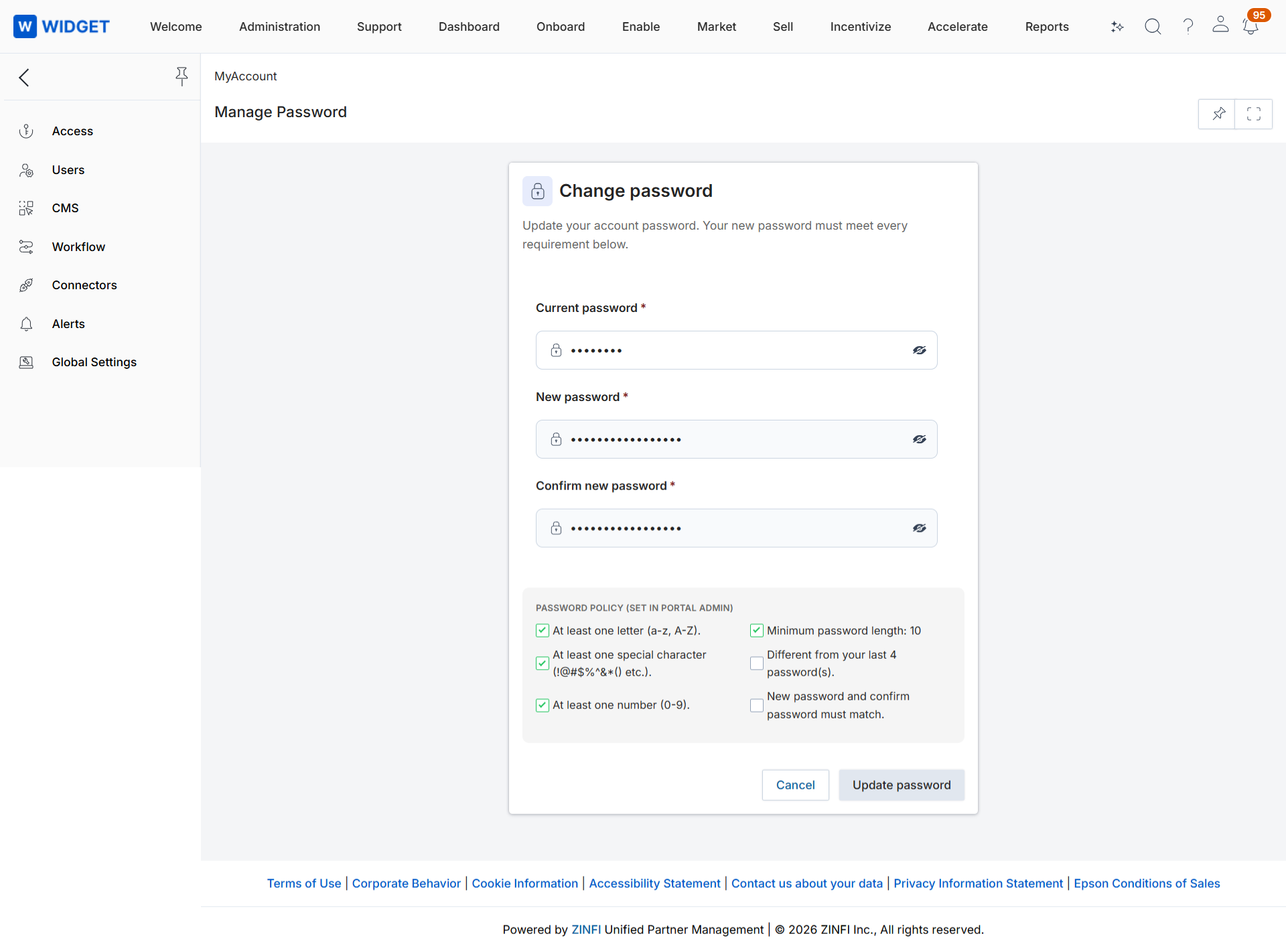
Click Save.
Verify that validation and confirmation messages are displayed in the user's language, for example: The current password you entered is incorrect; Your new password must be different from your last N password(s); and Password changed successfully.
Origin of Feature
Customer request. This feature was introduced to provide a consistent, secure, and localized password change experience after login.
CX Strategy Relation (6 S’s)
 Security
 Simplicity
Portal User-Facing Benefits
This feature allows every user to change their password securely in their own language, using the same rules as the rest of the platform.