

Overview
The Referral Deals repository within the Sell module tracks revenue opportunities generated through partner referrals, capturing critical deal attributes including deal values, close timelines, and referral types (such as Partner-to-Brand). This pipeline serves as a foundation for sales qualification and directly informs referral commission calculations within the Incentivize module upon deal progression and acceptance.
Through this centralized interface, channel managers can customize their data views by selecting display columns, applying granular multi-criteria basic and advanced query filters, and saving customized views for repeat analysis. In addition, comprehensive export tools allow teams to extract specific record ranges and attribute sets to CSV for cross-platform reporting and executive review.
Key Features
- Referral Pipeline Tracking
- Configurable Data Export
- Custom Grid Views
- Basic & Advanced Filtering
- Saved Filter Configurations
Exporting Referral Deal Records
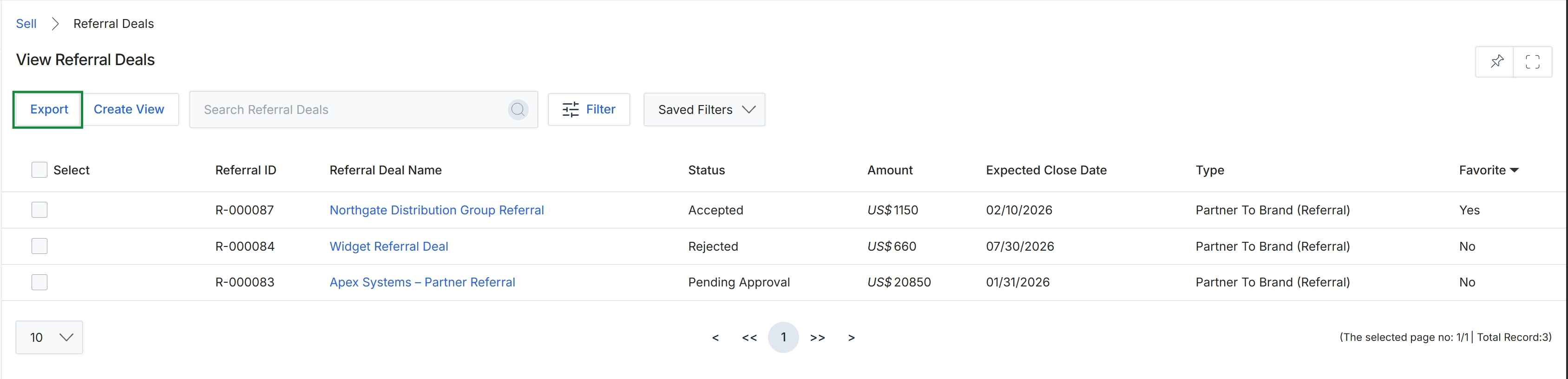
Click Export.
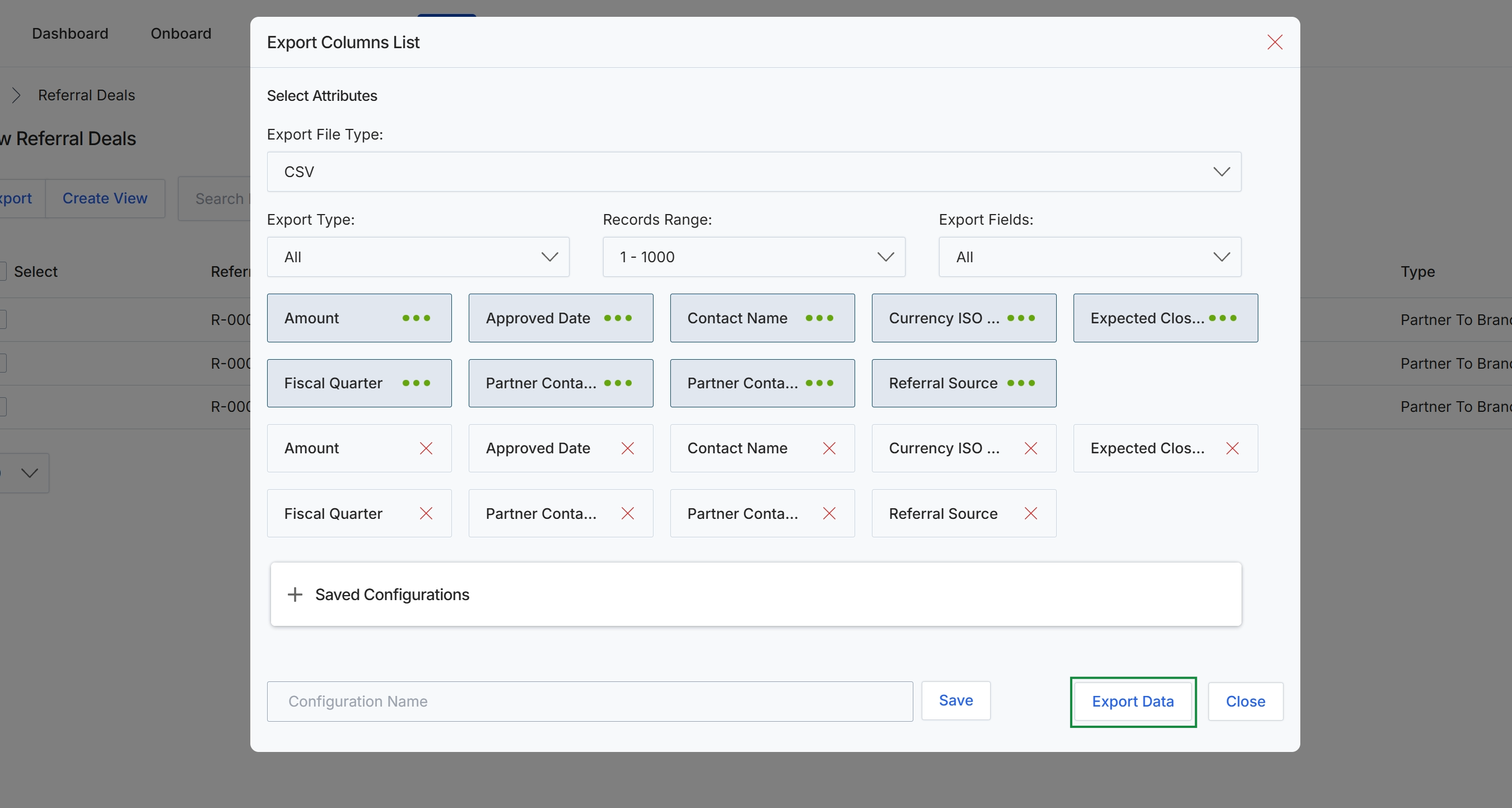
Click Export Data to export the referral deals records using the selected file type, range, and field attributes.
Buttons
| Button | Description |
|---|---|
| Save | Saves the current column export configuration under the specified configuration name. |
| Export Data | Initiates the export and downloads the referral deal data file. |
| Close | Closes the Export Columns List modal without exporting. |
Fields
| Field | Description |
|---|---|
| Export File Type | Selects the file format for the export file, such as CSV. |
| Export Type | Filters the export scope, such as exporting all records or a filtered subset. |
| Records Range | Specifies the batch range of records to include in the export. |
| Export Fields | Determines whether all fields or a customized selection of attributes are exported. |
| Configuration Name | Allows entering a name to save the current column selection and export settings for future use. |
Creating Custom Table Views
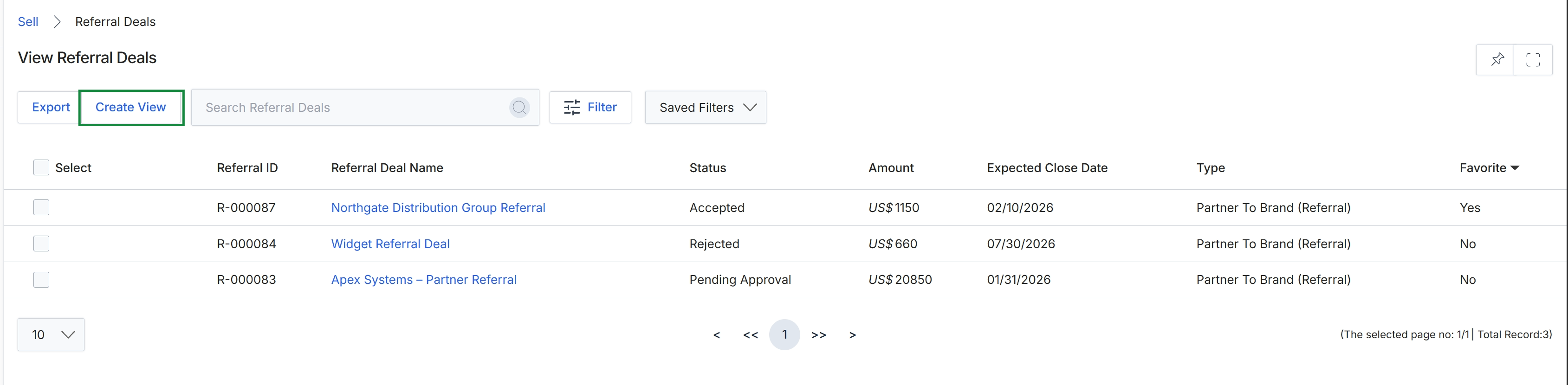
Click Create View.
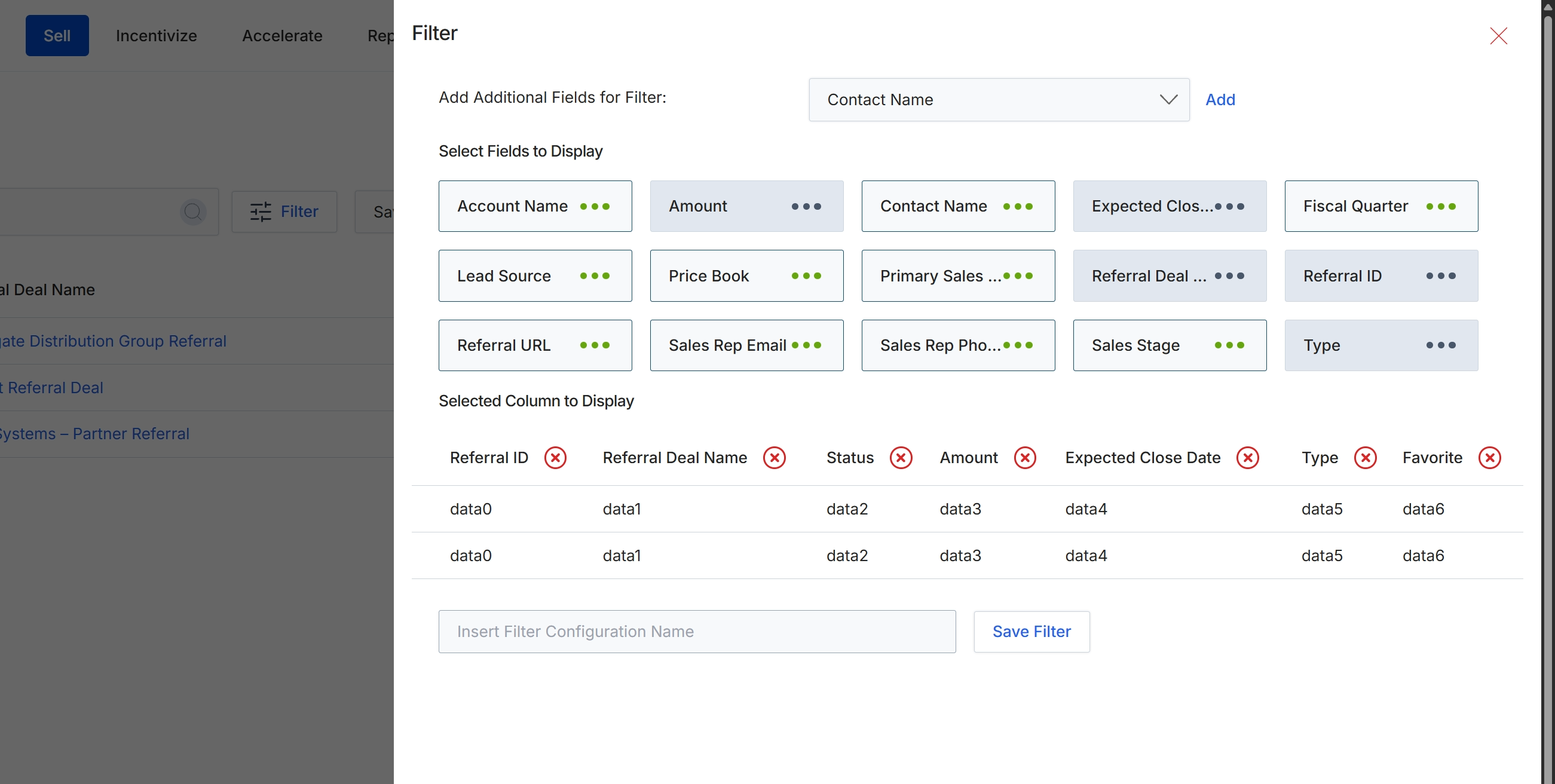
Enter a name for the custom view in the Insert Filter Configuration Name field.
Buttons
| Button | Description |
|---|---|
| Add | Adds the selected additional filter attribute to the filter configuration. |
| Save Filter | Saves the configured filter parameters and display columns for future use. |
Fields
| Field | Description |
|---|---|
| Add Additional Fields for Filter | Selects an additional field attribute from the dropdown to include in the filter criteria. |
| Insert Filter Configuration Name | Accepts a descriptive label to save and identify this customized column and filter layout. |
Selected Column to Display
| Column | Description |
|---|---|
| Referral ID | Displays the unique identifier for the referral deal record. |
| Referral Deal Name | Displays the title or name of the referral deal. |
| Status | Displays the current review or pipeline stage of the referral. |
| Amount | Displays the monetary value of the referral deal. |
| Expected Close Date | Displays the anticipated closing date for the referral opportunity. |
| Type | Displays the category or classification of the referral. |
| Favorite | Displays whether the referral deal is marked as a favorite. |
Filtering Referral Deals
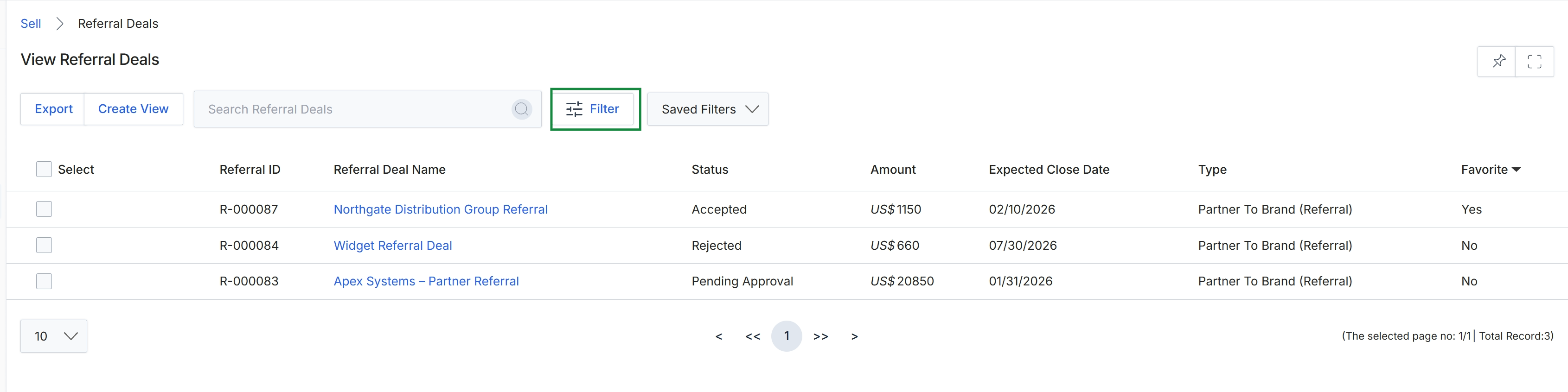
Click Filter.
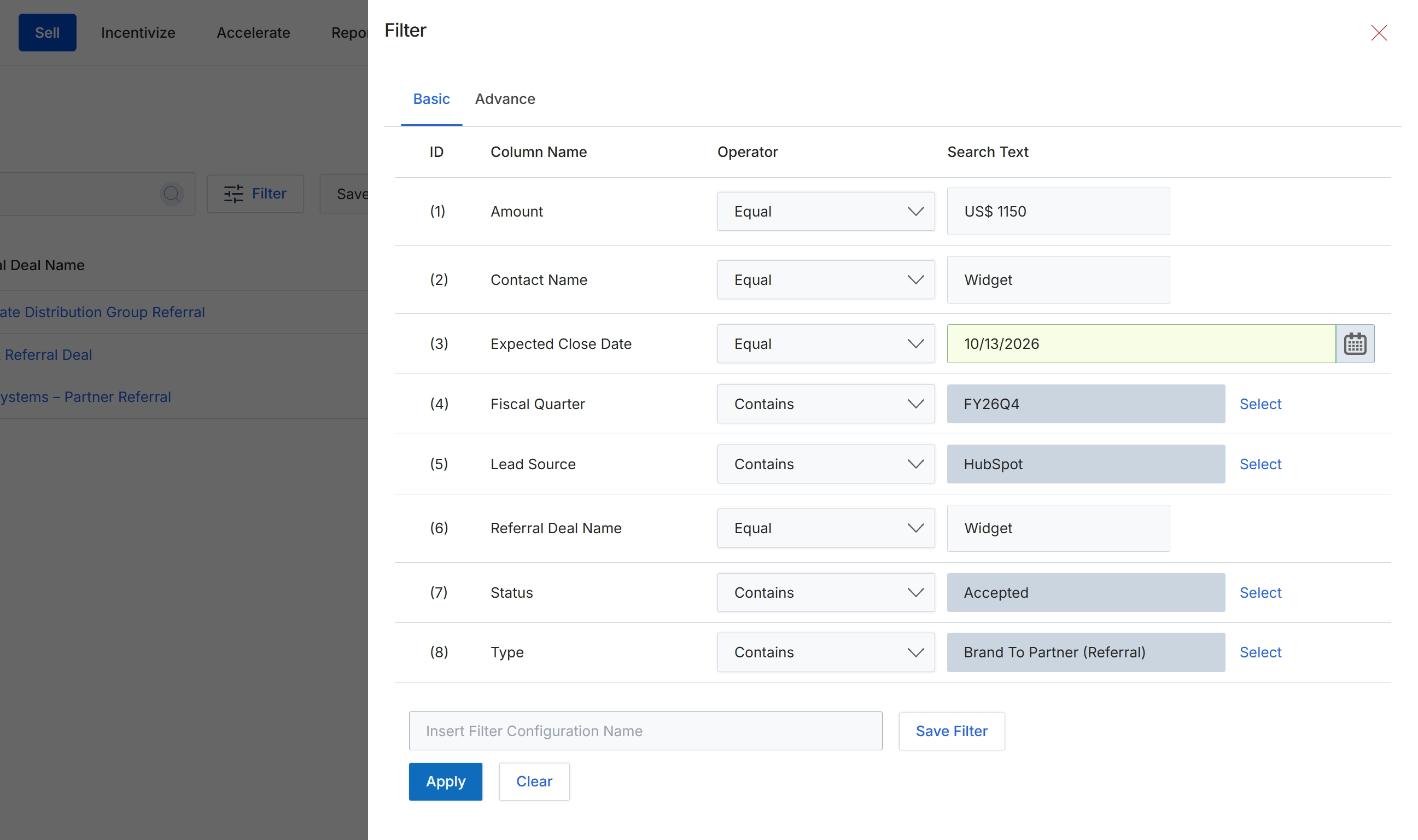
Click Apply to filter the referral deals list according to the specified criteria.
Buttons
| Button | Description |
|---|---|
| Basic | Switches to the basic filter view where predefined deal attributes can be configured. |
| Advance | Switches to the advanced filter view for complex logical conditions. |
| Save Filter | Saves the entered filter configuration under the specified name. |
| Apply | Applies the configured filter criteria to the referral deals table. |
| Clear | Clears all entered filter values and resets the criteria. |
Fields
| Field | Description |
|---|---|
| Insert Filter Configuration Name | Accepts a custom name to save the current filter combination for future reuse. |
Column Headings
| Column | Description |
|---|---|
| ID | Displays the numerical index for each filter parameter row. |
| Column Name | Displays the name of the referral deal field being filtered. |
| Operator | Selects the comparison operator, such as Equal or Contains, to evaluate the field against the search criteria. |
| Search Text | Specifies the value or selection used to filter each respective deal column. |
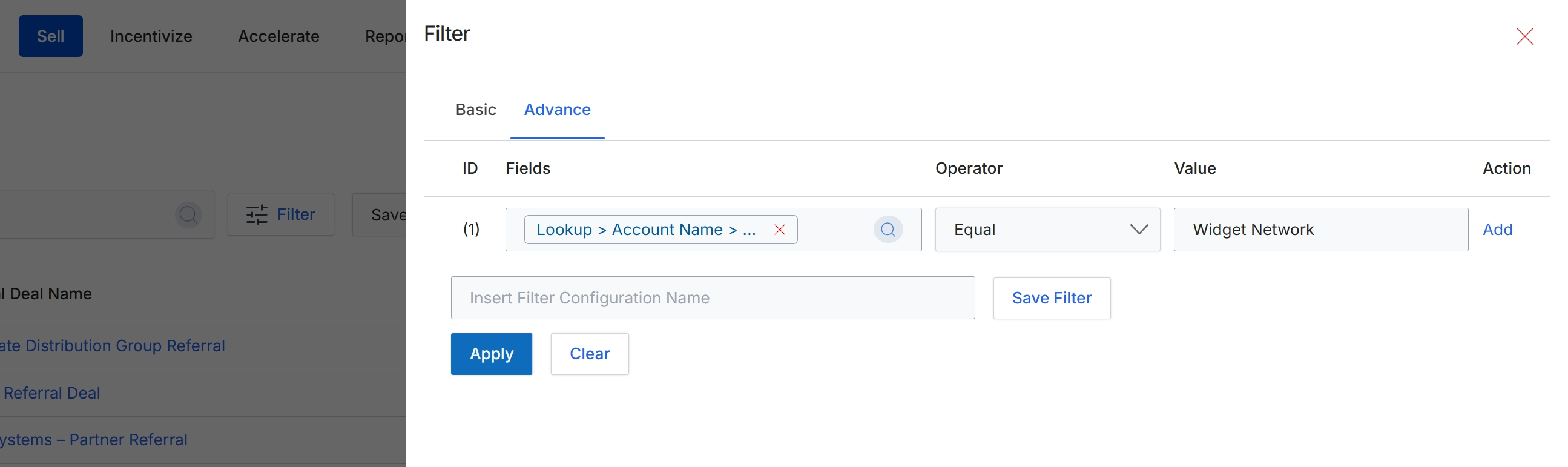
Click Apply to filter the referral deals list according to the specified criteria.
Buttons
| Button | Description |
|---|---|
| Basic | Switches to the standard filtering mode. |
| Advance | Displays the advanced filter builder for defining multi-field criteria. |
| Add | Appends an additional filter condition row. |
| Save Filter | Saves the entered filter configuration under the provided name. |
| Apply | Applies the current filter criteria to the referral deals table. |
| Clear | Clears all currently entered filter parameters. |
Fields
| Field | Description |
|---|---|
| Fields | Specifies the record field to evaluate in the filter rule. |
| Operator | Selects the logical comparison operator, such as Equal, for the filter condition. |
| Value | Specifies the value to match against the selected field. |
| Insert Filter Configuration Name | Enters a custom name to save this filter preset for future use. |
Frequently asked questions
- What is the purpose of the View Referral Deals interface?
It provides a central repository for monitoring inbound and outbound partner referral deals across the sales pipeline. Users can track deal statuses, amounts, expected close dates, and referral classifications.
- How does referral deal data connect to commissions?
Pipeline deal values and status updates directly inform referral commission calculations within the Incentivize module upon deal progression and acceptance.
- What export options are available for referral deals?
Users can export deal records to CSV format, selecting specific record ranges, export scopes, and custom attribute fields while saving configurations for future use.
- How do basic and advanced filters differ in this interface?
Basic filtering applies search criteria across predefined deal columns, while advanced filtering provides a multi-condition rule builder for complex evaluations using custom operators.