

Overview
Multi-touch campaigns are a powerful tool within the Market module, enabling partners to execute sophisticated, automated marketing sequences. Unlike single-tactic campaigns, multi-touch campaigns allow for a series of interactions with prospects, dynamically adjusting based on their behavior, such as opening an email or clicking a link. This capability helps partners nurture leads more effectively, guiding them through a predefined journey that can include emails, microsite visits, and other marketing tactics.
Key Features
- Multi-Touch Campaign Management
- Visual Workflow Builder
- Campaign Tactic Integration
- Recipient List Selection
- Campaign Launch & Tracking
Accessing Multi-Touch Campaigns
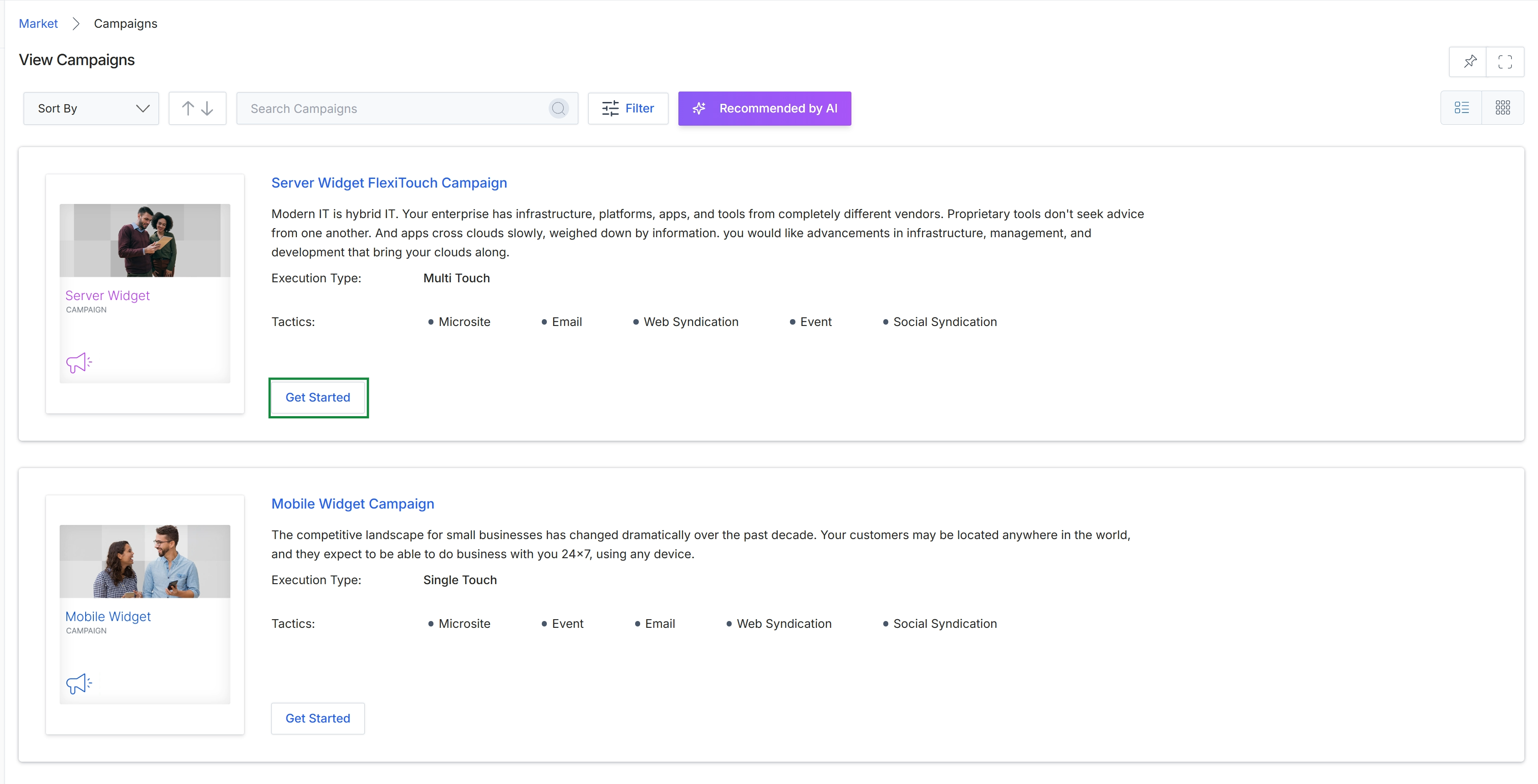
Click the Get Started button for the "Server Widget FlexiTouch Campaign."
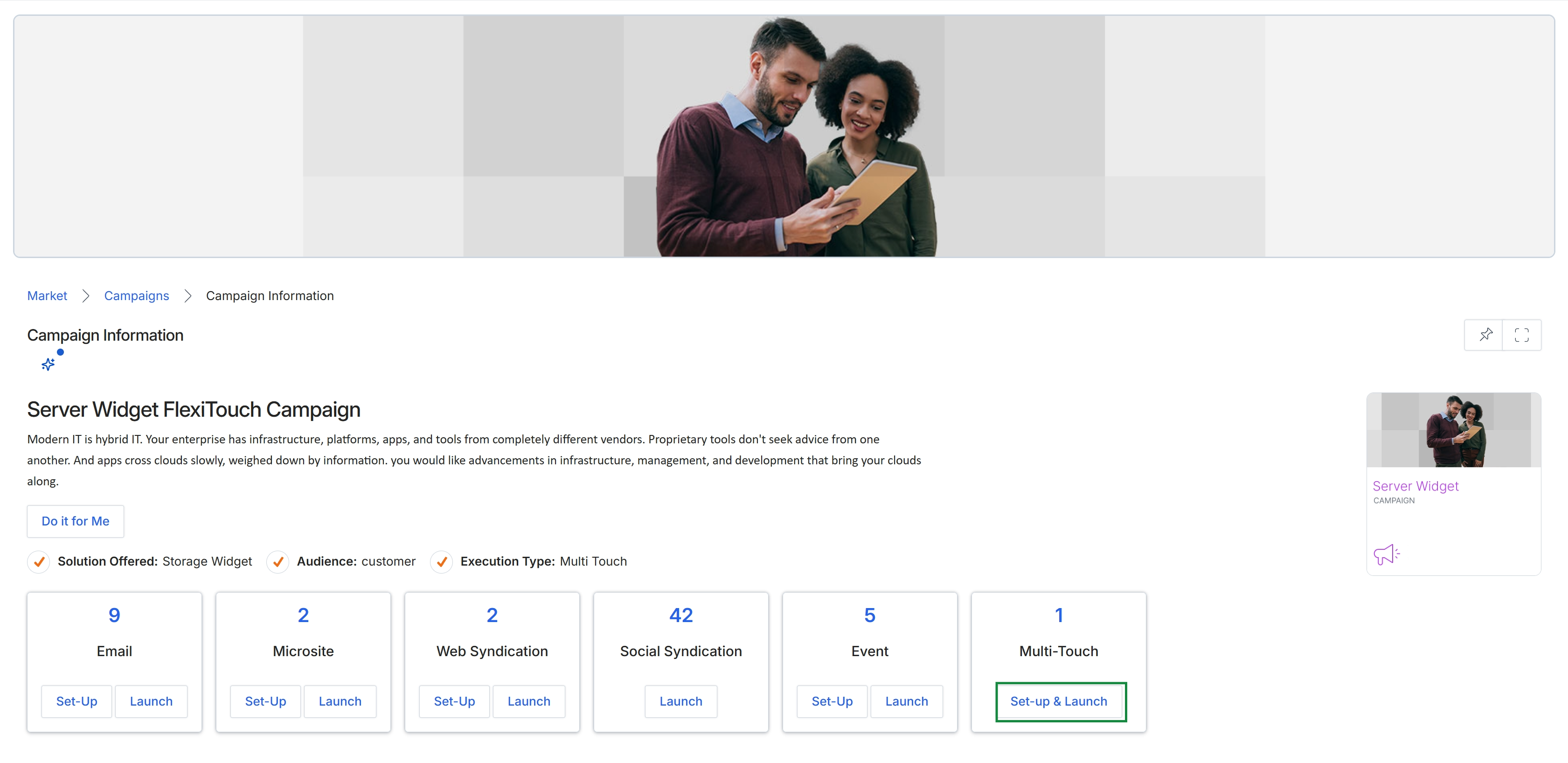
This screen displays the detailed information for a specific multi-touch campaign, providing an overview of its description, target audience, and the various marketing tactics it encompasses. It shows the number of assets available for each tactic, such as Email, Microsite, Web Syndication, Social Syndication, and Event, within this campaign. Partners use this view to understand the campaign's scope and initiate the setup or launch of individual marketing activities or the entire multi-touch campaign.
Managing and Editing Multi-Touch Flows
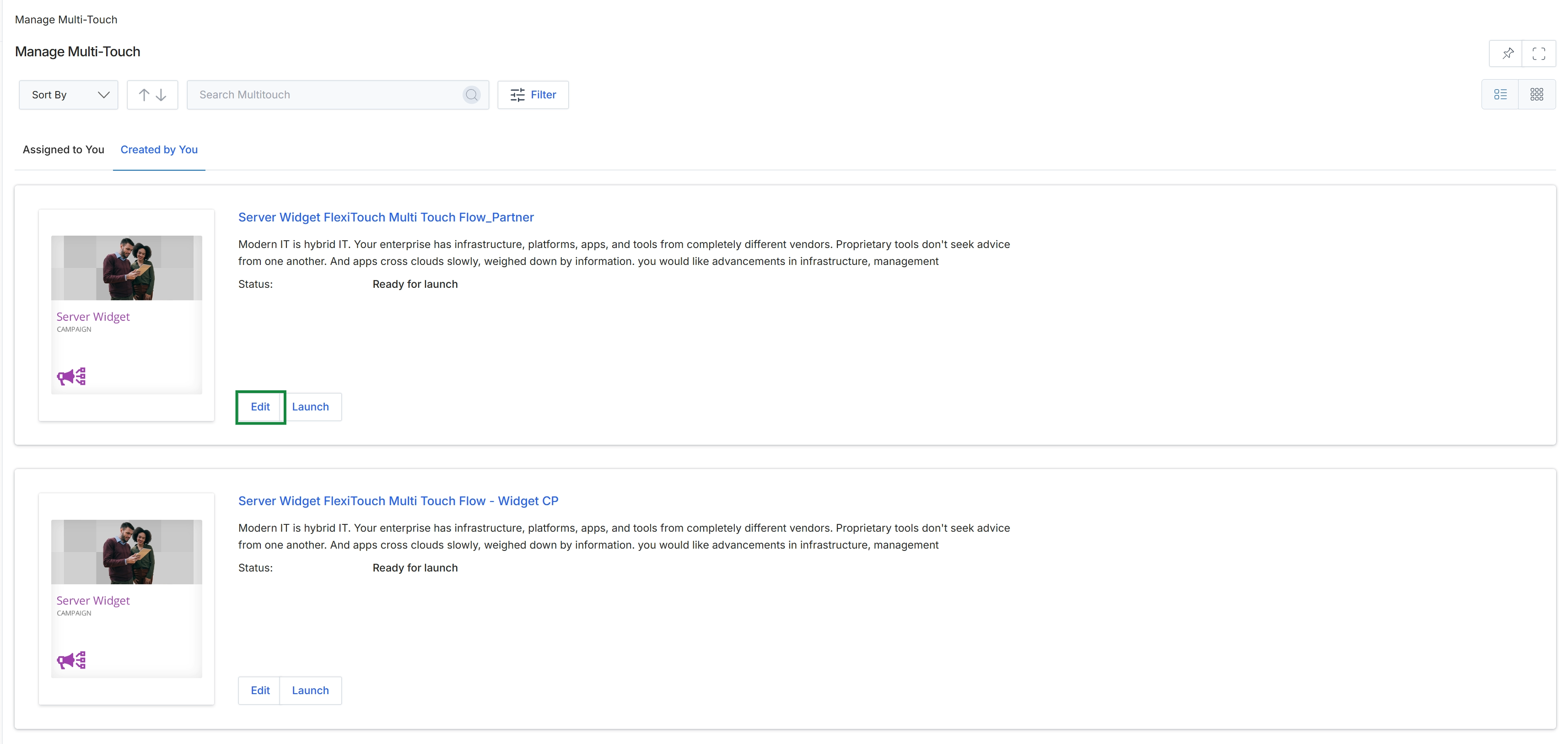
Click the Set-Up & Launch button for the Multi-Touch campaign.
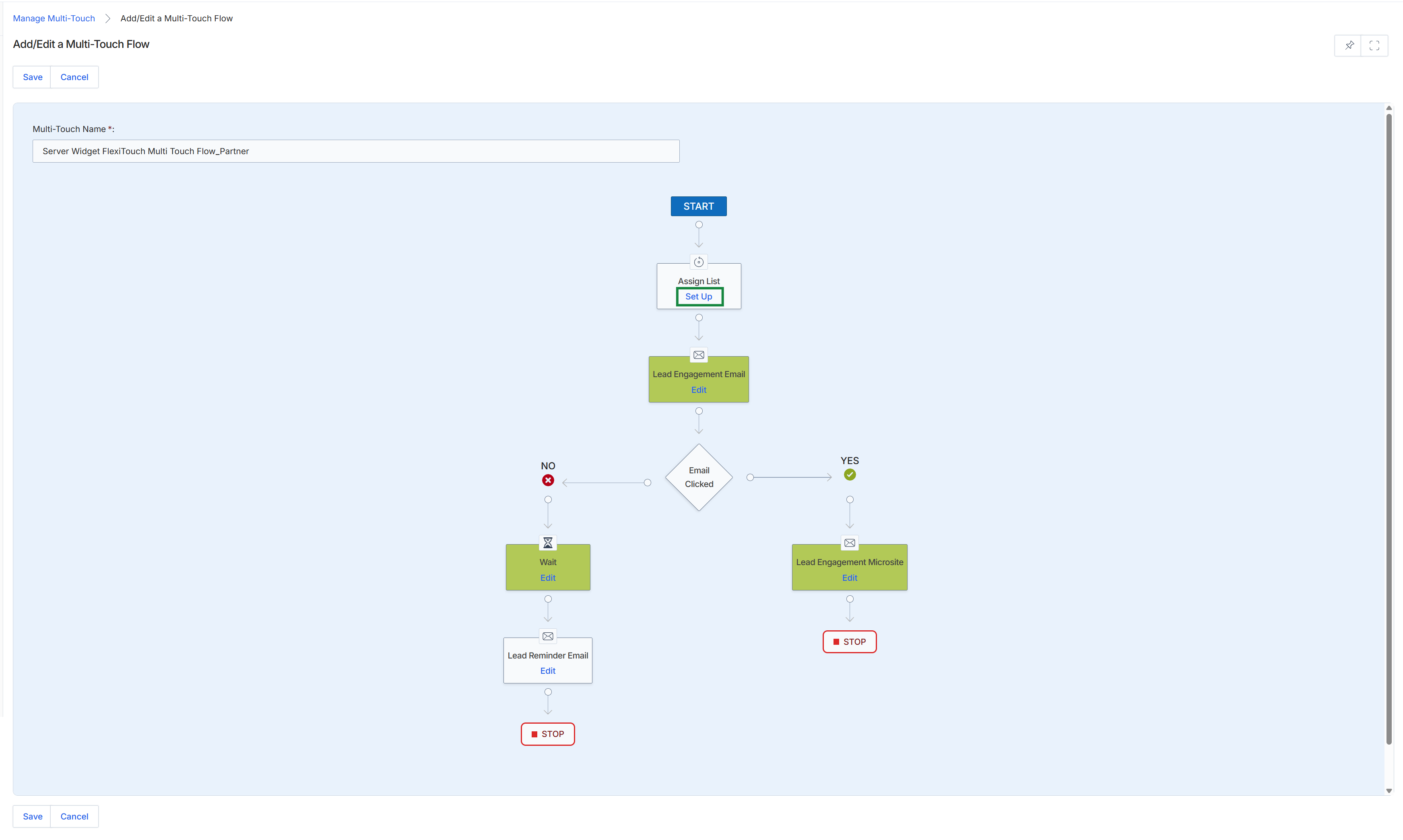
This screen presents the Add/Edit a Multi-Touch Flow interface, which is a visual workflow builder for designing automated marketing campaigns within the Market module. It allows users to define a sequence of interactions, such as sending emails, waiting for specific periods, and branching logic based on recipient actions like email clicks. The flow begins with a starting point, proceeds through various engagement steps, and can lead to different outcomes, enabling a structured approach to nurturing prospects or partners through a defined journey. This visual representation helps users understand and configure the progression of a multi-touch campaign, ensuring timely and relevant communications.
Click the 'Set Up' link within the 'Assign List' node to configure the target audience for this multi-touch flow.
Buttons
| Button | Description |
|---|---|
| Save | Saves the current multi-touch flow configuration. |
| Cancel | Discards any changes and returns to the previous screen. |
| Set Up | Configures the mailing list or segment to which this multi-touch flow will be applied. |
Fields
| Field | Description |
|---|---|
| Multi-Touch Name * | The name of the multi-touch flow, which is a required field. |
Selecting Campaign Recipients
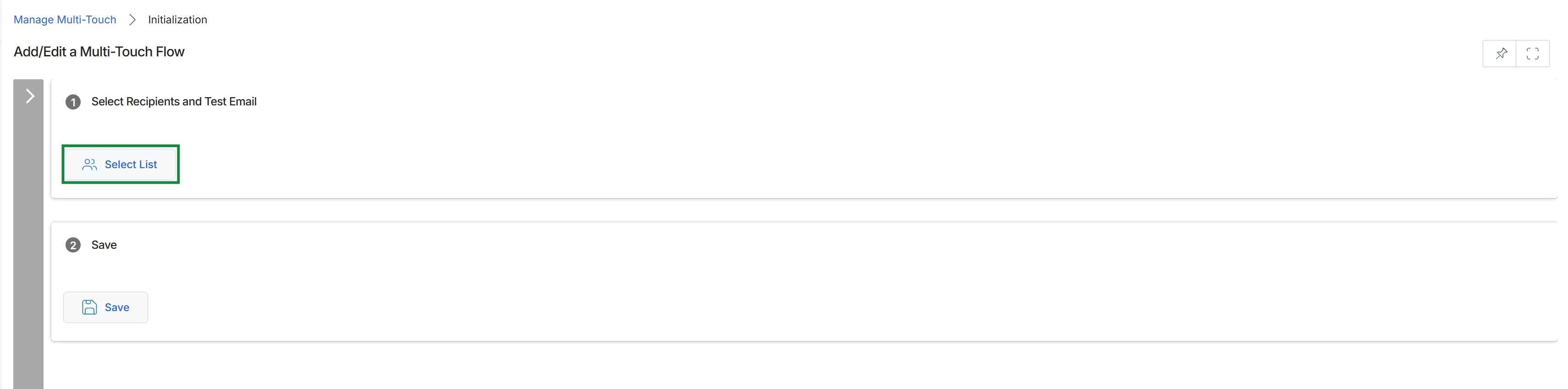
Click the Set Up button within the 'Analyze List' node.
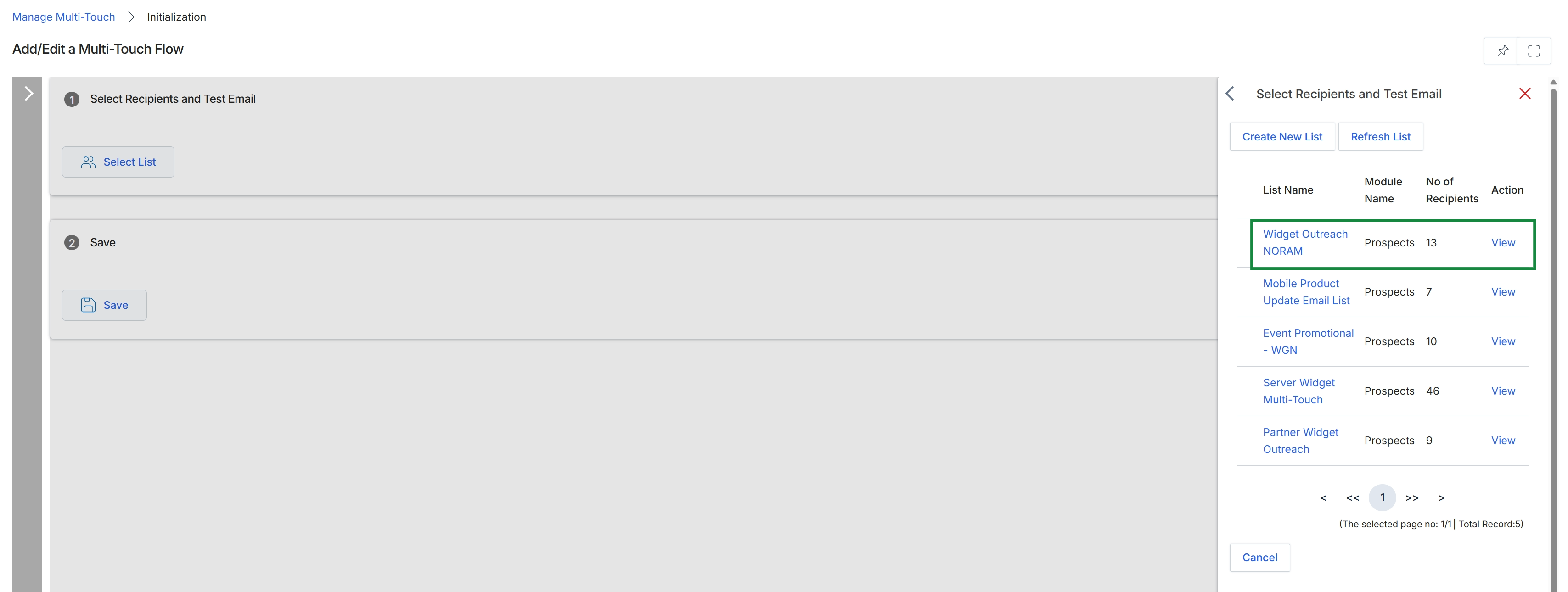
Click the Select List button.
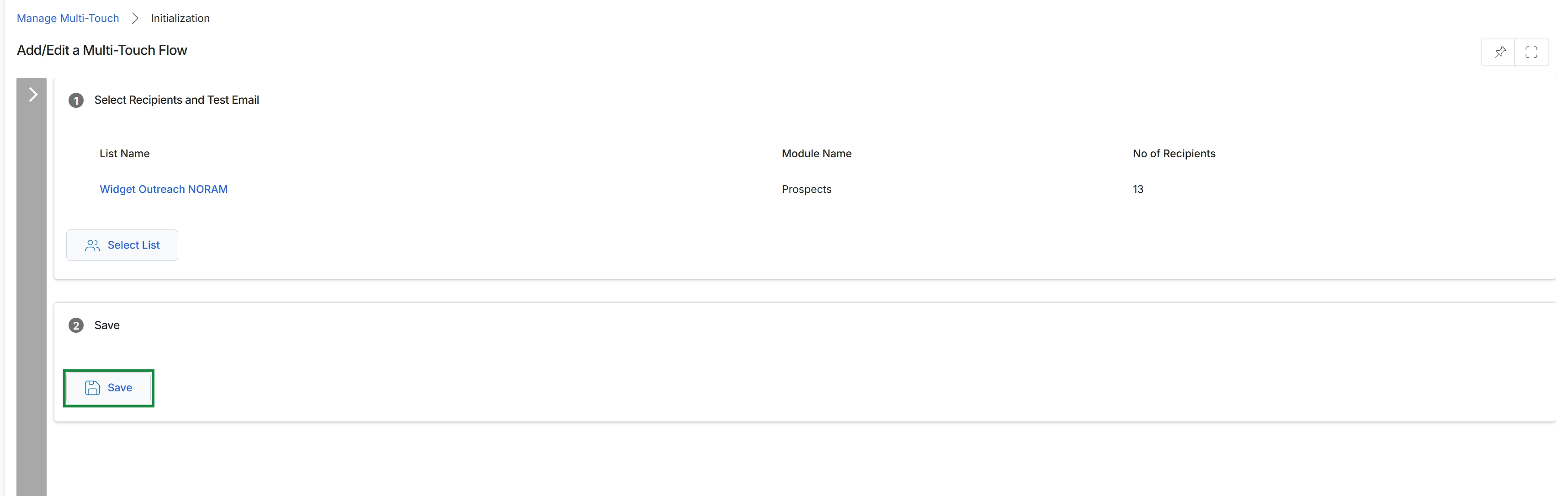
This screen is part of the workflow for configuring a multi-touch campaign flow within the Market module. It allows administrators to specify the recipient list for the campaign, which is a crucial step in defining the audience for the automated email sequences. The selected list, typically a segment of prospects or contacts, determines who will receive the communications. This step ensures that the multi-touch flow targets the intended audience before further campaign details are configured and saved.
Click the "Select List" button to confirm the chosen recipient list for the multi-touch flow.
Buttons
| Button | Description |
|---|---|
| Select List | Confirms the selection of the displayed recipient list for the multi-touch flow. |
| Save | Saves the current configuration of the multi-touch flow, including the selected recipient list. |
1 Select Recipients and Test Email
| Column | Description |
|---|---|
| List Name | Displays the name of the selected mailing list, which defines the recipients for this multi-touch flow. |
| Module Name | Indicates the module from which the recipient list was sourced, such as Prospects. |
| No of Recipients | Shows the total number of individuals included in the selected mailing list. |
Launching a Multi-Touch Campaign
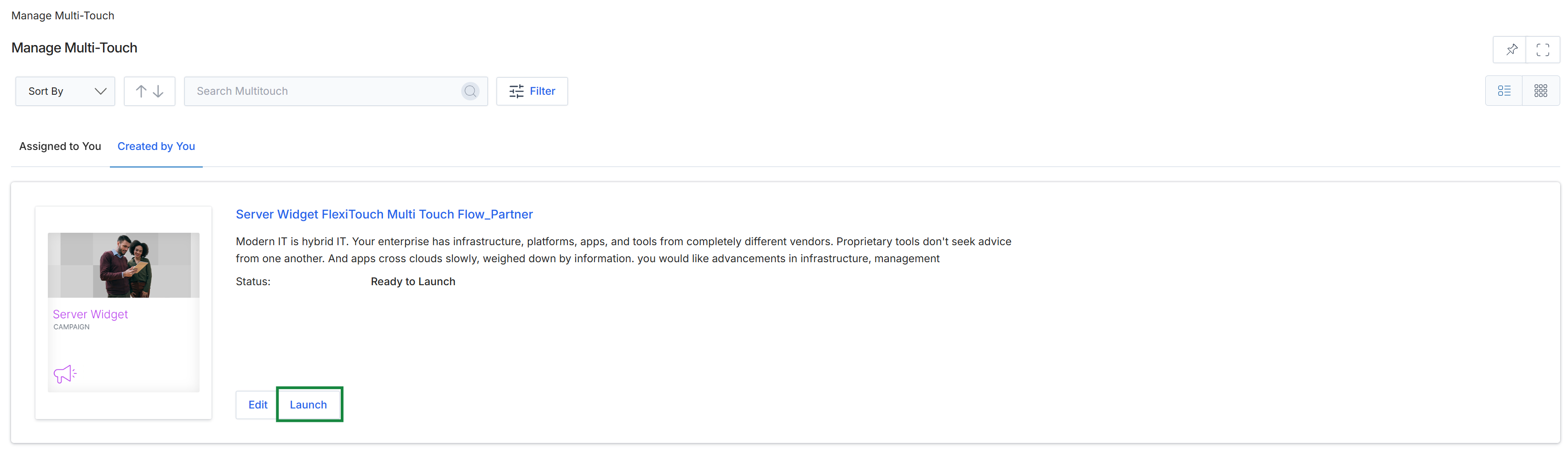
This screen displays a list of multi-touch campaigns, presented as individual cards, that have been created within the Market module. Each campaign card provides a summary, including its name, a brief description, and its current status, which in this instance indicates it is ready to launch. This view allows users to manage and initiate their marketing campaigns, representing a key step in the workflow where a prepared campaign transitions from a draft or ready state to an active, executable phase.
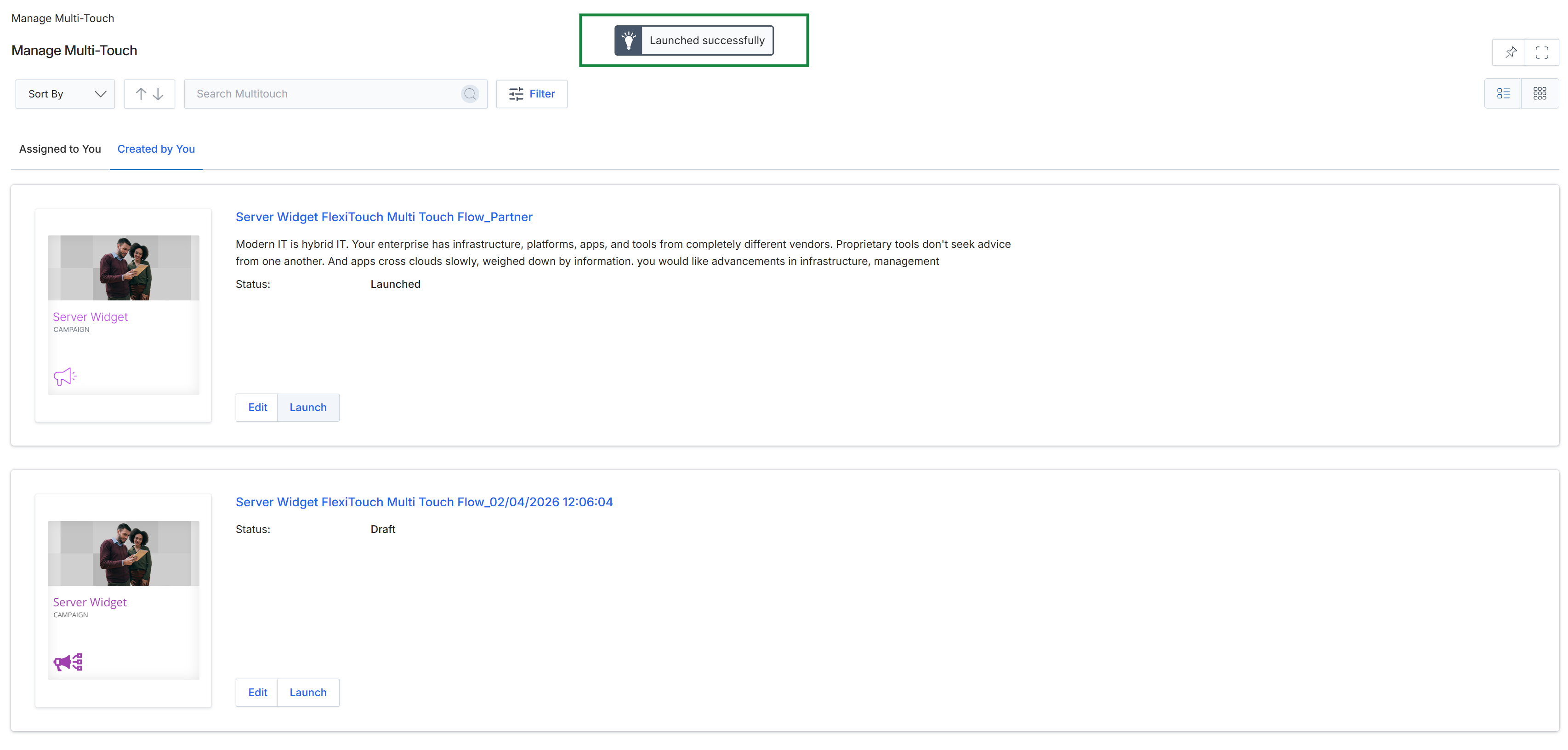
This screen displays a list of multi-touch campaigns within the Market module, presenting them in a card-based layout. It shows the current status of each campaign, such as 'Launched' or 'Draft', and provides options to manage them. The view indicates that a campaign has been successfully launched, reflecting a key step in the workflow where a vendor makes a campaign available for partners.
Frequently asked questions
- What is a multi-touch campaign?
A multi-touch campaign is an automated sequence of marketing activities designed to engage prospects. Unlike single-tactic campaigns, it allows for a series of interactions that dynamically adjust based on prospect behavior, such as email opens or link clicks.
- Who uses multi-touch campaigns in the platform?
Channel partners and UPM administrators use multi-touch campaigns. Partners leverage them to execute sophisticated, automated marketing sequences and nurture leads effectively, while administrators configure and manage these flows.
- How do you access multi-touch campaign setup?
From the Campaigns list page, click 'Get Started' for a campaign. Then, click 'Set-Up & Launch' for the desired multi-touch campaign to access the visual workflow builder.
- What is the 'Add/Edit a Multi-Touch Flow' screen?
This screen is a visual workflow builder within the Market module. It allows users to design automated marketing campaigns by defining sequences of interactions, wait times, and branching logic based on recipient actions.
- How do you select recipients for a multi-touch flow?
Within the multi-touch flow canvas, click the 'Set Up' button in the 'Assign List' node. On the 'Select Recipients and Test Email' screen, click 'Select List' to choose the target audience for the campaign.
- What does launching a multi-touch campaign do?
Launching a multi-touch campaign transitions it from a draft or ready state to an active, executable phase. This makes the campaign available for partners to use or activates the automated sequences.