

Overview
The Campaign Management module is a core component of the Market zone, enabling vendors to create and manage co-marketing initiatives for their partners. These campaigns can encompass various tactics such as email marketing, microsites, web syndication, events, and social syndication. By providing a structured framework for campaigns, the platform ensures brand consistency and facilitates partners' marketing efforts, ultimately driving lead generation and sales.
Key Features
- Campaign List View
- Campaign Card View
- Search Campaigns
- Filter Campaigns
- Sort Campaigns
- AI Recommendations
Viewing Campaign Lists
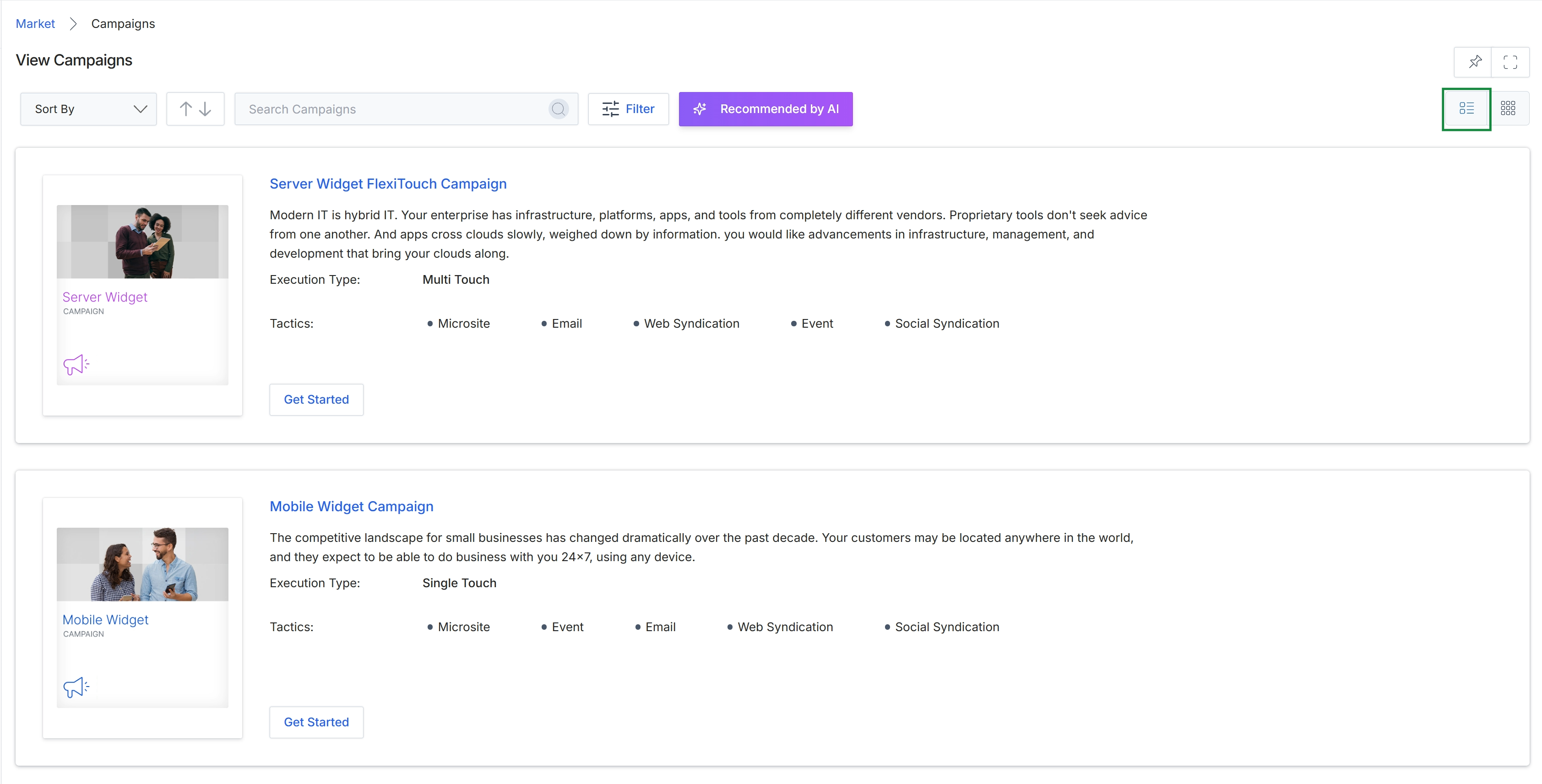
Click the List View icon to change the display of campaigns.
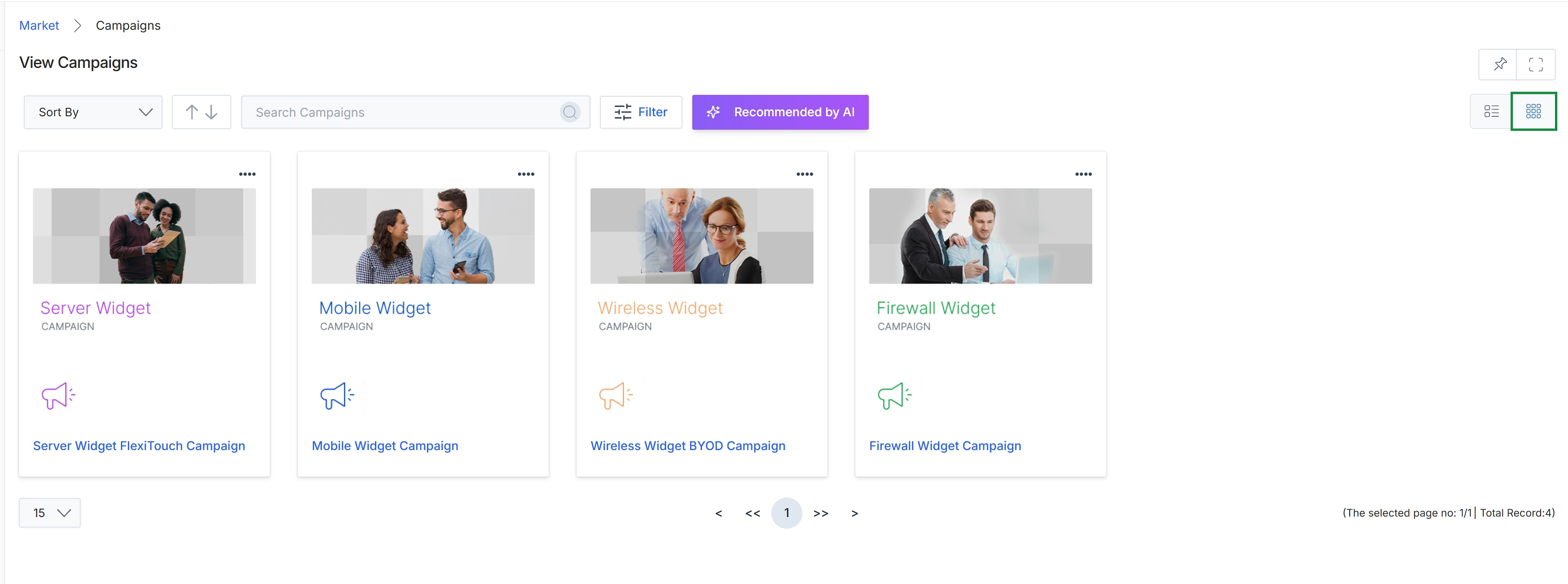
Click the Grid View icon.
Searching and Sorting Campaigns
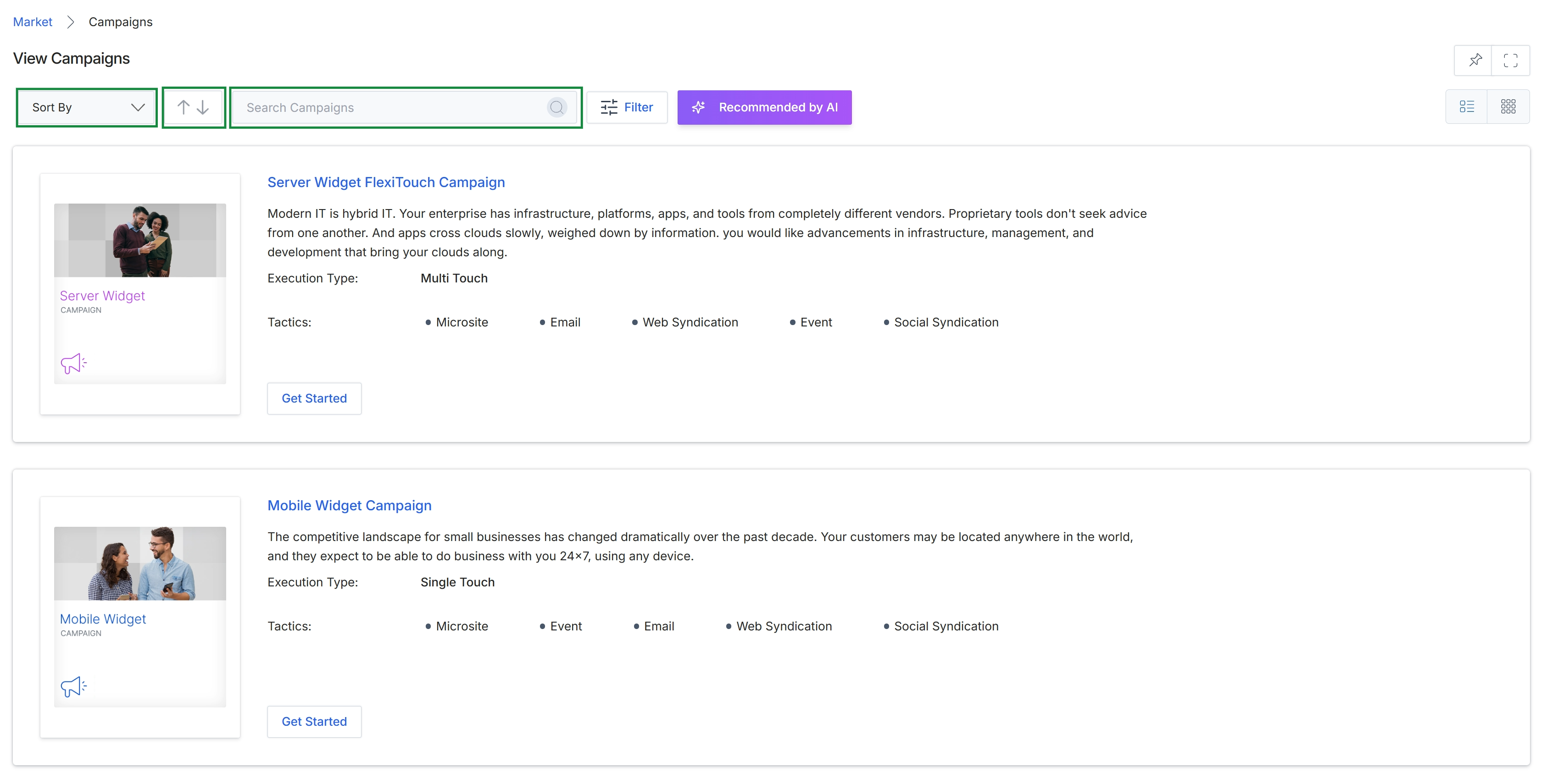
This screen displays a catalog of available marketing campaigns within the Market module, presenting each campaign as a distinct card with an overview of its purpose, execution type, and associated tactics. Users can efficiently locate specific campaigns by utilizing the search functionality, or they can organize the displayed campaigns using sorting options to find relevant marketing initiatives. This view serves as a central hub for partners to discover and engage with co-marketing opportunities provided by the vendor, facilitating their participation in various marketing activities.
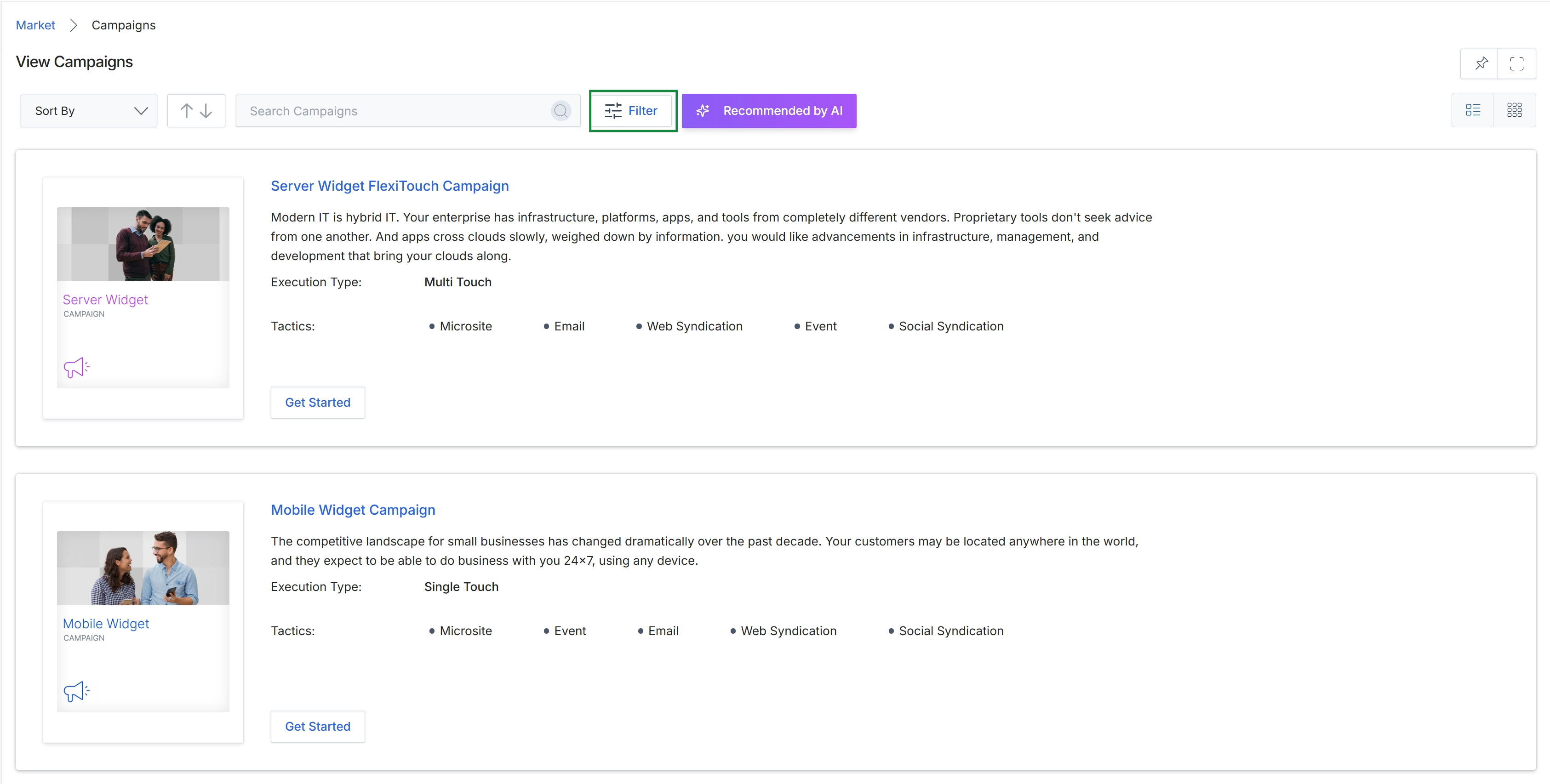
Click the Filter button.
Applying Filters to Campaigns
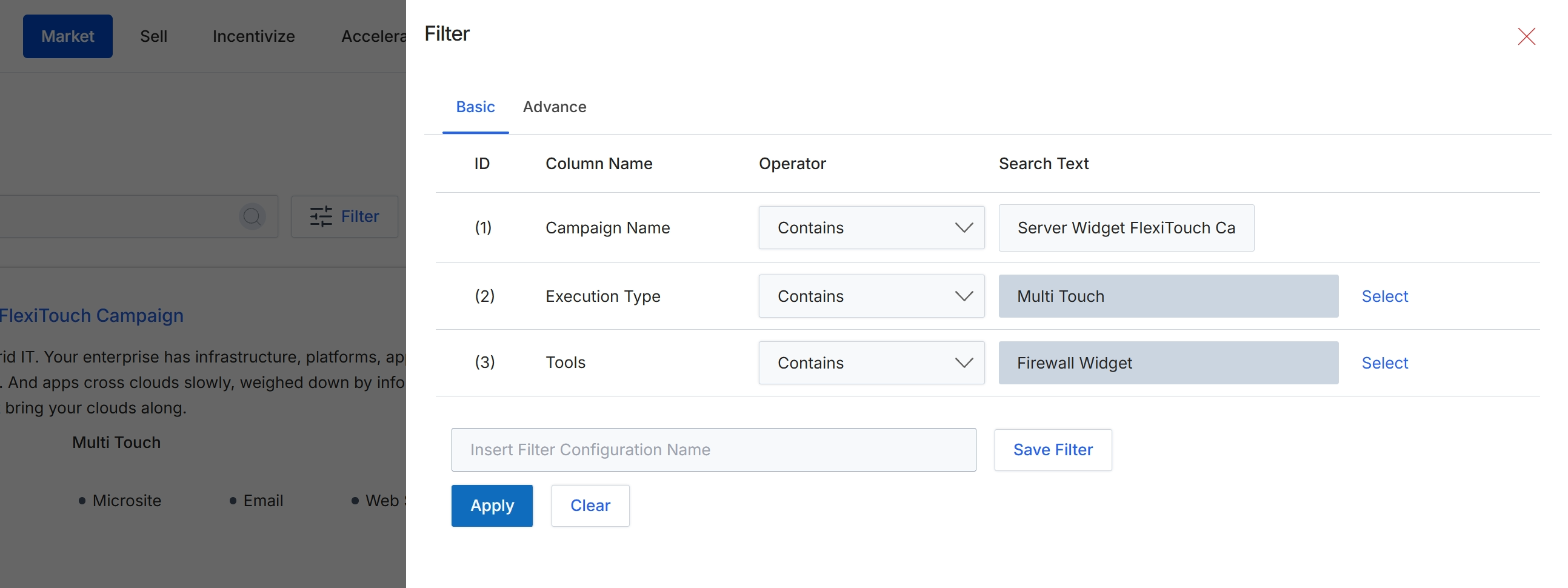
This filter panel provides users with the ability to refine the list of displayed campaigns by applying specific criteria. It supports both basic and advanced filtering options, allowing for precise control over which campaign records are visible. Users can define multiple filter conditions based on various campaign attributes, helping them quickly locate specific campaigns within the Market module. The ability to save filter configurations streamlines future searches and analysis.
Click the Apply button to apply the defined filter criteria to the campaign list.
Buttons
| Button | Description |
|---|---|
| Basic | Tab to define basic filter conditions. |
| Advance | Tab to define advanced filter conditions. |
| Select | Button to open a selection dialog for 'Execution Type'. |
| Select | Button to open a selection dialog for 'Tools'. |
| Save Filter | Button to save the current filter configuration for future use. |
| Apply | Button to apply the configured filters to the campaign list. |
| Clear | Button to clear all applied filter criteria. |
Fields
| Field | Description |
|---|---|
| Campaign Name | The name of the campaign attribute being filtered. |
| Contains | Dropdown to select the operator for the 'Campaign Name' filter. |
| Server Widget FlexiTouch Ca | Input field for the search text to filter by 'Campaign Name'. |
| Execution Type | The name of the campaign attribute being filtered. |
| Contains | Dropdown to select the operator for the 'Execution Type' filter. |
| Multi Touch | Input field displaying the selected 'Execution Type'. |
| Tools | The name of the campaign attribute being filtered. |
| Contains | Dropdown to select the operator for the 'Tools' filter. |
| Firewall Widget | Input field displaying the selected 'Tools'. |
| Insert Filter Configuration Name | Input field to enter a name for saving the current filter configuration. |
Column Headings
| Column | Description |
|---|---|
| ID | Column header for the filter condition's identifier. |
| Column Name | Column header for the name of the campaign attribute being filtered. |
| Operator | Column header for the comparison operator used in the filter condition (e.g., Contains, Equals). |
| Search Text | Column header for the value or text used to filter the specified column. |
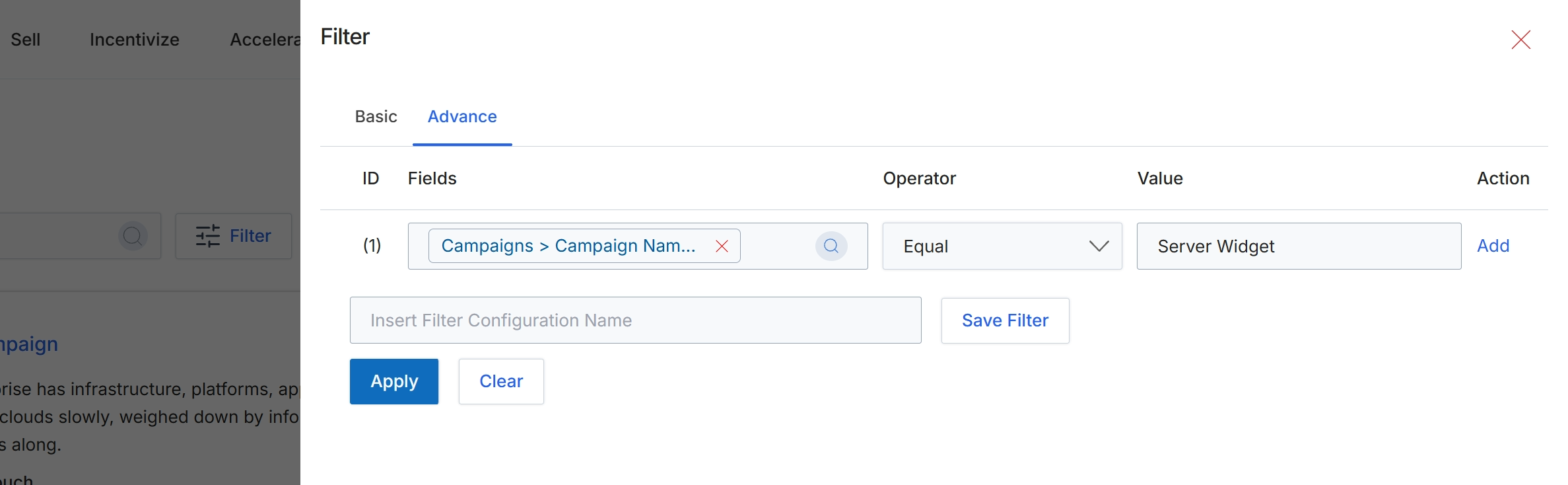
This screen displays the advanced filter configuration dialog, which allows users to apply specific criteria to narrow down the list of displayed items, such as campaigns. Users can define one or more filter rules by selecting a field, an operator, and a corresponding value. This granular filtering capability is essential for efficiently managing and analyzing large datasets within the platform, enabling users to quickly locate relevant information based on precise conditions. The dialog also provides an option to save frequently used filter configurations for future application.
Click 'Apply' to apply the configured filter to the campaign list.
Buttons
| Button | Description |
|---|---|
| Basic | A tab to switch to basic filtering options. |
| Advance | The currently active tab for configuring advanced filter rules. |
| Add | Adds a new filter rule row. |
| Save Filter | Saves the current filter configuration with the specified name. |
| Clear | Clears all applied filter rules and resets the filter dialog. |
| X | Closes the filter dialog without applying any changes. |
Fields
| Field | Description |
|---|---|
| Campaigns > Campaign Nam... | The selected field for the filter rule, indicating a campaign name. |
| Equal | The selected operator for the filter rule, indicating an exact match. |
| Server Widget | The value being used to filter the 'Campaign Name' field. |
| Insert Filter Configuration Name | An input field to enter a name for saving the current filter configuration. |
Column Headings
| Column | Description |
|---|---|
| ID | Column header for the filter rule identifier. |
| Fields | Column header for the field to be filtered. |
| Operator | Column header for the comparison operator used in the filter rule. |
| Value | Column header for the value to compare against the selected field. |
| Action | Column header for actions related to the filter rule, such as adding a new rule. |
Frequently asked questions
- What is the purpose of the View Campaigns feature?
This feature provides a centralized view of all available marketing campaigns for administrators and partners. It helps administrators understand the scope of offerings and partners find co-marketing opportunities.
- Who uses the View Campaigns feature?
UPM administrators use it to understand offered campaigns, and channel partners use it to discover and engage with co-marketing opportunities for promoting products and services.
- How can I find specific campaigns?
You can find specific campaigns by utilizing search, sorting options, or applying basic and advanced filters. Filters allow narrowing down campaigns by criteria like campaign name, execution type, or tools.
- Can I save filter configurations for future use?
Yes, the platform allows you to save custom filter configurations for future application. This streamlines searches and analysis by quickly reapplying frequently used criteria.
- What types of marketing tactics do campaigns include?
Campaigns can encompass various tactics, such as email marketing, microsites, web syndication, events, and social syndication. These provide diverse options for partners' marketing initiatives.