

Overview
The Content Library within the Enable module serves as a central repository for all partner-facing sales and marketing assets. Administrators can manage a wide range of content types, including PDFs, presentations, videos, and images, organizing them into categories and controlling their visibility based on partner type, tier, or segment. This ensures partners have access to the most relevant and up-to-date materials needed for their sales and marketing efforts.
This specific workflow details how administrators can interact with individual documents. Beyond simply viewing the document's metadata, the platform provides an integrated viewer for quick review, as well as options to download the asset for offline use or share it directly with prospects or other external contacts via email, streamlining content distribution and enhancing partner enablement.
Accessing and Viewing Document Details
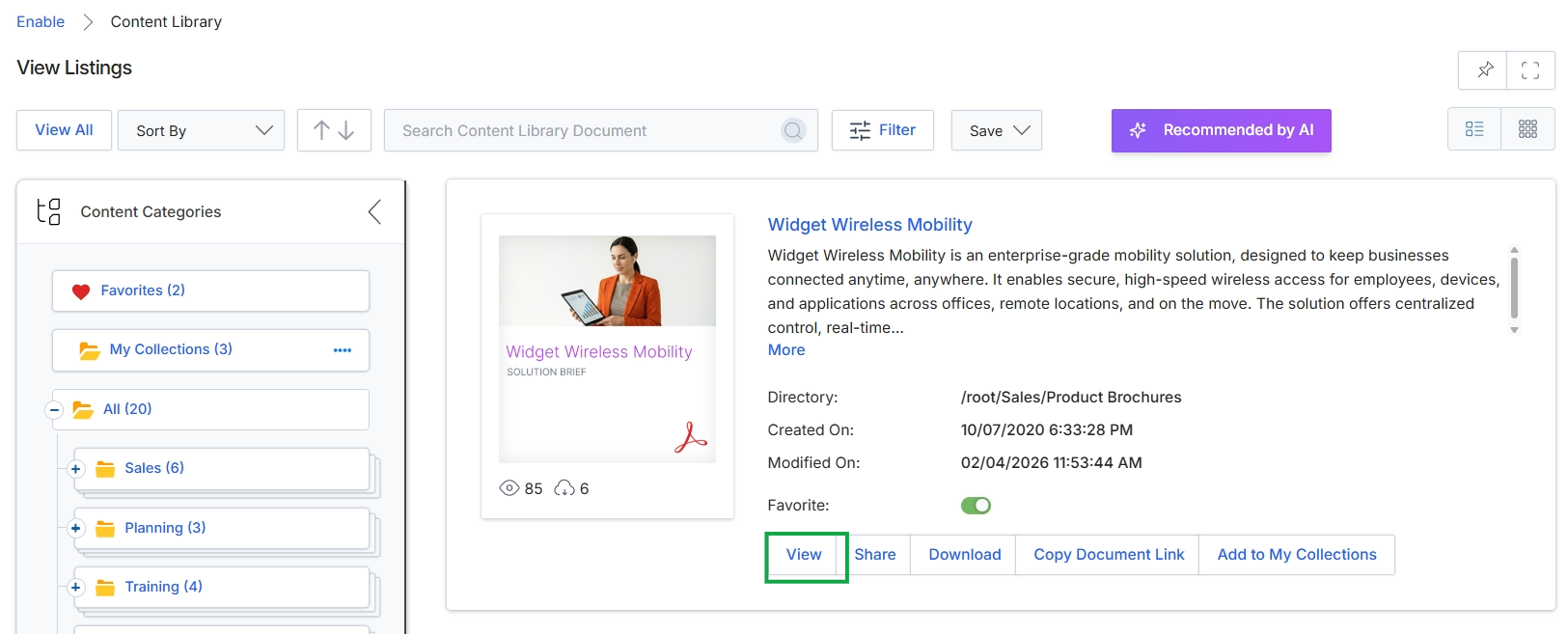
Click the View button.
Previewing a Document
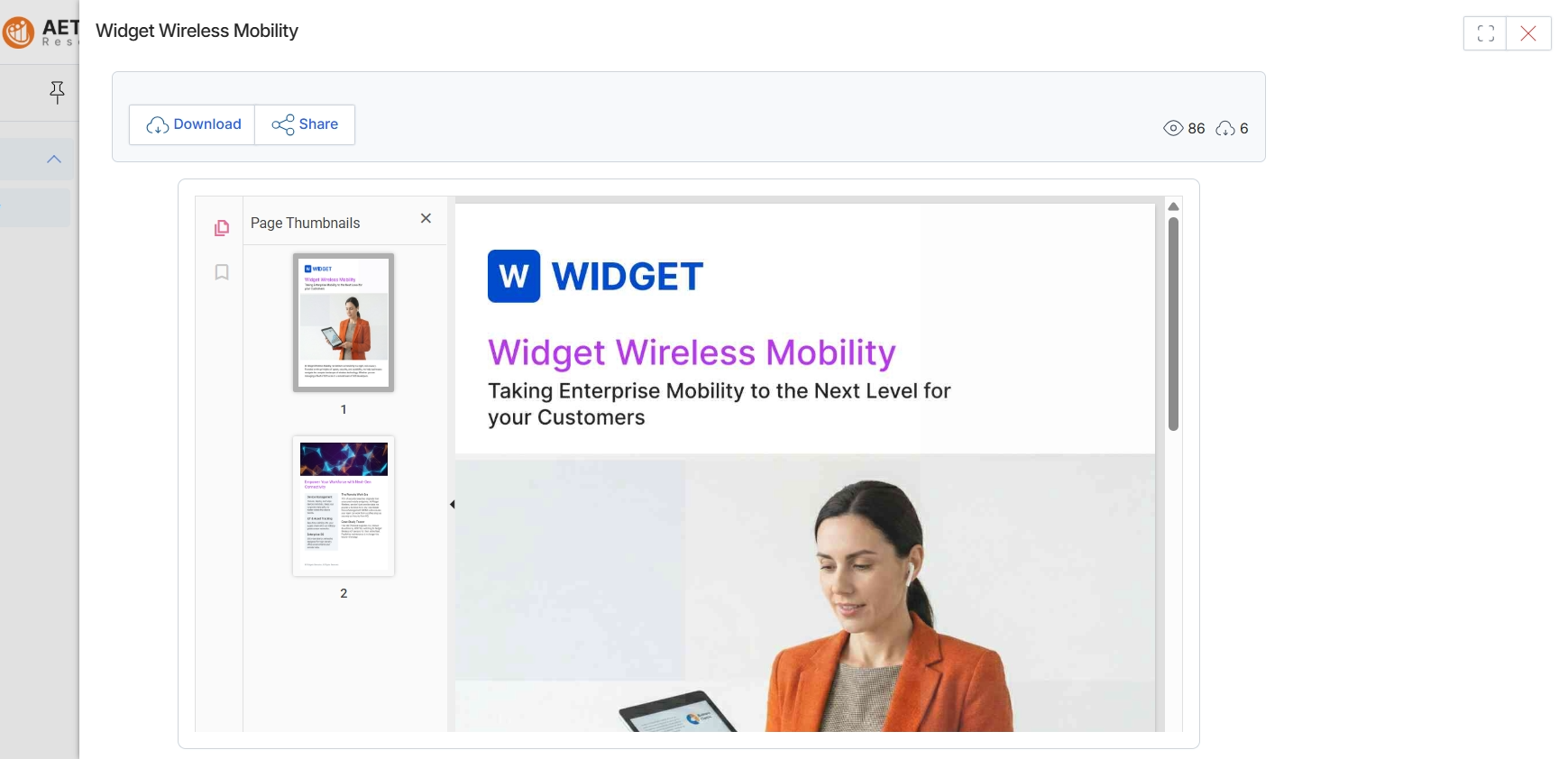
This screen displays a detailed preview of a document asset from the content library, allowing users to view its content directly within the platform. It provides options to download the asset for offline use or share it with others, indicating its role in content distribution. The interface also shows page thumbnails for navigation and counters for views and downloads, reflecting the tracking of asset engagement as described in the asset management workflow.
Downloading a Document
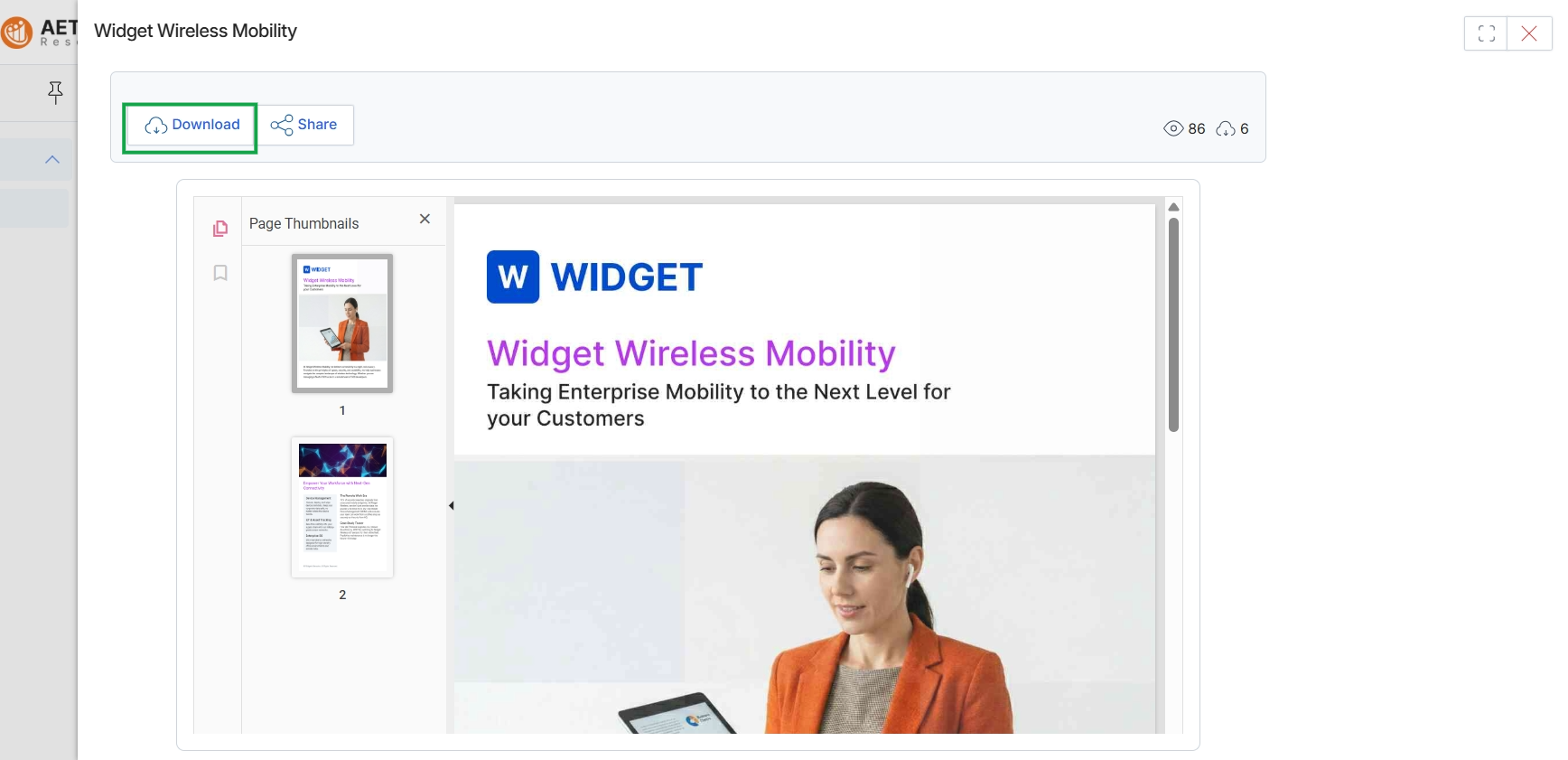
Click the Download button.
Sharing a Document via Email
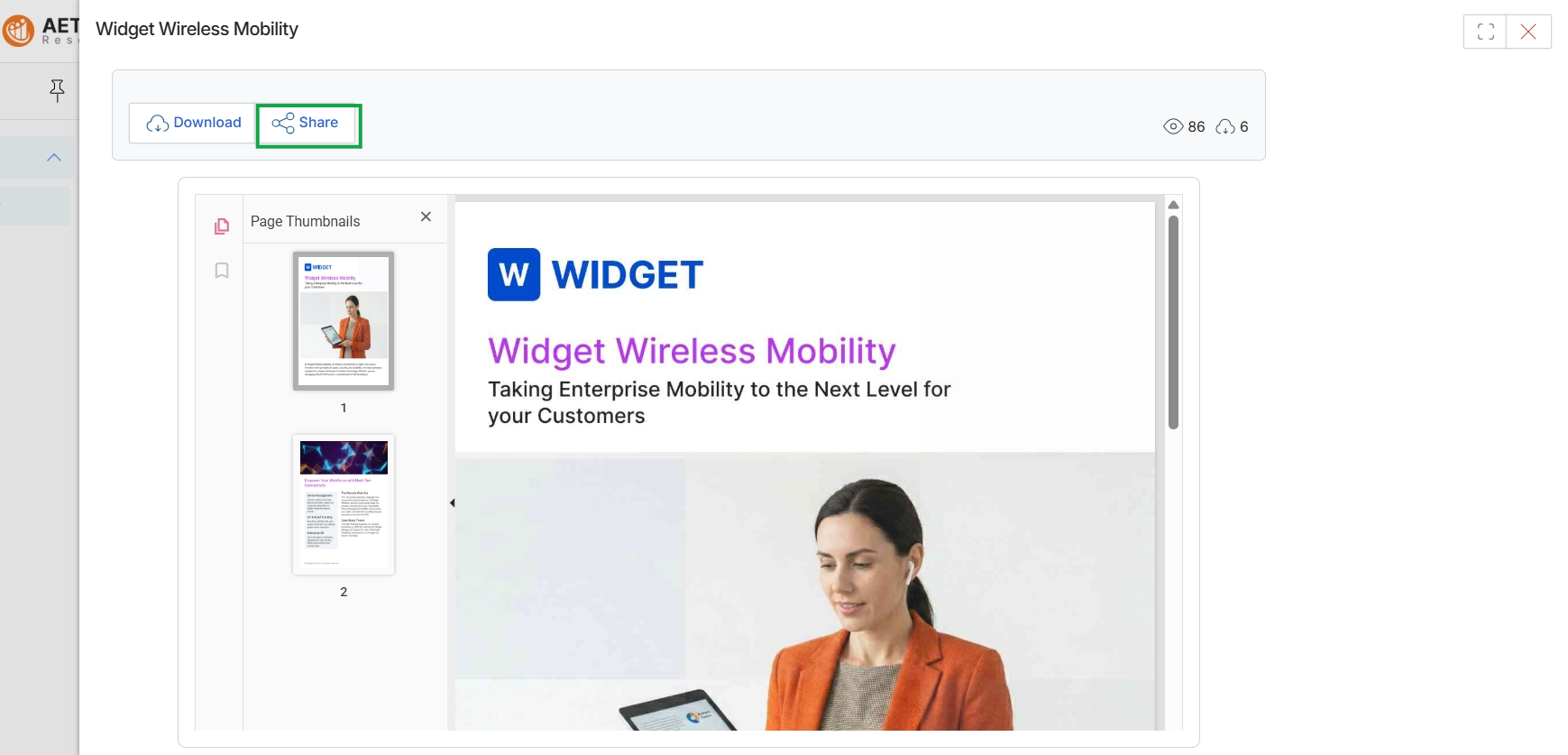
Click the Share button.
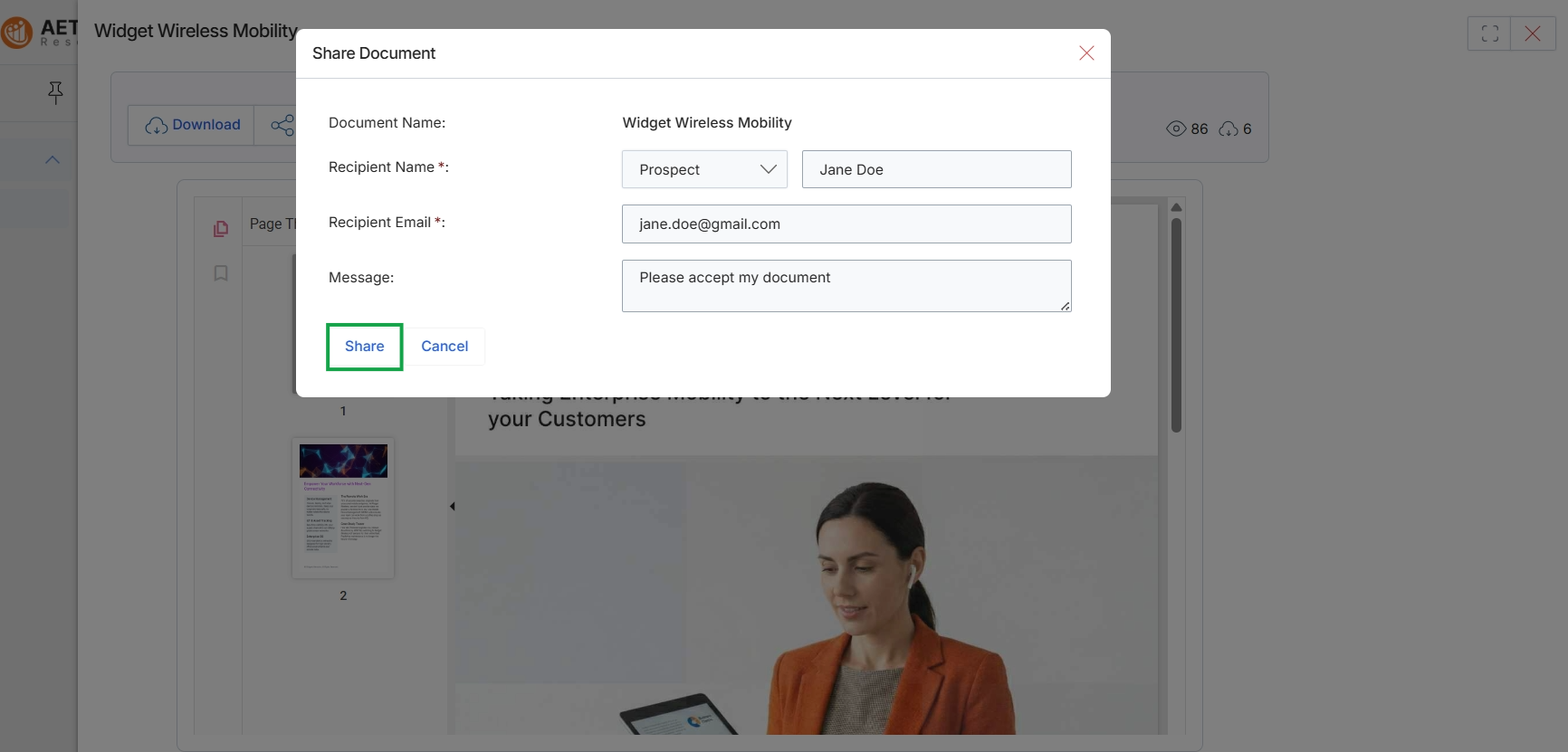
This dialog box facilitates the sharing of a document from the content library with an external recipient. It allows users to specify the recipient's details and include a personalized message, ensuring that relevant marketing or sales assets can be distributed directly from the platform. The document name is pre-populated, and the user can select the recipient type and enter their contact information, streamlining the process of disseminating content to prospects or other contacts.
Click the Share button to send the document to the specified recipient.
Buttons
| Button | Description |
|---|---|
| Share | Initiates the sharing process, sending the document to the specified recipient. |
| Cancel | Closes the Share Document dialog without sending the document. |
Fields
| Field | Description |
|---|---|
| Document Name | The name of the document being shared, which is pre-filled. |
| Recipient Name | The name of the individual or entity receiving the document. This field includes a dropdown to select the recipient type (e.g., Prospect) and a text input for the specific name. |
| Recipient Email | The email address of the recipient where the document will be sent. |
| Message | An optional message to include with the shared document. |