

Overview
The Content Library is a critical component of the Enable module, designed to empower partners by providing them with a comprehensive and easily navigable collection of essential resources. This centralized management system allows administrators to upload, categorize, and control access to a wide array of content, including sales playbooks, marketing assets, product specifications, and training materials. By ensuring that partners can quickly find and utilize the most up-to-date and relevant information, the Content Library significantly enhances their ability to effectively sell, market, and support products and services.
This feature supports partners throughout their lifecycle, from initial onboarding to ongoing sales and marketing efforts. Administrators can leverage robust search, filter, and categorization tools to maintain an organized library, while partners benefit from personalized views, AI-driven recommendations, and the ability to create custom collections. This streamlined access to information ultimately accelerates partner go-to-market activities and improves overall program effectiveness.
Accessing and Viewing Content Listings
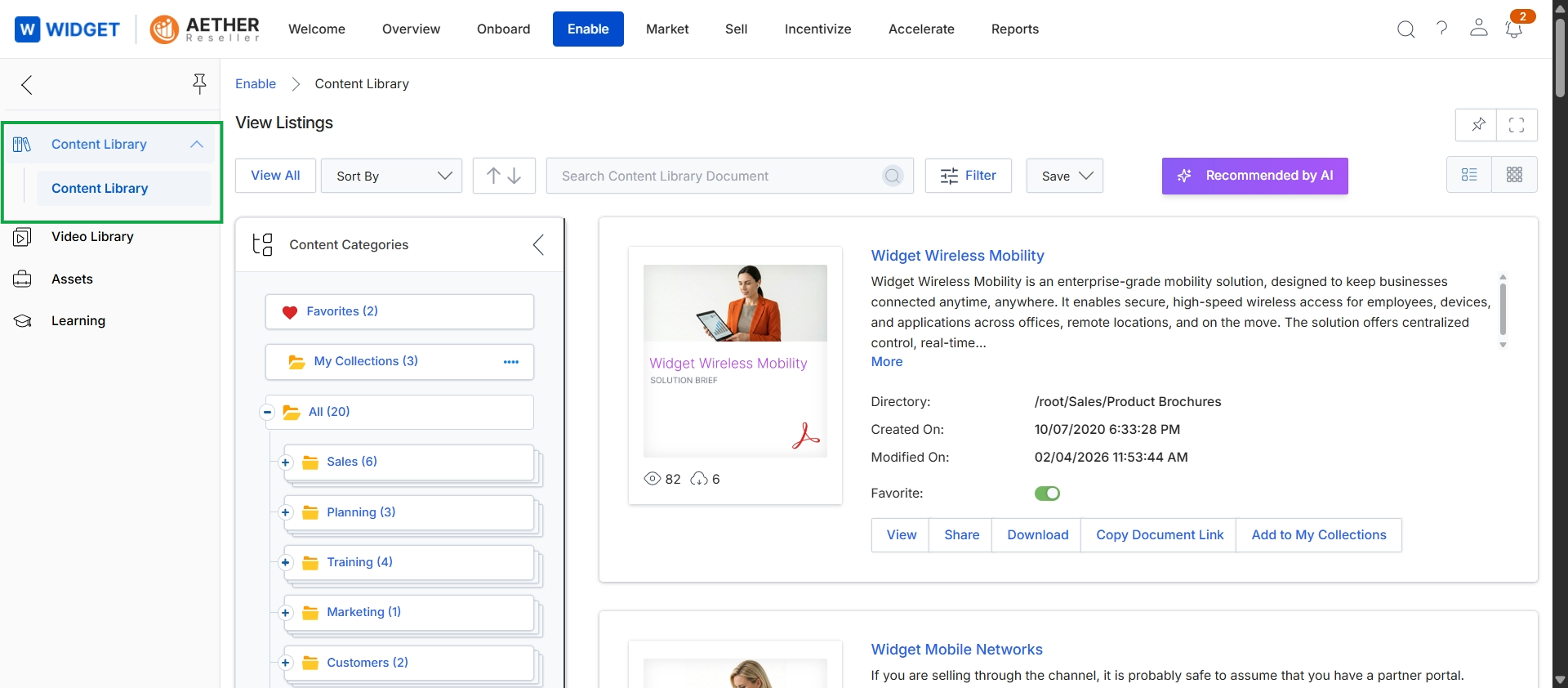
Click Content Library in the left navigation panel.
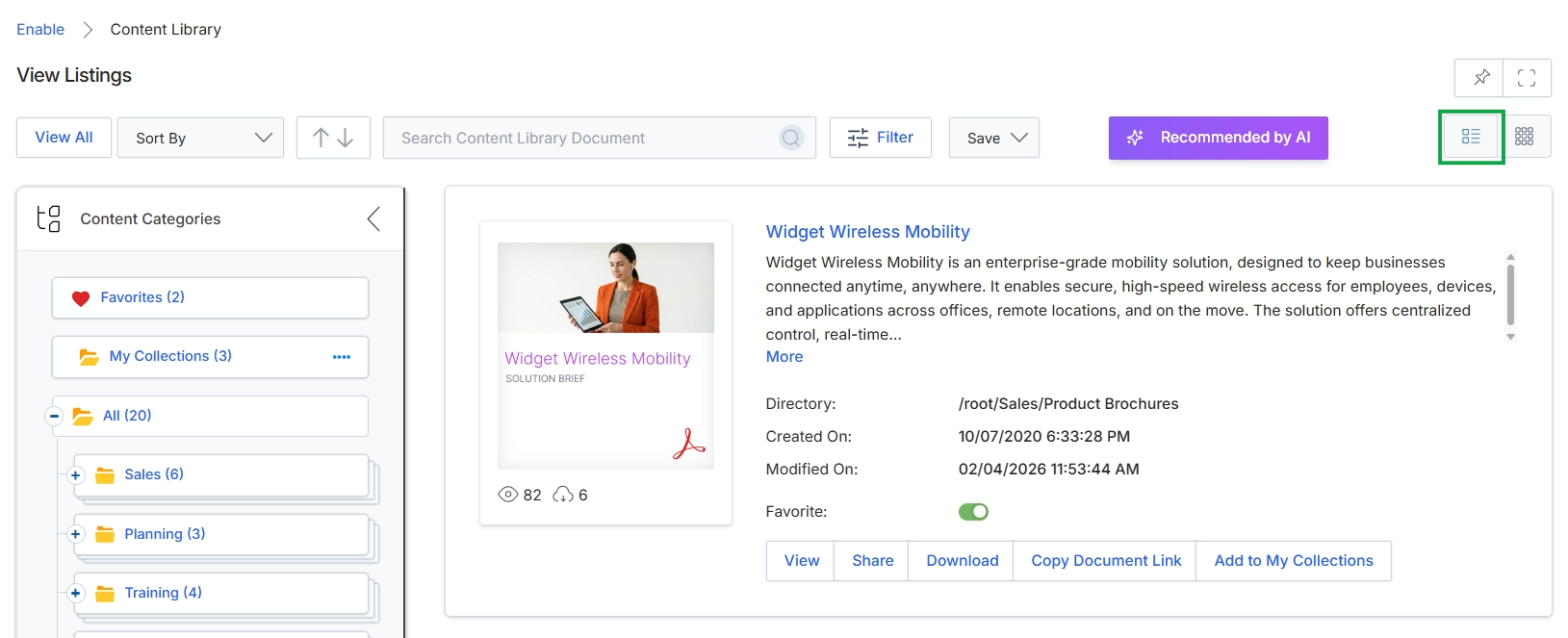
Click the List View icon.
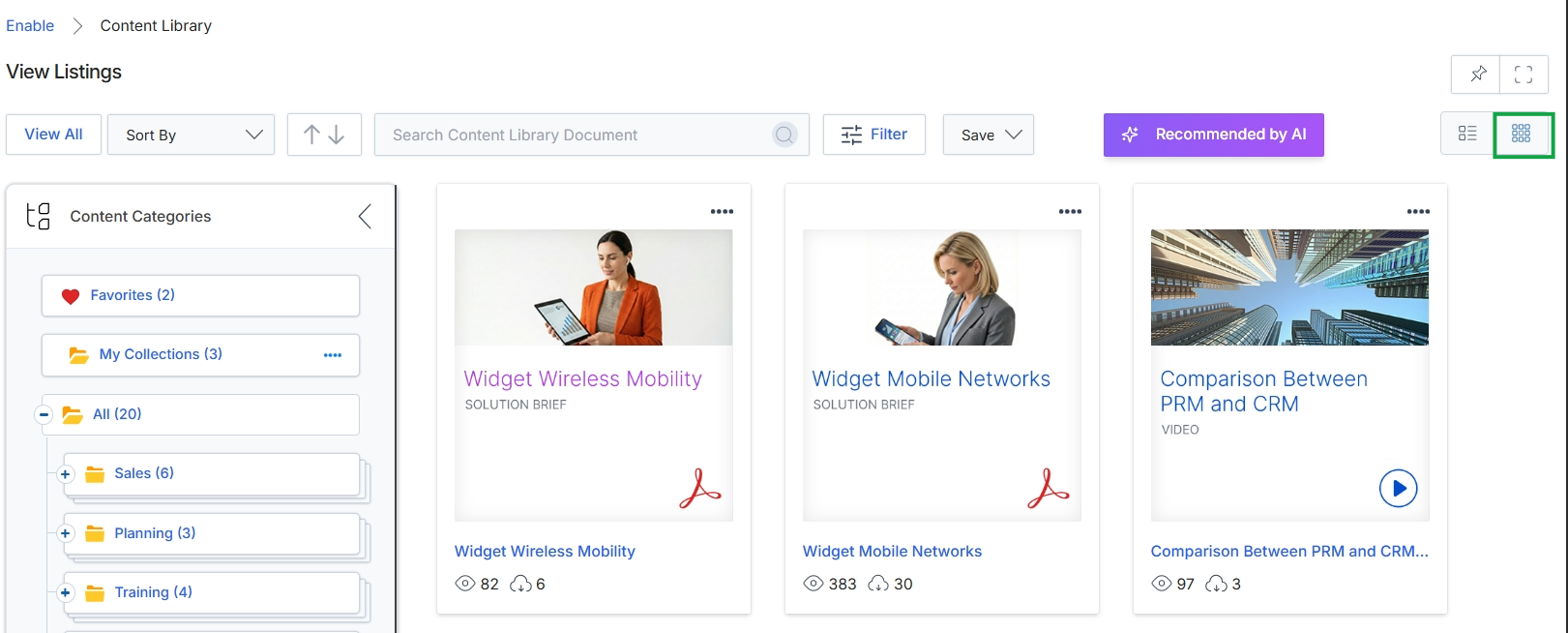
Click the Grid View icon.
Searching and Filtering Content
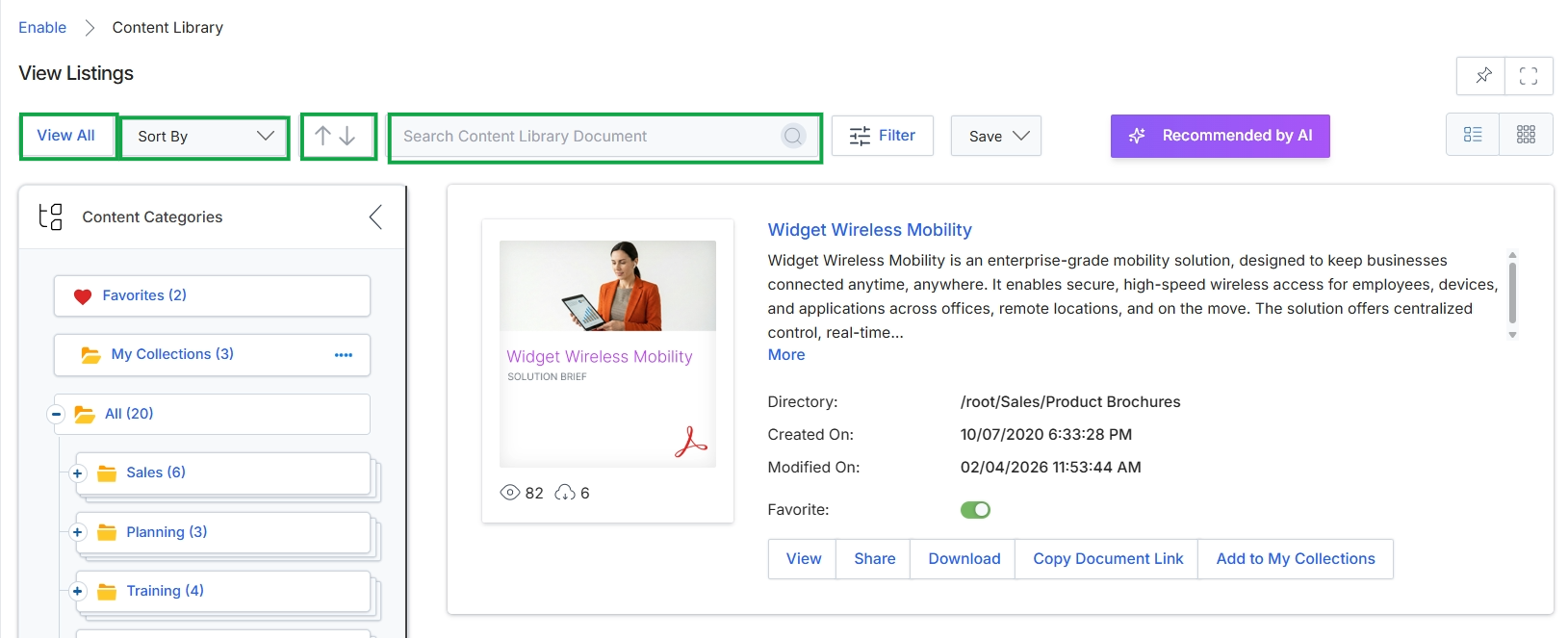
Click the View All button.
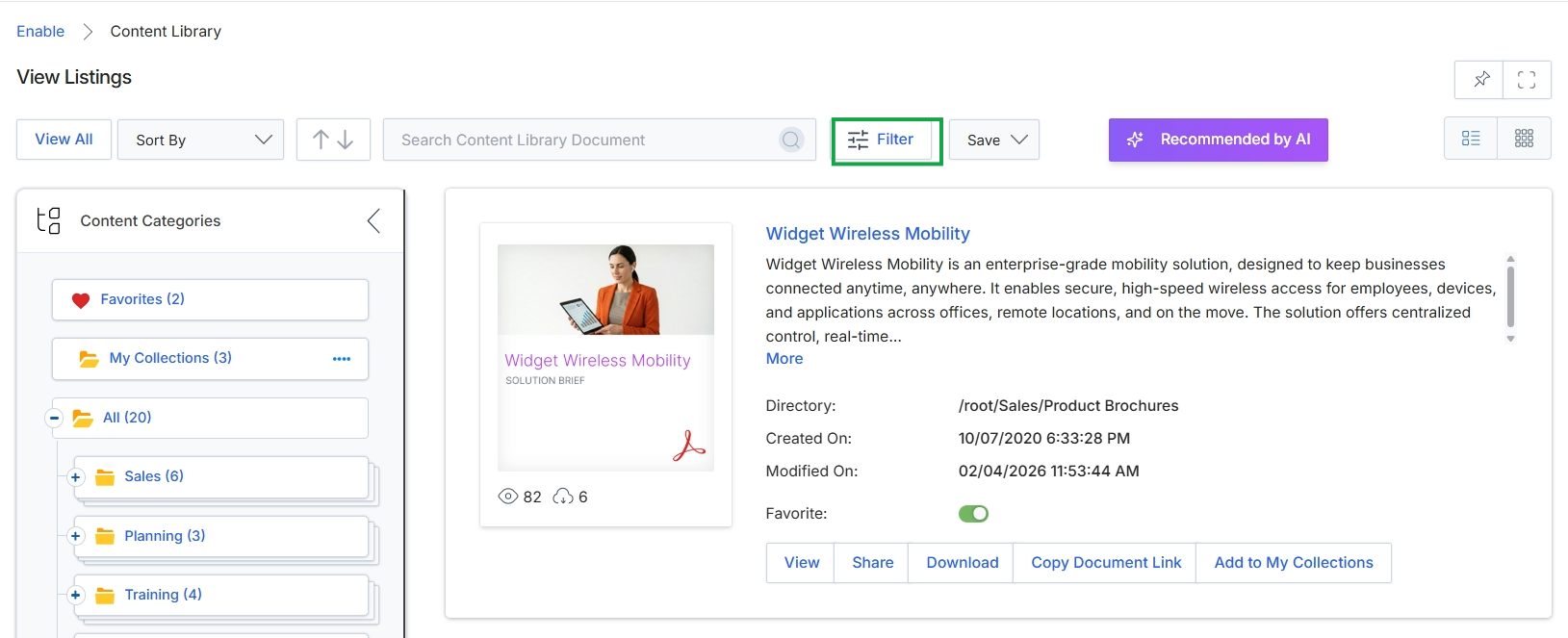
Click the Filter button.
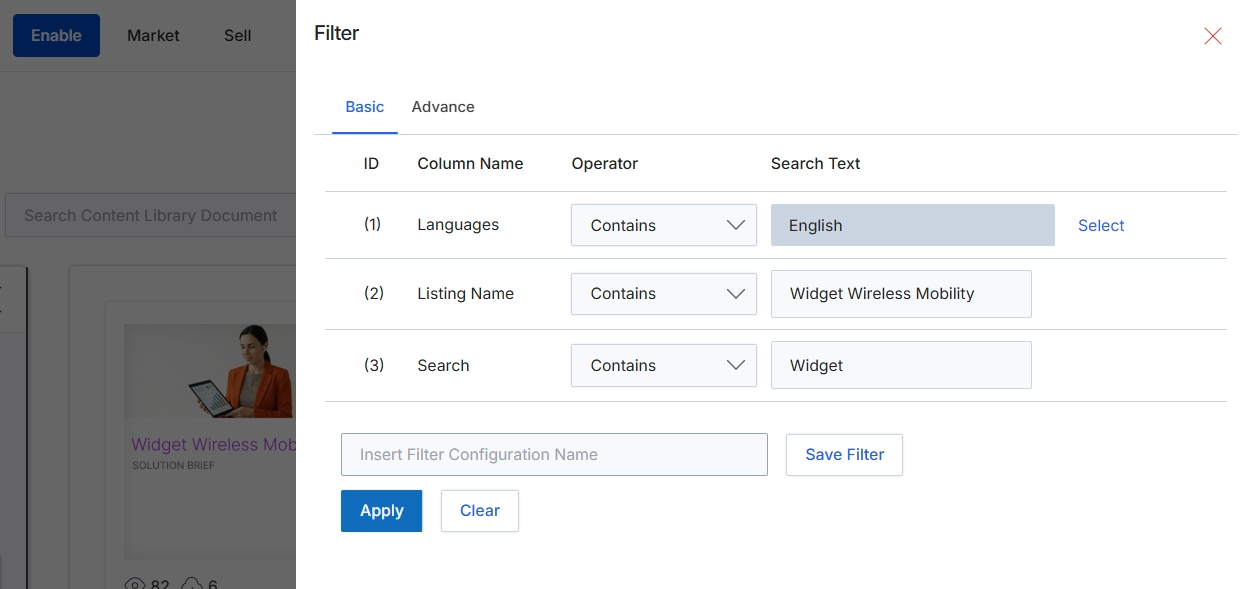
This filter dialog, accessible within the Enable module's content library, provides a mechanism for users to refine the displayed list of assets. It allows for the definition of multiple filter conditions based on various document attributes such as language, listing name, or a general search term. Users can configure these conditions using different operators and search texts to narrow down the content displayed in the main view. The dialog also supports saving frequently used filter configurations for quick access, enhancing efficiency in content discovery and management.
Configure the desired filter conditions by selecting column names, operators, and entering search text, then click Apply to filter the content library documents.
Buttons
| Button | Description |
|---|---|
| Basic | Switches to the basic filter configuration view, where users can define simple filter conditions. |
| Advance | Switches to the advanced filter configuration view, which may offer more complex filtering options. |
| Select | A link to open a dialog or dropdown for selecting specific language options. |
| Save Filter | Saves the current filter configuration with the specified name for quick access later. |
| Apply | Applies the configured filter conditions to the content library documents, updating the displayed list. |
| Clear | Clears all currently set filter conditions, resetting the filter dialog to its default state. |
Fields
| Field | Description |
|---|---|
| Contains | Dropdown to select the operator for the 'Languages' filter. |
| English | Input field for the search text for the 'Languages' filter. |
| Contains | Dropdown to select the operator for the 'Listing Name' filter. |
| Widget Wireless Mobility | Input field for the search text for the 'Listing Name' filter. |
| Contains | Dropdown to select the operator for the general 'Search' filter. |
| Widget | Input field for the search text for the general 'Search' filter. |
| Insert Filter Configuration Name | Input field to enter a name for the current filter configuration, allowing it to be saved for future use. |
Column Headings
| Column | Description |
|---|---|
| ID | A numerical identifier for each filter row. |
| Column Name | The attribute of the content library document to which the filter condition will be applied. |
| Operator | The logical operator (e.g., 'Contains', 'Equals') that defines how the search text is compared against the column's value. |
| Search Text | The value or keyword to search for within the specified column. |
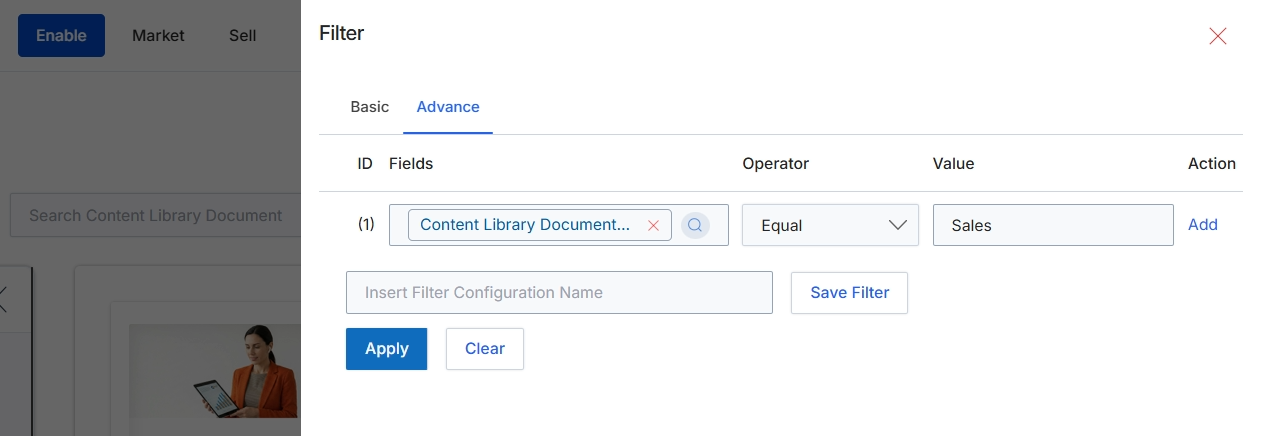
This screen presents the advanced filter interface for the content library, a critical component within the Enable module for managing and accessing digital assets. Administrators utilize this view to construct precise queries by defining multiple conditions based on specific document fields, logical operators, and desired values. This granular filtering capability is essential for efficiently navigating large content libraries, enabling users to quickly locate specific assets, and supporting the dynamic display of content tailored to various attributes like category, type, or visibility rules. Configured filters can be saved for future reuse, streamlining content management and access workflows within the platform.
Apply the advanced filter to refine the content library document search results based on the configured conditions.
Buttons
| Button | Description |
|---|---|
| Basic | Switches the filter interface to a simpler, basic mode for single-condition filtering. |
| Advance | Activates the advanced filter interface, allowing for the configuration of multi-condition filtering rules. |
| Add | Adds a new row to specify an additional filter condition. |
| Save Filter | Saves the current filter configuration under the specified name for future reuse. |
| Apply | Applies the configured filter conditions to the content library document list, updating the displayed results. |
| Clear | Clears all applied filter conditions and resets the filter form to its default state. |
Fields
| Field | Description |
|---|---|
| Content Library Document... | A text input field with a search icon, used to select the specific content library document field for the filter condition. |
| Equal | A dropdown field to select the comparison operator for the filter condition, such as 'Equal', 'Contains', 'Starts With', etc. |
| Sales | A text input field to enter the value against which the selected field will be compared. |
| Insert Filter Configuration Name | A text input field to enter a name for the current filter configuration, allowing it to be saved for future use. |
Column Headings
| Column | Description |
|---|---|
| ID | Column header indicating the sequential identifier for each filter condition row. |
| Fields | Column header for the field on which the filter condition is applied. |
| Operator | Column header for the logical operator used in the filter condition (e.g., Equal, Contains, Starts With). |
| Value | Column header for the specific value to be matched or compared in the filter condition. |
| Action | Column header for actions related to individual filter rows, such as adding new conditions. |
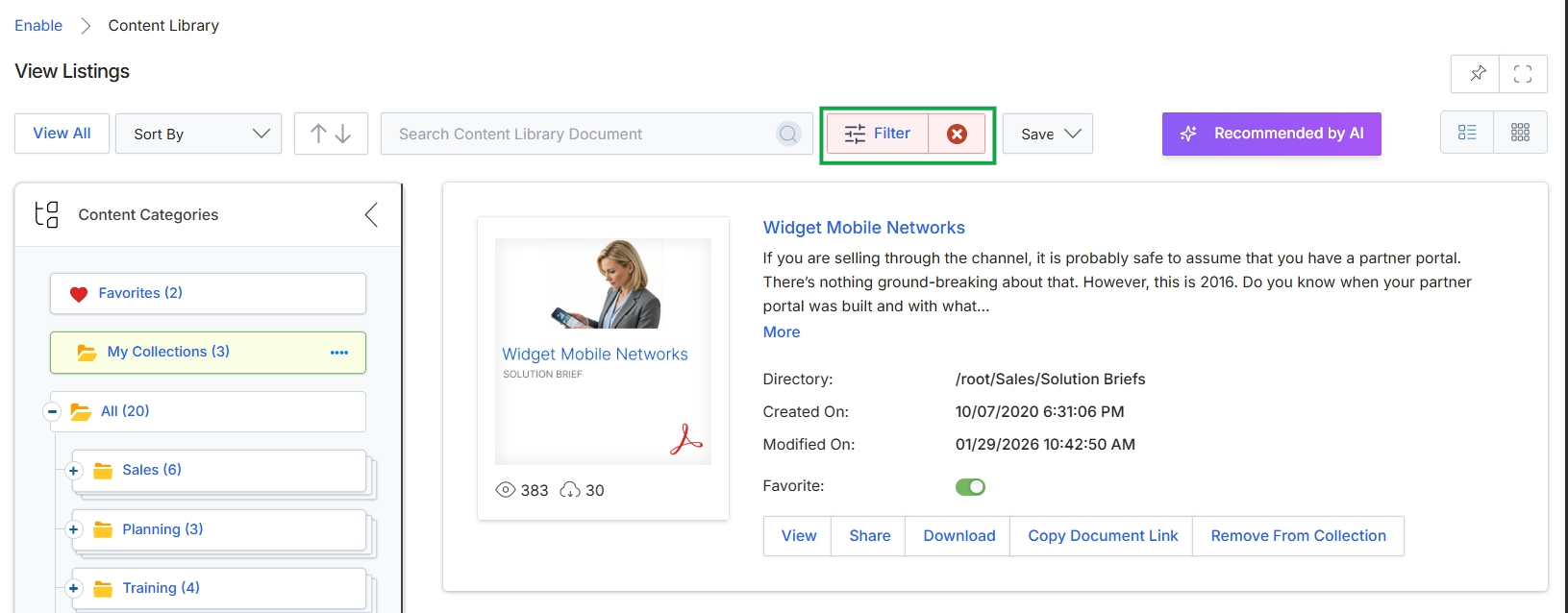
This screen displays the Content Library within the Enable module, which serves as a central repository for various assets and documents. It allows users to browse, search, and manage marketing and sales content, organized by categories. The view shows a detailed card for a selected document, providing metadata such as its directory path, creation date, and modification date, along with options to interact with the asset. Filter controls are present at the top to refine the displayed content listings, and the visible 'clear filter' button indicates that filters are currently applied to the content.
Managing Content Categories and Collections
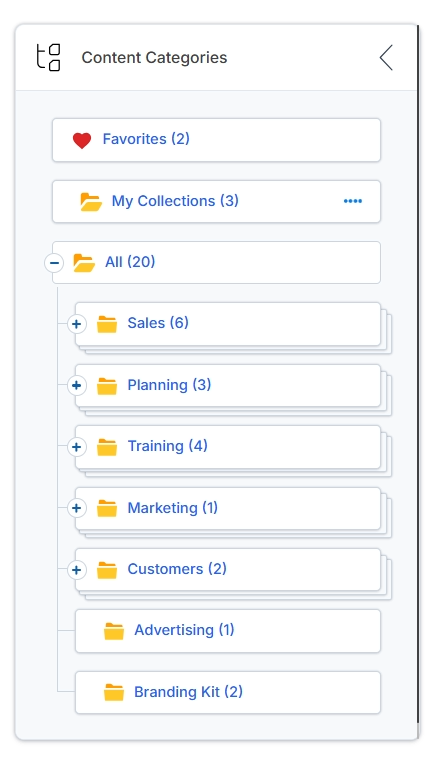
This panel displays a hierarchical list of content categories available within the Enable module's asset library, designed to help organize and filter various marketing and sales collateral. It presents both system-defined categories like 'Sales', 'Planning', and 'Marketing', along with user-specific groupings such as 'Favorites' and 'My Collections'. Each category entry includes a count indicating the number of assets it contains, providing a quick overview of the content volume within each section and facilitating efficient content discovery for partners.
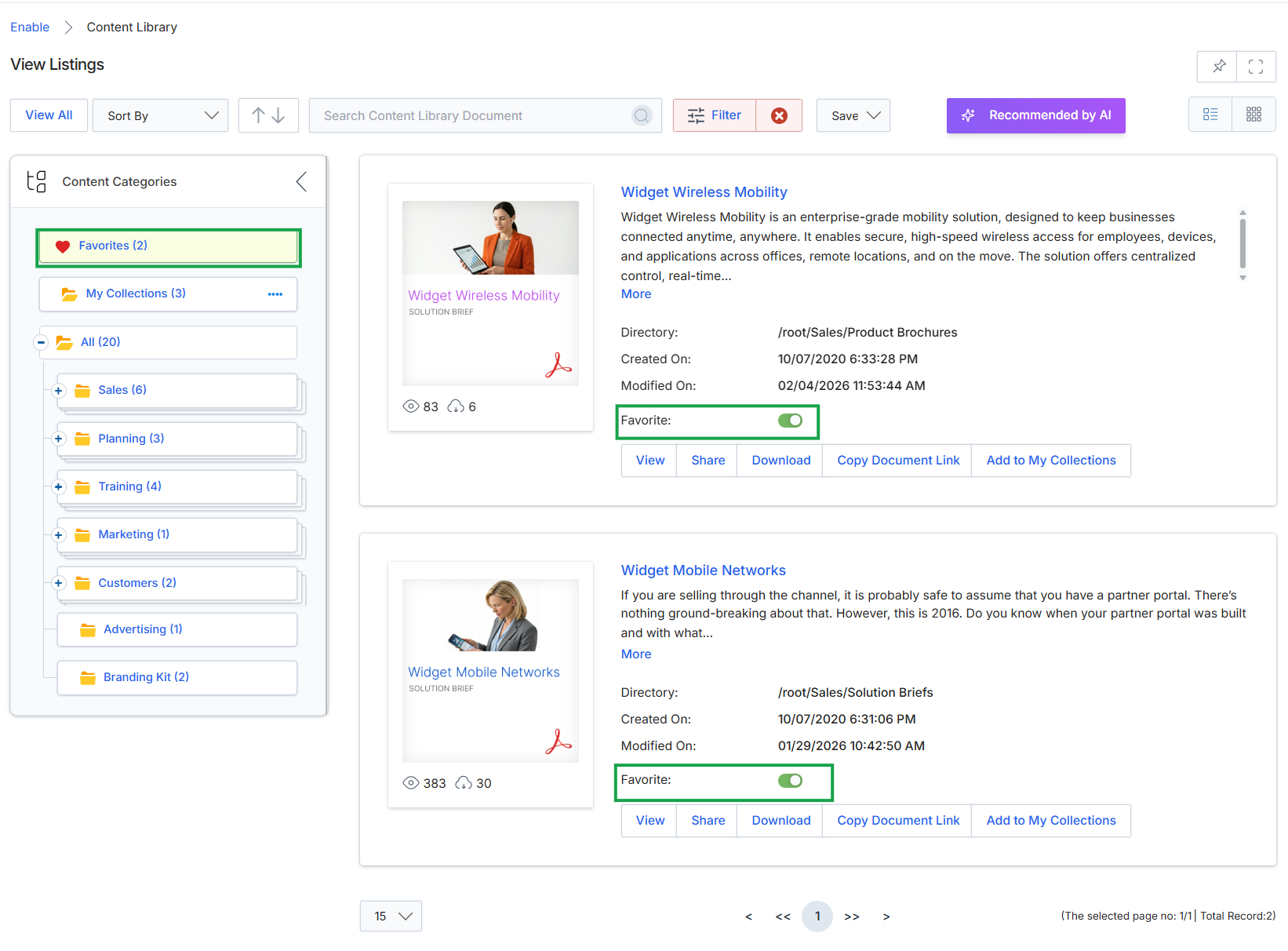
Click the Favorite toggle button for "Widget Wireless Mobility" to add it to your favorites.
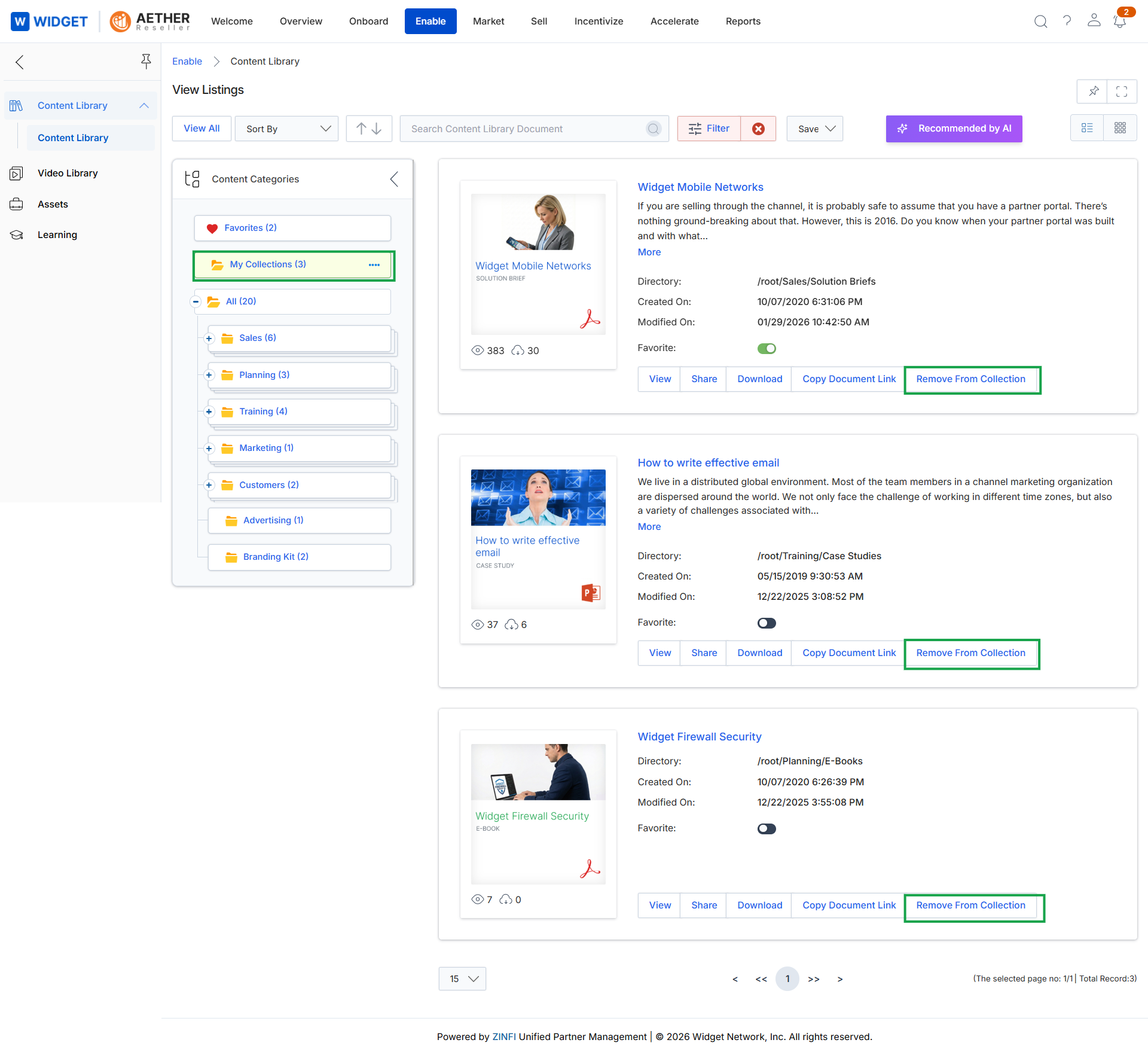
Click Content Library → My Collections.
Performing Document Actions
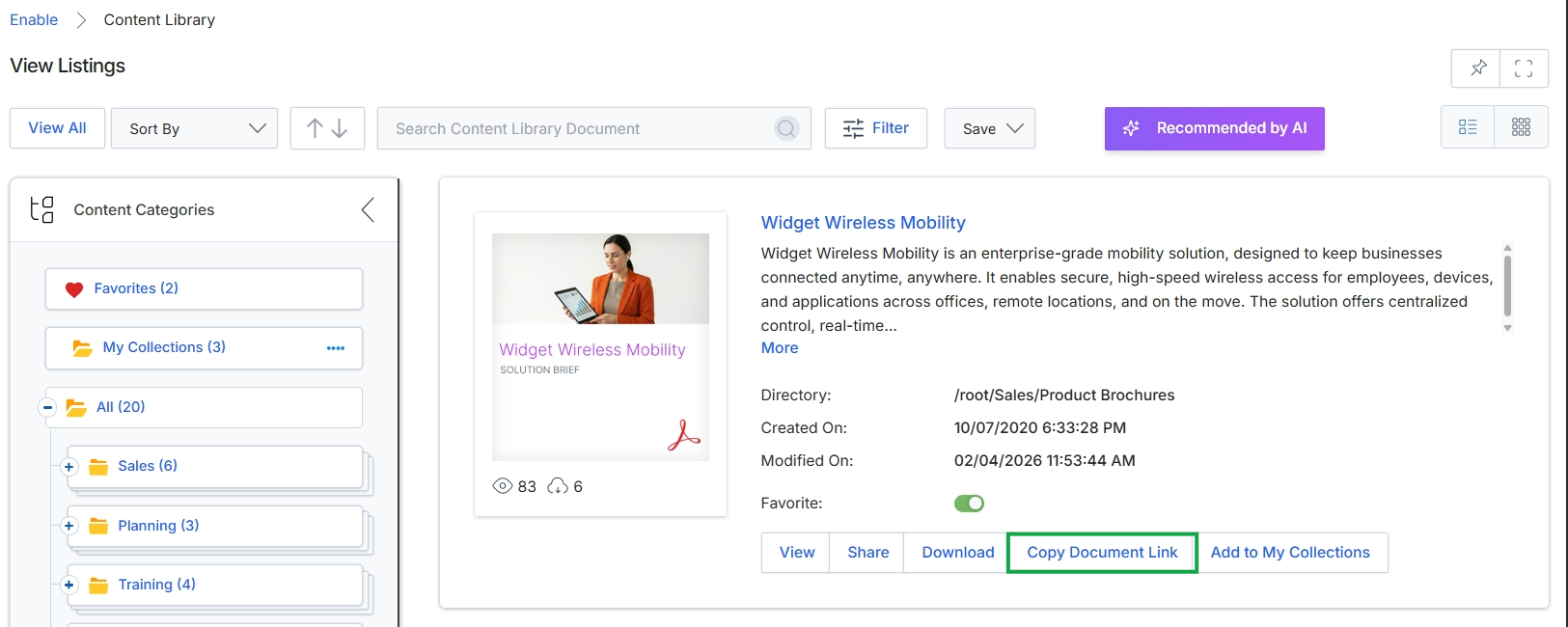
Click Copy Document Link.