

Overview
Microsites are co-branded landing pages that partners can create and customize using vendor-approved templates. These pages are crucial for partners to promote products and services under their own brand while leveraging vendor content and lead capture capabilities. This module allows administrators to oversee all active microsites, ensuring brand consistency and tracking partner marketing efforts.
Administrators can quickly find specific microsites using various search and filter options, review their content, and access the live preview links. This visibility helps in supporting partners, monitoring campaign performance, and ensuring compliance with marketing guidelines. The ability to switch between list and grid views offers flexibility in how administrators consume this information.
Viewing Microsites
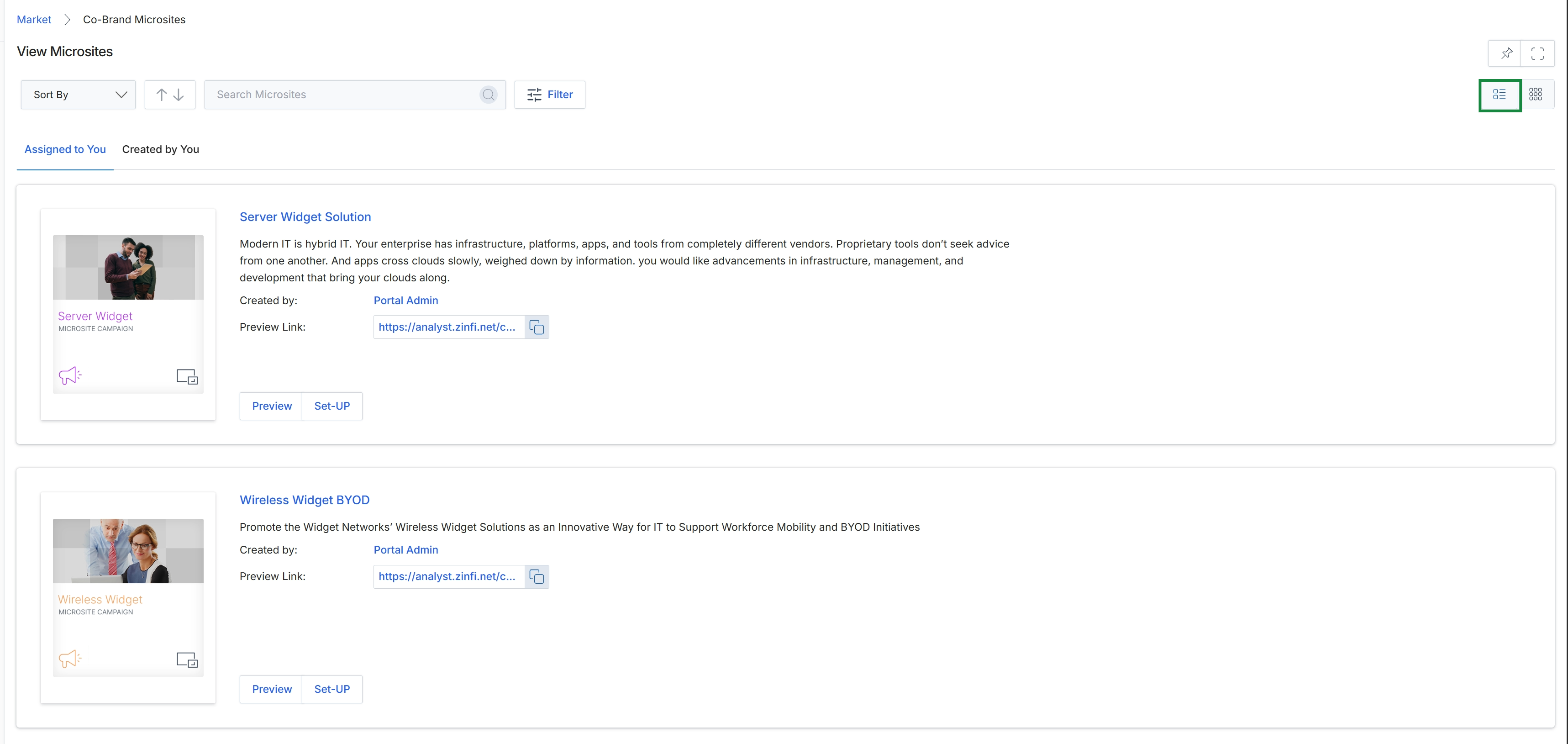
Click the List View icon to change the display format.
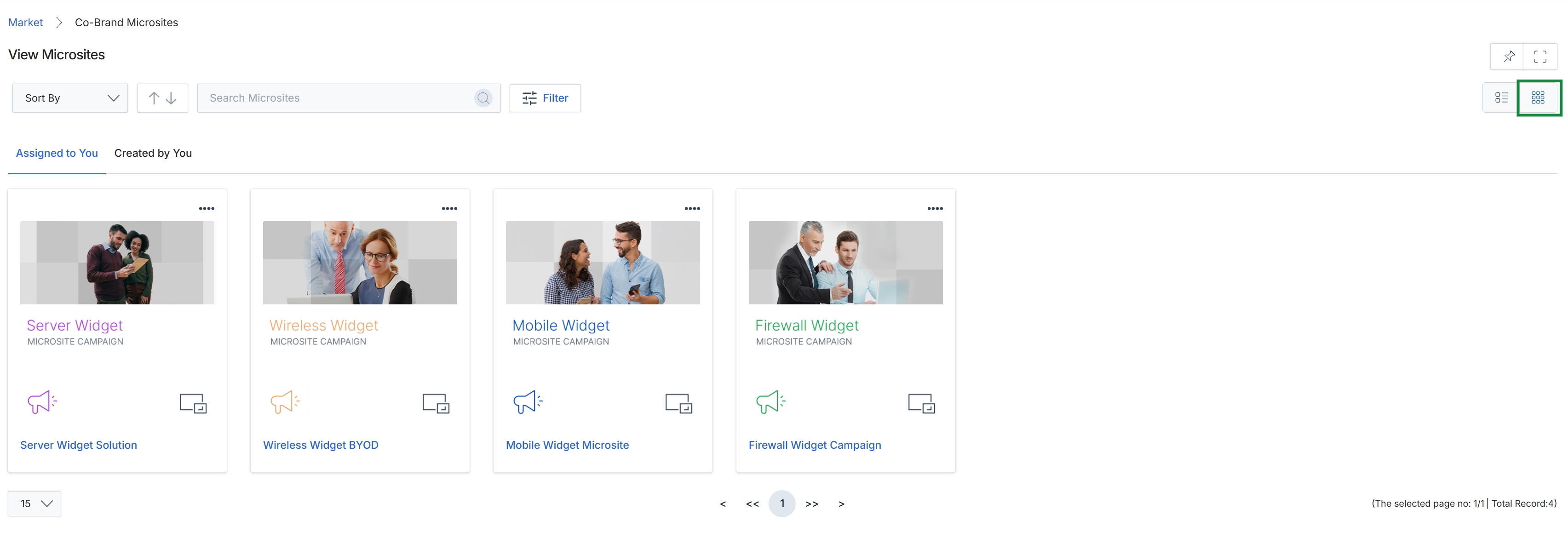
Click the Grid View icon.
Searching and Sorting Microsites
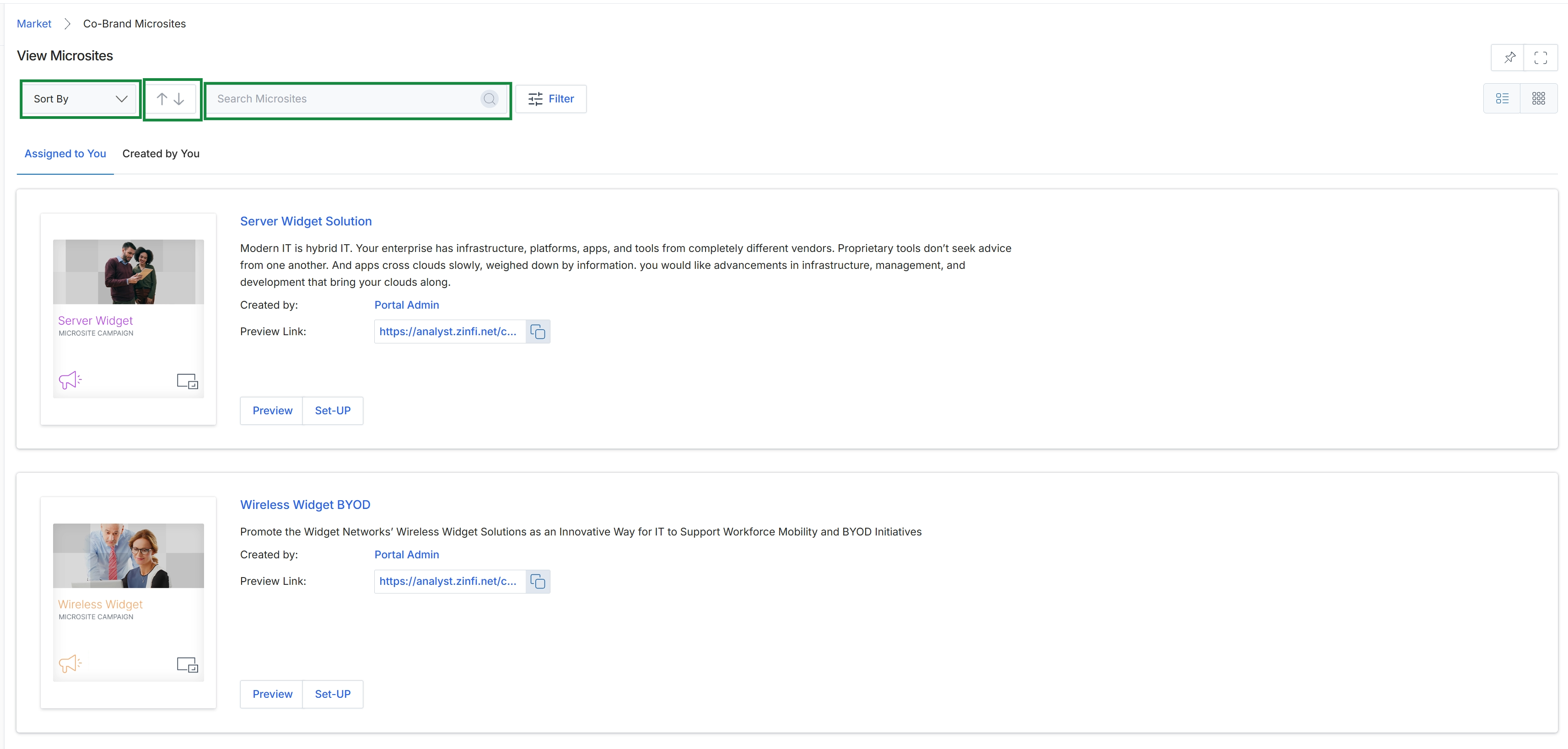
This screen displays a list of co-branded microsites available within the Market module, providing a centralized view for managing these partner-specific landing pages. Users can view microsites that have been assigned to them or those they have created, with each entry showing details such as the microsite's title, description, creator, and a preview link. The interface includes controls for sorting, searching, and filtering the list, allowing users to efficiently locate specific microsites. This view supports the workflow where partners can select and customize microsite templates to create their own co-branded landing pages for marketing activities.
Filtering Microsites
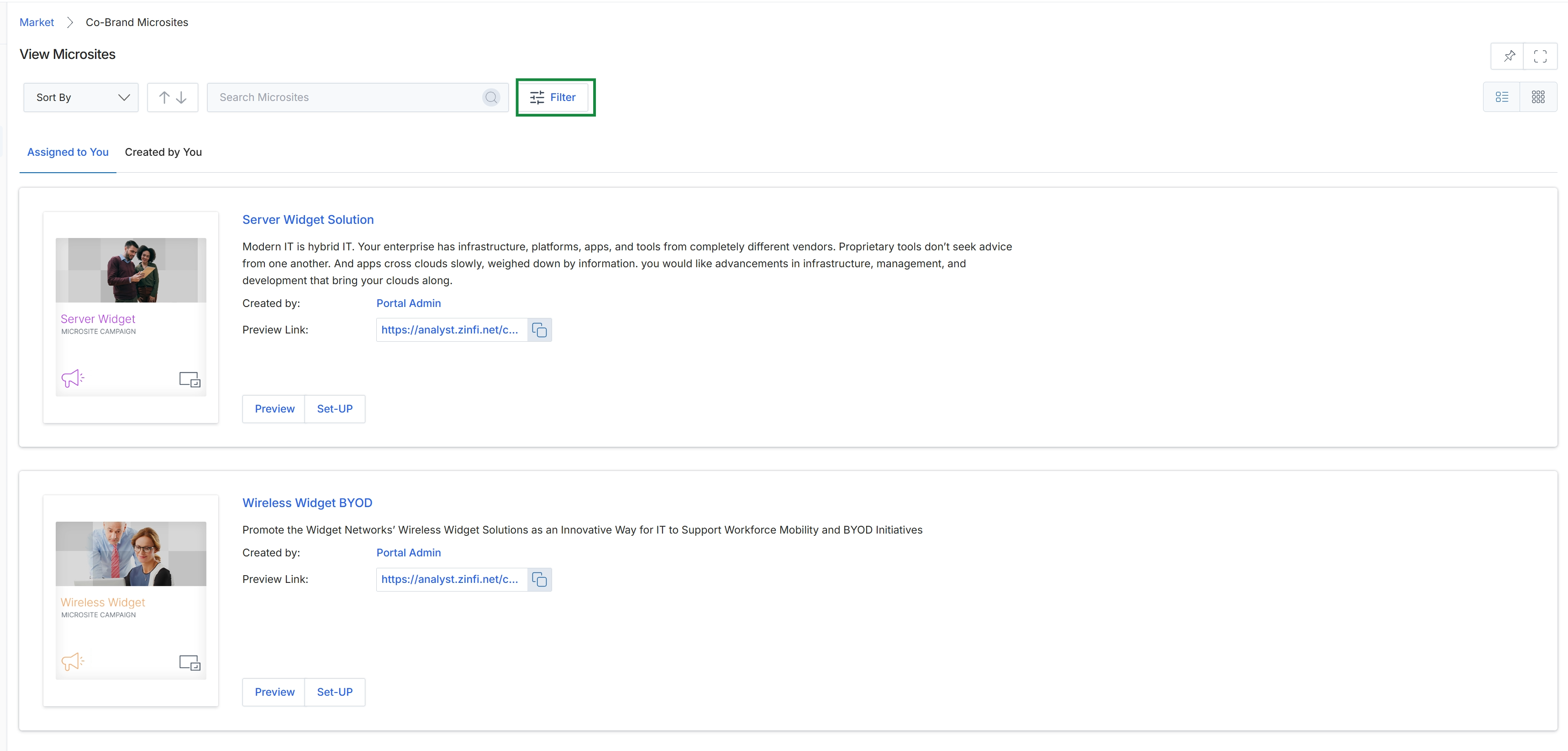
Click Filter.
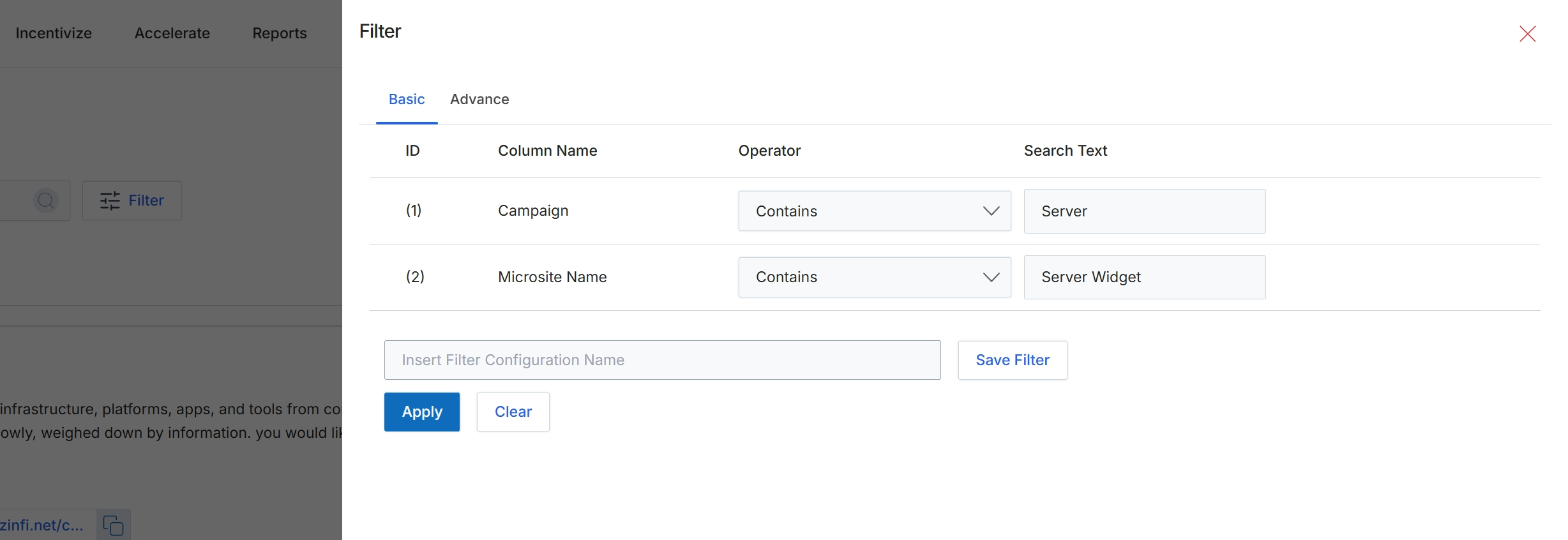
This filter dialog allows users to refine the displayed list of microsites by applying specific criteria. It provides both basic and advanced filtering options, enabling users to search for microsites based on various attributes such as campaign association or microsite name. By configuring these filters, users can quickly locate specific microsite records within the UPM, which is crucial for managing and monitoring co-branded landing pages effectively. The ability to save filter configurations streamlines future searches and enhances operational efficiency for partners and vendor administrators.
Enter a name for the filter configuration in the provided field.
Buttons
| Button | Description |
|---|---|
| Basic | Selects the basic filtering options, allowing for straightforward search criteria. |
| Advance | Selects advanced filtering options, potentially offering more complex search parameters. |
| Save Filter | Saves the current filter configuration with the specified name for quick access later. |
| Apply | Applies the configured filters to the microsite list, updating the displayed results. |
| Clear | Resets all filter criteria, removing any applied filters. |
Fields
| Field | Description |
|---|---|
| Insert Filter Configuration Name | A text input field to provide a descriptive name for the current filter setup, allowing it to be saved for future use. |
Column Headings
| Column | Description |
|---|---|
| ID | A numerical identifier for each filter row. |
| Column Name | Specifies the attribute of the microsite record to be filtered, such as 'Campaign' or 'Microsite Name'. |
| Operator | Defines the comparison logic for the filter, such as 'Contains', 'Equals', or 'Starts With'. |
| Search Text | The value or keyword to search for within the selected 'Column Name' using the specified 'Operator'. |
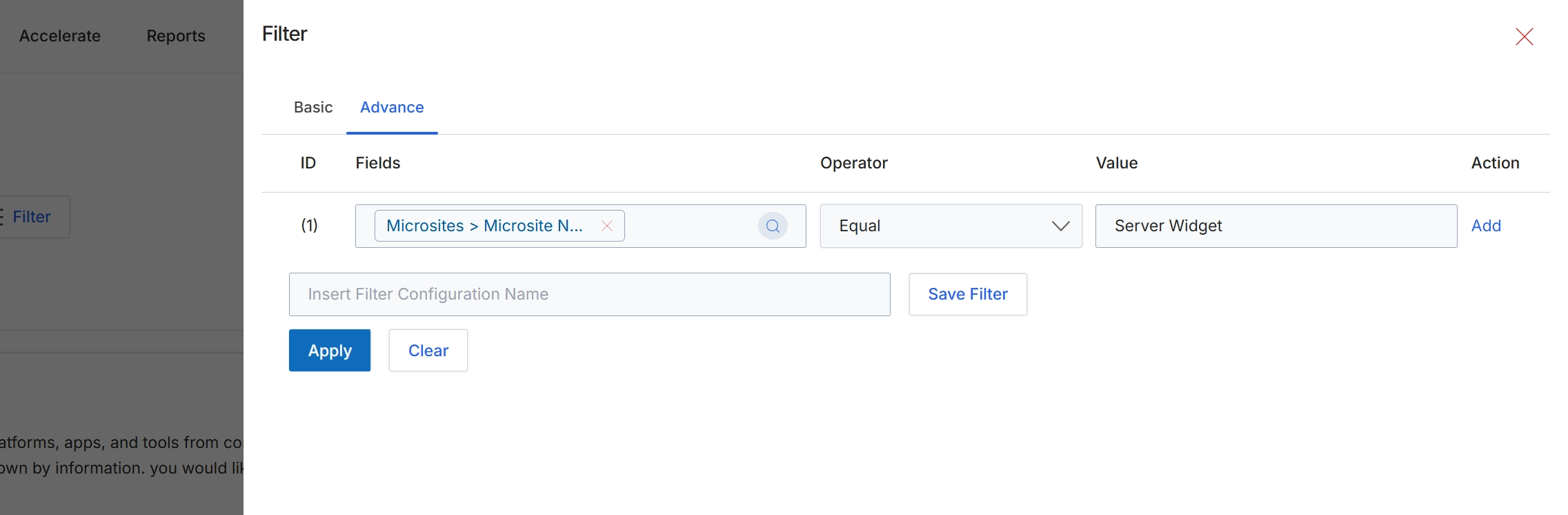
This screen presents the 'Advance' tab of the filter dialog, enabling users to construct complex queries by defining multiple filter conditions. Unlike the 'Basic' filter, this interface allows for granular control over filtering logic, combining different fields, operators, and values to precisely narrow down data sets. Users can add multiple conditions, specify how they interact, and save these configurations for future use, which is crucial for efficiently managing and analyzing large volumes of data within the platform. This advanced filtering capability supports more sophisticated data segmentation and retrieval, enhancing the user's ability to focus on specific information relevant to their tasks.
Define advanced filter conditions by selecting fields, operators, and values, then click 'Apply' to filter the data.
Buttons
| Button | Description |
|---|---|
| Basic | A tab to switch to the basic filter interface for simpler filtering options. |
| Advance | The currently active tab for defining complex filter conditions. |
| Add | A link to add a new filter condition row to the advanced filter configuration. |
| Save Filter | A button to save the current advanced filter configuration under the specified name. |
| Apply | A button to apply the defined filter conditions to the data and update the displayed results. |
| Clear | A button to clear all defined filter conditions and reset the filter settings. |
Fields
| Field | Description |
|---|---|
| Microsites > Microsite N... | The selected field for the first filter condition, indicating a field related to Microsite Name within the Microsites module. |
| Equal | The selected operator for the first filter condition, specifying an exact match. |
| Server Widget | The value entered for the first filter condition, indicating the specific value to match. |
| Insert Filter Configuration Name | An input field to enter a name for the current filter configuration, allowing it to be saved and reused. |
Column Headings
| Column | Description |
|---|---|
| ID | The identifier for each filter condition row. |
| Fields | The column where users select the data field to apply the filter condition to. |
| Operator | The column where users choose the comparison operator (e.g., Equal, Contains, Greater Than) for the filter condition. |
| Value | The column where users input or select the value to compare against the chosen field. |
| Action | The column providing actions related to each filter condition, such as adding a new condition row. |
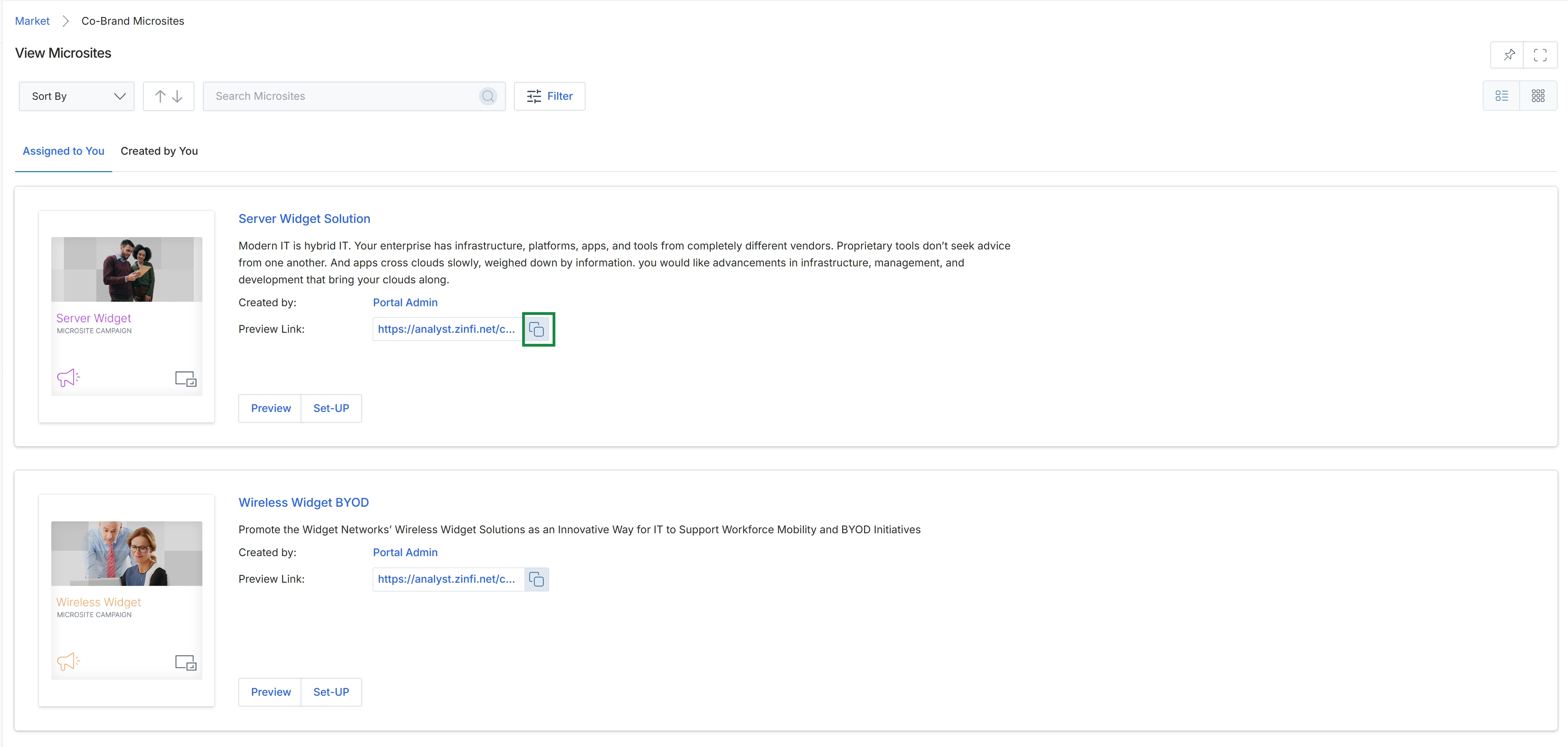
Click the Copy icon next to the "Server Widget" microsite preview link.
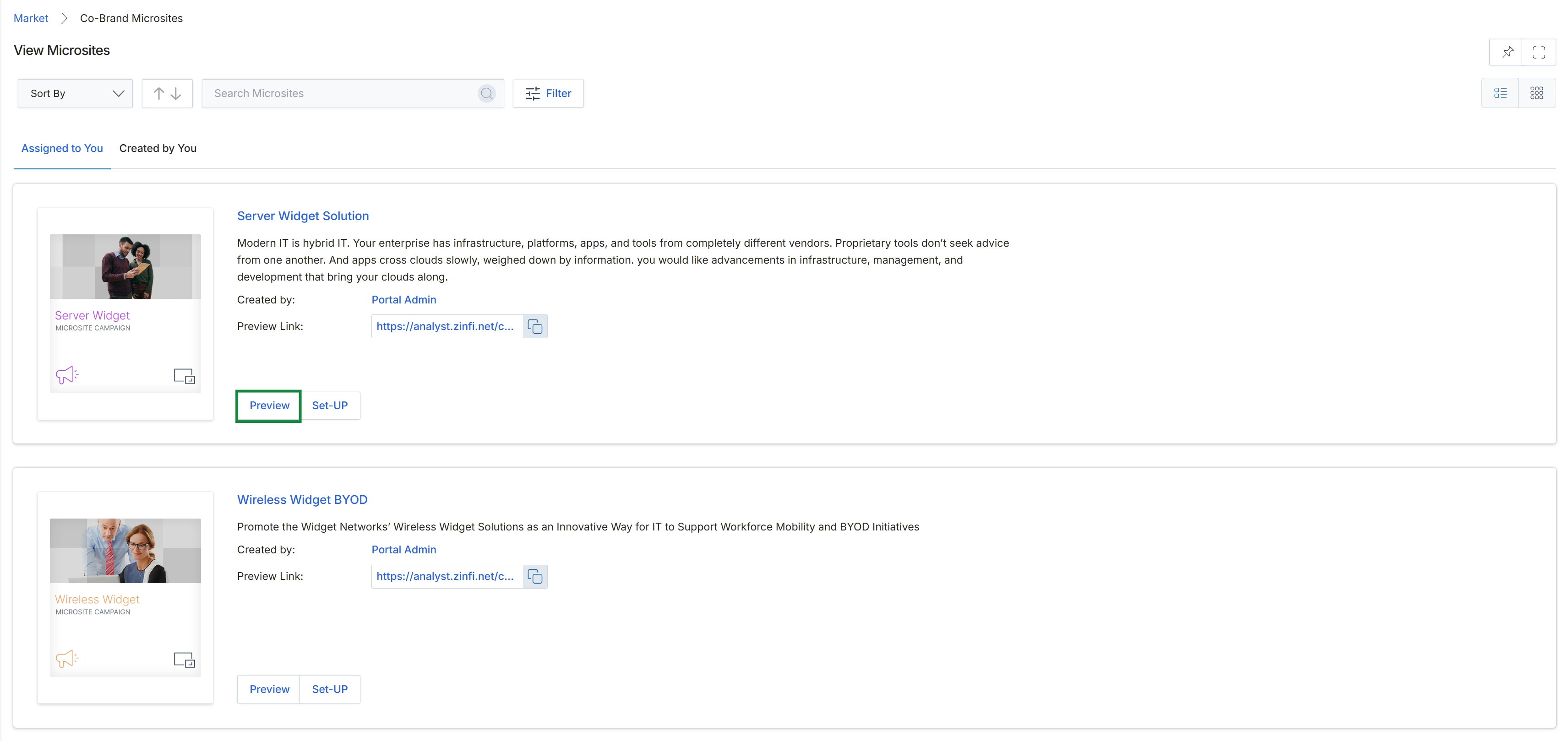
Click the Preview button for the "Server Widget Solution" microsite.
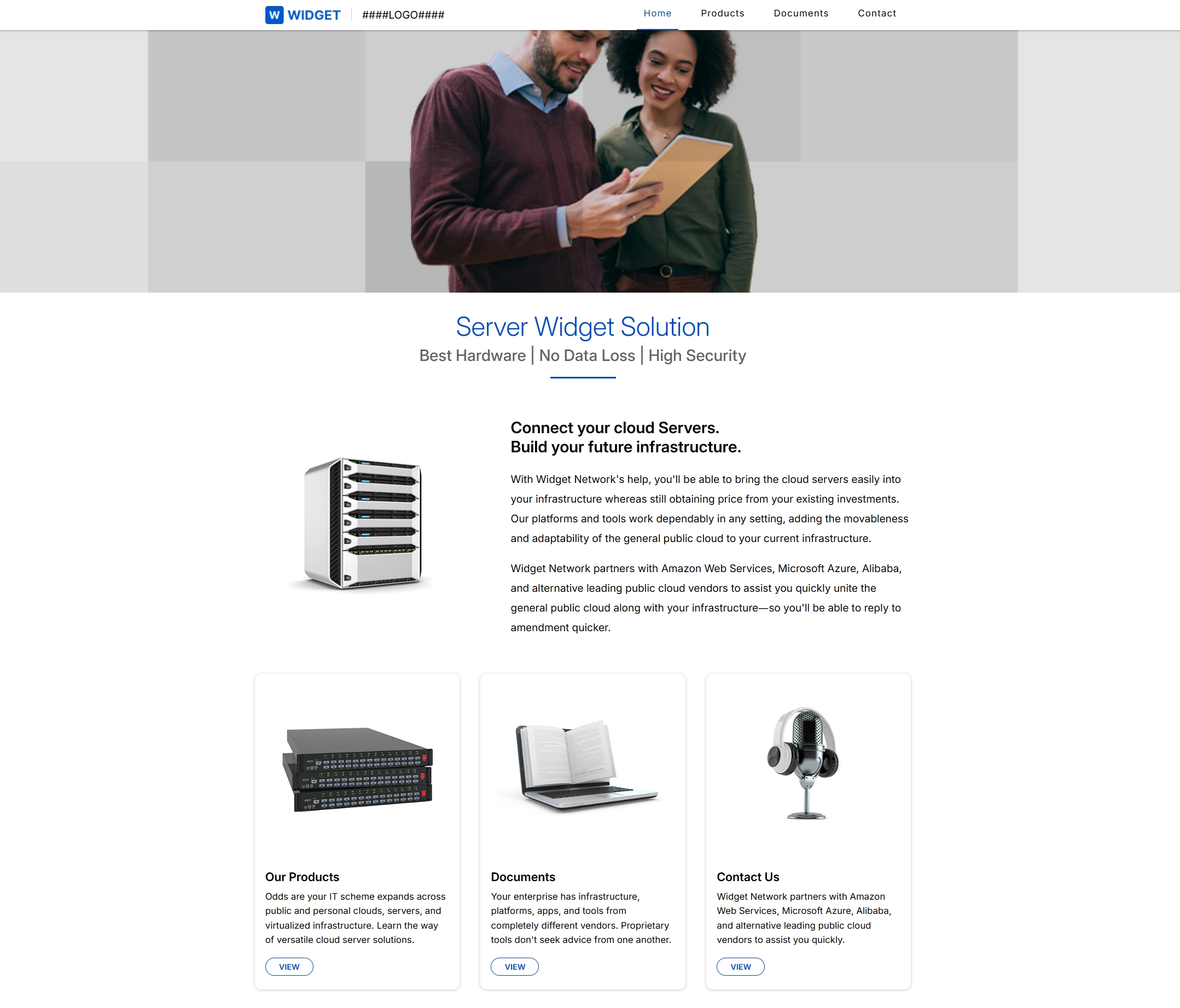
Click the Preview button for the "Server Widget Solution" microsite.