

Overview
The Video Library within the Enable module is a critical tool for managing and distributing video content to partners. Administrators use this library to store, organize, and make available various types of video assets, such as training modules, product demonstrations, and marketing materials. Partners can then access these videos through their portal to enhance their product knowledge, improve sales techniques, or understand program specifics.
Effective management of the video library ensures that partners have access to up-to-date and relevant visual content, which is essential for their enablement and overall success within the partner program. The ability to view detailed information about each video, including its category, expiration, and associated keywords, helps administrators maintain a well-organized and easily searchable resource for their partner ecosystem.
Accessing the Video Library
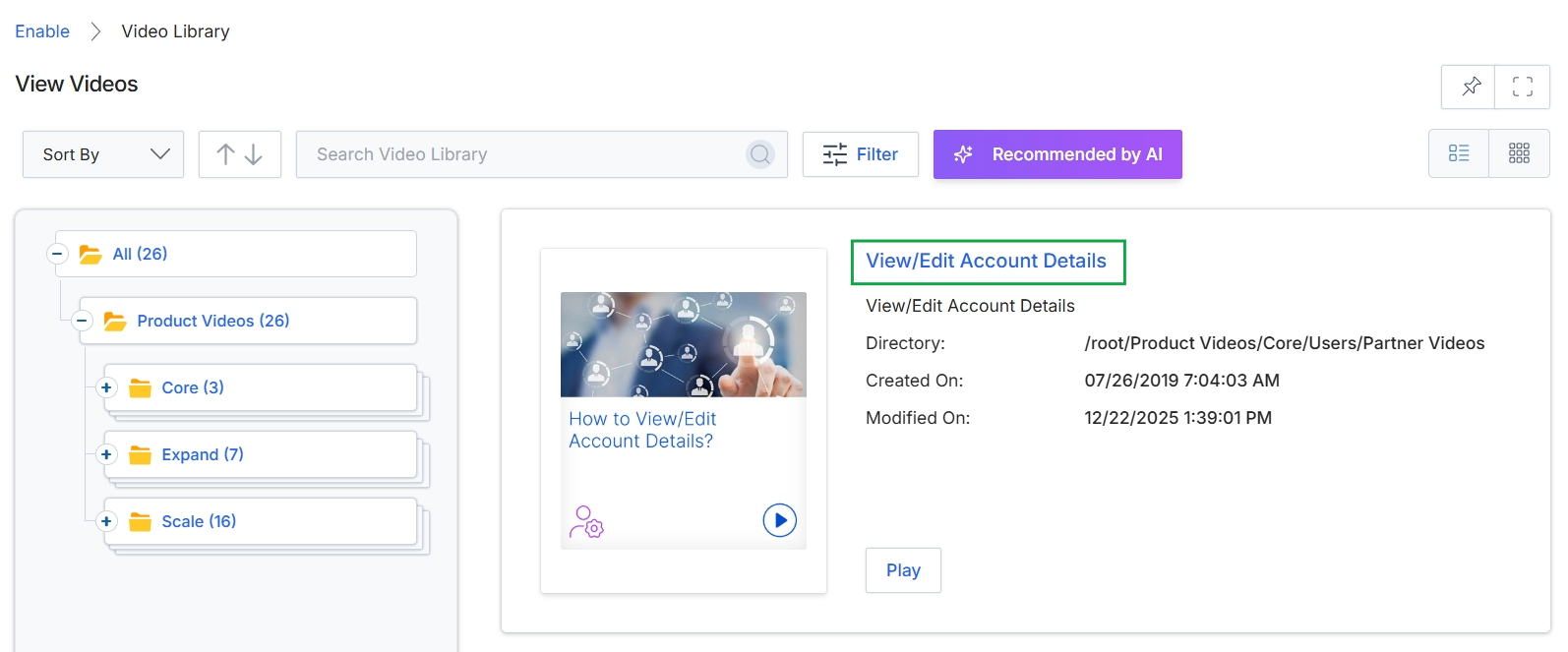
Click View/Edit Account Details to view or edit the video's details.
Viewing Video Details
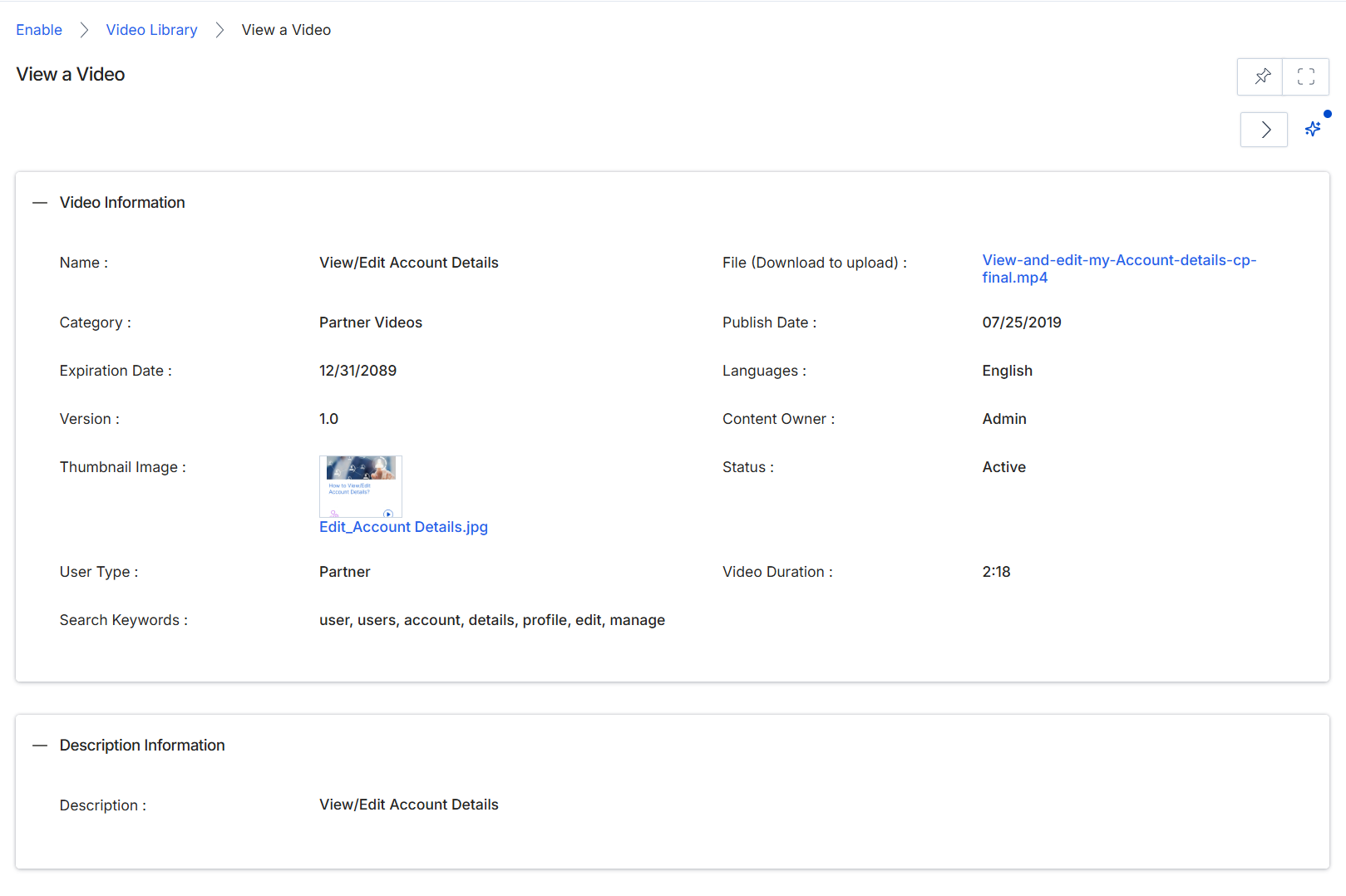
This screen displays the detailed information for a specific video asset within the platform's video library. Administrators use this view to review all metadata associated with a video, including its name, category, publication and expiration dates, version, and the actual video file. This level of detail is crucial for managing content lifecycle, ensuring videos are correctly categorized and targeted to appropriate partner types, and verifying that all necessary information is present before a video is made available to partners. The screen also shows the video's status, content owner, and any associated search keywords, which are vital for discoverability within the partner portal.
Review the detailed information for the selected video asset.
Video Information
| Field | Description |
|---|---|
| Name | The title or name of the video asset. |
| Category | The classification category for the video, such as 'Partner Videos'. |
| Expiration Date | The date when the video asset is set to expire or become unavailable. |
| Version | The current version number of the video asset. |
| Thumbnail Image | A small preview image associated with the video. |
| User Type | The type of user (e.g., Partner) for whom this video is intended or visible. |
| Search Keywords | Keywords associated with the video to improve its searchability. |
| File (Download to upload) | The name of the video file, which can be downloaded. |
| Publish Date | The date when the video was published. |
| Languages | The language(s) in which the video content is available. |
| Content Owner | The administrator or team responsible for the video content. |
| Status | The current status of the video, indicating if it is active or inactive. |
| Video Duration | The total playback duration of the video in minutes and seconds. |
Description Information
| Field | Description |
|---|---|
| Description | A detailed description of the video content. |
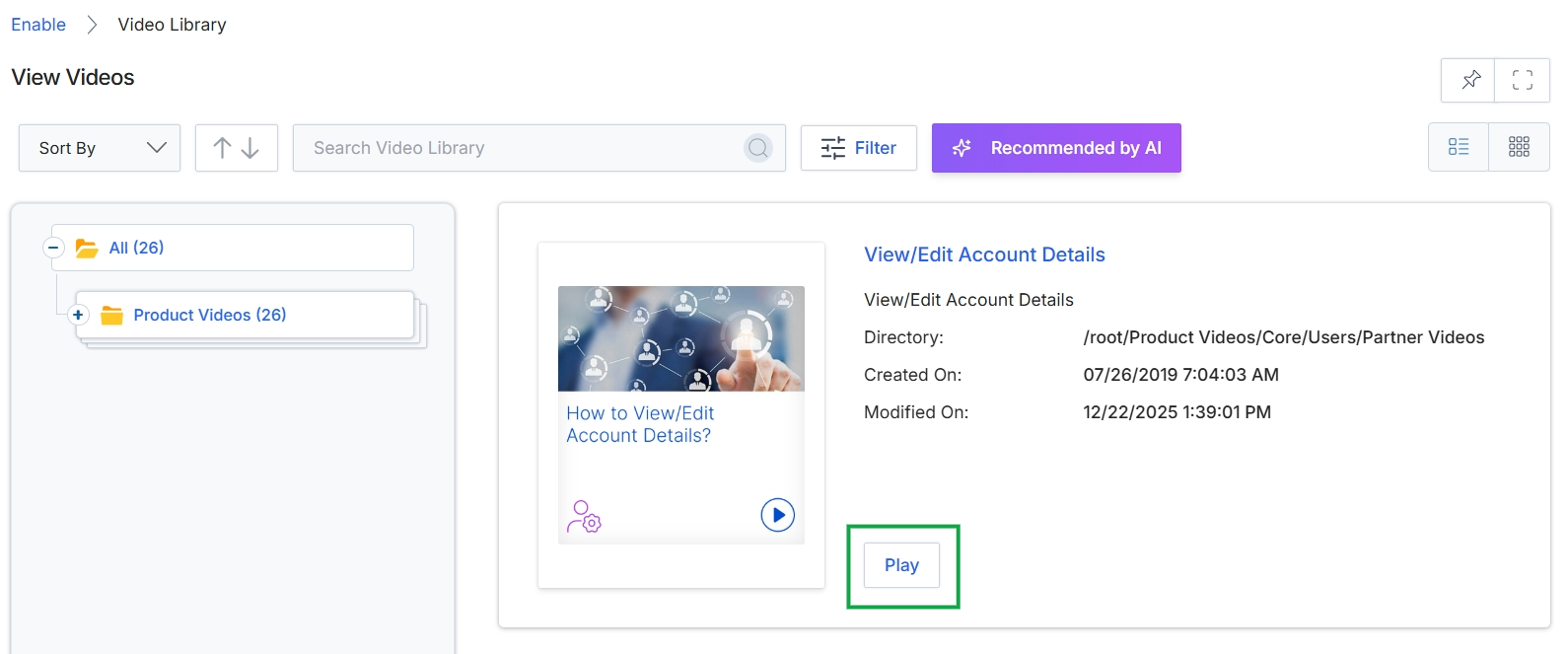
Click the Play button.
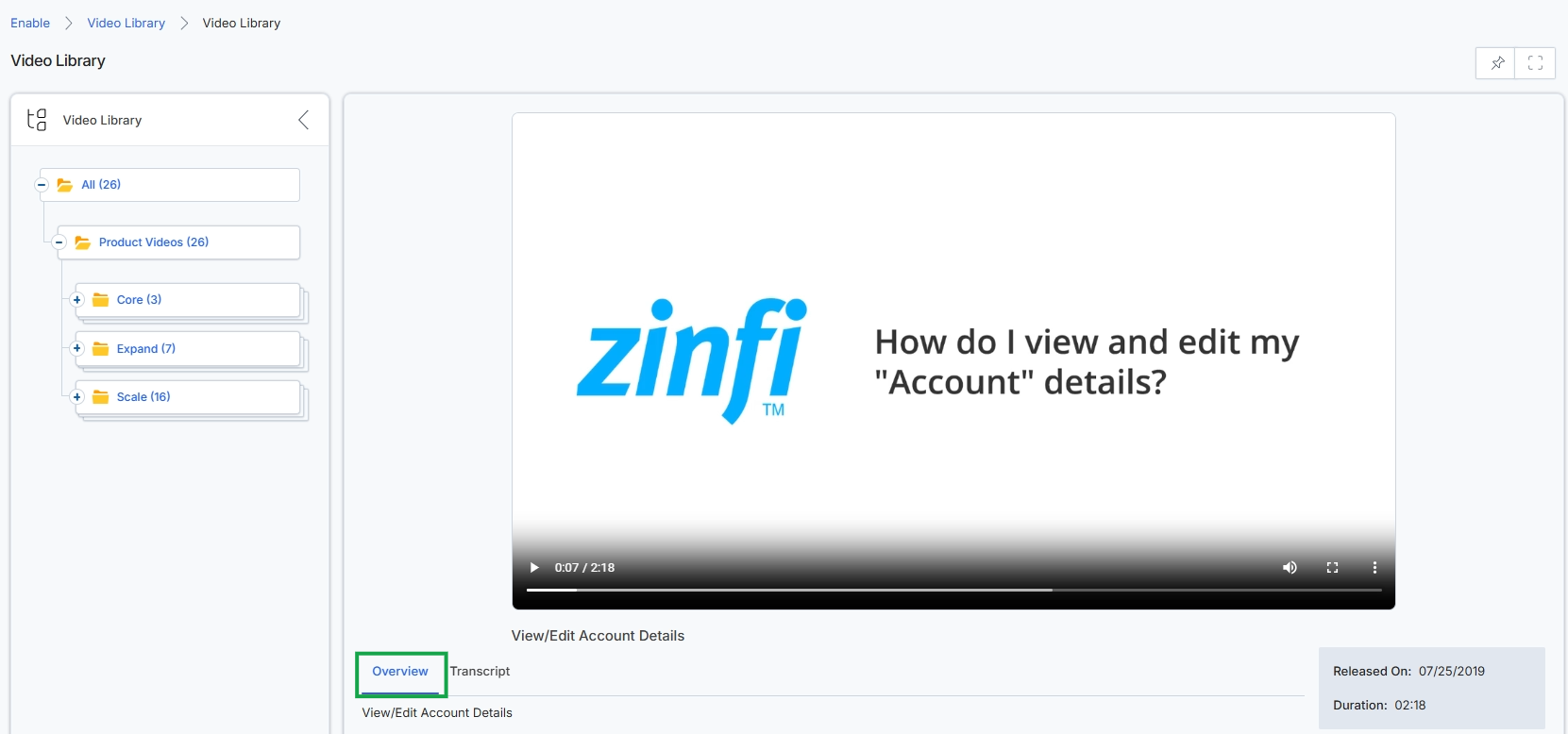
This screen displays the video library within the Enable module, allowing administrators to manage and view video content. It presents a hierarchical navigation panel on the left for organizing videos by categories, such as 'Product Videos' which are further broken down into subcategories like 'Core', 'Expand', and 'Scale'. The main content area features a video player for viewing selected videos, along with tabs for 'Overview' and 'Transcript' to provide additional details about the video. This interface supports the management of video assets that can be used for partner training and enablement.
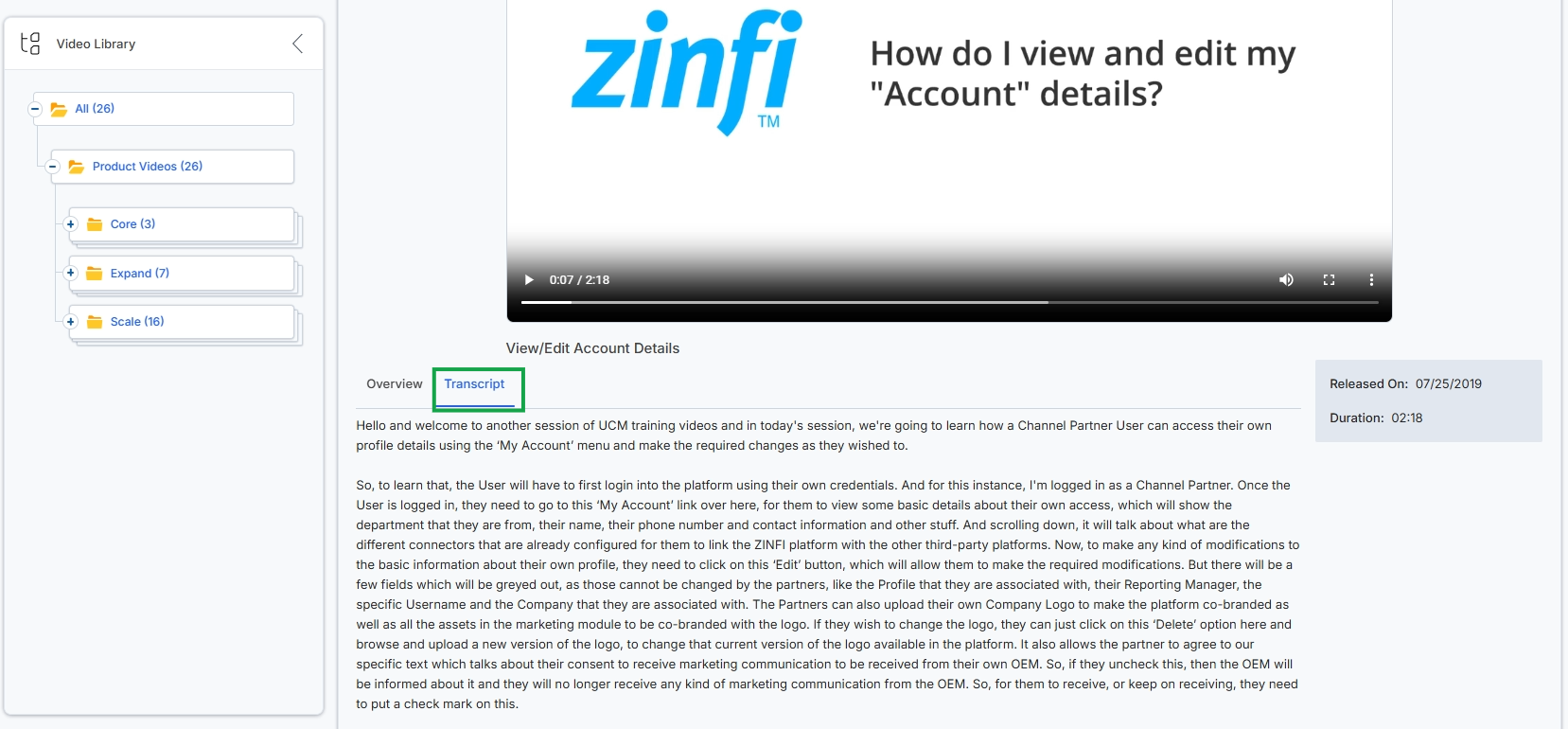
This screen displays the details of a specific video from the video library within the Enable module. It presents the video player at the top, allowing users to watch the content, and provides an overview of the video's content below. The left panel shows the hierarchical structure of the video library, enabling navigation through different video categories. This view serves to provide partners with access to educational and informational video content, supporting their enablement within the partner program.