

Overview
Effective partner enablement often relies on rich media content, and video is a highly engaging format for training and communication. The Video Library within the Enable module serves as the primary tool for administrators to curate and distribute video content to their partner network. This ensures that partners can easily find and consume relevant video resources, whether for product training, sales guidance, or general program updates. Organizing videos into categories and providing robust search and filtering capabilities helps partners quickly locate the specific information they need, enhancing their learning experience and overall engagement with the program.
Accessing the Video Library
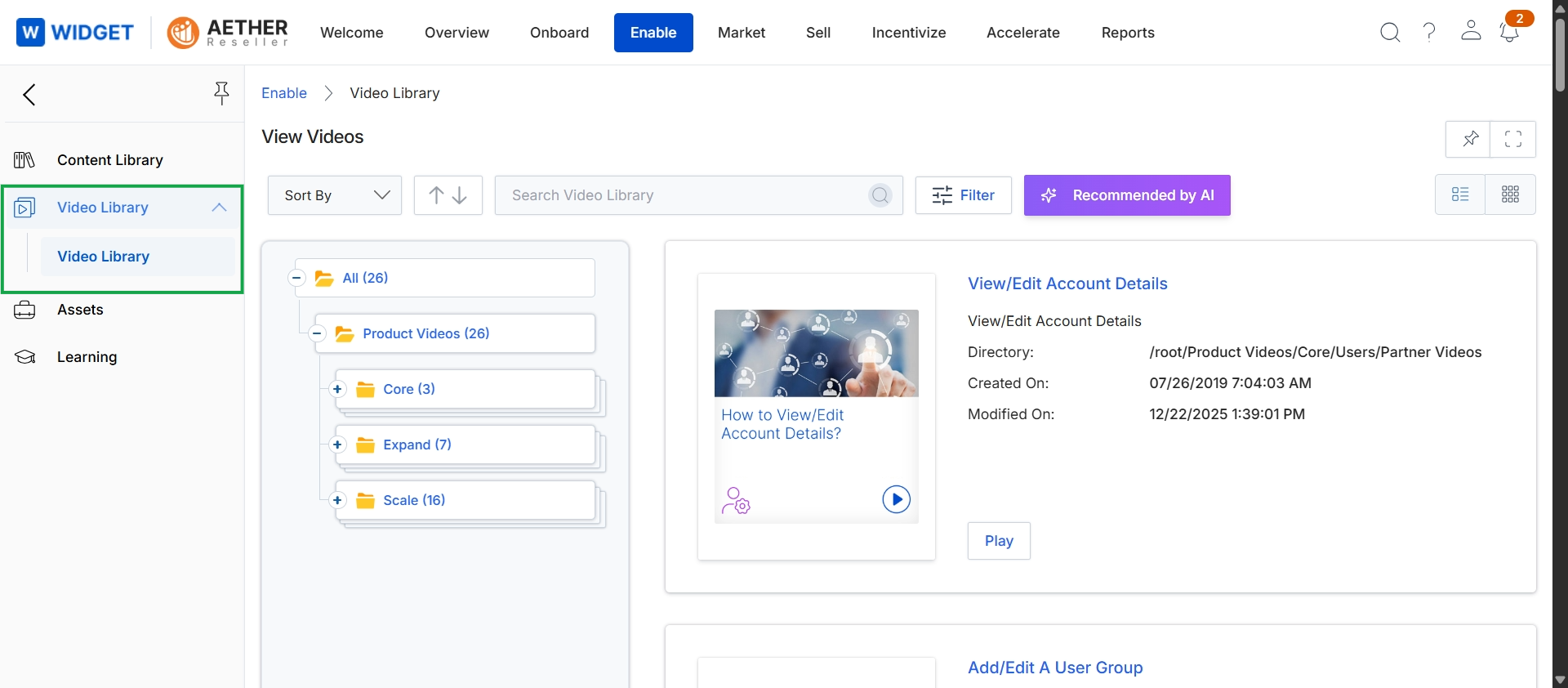
Click Video Library in the left navigation panel, then click Video Library again in the expanded sub-menu.
Viewing Video Content
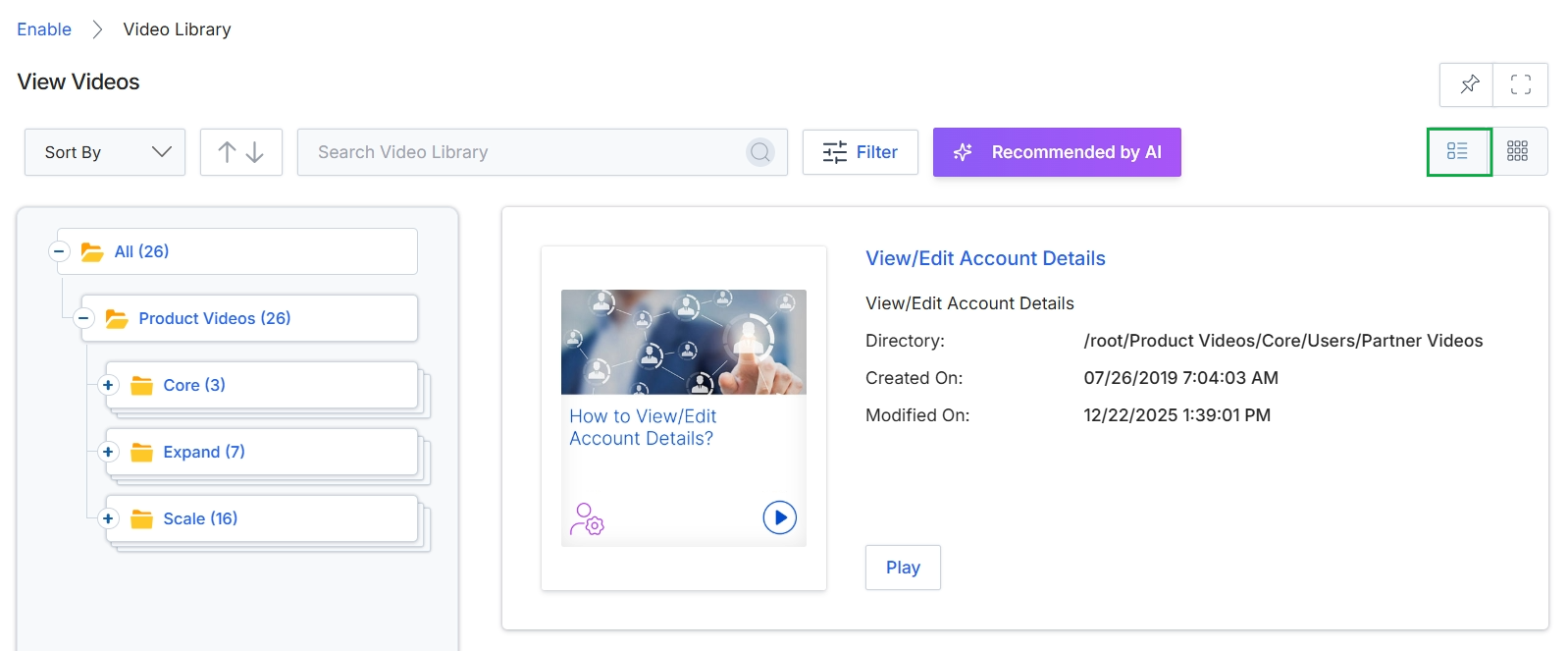
Click the List View icon.
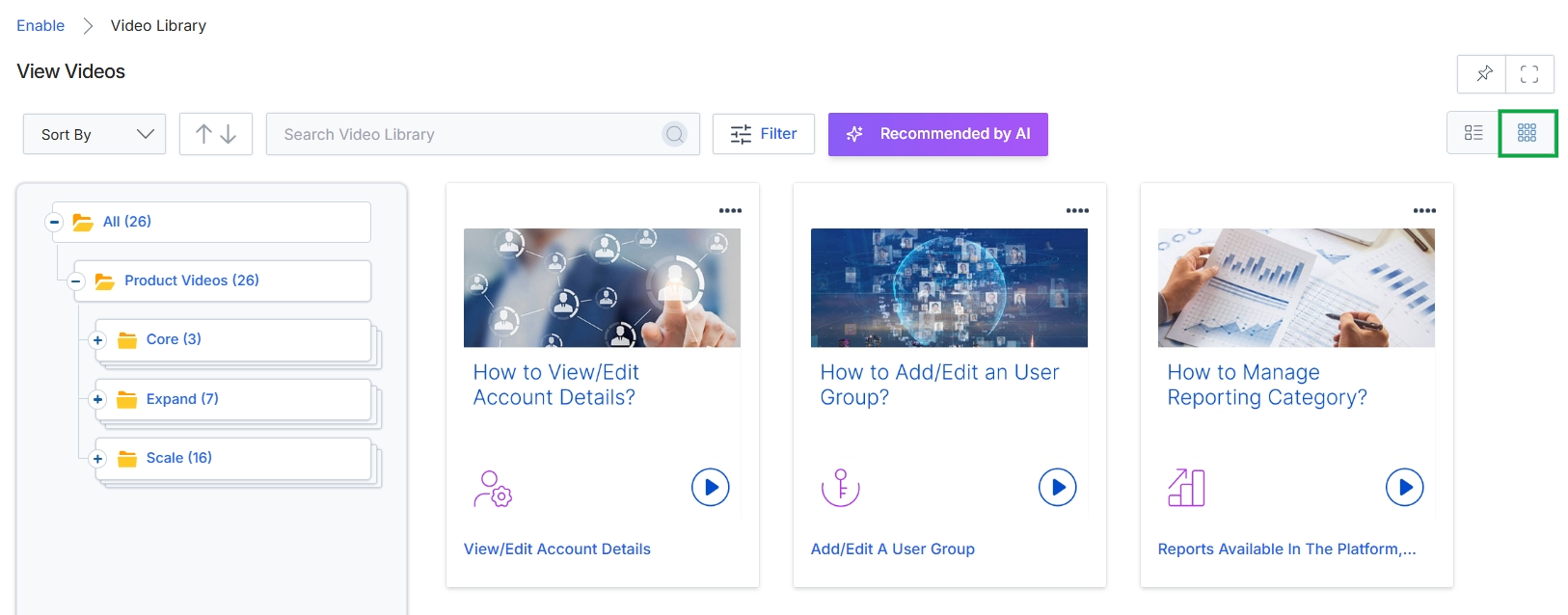
Click the Grid View icon.
Filtering and Searching Videos
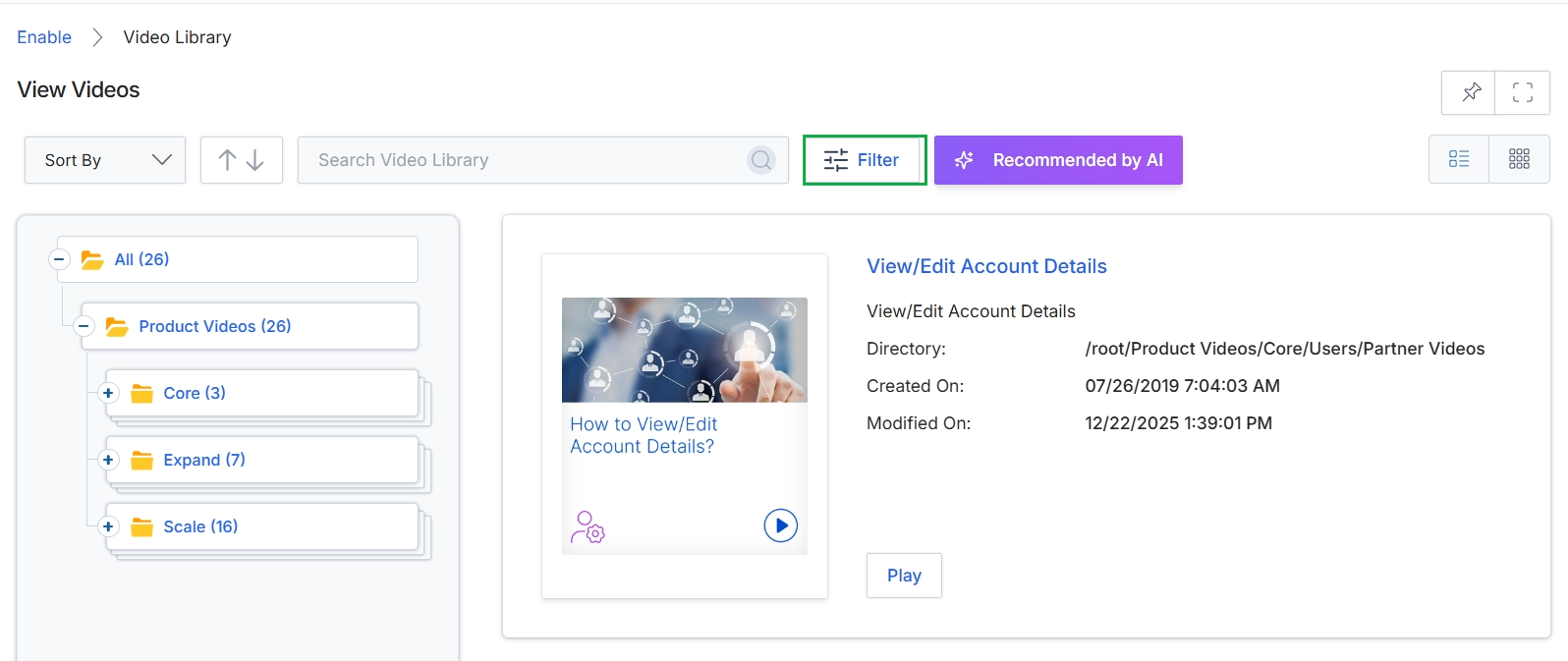
Click the Filter button.
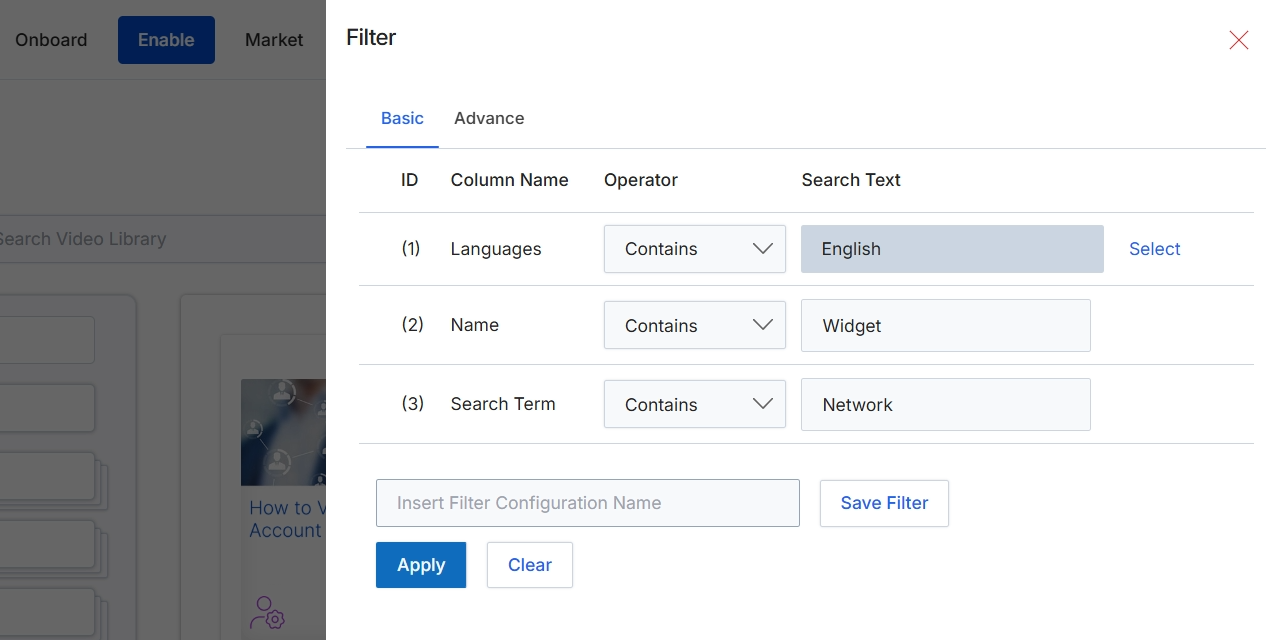
This filter panel allows administrators to refine the list of videos displayed in the Video Library by applying specific criteria. It supports filtering by various video attributes such as language, name, and general search terms. The panel provides both basic and advanced filtering options, enabling precise control over which videos are visible for management or assignment. Filters can be configured and saved for later reuse, streamlining the process of managing large video libraries and ensuring that relevant content can be quickly located.
Configure the filter criteria by entering values for Languages, Name, and Search Term, then click "Apply" to filter the video library.
Buttons
| Button | Description |
|---|---|
| Basic | Tab to switch to basic filtering options. |
| Advance | Tab to switch to advanced filtering options. |
| Select | Button to select a language from a predefined list. |
| Save Filter | Button to save the current filter configuration with the specified name. |
| Apply | Applies the configured filters to the video library. |
| Clear | Clears all applied filter criteria. |
Fields
| Field | Description |
|---|---|
| Languages | Filter videos by the language they are associated with. The current operator is 'Contains' and the search text is 'English'. |
| Contains | Dropdown to select the operator for the 'Languages' filter. |
| English | Input field for the search text for the 'Languages' filter. |
| Name | Filter videos by their name. The current operator is 'Contains' and the search text is 'Widget'. |
| Contains | Dropdown to select the operator for the 'Name' filter. |
| Widget | Input field for the search text for the 'Name' filter. |
| Search Term | Filter videos by a general search term. The current operator is 'Contains' and the search text is 'Network'. |
| Contains | Dropdown to select the operator for the 'Search Term' filter. |
| Network | Input field for the search text for the 'Search Term' filter. |
| Insert Filter Configuration Name | Input field to provide a name for the current filter configuration to save it for future use. |
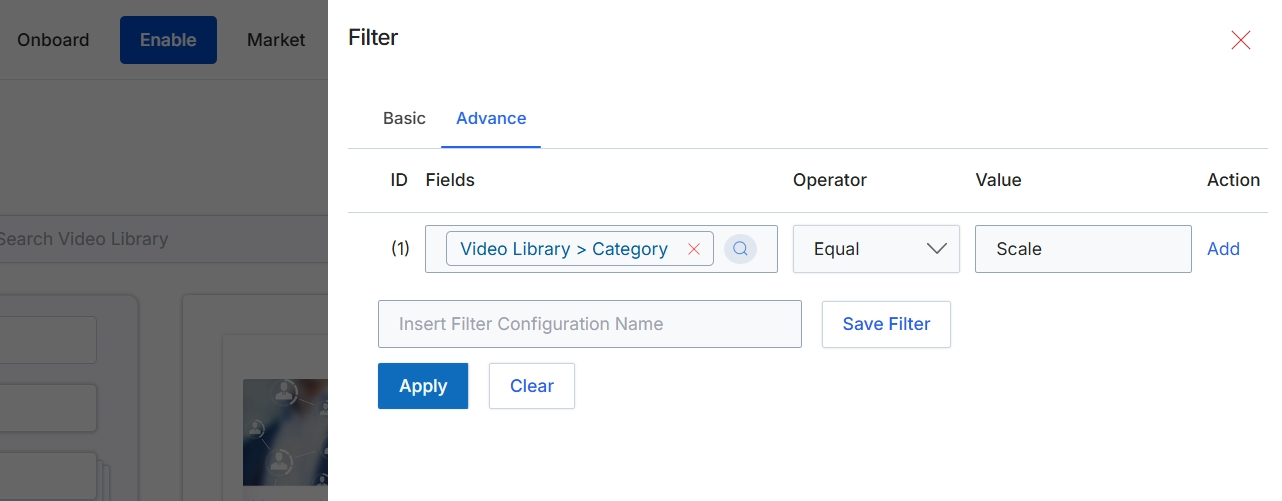
The Filter dialog, shown here in its 'Advance' configuration, allows administrators to define complex search criteria for filtering lists of items, such as videos in the Video Library. This advanced mode provides granular control over filter logic by enabling the selection of specific fields, operators, and values to construct precise queries. Users can add multiple filter conditions, combine them, and save frequently used configurations for later reuse. This functionality is crucial for efficiently managing large datasets and quickly locating specific content based on various attributes like category, type, or other custom fields.
Click 'Apply' to implement the advanced filter criteria on the Video Library.
Buttons
| Button | Description |
|---|---|
| Basic | Switches the filter dialog to the basic filtering interface. |
| Advance | Switches the filter dialog to the advanced filtering interface, allowing for more complex query construction. |
| Add | Adds a new row for an additional filter condition. |
| Save Filter | Saves the current advanced filter configuration under the specified name. |
| Apply | Applies the configured filter conditions to the displayed list of items. |
| Clear | Clears all active filter conditions. |
Fields
| Field | Description |
|---|---|
| Video Library > Category | The selected field for the current filter condition, indicating that the filter will be applied to the category of videos. |
| Equal | The selected operator for the current filter condition, meaning the field's value must exactly match the specified value. |
| Scale | The value entered for the current filter condition, indicating that videos with the category 'Scale' will be filtered. |
| Insert Filter Configuration Name | A text input field to enter a name for the current filter configuration to save it for future use. |
Column Headings
| Column | Description |
|---|---|
| ID | A numerical identifier for each filter condition row. |
| Fields | Allows selection of the specific field to apply the filter condition against, such as 'Video Library > Category'. |
| Operator | Allows selection of the comparison operator (e.g., Equal, Not Equal, Contains) for the filter condition. |
| Value | Allows entry of the value to compare against the selected field. |
| Action | Provides actions related to the filter condition, such as adding a new condition. |