

Overview
In a complex partner ecosystem, maintaining the health and performance of various integrations, data synchronization processes, and automated workflows is critical. The Alerts Management module provides administrators with the tools to define proactive monitoring rules. By setting specific thresholds for key operational metrics, such as sync error rates, workflow job failures, or API limits, administrators can ensure that they are immediately notified of any deviations from normal operation.
This proactive approach minimizes downtime, prevents data inconsistencies, and ensures the smooth functioning of the entire partner program. The module supports various notification channels, including email, in-app alerts, and webhooks for external systems like Slack or Microsoft Teams, allowing for flexible and timely communication. Additionally, features like escalation and auto-recovery help streamline incident response and resolution, making the platform more resilient and reducing manual oversight.
Managing Alert Rules
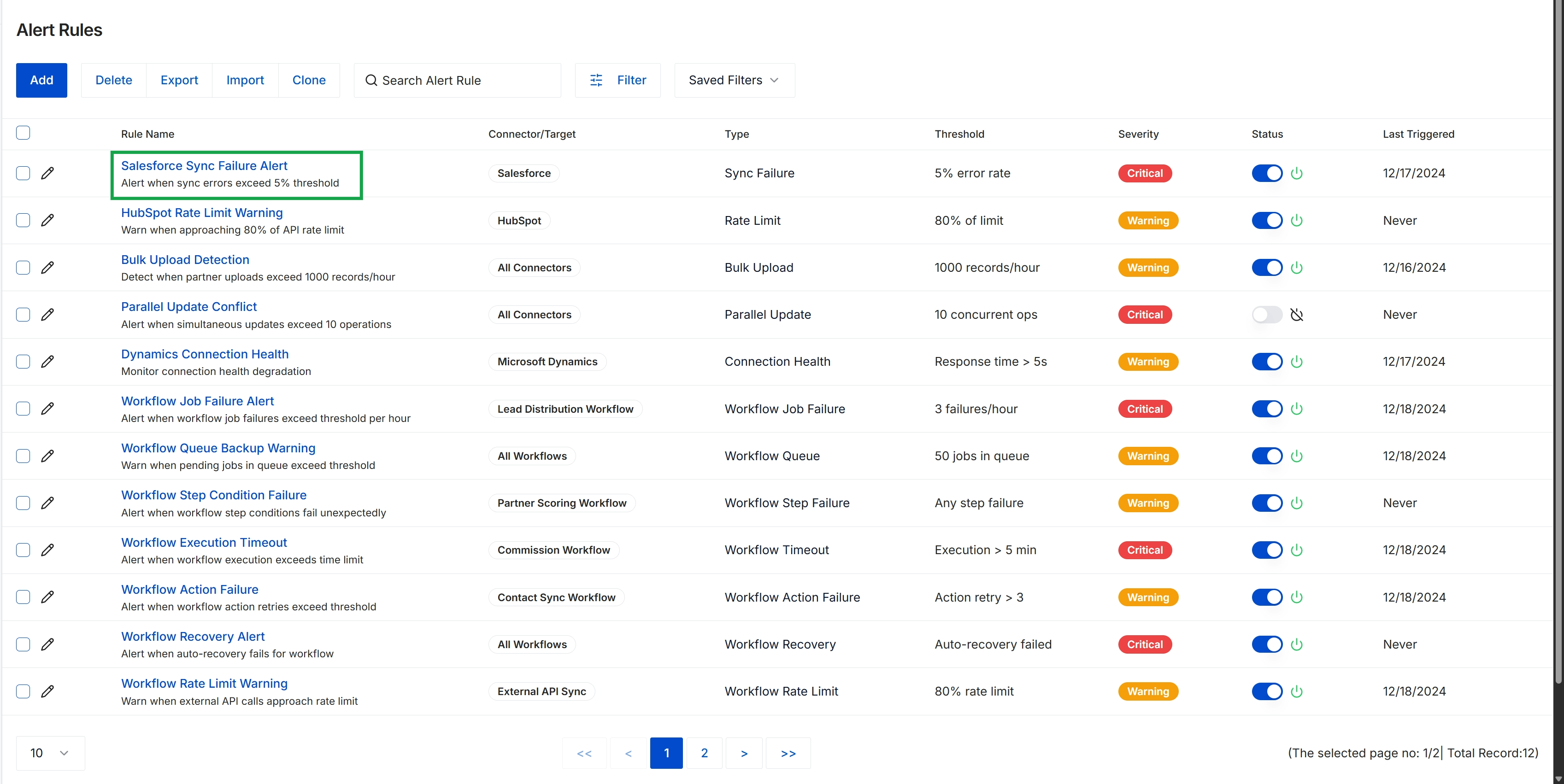
Click the Salesforce Sync Failure Alert link to view or edit the alert rule.
Viewing Alert Rule Details
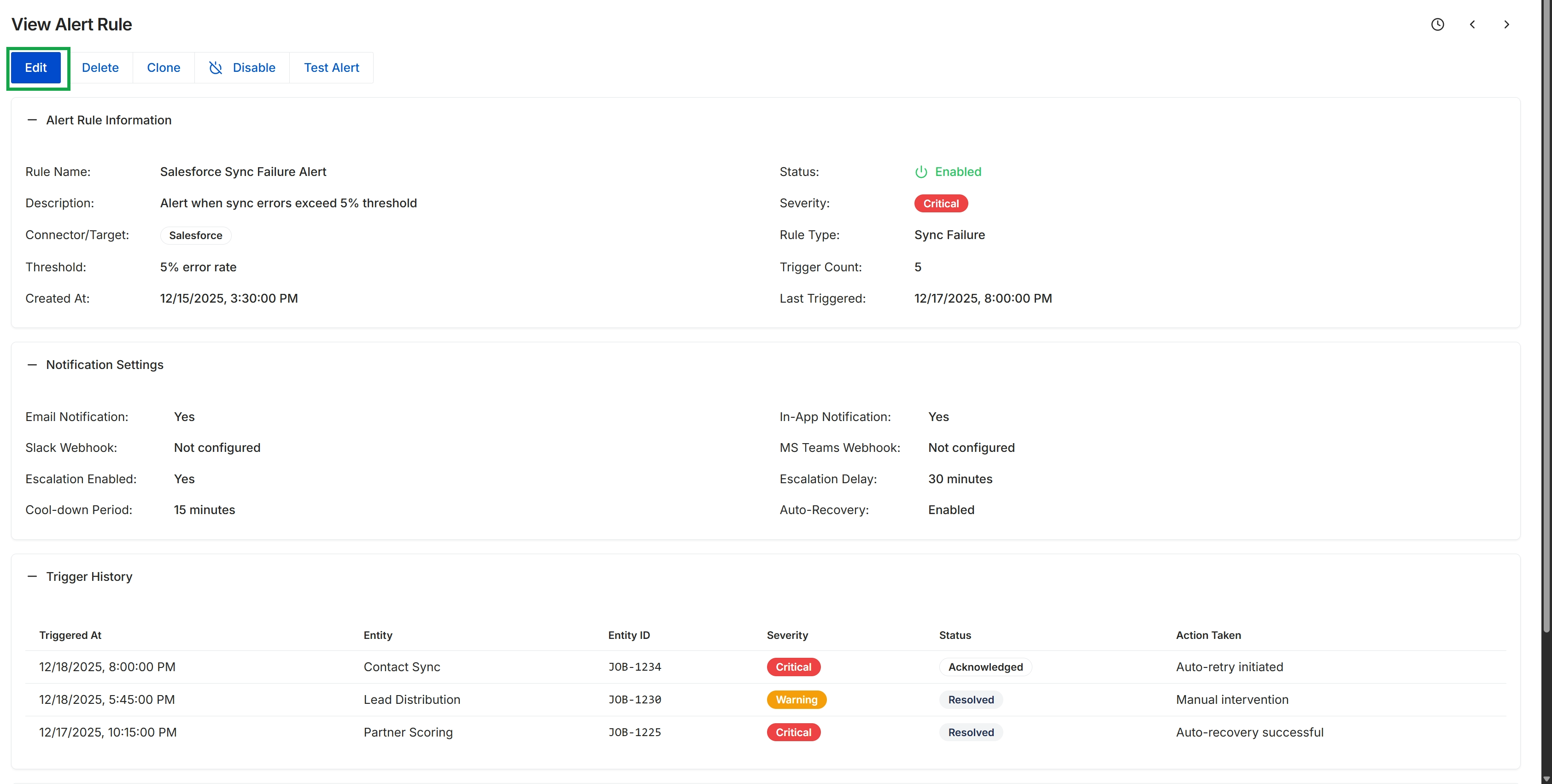
Click the Edit button.
Editing Alert Rule Configuration
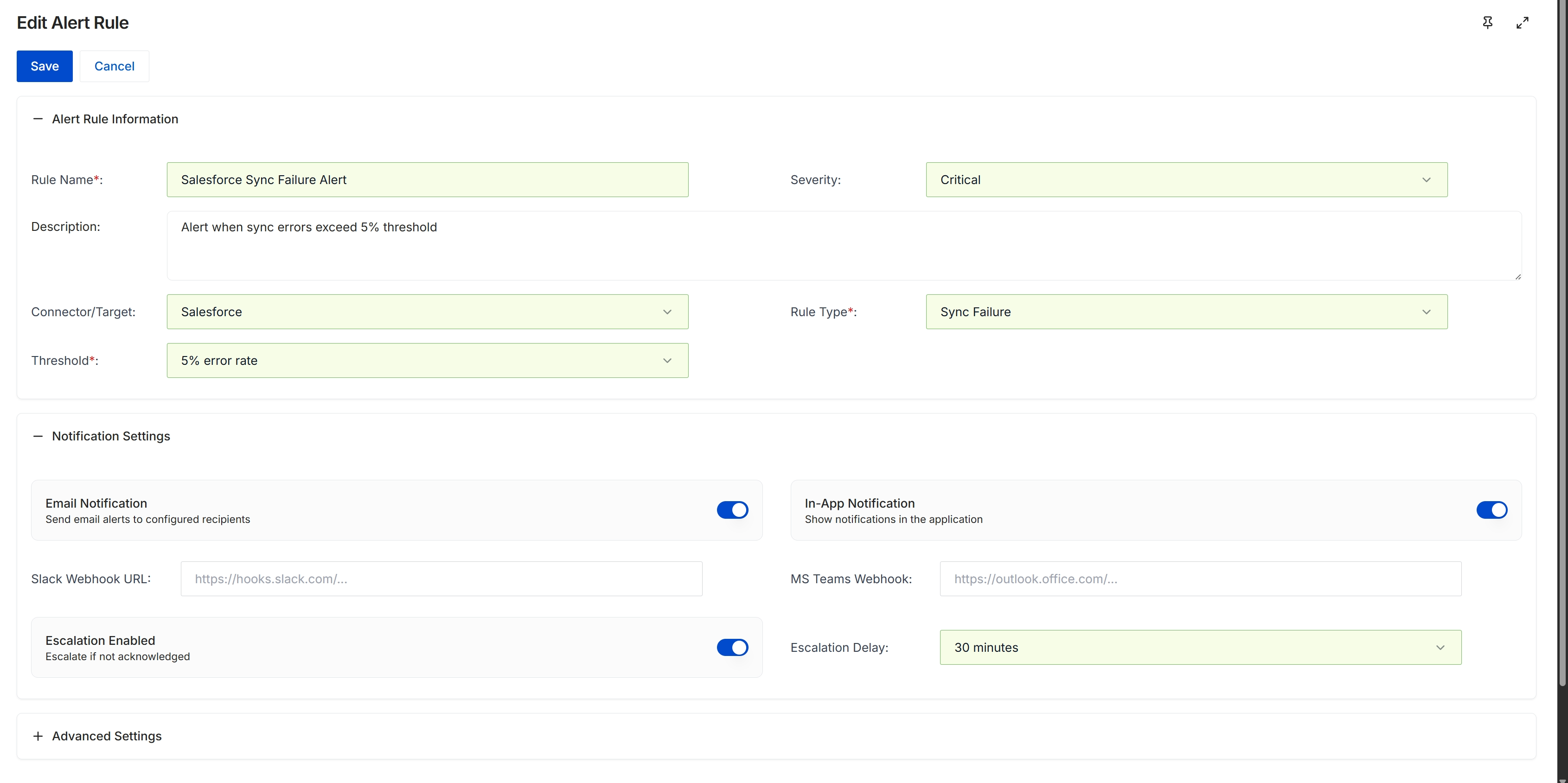
The Edit Alert Rule form allows administrators to modify the parameters and notification settings for an existing alert rule. Alert rules are critical for monitoring various system activities, such as integration sync failures, and for ensuring that relevant stakeholders are promptly notified when predefined thresholds are met or exceeded. This screen enables granular control over the alert's trigger conditions, its severity, and how notifications are delivered, including options for email, in-app alerts, and integrations with external communication platforms like Slack or Microsoft Teams. The form also supports configuring escalation procedures for alerts that are not acknowledged within a specified timeframe, ensuring that critical issues receive timely attention.
After clicking the 'Edit' button from the View Alert Rule screen, modify the alert rule details as needed on this form.
Buttons
| Button | Description |
|---|---|
| Save | Saves the changes made to the alert rule. |
| Cancel | Discards any changes and returns to the previous screen. |
Alert Rule Information
| Field | Description |
|---|---|
| Rule Name* | The unique name for the alert rule, indicating its purpose. |
| Severity | The criticality level of the alert, such as 'Critical', 'Warning', or 'Informational'. |
| Description | A detailed explanation of what the alert monitors and its conditions. |
| Connector/Target | The specific integration or system that the alert rule is monitoring, such as 'Salesforce'. |
| Rule Type* | The category or type of event the rule is designed to detect, such as 'Sync Failure'. |
| Threshold* | The specific condition or value that, when met or exceeded, triggers the alert, such as '5% error rate'. |
Notification Settings
| Field | Description |
|---|---|
| Email Notification | A toggle to enable or disable sending email alerts to configured recipients. |
| In-App Notification | A toggle to enable or disable showing notifications within the application. |
| Slack Webhook URL | The URL for a Slack webhook to send alert notifications to a specific Slack channel. |
| MS Teams Webhook | The URL for a Microsoft Teams webhook to send alert notifications to a specific Teams channel. |
| Escalation Enabled | A toggle to enable or disable escalation if the alert is not acknowledged. |
| Escalation Delay | The duration after which an unacknowledged alert will be escalated. |
Fields
| Field | Description |
|---|---|
| Advanced Settings | An expandable section for configuring additional, more granular settings for the alert rule. |