

Overview
Every transactional notification within the UPM platform, such as welcome emails, deal approval notifications, or password reset links, is driven by a configurable system email template. This module provides administrators with the tools to manage these templates, which are crucial for maintaining brand consistency and ensuring partners receive timely and relevant information. By customizing these templates, administrators can tailor the messaging to their specific program requirements and partner communication strategy.
Effective management of system emails is vital for partner engagement and operational efficiency. Administrators can ensure that all automated communications reflect the vendor's brand voice and provide clear, actionable information. The ability to localize templates also supports global partner programs, allowing for communications in multiple languages.
Accessing and Viewing System Emails
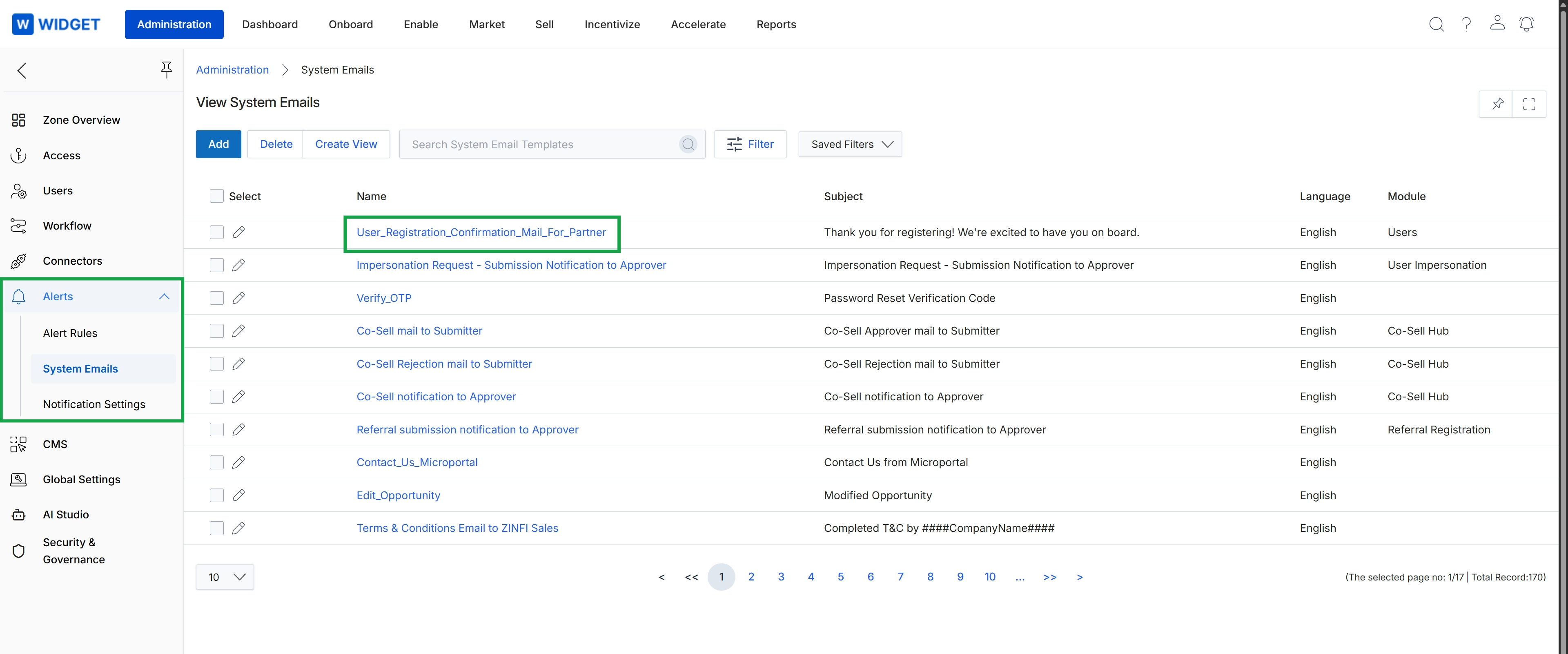
Click User_Registration_Confirmation_Mail_For_Partner to view or edit the system email template.
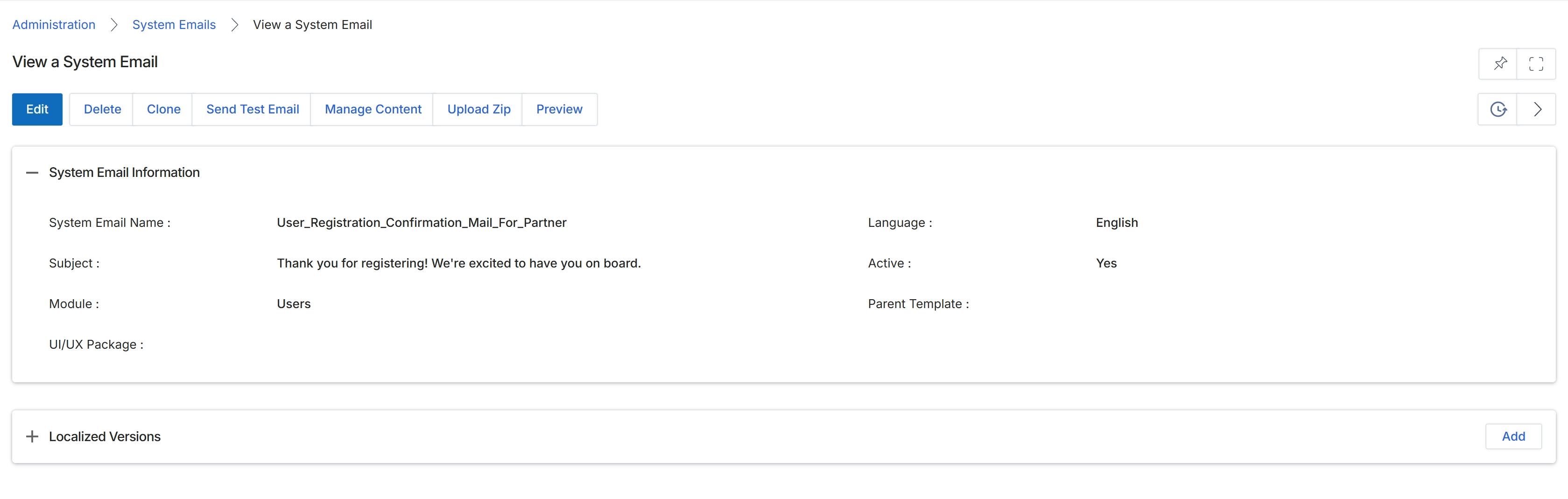
This screen displays the details of a specific system email template within the platform's Administration module. System email templates are pre-configured messages used for various transactional notifications, such as welcome emails, deal registration approvals, or password resets. Administrators use this view to review the email's core information, including its name, subject, associated module, and language. The screen also provides options to manage the email's content, send test emails, or create localized versions to support multi-language portal configurations. This ensures that all automated communications sent from the platform are consistent, accurate, and tailored to the recipient's language preferences.
Review the details of the selected system email template.
Buttons
| Button | Description |
|---|---|
| Edit | Click to modify the details of this system email template. |
| Delete | Click to remove this system email template from the platform. |
| Clone | Click to create a duplicate of this system email template, which can then be modified. |
| Send Test Email | Click to send a test version of this email to a specified recipient to preview its content and formatting. |
| Manage Content | Click to access the editor for modifying the HTML and plain text content of the email template. |
| Upload Zip | Click to upload a ZIP file containing email template assets. |
| Preview | Click to view a rendered preview of the email template. |
| Add | Click to add a new localized version of this email template. |
System Email Information
| Field | Description |
|---|---|
| System Email Name | The unique identifier for this system email template. |
| Subject | The subject line of the email as it will appear to recipients. |
| Module | The module within the platform that this email template is associated with. |
| UI/UX Package | Indicates the UI/UX package associated with this email template. |
| Language | The primary language of this email template. |
| Active | Indicates whether the email template is currently active and in use. |
| Parent Template | If this email is a localized version, this field indicates its parent template. |
Fields
| Field | Description |
|---|---|
| Localized Versions | This section displays any localized versions of this email template. |
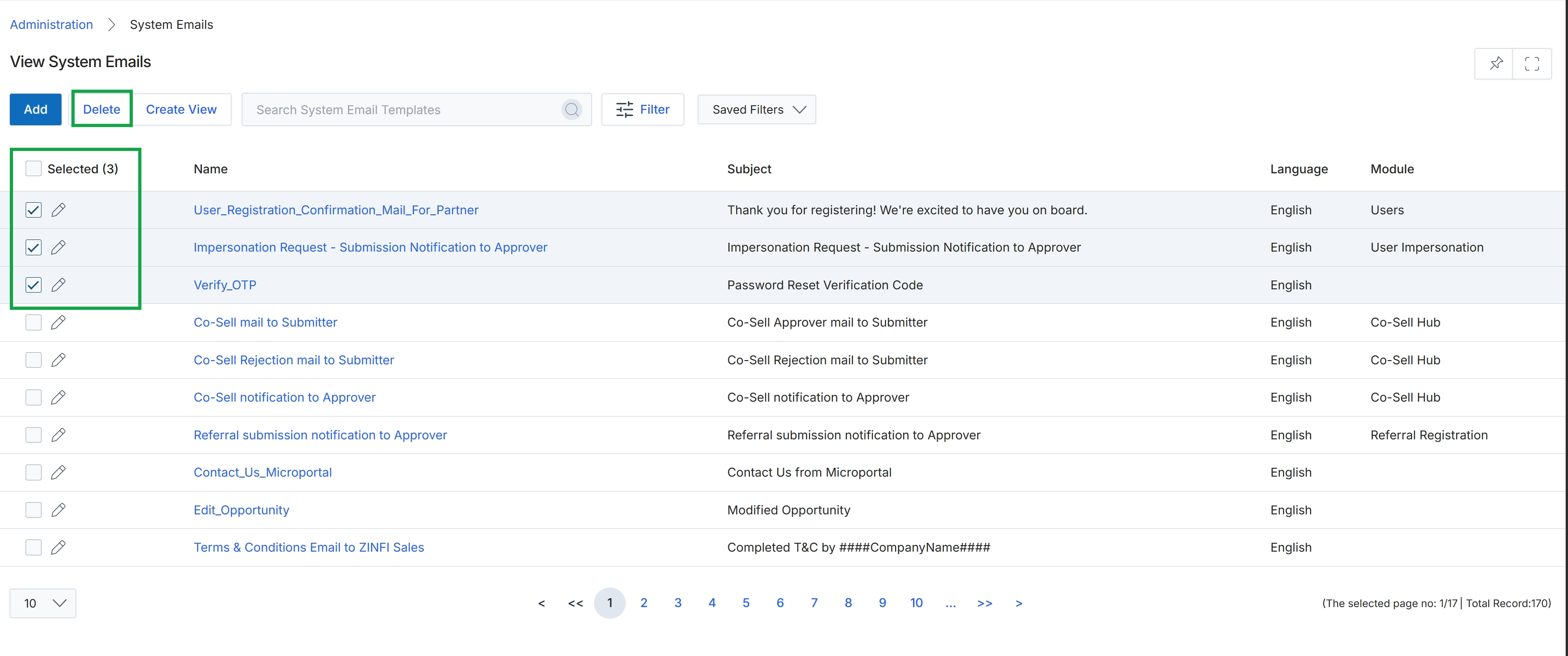
Delete System Email Templates
Click System Emails in the breadcrumb navigation.
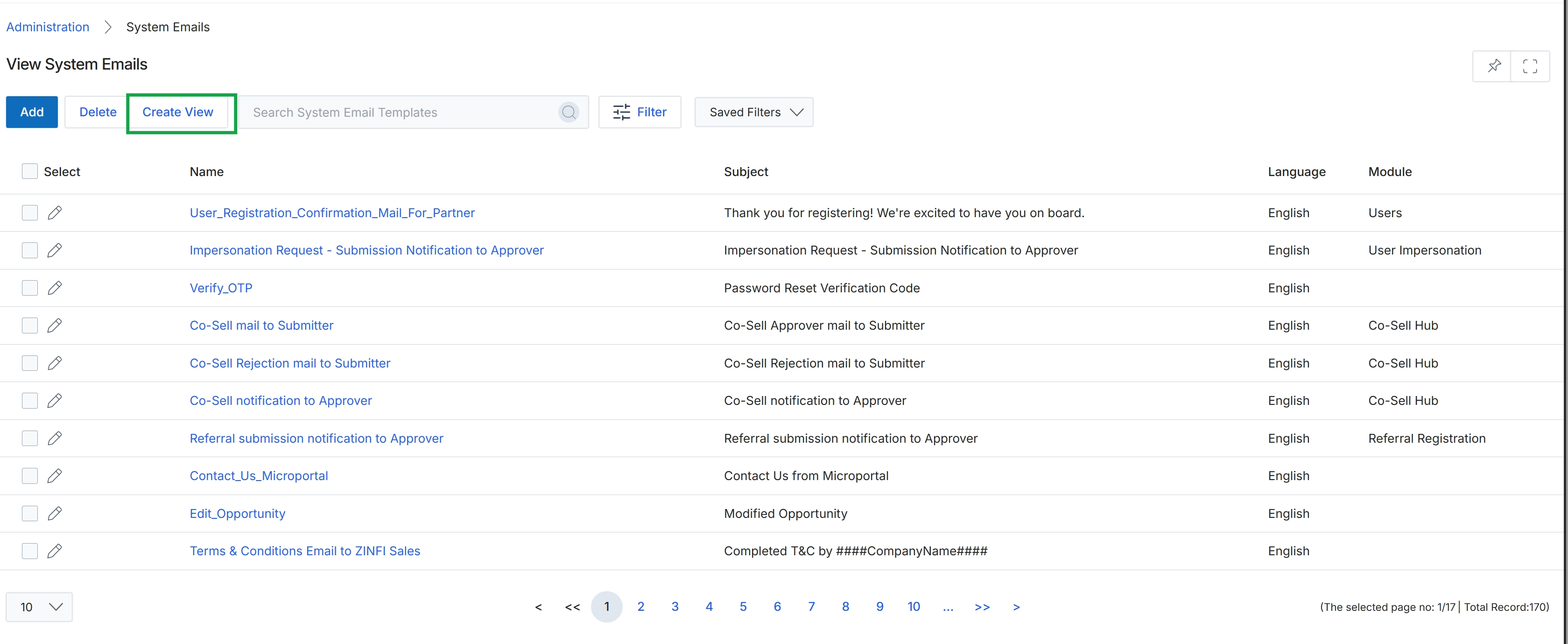
Click the Create View button.
Filtering and Customizing Views
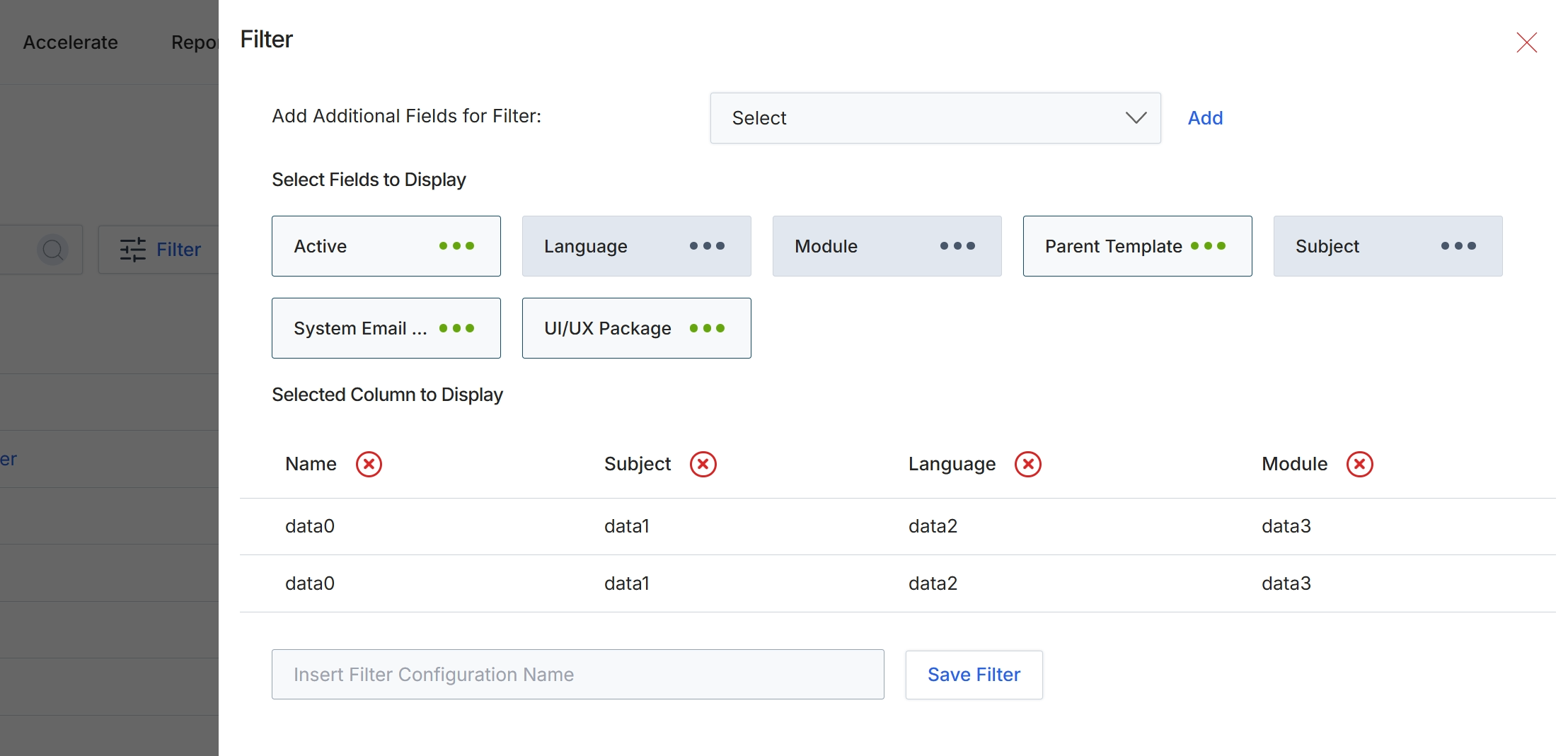
This filter configuration dialog allows administrators to customize the display and filtering options for lists within the platform. Users can add additional fields to filter by, select which fields are displayed as columns in the list view, and save these configurations for future use. This functionality enhances data visibility and streamlines the process of analyzing and managing various entities across different modules, such as system email templates, by enabling users to focus on the most relevant information.
Enter a name for the filter configuration in the 'Insert Filter Configuration Name' field.
Buttons
| Button | Description |
|---|---|
| Add | A button to add the selected field to the filter criteria. |
| Active | A button representing the 'Active' field, which can be selected or deselected for display. |
| Language | A button representing the 'Language' field, which can be selected or deselected for display. |
| Module | A button representing the 'Module' field, which can be selected or deselected for display. |
| Parent Template | A button representing the 'Parent Template' field, which can be selected or deselected for display. |
| Subject | A button representing the 'Subject' field, which can be selected or deselected for display. |
| System Email ... | A button representing the 'System Email' field, which can be selected or deselected for display. |
| UI/UX Package | A button representing the 'UI/UX Package' field, which can be selected or deselected for display. |
| Save Filter | A button to save the current filter configuration under the specified name. |
Fields
| Field | Description |
|---|---|
| Add Additional Fields for Filter | A dropdown menu to select additional fields that can be used to filter the list view. |
| Select | The dropdown selector for choosing additional filter fields. |
| Insert Filter Configuration Name | An input field to enter a name for the current filter configuration, allowing it to be saved and reused. |
Selected Column to Display
| Column | Description |
|---|---|
| Name | A column header indicating the 'Name' of the item. |
| Subject | A column header indicating the 'Subject' of the item. |
| Language | A column header indicating the 'Language' of the item. |
| Module | A column header indicating the 'Module' associated with the item. |
| data0 | Placeholder data for the 'Name' column. |
| data1 | Placeholder data for the 'Subject' column. |
| data2 | Placeholder data for the 'Language' column. |
| data3 | Placeholder data for the 'Module' column. |
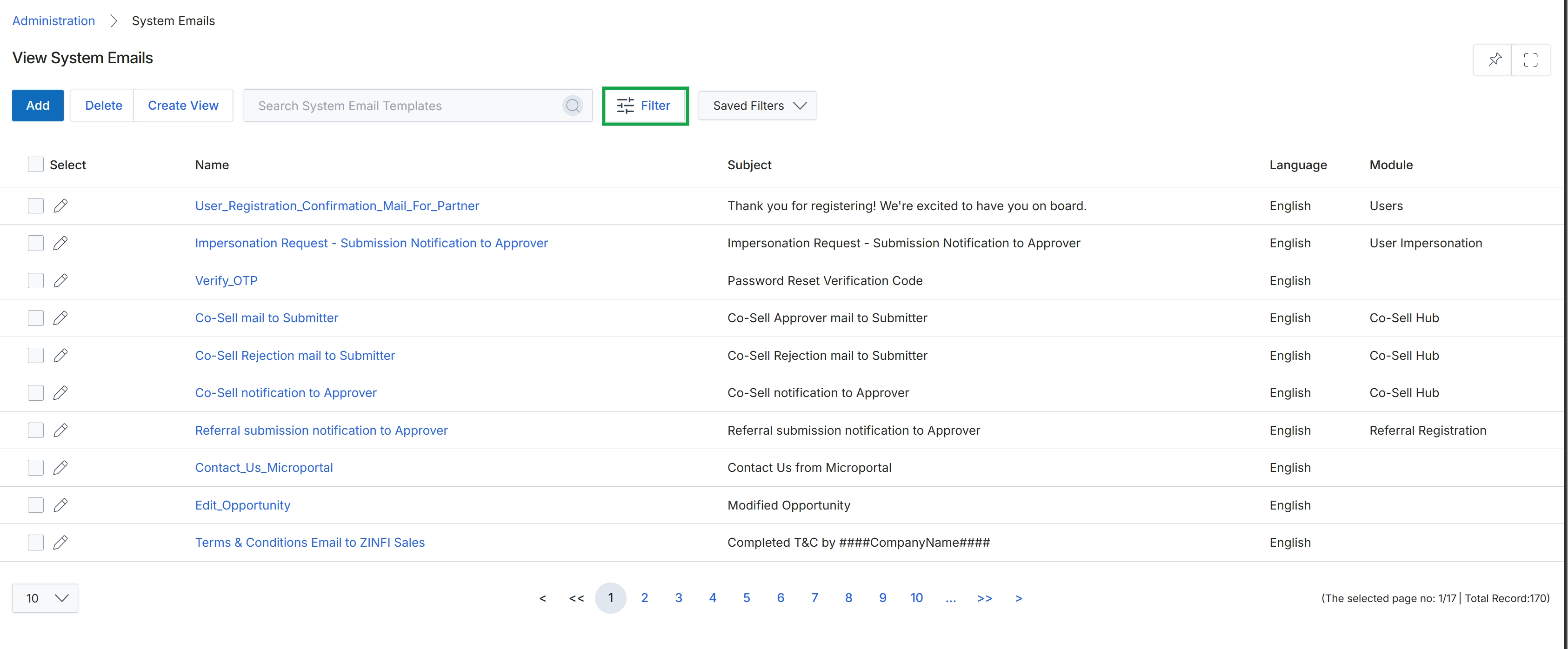
Click the Filter button.
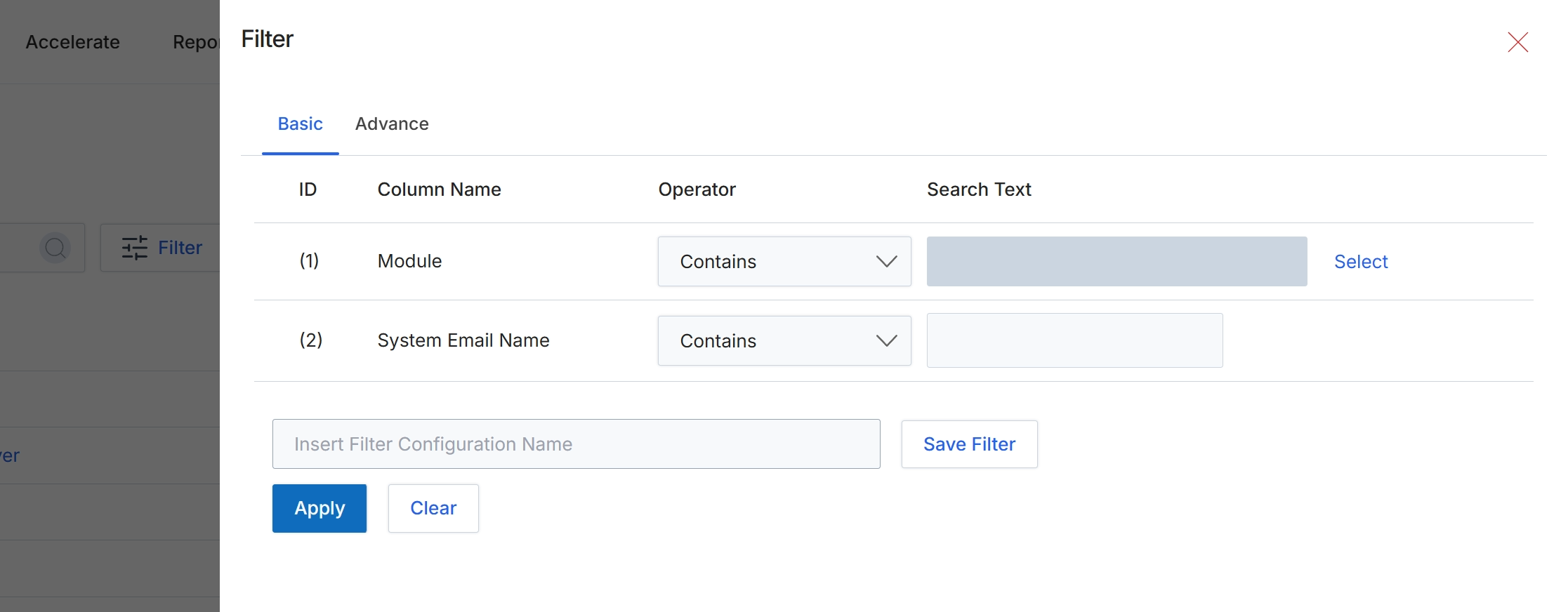
This filter dialog allows users to refine the list of system email templates displayed in the background by applying specific criteria. Users can define filters based on various attributes of the email templates, such as the module they belong to or their name. This functionality helps administrators quickly locate specific email templates within a potentially large list, which is crucial for managing the platform's extensive notification system. The dialog supports both basic and advanced filtering options, enabling precise control over the search parameters.
Apply a filter to the list of system email templates by entering criteria into the available fields.
Buttons
| Button | Description |
|---|---|
| Basic | Selects the basic filtering options, allowing users to define simple search criteria. |
| Advance | Selects the advanced filtering options, which may offer more complex search capabilities (not shown in this view). |
| Select | A button to select a specific module from a list to apply as a filter. |
| Save Filter | A button to save the current filter configuration under the name provided. |
| Apply | A button to apply the configured filters to the list of system email templates. |
| Clear | A button to clear all entered filter criteria. |
Fields
| Field | Description |
|---|---|
| Contains | A dropdown to select the operator for the 'Module' filter, indicating that the module name should contain the specified text. |
| Contains | A dropdown to select the operator for the 'System Email Name' filter, indicating that the email name should contain the specified text. |
| Insert Filter Configuration Name | An input field to enter a name for the current filter configuration to save it for future use. |
Column Headings
| Column | Description |
|---|---|
| ID | A numerical identifier for each filter row. |
| Column Name | The name of the attribute being filtered, such as 'Module' or 'System Email Name'. |
| Operator | The logical operator used for the filter condition, such as 'Contains'. |
| Search Text | The value or text to search for within the specified column. |
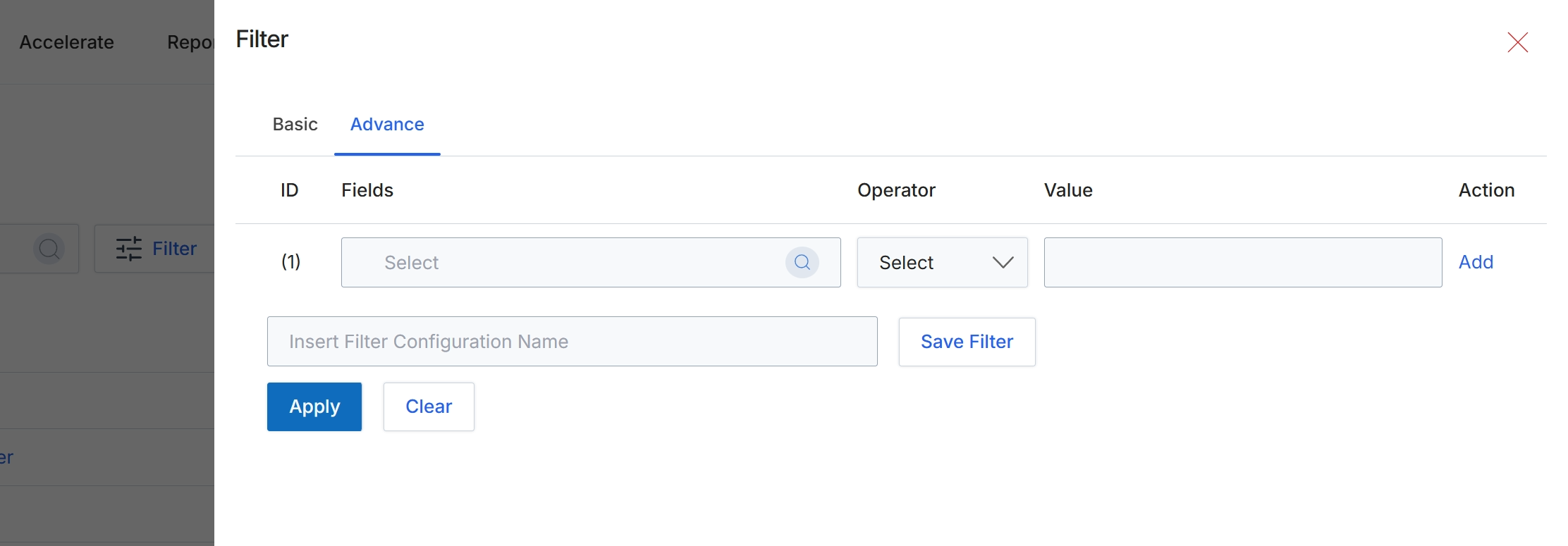
This screen displays the advanced filter configuration dialog, allowing users to create complex queries for data displayed in list views across the platform. Unlike basic filters that offer predefined options, the advanced filter provides granular control over filtering criteria by enabling users to select specific fields, operators, and values. This functionality is crucial for administrators and other users who need to analyze specific subsets of data, troubleshoot issues, or generate custom reports based on precise conditions. Users can also save frequently used filter configurations for future use, streamlining their data analysis workflows.
Click the "Advance" tab to configure advanced filtering options.
Buttons
| Button | Description |
|---|---|
| Basic | Switches to the basic filter configuration options. |
| Advance | Switches to the advanced filter configuration options, allowing for more complex queries. |
| Add | Adds a new row to the advanced filter configuration. |
| Save Filter | Saves the current filter configuration under the specified name. |
| Apply | Applies the configured filters to the data. |
| Clear | Clears all configured filter conditions. |
Fields
| Field | Description |
|---|---|
| Select | Dropdown to select the field for the filter condition. |
| Select | Dropdown to select the operator for the filter condition. |
| Insert Filter Configuration Name | Text input field to enter a name for saving the current filter configuration. |
Column Headings
| Column | Description |
|---|---|
| ID | A numerical identifier for each filter row. |
| Fields | Allows selection of the data field to apply the filter to. |
| Operator | Allows selection of the logical operator (e.g., equals, contains, greater than) for the filter condition. |
| Value | Allows entry of the value to filter against. |
| Action | Provides actions related to the filter row, such as adding a new row. |