

Overview
The UPM utilizes a wide array of system email templates to communicate critical information and updates to both partners and internal vendor users. These transactional emails cover various events, such as partner application approvals, deal registration notifications, reward accrual updates, and password resets. Effective management of these templates is crucial for maintaining clear, timely, and branded communication across the entire partner ecosystem.
Administrators can customize these templates to align with their organization's branding and messaging, ensuring that every automated email reflects the desired tone and provides necessary information. The ability to preview and test emails before they are sent helps prevent errors and ensures a smooth user experience for all recipients.
Accessing and Viewing System Emails
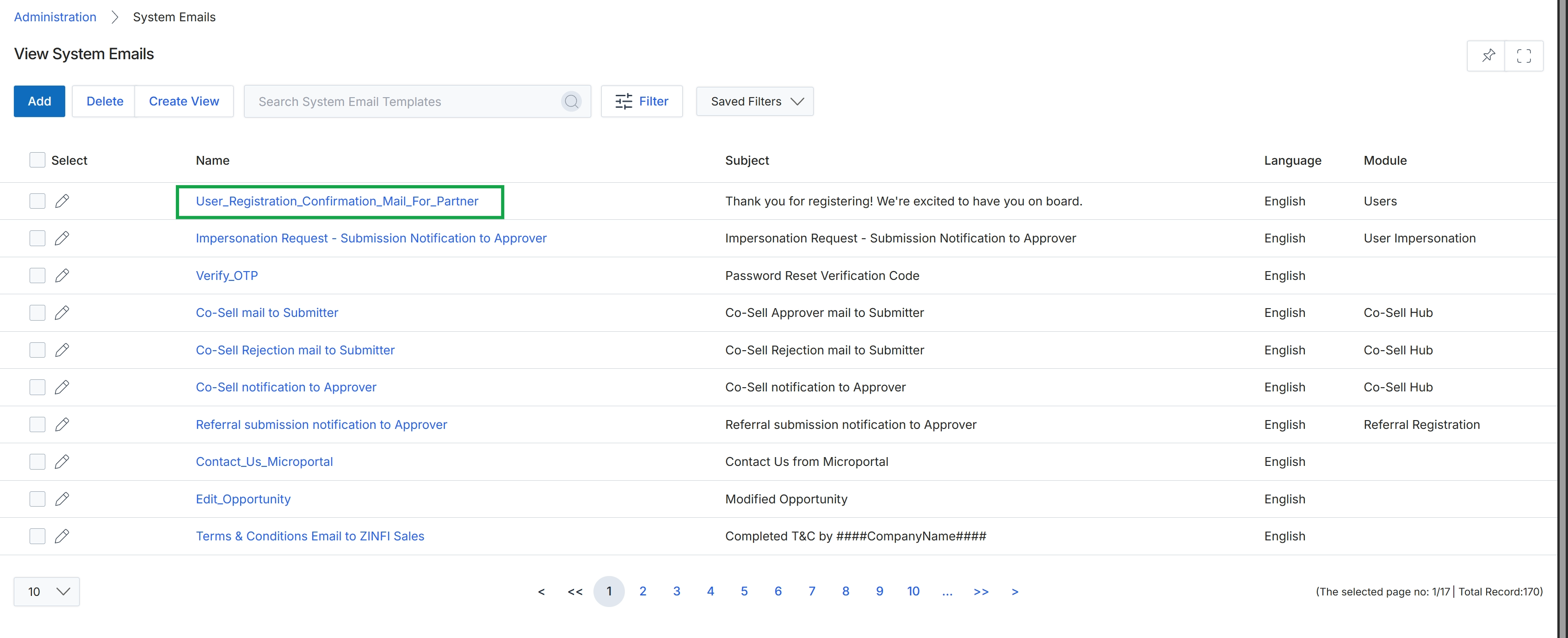
Click the User_Registration_Confirmation_Mail_For_Partner link to view the system email template.
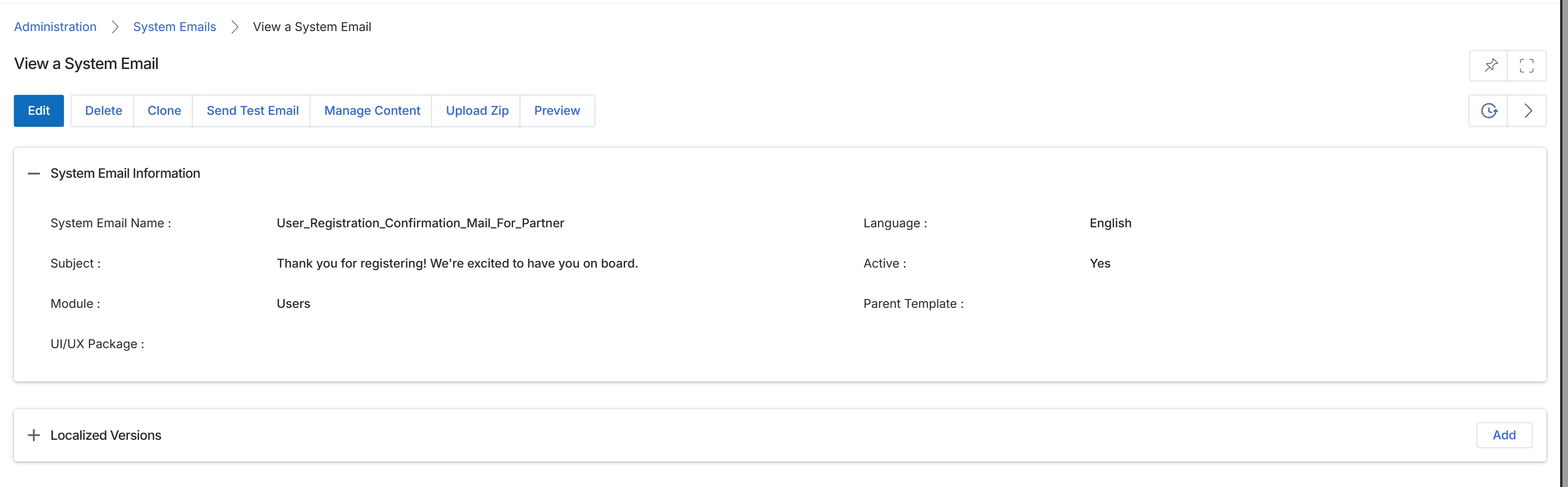
This screen displays the details of a specific system email template within the platform. System email templates are pre-configured messages used for various transactional notifications, such as welcome emails, deal approval notifications, or password resets. Administrators use this view to review the email's configuration, including its name, subject, associated module, and active status. The screen also provides options to manage the email's content, test its delivery, and handle localized versions for multi-language portal support. This ensures that partners and users receive consistent and appropriately translated communications from the platform.
Click the "Add" button to create a new localized version for this system email.
Buttons
| Button | Description |
|---|---|
| Edit | Allows administrators to modify the details and content of the system email. |
| Delete | Removes the system email template from the platform. |
| Clone | Creates a duplicate of the current system email template, which can then be modified. |
| Send Test Email | Sends a test version of the email to a specified recipient to verify its appearance and content. |
| Manage Content | Navigates to the email editor to modify the HTML and plain text content of the template. |
| Upload Zip | Allows uploading a ZIP file containing email template assets. |
| Preview | Displays a preview of how the email will appear to recipients. |
| Add | Adds a new localized version for the system email, allowing for translations into other languages. |
System Email Information
| Field | Description |
|---|---|
| System Email Name | The unique identifier for the system email template. |
| Subject | The subject line of the email as it will appear to recipients. |
| Module | The module within the platform that this email template is associated with. |
| UI/UX Package | Indicates the user interface and user experience package used for this email template. |
| Language | The primary language of this email template. |
| Active | Indicates whether the email template is currently active and in use. |
| Parent Template | Specifies if this email template is derived from a parent template. |
Managing System Email Templates
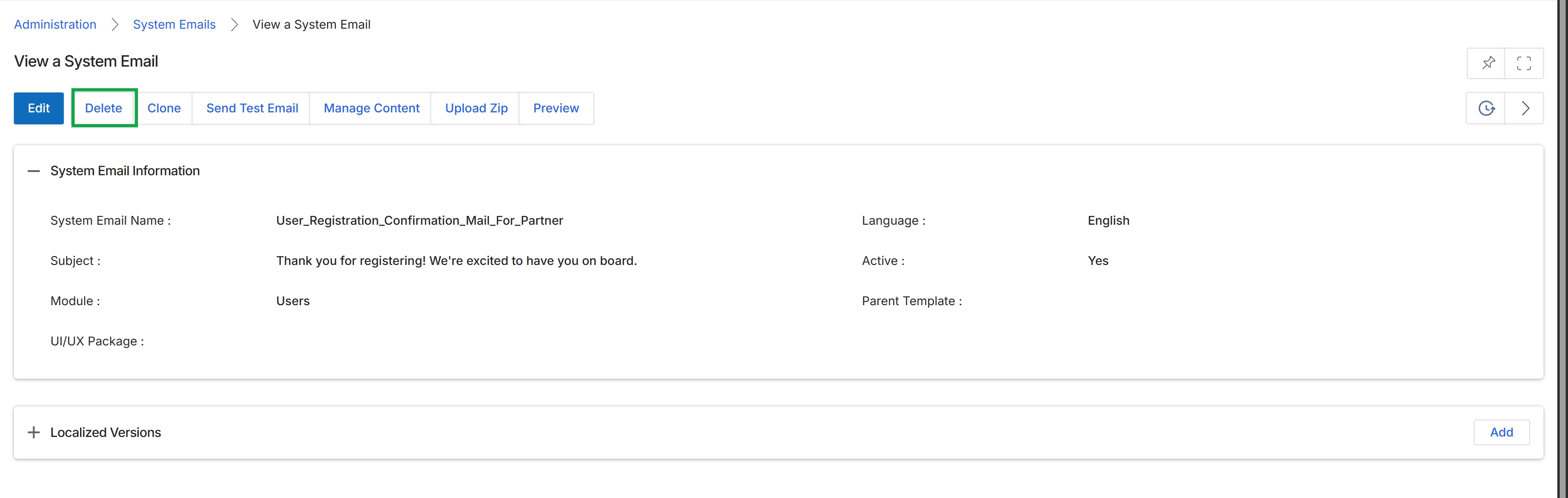
Click the Delete button.
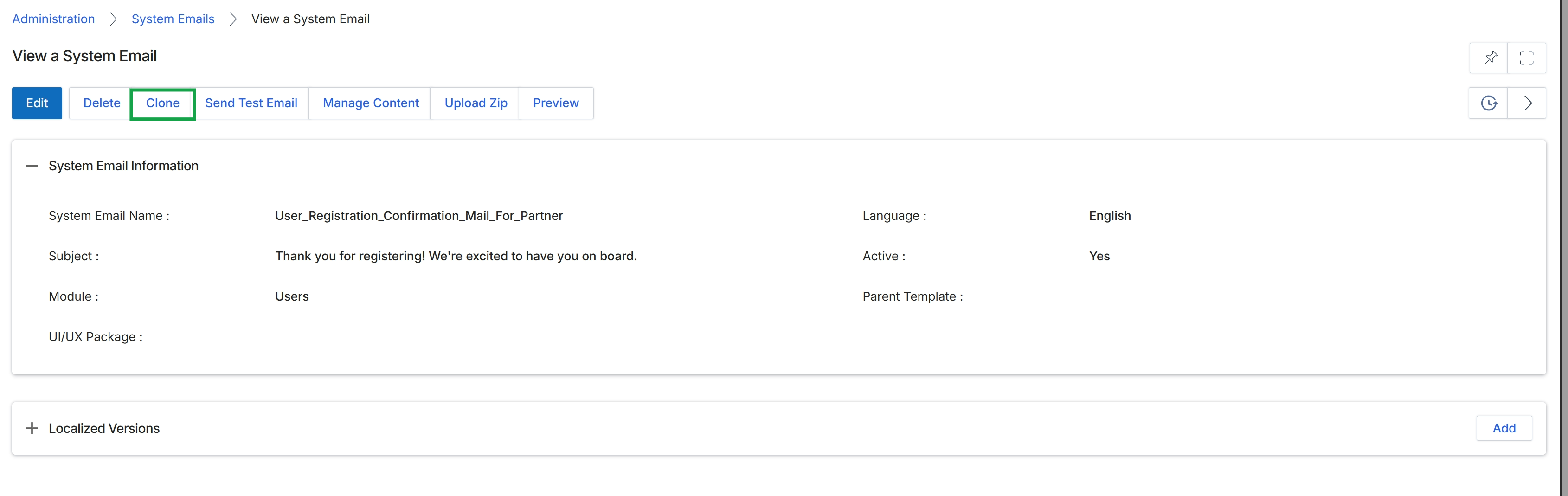
Click Clone.
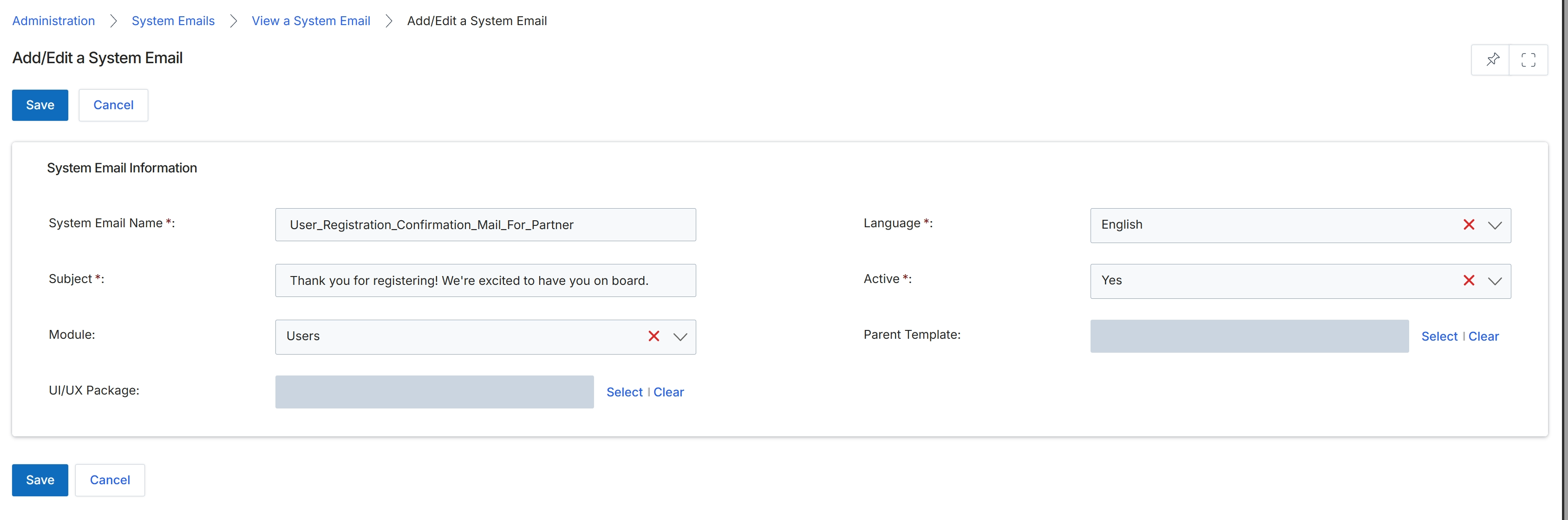
This screen displays the Add/Edit a System Email form, which is used by administrators to configure or modify transactional email templates within the platform. System email templates are crucial for automated communication with partners and internal users, covering events such as partner registration, deal approvals, and reward notifications. Each template can be customized with a unique name, subject line, and associated module, and its active status can be toggled. The form also supports language-specific versions and the ability to link to a parent template for inheritance, ensuring consistent branding and messaging across different communications.
Review the pre-filled details of the system email template on the 'Add/Edit a System Email' form.
Buttons
| Button | Description |
|---|---|
| Save | Saves any changes made to the system email template. |
| Cancel | Discards any changes and returns to the previous screen. |
System Email Information
| Field | Description |
|---|---|
| System Email Name * | A unique identifier for the system email template. |
| Language * | The language version of the email template, selected from a dropdown. |
| Subject * | The subject line of the email, which will be displayed to recipients. |
| Active * | Indicates whether the email template is currently active and in use. |
| Module | The module with which this system email template is associated. |
| Parent Template | Allows linking this template to a parent template for content inheritance. |
| UI/UX Package | Specifies the user interface and user experience package for the email template. |
Testing Email Templates
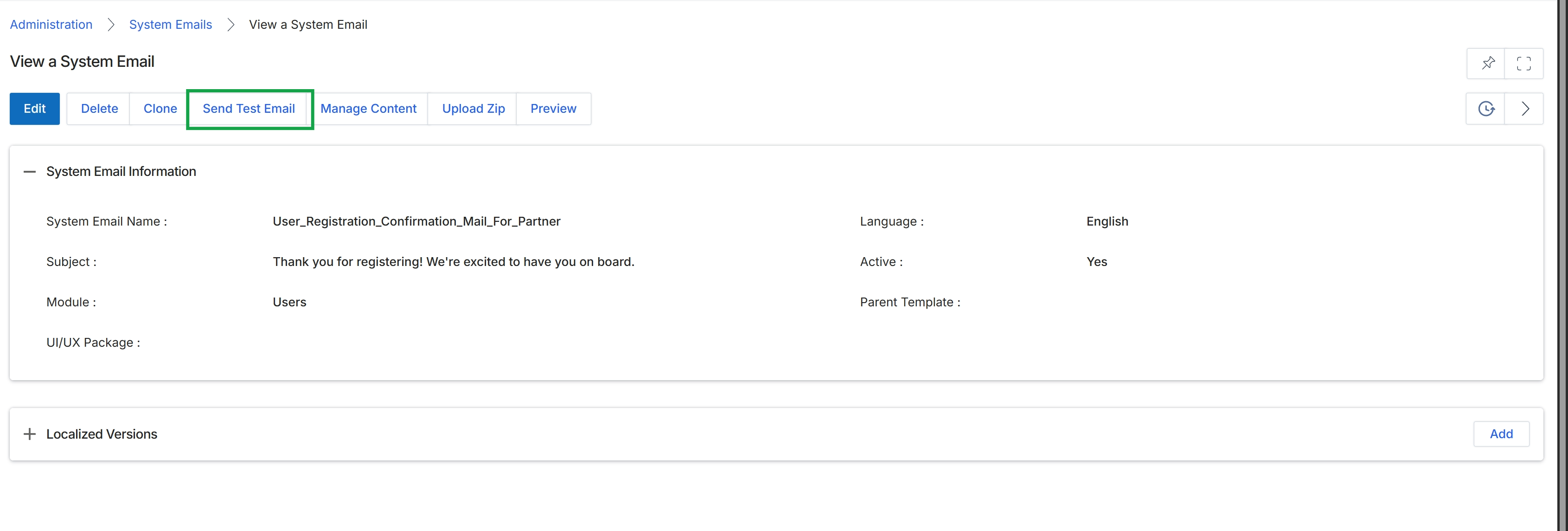
Click Save to confirm your changes.
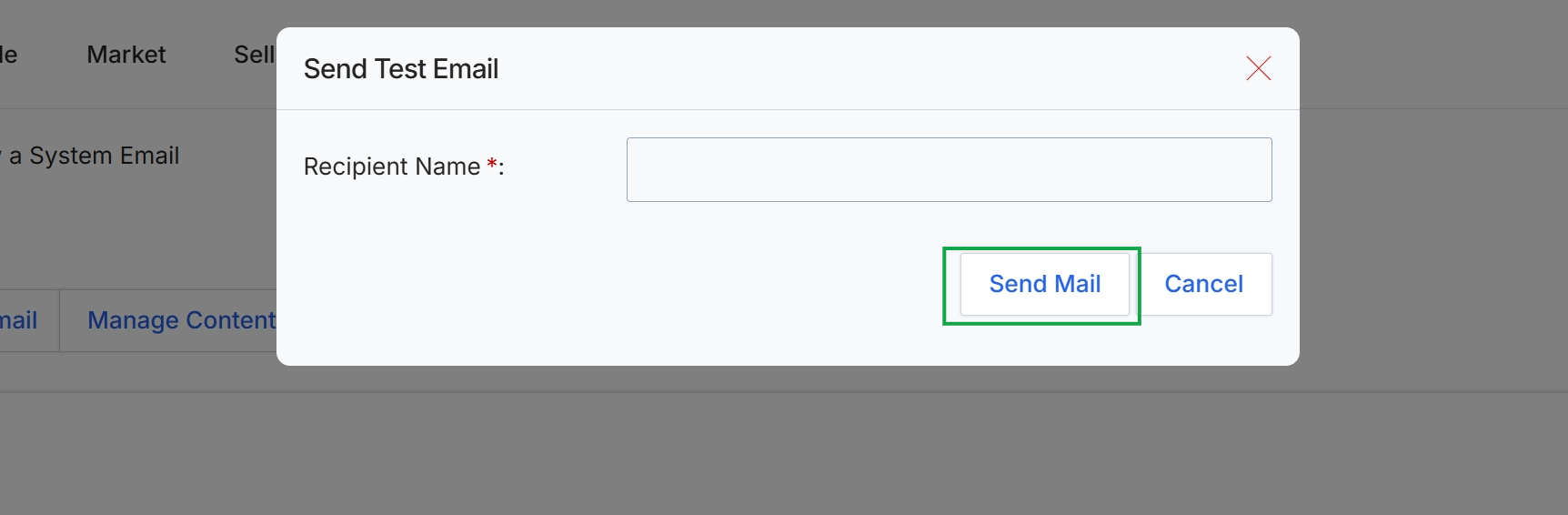
This dialog box allows administrators to send a test email for a system email template. This functionality is crucial for verifying the appearance and content of transactional emails before they are deployed to partners or internal users. By sending a test email to a specified recipient, administrators can ensure that merge fields are populating correctly, branding elements are displayed as intended, and the overall message conveys the desired information, thereby maintaining consistent and professional communication across the platform.
Enter the recipient's name in the 'Recipient Name' field and click 'Send Mail' to send a test email.
Buttons
| Button | Description |
|---|---|
| Send Mail | Click to send the test email to the specified recipient. |
| Cancel | Click to close the dialog box without sending a test email. |
Fields
| Field | Description |
|---|---|
| Recipient Name | Enter the name of the recipient to whom the test email will be sent. |
Editing Email Content
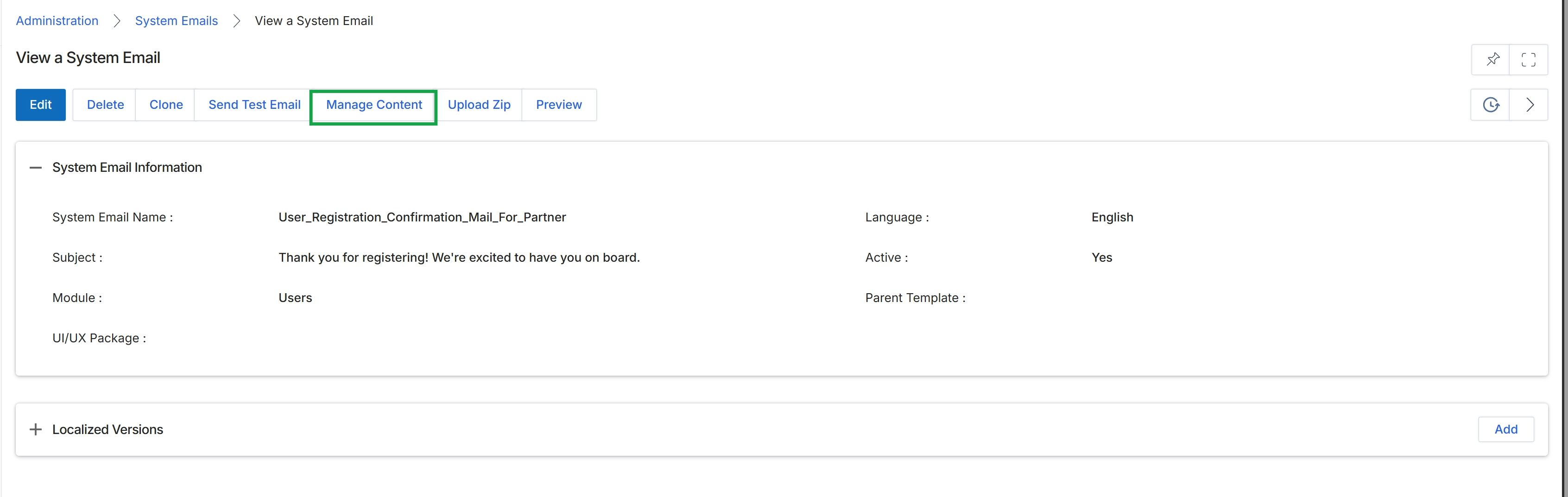
Click Manage Content.
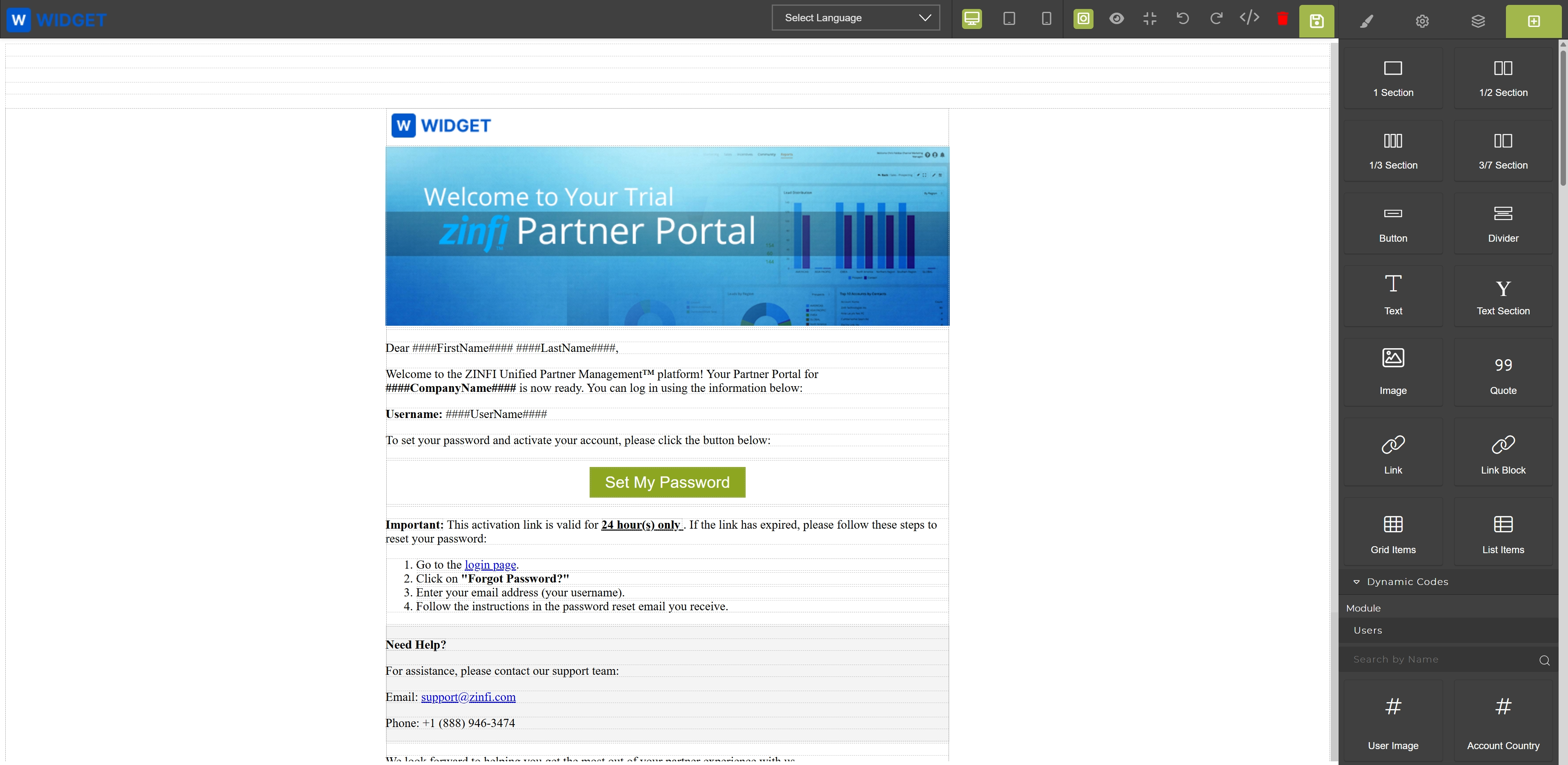
This screen displays the content of a system email template, specifically a welcome email for a new partner. It shows the email's visual layout, including a header image and dynamic fields like the recipient's name, company name, and username, which are populated automatically when the email is sent. The template also includes a call to action for setting a password and instructions for password recovery, along with support contact information. This view is part of the Administration module where administrators can configure and customize the various transactional emails sent by the platform.
Uploading and Previewing Email Templates
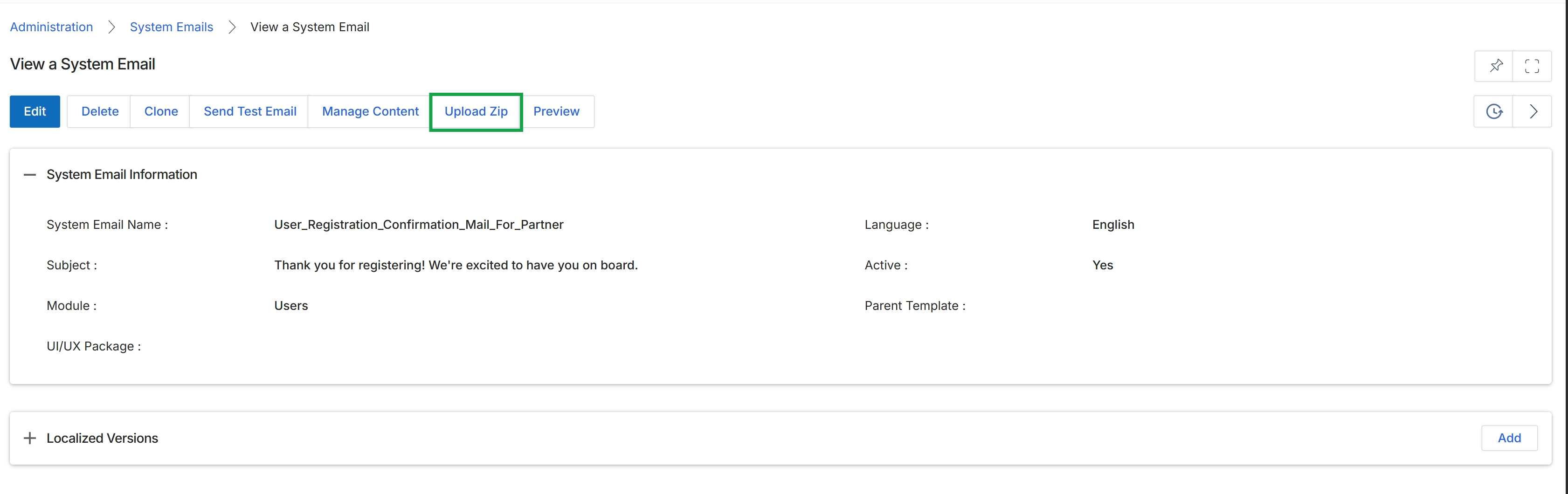
Click Upload Zip.
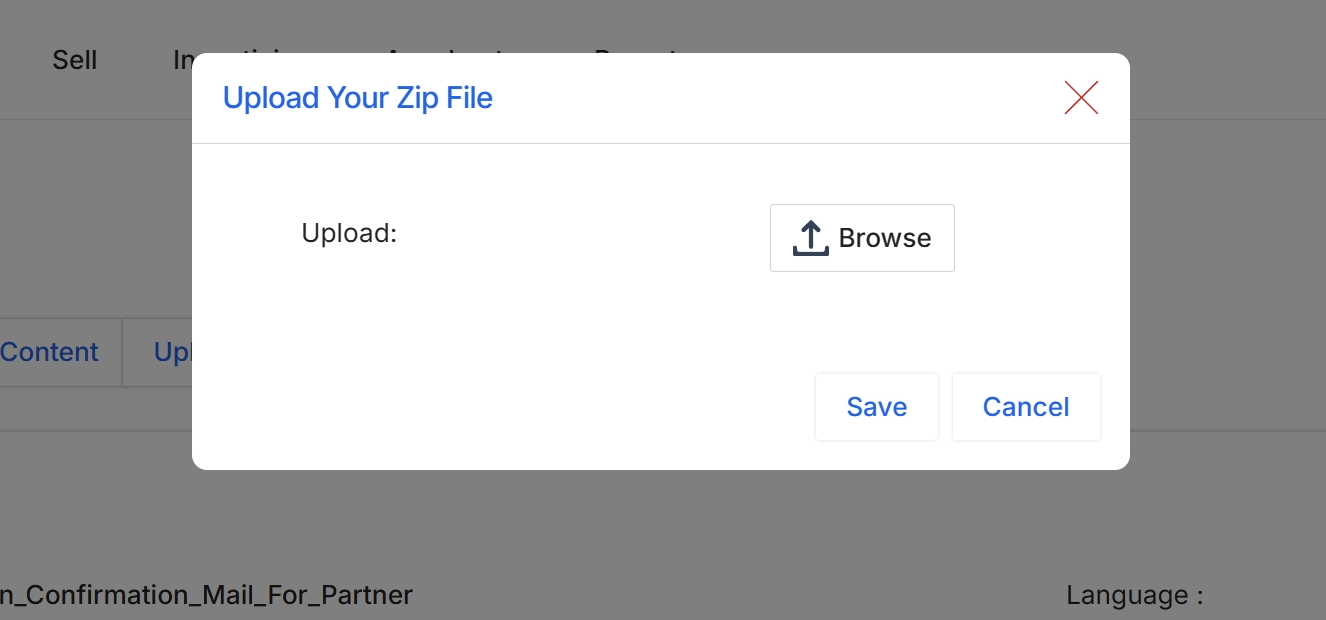
This dialog box facilitates the upload of a zip file, likely containing assets or content for a system email template. The platform supports the configuration of various system email templates for transactional notifications, which can include attachments or custom content that might be packaged in a zip file. This upload mechanism allows administrators to add or update these packaged resources, ensuring that the email templates can deliver rich content or necessary files to recipients. The process is critical for maintaining up-to-date and comprehensive communication with partners and other users through automated system emails.
Click "Browse" to select a zip file for upload.
Buttons
| Button | Description |
|---|---|
| Browse | Button to open a file explorer and select a zip file from the local system. |
| Save | Button to save the uploaded zip file. |
| Cancel | Button to close the dialog box without uploading or saving the file. |
Fields
| Field | Description |
|---|---|
| Upload Your Zip File | The title of the dialog box, indicating its purpose. |
| Upload | A label indicating the area for file selection. |
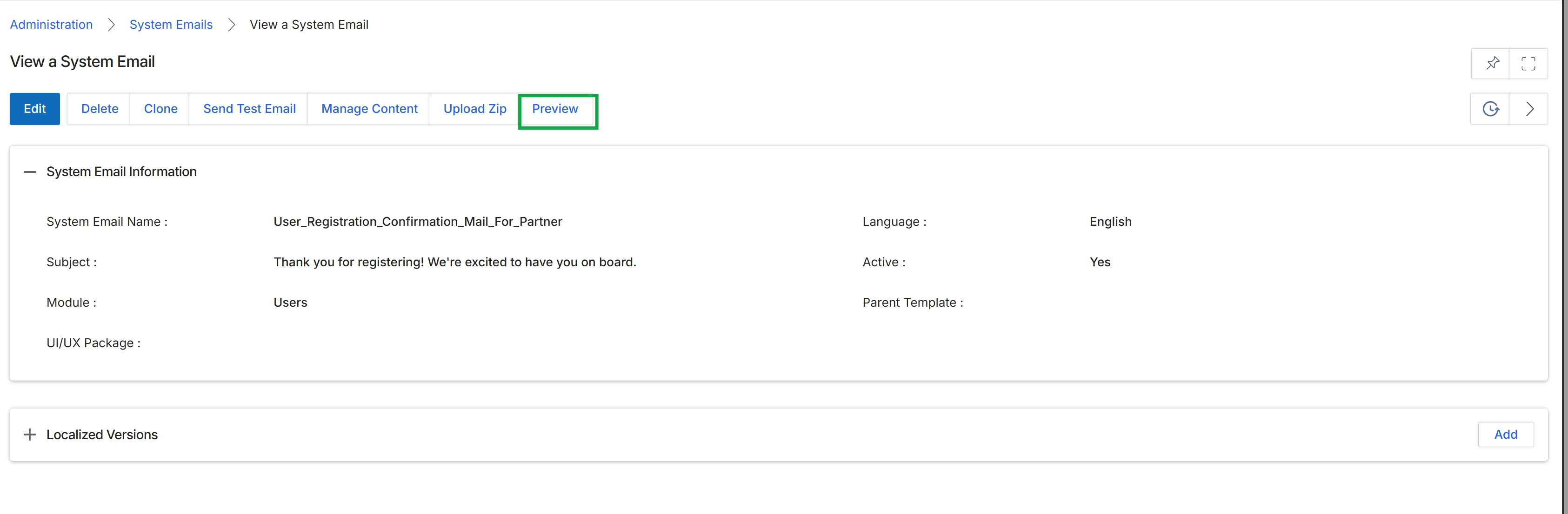
Click the Preview button.
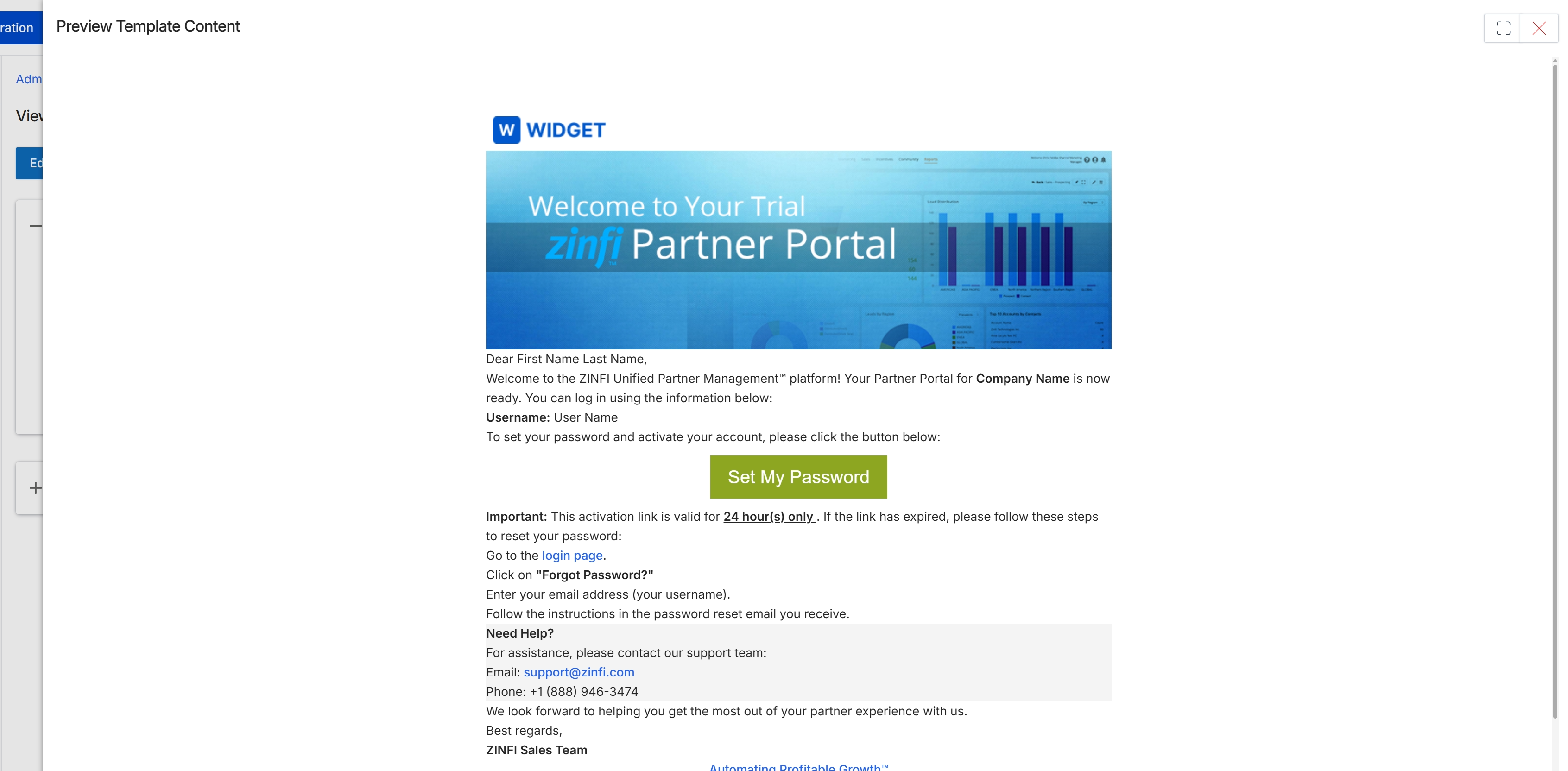
This screen displays a preview of a system email template, specifically the welcome email sent to new partners. It shows how the email will appear to recipients, including dynamic merge fields for personalization, branding elements, and instructions for setting a password and accessing the partner portal. This preview functionality allows administrators to review and verify the content and formatting of transactional emails before they are activated and sent to partners.