

Overview
In a complex partner management ecosystem, maintaining system health, data integrity, and operational efficiency is paramount. The Alerts Management module provides administrators with the necessary tools to monitor critical platform components and external integrations effectively. By setting up custom alert rules, administrators can receive timely notifications about events such as integration sync failures, workflow job failures, rate limit breaches, or unusual bulk upload activities. This proactive monitoring capability helps prevent minor issues from escalating into major problems that could impact partner operations or data synchronization.
Each alert rule can be configured with specific thresholds, severity levels (e.g., Warning, Critical), and target connectors or system types. This granular control ensures that administrators are alerted to the most relevant issues, allowing for quick diagnosis and resolution. The module also supports bulk operations, enabling efficient management of multiple alert rules, and includes features for importing and exporting rules, which is useful for migration or backup purposes. Ultimately, Alerts Management is a crucial component for maintaining the reliability and performance of the entire UPM platform.
Accessing Alert Rules
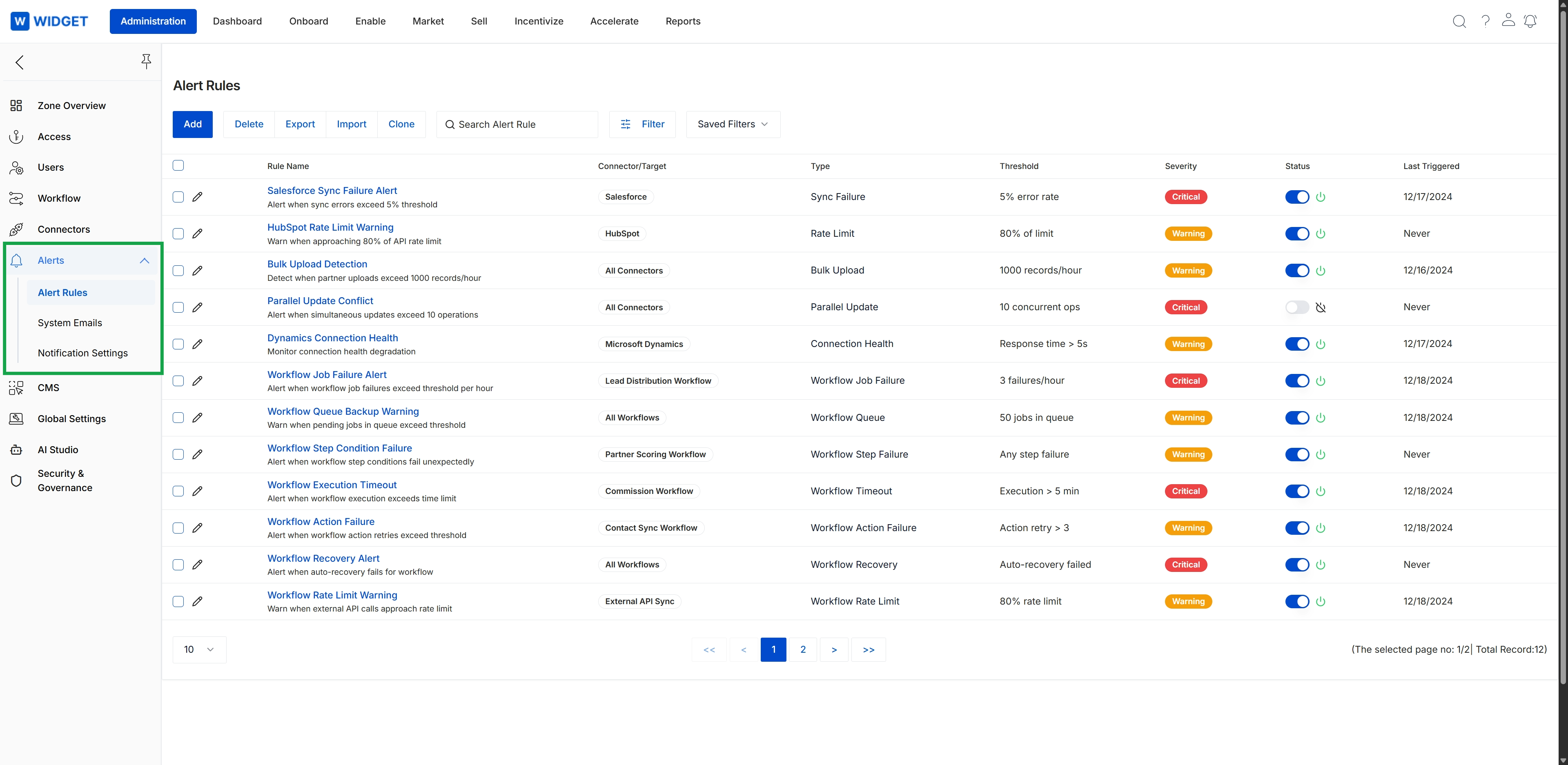
Click Alerts in the left navigation menu, then click Alert Rules.
Managing Alert Rules in Bulk
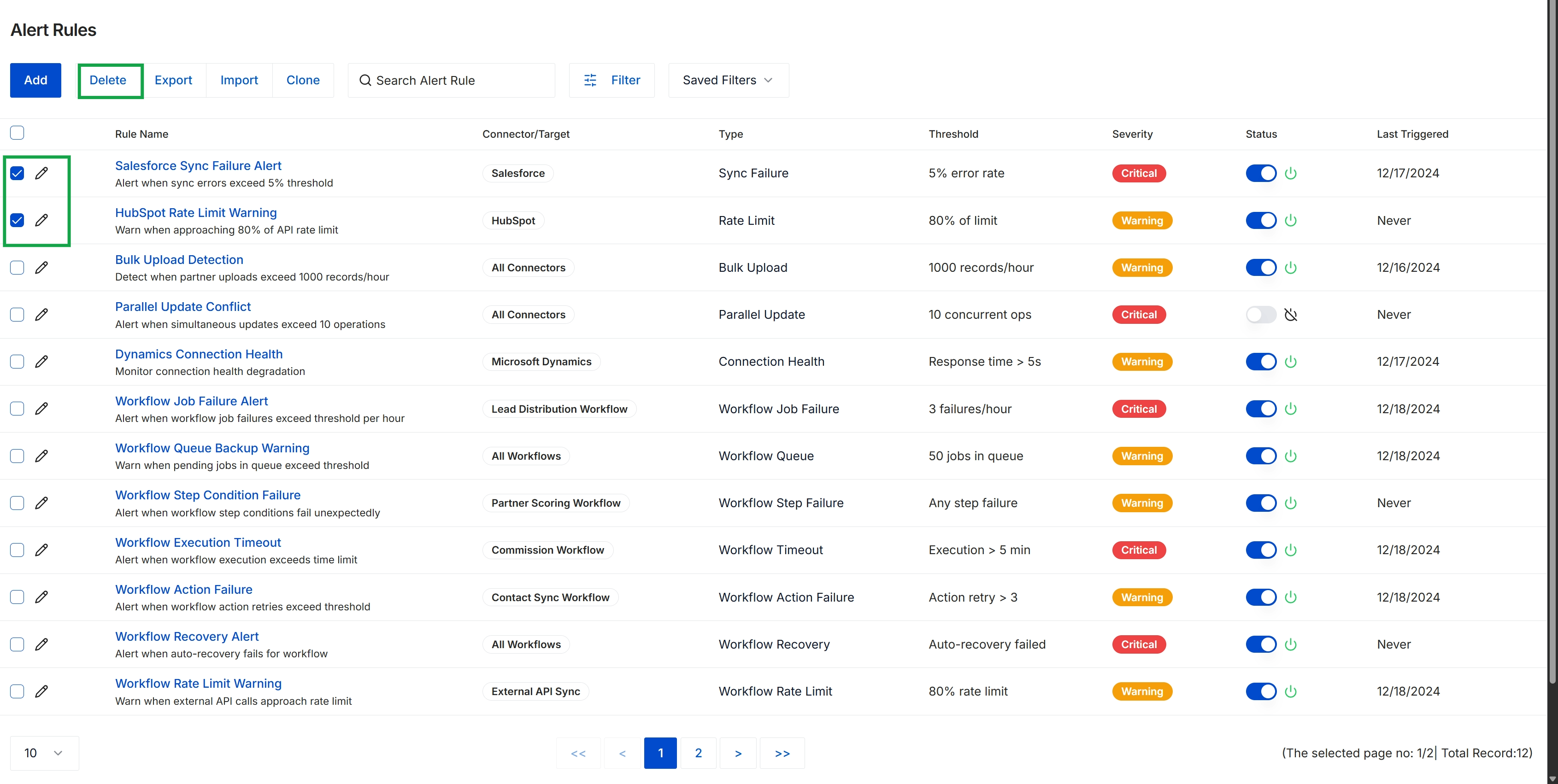
Click Alert Rules in the left navigation menu.
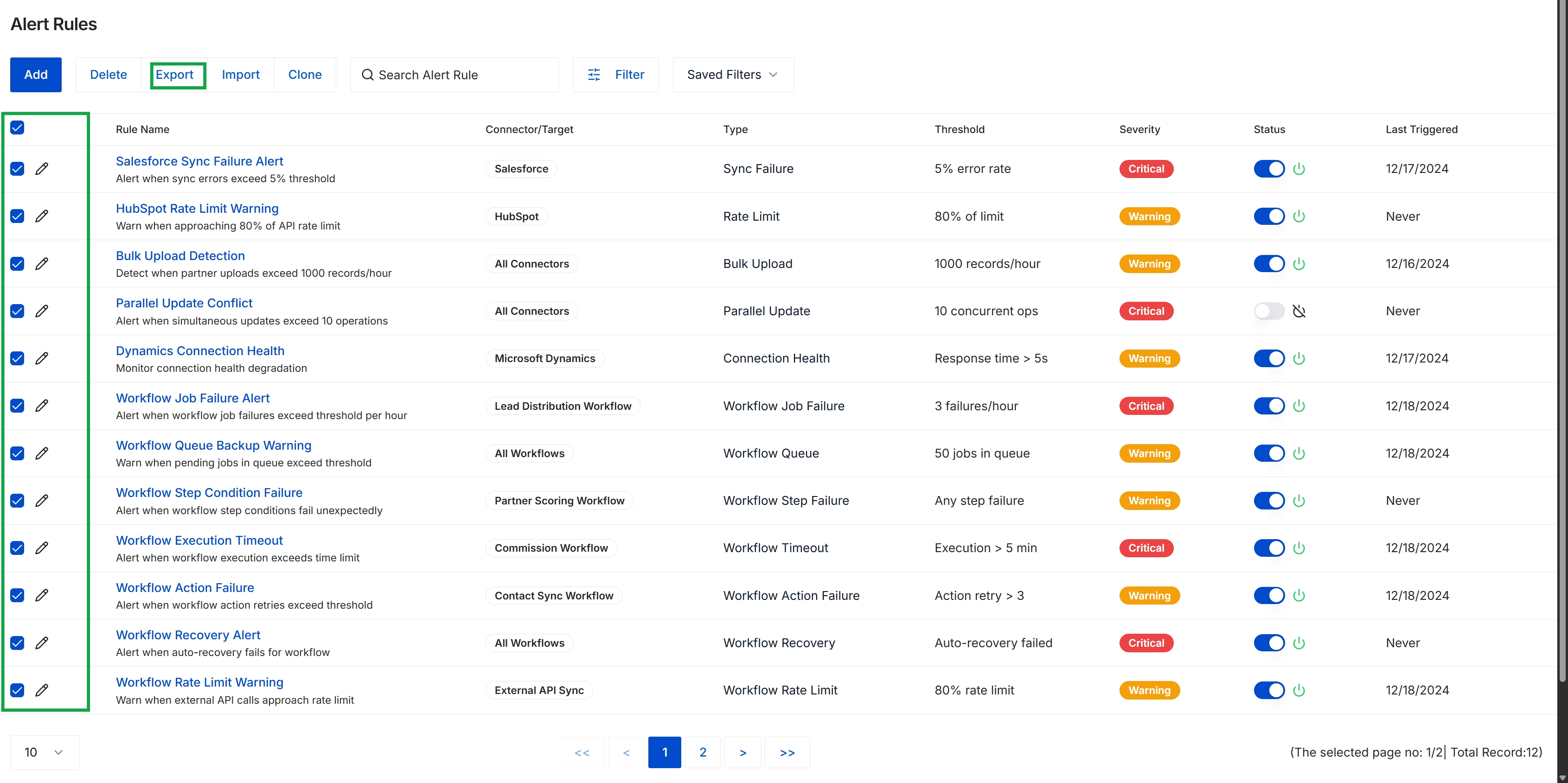
Click the Export button.
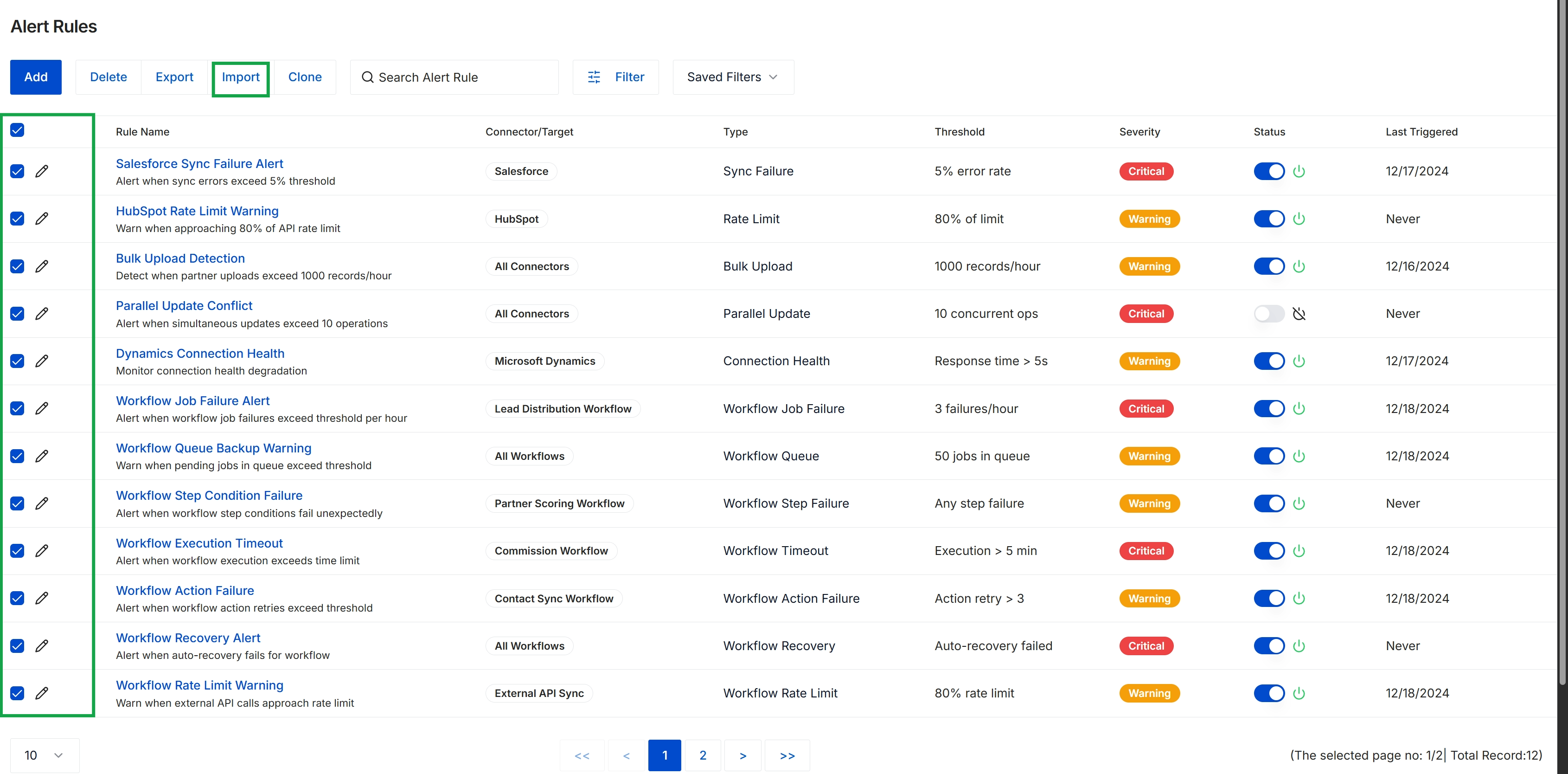
Click the Import button.
Cloning and Filtering Alert Rules
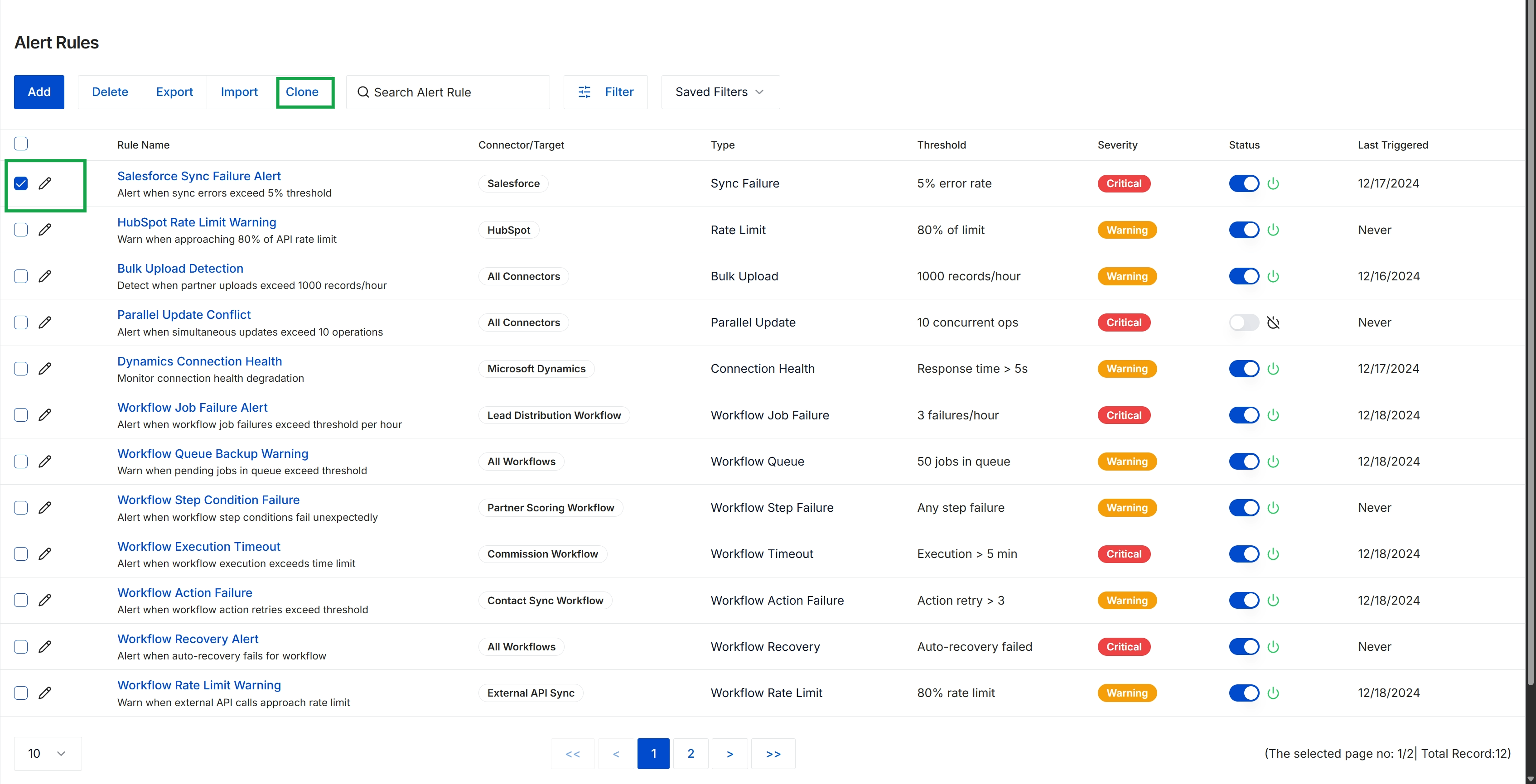
Click the Clone button.
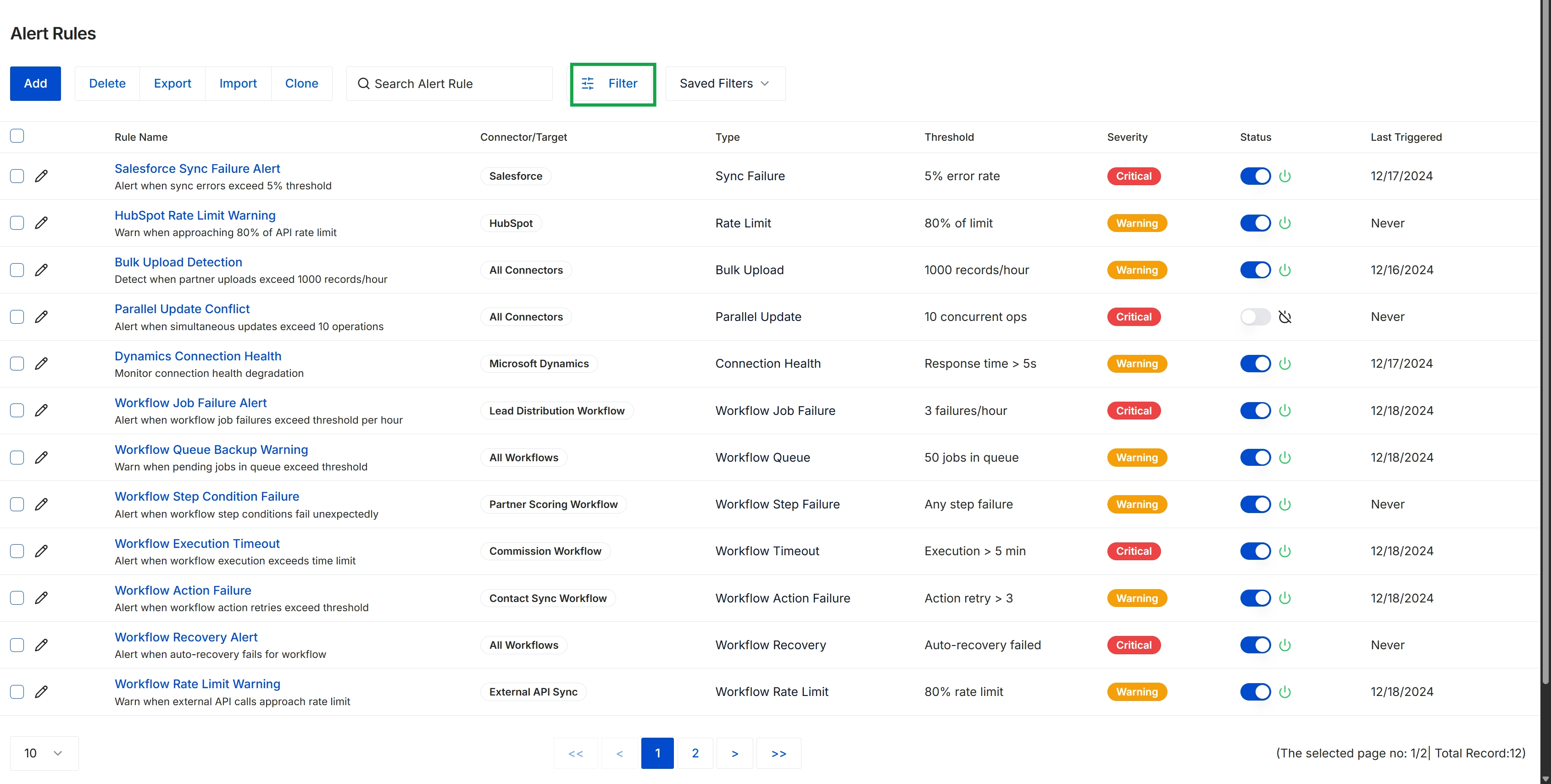
Click the Filter button.
Viewing Alert Rule Details
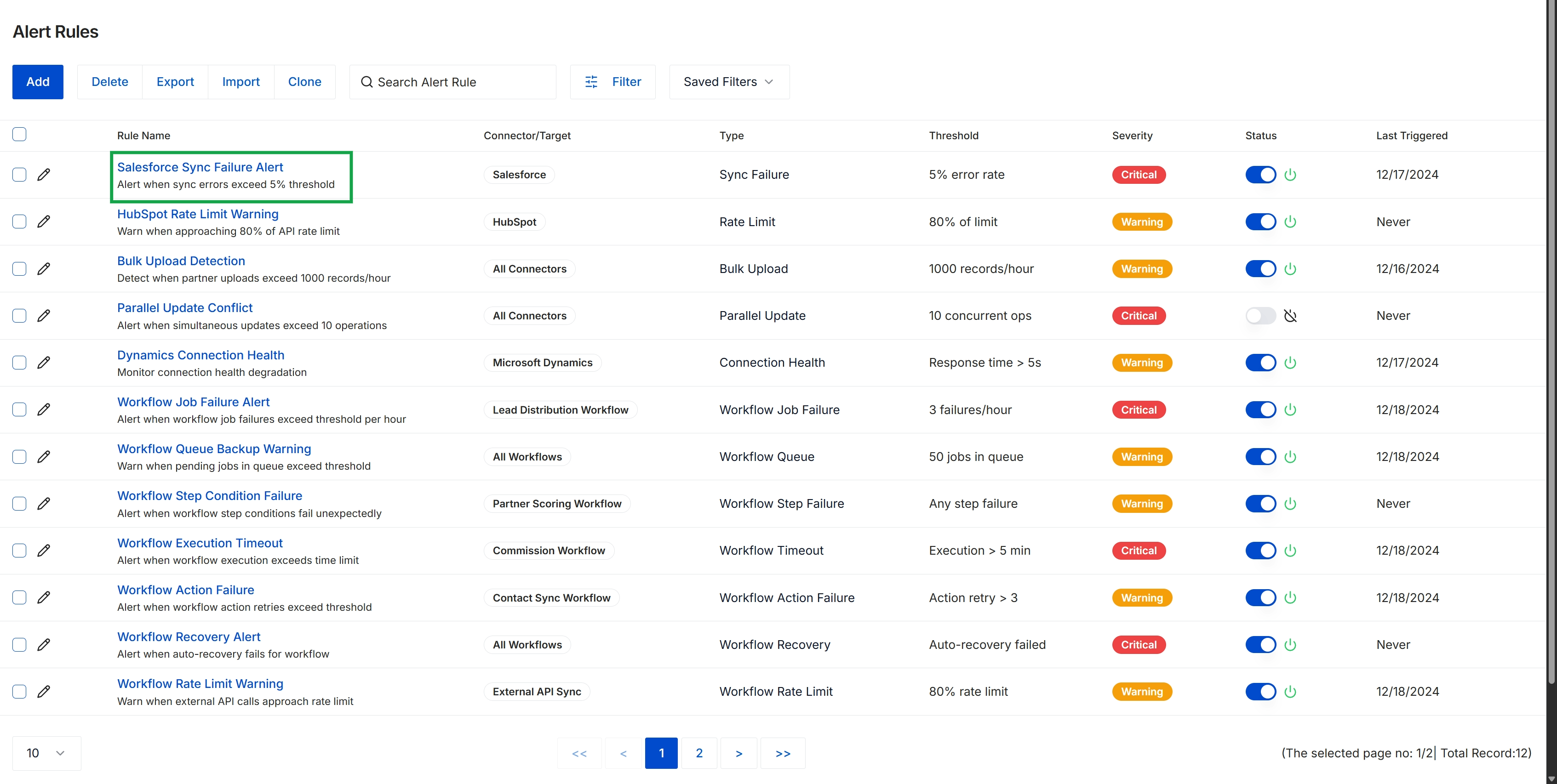
Click the Filter button.
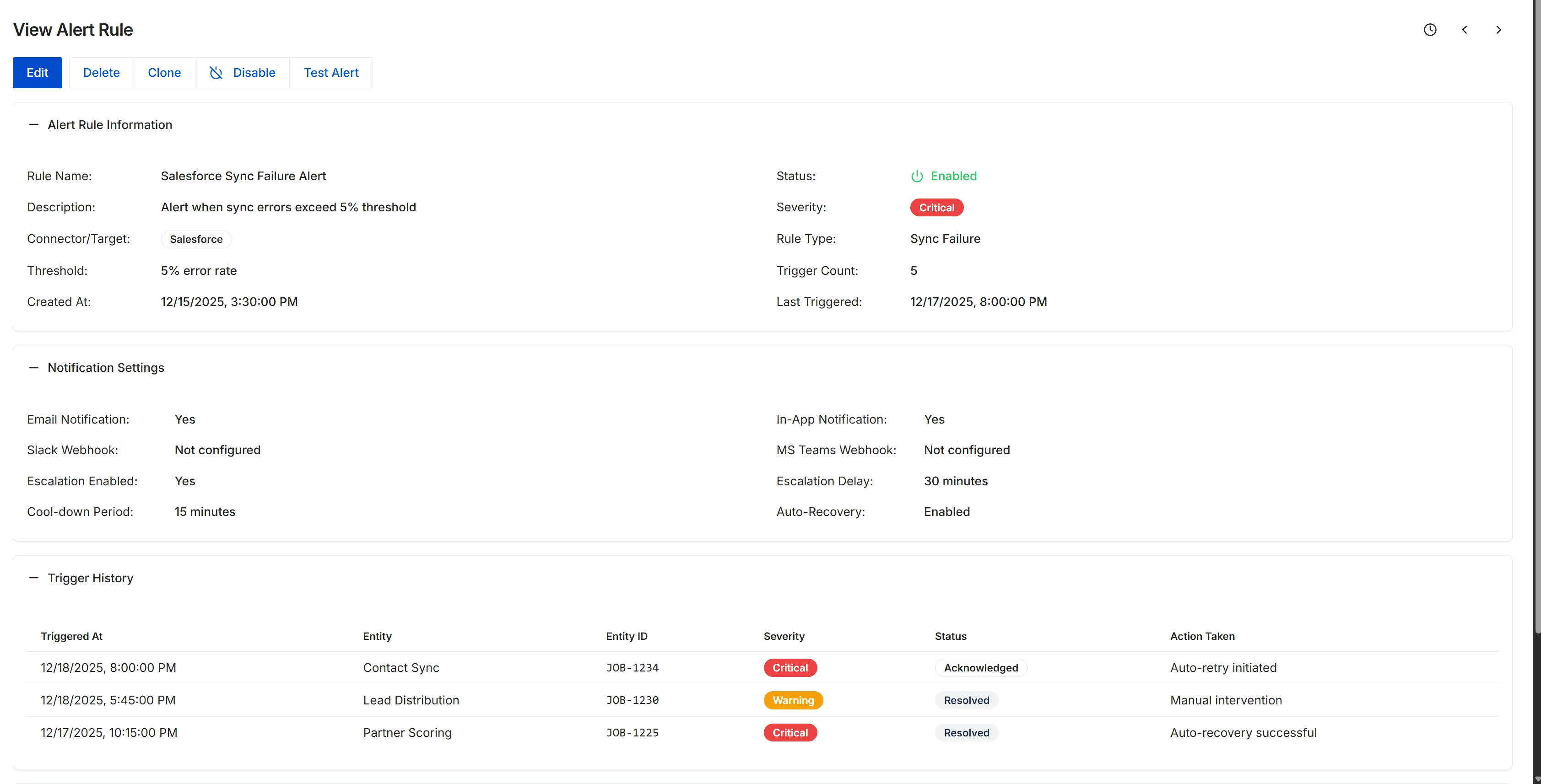
This screen displays the detailed configuration and history for a specific alert rule within the platform's Alerts Management module. Alert rules are critical for monitoring system health, integration performance, and key business processes, ensuring that administrators are promptly notified of issues or anomalies. Each rule defines a condition that, when met, triggers a notification and potentially an automated response. This view provides a comprehensive overview of the rule's parameters, including its triggering conditions, notification preferences, and a historical log of when the alert was triggered and what actions were taken in response. It allows administrators to understand the operational behavior of the alert and manage its lifecycle, including editing, disabling, or testing its functionality.
Review the detailed information for the selected alert rule, including its configuration and trigger history.
Buttons
| Button | Description |
|---|---|
| Edit | Click to modify the alert rule's settings. |
| Delete | Click to permanently remove the alert rule. |
| Clone | Click to create a new alert rule based on the settings of the current one. |
| Disable | Click to deactivate the alert rule without deleting it. |
| Test Alert | Click to simulate a trigger of this alert rule to verify its functionality. |
Alert Rule Information
| Field | Description |
|---|---|
| Rule Name | The unique identifier for the alert rule. |
| Description | A brief explanation of what the alert rule monitors. |
| Connector/Target | The specific integration or system that the alert rule is monitoring. |
| Threshold | The specific condition or value that, when exceeded or met, triggers the alert. |
| Created At | The date and time when the alert rule was initially created. |
| Status | Indicates whether the alert rule is currently active or disabled. |
| Severity | The criticality level assigned to the alert when it triggers. |
| Rule Type | The category or type of event that the alert rule monitors. |
| Trigger Count | The total number of times this alert rule has been triggered. |
| Last Triggered | The date and time of the most recent trigger of this alert rule. |
Notification Settings
| Field | Description |
|---|---|
| Email Notification | Indicates whether email notifications are enabled for this alert. |
| Slack Webhook | Indicates whether Slack webhook notifications are configured for this alert. |
| Escalation Enabled | Indicates whether escalation procedures are enabled if the alert is not addressed. |
| Cool-down Period | The duration after an alert triggers during which subsequent triggers are suppressed. |
| In-App Notification | Indicates whether notifications appear within the platform UI when the alert triggers. |
| MS Teams Webhook | Indicates whether Microsoft Teams webhook notifications are configured for this alert. |
| Escalation Delay | The time period before an escalation process is initiated if the alert remains unaddressed. |
| Auto-Recovery | Indicates whether the system attempts to automatically resolve the issue that triggered the alert. |
Trigger History
| Column | Description |
|---|---|
| Triggered At | The date and time when the alert was triggered. |
| Entity | The type of entity or process associated with the alert trigger. |
| Entity ID | The unique identifier of the specific entity or record involved in the alert trigger. |
| Severity | The criticality level of the triggered alert. |
| Status | The current resolution status of the triggered alert. |
| Action Taken | The action performed in response to the triggered alert, either automated or manual. |
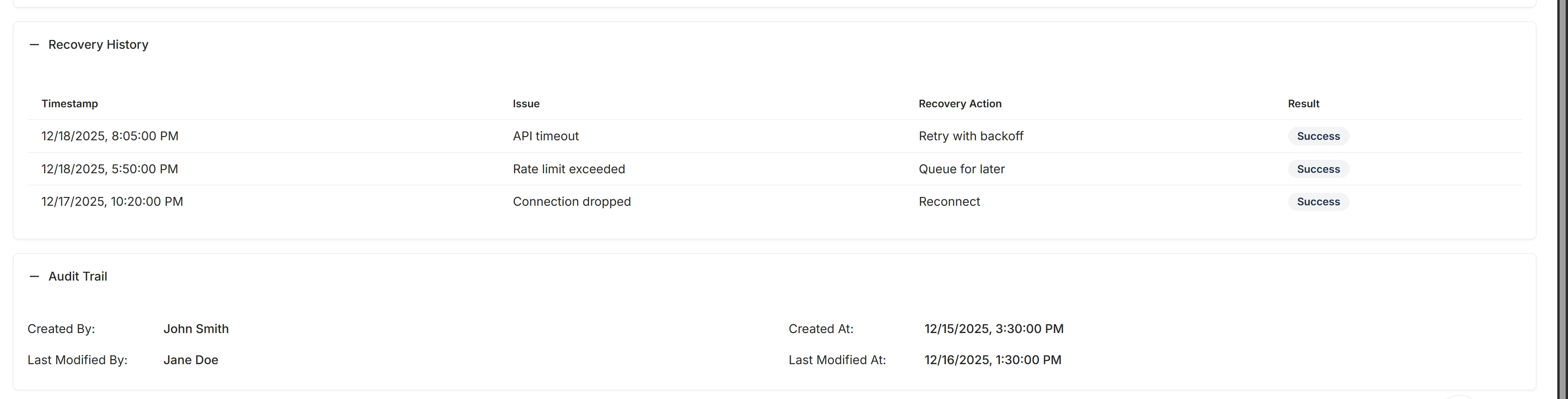
This screen provides a detailed view of an alert rule's operational history and modification log. The 'Recovery History' section tracks instances where the system attempted to recover from an issue related to the alert, showing the timestamp of the event, the specific issue encountered, the recovery action taken, and the outcome. This helps administrators understand the reliability and self-correction mechanisms of the alert system. The 'Audit Trail' section provides a record of who created and last modified the alert rule, along with the corresponding timestamps, ensuring transparency and accountability for changes made to critical system configurations.
Examine the details in the Recovery History and Audit Trail sections for the selected alert rule.
Audit Trail
| Field | Description |
|---|---|
| Created By | The name of the user who initially created this alert rule. |
| Created At | The date and time when this alert rule was first created. |
| Last Modified By | The name of the user who last made changes to this alert rule. |
| Last Modified At | The date and time when this alert rule was last modified. |
Recovery History
| Column | Description |
|---|---|
| Timestamp | The date and time when a recovery event occurred. |
| Issue | A description of the problem or error that triggered the recovery action. |
| Recovery Action | The specific action taken by the system to resolve or mitigate the issue. |
| Result | The outcome of the recovery action, indicating whether it was successful. |