

Overview
Effective communication is crucial for a successful partner program. The Notification Settings within the Administration module provide granular control over the automated alerts and messages sent out by the platform. Administrators can define specific triggers, content, and delivery channels (desktop, SMS, email) for various events, such as asset uploads, deal approvals, or referral submissions. This ensures that partners and internal teams receive relevant information promptly, streamlining operations and improving engagement.
By centralizing notification management, the platform helps maintain consistent messaging and reduces the manual effort required to keep all stakeholders informed. Administrators can also create custom views and filters to easily navigate and manage the potentially large number of configured notifications, tailoring the display to their specific needs.
Accessing Notification Settings
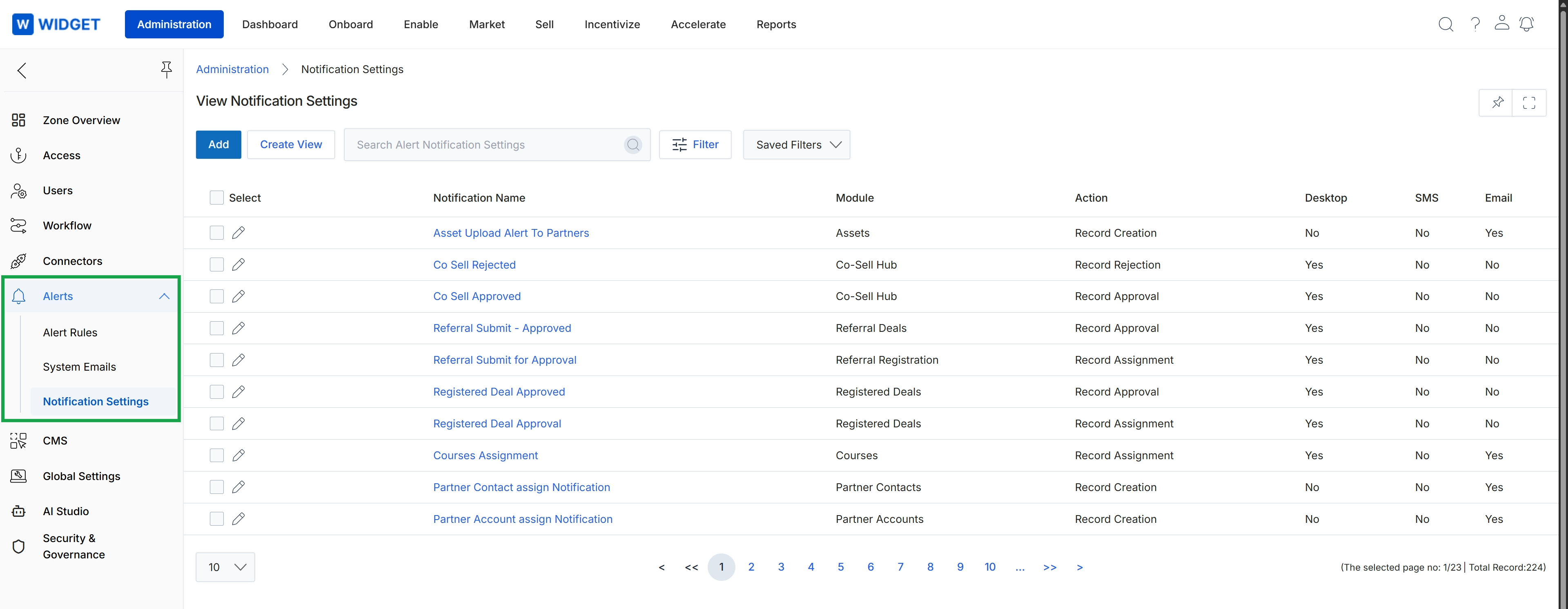
Click Alerts in the left navigation menu, then click Notification Settings.
Managing Notification Views
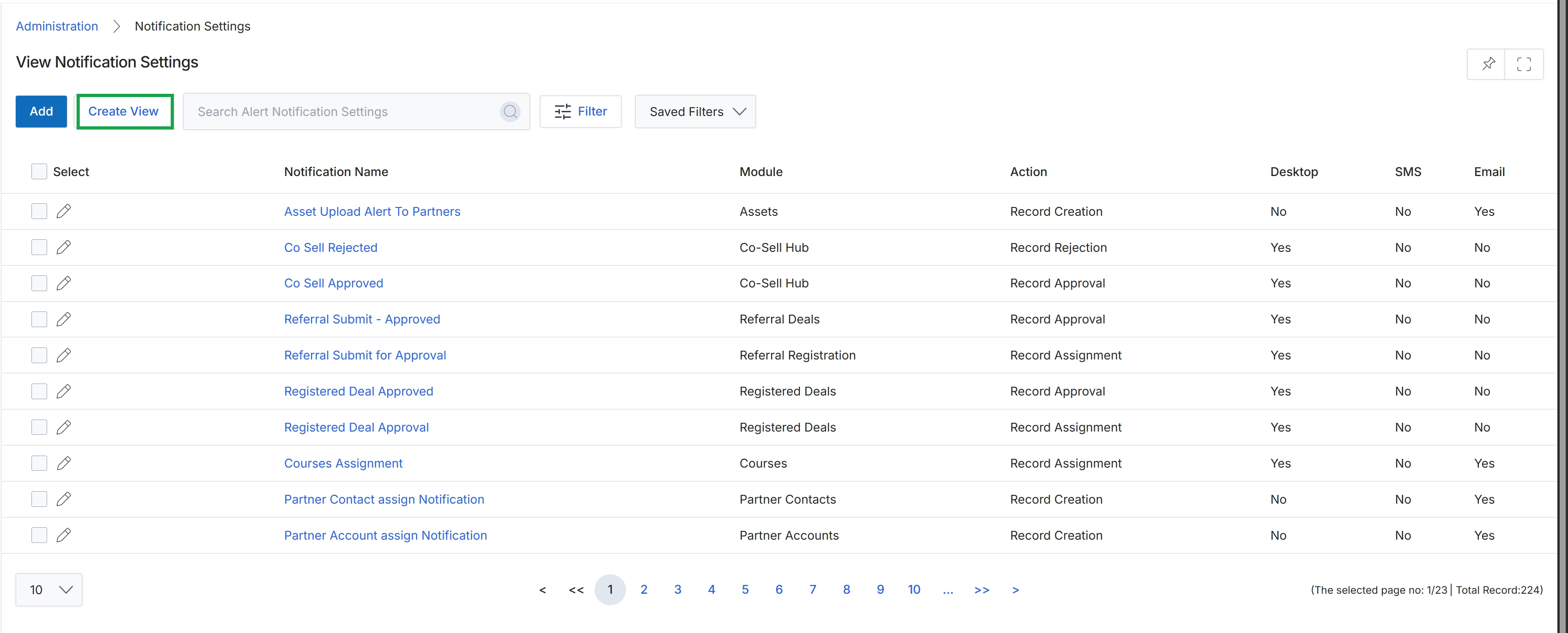
Click Create View.
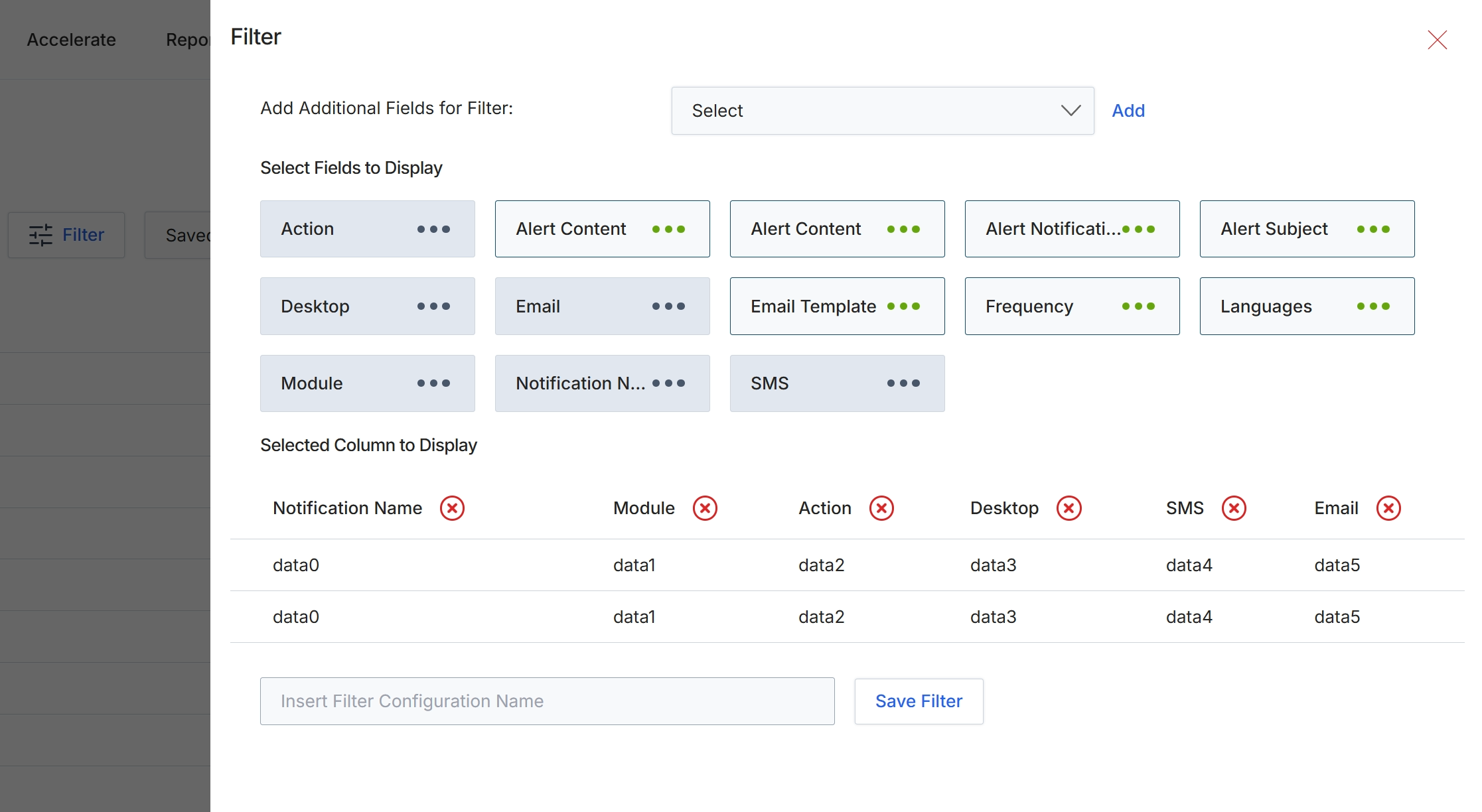
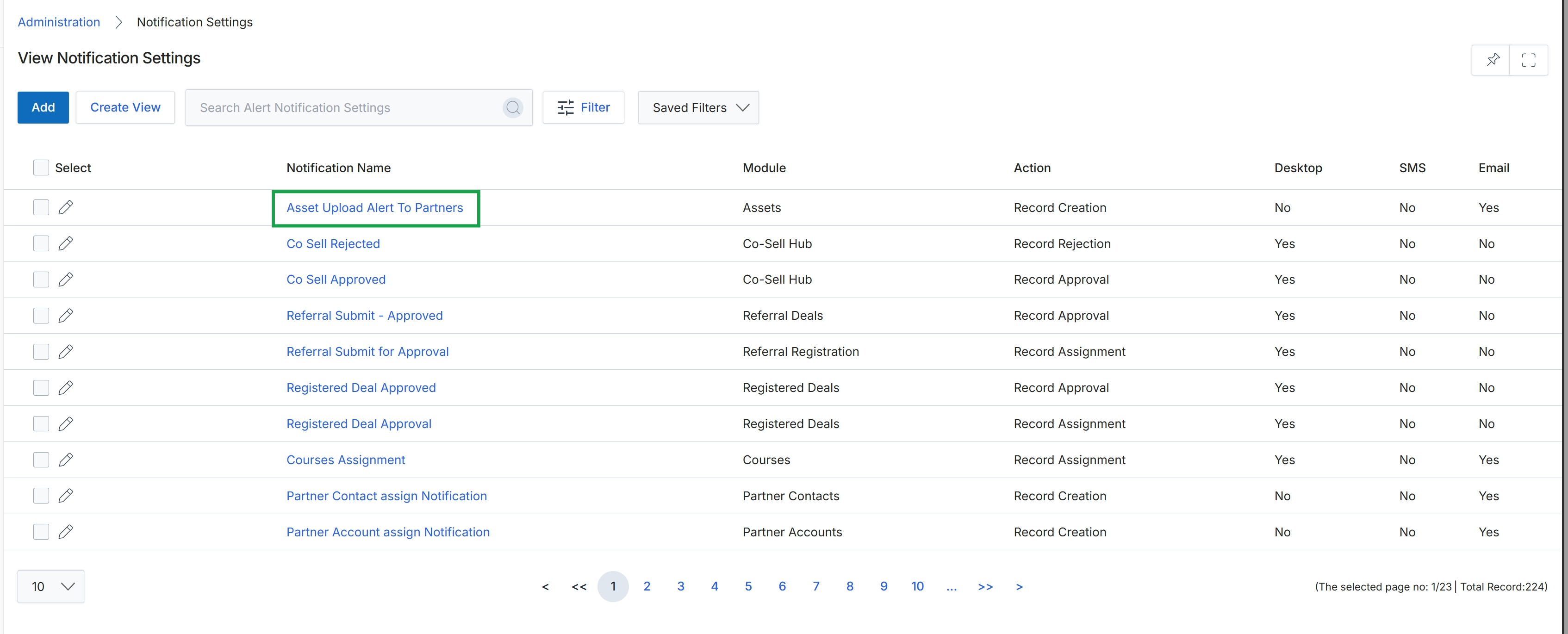
This filter configuration dialog allows administrators to customize which fields are displayed in the alerts list view. By selecting specific fields, users can tailor the information presented to their needs, making it easier to review and manage notifications. This customization enhances the usability of the Alerts Management module by providing control over data visibility, which is crucial for efficient monitoring and response to system alerts.
Select the desired fields to display in the alerts list view and then save the filter configuration.
Buttons
| Button | Description |
|---|---|
| Add | A button to add the selected additional field to the filter configuration. |
| Save Filter | A button to save the current filter configuration. |
Fields
| Field | Description |
|---|---|
| Select | A dropdown menu to add additional fields to the filter configuration. |
| Insert Filter Configuration Name | A text input field to enter a name for the current filter configuration. |
Select Fields to Display
| Field | Description |
|---|---|
| Action | A field representing the action associated with the alert. |
| Alert Content | A field representing the content or message of the alert. |
| Alert Notificati... | A field representing the notification type of the alert. |
| Alert Subject | A field representing the subject line of the alert. |
| Desktop | A field indicating if the alert is displayed on the desktop. |
| A field indicating if the alert is sent via email. | |
| Email Template | A field representing the email template used for the alert. |
| Frequency | A field representing the frequency of the alert. |
| Languages | A field representing the languages configured for the alert. |
| Module | A field representing the module associated with the alert. |
| Notification N... | A field representing the name of the notification. |
| SMS | A field indicating if the alert is sent via SMS. |
Selected Column to Display
| Column | Description |
|---|---|
| Notification Name | The name of the notification. |
| Module | The module associated with the notification. |
| Action | The action related to the notification. |
| Desktop | Indicates if the notification is for desktop display. |
| SMS | Indicates if the notification is sent via SMS. |
| Indicates if the notification is sent via email. |
Filtering Notifications
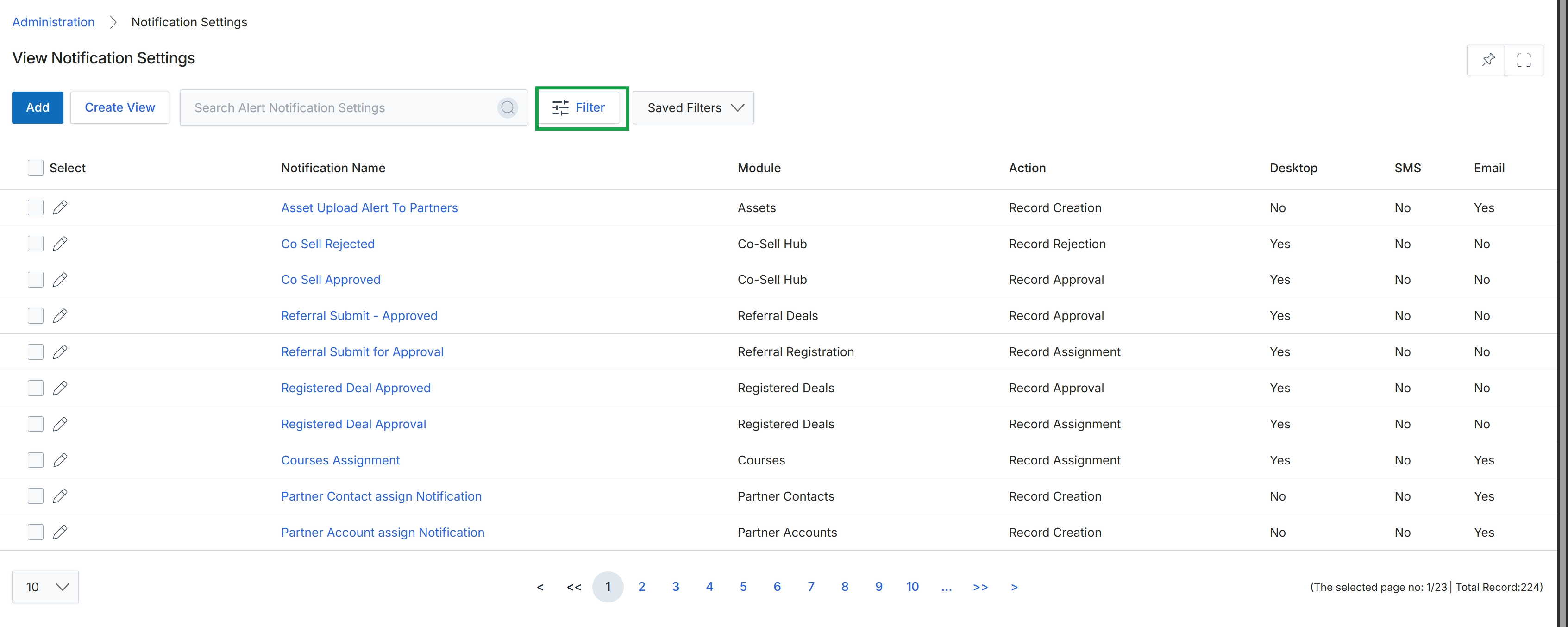
Click the Filter button.
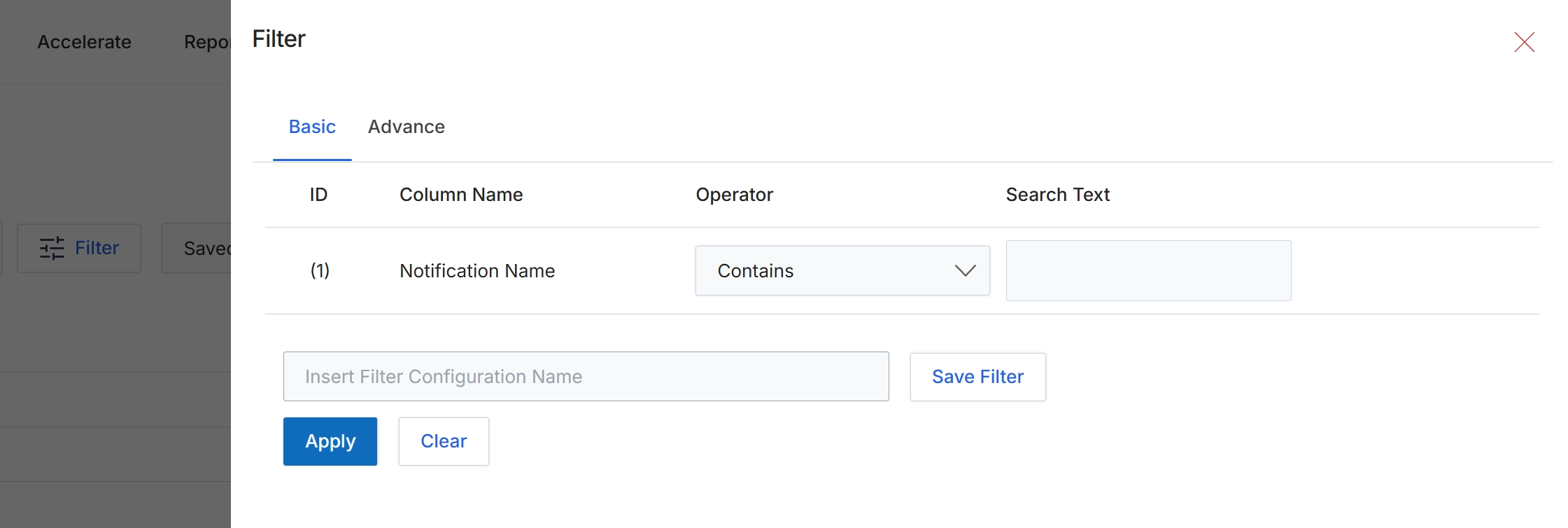
This filter dialog allows administrators to refine the list of notification settings displayed in the Alerts Management module. By applying filters, users can quickly locate specific notification configurations based on criteria such as notification name, operator, and search text. This helps in managing a potentially large number of notification settings efficiently, enabling targeted edits or reviews of specific alert types. The dialog supports both basic and advanced filtering options, providing flexibility in how administrators query their notification configurations.
Click Apply to filter the list of notification settings based on the specified criteria.
Buttons
| Button | Description |
|---|---|
| Basic | This tab allows users to define basic filter conditions. |
| Advance | This tab provides options for more complex, advanced filter configurations. |
| Save Filter | A button to save the current filter configuration for future use. |
| Apply | A button to apply the defined filter conditions to the list of notification settings. |
| Clear | A button to clear all applied filter conditions. |
Fields
| Field | Description |
|---|---|
| Notification Name | A field representing the name of the notification setting to be filtered. |
| Contains | A dropdown field to select the operator for the filter condition, indicating that the 'Notification Name' should contain the 'Search Text'. |
Column Headings
| Column | Description |
|---|---|
| Column Name | The header for the column where the name of the notification setting is displayed. |
| Operator | The header for the column defining the comparison operator (e.g., 'Contains', 'Equals') for the filter condition. |
| Search Text | The header for the column where the text to be searched for within the specified column name is entered. |
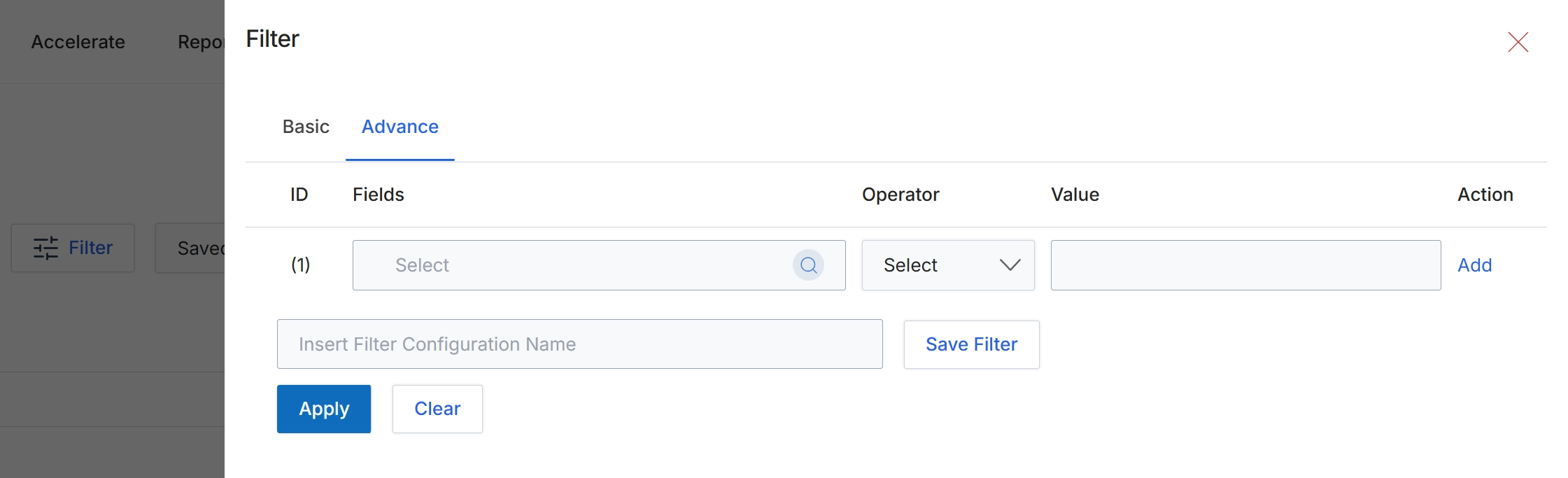
This screen displays the advanced filter configuration for a list view, allowing users to apply complex search criteria to narrow down displayed records. The advanced filter provides granular control over data retrieval by enabling the construction of multi-condition queries using specific fields, operators, and values. This functionality is crucial for administrators and users who need to analyze specific subsets of data, troubleshoot issues, or manage large volumes of records efficiently. Users can also save frequently used filter configurations for quick access and reuse, streamlining their workflow.
Click the "Advance" tab to configure advanced filtering options.
Buttons
| Button | Description |
|---|---|
| Basic | Tab to switch to basic filtering options. |
| Advance | Tab to switch to advanced filtering options, allowing for more complex query construction. |
| Add | Button to add a new filter condition row. |
| Save Filter | Button to save the current filter configuration with the specified name. |
| Apply | Button to apply the configured filters to the list view. |
| Clear | Button to clear all applied filter conditions. |
Fields
| Field | Description |
|---|---|
| Select | Dropdown to choose a field for the filter condition. |
| Select | Dropdown to choose an operator for the filter condition. |
| Insert Filter Configuration Name | Text input field to enter a name for saving the current filter configuration. |
Column Headings
| Column | Description |
|---|---|
| ID | Column header for the filter condition identifier. |
| Fields | Column header for selecting the field to apply the filter condition to. |
| Operator | Column header for selecting the comparison operator (e.g., equals, contains, greater than). |
| Value | Column header for entering the value to compare against the selected field. |
| Action | Column header for actions related to the filter condition, such as adding a new condition. |
Viewing Notification Details
Click the X icon to close the Filter panel.
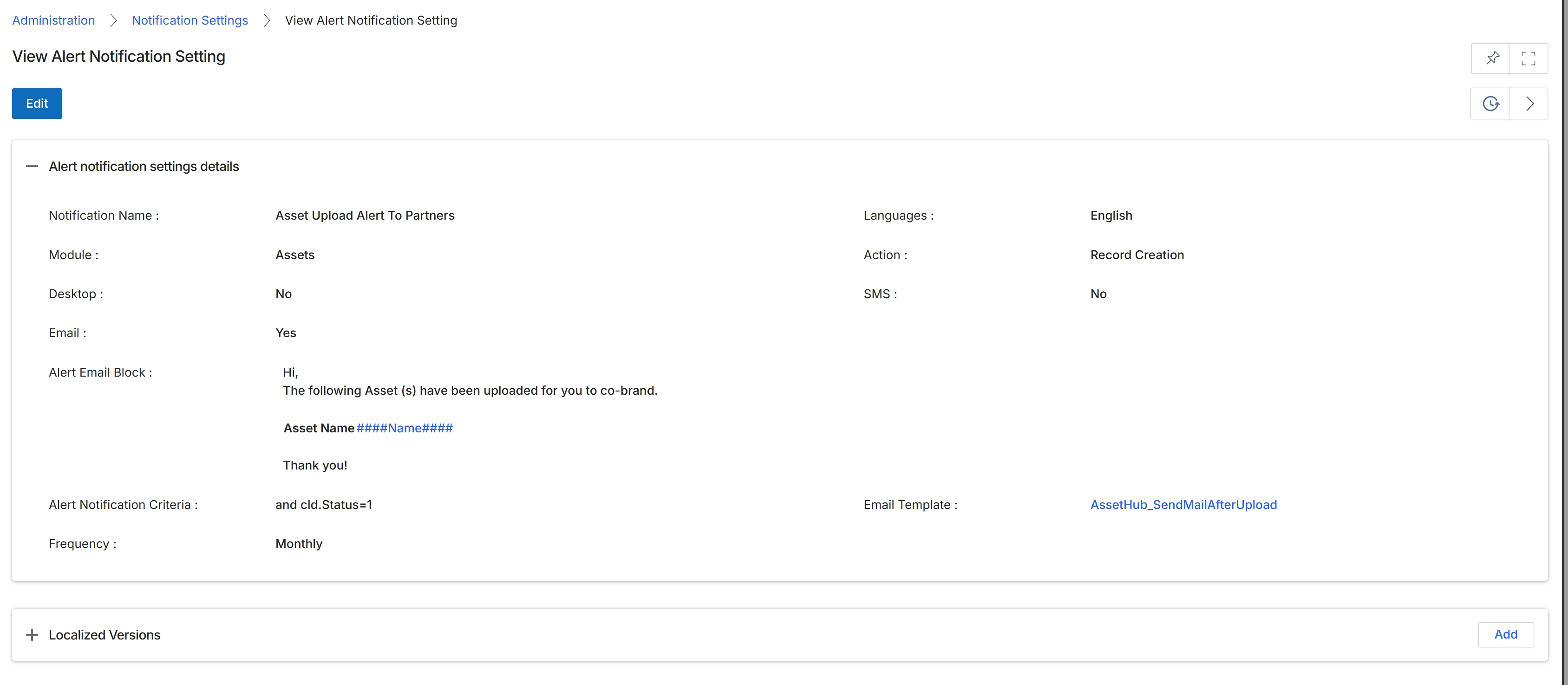
This screen displays the detailed configuration of a specific alert notification setting within the platform. Alert notification settings are part of the Administration module, allowing administrators to define automated notifications triggered by various events across different modules. This view provides a comprehensive overview of the notification's properties, including its name, the module it pertains to, the action that triggers it, the communication channels used (desktop, email, SMS), the content of the alert message, and any specific criteria that must be met for the alert to be sent. It also shows the frequency of the alert and the associated email template, if applicable. Administrators use this screen to review existing alert configurations and understand their operational parameters before making any modifications.
Review the details of the alert notification setting displayed on this screen.
Buttons
| Button | Description |
|---|---|
| Edit | Click this button to modify the alert notification settings. |
| Add | Click this button to add a localized version of this alert notification. |
Alert notification settings details
| Field | Description |
|---|---|
| Notification Name | The descriptive name assigned to this alert notification setting. |
| Module | The module within the platform that this alert notification is associated with. |
| Desktop | Indicates whether a desktop notification is enabled for this alert. |
| Indicates whether an email notification is enabled for this alert. | |
| Alert Email Block | The content of the email message that will be sent as part of this alert. |
| Alert Notification Criteria | The specific conditions or criteria that must be met for this alert notification to be triggered. |
| Frequency | The recurrence pattern for this alert notification. |
| Languages | The language in which this alert notification is configured. |
| Action | The specific action or event that triggers this alert notification. |
| SMS | Indicates whether an SMS notification is enabled for this alert. |
| Email Template | The name of the email template used for this alert notification. |