

Overview
Commission rules are fundamental to incentivizing partner behavior and driving sales within a partner program. This module enables administrators to define a wide array of commission structures, from flat fees per event to complex tiered percentages or recurring revenue shares. By clearly outlining these rules, the platform ensures transparency for partners regarding their earning potential and automates the calculation of rewards, streamlining the entire incentive process. Administrators use this section to set up the parameters that govern how and when commissions are accrued and paid out, ensuring alignment with program goals and financial objectives.
Accessing and Viewing Commission Rules
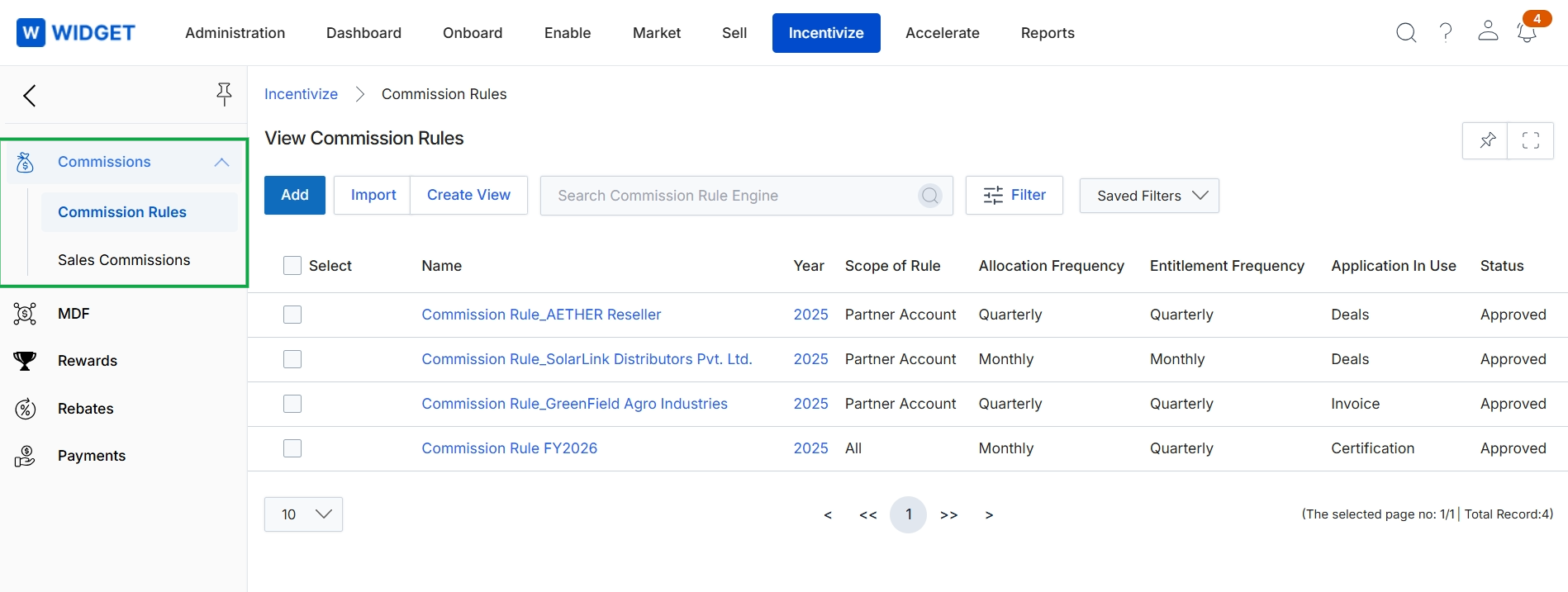
Click Commissions to expand the menu, then click Commission Rules.
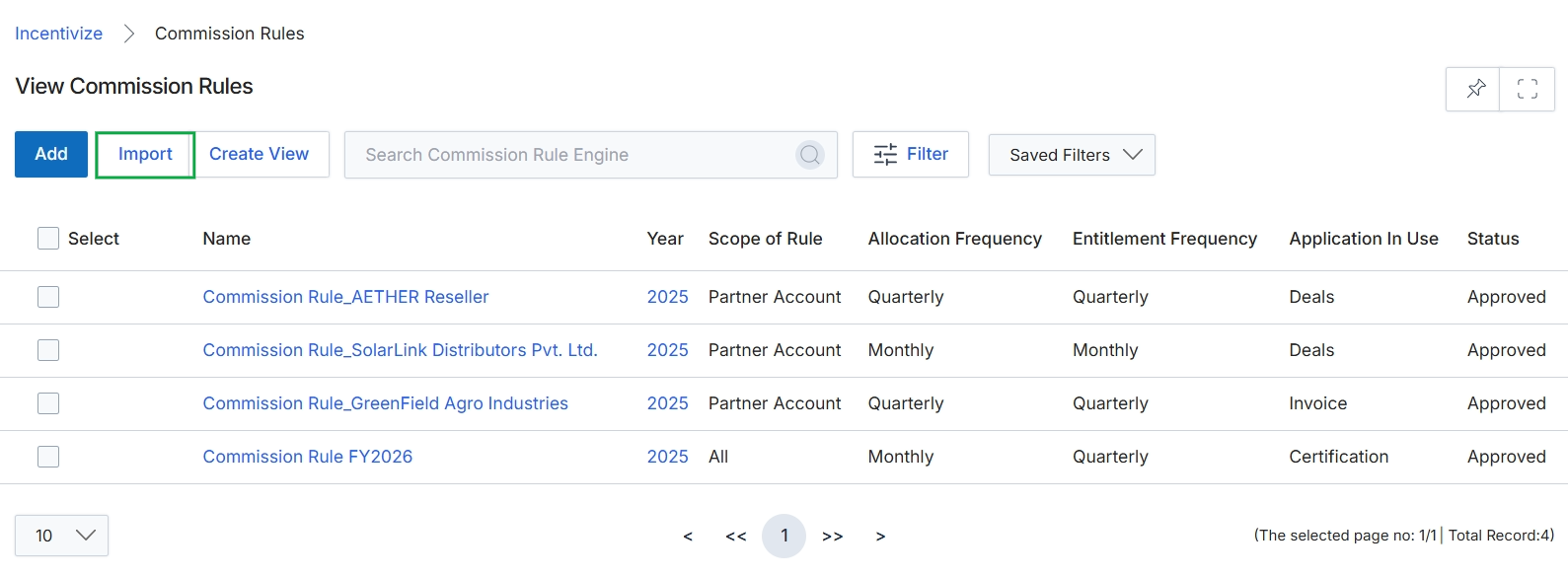
Click Import.
Importing Commission Data
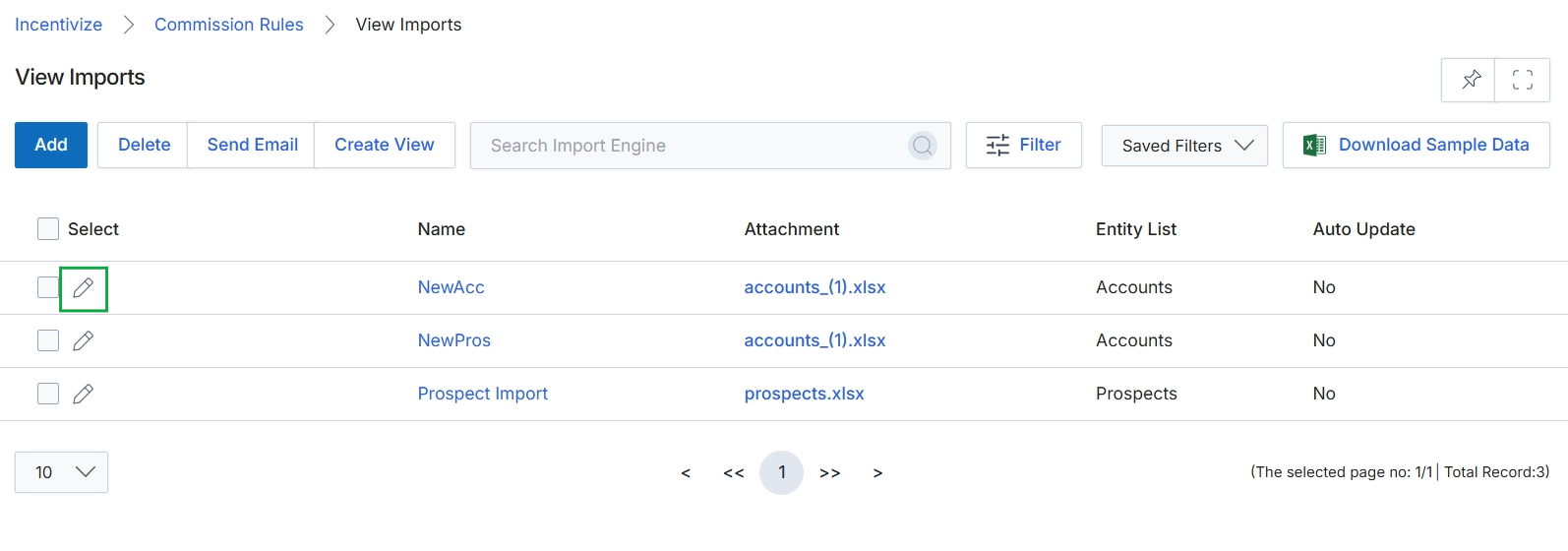
Click the Import button.
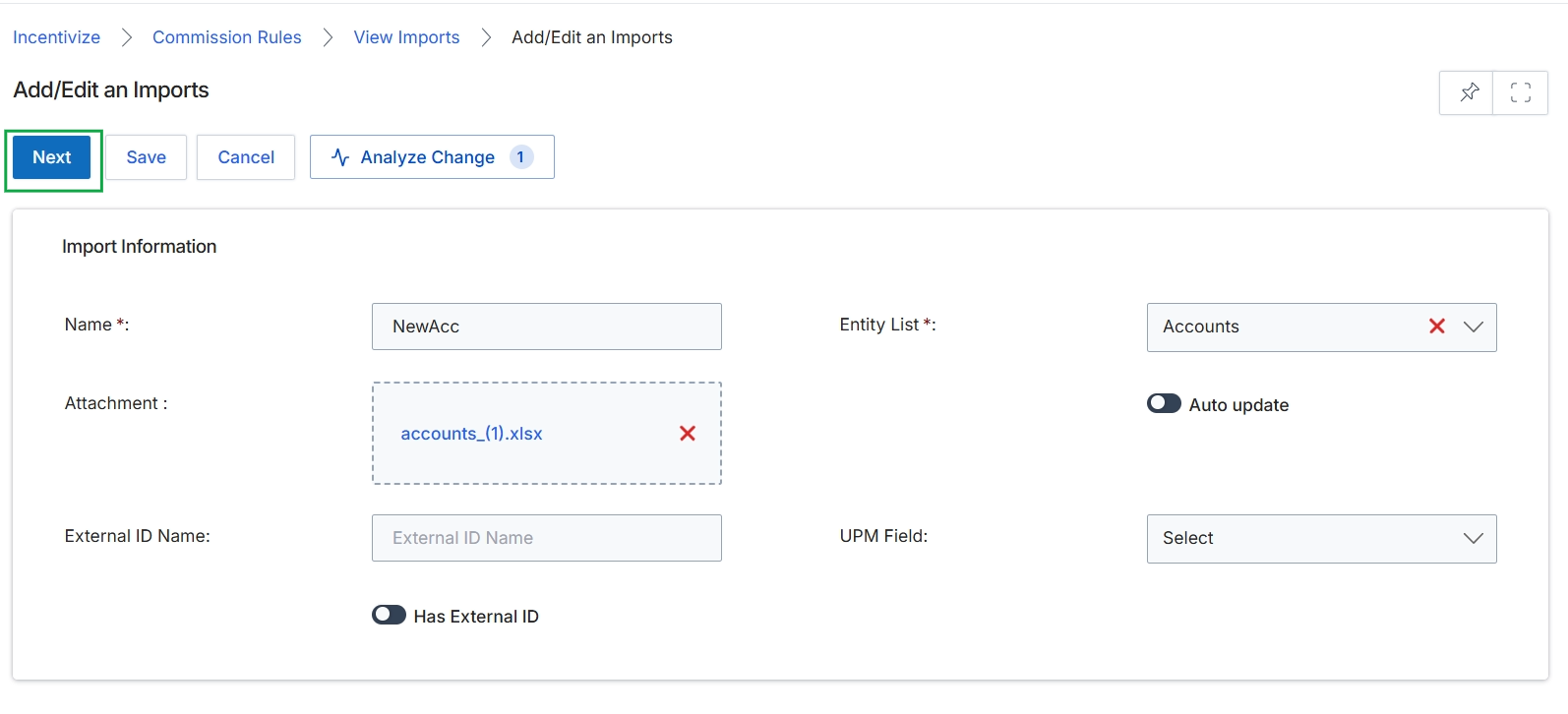
This screen, 'Add/Edit an Imports', is part of the data import functionality within the Incentivize module, allowing administrators to configure how external data files are brought into the platform. This is crucial for populating or updating information related to commission rules, partner data, or other entities that drive incentive calculations. The form enables the specification of the import's name, the target entity list (e.g., Accounts, Partners), and the attachment containing the data. It also provides options for managing external IDs and automatic updates, which are vital for maintaining data integrity and ensuring that imported data can be correctly mapped and synchronized with existing records or external systems. This screen serves as an initial setup step before the actual data mapping and import process begins.
Click the "Next" button to proceed with the import configuration after providing the necessary import information.
Buttons
| Button | Description |
|---|---|
| Next | Initiates the next step in the import process, typically leading to data mapping. |
| Save | Saves the current import configuration without proceeding to the next step. |
| Cancel | Discards any changes and returns to the previous screen. |
| Analyze Change | Analyzes the potential impact of the import on existing data. |
Import Information
| Field | Description |
|---|---|
| Name * | A required field for entering a descriptive name for the import. |
| Entity List * | A required dropdown to select the target entity type (e.g., Accounts, Partners) for the import. |
| Attachment | Displays the name of the attached data file (e.g., accounts_(1).xlsx) for import. |
| Auto update | A toggle to enable or disable automatic updates based on the imported data. |
| External ID Name | A field to specify the name of the external ID column in the imported file. |
| UPM Field | A dropdown to select the corresponding platform field for mapping purposes. |
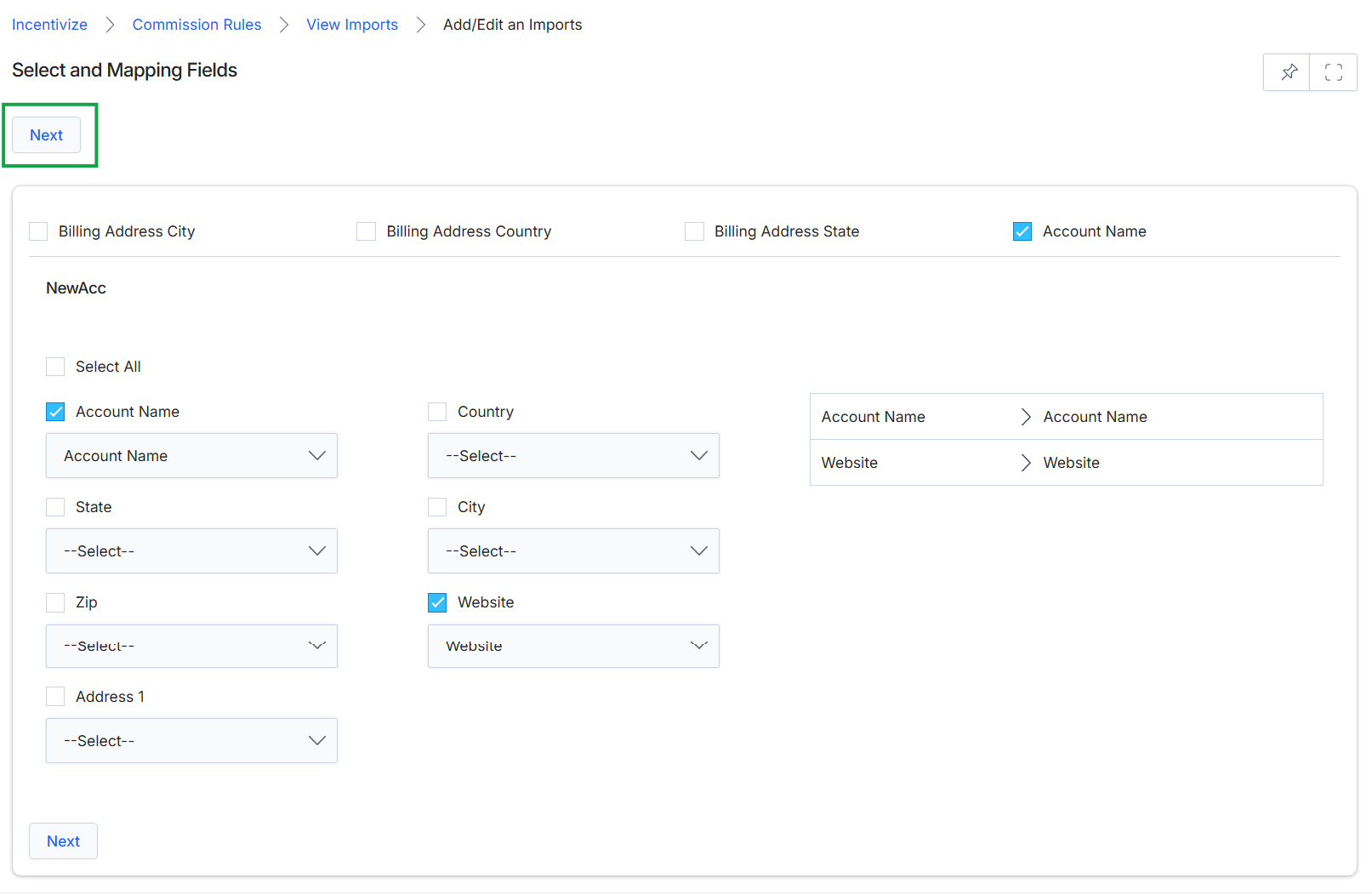
Click Next.
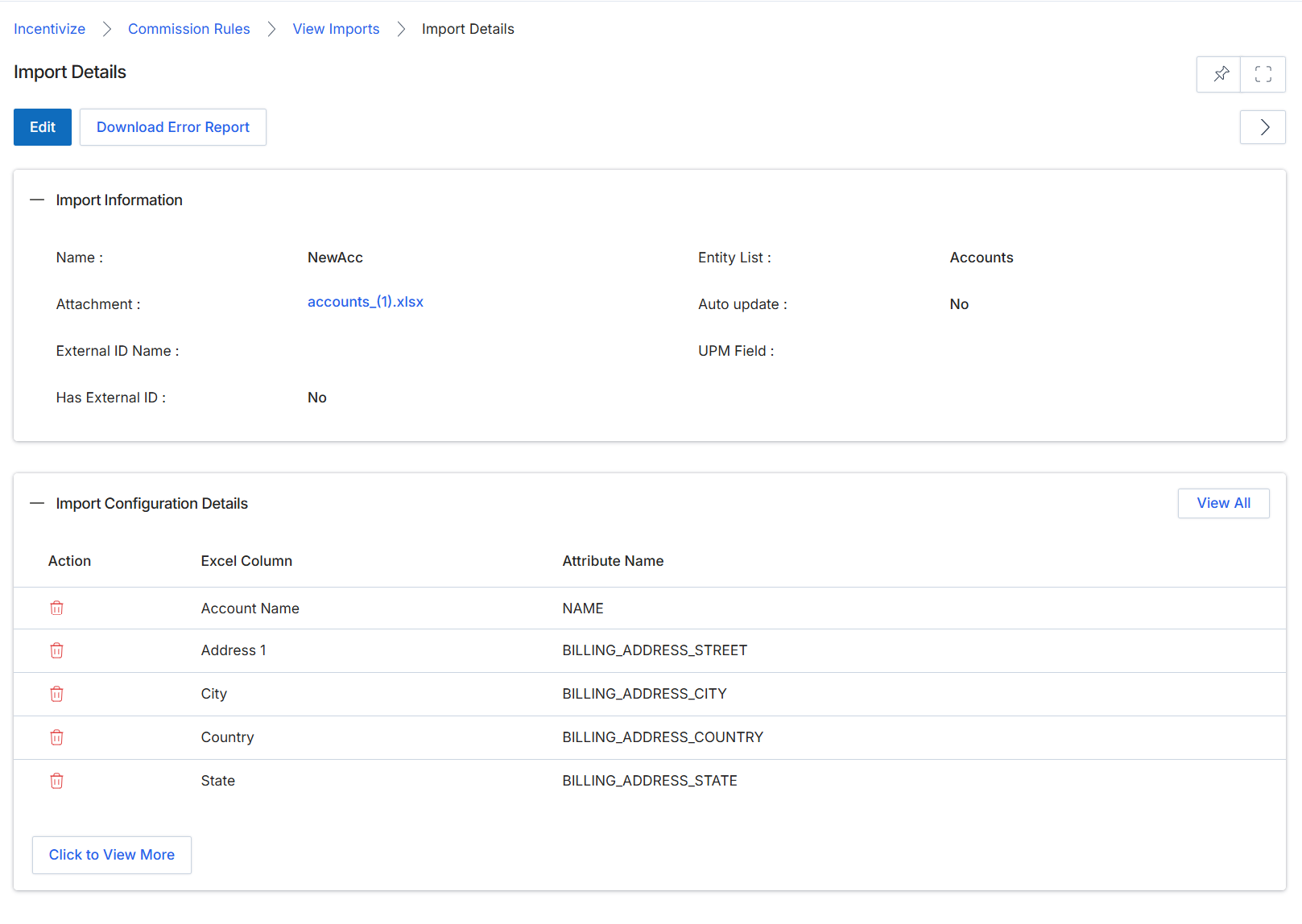
This screen displays the detailed configuration of a specific data import within the platform. It provides an overview of the import's general information, such as its name, the attached file, and the target entity list for the import. Additionally, it shows the mapping between columns in the imported Excel file and the corresponding attribute names within the platform, which is crucial for ensuring data integrity and correct field population during the import process.
Creating Custom Views and Filters
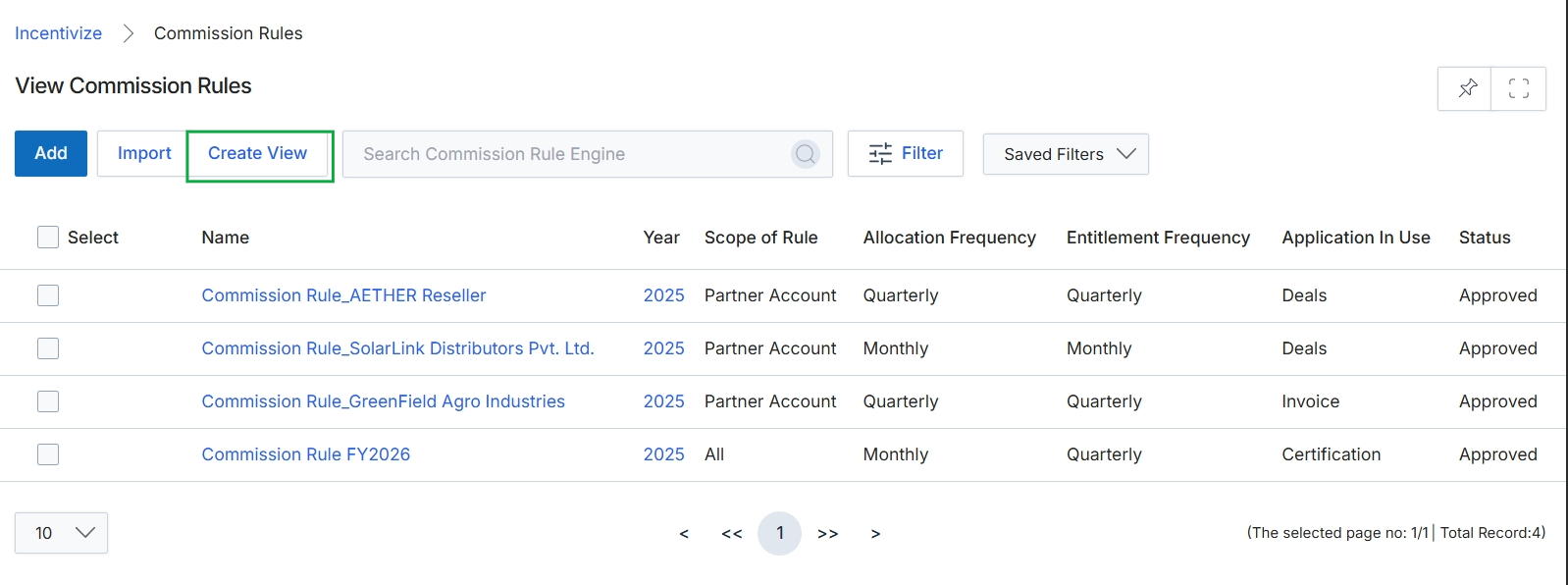
Click Commission Rules in the breadcrumb navigation.
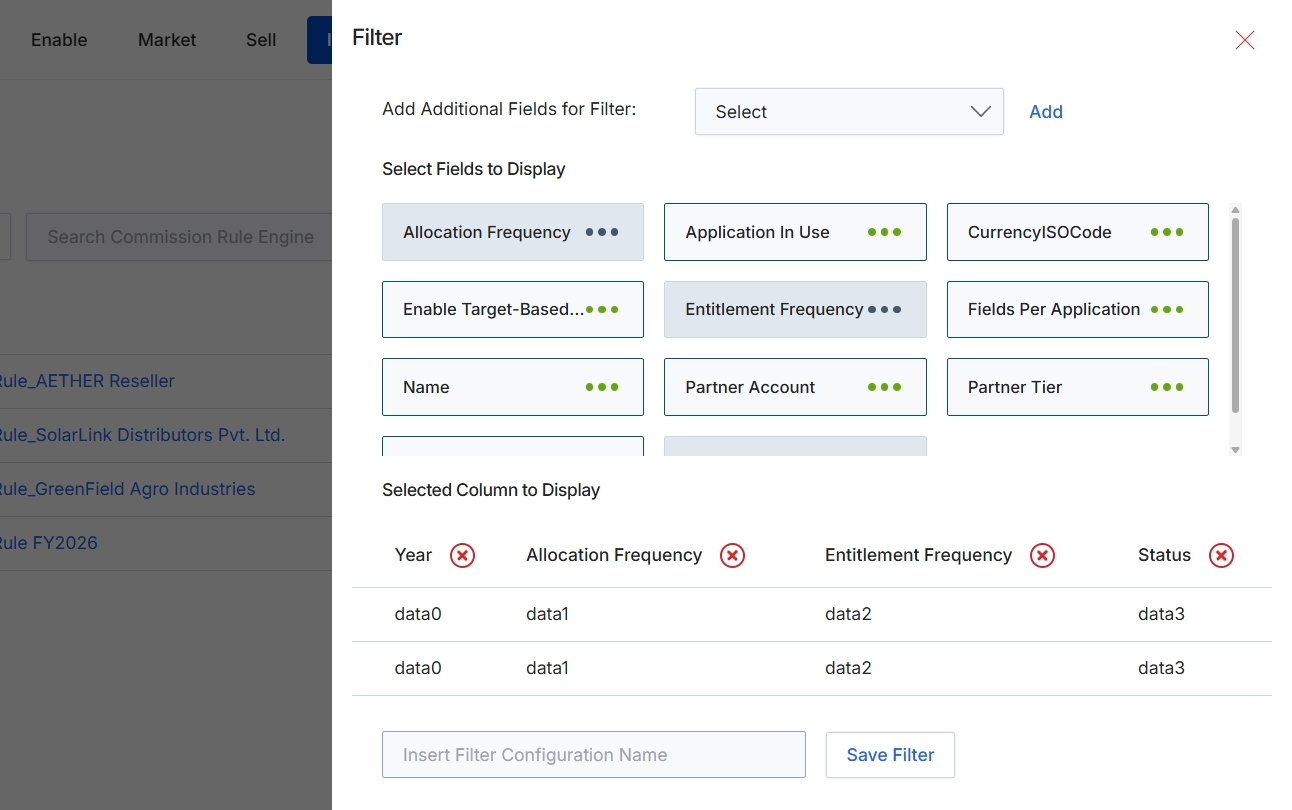
This filter configuration screen allows administrators to customize the display of the Commission Rules list view by selecting which fields appear as columns and which fields are available for filtering. The screen is divided into sections for adding filter fields, selecting fields to display as columns, and managing currently selected columns. This level of customization helps administrators tailor the list view to their specific analytical or operational needs, making it easier to sort, search, and review commission rules based on relevant criteria such as allocation frequency, entitlement frequency, or partner-specific attributes. Once configured, these settings can be saved as a named filter for future use, streamlining subsequent interactions with the Commission Rules list.
Select additional fields to display as columns in the Commission Rules list view by clicking on the desired field names in the 'Select Fields to Display' section, and then save the filter configuration.
Buttons
| Button | Description |
|---|---|
| Add | A button to add the selected field from the 'Select' dropdown to the 'Select Fields to Display' section. |
| Save Filter | A button to save the current filter configuration with the specified name. |
Fields
| Field | Description |
|---|---|
| Select | A dropdown menu to select additional fields that can be used for filtering the Commission Rules list. |
| Insert Filter Configuration Name | A text input field to enter a name for the custom filter configuration. |
Select Fields to Display
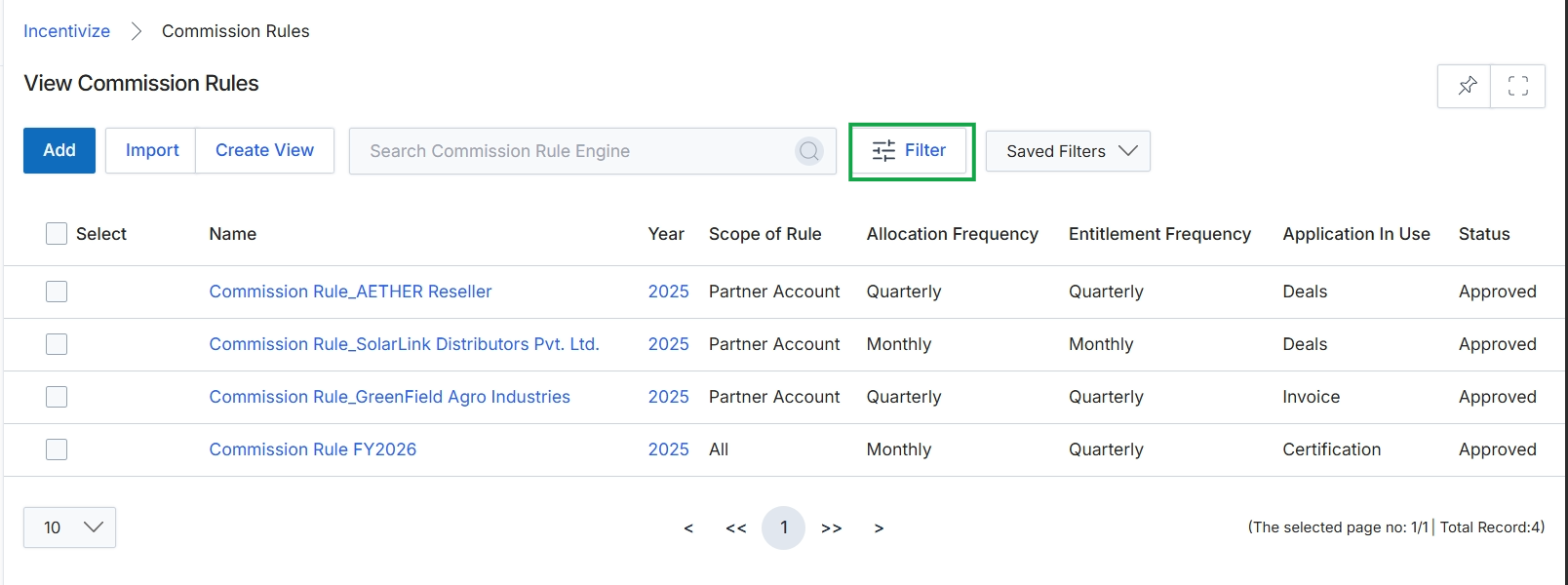
Click the Filter button.
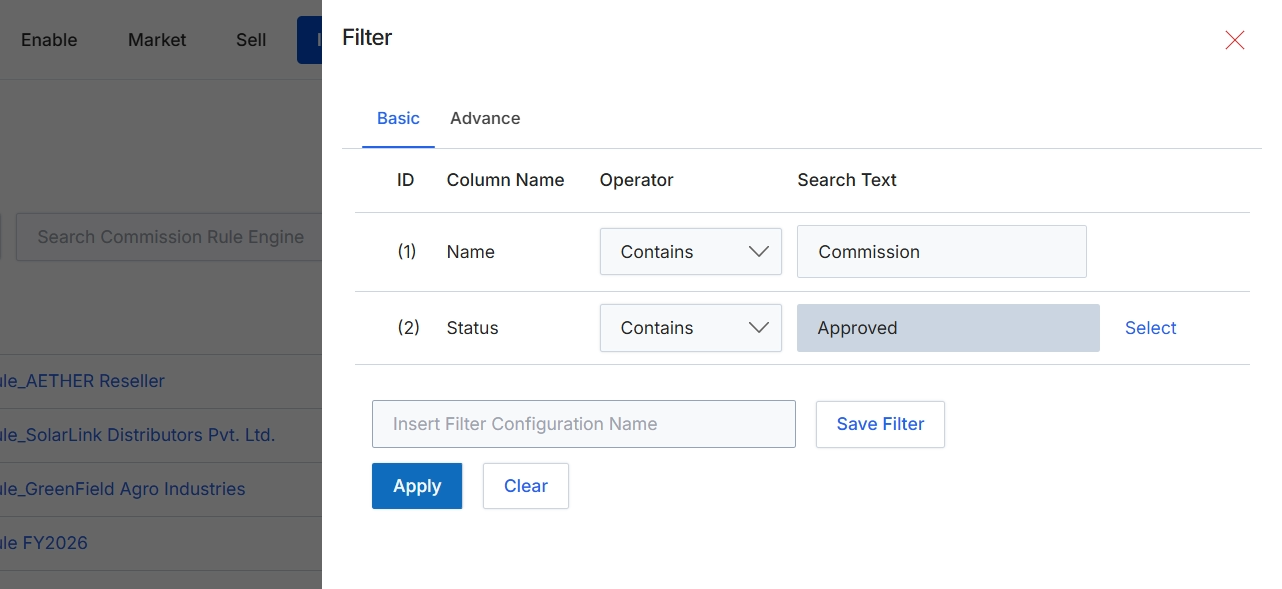
This filter dialog allows users to refine the list of commission rules displayed in the main view by applying specific criteria. Users can define filters based on various attributes of the commission rules, such as their name or status. The dialog supports both basic and advanced filtering options, enabling precise control over which rules are visible. Once filters are configured, they can be applied to immediately update the displayed list, or saved for future use, streamlining the process of managing commission rules.
Click the "Apply" button to apply the configured filters to the commission rules list.
Buttons
| Button | Description |
|---|---|
| Basic | Tab to configure basic filter criteria. |
| Advance | Tab to configure advanced filter criteria. |
| Select | Button to open a selection dialog for the 'Status' filter. |
| Save Filter | Button to save the current filter configuration for future use. |
| Apply | Button to apply the configured filters to the commission rules list. |
| Clear | Button to clear all applied filter criteria. |
Fields
| Field | Description |
|---|---|
| Name | The name of the commission rule attribute being filtered. |
| Contains | Dropdown to select the comparison operator for the 'Name' filter. |
| Commission | Text input field for the search term to apply to the 'Name' column. |
| Status | The status of the commission rule attribute being filtered. |
| Contains | Dropdown to select the comparison operator for the 'Status' filter. |
| Approved | Text input field displaying the selected status for filtering. |
| Insert Filter Configuration Name | Text input field to enter a name for saving the current filter configuration. |
Column Headings
| Column | Description |
|---|---|
| ID | Column header for the filter rule identifier. |
| Column Name | Column header for the name of the commission rule attribute being filtered. |
| Operator | Column header for the comparison operator used in the filter (e.g., Contains, Equals). |
| Search Text | Column header for the value to search for within the specified column. |
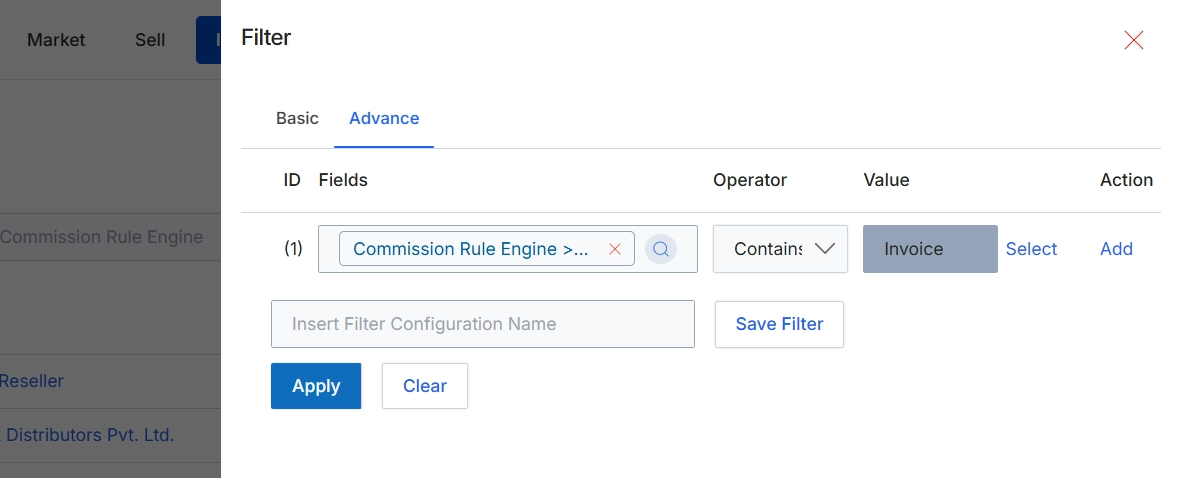
This filter dialog, accessed from the Commission Rules list view, allows administrators to refine the displayed list of commission rules based on specific criteria. The 'Advance' tab provides granular control over filtering by enabling the construction of complex queries using multiple conditions, logical operators, and specific field values. This functionality is crucial for managing a large number of commission rules, allowing administrators to quickly locate, review, and modify rules relevant to particular partners, rule types, or trigger events. By applying filters, users can focus on a subset of rules, which streamlines administrative tasks such as auditing, updating, or troubleshooting specific incentive programs within the Incentivize module.
Click the "Apply" button to filter the list of commission rules based on the configured advanced filter criteria.
Buttons
| Button | Description |
|---|---|
| Basic | Tab to switch to the basic filter options. |
| Advance | Tab to switch to the advanced filter options, allowing for more complex query construction. |
| Select | Button to select a value for the filter condition. |
| Add | Button to add another filter condition row. |
| Save Filter | Button to save the current filter configuration for future use. |
| Apply | Button to apply the configured filters to the list. |
| Clear | Button to clear all applied filter conditions. |
Fields
| Field | Description |
|---|---|
| Commission Rule Engine >... | Search input field to select a specific commission rule field for filtering. |
| Contains | Dropdown field to select the comparison operator for the filter condition, currently set to 'Contains'. |
| Invoice | The selected value for the filter condition. |
| Insert Filter Configuration Name | Text input field to enter a name for saving the current filter configuration. |
Column Headings
| Column | Description |
|---|---|
| ID | Column header for the filter condition's identifier. |
| Fields | Column header for selecting the field to apply the filter to. The input field allows searching for specific fields. |
| Operator | Column header for selecting the comparison operator for the filter condition. |
| Value | Column header for entering or selecting the value to filter against. |
| Action | Column header for actions related to the filter condition. |