

Overview
The Sales Commissions section within the Incentivize module allows administrators to track and manage the financial rewards partners earn through their sales activities. These commissions are typically generated automatically based on predefined commission rules and trigger events, such as a deal being marked as 'Won' in the Sell module. This centralized view helps ensure transparency and accuracy in partner payouts.
Administrators can leverage various filtering and customization options to efficiently review commission data, identify specific transactions, and prepare for payment processing. The ability to create and save custom views streamlines routine monitoring tasks, making it easier to focus on relevant commission data for different reporting or management needs.
Accessing Sales Commissions
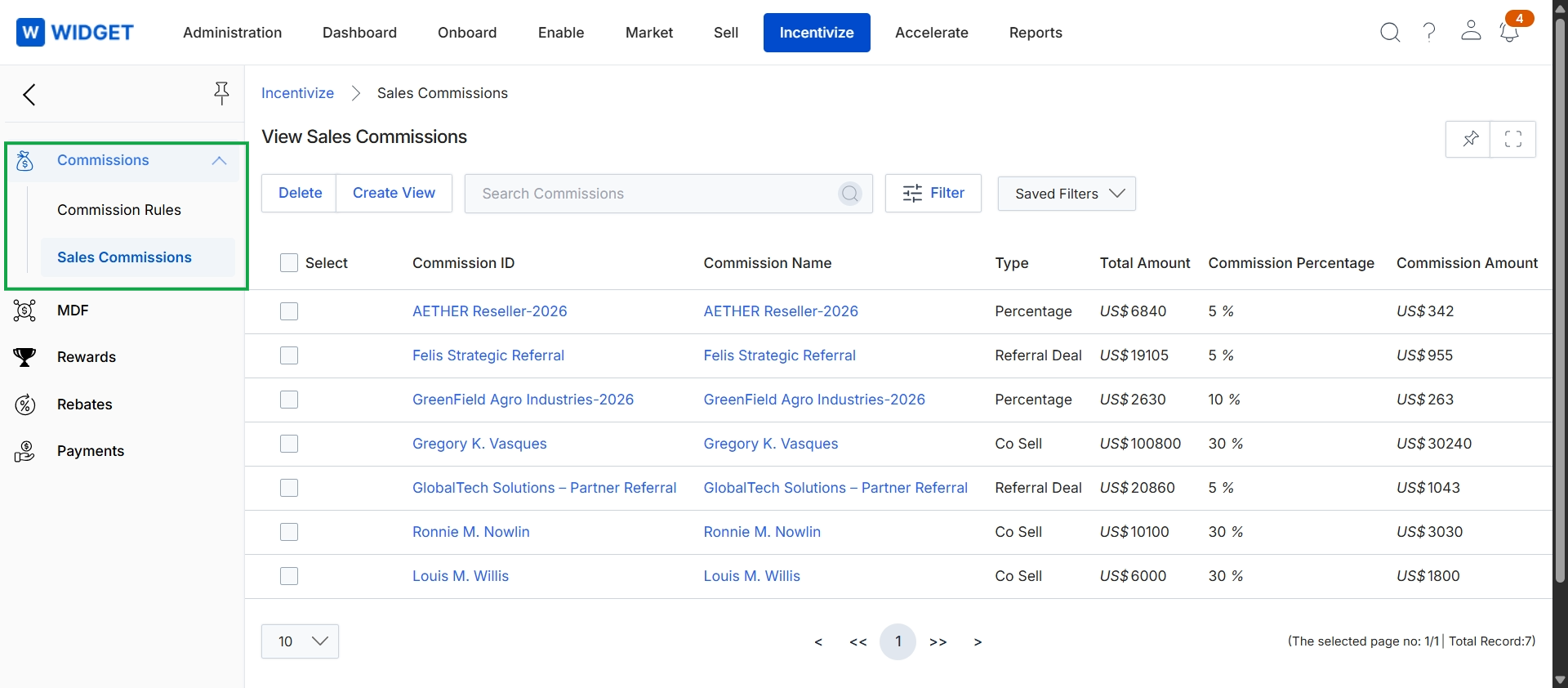
Click Incentivize in the top navigation bar, then click Commissions in the left navigation menu, and then click Sales Commissions.
Managing Commission Records
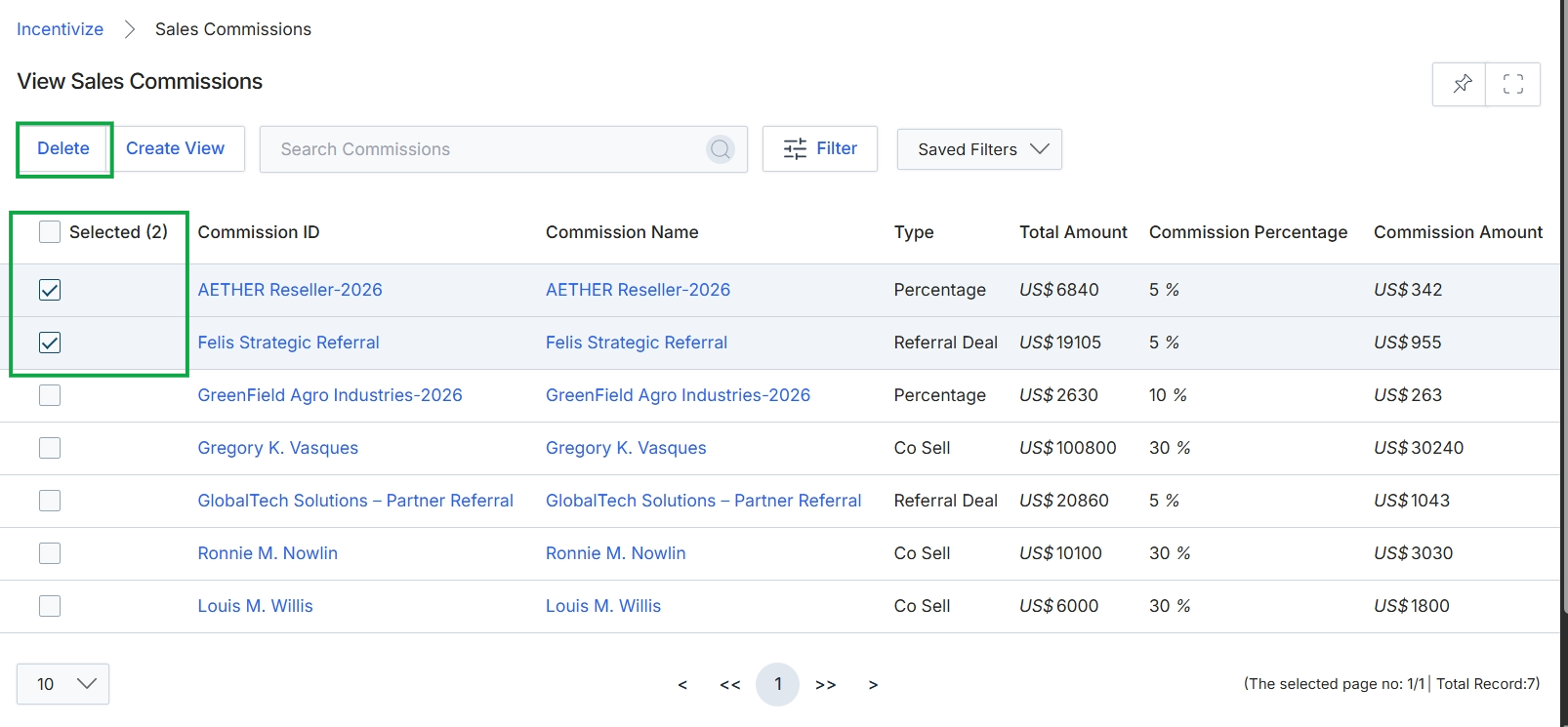
Click Sales Commissions.
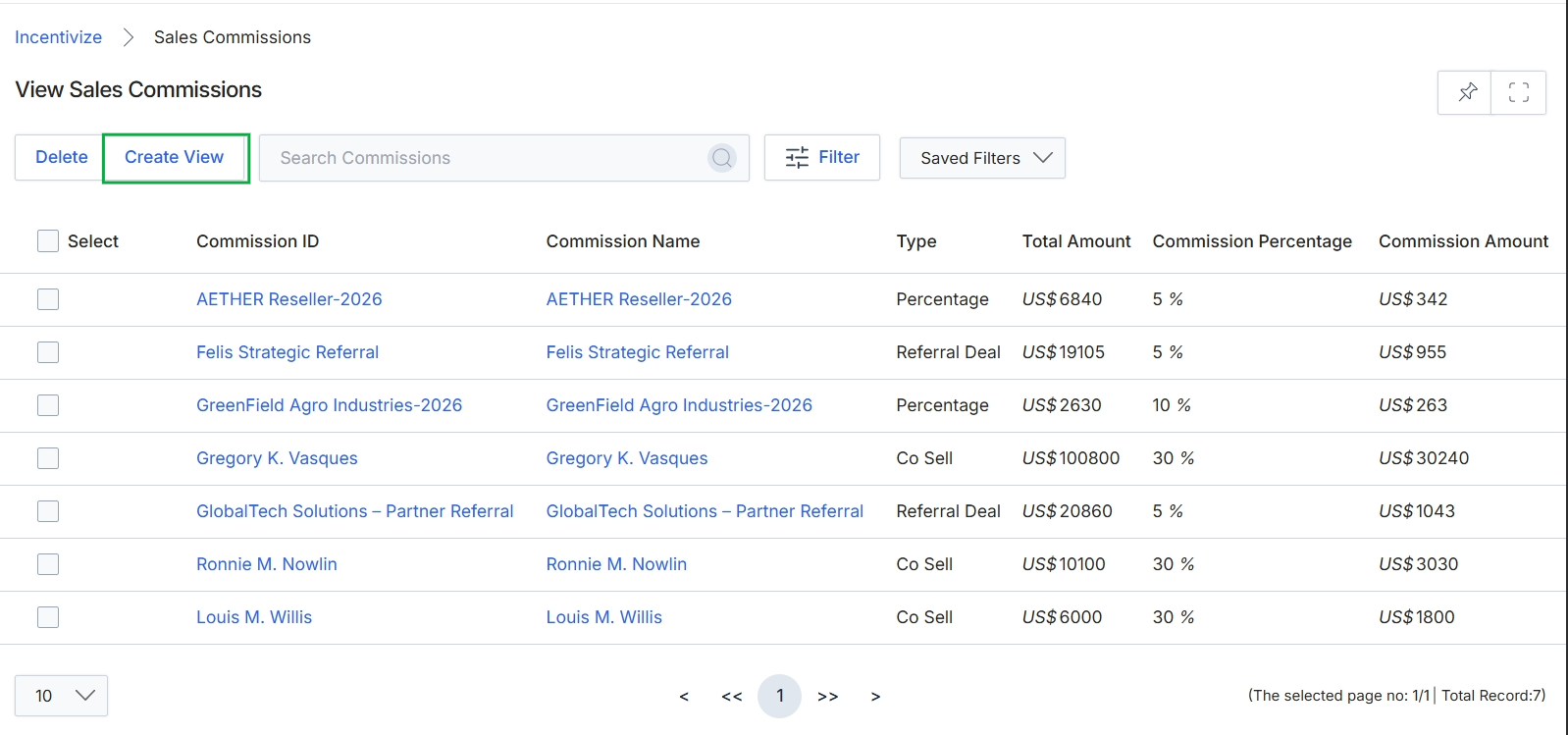
Click the Delete button.
Filtering and Customizing Views
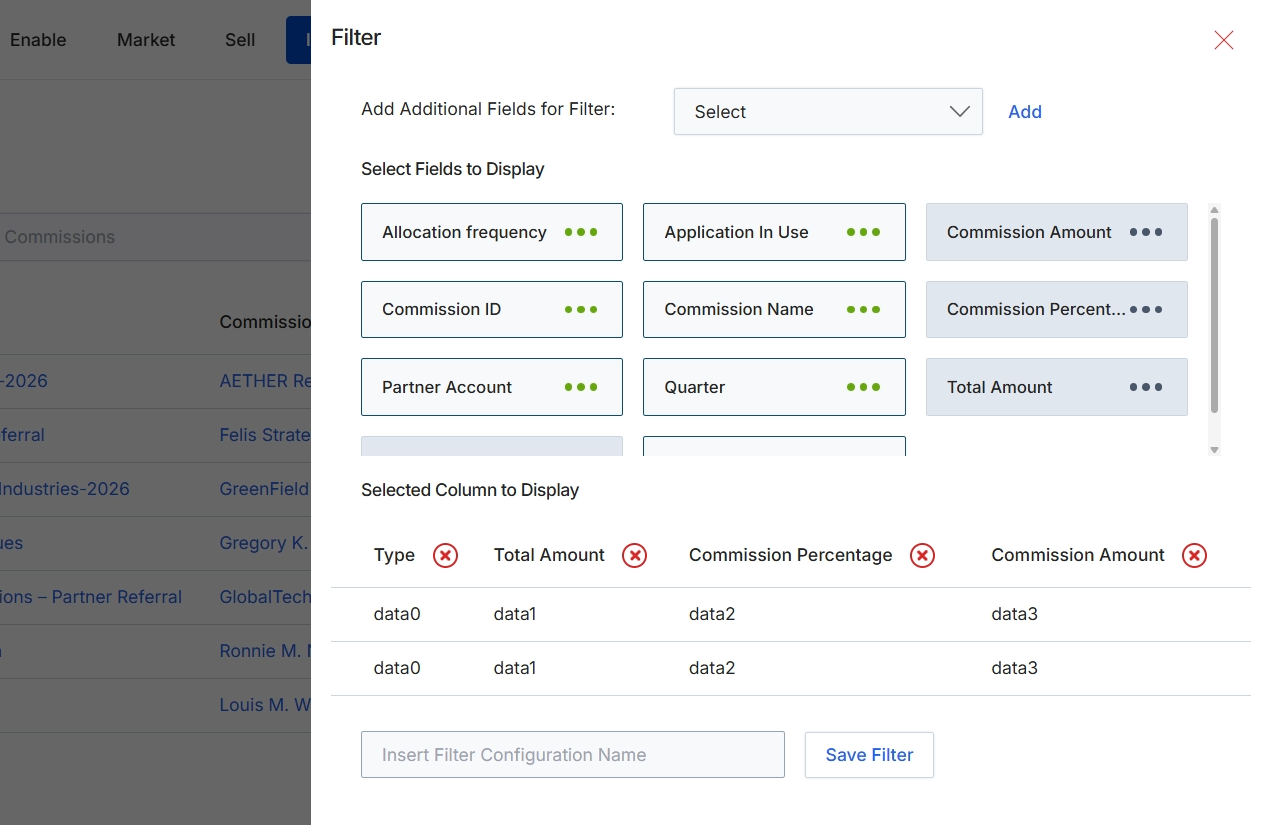
This filter configuration dialog allows administrators to customize the display of commission data within the Incentivize module's list views. Users can select which fields appear as columns in the main data table, enabling them to focus on the most relevant information for their analysis or reporting needs. The dialog presents available fields that can be added as display columns and shows a preview of the currently selected columns, along with placeholder data to illustrate how the table will appear. This customization capability enhances the usability of the commission list views by providing flexibility in data presentation, supporting various administrative tasks such as reviewing accruals, tracking payments, or auditing commission rules.
Select additional fields to display as columns in the list view by choosing from the 'Add Additional Fields for Filter' dropdown.
Buttons
| Button | Description |
|---|---|
| Add | A button to add the selected field from the 'Add Additional Fields for Filter' dropdown to the 'Select Fields to Display' section. |
| Save Filter | A button to save the current filter configuration, including the selected display fields. |
Fields
| Field | Description |
|---|---|
| Add Additional Fields for Filter | A dropdown menu to select additional fields that can be added as display columns to the commission list view. |
| Select | The default text for the dropdown menu, indicating that a selection can be made to add more fields. |
| Insert Filter Configuration Name | An input field to enter a name for the current filter configuration, allowing it to be saved and reused. |
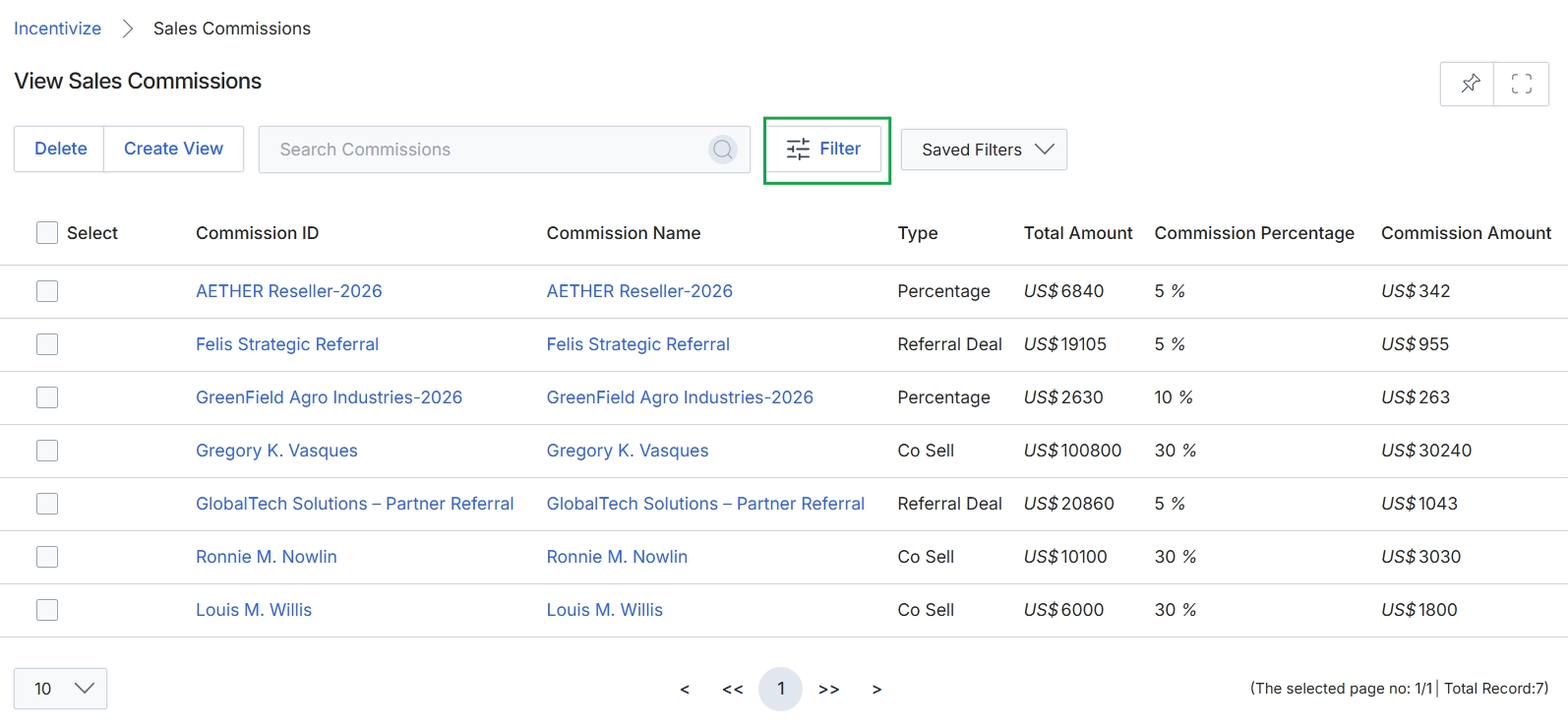
Click the Filter button.
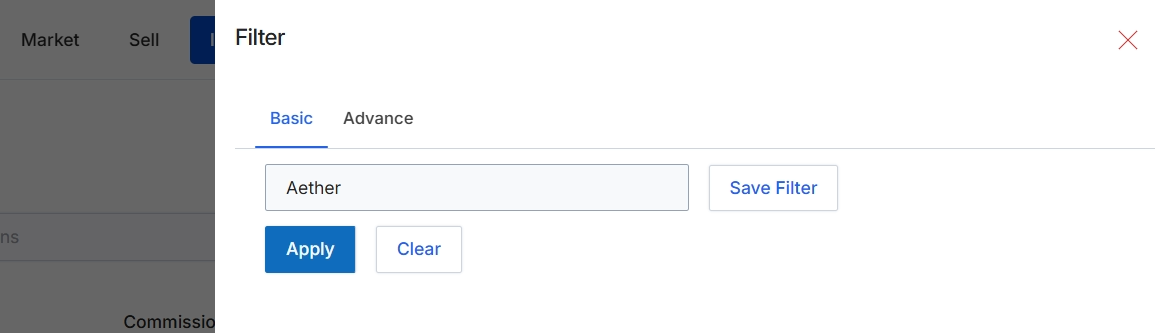
This filter panel provides options for refining the display of sales commissions. Users can apply basic or advanced filters to narrow down the list of commissions based on specific criteria. This functionality is crucial for administrators to efficiently manage and review commission data, especially when dealing with a large volume of transactions or when focusing on particular partners, periods, or commission rules. The filter helps in quickly locating specific commission records for review, approval, or analysis, supporting the overall workflow of commission management within the Incentivize module.
Enter a filter term into the input field labeled "Aether" and click "Apply" to filter the sales commissions.
Buttons
| Button | Description |
|---|---|
| Basic | A tab to switch to basic filtering options. |
| Advance | A tab to switch to advanced filtering options. |
| Save Filter | A button to save the current filter configuration for future use. |
| Apply | A button to apply the entered filter criteria to the sales commissions list. |
| Clear | A button to clear all applied filter criteria. |
Fields
| Field | Description |
|---|---|
| Aether | An input field where users can type a search term to filter the list of sales commissions. |
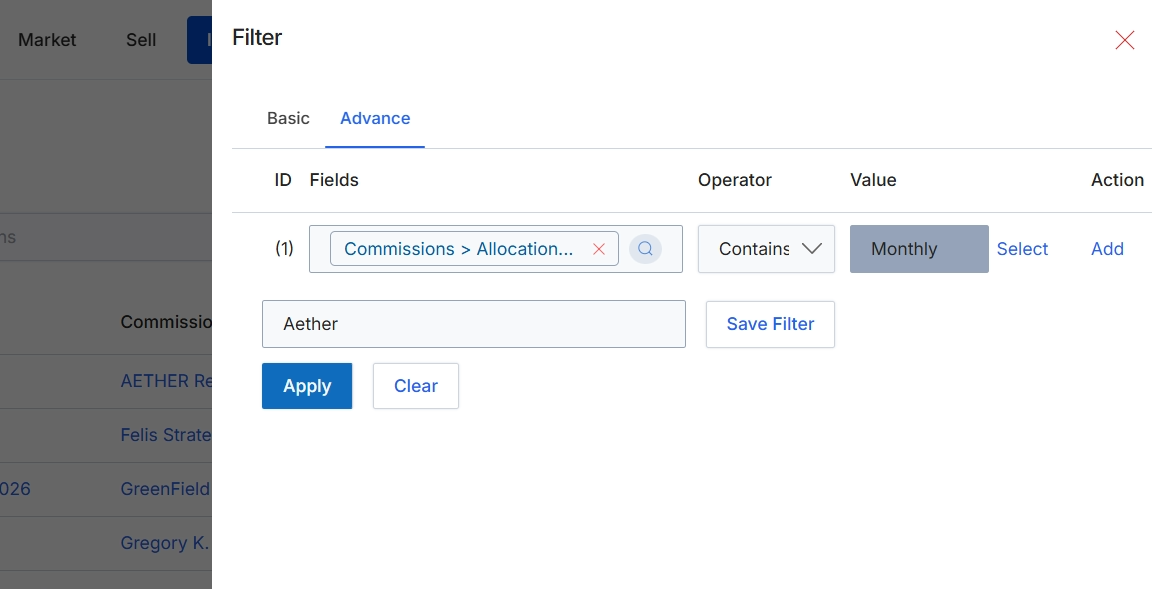
This screen displays the advanced filter interface for refining the list of sales commissions. UPM administrators use this feature to construct complex queries by combining multiple conditions based on various commission fields, operators, and values. This allows for highly granular filtering of commission data, which is essential for analysis, reporting, and managing specific commission sets. The interface supports adding multiple filter rules and saving frequently used filter configurations for future use, streamlining the process of data retrieval within the Incentivize module.
Click the "Apply" button to execute the configured advanced filter on the sales commissions list.
Buttons
| Button | Description |
|---|---|
| Basic | Tab to switch to the basic filter options. |
| Advance | Tab to switch to the advanced filter options, allowing for more complex rule-based filtering. |
| Select | Link to select a different value for the filter rule. |
| Add | Link to add a new filter condition. |
| Save Filter | Button to save the current filter configuration under the specified name. |
| Apply | Button to apply the configured filter rules to the sales commissions list. |
| Clear | Button to clear all applied filter rules. |
Fields
| Field | Description |
|---|---|
| Commissions > Allocation... | The selected field for the current filter rule, indicating a filter on commission allocation. |
| Contains | The selected operator for the current filter rule. |
| Monthly | The value being used in the current filter rule. |
| Aether | Input field to enter a name for saving the current filter configuration. |
Column Headings
| Column | Description |
|---|---|
| ID | Column header for the identifier of each filter rule. |
| Fields | Column header for the commission field being filtered. |
| Operator | Column header for the comparison operator used in the filter rule (e.g., Contains, Equals, Greater Than). |
| Value | Column header for the value used in the filter rule comparison. |
| Action | Column header for actions related to the filter rule. |