

Overview
In today's digital landscape, social media is a critical component of marketing and brand visibility. The Social Syndication Management module empowers vendors to leverage their partner networks for broader social reach. By providing pre-approved, ready-to-share social media content, vendors can ensure that their messaging is consistent, accurate, and aligned with their brand strategy, while simultaneously making it easy for partners to engage their own audiences.
This module streamlines the process of content distribution, allowing administrators to create a library of social posts that partners can access and syndicate. It also provides tools for tracking the performance of these posts, giving administrators insights into engagement metrics like likes and shares, which can inform future content strategies and demonstrate the value of partner-driven social marketing.
Managing Available Posts
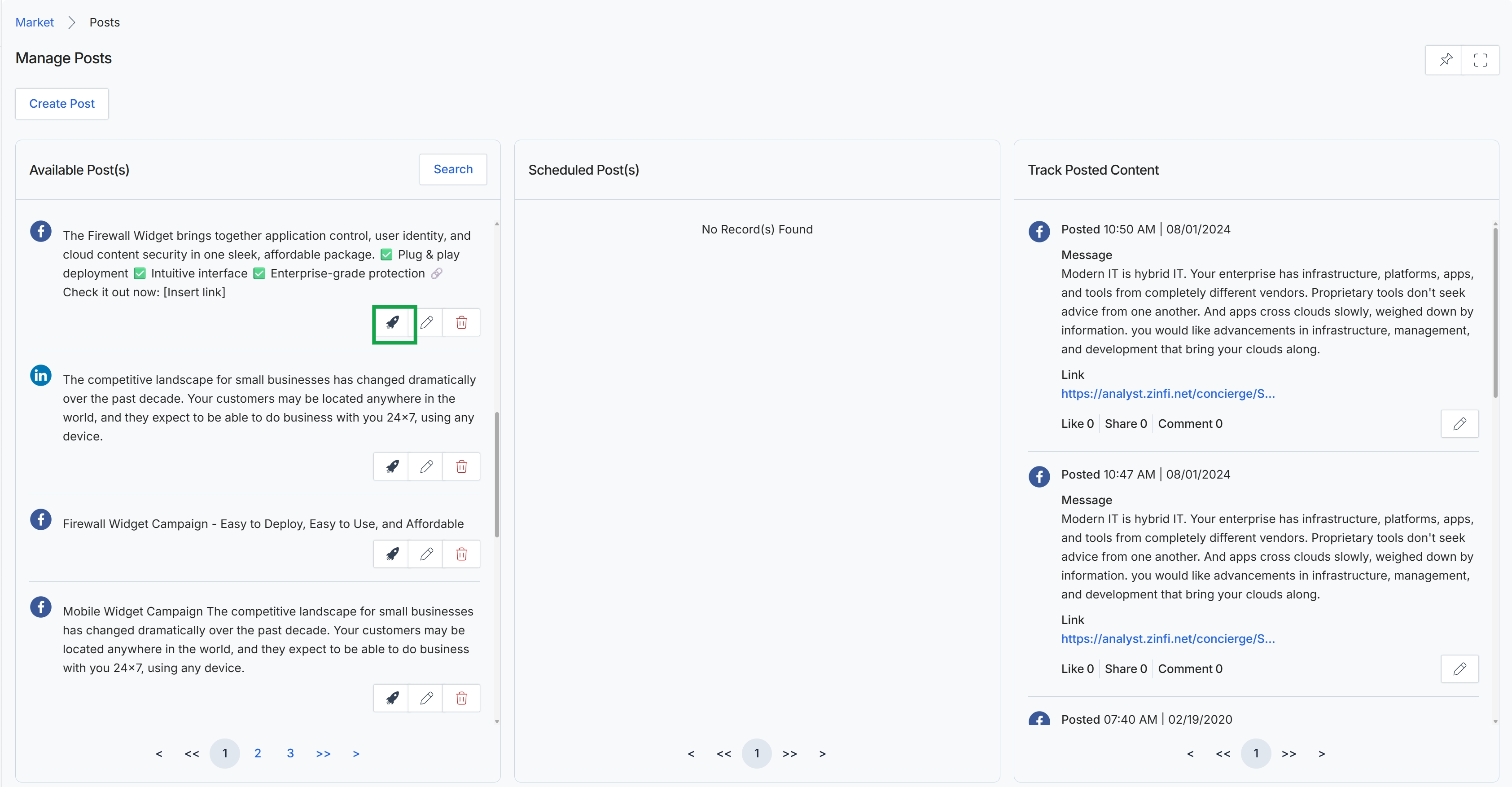
Click the Quick Post (rocket ship) icon for the desired post.
Quick Posting Content
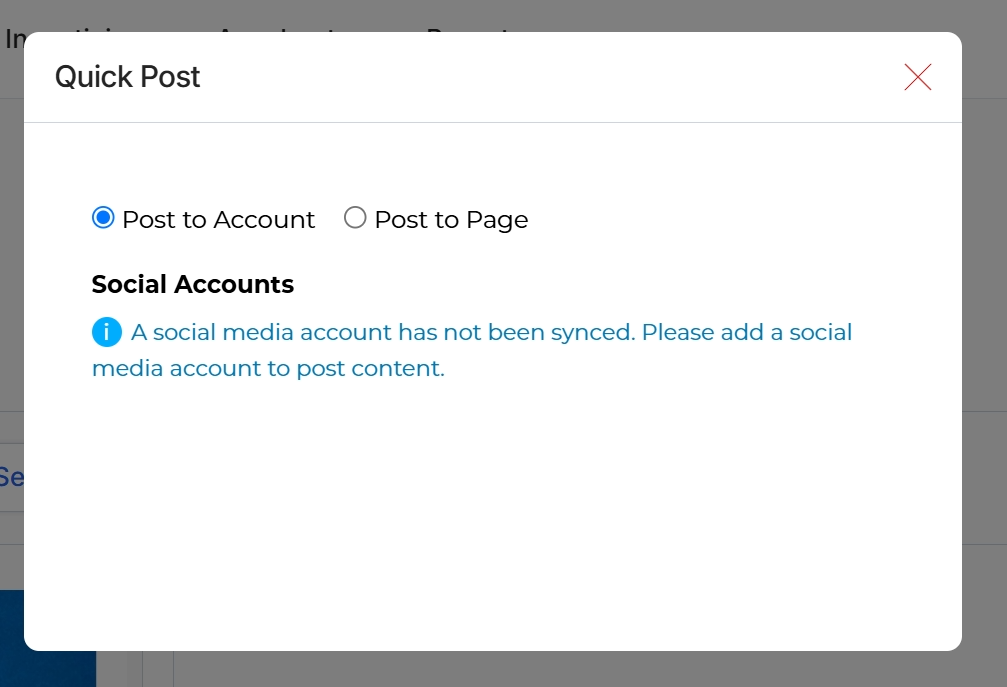
The Quick Post dialog is a component of the Social Syndication Management feature within the Market module, designed to facilitate rapid publishing of vendor-approved content to social media. This dialog allows users to select whether they intend to post content to a personal social media account or a business page. It also serves as an important notification mechanism, informing users when no social media accounts are currently synced with the platform, which is a prerequisite for utilizing the posting functionality. Before any content can be published through this interface, users must first connect their social media accounts to the platform.
The Quick Post dialog indicates that no social media accounts are currently synced, which is required to post content.
Fields
| Field | Description |
|---|---|
| Post to Account | A radio button option to post content to a personal social media account. |
| Post to Page | A radio button option to post content to a business social media page. |
| Social Accounts | This section displays a notification if no social media accounts are synced, indicating that content cannot be posted until an account is connected. |
Editing Social Posts
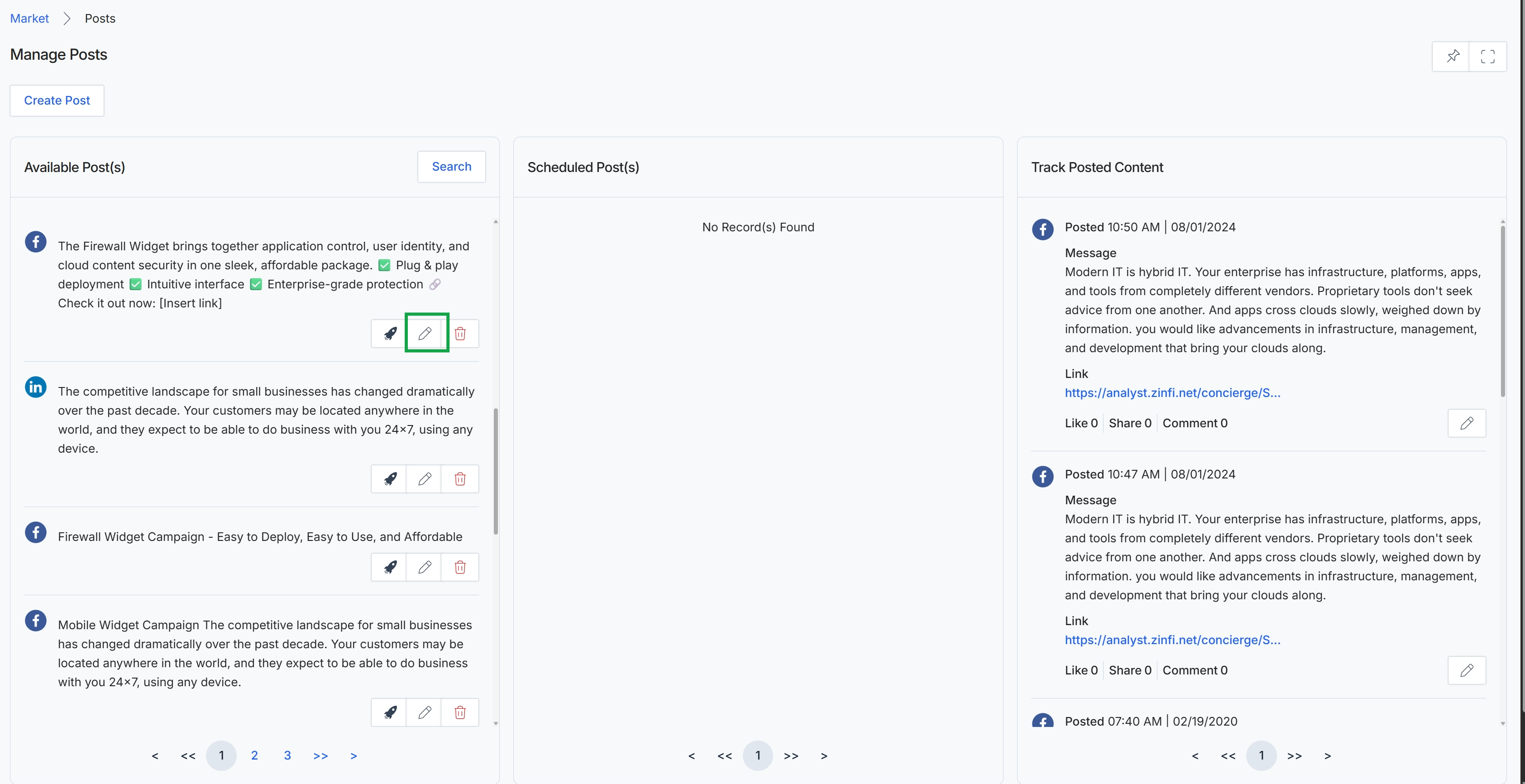
Click the Edit Post icon next to an existing post in the "Available Post(s)" section.
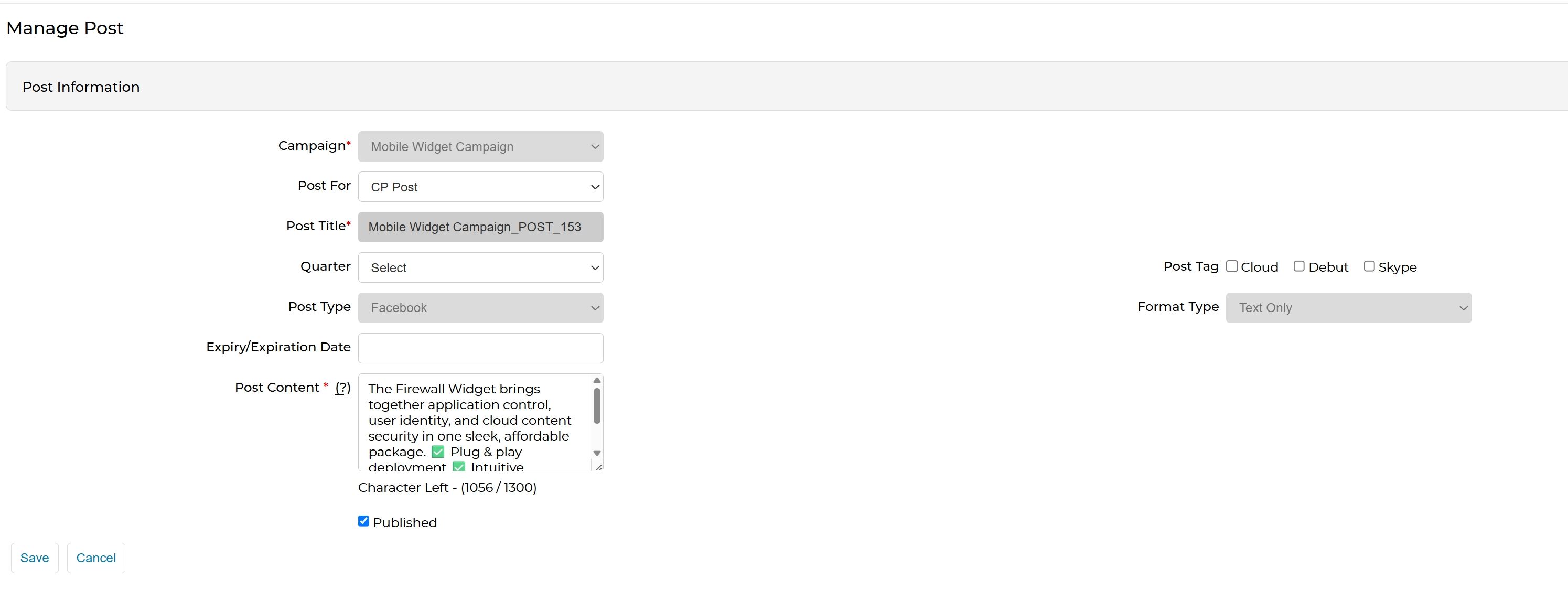
This screen displays the form for managing a social media post, allowing administrators to define its content and attributes. It is used to create or edit a post that can be syndicated to partners for their social media channels. The form captures essential details such as the associated campaign, post title, content, and the social media platform it is intended for, ensuring that syndicated content aligns with marketing strategies and is properly formatted for distribution. Administrators can specify the campaign to which the post belongs, the post's content, and its publication status. This form is crucial for maintaining brand consistency and ensuring effective communication across partner social channels.
Review and modify the details of the social media post as needed, then click Save to apply your changes.
Buttons
| Button | Description |
|---|---|
| Save | Saves the changes made to the social media post. |
| Cancel | Discards any changes and returns to the previous screen. |
Post Information
| Field | Description |
|---|---|
| Campaign | The marketing campaign associated with this social media post. |
| Post For | Specifies the target audience or purpose for the post. |
| Post Title | The title of the social media post. |
| Quarter | The financial quarter to which the post belongs. |
| Post Type | The social media platform for which the post is intended, such as Facebook. |
| Expiry/Expiration Date | The date when the social media post will expire or no longer be active. |
| Post Content | The main text content of the social media post, with a character limit. |
| Published | Indicates whether the social media post is currently published and available for syndication. |
Fields
| Field | Description |
|---|---|
| Cloud | Checkbox to tag the post with 'Cloud'. |
| Debut | Checkbox to tag the post with 'Debut'. |
| Skype | Checkbox to tag the post with 'Skype'. |
| Format Type | The format type of the post content, such as 'Text Only'. |
Deleting Social Posts
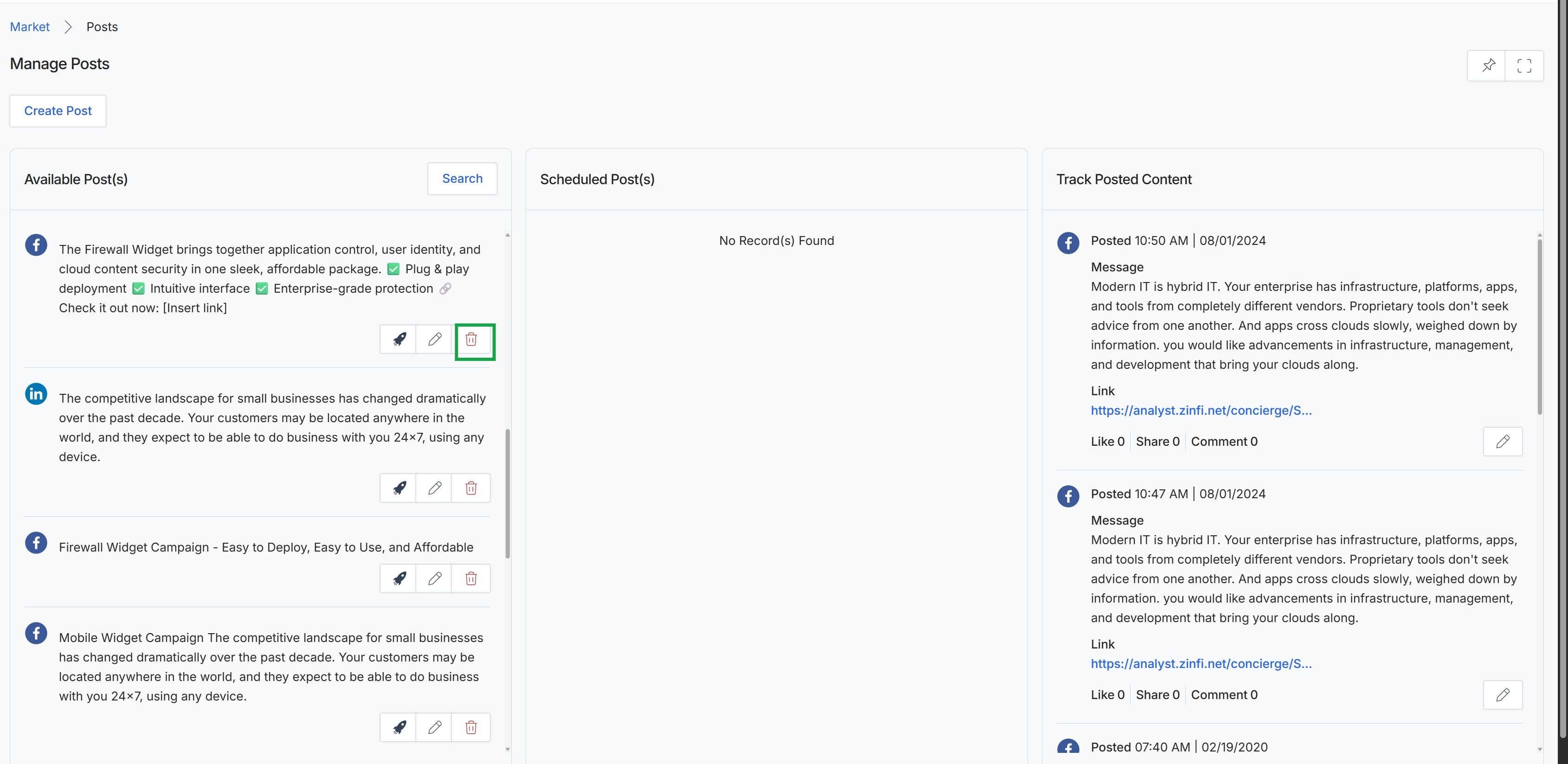
Click the Delete icon next to the post you want to delete.