

Overview
The Asset Library within the platform serves as a central repository for all marketing and sales collateral that partners can utilize. This co-branded assets management functionality is crucial for ensuring brand consistency while empowering partners to personalize materials with their own branding. Administrators use this module to oversee the creation, distribution, and usage of these assets, ensuring that partners have access to up-to-date and approved content for their marketing and sales efforts.
By providing a clear view of each asset's details and its approval status, the platform streamlines the process of managing partner-facing content. This not only helps in maintaining brand guidelines but also facilitates efficient collaboration between the vendor and its partners, ultimately accelerating partners' ability to market and sell products effectively.
Accessing and Viewing Asset Details
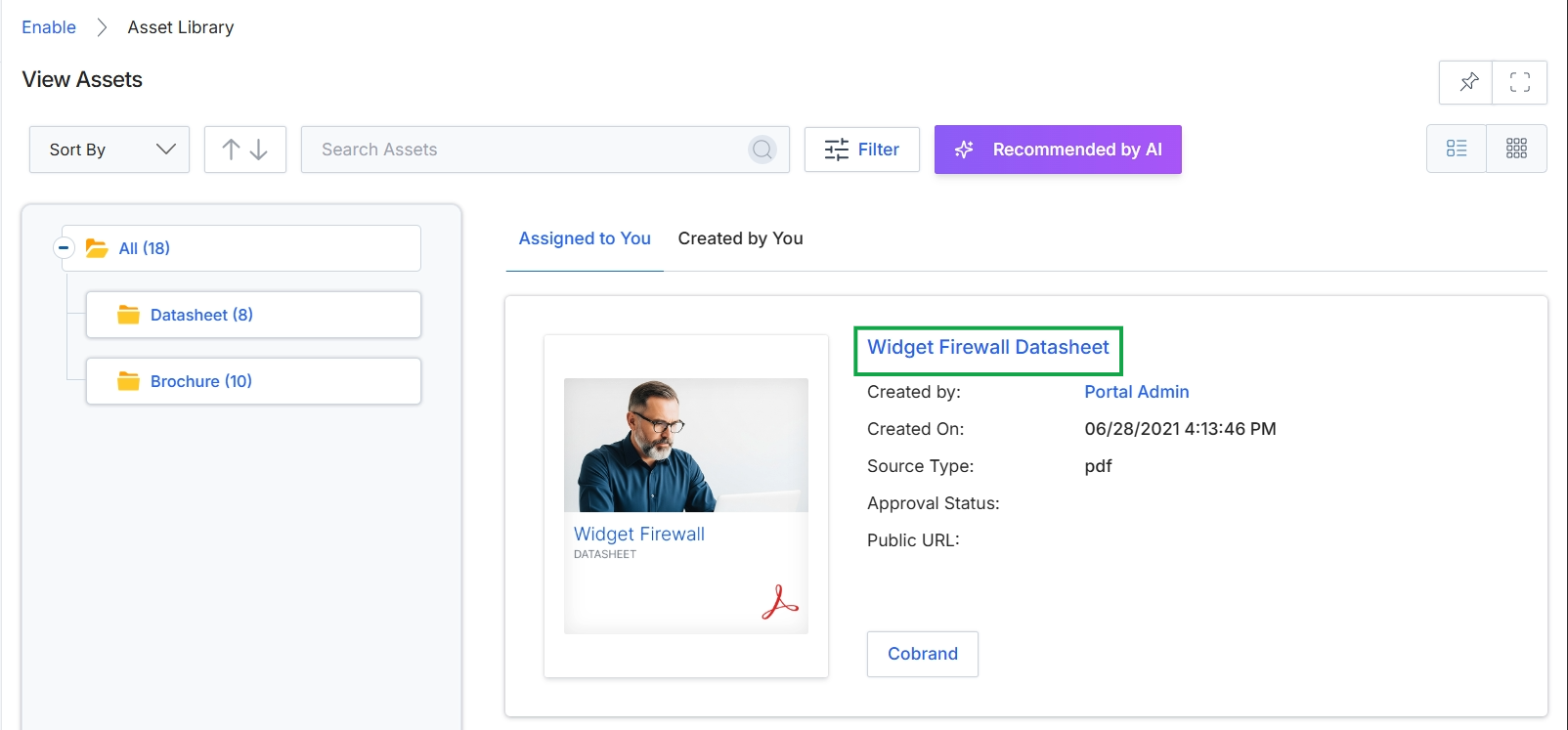
Click the Widget Firewall Datasheet title to view the asset details.
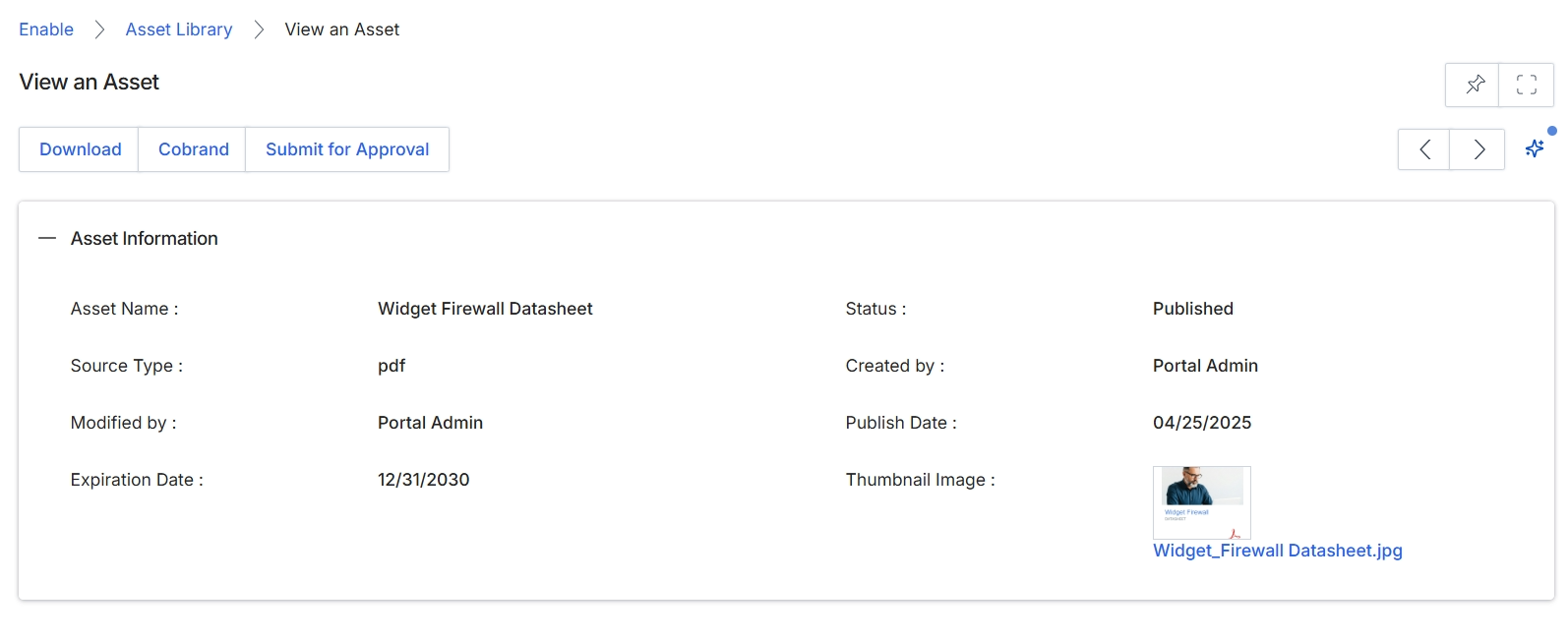
The View an Asset screen provides a detailed overview of a specific content asset stored in the Enable module's Asset Library. This screen displays all relevant metadata associated with the asset, such as its name, type, status, and important dates, allowing administrators to quickly review its properties. It also indicates who created and last modified the asset, providing an audit trail. From this view, administrators can initiate actions like downloading the asset, preparing it for co-branding, or submitting it for approval, which are crucial steps in managing and distributing content to partners.
Review the asset's details and then click the "Cobrand" button to proceed with co-branding the asset.
Buttons
| Button | Description |
|---|---|
| Download | Click to download the original asset file. |
| Cobrand | Click to initiate the co-branding process for this asset, allowing partners to add their branding. |
| Submit for Approval | Click to submit the asset for an approval workflow, if required. |
Asset Information
| Field | Description |
|---|---|
| Asset Name | The title or name of the asset, as displayed to partners. |
| Source Type | Indicates the file format of the asset, such as PDF, video, or document. |
| Modified by | The user who last made changes to the asset. |
| Expiration Date | The date on which the asset is scheduled to expire and potentially be archived. |
| Status | The current publication status of the asset (e.g., Published, Draft, Archived). |
| Created by | The user who originally created and uploaded the asset. |
| Publish Date | The date when the asset was made available to partners. |
| Thumbnail Image | A small preview image associated with the asset, typically displayed in the asset library. |
Managing Asset Actions
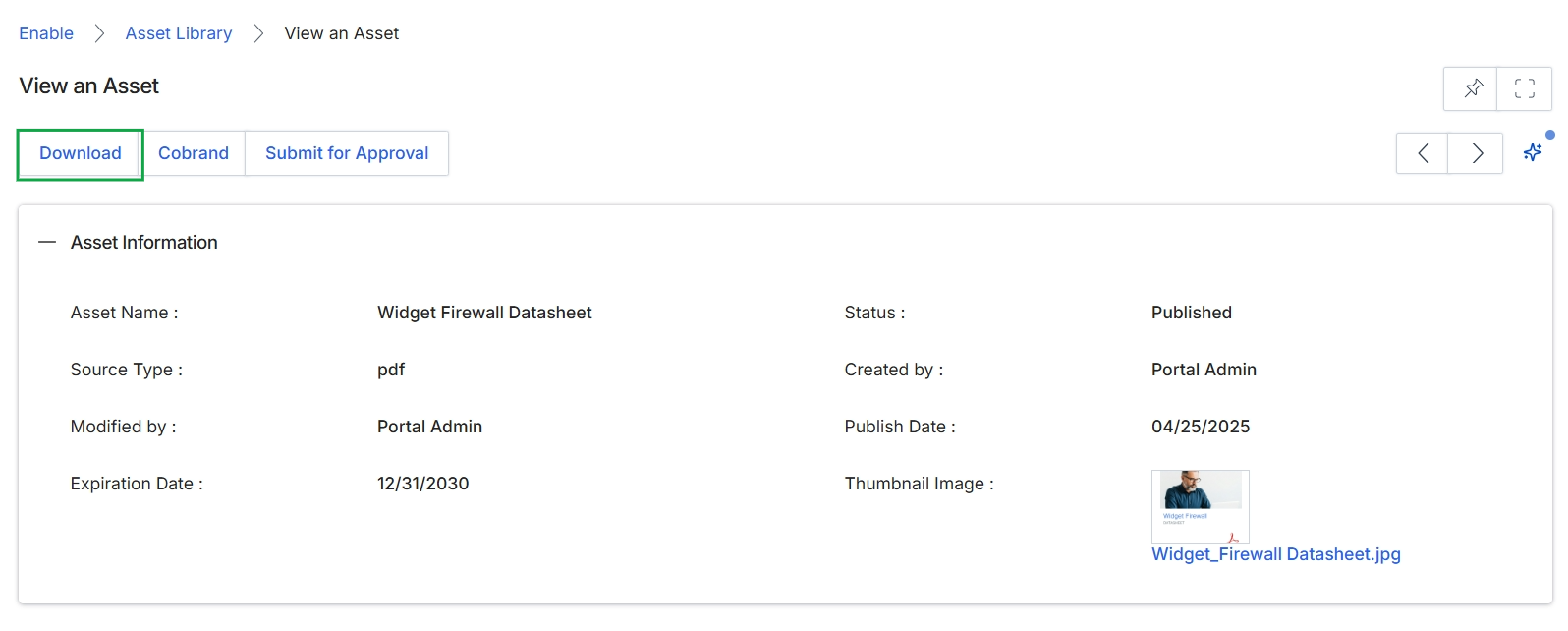
Click the Download button.
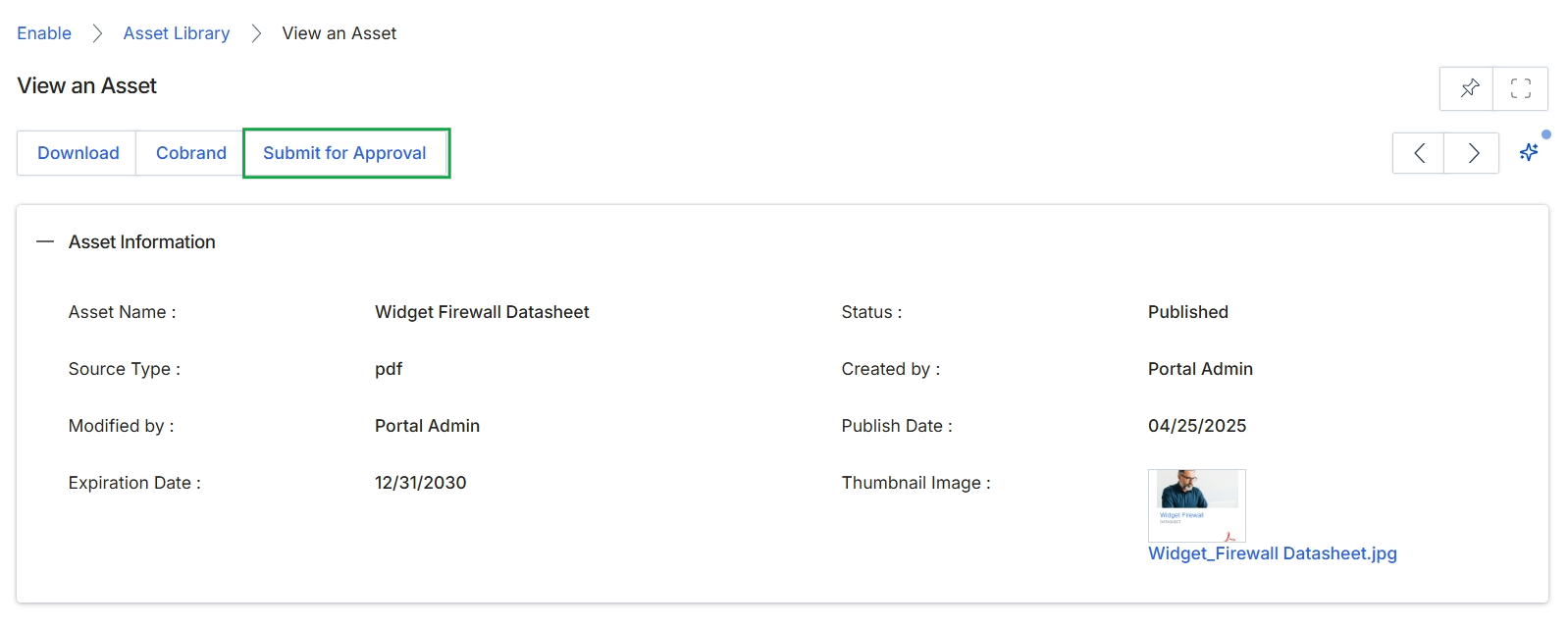
Click the Submit for Approval tab.
Reviewing Approval History
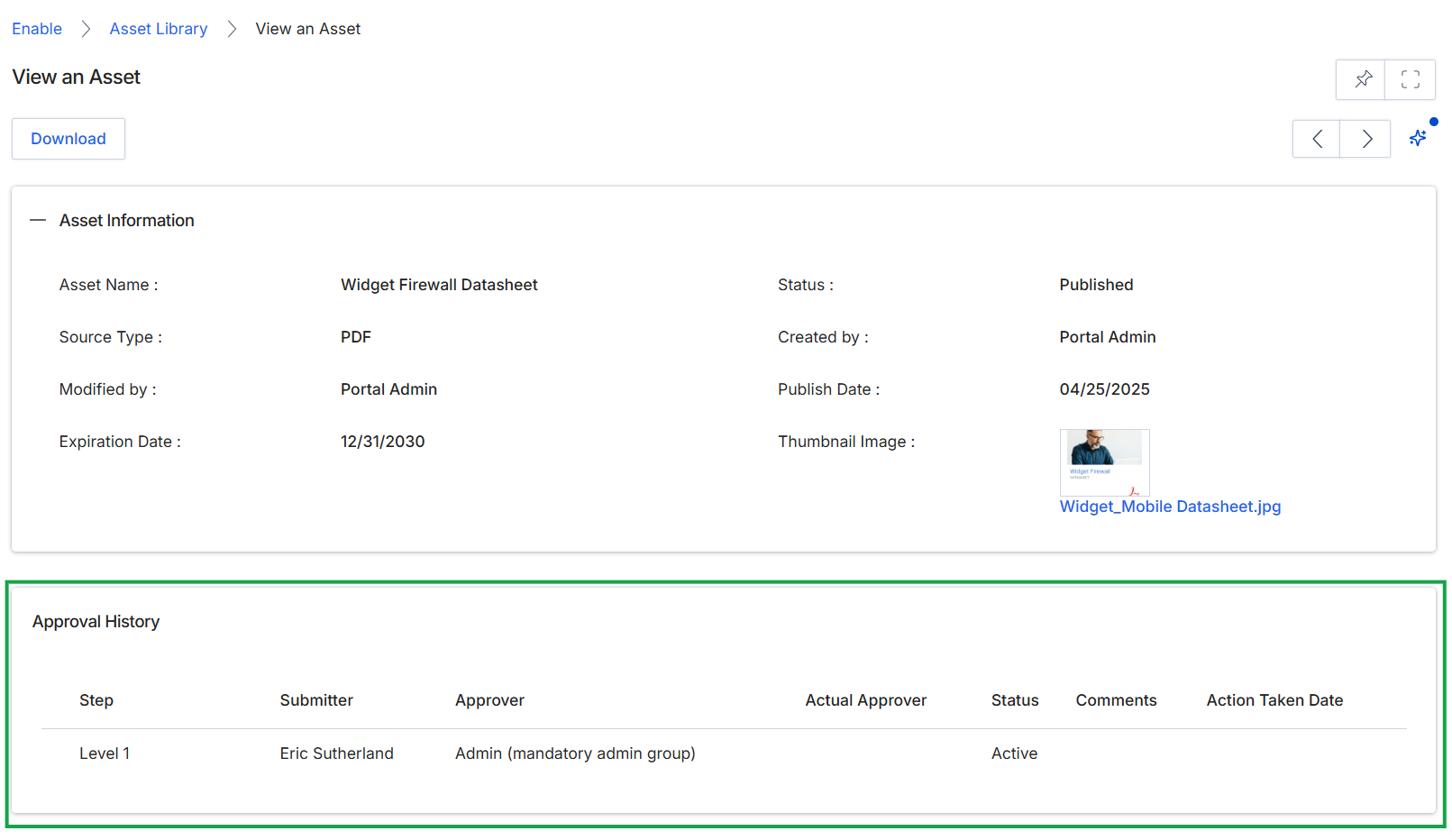
This screen displays the detailed information for a specific asset within the asset library, providing a comprehensive overview of its properties and history. It presents key metadata about the asset, such as its name, source type, status, and publication details, which are essential for managing content. Additionally, the screen includes an approval history section, showing the workflow steps and individuals involved in the asset's approval process, which is critical for tracking content governance and compliance.