

Overview
The Asset Library within the Enable module serves as the primary content management system for partner-facing materials. It allows administrators to upload, categorize, and control the visibility of various assets, ensuring that partners have access to the most current and relevant information. This centralized approach streamlines content distribution, reduces redundant requests, and empowers partners to effectively market and sell products and services.
Partners can easily search, filter, and download assets, and for certain materials, they have the option to co-brand them with their own logos and contact information. This capability is crucial for maintaining brand consistency while allowing partners to personalize collateral for their specific customer engagements. The system also supports AI-driven recommendations to help partners discover relevant content, enhancing their efficiency and effectiveness.
Accessing the Asset Library
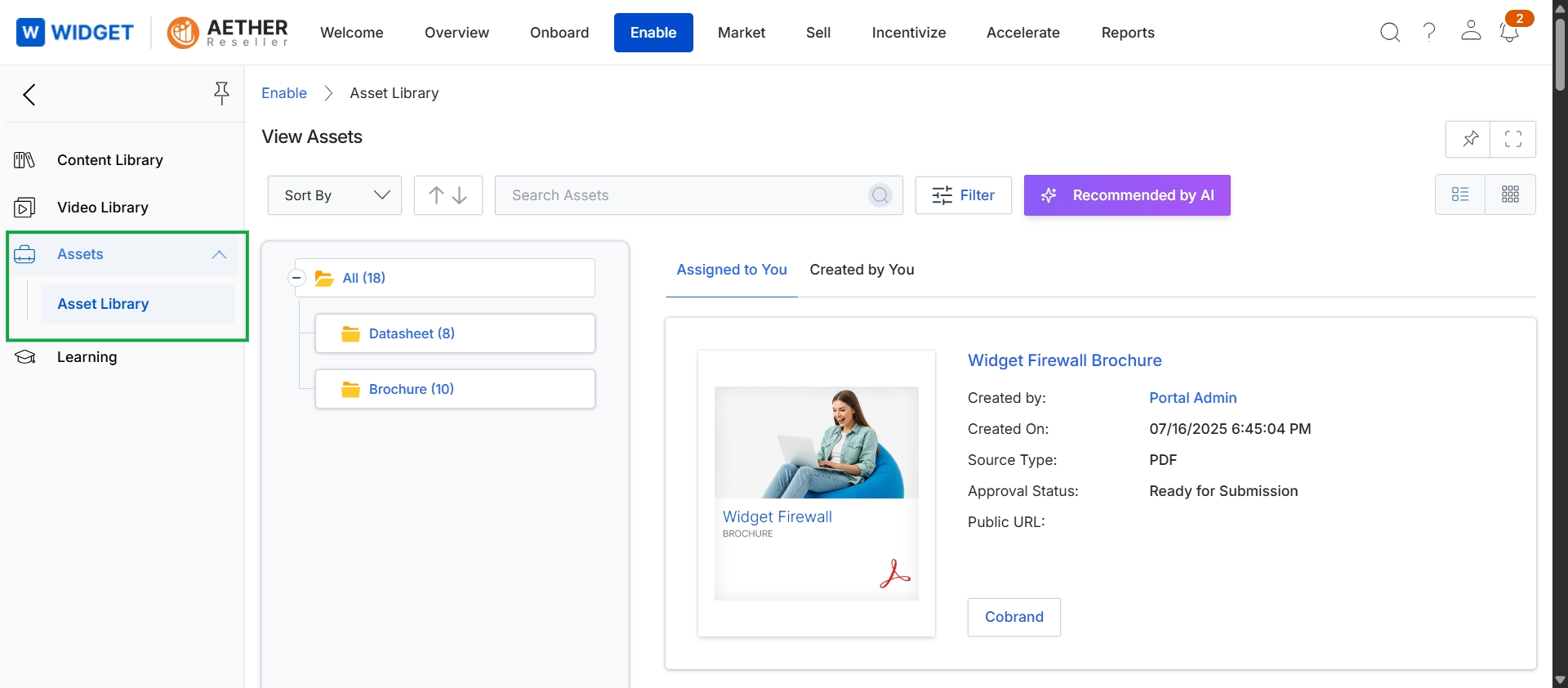
Click Assets in the left navigation menu, then click Asset Library.
Changing the Asset View
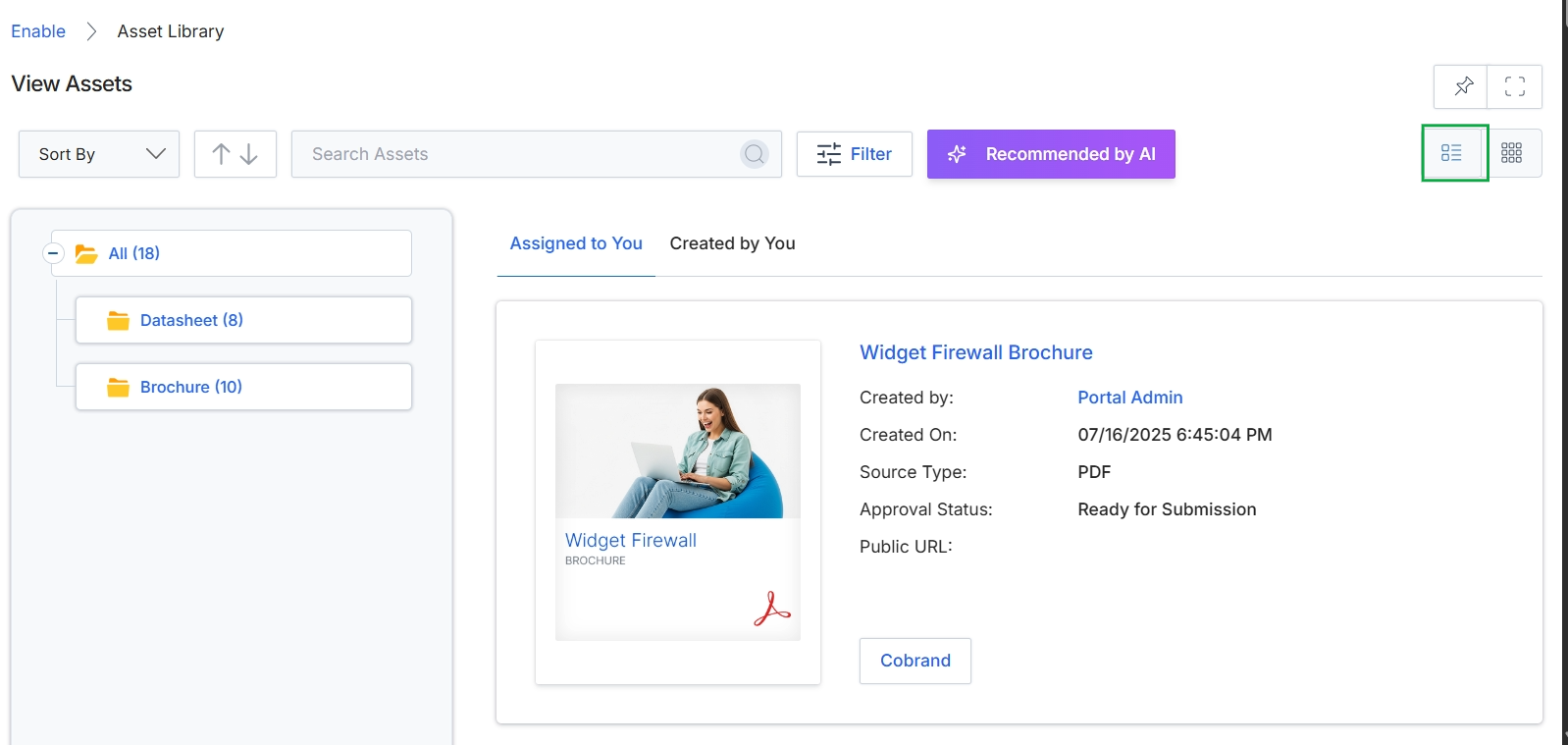
Click the List View icon.
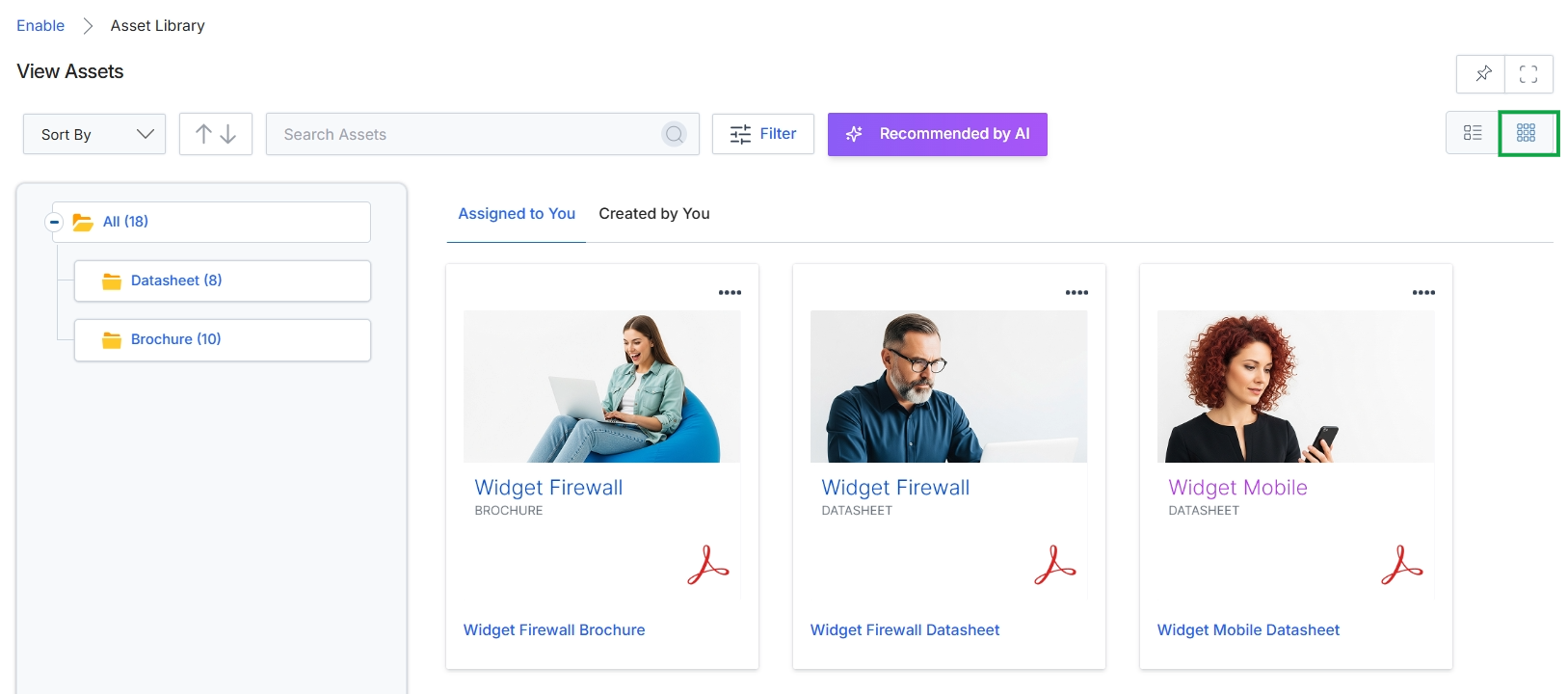
Click the Grid View icon to switch the asset display to a grid layout.
Sorting and Searching Assets
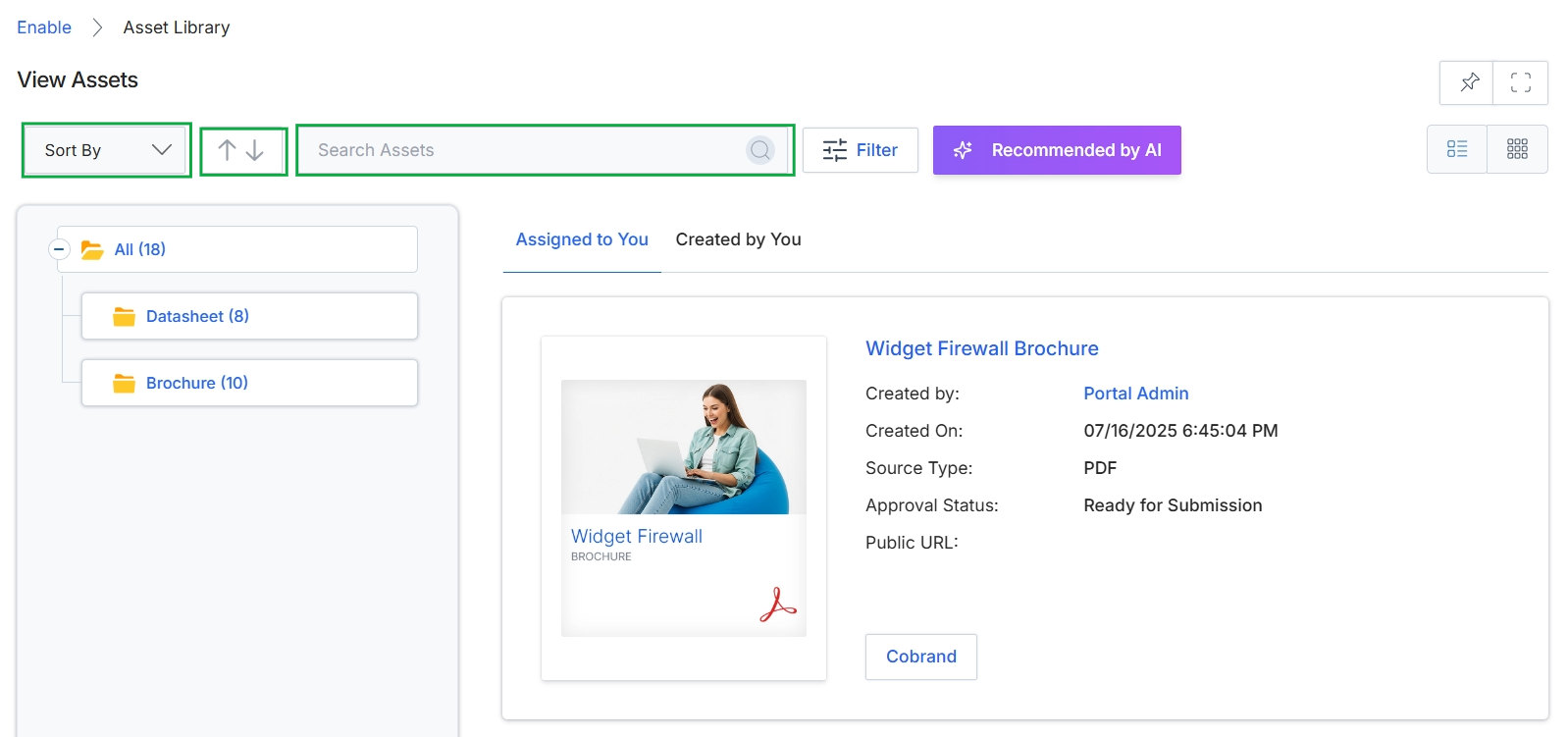
This screen displays the Asset Library, which serves as a central repository for various content assets that partners can utilize. It allows administrators to view, sort, and search through available assets, facilitating content management and distribution within the partner ecosystem. The interface provides options to organize assets by categories and to view details for individual assets, including their creation information and approval status.
Filtering Assets
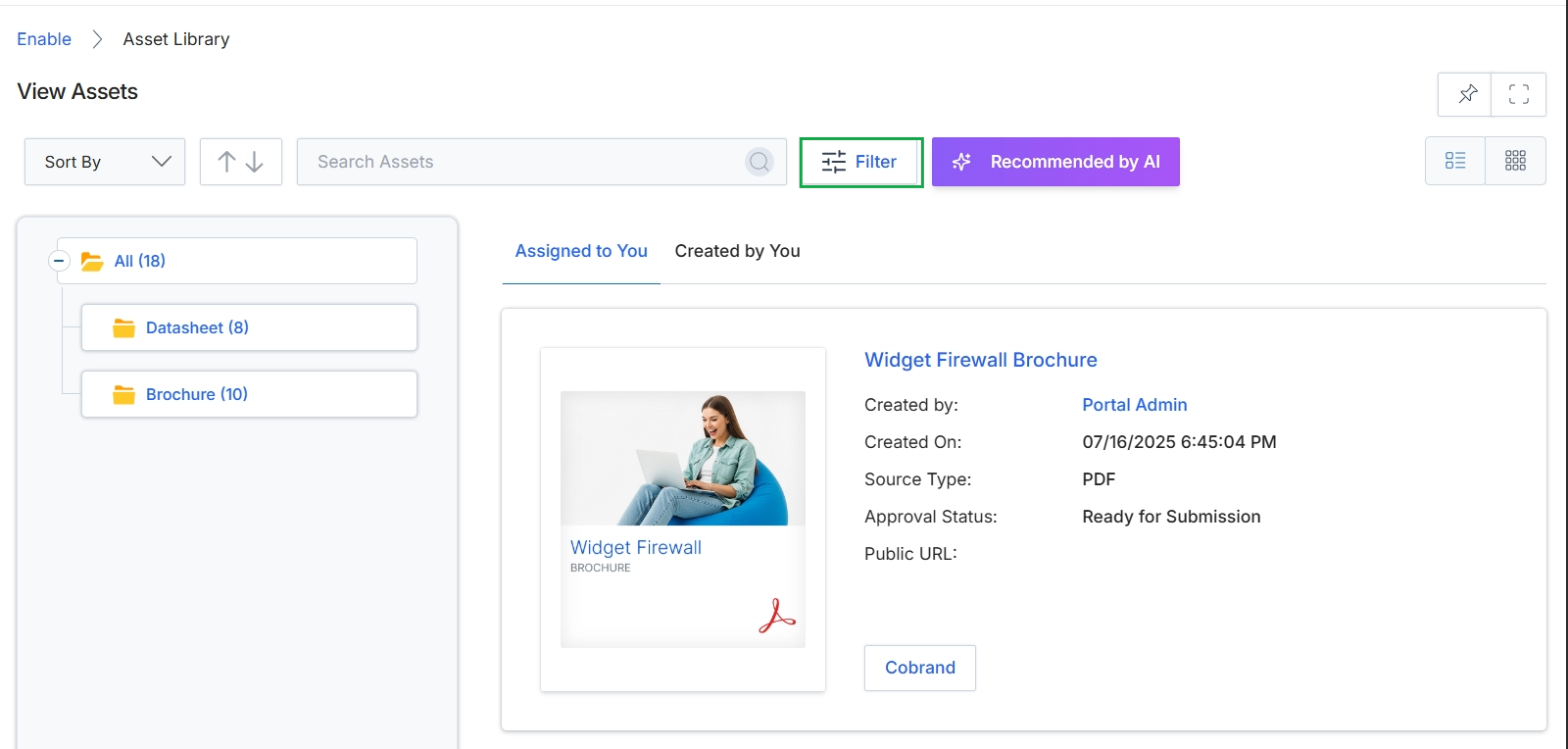
Click the Filter button.
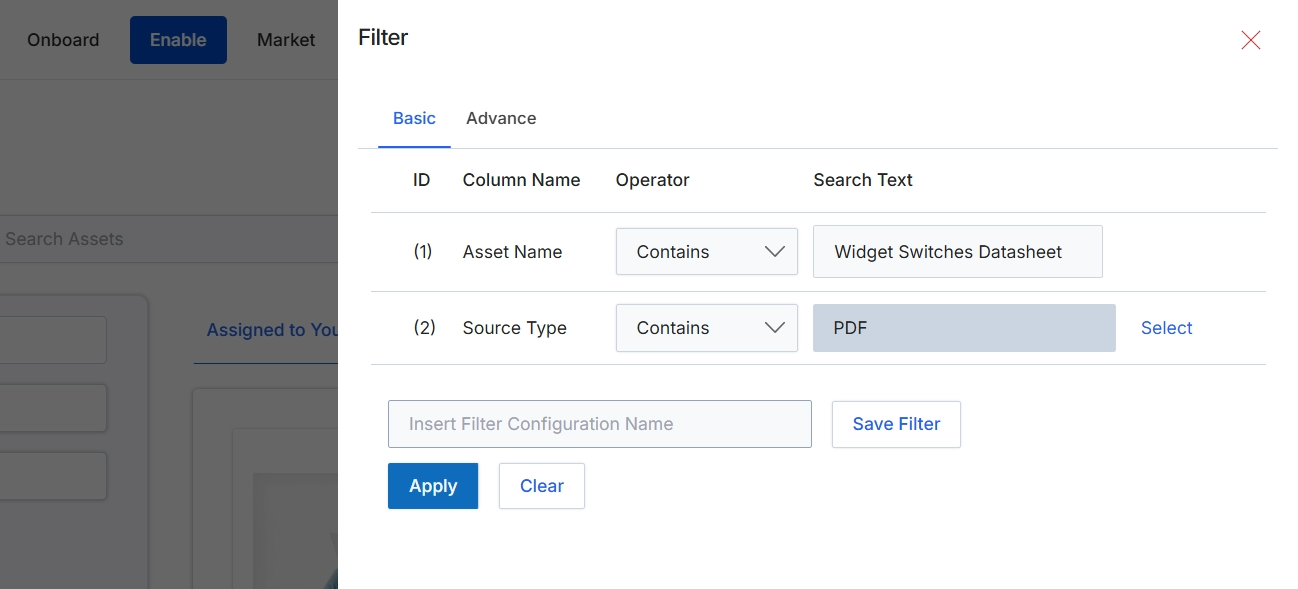
This filter dialog allows users to refine the display of assets within the Enable module's content library. Users can apply one or more filter conditions based on various asset properties, such as asset name or source type, to quickly locate specific content. The dialog supports both basic and advanced filtering options, enabling precise control over the asset list view. Filter configurations can also be saved for future reuse, streamlining content management workflows for administrators and partners.
Apply the configured filters to the asset list by clicking the "Apply" button.
Buttons
| Button | Description |
|---|---|
| Basic | A tab to switch to basic filter configuration options. |
| Advance | A tab to switch to advanced filter configuration options. |
| Select | A button to open a selection dialog for the 'Source Type' filter value. |
| Save Filter | A button to save the current filter configuration with the specified name. |
| Apply | A button to apply the configured filters to the asset list. |
| Clear | A button to clear all active filter conditions. |
Fields
| Field | Description |
|---|---|
| Asset Name | A dropdown field to select the asset property for the first filter condition. |
| Contains | A dropdown field to select the operator for the first filter condition, currently set to 'Contains'. |
| Widget Switches Datasheet | A text input field for the search value of the first filter condition, currently set to 'Widget Switches Datasheet'. |
| Source Type | A dropdown field to select the asset property for the second filter condition. |
| Contains | A dropdown field to select the operator for the second filter condition, currently set to 'Contains'. |
| A text input field for the search value of the second filter condition, currently set to 'PDF'. | |
| Insert Filter Configuration Name | A text input field to enter a name for saving the current filter configuration. |
Column Headings
| Column | Description |
|---|---|
| ID | Column header for the filter condition identifier. |
| Column Name | Column header for the asset property to filter by. |
| Operator | Column header for the comparison operator used in the filter condition. |
| Search Text | Column header for the value to search for within the specified column. |
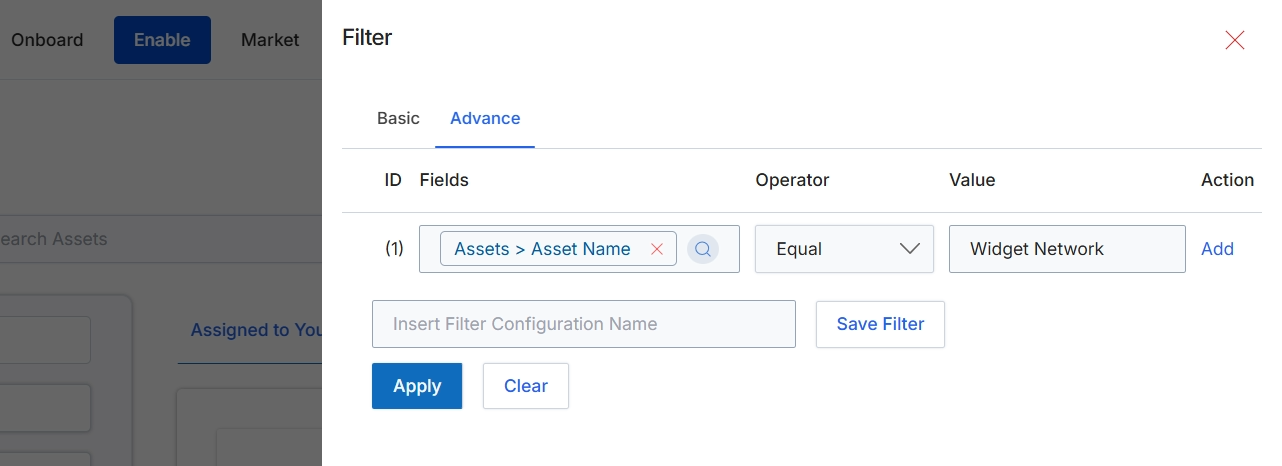
This screen displays the advanced filter configuration for asset management, allowing administrators to define specific criteria for searching and organizing assets within the Enable module. The advanced filter provides granular control over asset visibility and retrieval, which is crucial for managing a large content library and ensuring partners access relevant materials. Filters can be saved for future use, streamlining the process of applying complex search conditions. This functionality supports the efficient management of content assets, which are critical for partner enablement and marketing efforts.
Apply the configured advanced filter to the asset list.
Buttons
| Button | Description |
|---|---|
| Basic | Switches to the basic filter options. |
| Advance | Currently selected tab for advanced filter configurations. |
| Add | Adds another filter rule to the advanced filter configuration. |
| Save Filter | Saves the current filter configuration with the specified name. |
| Apply | Applies the configured filter to the asset list. |
| Clear | Clears all applied filter rules. |
Fields
| Field | Description |
|---|---|
| Assets > Asset Name | The selected field for the filter rule, indicating that the 'Asset Name' field is being filtered. |
| Equal | The selected operator for the filter rule, indicating an exact match. |
| Widget Network | The value used in the filter rule, specifying 'Widget Network' as the asset name to match. |
| Insert Filter Configuration Name | Text input field to enter a name for saving the current filter configuration. |
Column Headings
| Column | Description |
|---|---|
| ID | Column header for the filter rule identifier. |
| Fields | Column header for the asset field being filtered. |
| Operator | Column header for the comparison operator used in the filter rule. |
| Value | Column header for the value used in the filter comparison. |
| Action | Column header for actions related to the filter rule, such as adding more rules. |