

Overview
Deal registration is a cornerstone of many partner programs, designed to protect partners' sales efforts and incentivize them to identify and pursue new opportunities. By formally registering a deal, partners secure exclusive rights to work on that opportunity for a defined period, preventing channel conflict and ensuring they receive appropriate credit and commission upon closure. For administrators, effectively managing registered deals is crucial for maintaining a healthy partner ecosystem, accurately forecasting pipeline, and ensuring timely and correct commission payouts based on closed deals.
Accessing and Viewing Registered Deals
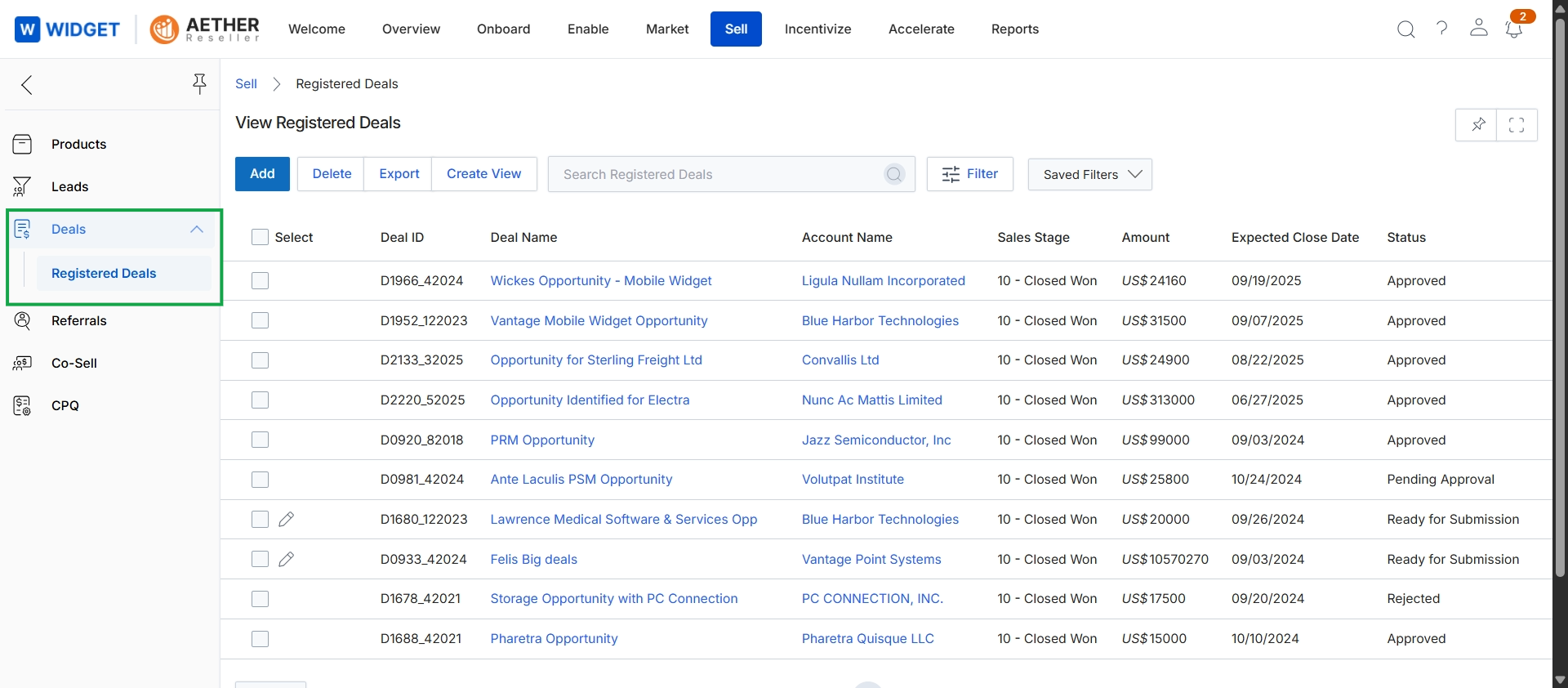
Click Deals → Registered Deals.
Managing Registered Deals (Add, Delete, Export)
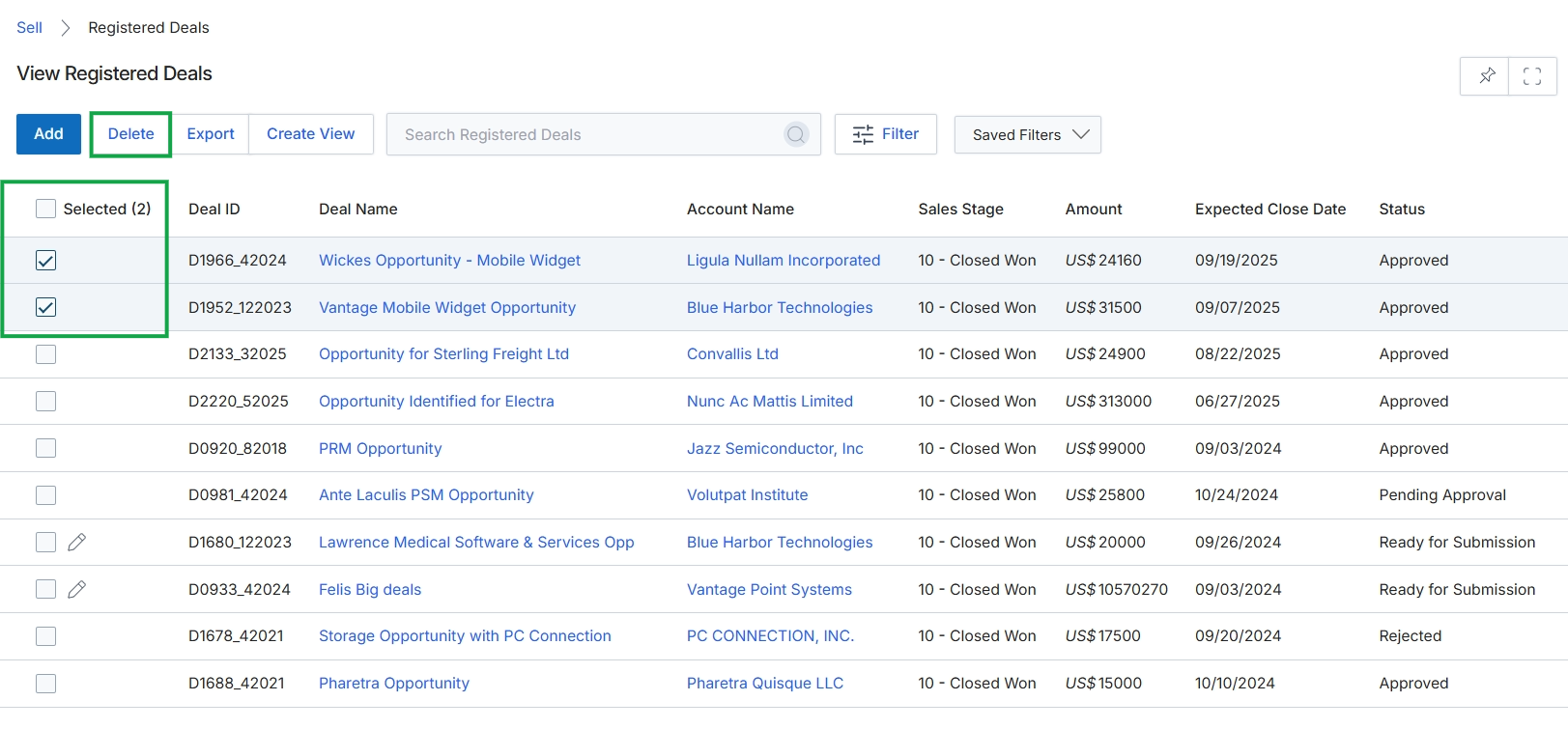
Click the Delete button.
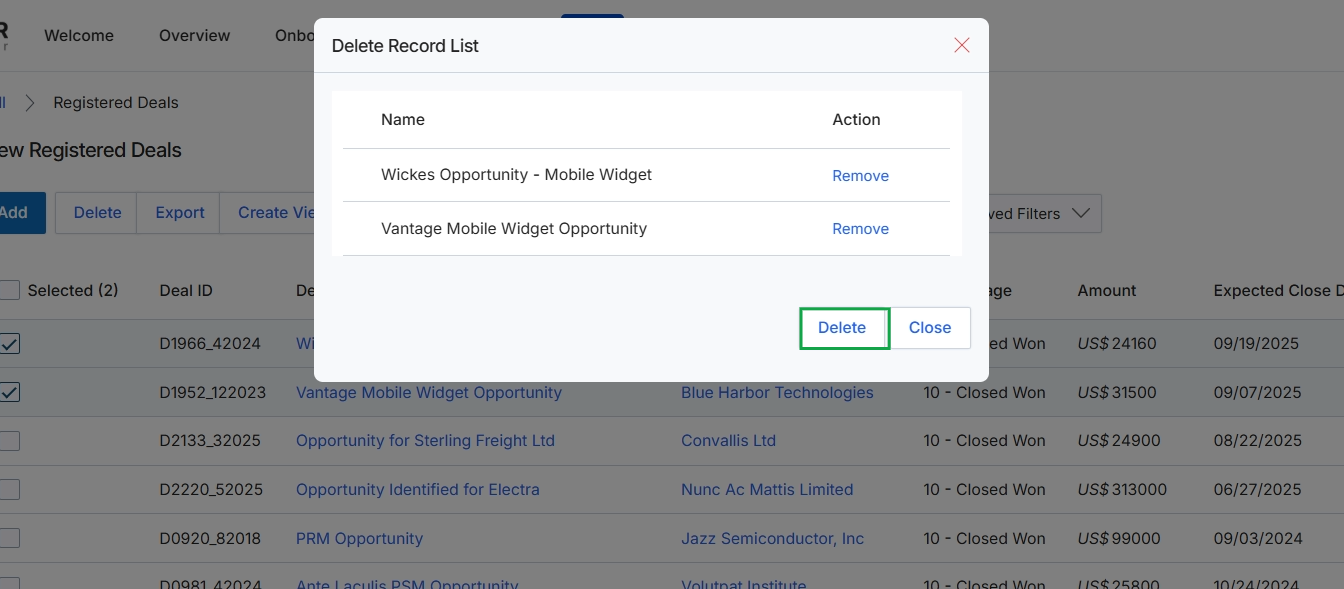
This screen displays a modal dialog titled 'Delete Record List', which appears when a user has selected one or more registered deals for removal from the system. The dialog provides a final review of the selected items, listing each registered deal by its name. Users can choose to 'Remove' individual deals from this list before proceeding with the bulk deletion, ensuring that only the intended records are processed for permanent removal from the platform.
Click the Delete button.
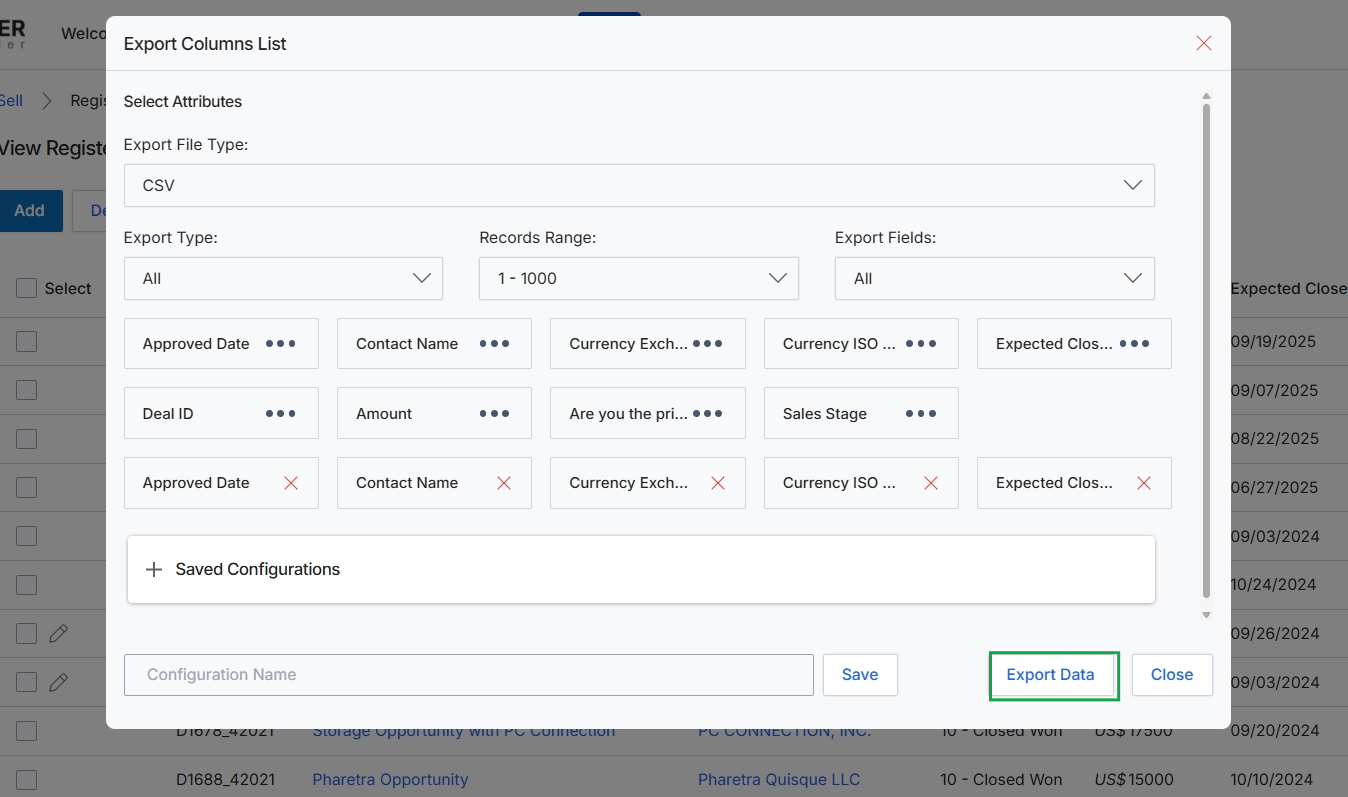
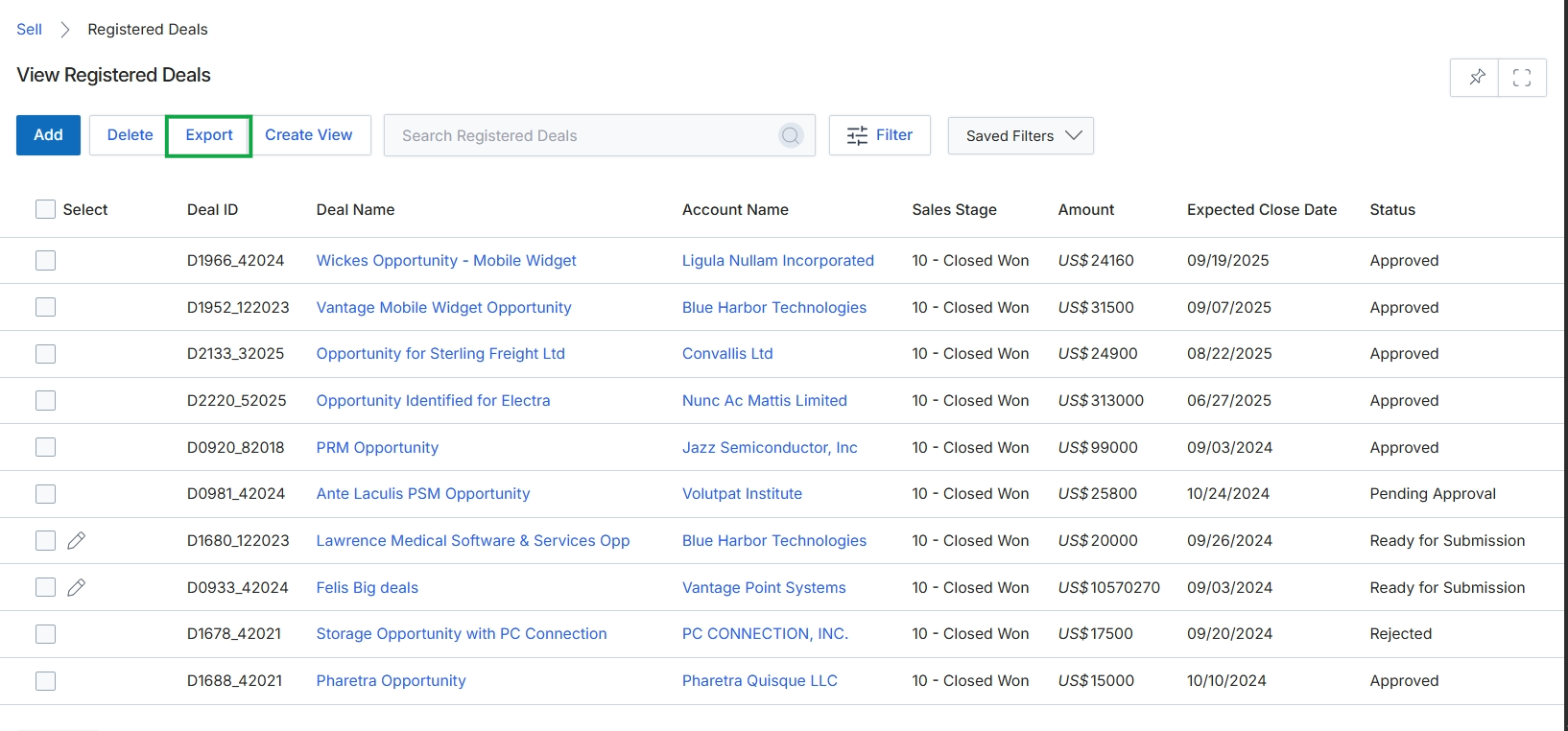
This modal dialog, titled 'Export Columns List', provides a dedicated interface for users to configure and initiate the export of data from the Registered Deals list. It serves as a crucial tool for data analysis, reporting, or transferring deal information to external systems, supporting the comprehensive management and tracking of partner-registered deals within the Sell module. Users can customize their export by specifying the desired file type, defining the range of records to be included, and selecting the specific fields (columns) that will be present in the exported file. This functionality ensures that only relevant data points are extracted, allowing for tailored data output.
Click the 'Export Data' button to download the Registered Deals data based on the selected export configuration.
Buttons
| Button | Description |
|---|---|
| Save | A button to save the current export configuration under the specified name for future reuse. |
| Export Data | A button to initiate the download of the Registered Deals data based on the currently selected export options. |
| Close | A button to close the export configuration dialog without performing an export. |
Select Attributes
| Field | Description |
|---|---|
| Export File Type | A dropdown menu to select the format of the exported file, with 'CSV' currently chosen as the file type. |
| Export Type | A dropdown menu to specify the type of export, with 'All' currently selected, indicating that all records or a specific subset will be included. |
| Records Range | A dropdown menu to define the range of records to be included in the export, currently set to '1 - 1000'. |
| Export Fields | A dropdown menu to select which fields (columns) should be included in the export, with 'All' currently selected, indicating all available fields are chosen by default. |
Fields
| Field | Description |
|---|---|
| Saved Configurations | A collapsible section that, when expanded, would display previously saved export configurations for reuse. |
| Configuration Name | An input field to enter a name for the current export configuration, allowing it to be saved for future use. |
Customizing Your View with Filters and Columns
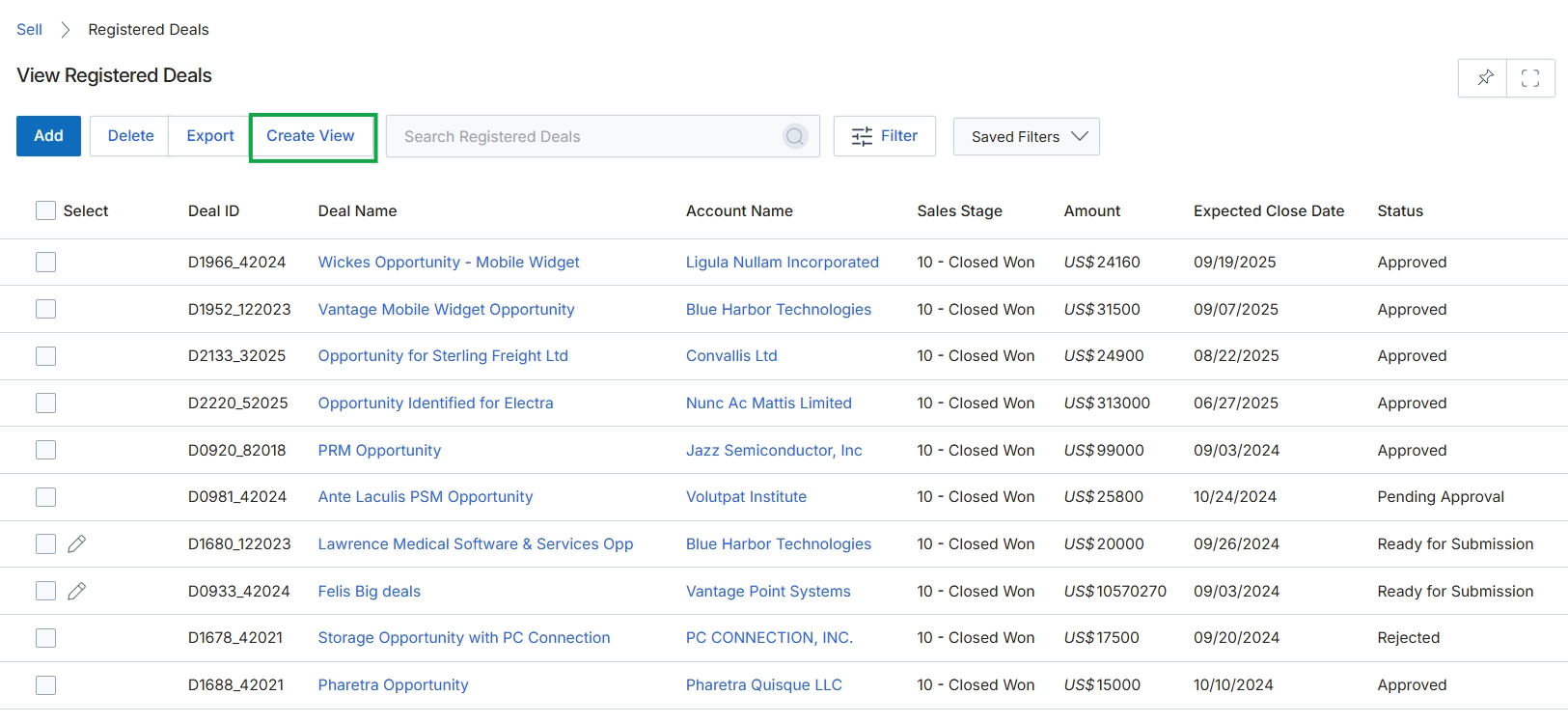
Click Export Data.
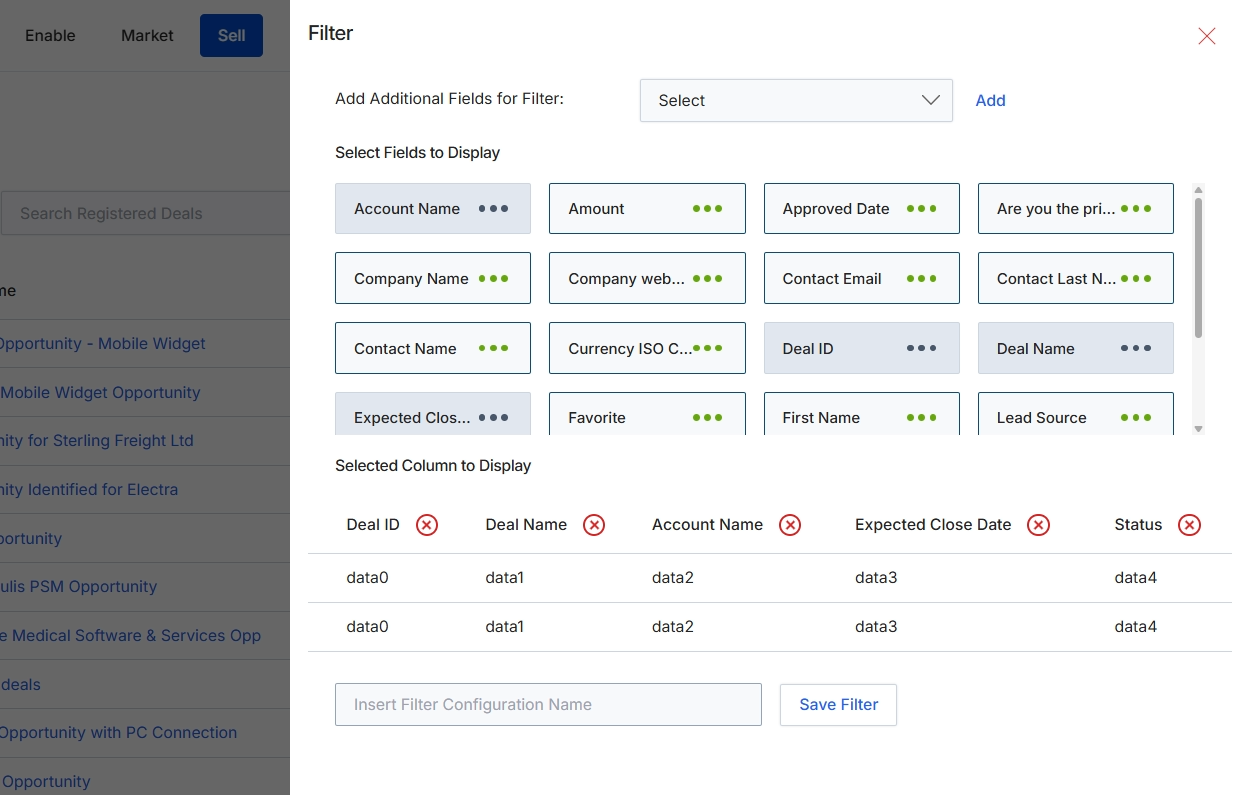
This screen presents a filter configuration panel for the Registered Deals list, allowing users to customize the displayed columns and apply specific filtering criteria. This functionality is essential for both vendor administrators and partners to tailor their view of sales opportunities, enabling them to focus on relevant deals, track key metrics, and efficiently manage their sales pipeline. Users can select additional fields to use as filters and choose which data columns are visible in the main list view, enhancing data analysis and operational efficiency within the Sell module.
Configure the filter settings by selecting fields to display and adding criteria to narrow down the list of registered deals.
Buttons
| Button | Description |
|---|---|
| Add | A button to add the selected field from the dropdown to the filter criteria. |
| Save Filter | A button to save the current filter and column display settings under the specified configuration name. |
Add Additional Fields for Filter
| Field | Description |
|---|---|
| Select | A dropdown menu to add additional fields that can be used for filtering the Registered Deals list. |
Fields
| Field | Description |
|---|---|
| Insert Filter Configuration Name | An input field to enter a name for the current filter configuration, allowing it to be saved for future use. |
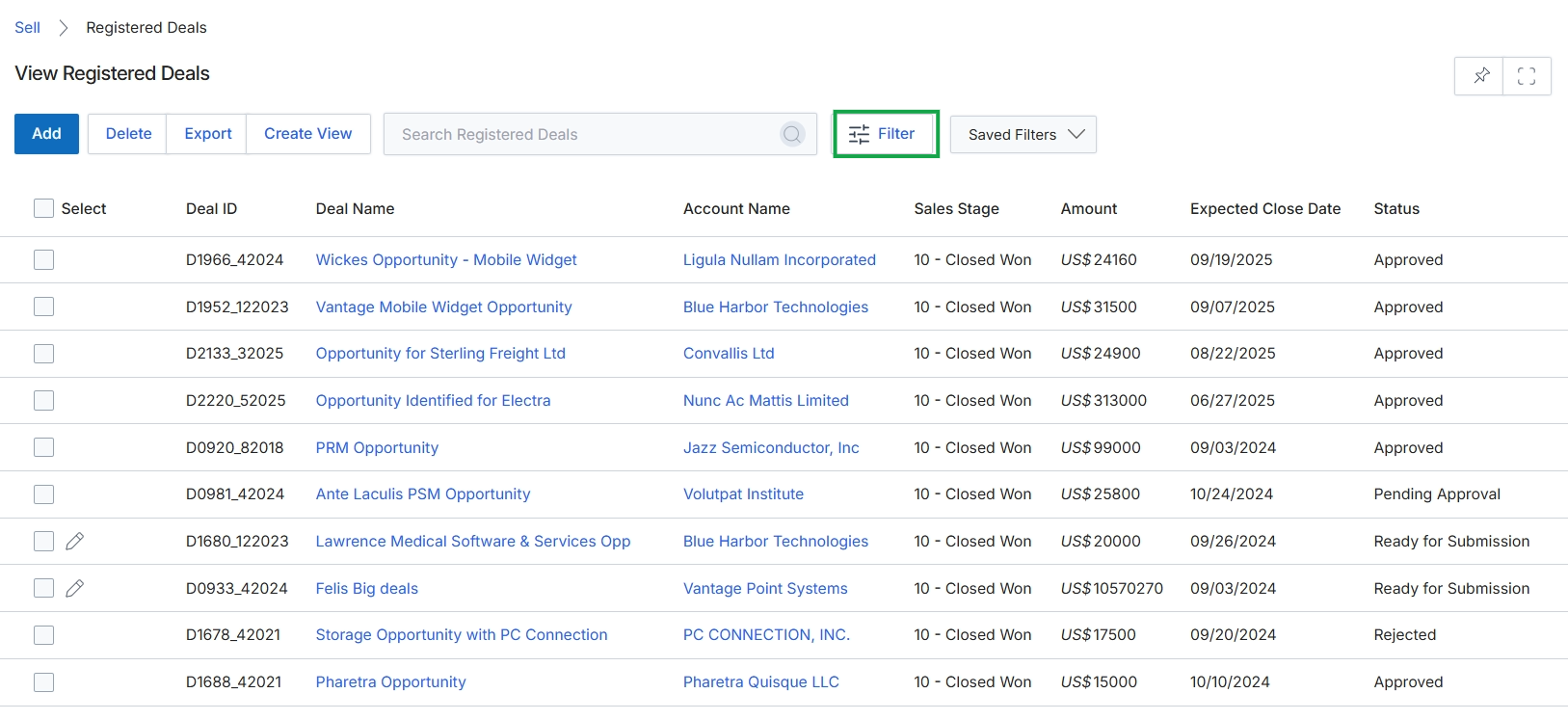
Click the Filter button to close the filter configuration panel.
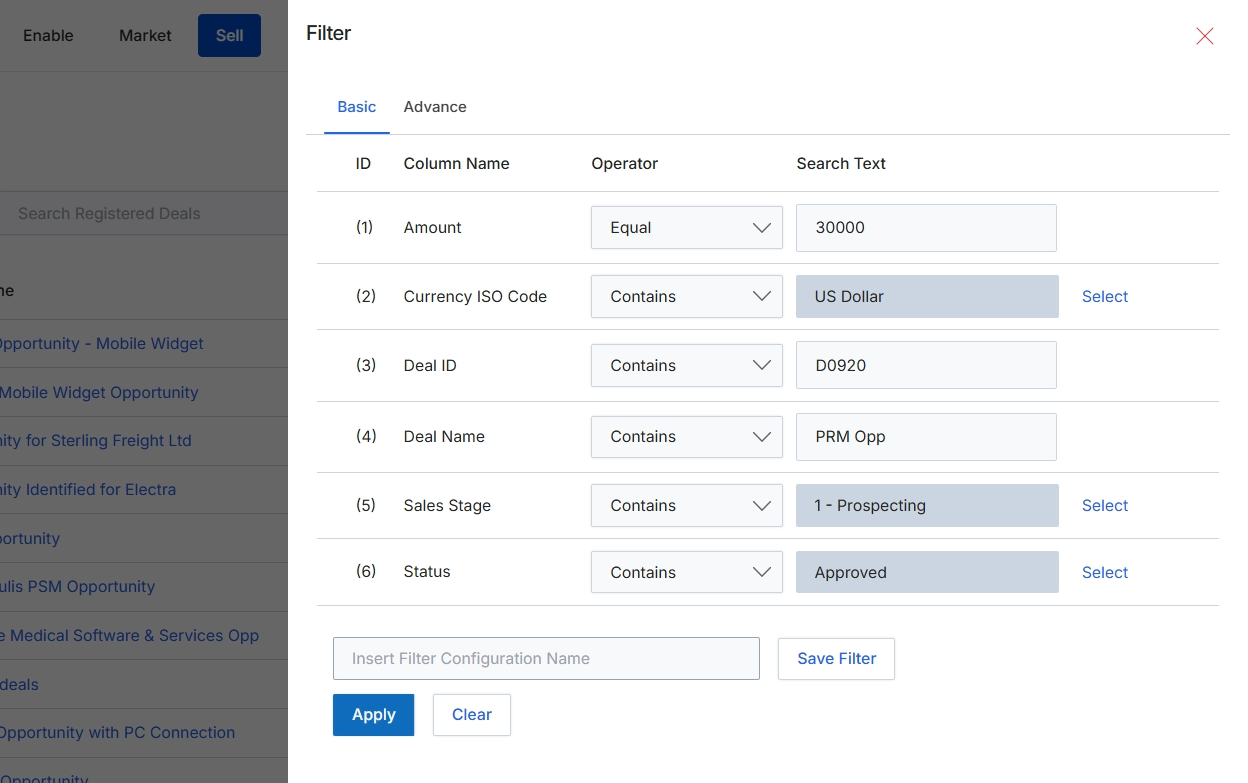
This Filter dialog provides a mechanism for users to refine the list of Registered Deals displayed in the main view by applying specific criteria. It allows for the construction of complex queries using various deal attributes, logical operators, and search values. Users can define multiple filter conditions, combine them, and then apply these filters to narrow down the displayed data, making it easier to locate specific deals or analyze subsets of the deal pipeline. The ability to save filter configurations streamlines future analysis and reporting tasks.
Click the Apply button to apply the configured filters to the Registered Deals list.
Buttons
| Button | Description |
|---|---|
| Basic | A tab to configure basic filter conditions. |
| Advance | A tab to configure advanced filter conditions, potentially offering more complex logic or grouping. |
| Select | A button to open a selection dialog for the 'Currency ISO Code' filter. |
| Select | A button to open a selection dialog for the 'Sales Stage' filter. |
| Select | A button to open a selection dialog for the 'Status' filter. |
| Save Filter | A button to save the current filter configuration under the name provided. |
| Apply | A button to apply the defined filter conditions to the Registered Deals list. |
| Clear | A button to clear all currently defined filter conditions. |
Fields
| Field | Description |
|---|---|
| Amount | The name of the column being filtered, representing the deal value. |
| Equal | A dropdown selector for the operator to apply to the 'Amount' filter, currently set to 'Equal'. |
| 30000 | The search text input field for the 'Amount' filter, set to '30000'. |
| Currency ISO Code | The name of the column being filtered, representing the currency of the deal. |
| Contains | A dropdown selector for the operator to apply to the 'Currency ISO Code' filter, currently set to 'Contains'. |
| US Dollar | The search text input field for the 'Currency ISO Code' filter, set to 'US Dollar'. |
| Deal ID | The name of the column being filtered, representing the unique identifier for a deal. |
| Contains | A dropdown selector for the operator to apply to the 'Deal ID' filter, currently set to 'Contains'. |
| D0920 | The search text input field for the 'Deal ID' filter, set to 'D0920'. |
| Deal Name | The name of the column being filtered, representing the descriptive name of the deal. |
| Contains | A dropdown selector for the operator to apply to the 'Deal Name' filter, currently set to 'Contains'. |
| PRM Opp | The search text input field for the 'Deal Name' filter, set to 'PRM Opp'. |
| Sales Stage | The name of the column being filtered, representing the current stage of the sales process for the deal. |
| Contains | A dropdown selector for the operator to apply to the 'Sales Stage' filter, currently set to 'Contains'. |
| 1 - Prospecting | The search text input field for the 'Sales Stage' filter, set to '1 - Prospecting'. |
| Status | The name of the column being filtered, representing the current status of the deal (e.g., Approved, Won, Lost). |
| Contains | A dropdown selector for the operator to apply to the 'Status' filter, currently set to 'Contains'. |
| Approved | The search text input field for the 'Status' filter, set to 'Approved'. |
| Insert Filter Configuration Name | An input field to enter a name for the current filter configuration, allowing it to be saved for future use. |
Column Headings
| Column | Description |
|---|---|
| ID | A column header indicating the sequential identifier for each filter row. |
| Column Name | A column header for the name of the deal attribute being filtered. |
| Operator | A column header for the logical operator used in the filter condition (e.g., Equal, Contains). |
| Search Text | A column header for the value or text to search for within the specified column. |
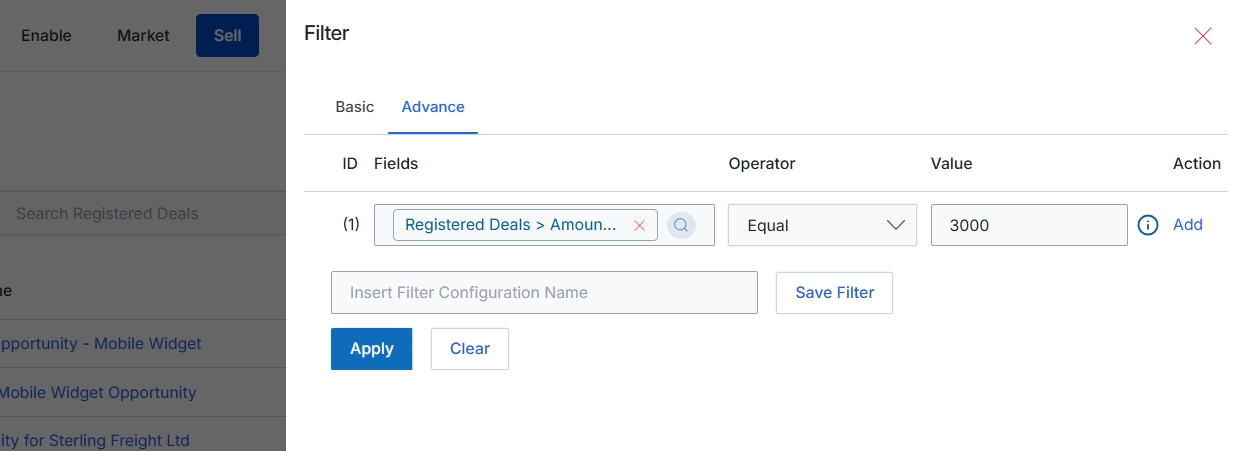
This screen displays the advanced filter configuration panel, which allows users to define complex filtering rules for data displayed in list views, such as Registered Deals. Users can specify criteria based on various fields, operators, and values to narrow down the displayed records. This functionality is crucial for administrators and partners to efficiently manage and analyze specific subsets of their sales pipeline, enabling them to focus on deals that meet particular conditions, such as value thresholds or specific product interests. The ability to save filter configurations streamlines repetitive analysis tasks and ensures consistent data segmentation.
Configure the advanced filter by specifying the desired fields, operators, and values, then click 'Apply' to filter the list or 'Save Filter' to store the configuration for future use.
Buttons
| Button | Description |
|---|---|
| Basic | A tab to switch to a simpler, basic filter configuration interface. |
| Advance | The currently active tab for advanced filter configuration, allowing for complex rule creation. |
| Add | A link to add a new filter rule to the configuration. |
| Save Filter | A button to save the current filter configuration under the specified name for later use. |
| Apply | A button to apply the configured filter rules to the data list, refreshing the view with only matching records. |
| Clear | A button to remove all active filter rules and display the unfiltered data list. |
| X | A button to close the filter configuration panel. |
Fields
| Field | Description |
|---|---|
| Registered Deals > Amoun... | The selected field for the filter rule, indicating that the filter is applied to the 'Amount' field within 'Registered Deals'. |
| Equal | The selected operator for the filter rule, specifying that the field value must be equal to the defined value. |
| 3000 | The value used in the filter rule, indicating that the 'Registered Deals > Amount' must be equal to 3000. |
| Insert Filter Configuration Name | An input field to provide a name for the current filter configuration, allowing it to be saved and reused. |
Column Headings
| Column | Description |
|---|---|
| ID | A column header indicating the sequential identifier for each filter rule. |
| Fields | A column header for the field on which the filter condition is applied. The current rule applies to 'Registered Deals > Amount'. |
| Operator | A column header for the comparison operator used in the filter rule. The current rule uses 'Equal'. |
| Value | A column header for the value against which the field is compared. The current rule uses '3000'. |
| Action | A column header for actions related to each filter rule. |