

Overview
The Event Marketing Management module within the platform's Market zone empowers vendors to create and manage co-branded events that partners can leverage for their own marketing efforts. These events are often pre-configured campaigns, such as webinars, seminars, or product launches, that partners can easily adopt, customize within defined boundaries, and execute to generate leads and drive sales. This streamlines co-marketing initiatives, ensuring brand consistency while empowering partners to engage their local markets effectively.
Accessing and Viewing Co-Brand Events
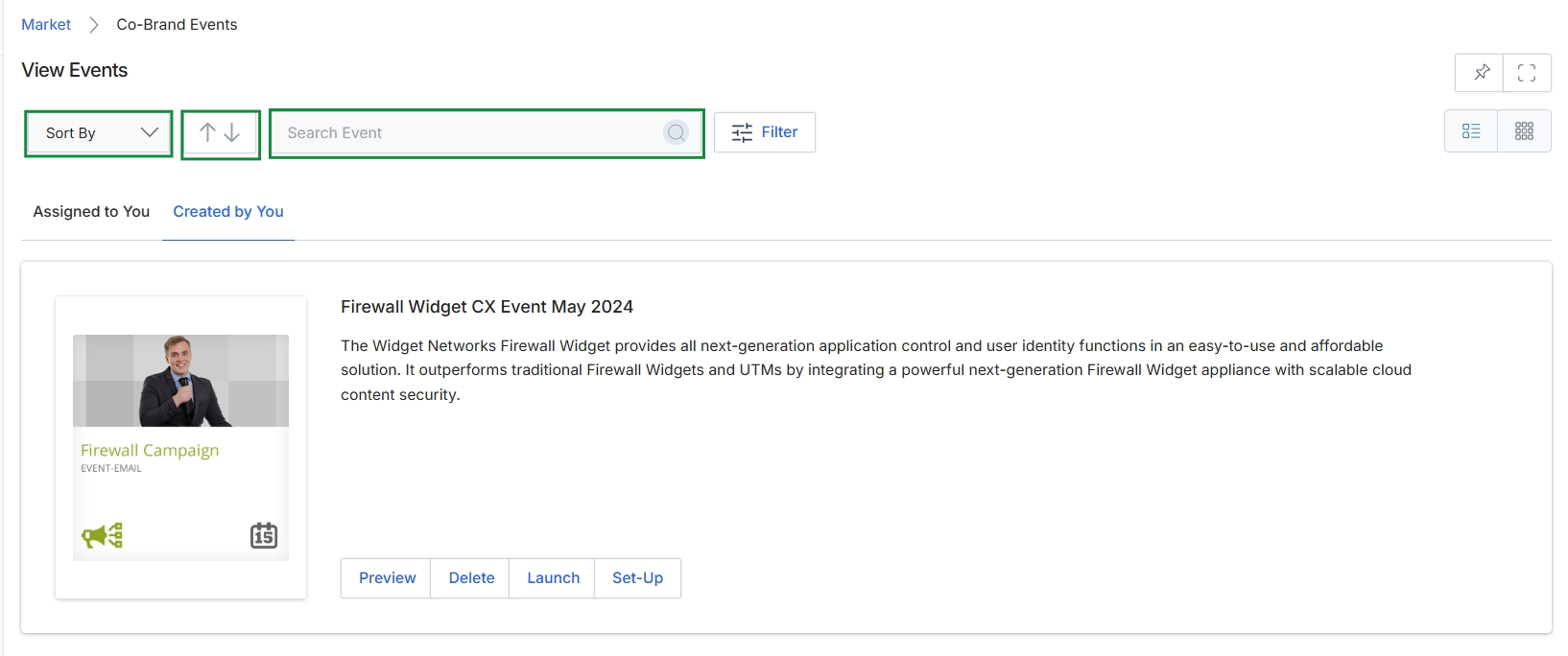
This screen displays a list of co-brand events available within the Market module, allowing users to manage various marketing initiatives. It provides controls for organizing the displayed events, including options to sort the list by different criteria, toggle the sort order between ascending and descending, and search for specific events using a text input field. Users can also refine the list further with a filter option and segment events by those 'Assigned to You' or 'Created by You' to efficiently locate and interact with relevant marketing campaigns.
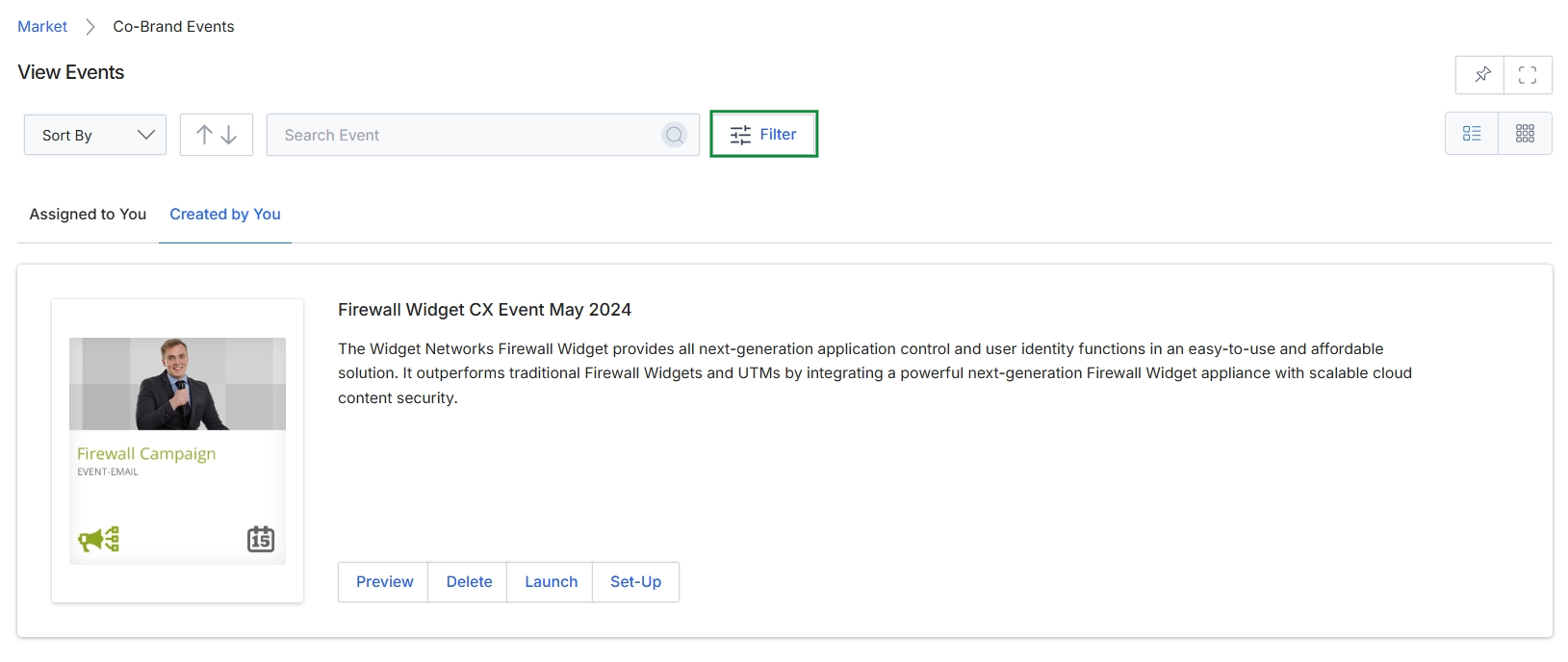
Click the Filter button.
Filtering Events
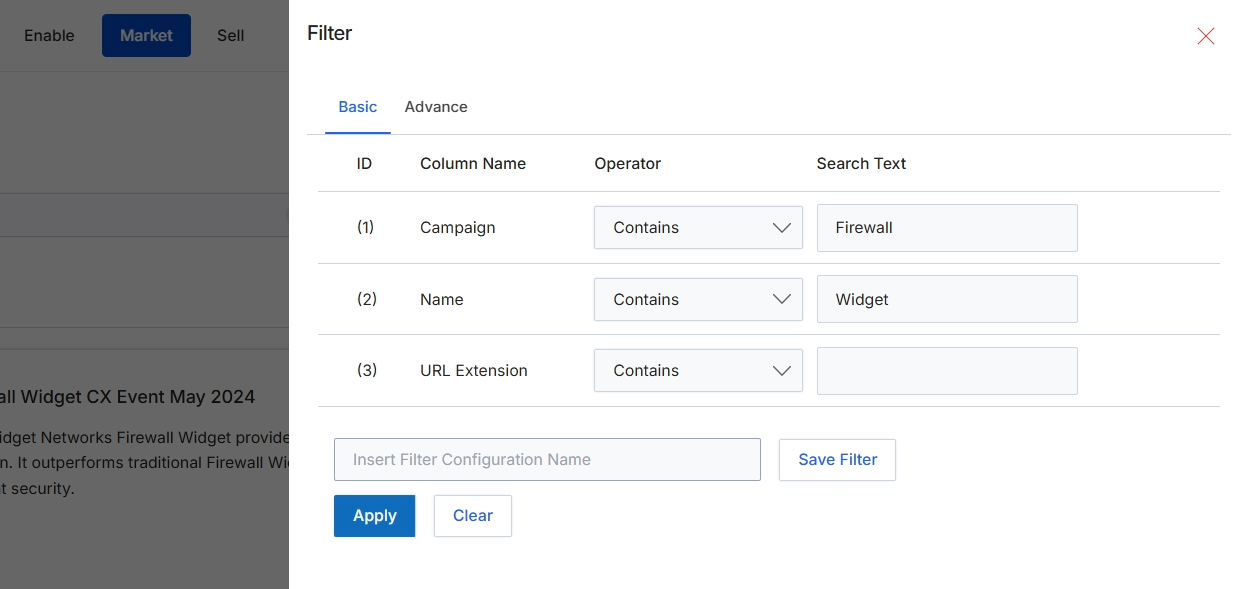
This filter panel provides a mechanism for users to refine and narrow down the list of events displayed in the main view. It allows for targeted searches based on specific event attributes such as campaign association, event name, or URL extension. Users can define multiple filter criteria using various operators and search text, enabling them to quickly locate relevant events within the system. The panel supports saving the current filter configuration for future application, streamlining the process of managing and analyzing event marketing activities.
Enter the desired filter criteria for events and click 'Apply' to view the filtered results, or click 'Save Filter' to store the current configuration for later use.
Buttons
| Button | Description |
|---|---|
| Basic | A tab that displays the basic filtering options, allowing users to define criteria based on common event attributes. |
| Advance | A tab that switches to advanced filtering options, which may offer more complex query capabilities. |
| Save Filter | Saves the current filter configuration under the name provided in the 'Insert Filter Configuration Name' field for future use. |
| Apply | Applies the configured filters to the event list and updates the displayed results. |
| Clear | Resets all filter criteria, removing any entered search text or selected operators. |
Fields
| Field | Description |
|---|---|
| Campaign | The event attribute representing the campaign associated with the event. |
| Contains | The operator selected for the 'Campaign' filter, indicating that the campaign name should contain the specified text. |
| Firewall | The search text entered for the 'Campaign' filter. |
| Name | The event attribute representing the name of the event. |
| Contains | The operator selected for the 'Name' filter, indicating that the event name should contain the specified text. |
| Widget | The search text entered for the 'Name' filter. |
| URL Extension | The event attribute representing the URL extension of the event. |
| Contains | The operator selected for the 'URL Extension' filter, indicating that the URL extension should contain the specified text. |
| Insert Filter Configuration Name | An input field to provide a name for the current filter configuration before saving it. |
Column Headings
| Column | Description |
|---|---|
| ID | A numerical identifier for each filter row. |
| Column Name | The name of the event attribute to filter by, such as 'Campaign', 'Name', or 'URL Extension'. |
| Operator | A dropdown menu to select the comparison operator for the filter, such as 'Contains', 'Equals', 'Starts With', etc. |
| Search Text | The input field where users enter the value to search for within the selected 'Column Name' using the specified 'Operator'. |
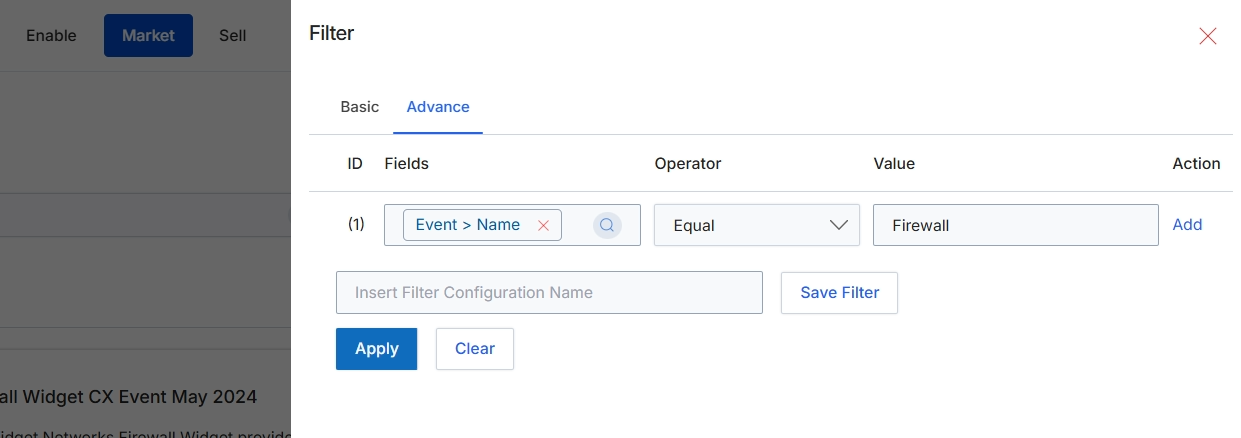
This modal window provides advanced filtering capabilities within the UPM, allowing users to define specific criteria to narrow down records displayed in a list view. It enables the creation of custom filter rules by selecting a data field, a comparison operator, and a corresponding value. This granular control helps users efficiently locate specific records, such as events, based on their attributes. The platform also supports saving these configured filters for future reuse, streamlining subsequent searches and data analysis workflows. This 'Advance' tab offers more complex, rule-based filtering compared to a simpler 'Basic' mode.
Configure the advanced filter by specifying the desired field, operator, and value for your search criteria.
Buttons
| Button | Description |
|---|---|
| Basic | Switches the filter interface to a simpler, basic mode for common filtering options. |
| Advance | Activates the advanced filter interface, allowing for more complex rule-based filtering. |
| Add | Adds a new row to create an additional filter rule, allowing for multiple conditions. |
| Save Filter | Saves the current filter configuration under the specified name for future use. |
| Apply | Applies the configured filter rules to the underlying data, updating the displayed records. |
| Clear | Resets all filter rules and removes any applied criteria. |
Fields
| Field | Description |
|---|---|
| Event > Name | The selected data field for the filter rule, specifying the 'Name' attribute of an 'Event' record. |
| Equal | The selected comparison operator for the filter rule, indicating an exact match is required. |
| Firewall | The specific value entered for the filter rule, used to match against the selected field. |
| Insert Filter Configuration Name | An input field to provide a name for the current filter configuration, enabling it to be saved and reused later. |
Column Headings
| Column | Description |
|---|---|
| ID | A numerical identifier for each filter rule, indicating its position in the sequence. |
| Fields | A dropdown menu to select the specific data field to which the filter rule will be applied. |
| Operator | A dropdown menu to choose the comparison operator (e.g., Equal, Contains, Starts With) for the selected field. |
| Value | An input field to enter the specific value against which the selected field will be compared. |
| Action | Provides actions related to the filter rule, such as adding a new rule. |
Changing Event View Layout
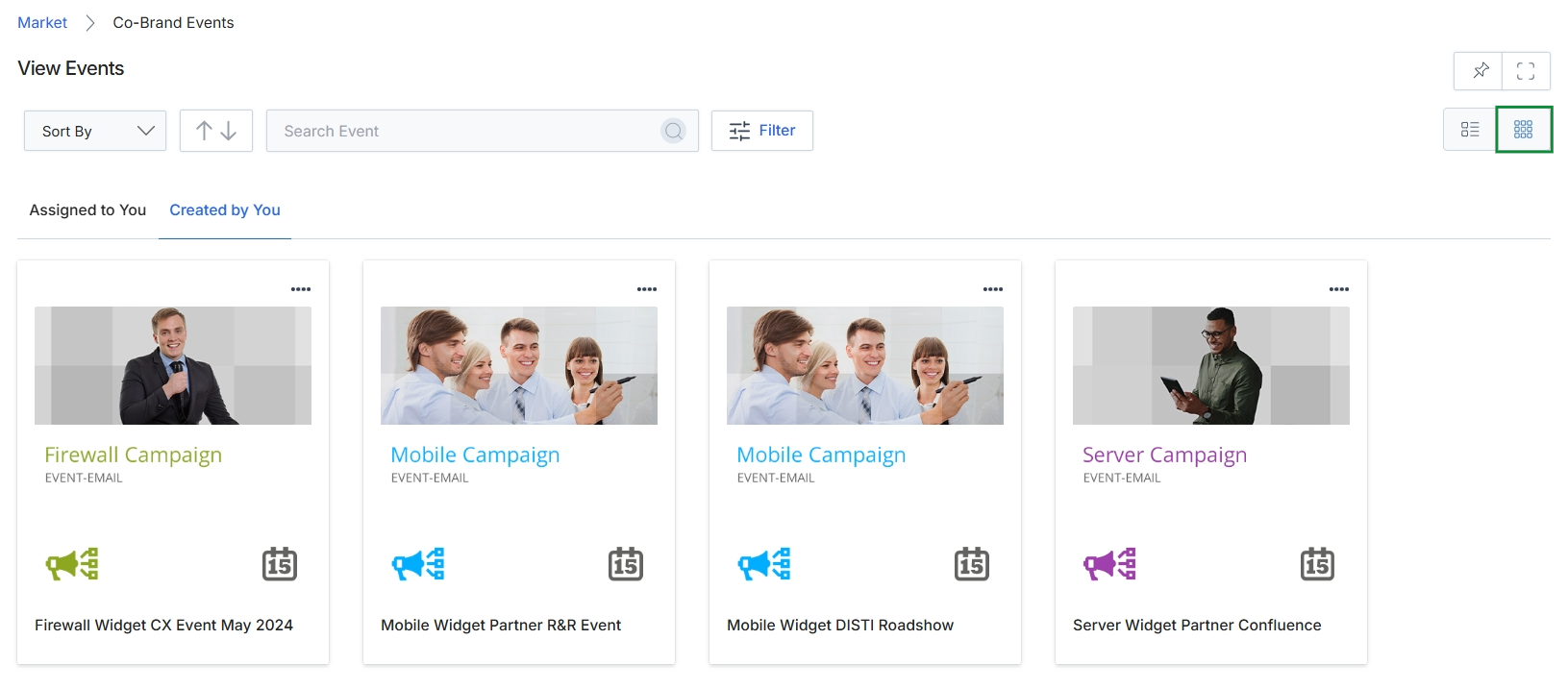
Click the Grid View icon.
Previewing an Event
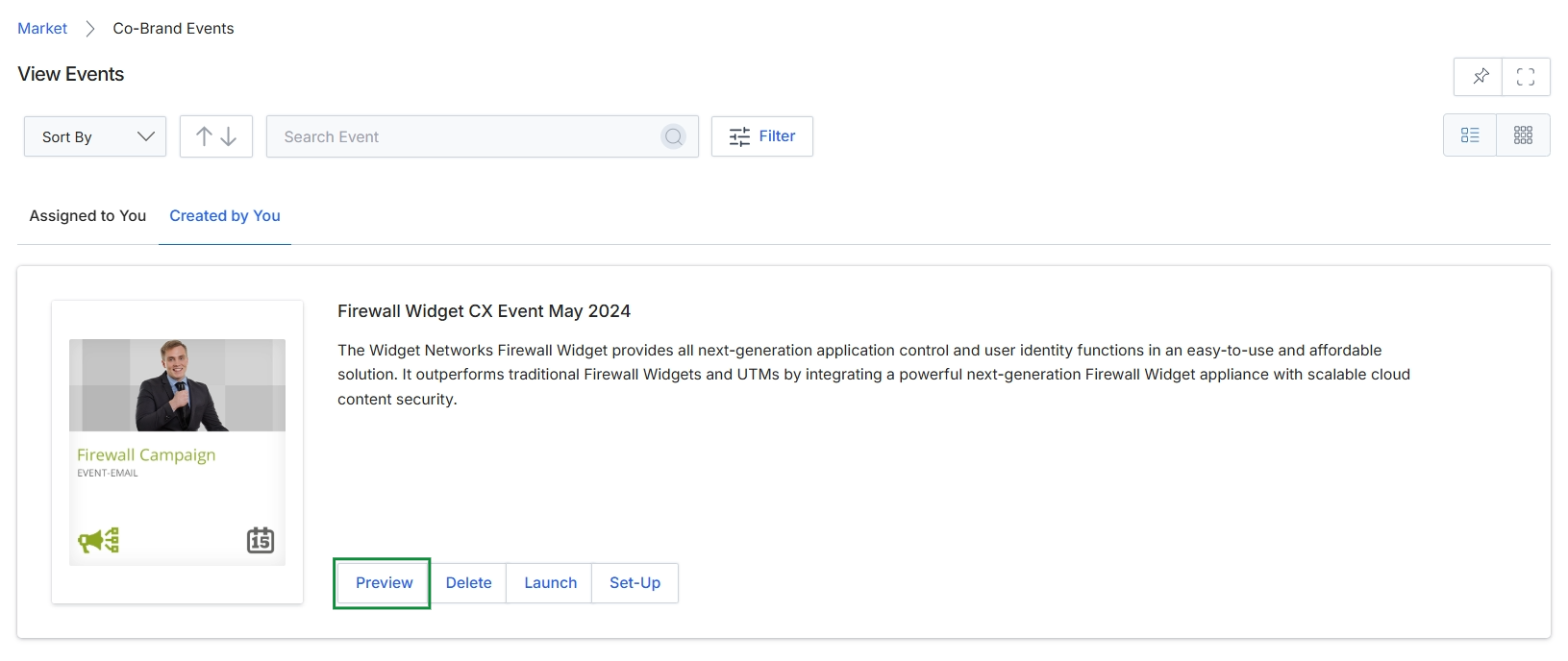
Click the list view icon.
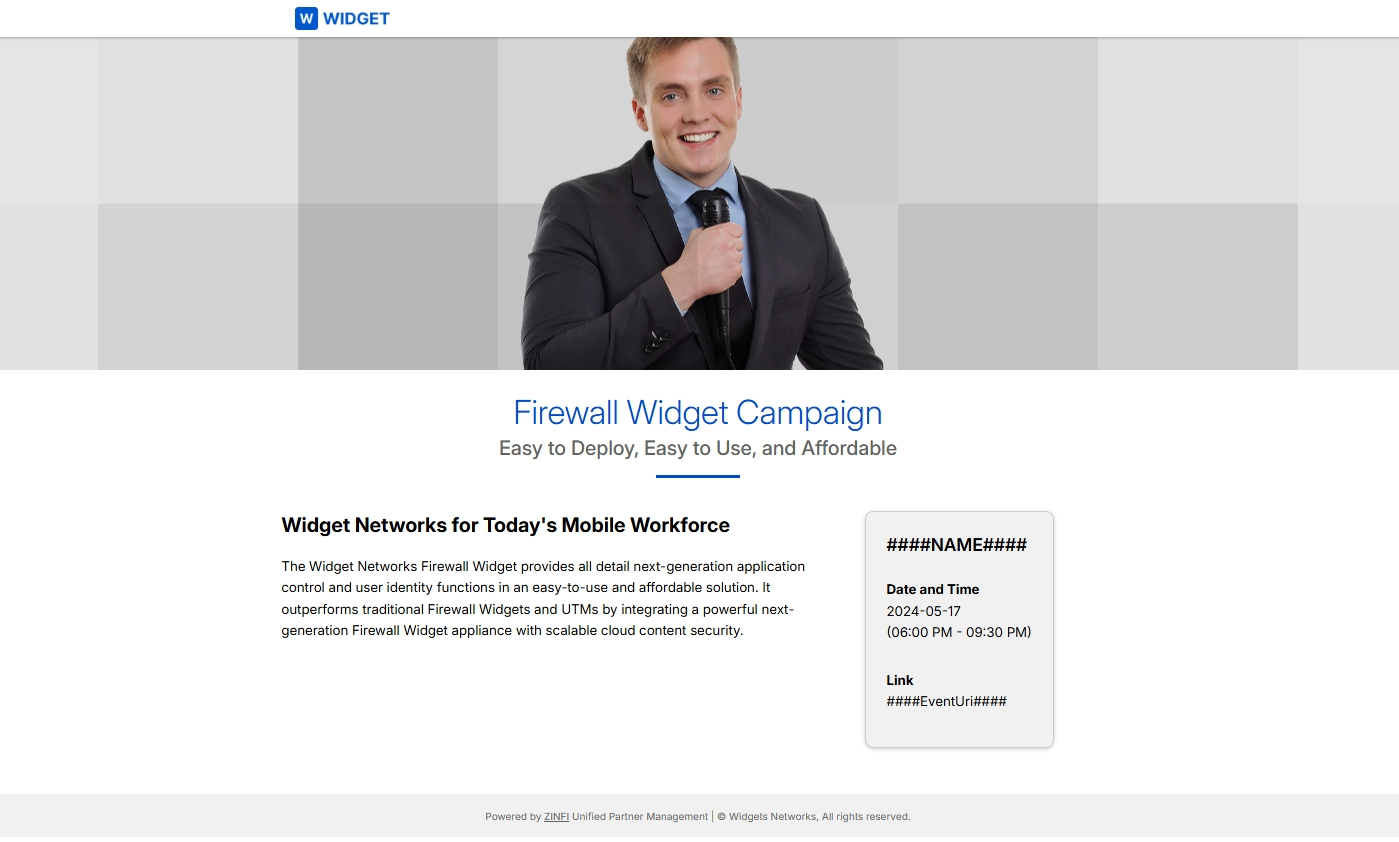
Click the Preview button.
Deleting an Event
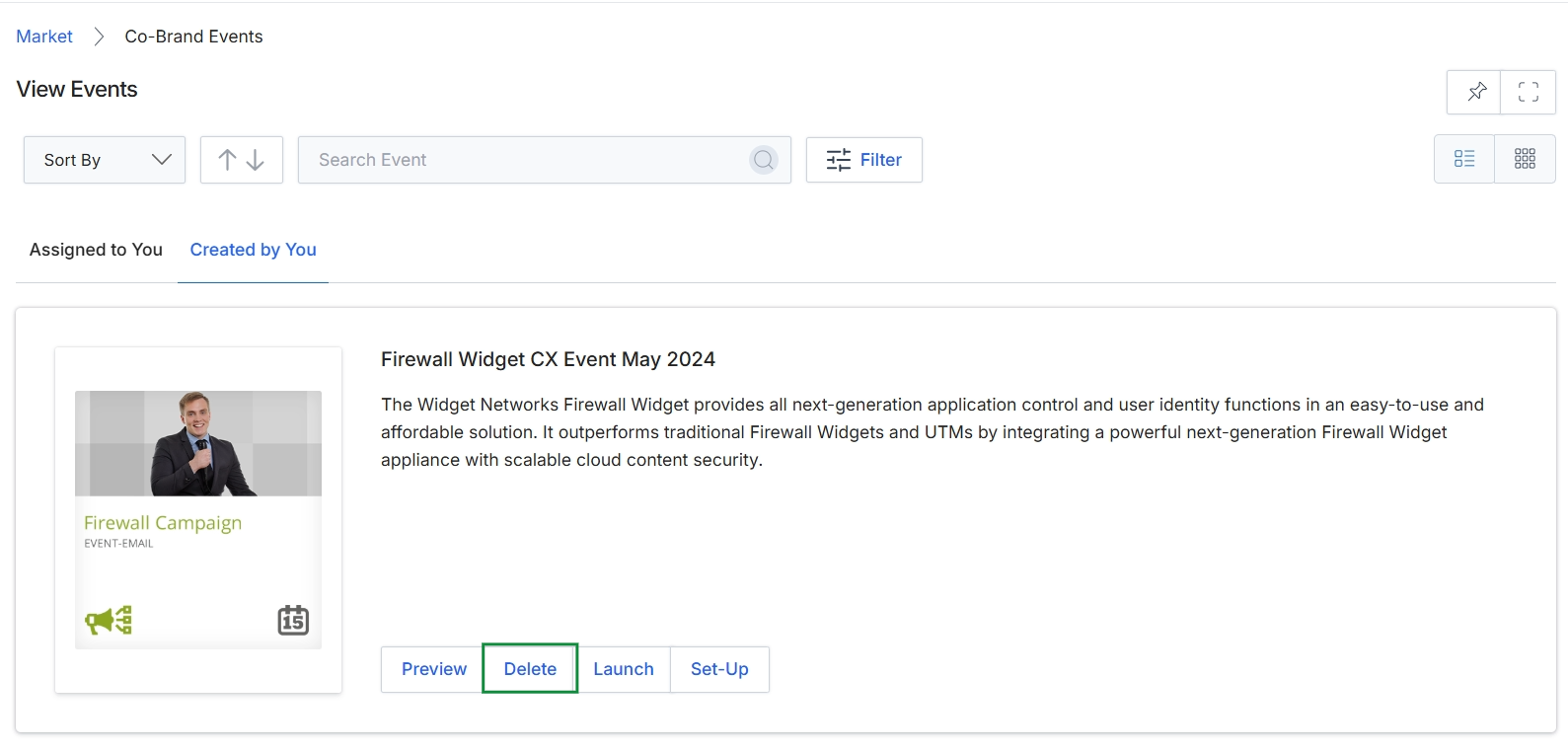
Click the Delete button.