

Overview
Social media syndication is a critical component of co-marketing, enabling partners to amplify vendor messaging and campaigns across their own social channels. The 'Manage Posts' feature empowers partners to easily access and share pre-approved social content, ensuring brand consistency and messaging accuracy while reducing the effort required for partners to participate in marketing initiatives. For vendors, it provides a scalable way to distribute marketing content and gain insights into partner social media activity and reach.
Accessing and Viewing Social Posts
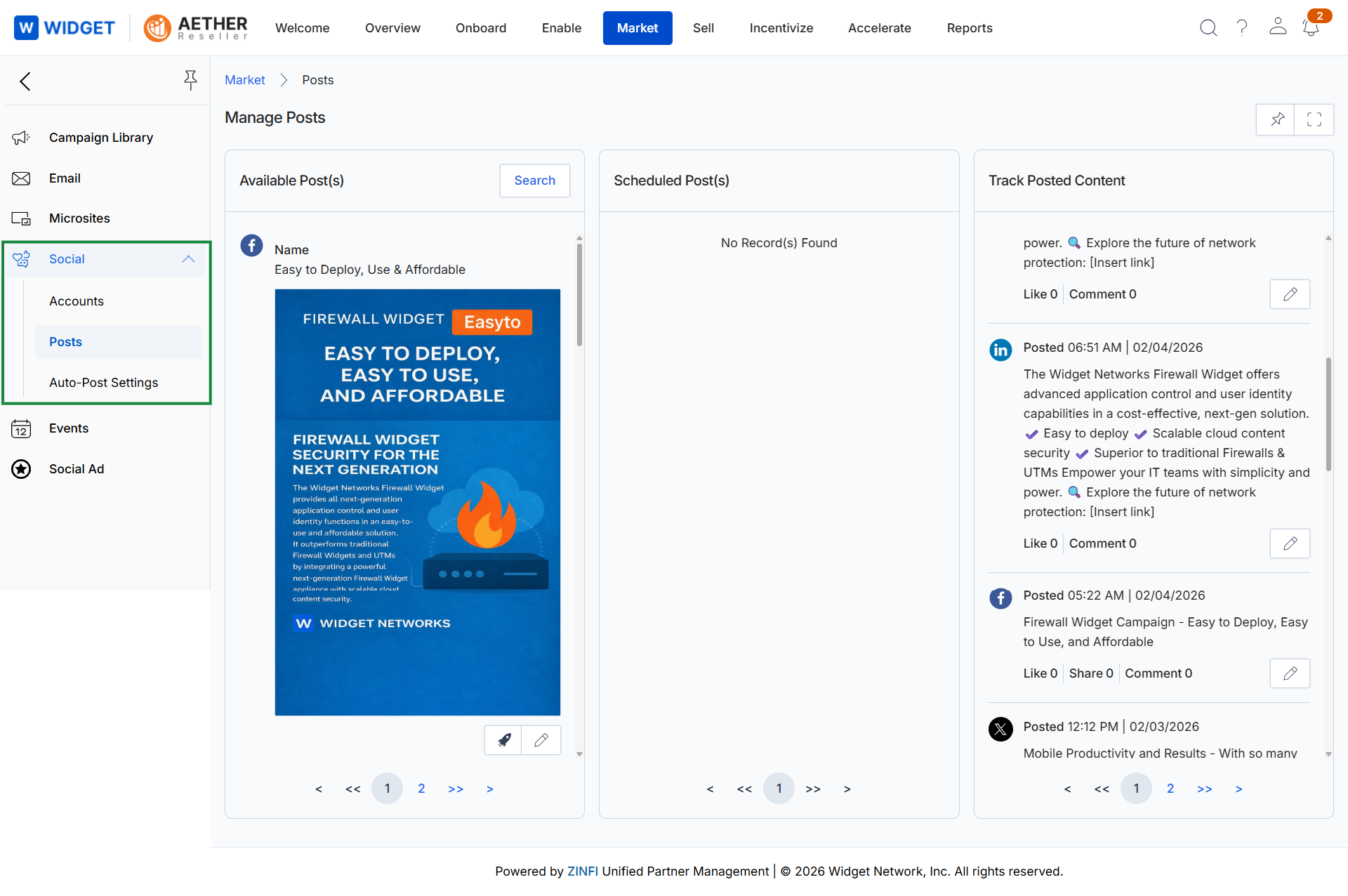
Click Market → Social → Posts.
Quick Posting Available Content
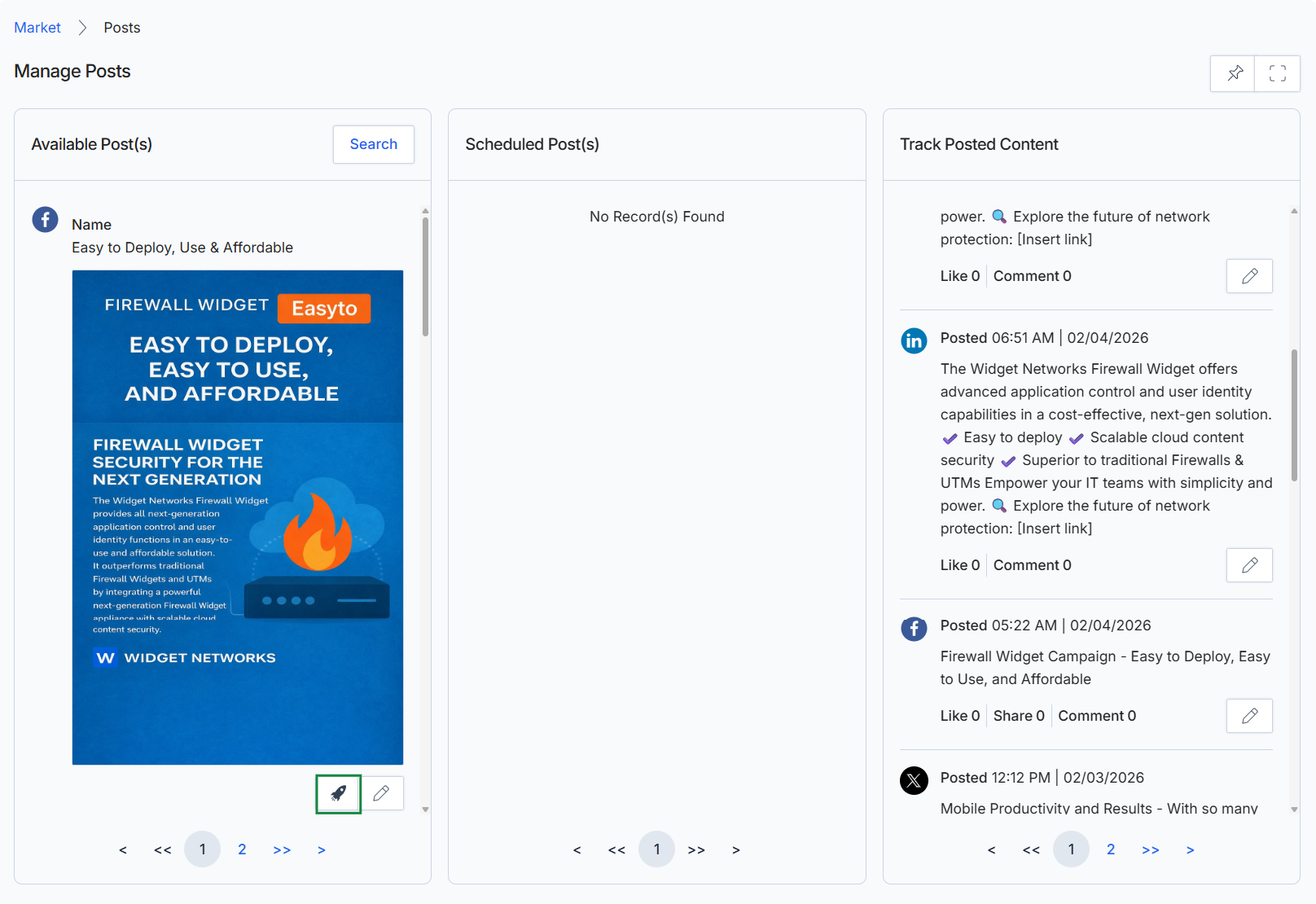
Click the Quick Post icon (rocket ship) for the desired post.
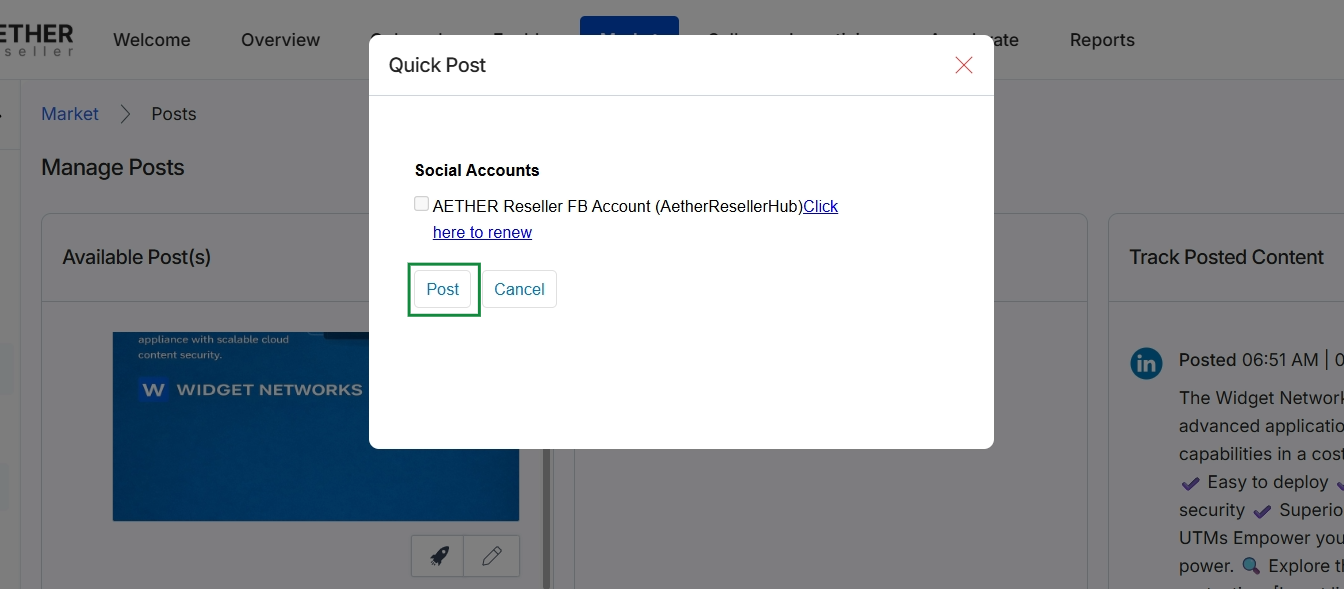
This dialog box facilitates the immediate publication of social media content to connected social accounts. It presents a list of available social media accounts, allowing the user to select one or more platforms where the pre-prepared content will be posted. This screen is a critical step in the social syndication workflow, enabling partners to efficiently share vendor-approved marketing messages with their audience through their integrated social channels.
Scheduling Social Posts
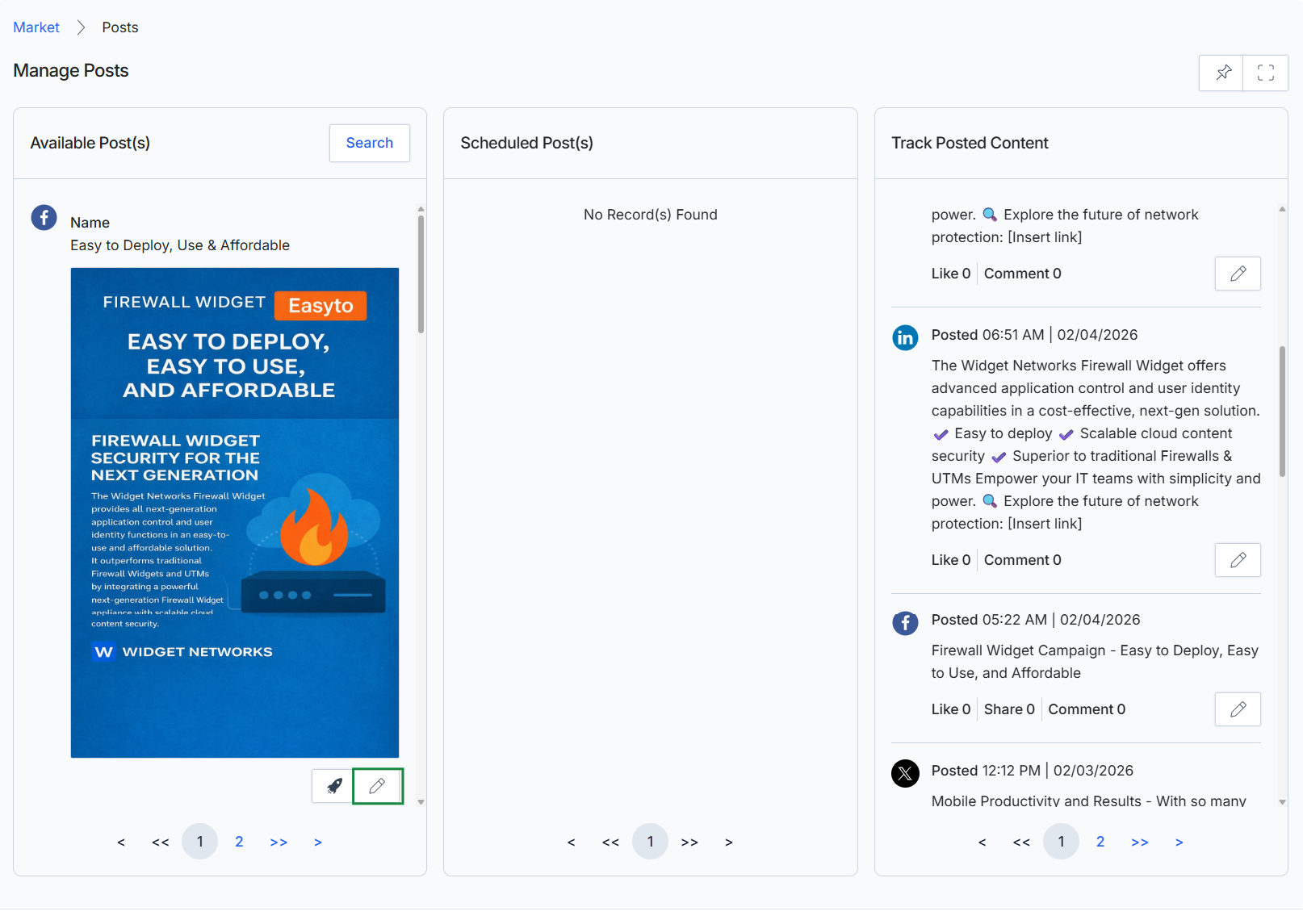
Click Post.
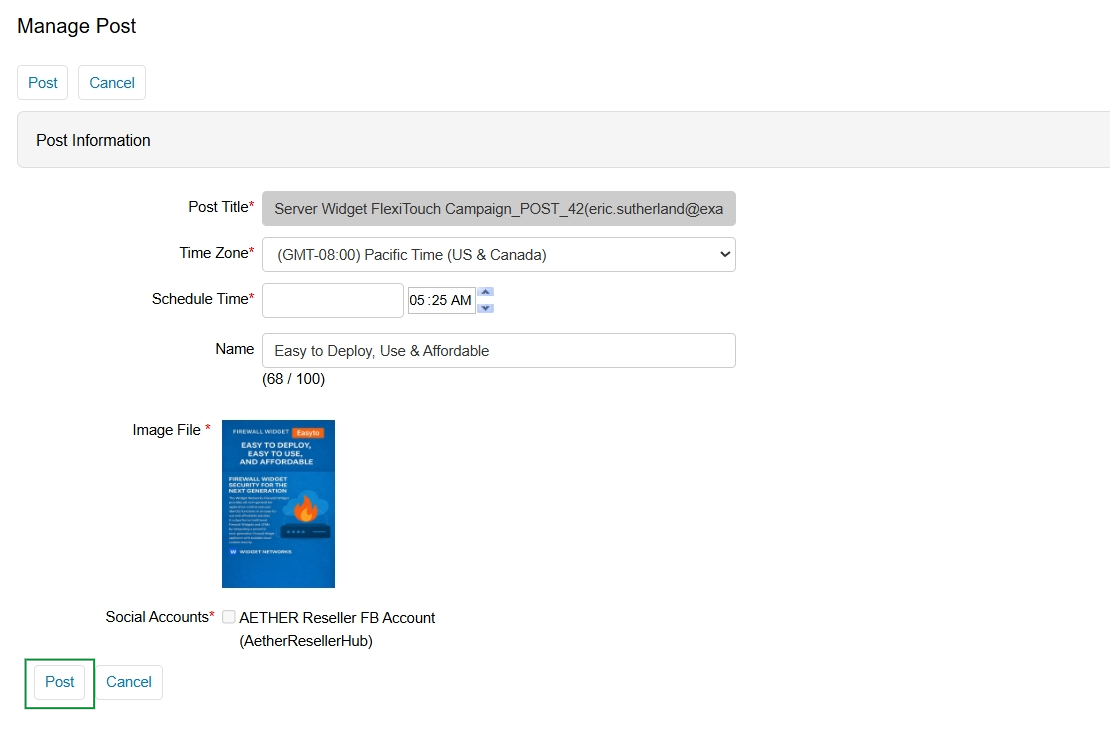
The 'Manage Post' screen is a dedicated interface within the Social Syndication feature of the Market module, designed for creating or editing social media posts. This screen allows users, typically partners, to configure the essential details of a social media update, including its internal title, the main content, and an associated image. It also provides controls for scheduling the post's publication at a specific date and time, considering the chosen time zone, and selecting the social media accounts where the content will be syndicated. This functionality is crucial for enabling partners to execute pre-approved vendor content, ensuring brand consistency and facilitating co-marketing efforts across various social platforms while maintaining control over timing and distribution.
Click the 'Post' button at the bottom left to save the social media post with the configured details and schedule it for publication.
Buttons
| Button | Description |
|---|---|
| Post | Saves the social media post and schedules it for publication based on the specified details. |
| Cancel | Discards any changes made to the post and returns to the previous screen. |
Post Information
| Field | Description |
|---|---|
| Post Title | The internal title for the social media post, often including campaign details or an identifier. |
| Time Zone | The time zone in which the post's schedule time is set, ensuring accurate publication regardless of the user's location. |
| Schedule Time | The specific date and time when the social media post is scheduled to be published. |
| Name | A short descriptive name or headline for the social media post, with a character limit of 100. |
| Image File | The image associated with the social media post, displayed as a thumbnail. |
Social Accounts
| Field | Description |
|---|---|
| AETHER Reseller FB Account | A checkbox to select if the post should be published to the 'AETHER Reseller FB Account' associated with 'AetherResellerHub'. |
Searching and Filtering Posts
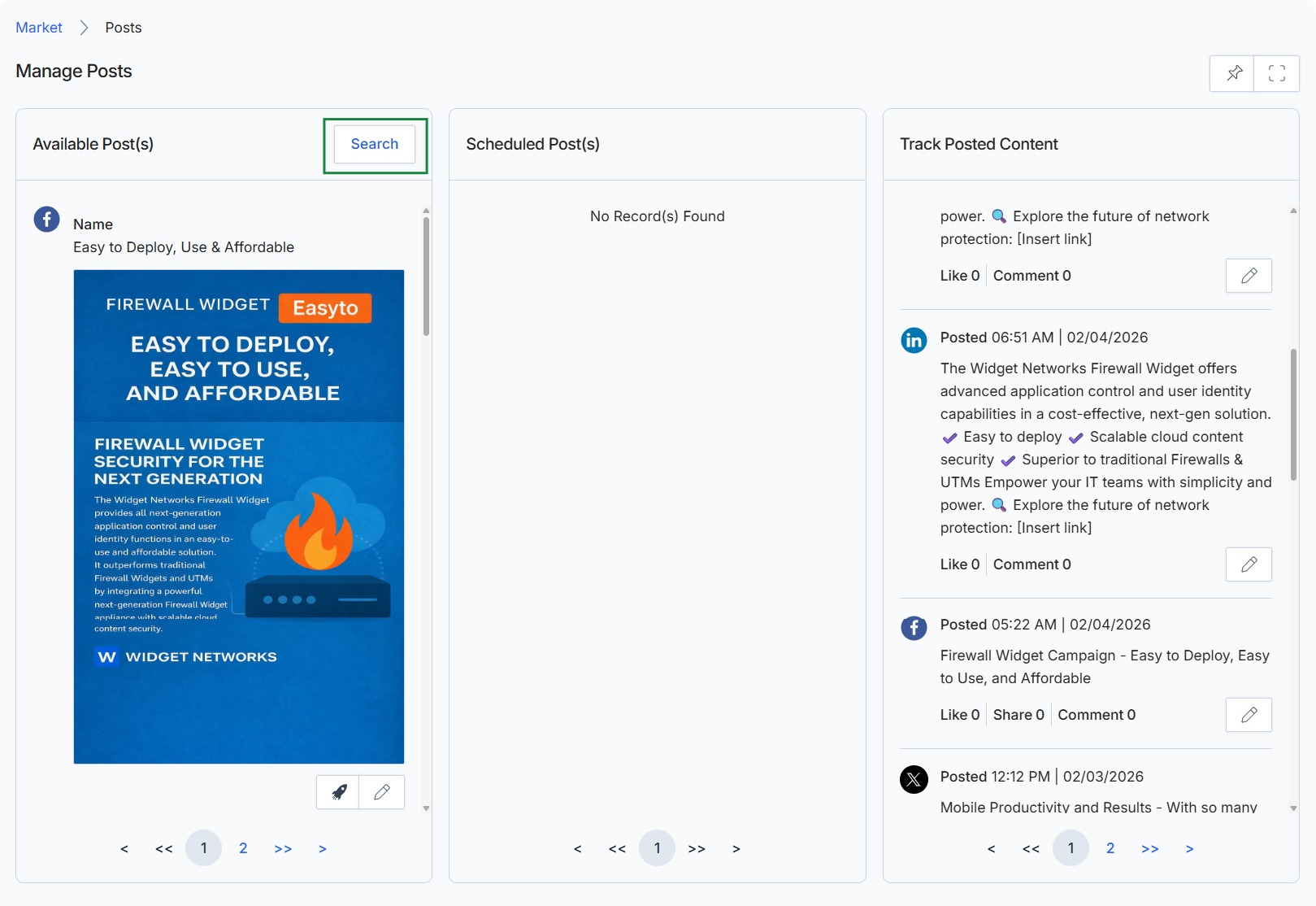
Click the Post button.
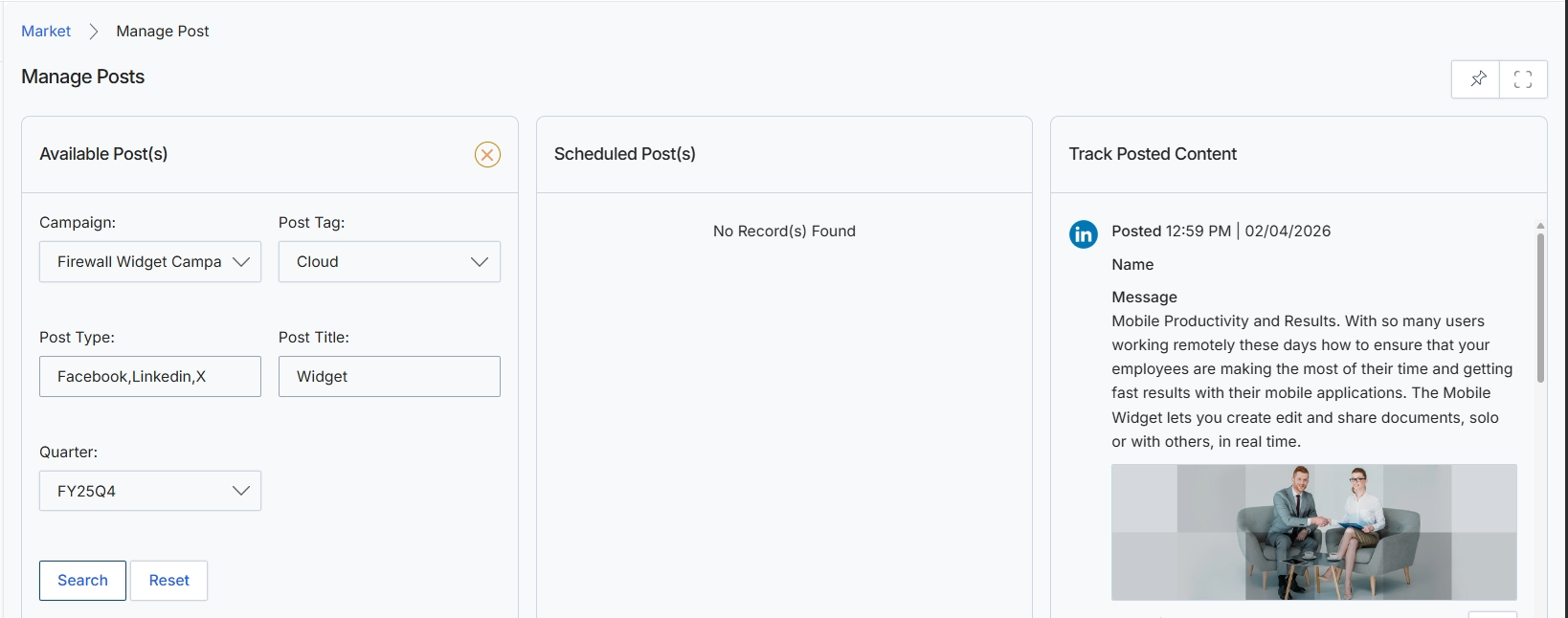
The Manage Posts screen provides a centralized interface for managing social media content within the Market module. It allows users to search for available posts, view posts that have been scheduled for future publication, and track the details of content that has already been published. This screen supports the Social Content Syndication workflow, enabling vendors to create and distribute social media content to partners, and allowing partners to review, schedule, and post this content. The filtering capabilities in the 'Available Post(s)' section help users quickly locate specific content based on campaign, post type, and other criteria, facilitating efficient content management and syndication.
Review the details of the selected social media post in the 'Track Posted Content' section, which displays information about the post's content and publication status.
Buttons
| Button | Description |
|---|---|
| Search | Initiates a search for available posts based on the applied filter criteria. |
| Reset | Clears all applied filters in the 'Available Post(s)' section. |
Available Post(s)
| Field | Description |
|---|---|
| Campaign | A dropdown field to filter available posts by the marketing campaign they belong to, currently showing 'Firewall Widget Campa'. |
| Post Tag | A text field to filter available posts by associated tags, currently showing 'Cloud'. |
| Post Type | A text field indicating the social media platforms for which the post is intended, currently showing 'Facebook,LinkedIn,X'. |
| Post Title | A text field to filter available posts by their title, currently showing 'Widget'. |
| Quarter | A dropdown field to filter available posts by the fiscal quarter they are relevant to, currently showing 'FY25Q4'. |