

Overview
Effective user management is critical for maintaining a secure and functional partner ecosystem. The platform supports two primary user personas: vendor-side administrators who configure and manage the partner program, and partner-side users (contacts) who access their dedicated portal. This module provides administrators with a comprehensive view of each user's profile, including their contact information, assigned roles, and system settings. Administrators can use this view to ensure users have appropriate access levels, troubleshoot issues, and manage user lifecycles within the platform, from initial onboarding to account maintenance and eventual deactivation. It also facilitates support by allowing administrators to impersonate users to understand their portal experience.
Accessing User Details
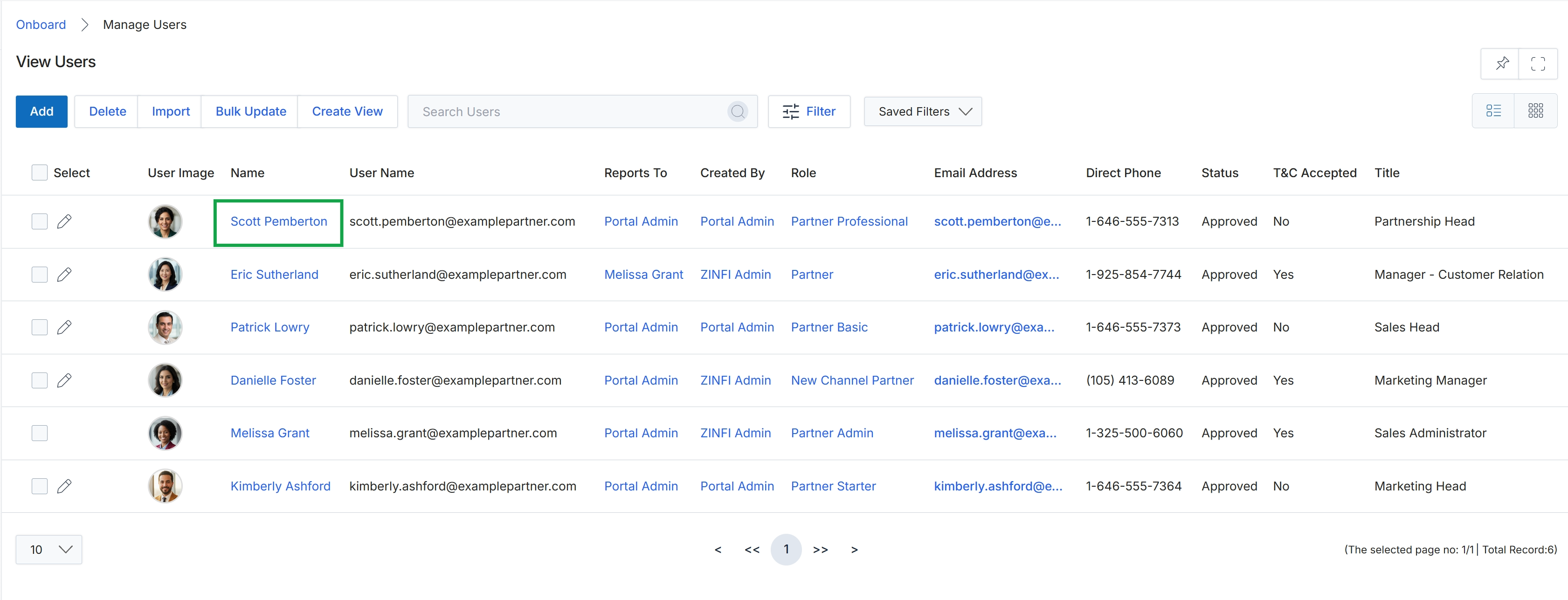
Click the name of the user you want to view, for example, Scott Pemberton.
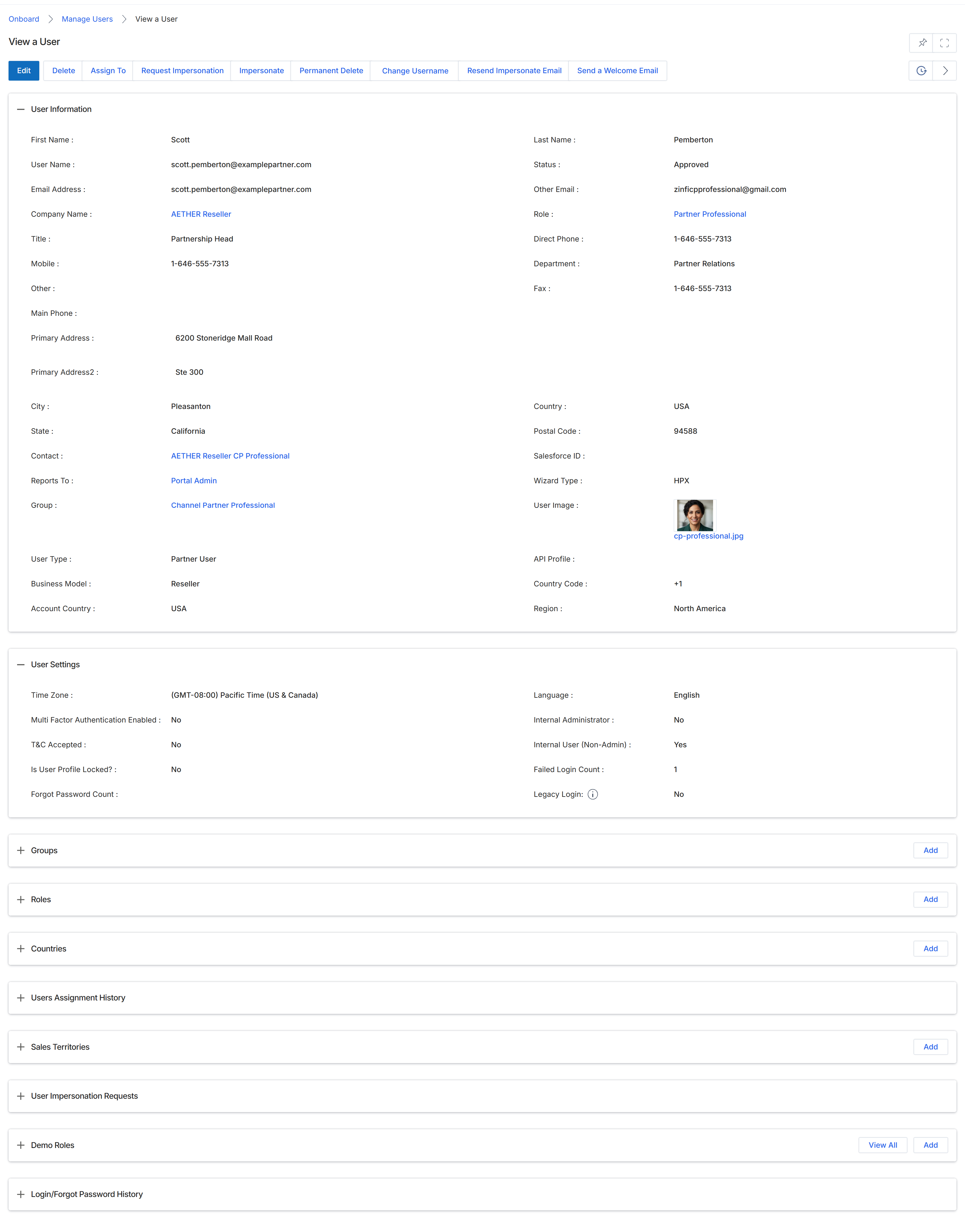
This screen provides a comprehensive read-only view of a specific user's profile within the UPM, encompassing their personal and professional details, system settings, and associated configurations. It serves as a central hub for administrators to review all pertinent information about a user, including their contact details, company affiliation, assigned roles, and various system-level settings like multi-factor authentication status and login history. This detailed view is crucial for user management, troubleshooting access issues, and understanding a user's permissions and activity within the platform. The information displayed here is derived from the user's initial registration, subsequent profile updates, and system-generated data, reflecting their current state and historical interactions.
Review the displayed user information, settings, and associated configurations.
Buttons
| Button | Description |
|---|---|
| Edit | Initiates the process to modify the user's profile details. |
| Assign To | Allows assigning the user to a different entity or manager. |
| Request Impersonation | Sends a request to the user to grant impersonation access. |
| Impersonate | Allows an administrator to log in as the selected user to view their portal experience. |
| Change Username | Provides an option to modify the user's login username. |
| Add | Adds a new group association for the user. |
| Add | Adds a new role assignment for the user. |
| Add | Adds a new country association for the user. |
| Add | Adds a new sales territory assignment for the user. |
| View All | Displays all demo roles associated with the user. |
| Add | Adds a new demo role assignment for the user. |
User Information
| Field | Description |
|---|---|
| First Name | The user's first name. |
| User Name | The unique identifier used by the user to log into the platform. |
| Email Address | The user's primary email address. |
| Company Name | The name of the company the user is associated with, which is a partner account. |
| Title | The user's job title within their company. |
| Mobile | The user's mobile phone number. |
| Other | Additional contact information for the user. |
| Main Phone | The main phone number for the user's company or direct line. |
| Primary Address | The first line of the user's primary street address. |
| Primary Address2 | The second line of the user's primary street address. |
| City | The city of the user's primary address. |
| State | The state or province of the user's primary address. |
| Contact | A link to the user's contact record. |
| Reports To | The user's reporting manager within the platform. |
| Group | The user group to which this user belongs, defining certain access or permissions. |
| User Type | The classification of the user, such as 'Partner User'. |
| Business Model | The business model associated with the user's company, such as 'Reseller'. |
| Account Country | The country associated with the user's account. |
| Last Name | The user's last name. |
| Status | The current status of the user account, such as 'Approved'. |
| Other Email | An alternative email address for the user. |
| Role | The primary role assigned to the user, determining their permissions and access. |
| Direct Phone | The user's direct phone number. |
| Department | The department the user belongs to. |
| Fax | The user's fax number. |
| Country | The country of the user's primary address. |
| Postal Code | The postal code of the user's primary address. |
| Salesforce ID | The identifier for the user's record in an integrated Salesforce CRM. |
| Wizard Type | Indicates the type of wizard used for user creation or configuration. |
| User Image | A thumbnail image associated with the user's profile. |
| API Profile | The API profile assigned to the user, relevant for integrations. |
| Country Code | The country code associated with the user's location. |
| Region | The geographic region associated with the user. |
User Settings
| Field | Description |
|---|---|
| Time Zone | The time zone configured for the user's account. |
| Multi Factor Authentication Enabled | Indicates whether multi-factor authentication is active for the user. |
| T&C Accepted | Shows if the user has accepted the terms and conditions. |
| Is User Profile Locked? | Indicates if the user's profile is currently locked. |
| Forgot Password Count | The number of times the user has initiated a password reset. |
| Language | The preferred language setting for the user's interface. |
| Internal Administrator | Indicates if the user has internal administrator privileges. |
| Internal User (Non-Admin) | Indicates if the user is an internal user without administrator privileges. |
| Failed Login Count | The number of consecutive failed login attempts for the user. |
| Legacy Login | Indicates if the user is using a legacy login method. |
Fields
| Field | Description |
|---|---|
| Groups | Expandable section to view and manage the groups the user belongs to. |
| Roles | Expandable section to view and manage the roles assigned to the user. |
| Countries | Expandable section to view and manage the countries associated with the user. |
| Users Assignment History | Expandable section to view the history of user assignments. |
| Sales Territories | Expandable section to view and manage the sales territories assigned to the user. |
| User Impersonation Requests | Expandable section to view past requests for user impersonation. |
| Demo Roles | Expandable section to view and manage demo roles assigned to the user. |
| Login/Forgot Password History | Expandable section to view the user's login and password reset history. |
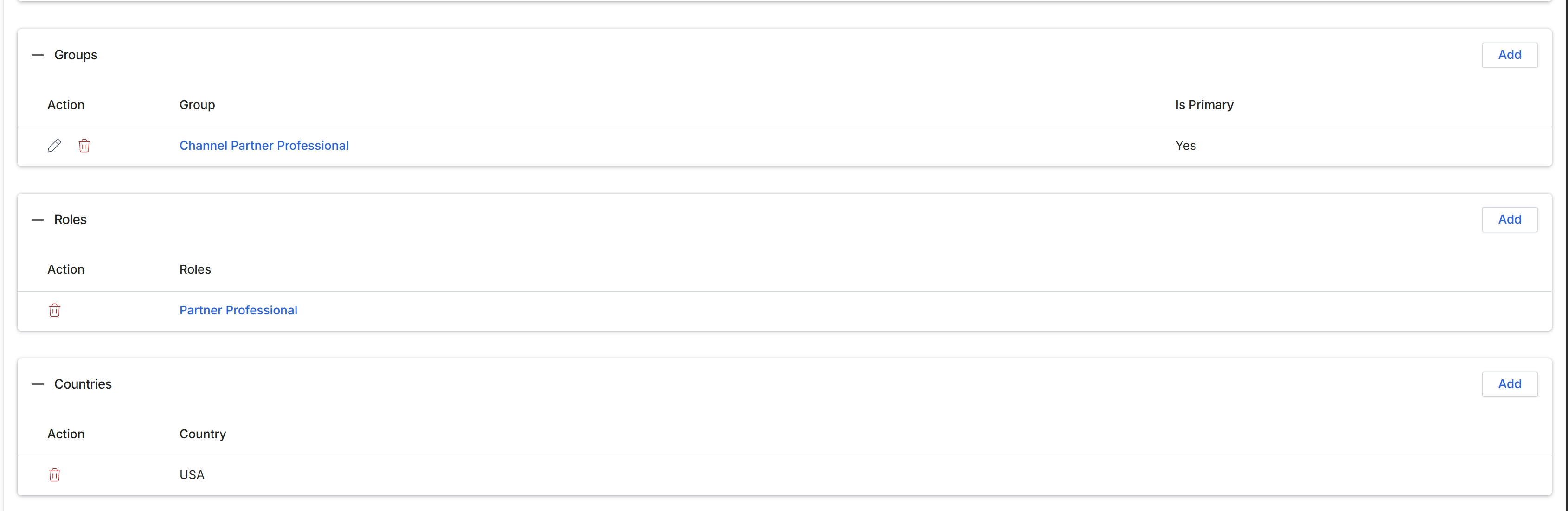
This screen displays the associations for a specific user within the UPM, categorizing their access and permissions by Groups, Roles, and Countries. Administrators use this view to understand the scope of a user's capabilities and geographical reach within the platform. Each section lists the current assignments, allowing for a clear overview of the user's configured access. The 'Groups' association typically defines broader organizational or functional categories, 'Roles' dictate specific permissions and module access, and 'Countries' specify the geographical regions the user is authorized to operate within.
Review the user's assigned Groups, Roles, and Countries.
Buttons
| Button | Description |
|---|---|
| Add | Click to add a new group association for the user. |
| Add | Click to add a new role association for the user. |
| Add | Click to add a new country association for the user. |
Groups
| Column | Description |
|---|---|
| Action | Column displaying actions available for each group association, such as editing or deleting. |
| Group | Column displaying the name of the assigned group. |
| Is Primary | Column indicating if the associated group is designated as the user's primary group. |
Roles
| Column | Description |
|---|---|
| Action | Column displaying actions available for each role association, specifically the option to remove the role. |
| Roles | Column displaying the name of the assigned role. |
Countries
| Column | Description |
|---|---|
| Action | Column displaying actions available for each country association, specifically the option to remove the country. |
| Country | Column displaying the name of the assigned country. |

This screen displays the Users Assignment History, which provides an audit trail of changes related to user assignments within the platform. It records details about who performed an assignment, the user or entity that was assigned, the timestamp of the assignment, and the type of assignment made. This history is crucial for tracking administrative actions, ensuring accountability, and understanding the lifecycle of user roles and permissions within the UPM system.
Review the Users Assignment History to see a log of user assignments.
Users Assignment History
| Column | Description |
|---|---|
| Assigned By | Indicates the administrator or system entity that performed the user assignment. |
| Assigned To | Identifies the user or entity to whom the assignment was made, including their associated partner company if applicable. |
| Date Entered | Shows the date and time when the assignment record was created. |
| Assignment Type | Specifies the nature or category of the assignment, such as 'User'. |
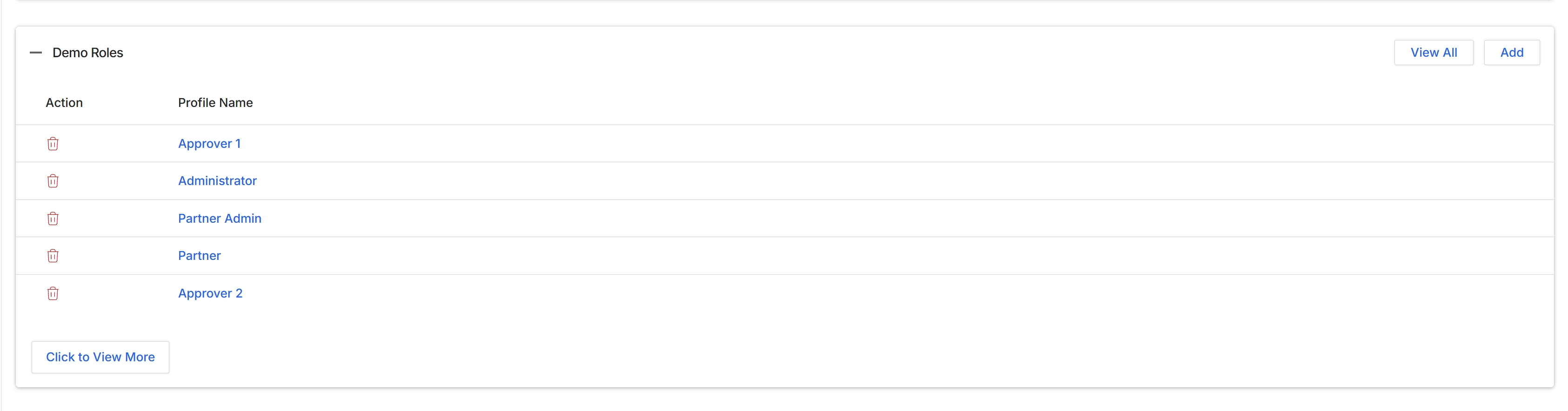
This screen displays a list of 'Demo Roles' available within the UPM platform, which are predefined user profiles that can be assigned to users. Roles define the permissions and access levels for different user types, such as administrators, partners, or specific approvers. This view allows administrators to quickly see the existing roles and provides options to manage them, including adding new roles or viewing all available roles. The ability to assign specific roles ensures that users have appropriate access to modules and functionalities, aligning with the platform's role-based access control system.
Review the list of roles displayed in the Demo Roles section.
Buttons
| Button | Description |
|---|---|
| View All | A button to navigate to a comprehensive list of all available roles. |
| Add | A button to create a new role within the system. |
| Click to View More | A button to load and display additional roles if the current list is paginated or truncated. |
Demo Roles
| Column | Description |
|---|---|
| Action | This column contains actions that can be performed on each role, such as deleting a role. |
| Profile Name | This column displays the name of each role profile. |
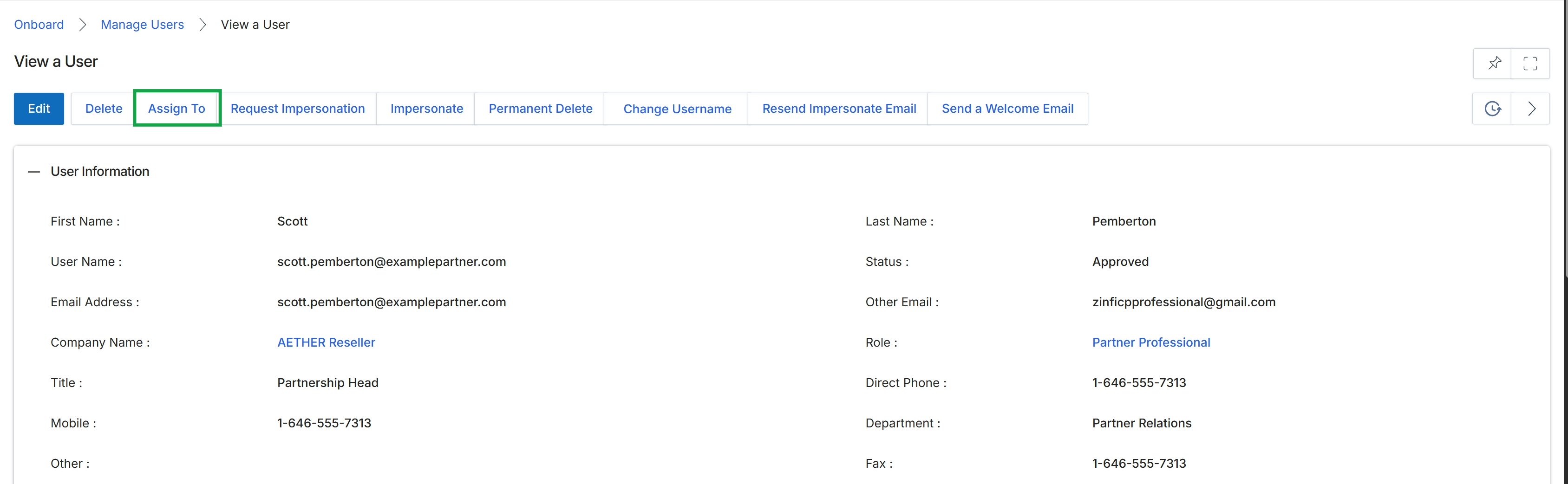
Click the Assign To button.
Assigning Records to Users or Groups
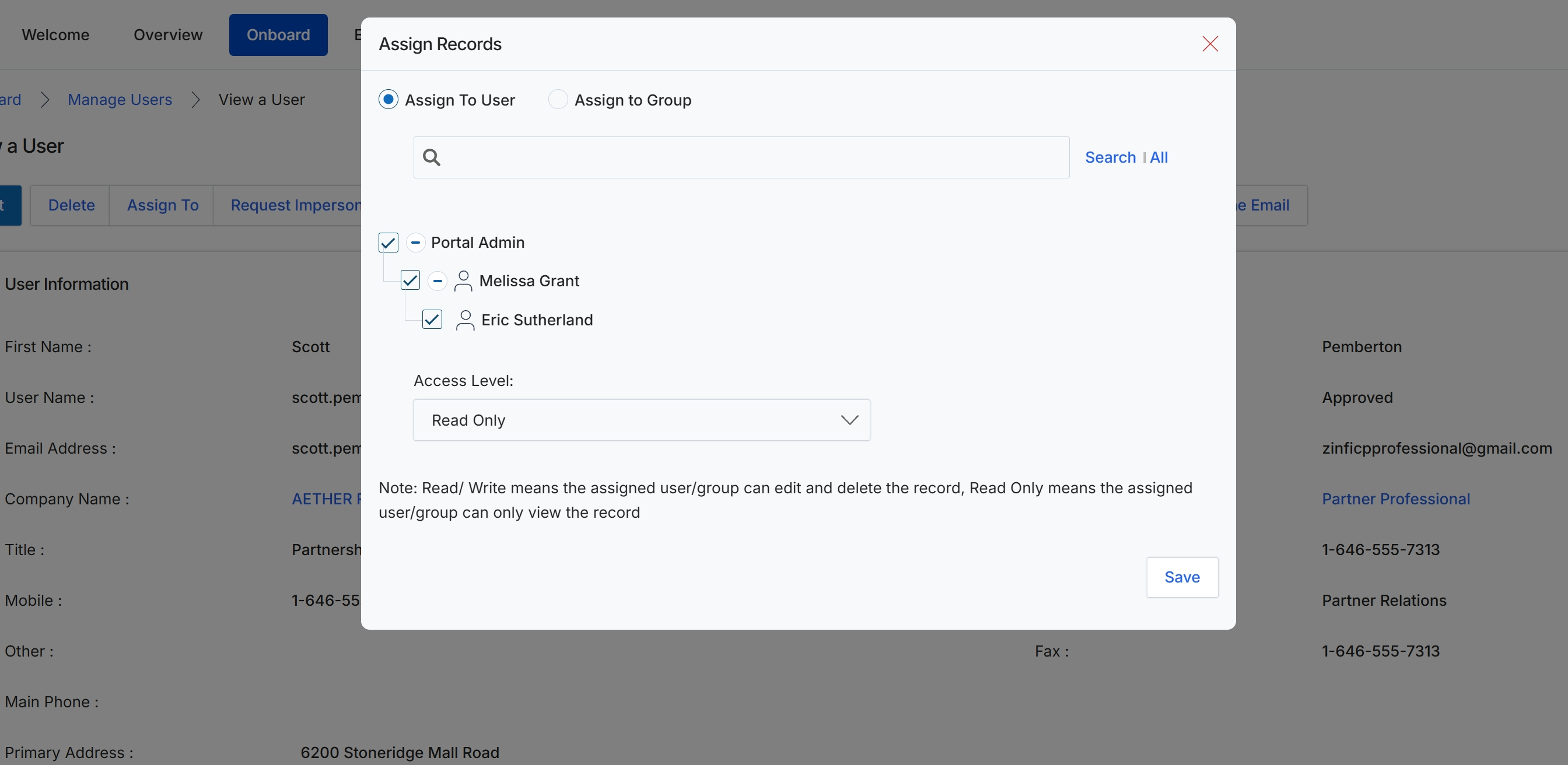
This modal dialog, 'Assign Records', provides a mechanism for UPM administrators to manage access permissions for specific records by assigning them to individual users or user groups. It allows for granular control over who can view, edit, or delete a record, supporting the platform's role-based access control and data governance requirements. Administrators can search for specific users or groups and then define their access level, ensuring that sensitive information or critical workflows are managed by the appropriate personnel within the partner ecosystem.
Select the users or groups to assign the record to, choose the desired access level, and then click 'Save'.
Buttons
| Button | Description |
|---|---|
| Search | All | A clickable link to initiate a search or display all available users/groups. |
| Save | Saves the assignment changes and closes the modal. |
Fields
| Field | Description |
|---|---|
| Assign To User | A radio button to select whether the record will be assigned to individual users. |
| Assign to Group | A radio button to select whether the record will be assigned to user groups. |
| Search | A search bar to find specific users or groups for assignment. |
| Access Level | A dropdown menu to define the permission level for the assigned users or groups, with options like 'Read/Write' (edit and delete) or 'Read Only' (view only). |
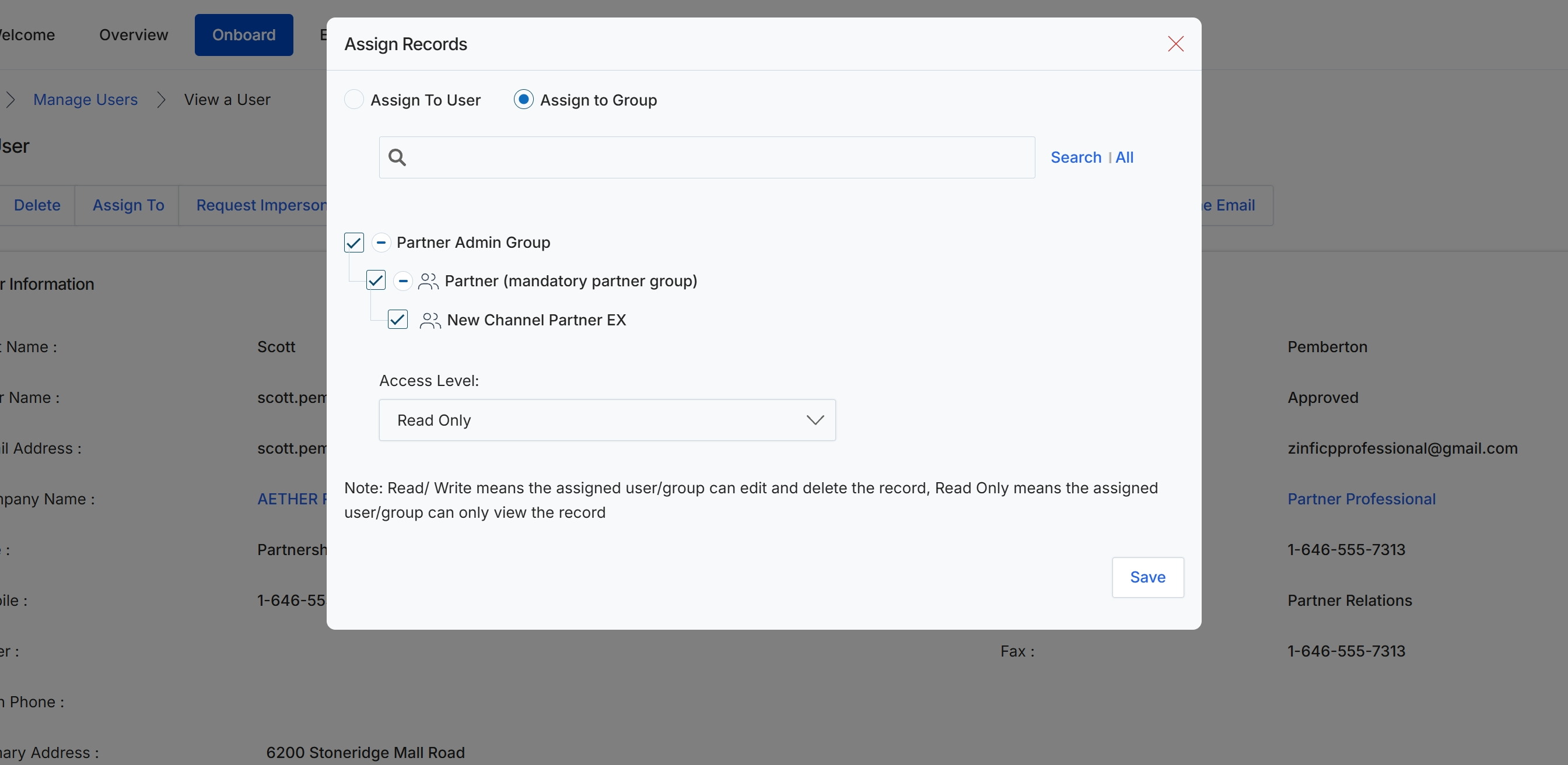
This modal window, 'Assign Records', allows administrators to control access to specific records by assigning them to individual users or user groups. This functionality is critical for managing permissions and ensuring that only authorized personnel can view or modify sensitive data within the UPM. By assigning records to groups, administrators can efficiently manage access for multiple users simultaneously, aligning with role-based access control principles. The modal provides options to select the target users or groups and define their access level, which dictates whether they can only view the record or also have permissions to edit and delete it. This ensures data security and proper governance across the platform.
Select the user groups to assign the record to, choose the appropriate access level, and then click 'Save' to apply the changes.
Buttons
| Button | Description |
|---|---|
| Search | A link to initiate the search based on the entered query. |
| All | A link to display all available user groups. |
| Save | A button to save the selected assignments and access levels for the record. |
Fields
| Field | Description |
|---|---|
| Assign To User | A radio button to select whether the record should be assigned to individual users. |
| Assign to Group | A radio button to select whether the record should be assigned to user groups. This option is currently selected. |
| Search | An input field with a search icon to find specific user groups for assignment. |
| Access Level | A dropdown menu to define the permission level for the assigned users or groups, with options like 'Read Only' or 'Read/Write'. 'Read Only' means the assigned user/group can only view the record, while 'Read/Write' allows editing and deleting. |
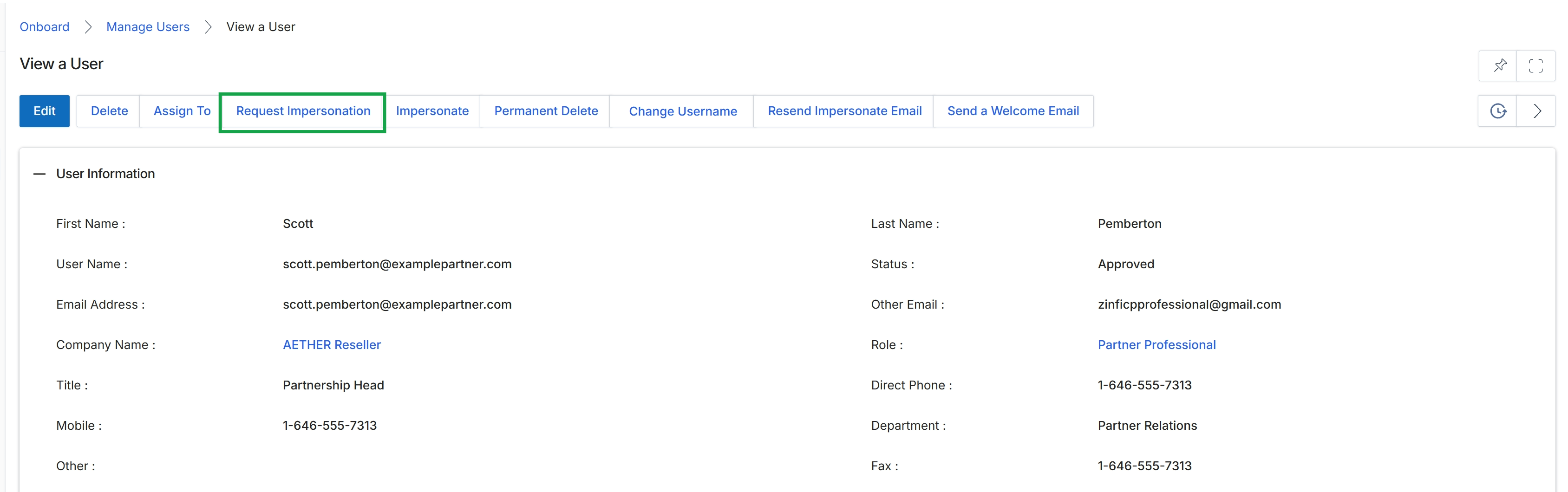
Click the X icon to close the Assign Records modal.
Managing User Access and Credentials
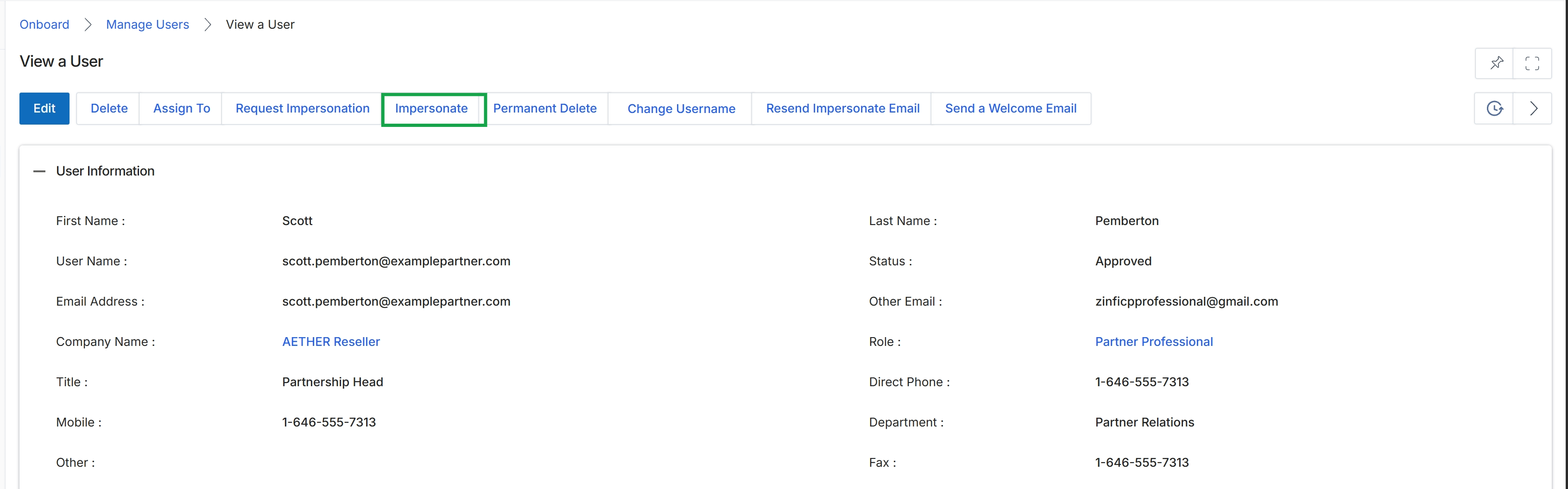
Click Impersonate.
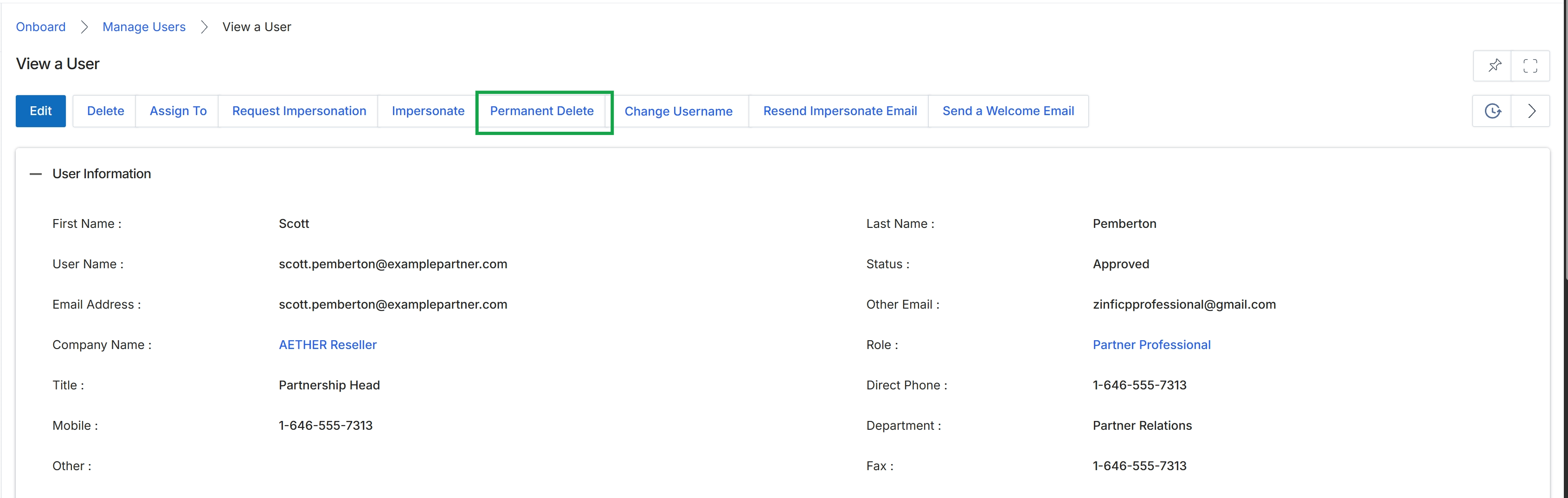
Click the Impersonate button.
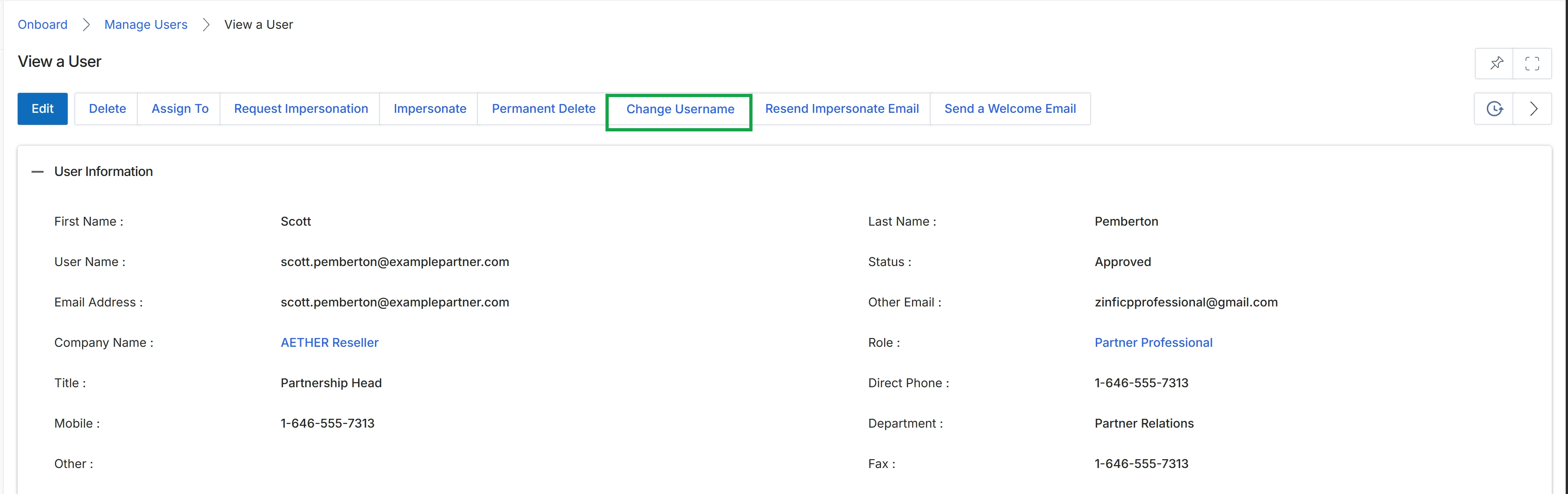
Click the Change Username button.
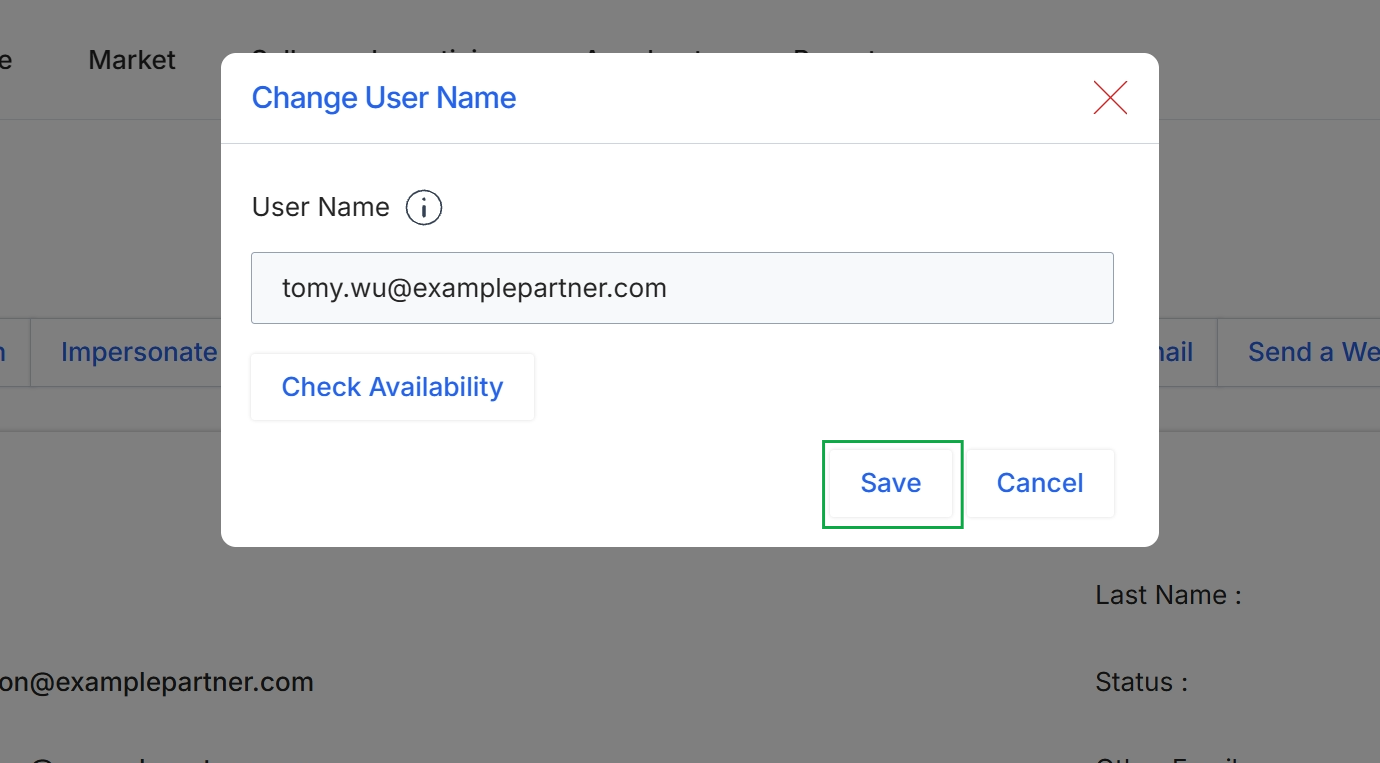
This modal dialog facilitates the modification of a user's login username within the UPM platform. Usernames serve as unique identifiers for accessing the system, and this dialog ensures that administrators can update them while verifying the availability of the new username. This functionality is crucial for maintaining accurate user records and managing access credentials, particularly for partner contacts or vendor-side users whose primary email or login identifier might change over time.
Click the "Save" button to apply the changes to the user's username.
Buttons
| Button | Description |
|---|---|
| Check Availability | A button to verify if the entered username is unique and available for use. |
| Save | Saves the new username to the user's profile. |
| Cancel | Discards any changes made and closes the dialog. |
Fields
| Field | Description |
|---|---|
| User Name | The field to enter or modify the user's login username, which is typically an email address. |
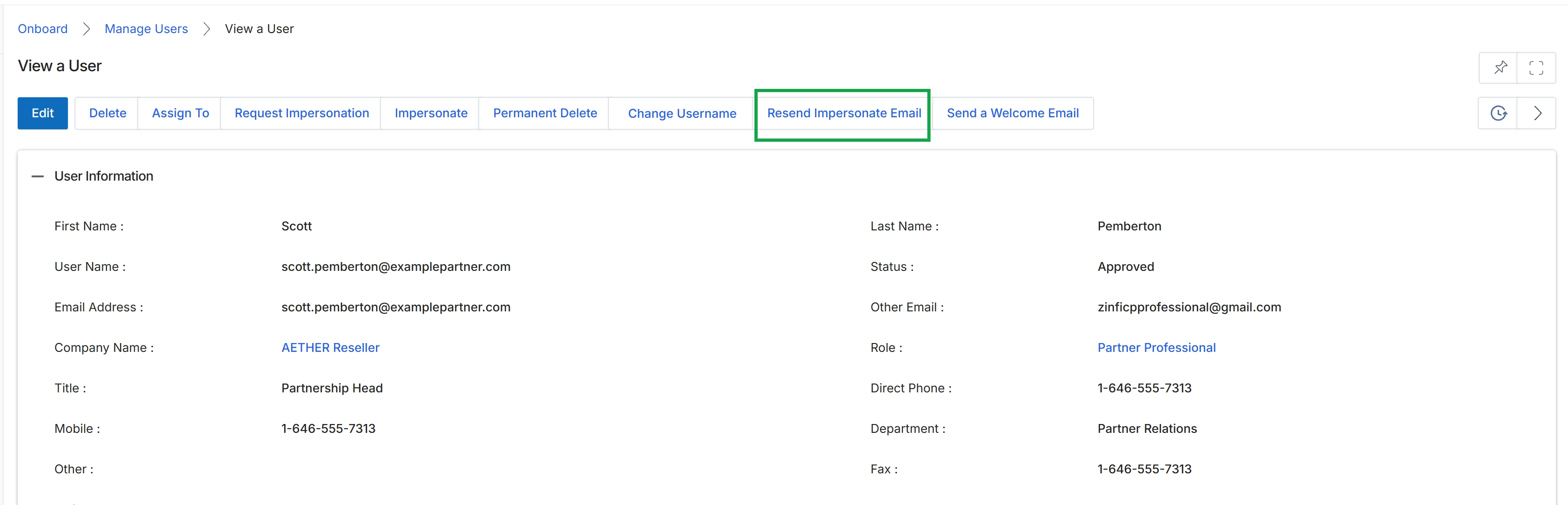
Click Resend Impersonate Email.
Communicating with Users
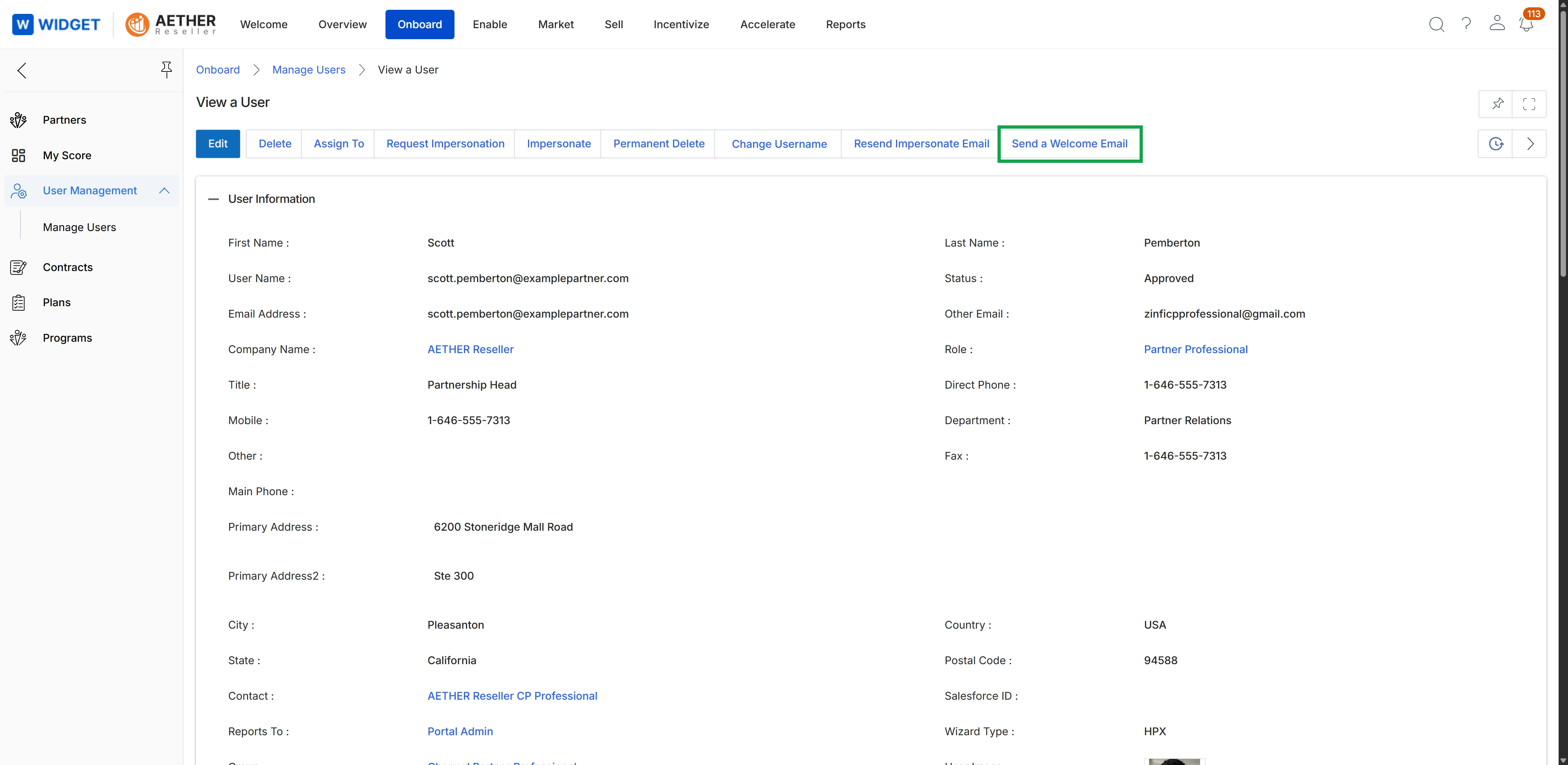
Click the Send a Welcome Email button.