

Overview
The platform's Community module provides a vital hub for fostering collaboration and engagement within your partner ecosystem. It enables partners to connect, ask questions, share insights, and discuss various topics, from technical support to marketing strategies. Administrators can leverage communities to disseminate important information, facilitate peer-to-peer learning, and gather feedback from partners, ensuring a more informed and connected network.
While the Community entity is shared across modules, its management and configuration for strategic partners often falls under the Accelerate zone, emphasizing its role in deeper partner engagement. This feature is particularly beneficial for higher-tier partners who require more direct interaction and knowledge exchange to maximize their success.
Key Features
- Community List View
- Favorite Toggle
- Email Notification Frequency
- Community Details Configuration
- Discussion Forum Access
- Post New Discussion
- Filter Discussions
- Community Guidelines
Viewing and Managing Community Information
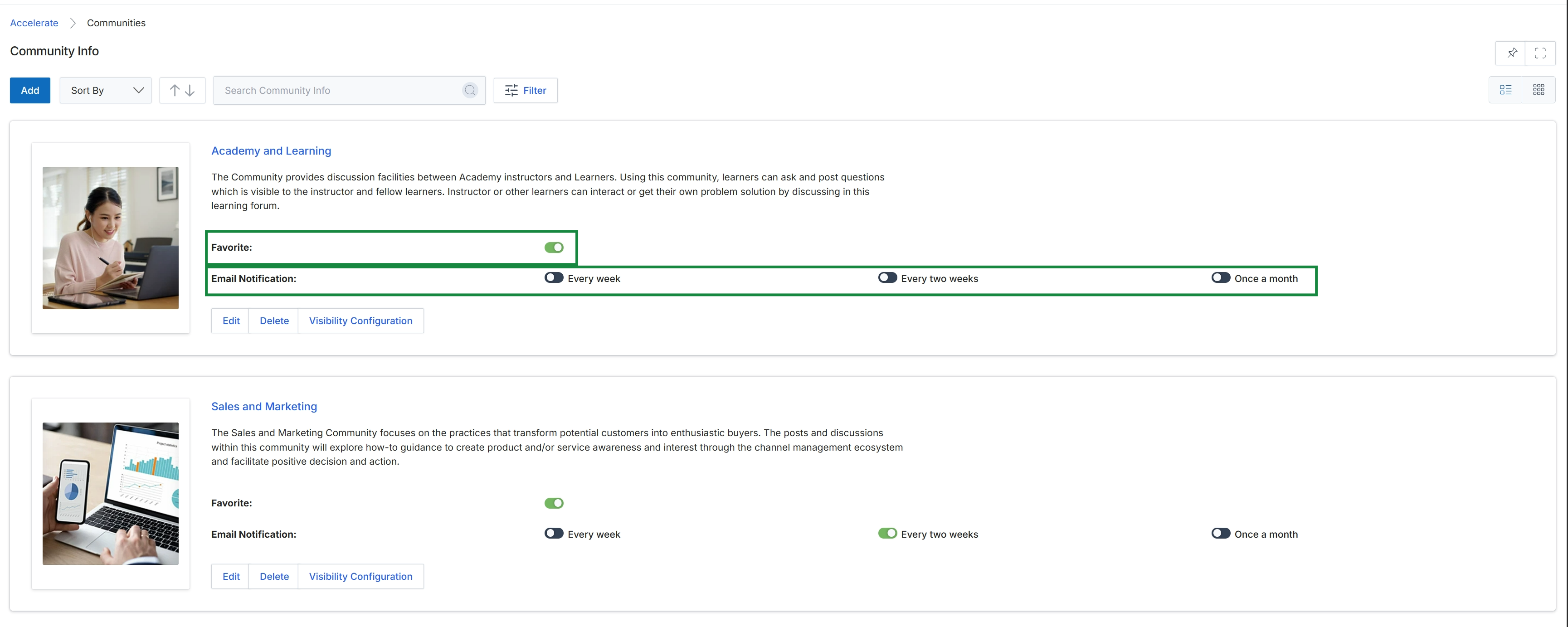
This screen presents a comprehensive list of communities available within the platform, each displayed as a distinct card with its title, description, and an associated image. For each community, administrators can configure whether it is marked as a 'Favorite' and set the frequency for 'Email Notification' updates, choosing between weekly, bi-weekly, or monthly digests. This view allows for managing community settings and preferences, including their visibility and content.
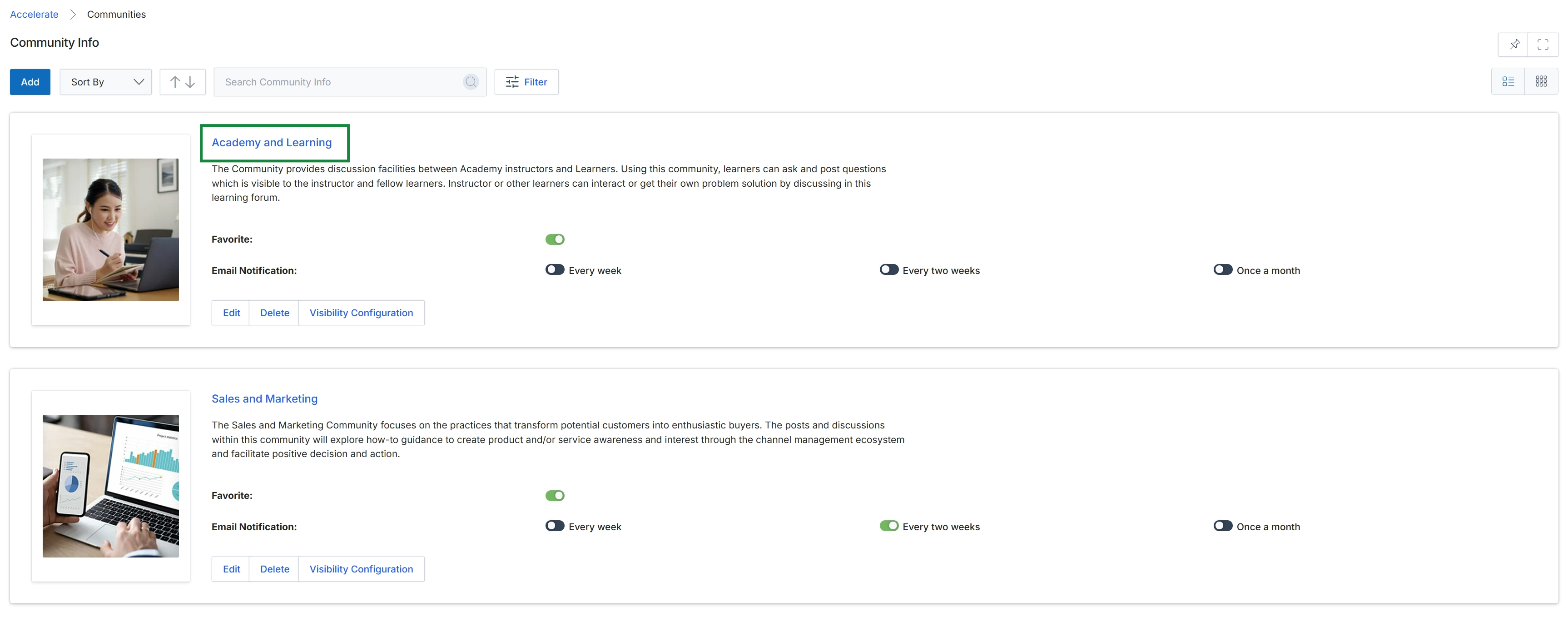
Click the Academy and Learning community name.
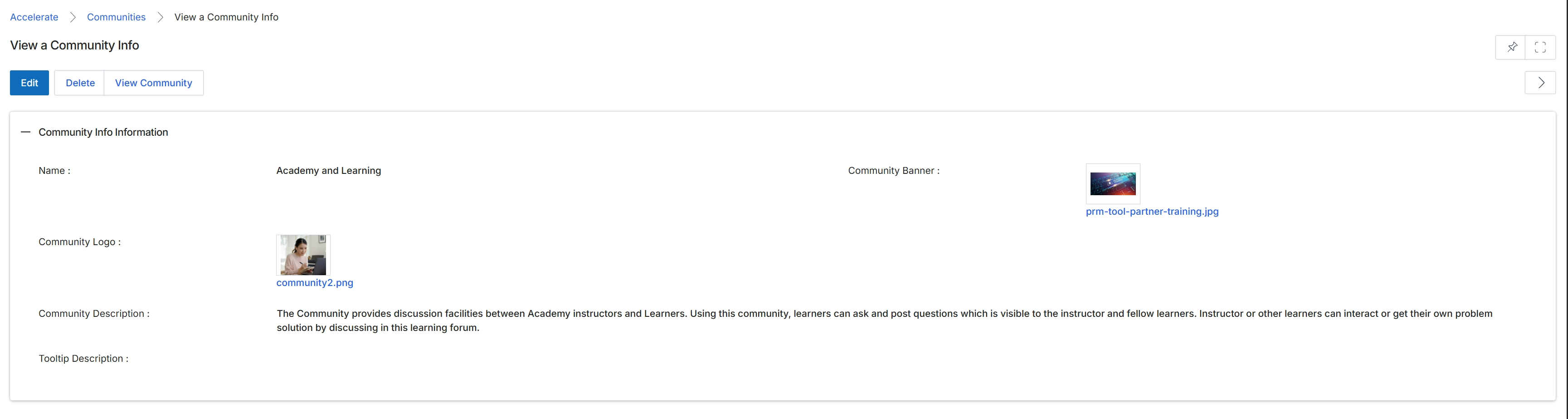
This screen displays the detailed information for a specific Community, providing administrators with a comprehensive view of its configuration. Communities are collaboration groups that facilitate discussion and interaction among partners, instructors, and learners, often used for knowledge sharing and problem-solving. This view presents the community's identifying details, branding elements, and descriptive text, allowing administrators to review its setup and initiate modifications if needed. The community entity is shared between the Accelerate and Enable modules, supporting both strategic partner collaboration and learning environments.
Click the "Edit" button to modify the community's details.
Buttons
| Button | Description |
|---|---|
| Edit | Initiates the editing process for the current community, allowing administrators to modify its configuration. |
| Delete | Deletes the current community from the platform. |
| View Community | Navigates to the live view of the community as partners would see it. |
Community Info Information
| Field | Description |
|---|---|
| Name | The name of the community, such as 'Academy and Learning'. |
| Community Banner | The banner image displayed at the top of the community page. |
| Community Logo | The logo associated with the community. |
| Community Description | A detailed description of the community's purpose and what it offers to members. |
| Tooltip Description | A brief description that appears as a tooltip when hovering over the community's name or icon. |
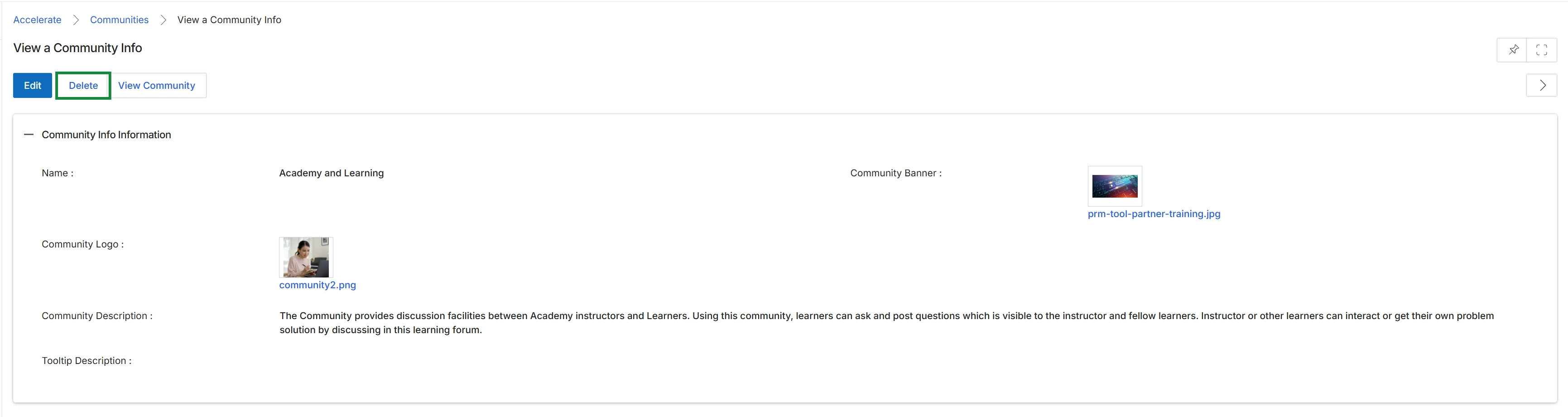
This screen displays the detailed information for a specific community within the platform, allowing administrators to review its configuration. It shows key attributes such as the community's name, logo, banner image, and a descriptive text. This view is part of the community management functionality, which enables collaboration and discussion among partners, and can be relevant for various partner programs.
Accessing and Participating in a Community
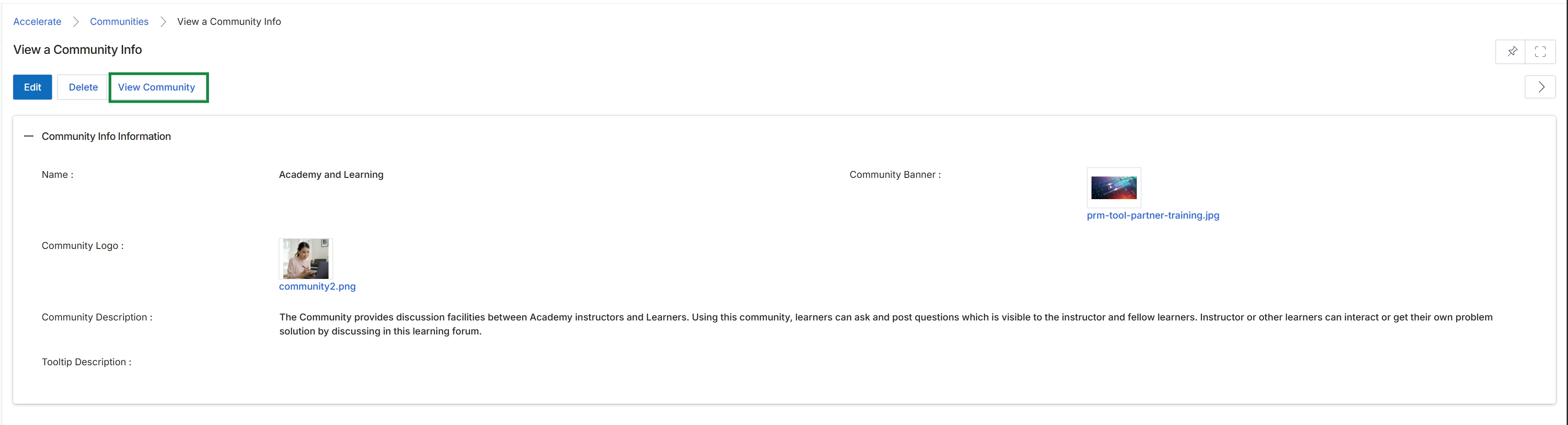
Click View Community.
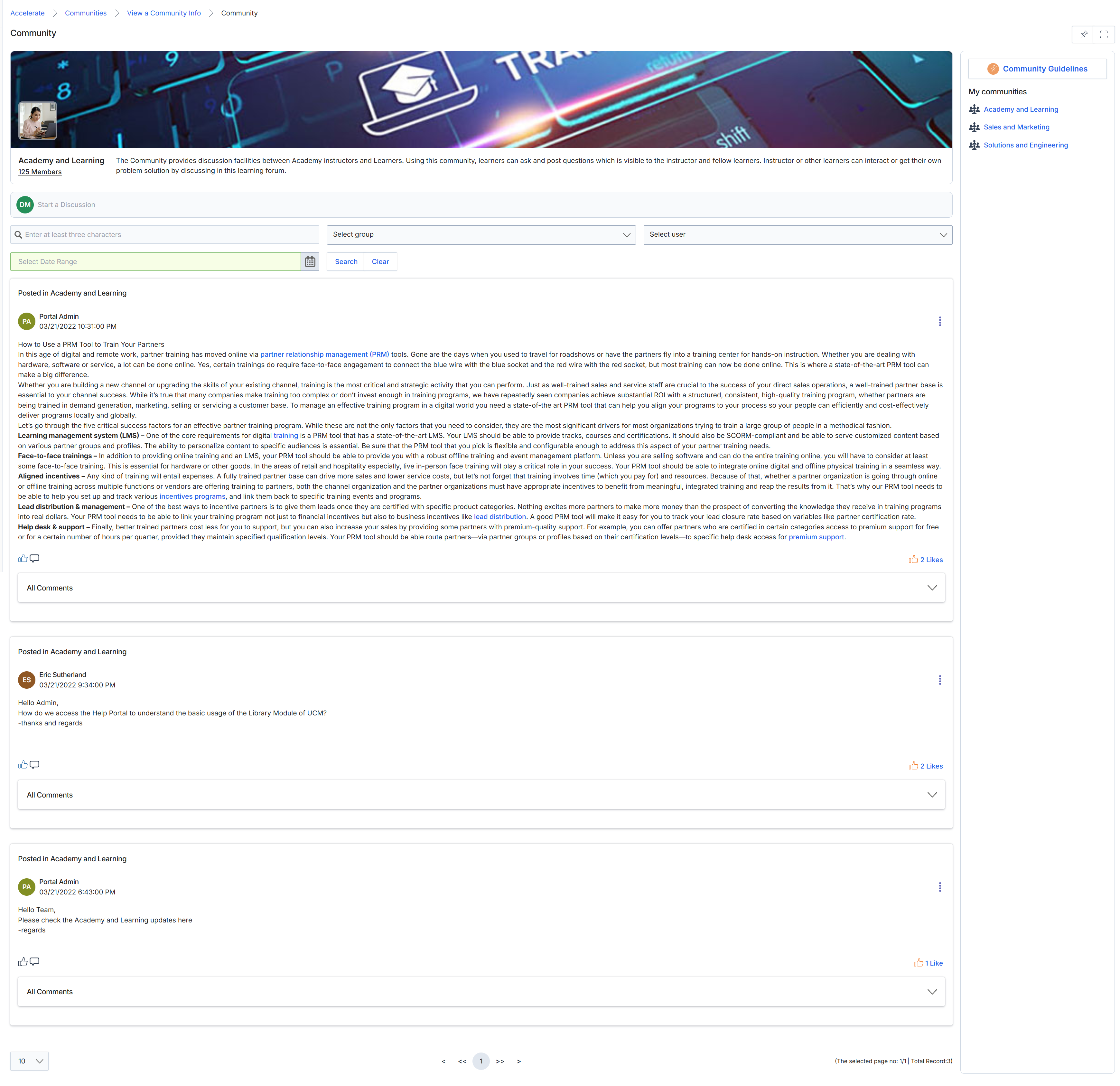
Click the View Community button.
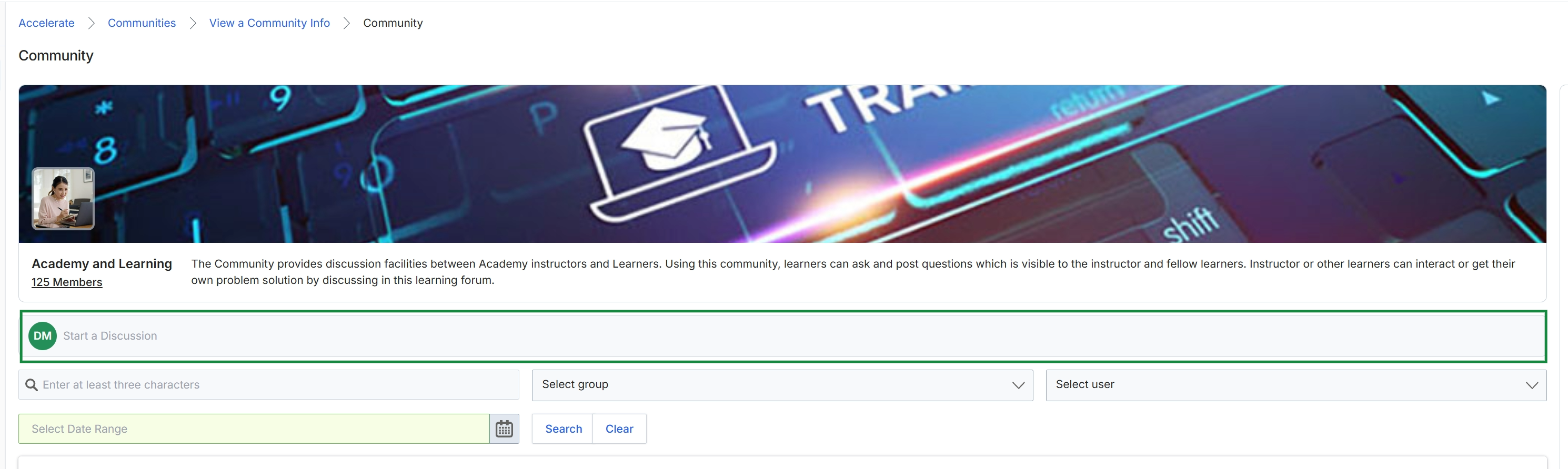
Click the Start a Discussion field.
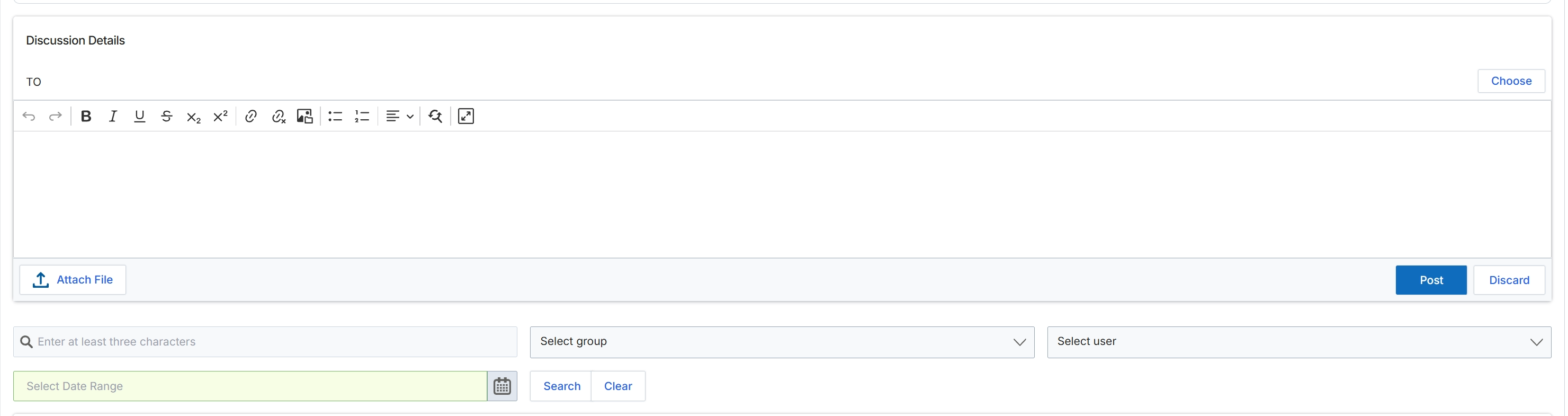
This screen presents the interface for composing a new discussion post within the Communities feature. The Communities feature, shared between the Enable and Accelerate modules, allows vendor administrators and partners to engage in collaborative discussions, share information, and build a sense of community. This form enables users to specify recipients, compose rich-text content, and attach files, facilitating structured communication. Once posted, these discussions contribute to the collaborative environment, supporting knowledge sharing and interaction among program participants.
Compose a new discussion post by specifying recipients, entering your message, and attaching any relevant files.
Buttons
| Button | Description |
|---|---|
| Choose | Opens a selection dialog to choose specific recipients or groups for the discussion. |
| Attach File | Allows users to upload and attach files to the discussion post. |
| Post | Publishes the composed discussion post to the selected recipients or community. |
| Discard | Cancels the current discussion draft and discards any entered content. |
Discussion Details
| Field | Description |
|---|---|
| TO | Specifies the recipients or groups for the discussion post. |
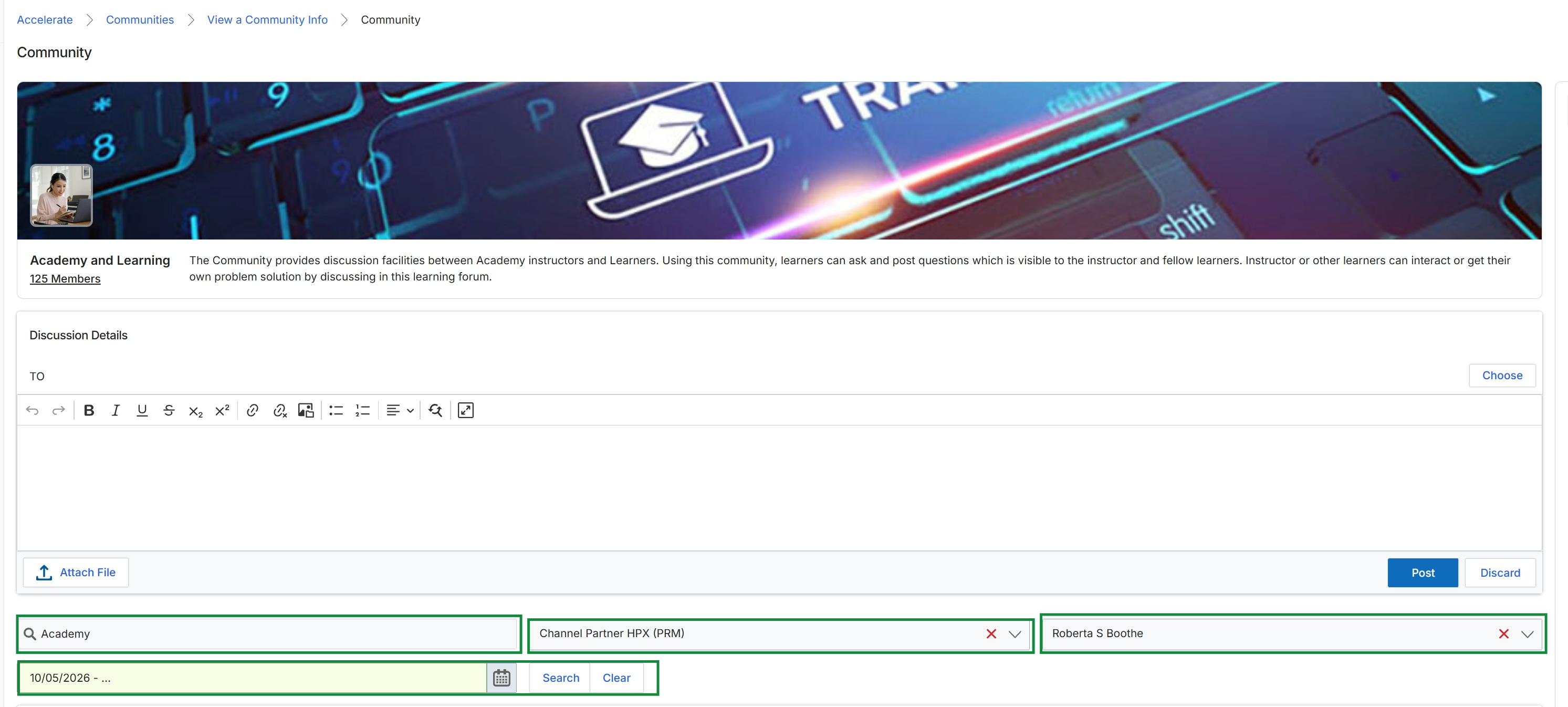
This screen displays the details of a specific community within the platform, providing a dedicated space for users to engage in discussions and collaboration. Communities serve as forums where partners and vendor-side users can interact, share knowledge, and resolve issues. This particular view allows users to initiate new discussion posts within the selected community, facilitating communication among members. It supports rich text formatting for messages and the ability to attach files, enhancing the collaborative experience. The platform's community feature is designed to foster engagement and provide a self-service support mechanism, complementing formal training and support channels.
Enter your discussion post in the rich text editor to share with the community.
Buttons
| Button | Description |
|---|---|
| Choose | Opens a selection dialog to choose specific community members or groups to address the discussion post to. |
| Attach File | Allows users to upload and attach files relevant to the discussion post. |
| Post | Publishes the discussion post to the community. |
| Discard | Cancels the current discussion post and discards any entered content. |
Discussion Details
| Field | Description |
|---|---|
| TO | Specifies the recipient(s) for the discussion post within the community. Click 'Choose' to select specific members or groups. |
| Rich Text Editor | A text input area with formatting options (bold, italic, underline, lists, links, images, etc.) for composing the discussion post content. |
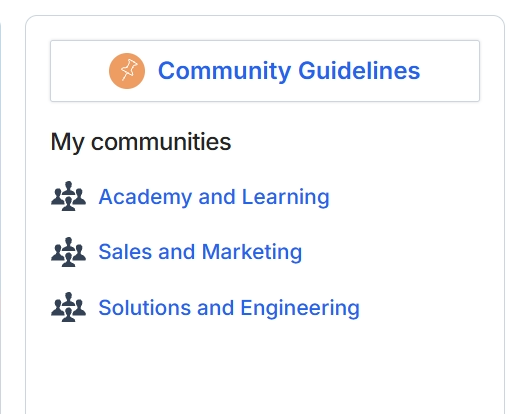
This panel displays a list of communities a user is currently a member of or has access to within the platform. It serves as a central hub for partners to access collaborative discussion groups and review community guidelines. The communities facilitate communication and knowledge sharing among partners and with the vendor, supporting various aspects of the partner program.
Click Academy and Learning.
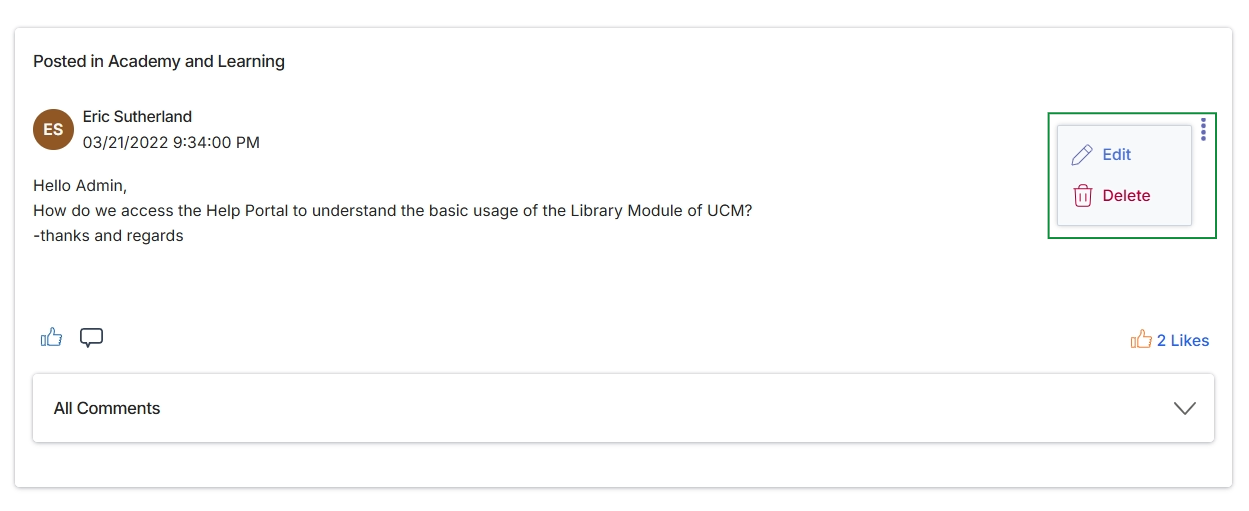
This screen displays an individual post within a community forum, showing its content, author, and creation timestamp. It provides options for managing the post, specifically allowing for its modification or removal. This view is part of the community management functionality, enabling users with appropriate permissions to maintain the accuracy and relevance of discussions within the platform's communities.
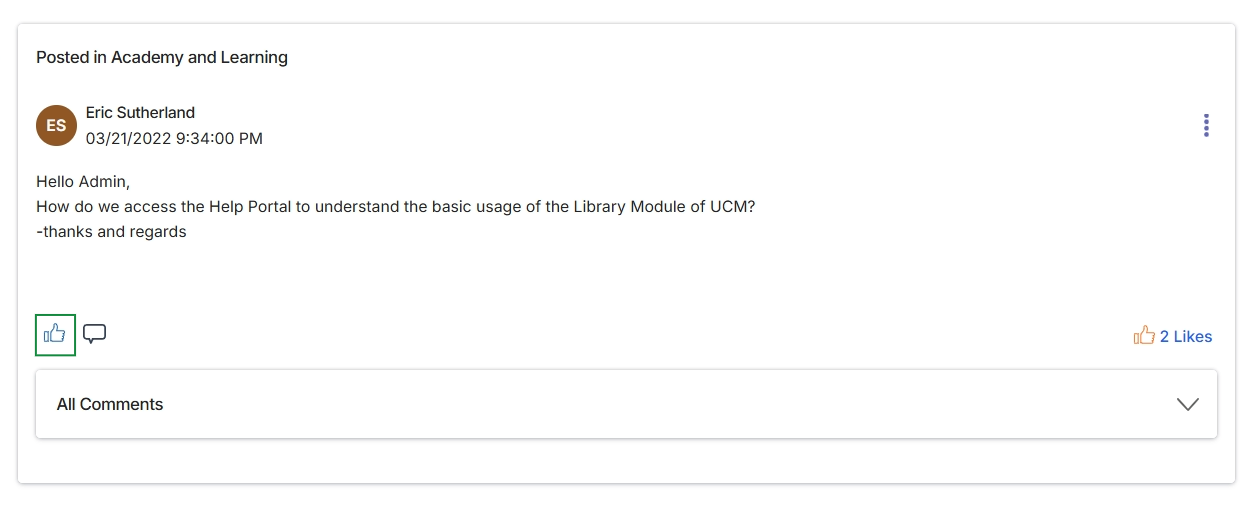
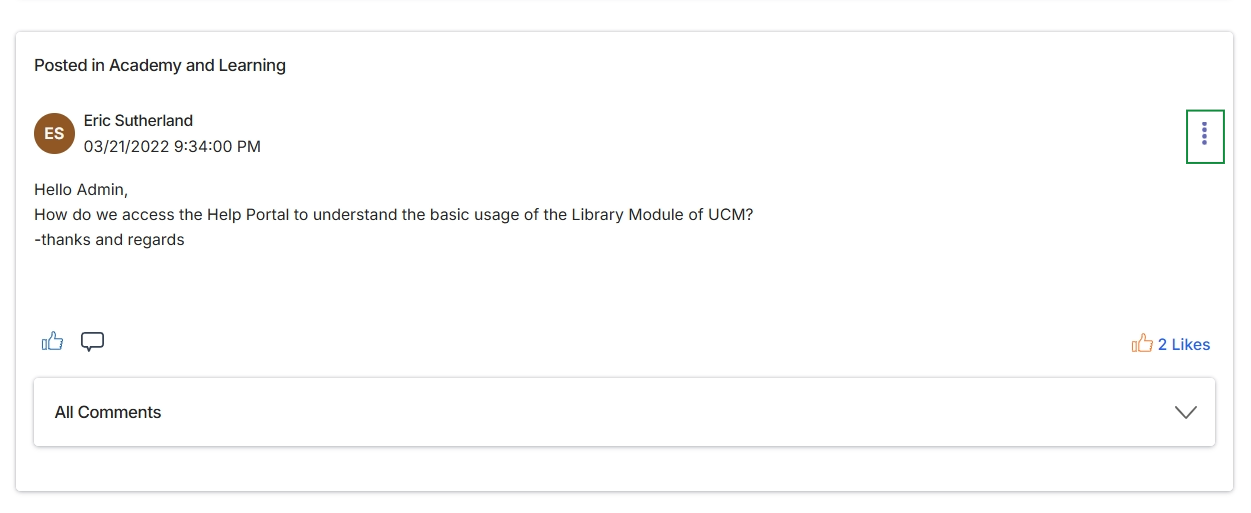
This screen displays a single post within a community discussion forum, showing the content of the post, the author's name, and the timestamp of its creation. It indicates that the post was made in the 'Academy and Learning' community and includes options for users to like the post or view/add comments, reflecting the collaborative nature of the platform's community feature. This view allows partners and vendors to engage in discussions, ask questions, and share information within designated groups.
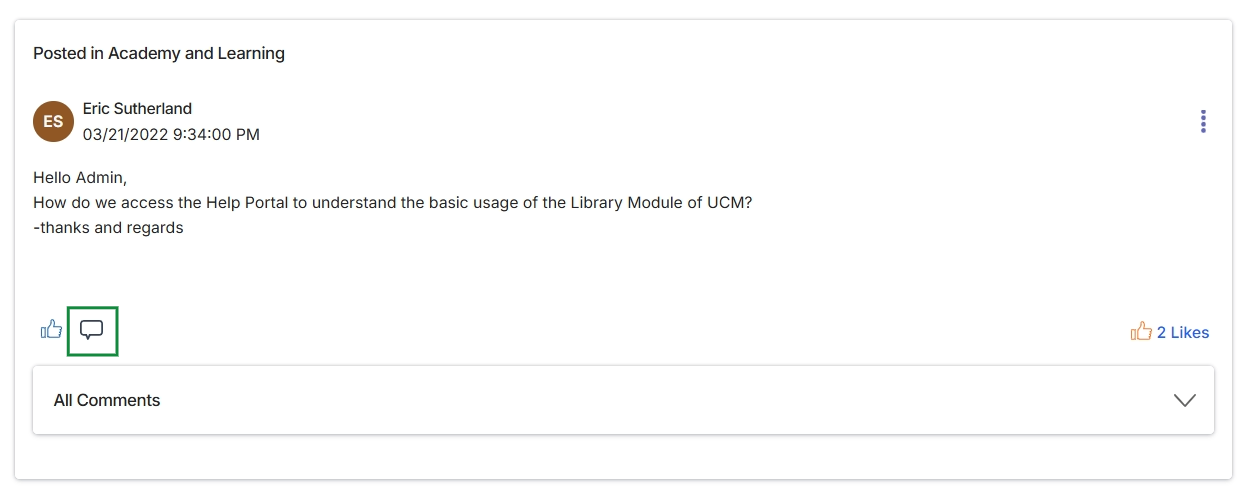
Click the Comment icon.
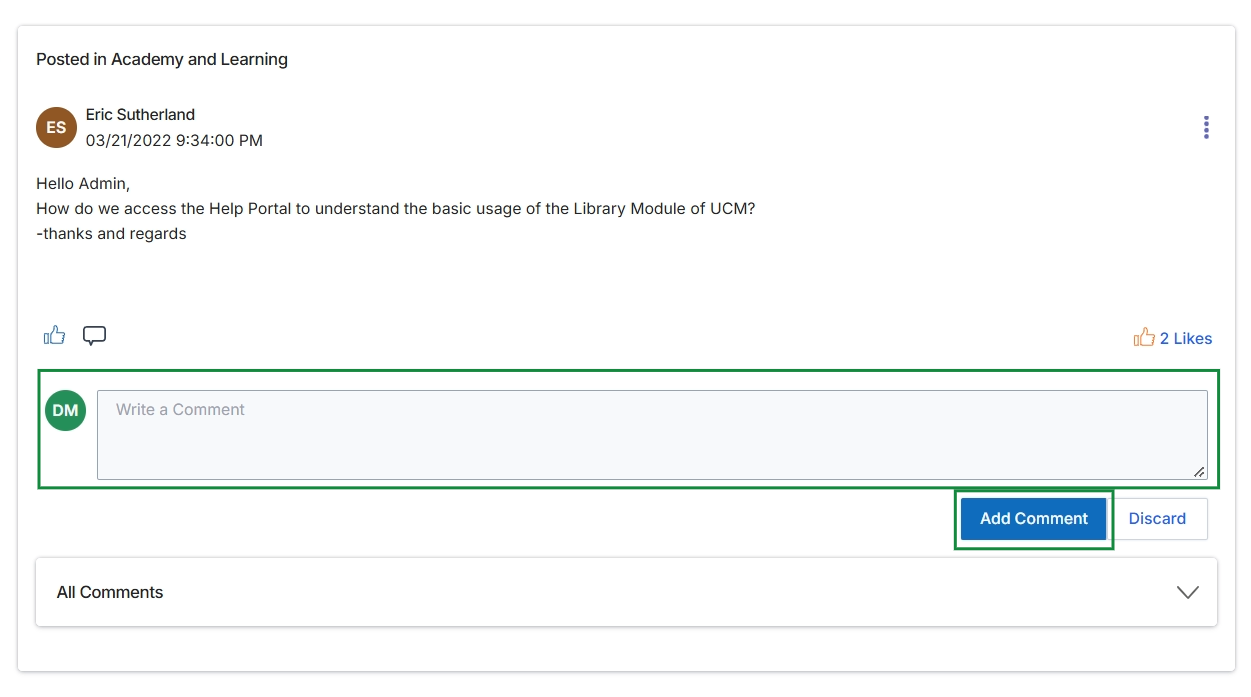
This screen displays a specific post within a community forum, enabling users to view the original content and engage in discussions. It shows the details of a single post, including the author, timestamp, and content, and indicates the number of positive reactions it has received. This interface allows community members to contribute to the topic by entering a response in the provided text field, facilitating collaborative communication and knowledge sharing among partners and vendor administrators.
Frequently asked questions
- What is the purpose of the Community module?
The Community module allows administrators to manage discussion communities for partners, providing a collaborative space for knowledge sharing, communication, and engagement within the partner ecosystem.
- What can administrators configure for a community?
Administrators can configure community details, set notification preferences (weekly, bi-weekly, monthly digests), manage visibility settings, and specify branding elements like banners and logos.
- How can administrators manage community content?
Administrators can initiate discussions, moderate content, and view community activity. They can also edit or delete existing communities and manage individual posts within discussions.
- How do partners use the Community module?
Partners use the module to connect, ask questions, share insights, discuss topics, access collaborative discussion groups, and review community guidelines. They can compose new discussion posts and attach files.
- What types of information are displayed in the detailed community view?
The detailed community view displays the community's name, banner image, logo, a detailed description, and a tooltip description. It also shows options to edit or delete the community.