

Overview
In the UPM Sell module, 'Accounts' represent the target companies or customers that partners and vendors engage with. These accounts are central to managing leads, registering deals, and tracking sales opportunities. The Account Details page provides a 360-degree view of each account, allowing administrators to access and manage all related information in one place. This includes basic company details, contact information, associated sales opportunities, and any historical assignments or activities.
This consolidated view is crucial for effective pipeline management, ensuring that all stakeholders have access to up-to-date information for sales engagements. It also facilitates collaboration by providing a shared record of interactions and planned activities, ultimately supporting the progression of leads through the sales funnel and the successful closure of deals.
Viewing Account Details
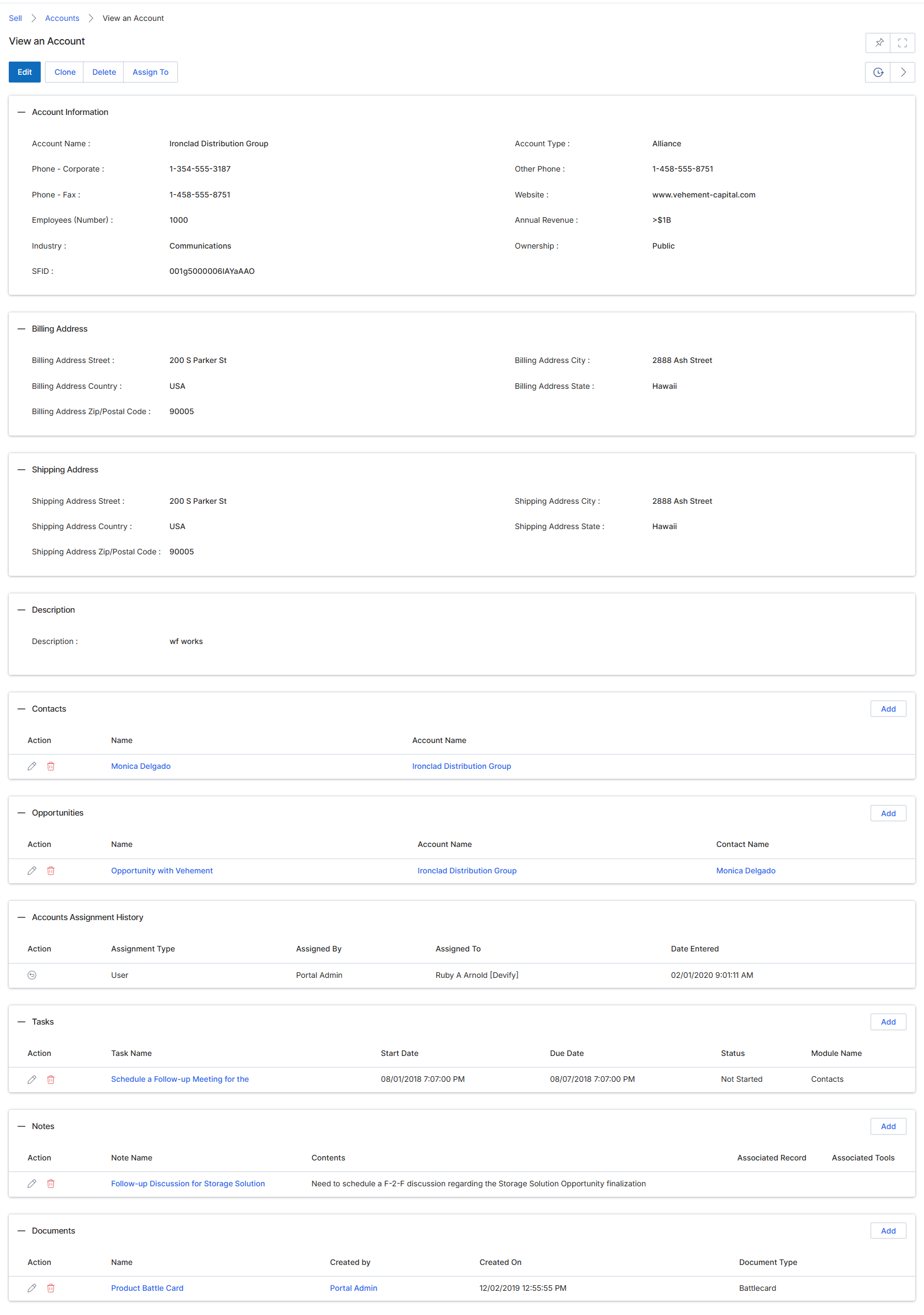
This screen displays the detailed view of a specific Account record within the UPM Sell module. Account records represent target companies, which can be prospects or existing customers, and serve as a central entity for tracking all related sales activities, contacts, opportunities, and historical assignments. This view consolidates critical information about the account, including its basic profile, addresses, and a description, along with related lists for associated contacts, opportunities, assignment history, tasks, notes, and documents. This comprehensive overview allows channel managers and other vendor-side users to quickly understand the account's status, engagement history, and ongoing activities, facilitating effective partner management and co-selling efforts. The data presented here can originate from manual entry, CRM synchronization, or lead conversion processes, providing a unified view of the account's journey through the sales pipeline.
Review the detailed information for the selected account, including its profile, addresses, and related records.
Buttons
| Button | Description |
|---|---|
| Edit | Allows modification of the account details. |
| Clone | Creates a duplicate of the current account record. |
| Delete | Removes the account record from the system. |
| Assign To | Assigns the account to a specific user or partner. |
Account Information
| Field | Description |
|---|---|
| Account Name | The official name of the company. |
| Phone - Corporate | The primary corporate phone number for the account. |
| Phone - Fax | The fax number for the account. |
| Employees (Number) | The number of employees at the company. |
| Industry | The industry sector the company operates in. |
| SFID | The Salesforce ID for the account, if integrated. |
| Account Type | The classification of the account, e.g., Alliance, Customer, Prospect. |
| Other Phone | An alternative phone number for the account. |
| Website | The official website URL for the account. |
| Annual Revenue | The estimated annual revenue of the company. |
| Ownership | Indicates whether the company is publicly or privately owned. |
Billing Address
| Field | Description |
|---|---|
| Billing Address Street | The street address for billing purposes. |
| Billing Address Country | The country for the billing address. |
| Billing Address Zip/Postal Code | The zip or postal code for the billing address. |
| Billing Address City | The city for the billing address. |
| Billing Address State | The state for the billing address. |
Shipping Address
| Field | Description |
|---|---|
| Shipping Address Street | The street address for shipping purposes. |
| Shipping Address Country | The country for the shipping address. |
| Shipping Address Zip/Postal Code | The zip or postal code for the shipping address. |
| Shipping Address City | The city for the shipping address. |
| Shipping Address State | The state for the shipping address. |
Description
| Field | Description |
|---|---|
| Description | A general description or notes about the account. |
Contacts
| Column | Description |
|---|---|
| Action | Actions available for the contact, such as edit or delete. |
| Name | The name of the contact associated with the account. |
| Account Name | The name of the account the contact belongs to. |
Opportunities
| Column | Description |
|---|---|
| Action | Actions available for the opportunity, such as edit or delete. |
| Name | The name or title of the opportunity. |
| Account Name | The name of the account the opportunity is associated with. |
| Contact Name | The primary contact person for this opportunity. |
Accounts Assignment History
| Column | Description |
|---|---|
| Action | Actions available for the assignment history entry. |
| Assignment Type | The method or reason for the account assignment. |
| Assigned By | The user or system that assigned the account. |
| Assigned To | The user or entity to whom the account was assigned. |
| Date Entered | The date and time the assignment was recorded. |
Tasks
| Column | Description |
|---|---|
| Action | Actions available for the task, such as edit or delete. |
| Task Name | The title or description of the task. |
| Start Date | The planned start date for the task. |
| Due Date | The deadline for completing the task. |
| Status | The current status of the task, e.g., Not Started, In Progress, Completed. |
| Module Name | The module associated with the task, e.g., Contacts. |
Notes
| Column | Description |
|---|---|
| Action | Actions available for the note, such as edit or delete. |
| Note Name | The title or subject of the note. |
| Contents | The textual content of the note. |
| Associated Record | The record (e.g., opportunity, contact) that the note is linked to. |
| Associated Tools | Any tools or features associated with the note. |
Documents
| Column | Description |
|---|---|
| Action | Actions available for the document, such as edit or delete. |
| Name | The filename or title of the document. |
| Created by | The user who uploaded or created the document. |
| Created On | The date and time the document was created or uploaded. |
| Document Type | The classification or category of the document. |
Assigning Account Records
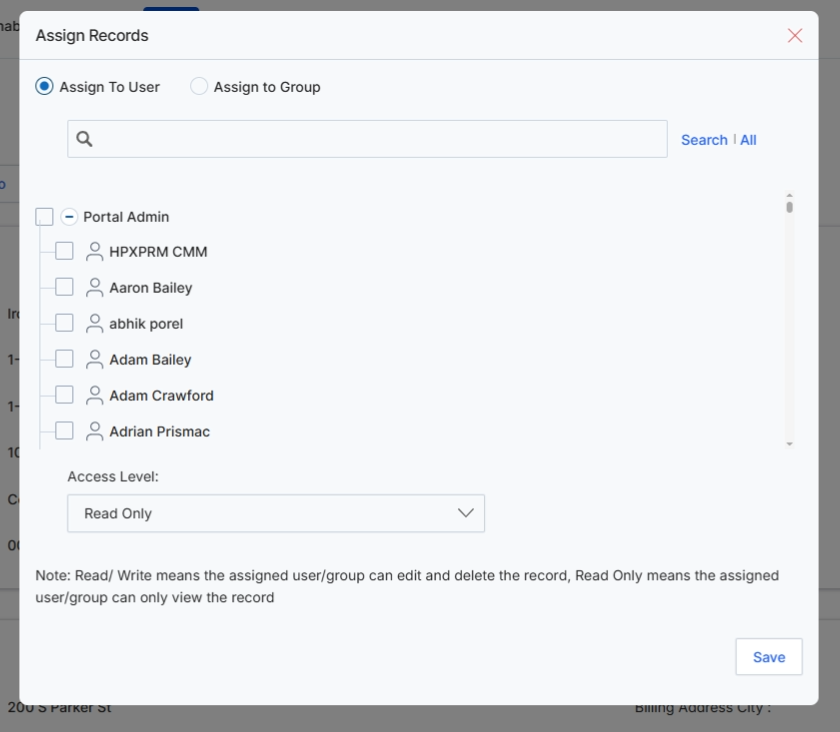
This modal dialog, 'Assign Records', allows UPM administrators to control access to specific records, such as an Account, by assigning them to individual users or groups within the system. This functionality is crucial for managing data visibility and editing permissions, ensuring that only authorized personnel can view or modify sensitive information. The assignment process supports two access levels: 'Read Only' for viewing the record, and 'Read/Write' for full editing and deletion capabilities. This granular control helps enforce data governance policies and streamline workflows by directing relevant records to the appropriate team members or departments.
Select the user(s) to whom the record should be assigned and specify their access level.
Buttons
| Button | Description |
|---|---|
| Save | Button to save the assignment changes and close the modal. |
Fields
| Field | Description |
|---|---|
| Assign To User | Radio button to select assignment to individual users. |
| Assign to Group | Radio button to select assignment to user groups. |
| Search | Search field to find specific users or groups for assignment. |
| Access Level | Dropdown to set the permission level for the assigned user(s) or group(s). 'Read Only' allows viewing, while 'Read/Write' allows editing and deleting the record. |
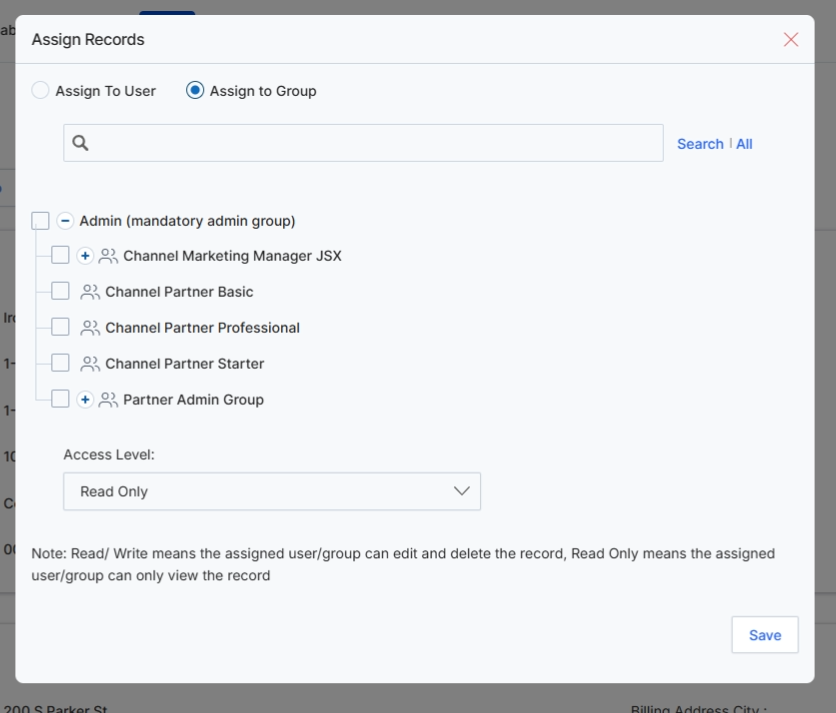
This modal dialog, 'Assign Records', allows UPM administrators to control access to specific records, such as an Account record, by assigning them to individual users or predefined user groups. This functionality is crucial for managing data visibility and collaboration within the platform, ensuring that only authorized personnel or partner teams can view or manage particular accounts, leads, or deals. By assigning records to groups, administrators can efficiently manage permissions for multiple users simultaneously, aligning with the role-based access control mechanisms inherent in UPM. The 'Access Level' setting further refines these permissions, determining whether the assigned user or group can only view the record or also has the ability to edit and delete it, thereby supporting granular control over data governance.
Select the 'Assign to Group' option to assign the record to a user group.
Buttons
| Button | Description |
|---|---|
| All | A link to display all available users or groups. |
| Save | Saves the assignment changes and closes the modal. |
Fields
| Field | Description |
|---|---|
| Assign To User | A radio button to select assigning the record to an individual user. |
| Assign to Group | A radio button to select assigning the record to a predefined user group. |
| Search | A search bar to find specific users or groups. |
| Access Level | A dropdown menu to select the access level for the assigned user or group, determining if they can only view or also edit/delete the record. |