

Overview
In the UPM Sell module, effective contact management is crucial for nurturing leads, managing deals, and fostering strong partner relationships. The Contact Details page offers a 360-degree view of each contact, consolidating essential information from contact details and competitor descriptions to associated notes, tasks, and campaign interactions. This centralized view empowers administrators to quickly access relevant data, understand a contact's history, and take informed actions.
Admins can perform various actions directly from this page, such as editing contact information, assigning the contact to specific users or groups with defined access levels, and adding the contact to mailing lists for targeted communications. This functionality ensures that contact records are always up-to-date, properly assigned, and integrated into relevant marketing and sales workflows, ultimately supporting more effective lead and deal management within the partner ecosystem.
Viewing Contact Details
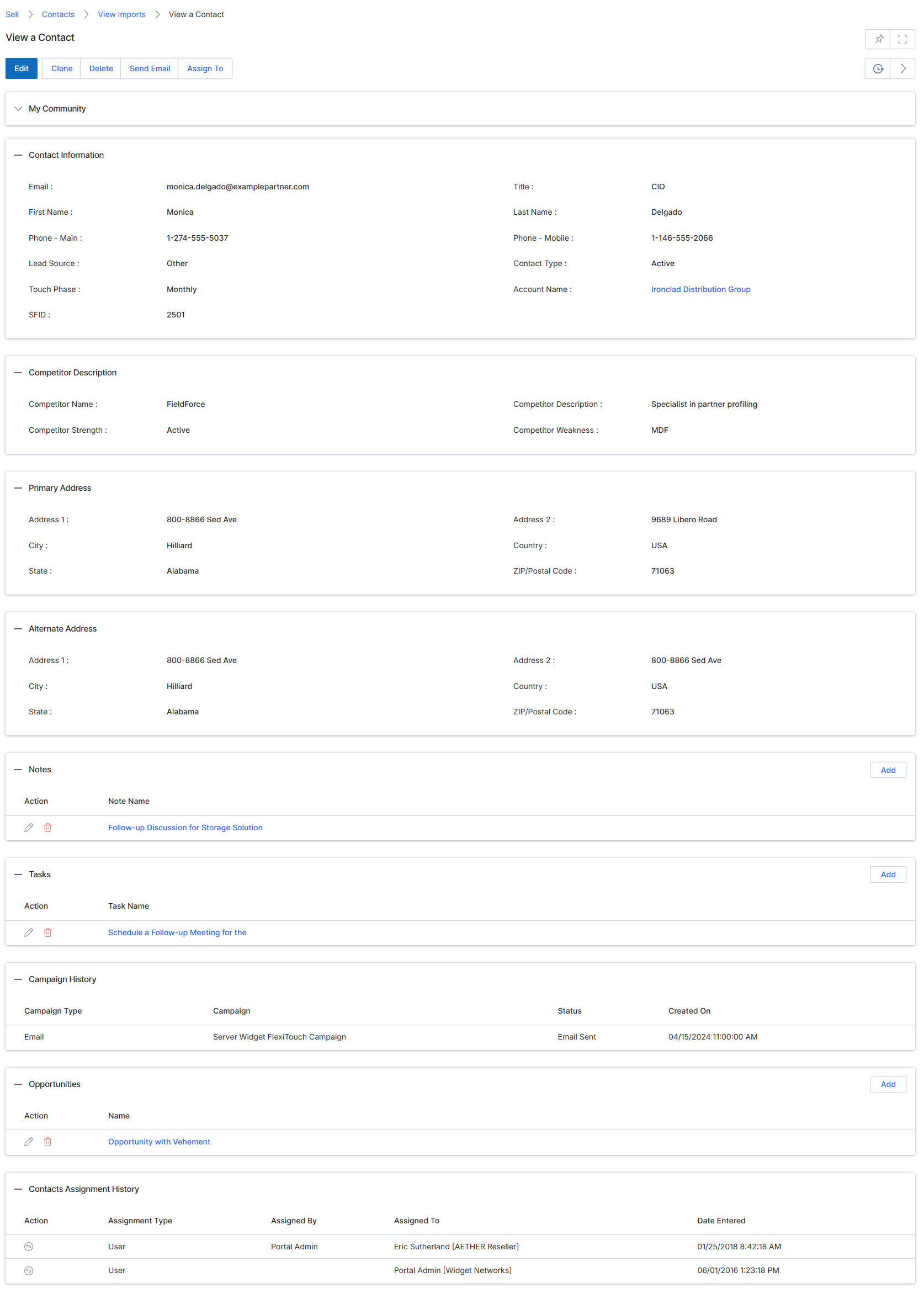
This screen displays the detailed view of a specific contact within the UPM platform. Contacts are individuals associated with accounts or leads, playing a crucial role in the 'Sell' module by providing the human element for sales opportunities. This view consolidates all relevant information about a contact, including their personal and professional details, associated addresses, competitive insights, and historical interactions such as notes, tasks, campaign engagements, and assigned opportunities. It also tracks the contact's assignment history, showing how they have been managed within the system. This comprehensive view enables vendor-side administrators to gain a complete understanding of each contact, facilitating effective lead management, deal progression, and co-selling efforts.
Review the detailed information for the selected contact, including their personal details, addresses, competitive context, and historical activities.
Buttons
| Button | Description |
|---|---|
| Edit | Allows modification of the contact's details. |
| Clone | Creates a duplicate of the current contact record. |
| Delete | Removes the contact record from the system. |
| Send Email | Initiates an email to the contact. |
| Assign To | Assigns the contact to a specific user or partner. |
Contact Information
| Field | Description |
|---|---|
| The contact's email address. | |
| Title | The contact's job title. |
| First Name | The contact's first name. |
| Last Name | The contact's last name. |
| Phone - Main | The contact's primary phone number. |
| Phone - Mobile | The contact's mobile phone number. |
| Lead Source | The origin of the lead associated with this contact. |
| Contact Type | The classification of the contact. |
| Touch Phase | The current engagement phase with the contact. |
| Account Name | The name of the account associated with this contact. |
| SFID | The Salesforce ID for the contact, if integrated. |
Competitor Description
| Field | Description |
|---|---|
| Competitor Name | The name of a competitor relevant to this contact or account. |
| Competitor Description | A description of the competitor's offering or strategy. |
| Competitor Strength | A description of the competitor's strengths. |
| Competitor Weakness | A description of the competitor's weaknesses. |
Primary Address
| Field | Description |
|---|---|
| Address 1 | The first line of the primary address. |
| Address 2 | The second line of the primary address. |
| City | The city of the primary address. |
| Country | The country of the primary address. |
| State | The state or province of the primary address. |
| ZIP/Postal Code | The ZIP or postal code of the primary address. |
Alternate Address
| Field | Description |
|---|---|
| Address 1 | The first line of the alternate address. |
| Address 2 | The second line of the alternate address. |
| City | The city of the alternate address. |
| Country | The country of the alternate address. |
| State | The state or province of the alternate address. |
| ZIP/Postal Code | The ZIP or postal code of the alternate address. |
Column Headings
Notes Related List
| Column | Description |
|---|---|
| Note Name | The name or title of the note. |
Tasks Related List
| Column | Description |
|---|---|
| Task Name | The name or description of the task. |
Campaign History Related List
| Column | Description |
|---|---|
| Campaign Type | The type of marketing campaign the contact was part of. |
| Campaign | The name of the marketing campaign. |
| Status | The status of the contact's engagement with the campaign. |
| Created On | The date and time the campaign entry was created. |
Opportunities Related List
| Column | Description |
|---|---|
| Name | The name of the opportunity. |
Contacts Assignment History Related List
| Column | Description |
|---|---|
| Assignment Type | The method by which the contact was assigned. |
| Assigned By | The user or system that assigned the contact. |
| Assigned To | The user or partner to whom the contact was assigned. |
| Date Entered | The date and time the assignment was recorded. |
Managing Mailing Lists
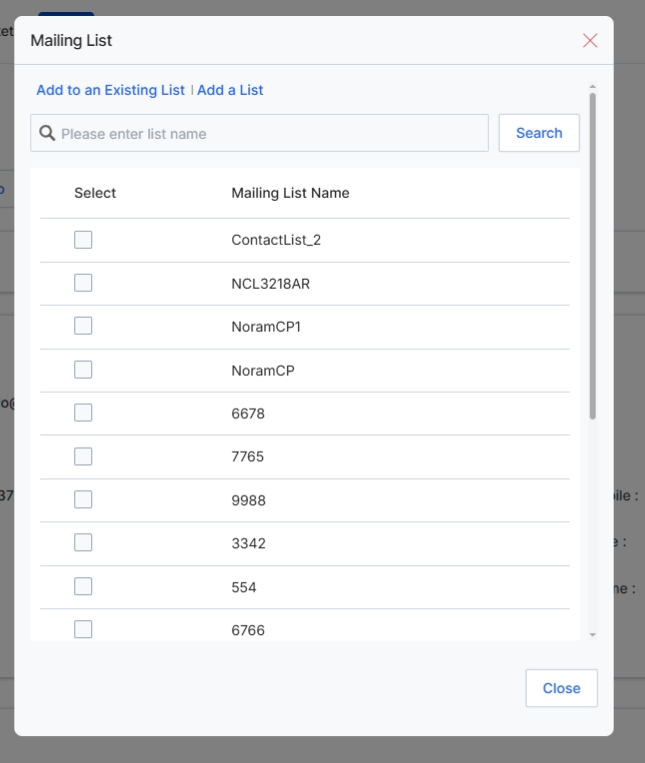
This modal dialog, titled 'Mailing List', allows users to associate the currently viewed contact with one or more existing mailing lists within the UPM system. This functionality is crucial for segmenting contacts for targeted marketing campaigns, lead nurturing, and communication efforts managed through the Market module. By adding contacts to specific mailing lists, administrators can ensure that relevant information and offers are delivered to the appropriate audiences, supporting the overall sales and marketing objectives. The dialog provides options to either add the contact to an existing list or create a new one, offering flexibility in contact management.
Select one or more existing mailing lists from the 'Mailing List' dialog to associate with the current contact.
Buttons
| Button | Description |
|---|---|
| Add to an Existing List | Click this link to add the current contact to an existing mailing list. |
| Add a List | Click this link to create a new mailing list and add the current contact to it. |
| Search | Click to perform a search for mailing lists based on the entered name. |
| Close | Click to close the Mailing List dialog without saving changes. |
Fields
| Field | Description |
|---|---|
| Please enter list name | Enter text here to search for specific mailing lists by name. |
Column Headings
| Column | Description |
|---|---|
| Select | A checkbox to select individual mailing lists from the displayed list. |
| Mailing List Name | The name of an available mailing list. |
Assigning Records to Users
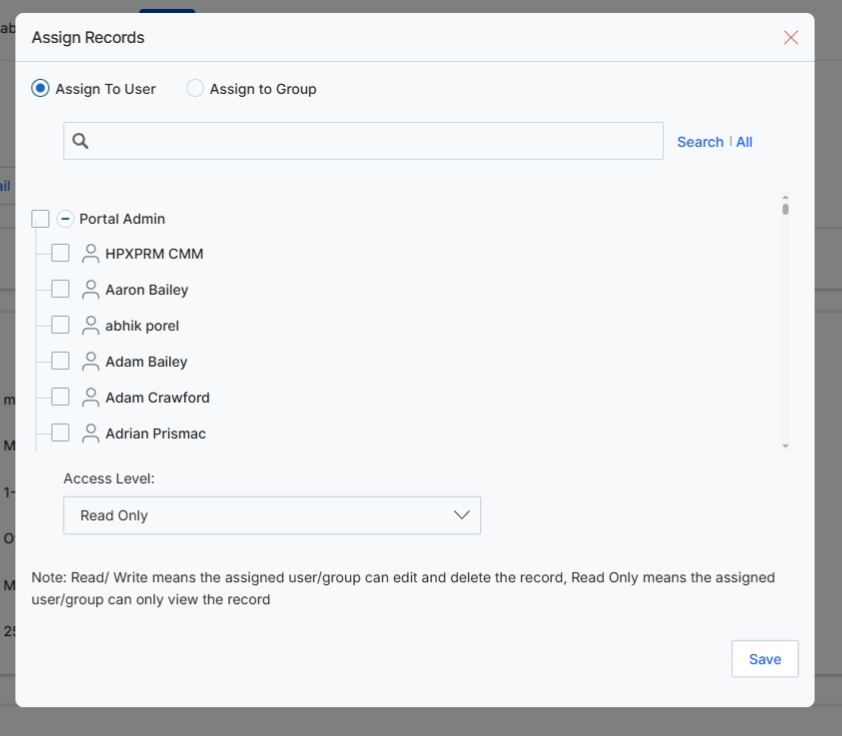
This 'Assign Records' dialog box facilitates the assignment of a contact record to specific users or user groups within the UPM system. This functionality is crucial for managing access control and defining ownership of contact data, ensuring that the right individuals or teams can view, edit, or manage specific contacts. By assigning records, administrators can control data visibility and workflow responsibilities, which is particularly important in a multi-partner environment where different partners or internal teams may need access to different sets of contact information. The dialog allows for granular control over access levels, distinguishing between read-only and read/write permissions, thereby supporting data governance policies and preventing unauthorized modifications.
Select the user(s) or group(s) to whom the contact record should be assigned.
Buttons
| Button | Description |
|---|---|
| Save | Click to save the assignment and close the dialog. |
Fields
| Field | Description |
|---|---|
| Assign To User | Select this option to assign the record to individual users. |
| Assign to Group | Select this option to assign the record to a predefined user group. |
| Search | Enter keywords to search for specific users or groups in the list. |
| Access Level | A dropdown menu to specify the access level for the assigned user(s) or group(s). 'Read Only' allows viewing, while 'Read/Write' allows editing and deleting the record. |
Assigning Records to Groups
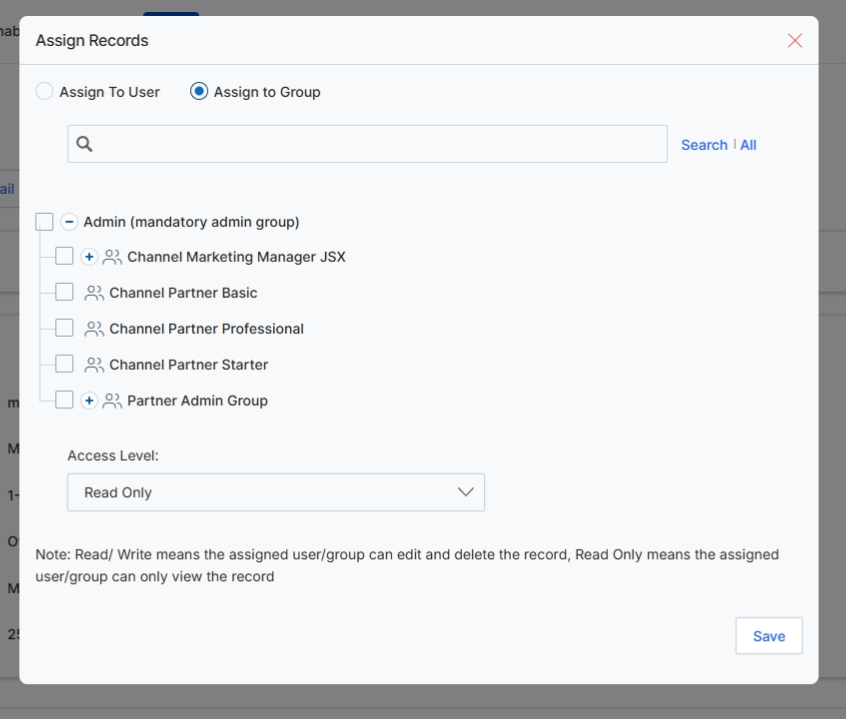
This modal dialog, 'Assign Records,' allows administrators to control access to a specific contact record by assigning it to individual users or predefined user groups within the UPM system. This feature is crucial for managing data visibility and collaboration, especially in the context of lead and deal management where different teams or partners may require varying levels of access. By assigning records to groups, administrators can ensure that only relevant personnel can view, edit, or delete sensitive contact information, aligning with role-based access control policies and facilitating secure co-selling and partner engagement workflows. The 'Access Level' setting further refines permissions, allowing for granular control over what actions assigned users or groups can perform on the record.
Select the 'Assign to Group' option to assign the record to a specific user group.
Buttons
| Button | Description |
|---|---|
| All | A link to display all available users or groups in the search results. |
| Save | A button to save the record assignment and close the dialog. |
Fields
| Field | Description |
|---|---|
| Assign To User | A radio button to select assigning the record to an individual user. |
| Assign to Group | A radio button to select assigning the record to a user group. |
| Search | A search input field to find specific users or groups. |
| Access Level | A dropdown menu to define the permission level (e.g., Read Only, Read/Write) for the assigned user or group. |