

Overview
The User Management module is a core component of the Administration zone, enabling vendors to control internal access to the UPM. Each vendor-side employee who needs to interact with the platform, whether to manage partners, approve deals, or view reports, requires a user account. This module ensures that only authorized personnel can access sensitive data and perform critical operations.
Administrators can define granular permissions through roles, assign users to specific partners or regions, and manage their login credentials and security settings. This centralized control helps maintain data integrity, enforce security policies, and streamline operational workflows across the entire partner program.
Accessing and Viewing Users
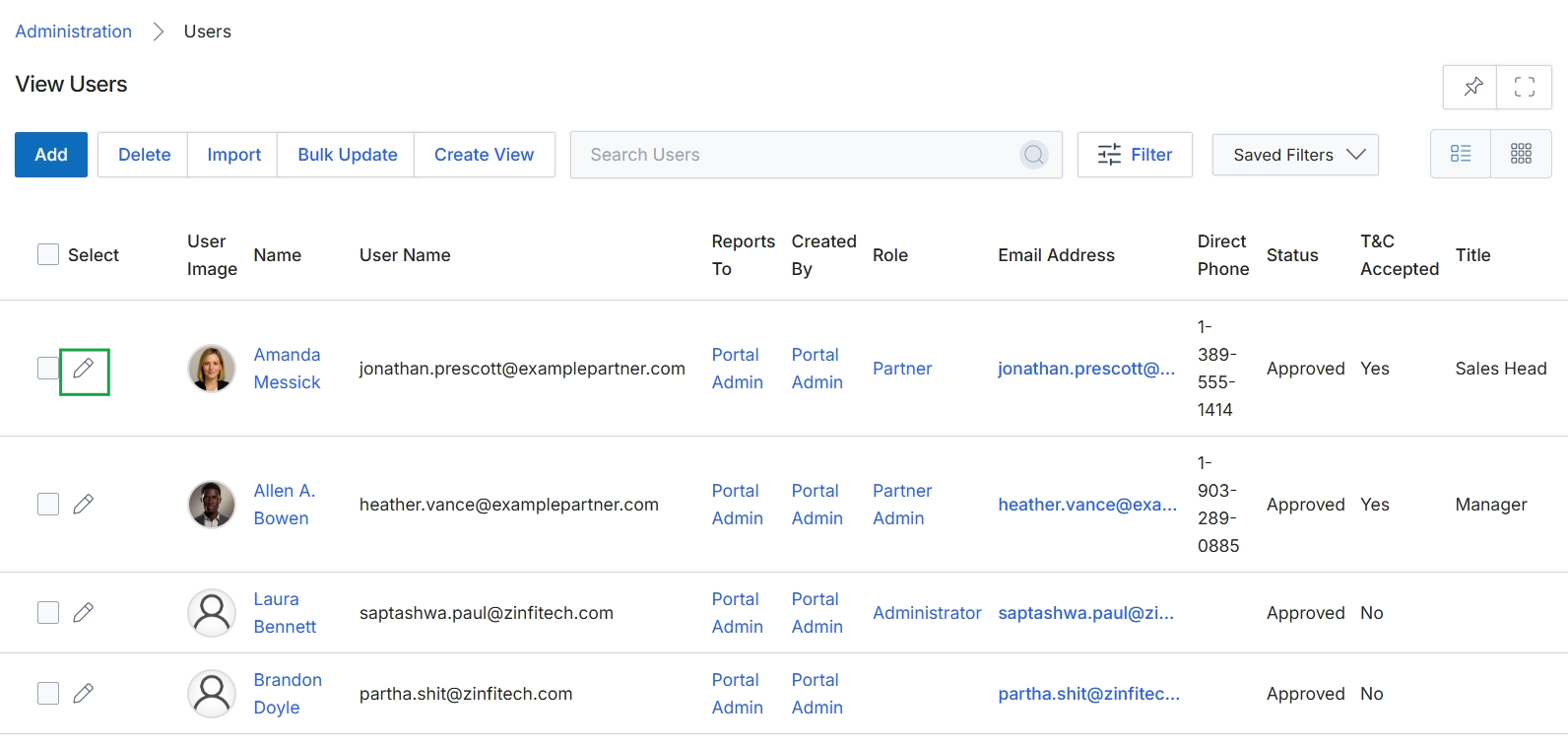
Click the Edit icon next to the user you want to modify.
Adding or Editing User Details
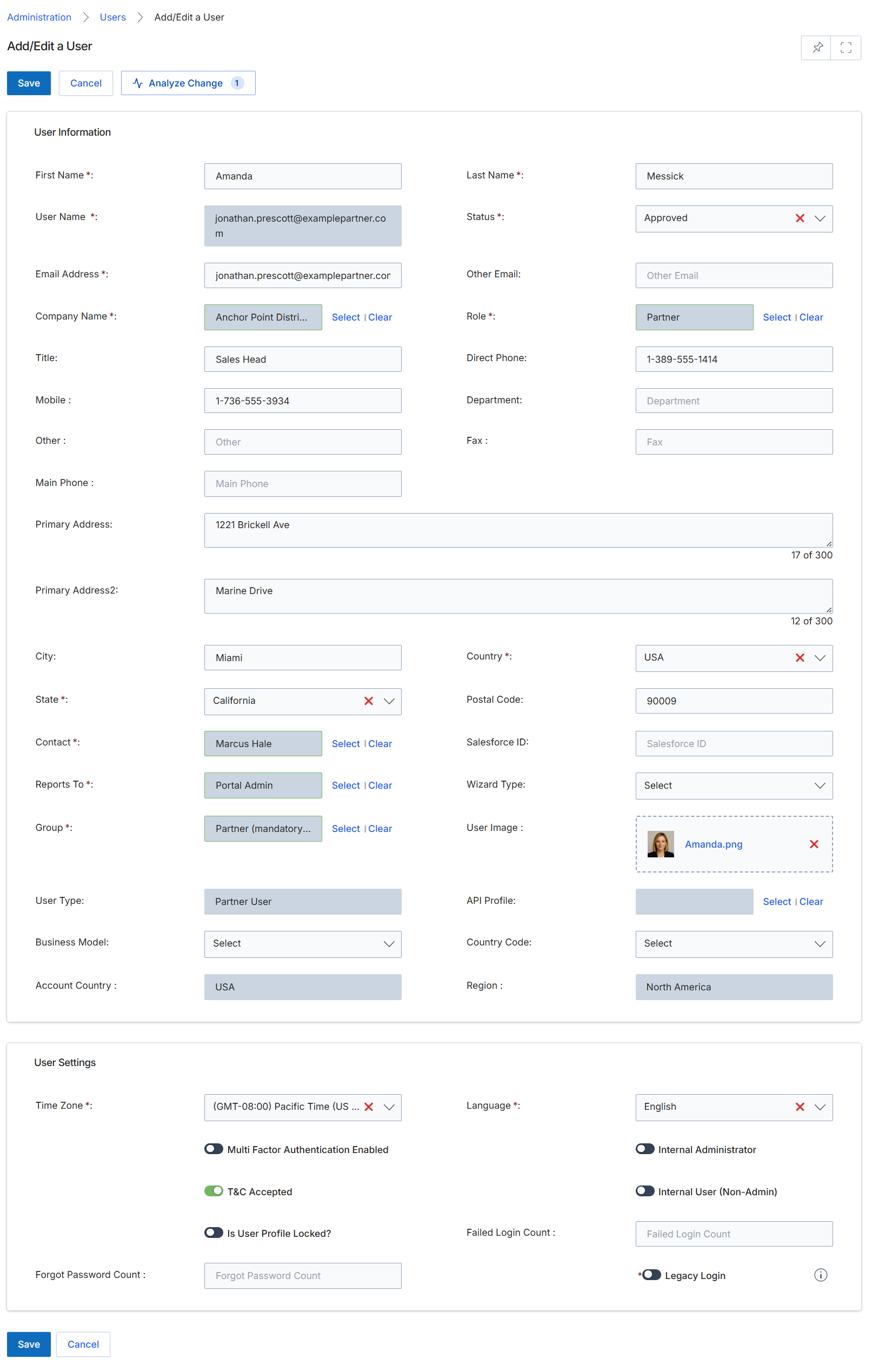
The Add/Edit a User form is where UPM administrators manage vendor-side user accounts, which are distinct from partner-side user accounts. This form allows administrators to create new user profiles or modify existing ones, controlling access to the platform's various modules and features. User management is a critical aspect of platform administration, ensuring that each internal team member has the appropriate permissions (defined by their assigned role) to perform their job functions, such as managing partners, approving deals, or configuring marketing campaigns. The form captures essential contact information, organizational details, and system-level settings like time zone and language, which personalize the user's experience and ensure proper system functionality. It also provides controls for security features like multi-factor authentication and account locking, and tracks login-related metrics for auditing and troubleshooting.
Review or modify the user's details and settings on the Add/Edit a User form.
Buttons
| Button | Description |
|---|---|
| Save | Saves the changes made to the user's profile. |
| Cancel | Discards any changes and returns to the previous screen. |
| Analyze Change | Analyzes the impact of proposed changes before saving them. |
User Information
| Field | Description |
|---|---|
| First Name | The user's first name. |
| User Name | The unique username for logging into the platform, often an email address. |
| Email Address | The primary email address for the user. |
| Company Name | The name of the company the user is associated with. |
| Title | The user's job title. |
| Mobile | The user's mobile phone number. |
| Other | An additional contact number for the user. |
| Main Phone | The user's main phone number. |
| Primary Address | The first line of the user's primary address. |
| Primary Address2 | The second line of the user's primary address. |
| City | The city component of the user's address. |
| State | The state or province component of the user's address. |
| Contact | The contact person associated with this user. |
| Reports To | The user's direct manager or reporting line. |
| Group | The group(s) the user belongs to, which can be used for approval routing and reporting. |
| User Type | The classification of the user, such as 'Partner User'. |
| Business Model | The business model associated with the user, selected from a dropdown. |
| Account Country | The country associated with the user's account. |
| Last Name | The user's last name. |
| Status | The current status of the user account, such as 'Approved'. |
| Other Email | An alternative email address for the user. |
| Role | The role assigned to the user, which defines their permissions and access rights within the platform. |
| Direct Phone | The user's direct phone number. |
| Department | The department the user belongs to. |
| Fax | The user's fax number. |
| Country | The country component of the user's address. |
| Postal Code | The postal code component of the user's address. |
| Salesforce ID | The Salesforce ID associated with the user, if integrated. |
| Wizard Type | The type of wizard associated with the user, selected from a dropdown. |
| User Image | The profile image for the user. |
| API Profile | The API profile assigned to the user. |
| Country Code | The country code associated with the user, selected from a dropdown. |
| Region | The geographical region associated with the user. |
User Settings
| Field | Description |
|---|---|
| Time Zone | The user's preferred time zone, which affects how timestamps are displayed. |
| Language | The user's preferred language for the platform interface. |
| Multi Factor Authentication Enabled | A toggle to enable or disable multi-factor authentication for the user's account. |
| T&C Accepted | A toggle indicating whether the user has accepted the terms and conditions. |
| Is User Profile Locked? | A toggle to lock or unlock the user's profile, preventing login. |
| Internal Administrator | A toggle to designate the user as an internal administrator. |
| Internal User (Non-Admin) | A toggle to designate the user as an internal non-administrative user. |
| Forgot Password Count | Displays the number of times the user has initiated a password reset. |
| Failed Login Count | Displays the number of failed login attempts for the user. |
| Legacy Login | A toggle to enable or disable legacy login methods for the user. |