

Overview
Effective management of vendor-side users is crucial for the smooth operation and security of any partner program. The UPM's User Management module allows administrators to define and control access for every internal team member interacting with the platform. This ensures that each user has the appropriate level of access based on their responsibilities, preventing unauthorized actions and maintaining data integrity. For example, a Program Manager might have broad access to manage partners and approve deals, while a Finance user's access could be restricted to financial reports and reward approvals only.
Viewing Users and Display Options
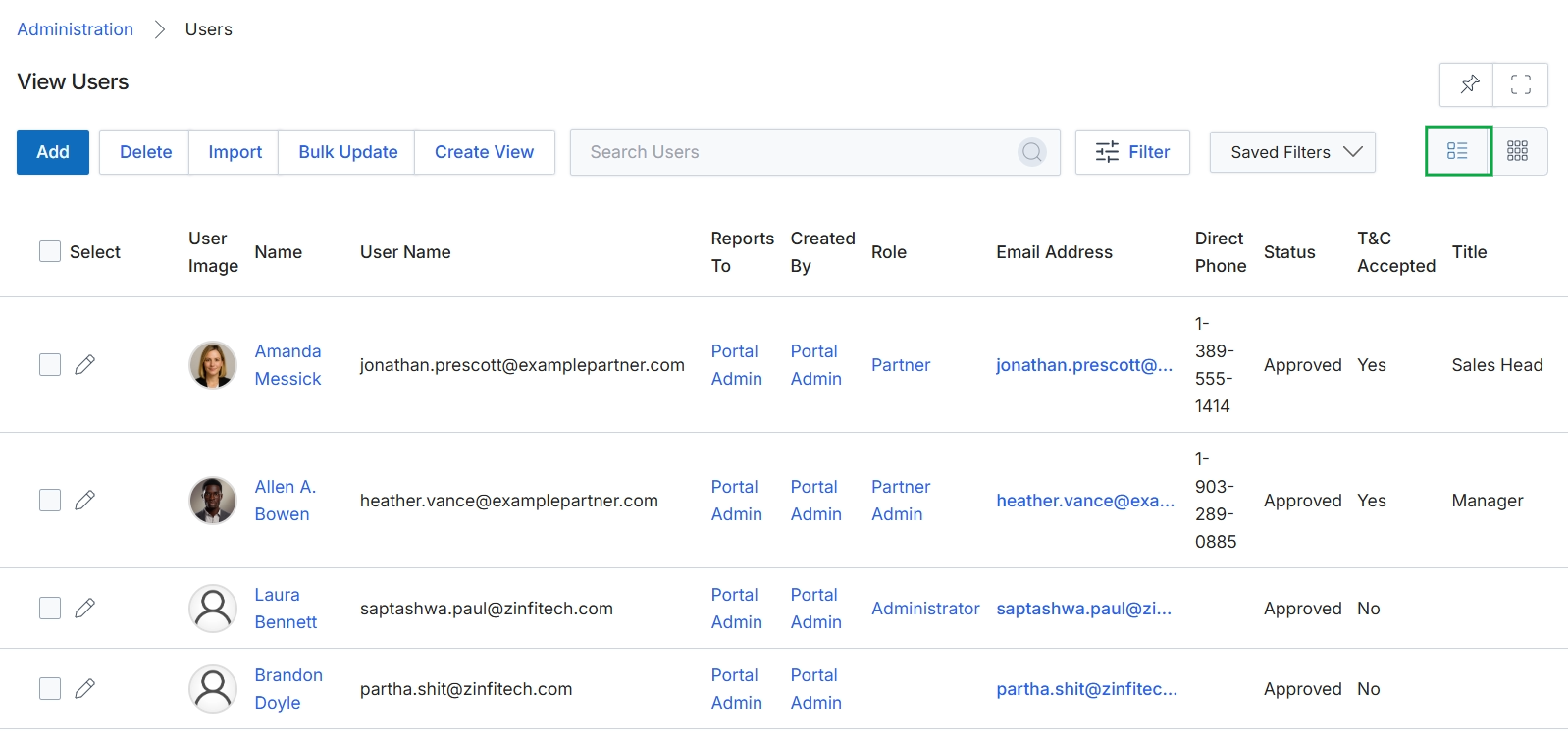
Click the Table View icon to change the display of the user list.
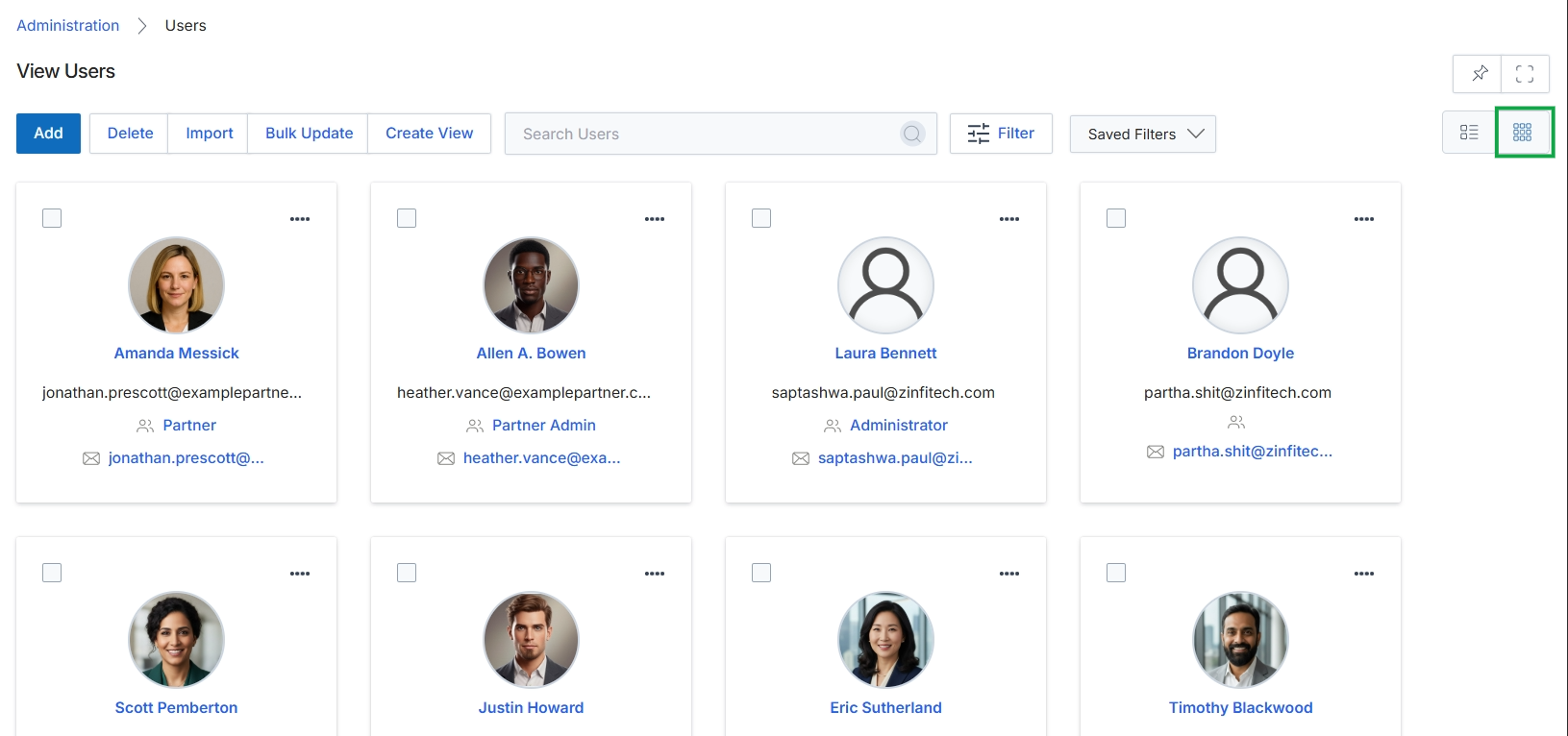
Click the Grid View icon to switch the user display.
Creating and Managing Custom Views
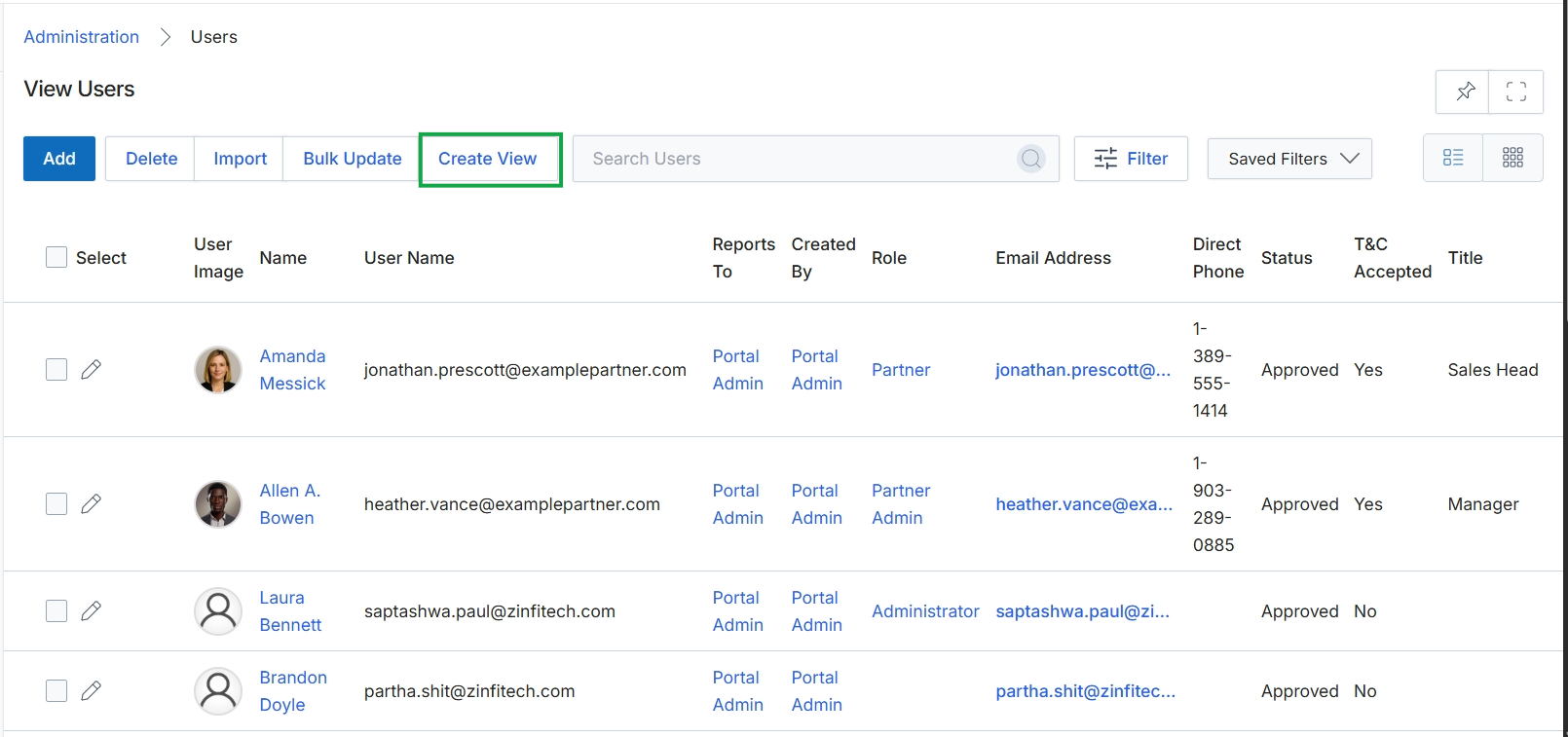
Click the Create View button.
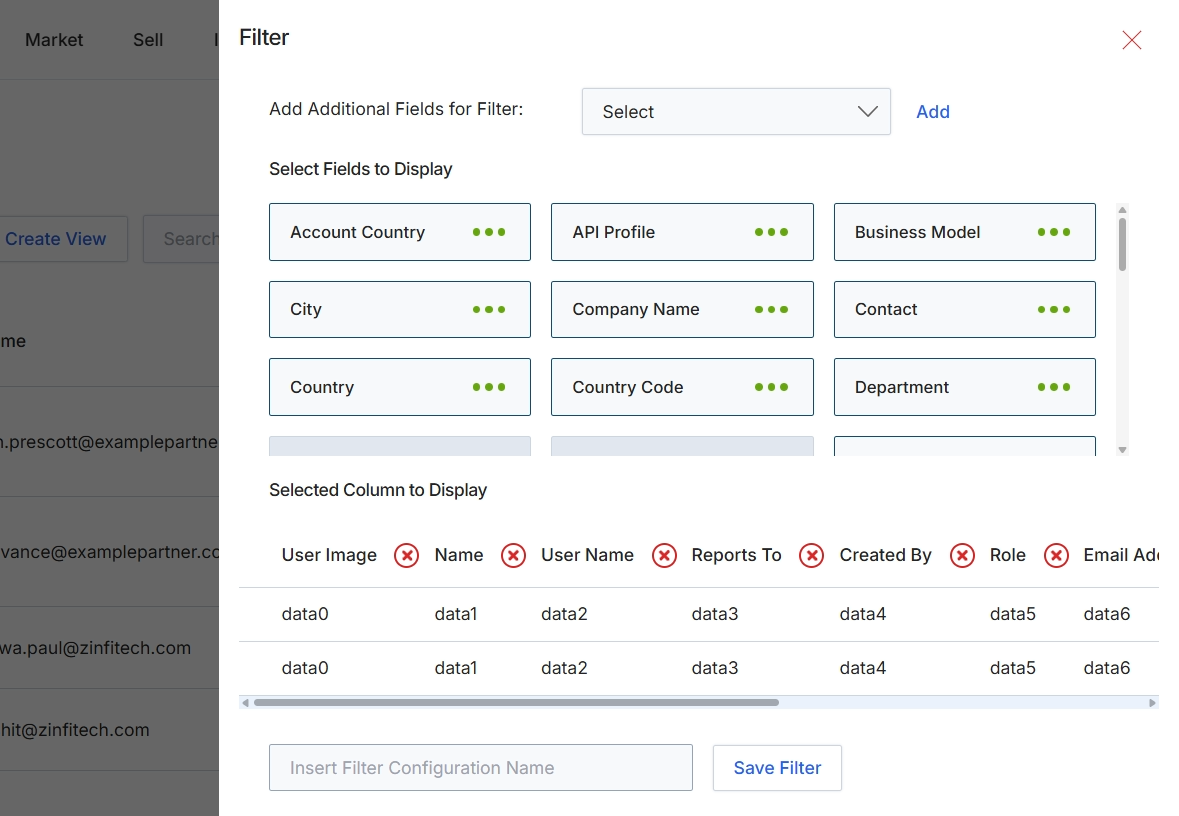
This dialog box allows administrators to customize the filter criteria and displayed columns for list views within the platform, such as the Users list. By selecting specific fields, administrators can define which data points are available for filtering records, enabling more precise data segmentation. The ability to select and arrange columns directly impacts the information presented in the list view, helping users focus on relevant data without navigating to individual record details. This customization ensures that list views are tailored to specific reporting or management needs, improving efficiency in data analysis and user management tasks.
Select the fields to display and the columns to include in the filter configuration.
Buttons
| Button | Description |
|---|---|
| Add | Button to add the selected field to the filter configuration. |
| Save Filter | Button to save the current filter configuration. |
Fields
| Field | Description |
|---|---|
| Select | Dropdown to add additional fields that can be used for filtering. |
| Insert Filter Configuration Name | Text input field to name the filter configuration. |
Filtering User Data
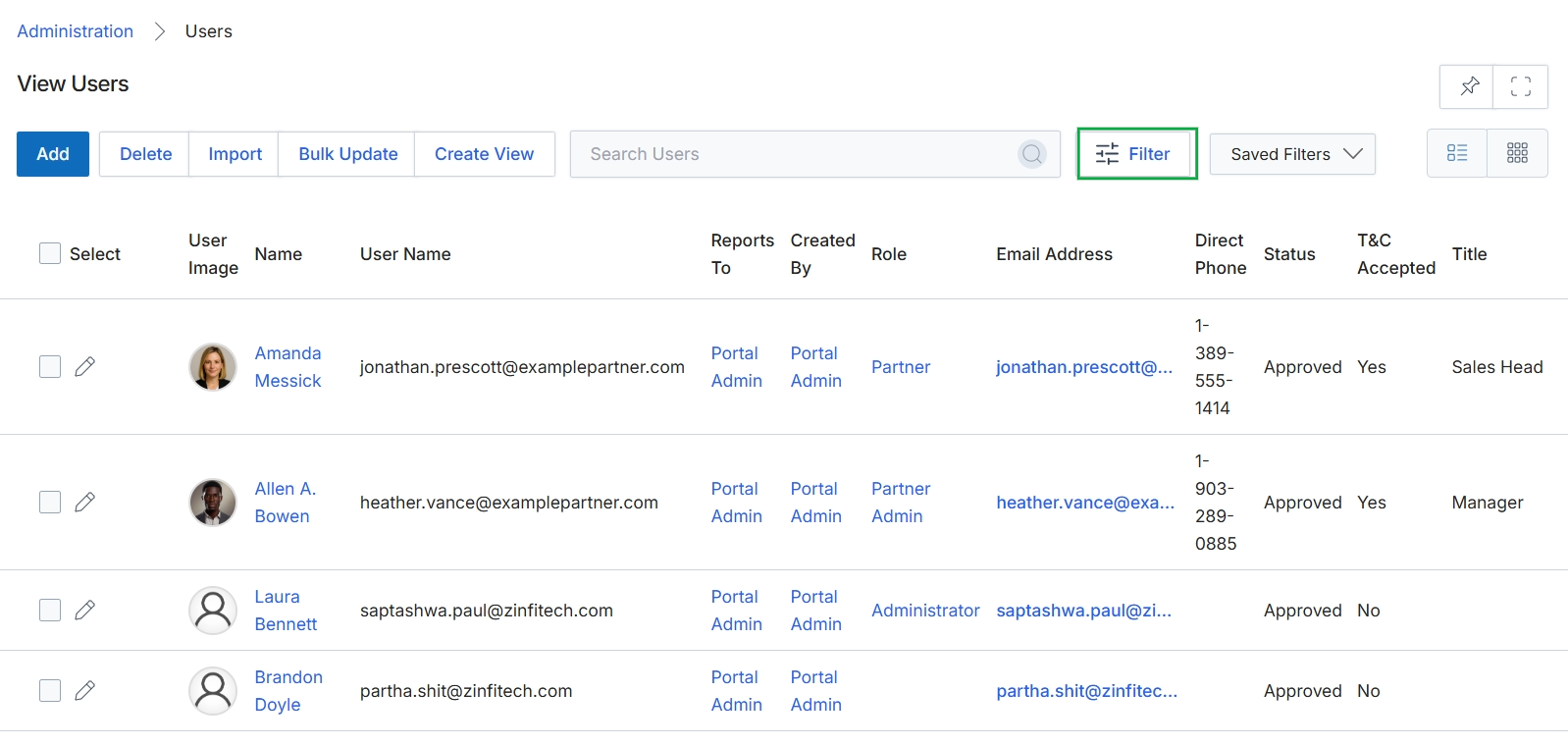
Click the Filter button.
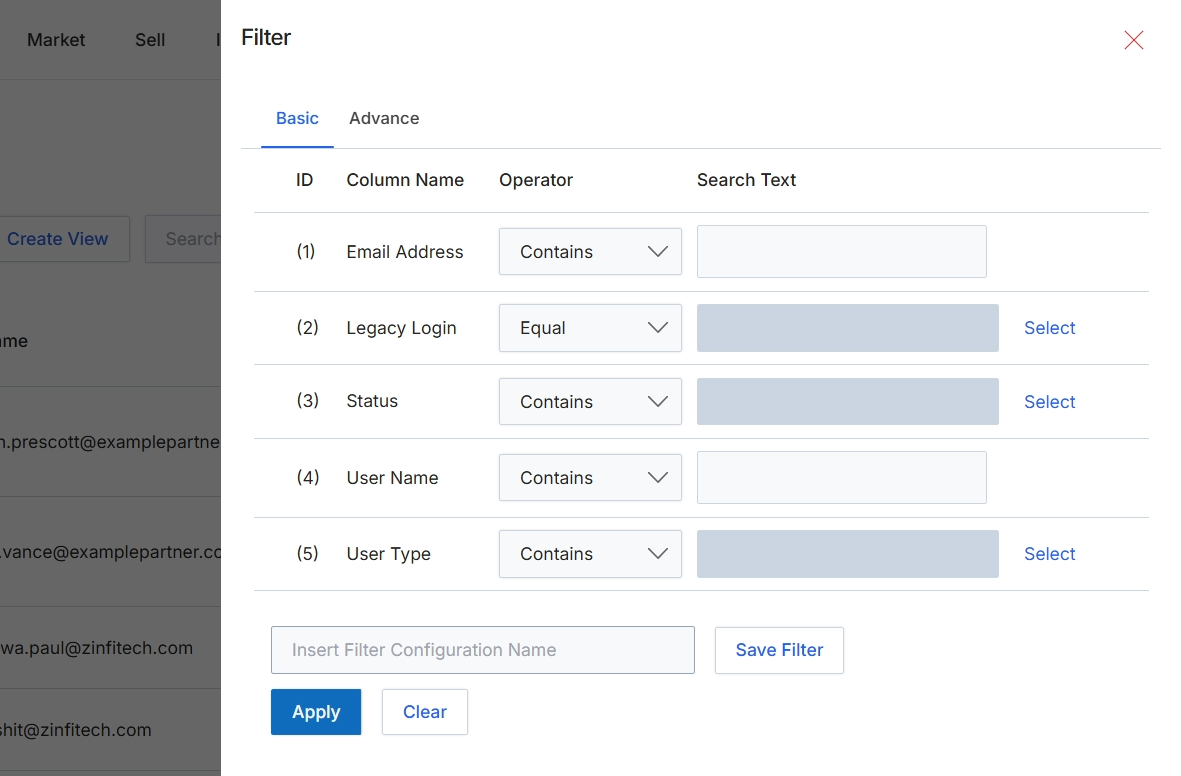
The Filter dialog allows administrators to define specific criteria for narrowing down the list of users displayed in the User Management section. This feature is crucial for efficiently managing large numbers of users by enabling quick access to specific subsets based on various attributes like email address, login status, user type, or name. Administrators can apply these filters temporarily or save them as named configurations for repeated use, streamlining administrative tasks and improving data retrieval efficiency. This dialog supports both basic and advanced filtering options, providing flexibility in constructing simple or complex search queries.
Configure the filter criteria for the user list by selecting operators and entering search text for the desired fields.
Buttons
| Button | Description |
|---|---|
| Basic | Tab to configure basic filter criteria. |
| Advance | Tab to configure advanced filter criteria. |
| Select | Button to select a value for the Legacy Login filter. |
| Select | Button to select a value for the Status filter. |
| Select | Button to select a value for the User Type filter. |
| Save Filter | Button to save the current filter configuration with the specified name. |
| Apply | Button to apply the configured filters to the user list. |
| Clear | Button to clear all applied filter criteria. |
Fields
| Field | Description |
|---|---|
| Email Address | Filter criterion for the user's email address. |
| Contains | Dropdown to select the operator for the Email Address filter, currently set to 'Contains'. |
| Legacy Login | Filter criterion for the user's legacy login status. |
| Equal | Dropdown to select the operator for the Legacy Login filter, currently set to 'Equal'. |
| Status | Filter criterion for the user's account status. |
| Contains | Dropdown to select the operator for the Status filter, currently set to 'Contains'. |
| User Name | Filter criterion for the user's name. |
| Contains | Dropdown to select the operator for the User Name filter, currently set to 'Contains'. |
| User Type | Filter criterion for the type of user. |
| Contains | Dropdown to select the operator for the User Type filter, currently set to 'Contains'. |
| Insert Filter Configuration Name | Text input field to enter a name for saving the current filter configuration. |
Column Headings
| Column | Description |
|---|---|
| Column Name | Header for the column displaying the names of the filterable user attributes. |
| Operator | Header for the column displaying the comparison operators for each filter criterion. |
| Search Text | Header for the column where users enter the values to filter by. |
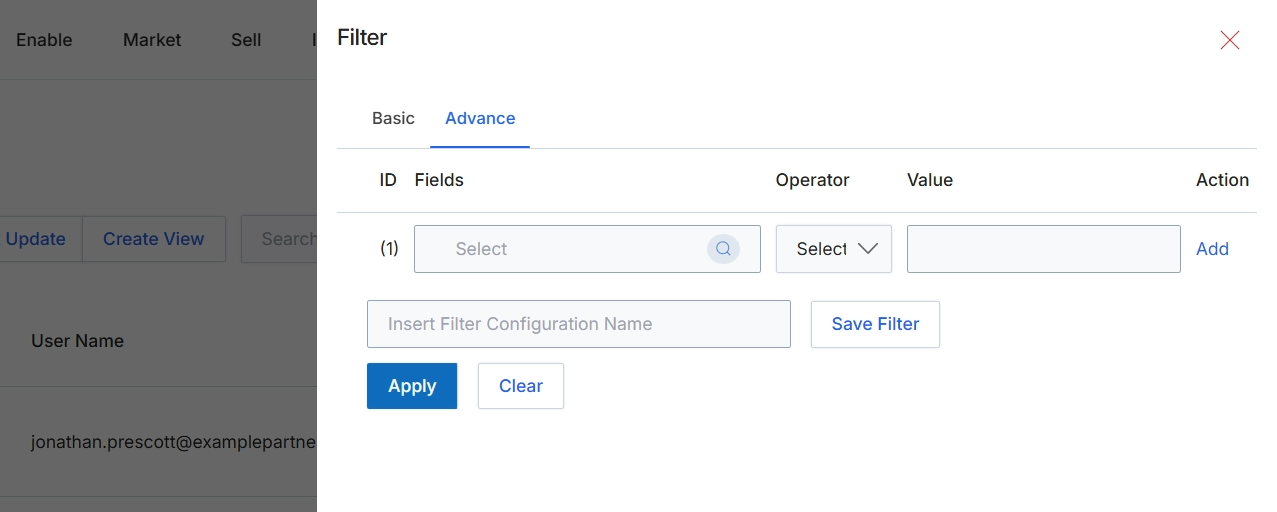
This dialog provides advanced filtering capabilities for list views within the platform, allowing administrators to construct complex queries using multiple criteria. It enables precise data segmentation by specifying fields, operators, and values, which is crucial for managing large datasets like user lists. The ability to save filter configurations streamlines repetitive analysis and reporting tasks, ensuring consistent application of specific data views across different sessions or for sharing with other team members. This advanced filtering mechanism supports efficient user management by helping administrators quickly locate specific user accounts based on various attributes, facilitating tasks such as auditing, permission adjustments, or targeted communications.
Click the "Advance" tab to access advanced filtering options.
Buttons
| Button | Description |
|---|---|
| Basic | Switches to the basic filter configuration options. |
| Advance | Switches to the advanced filter configuration options, allowing for more complex query building. |
| Add | Adds the current filter condition to the list. |
| Save Filter | Saves the current filter configuration with the specified name. |
| Apply | Applies the configured filters to the list view. |
| Clear | Clears all applied filter conditions. |
Fields
| Field | Description |
|---|---|
| Select | Dropdown to choose the field for the first filter condition. |
| Select | Dropdown to choose the operator for the first filter condition. |
| Insert Filter Configuration Name | An input field to enter a name for the current filter configuration to save it for future use. |
Column Headings
| Column | Description |
|---|---|
| Fields | A dropdown to select the field on which the filter condition will be applied. |
| Operator | A dropdown to select the logical operator (e.g., equals, contains, starts with) for the filter condition. |
| Value | An input field to specify the value to be used in the filter condition. |
| Action | The column for actions related to each filter row, such as adding or removing a condition. |
Performing Bulk Updates
Click the x icon to close the Filter panel.
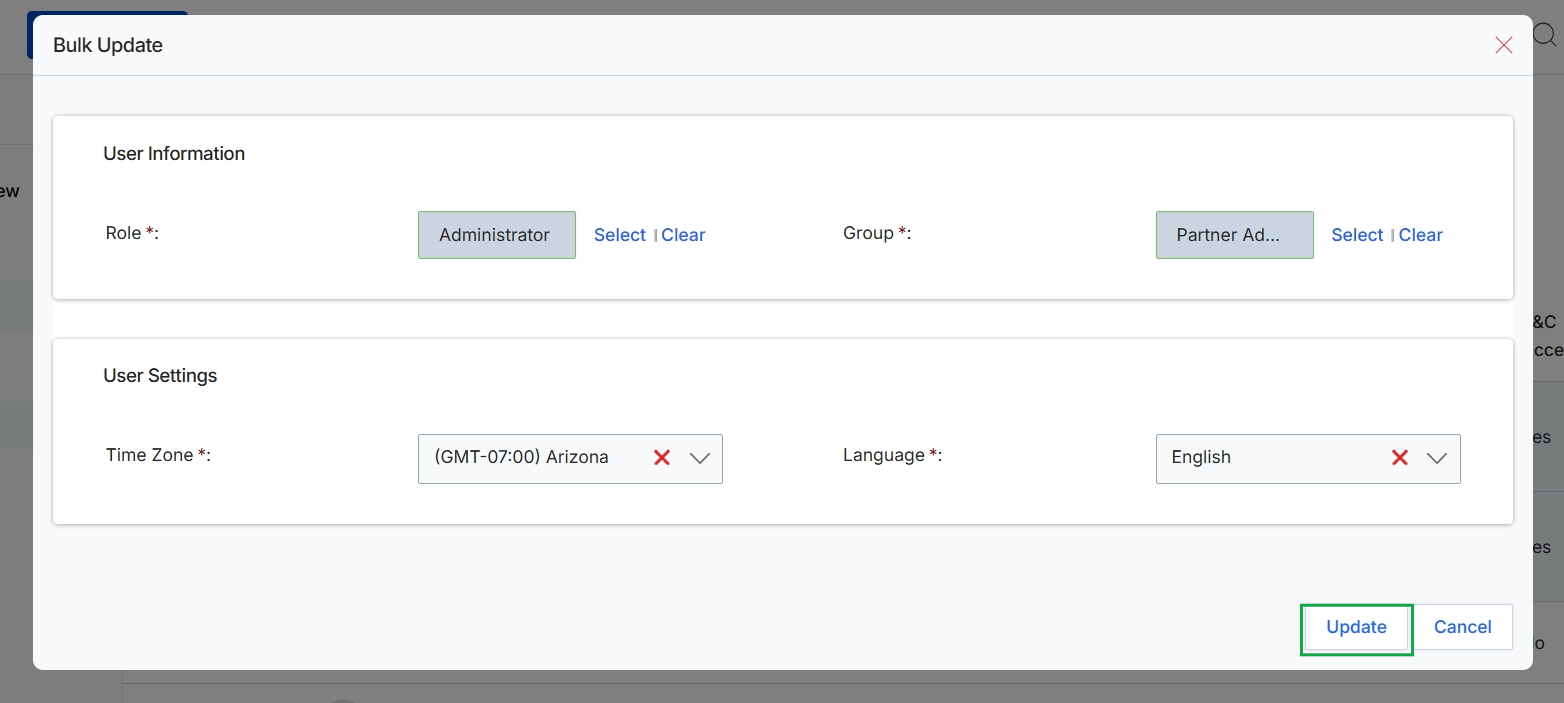
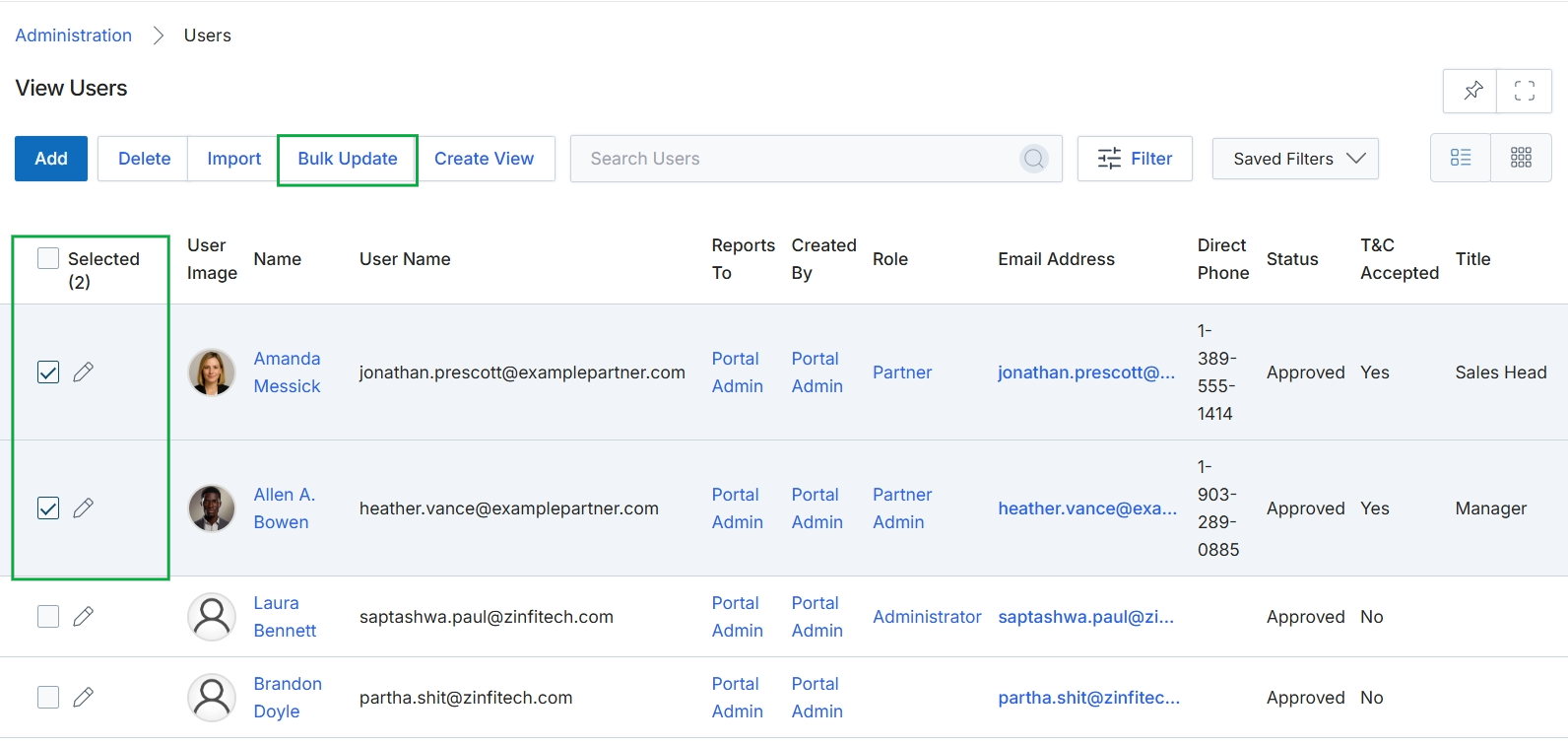
The Bulk Update dialog allows administrators to modify common settings for multiple selected vendor users simultaneously. This feature is part of the User Management workflow within the Administration module, enabling efficient updates to user roles, groups, time zones, and languages without having to edit each user record individually. It ensures consistency across user profiles and streamlines administrative tasks, especially in larger organizations or when onboarding new teams. The changes applied through this dialog will affect all users that were selected prior to opening this modal.
Click the "Update" button to apply the selected changes to the user details.
Buttons
| Button | Description |
|---|---|
| Select | A button to open a selection dialog for choosing the role to be assigned. |
| Clear | A button to clear the currently selected role. |
| Select | A button to open a selection dialog for choosing the group(s) to be assigned. |
| Clear | A button to clear the currently selected group(s). |
| Update | Applies the configured bulk changes to all selected user accounts. |
| Cancel | Discards any changes made in the dialog and closes it without updating user details. |
User Information
| Field | Description |
|---|---|
| Role | The role assigned to the selected users, determining their permissions and access levels within the platform. This field allows for bulk assignment of a single role to multiple users. |
| Group | The group(s) to which the selected users belong. Groups are used for approval routing and reporting purposes. |
User Settings
| Field | Description |
|---|---|
| Time Zone | The time zone setting for the selected users, which affects how timestamps are displayed throughout the platform. |
| Language | The preferred language for the selected users' interface, allowing for localization of the platform. |